User Manual
TE019Model No.
Please watch these videos first and
use this manual as a guide.
Scan the QR code and search TE019
Tutorial Video
If you have any questions, please contact us at
+1 (833) 878-3346
(Monday-Friday 9:00 am-5:00 pm PST)
Need Help? Contact Us!
teeho.com

CONTENTS
1. At a Glance
....................................................................................... 1
............................................................... 10
3. How to Lock / Unlock
........................................................................................ 2
2. APP Guide
........................................................................................ 17
6. Definitions
...................................................................................................... 19
7. FAQ
.................................................................. 11
4. Programming Guide
................................................................................. 16
5. How to Reset
01
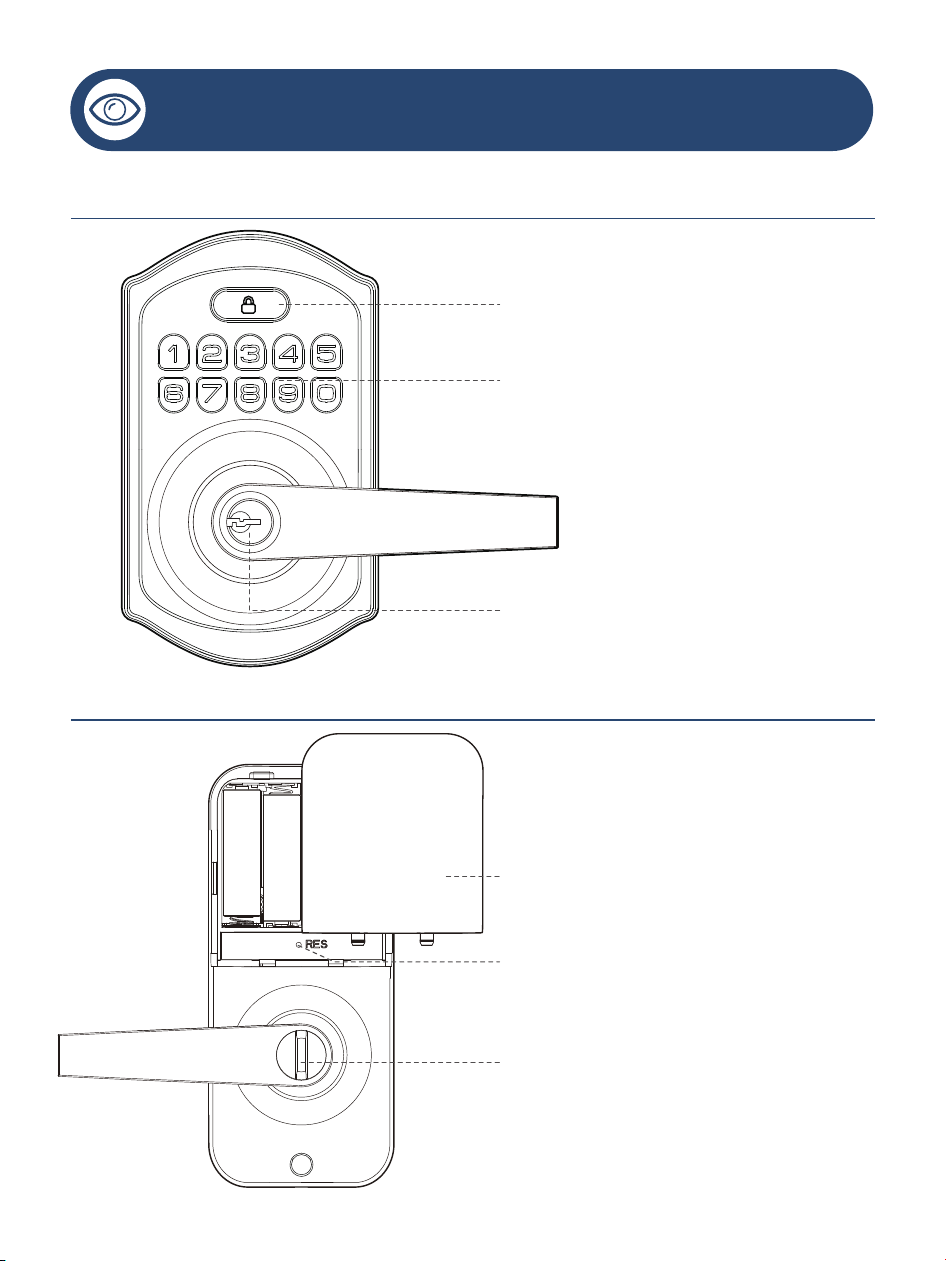
AT A GLANCE
Exterior Assembly
Interior Assembly
Multi-function Button
Keypad
Keyhole
Battery Cover
Reset Button
Thumb Turn
APP GUIDE
02
Before Pairing
If you have changed the default Master Code (12345678) on the
lock, please enter your new Master Code when pairing.
If you have not changed the default Master Code, please follow the
instructions in the App to change it after pairing is completed.
IMPORTANT:
If you have any questions, please contact us at
+1 (833) 878-3346
(Monday-Friday 9:00 am-5:00 pm PST)
APP GUIDE
Step 1: Register Your Account
Tap on “Sign Up”
or
Scan the QR code
to download “KK
Home” App
1
Search and download
“KK Home” in
2
3
Complete the register information and
tap “Get Code”, you will receive a
Verification code in the mailbox you
entered to Create
NOTE: If you’ve already downloaded the App,
ensure it’s updated to the latest version.
03
or
APP GUIDE
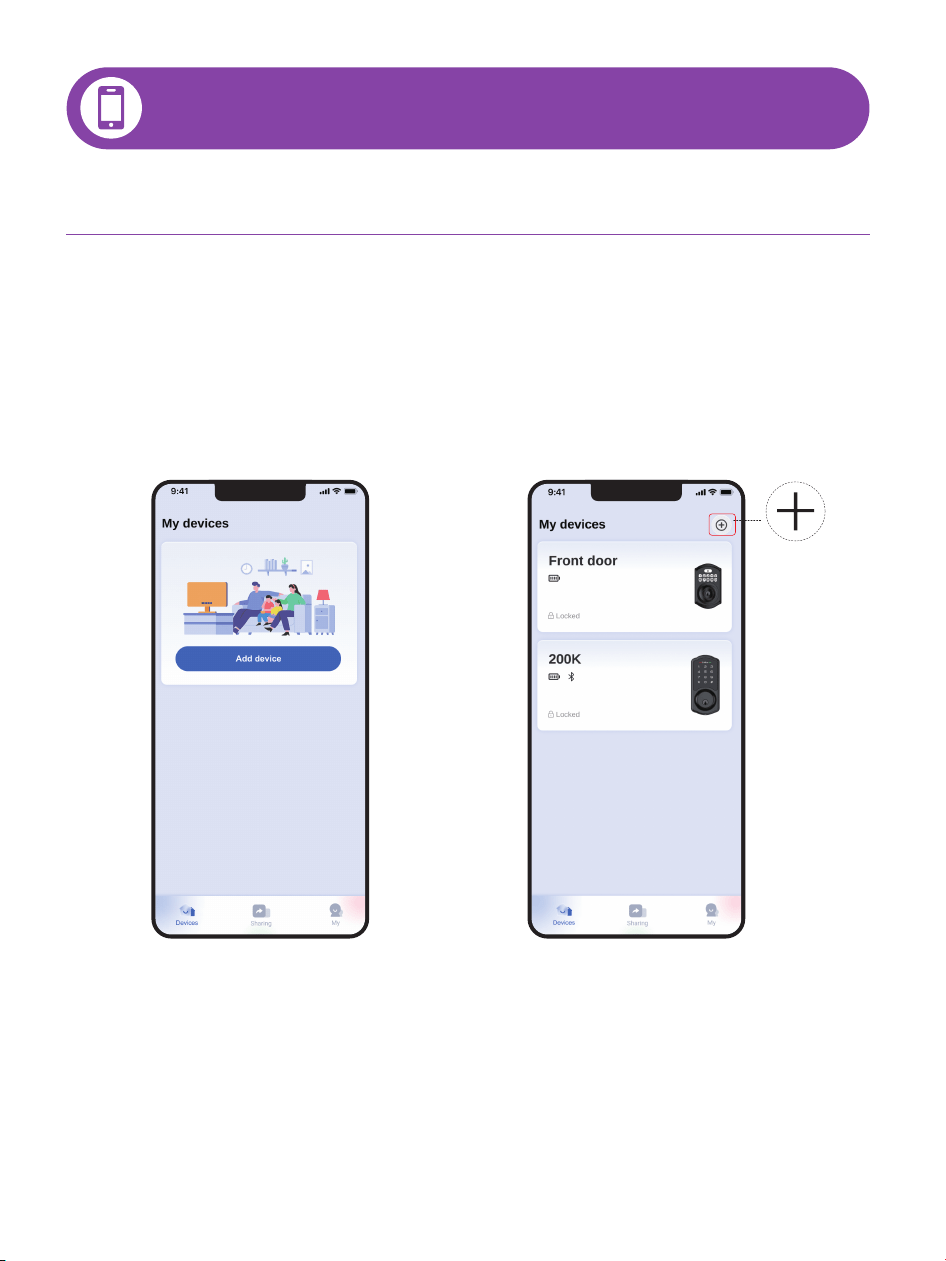
Step 2: Pair Your Lock
1
Bring your phone close to the lock, enable Location and
Bluetooth permissions, then click "Add device" or "+"
04
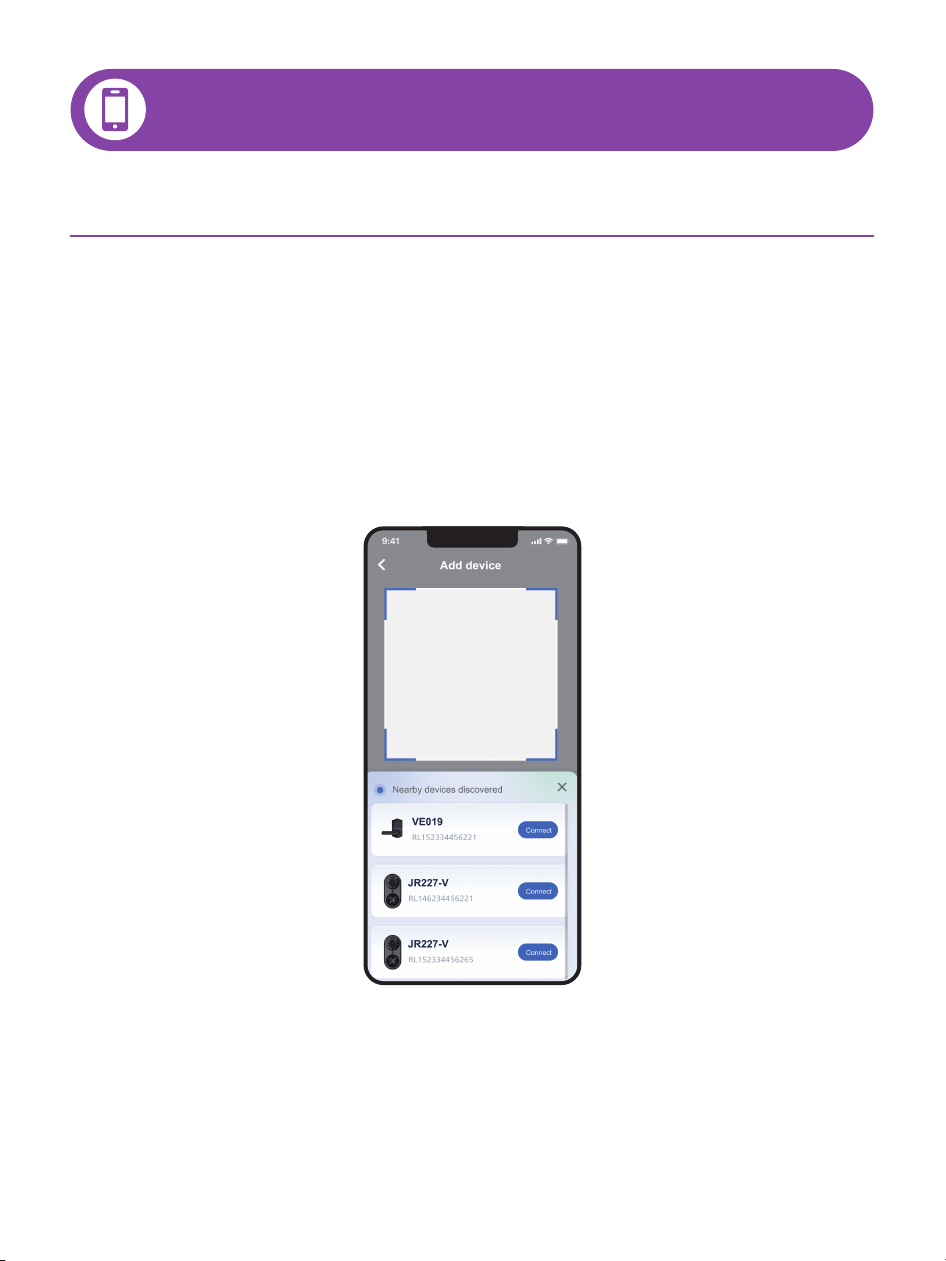
Option 1, search devices automatically
Option 2, scan QR code or enter ESN manually
APP GUIDE
Step 2: Pair Your Lock
2
Add device by searching nearby devices or scanning
QR code
05
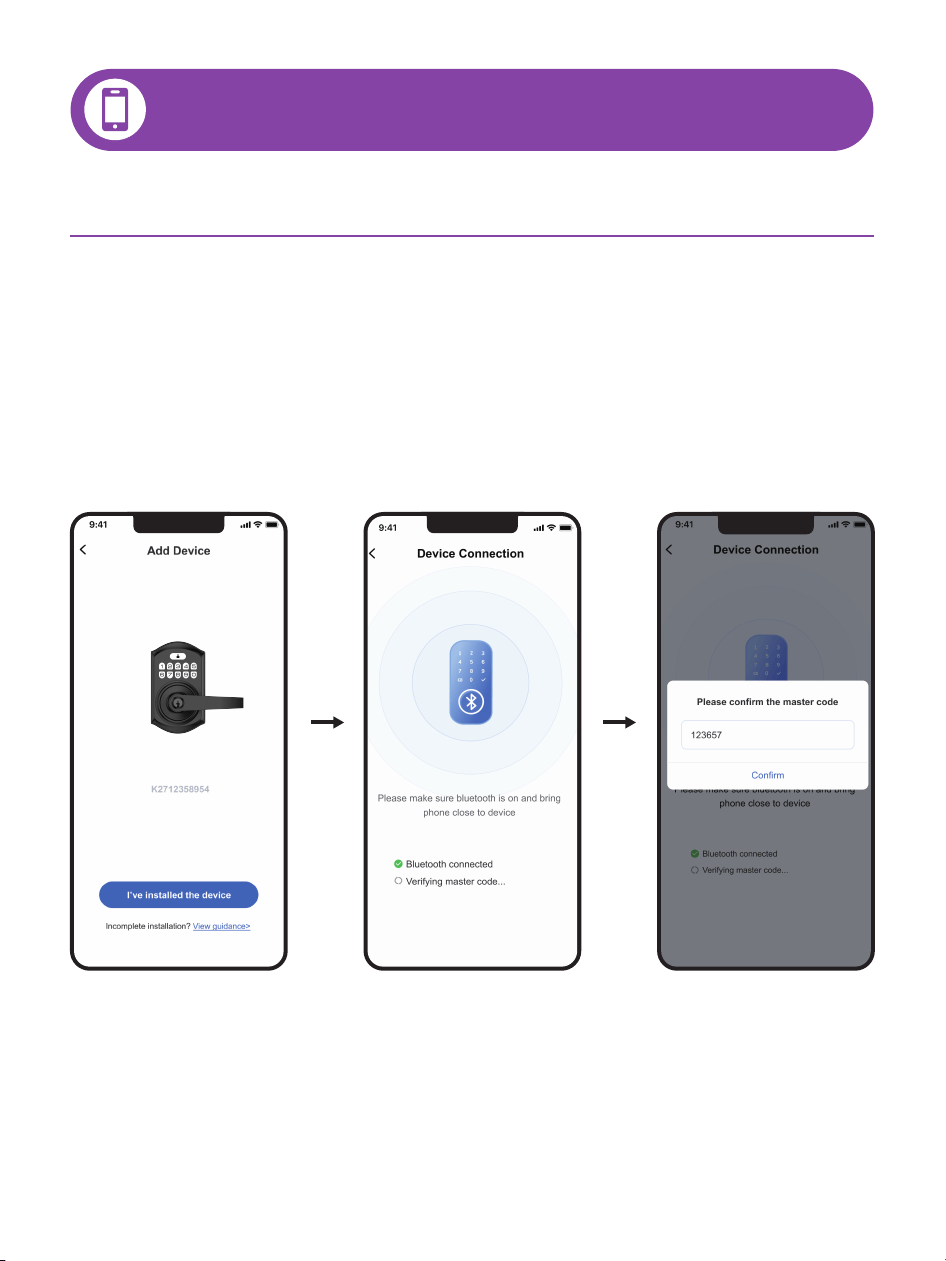
If you have changed the
default Master Code on
the lock, please enter
your new Master Code.
APP GUIDE
Step 2: Pair Your Lock
3
Click on your device to start pairing
TE019
06
APP GUIDE
Step 2: Pair Your Lock
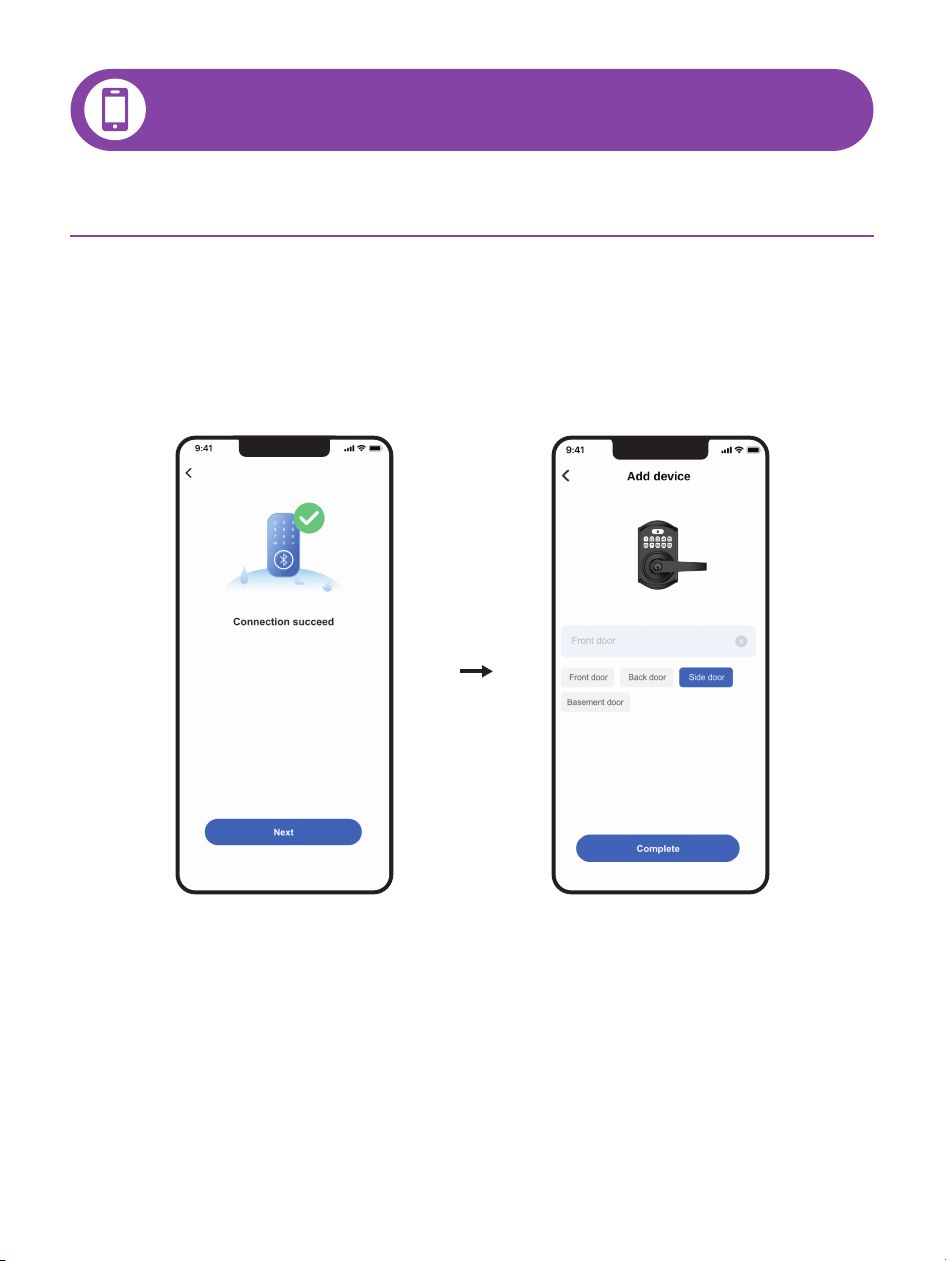
4
Pairing successfully, name your lock and complete
07
Step 2: Pair Your Lock
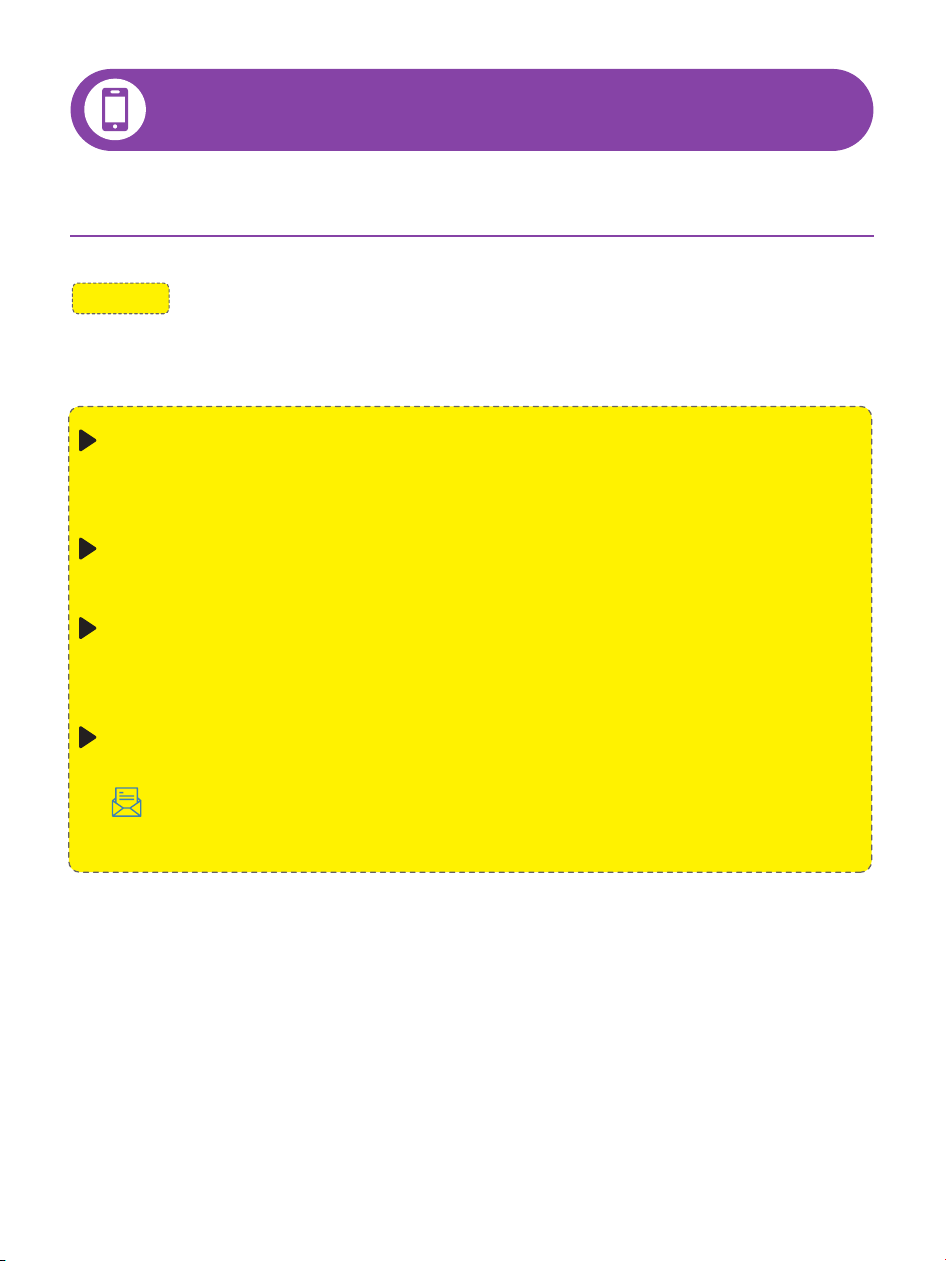
NOTE: If the lock is not found in the list, please review the
following tips.
Perform a resetting on the lock, test if the default Master
Code (12345678) works to unlock.
Make sure both Location and Bluetooth are enabled.
Wake up the Keypad by pressing any key and keep it on
during pairing.
Call us at +1 (833) 878-3346 (Monday-Friday
9:00am-5:00pm PST), if you have any questions.
APP GUIDE
08
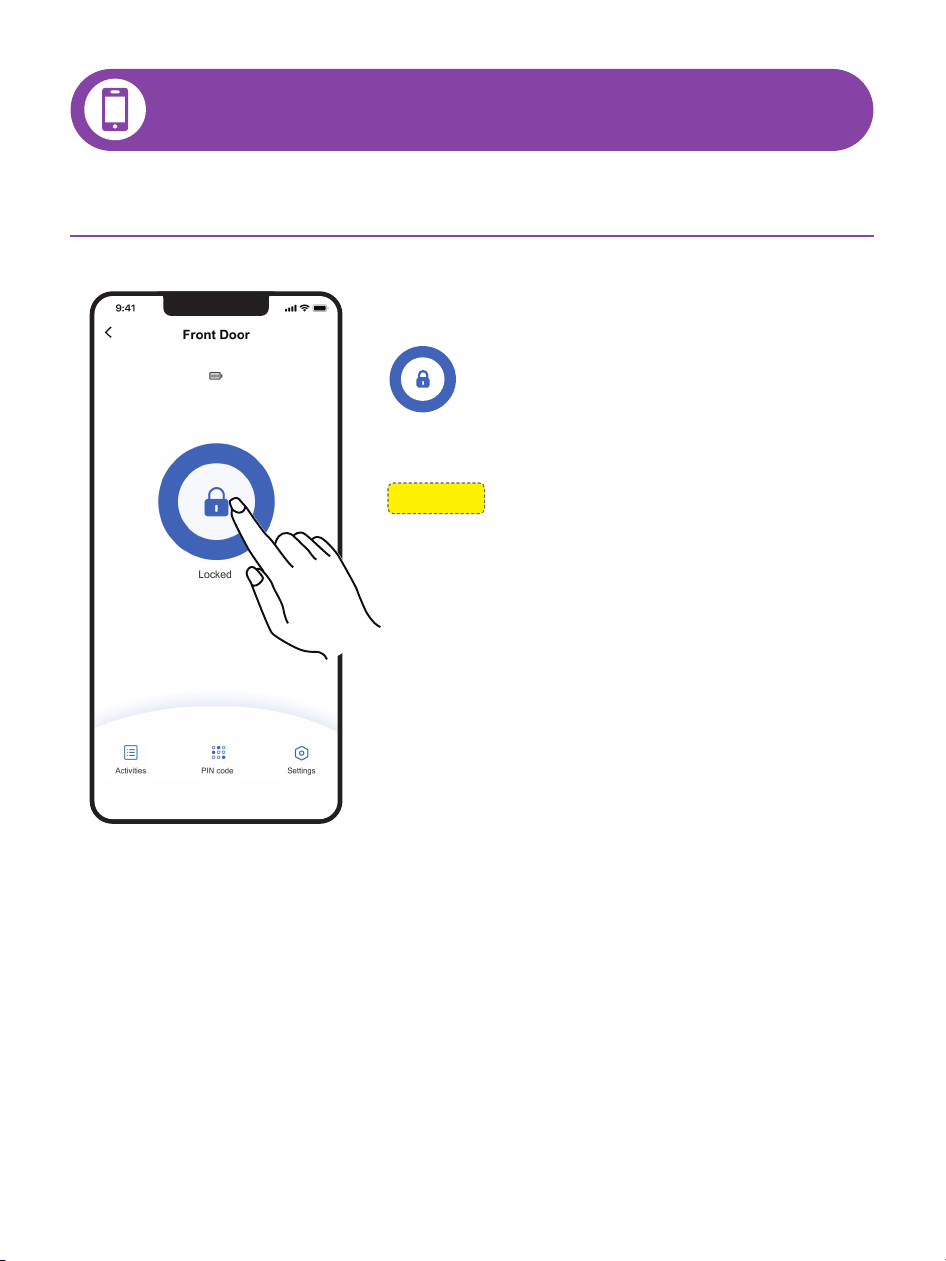
NOTE: App lock and unlock only
work when you are within
Bluetooth range (10m / 33ft)
of the lock.
Tap the icon once to
unlock or lock
APP GUIDE
App Unlock / Lock
09
Note: Auto Lock is enabled by default. The lock doesn't have a built-in
door sensor, if the Auto Lock is enabled, it will lock automatically
whether your door is closed or open.
Auto lock
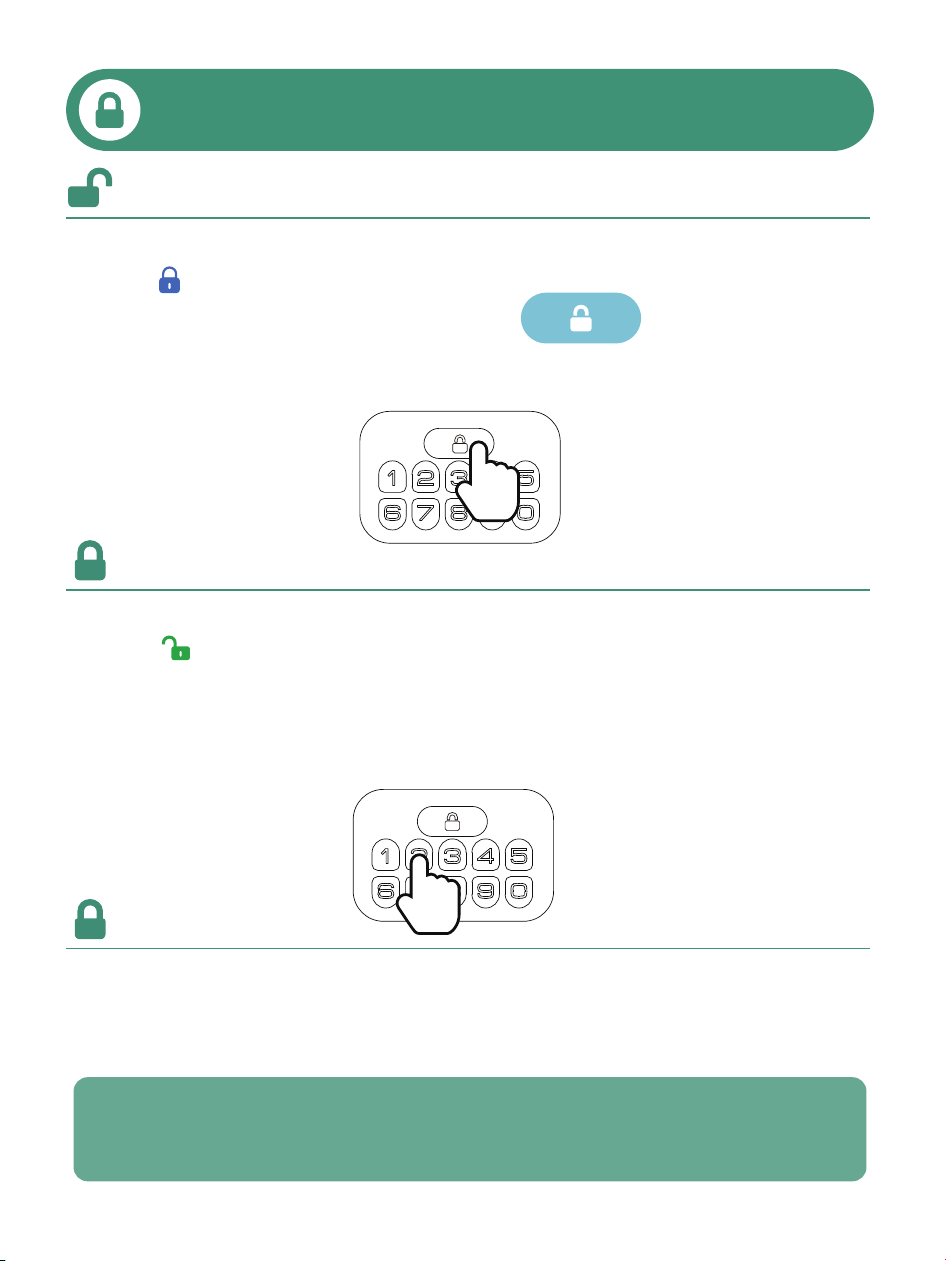
HOW TO LOCK / UNLOCK
Unlock from the outside
1. Tap once in KK Home App
2. Enter Master / User Code, press
3. Use the Mechanical Key
Unlock from the inside, please rotate the Thumb Turn.
How to unlock
How to lock
Lock from the outside
1. Tap once in KK Home App
2. Press and hold Any button on the Keypad for 2 seconds
3. Use the Mechanical Key
Lock from the inside, please rotate the Thumb Turn.
Auto
10
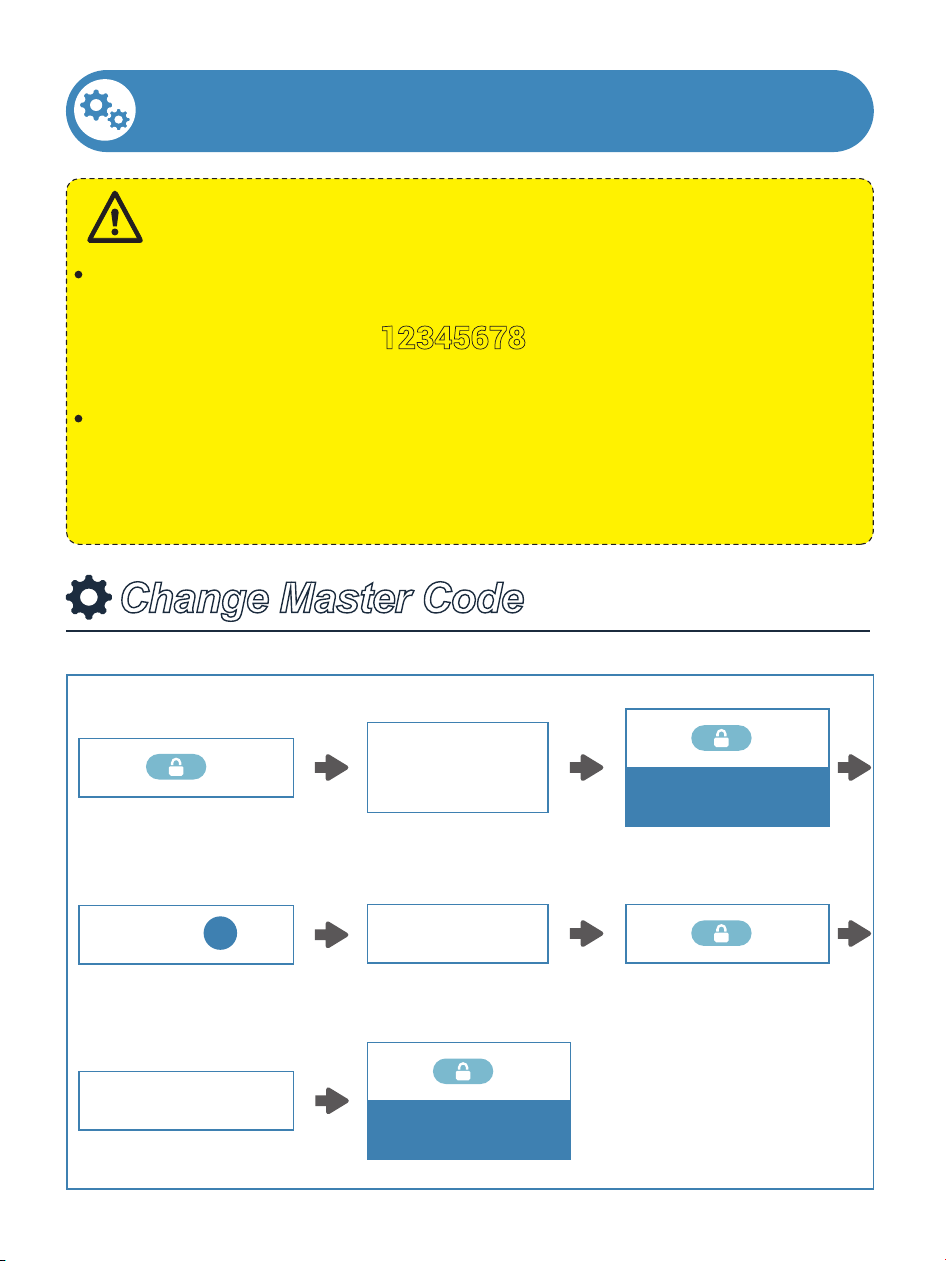
In Auto Lock mode, your smart lock will automatically lock
the door after 30 seconds. You can set the Auto Lock delay
from 10 to 180 seconds in the App.
11
PROGRAMMING GUIDE
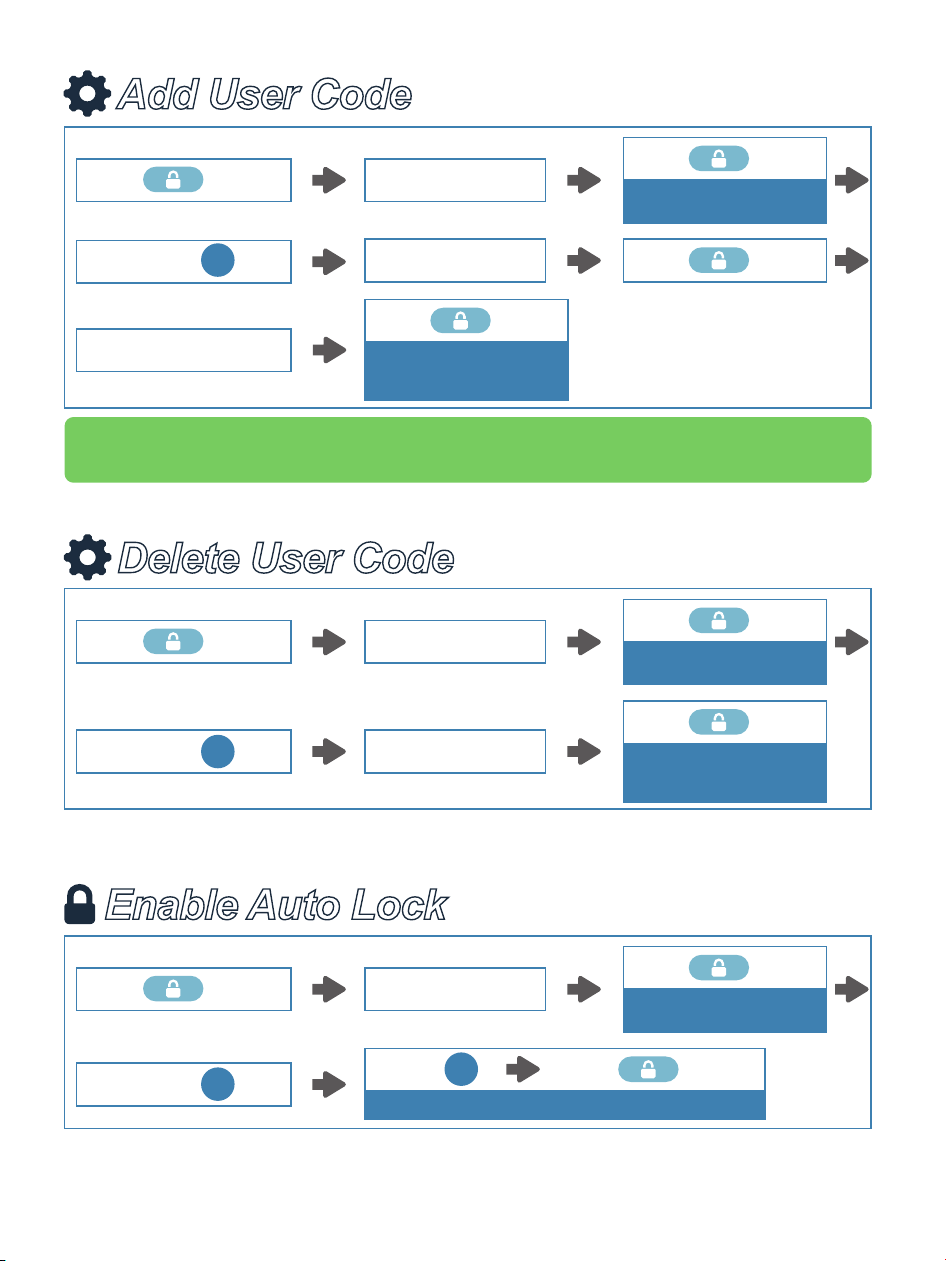
If you are not using KK Home App, you can program the lock directly
by following the Programming Guide.
The default Master Code is
12345678. Please set a new Master
Code before programming.
After pairing with the App, the Master or User Code programmed on the
lock will sync with KK Home App, allowing you to view code records
directly in the App.
IMPORTANT:
Change Master Code
(12345678)
Enter Default
Master Code
2 Times
Press
Green light flashes
1 Time
Press
Enter New
Master Code
Press
1
1 Time
Press
Re-enter New
Master Code
1 Time
Press
Succeed
Green light flashes
12
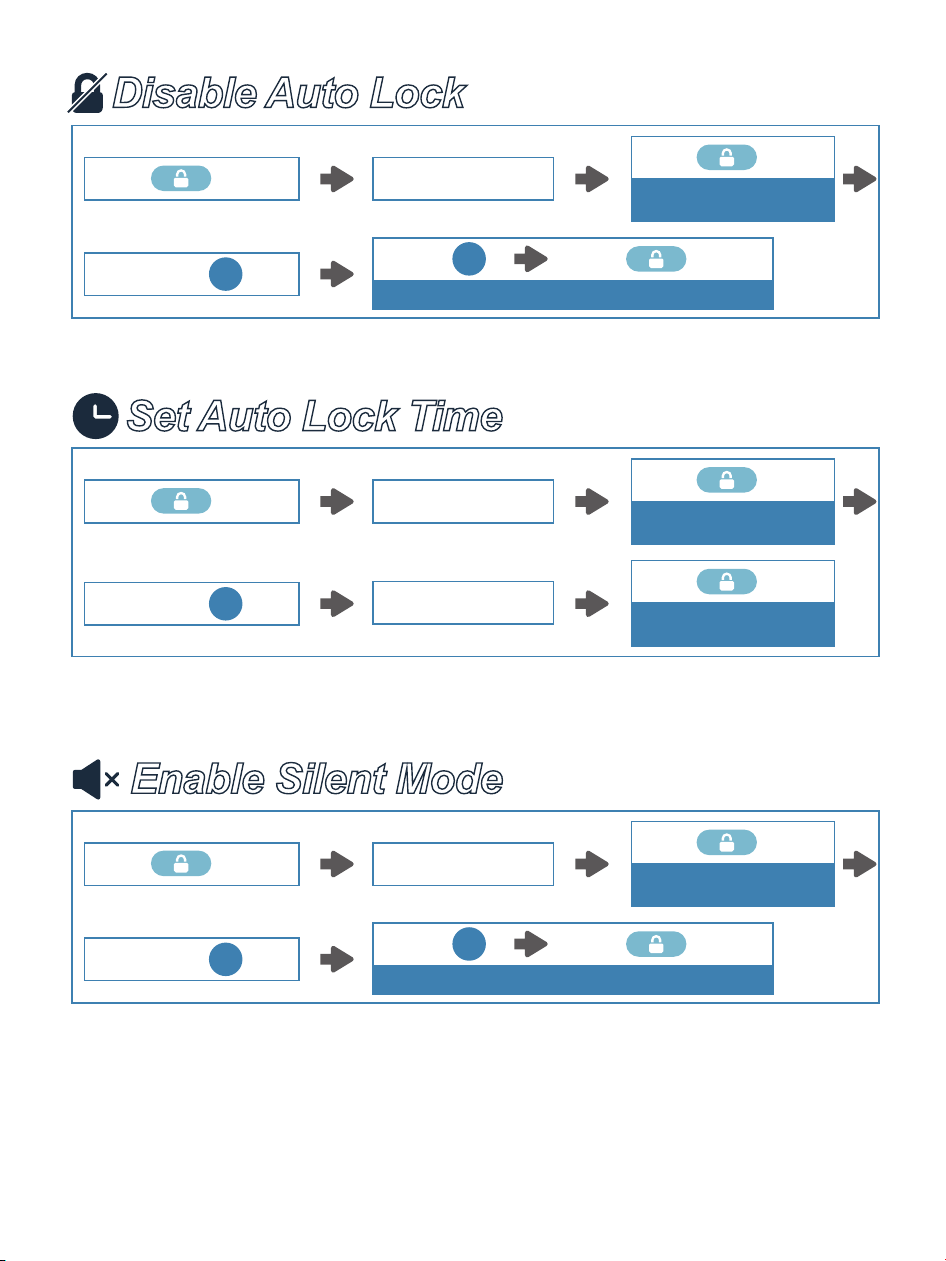
Enable Auto Lock
Auto
Enter Master Code
2 Times
Press
Green light flashes
1 Time
Press
Press
9
1 Time
Press Press
Succeed Green light flashes
1
Add User Code
Note: If the code cannot be added, verify that it meets the format requirements
on page 15. Then program the code again in the correct format.
Enter Master Code
2 Times
Press
Green light flashes
1 Time
Press
Enter
New
User Code
Press
2
1 Time
Press
Re-enter New
User Code
1 Time
Press
Succeed
Green light flashes
Delete User Code
Enter Master Code
1 Time
Press
Succeed
Green light flashes
2 Times
Press
Green light flashes
1 Time
Press
Enter
Unwanted
User Code
Press
3
13
Set Auto Lock Time
Auto
Enter Master Code
Enter New Duration
Time 10-99s
2 Times
Press
Green light flashes
1 Time
Press
Succeed
Green light flashes
1 Time
Press
Press
0
Disable Auto Lock
Auto
Enter Master Code
2 Times
Press
Green light flashes
1 Time
Press
Press
9
1 Time
Press Press
Succeed Green light flashes
2
Enable Silent Mode
Enter Master Code
2 Times
Press
Green light flashes
1 Time
Press
Press
8
1 Time
Press Press
Succeed Green light flashes
2

14
Disable Silent Mode
Enter Master Code
2 Times
Press
Green light flashes
1 Time
Press
Press
8
1 Time
Press Press
Succeed Green light flashes
1

15
CODE FORMAT
1. Master Code (4 to 10 digits):
The Default Master Code is
12345678.
It is required that you change it to a code of your own
before programming.
2. User Code (4 to 10 digits):
A total of 100 User Codes can be programmed and
stored.
16
HOW TO RESET
Resetting steps
Settings
Master Code
Auto Lock
Silent Mode
Wrong Entry Limit
Shutdown Time
Factory Default
12345678
Enabled
Disabled
10 times
3 minutes
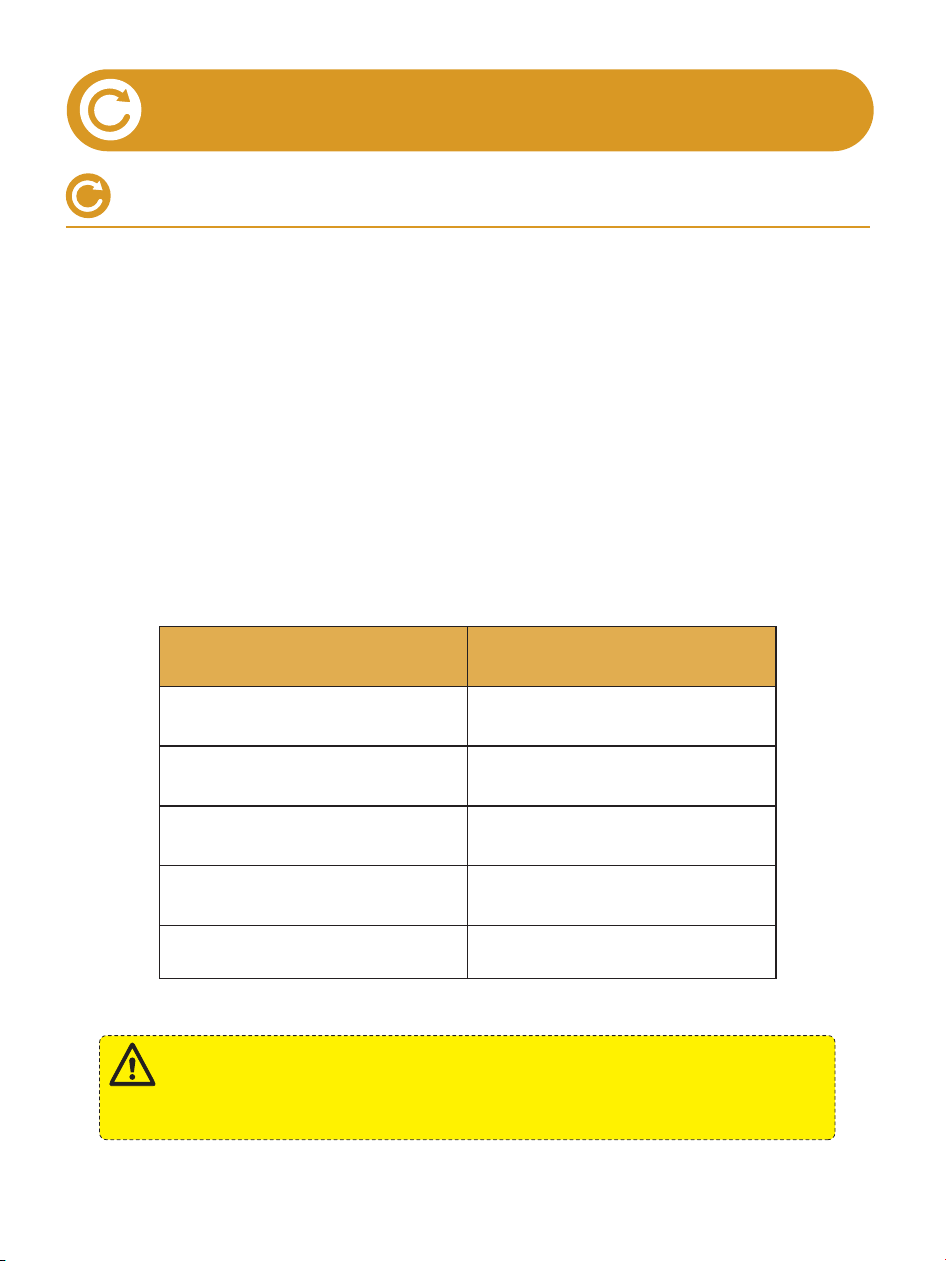
Resetting will delete all User Codes which associated with the
lock.
IMPORTANT:
1. Keep the door open and turn the Thumb Turn to horizontal
position (unlocked).
2. Press and hold the Reset Button using the provided
Reset Tool.
3. Continue holding the Reset Button for 5 seconds until
you hear a "beep" sound and the Latch rotates. The
Thumb Turn will automatically return to vertical position.

17
DEFINITIONS
• MASTER CODE
• AUTO LOCK
The Default Master Code is 12345678. Before programming,
it requires to change the Default Master Code to a new one.
In Auto Lock mode, your smart lock will automatically lock the door
after 30 seconds.
Auto Lock is enabled by default. You can set the Auto Lock delay
from 10 to 180 seconds in the App.
• ONE-TOUCH LOCK
One-touch Lock is pressing and holding Any button on the Keypad
for 2 seconds to lock from outside.
• WRONG ENTRY LIMIT
After 10 times unsuccessful attempts at entering an invalid code, the
device will shut down for 3 minutes.
• SILENT MODE
The beep sounds when pressing Keypad can be muted. But you will
still hear low battery and system alerts.
18
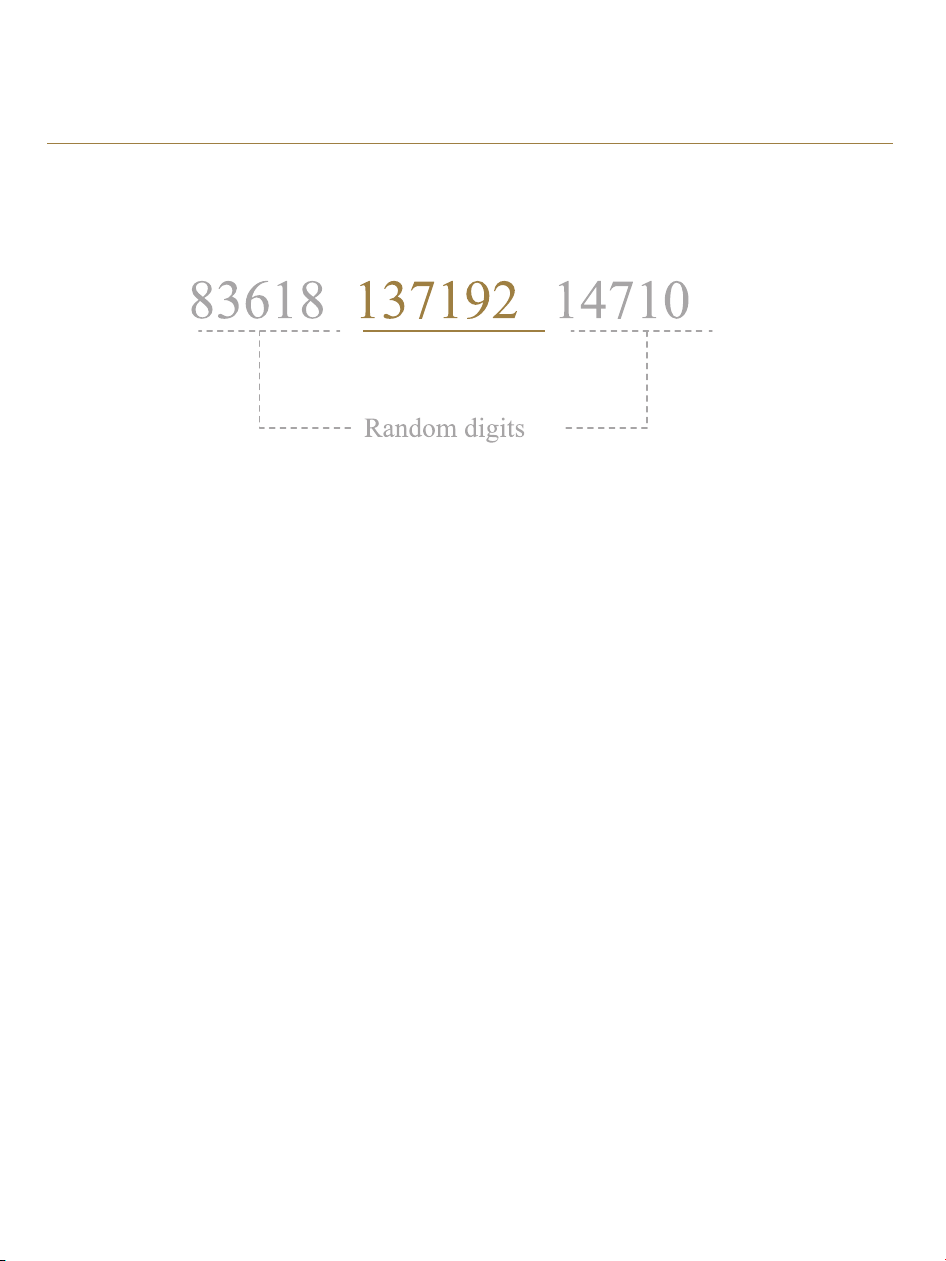
• ANTI-PEEPING PASSCODE
Entering random numbers before or after correct passcode will also
unlock the door, which can prevent the passcode being exposed.
The length of anti-peeping passcode should be within 16 digits.

• Master Code can not be changed.
Refer to "How to Reset" section to perform the reset. If it doesn’t
solve the issue, please call us at +1(833)878-3346.
• Fail to add a new User Code.
1. Before adding a new User Code, please change the Default
Master Code 12345678 to a new one.
2. Make sure the New Master Code has been entered correctly.
3. The lock can only set and store 100 User Codes. A User Code
must be at least 4 to 10 digits.
• Battery indicator keeps flashing.
The battery is low if the battery indicator keeps flashing. Please
replace with 4 new batteries for the best performance (Alkaline
batteries only).
• I forgot my Master Code.
Perform a resetting and the Master Code will return to the default
one 12345678.
FAQ
19

V1.0
Whatever issues with TEEHO products. Please contact us
before returning it.
+1 (833) 878-3346
(Monday-Friday 9:00 am-5:00 pm PST)
Need Help? Contact Us!
teeho.com
If you have your order ID, videos or images of your
problem (if necessary) ready before contacting Customer
Support, we will solve your problem faster and better.