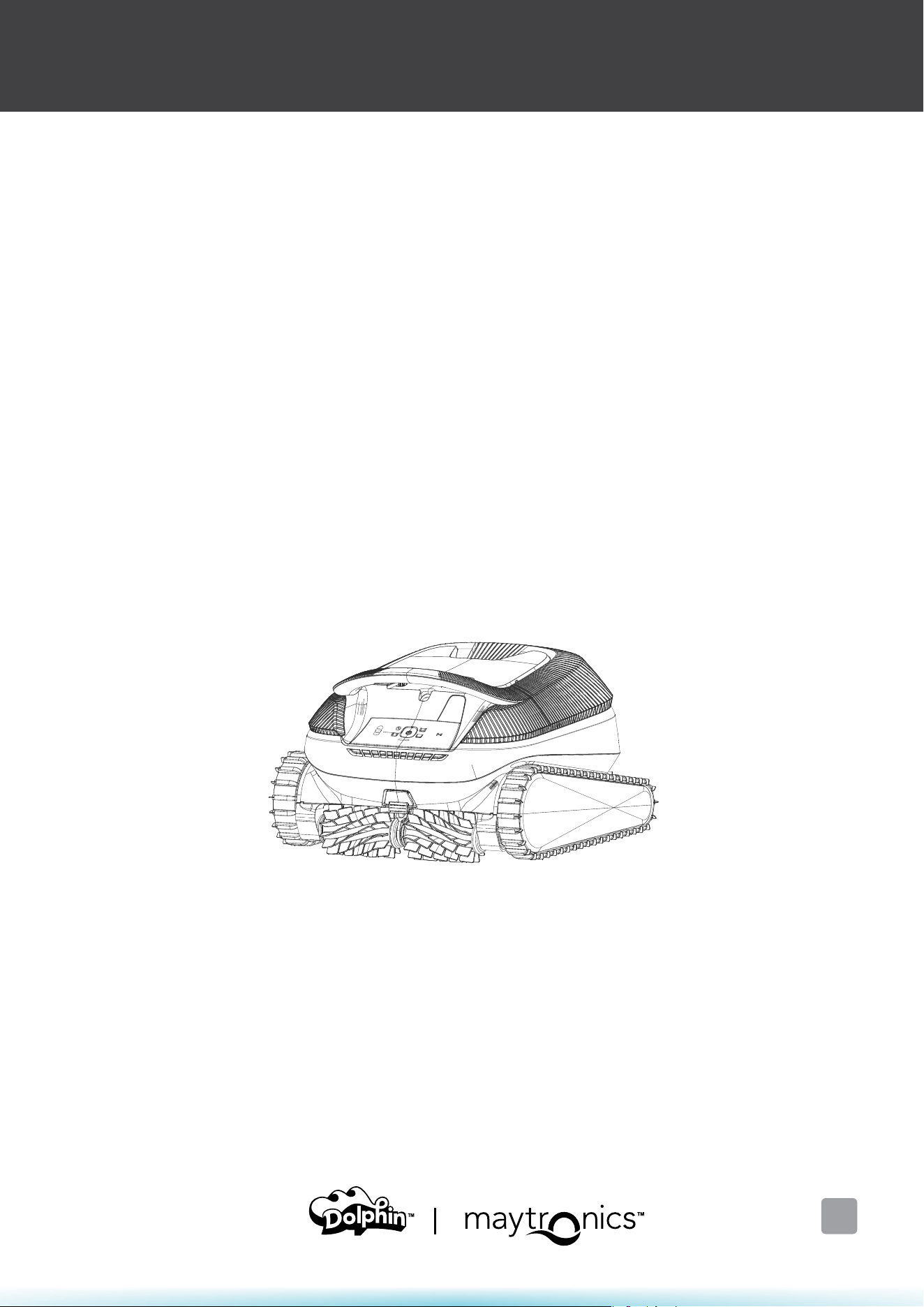
Robotic Pool Cleaner EON™
Original User Instructions
EON™ 100 / 120d
EN

2
Robotic Pool Cleaner EON™ | User Instructions
EON™ 100 / 120d
Cordless Robotic Pool Cleaner
User Instructions
EN
Content
Safety Instructions
1. WHAT'S IN THE BOX .............................................................................................................................................................. 5
1.1 Getting Started ................................................................................................................................................................ 6
1.2 Removing the Robot from the Pool ...................................................................................................................... 7
1.3 Cleaning the Filter Basket ............................................................................................................................................ 7
1.4 Impeller Cleaning ............................................................................................................................................................. 7
1.5 Charging Recommendations ..................................................................................................................................... 8
1.6 Water Conditions ............................................................................................................................................................ 8
1.7 ProductSpecications .................................................................................................................................................. 8
2. STEPS CLEANING ..................................................................................................................................................................... 9
3. PERIODIC CLEANING ............................................................................................................................................................... 9
4. Maytronics One™ APP USER GUIDE ............................................................................................................................. 10
4.1 Getting Started with the Maytronics One™ App ........................................................................................... 10
5. ACTIVATE THE POOL CLEANER USING YOUR MOBILE PHONE ............................................................................ 10
5.1 Maytronics One™ App Features Guide .............................................................................................................. 10
5.2 Setting a preferred Homing Wall ............................................................................................................................ 11
6. Maytronics One™ TROUBLESHOOTING ........................................................................................................................ 11
7.
ROBOTIC POOL CLEANER
TROUBLESHOOTING
............................................................................................................. 12
8.
OFF-SEASONSTORAGE
......................................................................................................................................................... 12
9.
CONTACT MAYTRONICS CUSTOMER CARE
...................................................................................................................... 13
3
Robotic Pool Cleaner EON™ | User Instructions
IMPORTANT SAFETY INSTRUCTIONS
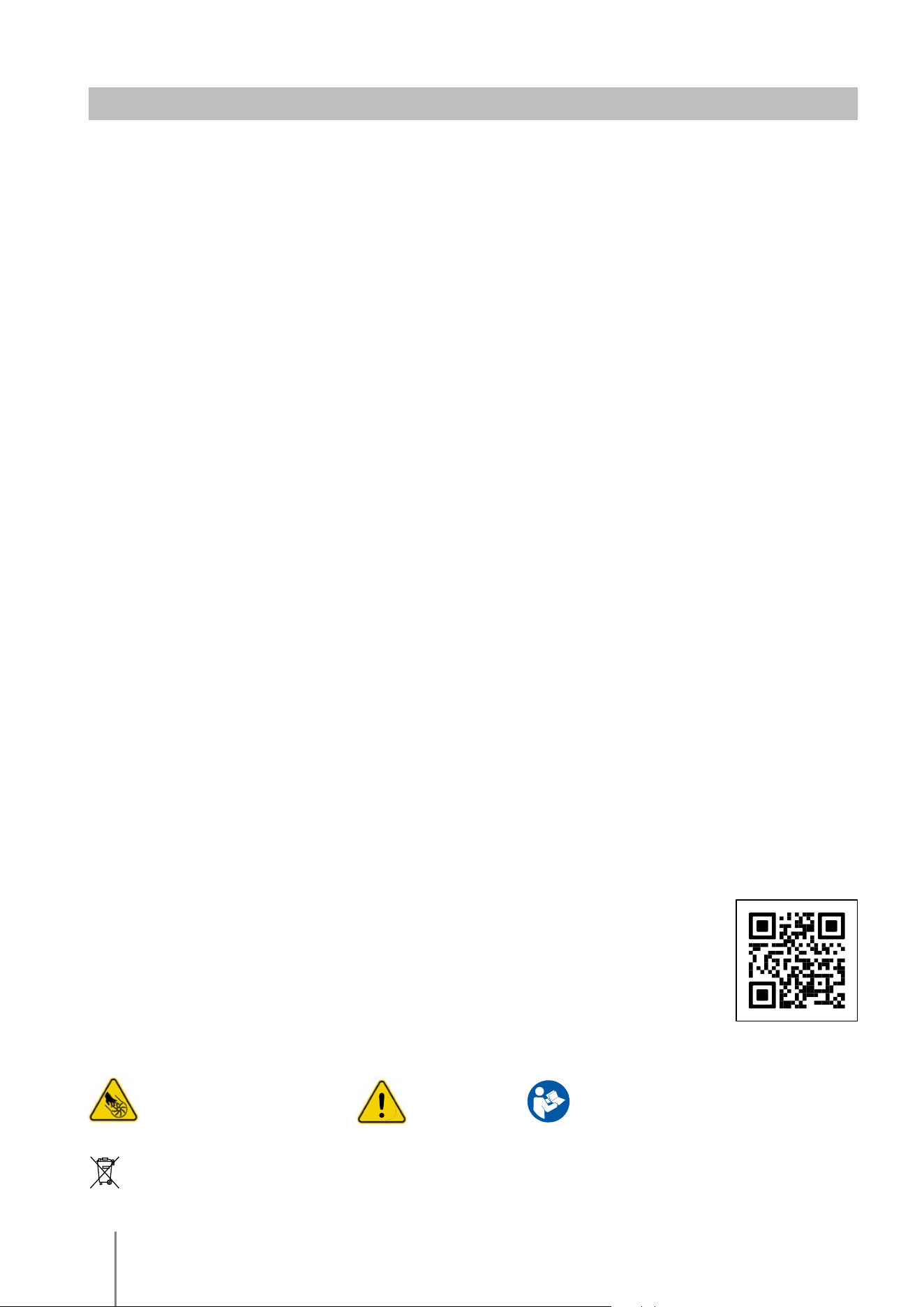
Impeller blades hazard WARNING Read User Instructions
before servicing
READ AND FOLLOW ALL INSTRUCTIONS
Please adhere strictly to following WARNINGS:
1. If the charger is damaged, including falling into the water, quickly and safely disconnect it from the power
outlet. Do not use a charger that has been damaged.
2. Remove the robotic pool cleaner from the pool before allowing people to enter the pool.
3. When examining the robotic pool cleaner, make sure the robotic pool cleaner is switched OFF.
4. Charge the battery only in the temperature range between 6°C to 35°C / 43°F to 95°F.
5. Keep the robotic pool cleaner out of the reach of children or persons with reduced physical, sensory, or
mental capabilities, or lack of experience and knowledge, unless they have been given supervision or
instruction.
Cleaning and maintenance shall not be done by children.
6. Use only the original battery charger.
7. The battery charger must be supplied through a power circuit protected by a residual current device (RCD)
having a rated residual operating current not exceeding 30mA.
In North America: The battery charger must be connected only to a supply circuit that is protected by a
ground fault circuit interrupter (GFCI). This GFCI should be tested on a routine basis. To test the GFCI, push
the test button. The GFCI should interrupt power. Push the reset button. Power should be restored. If
the GFCI fails to operate in this manner, the GFCI is defective. If the GFCI interrupts power to the battery
chargerwithoutthetestbuttonbeingpushed,agroundcurrentmaybeowing,indicatingthepossibility
of an electric shock. Do not use the battery charger. Disconnect the battery charger and contact the
manufacturer for assistance.
8. Only an original power cord must be used, at all times. If the power cord is damaged, stop using the
battery charger and contact the service center for repair. Do not use extension cord to connect the
battery charger to electric supply; provide a properly located outlet.
9. DO NOT USE the robotic pool cleaner and/or its battery / power pack in case of mechanical damage to the
robotic pool cleaner and/or its battery.
10. Toavoidtheriskofreandburns,DONOTopen,crush,heat,orburnthebatterycase.
Please ensure that the following CAUTIONS
are implemented:
1. For continuous protection against possible electric shock, place the battery charger at least 11 cm / 4"
above ground.
2. Position the battery charger at least 3 m / 10ft from pool edge during operation.
3. When cleaning the impeller, connect and power ON the charger to keep the robot’s
motors disabled. As an additional safety measure, insert a screwdriver into the hole
near the handle. Scan the QR code for instructions.
4. Keephandsandngersawayfromimpellermotorareaanddrivingbeltmechanism
to avoid injury.
5. When lifting the robotic pool cleaner, take care to prevent back injury.
6. Donotusetheroboticpoolcleanerifyouhaveaddedliquidocculantoranyother
clariertothepoolwater.Thesesubstancesobstructanddamagetherobotlters.
TheLithium-Ionbatteryinthisproductisnon-replaceable.Itshouldberecycledatcertiedbattery
electronics recyclers that accept batteries. Batteries should NOT be discarded in the trash or put in
municipal recycling bins. Do not disassemble the battery.

4
Robotic Pool Cleaner EON™ | User Instructions
ENVIRONMENTAL INFORMATION
Processing of electrical and electronic equipment after their period of use (Only applicable in the E.U.).
Our goods are designed and manufactured using top quality materials and components, which are
environment-friendly and which can be reused and recycled. This symbol, marked on the equipment or
packaging, means that this equipment can not be processed as normal domestic waste. You should hand it
in to the technician who installs the new equipment or at special collection points for electric and electronic
equipment. Recycling this equipment does not cost you anything and by separating it from other waste
you are helping to prevent negative consequences for the environment and for people's health by avoiding
incorrect handling.
Help us to preserve the Environment. Thank you.
For detailed information on how to correctly dismantle this equipment for recycling, please contact the
nearest Dolphin dealer or search for an authorized distributor in Maytronics web site www.maytronics.com
SAVE THESE INSTRUCTIONS
SPECIFICATIONS
Robot
• Motor and Power Pack protection: IPx8
• Minimum depth: 20 cm
• Maximum depth: 3 m
• Radio communication:
Bluetooth®: 2402-2480 MHz, BLE max 5 mW
Wi-Fi®: 2412-2472 MHz, 71 mW
• Water temperature: 5°C – 35°C
Battery Charger
• Protection: IP54
Rainproof -
Not suitable for
immersion, heavy rain, or
strong hose
• Input: 100-240 VAC, 50-60Hz, 2.5A
Output: 29.4 VDC, 3.3A
This product complies with EU Directives 2014/35/EU, 2014/53/EU, 2014/30/EU, RoHS and REACH.
For full information, please contact us at www.maytronics.com/global/support/contact-us/
and ask for the EU Declaration of Conformity.
5
Robotic Pool Cleaner EON™ | User Instructions
1.
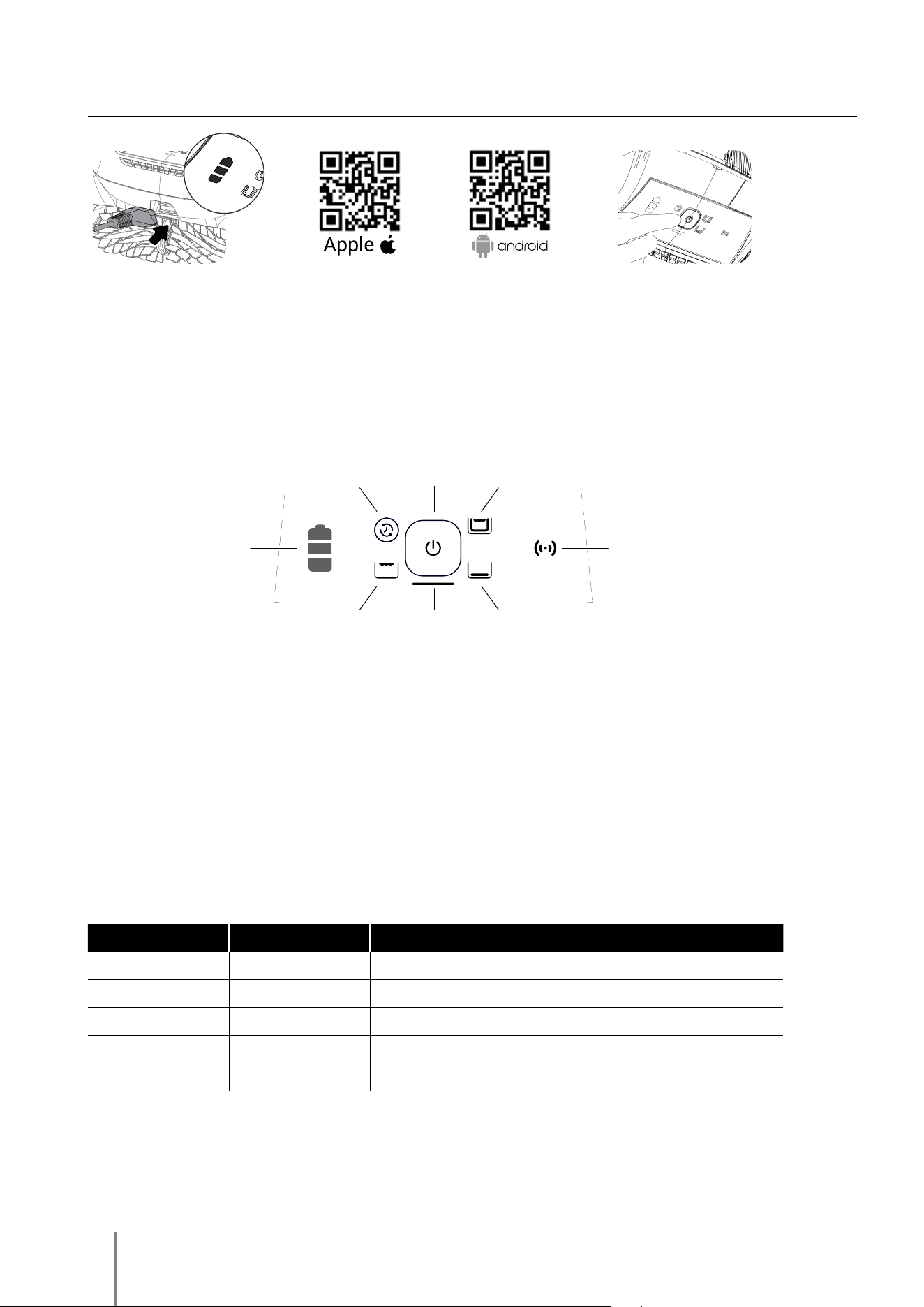
WHAT'S IN THE BOX
Maytronics One
TM
Mobile App
You can customize the robot’s settings,
such as UltraRun™ Mode cleaning schedules and
Homing to park at your chosen wall.
You can also check the battery status,
view cleaning history, and troubleshoot issues.
Grab hook
Clicker
(optional)
ChargerDebrisLock
TM
or Monoblock
lterbasket
6
Robotic Pool Cleaner EON™ | User Instructions
1.1 Getting Started
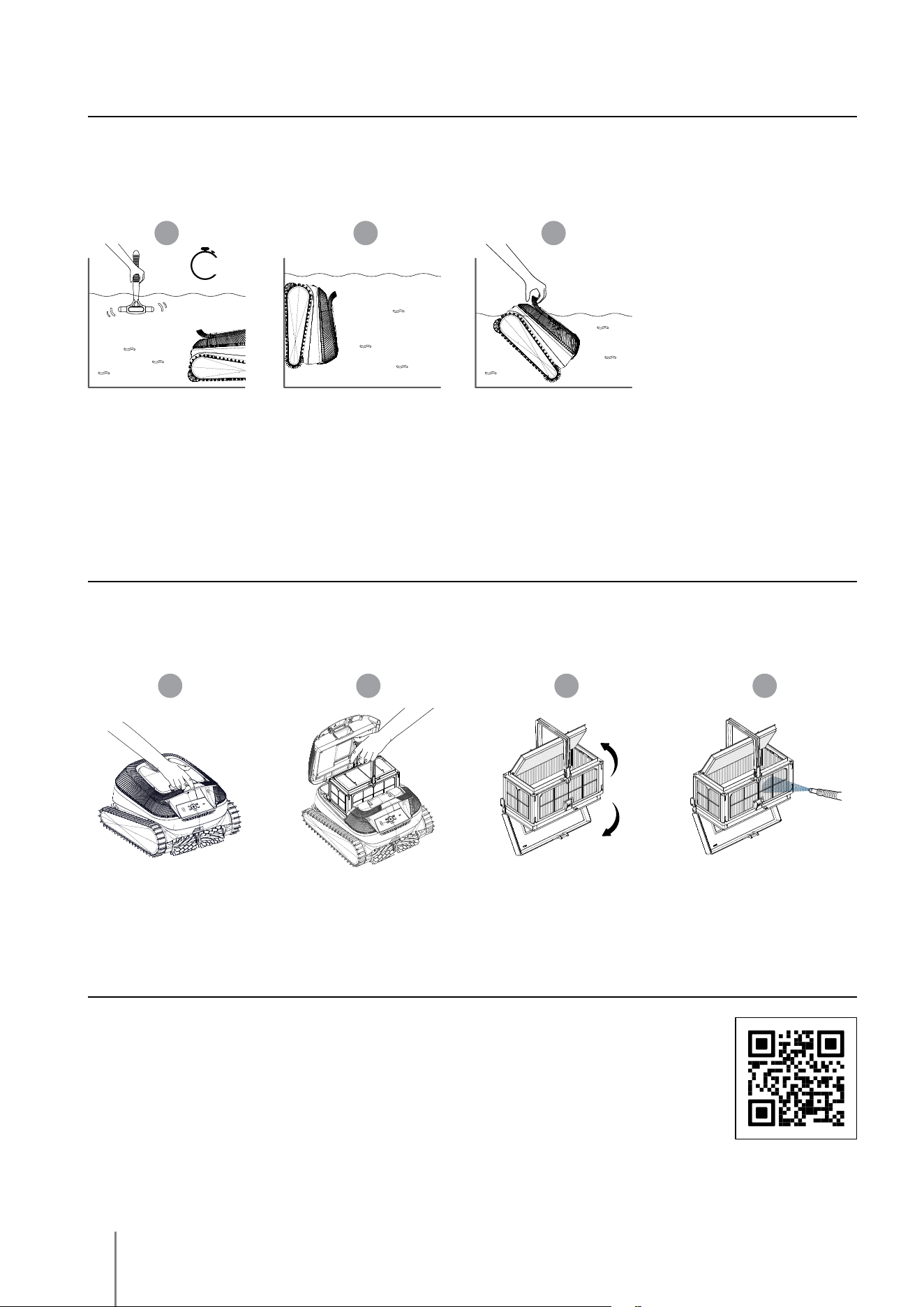
Main Robot Status Light Indications
The LED under the robot's button gives key indications:
Full Coverage
Mode
Floor-Only
Mode
Waterline-Only
Mode
Battery Status LED
Connectivity
LED
UltraRun™
Mode
Power Button
Main Robot
Status LED
Cleaning Mode Selection
TurntherobotON,thenselectthedesiredcleaningmodebypressingthebuttonbriey.
The Lights will indicate the selected mode:
UltraRun™ Mode - Multiple shorter cycles on one battery charge. Select your UltraRun™ settings in
the mobile app Maytronics One™.
Full Coverage Mode-Cleanstheoor,walls,waterline,steps,andsun-ledge.
Floor-Only Mode-Focusesonthepooloor.
Waterline-Only Mode - Focuses on the waterline.
* Additional cleaning modes are available in the app.
1. Connect the charger until
the battery indicators are all
solid green.
After charging, place the
rubber seal to keep the
charging connection clean.
3. Short-press the power button
to activate. The robot will start
working after you put it in the
water.
2. Download the Maytronics One™
app and follow the instructions to
enjoy all of the features. The phone
can connect with the robot when
it's out of the water. It can pair
automatically up to an hour after
the end of the cycle, or whenever it
is charging.
Color Status
Meaning
Blue Constant
ON, waiting to be put into the water
Blue Blinking
The robot is working in the water
Green Blinking
Working in UltraRun™ Mode or climbing to be taken out
Yellow Constant
Thelterisfull
Red Blinking
Error - check the app for instructions
7
Robotic Pool Cleaner EON™ | User Instructions
1.3 Cleaning the Filter Basket
Topreventdebrisfromhardeningonthelter,wehighlyrecommendquick-rinsingthelterimmediately
after removing the robot from the pool.
1.4 Impeller Cleaning
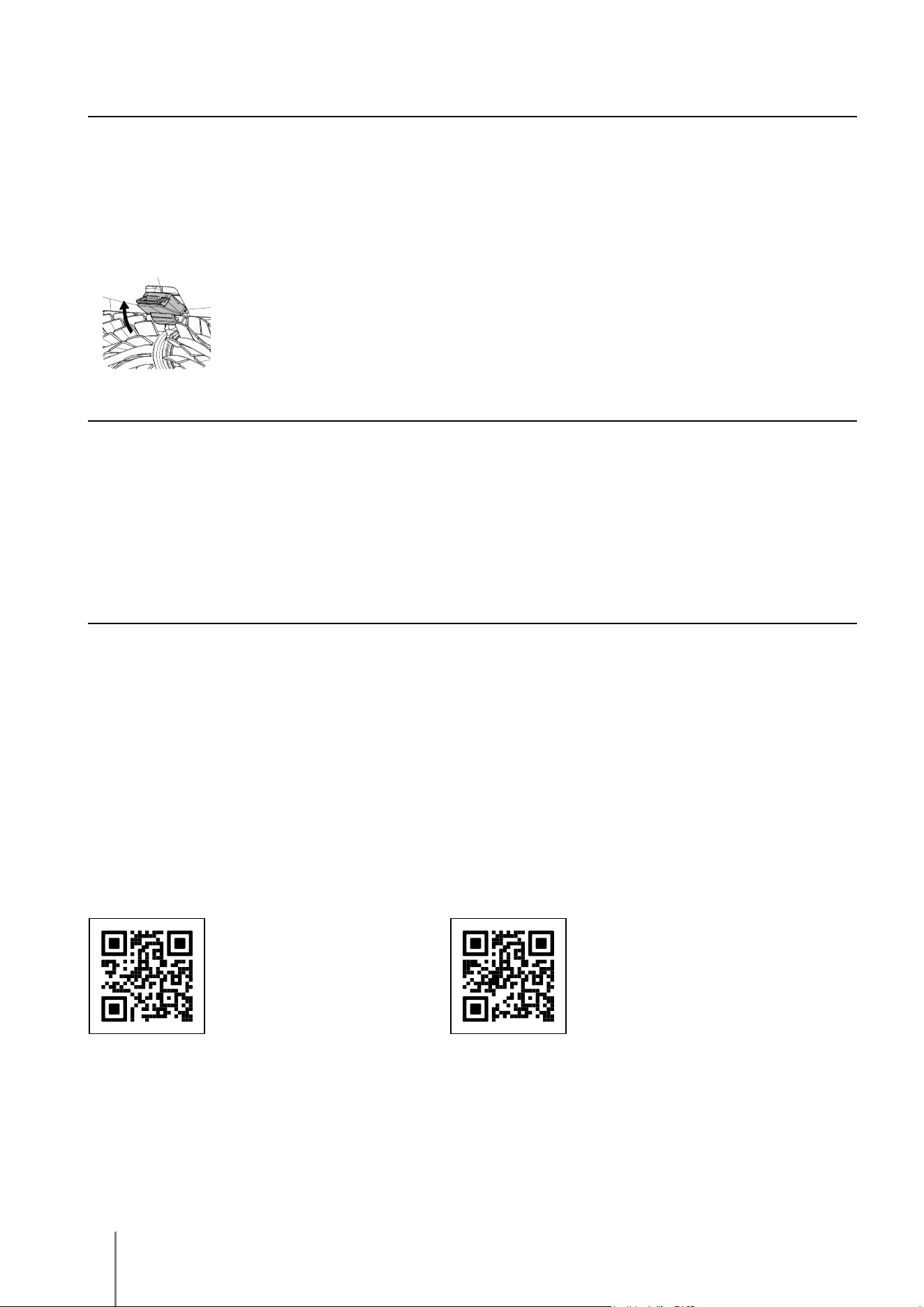
If you need to clean debris from the impeller, scan this QR code for the instructional
video. If it doesn't help, contact Customer Care via the app or Maytronics website.
Please note: Using the Clicker in UltraRun™ Mode to remove the robot from the pool will cancel scheduled
cycles - start UltraRun™ Mode again before returning the robot to the pool.
1 2 3
3-5 SEC
Grab hook - Pull the robot to the waterline, then grab it with your hand to pull it out of the water.
1.2 Removing the robot from the pool
ClickUp
TM
After the end of the cycle, when you shake the Clicker in the water for 3 - 5 seconds, it climbs to you. In the
middle of a cycle, shaking the Clicker will stop the robot. Shaking it again will cause it to climb up to be removed.
*IfyouhaveaDebrisLock™lter,rinsebothchambersofthelter(asshownabove).
1 2 3 4
8
Robotic Pool Cleaner EON™ | User Instructions
1.5 Charging Recommendations
• We recommend charging the robot immediately after removing it from the water so it will be ready when
you need it.
• Charge the robot in a shaded location. If LEDs alternate between the middle and outer LEDs, move the
robot to a shaded area between 6°C to 35°C / 43°F to 95°F.
• Always charge the robot in a dry location; while the charger is splash proof, exposure to strong water
streams can cause damage.
• Keep charging port clean and dry - After charging, protect the charging port by placing the rubber seal.
1.6 Water Conditions
For best results and to protect the robot's parts, use the robot in the following conditions only:
• Water temperature range: 5°C - 35°C / 41°F - 95°F
• Water depth range: 20 cm-3 m / 8"-10 ft
• Chlorine - 4 ppm, Max.
• pH - 7.0-7.8
• NaCl - 5000 ppm, Max.
1.7 Product Specications
• Robot protection: IPX8
• Charger protection: IP54
• App connectivity - Bluetooth® & Wi-Fi®
• Water depth range: 20 cm-3 m
• Motor and power pack protection: IPX8
• Battery Lithium-ion:
EON™ 100 | 6000mAh | 25.2VDC | 151.2Wh
EON™ 120d | 9600mAh | 25.5VDC | 245.28Wh
• Radio communication:
Bluetooth® - 2402-2480 MHz - Maximum power 5mW
Wi-Fi® - 2412 - 2484 MHz - Maximum power 71mW
For more info:
Scan the QR to Maytronics' Manuals Site.
Register your warranty simply online.
Scan the QR code.
Theserialnumberisbehindthelterandintheapp.
9
Robotic Pool Cleaner EON™ | User Instructions
2. STEPS CLEANING
Steps Cleaning
EON™ maximizes cleaning coverage by identifying and properly cleaning steps and sun-ledges.
It does this automatically in the Full Coverage including in Full Coverage UltraRun™ schedule settings
that you can select in the app.
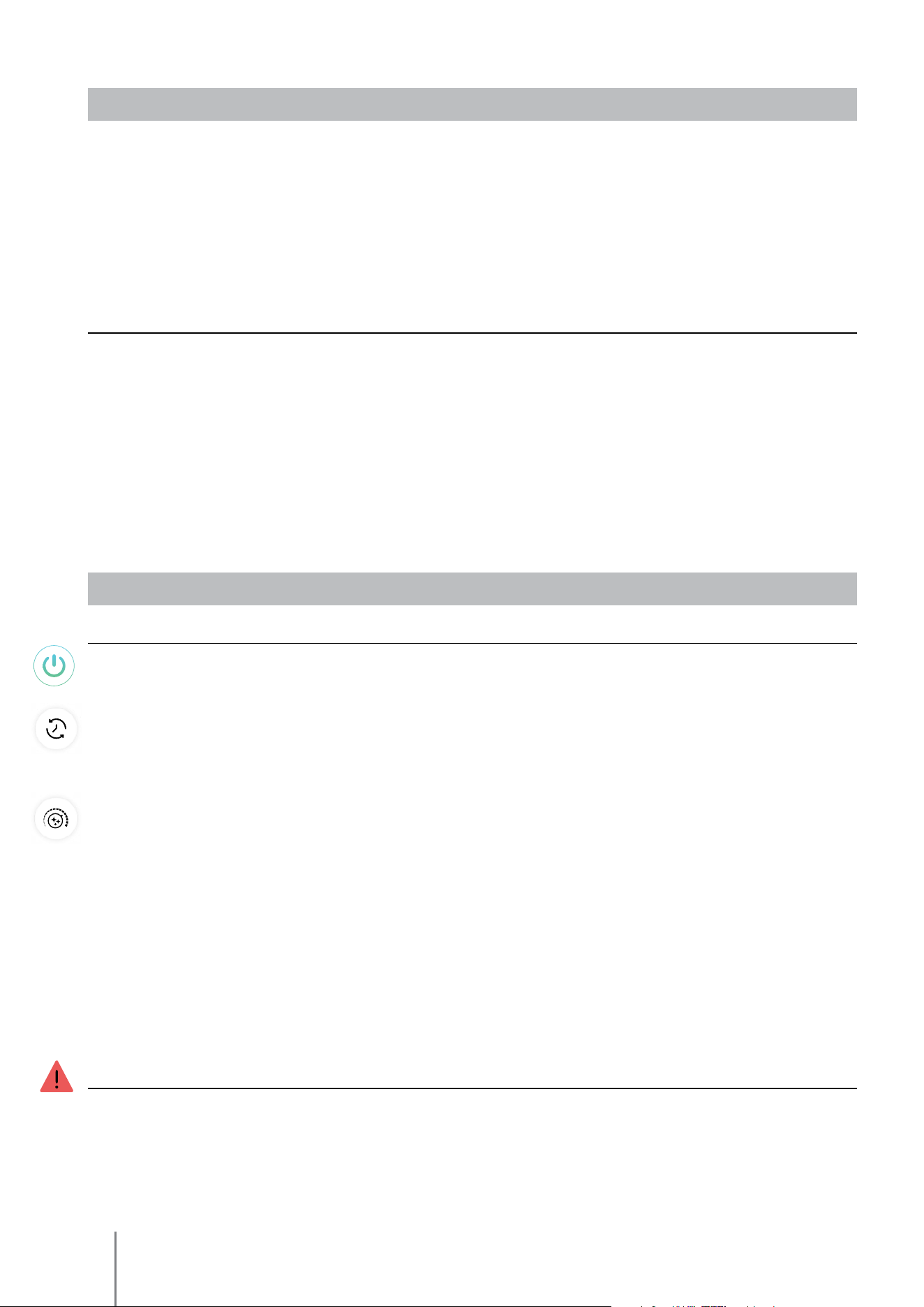
If you have the traditional filter basket or the DebrisLock™ backwashing filter, do the following periodically to
deep clean (not relevant for Monoblock filter). The DebrisLock™ filter also has a panel on top.
Insert the clean filter basket and close the
filter cover.
Clean the filter panels with a hose.
Re-assemble the filter panels
.
3. PERIODIC CLEANING - RECOMMENDED ABOUT ONCE A MONTH
Dismantle the panels with your thumbs.
10
Robotic Pool Cleaner EON™ | User Instructions
App features: You can customize the robot’s settings, such as UltraRun™ Mode schedules and Homing to
park at your chosen Homing wall, or select your preferred cleaning path pattern. You can also check the
battery status, view last cleaning cycle, troubleshoot issues independently, contact support, and order
accessories or parts.
Connection options: First, the robot connects to your phone via Bluetooth®, then to Wi-Fi® for added features
like auto-updates, smoother customer service, and remote status checks.
Note that while the robot is in the water, the app cannot control or communicate with it.
To reconnect, remove the robot and press the power button or connect the charger.
4.
Maytronics One
TM
APP USER GUIDE
4.1 Getting Started with the Maytronics One™ App
1. Ensure Bluetooth® is enabled on your smartphone.
2. Download the app.
3. Press and hold the power button for 3 seconds to start pairing.
4. Start the app, sign up, and enter the validation code that is sent to your email.
5. Follow instructions in the app to connect via Bluetooth®.
6. Connect via Wi-Fi® for more features.
7. After removing from water, to re-establish a connection between the robot and app, either press the
power button or connect the charger. Also, it will automatically connect an hour after removing the
robot with the Clicker.
8. Up to 1 user can connect at a time via Bluetooth®, but up to 5 users can connect to the robot via Wi-Fi®.
You can unpair irrelevant users in the settings.
5. ACTIVATE THE POOL CLEANER USING YOUR MOBILE PHONE
5.1 Maytronics One™ App Features Guide
Starting the Pool Cleaner Via the App
Tap Cleanandplacetherobotinthewater.Youwillgetanoticationwhenthecyclehasnishedifyou
start the pool cleaner via the app.
UltraRun™ Mode Cleaning Scheduler
To keep the pool clean for 1-2 weeks on one charge, select UltraRun™ Mode and leave the robot in the
pool. You can select which UltraRun™ Mode cleaning schedule you prefer in the app.
Attheendofthescheduleperiod,takethepoolcleanerouttorinsethelterbasketandrechargethebattery.
Cleaning Mode Selection
TurntherobotON,thenselectthedesiredcleaningmodebypressingthebuttonbriey.
The Lights will indicate the selected mode:
UltraRun™ Mode - Multiple shorter cycles on one battery charge.
FullCoverageMode-Cleanstheoor,walls,waterline,steps,andsun-ledge.Recommendedwhenpoolis
dirty.
Floor-onlyMode-Focusesonthepooloor.
Waterline-only Mode - Focuses on the waterline.
* Additional cleaning modes are available in the app.
- Smart - Learns your pool and adjusts path patern and times accordingly
-Cove-Cleanshardtoreachcurvebetweenoorandwall
- UltraClean (Turbo) - Extra suction, works until the battery is empty
Robot Error Notication
If there was an error, the app home screen will show the last error. Tap and the app will guide you to
troubleshoot the problem.
The app is compatible with the following smart devices:
• Apple (iOS) – version 10 and up – iPhone, iPad, iPod
• Android – version 5 and up operating system
11
Robotic Pool Cleaner EON™ | User Instructions
Symptom Possible reason Corrective action
Cannot pair the
Maytronics One
TM
app to
the robotic pool cleaner.
• The Bluetooth® on one of your
devices is either OFF or not in
pairing mode.
• The mobile phone is too far from
the robot.
• Mobile phone location is OFF.
You did not give the required
permissions when installing the app.
• Battery is too low.
• Turn the Bluetooth® OFF and on in your smartphone.
ForiOS–Gotosettings→Bluetooth®.
• Get closer to the robot.
• Turn mobile phone location ON
• Fully charge the robot
• Check that the robot's charger is connected well and that your mobile
phone's Bluetooth® is searching for nearby devices.
• Try uninstalling and reinstalling the Maytronics One
TM
app, and give
all permissions. If it still doesn't find your robot, try restarting
your mobile phone.
• If none of the above troubleshooting helps,
contact [email protected]
The Wi-Fi® doesn't stay
connected. It works via
Bluetooth® when near
the robot, but loses
Wi-Fi® frequently.
• The Wi-Fi® router alternates
between 2.4 and 5 GHz frequencies
causing disconnection when the 2.4
one is lost.
• The Wi-Fi® signal is too weak to
maintain a connection.
• The device connects only to the standard 2.4 GHz Wi-Fi® frequency.
If you have a dual or quad band router, to prevent connectivity issues,
split and give separate names to the 2.4 and 5GHz networks. Consult
your internet provider or see online instructions for your specific
router brand.
• If the signal near the power supply is not strong enough to easily
stream an online video, consider installing a 2.4GHz Wi-Fi® extender.
Issue Suggested Action
Robot does not turn ON from the app. • Make sure that the robot is charged with all three LEDs green.
• After turning it ON, place it in the water. It is designed not to work
outside of the water.
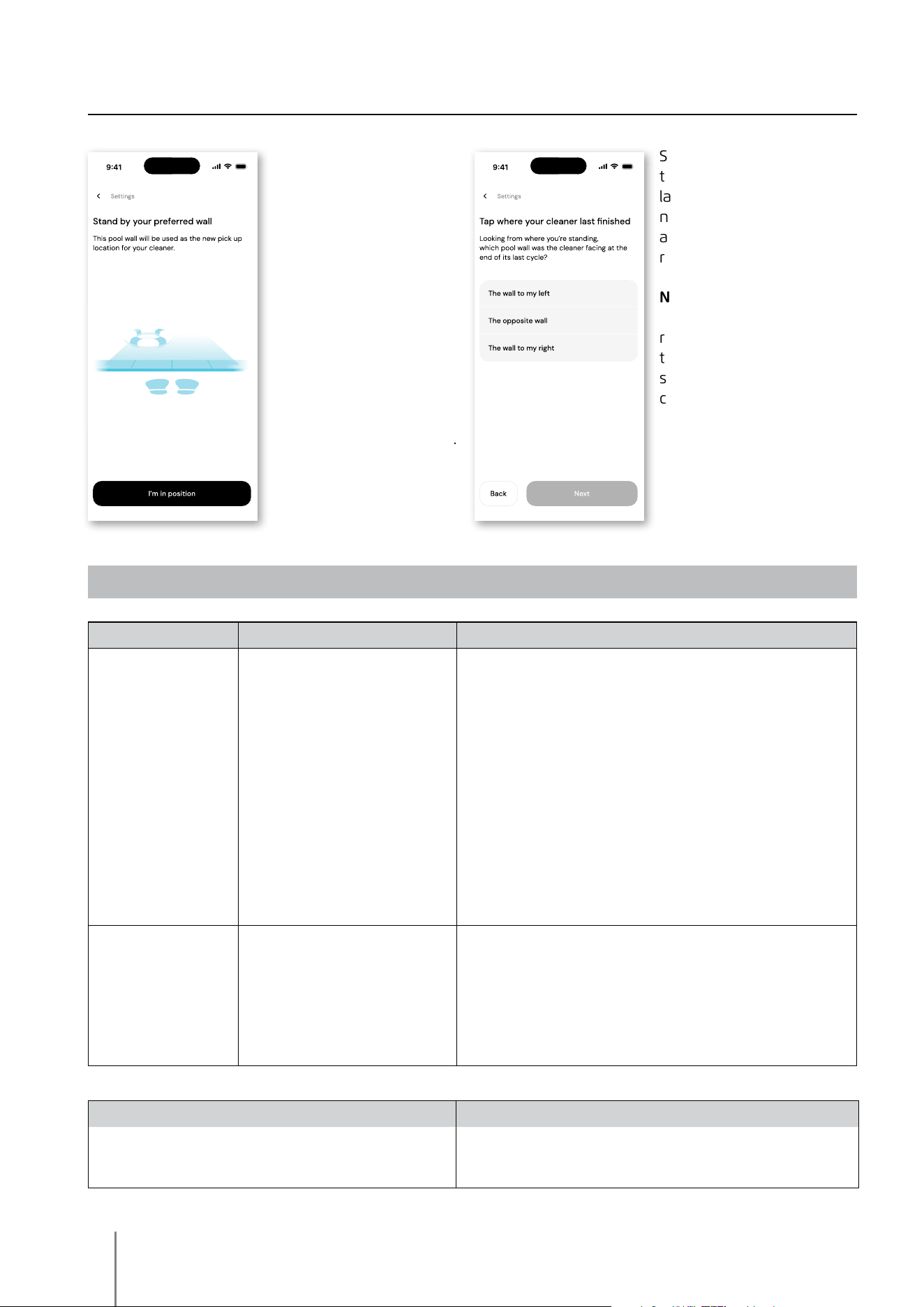
5.2 Setting a preferred Homing wall
At the end of the robot's
cleaning cycle, remember
which wall the robot
stopped at and waited
to be taken out. This is
the current Homing wall
where the robot is set to
wait to be taken out.
If you want to change the
Homing wall, stand next
to your preferred pool
wall, facing the pool.
Tap the 3 dots on the
home screen for settings.
Select "Homing wall". Tap
"I'm in position".
Select the wall where
therobotnishedit's
last cycle. If the pool is
not rectangular, select
approximately where the
robot parked.
NOTE: This feature works
with a compass. The
robot will home in on
the approximate location
selected according to the
compass.
6.
Maytronics One
TM
- TROUBLESHOOTING
12
Robotic Pool Cleaner EON™ | User Instructions
7. ROBOTIC POOL CLEANER - TROUBLESHOOTING
Symptom Possible reason Corrective action
The robot does
NOT start.
• An object is stuck in the tracks or wheels.
• An object or hair is stuck in the impeller.
• The robot is not fully charged.
• The robot is out of the water.
• The red error indicator LED is ON.
• Carefully remove the object from tracks or wheels.
• Clean the impeller (see section 1.4).
• Charge the battery to 100% -3 green bars.
• Place the robot in the water within 30 seconds after starting it.
• Check app for error message and troubleshooting.
• If none of the above troubleshooting helps,
contact [email protected]
The robot is moving
in circles.
• Clogged filter basket.
• Debris stuck in the impeller housing or
impeller cover.
• An object is stuck in the tracks or wheels.
• Algae buildup or pool water does not meet
specifications.
• Clean the filter basket. It should be white and clean when
touching. If it is brown or green, clean it with a hose. If it stays
brown, it may be time for a replacement filter.
• Clean the impeller (see section 1.4).
• Carefully remove the object from tracks or wheels.
• Correct pool and water conditions.
The robot doesn't
charge properly.
• The wall power outlet isn't working.
• An object or dirt is preventing a proper
connection between the charger and the
robot.
• The robot is too hot or cold to be charged
properly.
• It hasn't charged for enough time.
• The charger has a green LED when it gets electricity from the wall
outlet. Test the power outlet with another device or try charging
the robot from an outlet that works.
• Make sure that the charger connections are clean on the robot
• Charge in the shade or indoors. If summer, try charging at night.
• It can take up to 4.5 hours for a full charge.
The robot does not
turn or moves in
one direction only.
• Debris stuck in the impeller housing or
impeller cover.
• Clean the impeller (see section 1.4).
The robot moves but
does not clean the
pool.
• Clogged filter basket.
• Debris stuck in the impeller housing or
impeller cover.
• Clean the filter basket. It should be white. If it is brown or green,
clean it with a hose.
• Clean the impeller (see section 1.4).
The robot does not
climb up the walls.
• The filter is too full to allow proper jet
propulsion up the wall.
• Debris is stuck in the impeller housing.
• Algae on walls.
• Unsuitable pH level.
• Clean the filter and make sure that there is nothing stuck in the
impeller. The filter should be white. If it is brown or green, clean it
with a hose.
• Clean the impeller (see section 1.4).
• Check the level of chemicals in the water. Improper levels may
allow the growth of algae, making the walls slippery.
If so, adjust the levels and scrub the walls.
Robot is not waiting
at the waterline
when I arrived. It is
standing near a wall.
At the end of each cycle, the robot waits on
the floor next to its Homing wall.
• When shaking the Clicker in the water for over 3-5 seconds, the
robot will climb and wait for 1 minute.
• The ClickUp
TM
feature is available for up to 14 days after a normal
2 hour cycle if the battery was full when started.
• After UltraRun™ Mode or if the battery wasn't full when started,
the ClickUp
TM
feature is available for at least 2 days.
• If the robot is not taken out after 1 minute of waiting, it will climb
down and turn to face another wall. The next time you use the
Clicker in the water, the robot will climb up a different wall.
Beforeo-seasonstorage-werecommendchargingthebatterytoabout50%(2greenbarsinthe
battery indicator panel).
Recommended storage temperature range: -10°C - 40°C / 14°F - 104°F.
Storing the robot in a hot location will likely damage the battery.
Aftero-seasonstorage,chargetherobottoitsfullest.
If this troubleshooting guide didn't solve your problem contact Customer Care: [email protected]
8. OFF-SEASON STORAGE

Australia, NZ, South Africa
1 300 693 657
infoau@maytronics.com
Rest of the world / Maytronics HQ
00 800 69694141 (toll free number)
00 972 77 96 14 204 (international call)
wecare@maytronics.com
9. CONTACT MAYTRONICS CUSTOMER CARE:
North America
US 1-888-365-7446
Canada 1-855-634-8572
customersupport@maytronicsus.com
France
+33 (0)4 42 98 14 90
support@maytronics.fr
EN
8159590 REV. 00