1
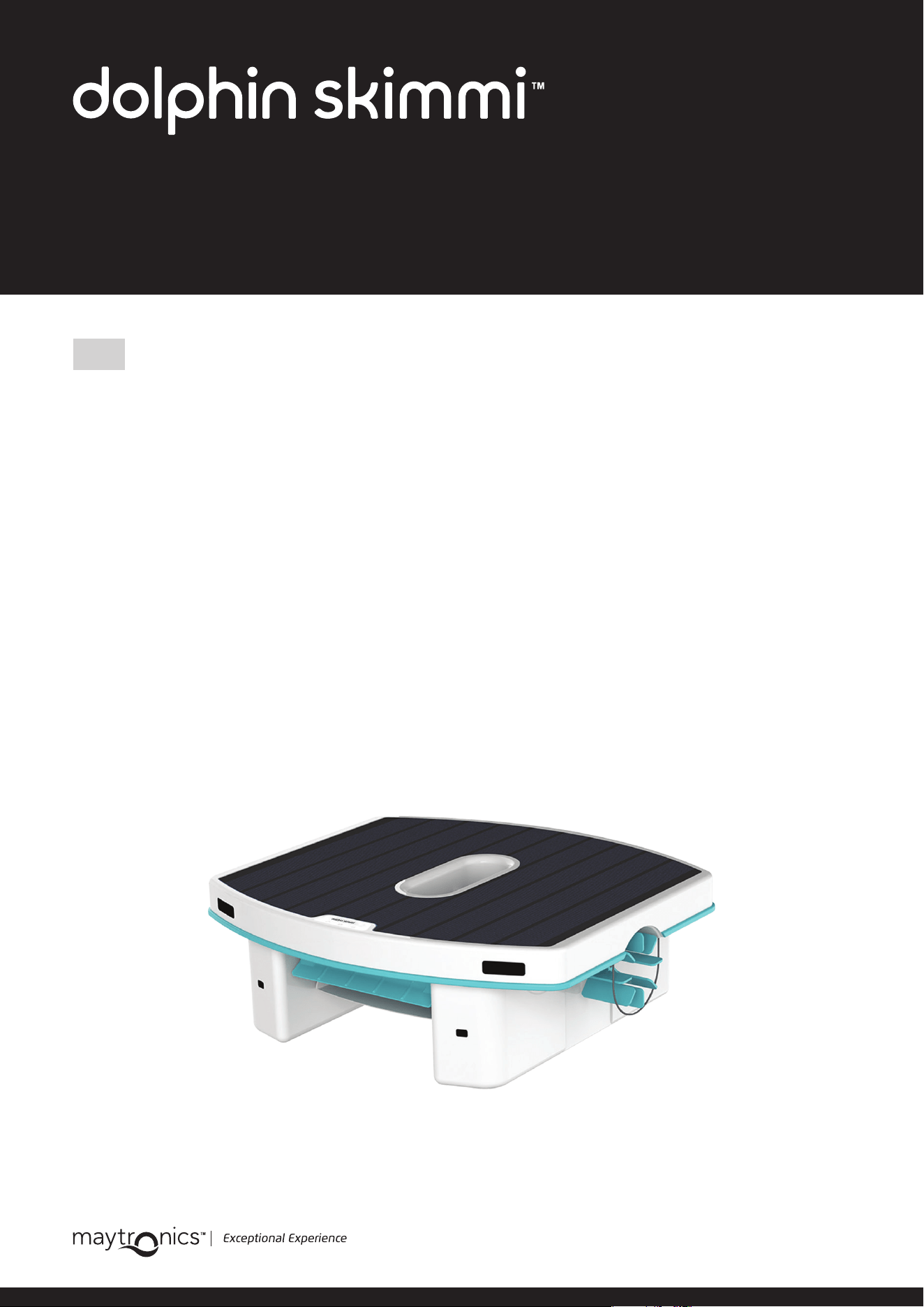
Dolphin Skimmi
TM
Robotic Pool Skimmer | User Instructions
User Instructions
EN
User Manual
Dolphin Skimmi
TM
Robotic Pool Skimmer
You will enjoy the time and money you’ll now save cleaning your pool with your new
Dolphin Skimmi
TM
autonomous, solar powered robotic pool skimmer. It cleans the entire water
surface, including debris on the walls.
Using Dolphin Skimmi
TM
is super easy and ecient. Just turn it ON, place Dolphin Skimmi
TM
in the
water, and start it with the app or turn ON Auto-Start. Cable-free and no need to charge the
battery. As autonomous as can be, Dolphin Skimmi
TM
avoids hoses, obstacles, and traps, charges
intelligently with the sun, and it saves enough energy to work at night for your morning swim.
Dolphin Skimmi
TM
saves you tons of time with the net, energy on the pump, and it only requires
occasional quick rinsing of the filter tray and solar panel.

1
Dolphin Skimmi
TM
Robotic Pool Skimmer | User Instructions
Dolphin Skimmi
TM
Robotic Pool Skimmer
User Instructions
EN
Contents
Important Safety Instructions
MyDolphin™ Skimmi App Instructions
Settings
Battery Recommendations
Quick Start Guide
Feature Descriptions
Water Resistance – IP-X7
LED Indicators
O-Season Storage
Troubleshooting
Dolphin Skimmi
TM
User Manual

2
Dolphin Skimmi
TM
Robotic Pool Skimmer | User Instructions
IMPORTANT SAFETY INSTRUCTIONS
READ AND FOLLOW ALL INSTRUCTIONS
WARNINGS
1. To avoid injuries or being startled in the water due to an unexpected collision with the robot,
do not swim while the robot is in the water.
2. Overheating - Do not store the robot in a hot location, such as a car.
3. Service by a certified technician only. This product contains Li-Ion battery pack. Do not attempt to
open or replace the battery as this may damage the battery which can cause an explosion, battery
chemical leak, corrosion, and swelling due to water entering the battery.
4. This appliance can be used by children aged 8 years and above and persons with reduced physical,
sensory, or mental capabilities or lack of experience and knowledge if they have been given
supervision or instruction concerning the use of the appliance in a safe way and understand the
hazards involved. Children shall not play with the appliance. Cleaning and user maintenance shall not
be done by children without supervision.
CAUTIONS
1. If damaged - Do not use the robot in case of mechanical damage to the robot or battery. Take it
to an authorized Maytronics technician.
2. Repairs by an unauthorized person voids warranty - Do not attempt to open and repair the robot
beyond instructions given in the quick guide and user manual. Any repairs done by a non-authorized
technician can damage the product and would void the warranty.
3. Do not push the robot underwater. It is waterproof, but not designed to withstand the water
pressure if submerged. Water entering the robot could corrode and damage the internal parts
of the robot.
4. It should be recycled at certified electronics battery recyclers that accept batteries. Batteries should
not be discarded in the trash or put into municipal recycling bins. Do not disassemble the battery.
5. When you need to dispose of your faulty robot, please follow your local region’s instructions.
Radio transmitter
Bluetooth®:
Frequency range: 2402-2480 MHz
Transmitted power: 0.008W
SAVE THESE INSTRUCTIONS
Dolphin Skimmi
TM
User Manual
WARNING
CAUTION
3
Dolphin Skimmi
TM
Robotic Pool Skimmer | User Instructions
MyDolphin™ SKIMMI APP INSTRUCTIONS
Pairing with your phone
1. Download the MyDolphin
TM
Skimmi app from the app store.
2. Agree to Maytronics Terms of Service and Privacy Policy. Tap to read them.
3. Make sure Bluetooth® is active on your smartphone.
4. Tap the pencil to name your robot. It’s more fun, and this way if your neighbor also gets one,
you won’t get them confused.
5. Select your newly named Dolphin Skimmi
TM
.
6. Rotate the front wheel of the robot to pair the robot with the phone.
Start the robot
1. Tap “Start Clean” on the app home screen. Its default program will clean your pool, save energy
for night work, and ensure optimal battery care.
2. There is an “Auto Start” feature to use the robot without the app. If you turn it ON in
“Device Settings”, the robot will start 15 seconds after inserting the filter tray all the way.
3. You can change the default settings to fit your pool type or bathing habits in the “Settings”
menu.
Warranty and registration popups
1. You will receive a notification to fill in the online warranty. Doing so online will save
you the need to post-mail it and it will speed up any service issues that might occur.
Note: Make sure to have your “Dolphin Skimmi
TM
” serial number to register it. The number is on a sticker
under the robot on the inside of the floats and in the “General Information” section of
“Device Settings” in the MyDolphin™ Skimmi app.
2. Opt-in to receive updates and promotions from Maytronics.
3. Tap “Terms & Policies” to read the policies.
4. Tap “Submit” to continue.
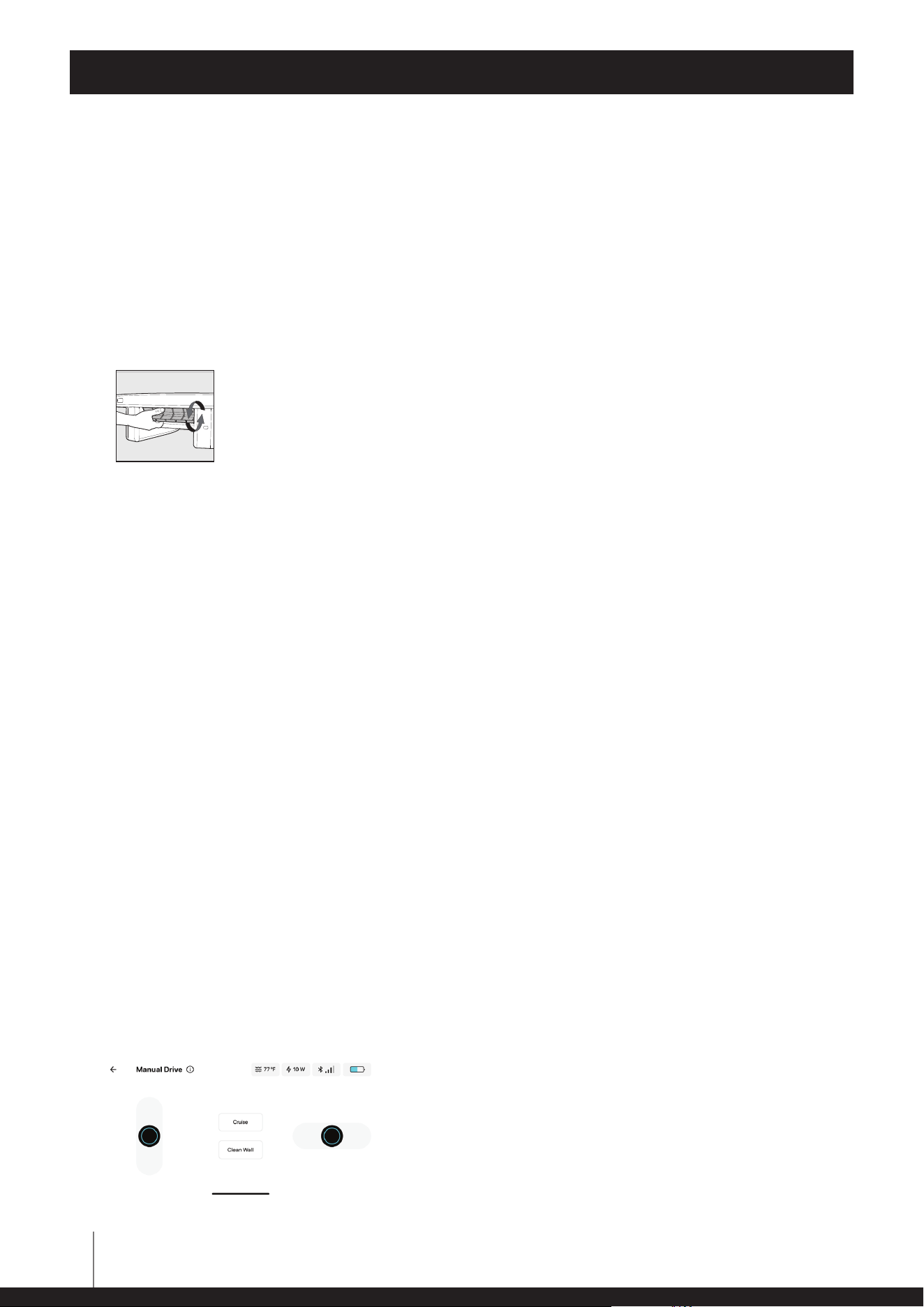
Manual/remote control
1. Tap “Manual Drive” to see the manual control interface.
2. Slide the left controller to drive it forward or backward.
3. Tap “Cruise” and the app will hold the forward or backward button where you left it.
4. Slide the right controller to turn left or right.
5. Tap “Clean Wall” when next to a wall to create a flow of water that pulls debris from the wall
into the filter tray.
Dolphin Skimmi
TM
User Manual

4
Dolphin Skimmi
TM
Robotic Pool Skimmer | User Instructions
Robot status and indications
The robot has various sensors and indicators to help you properly set it and to know that
everything is working as expected.
1.
The battery indicator shows how much energy the battery has stored. If the battery level
is low, Dolphin Skimmi
TM
hibernates to preserve battery life. If it is between 25-100, it works
as usual. When it is full, the charge from the solar panel bypasses the battery and powers the
motors directly without finding direct sunlight and stopping for Smart Solar Recharge breaks.
This is done to preserve battery life and provide more work time.
2.
The Bluetooth® icon shows the strength of the connection.
3.
The charging/lightning bolt shows how many watts the sun is currently charging the robot.
4.
The temperature indicator shows the water temperature.
5. The robot status line describes what the robot is doing or if there is an error that needs to be
taken care of, such as something stuck in one of the wheels.
SETTINGS
Tap “Settings” in the app home screen to change the default settings.
DEVICE SETTINGS
While the default settings are ideal for most situations, you can adjust these settings according
to your needs.
• Auto Start - Turn ON to automatically activate the robot when inserting the Debris Tray until it
snaps into place. Note that if you turn Auto Start ON, you should use the clips that came with
the tray when storing, so that it stays OFF and doesn’t wear the batteries out in storage.
• Speed - You can change it from “Auto”, to “Slow” or “Fast”. “Auto” is default and it slows the
Dolphin Skimmi
TM
at night so that it is quieter. The “Fast” setting remains fast day and night, so
you may notice the noise more when everything is quiet.
• Water Edge Cleaning - Water Edge Cleaning creates a micro-current to pull debris from the
edge and scoop it up. Dolphin Skimmi
TM
is set by default to Eco, where it cleans every 3rd wall it
gets to. This way it reduces battery consumption while cleaning all of the walls during the day,
usually within an hour or two.
• Water Clarity - If the water isn't clear, it affects the sensors' ability to accurately detect
obstacles. Cloudy water can cause Dolphin Skimmi
TM
to turn frequently or even turn in circles.
Set to “Cloudy” or “Murky” if the water is murky so that the sensors won't get confused.
• Night Light - The robot has fun accent lighting when working at night. You can leave it on
“Constant”, or change to “Flashing”, when it “Detects” an object/wall, or “OFF”.
• Debris Washing - Turn OFF if you don't want the robot to remove debris near the wall. If ON, it
will splash water on the walls during Water Edge Cleaning to remove debris.
• Smart Detect - Choose between "Avoid Hose and cable" or "Leaves search".
• Distance to Edge - Set your optimal response distance to the edge of your pool so that
Dolphin Skimmi
TM
doesn’t turn too far from the edge or bump into it frequently.
• Pool Type - Set by default for regular, clear pools. If changed to “Natural”, it will protect plants
and other elements on the pond’s edge. It won't clean the water’s edge in “Natural” mode.
Dolphin Skimmi
TM
User Manual

5
Dolphin Skimmi
TM
Robotic Pool Skimmer | User Instructions
SETTINGS
• Smart Solar Recharge - During pauses in the cleaning intervals, the robot finds direct sunlight
before pausing to charge.
• Wheels Unblock - The robot is programmed to do various actions to try to remove objects if
they get stuck in its wheels. If it is unsuccessful, it stops and gives an error alert so that you
can remove the object manually. It is on “Auto” by default. If there are strong winds, currents,
or the filter tray is full and heavy, Dolphin Skimmi
TM
may have a difficult time navigating. Setting
“Wheels Unblock” to “Forced” will use more battery power to increase motor strength.
• Sound Alert - If there is an error or if the wheels are stuck, the robot will beep to notify you
even if you are not using the app.
CLEANING SCHEDULE
We recommend not to set it for long work periods in low-light conditions because it has no way to
recharge itself and this can drain the battery.
In low-direct-sun conditions, we recommend increasing the “Start Delay”. It strengthens the battery
by delaying work after sunset and sunrise. That means that it will work before your morning swim,
but not the whole night, and it will recharge in the morning before it starts working.
There is rarely a need to change the settings. The robot is set for most climates to keep the pool
clean while protecting the battery from running high or low and thus being damaged. It alternates
between work and rest/recharge periods. In low-light conditions, if the battery is often low, you
can increase the rest periods and set it to work for shorter periods. In low-light conditions, we
also recommend turning ON the “Auto-Start” setting, so that the robot automatically starts again
in the morning if the battery ran low at night. Note that some of the “Device Settings” (“Waterline
Cleaning Frequency” and “Wheels Unblock”) also affect how much the battery is drained.
• Day Cleaning - Cleaning cycle duration during the day.
• Day Pause - Dolphin Skimmi
TM
finds direct sunlight and pauses its work for the set amount of
time to charge its battery. If the battery is full, it doesn’t pause.
• Night Cleaning - Cleaning cycle duration at night. Note that this is short because the robot does
not recharge at night.
• Night Pause - Breaks in between cleaning cycles. Note that this pause is long so that the robot
doesn't drain its battery at night.
• Start Delay - Delay the start of the first cleaning after dawn and dusk. Start delay is useful in
low-light conditions. It allows the robot to fill up its battery in the morning before starting to
work and it waits a few hours at night before starting to work so that there is enough battery
power left to clean the pool right before your morning swim.
APP SETTINGS
Select your preferred language and units of measurement (Celsius or Fahrenheit).
Dolphin Skimmi
TM
User Manual

6
Dolphin Skimmi
TM
Robotic Pool Skimmer | User Instructions
BATTERY RECOMMENDATIONS
• Set and forget: In most situations, you don't need to do anything to charge Dolphin Skimmi
TM
.
Just leave it in the water and the robot charges itself whenever the sun is out. If left to its
default work/rest schedule, the charge is usually sufficient for daytime and nighttime work.
• If there is no direct sunlight in the pool you can remove the robot and place it in a sunny
location for it to charge. Note that placing it on hot pavement can damage the battery – place
Dolphin Skimmi
TM
on the lawn or yard furniture. To prevent debris from hardening and clogging
the filter, be sure to rinse the filter tray before placing it in a dry, sunny area outside of the pool.
Don’t insert the filter tray all the way so that the robot won’t run while charging.
• If there are low-sunlight conditions like cloudy or high latitudes, and the battery frequently
runs low, you can increase the “Start Delay” option in the “Cleaning Schedule” settings. This will
save battery for night work before the morning swim and will give it more time to charge in the
morning before it starts to work. Also, you can increase the “Day Pause” and “Night Pause” to
adjust its work schedule to low-sun conditions.
• Preserving the battery: Be sure that the robot is not left in a very hot location (such as a car or
hot pavement) as this will likely damage the battery and void the warranty. The default settings
are programmed for maximal battery life.
• Cleaning the solar panel: Periodically clean dust and pollen off the solar panel surface gently
to maximize charging efficiency. Use a soft towel or sponge with soap for any accumulated
sunscreen. If limescale develops, you can clean it with vinegar and a soft towel.
• Battery preservation: Dolphin Skimmi
TM
is equipped with an algorithm to automatically prolong
battery life. The solar panel bypasses the battery whenever it is full and powers the motors
directly. This feature minimizes wear and tear on the battery and protects it from overcharging.
• Smart Solar Recharge is ON by default and causes the robot to actively search for a sunny place
to charge when the robot pauses. We recommend leaving it ON, especially if you have shady
spots, as it improves battery charging.
Dolphin Skimmi
TM
User Manual
7
Dolphin Skimmi
TM
Robotic Pool Skimmer | User Instructions
QUICK START GUIDE
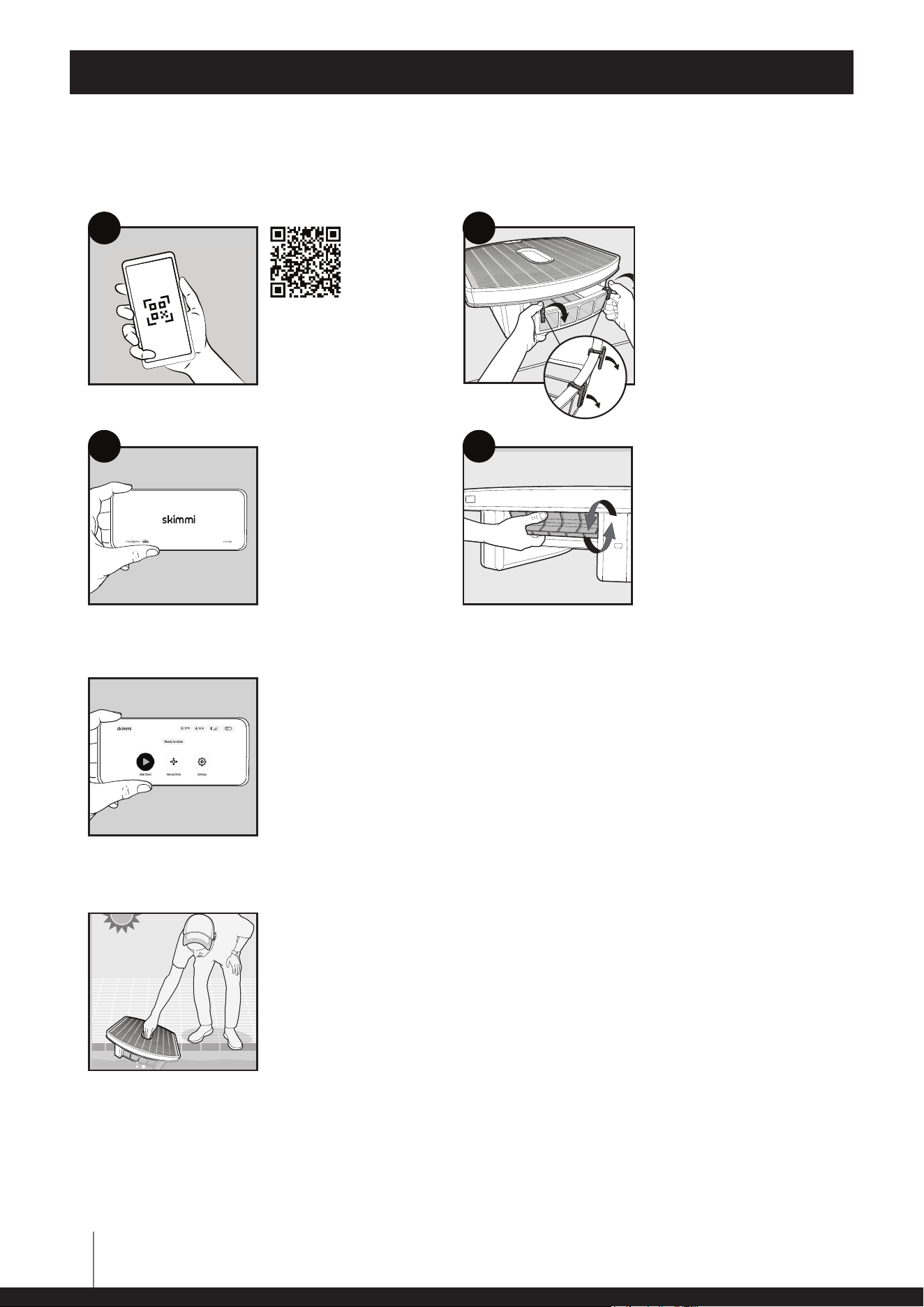
Getting started
Start via app or automatically
Let it swim
Dolphin Skimmi
TM
User Manual
draw 02 - remove the clips
1. Install the phone
app MyDolphin
TM
Skimmi from the
store.
2. Start the app and
connect.
1. Spin front paddle wheel
during first pairing.
2. Configure settings if
needed.
3. See "Settings" section of
the user manual for
details.
1
4
3
1. Remove 2 storage clips
from the filter tray.
We recommend saving
them to keep the robot
OFF when in storage.
2. Insert the filter tray until
it snaps into place to
activate the robot.
2
Start with app (default)
Close the filter tray and start Dolphin Skimmi
TM
via the app.
"Auto Start"
Turn ON "Auto Start" in the device settings. Now whenever the filter tray is
closed, Dolphin Skimmi
TM
will start working after 15 seconds.
Place Dolphin Skimmi
TM
in a sunny pool. No need to charge or remove
Dolphin Skimmi
TM
, except to rinse the filter tray.
Draw 01 - Place Skimmi in a sunny pool
1. Scan QR code.
2. Register for the
warranty. The serial
number is under the
robot, on the inside of
the floats.
8
Dolphin Skimmi
TM
Robotic Pool Skimmer | User Instructions
QUICK START GUIDE
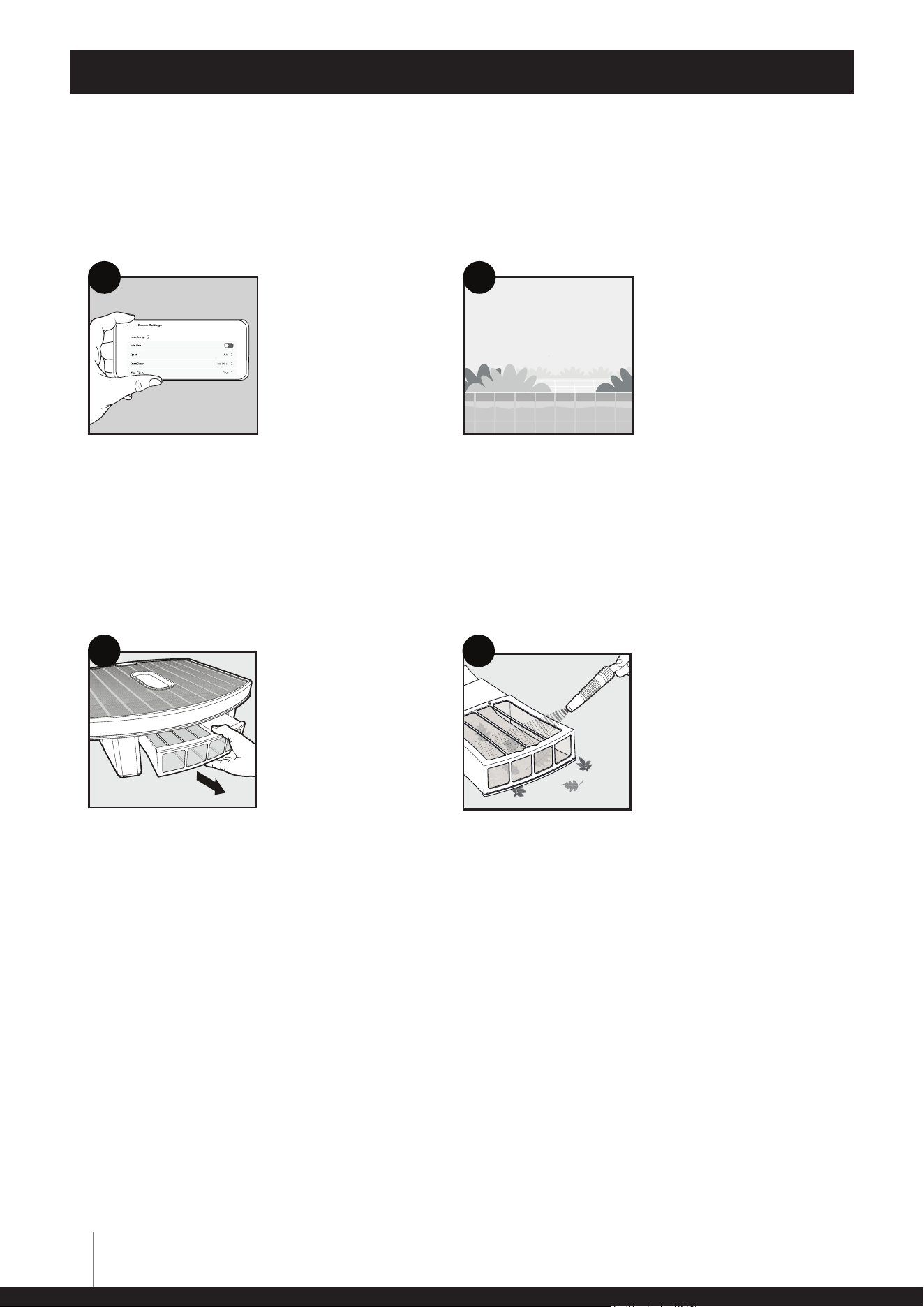
Features and options
Dolphin Skimmi
TM
User Manual
Dolphin Skimmi
TM
default settings are ideal for most pools. However, here are some settings that
you may want to adjust in the app setup:
Note: Be sure to clean the filter tray before it dries out to prevent debris from sticking to the filter.
If battery charges slowly: The solar panel may need to gently be cleaned from dust, grime, or lime scale.
Cleaning Schedule - To
maximize battery life,
we recommend using the
default settings for work/
rest cycles, which are:
Day - 20 minutes work -
10 minutes break.
Night - 10 minutes work -
1 hour break.
You can change the
defaults in the app
settings.
Pool Type: If your pool
is a pond with plants,
select "Natural" to prevent
damage to plants.
1 2
Draw 03 - Remove drawer
Draw 04 - Rinse with water
Clean solar panel
Rinse dust o with water and your hand. For oily grime (sunscreen, etc...),
use a gentle sponge or rag with soap and water.
Note: Abrasive scrubbing could scratch the solar panel.
Use a low-pressure hose
to gently wash debris from
both sides.
Remove filter tray.
1 2
Cleaning
Rinse filter tray

9
Dolphin Skimmi
TM
Robotic Pool Skimmer | User Instructions
FEATURE DESCRIPTIONS
• Auto-Start
Turn “Auto-Start” ON in the device settings and Dolphin Skimmi
TM
will start 15 seconds after
inserting the filter tray without needing to open the app.
• Smart Detection
Dolphin Skimmi
TM
avoids obstacles and hoses in the water, searches for large debris, and you
can set the distance it keeps from walls.
• Smart Sensing
Intelligently adjusts to solar energy conditions to maximize battery efficiency and save energy
for night work. Dolphin Skimmi
TM
provides real-time water temperature via the app.
• Water Edge Cleaning
When near a wall, Dolphin Skimmi
TM
creates a micro-current to pull debris away from the wall
and into the filter tray.
• Manual Drive
Drive the robot via the remote control in the user app to get to hard-to-reach areas and bring
Dolphin Skimmi
TM
to you to easily remove it from the pool, or just to have fun.
• Smart Solar Recharge
Searches for a location with direct sunlight while taking a break to recharge.
• Pond/Eco Pool Mode
For ponds or other natural pools, Dolphin Skimmi
TM
can be optimized to avoid bumping into
stone banks while being gentle on plants or other natural assets.
• Works Day and Night
For a clean morning swim, Dolphin Skimmi
TM
saves enough energy to work at night.
• Infinity Pool Ready
Dolphin Skimmi
TM
can sense and respond to the ‘invisible’ edge of an infinity pool.
• Night Light
Blue accent lighting when working at night creates a pleasant atmosphere and lets swimmers
know when Dolphin Skimmi
TM
is nearby. It does not affect Skimmi’s functioning.
WATER RESISTANCE - IP-X7
IP-X7 - While Dolphin Skimmi
TM
is able to handle being submerged for up to 1m for short periods,
we recommend not submerging it or washing it with a high-powered water stream because if you
accidentally go beyond the resistance that it’s designed for, water can get it and cause corrosion.
Dolphin Skimmi
TM
User Manual
10
Dolphin Skimmi
TM
Robotic Pool Skimmer | User Instructions
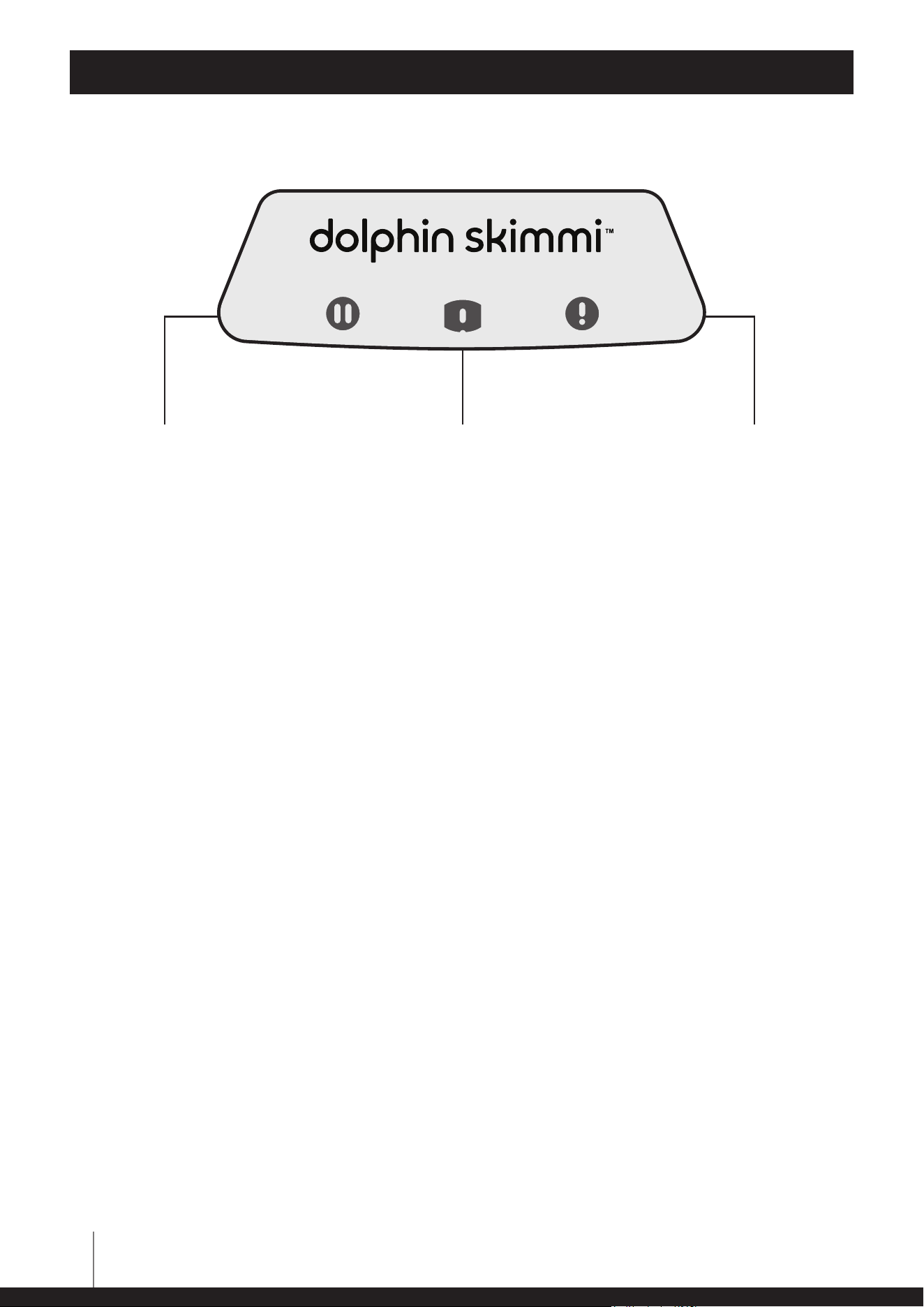
LED INDICATORS
Green Pause Indicator
Shows that robot is ON
standby.
Charging Status Indicator
If solid blue, it is charging
quickly. If flashing, it is
charging slowly.
Alert Indicator
Check app for details. May
be too hot and needs to be
in a cooler place or needs
you to remove objects or
hair from paddle wheels.
The status line in the app consistently clarifies the current condition of the robot.
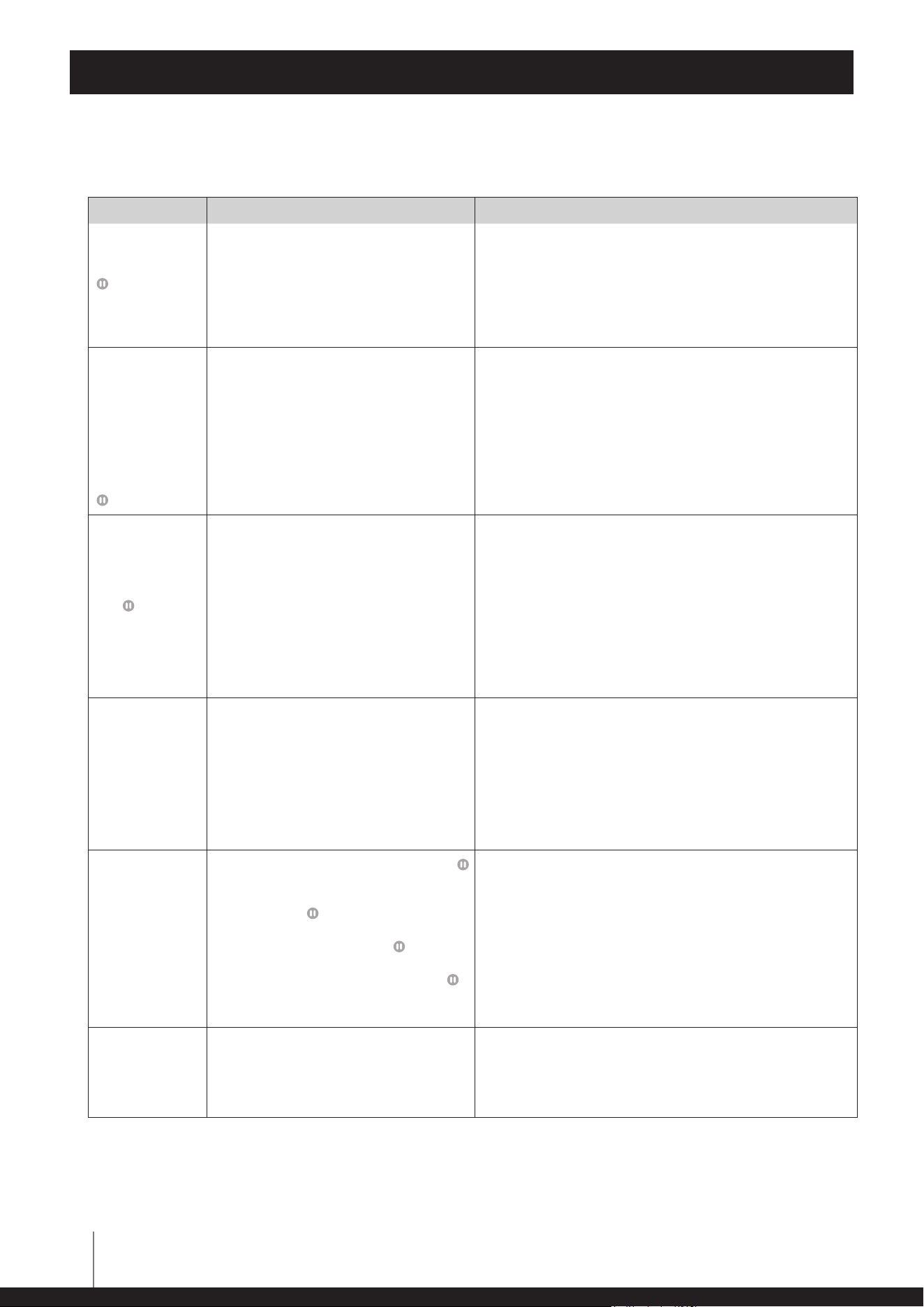
Green Pause Indicator
Lights continuously when the robot is switched ON (filter tray is inserted) and no cleaning program
is selected
Turns OFF during cleaning
Single-blink every 10 seconds
Double-blink - battery low - Dolphin Skimmi
TM
is hibernating until the sun charges it enough
Charging Status Indicator
Lights continuously when charging quickly (when solar power is higher than 0.3W)
Blinks when charging slowly (if the solar power is less than 0.3W)
Turns OFF in the evening (solar power is zero) or when the battery is fully charged
Alert Indicator
Flashes once every 2sec = ambient temperature below 4°C (risk of freezing) or above 55°C (the robot is
probably lying on hot pavement, charging has been disconnected)
BEEP: once short beep every 2sec
Flashes twice every 2sec =
battery temperature below 4
°
C (risk of damage) or above 55
°
C (risk of battery
damage, charging disconnected)
BEEP: two short beeps every 2sec
Flashes 3 times every 2sec =
the robot failed to remove the stuck object or hair from one of the wheels
BEEP: three short beeps every 2sec
Dolphin Skimmi
TM
User Manual

11
Dolphin Skimmi
TM
Robotic Pool Skimmer | User Instructions
Dolphin Skimmi
TM
User Manual
OFF-SEASON STORAGE
• Before off-season storage - we recommend charging the battery between 50% – 75%.
• Recommended storage temperature range: 5°C - 40°C / 40°F - 104°F. Storing the robot in a
colder or hotter location will likely damage the battery.
• Clean the filter tray before storing so that debris does not harden and become difficult to
remove.
• To prevent draining the battery while in storage, place the clips, or another means of ensuring
that the tray doesn’t close all the way, so that the robot stays OFF.
• After off-season storage, clean the solar panel, turn the robot ON, and activate it in a sunny
pool.
12
Dolphin Skimmi
TM
Robotic Pool Skimmer | User Instructions
Dolphin Skimmi
TM
User Manual
TROUBLESHOOTING
Symptom Possible reason Corrective action
Robot can't be
switched ON.
Green pause LED
is not lit or
blinking
• The filter tray is not inserted correctly.
• Battery is not charged.
• Remove clips from the filter tray (if still there) and insert the
tray until it snaps into place.
• Insert the filter tray and place the robot in direct sunlight.
The robot will immediately switch ON, the green Pause
LED, and the blue Charge LED will light up. If it still doesn’t
work after charging in the sun, contact Customer Care:
wecare@maytronics.com
Switching ON
the robot is not
confirmed by
a beep. After
inserting the filter
tray, the robot
switches OFF in a
moment.
Green pause LED
double-blinks
• Battery is too low. • Place the robot in direct sunlight and let the battery
recharge.
After night
cleaning, the
robot doesn’t
move and the
green pause
LED
is lit
continuously. It
will only start up
again when the
Start button is
pressed.
• "Auto Start" is disabled and low-light
conditions do not allow the battery to
adequately charge for night work, so
Dolphin Skimmi
TM
turns OFF at night.
• Night cleaning settings are too
demanding, causing the battery to drain.
• Open the app and turn "Auto Start" = ON in "Device
Settings".
• Reduce night cleaning time and increase night pause
time in “Device Settings". Also, turn "Start Delay" ON in the
settings "Cleaning Schedule”.
Robot can only be
switched ON in a
sunny place. The
app indicates a
charged battery.
However, the
robot switches
OFF immediately
if it is shaded.
• Faulty battery. • Replace the battery
Contact Customer Care: wecare@maytronics.com
Robot does not
move.
• Cleaning has not started (green pause
LED constantly ON).
• Robot is on a pause between cleanings
(green pause
LED single-blinks every
5 seconds).
• Battery is low (green pause
LED
double-blinks every 10 seconds).
• New app update failed (green pause
LED is constantly blinking).
• Open the app and tap the Start button.
• Wait until the next cleaning cycle starts if the status bar in
the app shows that it is in a recharge pause.
• Wait for the battery to charge in the sun.
• Open the app and complete the robot’s software update.
Robot has
stopped moving,
it gives a warning
signal, the red
LED flashes.
• There is an object stuck in one of the
wheels of the robot.
• Open the app and use the robot's message to find out
which wheel is stuck. Remove the object or hair.
If it still doesn't work, contact Customer Care:
wecare@maytronics.com

13
Dolphin Skimmi
TM
Robotic Pool Skimmer | User Instructions
Dolphin Skimmi
TM
User Manual
TROUBLESHOOTING
Symptom Possible reason Corrective action
Robot often
stands still, the
cleaning time has
been significantly
reduced.
• Cloudy skies, low sunny intensity for a
long time.
• Decreased battery capacity.
• Reduce the length of cleaning intervals and extend the
pauses. Turn OFF energy-intensive functions ("Debris
Washing" = OFF, "Speed" = Low, "Wheels Unblock" = Auto)
and instead turn "Smart Solar Recharge" = ON, set the "Start
Delay" to at least 1-2 hours. Keep the solar panel clean.
Empty the filter tray more often.
• Contact Customer Care to replace the battery:
wecare@maytronics.com
Robot turns only
in circles.
• Sensor covers are dirty.
• Salt in the pool is not perfectly dissolved,
the water is polluted.
• Water's gotten into the robot.
• Wipe off dirt with a damp cloth.
• Open the app and select a lower water quality in the "Smart
Detect" function or turn the function OFF.
• Contact Customer Care: wecare@maytronics.com
The robot's
movement is
chaotic, the robot
changes direction
frequently and
randomly.
• The pool surface is covered with a thick
layer of leaves which confuses the
sensors.
• Water is murky or contains many small
objects which confuses the sensors.
• Due to strong winds, waves form on the
surface and the robot sways violently.
• Filter tray is full.
• In the app turn "Smart Detect" to OFF.
• In the "Smart Detect" function, select a lower water quality
or switch the function OFF.
• Turn "Smart Detect" to OFF.
• Empty the filter tray and wash with a stream of water.
Robot does not
collect debris in
the filter tray,
it pushes small
objects in front
of it.
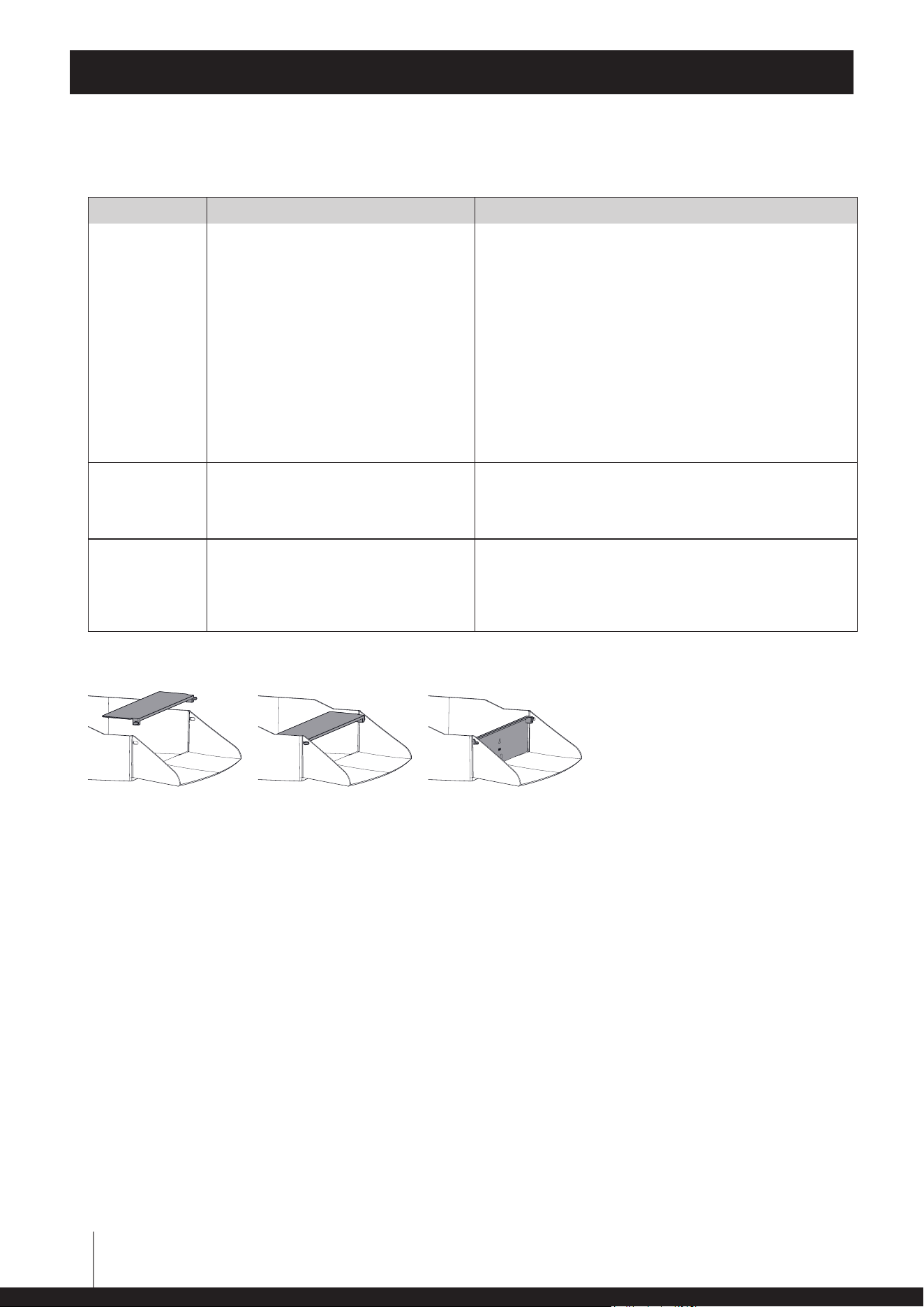
• Non-return flap is stuck or has been
incorrectly installed.
• Filter tray is full.
• Check if the non-return flap of the filter tray is connected
properly. See the illustration below.
• Empty the filter tray and wash it with a stream of water.
A paddle wheel
often jams when
moving. Red
alert indicator
triple-blinking
and beeping
• Hair or another object is wrapped
around the shaft, reducing the strength
of the wheel.
• Filter tray is full.
• Low strength of motors.
• Remove unwanted hair or other object.
• Empty the filter tray and rinse it.
• Open the app and set "Wheels Unblock" to "Forced" (note
that this option will increase the robot's power consumption
and thus reduce the overall cleaning time).
When moving, the
front of the robot
dives more, the
collection wheel
makes a "slapping"
sound.
• Filter tray is full.
• The robot is pulled by a strong stream of
water from the filter pump, or a strong
wind is blowing.
• The non-return flap is stuck or has been
incorrectly installed.
• Water's gotten into the robot.
• Empty the filter tray and rinse it.
• Short-term instability. This will fix itself when the abnormal
situation changes.
• Check if the non-return flap of the filter tray is connected
properly. See the illustration below.
• Contact Customer Care: wecare@maytronics.com
APP cannot find
or connect to the
robot.
• Robot is turned OFF.
• Battery is not charged.
• Large distance or obstacles between the
smartphone and the robot.
• Robot is currently connected to another
smartphone.
• Insert the filter tray.
• Place the robot in direct sunlight and let the battery
recharge.
• Move your smartphone close to the robot.
• Robot can only be connected to one smartphone at a time.
Close the app of the other smartphone.
14
Dolphin Skimmi
TM
Robotic Pool Skimmer | User Instructions
Dolphin Skimmi
TM
User Manual
TROUBLESHOOTING
Symptom Possible reason Corrective action
Robot is placed in
a sunny location,
but the charging
power is zero or
very low.
• Battery is fully charged.
• Processor is testing the battery.
• Surface of the solar panel is dirty.
• High battery temperature.
• Faulty battery or faulty solar panel.
• This is normal when the battery is full – so that the robot
runs on solar power instead of battery. When the sunlight
becomes weaker, the battery will start to power the robot
again and will continue charging.
• Normal operating condition, charging resumes within a few
seconds.
• Clean the panel with a damp cloth or wash the surface with
a stream of water.
• Move the robot to a cooler place or leave it in the pool. Once
the battery temperature drops the recharge will resume
immediately.
• If none of the above solutions helped, contact Customer
Care to locate your nearest Maytronics certified service
station: wecare@maytronics.com
Solar panel
is covered
by plaque
(limescale).
• Your local water has a high level of
calcium (hardwater). Calcium is deposited
on surfaces and accumulates into plaque.
• Clean gently with lemon juice or diluted citric acid or vinegar.
• Prevent future buildup by rinsing less frequently or towel
drying. Also, you can balance your pool’s pH with a water
test strip and adding pool-grade acid accordingly.
Robot pushes
against the edge
of an infinity
pool.
• In the “Smart Detect” setting, the
underwater sensor sensitivity is set to
“Cloudy” or “Murky” causing it to get too
close to the edge.
• If the pool water is clear, change the "Water Clarity" setting
to “Clear” or “Crystal Clear”.
• If the pool is “Natural” and has cloudy water due to algae or
silt, set the “Pool Type” setting to “Natural”. Then the robot
will reverse when approaching a wall, instead of turning.
Replacing the non-return flap if it comes o the filter tray.
If none of these solutions solve your problem, contact Maytronics Customer Care:
North America
1-888-365-7446 ext. 1002
customersupport@maytronicsus.com
Rest of the world / Maytronics HQ
00 800 69694141 (toll free number)
00 972 77 96 14 204 (international call)
wecare@maytronics.com
For full information and additional troubleshooting please visit us at:
www.maytronics.com
8159220-WEB REV. 02