EN
· The Perfect Partner of Your Life ·
FM
87
5.9
522 - - 710 - - 1060 - - 1400 - - 1620
AM
SW
90 94
7.5 10.2 13.4 16.1 18.0
100 105 106
MHz
KHz
MHz

2
PREFACE
Thank you for purchasing our PRUNUS J-180 retro radio. In
order to get the best from the radio, please read this manual
carefully before using it and take special notice of the section on
precautions.
PRUNUS J-180 Retro Radio User Manual

1. Please fully charge the radio to activate it before the first use
or after a long period of being left unused.
2. Please take the batteries out if you plan not to use the radio
for a long time.
3. Don’t get the radio wet or use it in a moist environment. E.g
Keep it out of rain and use carefully in bathrooms and kitchens.
4. Don’t place any potentially damaging objects, such as
liquid-filled containers and lighted candle, on the top of the
radio.
5. Keep the radio away from sources of heat, such as radiators,
hot water pipes and fires.
6. Keep the radio away from any solvents, such as white spirit,
paraffin and petrol.
7. Keep the radio away from magnets and magnetic fields.
8. Please do not throw this product into fire in case of explosion.
Ⅰ
PRECAUTIONS
3
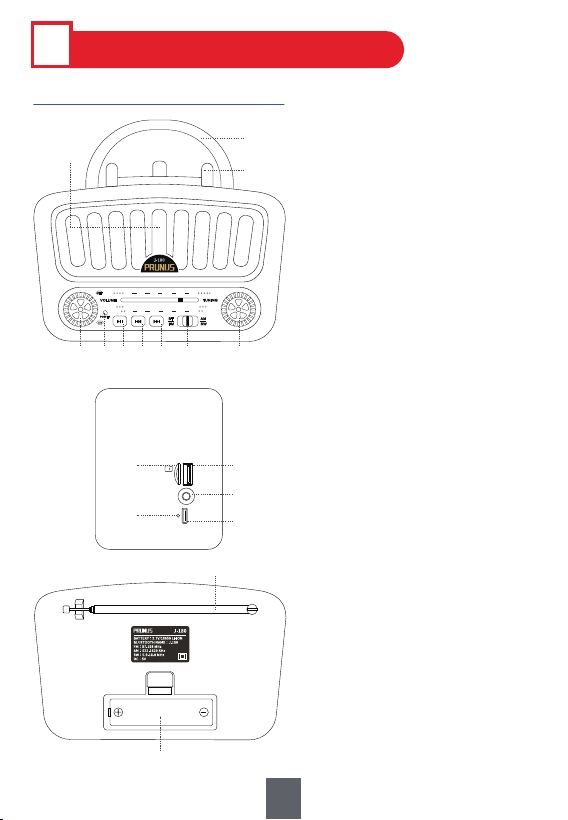
1. Functional Components
Ⅱ
PRODUCT INTRODUCTION
① Volume/Power Knob
② Power Indicator
③ Play/Pause/Mode Switch
④ Previous/Rewind
⑤ Next/Fast forward
⑥ Band Switch:
BT/FM/AM/SW
⑦ Tuning Knob
⑧ Speaker
⑨ Handle
⑩ Phone Stand
⑪ TF Card Slot
⑫ USB Drive Port
⑬ AUX in Jack
⑭ Charging Indicator
⑮ DC5V Charging Port
⑯ Telescopic Antenna
⑰ Battery Compartment
FM 87
5.9
522 - - 710 - - 1060 - - 1400 - - 1620
AM
SW
90 94
7.5 10.2 13.4 16.1 18.0
100 105 106
MHz
KHz
MHz
① ⑦⑥④
③
② ⑤
⑧
⑩
⑨
DC5V
AUX USB
TF
⑫
⑬
⑮
⑪
⑭
OPEN
⑯
⑰
4

5
1) Model: J-180
2) Band: FM: 87-108 MHz; AM: 522-1620KHz; SW: 5.9-18.0MHz
3) MP3 Playing: Bluetooth / TF Card / USB Drive / AUX
4) Battery: 3.7V/ 1800mAh 18650 LI-ION
5) Support Music Format: MP3
6) Speaker Power: 5W
7) Charging Standard: DC5V/0.5-2A
8) Dimension: 170 x 80 x 108mm
9) Weight: 576g
10) TF card/USB flash drive: Max support 256G
11) Package Included:
Radio x 1, Charging Cable x 1, User Manual x 1
2. Product Specifications
Ⅲ
POWER SUPPLY
Tips:
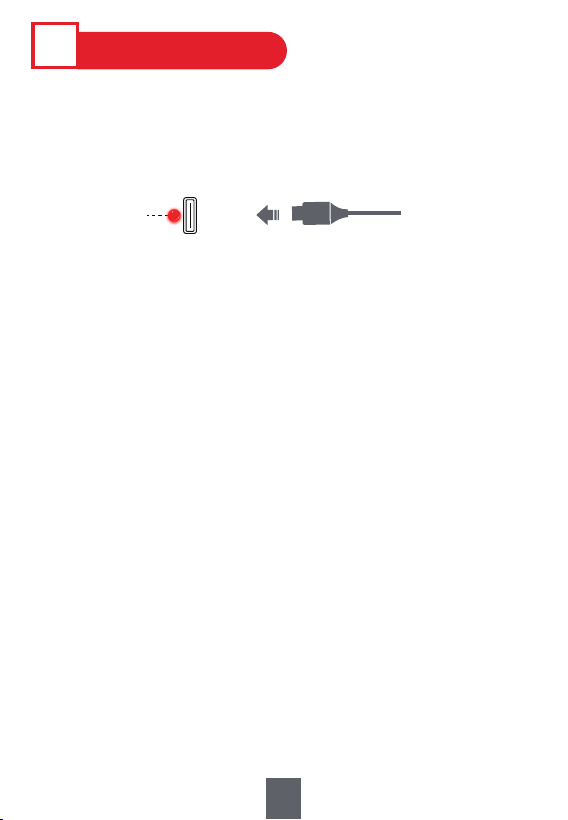
1. To protect the radio, please charge the radio with standard
DC5V/0.5-2A charger(or other devices that can supply this
type of power).
2. To protect the battery, please try to avoid charging the radio
continuously for a long time, such as 24 hours or more.
It takes about 4-5 hours to fully charge. And the red charging
indicator will turn off once the radio is fully charged.
6
DC5V
⑭
Charging
Indicator
⑮ DC 5V Charging Port
USB-C cable
Ⅳ
RADIO RECEPTION
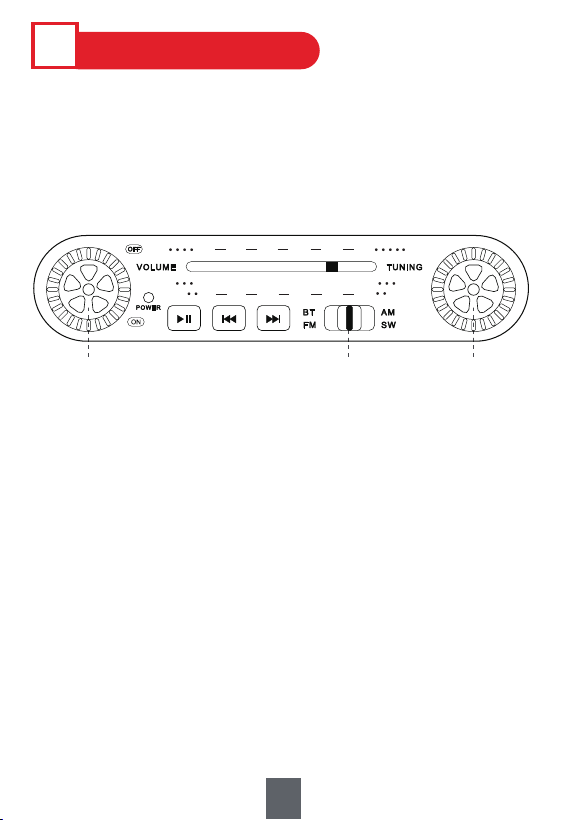
1. Turn on the radio by turning the <①Volume/Power Knob>.
2. Move the <⑥Band Switch> to choose “FM”, “AM”, or “SW”.
3. Turn the <⑦Tuning Knob> to choose the station.
4. Turn <①Volume/Power Knob> to adjust the volume.
Tips:
Move<⑥Band Switch> from left to right, the mode sequence is Bluetooth→
FM→AM→SW.
①
Band Switch
FM/AM/SW
Volume/
Power Knob
⑥ ⑦
Tuning
Knob
FM 87
5.9
522 - - 710 - - 1060 - - 1400 - - 1620
AM
SW
90 94
7.5 10.2 13.4 16.1 18.0
100 105 106
MHz
KHz
MHz
7
◆ How to Get Better Reception?
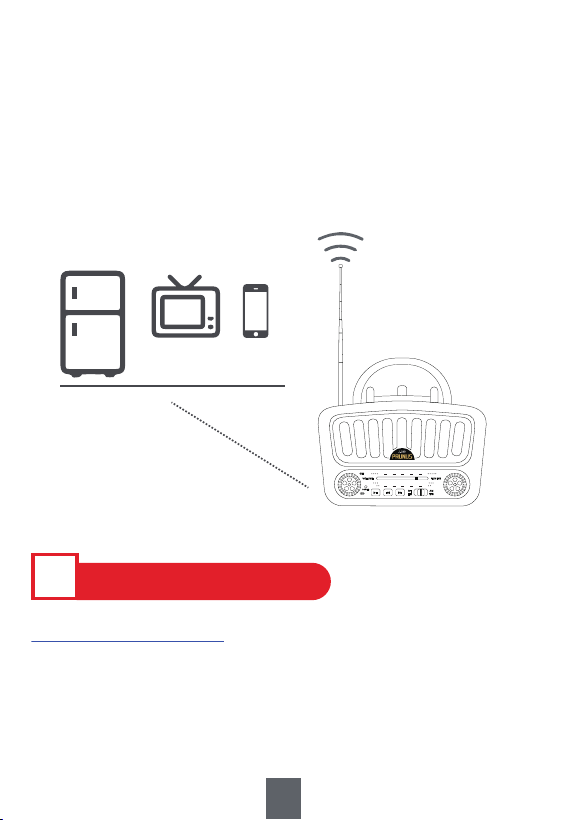
1. Adjust the telescopic antenna while listening to FM/SW, but
reposition the radio while listening to AM.
2. When you're indoors, approach it to the window and try to
keep it away from the electronic devices, such as computers,
TVs, refrigerators and mobile phones.
3. When you're outdoors, please try to listen to the radio in an
open place.
4. Human Body Induction: When reception is weak, it will get
better if you hold the radio in hand, but its reception will be
weak again when the hand is away. This is a common
phenomenon among almost all the radios, it's not a problem.
Away from the electronic devices
FM 87
5.9
522 - - 710 - - 1060 - - 1400 - - 1620
AM
SW
90 94
7.5 10.2 13.4 16.1 18.0
100 105 106
MHz
KHz
MHz
1.Play via Bluetooth
Ⅴ
OTHER FUNCTIONS
8
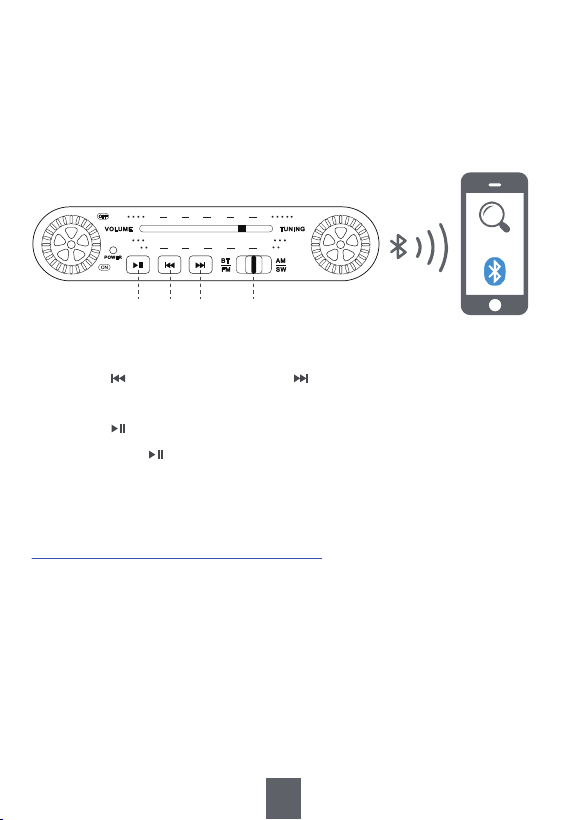
1) Move <⑥Band Switch> to “BT”. A “Bluetooth Mode” sound
means the Bluetooth connection is available and ready to
be paired.
2.Played by USB Drive/TF Card
2) Turn on the Bluetooth on your device, such as mobile phone,
to search and connect the device named “J-180”. A "ding-dong"
sound indicates that the device is successfully connected.
3) Open the music app/software on your device and play music.
J-180
Band Switch: BT
⑥
⑤④③
FM 87
5.9
522 - - 710 - - 1060 - - 1400 - - 1620
AM
SW
90 94
7.5 10.2 13.4 16.1 18.0
100 105 106
MHz
KHz
MHz
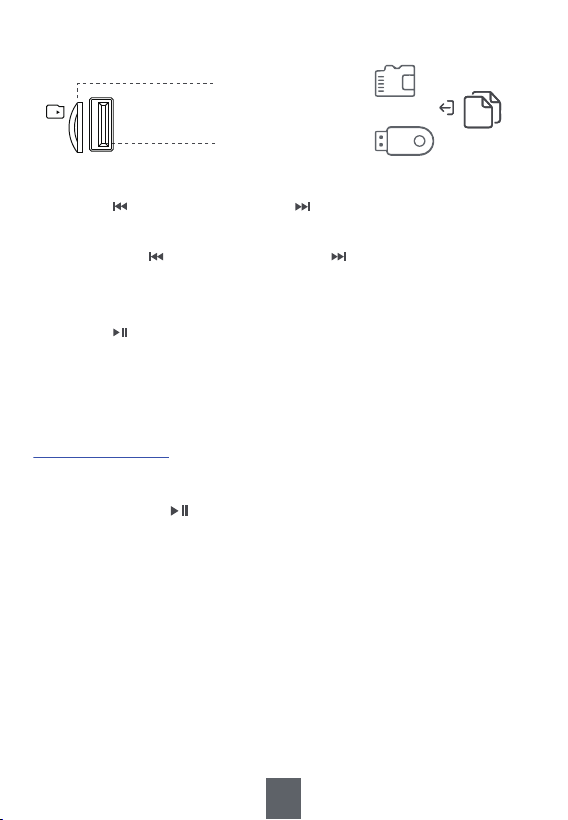
1) Move <⑥Band Switch> to “BT”
2) Insert the USB drive/TF card loaded with MP3 files into
<⑪TF Card Slot> or <⑫USB Drive Port>. Then the radio will
give a sound “played by USB drive” or “played by TF card”.
Once the MP3 files are detected, the radio will play automatically.
9
Tips :
1. Press <④ Previous/Rewind> or <⑤ Next/Fast forward> to choose the
previous or the next song.
2. Press <③ Play/Pause/Mode Switch> to pause and resume the playback.
3. Long press <③ Play/Pause/Mode Switch> to switch mode between
Bluetooth and AUX.
3.Play via AUX
⑫ USB Drive Port
⑪ TF Card Slot
MP3
Song
USB
TF
10
Tips:
1. Press <④ Previous/Rewind> or <⑤ Next/Fast forward> to choose the
previous or the next song.
2. Long press <④ Previous/Rewind> or <⑤ Next/Fast forward> to fast
forward or rewind down. (Only available under “played by USB drive and
TF card”.)
3. Press <③ Play/Pause/Mode Switch> to pause and resume the playback.
4. Please make sure the USB drive and TF card are in FAT or FAT32 format,
as the radio can’t read USB drive and TF card in NTFS format.
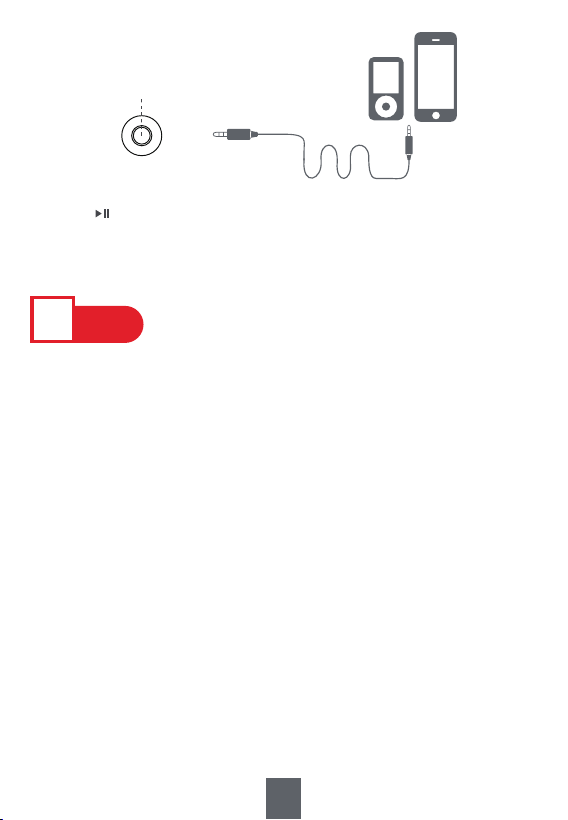
1) Move <⑥Band Switch> to “BT”.
2) Long press <③ Play/Pause/Mode Switch> to switch to AUX
mode. Then the radio will give a “AUX mode” sound.
3) Insert one end of the AUX cable into the <⑬AUX in Jack> of
the radio and the other end into the earphone jack of your
mobile phone or computer.
4) Open the music app/software to play music.
Ⅵ
FAQ
Q1: Why is the sound fuzzy?
A1: It’s possible that your surrounding signal maybe weak, please
refer to“◆ How to Get Better Reception?” in IV RADIO RECEPTION.
Q2: Why can't the TF card/USB drive be read?
A2: Please make sure they’re in FAT or FAT32 Format, as
the radio can’t read TF card/USB drive in NTFS Format, and
the radio can only read music files in MP3 format, and the
radio can only read music files in MP3 format.
11
⑬
AUX in Jack
AUX
Tips:
Press <③ Play/Pause/Mode Button > to mute the radio. Press it again to
resume the sound.
1. If the radio fails, please scan this QR code. Then click “Ask a
question” and log into Amazon to contact us. We will provide you
with the best service.
2. You can also send your messages to our customer service e-mail:
3. America Local Customer Support Number:
(805) 712-2661
US US CA CA
VII
AFTER-SALE SERVICE
UK UK
12
12