
HP company notices
Copyright and License
THE INFORMATION CONTAINED HEREIN IS
SUBJECT TO CHANGE WITHOUT NOTICE.
ALL RIGHTS RESERVED. REPRODUCTION,
ADAPTATION, OR TRANSLATION OF THIS
MATERIAL IS PROHIBITED WITHOUT PRIOR
WRITTEN PERMISSION OF HP, EXCEPT AS
ALLOWED UNDER THE COPYRIGHT LAWS. THE
ONLY WARRANTIES FOR HP PRODUCTS AND
SERVICES ARE SET FORTH IN THE EXPRESS
WARRANTY STATEMENTS ACCOMPANYING SUCH
PRODUCTS AND SERVICES. NOTHING HEREIN
SHOULD BE CONSTRUED AS CONSTITUTING AN
ADDITIONAL WARRANTY. HP SHALL NOT BE
LIABLE FOR TECHNICAL OR EDITORIAL ERRORS
OR OMISSIONS CONTAINED HEREIN.
© Copyright 2024 HP Development Company,
L.P.
Trademark Credits
Microsoft and Windows are either registered
trademarks or trademarks of Microsoft
Corporation in the United States and/or other
countries.
Mac, OS X, macOS, and AirPrint are trademarks
of Apple Inc., registered in the U.S. and other
countries.
ENERGY STAR and the ENERGY STAR mark
are registered trademarks owned by the U.S.
Environmental Protection Agency.
Android and Chromebook are trademarks of
Google LLC.
iOS is a trademark or registered trademark of
Cisco in the U.S. and other countries and is used
under license.
Safety Information
Always follow basic safety precautions when
using this product to reduce risk of injury from
re or electric shock.
- Read and understand all instructions in the
documentation that comes with the printer.
- Observe all warnings and instructions marked
on the product.
- Unplug this product from wall outlets before
cleaning.
- Do not install or use this product near water, or
when you are wet.
- Install the product securely on a stable surface.
- Install the product in a protected location
where no one can step on or trip over the line
cord, and the line cord cannot be damaged.
- If the product does not operate normally, see
Solve a problem in this guide.
- There are no user-serviceable parts inside.
Refer servicing to qualied service personnel.

Table of contents
1Get started ...................................................................................................................................................................................................1
Printer views ...........................................................................................................................................................................................1
Front view.......................................................................................................................................................................................1
Print supplies area ........................................................................................................................................................................2
Rear view ........................................................................................................................................................................................3
Control panel features...........................................................................................................................................................................3
Tilt the control panel ....................................................................................................................................................................3
Control panel display....................................................................................................................................................................4
Function buttons...........................................................................................................................................................................4
Change printer settings.........................................................................................................................................................................5
Use HP software.....................................................................................................................................................................................5
Turn printer o .......................................................................................................................................................................................6
2Connect your printer...................................................................................................................................................................................7
Requirements for HP+ printers............................................................................................................................................................7
Connect to a Wi-Fi network ..................................................................................................................................................................7
Check Wi-Fi status.........................................................................................................................................................................7
Turn on Wi-Fi..................................................................................................................................................................................8
Connect to a Wi-Fi network using the HP software.................................................................................................................8
Connect to a Wi-Fi network using the control panel ...............................................................................................................9
Connect to an Ethernet network .........................................................................................................................................................9
Connect using a USB cable ...................................................................................................................................................................9
Change the connection type.............................................................................................................................................................. 10
USB to Wi-Fi ................................................................................................................................................................................ 10
Wi-Fi to USB ................................................................................................................................................................................ 10
3Load media ............................................................................................................................................................................................... 11
Load paper ........................................................................................................................................................................................... 11
Load legal paper.................................................................................................................................................................................. 13
Load envelopes ................................................................................................................................................................................... 16
Load cards and photo paper.............................................................................................................................................................. 19
Load an original on the scanner glass............................................................................................................................................. 21
Load an original in the document feeder ........................................................................................................................................ 22
Change the default paper settings................................................................................................................................................... 23
Paper basics......................................................................................................................................................................................... 23
Tips for selecting and using paper ................................................................................................................................................... 24
4Congure your printer ............................................................................................................................................................................. 25
iii

Congure using the control panel .................................................................................................................................................... 25
Congure using the embedded web server (EWS) ........................................................................................................................ 25
Open the embedded web server (EWS) ................................................................................................................................. 25
Find printer IP address .............................................................................................................................................................. 26
View or change network settings............................................................................................................................................ 26
Manually change IPv4 and IPv6 TCP/IP parameters............................................................................................................. 26
Assign or change the system password.......................................................................................................................................... 26
Change energy-conservation settings ............................................................................................................................................ 27
Update printer...................................................................................................................................................................................... 27
Update printer using the control panel .................................................................................................................................. 27
Update printer using the embedded web server (EWS) ...................................................................................................... 27
5Print............................................................................................................................................................................................................ 28
Print from a Windows computer....................................................................................................................................................... 28
Print from a Mac computer................................................................................................................................................................ 28
Print from mobile devices.................................................................................................................................................................. 28
Print using Wi-Fi Direct....................................................................................................................................................................... 29
Tips for successful printing................................................................................................................................................................ 29
Ink tips.......................................................................................................................................................................................... 29
Paper loading tips ...................................................................................................................................................................... 30
6Copy, Scan, and Mobile Fax .................................................................................................................................................................... 31
Copy from printer................................................................................................................................................................................ 31
Copy or scan from a mobile device .................................................................................................................................................. 31
Scan and share les from the printer............................................................................................................................................... 31
Scan to a USB device from printer.................................................................................................................................................... 32
Scan using Web Scan.......................................................................................................................................................................... 32
Enable Web Scan........................................................................................................................................................................ 32
Scan using Web Scan................................................................................................................................................................. 33
Tips for copy and scan success......................................................................................................................................................... 33
Mobile Fax............................................................................................................................................................................................. 33
7Fax.............................................................................................................................................................................................................. 35
Send a fax............................................................................................................................................................................................. 35
Send a standard fax................................................................................................................................................................... 35
Send a standard fax from the computer (Windows) ............................................................................................................ 36
Send a fax from a phone........................................................................................................................................................... 36
Send a scheduled fax using the control panel ...................................................................................................................... 37
Send a fax using the printer memory..................................................................................................................................... 37
Send a fax to multiple recipients using group address book.............................................................................................. 38
Receive a fax ........................................................................................................................................................................................ 38
Receive a fax manually.............................................................................................................................................................. 38
Reprint faxes in memory using the control panel ................................................................................................................ 39
Block unwanted fax numbers .................................................................................................................................................. 39
iv

Set up address book contacts........................................................................................................................................................... 40
Create an address book contact .............................................................................................................................................. 40
Change address book contacts................................................................................................................................................ 41
Create and edit a group address book contact...................................................................................................................... 41
Delete address book contacts.................................................................................................................................................. 42
Delete group address book contacts ...................................................................................................................................... 42
Change fax settings............................................................................................................................................................................ 42
Congure the fax dialing settings............................................................................................................................................ 42
Enable scan and fax method.................................................................................................................................................... 43
Set the fax number conrmation ............................................................................................................................................ 43
Set the error correction mode (ECM) settings ....................................................................................................................... 44
Set the overlay fax header ....................................................................................................................................................... 44
Set the billing code .................................................................................................................................................................... 44
Set the fax notications (send or receive) settings .............................................................................................................. 45
Congure the fax printing settings.......................................................................................................................................... 45
Set the answer mode (auto answer)....................................................................................................................................... 46
Set the number of rings............................................................................................................................................................ 46
Set the fax ring volume............................................................................................................................................................. 46
Set the answer ring pattern for distinctive ring..................................................................................................................... 47
Set the 2-sided fax printing...................................................................................................................................................... 47
Set the stamp received faxes settings ................................................................................................................................... 48
Set the Fit to Page settings ...................................................................................................................................................... 48
Add a number to the Blocked Fax Numbers list.................................................................................................................... 48
Set the Fax Speed (send or receive) settings......................................................................................................................... 48
Set the dial type ......................................................................................................................................................................... 49
Set fax forward........................................................................................................................................................................... 49
Congure fax archiving.............................................................................................................................................................. 50
Fax and digital phone services.......................................................................................................................................................... 51
Fax on Voice over Internet Protocol ................................................................................................................................................. 51
Fax reports ........................................................................................................................................................................................... 52
Print the fax reports or logs ..................................................................................................................................................... 52
Billing Codes Report................................................................................................................................................................... 52
Caller ID Report........................................................................................................................................................................... 53
Blocked Fax Report .................................................................................................................................................................... 53
Fax Trace Report ........................................................................................................................................................................ 53
Fax Activity Log........................................................................................................................................................................... 53
Fax Call Report............................................................................................................................................................................ 53
Additional fax setup............................................................................................................................................................................ 54
Select the correct fax setup for your home or oice............................................................................................................ 54
Case A: Separate fax line (no voice calls received)................................................................................................................ 55
Case B: Set up the printer with DSL......................................................................................................................................... 56
Case C: Set up the printer with aPBX phone system or an ISDN line................................................................................ 57
Case D: Fax with a distinctive ring service on the same line ............................................................................................... 58
Case E: Shared voice/fax line.................................................................................................................................................... 59
Case F: Shared voice/fax line with voice mail ........................................................................................................................ 60
Case G: Fax line shared with computer modem (no voice calls received)......................................................................... 62
Case H: Shared voice/fax line with computer modem ......................................................................................................... 64
v

Case I: Shared voice/fax line with answering machine ........................................................................................................ 68
Case J: Shared voice/fax line with computer modem and answering machine............................................................... 69
Case K: Shared voice/fax line with computer dial-up modem and voice mail ................................................................. 73
Run the fax test.......................................................................................................................................................................... 75
8Manage cartridges................................................................................................................................................................................... 76
Dynamic Security Enabled Printers.................................................................................................................................................. 76
Tips for handling cartridges and printhead..................................................................................................................................... 76
Check estimated ink levels ................................................................................................................................................................ 77
Order cartridges .................................................................................................................................................................................. 77
Replace cartridges .............................................................................................................................................................................. 77
Store supply user data ....................................................................................................................................................................... 80
Cartridge warranty information........................................................................................................................................................ 80
9Solve a problem ....................................................................................................................................................................................... 82
Jams and paper-feed issues.............................................................................................................................................................. 82
Possible jam locations............................................................................................................................................................... 82
Remove jammed paper............................................................................................................................................................. 83
Reset the printer ........................................................................................................................................................................ 89
Learn how to avoid paper jams................................................................................................................................................ 89
Solve paper-feed problems ...................................................................................................................................................... 90
Printer is unable to print ........................................................................................................................................................... 91
Printing issues ..................................................................................................................................................................................... 91
Fix problems with HP+ printers not printing.......................................................................................................................... 91
Fix problems with page not printing (unable to print).......................................................................................................... 91
Fix print quality issues............................................................................................................................................................... 93
Copy and scan issues.......................................................................................................................................................................... 93
Fax issues ............................................................................................................................................................................................. 94
What to do if the fax test failed................................................................................................................................................ 94
Troubleshoot fax problems...................................................................................................................................................... 96
Fax reports .................................................................................................................................................................................. 99
Network and connection issues......................................................................................................................................................101
Fix Wi-Fi connection.................................................................................................................................................................101
Fix Wi-Fi Direct connection .....................................................................................................................................................101
Fix Ethernet connection ..........................................................................................................................................................101
Restore original network settings.........................................................................................................................................102
Printer hardware issues ...................................................................................................................................................................102
The printer shuts down unexpectedly..................................................................................................................................102
Printhead alignment fails .......................................................................................................................................................102
Resolve printer failure .............................................................................................................................................................103
Understand printer reports .............................................................................................................................................................103
Print a printer report................................................................................................................................................................103
Printer maintenance.........................................................................................................................................................................103
Clean the scanner glass ..........................................................................................................................................................104
Clean the exterior ....................................................................................................................................................................105
vi

Clean the document feeder ...................................................................................................................................................105
Maintain the printhead and cartridges .................................................................................................................................106
Restore settings ................................................................................................................................................................................107
HP support .........................................................................................................................................................................................108
Contact HP.................................................................................................................................................................................108
Register printer.........................................................................................................................................................................109
Additional warranty options...................................................................................................................................................109
10HP EcoSolutions (HP and the Environment) ...................................................................................................................................110
Power management.........................................................................................................................................................................110
Quiet Mode ........................................................................................................................................................................................110
Optimize printing supplies...............................................................................................................................................................111
Appendix ATechnical information..........................................................................................................................................................112
Specications.....................................................................................................................................................................................112
Regulatory notices............................................................................................................................................................................114
Regulatory Model Number .....................................................................................................................................................114
FCC statement ..........................................................................................................................................................................114
Notice to users in Korea ..........................................................................................................................................................115
VCCI (Class B) compliance statement for users in Japan ...................................................................................................115
Power cord instructions ..........................................................................................................................................................115
Notice to users in Japan about the power cord...................................................................................................................115
Noise emission statement for Germany ..............................................................................................................................116
European Union and United Kingdom Regulatory Notice..................................................................................................116
Products with wireless functionality.....................................................................................................................................116
Visual display workplaces statement for Germany............................................................................................................117
Notice to users of the U.S. telephone network: FCC requirements..................................................................................117
Notice to users of the Canadian telephone network..........................................................................................................118
Notice to users of the German telephone network............................................................................................................119
Australia wired fax statement................................................................................................................................................119
Regulatory information for wireless products ....................................................................................................................119
Dynamic Security Enabled Printers.......................................................................................................................................121
Accessibility........................................................................................................................................................................................121
Environmental product stewardship program .............................................................................................................................122
HP tips for reducing environmental impact.........................................................................................................................122
Eco-Tips .....................................................................................................................................................................................122
Paper .........................................................................................................................................................................................122
Plastics.......................................................................................................................................................................................122
European Union Commission Regulation 1275/2008.......................................................................................................122
Safety data sheets...................................................................................................................................................................123
Chemical substances...............................................................................................................................................................123
EPEAT.........................................................................................................................................................................................123
SEPA Ecolabel User Information (China)...............................................................................................................................123
Recycling program...................................................................................................................................................................123
HPinkjet supplies recycling program ...................................................................................................................................123
Battery disposal in Taiwan......................................................................................................................................................124
California Perchlorate Material Notice...................................................................................................................................124
vii

European Union Battery Directive .........................................................................................................................................124
Battery notice for Brazil ..........................................................................................................................................................124
Power consumption.................................................................................................................................................................124
China Energy Label for Printer, Fax and Copier....................................................................................................................124
Disposal of waste equipment by users ................................................................................................................................125
Waste disposal for Brazil ........................................................................................................................................................126
The Table of Hazardous Substances/Elements and their Content (China).....................................................................127
Regulation on the Control of Waste Electrical and Electronic Equipment (Turkey).......................................................127
Restriction of hazardous substance (India) .........................................................................................................................127
Declaration of the Presence Condition of the Restricted Substances Marking (Taiwan Region).................................128
viii
Get started1
Learn about printer parts, control panel features, and other printer functionalities.
Printer views
Printer parts and their descriptions.
Front view
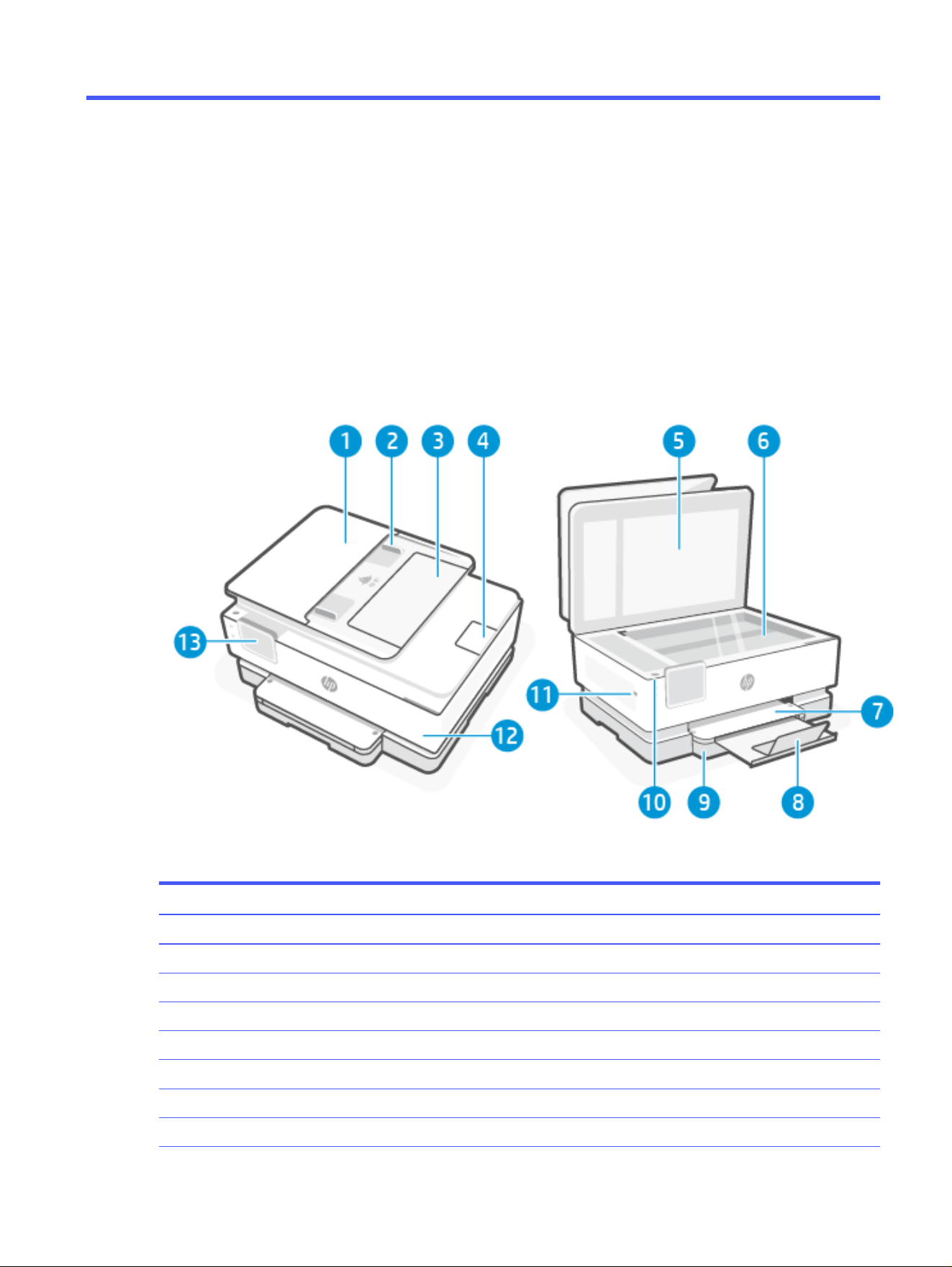
Printer parts on the front.
Table 1-1 Printer front view
Feature Description
1 Document feeder
2 Document feeder paper-width guides
3 Document feeder tray
4 Document feeder output extension
5 Scanner lid
6 Scanner glass
7 Output tray
8 Output tray extension
Get started 1
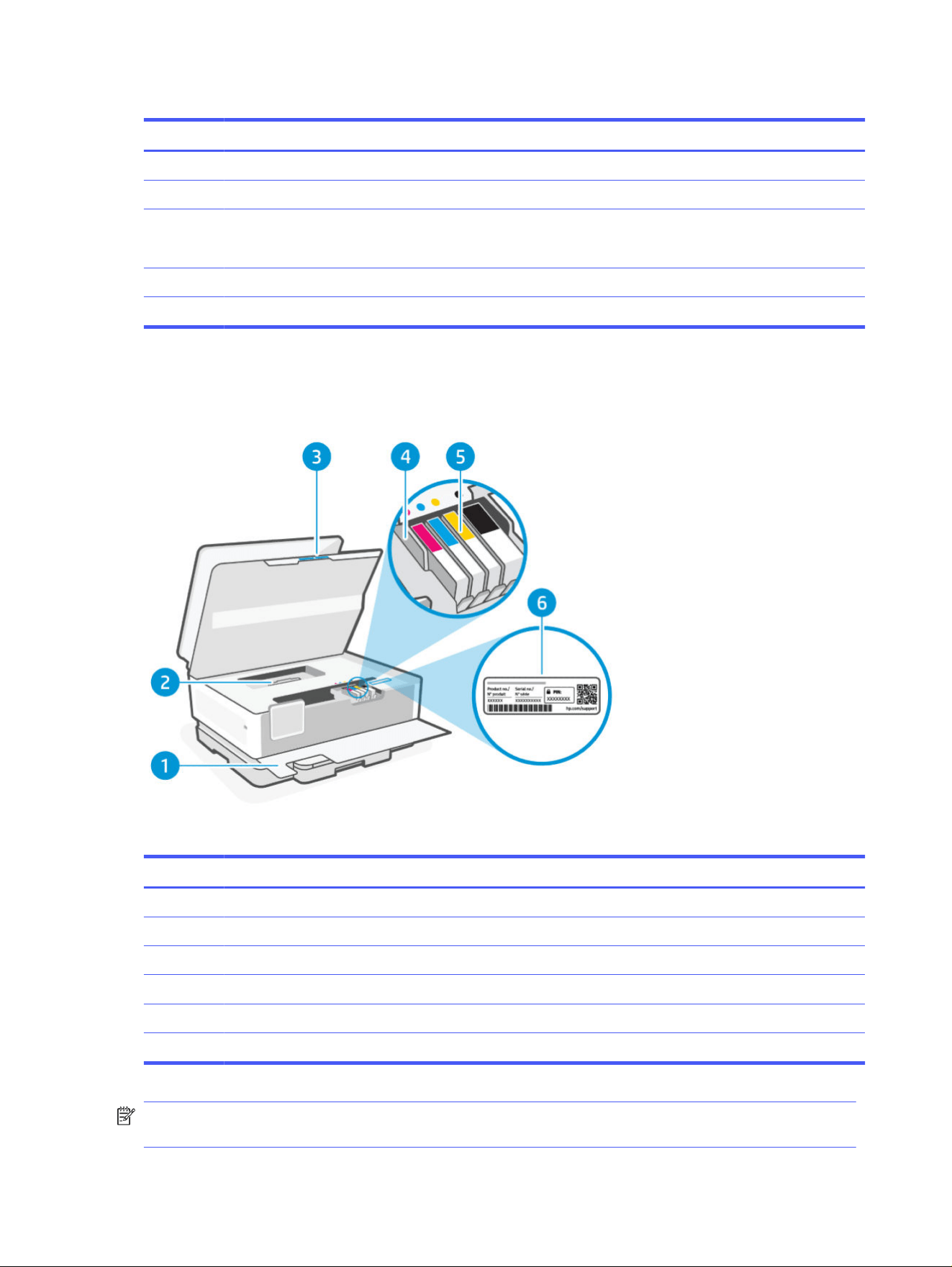
Table 1-1 Printer front view (continued)
Feature Description
9 Input tray
10 Indicates whether the printer is turned on.
11 Front USB port
This feature is only available in HP OiceJet Pro 8130e series.
12 Front door
13 Control panel display
Print supplies area
Parts in the print supplies area.
Table 1-2 Print supplies area
Feature Description
1 Front door
2 Paper path cover
3 Cartridge access door
4 Printhead
5 Cartridges
6 PIN label
NOTE: Cartridges must be kept in the printer to prevent possible print quality issues or printhead damage.
Avoid removing supplies for extended periods of time. Do not turn the printer o when a cartridge is missing.
2
Chapter 1Get started
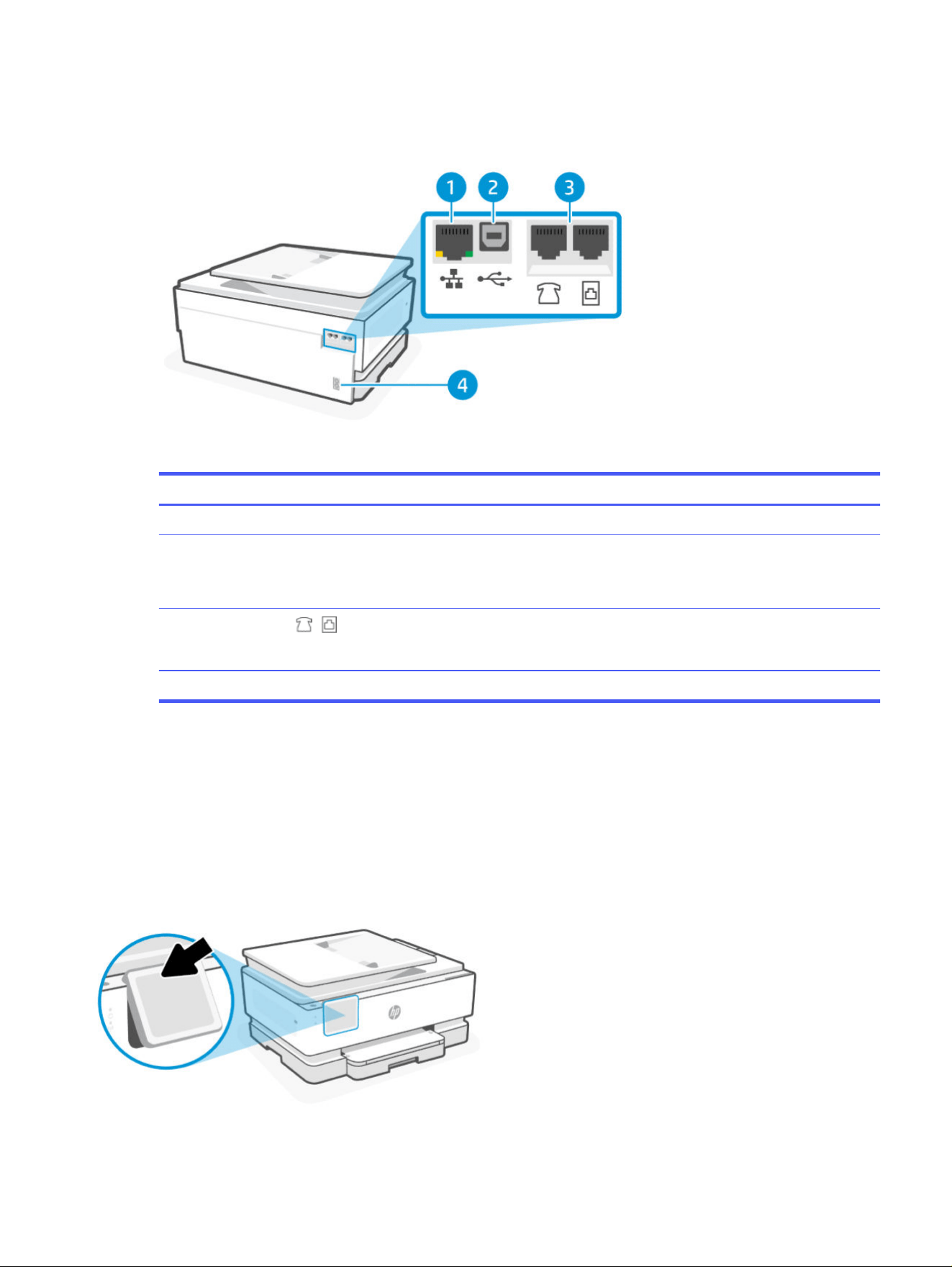
Rear view
Printer parts on the rear.
Table 1-3 Printer rear view
Feature Description
1 Ethernet network port
2 Rear USB port
NOTE: To use all the available features of this printer, complete setup using HP software and an Internet connection. After
setup, you can print using a USB cable if needed.
3
Fax ports /
This feature is only available in HP OiceJet Pro 8130e series.
4 Power connection
Control panel features
The control panel provides direct interaction, including lights to indicate status, errors, and more.
Tilt the control panel
Tilt the control panel for easier viewing. Push the upper part of the control panel to tilt it upwards and push the
lower part to tilt it downwards.
Rear view 3
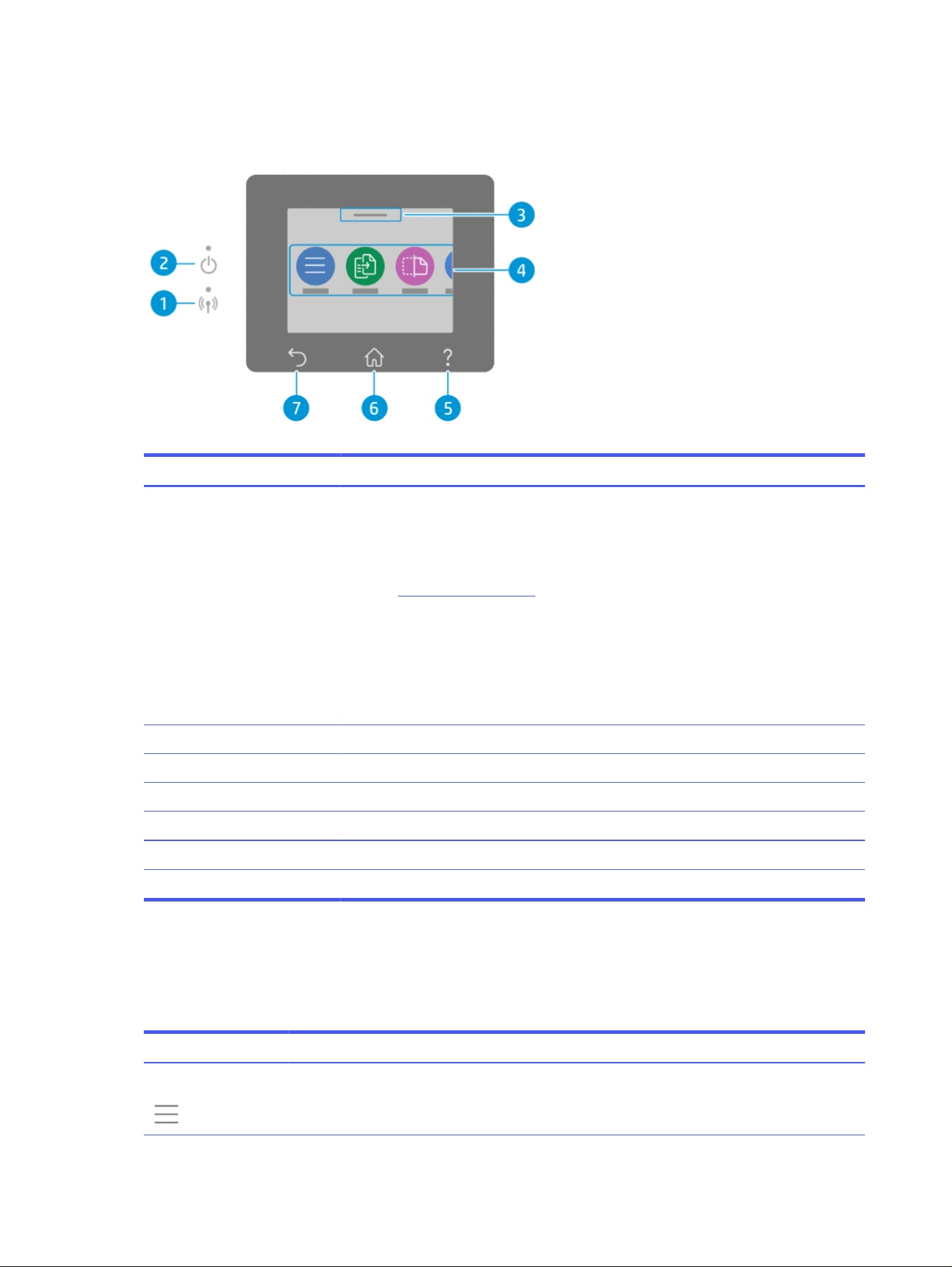
Control panel display
Check printer status, perform printer tasks, and change printer settings.
Table 1-4 Control panel display
Feature Icon Description
1 Wi-Fi light Indicates the printer Wi-Fi connection status.
● Solid blue light indicates that the Wi-Fi connection is established and you can print.
● Slow blinking light with pause indicates that Wi-Fi is on, but not congured.
See Connect to a Wi-Fi network.
● Slow blinking light indicates that Wi-Fi is on, but the printer is not connected to a network.
Make sure your printer is within the range of Wi-Fi signal.
● Fast blinking light indicates Wi-Fi network connection error. See the message on the printer
control panel display.
● If the Wi-Fi light is o, Wi-Fi is turned o.
2 Power light Indicates whether the printer is turned on.
3 Status Center Touch to view the printer status.
4 Function buttons Touch to perform common tasks.
5 Help button Provides contextual help content if it is available for the current task.
6 Home button Returns to the Home screen from any other screen.
7 Back button Returns to the previous menu.
Function buttons
Perform printer tasks.
Table 1-5
Function buttons
Function Button Description
Menu Access printer functions, view and change printer settings, print reports, and get help information.
4 Chapter 1Get started
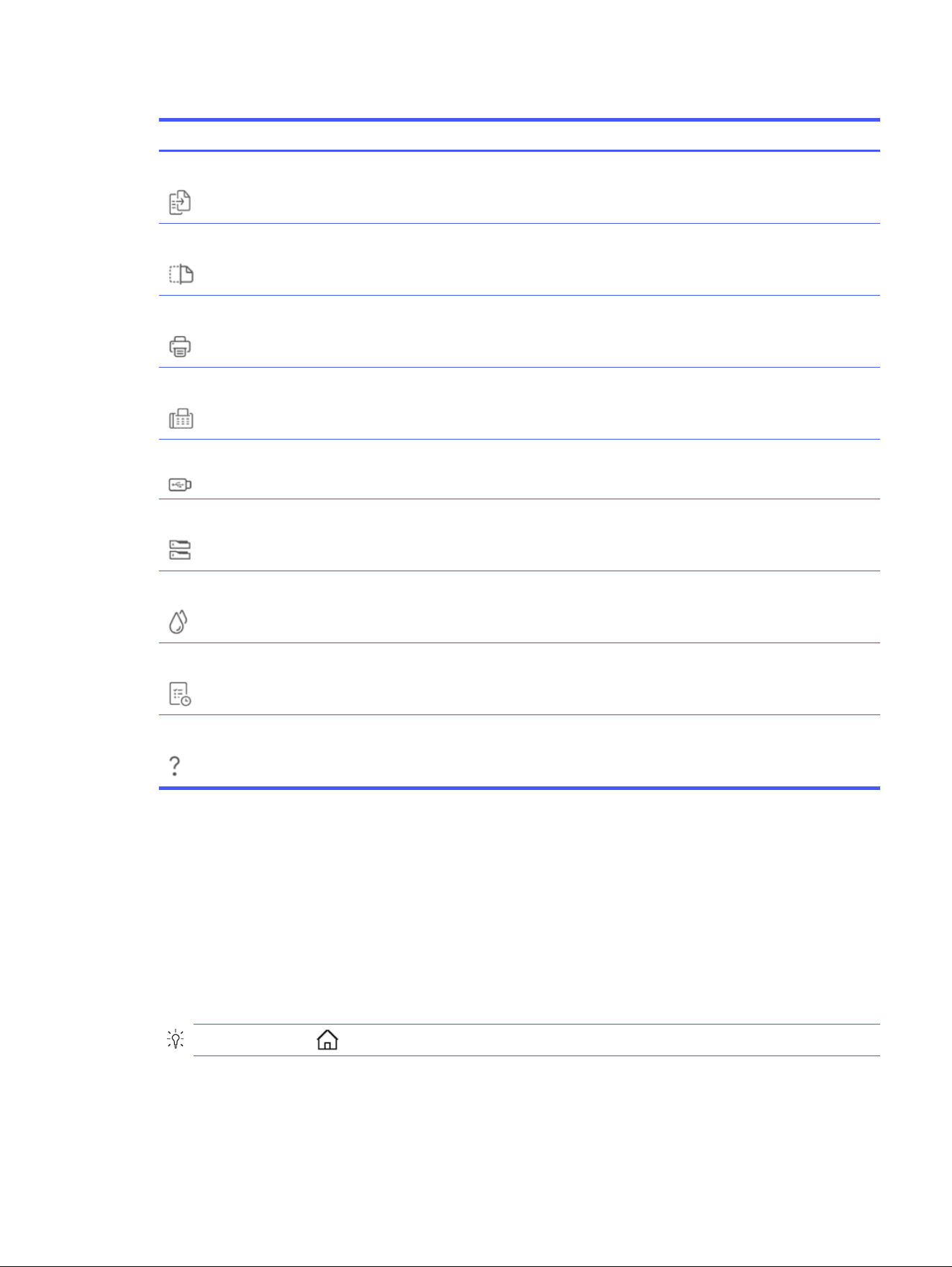
Table 1-5 Function buttons (continued)
Function Button Description
Copy Copy a document, an ID card, or a photo.
Scan Scan a document.
Print Print from a USB device or stored jobs.
Fax Set up a fax, send a fax, or reprint a received fax.
This feature is only available in HP OiceJet Pro 8130e series.
USB Scan to or print from a USB device.
Trays Check loaded paper size and type, and change paper settings if needed.
Supplies Check the estimated ink levels and cartridge information.
Jobs Check the stored print jobs in the printer memory for printing at a later time.
Help Check the contextual help content if it is available for the current operation.
Change printer settings
Use the control panel to view or change printer settings. You can also change printer settings using the HP
software or the embedded web server (EWS).
1. On the control panel Home screen, touch Menu.
2. Scroll to Utilities and touch Settings.
3. Touch the desired option to make the necessary changes.
TIP: Touch Home to return to the main screen.
Use HP software
HP software helps you perform printer tasks from a mobile device or computer.
Change printer settings
5

● Set up and connect your printer.
● Print and scan documents and photos.
● Share documents through email and other applications.
● Manage printer settings, check printer status, print reports, and order supplies.
NOTE:
● You can download the HP software from the app store for your device.
● HP software supports mobile devices and computers running on certain versions of iOS, Android, Windows,
and macOS.
Visit hp.com/support for more information on systems requirements.
● HP software is only available in some languages and only supports some le formats. Some features are
only available on certain printers or models.
Install the HP software and create an HP account:
1. Visit 123.hp.com to download and install the HP software on your device.
2. Open the HP software.
If prompted, create or sign in to an HP account and register the printer.
3. Connect the printer.
See Connect your printer.
Turn printer
o
Press the Power button to turn o the printer. Wait until the power light turns o before unplugging the power
cord or turning o the power strip.
CAUTION: When turning o the printer, always make sure to follow this procedure to avoid possible problems.
6 Chapter 1Get started

Connect your printer2
Learn about dierent ways to connect your printer.
Requirements for HP+ printers
Check the requirements before you connect the printer.
NOTE: HP+ is only available in some countries/regions.
Keep the printer connected to the Internet
HP+ printers are cloud-connected devices that must remain connected to the Internet in order to function. The
Internet connection enables the printer to deliver HP+ specic app features and rmware updates.
During setup, you must connect the printer to the Internet using a supported network connection. After setup,
you can print using a USB cable connection, if desired, but the printer must still be connected to the Internet.
Use Original HP cartridges
Original HP cartridges are cartridges manufactured and sold by HP in oicial HP packaging. If non-Original HP
supplies or relled cartridges are installed, HP+ printers do not operate as expected.
Have an HP account
Create or sign into an HP account to manage your printer.
Connect to a Wi-Fi network
Make sure your network is ready before connecting your printer to a Wi-Fi network.
● The printer is not connected to the network using an Ethernet cable.
● The printer Wi-Fi is turned on and the Wi-Fi network is set up and working properly. The blue Wi-Fi light on
the printer control panel is lit when Wi-Fi is turned on.
● The printer and the devices that use the printer are on the same network (subnet). While connecting the
printer, you might be prompted to enter the Wi-Fi network name (SSID) and a Wi-Fi password.
TIP:
● Visit hpsmart.com/wirelessprinting for more information about setting up and using the printer wirelessly.
● If you run into any problem with Wi-Fi connect, see Restore original network settings.
Check Wi-Fi status
You can view the status of the printer Wi-Fi connection from the printer control panel.
1. On the control panel Home screen, touch Menu.
Connect your printer
7

2. Scroll to Utilities and touch Settings.
3. Touch Network, and then touch Wi-Fi.
4. Touch View Details.
Turn on Wi-Fi
You can turn on Wi-Fi from the printer control panel.
1. On the control panel Home screen, touch Menu.
2. Scroll to Utilities and touch Settings.
3. Touch Network, and then touch Wi-Fi.
4. Touch the toggle button next to Wi-Fi to enable the Wi-Fi mode.
NOTE:
● The blue Wi-Fi light on the printer control panel is lit when Wi-Fi is turned on.
● If the printer has never been congured to connect to a Wi-Fi network before, turning on Wi-Fi mode
automatically starts the Wi-Fi Setup Wizard.
Connect to a Wi-Fi network using the HP software
Use the HP software on your computer or mobile device to set up or connect the printer to your Wi-Fi network.
See Use HP software.
NOTE:
● HP software uses Bluetooth for printer setup. It does not support printing using Bluetooth.
● Turn on Bluetooth and location services on your mobile device.
● Make sure your printer Wi-Fi is turned on and the printer is in Wi-Fi setup mode.
● Make sure your computer or mobile device is connected to the same Wi-Fi network as the printer.
1. Open the HP software on your device.
If prompted, create or sign in to an HP account and register the printer.
2. In the software, follow the on-screen instructions to add or connect the printer.
If prompted for a password, enter the default printer PIN available on the label inside the printer access
door. If you have changed the password, enter your new password.
When the printer connects successfully, the Wi-Fi light stops blinking and remains lit.
8
Chapter 2Connect your printer

Connect to a Wi-Fi network using the control panel
Use the Wi-Fi Setup Wizard or Wi-Fi Protected Setup from the printer control panel to connect the printer
wirelessly.
NOTE: If the printer has never been congured to connect to a Wi-Fi network before, turning on the Wi-Fi
capability automatically starts the Wi-Fi Setup Wizard.
1. On the control panel Home screen, touch Menu.
2. Scroll to Utilities and touch Settings.
3. Touch Network, and then touch Wi-Fi.
4. Touch the toggle button next to Wi-Fi to enable the Wi-Fi mode.
5. Touch Wi-Fi Setup Wizard or Wi-Fi Protected Setup, and then follow the on-screen instructions to add the
printer to your network.
The blue Wi-Fi light on the printer control panel is lit when Wi-Fi is turned on.
After connecting the printer wirelessly, visit 123.hp.com to download and install the HP software on your device.
Connect to an Ethernet network
You can connect your printer to an Ethernet network.
NOTE: The Wi-Fi connection is automatically disabled when you connect the Ethernet cable.
1. Connect your computer to the router.
2. Connect your printer and router using an Ethernet cable.
3. Open the HP software on your computer.
If prompted, create or sign in to an HP account and register the printer.
4. In HP software, add the printer, and then follow the on-screen instructions to add or connect the printer.
Connect using a USB cable
You can connect your printer using a USB cable.
NOTE: HP+ will not work as expected if you set up the printer using a USB cable.
While you are setting up the printer for the rst time and to use all the available features of this printer,
complete setup using HP software and an Internet connection. After setup, you can print using a USB cable if
needed.
1. Connect the printer and computer using a USB cable.
2. Open the HP software on your computer.
If prompted, create or sign in to an HP account and register the printer.
3. In HP software, add the printer, and then follow the on-screen instructions to add or connect the printer.
Connect to a Wi-Fi network using the control panel
9

Change the connection type
If you have already connected your printer, you can change the connection from USB to Wi-Fi or from Wi-Fi to
USB.
USB to Wi-Fi
Unplug the USB cable from the printer and connect the printer to your network.
See Connect to a Wi-Fi network.
Wi-Fi to USB
Change the printer connection from Wi-Fi to USB.
NOTE: If necessary, remove the label covering the USB port at the back of the printer.
1. Connect the printer and computer using a USB cable.
2. Open the HP software on your computer.
If prompted, create or sign in to an HP account and register the printer.
3. In HP software, add the printer, and then follow the on-screen instructions to add or connect the printer.
10 Chapter 2Connect your printer
Load media3
Learn how to load paper and change media settings.
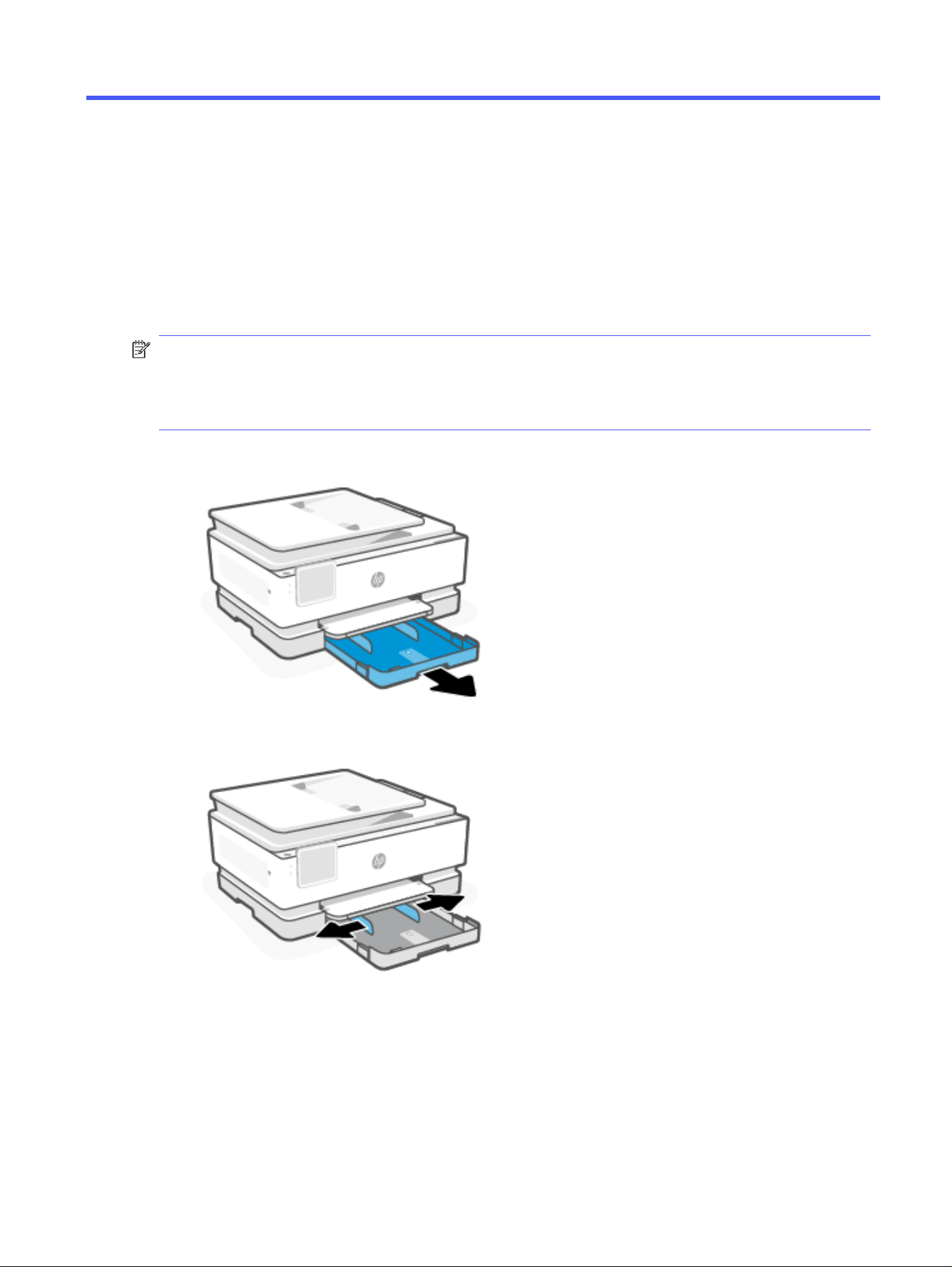
Load paper
Load a stack of paper into the tray.
NOTE:
● Remove any paper before loading a dierent paper type or size.
● Do not load paper while the printer is printing.
1. Pull out the input tray.
2. Slide the paper guides to the edges of the tray.
3. Insert paper with the side to be printed facing down.
Make sure the stack of paper is aligned with the appropriate paper-size indicators and does not exceed the
stack-height marking in the tray.
Load media
11
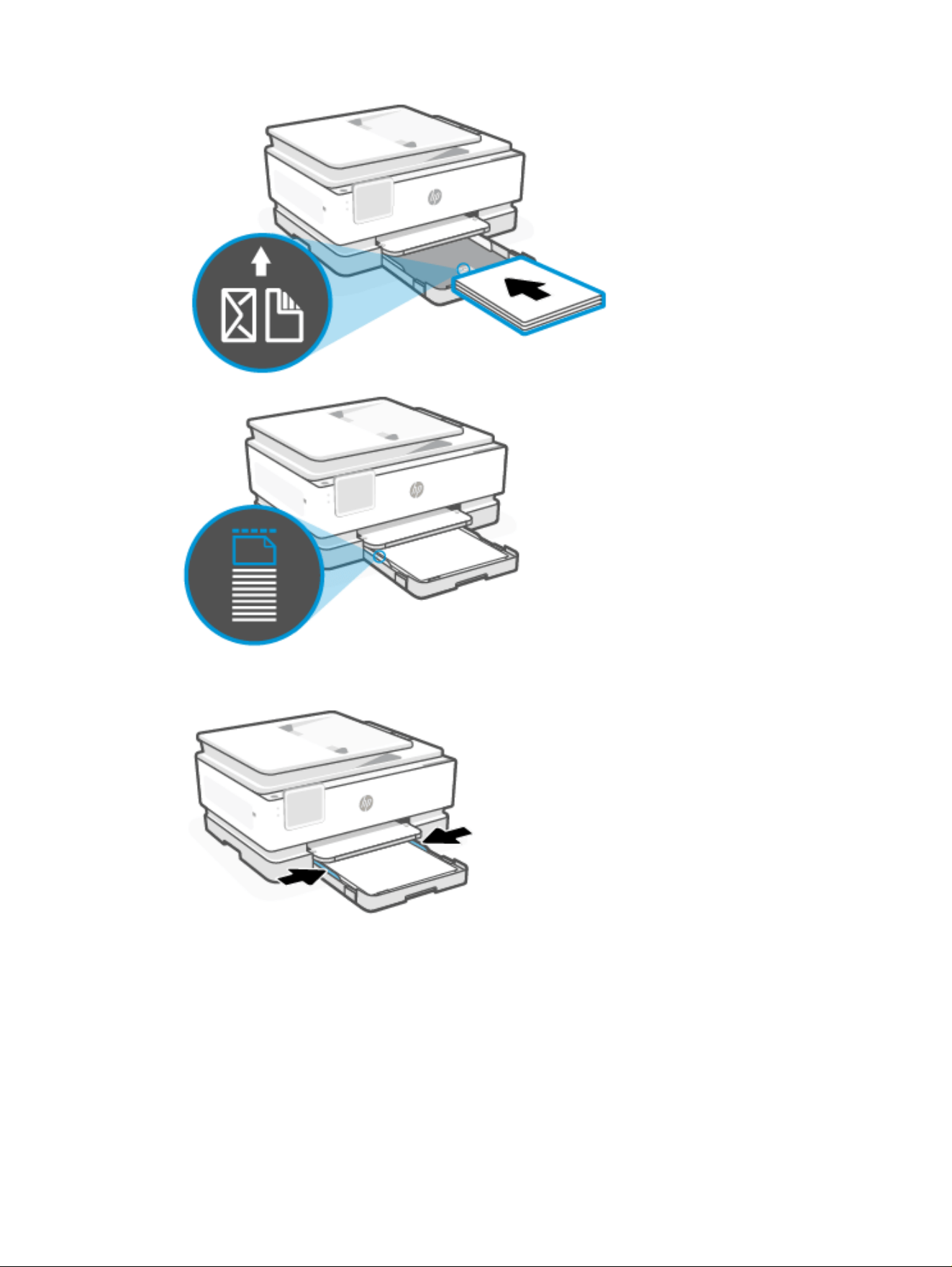
4. Adjust the paper guides until they touch the edges of the paper stack.
12 Chapter 3Load media
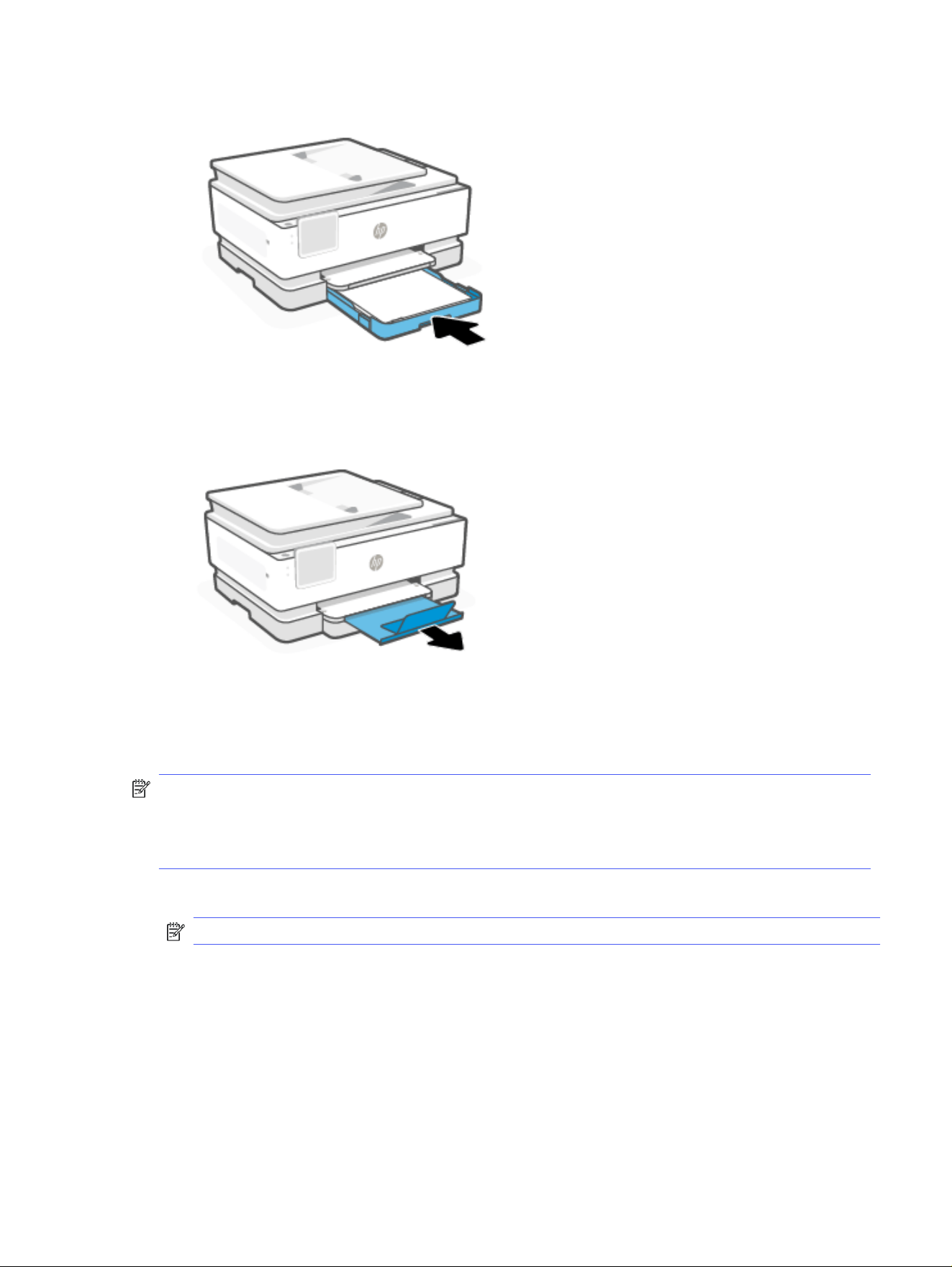
5. Gently close the input tray.
6. Change or retain the paper settings on the control panel. Make sure the settings match the paper type and
size loaded.
7. Pull out the output tray extension.
Load legal paper
Load legal paper into the tray.
NOTE:
● Remove any paper before loading a dierent paper type or size.
● Do not load paper while the printer is printing.
1. Pull out the input tray.
NOTE: Remove any paper before loading a dierent paper type or size.
Load legal paper 13
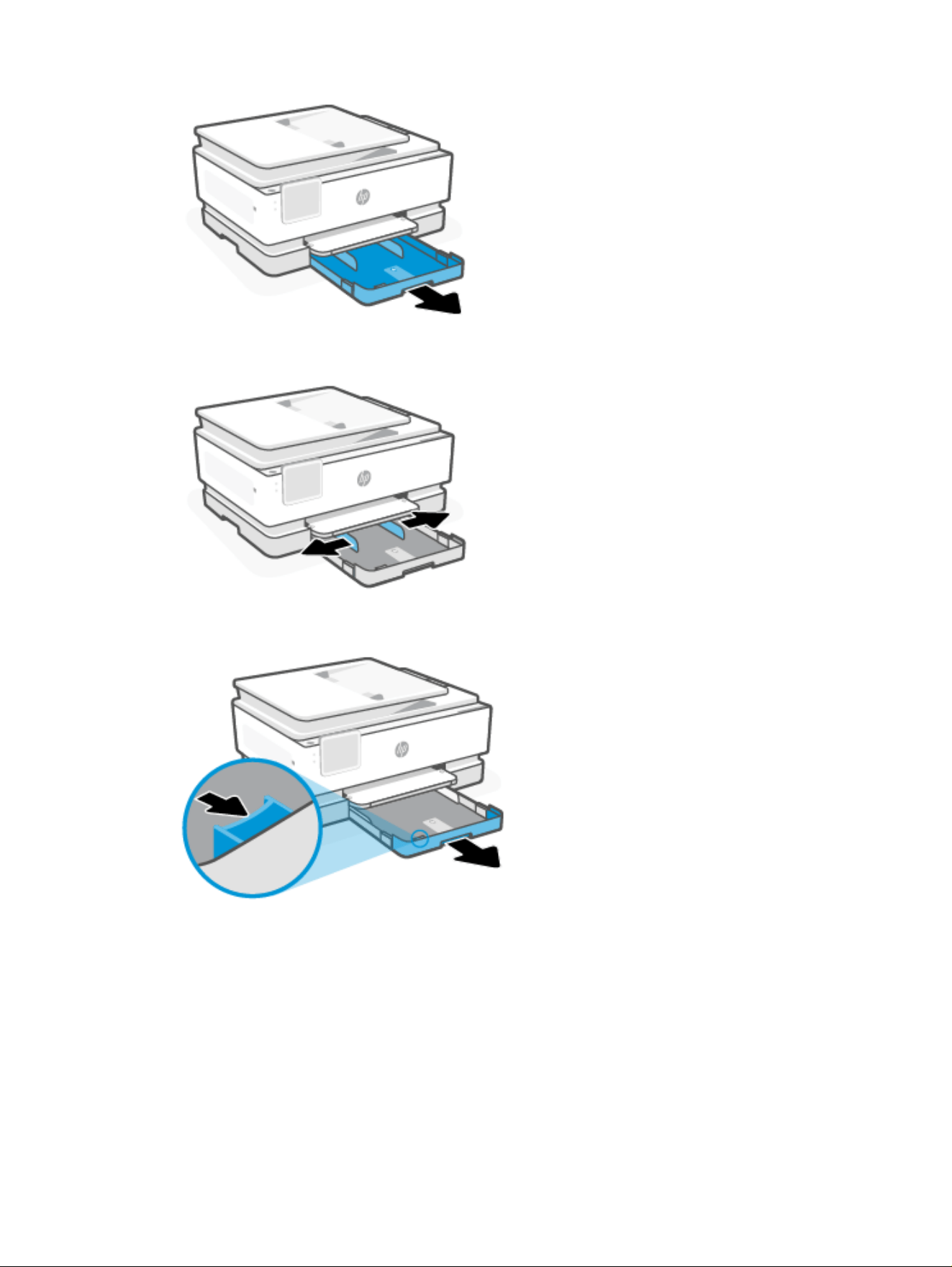
2. Slide the paper guides to the edges of the tray.
3. Press the button near the front of the tray to extend the input tray.
4. Insert paper with the side to be printed facing down.
Make sure the stack of paper is aligned with the appropriate paper-size indicators and does not exceed the
stack-height marking in the tray.
14
Chapter 3Load media
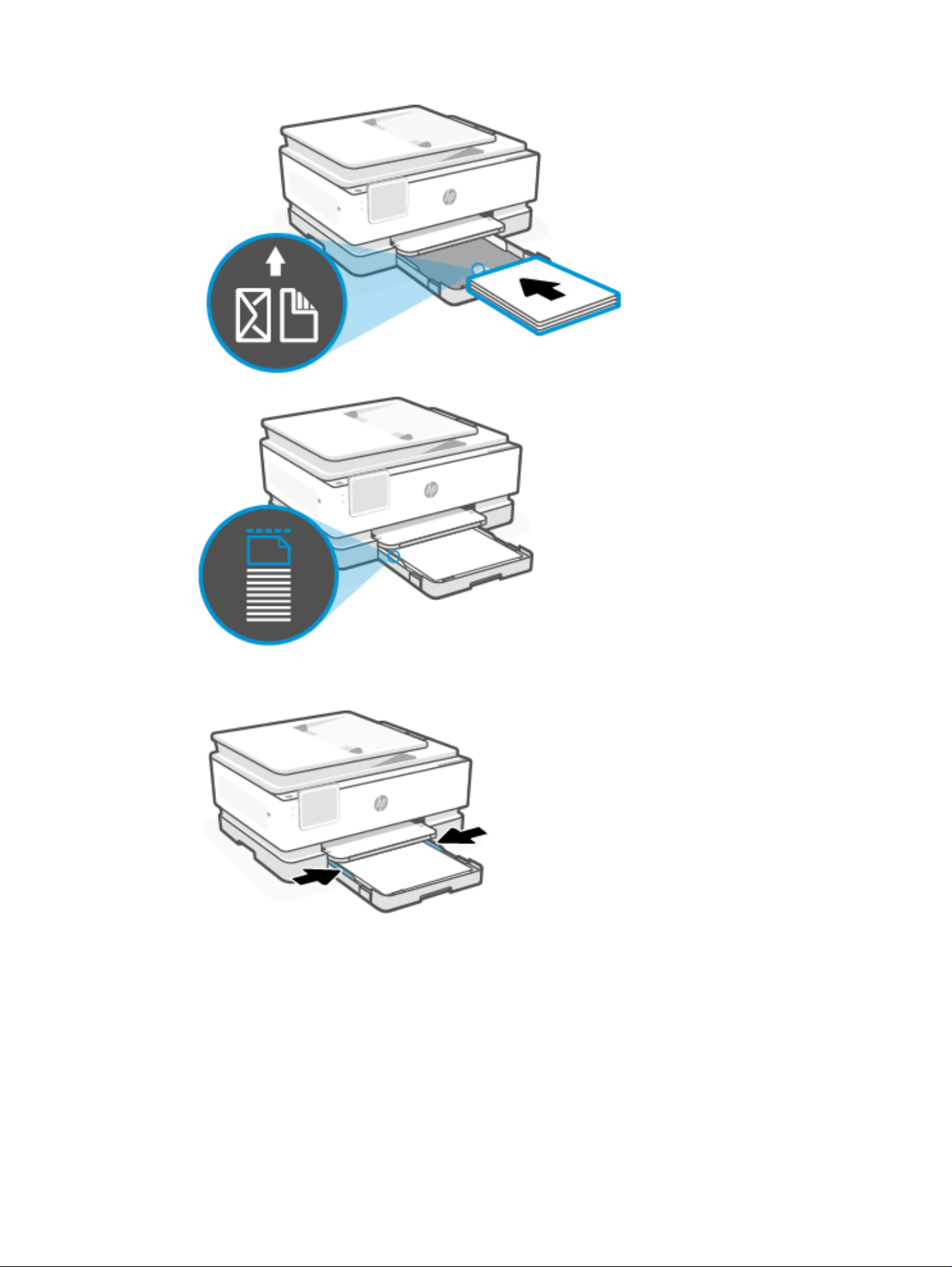
5. Adjust the paper guides until they touch the edges of the paper stack.
Load legal paper 15
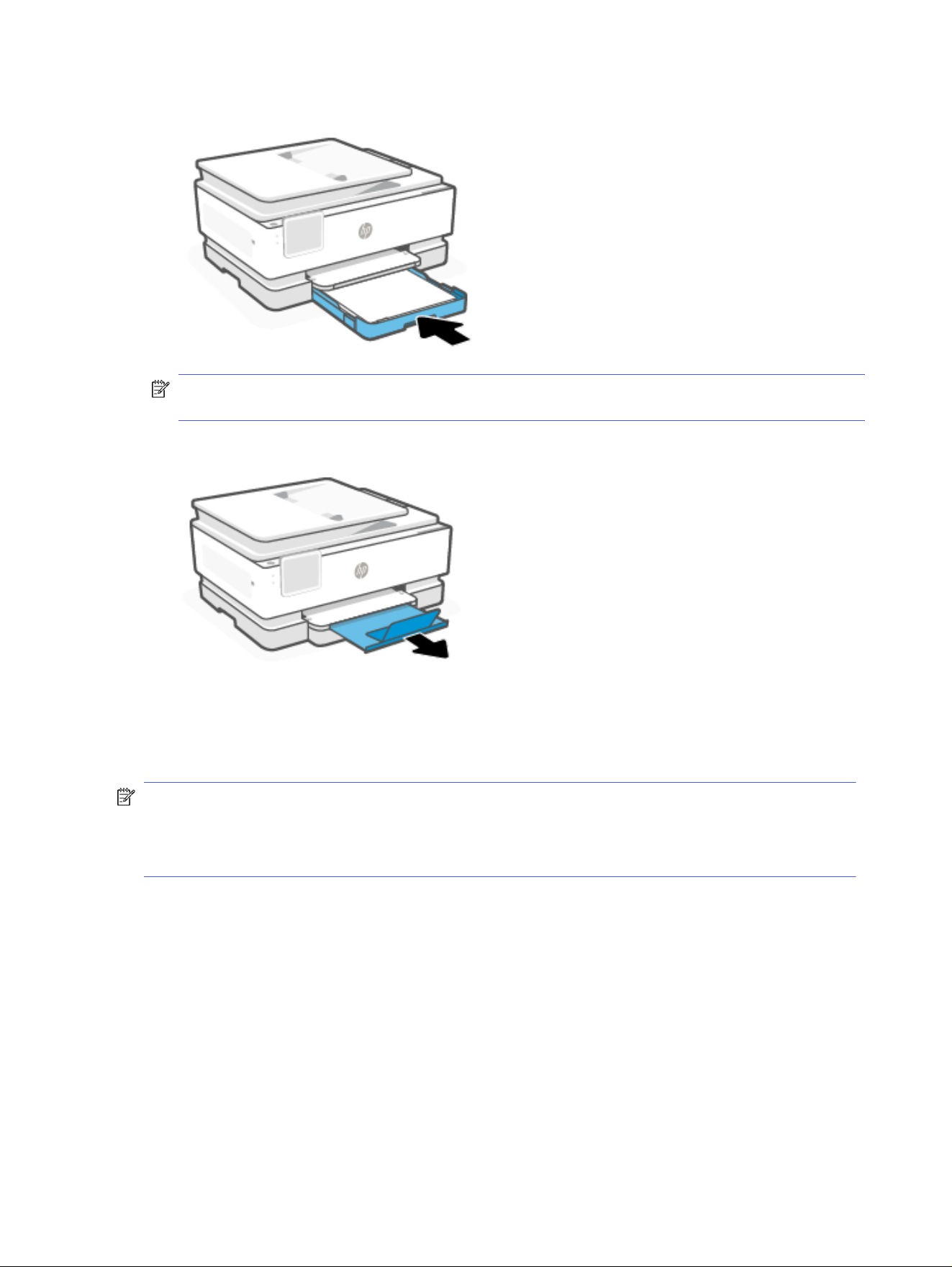
6. Reinsert the input tray into the printer.
NOTE: When you insert the input tray, the input tray extension remains outside of the printer. This is the
expected result.
7. Pull out the output tray extension.
Load envelopes
Load envelopes into the tray.
NOTE:
● Remove any paper before loading a dierent paper type or size.
● Do not load paper while the printer is printing.
16 Chapter 3Load media
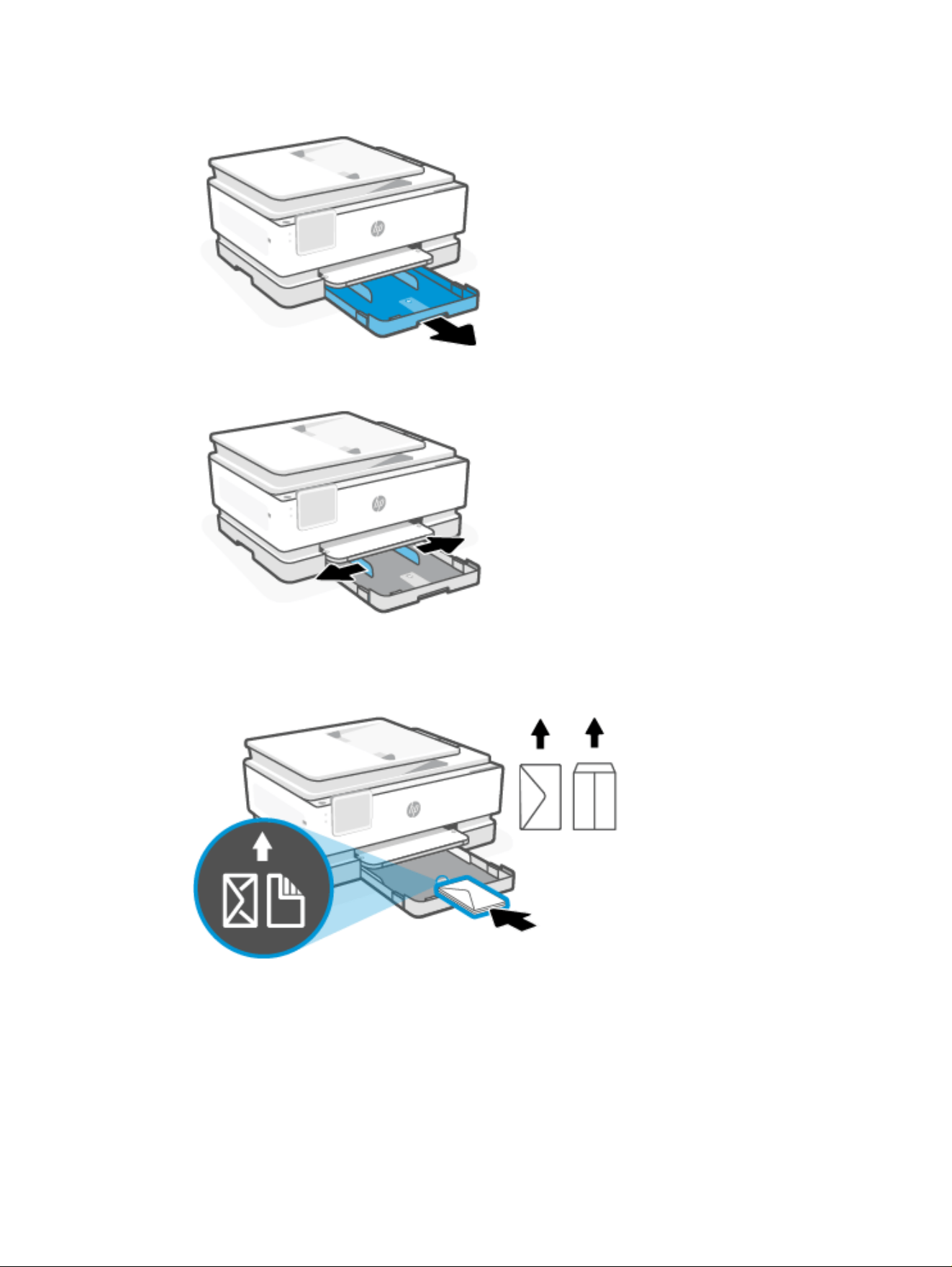
1. Pull out the input tray.
2. Slide the paper guides to the edges of the tray.
3. Insert paper with the side to be printed facing down.
Make sure the stack of paper is aligned with the appropriate paper-size indicators and does not exceed the
stack-height marking in the tray.
Load envelopes 17
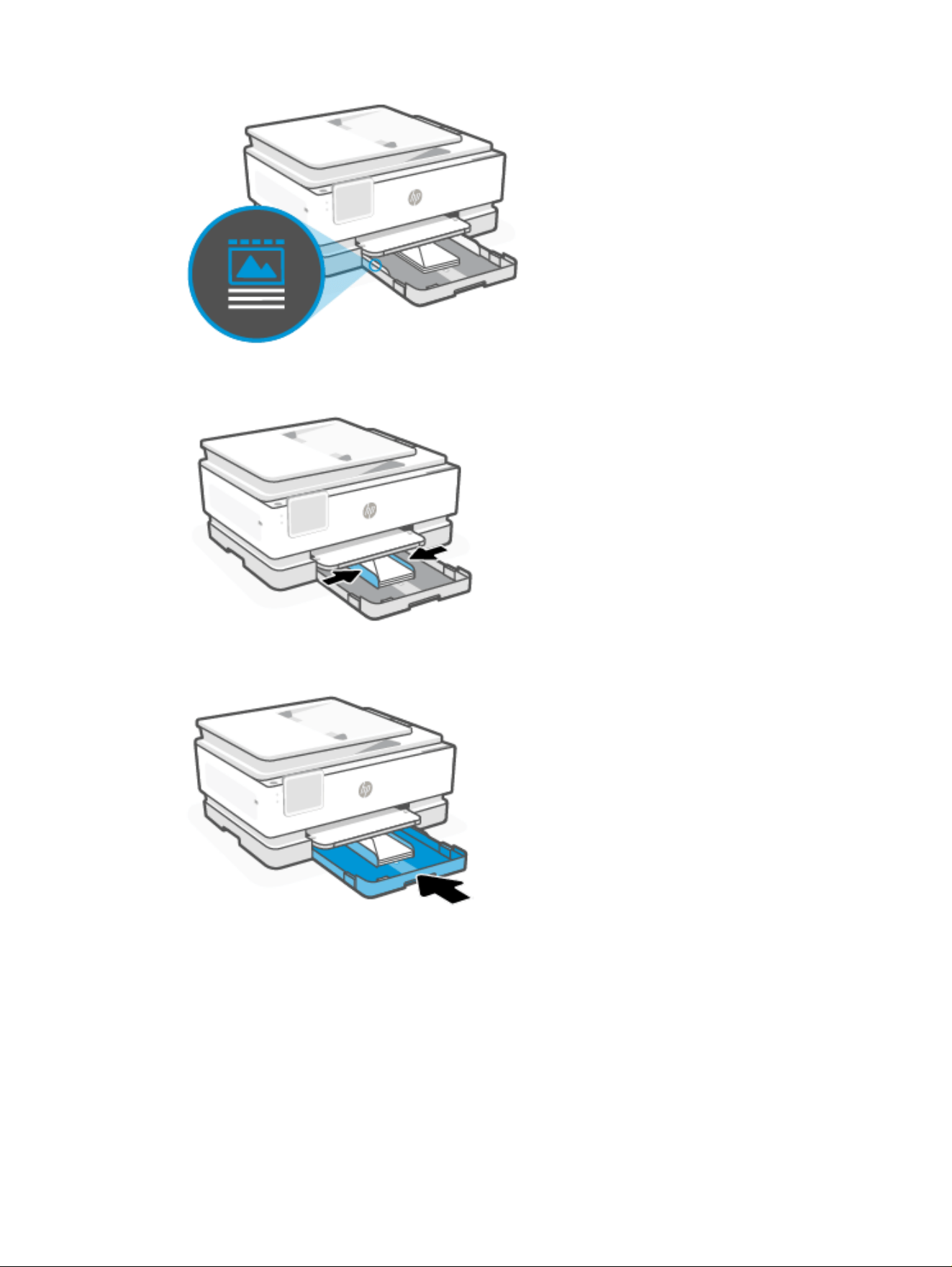
4. Adjust the paper guides until they touch the edges of the paper stack.
5. Reinsert the input tray into the printer.
6. Change or retain the paper settings on the control panel. Make sure the settings match the paper type and
size loaded.
18
Chapter 3Load media
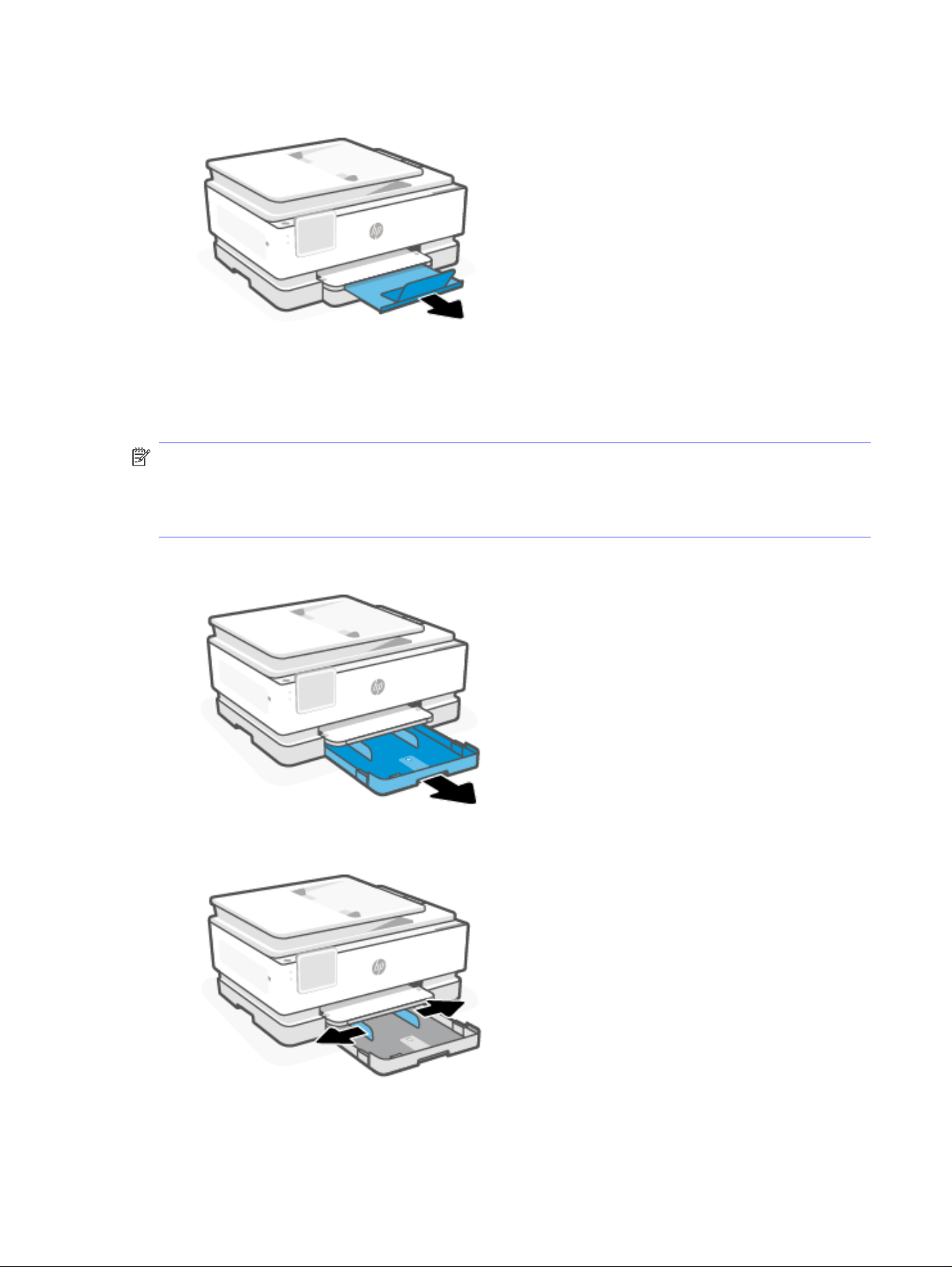
7. Pull out the output tray extension.
Load cards and photo paper
Load cards and photo paper into the tray.
NOTE:
● Remove any paper before loading a dierent paper type or size.
● Do not load paper while the printer is printing.
1. Pull out the input tray.
2. Slide the paper guides to the edges of the tray.
Load cards and photo paper 19
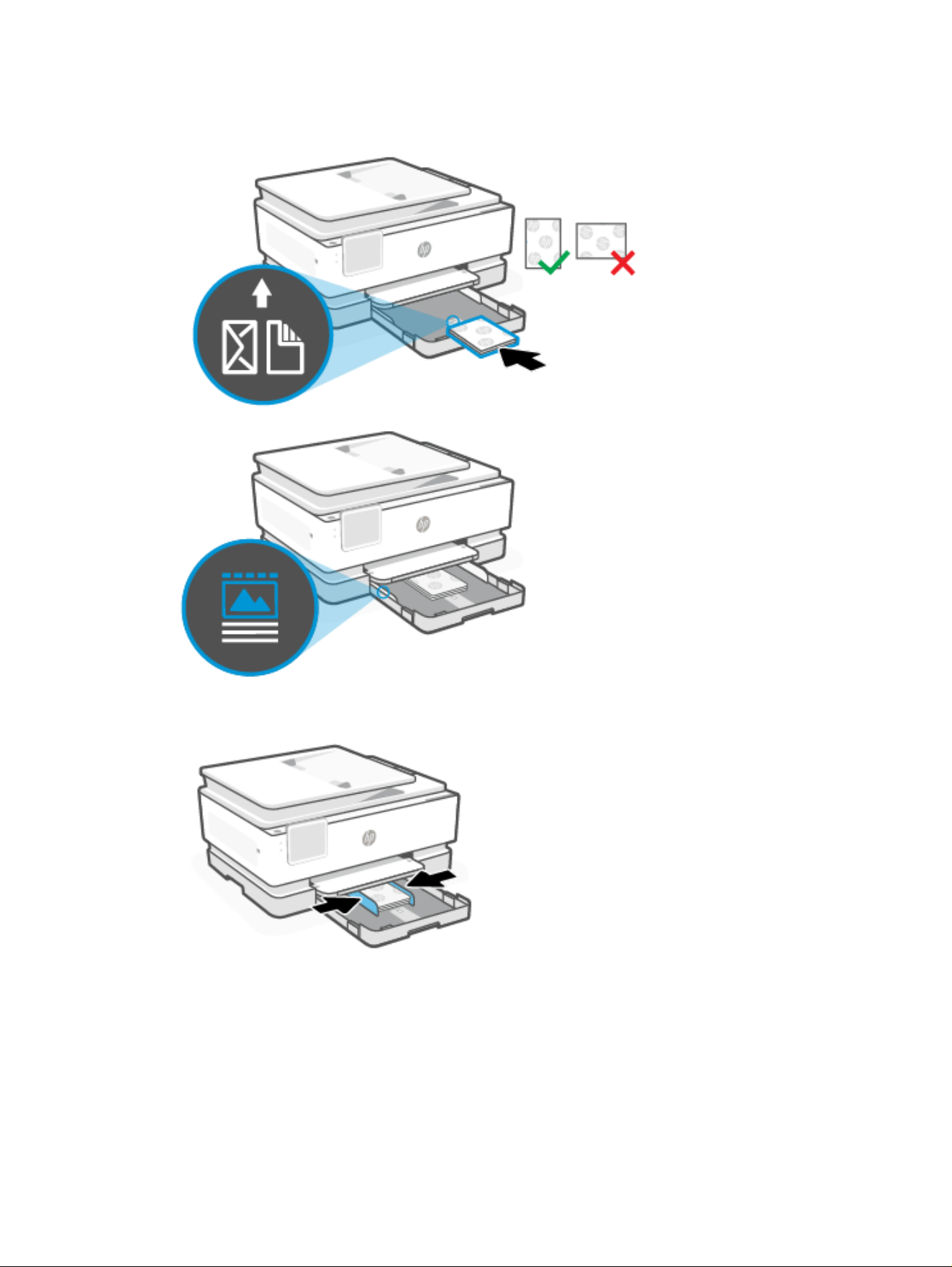
3. Insert paper with the side to be printed facing down.Make sure the stack of paper is aligned with the
appropriate paper-size indicators and does not exceed the stack-height marking in the tray.
4. Adjust the paper guides until they touch the edges of the paper stack.
20 Chapter 3Load media
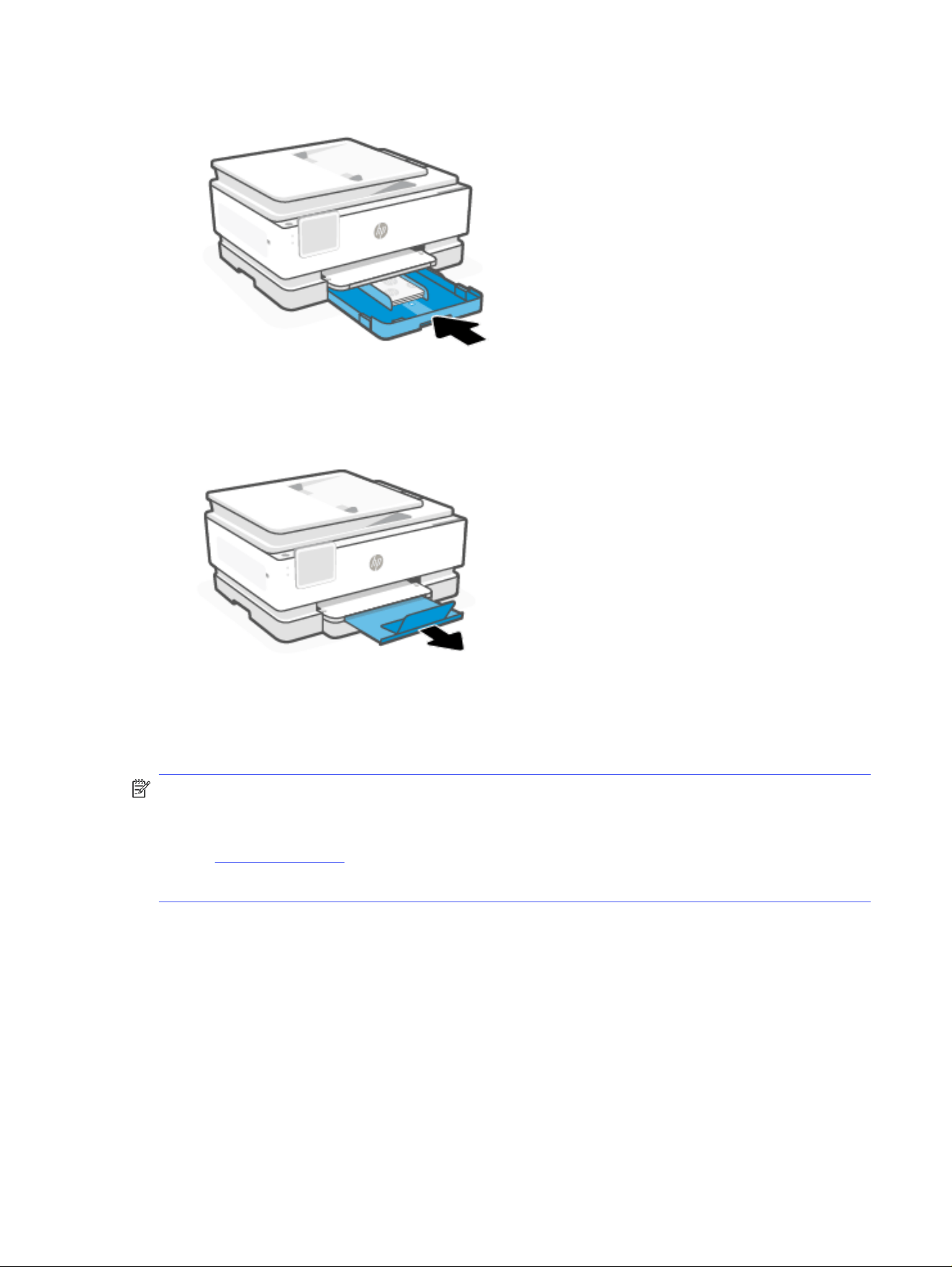
5. Reinsert the input tray into the printer.
6. Change or retain the paper settings on the control panel. Make sure the settings match the paper type and
size loaded.
7. Pull out the output tray extension.
Load an original on the scanner glass
Copy or scan an original by placing it on the scanner glass.
NOTE:
● The scanner might not work correctly if the scanner glass and lid backing are not clean.
See Printer maintenance.
● Remove all originals from the document feeder tray before lifting the lid on the printer.
Load an original on the scanner glass 21
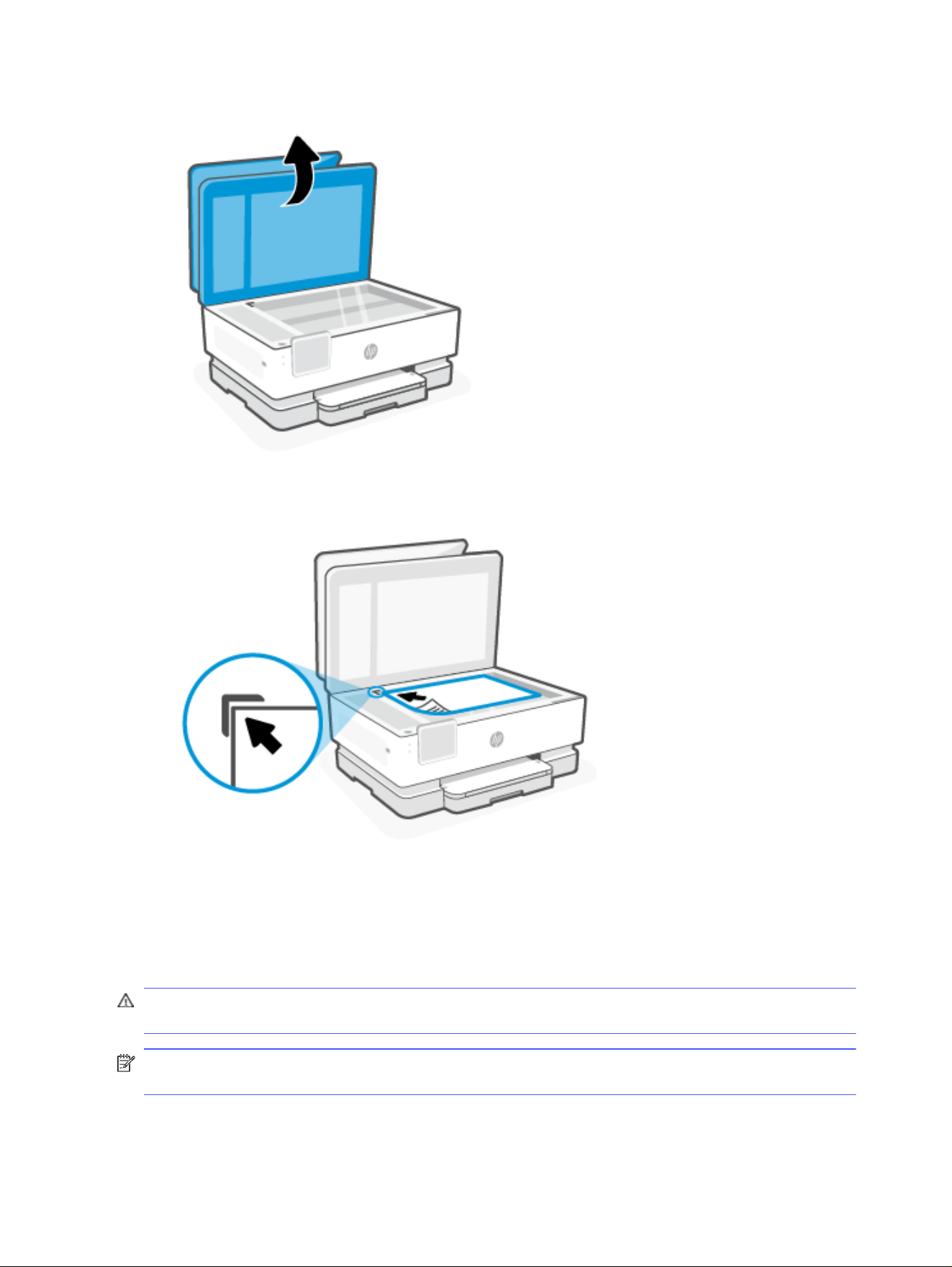
1. Lift the scanner lid.
2. Load your original print-side down on the scanner glass. Align the original to the indicated corner and the
engraved guides along the edges of the scanner glass.
3. Close the lid.
Load an original in the document feeder
You can copy or scan a document by placing it in the document feeder.
CAUTION: Do not load photos in the document feeder, this might cause damage to your photos. Use only
paper that is supported by the document feeder.
NOTE: Some features, such as the Fit to Page copy feature, do not work when you load your originals in the
document feeder. For those features to work, load your originals on the scanner glass.
1. Load your original print-side up into the document feeder.
22
Chapter 3Load media
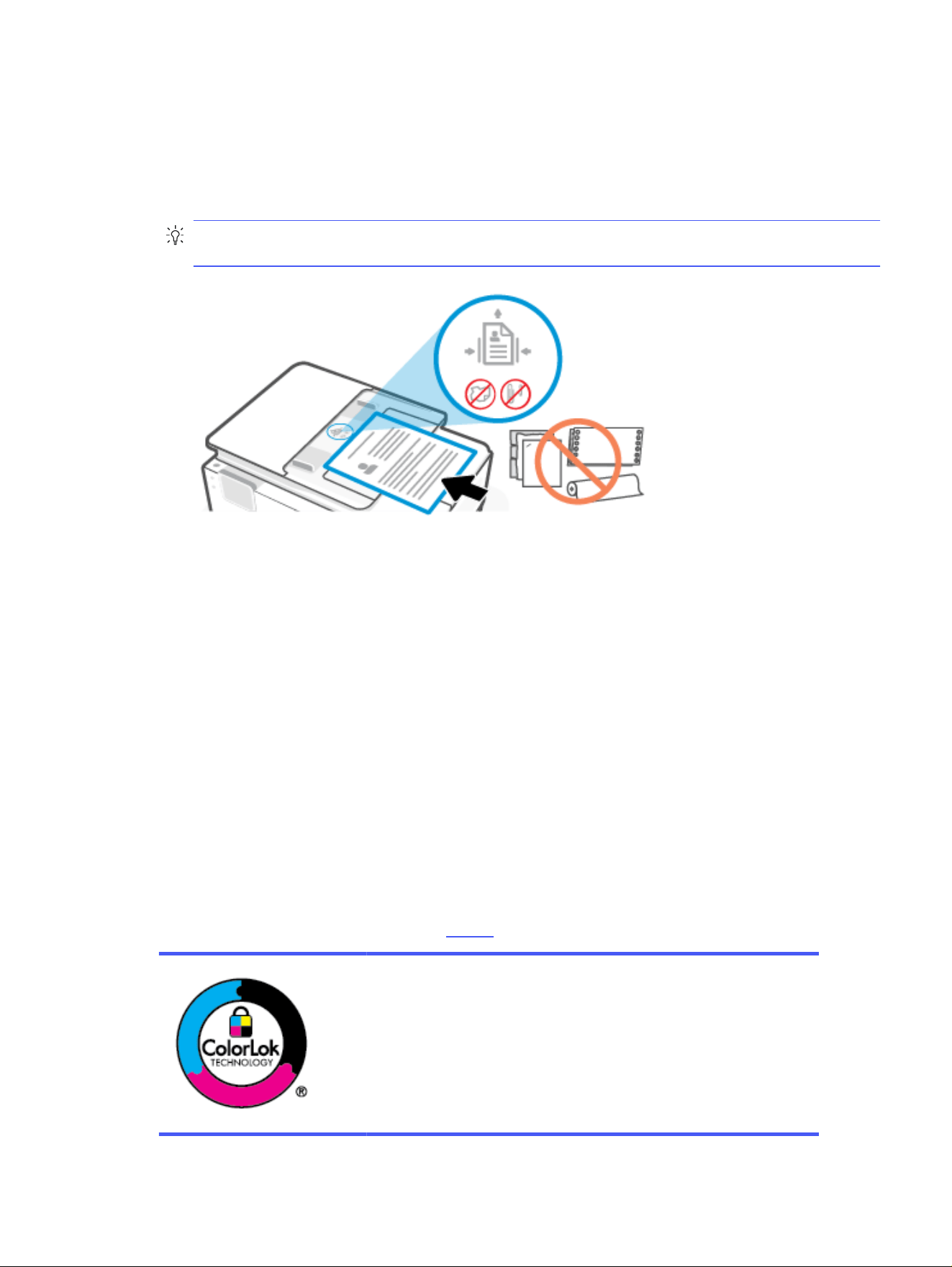
a. If you are loading an original printed in portrait orientation, place the pages so that the top edge of the
document goes in rst. If you are loading an original printed in landscape orientation, place the pages
so that the left edge of the document goes in rst.
b. Slide the paper in the document feeder until you hear a tone or see a message on the printer control
panel display indicating that the loaded pages were detected.
TIP: For more help on loading originals in the document feeder, refer to the diagram on the document
feeder tray.
2. Adjust the paper guides until they touch the edges of the paper stack.
Change the default paper settings
The printer can automatically detect whether the input tray has paper loaded and detect whether the loaded
paper is large, small, or medium width. You can change the default large, medium, or small paper size detected
by the printer.
1. On the control panel Home screen, swipe right and touch Trays.
2. Select the tray and touch Modify to make the desired changes.
3. Touch Done.
Paper basics
The printer is designed to work well with most types of oice paper. It is best to test avariety of paper types
before buying large quantities.
Use HP paper for optimum print quality. Visit hp.com for more information about HP paper.
HP recommends plain papers with the ColorLok logo for printing everyday
documents. All papers with the ColorLok logo are independently tested to meet high
standards of reliability and print quality, and produce documents with crisp, vivid color,
bolder blacks, and that dry faster than ordinary plain papers. Look for papers with the
ColorLok logo in avariety of weights and sizes from major paper manufacturers.
Change the default paper settings 23

Tips for selecting and using paper
For best results, follow the guidelines when loading paper into a tray or document feeder.
● Load only one type and one size of paper at a time.
● Make sure the paper is loaded correctly.
● Do not overload the tray.
● Avoid loading the following paper to prevent jams and poor print quality:
– Multipart forms
– Media that is damaged, curled, or wrinkled
– Media with cutouts or perforations
– Media that is heavily textured, embossed, or does not accept ink well
– Media that is too lightweight or stretches easily
– Media that contains staples or clips
24 Chapter 3Load media

Congure your printer4
Learn how to congure your printer using the printer control panel and the embedded web server (EWS).
Congure using the control panel
You can change settings using the control panel:
1. On the control panel Home screen, touch Menu.
2. Scroll to Utilities and touch Settings.
3. Select the feature and change the desired settings.
Congure
using the embedded web server (EWS)
The EWS is the printer homepage accessed through a web browser. Use the EWS to manage printer functions
and settings from your computer or mobile device.
● View the printer status information.
● Check the information and status of the printing supplies.
● Receive notication of printer and supplies events.
● View and change the network and the printer settings.
Things to note when accessing the EWS.
● If the web browser displays a message indicating that the website is unsafe, select the option to continue.
Accessing the website does not harm your device.
● Depending on how the printer is connected, some features in the EWS might not be available.
● For your security, some settings in the EWS are password-protected.
If prompted for a password, enter the default printer PIN available on the label inside the printer access door.
If you have changed the password, enter your new password.
● The EWS is not accessible beyond the network rewall.
Use the EWS to view or change IP conguration settings, and manually set an IPv4 address, subnet mask and
default gateway.
Open the embedded web server (EWS)
Open a web browser and type the IP address or hostname of the printer.
See Find printer IP address.
Congure
your printer 25

If prompted for a password, enter the default printer PIN available on the label inside the printer access door. If
you have changed the password, enter your new password.
NOTE: You can also open the EWS using the HP software.
Find printer IP address
The IP address for your printer is a unique address on the network that is used to connect to other devices.
● For printer connected using the Wi-Fi Direct connection, use this IP address: 192.168.223.1
● For printer connected using the Wi-Fi connection, touch the Status Center on the printer control panel to
view the IP address.
Alternatively, from the control panel Home screen, touch Menu, scroll to Utilities and touch Settings, touch
Network, touch Wi-Fi, and then touch View Details.
View or change network settings
When troubleshooting or setting up your printer, it might be necessary to view or edit its network settings.
1. Open the EWS.
2. From the left menu, click Network:
● To view network information, click Network Summary.
● To change network settings, click Network Settings.
Manually change IPv4 and IPv6 TCP/IP parameters
It might be necessary to manually congure a printer IP address when the printer is not detected on your
network.
1. Open the EWS.
2. From the left menu, click the Network tab, and then click the Network Settings tab.
3. Click IP Settings.
4. On the IP Settings page, click the Protocols drop-down menu, and then select one of the following:
● IPv4 Only
● IPv6 Only
● Both IPv4 and IPv6
Assign or change the system password
Assign an administrator password using the embedded web server (EWS) to prevent unauthorized users from
changing the printer settings.
1. Open the EWS.
2. From the left menu, click Security, and then click Password Settings.
3. On the Admin Account Password page, enter the password in the New Password* eld.
26
Chapter 4Congure your printer

4. Re-enter the password in the Conrm Password eld.
5. Click Apply.
NOTE: Make note of the password and store it in a safe place.
Change energy-conservation settings
The printer includes several economy features to conserve energy and supplies.
See Power management for more information on printer energy-conservation settings.
Update printer
HP periodically releases rmware updates to enhance product functionality and x issues. By default, if the
printer is connected to the internet, the printer automatically checks for updates at regular intervals.
Update printer using the control panel
You can update your printer rmware manually using the control panel.
1. On the control panel Home screen, touch Menu.
2. Scroll to Utilities and touch Settings.
3. Touch Firmware Update, touch Next, and then select any of the desired option:
● Auto Update (Recommended): The printer automatically checks for and installs new rmware updates.
● Notify: The printer automatically checks for new rmware updates and displays a notication on the
control panel when an update is available.
● Do Not Check: The printer does not automatically check for any updates.
Update printer using the embedded web server (EWS)
You can update your printer rmware using the EWS.
1. Open the EWS.
See Open the embedded web server (EWS).
If prompted for a password, enter the default printer PIN available on the label inside the printer access
door. If you have changed the password, enter your new password.
2. From the left menu, click General, and then click Firmware Update.
3. On the Firmware Information page, click Check for Update.
If a printer update is available, the printer installs the update and restarts.
NOTE: If prompted for proxy settings, follow the on-screen instructions to set up a proxy server. If you do not
have the details, contact your network administrator or the person who set up the network.
Change energy-conservation settings
27

Print5
Learn how to print from your computer or mobile device.
Install HP software on smartphone, laptop, desktop computer, or other devices to print, scan, and manage your
printer.
Print from a Windows computer
You can print from the le menu of most apps.
Make sure you have installed the HP software. See Use HP software.
1. Open the document you wish to print.
2. From the File menu in your software program, select the Print option.
NOTE: Make sure your printer is selected from the list of available printers.
3. Click the button that opens the Properties dialog box.
Depending on your software application, this button might be called Properties, Options, Setup, or
Preferences.
4. Change any print settings if needed, and click OK.
5. Click Print or OK to print.
Print from a Mac computer
Use the Print command from any open le.
1. If you are printing for the rst time, complete the following steps.
a. Open System Preference, and select Printers & Scanners.
b. Click the Add button/icon , select the printer from the printer list, and then click Add.
2. Open the document you want to print and use the Print command.
Make sure your printer is selected from the list of available printers.
3. Change any print settings if needed.
4. Click Print to print.
Print from mobile devices
You can print documents and photos from your mobile devices using HP software, AirPrint, or the HP Print
Service Plugin.
● HP software: Visit hp.com/mobileprinting for more information on mobile printing.
28
Chapter 5Print

● iOS: Devices running iOS 4.2 or later have AirPrint preinstalled.
● Android: Download the HP Print Service Plugin (supported by most Android devices) from the Google Play
Store and enable it on your device.
Print using Wi-Fi Direct
With Wi-Fi Direct, you can directly connect your computer or mobile device to the printer and print wirelessly
without connecting to an existing wireless network.
NOTE:
● Up to 5 computers and mobile devices can connect to the printer using a Wi-Fi Direct connection.
● Make sure to turn on Wi-Fi Direct on your printer before printing from your device. You can turn on Wi-Fi
Direct using the printer control panel or the embedded web server (EWS).
1. On the control panel Home screen, touch Menu.
2. Scroll to Utilities and touch Settings.
3. Touch Network, and then touch Wi-Fi Direct.
4. Touch the toggle button next to Wi-Fi Direct to turn it on.
Visit hp.com/go/widirectprinting to learn how to use Wi-Fi Direct and for troubleshooting information.
Tips for successful printing
To print successfully, make sure you have appropriate printer settings, suicient ink in the HP cartridges, and
paper loaded correctly in the trays.
You can check the printer settings in the HP software, the embedded web server (EWS), and your software
applications.
Ink tips
Following are the ink tips for successful printing:
● If the print quality is not acceptable, see Printing issues.
● Use Original HP cartridges.
Original HP cartridges are designed and tested with HP printers and papers to help you easily produce great
results, time after time.
NOTE:
● HP cannot guarantee the quality or reliability of non-Original HP supplies. Product service or repairs
required as a result of using a non-Original HP supply will not be covered under warranty.
● To determine if you have purchased Original HP cartridges, visit hp.com/go/anticounterfeit for more
information.
● Make sure all cartridges are installed correctly.
See Replace cartridges.
Print using Wi-Fi Direct
29

● Check the estimated ink levels to make sure that there is suicient ink.
See Check estimated ink levels.
NOTE: Ink level warnings and indicators provide estimates for planning purposes only. When an indicator
shows low ink levels, consider having a replacement cartridge available to avoid possible printing delays.
You do not need to replace cartridges until you are prompted to.
Paper loading tips
Following are the paper loading tips for successful printing:
● Make sure that the paper is loaded in the main tray properly, and set the correct media size and media type.
Upon loading paper in main tray, you will be prompted to set the media size and media type from the control
panel.
See Load media.
● Load a stack of paper (not just one page). All the paper in the stack must be of the same size and type to
avoid a paper jam.
● Load paper with the print-side down.
● Make sure paper is loaded in the main tray lays at and the edges are not bent or torn.
● Adjust the paper-width guides in the main tray to t snugly against all paper. Make sure that the guides do
not bend the paper in the tray.
30 Chapter 5Print

Copy, Scan, and Mobile Fax6
Learn how to use the copy, scan, and mobile fax features.
Copy from printer
Use the printer control panel to copy a document or an ID card from printer.
1. Load paper in the input tray.
See Load media.
2. On the control panel Home screen, touch Copy.
3. Touch Document Copy or ID Card Copy.
4. Set the number of copies or change the default copy settings.
NOTE: By default, the printer is set to copy in color. Touch Save to save the current settings as default.
5. To copy a document, load your original print-side down on the scanner glass or print-side up in the
document feeder. Touch Copy.
To copy an ID card, load your original ID card on the scanner glass, touch Copy, and then follow the
on-screen instructions to load your ID card or complete copy on the scanner glass.
Copy or scan from a mobile device
If your mobile device has a camera, you can use the HP software to copy or scan a printed document or photo.
TIP: You can use the HP software to edit, save, print, or share the copied or scanned image.
1. Open the HP software on your mobile device.
2. Tap the Plus icon or the Add Printer option.
3. Tap Copy, Camera Scan, or Printer Scan.
4. Place a document or photo in front of the camera, select a size option to help identify the size of the
original, and then tap the round button at the bottom of the screen to take a picture.
TIP: For best results, adjust the camera position to place the original within the provided frame on the
preview screen.
5. Specify other settings, and follow the on-screen instructions to complete copy or scan.
Scan and share
les from the printer
You can scan and share your documents to the cloud, email addresses, or a computer.
Copy, Scan, and Mobile Fax
31

To set up and use these features, the printer must be connected to the same network. For more information,
follow the instructions on the printer control panel.
1. Load your original print-side down on the scanner glass or print-side up in the document feeder.
See Load an original on the scanner glass or Load an original in the document feeder.
2. On the control panel Home screen, touch Scan, and then touch the desired option.
3. Follow the on-screen instructions to complete the scan.
Scan to a USB device from printer
Use the printer control panel to scan a
le directly to a USB device.
NOTE: You can also use embedded web server (EWS) to scan to a USB device.
1. Insert the USB device into the USB port of the printer.
2. Load your original print-side down on the scanner glass or print-side up in the document feeder.
See Load an original on the scanner glass or Load an original in the document feeder.
3. On the control panel Home screen, touch Scan.
4. Touch Scan to USB, and then select the location on the USB device where you want to save the scanned le.
5. Touch the File Name eld and type in the le name.
6. Touch to set other le options such as Original Sides, File Type, Resolution, and Color Mode from each
drop-down list.
7. Touch Options to change settings.
8. Touch Preview if you want to preview scanned photo or document, and then touch Send to scan the
document and save it to the USB device.
Scan using Web Scan
Web Scan is a feature of the embedded web server (EWS) that can scan photos and documents from your printer
to your computer using a web browser.
This feature is available even if you did not install the printer software on your computer.
NOTE: By default, Web Scan is o. You can enable this feature from the EWS.
If you are unable to open Web Scan in the EWS, your network administrator might have turned it o. For more
information, contact your network administrator or the person who set up your network.
Enable Web Scan
You must enable Web Scan before scanning from any browser.
1. Open the embedded web server (EWS).
2. From the left menu, click Network, and then click Advanced Settings.
32
Chapter 6Copy, Scan, and Mobile Fax

3. On the Advanced Settings page, click Remote Scan, and then click the toggle button next to WS-Scan to
enable Web Scan.
If Web Scan is not enabled, click Network and Advanced Settings from the left menu, click Web Services
(Microsoft) in the Advanced Settings page, and then click the toggle button next to WS-Scan to enable Web
Scan.
Scan using Web Scan
Web Scan oers basic scan options. For additional scan options or functionality, scan from the HP software.
1. Load your original print-side down on the scanner glass or print-side up in the document feeder.
2. Open the embedded web server (EWS).
3. From the left menu, click Scan.
4. Click Web Scan, change any settings, and then click Start Scan.
Tips for copy and scan success
Use the following tips to copy and scan successfully:
● Keep the glass and the back of the lid clean. The scanner interprets anything it detects on the glass as part
of the image.
● Load your original print-side down on the scanner glass and align it with the marking on the rear left corner
of the glass.
● To make a large copy of a small original, scan the original into the computer, resize the image in the scanning
software, and then print a copy of the enlarged image.
● If you want to adjust scan size, output type, scan resolution, or le type, and so on, start scan from the HP
software.
● To avoid incorrect or missing scanned text, make sure the brightness is set appropriately in the software.
● If you want to scan a document with several pages into one le instead of multiple les, start the scan with
the HP software instead of selecting Scan from the printer display or use document feeder to scan.
● When scanning from a mobile camera, make sure to scan in a well-lit area so that the original has good
contrast with the surface it is lying on.
Mobile Fax
Use this feature in HP software to quickly scan and fax multiple pages from your mobile device or computer.
NOTE: Make sure your mobile device or computer are connected to a network.
1. Open HP software on your mobile device or computer.
If prompted, create or sign in to an HP account and register the printer.
Scan using Web Scan
33

2. Select the Mobile Fax tile.
If the tile is missing, tap or click Personalize Tiles to add it to your home screen.
NOTE: If you cannot nd this feature in the HP software, it might not be available in your country/region.
3. Fill out the necessary information and enable a cover page if required.
4. Attach an existing le to fax or scan a new le using your printer or mobile device.
5. Review the details and send the fax when ready.
34 Chapter 6Copy, Scan, and Mobile Fax

Fax7
This feature is only available in HP OiceJet Pro 8130e series.
Congure the fax features, and send and receive faxes using the printer.
You can use the printer to send and receive faxes. You can schedule faxes to be sent later within 24 hours and
set up address book contacts to send faxes quickly and easily to frequently used numbers. On the printer control
panel, you can also set a number of fax options, such as resolution and the contrast between lightness and
darkness on the faxes you send.
NOTE:
● Before you begin faxing, make sure you have set up the printer correctly for faxing. You can verify the fax is
set up correctly by running the fax setup test from the printer control panel.
See Fax test report.
●
You can send a secure fax using the HP software and your mobile device or computer from anywhere,
anytime. Use the HP software to quickly scan and fax multiple pages at once from your mobile device or
computer.
See Use HP software.
Send a fax
You can send a fax in a variety of ways, depending on your situation or need.
Send a standard fax
You can send a single-page fax or multiple-page fax using the control panel.
NOTE:
● Send single-page faxes by placing the original on the glass. Send multiple page faxes using the document
feeder.
● If you need printed conrmation that your faxes were sent, Fax Notication (Fax Send) must be enabled.
See Set the fax notications (send or receive) settings.
1. Load your original print-side down on the scanner glass or print-side up in the document feeder.
2. On the control panel Home screen, swipe right and then touch Fax.
3. To enter the fax number, do one of the following:
● Touch Enter the Fax Number, and then enter the fax number.
● Touch the Address Book icon next to the Enter the Fax Number eld to open the Address Book.
4. Touch Select to conrm.
Fax
35

5. Touch Send to send the fax.
TIP:
● By default, the printer is set to send a black-and-white fax. If you want to send a color fax, touch
Options to change the default fax scan and send options.
● If the recipient reports issues with the quality of the fax, try changing the resolution or contrast of your
fax.
Send a standard fax from the computer (Windows)
You can fax a document directly from your computer without printing it rst.
To use this feature, make sure you have installed HP software on your computer, the printer is connected to a
working telephone line, and the fax function is set up and functioning correctly.
1. Open the document on your computer that you want to fax.
2. On the File menu in your software application, click Print.
3. From the Name list, select the printer that has “fax” in the name.
4. To change settings, click the button that opens the Properties dialog box.
Depending on your software application, this button might be called Properties, Options, Printer Setup,
Printer, or Preferences.
5. After you have changed any settings, click OK.
6. Click Print or OK.
7. Enter the fax number and other information for the recipient, change any further settings for the fax, and
then click Send Fax. The printer begins dialing the fax number and faxing the document.
Send a fax from a phone
You can send a fax using your telephone extension. This allows you to talk with the intended recipient before
sending the fax.
1. Load your original print-side down on the scanner glass or print-side up in the document feeder.
2. Dial the number by using the keypad on the phone that is connected to the printer.
If the recipient answers the telephone, inform the recipient that they should receive the fax on their fax
machine after they hear fax tones. If a fax machine answers the call, you will hear fax tones from the
receiving fax machine.
3. When you are ready to send, touch Send Fax, and then follow the on-screen instructions to proceed.
TIP: By default, the printer is set to send a black-and-white fax. If you want to send a color fax, touch
Options to change the default fax scan and send options.
The telephone is silent while the fax is transmitting. If you want to speak to the recipient later, remain on
the line until the transmission is complete. If you were nished talking to the recipient, you can hang up the
telephone as soon as the fax begins transmitting.
36
Chapter 7Fax

Send a scheduled fax using the control panel
You can schedule faxes to be sent at a later time.
1. Load your original print-side down on the scanner glass or print-side up in the document feeder.
2. On the control panel Home screen, swipe right and then touch Fax.
3. Touch Options, scroll down to Send Options, and then touch Schedule Fax.
4. Set the time to send the fax, and then touch Done.
5. To enter the fax number, do one of the following:
● Touch Enter the Fax Number, and then enter the fax number.
● Touch the Address Book icon next to the Enter the Fax Number eld to open the Address Book.
6. Touch Send.
Follow the on-screen instructions that might occur.
Send a fax using the printer memory
You can scan a black-and-white fax into memory and then send the fax from memory. This feature is useful if
the fax number you are trying to reach is busy or temporarily unavailable. The printer scans the originals into
memory and sends them once it is able to connect to the receiving fax machine. After the printer scans the pages
into memory, you can immediately remove the originals from the document feeder tray or scanner glass.
NOTE:
● You can only send a black-and-white fax from memory.
● You can scan multiple pages from the scanner glass to the printer's memory, and then fax them. You can
use this feature to fax multiple pages from a book or magazine, when it is not feasible in ADF.
1. Make sure that Scan and Fax Method is turned on.
a. On the control panel Home screen, touch Menu.
b. Scroll to Utilities and touch Settings.
c. Touch Fax Settings, and then touch Fax Send.
d. Touch the toggle button next to Scan and Fax Method to turn it on or o.
2. Load your original print-side down on the scanner glass or print-side up in the document feeder.
3. On the control panel Home screen, swipe right and then touch Fax.
4. To enter the fax number, do one of the following:
● Touch Enter the Fax Number, and then enter the fax number.
● Touch the Address Book icon next to the Enter the Fax Number eld to open the Address Book.
5. Touch Send.
The printer scans the originals into memory and sends the fax when the receiving fax machine is available.
Send a scheduled fax using the control panel
37

Send a fax to multiple recipients using group address book
You can send a fax to multiple recipients by creating a group address book contact made up of two or more
individual recipients.
1. Load your original print-side down on the scanner glass or print-side up in the document feeder.
2. On the control panel Home screen, swipe right and then touch Fax.
3. Touch Enter the Fax Number, and then enter the fax number.
4. Touch Address Book, touch Local, and touch the Enter button after entering each fax number. When nished
entering all fax numbers, touch Done.
5. Touch Group to select the group address book, and then select Select.
6. Touch the name of the group that you want to send.
7. Touch Send
Printer sends the document to all the numbers in the selected group.
TIP: If the recipient reports issues with the quality of the fax, try changing the resolution or contrast of
your fax.
Receive a fax
You can receive faxes automatically or manually. If you turn o the Auto Answer option, you must receive faxes
manually. If you turn on the Auto Answer option (the default setting), the printer automatically answers incoming
calls and receives faxes after the number of rings that are specied by the Rings to Answer setting (The default
Rings to Answer setting is two rings).
If you receive a Legal-size or larger fax and the printer is not currently set to use Legal-size paper, the printer
reduces the fax so that it ts on the paper that is loaded. If you have disabled the Automatic Reduction feature,
the printer prints the fax on two pages.
NOTE: If you are copying a document when a fax arrives, the fax is stored in the printer memory until the
copying nishes.
Receive a fax manually
When you are on the phone, the person you are speaking with can send you a fax while you are still connected.
You can pick up the handset to talk or listen for fax tones.
● You can receive faxes manually from a phone that is directly connected to the Fax port on the back of the
printer.
● If you need printed conrmation that your faxes were successfully sent, Fax Notication (Fax Receive) must
be enabled.
1. Make sure the printer is turned on and you have paper loaded in the input tray.
2. Remove any originals from the document feeder tray.
3. On the control panel Home screen, touch Menu.
4. Scroll to Utilities and touch Settings.
38
Chapter 7Fax

5. Touch Fax Settings, and then touch Fax Receive.
6. Set the Rings to Answer setting to a high number to allow you to answer the incoming call before the
printer answers.
Or
Turn o the Auto Answer setting so that the printer does not automatically answer incoming calls.
7. If you are currently on the phone with the sender, instruct the sender to press Send Fax on their fax
machine.
8. Do the following when you hear fax tones from a sending fax machine.
a. On the printer control Home screen, touch Receive Now to receive the fax.
b. After the printer begins to receive the fax, you can hang up the phone or remain on the line. The phone
line is silent during fax transmission.
Reprint faxes in memory using the control panel
You can reprint up to 100 of the most recently printed faxes if they are still in memory. For example, you might
need to reprint your faxes if you lost the copy of your last printout.
NOTE: After the memory becomes full, the printer cannot receive the new fax until you print or delete the
faxes from memory. You might also want to delete the faxes in memory for security or privacy purposes.
1. Make sure you have loaded paper in the input tray.
See Load media.
2. From the printer control panel display, touch Print.
3. Touch Job Storage, Stored Faxes, and Print.
The faxes are printed in the reverse order from which they were received with the most recently received
fax printed rst, and so on.
4. Select a fax and then touch Print.
Block unwanted fax numbers
You can block specic fax numbers so the printer does not receive faxes received from those numbers. When an
incoming fax call is received, the printer compares the number to the list of blocked fax numbers to determine
if the call should be blocked. If the number matches a number in the blocked fax numbers list, the fax is not
received (The maximum number of fax numbers you can block varies by model).
You can block specic fax numbers by adding them to the blocked fax numbers, unblock these numbers by
removing them from the blocked fax numbers list, and print a list of blocked fax numbers.
Add a number to the Blocked Fax Numbers list
Use the following steps to block and add a number to the blocked fax list using the control panel.
1. On the control panel Home screen, touch Menu.
2. Scroll to Utilities and touch Settings.
3. Touch Fax Settings, Fax Receive, and Blocked Fax Numbers.
Reprint faxes in memory using the control panel
39

4. Select the number you want to add and then touch Add.
5. Touch OK.
Follow the on-screen instructions.
Remove numbers from the Blocked Fax Numbers list
Use the following steps to remove numbers from the blocked fax numbers list using the control panel.
1. On the control panel Home screen, touch Menu.
2. Scroll to Utilities and touch Settings.
3. Touch Fax Settings, Fax Receive, and Blocked Fax Numbers.
4. Select the number you want to remove and then touch Remove.
5. Touch OK.
Follow the on-screen instructions.
Print a Blocked Fax Report
Use the following steps to print a blocked fax report using the control panel.
1. On the control panel Home screen, touch Menu.
2. Scroll to Utilities and touch Tools.
3. Touch Reports, Fax Reports, and Blocked Fax Report.
4. Touch Print to begin printing.
Set up address book contacts
You can set up frequently used fax numbers as address book contacts. This lets you quickly dial those numbers
using the printer control panel.
TIP: In addition to creating and managing address book contacts from the printer control panel, you can also
use tools available on your computer, such as HP software and the embedded web server (EWS).
See Use HP software.
Create an address book contact
You can store fax numbers as address book contacts.
1. On the control panel Home screen, touch Menu.
2. Scroll to Utilities and touch Contacts.
3. Touch Add Contact.
4. Touch Display Name* to enter your personal or company display name manually, and then touch OK.
5. Touch Enter Address to enter your personal or company email address manually, and then touch OK.
40
Chapter 7Fax

6. Touch Fax number to enter the fax number manually, and then touch OK.
NOTE: Be sure to include any pauses or other required numbers, such as an area code, an access code for
numbers outside a PBX system (usually a 9 or 0), or a long-distance prex.
7. Touch Save.
Change address book contacts
You can change address book contacts.
1. On the control panel Home screen, touch Menu.
2. Scroll to Utilities and touch Contacts.
3. Touch Contact to edit the contact details that you want to change.
4. Touch Edit to change the Display Name*, Email Address, or Fax Number.
NOTE: Be sure to include any pauses or other required numbers, such as an area code, an access code for
numbers outside a PBX system (usually a 9 or 0), or a long-distance prex.
5. Touch Save.
Create and edit a group address book contact
You can store groups of fax numbers as group address book contacts.
Set up group contacts
You can set up group contacts.
NOTE: Before you can create a group address book contact, you must have already created at least one
address book contact.
See Create an address book contact.
1. On the control panel Home screen, touch Menu.
2. Scroll to Utilities and touch Contacts.
3. Touch Add Group to enter your personal or company group name manually, and then touch OK.
4. Touch Group Name* to enter a group name manually by using the keyboard, and then touch OK.
5. Touch Members, select the contacts that you want to include in this group and touch Add.
6. Touch Save.
Change group address book contacts
You can change group address book contacts.
1. On the control panel Home screen, touch Menu.
2. Scroll to Utilities and touch Contacts.
3. Touch Group to edit the group contact details that you want to change.
Change address book contacts
41

4. Touch Edit to change the group name manually and choose the members of the group.
5. Touch Save.
NOTE: If you want to remove a contact from the group, touch to deselect the contact.
Delete address book contacts
You can delete address book contacts.
1. On the control panel Home screen, touch Menu.
2. Scroll to Utilities and touch Contacts.
3. Touch the name of the address book contact that you want to delete.
4. Touch Edit, and then touch Delete.
5. Touch Delete to conrm.
Delete group address book contacts
You can delete group address book contacts.
1. On the control panel Home screen, touch Menu.
2. Scroll to Utilities and touch Contacts.
3. Touch the name of the group contact that you want to delete.
4. Touch Edit, and then touch Delete.
5. Touch Delete to conrm.
Change fax settings
Use the following steps to change the initial settings or to congure other options for faxing.
Congure
the fax dialing settings
You can congure the fax dialing settings using the control panel. If the printer was unable to send a fax because
the receiving fax machine did not answer or was busy, the printer attempts to redial based on the settings for the
redial options.
All redial options work only when sending faxes from memory with Scan and Fax method turned on.
● Redial on Error: Redials automatically if there has been a problem communicating with the receiving fax
machine.
● Redial on No Answer: Redials automatically if the receiving fax machine does not answer.
● Redial on Busy: Redials automatically if it receives a busy signal.
● Redial Interval: Redials on the time interval set.
● Fax Send Speed: Set fax speed to communicate between your printer and other fax machines when sending
faxes.
42
Chapter 7Fax

● Pulse Dialing Mode: Change to pulse dialing mode. The factory-set default is Tone. Do not change the setting
unless you know that your phone line cannot use tone dialing.
● Dialing Prex: Make sure to include any pauses or other required numbers such as an area code, an access
code for numbers outside a PBX system (usually a 9 or 0), or a long-distance prex.
● Detect Dial Tone: Dials as soon as it detects a dial tone.
Complete the following steps to set the fax dialing options.
1. On the control panel Home screen, touch Menu.
2. Scroll to Utilities and touch Settings.
3. Touch Fax Settings, and then touch Fax Send.
4. Touch Fax Dialing, and then slide to increase or decrease to set any of the following options.
● Redial on Error
● Redial on No Answer
● Redial on Busy
● Redial Interval
● Fax Send Speed
● Pulse Dialing Mode
● Dialing Prex
● Detect Dial Tone
Enable scan and fax method
You can set the scan and fax method using the control panel. This feature is useful if the fax number you are
trying to reach is busy or temporarily unavailable. The printer scans the originals into memory and sends them
once it is able to connect to the receiving fax machine. After the printer scans the pages into memory, you can
immediately remove the originals from the document feeder tray or scanner glass.
1. On the control panel Home screen, touch Menu.
2. Scroll to Utilities and touch Settings.
3. Touch Fax Settings, and then touch Fax Send.
4. Touch the toggle button next to Scan and Fax Method to turn it on or o.
Set the fax number
conrmation
Allows you to re-enter the fax number for conrmation.
1. On the control panel Home screen, touch Menu.
2. Scroll to Utilities and touch Settings.
3. Touch Fax Settings, and then touch Fax Send.
4. Touch the toggle button next to Fax Number Conrmation to turn it on or o.
Enable scan and fax method
43

Set the error correction mode (ECM) settings
You can turn on or o ECM settings using the control panel. ECM prevents loss of data due to poor phone lines
by detecting errors that occur during transmission and automatically requesting retransmission of the erroneous
portion. Phone charges are unaected, or might even be reduced, on good phone lines. On poor phone lines, ECM
increases sending time and phone charges, but sends the data much more reliably. The default setting is On.
Turn ECM o only if it increases phone charges substantially, and if you can accept poorer quality in exchange for
reduced charges.
If ECM is turned o, the quality and transmission speed of faxes you send and receive are aected, and the Speed
is automatically set to Medium.
You can change ECM settings either from Fax Send or Fax Receive settings using the control panel.
1. On the control panel Home screen, touch Menu.
2. Scroll to Utilities and touch Settings.
3. Touch Fax Settings, and then touch Fax Send.
Or
Touch Fax Settings, and then touch Fax Receive.
4. Touch the toggle button next to Error Correction Mode to turn it on or o.
Set the overlay fax header
You can congure the overlay fax header settings using the control panel. The overlay fax header prints your
name and fax number on the top of every fax you send. HP recommends that you set up the fax header by using
HP software. You can also set up the fax header from the printer control panel, as described here.
NOTE: In some countries/regions, the fax header information is a legal requirement.
1. On the control panel Home screen, touch Menu.
2. Scroll to Utilities and touch Settings.
3. Touch Fax Settings, and then touch Fax Setup.
4. On the Basic Fax Setup screen, touch Country/Region* and scroll to select the country/region.
5. Touch Fax Header Name* to manually enter your personal or company fax header name using the
keyboard, and then touch OK.
6. Touch Fax Number to enter your fax number manually by using the keyboard, and then touch OK.
NOTE: The fax header prints your name and fax number on the top of every fax you send.
7. Touch Next, and then follow the on-screen instructions.
8. Touch OK.
Set the billing code
You can set to print the billing code using the control panel. The billing codes feature prompts the user to input a
billing code for each fax being sent; the billing code is then assigned to each page of the fax.
44
Chapter 7Fax

For an undened group or a group-dial fax, the billing code count is increased for each successful fax that is sent
to each destination. By default, the billing code setting is turned o.
1. On the control panel Home screen, touch Menu.
2. Scroll to Utilities and touch Settings.
3. Touch Fax Settings, and then touch Fax Send.
4. From the Fax Send Settings screen, touch the toggle button next to Billing Code to turn it on or o.
Set the fax notications (send or receive) settings
You can set to print a notication on the printer when any fax is sent or received using the control panel.
1. On the control panel Home screen, touch Menu.
2. Scroll to Utilities and touch Settings.
3. Touch Fax Settings, Fax Send, and Fax Send Settings.
Or
Touch Fax Settings, Fax Receive, and Fax Receive Settings.
4. On the Fax Send Settings or Fax Receive Settings screen, touch next to Fax Notications to set the required
option.
● Do not notify
● Notify when job completes
● Notify only if job fails
Congure
the fax printing settings
You can congure the fax printing settings using the control panel. Depending on your preference and security
requirements, you can set up the printer to store and print all the faxes it receives and sends using the control
panel.
1. Complete the following steps to change the store and print settings.
1. On the control panel Home screen, touch Menu.
2. Scroll to Utilities and touch Settings.
3. Touch Fax Settings, and then touch Fax Receive.
4. On the Fax Receive Settings screen, touch Store and Print next to Fax Printing.
5. Touch one of the following options.
Table 7-1
Store and print
Settings Description
Store and Print Printer stores all received faxes in memory. This enables you to reprint up to 100 of the most recent
faxes from the memory. This is the default setting.
NOTE: When the printer memory is low, it overwrites. If memory becomes full of unprinted faxes, the
printer stops answering incoming fax calls.
Set the fax notications (send or receive) settings 45

Table 7-1 Store and print (continued)
Settings Description
Always Print When Always Print is selected, the printer prints the received faxes without storing in memory.
Set the answer mode (auto answer)
You can set to auto answer mode using the control panel. The answer mode determines whether the printer
answers incoming calls.
●
Turn on the Auto Answer setting if you want the printer to answer faxes automatically.
● Turn o the Auto Answer setting if you want to receive faxes manually. You must be available to respond in
person to the incoming fax call or else the printer does not receive faxes.
1. On the control panel Home screen, touch Menu.
2. Scroll to Utilities and touch Settings.
3. Touch Fax Settings, and then touch Fax Receive option.
4. Touch the toggle button next to Auto Answer to turn it on or o.
Set the number of rings
You can set the number of rings before answering using the control panel. If you turn on the Auto Answer setting,
you can specify how many rings to occur before incoming calls are automatically answered.
The Rings to Answer setting is important if you have an answering machine on the same phone line as the
printer, because you want the answering machine to answer the phone before the printer does. The number of
rings to answer for the printer should be greater than the number of rings to answer for the answering machine.
For example, set your answering machine to a low number of rings and the printer to answer in the maximum
number of rings. In this setup, the answering machine answers the call and the printer monitors the line. If the
printer detects fax tones, it receives the fax. If the call is a voice call, the answering machine records the incoming
message.
1. On the control panel Home screen, touch Menu.
2. Scroll to Utilities and touch Settings.
3. Touch Fax Settings, and then touch Fax Receive.
4. Touch to set the number of rings.
Set the fax ring volume
You can change the ring volume of fax sounds.
1. On the control panel Home screen, touch Menu.
2. Scroll to Utilities and touch Settings.
3. Touch Fax Settings, Fax Receive, and Ring Volume.
4. Touch to set High, O, or On.
46
Chapter 7Fax

Set the answer ring pattern for distinctive ring
You can change the answer ring pattern for distinctive ring. Many phone companies oer a distinctive ring feature
that allows you to have several phone numbers on one phone line. When you subscribe to this service, each
number is assigned a dierent ring pattern. You can set up the printer to answer incoming calls that have a
specic ring pattern.
If you connect the printer to a line with distinctive ring, have your telephone company assign one ring pattern to
voice calls and another ring pattern to fax calls. HP recommends that you request double or triple rings for a fax
number. When the printer detects the specied ring pattern, it answers the call and receives the fax.
TIP: You can also use the Ring Pattern Detection feature in the printer control panel to set distinctive ring. With
this feature, the printer recognizes and records the ring pattern of an incoming call and, based on this call,
automatically determines the distinctive ring pattern assigned by your telephone company to fax calls.
If you do not have a distinctive ring service, use the default ring pattern, which is All Standard Rings.
1. Make sure that the printer is set to answer fax calls automatically.
See Set the answer mode (auto answer).
2. On the control panel Home screen, touch Menu.
3. Scroll to Utilities and touch Settings.
4. Touch Fax Settings, and then touch Fax Receive.
5. Scroll down and touch Distinctive Ring.
6. Touch any of the following options:
● Single Ring
● Double Rings
● Triple Rings
● Double and Triple Rings
● All Standard Rings
● Record Ring Pattern
NOTE: If you are using a PBX phone system that has dierent ring patterns for internal and external calls,
you must call the fax number from an external number.
Set the 2-sided fax printing
You can set the 2-sided fax printing option to print incoming faxes on both sides of the paper.
1. On the control panel Home screen, touch Menu.
2. Scroll to Utilities and touch Settings.
3. Touch Fax Settings, and then touch Fax Receive.
4. Scroll down and touch the toggle button next to 2-Sided Fax Printing to turn it on or o.
Set the answer ring pattern for distinctive ring
47

Set the stamp received faxes settings
You can set the stamp received faxes settings using the control panel. You can stamp the incoming fax with your
own header information to conrm the date and time that the fax was received. This feature is not enabled by
default.
1. On the control panel Home screen, touch Menu.
2. Scroll to Utilities and touch Settings.
3. Touch Fax Settings, and then touch Fax Receive.
4. Scroll down and touch the toggle button next to Stamp Received Faxes to turn it on or o.
Set the Fit to Page settings
You can set t to page settings using the control panel.
The Fit to Page setting determines what the printer does if it receives a fax that is too large for the loaded paper
size. This setting is turned on by default, so the image of the incoming fax is reduced to t on one page, if
possible. If this feature is turned o, information that does not t on the rst page is printed on a second page. Fit
to Page is useful when you receive a fax larger than A4/Letter-size fax and A4/Letter-size paper is loaded in the
input tray.
1. On the control panel Home screen, touch Menu.
2. Scroll to Utilities and touch Settings.
3. Touch Fax Settings, and then touch Fax Receive.
4. Scroll down and touch the toggle button next to Fit to Page to turn it on or o.
Add a number to the Blocked Fax Numbers list
Use the following steps to block and add a number to the blocked fax list using the control panel.
1. On the control panel Home screen, touch Menu.
2. Scroll to Utilities and touch Settings.
3. Touch Fax Settings, Fax Receive, and Blocked Fax Numbers.
4. Select the number you want to add and then touch Add.
5. Touch OK.
Follow the on-screen instructions.
Set the Fax Speed (send or receive) settings
If you use one of the following, setting the fax speed to a slower speed might be required:
● An Internet phone service
● A PBX (private branch exchange) system
● Fax on Voice over Internet Protocol (VoIP)
● An integrated services digital network (ISDN) service
48
Chapter 7Fax

If you experience problems sending and receiving faxes, try using a slower Speed. The following table provides
the available fax speed settings.
Table 7-2 Set the send and receive speed
Fax speed setting Fax speed
Fast v.34 (33600 bps)
Medium v.17 (14400 bps)
Slow v.29 (9600 bps)
1. On the control panel Home screen, touch Menu.
2. Scroll to Utilities and touch Settings.
3. Touch Fax Settings, Fax Send, Fax Dialing, and Fax Send Speed.
Or
Touch Fax Settings, Fax Receive, Fax Dialing, and Fax Receive Speed.
4. Touch any of the following options to set the fax send or receive speed.
● Slow (9600 bps)
● Medium (14400 bps)
● Fast (33600 bps)
Set the dial type
Use this procedure to set tone-dialing or pulse-dialing mode. The factory-set default is Tone. Do not change the
setting unless you know that your phone line cannot use tone dialing.
NOTE: The pulse-dialing option is not available in all countries/regions.
1. On the control panel Home screen, touch Menu.
2. Scroll to Utilities and touch Settings.
3. Touch Fax Settings, Fax send, and Fax Dialing.
4. From the Fax Dialing options, touch the toggle button next to Pulse Dialing Mode to turn it on or o.
Set fax forward
You can set up the printer to forward your faxes to another fax number using the control panel. All faxes are
forwarded in black and white, regardless of how they were originally sent.
HP recommends that you verify the number you are forwarding to is a working fax line. Send a test fax to make
sure the fax machine is able to receive your forwarded faxes.
1. On the control panel Home screen, touch Menu.
2. Scroll to Utilities and touch Settings.
3. Touch Fax Settings, and then touch Fax Forwarding.
Set the dial type
49

4. Do one of the following to activate the fax forwarding:
● Touch the toggle button next to Fax Forwarding to forward the fax.
● Touch the toggle button next to Fax Forwarding + Print to print and forward the fax.
● Touch Enter Fax Number to enter the fax number manually of the fax machine intended to receive the
forwarded faxes.
NOTE:
●
If the printer loses power when fax forwarding is set up, it saves the fax forwarding setting and phone
number. When the power is restored to the printer, the fax forwarding setting is still On.
● You can cancel fax forwarding by selecting O from the Fax Forwarding menu.
Congure fax archiving
You can use fax archive to automatically receive faxes and save them directly to your computer. This saves paper
and ink.
Received faxes are saved as TIFF (Tagged Image File Format) or PDF (Portable Document Format).
NOTE: Fax to Computer is available for receiving black-and-white faxes only. Color faxes will be printed.
Fax archive requirements
Following are the fax archive requirements.
● The destination folder of the computer must be available at all times. Faxes will not be saved if the computer
is asleep or in hibernate mode.
● Paper must be loaded in the input tray to print the received faxes archived.
See Load media.
Set up or modify fax archive settings
You can set up or modify fax archiving settings using the embedded web server (EWS).
1. Open the EWS.
See Use HP software.
2. From the left menu, click Fax, and then click Fax Archive and Forwarding.
3. Click Archive tab, and then select the desired settings from the Fax Archiving drop-down menu.
● Do not archive (print only)
● Archive and print
● Archive only
Turn
o fax archiving
You can turn o fax archive using the embedded web server (EWS).
50
Chapter 7Fax

1. Open the EWS.
See Use HP software.
2. From the left menu, click Fax, and then click Fax Archive and Forwarding.
3. Click Archive tab, and then select Do not archive (print only) from the Fax Archiving drop-down menu.
Fax and digital phone services
Many telephone companies provide their customers with digital phone services, such as the following:
● DSL: A Digital subscriber line (DSL) service through your telephone company (DSL might be called ADSL in
your country/region).
● PBX: A private branch exchange (PBX) phone system.
● ISDN: An integrated services digital network (ISDN) system.
● VoIP: A low-cost phone service that allows you to send and receive faxes with your printer by using the
Internet. This method is called Fax on Voice over Internet Protocol (VoIP).
See Fax on Voice over Internet Protocol.
HP printers are designed specically for use with traditional analog phone services. If you are in a digital phone
environment (such as DSL/ADSL, PBX, or ISDN), you might need to use digital-to-analog lters or converters
when setting up the printer for faxing.
NOTE: HP does not guarantee that the printer will be compatible with all digital service lines or providers, in all
digital environments, or with all digital-to-analog converters. It is always recommended that you discuss with
the telephone company directly for the correct setup options based on their line services provided.
Fax on Voice over Internet Protocol
You might be able to subscribe to a low cost phone service that allows you to send and receive faxes with your
printer by using the Internet. This method is called Fax on Voice over Internet Protocol (VoIP).
The following are indications you probably use a VoIP service:
● Dial a special access code along with the fax number.
● Have an IP converter box that connects to the Internet and provides analog phone ports for the fax
connection.
NOTE: You can only send and receive faxes by connecting a phone cord to the port labeled on the back of
the printer. This means that your connection to the Internet must be done either through a converter box
(which supplies regular analog phone jacks for fax connections) or your telephone company.
TIP: Support for traditional fax transmission over any Internet protocol telephone systems are often limited. If
you experience problems faxing, try using a slower fax speed or disabling the fax Error Correction Mode (ECM).
However, if you turn o ECM, you cannot send and receive color faxes.
If you have questions about Internet faxing, contact your Internet faxing services support department or your
local service provider for further assistance.
Fax and digital phone services
51

Fax reports
You can manually print fax reports as required to obtain the information about the fax calls that you send and
receive.
By default, the printer does not print a notication report. You must rst enable Fax Send Notications or Fax
Receive Notications to send or receive a notication message to indicate whether a fax was sent or received
successfully.
See Set the fax notications (send or receive) settings.
NOTE:
● If the reports are not legible, you can check the estimated ink levels from the control panel or the HP
software.
See Check estimated ink levels.
● Ink level alerts and indicators provide estimates for planning purposes only. When you receive a low-ink
alert, consider having a replacement cartridge available to avoid possible printing delays. You do not need
to replace the cartridges until the print quality becomes unacceptable.
● Make sure that the printheads and cartridges are in good conditions and installed properly.
See Manage cartridges.
Print the fax reports or logs
You can print a log of faxes or reports that have been received and sent by the printer.
1. On the control panel Home screen, touch Menu.
2. Scroll to Utilities and touch Tools.
3. Touch Reports, and then touch Fax Reports.
4. Touch any or all of the following reports:
● Billing Codes Report
● Blocked Fax Report
● Fax Trace Report
● Fax Activity Log
● Fax Call Report
5. Touch Print to begin printing.
Billing Codes Report
You can print a list of all the fax billing codes and the total number of faxes that have been billed to each code.
1. On the control panel Home screen, touch Menu.
2. Scroll to Utilities and touch Tools.
3. Touch Reports, Fax Reports, and Billing Codes Report.
52
Chapter 7Fax

4. Touch Print to begin printing.
Caller ID Report
You can print a list of caller ID fax numbers.
1. On the control panel Home screen, touch Menu.
2. Scroll to Utilities and touch Tools.
3. Touch Reports, Fax Reports, and Caller ID Report.
4. Touch Print to begin printing.
Blocked Fax Report
You can print a list of blocked fax numbers.
1. On the control panel Home screen, touch Menu.
2. Scroll to Utilities and touch Tools.
3. Touch Reports, Fax Reports, and Blocked Fax Report.
4. Touch Print to begin printing.
Fax Trace Report
A fax trace report has information that can help resolve fax transmission problems.
1. On the control panel Home screen, touch Menu.
2. Scroll to Utilities and touch Tools.
3. Touch Reports, Fax Reports, and Fax Trace Report.
4. Touch Print to begin printing.
Fax Activity Log
You can check the fax activity log for the latest fax call records.
1. On the control panel Home screen, touch Menu.
2. Scroll to Utilities and touch Tools.
3. Touch Reports, Fax Reports, and Fax Activity Log.
4. Touch Print to begin printing.
Fax Call Report
You can print the last fax call report to know the call status.
1. On the control panel Home screen, touch Menu.
2. Scroll to Utilities and touch Tools.
3. Touch Reports, Fax Reports, and Fax Call Report.
Caller ID Report
53

4. Touch Print to begin printing.
Additional fax setup
After completing all the steps in the Getting Started Guide, use the instructions in this section to complete your
fax setup. Keep your Getting Started Guide for later use.
In this section, you learn how to set up the printer so that faxing works successfully with equipment and services
you might already have on the same phone line.
TIP: You can also use the Fax Setup Wizard to help you quickly set up some important fax settings such as the
answer mode and fax header information.
Select the correct fax setup for your home or oice
To fax successfully, you need to know what types of equipment and services (if any) share the same phone line
with the printer. This is important because you might need to connect some of your existing oice equipment
directly to the printer, and you might also need to change some fax settings before you can fax successfully.
1. Select the combination of equipment and services sharing your fax line.
● DSL: A Digital subscriber line (DSL) service through your telephone company. (DSL might be called ADSL
in your country/region).
● PBX: A private branch exchange (PBX) phone system.
● ISDN: An integrated services digital network (ISDN) system.
● Distinctive ring service: A distinctive ring service through your telephone company provides multiple
telephone numbers with dierent ring patterns.
● Voice calls: Voice calls are received at the same phone number you use for fax calls on the printer.
● Computer dial-up modem: A computer dial-up modem is on the same phone line as the printer. If you
answer Yes to any of the following questions, you are using acomputer dial-up modem:
– Do you send and receive faxes directly to and from your computer software applications through a
dial-up connection?
– Do you send and receive email messages on your computer through a dial-up connection?
– Do you access the Internet from your computer through a dial-up connection?
● Answering machine: An answering machine that answers voice calls at the same phone number you
use for fax calls on the printer.
● Voice mail service: A voice mail subscription through your telephone company at the same number you
use for fax calls on the printer.
2. From the following table, select the combination of equipment and services applicable to your home or
oice setting. Then look up the recommended fax setup. Step-by-step instructions are included for each
case in the sections that follow.
NOTE: If your home or oice setup is not described in this section, set up the printer as you would a regular
analog phone. Connect one end of the phone cord to your telephone wall and the other end to the port
labeled on the back of the printer.
54
Chapter 7Fax
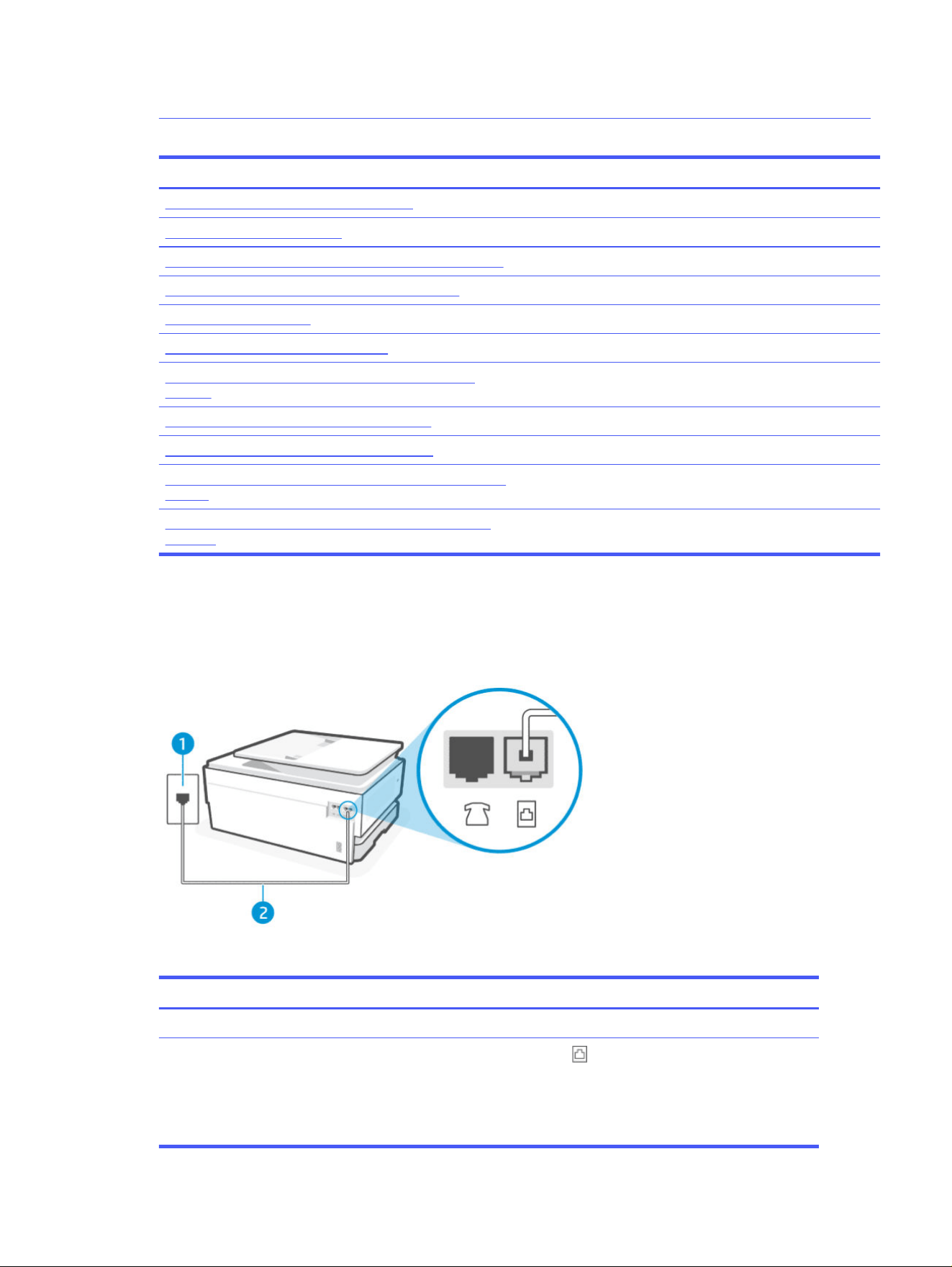
You might need to connect the phone cord to your country/region adapter.
Table 7-3 Combination of equipment and services sharing your fax line
Recommended fax setup Combinations sharing your fax line
Case A: Separate fax line (no voice calls received) Fax line
Case B: Set up the printer with DSL DSL
Case C: Set up the printer with aPBX phone system or an ISDN line PBX
Case D: Fax with a distinctive ring service on the same line Distinctive ring service
Case E: Shared voice/fax line Voice calls
Case F: Shared voice/fax line with voice mail Voice calls and/or voice mail service
Case G: Fax line shared with computer modem (no voice calls
received)
Computer dial-up modem
Case H: Shared voice/fax line with computer modem Voice calls and/or computer dial-up modem
Case I: Shared voice/fax line with answering machine Voice calls and/or answering machine
Case J: Shared voice/fax line with computer modem and answering
machine
Voice calls, computer dial-up modem, and/or answering machine
Case K: Shared voice/fax line with computer dial-up modem and
voice mail
Voice calls, computer dial-up modem, and/or voice mail service
Case A: Separate fax line (no voice calls received)
If you have aseparate phone line on which you receive no voice calls, and you have no other equipment
connected on this phone line, set up the printer as described in this section.
Table 7-4
Rear view of printer
Feature Description
1 Telephone wall jack.
2
Use a minimum 26 AWG phone cord to connect to the port on the printer.
CAUTION: To reduce the risk of re, use only No. 26 AWG or larger (For example, 24 AWG) UL Listed
or CSA Certied Telecommunications Line Cord.
You might need to connect the phone cord to your country/region adapter.
Case A: Separate fax line (no voice calls received) 55
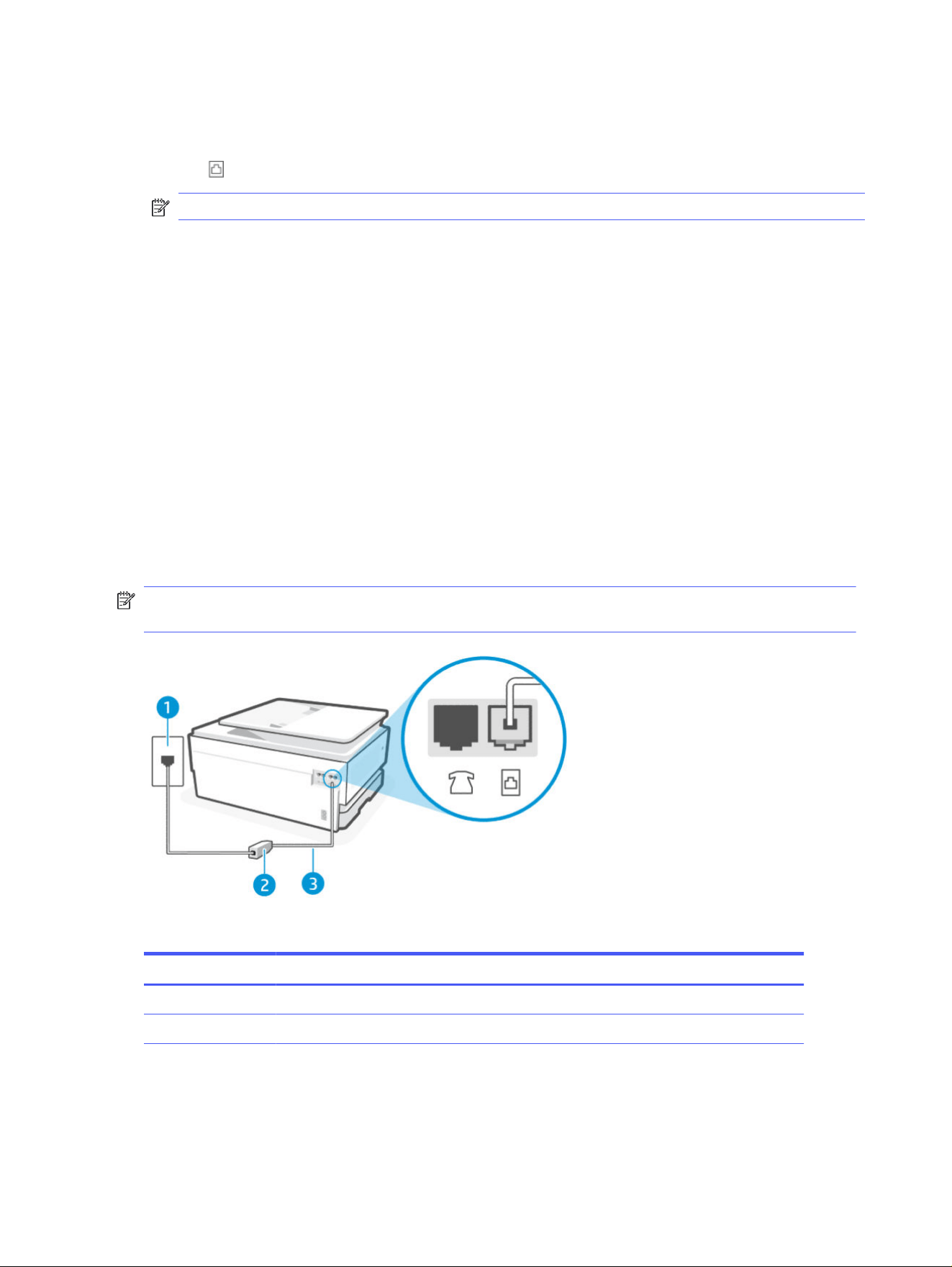
Set up the printer with a separate fax line
Follow these steps to set up the printer with a separate fax line.
1. Connect one end of the phone cord to your telephone wall jack, then connect the other end to the Fax
port on the back of the printer.
NOTE: You might need to connect the phone cord to your country/region adapter.
2. On the control panel Home screen, touch Menu.
3. Scroll to Utilities and touch Settings.
4. Touch Fax Receive, and then touch Fax Receive Settings.
5. Touch the toggle button next to Auto Answer to turn it on or o.
6. (Optional) Set Rings to Answer to the lowest setting (two rings).
When the phone rings, the printer answers automatically after the number of rings you set in the Rings to
Answer setting. The printer begins emitting fax reception tones to the sending fax machine and receives the fax.
Case B: Set up the printer with DSL
If you have aDSL service through your telephone company, and do not connect any equipment to the printer, use
the instructions in this section to connect aDSL lter between the telephone wall jack and the printer. The DSL
lter removes the digital signal that can interfere with the printer, so the printer can communicate correctly with
the phone line (DSL might be called ADSL in your country/region).
NOTE: If you have aDSL line and you do not connect the DSL lter, you cannot send and receive faxes with the
printer.
Table 7-5
Rear view of printer
Feature Description
1 Telephone wall jack.
2 DSL (or ADSL) lter and cord supplied by your DSL provider.
56 Chapter 7Fax

Table 7-5 Rear view of printer (continued)
Feature Description
3
Use a minimum 26 AWG phone cord to connect to the port on the printer.
CAUTION: To reduce the risk of re, use only No. 26 AWG or larger (For example, 24 AWG) UL Listed
or CSA Certied Telecommunications Line Cord.
You might need to connect the phone cord to your country/region adapter.
Set up the printer with DSL
Follow these steps to set up the printer with DSL.
1. Obtain a DSL lter from your DSL provider.
2. Connect one end of the phone cord to your telephone wall jack, then connect the other end to the Fax
port on the back of the printer.
NOTE: You might need to connect the phone cord to your country/region adapter.
Get additional phone cords for this setup if needed. You can purchase phone cords from electronics stores
that sell phone accessories.
3. Connect an additional phone cord from the DSL lter to the telephone wall jack.
If you encounter problems setting up the printer with optional equipment, contact your local service provider or
vendor for further assistance.
Case C: Set up the printer with aPBX phone system or an ISDN line
If you are using either aPBX phone system or an ISDN converter/terminal adaptor, make sure you do the
following:
● If you are using either aPBX or an ISDN converter/terminal adaptor, connect the printer to the port that is
designated for fax and phone use. Also, make sure that the terminal adaptor is set to the correct switch type
for your country/region, if possible.
NOTE: Some ISDN systems allow you to congure the ports for specic phone equipment. For example,
you might have assigned one port for telephone and Group 3 fax and another port for multiple purposes. If
you have problems when connected to the fax/phone port of your ISDN converter, try using the port
designated for multiple purposes; it might be labeled "multi-combi" or something similar.
● If you are using aPBX phone system, set the call waiting tone to "o."
NOTE: Many digital PBX systems include acall-waiting tone that is set to "on" by default. The call waiting
tone interferes with any fax transmission, and you cannot send or receive faxes with the printer. Refer to
the documentation that came with your PBX phone system for instructions on how to turn o the call-
waiting tone.
● If you are using aPBX phone system, dial the number for an outside line before dialing the fax number.
● You might need to connect the phone cord to your country/region adapter.
If you encounter problems setting up the printer with optional equipment, contact your local service provider or
vendor for further assistance.
Set up the printer with DSL
57
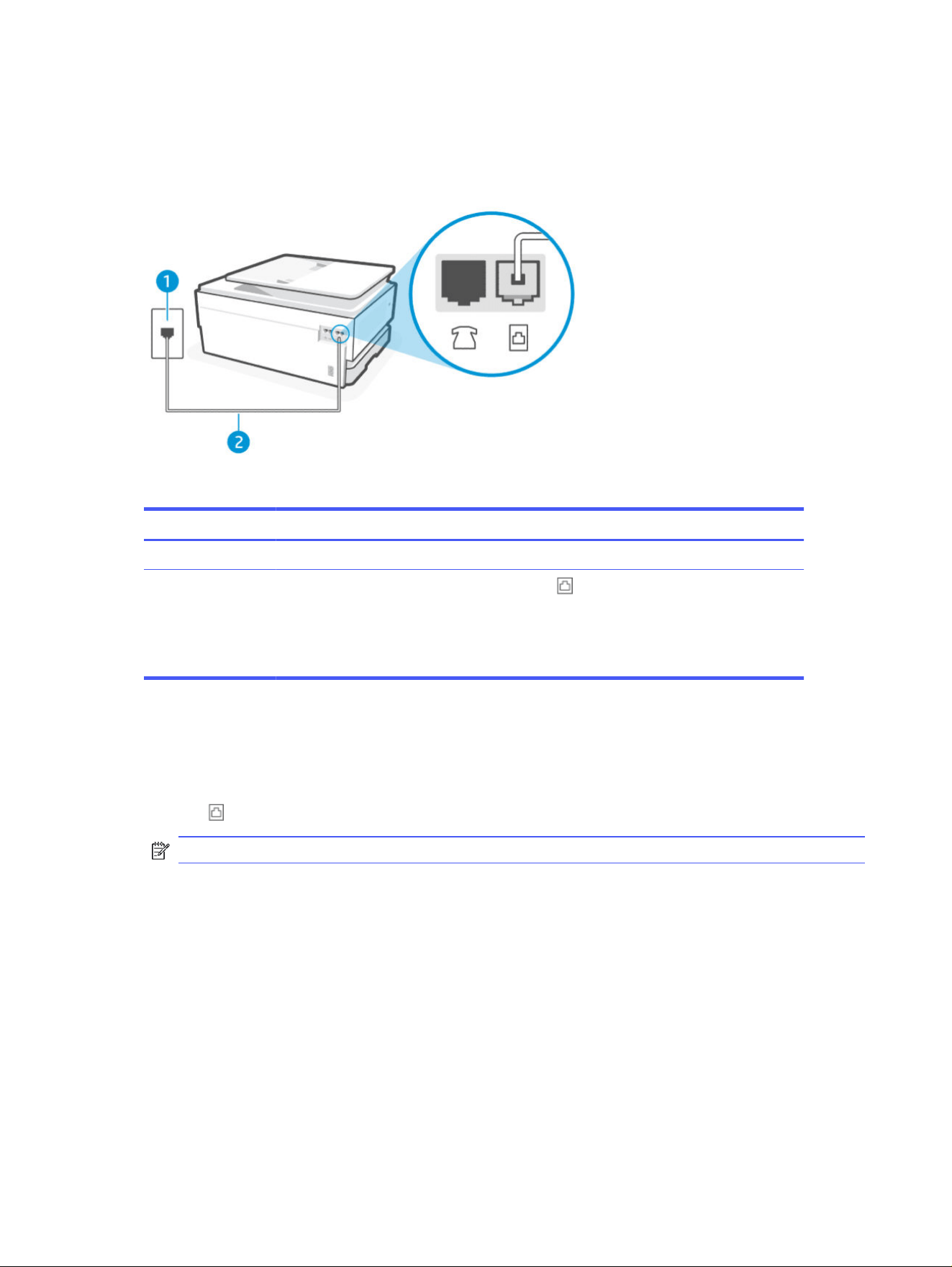
Case D: Fax with a distinctive ring service on the same line
If you subscribe to adistinctive ring service (through your telephone company) that allows you to have multiple
phone numbers on one phone line, each with adierent ring pattern, set up the printer as described in this
section.
Table 7-6 Rear view of printer
Feature Description
1 Telephone wall jack.
2
Use a minimum 26 AWG phone cord to connect to the port on the printer.
CAUTION: To reduce the risk of re, use only No. 26 AWG or larger (For example, 24 AWG) UL Listed
or CSA Certied Telecommunications Line Cord.
You might need to connect the phone cord to your country/region adapter.
Set up the printer with a distinctive ring service
Follow these steps to set up the printer with a distinctive ring service.
1. Connect one end of the phone cord to your telephone wall jack, then connect the other end to the Fax
port on the back of the printer.
NOTE: You might need to connect the phone cord to your country/region adapter.
2. On the control panel Home screen, touch Menu.
3. Scroll to Utilities and touch Settings.
4. Touch Fax Receive, and then touch Fax Receive Settings.
5. Touch Auto Answer.
58
Chapter 7Fax
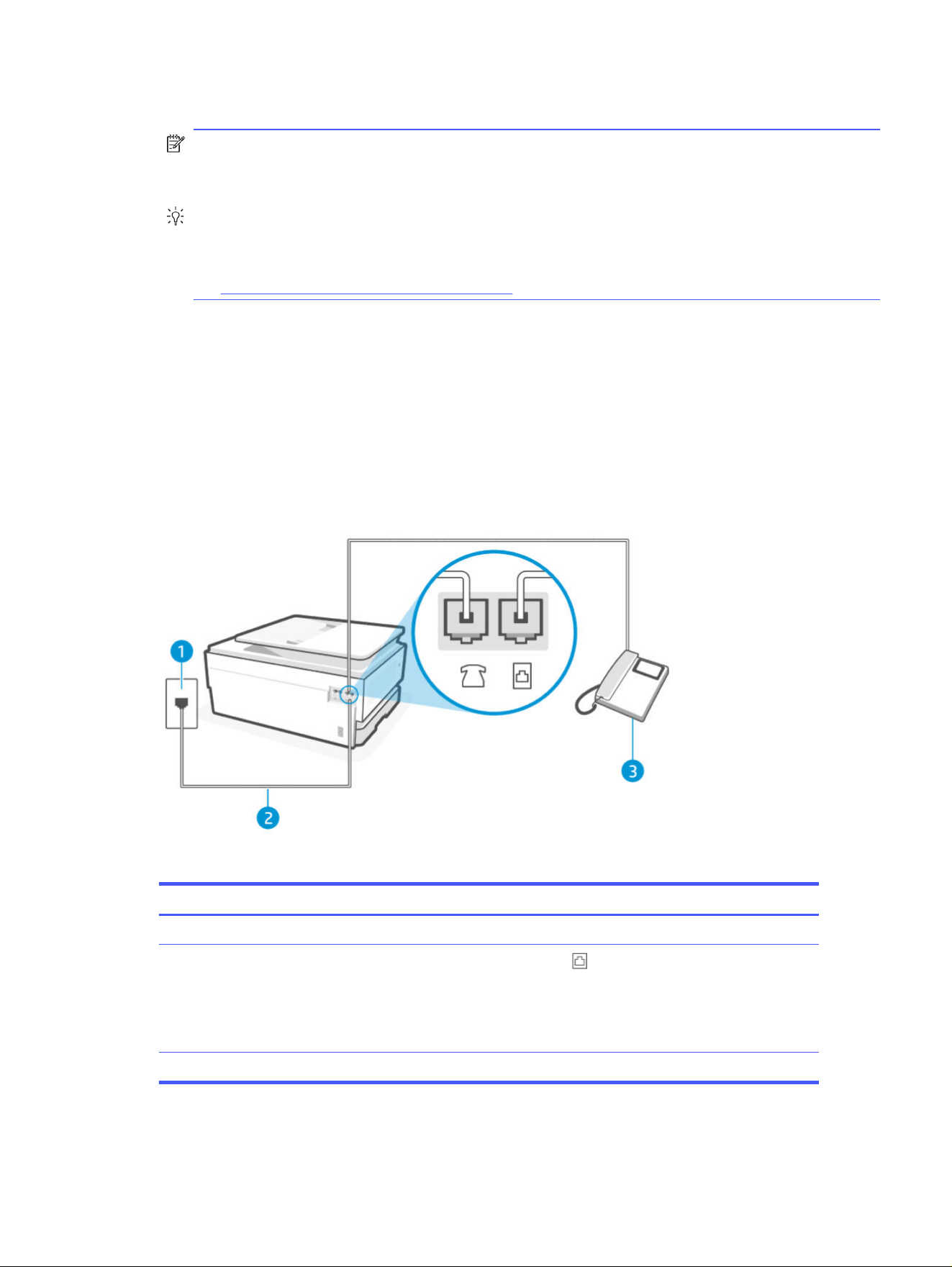
6. (Optional) Set Rings to Answer to the lowest setting (two rings).
NOTE: By default, the printer is set to answer all ring patterns. If you do not set the Distinctive Ring to
match the ring pattern assigned to your fax number, the printer might answer both voice calls and fax calls
or it might not answer at all.
TIP: You can also use the Ring Pattern Detection feature in the printer control panel to set distinctive ring.
With this feature, the printer recognizes and records the ring pattern of an incoming call and, based on this
call, automatically determines the distinctive ring pattern assigned by your telephone company to fax calls.
See Set the answer ring pattern for distinctive ring.
The printer automatically answers incoming calls that have the ring pattern you selected (Distinctive Ring setting)
after the number of rings you selected (Rings to Answer setting). The printer begins emitting fax reception tones
to the sending fax machine and receives the fax.
If you encounter problems setting up the printer with optional equipment, contact your local service provider or
vendor for further assistance.
Case E: Shared voice/fax line
If you receive both voice calls and fax calls at the same phone number, and you have no other oice equipment
(or voice mail) on this phone line, set up the printer as described in this section.
Table 7-7 Rear view of printer
Feature Description
1 Telephone wall jack.
2
Use a minimum 26 AWG phone cord to connect to the port on the printer.
CAUTION: To reduce the risk of re, use only No. 26 AWG or larger (For example, 24 AWG) UL Listed
or CSA Certied Telecommunications Line Cord.
You might need to connect the phone cord to your country/region adapter.
3 Telephone (optional).
Case E: Shared voice/fax line 59

Set up the printer with a shared voice/fax line
Follow these steps to set up the printer with a shared voice and fax line.
1. Connect one end of the phone cord to your telephone wall jack, then connect the other end to the Fax
port on the back of the printer.
NOTE: You might need to connect the phone cord to your country/region adapter.
2. Do one of the following:
●
If you have aparallel-type phone system, connect aphone to the Fax port on the back of the
printer.
● If you have aserial-type phone system, you might plug your phone directly on top of the printer cable
which has awall plug attached to it.
3. Now you need to decide how you want the printer to answer calls, automatically or manually:
● If you set up the printer to answer calls automatically, it answers all incoming calls and receives faxes.
The printer cannot distinguish between fax and voice calls in this case; if you suspect the call is avoice
call, you need to answer it before the printer answers the call. To set up the printer to answer calls
automatically, turn on the Auto Answer setting.
● If you set up the printer to answer faxes manually, you must be available to respond in person to
incoming fax calls or the printer cannot receive faxes. To set up the printer to answer calls manually,
turn o the Auto Answer setting.
If you pick up the phone before the printer answers the call and hear fax tones from asending fax machine, you
need to answer the fax call manually.
If you encounter problems setting up the printer with optional equipment, contact your local service provider or
vendor for further assistance.
Case F: Shared voice/fax line with voice mail
If you receive both voice calls and fax calls at the same phone number, and you also subscribe to avoice mail
service through your telephone company, set up the printer as described in this section.
NOTE: You cannot receive faxes automatically if you have avoice mail service at the same phone number you
use for fax calls. You must receive faxes manually; this means you must be available to respond in person to
incoming fax calls. If you want to receive faxes automatically instead, contact your telephone company to
subscribe to adistinctive ring service, or to obtain aseparate phone line for faxing.
60 Chapter 7Fax
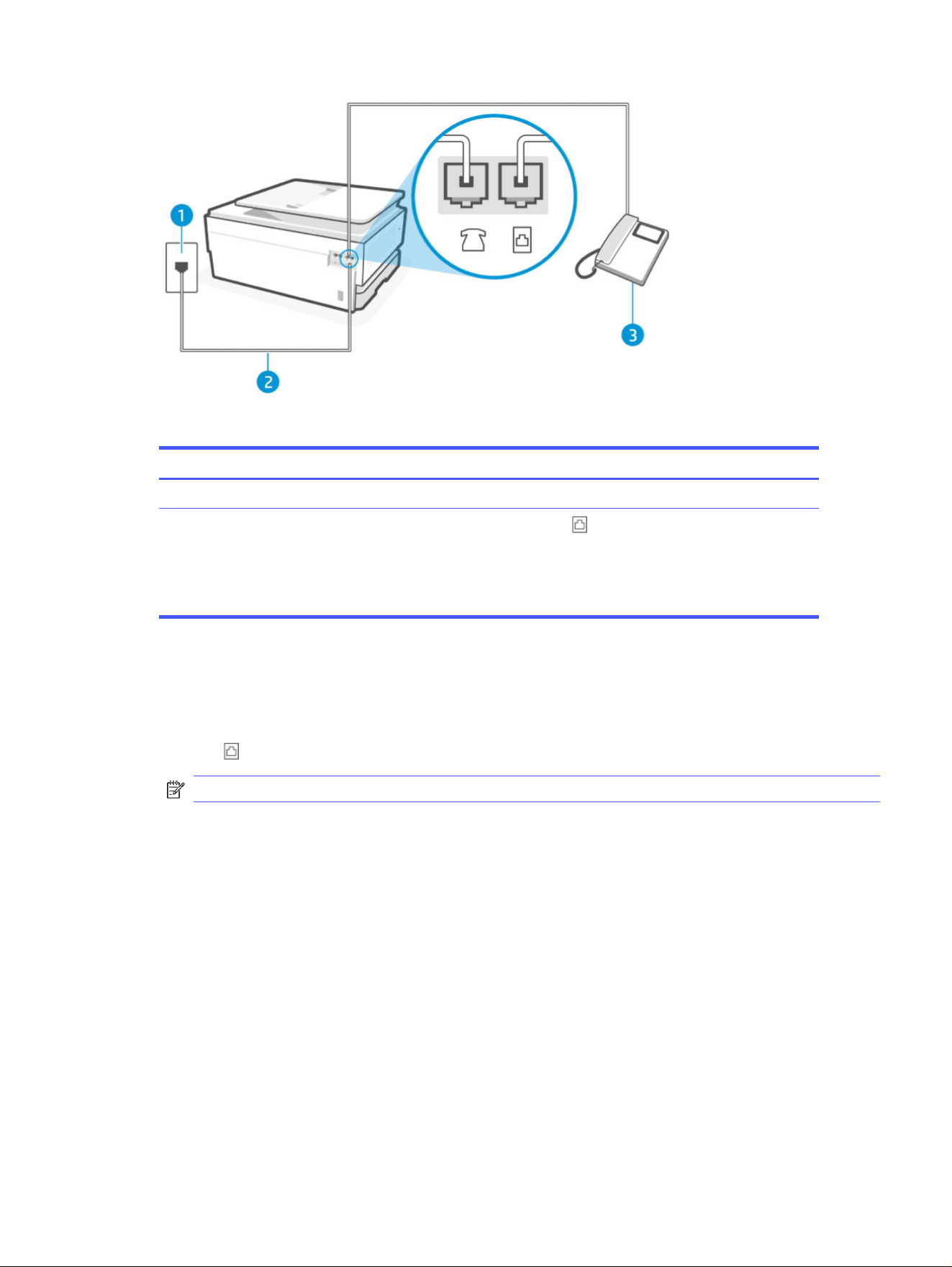
Table 7-8 Rear view of printer
Feature Description
1 Telephone wall jack.
2
Use a minimum 26 AWG phone cord to connect to the port on the printer.
CAUTION: To reduce the risk of re, use only No. 26 AWG or larger (For example, 24 AWG) UL Listed
or CSA Certied Telecommunications Line Cord.
You might need to connect the phone cord to your country/region adapter.
Set up the printer with voice mail
Follow these steps to set up the printer with voice mail.
1. Connect one end of the phone cord to your telephone wall jack, then connect the other end to the Fax
port on the back of the printer.
NOTE: You might need to connect the phone cord to your country/region adapter.
2. On the control panel Home screen, touch Menu.
3. Scroll to Utilities and touch Settings.
4. Touch Fax Receive, and then touch Fax Receive Settings.
5. Turn o Auto Answer.
You must be available to respond in person to incoming fax calls, or the printer cannot receive faxes. You must
initiate the manual fax before voicemail picks up the line.
If you encounter problems setting up the printer with optional equipment, contact your local service provider or
vendor for further assistance.
Set up the printer with voice mail
61
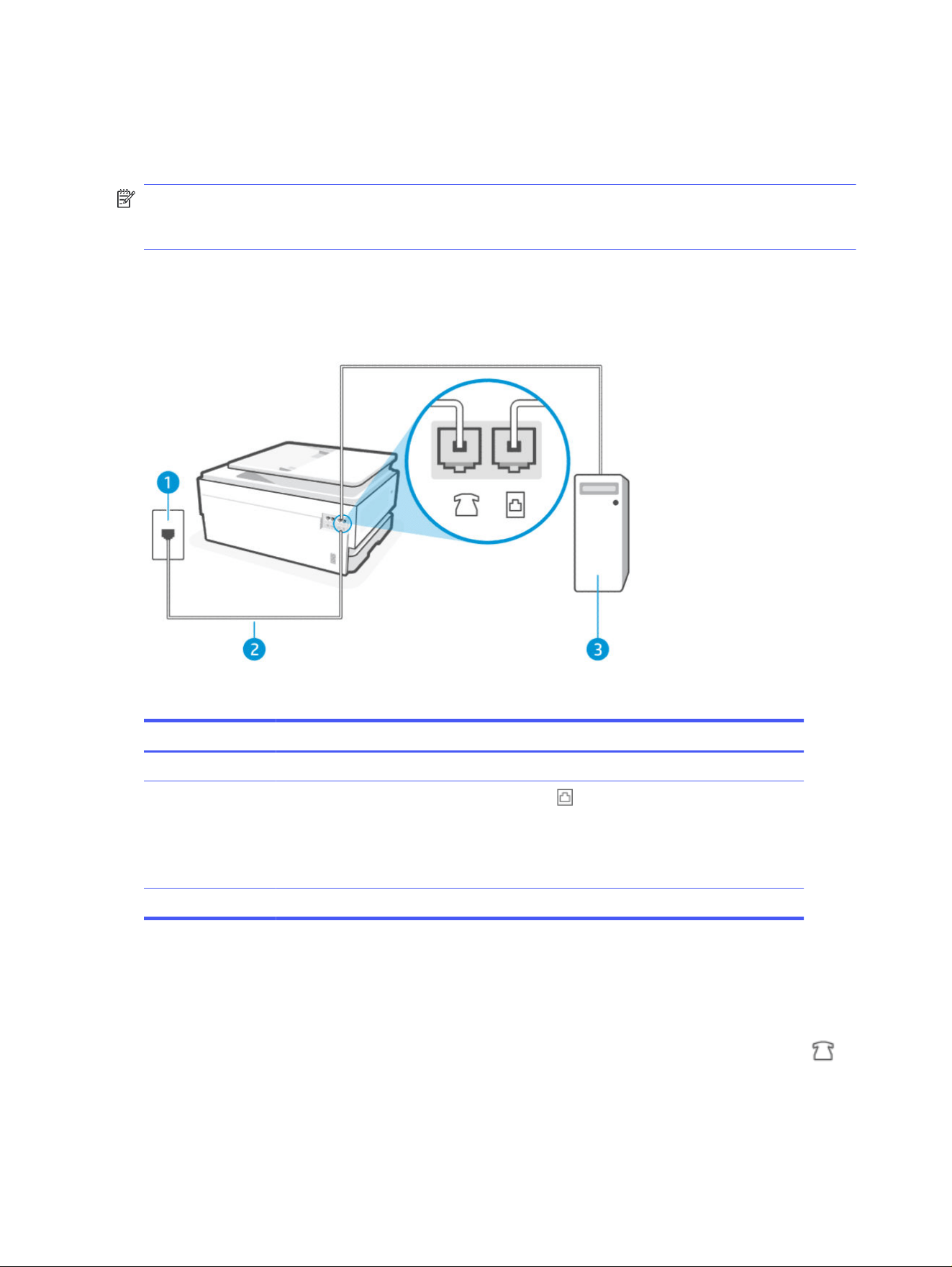
Case G: Fax line shared with computer modem (no voice calls received)
If you have afax line on which you receive no voice calls, and you also have acomputer modem connected on
this line, set up the printer as described in this section.
NOTE: If you have acomputer dial-up modem, your computer dial-up modem shares the phone line with the
printer. You cannot use both your modem and the printer simultaneously. For example, you cannot use the
printer for faxing while you are using your computer dial-up modem to send an email or access the Internet.
Set up the printer with a computer dial-up modem
If you are using the same phone line for sending faxes and for a computer dial-up modem, follow these
directions for setting up the printer.
Table 7-9 Rear view of printer
Feature Description
1 Telephone wall jack.
2
Use a minimum 26 AWG phone cord to connect to the port on the printer.
CAUTION: To reduce the risk of re, use only No. 26 AWG or larger (For example, 24 AWG) UL Listed
or CSA Certied Telecommunications Line Cord.
You might need to connect the phone cord to your country/region adapter.
3 Computer with modem.
Set up the printer with a computer dial-up modem
Follow these steps to set up the printer with a computer dial-up modem.
1. Find the phone cord that connects from the back of your computer (your computer dial-up modem) to
atelephone wall jack. Disconnect the cord from the telephone wall jack and plug it into the Fax port on
the back of the printer.
62
Chapter 7Fax
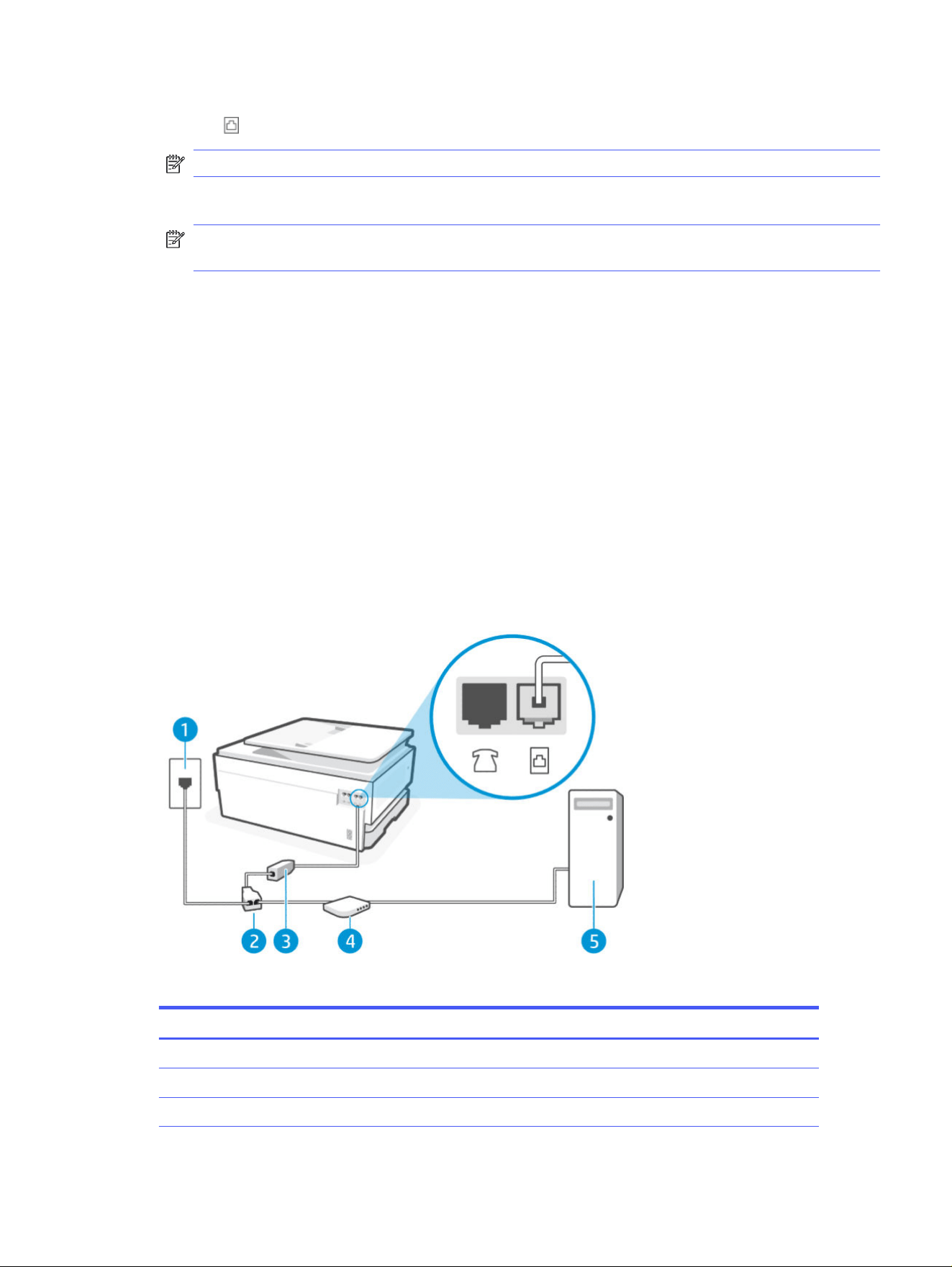
2. Connect one end of the phone cord to your telephone wall jack, then connect the other end to the Fax
port on the back of the printer.
NOTE: You might need to connect the phone cord to your country/region adapter.
3. If your modem software is set to receive faxes to your computer automatically, turn o that setting.
NOTE: If you do not turn o the automatic fax reception setting in your modem software, the printer
cannot receive faxes.
4. On the control panel Home screen, touch Menu.
5. Scroll to Utilities and touch Settings.
6. Touch Fax Receive, and then touch Fax Receive Settings.
7. Turn on Auto Answer.
8. (Optional) Set Rings to Answer to the lowest setting (two rings).
When the phone rings, the printer automatically answers after the number of rings you set in the Rings to
Answer setting. The printer begins emitting fax reception tones to the sending fax machine and receives the fax.
If you encounter problems setting up the printer with optional equipment, contact your local service provider or
vendor for further assistance.
Set up the printer with a computer DSL/ADSL modem
If you have a DSL line and use that phone line to send faxes, follow these instructions to set up your fax.
Table 7-10
Rear view of printer
Feature Description
1 Telephone wall jack.
2 Parallel splitter.
3 DSL/ADSL lter.
Set up the printer with a computer DSL/ADSL modem 63

Table 7-10 Rear view of printer (continued)
Feature Description
4 DSL/ADSL modem.
5 Computer.
NOTE: You need to purchase a parallel splitter. A parallel splitter has one RJ-11 port on the front and two
RJ-11 ports on the back. Do not use a2–line phone splitter, a serial splitter, or a parallel splitter which has two
RJ-11 ports on the front and a plug on the back.
Figure 7-1 Example of a parallel splitter
Set up the printer with a computer DSL/ADSL modem
Follow these steps to set up the printer with a computer DSL/ADSL modem.
1. Obtain a DSL lter from your DSL provider.
2. Connect one end of the phone cord to the DSL lter, and then connect the other end to the Fax port on
the back of the printer.
NOTE: You might need to connect the phone cord to your country/region adapter.
3. Connect the DSL lter to the parallel splitter.
4. Connect the DSL modem to the parallel splitter.
5. Connect the parallel splitter to the wall jack.
When the phone rings, the printer automatically answers after the number of rings you set in the Rings to
Answer setting. The printer begins emitting fax reception tones to the sending fax machine and receives the fax.
If you encounter problems setting up the printer with optional equipment, contact your local service provider or
vendor for further assistance.
Case H: Shared voice/fax line with computer modem
There are two dierent ways to set up the printer with your computer based on the number of phone ports on
your computer. Before you begin, check your computer to see if it has one or two phone ports.
Shared voice/fax with computer dial-up modem
If you use your phone line for both fax and telephone calls, use these instructions to set up your fax.
There are two dierent ways to set up the printer with your computer based on the number of phone ports on
your computer. Before you begin, check your computer to see if it has one or two phone ports.
NOTE: If your computer has only one phone port, you need to purchase a parallel splitter (also called a
coupler), as shown in the illustration (A parallel splitter has one RJ-11 port on the front and two RJ-11 ports on
the back. Do not use a two-line phone splitter, a serial splitter, or a parallel splitter which has two RJ-11 ports on
the front and a plug on the back).
64
Chapter 7Fax
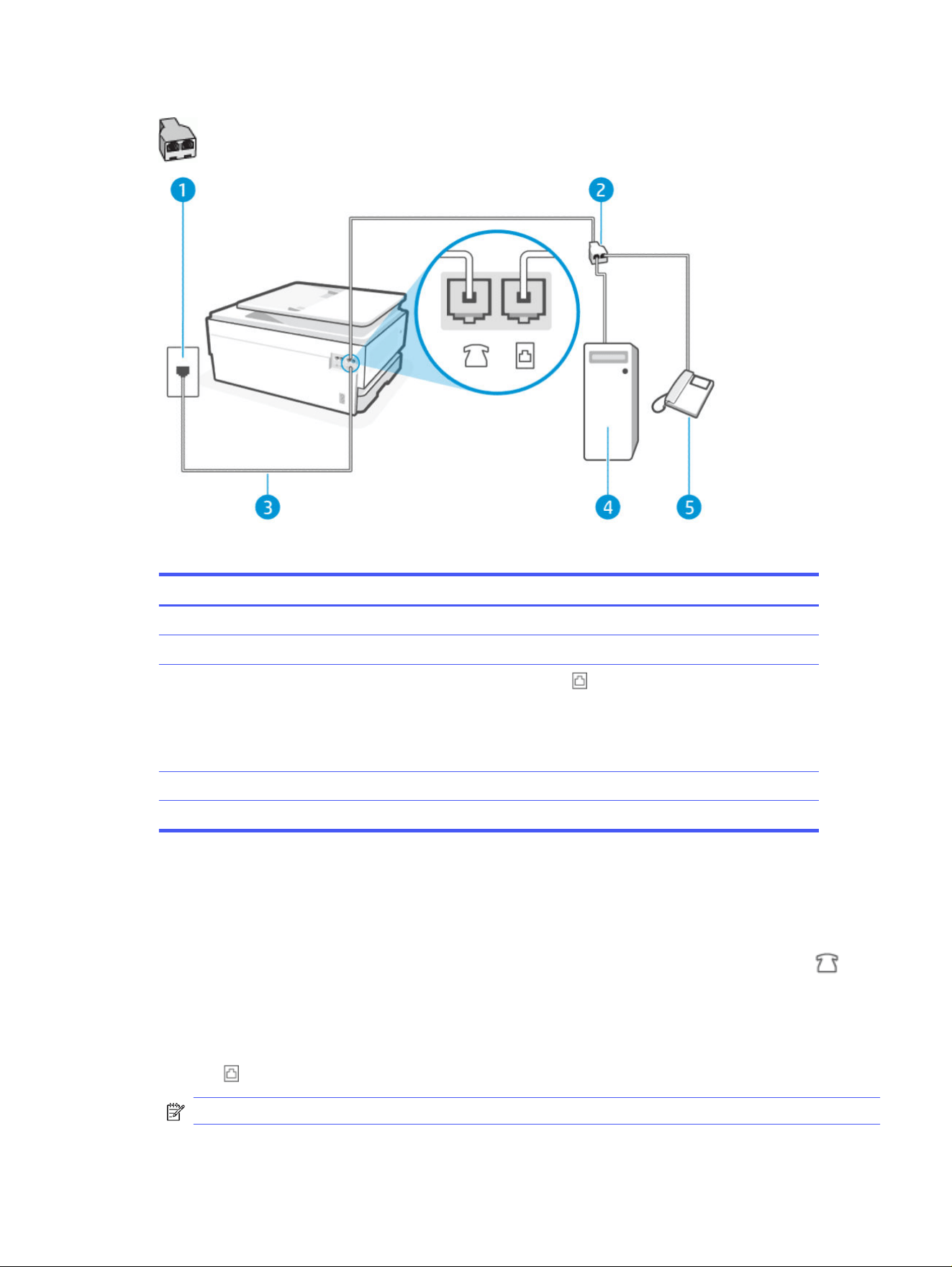
Figure 7-2 Example of a parallel splitter
Table 7-11 Rear view of printer
Feature Description
1 Telephone wall jack.
2 Parallel splitter.
3
Use a minimum 26 AWG phone cord to connect to the port on the printer.
CAUTION: To reduce the risk of re, use only No. 26 AWG or larger (For example, 24 AWG) UL Listed
or CSA Certied Telecommunications Line Cord.
You might need to connect the phone cord to your country/region adapter.
4 Computer with modem.
5 Telephone.
Set up the printer on the same phone line as a computer with two phone ports
Follow these steps to set up the printer on the same phone line as a computer with two phone ports.
1. Find the phone cord that connects from the back of your computer (your computer dial-up modem) to a
telephone wall jack. Disconnect the cord from the telephone wall jack and plug it into the Fax port on
the back of the printer.
2. Connect a phone to the "OUT" port on the back of your computer dial-up modem.
3. Connect one end of the phone cord to your telephone wall jack, then connect the other end to the Fax
port on the back of the printer.
NOTE: You might need to connect the phone cord to your country/region adapter.
Set up the printer on the same phone line as a computer with two phone ports
65
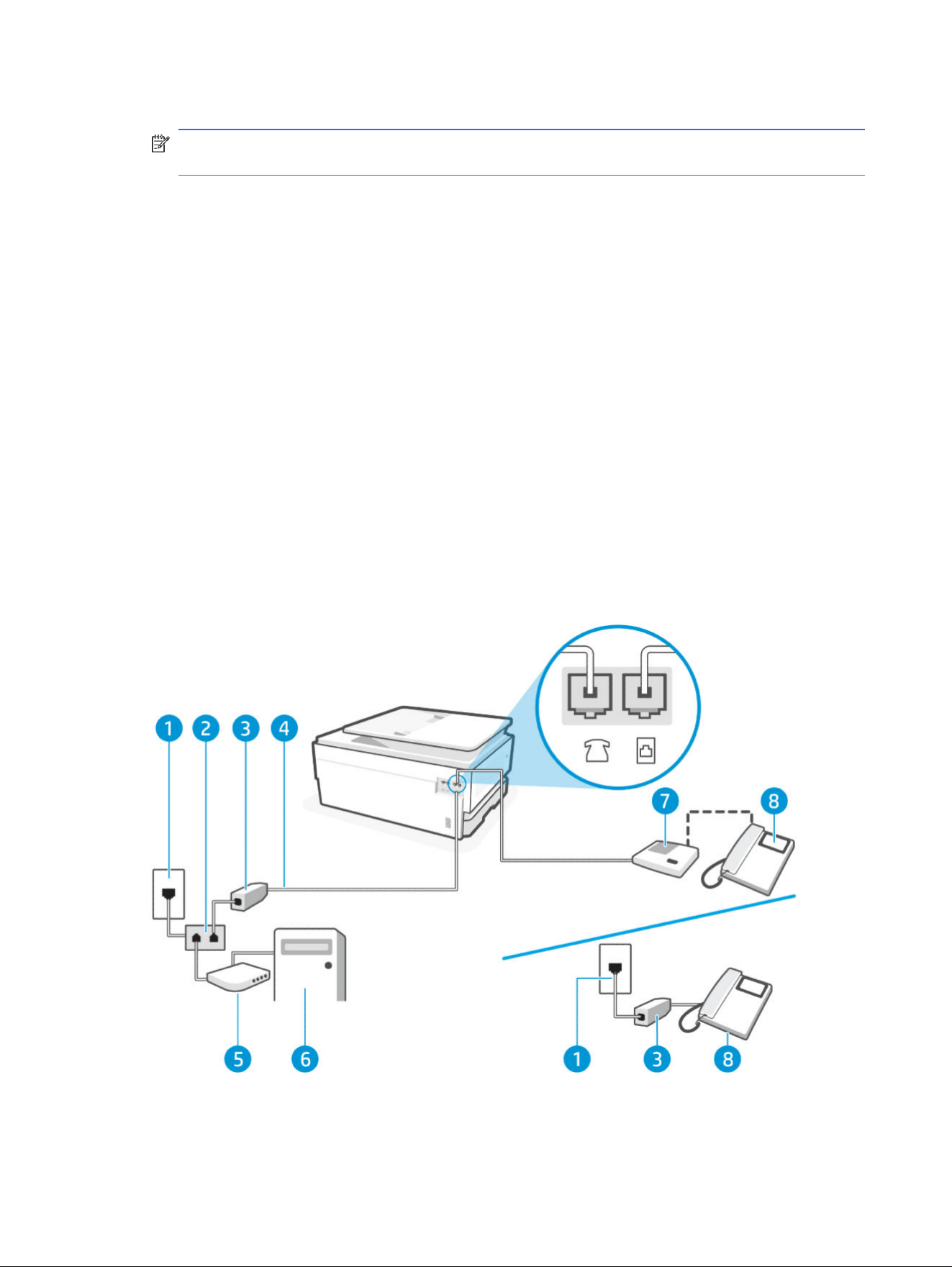
4. If your modem software is set to receive faxes to your computer automatically, turn o that setting.
NOTE: If you do not turn o the automatic fax reception setting in your modem software, the printer
cannot receive faxes.
5. Now you need to decide how you want the printer to answer calls, automatically or manually:
● If you set up the printer to answer calls automatically, it answers all incoming calls and receives faxes.
The printer cannot distinguish between fax and voice calls in this case; if you suspect the call is a voice
call, you need to answer it before the printer answers the call. To set up the printer to answer calls
automatically, turn on the Auto Answer setting.
● If you set up the printer to answer faxes manually, you must be available to respond in person to
incoming fax calls or the printer cannot receive faxes. To set up the printer to answer calls manually,
turn o the Auto Answer setting.
If you pick up the phone before the printer answers the call and hear fax tones from a sending fax machine, you
need to answer the fax call manually.
If you use your phone line for voice, fax, and your computer dial-up modem, follow these directions to set up your
fax.
If you encounter problems setting up the printer with optional equipment, contact your local service provider or
vendor for further assistance.
Shared voice/fax with computer DSL/ADSL modem
Follow these steps if your computer has a DSL/ADSL modem.
66 Chapter 7Fax

Table 7-12 Rear view of printer
Feature Description
1 Telephone wall jack.
2 Parallel splitter.
3 DSL/ADSL lter.
4
Use a minimum 26 AWG phone cord to connect to the port on the printer.
CAUTION: To reduce the risk of re, use only No. 26 AWG or larger (For example, 24 AWG) UL
Listed or CSA Certied Telecommunications Line Cord.
You might need to connect the phone cord to your country/region adapter.
5 DSL/ADSL modem.
6 Computer.
7 Telephone.
NOTE: You need to purchase a parallel splitter. A parallel splitter has one RJ-11 port on the front and two
RJ-11 ports on the back. Do not use a 2–line phone splitter, a serial splitter, or a parallel splitter which has two
RJ-11 ports on the front and a plug on the back.
Figure 7-3 Example of a parallel splitter
Set up the printer with a computer DSL/ADSL modem
Follow these steps to set up the printer with a computer DSL/ADSL modem.
1. Obtain a DSL lter from your DSL provider.
NOTE: Phones in other parts of the home/oice sharing the same phone number with DSL service need to
be connected to additional DSL lters to avoid noise when making voice calls.
2. Connect one end of the phone cord to your telephone wall jack, then connect the other end to the Fax
port on the back of the printer.
NOTE: You might need to connect the phone cord to your country/region adapter.
3. If you have a parallel-type phone system, connect a phone to the Fax port on the back of the printer.
4. Connect the DSL lter to the parallel splitter.
5. Connect the DSL modem to the parallel splitter.
6. Connect the parallel splitter to the wall jack.
When the phone rings, the printer automatically answers after the number of rings you set in the Rings to
Answer setting. The printer begins emitting fax reception tones to the sending fax machine and receives the fax.
If you encounter problems setting up the printer with optional equipment, contact your local service provider or
vendor for further assistance.
Set up the printer with a computer DSL/ADSL modem
67
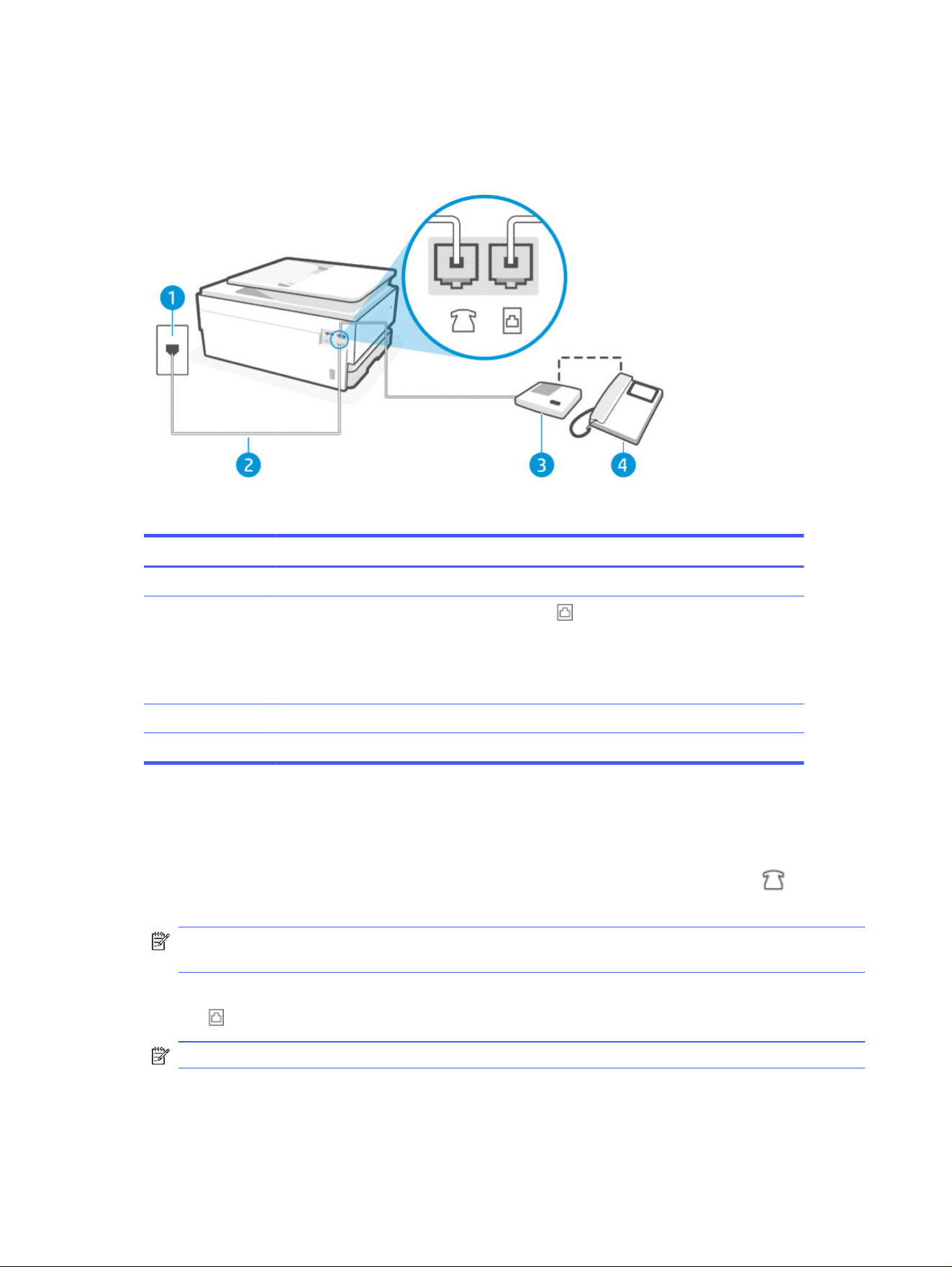
Case I: Shared voice/fax line with answering machine
If you receive both voice calls and fax calls at the same phone number, and you also have an answering machine
that answers voice calls at this phone number, set up the printer as described in this section.
Table 7-13 Rear view of printer
Feature Description
1 Telephone wall jack.
2
Use a minimum 26 AWG phone cord to connect to the port on the printer.
CAUTION: To reduce the risk of re, use only No. 26 AWG or larger (For example, 24 AWG) UL Listed
or CSA Certied Telecommunications Line Cord.
You might need to connect the phone cord to your country/region adapter.
3 Answering machine.
4 Telephone (optional).
Set up the printer with a shared voice/fax line with answering machine
Follow these steps to set up the printer with a shared voice/fax line with answering machine.
1. Unplug your answering machine from the telephone wall jack and connect it to the Fax port on the back
of the printer.
NOTE: If you do not connect your answering machine directly to the printer, fax tones from a sending fax
machine might be recorded on your answering machine, and you might not receive faxes with the printer.
2. Connect one end of the phone cord to your telephone wall jack, then connect the other end to the Fax
port on the back of the printer.
NOTE: You might need to connect the phone cord to your country/region adapter.
68
Chapter 7Fax

3. (Optional) If your answering machine does not have a built-in phone, for convenience you might want to
connect a phone to the back of your answering machine at the "OUT" port.
NOTE: If your answering machine does not let you connect an external phone, you can purchase and use a
parallel splitter (also known as a coupler) to connect both the answering machine and telephone to the
printer. You can use standard phone cords for these connections.
4. On the control panel Home screen, touch Menu.
5. Scroll to Utilities and touch Settings.
6. Touch Fax Receive, and then touch Fax Receive Settings.
7. Turn on Auto Answer.
8. Set your answering machine to answer after a low number of rings.
9. Change the Rings to Answer setting on the printer to the maximum number of rings supported by your
printer (The maximum number of rings varies by country/region).
When the phone rings, your answering machine answers after the number of rings you have set, and then plays
your recorded greeting. The printer monitors the call during this time, "listening" for fax tones. If incoming fax
tones are detected, the printer emits fax reception tones and receives the fax; if there are no fax tones, the
printer stops monitoring the line and your answering machine can record a voice message.
If you encounter problems setting up the printer with optional equipment, contact your local service provider or
vendor for further assistance.
Case J: Shared voice/fax line with computer modem and answering machine
If you receive both voice calls and fax calls at the same phone number, and you also have a computer modem
and answering machine connected on this phone line, set up the printer as described in this section.
NOTE: Since your computer dial-up modem shares the phone line with the printer, you cannot use both your
modem and the printer simultaneously. For example, you cannot use the printer for faxing while you are using
your computer dial-up modem to send an email or access the Internet.
Shared voice/fax line with computer dial-up modem and answering machine
There are two dierent ways to set up the printer with your computer based on the number of phone ports on
your computer. Before you begin, check your computer to see if it has one or two phone ports.
NOTE: If your computer has only one phone port, you need to purchase a parallel splitter (also called a
coupler), as shown in the illustration (A parallel splitter has one RJ-11 port on the front and two RJ-11 ports on
the back. Do not use a two-line phone splitter, a serial splitter, or a parallel splitter which has two RJ-11 ports on
the front and a plug on the back).
Figure 7-4 Example of a parallel splitter
Case J: Shared voice/fax line with computer modem and answering machine
69
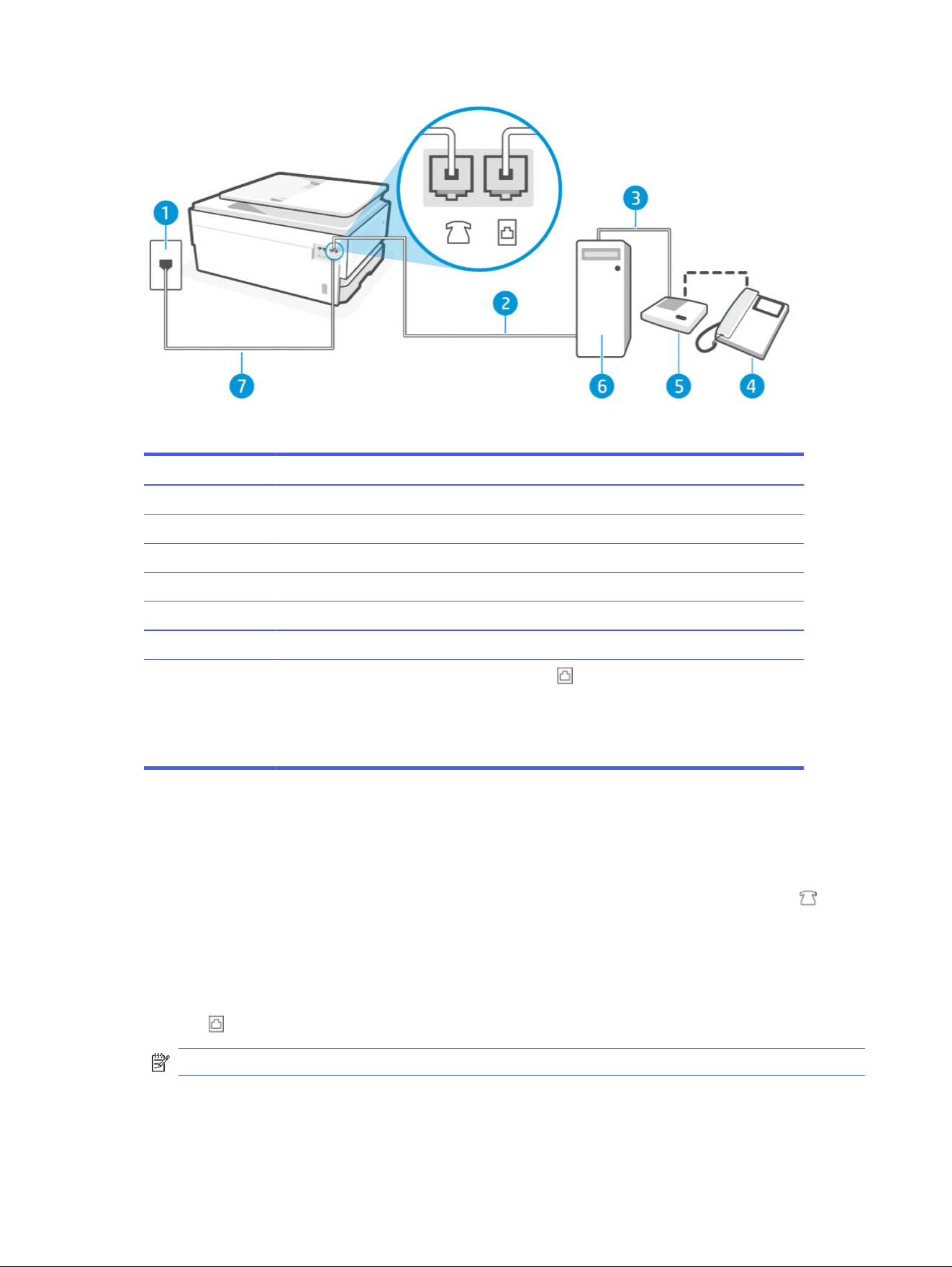
Table 7-14 Rear view of printer
Feature Description
1 Telephone wall jack
2 "IN" phone port on your computer.
3 "OUT" phone port on your computer.
4 Telephone (optional).
5 Answering machine.
6 Computer with modem.
7
Use a minimum 26 AWG phone cord to connect to the port on the printer.
CAUTION: To reduce the risk of re, use only No. 26 AWG or larger (For example, 24 AWG) UL Listed
or CSA Certied Telecommunications Line Cord.
You might need to connect the phone cord to your country/region adapter.
Set up the printer on the same phone line as a computer with two phone ports
Follow these steps to set up the printer on the same phone line as a computer with two phone ports.
1. Find the phone cord that connects from the back of your computer (your computer dial-up modem) to a
telephone wall jack. Disconnect the cord from the telephone wall jack and plug it into the Fax port on the
back of the printer.
2. Unplug your answering machine from the telephone wall jack and connect it to the port labeled "OUT" on
the back of the computer (the computer dial-up modem).
3. Connect one end of the phone cord to your telephone wall jack, then connect the other end to the Fax
port on the back of the printer.
NOTE: You might need to connect the phone cord to your country/region adapter.
70
Chapter 7Fax

4. (Optional) If your answering machine does not have a built-in phone, for convenience you might want to
connect a phone to the back of your answering machine at the "OUT" port.
NOTE: If your answering machine does not let you connect an external phone, you can purchase and use a
parallel splitter (also known as a coupler) to connect both the answering machine and telephone to the
printer. You can use standard phone cords for these connections.
5. If your modem software is set to receive faxes to your computer automatically, turn o that setting.
NOTE: If you do not turn o the automatic fax reception setting in your modem software, the printer
cannot receive faxes.
6. On the control panel Home screen, touch Menu.
7. Scroll to Utilities and touch Settings.
8. Touch Fax Receive, and then touch Fax Receive Settings.
9. Touch Auto Answer.
10. Set your answering machine to answer after a low number of rings.
11. Set Rings to Answer on the printer to the maximum number of rings supported by the product (The
maximum number of rings varies by country/region)
When the phone rings, your answering machine answers after the number of rings you have set, and then plays
your recorded greeting. The printer monitors the call during this time, "listening" for fax tones. If incoming fax
tones are detected, the printer emits fax reception tones and receives the fax; if there are no fax tones, the
printer stops monitoring the line and your answering machine can record a voice message.
If you encounter problems setting up the printer with optional equipment, contact your local service provider or
vendor for further assistance.
Shared voice/fax line with computer DSL/ADSL modem and answering machine
Follow these steps to shared voice/fax line with computer DSL/ADSL modem and answering machine.
Shared voice/fax line with computer DSL/ADSL modem and answering machine 71
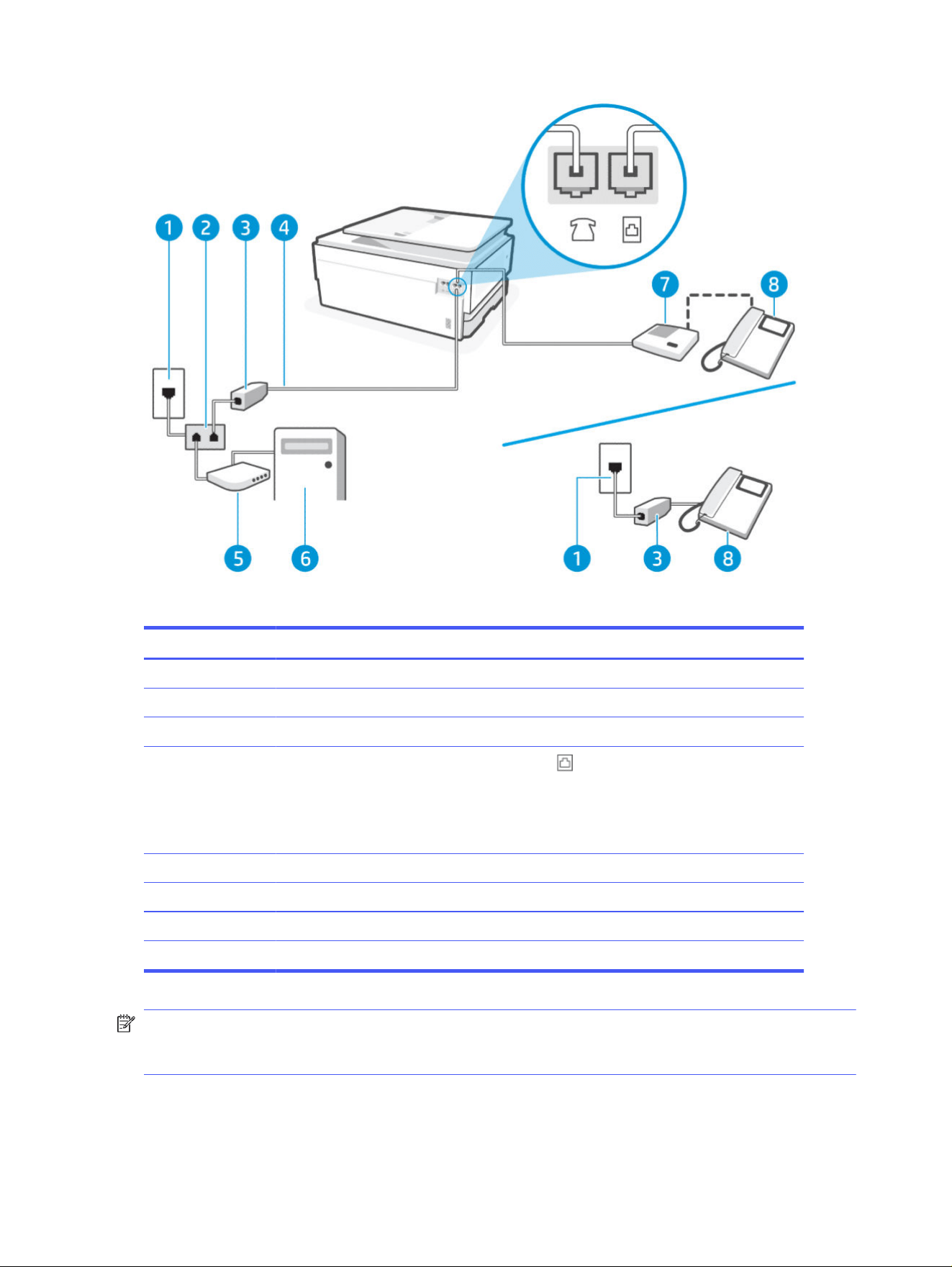
Table 7-15 Rear view of printer
Feature Description
1 Telephone wall jack
2 Parallel splitter.
3 DSL/ADSL lter.
4
Use a minimum 26 AWG phone cord to connect to the port on the printer.
CAUTION: To reduce the risk of re, use only No. 26 AWG or larger (For example, 24 AWG) UL Listed
or CSA Certied Telecommunications Line Cord.
You might need to connect the phone cord to your country/region adapter.
5 DSL/ADSL modem.
6 Computer.
7 Answering machine.
8 Telephone (optional).
NOTE: You need to purchase a parallel splitter. A parallel splitter has one RJ-11 port on the front and two
RJ-11 ports on the back. Do not use a 2–line phone splitter, a serial splitter, or a parallel splitter which has two
RJ-11 ports on the front and a plug on the back.
72
Chapter 7Fax

Figure 7-5 Example of a parallel splitter
Set up the printer with a computer DSL/ADSL modem
Follow these steps to set up the printer with a computer DSL/ADSL modem.
1. Obtain a DSL/ADSL lter from your DSL/ADSL provider.
NOTE: Phones in other parts of the home/oice sharing the same phone number with DSL/ADSL service
need to be connected to additional DSL/ADSL lters, to avoid noise when making voice calls.
2. Connect one end of the phone cord to your telephone wall jack, then connect the other end to the Fax
port on the back of the printer.
NOTE: You might need to connect the phone cord to your country/region adapter.
3. Connect the DSL/ADSL lter to the splitter.
4.
Unplug the answering machine from the telephone wall jack, and connect it to the Fax port on the back
of the printer.
NOTE: If you do not connect your answering machine directly to the printer, fax tones from a sending fax
machine might be recorded on your answering machine, and you might not receive faxes with the printer.
5. Connect the DSL modem to the parallel splitter.
6. Connect the parallel splitter to the wall jack.
7. Set your answering machine to answer after a low number of rings.
8. Set Rings to Answer on the printer to the maximum number of rings supported by the printer.
NOTE: The maximum number of rings varies by country/region
When the phone rings, your answering machine answers after the number of rings you have set, and then play
your recorded greeting. The printer monitors the call during this time, “listening” for fax tones. If incoming fax
tones are detected, the printer emits fax reception tones and receive the fax; if there are no fax tones, the printer
stops monitoring the line and your answering machine can record a voice message.
If you use the same phone line for telephone, fax, and have a computer DSL modem, follow these instructions to
set up your fax.
If you encounter problems setting up the printer with optional equipment, contact your local service provider or
vendor for further assistance.
Case K: Shared voice/fax line with computer dial-up modem and voice mail
If you receive both voice calls and fax calls at the same phone number, use a computer dial-up modem on the
same phone line, and subscribe to a voice mail service through your telephone company, set up the printer as
described in this section.
NOTE: You cannot receive faxes automatically if you have a voice mail service at the same phone number you
use for fax calls. You must receive faxes manually; this means you must be available to respond in person to
Set up the printer with a computer DSL/ADSL modem
73
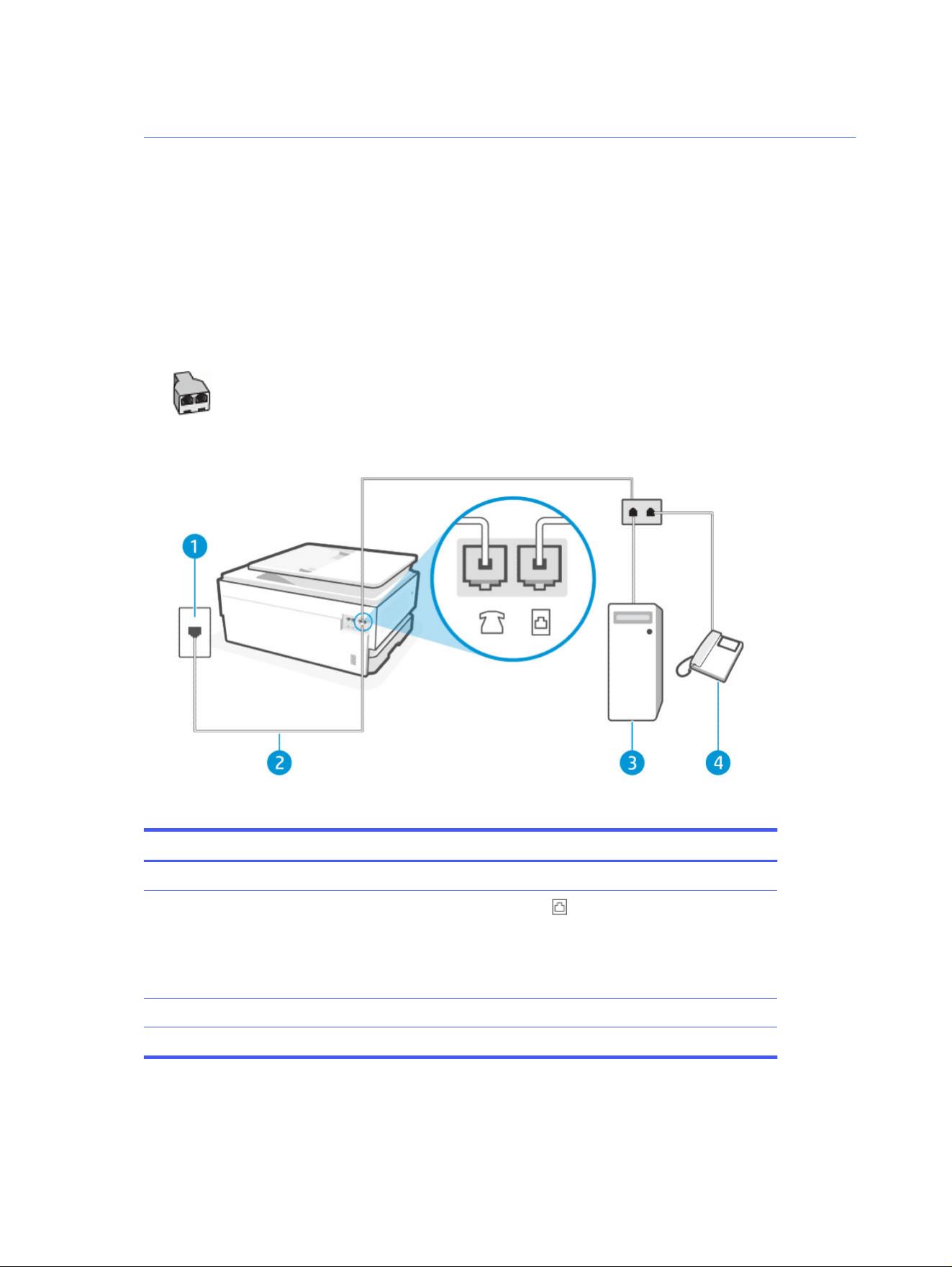
incoming fax calls. If you want to receive faxes automatically instead, contact your telephone company to
subscribe to a distinctive ring service, or to obtain a separate phone line for faxing.
Since your computer dial-up modem shares the phone line with the printer, you cannot use both your modem
and the printer simultaneously. For example, you cannot use the printer for faxing if you are using your computer
dial-up modem to send an email or access the Internet.
There are two dierent ways to set up the printer with your computer based on the number of phone ports on
your computer. Before you begin, check your computer to see if it has one or two phone ports.
● If your computer has only one phone port, you need to purchase a parallel splitter (also called a coupler), as
shown in the illustration (A parallel splitter has one RJ-11 port on the front and two RJ-11 ports on the back.
Do not use a two-line phone splitter, a serial splitter, or a parallel splitter which has two RJ-11 ports on the
front and a plug on the back).
● If your computer has two phone ports, set up the printer as follows:
Table 7-16 Rear view of printer
Feature Description
1 Telephone wall jack.
2
Use a minimum 26 AWG phone cord to connect to the port on the printer.
CAUTION: To reduce the risk of re, use only No. 26 AWG or larger (For example, 24 AWG) UL
Listed or CSA Certied Telecommunications Line Cord.
You might need to connect the phone cord to your country/region adapter.
3 Computer with modem.
4 Telephone.
Set up the printer on the same phone line as a computer with two phone ports
Follow these steps to set up the printer on the same phone line as a computer with two phone ports.
74
Chapter 7Fax

1. Find the phone cord that connects from the back of your computer (your computer dial-up modem) to a
telephone wall jack. Disconnect the cord from the telephone wall jack and plug it into the Fax port on the
back of the printer.
2. Connect a phone to the "OUT" port on the back of your computer dial-up modem.
3. Connect one end of the phone cord to your telephone wall jack, then connect the other end to the Fax
port on the back of the printer.
NOTE: You might need to connect the phone cord to your country/region adapter.
4. If your modem software is set to receive faxes to your computer automatically, turn o that setting.
NOTE: If you do not turn o the automatic fax reception setting in your modem software, the printer
cannot receive faxes.
5. Touch Fax, Setup, and Preferences.
6. Turn o the Auto Answer setting.
You must be available to respond in person to incoming fax calls, or the printer cannot receive faxes.
If you encounter problems setting up the printer with optional equipment, contact your local service provider or
vendor for further assistance.
Run the fax test
Run the fax test report rst to see if there is a problem with your fax setup. If the test passes and you are still
having problems faxing, check the fax settings listed in the report to verify that the settings are correct.
See Fax test report.
You can test your fax setup to check the status of the printer and to make sure it is set up correctly for faxing.
Perform this test only after you have completed fax setup on the printer. The test does the following:
● Fax Hardware Interface Test
● Active Telephone Line Detection Test
● Line Current Test
● Dial Tone Test
Test fax setup
Follow these steps to set up using the printer control panel.
NOTE: Make sure the cartridges are installed, and that full-size paper is loaded in the input tray, before
starting the test.
1. Set up the printer for faxing according to your particular home or oice setup instructions.
2. On the control panel Home screen, touch Menu.
3. Scroll to Utilities and touch Settings.
4. Touch Fax Settings, and then touch Setup.
5. On the Basic Fax Setup screen, follow the on-screen instructions.
Run the fax test
75

Manage cartridges8
Manage and order print supplies.
Dynamic Security Enabled Printers
This printer is intended to work only with cartridges that have a new or reused HP chip. A reused HP chip enables
the use of reused, remanufactured, and relled cartridges.
The printer uses dynamic security measures to block cartridges using a non-HP chip. Periodic rmware updates
delivered over the internet will maintain the eectiveness of the dynamic security measures and block cartridges
that previously worked.
Updates can improve, enhance, or extend the printer’s functionality and features, protect against security threats,
and serve other purposes, but these updates can also block cartridges using a non-HP chip from working in
the printer, including cartridges that work today. Unless you are enrolled in certain HP programs such as Instant
Ink or use other services that require automatic online rmware updates, most HP printers can be congured
to receive updates either automatically or with a notication that allows you to choose whether to update or
not. For more information on dynamic security and how to congure online rmware updates, please go to
www.hp.com/learn/ds.
Tips for handling cartridges and printhead
The following tips help maintain HP cartridges and ensure consistent print quality.
Visit hp.com/supplies for more information.
● Cartridges can be left in the printer for extended periods of time. However, to assure optimal cartridge
health, be sure to turn o the printer properly when the printer is not in use.
● Make sure you leave the cartridges installed.
● Use Original HP cartridges
If you have an HP+ printer, you must use Original HP cartridges. If non-Original HP or relled cartridges are
installed, the printer will not be able to print.
● Make sure you turn o the printer properly to avoid damage to the cartridges.
● Keep all cartridges in the original sealed packages until they are needed.
● Store cartridges at room temperature (15-35° C or 59-95° F).
● Dropping, jarring, or rough handling during installation can cause temporary printing problems.
● Do not clean the printhead unnecessarily. This wastes ink and shortens the life of the cartridges.
● Some color ink is used even when printing with black cartridge only
– Ink is used in a number of ways throughout the inkjet printing process.
76
Chapter 8Manage cartridges

– Ink from the cartridges is used in the printing process in a number of dierent ways, including in the
initialization process, which prepares the printer and cartridges for printing, and in printhead servicing,
which keeps print nozzles clear and ink owing smoothly. In addition, some residual ink is left in the
cartridge after it is used, and some ink evaporates.
● If you are transporting the printer, follow these tips to prevent ink leaks or printer damage.
– Make sure you turn o the printer by pressing the Power button. Wait until all sounds of internal motion
stop before unplugging the printer.
– The printer must be transported sitting at, it must not be placed on its side, back, front, or top.
Check estimated ink levels
You can check estimated ink levels using the printer control panel.
Alternatively, you can also check estimated ink levels using the HP software and the embedded web server
(EWS).
1. On the control panel Home screen, swipe right and then touch Supplies.
2. Touch Ink Cartridges.
NOTE: Ink level alerts and indicators provide estimates for planning purposes only. When you receive a low-ink
alert, consider having a replacement cartridge available to avoid possible printing delays. You do not have to
replace the cartridges until prompted to do so.
Order cartridges
Before ordering cartridges, visually check the labels on the ink to locate the ink numbers. Use only the
replacement cartridges that have the same cartridge number as the cartridge you are replacing.
● Visit hp.com/supplies to order Original HP supplies for the printer.
If prompted, choose your country/region, and then follow the prompts to nd the right ink for your printer.
NOTE: Ordering ink online is not supported in all countries/regions. If it is not available in your country/
region, you may still view supplies information and print a list for reference when shopping at a local HP
reseller.
● In the embedded web server (EWS), click Supplies, click Cartridges, scroll down and then click Order Supplies
under Notes.
You can nd the cartridge number in the following places:
● On the label of the cartridge you are replacing.
● On a sticker inside the printer. Open the cartridge access door to locate the sticker.
NOTE: The Setup cartridge that comes with the printer is not available for separate purchase.
Replace cartridges
Replace cartridges with new Original HP cartridges when ink levels are too low and the cartridges no longer yield
good print quality.
Check estimated ink levels
77
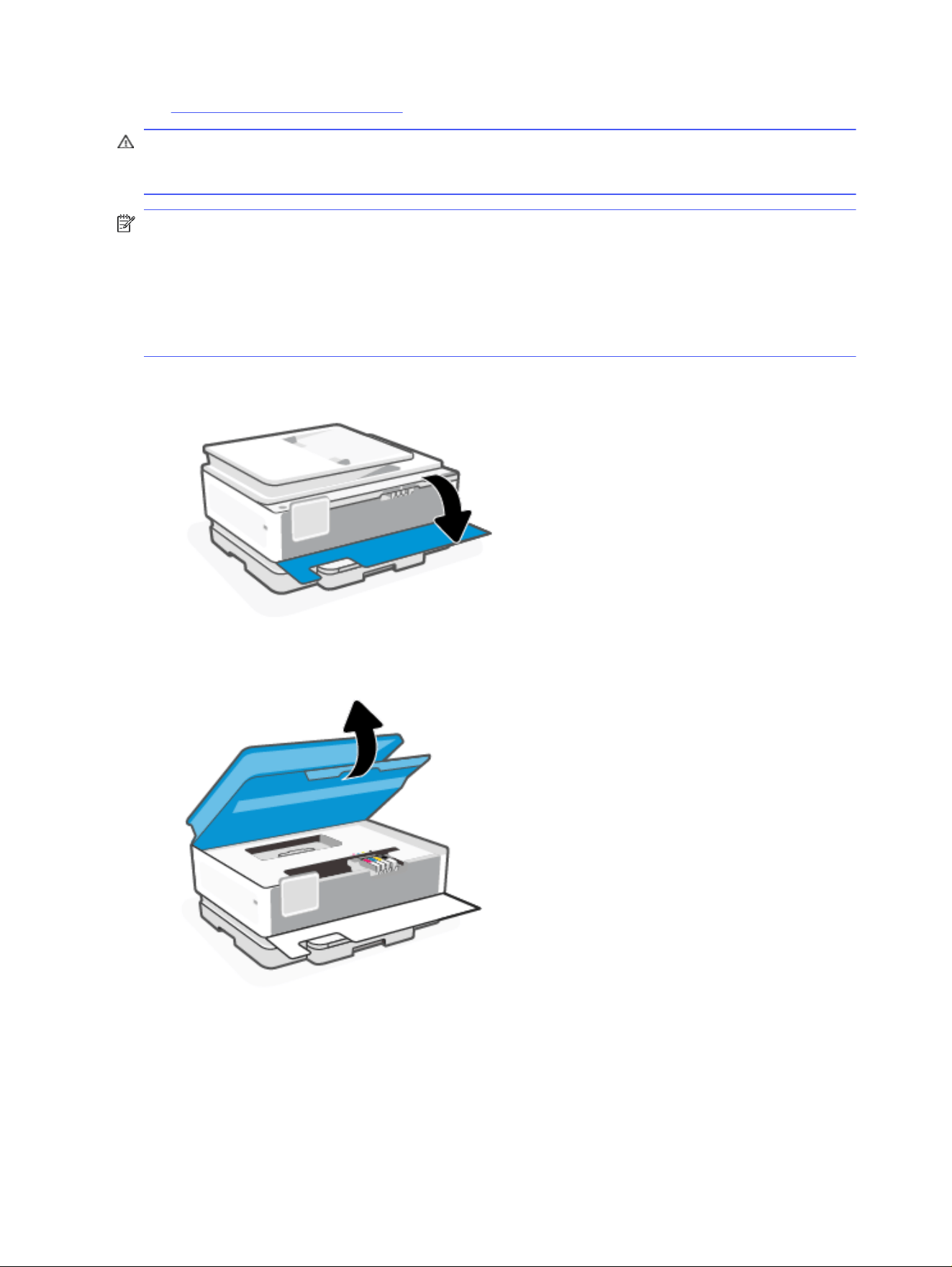
See HPinkjet supplies recycling program.
CAUTION: HP recommends that you replace any missing or damaged cartridges as soon as possible to avoid
print quality issues and possible extra ink usage or damage to the ink system. Never turn o the printer when
cartridges are missing.
NOTE:
● Not all cartridges are available in all countries/regions.
● If ink gets on to your clothing, wipe it o with a dry cloth and wash the clothing in cold water. Hot water sets
ink into the fabric.
● Make sure that the printer is turned on.
1. Open the front door.
2. Open the cartridge access door, and then wait until the carriage stops moving.
78 Chapter 8Manage cartridges
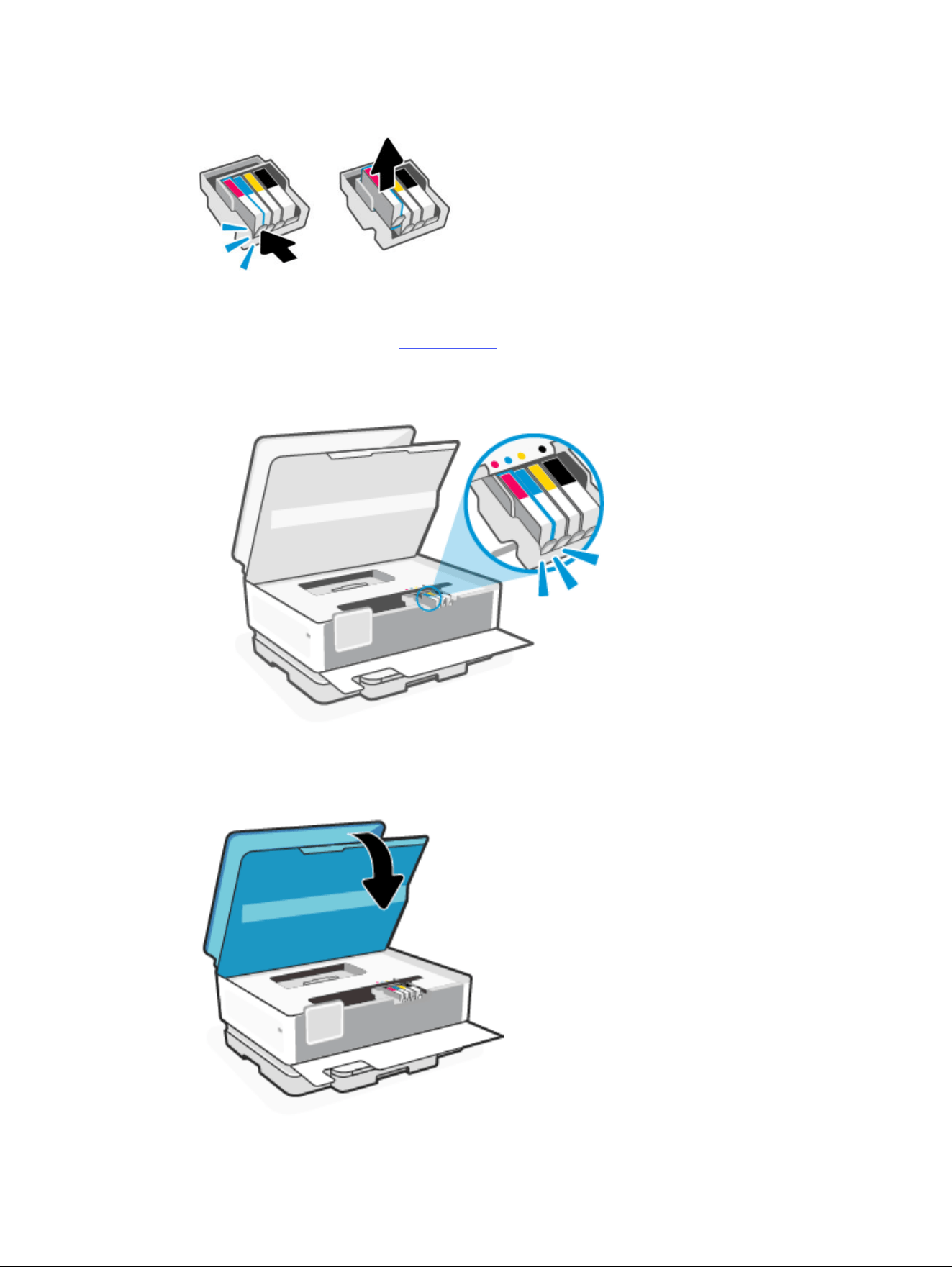
3. Press the front of the cartridge to release it, and then remove it from the slot.
4. Remove the new cartridge from its packaging.
5. Recycle the used cartridge. Visit hp.com/recycle to recycle the used cartridge.
6. Insert each cartridge securely into the indicated slot. Make sure the color-coded letter on the cartridge
matches that on the slot.
7. Repeat these steps to replace the other cartridges.
8. Close the cartridge access door.
Replace cartridges 79
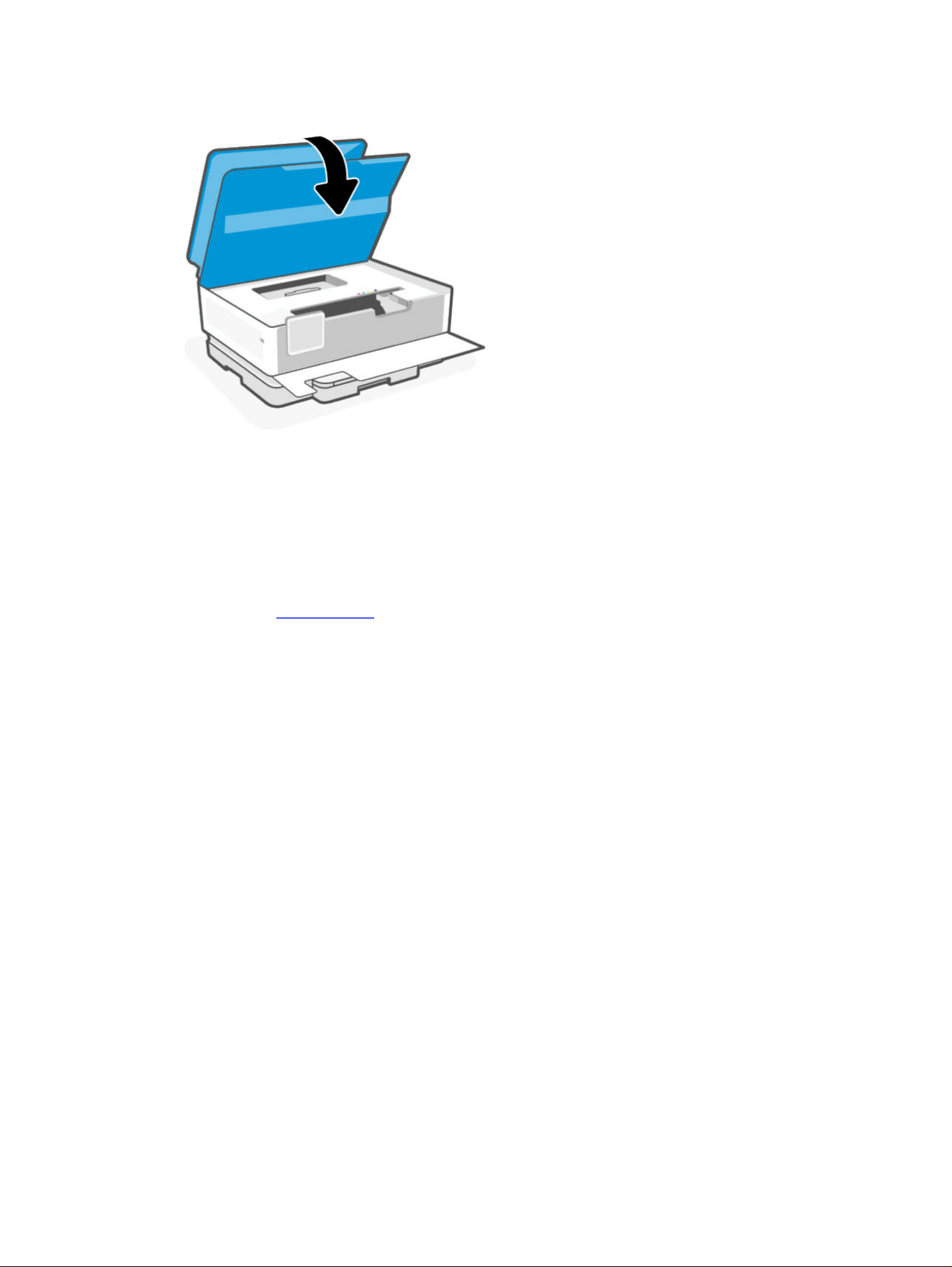
9. Close the front door.
Store supply user data
The HP cartridges used with this printer contain a memory chip that assists in printer operation. This memory
chip may store a limited set of supply and printer usage data, which may include: job size, types of job, media
type, and printing frequency.
HP collects a sampling of the memory chips from cartridges returned to HP's free return and recycling program
(HP Planet Partners: hp.com/recycle). HP partners who assist in recycling this cartridge might have access to this
data, as well. Any third party possessing the cartridge might have access to information on the memory chip.
This information helps HP perform analytics for business operations, customer support, and product
improvement.
1. On the control panel Home screen, touch Menu.
2. Scroll to Utilities and touch Settings.
3. Touch Supplies, and then touch the toggle button next to Store Supply Usage Data to turn it on or o.
Touch the toggle button next to Turning on "Cartridge Protection" will permanently protect the cartridges to
turn it on or o.
Cartridge warranty information
The HP cartridge warranty is applicable when the cartridge is used in its designated HP printing device. This
warranty does not cover HP ink cartridges that have been relled, remanufactured, refurbished, misused, or
tampered with.
During the warranty period the cartridge is covered as long as the HP ink is not depleted and the end of warranty
date has not been reached. The end of warranty date, in YYYY/MM format, may be found on the cartridge as
indicated:
80
Chapter 8Manage cartridges

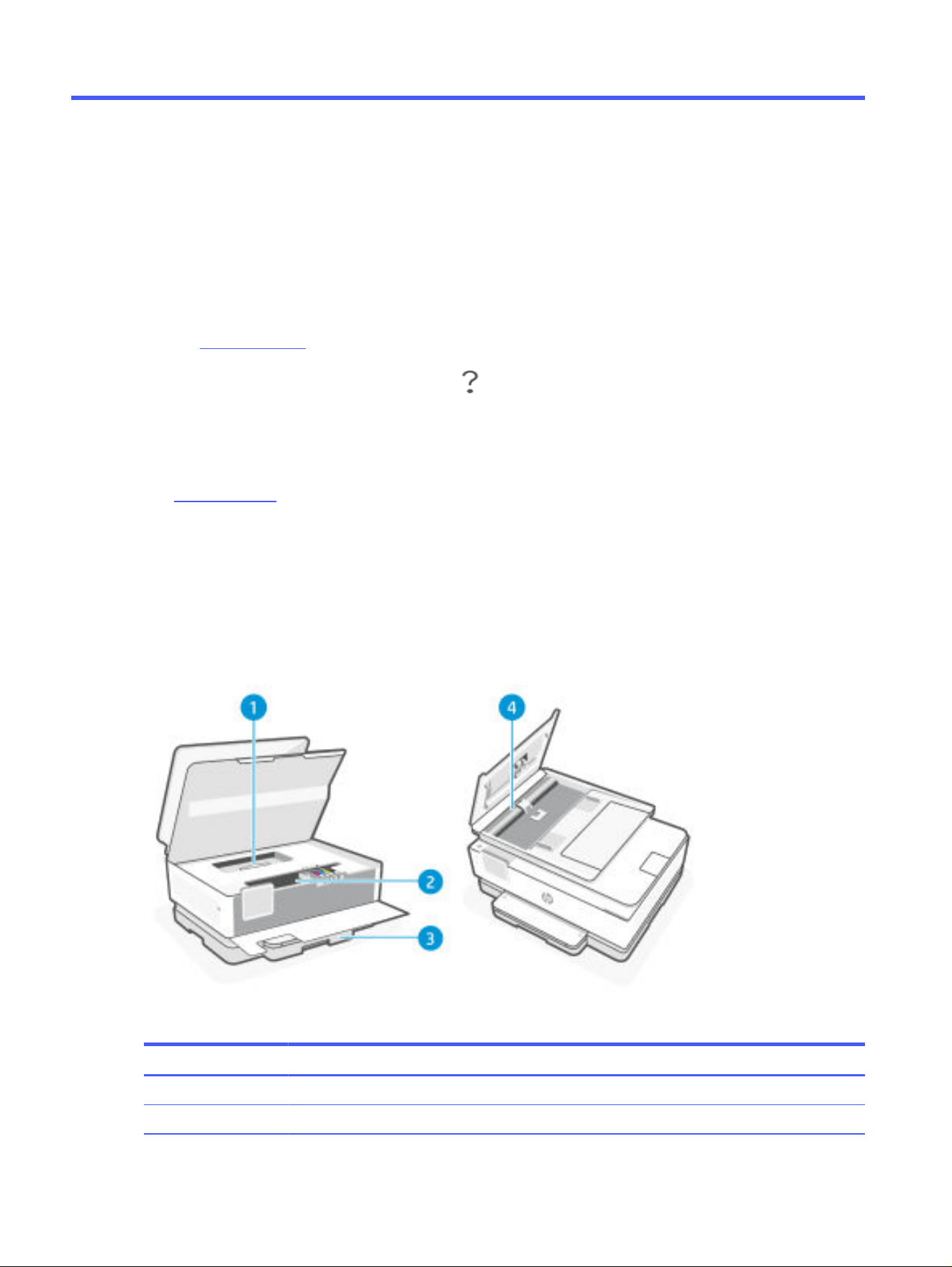
Solve a problem9
Solve common printer problems.
You can get help from the HP software and the printer control panel.
● HP software: Provides alerts for printer issues (jams and other problems), links to help content, and options
to contact support for additional assistance.
See Use HP software for more information.
● Printer control panel: Touch the Help button to access the Help menu, contextual help, and also
animations for some tasks.
If the suggestions do not solve the problems, try getting help using one of the support services, contact HP
support.
Visit hp.com/support for more information.
Jams and paper-feed issues
Learn how to troubleshoot jams and paper-feed issues.
Possible jam locations
Paper jams can occur in the following areas of the printer.
Table 9-1
Possible jam locations
Feature Description
1 Paper path cover
2 Print zone
82 Chapter 9Solve a problem
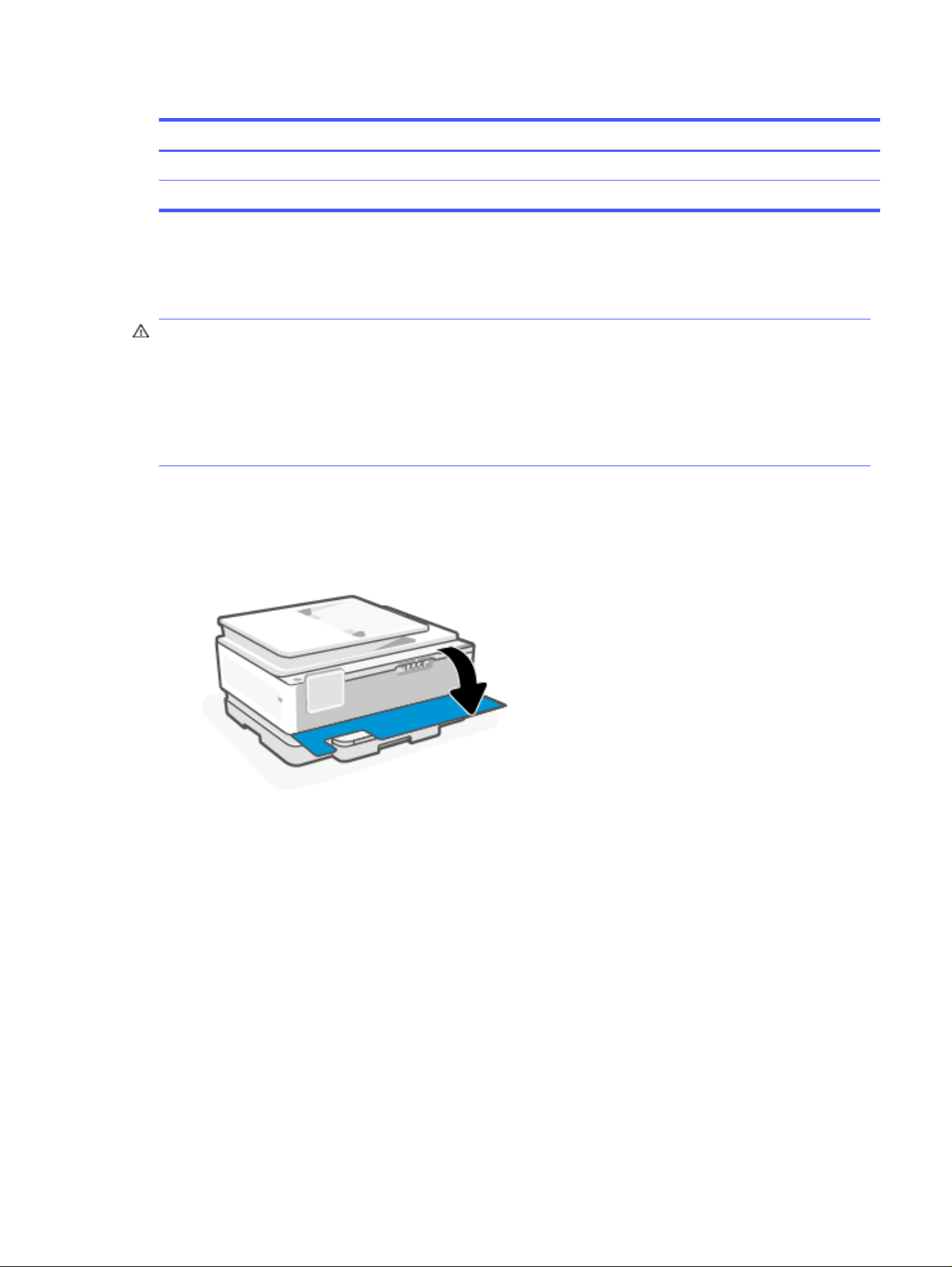
Table 9-1 Possible jam locations (continued)
Feature Description
3 Input tray
4 Document feeder
Remove jammed paper
Look in all areas where jams can occur and remove any jammed paper or foreign objects found.
CAUTION:
● Do not use sharp objects, such as tweezers or needle-nose pliers, to remove jams.
● When removing jammed paper, use both hands to pull the paper straight out from the printer.
● To help avoid additional paper jams, make sure to remove all small pieces of paper and foreign objects
found.
Clear a paper jam from print zone
Remove any objects, such as paper, blocking the print zone.
1. Open the front door.
Remove jammed paper 83
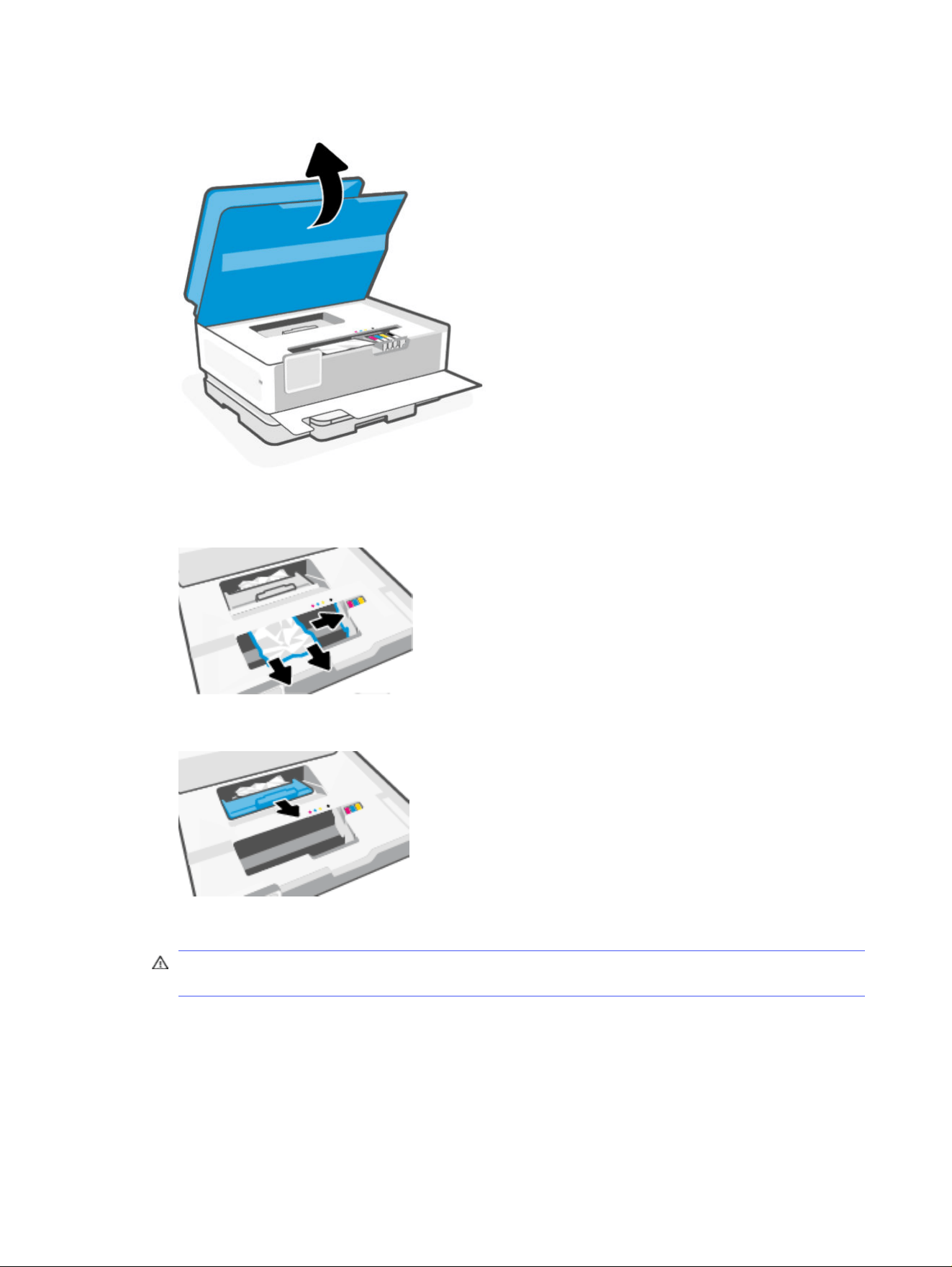
2. Open the cartridge access door.
3. Look inside the printer and remove any jammed paper found. Move the carriage to the left and right to fully
inspect the print area for any jammed paper.
4. Lift the handle of the paper path cover and remove the cover.
5. Locate any jammed paper inside the printer, grasp it with both hands and pull it towards you.
CAUTION: To avoid future paper jams, check the rollers and wheels for small pieces of paper. Be sure to
remove all pieces of paper and foreign objects.
84
Chapter 9Solve a problem
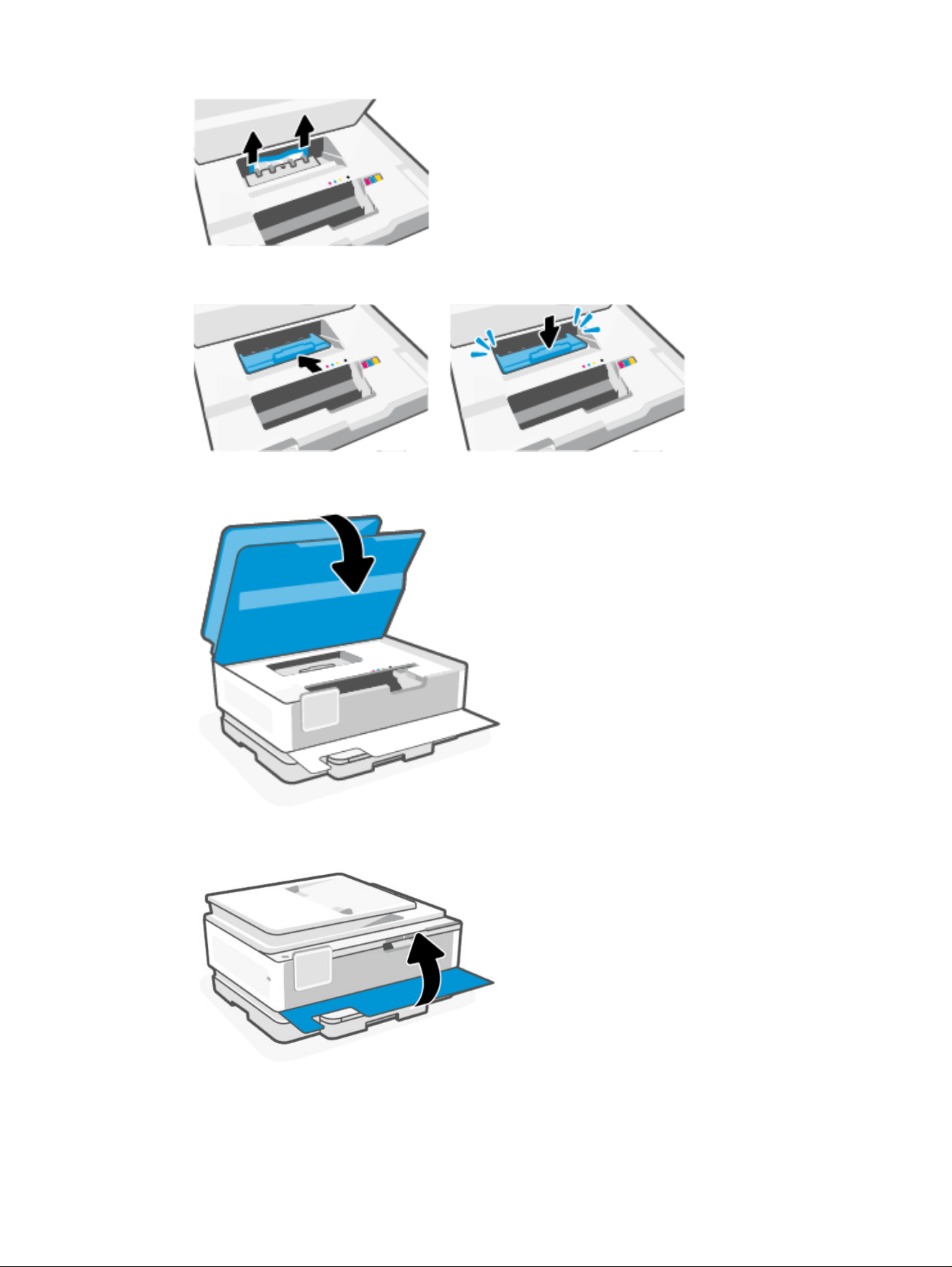
6. Reinsert the paper path cover until it snaps into place.
7. Close the cartridge access door.
8. Close the front door.
Clear a paper jam from the input tray
Remove the input tray and clear any jams found inside the paper feed path.
Clear a paper jam from the input tray
85
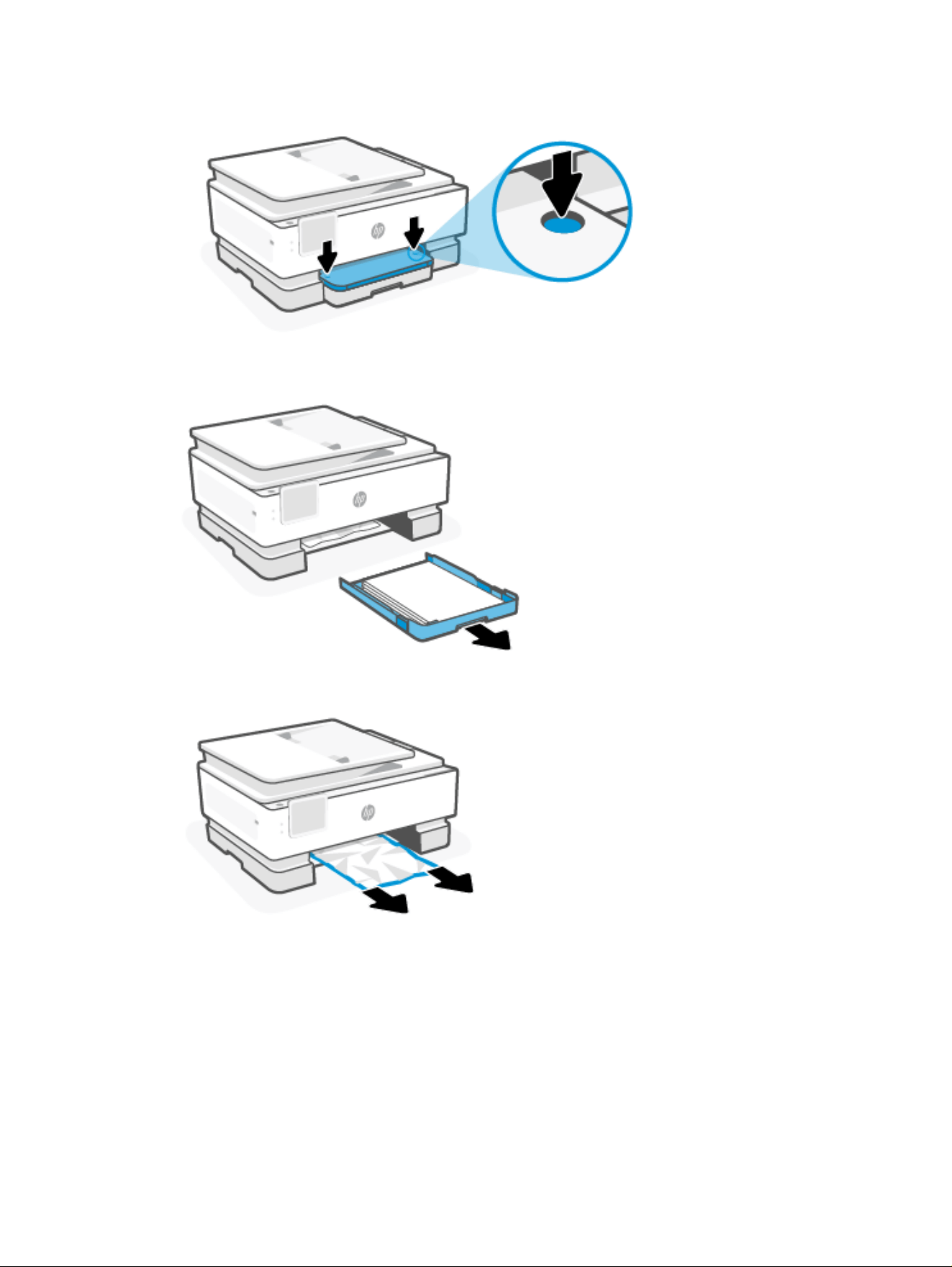
1. Press and hold the two buttons on both sides of the output tray to remove the output tray from the printer.
2. Remove the input tray by pulling it all the way out of the printer.
3. Check the input tray area underneath the printer. Remove any jammed paper.
86 Chapter 9Solve a problem
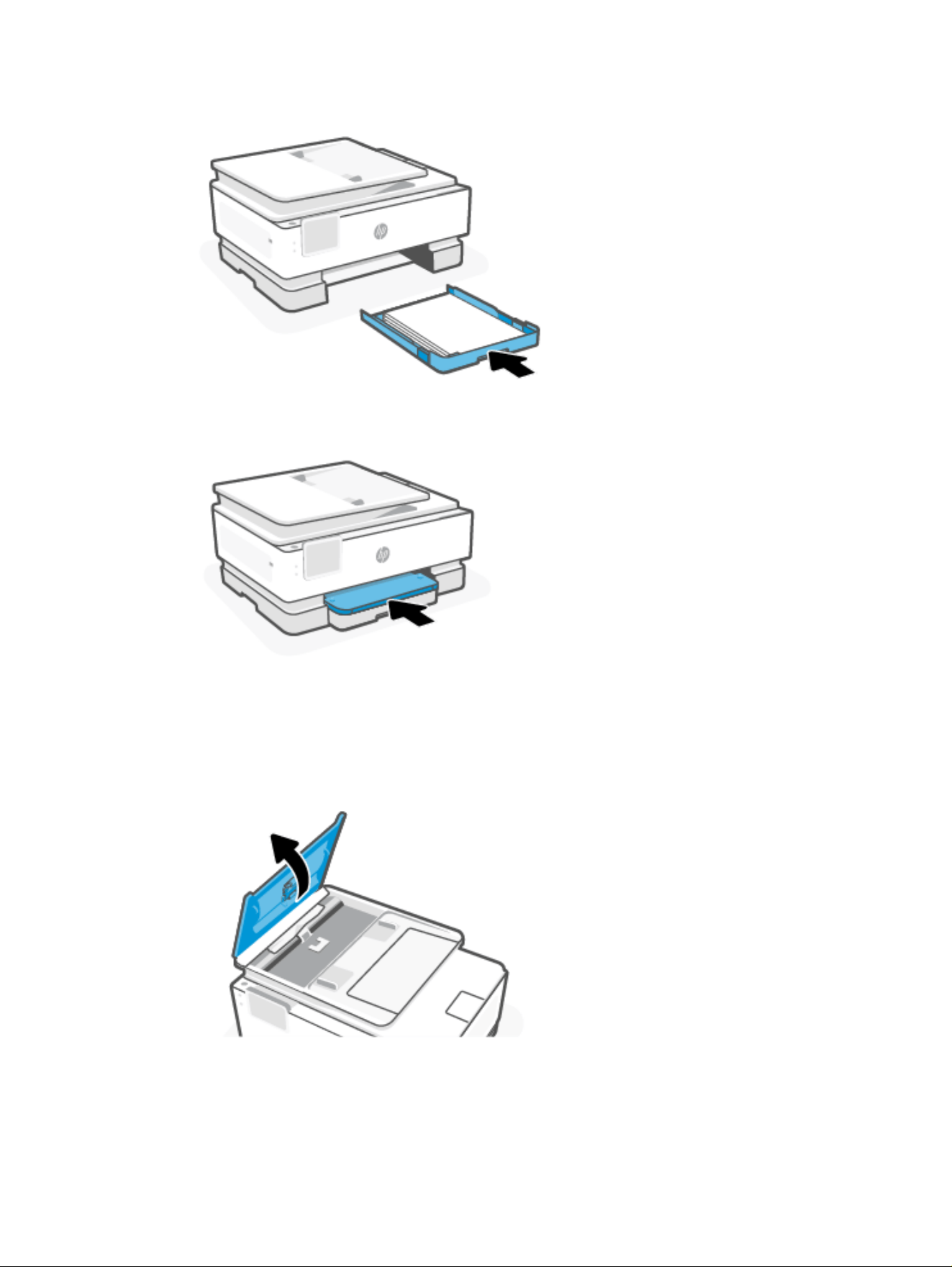
4. Insert the input tray back until it snaps into place.
5. Insert the output tray back into the printer.
Clear a paper jam from the document feeder
Open the cover and remove any paper found in the feeder.
1. Lift the document feeder cover.
Clear a paper jam from the document feeder 87
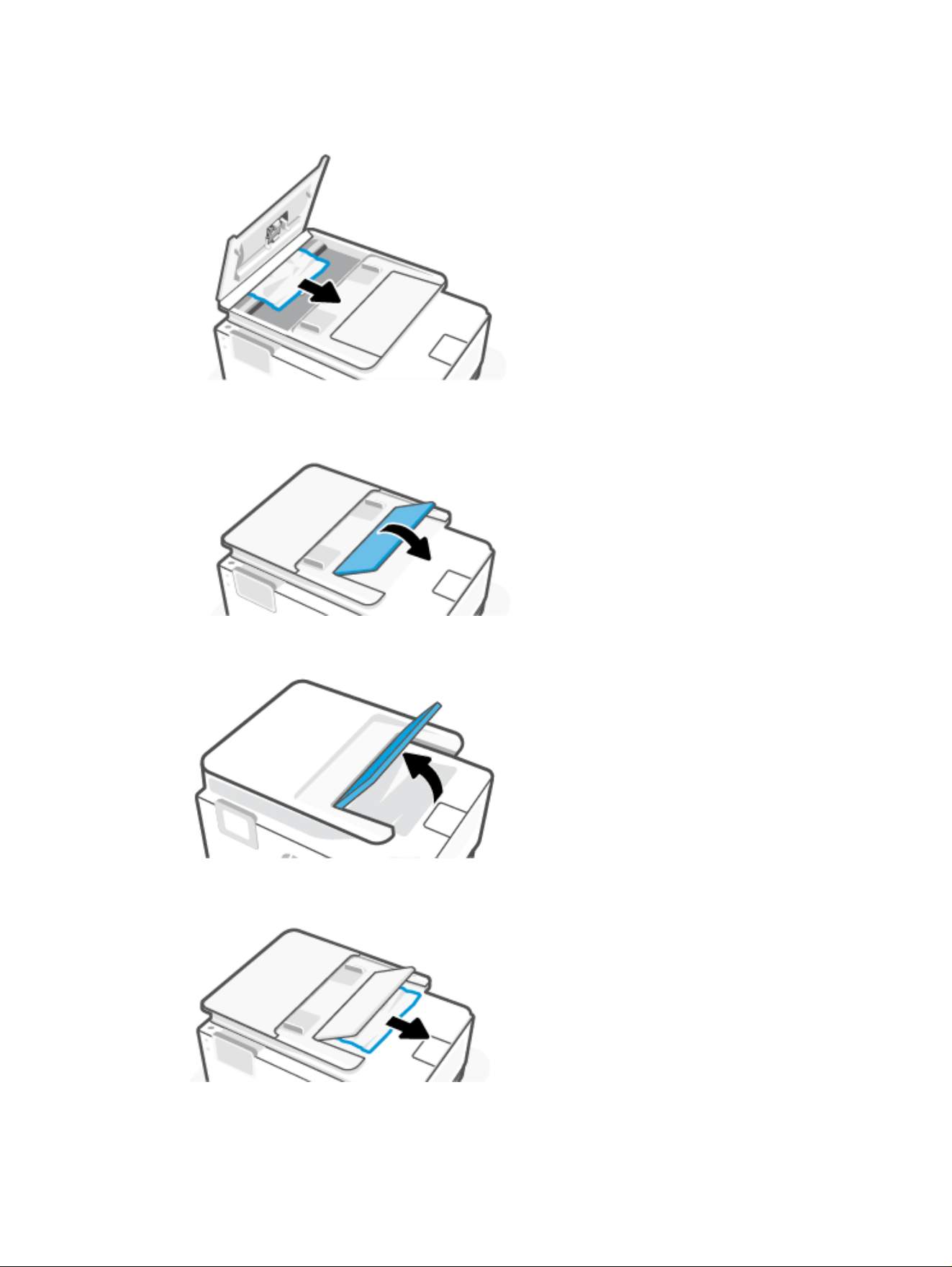
2. Pull any jammed paper out of the rollers.
3. Close the cover of the document feeder until it snaps into space.
4. Lift the document feeder tray.
5. Remove any jammed paper under the tray.
88 Chapter 9Solve a problem
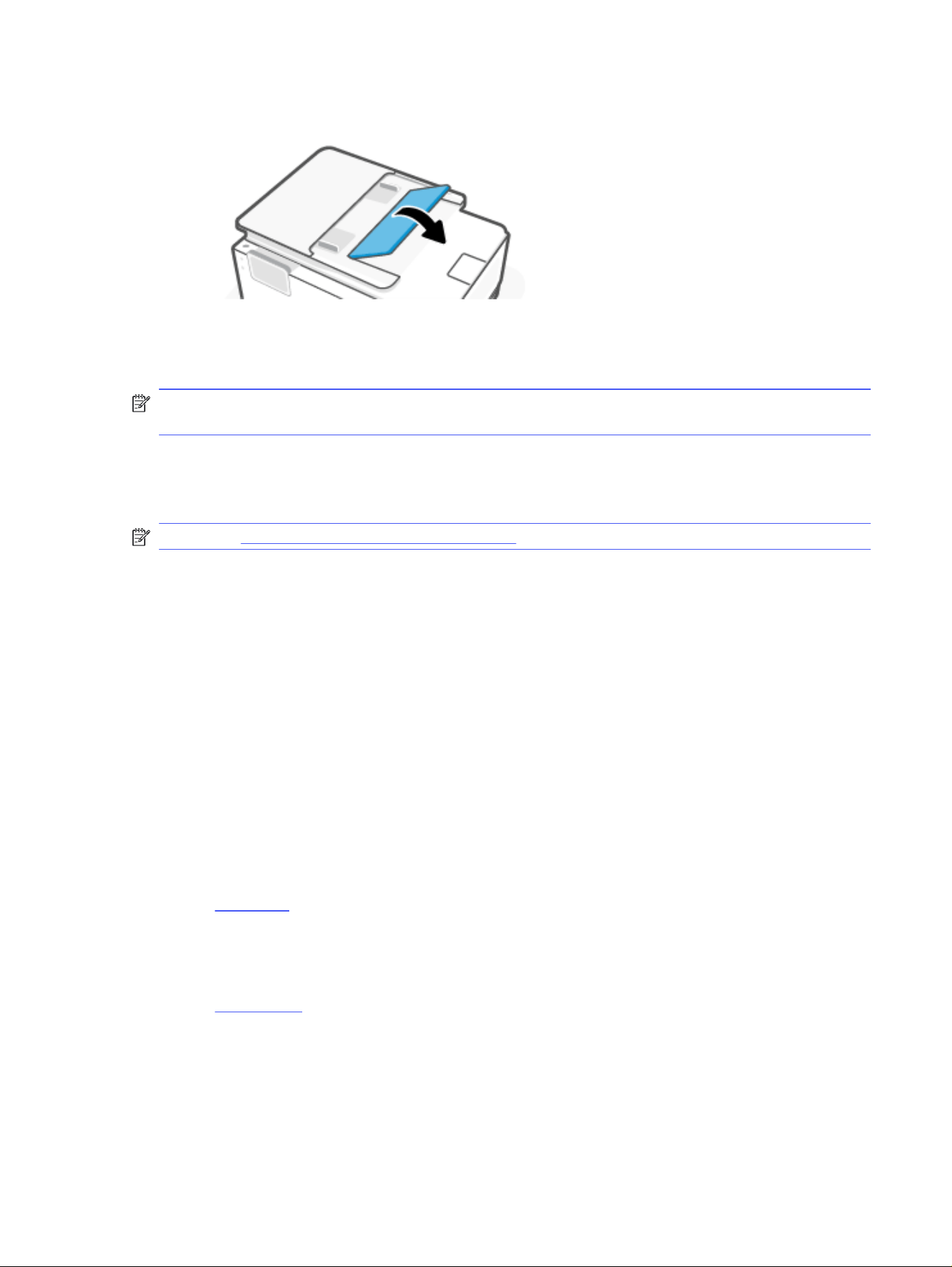
6. Close the document feeder tray.
Clear a print carriage jam
Remove any objects, such as paper blocking the print carriage.
NOTE: Do not use any tools or other devices to remove jammed paper. Always use caution when removing
jammed paper from inside the printer.
Reset the printer
Reset the printer to recover from printer errors and failures.
NOTE: See Check power connection and restart printer.
Learn how to avoid paper jams
To help avoid paper jams, follow these guidelines.
● Always keep the printer on a at surface.
● When paper jam occurs, try not to tilt the printer up-side down to remove any foreign materials as it might
damage the printer.
● Remove printed papers from the output tray frequently.
● Make sure that you are printing with paper that is not wrinkled, folded, or damaged.
● Prevent curled or wrinkled paper by storing all unused paper at in aresealable bag.
● Do not use paper that is too thick or too thin for the printer.
● Make sure that the trays are loaded correctly and are not too full.
See Load media.
● Make sure that the paper loaded in the input tray lays at and the edges are not bent or torn.
● Do not place too much paper in the document feeder tray.
See Specications for information on the maximum number of sheets allowed in the document feeder.
● Do not mix dierent paper types and paper sizes in the input tray; the entire stack of paper in the input tray
must be the same size and type.
● Adjust the paper-width guides in the input tray to t snugly against all paper. Make sure the paper-width
guides do not bend the paper in the input tray.
Clear a print carriage jam
89

● Do not force paper too far inside the input tray.
● If you are printing on both sides of a page, do not print highly saturated images on light weight paper.
● Use paper types that are recommended for the printer.
● Do not load paper while the printer is printing.
● When removing the input tray, it is recommended to remove the tray completely from the printer to make
sure no paper is stuck at the rear of the tray. You might need to check the opening in the printer where the
tray was, and reach into the gap to remove any paper.
Solve paper-feed problems
What kind of problem are you having?
● Paper is not picked up from a tray
– Make sure paper is loaded in the tray.
See Load media.
–
Make sure the paper-width guides are set to the correct markings in the tray for the paper size you are
loading. Also make sure the paper guides are snug, but not tight, against the stack.
– Make sure that the stack of paper is aligned with the appropriate paper size lines on the bottom of
the input tray, and does not exceed the stack height indicated by one or more label on the side or
paper-width guide of the input tray.
– Make sure paper in the tray is not curled. Uncurl paper by bending it in the opposite direction of the curl.
– Fan paper before loading
● Pages are skewing
– Make sure the paper loaded in the input tray is aligned to the paper-width guides. If needed, pull out the
input tray from the printer and reload the paper correctly, making sure that the paper guides are aligned
correctly.
– Load paper into the printer only when it is not printing.
– Make sure the rear access door is securely shut.
● Multiple pages are being picked up
– Make sure the paper-width guides are set to the correct markings in the tray for the paper size you are
loading. Also make sure the paper-width guides are snug, but not tight, against the stack.
– Make sure that the stack of paper is aligned with the appropriate paper size lines on the bottom of
the input tray, and does not exceed the stack height indicated by one or more label on the side or
paper-width guide of the input tray.
– Make sure the tray is not overloaded with paper.
– Use HP paper for optimum performance and eiciency.
90
Chapter 9Solve a problem

Printer is unable to print
Learn how to troubleshoot when the printer is unable to print.
Check printer connection to the Internet
Verify that the printer is connected to the Internet. If disconnected, the printer will not work as expected.
Your printer might be occasionally disconnected from the Internet (for example. power outage, network or router
issues or turning o the printer when not in use). You might be able to print a limited number of pages while the
printer is disconnected, but it is critical to reconnect the printer to continue printing.
Check printer settings and status
You can check printer settings and status.
1. On the control panel Home screen, touch Menu.
2. Scroll to Utilities and touch Info.
3. On the Info screen, touch Printer to check the printer settings and touch Connectivity to check the printer
status.
NOTE: See Connect to a Wi-Fi network using the control panel.
If you are still unable to print, visit hp.com/support
Printing issues
Learn how to troubleshoot printing issues.
Fix problems with HP+ printers not printing
If your HP+ printer does not print, verify that it is connected to the Internet and that you are using HP Original
cartridges.
HP+ printers must be connected to the Internet over Wi-Fi or Ethernet to function. Your printer might be
occasionally disconnected from the Internet (for example, due to power outage, network or router issues, or
turning o the printer when not in use). You might be able to print a limited number of pages while the printer is
disconnected, but it is critical to reconnect the printer to continue printing.
Also, make sure you have installed Original HP cartridges. Original HP cartridges are manufactured and sold by
HP in oicial HP packaging. HP+ printers require Original HP cartridges. If non-Original HP or relled cartridges are
installed, HP+ printers will not operate as expected.
Fix problems with page not printing (unable to print)
Learn how to troubleshoot printing issues.
Resolve print issues
Make sure that the printer is turned on and that there is paper in the tray. If you are still unable to print, try the
following in order:
1. Check for error messages and resolve them by following the on-screen instructions.
Printer is unable to print
91
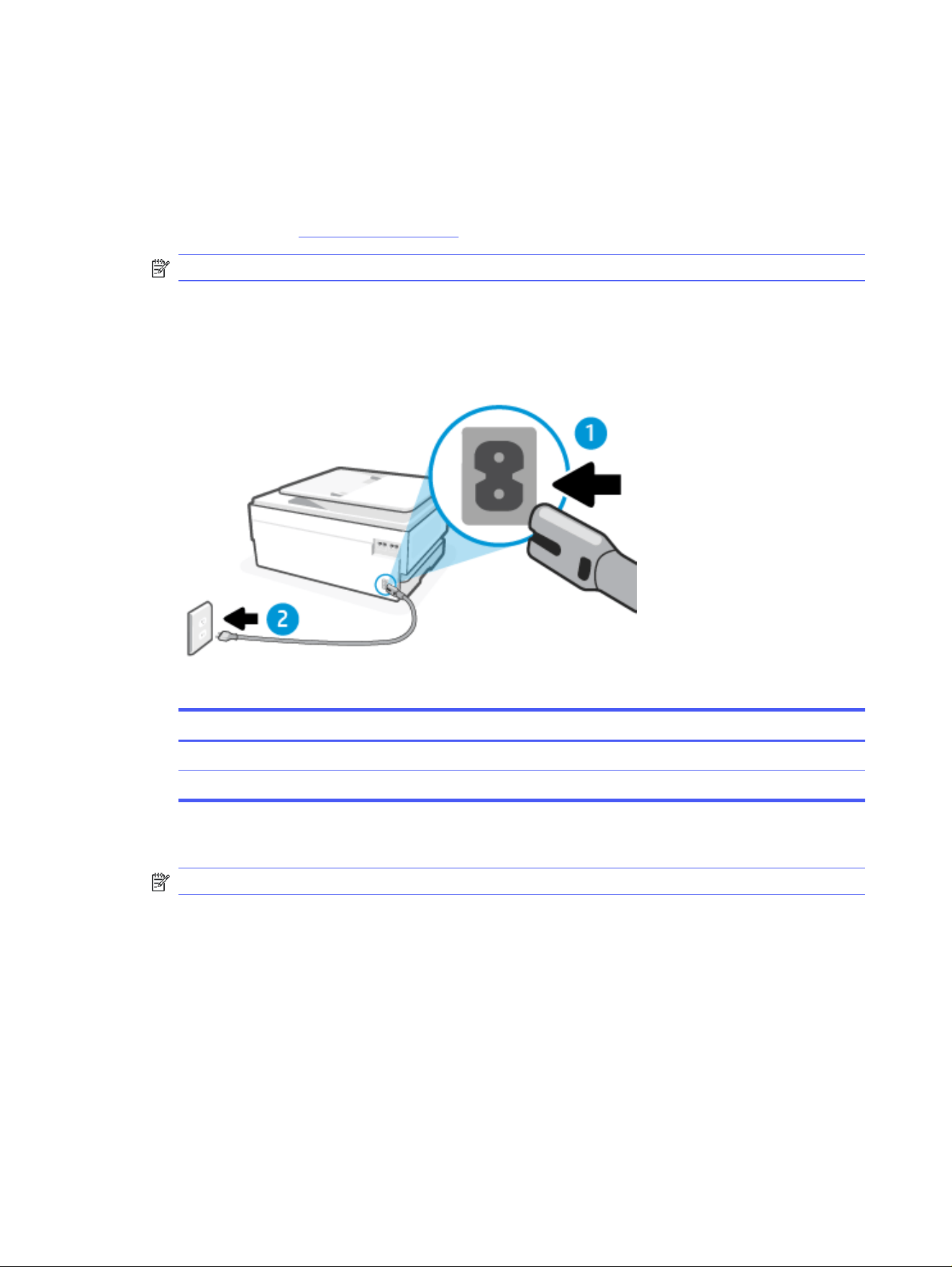
2. If you have an HP+ printer, verify that the printer is connected to the Internet and Original HP cartridges
are installed. HP+ printers will not print when disconnected or if non-Original HP or relled cartridges are
installed.
3. If your computer is connected to the printer with a USB cable, disconnect and reconnect the USB cable. If
your computer is connected to the printer with a Wi-Fi connection, conrm that the connection is working.
4. Download and run HP Print and Scan Doctor to help diagnose and x issues automatically.
NOTE: This tool is for the Windows operating system, and is only available in some languages.
Check power connection and restart printer
Follow these steps to check power connection and restart printer.
1. Make sure the power cord is rmly connected to the printer.
Table 9-2 Printer ports
Port Description
1 Power connection to the printer
2 Connection to a power outlet
2. Look at the Power button located on the printer. If it is not lit, the printer is turned o. Press the Power
button to turn on the printer.
NOTE: If the printer is not receiving electrical power, connect it to another power outlet.
3. With the printer turned on, disconnect the power cord from the back of the printer.
4. Unplug the power cord from the wall outlet.
5. Wait at least 15 seconds.
6. Plug the power cord back into the wall outlet.
7. Reconnect the power cord to the back of the printer.
8. If the printer does not turn on by itself, press the Power button to turn on printer.
9. Try using the printer again.
92
Chapter 9Solve a problem

Fix print quality issues
Learn how to troubleshoot print quality issues.
NOTE: To avoid print quality problems, always turn the printer o using the Power button, and wait until the
Power button light goes out before you pull the plug or turn o a power strip. This allows the printer to move
the cartridges to a capped position, where they are protected from drying out.
Improve print quality using the control panel
Complete the following steps to improve print quality.
1. Make sure you are using original HP cartridges and the cartridges are not low on ink.
See Check estimated ink levels. If cartridges are low on ink, consider replacing them.
2. Make sure you have selected the appropriate paper type and print quality.
3. Print a Print Quality Diagnostic Report.
See Print a printer report.
4. Check the report.
● If the lines are not straight and connected, align the printheads.
● If you see thin white lines across any of the colored blocks, clean the printheads.
● If there are smears or streaks of ink on the back of the printouts, clean the smear.
5. Fix the identied issues on the report.
a. Load Letter, A4, or Legal unused plain white paper into the main tray.
b. On the control panel Home screen, touch Menu.
c. Scroll to Utilities and touch Tools.
d. Touch Troubleshooting, and then touch Print Quality.
e. Select the desired option to resolve the identied issues.
6. If this does not solve the problem, then contact HP support.
Visit hp.com/support for more information.
Copy and scan issues
Select any of the following troubleshooting options.
● Use an HP online troubleshooting tool to solve your copy and scan.
● Download and run HP Print and Scan Doctor to help diagnose and x issues automatically.
NOTE: This tool is for the Windows operating system, and is only available in some languages.
See Tips for copy and scan success for more information.
Fix print quality issues
93

Fax issues
This feature is only available in HP OiceJet Pro 8130e series.
Run the fax test report rst to see if there is a problem with your fax setup. If the test passes and you are still
having problems faxing, check the fax settings listed in the report to verify that the settings are correct.
What to do if the fax test failed
If you ran afax test and the test failed, review the report for basic information about the error. For more detailed
information, check the report to see which part of the test failed, and then review the appropriate topic in this
section for solutions to try.
The "Fax Hardware Interface Test" failed
Follow these steps to x if the fax hardware interface test fails.
● Turn the printer o by pressing the Power button located on the front left side of the printer and then unplug
the power cord from the back of the printer. After afew seconds, plug the power cord in again, and then turn
the power on. Run the test again. If the test fails again, continue reviewing the troubleshooting information
in this section.
● Try to send or receive a test fax. If you can send or receive a fax successfully, there might not be a problem.
● If you are using a phone splitter, this can cause faxing problems (A splitter is a two-cord connector that plugs
into a telephone wall jack). Try removing the splitter and connecting the printer directly to the telephone wall
jack.
After you resolve any problems found, run the fax test again to make sure it passes and the printer is ready
for faxing. If the Fax Hardware Interface Test continues to fail and you experience problems faxing, contact HP
support. Visit hp.com/support for more information. - This website provides information and utilities that can
help you correct many common printer problems. If prompted, select your country/region, and then click All HP
Contacts for information on calling for technical support.
The "Active Telephone Line Detection Test" failed
Follow these steps to x if the active telephone detection test fails.
● Check the connection between the telephone wall jack and the printer to make sure the phone cord is
secure.
● Connect one end of the phone cord to your telephone wall jack, then connect the other end to the Fax
port on the back of the printer.
● If you are using a phone splitter, this can cause faxing problems (A splitter is a two-cord connector that plugs
into a telephone wall jack). Try removing the splitter and connecting the printer directly to the telephone wall
jack.
● Try connecting a working phone and phone cord to the telephone wall jack that you are using for the printer
and check for a dial tone. If you do not hear a dial tone, contact your telephone company and have them
check the line.
● Try to send or receive a test fax. If you can send or receive a fax successfully, there might not be a problem.
After you resolve any problems found, run the fax test again to make sure it passes and the printer is ready for
faxing.
94
Chapter 9Solve a problem

The "Dial Tone Detection" test failed
Follow these steps to x if the dial tone detection test fails.
● Other equipment, which uses the same phone line as the printer, might be causing the test to fail. To nd out
if other equipment is causing aproblem, disconnect everything from the phone line, and then run the test
again. If the Dial Tone Detection test passes without the other equipment, then one or more pieces of the
equipment is causing problems; try adding them back one at atime and rerunning the test each time, until
you identify which piece of equipment is causing the problem.
● Try connecting aworking phone and phone cord to the telephone wall jack that you are using for the printer
and check for adial tone. If you do not hear adial tone, contact your telephone company and have them
check the line.
● Connect one end of the phone cord to your telephone wall jack, then connect the other end to the Fax
port
on the back of the printer.
● If you are using aphone splitter, this can cause faxing problems (A splitter is atwo-cord connector that plugs
into atelephone wall jack). Try removing the splitter and connecting the printer directly to the telephone wall
jack.
● If your telephone system is not using astandard dial tone, such as some private branch exchange (PBX)
systems, this might cause the test to fail. This does not cause aproblem sending or receiving faxes. Try
sending or receiving atest fax.
● Check to make sure the country/region setting is set appropriately for your country/region. If the country/
region setting is not set or is set incorrectly, the test might fail and you might have problems sending and
receiving faxes.
● Make sure you connect the printer to an analog phone line or you cannot send or receive faxes. To check if
your phone line is digital, connect aregular analog phone to the line and listen for adial tone. If you do not
hear anormal sounding dial tone, it might be aphone line set up for digital phones. Connect the printer to an
analog phone line and try sending or receiving afax.
After you resolve any problems found, run the fax test again to make sure it passes and the printer is ready for
faxing. If the Dial Tone Detection test continues to fail, contact your telephone company and have them check the
phone line.
The "Line Current Test" failed
Follow these steps to x if the line current test fails.
● Make sure you connect the printer to an analog phone line or you cannot send or receive faxes. To check if
your phone line is digital, connect aregular analog phone to the line and listen for adial tone. If you do not
hear anormal sounding dial tone, it might be aphone line set up for digital phones. Connect the printer to an
analog phone line and try sending or receiving afax.
● Check the connection between the telephone wall jack and the printer to make sure the phone cord is
secure.
● Connect one end of the phone cord to your telephone wall jack, then connect the other end to the Fax
port on the back of the printer.
● Other equipment, which uses the same phone line as the printer, might be causing the test to fail. To nd out
if other equipment is causing aproblem, disconnect everything from the phone line, and then run the test
again.
The "Dial Tone Detection" test failed
95
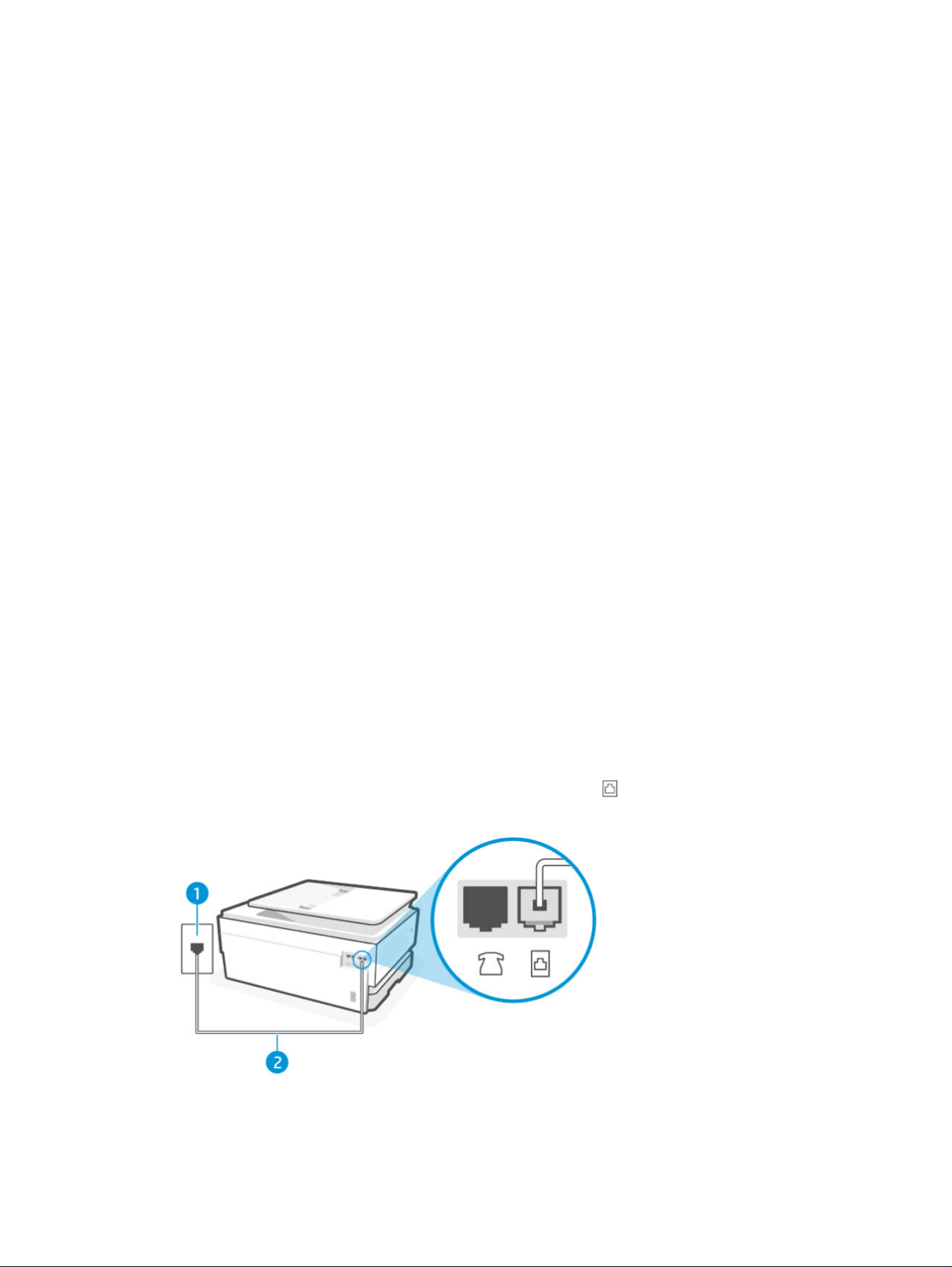
– If the Line Current Test passes without the other equipment, then one or more pieces of the equipment
is causing problems; try adding them back one at atime and rerunning the test each time, until you
identify which piece of equipment is causing the problem.
– If the Line Current Test fails without the other equipment, connect the printer to aworking phone line
and continue reviewing the troubleshooting information in this section.
● If you are using aphone splitter, this can cause faxing problems (A splitter is atwo-cord connector that plugs
into atelephone wall jack). Try removing the splitter and connecting the printer directly to the telephone wall
jack.
After you resolve any problems found, run the fax test again to make sure it passes and the printer is ready for
faxing. If the Line Current Test test continues to fail and you experience problems faxing, contact your telephone
company and have them check the phone line.
Troubleshoot fax problems
What kind of fax problem are you having?
The display always shows Phone
O Hook
Other equipment that uses the same phone line as the printer might be in use. Make sure extension phones
(phones on the same phone line, but not connected to the printer) or other equipment are not in use or o the
hook. For example, you cannot use the printer for faxing if an extension phone is o the hook, or if you are using
acomputer dial-up modem to send email or access the Internet.
The printer is having problems sending and receiving faxes
Follow these steps if the printer is having problems sending and receiving faxes:
● Make sure the printer is turned on. Look at the display on the printer. If the display is blank and the Power
button light is not lit, the printer is turned o. Make sure the power cord is rmly connected to the printer and
plugged into apower outlet. Press the Power button to turn on the printer.
After turning on the printer, HP recommends you wait ve minutes before sending or receiving afax. The
printer cannot send or receive faxes while it is initializing after being turned on.
● Make sure you used the phone cord supplied in the box with the printer to connect to the telephone wall jack.
One end of the phone cord should be connected to the port labeled on the back of the printer and the
other end to your telephone wall jack, as shown in the illustration.
96 Chapter 9Solve a problem

Table 9-3 Rear view of printer
Feature Description
1 Telephone wall jack.
2
Use a minimum 26 AWG phone cord to connect to the port on the printer.
CAUTION: To reduce the risk of re, use only No. 26 AWG or larger (For example, 24 AWG)
UL Listed or CSA Certied Telecommunications Line Cord.
● Try connecting a working phone and phone cord to the telephone wall jack that you are using for the printer
and check for a dial tone. If you do not hear a dial tone, call your local telephone company for service.
● Other equipment, which uses the same phone line as the printer, might be in use. For example, you cannot
use the printer for faxing if an extension phone is o the hook, or if you are using acomputer dial-up modem
to send an email or access the Internet.
● Check to see if another process has caused an error. Check the display or your computer for an error
message providing information about the problem and how to solve it. If there is an error, the printer cannot
send or receive a fax until the error condition is resolved.
● The phone line connection might be noisy. Phone lines with poor sound quality (noise) can cause faxing
problems. Check the sound quality of the phone line by plugging a phone into the telephone wall jack and
listening for static or other noise. If you hear noise, turn
Error Correction Mode o and try faxing again. If the
problem persists, contact your telephone company.
● If you are using a digital subscriber line (DSL) service, make sure that you have a DSL lter connected or you
cannot fax successfully.
● Make sure the printer is not connected to a telephone wall jack that is set up for digital phones. To check if
your phone line is digital, connect a regular analog phone to the line and listen for adial tone. If you do not
hear anormal sounding dial tone, it might be a phone line set up for digital phones.
● If you are using either a private branch exchange (PBX) or an integrated services digital network (ISDN)
converter/terminal adapter, make sure the printer is connected to the correct port and the terminal adapter
is set to the correct switch type for your country/region, if possible.
● If the printer shares the same phone line with a DSL service, the DSL modem might not be grounded
correctly. If the DSL modem is not grounded correctly, it can create noise on the phone line. Phone lines with
poor sound quality (noise) can cause faxing problems. You can check the sound quality of the phone line by
plugging aphone into the telephone wall jack and listening for static or other noise. If you hear noise, turn o
your DSL modem and completely remove power for at least 15 minutes. Turn the DSL modem back on and
listen to the dial tone again.
NOTE: You might notice static on the phone line again in the future. If the printer stops sending and
receiving faxes, repeat this process.
If the phone line is still noisy, contact your telephone company. For information on turning your DSL modem
o, contact your DSL provider for support.
● If you are using aphone splitter, this can cause faxing problems (a splitter is atwo-cord connector that plugs
into atelephone wall jack). Try removing the splitter and connecting the printer directly to the telephone wall
jack.
The printer cannot receive faxes, but can send faxes
Follow these steps if the printer cannot receive faxes, but can send faxes:
The printer cannot receive faxes, but can send faxes
97

● If you are not using adistinctive ring service, check to make sure that the Distinctive Ring feature on the
printer is set to All Standard Rings.
● If Auto Answer is set to O, you need to receive faxes manually; otherwise, the printer cannot receive the fax.
● If Store and Print feature under Fax Receive Settings is enabled and the printing is blocked due to out-of-
paper from the print tray, paper jam, and so on, make sure to clear the jammed paper or to start printing the
faxes to receive further faxes.
● If you have avoice mail service at the same phone number you use for fax calls, you must receive faxes
manually, not automatically. This means that you must be available to respond in person to incoming fax
calls.
● If you have acomputer dial-up modem on the same phone line with the printer, check to make sure that the
software that came with your modem is not set to receive faxes automatically. Modems that are set up to
receive faxes automatically take over the phone line to receive all incoming faxes, which prevents the printer
from receiving fax calls.
● If you have an answering machine on the same phone line with the printer, you might have one of the
following problems:
– Your answering machine might not be set up correctly with the printer.
– Your outgoing message might be too long or too loud to allow the printer to detect fax tones, and the
sending fax machine might disconnect.
– Your answering machine might not have enough quiet time after your outgoing message to allow the
printer to detect fax tones. This problem is most common with digital answering machines.
The following actions might help to solve these problems:
– When you have an answering machine on the same phone line you use for fax calls, try connecting the
answering machine directly to the printer.
– Make sure the printer is set to receive faxes automatically.
– Make sure the Rings to Answer setting is set to agreater number of rings than the answering machine.
– Disconnect the answering machine and then try receiving afax. If faxing is successful without the
answering machine, the answering machine might be causing the problem.
– Reconnect the answering machine and record your outgoing message again. Record amessage that is
approximately 10 seconds in duration. Speak slowly and at alow volume when recording your message.
Leave at least 5 seconds of silence at the end of the voice message. There should be no background
noise when recording this silent time. Try to receive afax again.
NOTE: Some digital answering machines might not retain the recorded silence at the end of your
outgoing message. Play back your outgoing message to check.
● If the printer shares the same phone line with other types of phone equipment, such as an answering
machine, acomputer dial-up modem, or amulti-port switch box, the fax signal level might be reduced. The
signal level can also be reduced if you use asplitter or connect extra cables to extend the length of your
phone. Areduced fax signal can cause problems during fax reception.
To nd out if other equipment is causing aproblem, disconnect everything except the printer from the phone
line, and then try to receive afax. If you can receive faxes successfully without the other equipment, one or
more pieces of the other equipment is causing problems; try adding them back one at atime and receiving
afax each time, until you identify which equipment is causing the problem.
98
Chapter 9Solve a problem

● If you have aspecial ring pattern for your fax phone number (using adistinctive ring service through your
telephone company), make sure that the Distinctive Ring feature on the printer is set to match.
The printer cannot send faxes, but can receive faxes
Follow these steps if the printer cannot send faxes, but can receive faxes:
● The printer might be dialing too fast or too soon. You might need to insert some pauses in the number
sequence. For example, if you need to access an outside line before dialing the phone number, insert apause
following the access number. If your number is 95555555, and 9 accesses an outside line, you might insert
pauses as follows: 9,555,5555. Use the Pause button on the keyboard.
● The number you entered when sending the fax is not in the proper format or the receiving fax machine
is having problems. To check this, try calling the fax number from atelephone and listen for fax tones.
If you cannot hear fax tones, the receiving fax machine might not be turned on or connected, or avoice
mail service could be interfering with the recipient's phone line. You can also ask the recipient to check the
receiving fax machine for any problems.
Fax tones are recorded on my answering machine
Follow these steps if the fax tones are recorded on your answering machine:
● When you have an answering machine on the same phone line you use for fax calls, try connecting the
answering machine directly to the printer. If you do not connect the answering machine as recommended,
fax tones might be recorded on your answering machine.
● Make sure the printer is set to receive faxes automatically and that the Rings to Answer setting is correct.
The number of rings to answer for the printer should be greater than the number of rings to answer for the
answering machine. If the answering machine and the printer are set to the same number of rings to answer,
both devices answer the call and fax tones are recorded on the answering machine.
● Set your answering machine to a low number of rings and the printer to answer in the maximum number
of rings supported. In this setup, the answering machine answers the call and the printer monitors the line.
If the printer detects fax tones, the printer receives the fax. If the call is avoice call, the answering machine
records the incoming message.
Fax reports
Learn how to troubleshoot problems with fax reports.
Fax T.30 Trace Reports
Use a T.30 protocol trace report to troubleshoot fax transmission issues.
Use the following settings to specify when to print the report.
1. On the control panel Home screen, touch Menu.
2. Scroll to Utilities and touch Tools.
3. Touch Troubleshooting, and then touch Fax.
4. Touch to select any of the following options next to Fax T.30 Trace Reports to print.
● Never Automatically Print
● Print after every fax
● Print only after sending faxes
The printer cannot send faxes, but can receive faxes
99

● Print only after receiving faxes
● Print only after problems sending faxes
● Print only after problems receiving faxes
● Print after any fax problems
Fax test report
Print fax test report to test fax setup using the printer control panel.
NOTE: Make sure the cartridges are installed, and that full-size paper is loaded in the input tray, before
starting the test.
1. Set up the printer for faxing according to your home or oice setup instructions.
2. On the control panel Home screen, touch Menu.
3. Scroll to Utilities and touch Tools.
4. Touch Troubleshooting, and then touch Fax.
5. Touch Fax Test Report to print.
The printer prints the test report.
6. Review the report.
● If the test passes and you are still having problems faxing, check the fax settings listed in the report to
verify the settings are correct. A blank or incorrect fax settings might cause problems faxing.
See Change fax settings.
● If the test fails, review the report for more information on how to x any problems found.
Clear the Fax Log/Memory
Clearing the fax log clears fax call records.
1. On the control panel Home screen, touch Menu.
2. Scroll to Utilities and touch Tools.
3. Touch Troubleshooting, and then touch Fax.
4. From the Fax screen, touch Clear Fax Logs/Memory.
5. Touch Clear.
PBX Ring Detect
Enable this feature to prevent false detection of extension phone being picked up if the voltage changes between
rings in certain PBX environments.
1. On the control panel Home screen, touch Menu.
2. Scroll to Utilities and touch Tools.
3. Touch Troubleshooting, and then touch Fax.
100
Chapter 9Solve a problem

4. From the Fax screen, touch the toggle button next to PBX Ring Detect to turn it on or o.
Network and connection issues
Learn how to troubleshoot network and connection issues.
Fix Wi-Fi connection
Select one of the following troubleshooting options:
● Restore network settings and reconnect the printer.
See Restore settings.
● Check the network conguration or print the Wi-Fi test report to assist in diagnosing network connection
issues.
1. On the control panel Home screen, touch Menu.
2. Scroll to Utilities and touch Tools.
3. Touch Reports, and then touch Status Reports.
4. Touch Network Conguration Report, and then touch Print.
Check the Wi-Fi Network Test report to see if something failed during the test.
– See the DIAGNOSTICS RESULTS section for all tests that were performed, to determine whether or not
your printer passed.
– From the CURRENT CONFIGURATION section, nd out the Network Name (SSID) to which your printer is
currently connected. Make sure that the printer is connected to the same network as your computer or
mobile devices.
● Use an HP online troubleshooting tool to solve your printer issues.
Fix Wi-Fi Direct connection
Complete the following to resolve Wi-Fi Direct connection issues.
1. Check the printer to conrm that the Wi-Fi Direct is turned on.
See Print using Wi-Fi Direct to turn on Wi-Fi Direct.
2. From your wireless computer or mobile device, turn on the Wi-Fi connection, and then search for and
connect to the Wi-Fi Direct name of your printer.
3. Enter the Wi-Fi Direct password when prompted.
The Wi-Fi Direct name and password are listed on the Network Conguration Report.
See Print a printer report.
If you are using a mobile device, visit the hp.com/mobileprinting website for more information about mobile
printing.
Fix Ethernet connection
Check the following:
Network and connection issues
101

● The network is operational and the network hub, switch, or router is turned on.
● The Ethernet cable is properly connected between the printer and the router. The Ethernet cable is plugged
into the Ethernet port on the printer and the light near the connector lights up when connected.
● Antivirus programs, including spyware protection programs, are not impacting your network connection to
the printer. If you know that antivirus or rewall software is preventing your computer from connecting to
the printer, use HP online rewall troubleshooter to help solve the problem.
● HP Print and Scan Doctor: Download and run HP Print and Scan Doctor to help diagnose and x issues
automatically.
NOTE: This tool is for the Windows operating system, and is only available in some languages.
Restore original network settings
If you want to restart Wi-Fi setup mode or troubleshoot network-related issues, you can restore the printer to its
original network settings.
NOTE:
● You must reconnect the printer to the network using the HP software after you restore network settings.
● For network-related issues, try the following before restoring network settings.
– Run HP Print and Scan Doctor to help diagnose and x issues automatically.
– Visit hp.com/support for information and utilities that can help you x many common printer
problems.
See Restore settings.
Printer hardware issues
Complete the following to resolve printer hardware issues.
The printer shuts down unexpectedly
Complete the following steps if printer shuts down unexpectedly:
● Check the power and power connections.
● Make sure the printer power cord is connected rmly to a functioning power outlet.
Printhead alignment fails
Follow these steps to x if the printhead alignment fails.
● If the alignment process fails, make sure you have loaded unused, plain white paper into the main tray. If you
have colored paper loaded in the main tray when you align the printhead, the alignment fails.
● If the alignment process fails repeatedly, you may need to clean the printhead, or you might have a defective
sensor. See Maintain the printhead and cartridges to clean the printhead.
● If cleaning the printhead does not solve the problem, contact HP support. Visit hp.com/support for more
information.
102
Chapter 9Solve a problem

Resolve printer failure
Complete the following steps to resolve printer failure problems.
1. Press the Power button to turn o the printer.
2. Unplug the power cord, and then plug in the power cord again.
3. Press the Power button to turn on the printer.
If this problem persists, write down the error code provided in the message, and then contact HP support. Visit
hp.com/support for more information.
Understand printer reports
Learn more about how to print some useful printer reports.
● Printer Status Report
Provides a summary of printer information, current status, and settings, including connectivity settings, as
well as print or scan settings and usage.
● Network Conguration Report
Provides important network settings such as network status and the printer IP address.
● Print Quality Diagnostic Report
Print a diagnostics page to determine if cleaning or aligning the printheads is recommended to improve print
quality.
● Wi-Fi Network Test Results
Provides information about your printer network connection or to troubleshoot connection issues.
● Web Access Test Report
Provides information about the printer status, DNS setting, and the IP address. If the printer is connected
to a Wi-Fi network, the test report displays details about the network settings. It also indicates any Wi-Fi
connectivity issues.
Print a printer report
Follow these steps to print a printer report.
1. On the control panel Home screen, touch Menu.
2. Scroll to Utilities and touch Tools.
3. Touch Reports, and then touch Status Reports.
4. Select a printer report to print and touch Print.
Printer maintenance
Clean dierent printer parts.
Resolve printer failure
103
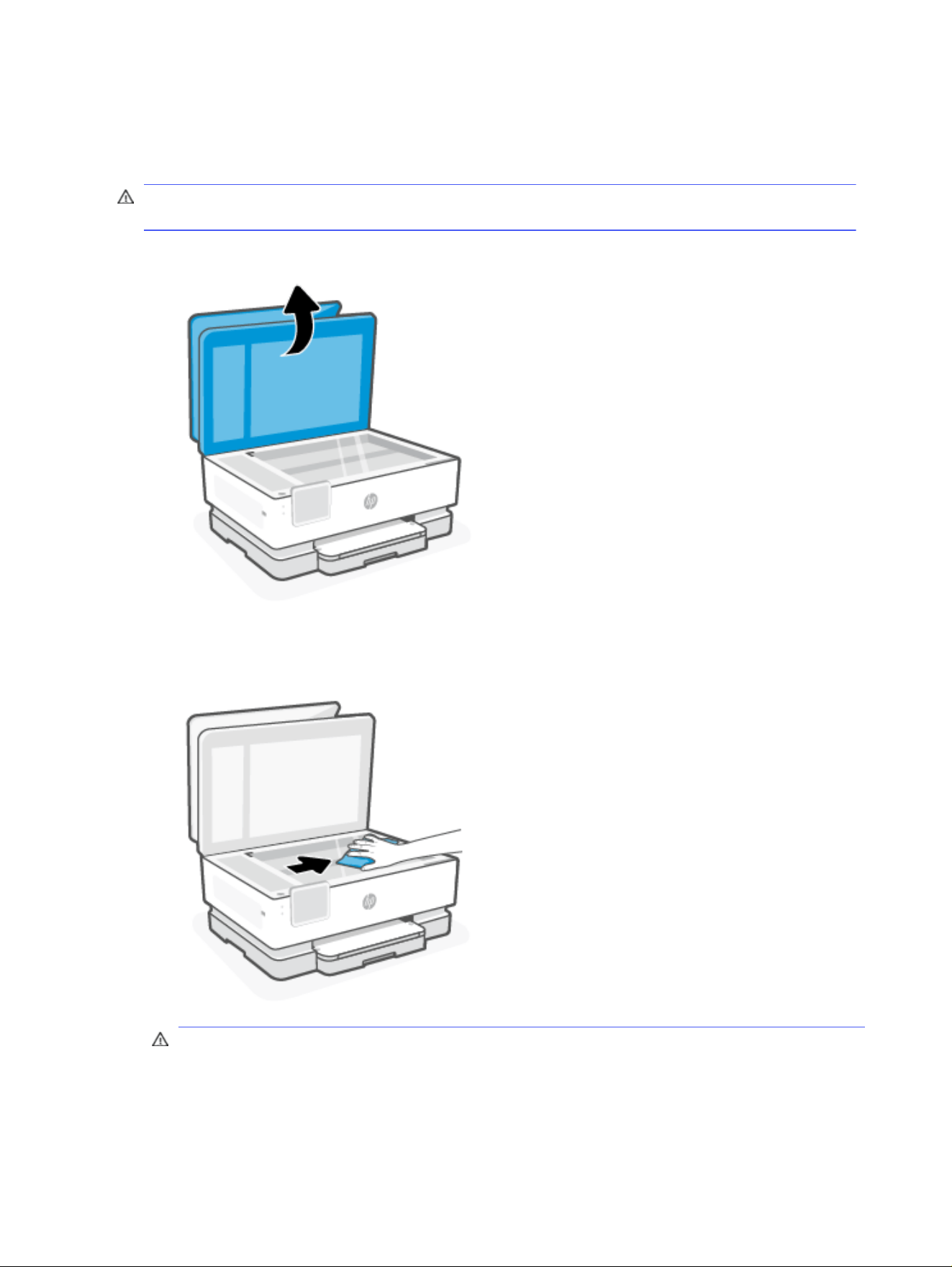
Clean the scanner glass
Dust or dirt on the scanner glass, scanner lid backing, or scanner frame can slow down performance, degrade the
quality of scans, and aect the accuracy of special features such as tting copies to acertain page size.
WARNING! Before cleaning the printer, turn the printer o by pressing the Power button and unplug the power
cord from the electrical socket.
1. Lift the scanner lid.
2. Clean the scanner glass and lid backing by using asoft, lint-free cloth that has been sprayed with amild
glass cleaner.
CAUTION:
● Use only glass cleaner to clean the scanner glass. Avoid cleaners that contain abrasives, acetone,
benzene, and carbon tetrachloride, all of which can damage the scanner glass. Avoid isopropyl alcohol
because it can leave streaks on the scanner glass.
104
Chapter 9Solve a problem
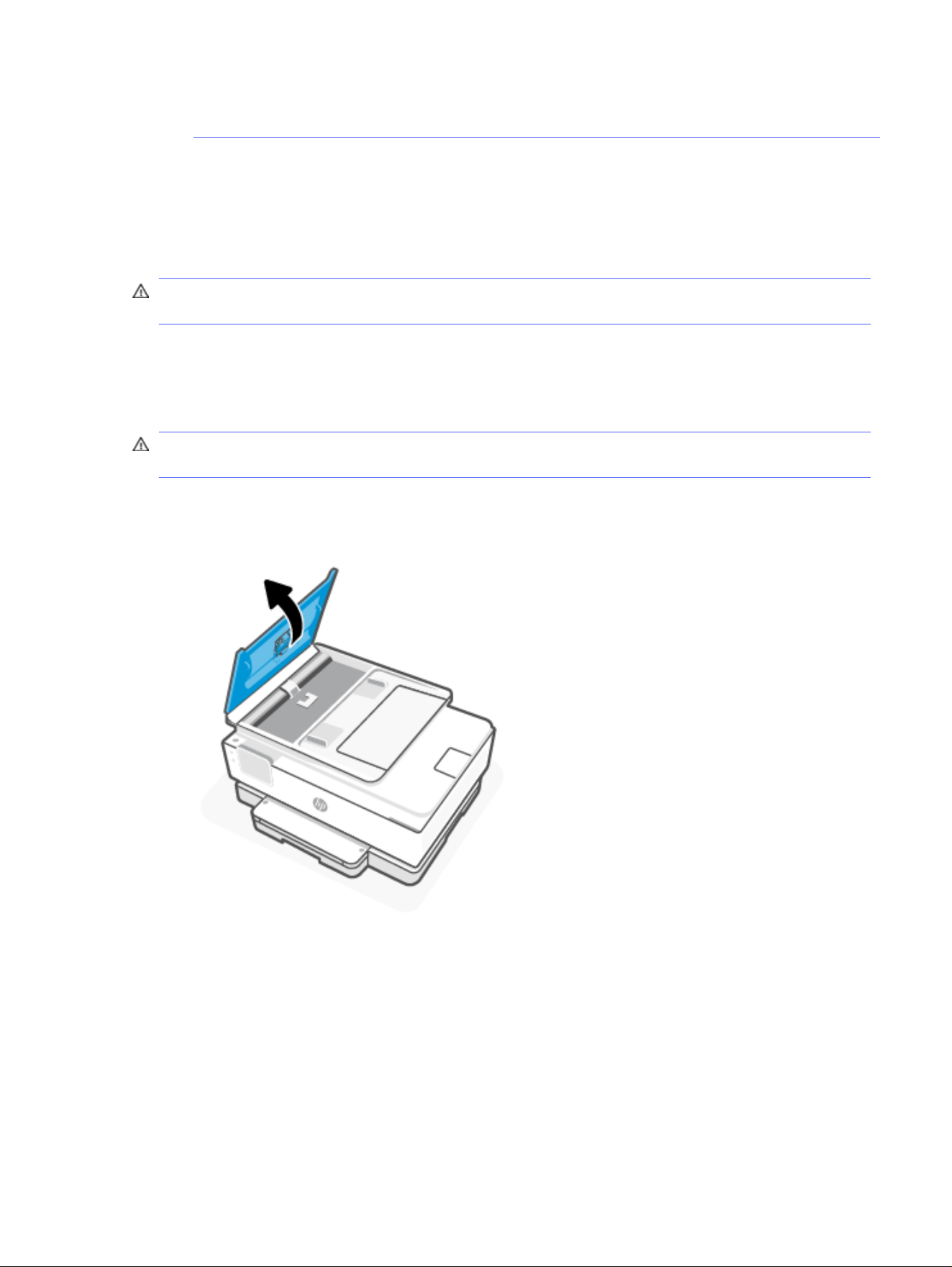
● Do not spray the glass cleaner directly on the scanner glass. If too much glass cleaner is applied, the
cleaner could leak under the scanner glass and damage the scanner.
3. Close the scanner lid, and turn on the printer.
Clean the exterior
Use asoft, damp, lint-free cloth to wipe dust, smudges, and stains o the case. Keep uids away from the interior
of the printer, as well as from the printer control panel.
WARNING! Before cleaning the printer, turn the printer o by pressing the Power button and unplugging the
power cord from the electrical socket.
Clean the document feeder
If the document feeder picks up multiple pages or if it does not pick up plain paper, you can clean the rollers and
separator pad.
WARNING! Before cleaning the printer, turn the printer o by pressing the Power button and unplug the power
cord from the electrical socket.
1. Remove all originals from the document feeder tray.
2. Lift the document feeder cover.
This provides easy access to the rollers (1) and separator pad (2).
Clean the exterior
105
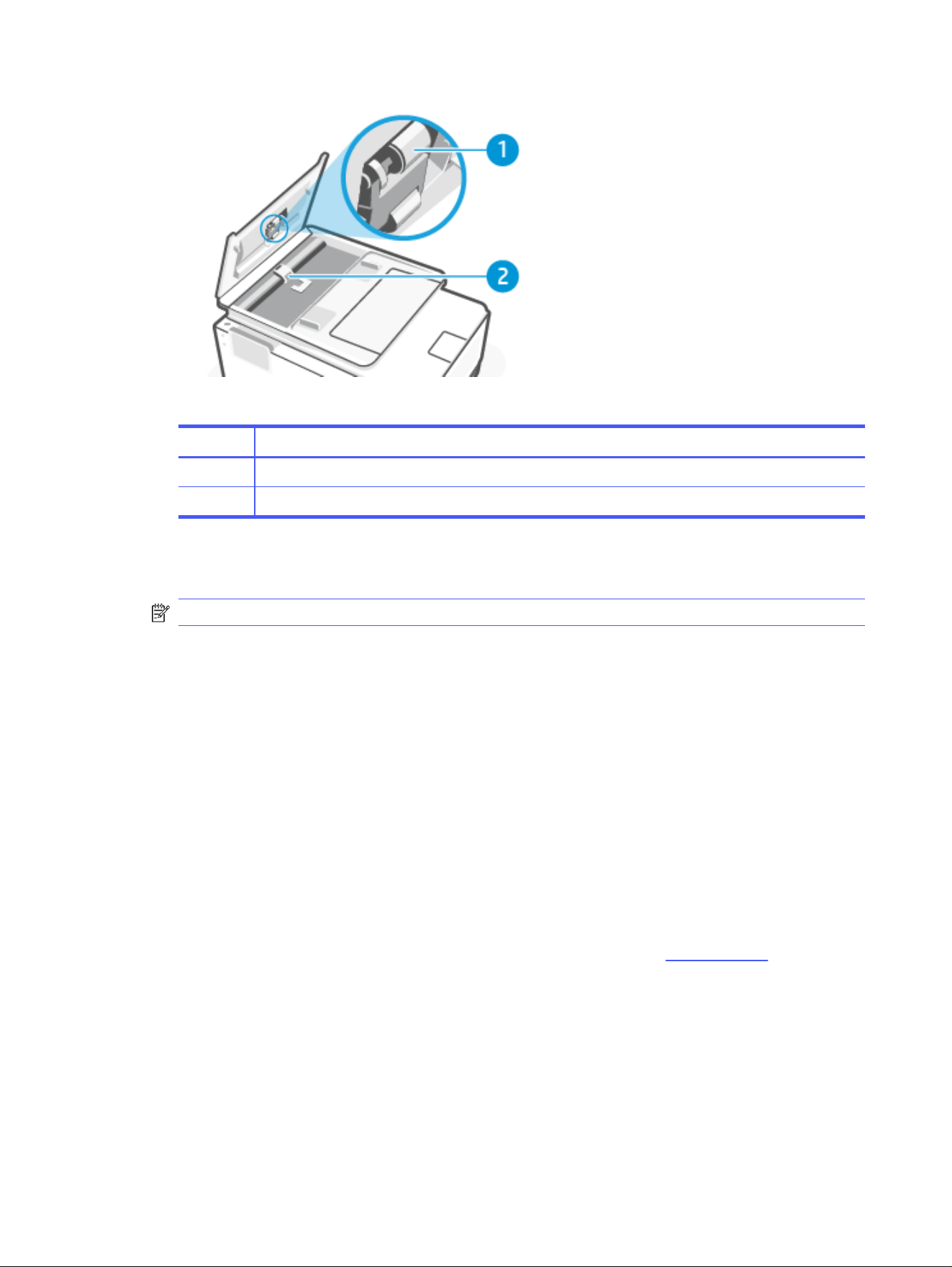
Table 9-4 Clean the document feeder
Feature Description
1 Rollers
2 Separator pad
3. Lightly dampen aclean lint-free cloth with distilled water, then squeeze any excess liquid from the cloth.
4. Use the damp cloth to wipe any residue o the Rollers (1) or Separator pad (2).
NOTE: If the residue does not come o using distilled water, try using isopropyl (rubbing) alcohol.
5. Close the cover of the document feeder.
Maintain the printhead and cartridges
If you are experiencing problems with printing, you might have a problem with the printhead. You must perform
the procedures in the following sections only when directed to do so for resolving print quality issues.
Performing the aligning and cleaning procedures unnecessarily can waste ink and shorten the life of the
cartridges.
● Clean the printhead if your printed output is streaked or has any incorrect or missing colors.
There are three stages of cleaning. Each stage lasts about two minutes, uses one sheet of paper, and uses
an increasing amount of ink. After each stage, review the quality of the printed page. You must only initiate
the next phase of cleaning if the print quality is poor.
If print quality still seems poor after you complete all stages of cleaning, try aligning the printhead. If print
quality problems persist after cleaning and aligning, contact HP support. Visit hp.com/support for more
information.
● Align the printhead when the printer status page shows streaking or white lines through any of the blocks of
color, or if you are having print quality issues with your printouts.
The printer automatically aligns the printhead during the initial setup.
Cleaning uses ink, so clean the printhead only when necessary. The cleaning process takes a few minutes. Some
noise might be generated in the process.
106
Chapter 9Solve a problem

Always use the Power button to turn o the printer. Turning the printer o improperly can cause print quality
problems.
To clean or align the printhead from the printer control panel.
1. Load Letter or A4 unused plain white paper into the main tray.
See Load media.
2. On the control panel Home screen, touch Menu.
3. Scroll to Utilities and touch Supplies.
4. Touch Troubleshooting, and then touch Print Quality.
5. Select the desired option, and then follow the on-screen instructions.
You can also do the same from the HP software or the embedded web server (EWS).
See Use HP software or Congure using the embedded web server (EWS).
Restore settings
If you change some settings or disable some functions and want to change them back, you can restore or reset
the settings.
For HP+ printers, after restoring the printer, register the printer again using the HP account you used when you
rst set up the printer.
● Restore network settings
If you want to discard the changes you have made to the printer network settings, you can restore them to
the original network settings.
● Reset user settings
If you want to discard the changes you have made to the printer user settings, you can reset the printer to
the default user settings.
● Reset user data
If you want to discard the changes you have made to the printer user data, you can reset the printer to the
original default data.
● Restore all factory defaults
If you want to discard the changes you have made to the printer settings, you can restore all the printer
settings to the original factory default settings.
Complete the following steps to restore settings.
1. On the control panel Home screen, touch Menu.
2. Scroll to Utilities and touch Tools.
3. Touch Maintenance, and then touch Restore Settings.
4. Select the feature and change the desired settings.
Restore settings
107

HP support
HP online support provides information and utilities that can help you solve common printer problems.
● View video tutorials
Learn how to set up printer and perform common tasks.
● Get troubleshooting assistance
Find information for resolving paper jams, network connection issues, print quality issues, printer errors, and
more.
● Get software and drivers
Download software, drivers, and rmware you need for the printer.
● Ask the community
Join the community forums to nd solutions, ask questions, and share tips.
● HP diagnostics solutions
Use HP online tools to detect your printer and nd recommended solutions.
Download and run HP Print and Scan Doctor to help diagnose and x issues automatically.
Contact HP
If you need help from an HP technical support representative to solve a problem.
Visit hp.com/support for more information.
The following contact options are available at no cost for in-warranty customers (HP agent-assisted support for
out-of-warranty customers may require a fee).
● Chat
Chat with an HP support agent or the HP Virtual Assistant online.
● Call
Call an HP support agent.
When contacting HP support, provide the following information:
● Product name (Located on the printer)
● Product number and serial number (located near the cartridge access area)
108 Chapter 9Solve a problem
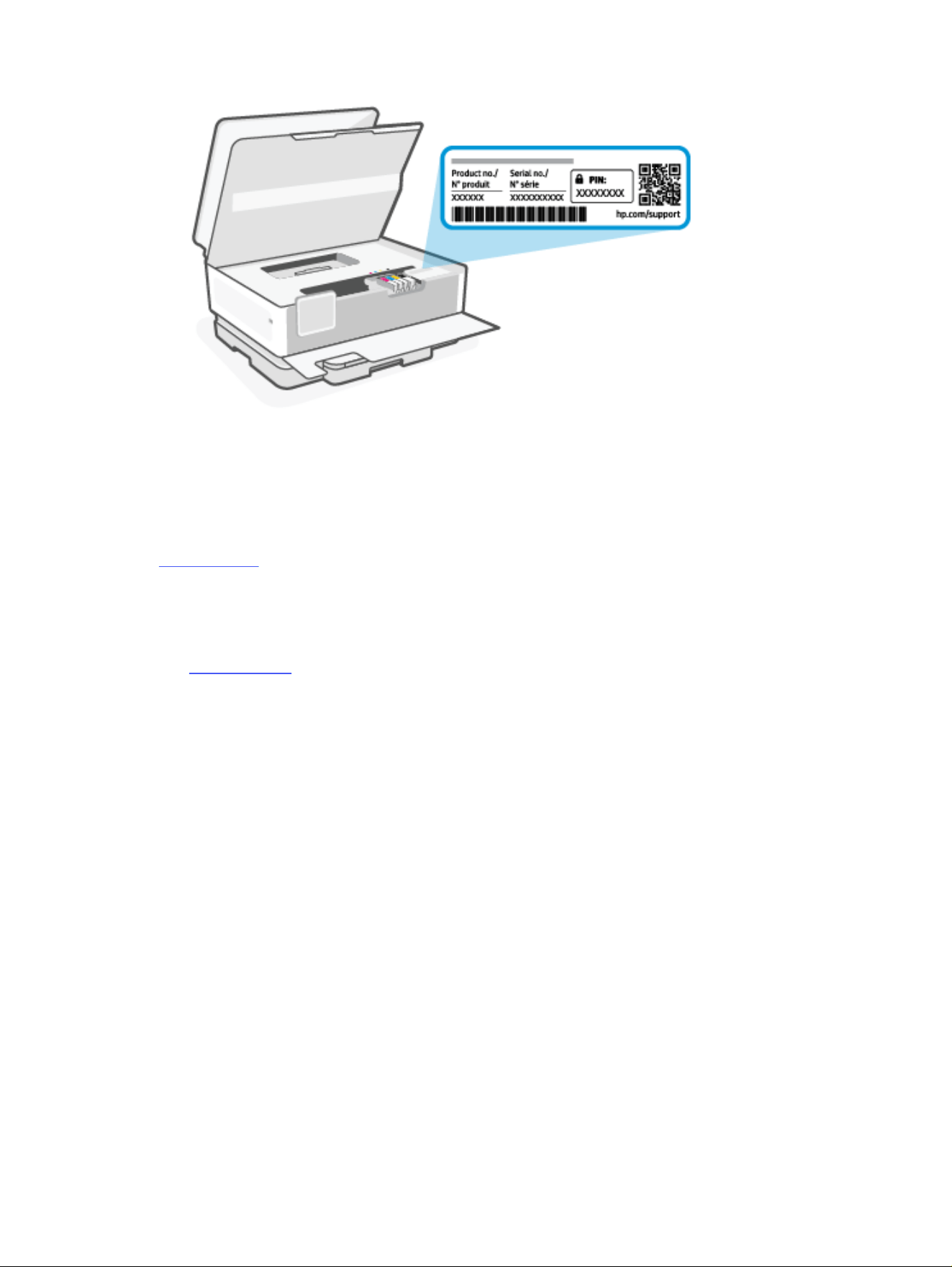
Register printer
By taking just a few quick minutes to register, you can enjoy quicker service, more eicient support, and product
support alerts.
If you did not register your printer while installing the printer software, you can register anytime on the
register.hp.com website.
Additional warranty options
Extended service plans are available for the printer at additional costs.
Visit hp.com/support, select your country/region and language, then explore the service plan options available
for your printer.
Register printer 109

HP EcoSolutions (HP and the Environment)10
HP is committed to helping you optimize your environmental footprint and empowering you to print responsibly
—at home or in the oice.
For more detailed information about environmental guidelines that HP follows during the manufacturing process,
see Environmental product stewardship program.
Power management
Use Sleep, Inactivity Shutdown, and Schedule Printer On/O to conserve electricity.
NOTE: Conguring longer times for these settings or turning o these features will increase energy
consumption.
● Sleep
After initial setup, the printer enters Sleep mode after 5 minutes of inactivity by default.
● Inactivity Shutdown
To conserve power, the printer turns o completely after a default period of inactivity. Press the Power
button to turn on the printer again.
Inactivity Shutdown is disabled when a printer wireless or Wi-Fi Direct capability is turned on or when a
printer with fax, USB, or Ethernet network capability establishes a fax, USB, or Ethernet network connection.
● Schedule Printer On/O
Use this feature to automatically turn the printer on or o at the scheduled time.
For example, you can schedule the printer to turn on at 8 a.m. and turn o at 8 p.m. from Monday to Friday.
In this way, you save energy during the night and weekends.
Follow these steps to change the settings:
1. On the control panel Home screen, touch Menu.
2. Scroll to Utilities and touch Settings.
3. Touch General, and then touch Energy.
4. Select the feature and change the desired settings.
Quiet Mode
This feature slows down printing to reduce overall noise without aecting print quality. By default, this feature is
o. It only works when printing on plain paper. Additionally, this feature is disabled if you are printing using the
best or presentation print quality. To reduce printing noise, turn on this feature. To print at normal speed, turn
this feature o.
NOTE: Quiet Mode is not supported when printing photos or envelopes.
110
Chapter 10HP EcoSolutions (HP and the Environment)

1. On the control panel Home screen, touch Menu.
2. Scroll to Utilities and touch Settings.
3. Touch General, and then touch the toggle button next to Quiet Mode to turn it on or o.
NOTE:
● While the printer is printing or while making a copy, you can turn on or turn o this feature. The new
settings will take eect after the current page has printed.
● You can also set this feature using the embedded web server (EWS).
See Access and use the embedded web server (EWS).
Optimize printing supplies
To optimize printing supplies such as ink and paper, try the following:
● Visit hp.com/recycle to recycle used Original HP ink cartridges through HP Planet Partners.
● Optimize paper usage by printing on both sides of the paper.
● Change the print quality in the printer driver to a draft setting. The draft setting uses less ink.
● Do not clean the printhead unnecessarily. Doing so wastes ink and shortens the life of the cartridges.
Optimize printing supplies 111

Technical informationA
The information contained herein is subject to change without notice. Some statements might not be applicable
for your printer or all countries/regions.
Specications
HP support website provides information about the product specications including acoustic information, print
resolutions, and system requirements.
Visit hp.com/support for more information.
Environmental specications
● Operating temperature: 5° to 40° C (41° to 104° F)
● Operating humidity: 15 to 80% RH non-condensing
● Recommended operating conditions: 15° to 32° C (59° to 90° F)
● Recommended relative humidity: 20 to 80% noncondensing
Input tray capacity
● Plain paper sheets (60 to 105 grams per square meter [16 to 28 lb]): Up to 225
● Envelopes: Up to 10
● Labels: Up to 60
● Legal paper sheets: Up to 225
Output tray capacity
● Plain paper sheets (60 to 105 grams per square meter [16 to 28 lb]): Up to 60
● Envelopes: Up to 10
● Labels: Up to 10
● Legal paper sheets: Up to 60
Document feeder capacity
● Plain paper sheets (60 to 90 grams per square meter [16 to 24 lb]): Up to 35
Paper size and weights
For the list of supported paper sizes, see HP software.
● Plain paper: 60 to 105 grams per square meter (16 to 28 lb)
112
Appendix ATechnical information

● Envelopes: 75 to 90 grams per square meter (20 to 24 lb)
● Cards: 163 to 200 grams per square meter (90 to 110 lb)
● Photo paper: 220 to 300 grams per square meter (60 to 75 lb)
Print specications
● Print speeds vary according to the complexity of the document and printer model
● Method: drop-on-demand thermal inkjet
● Language: PCL3 GUI
● Print resolution:
Visit hp.com/support for a list of supported print resolutions.
● Print margins:
Visit hp.com/support for margin settings of dierent media.
Power specications
● Input voltage: 100-240 V
ac
(+/- 10%)
● Input frequency: 50/60 Hz (+/- 3 Hz)
Copy specications
● Digital image processing
● Copy speeds vary according to the complexity of the document and printer model
Scan specications
● Resolution: Up to 1200 x 1200 ppi optical
See HP software for more information about scan resolution.
● Color: 24-bit color, 8-bit grayscale (256 levels of gray)
● Maximum scan size:
– Scanner glass:
U.S. Letter (A): 216 x 279 mm (8.5 x 11 inches)
ISO A4: 210 x 297 mm (8.27 inches x 11.7 inches)
– Document feeder: 216 x 356 mm (8.5 x 14 inches)
Fax specications
This feature is only available in HP OiceJet Pro 8130e series.
● Walk-up black-and-white and color fax capability.
Specications
113

● Manual fax send and receive.
● Automatic busy redial up to ve times (varies by model).
● Automatic no-answer redial up to one time (varies by model).
● Conrmation and activity reports.
● CCITT/ITU Group 3 fax with Error Correction Mode.
● Up to 33.6 Kbps transmission.
●
4 seconds per page speed at 33.6 Kbps (based on ITU-T Test Image #1 at standard resolution). More
complicated pages or higher resolution takes longer and uses more memory.
● Ring detect with automatic fax/answering machine switching.
● Fax resolution:
Table A-1 Fax resolution
Type Super Fine (dpi) Fine (dpi) Standard (dpi)
Black 300 x 300 200 x 200 200 x 100
Color Not applicable 200 x 200 200 x 200
● Fax Archive specications
– Supported le types: TIFF and PDF
– Supported fax types: black-and-white faxes
Cartridge yield
● Visit hp.com/support for more information on estimated cartridge yields.
Regulatory notices
The printer meets product requirements from regulatory agencies in your country/region that the product is
shipping to.
Notices related to Fax features are only applicable to HP OiceJet Pro 8130e series.
Regulatory Model Number
For regulatory identication purposes, your product is assigned with a Regulatory Model Number. The regulatory
model number should not be confused with the marketing names or product numbers.
FCC statement
The United States Federal Communications Commission (in 47 CFR 15.105) has specied that the following
notice be brought to the attention of users of this product.
This equipment has been tested and found to comply with the limits for a Class B digital device, pursuant to
Part 15 of the FCC Rules. These limits are designed to provide reasonable protection against harmful interference
in a residential installation. This equipment generates, uses and can radiate radio frequency energy and, if not
installed and used in accordance with the instructions, may cause harmful interference to radio communications.
114
Appendix ATechnical information
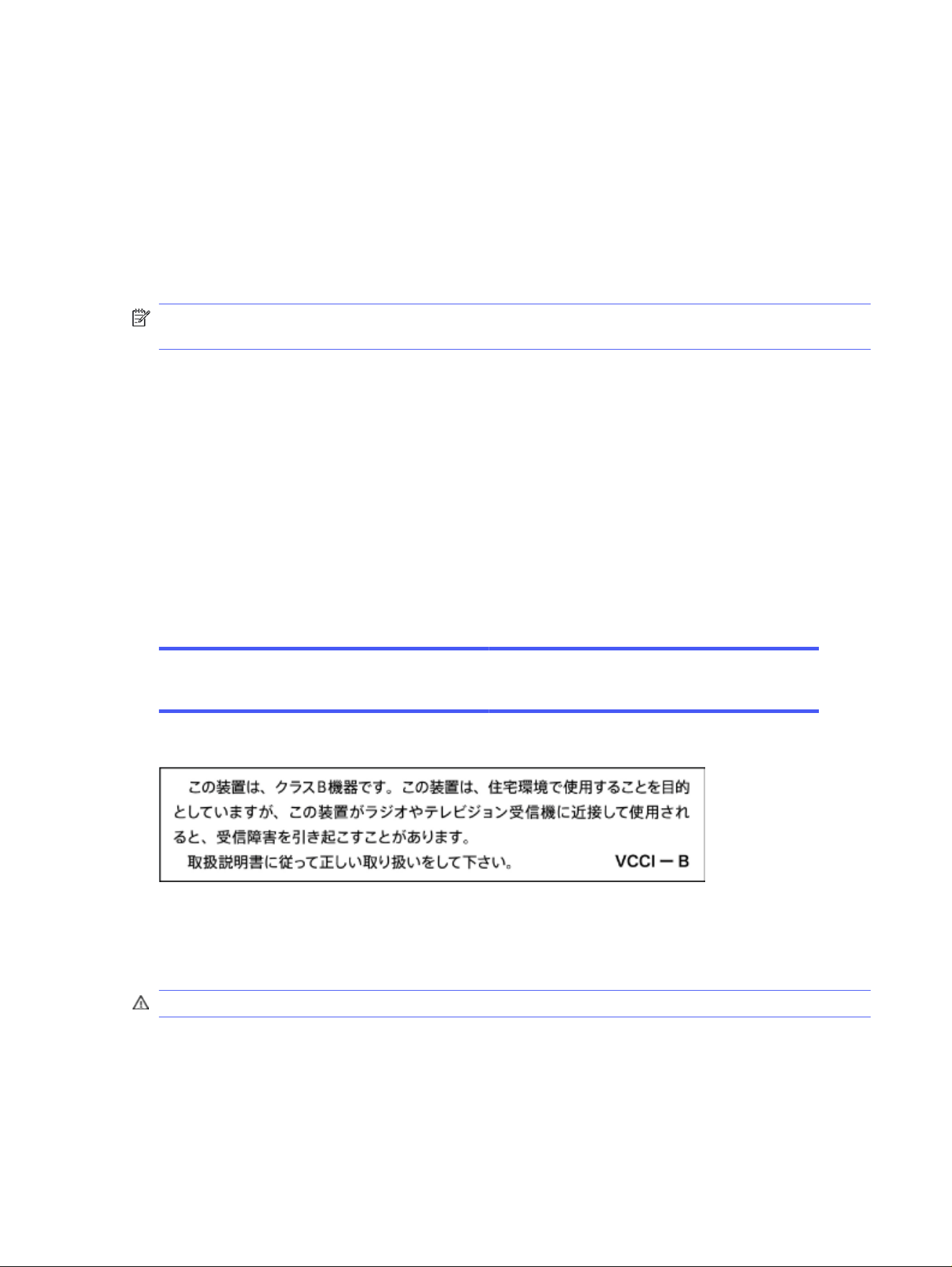
However, there is no guarantee that interference will not occur in a particular installation. If this equipment does
cause harmful interference to radio or television reception, which can be determined by turning the equipment
o and on, the user is encouraged to try to correct the interference by one or more of the following measures:
● Reorient or relocate the receiving antenna.
● Increase the separation between the equipment and the receiver.
● Connect the equipment into an outlet on a circuit dierent from that to which the receiver is connected.
● Consult the dealer or an experienced radio/TV technician for help.
NOTE: If the product has an Ethernet / LAN port with metallic casing then use of a shielded interface cable is
required to comply with the Class B limits of Part 15 of FCC rules.
Modications (part 15.21)
Any changes or modications made to this device that are not expressly approved by HP may void the user’s
authority to operate the equipment.
For further information, contact: Manager of Corporate Product Regulations, HP Inc. 1501 Page Mill Road, Palo
Alto, CA 94304, U.S.A.
This device complies with Part 15 of the FCC Rules. Operation is subject to the following two conditions: (1) this
device may not cause harmful interference, and (2) this device must accept any interference received, including
interference that may cause undesired operation.
Notice to users in Korea
해당 무선설비는 운용 중 전파혼신 가능성이 있음으로 인명안전과 관련된 서비스는 할 수 없음.
B
급 기기
(가정용 방송통신기자재)
이 기기는 가정용(B급) 전자파적합기기로서 주로 가정에
서 사용하는 것을 목적으로 하며, 모든 지역에서 사용할
수 있습니다.
VCCI (Class B) compliance statement for users in Japan
Power cord instructions
Make sure your power source is adequate for the product voltage rating. The voltage rating is on the product
label. The product uses either 100-240 Vac or 200-240 Vac and 50/60 Hz.
CAUTION: To prevent damage to the product, use only the power cord that is provided with the product.
Notice to users in Japan about the power cord
製品には、同梱された電源コードをお使い下さい。
同梱された電源コードは、他の製品では使用出来ません。
Notice to users in Korea
115

Noise emission statement for Germany
Geräuschemission
LpA < 70 dB am Arbeitsplatz im Normalbetrieb nach DIN 45635 T. 19
European Union and United Kingdom Regulatory Notice
Products bearing the CE marking and UK marking comply to applicable EU Directives and the equivalent UK
Statutory Instruments and can operate in at least one EU Member State and in United Kingdom. The full EU and
UK Declaration of Conformity can be found at the following website: hp.eu/certicates (Search with the product
model name or its Regulatory Model Number (RMN), which may be found on the regulatory label.)
The point of contact for regulatory matters:
For EU: HP REG 23010, 08028 Barcelona, Spain
For UK: HP Inc UK Ltd, Regulatory Enquiries, Earley West, 300 Thames Valley Park Drive, Reading, RG6 1PT
Email: techr[email protected]
Products with wireless functionality
EMF
This product meets international guidelines (ICNIRP) for exposure to radio frequency radiation.
If it incorporates a radio transmitting and receiving device that in normal use, a separation distance of 20 cm
ensures that radio frequency exposure levels comply with EU requirements.
Wireless functionality in Europe
For products with 802.11 b/g/n or Bluetooth radio:
● Radio frequency band: 2400-2483.5 MHz, with transmit power of 20 dBm (100 mW) or less.
For products with 802.11 a/b/g/n/ac radio:
● Radio frequency band: 2400-2483.5 MHz, with transmit power of 20 dBm (100 mW) or less.
● Radio frequency band: 5170-5330 MHz, with transmit power of 23 dBm (200 mW) or less.
● Radio frequency band: 5490-5730 MHz, with transmit power of 23 dBm (200 mW) or less.
● Radio frequency band: 5735-5835 MHz, with transmit power of 13.98 dBm (25 mW) or less.
116
Appendix ATechnical information
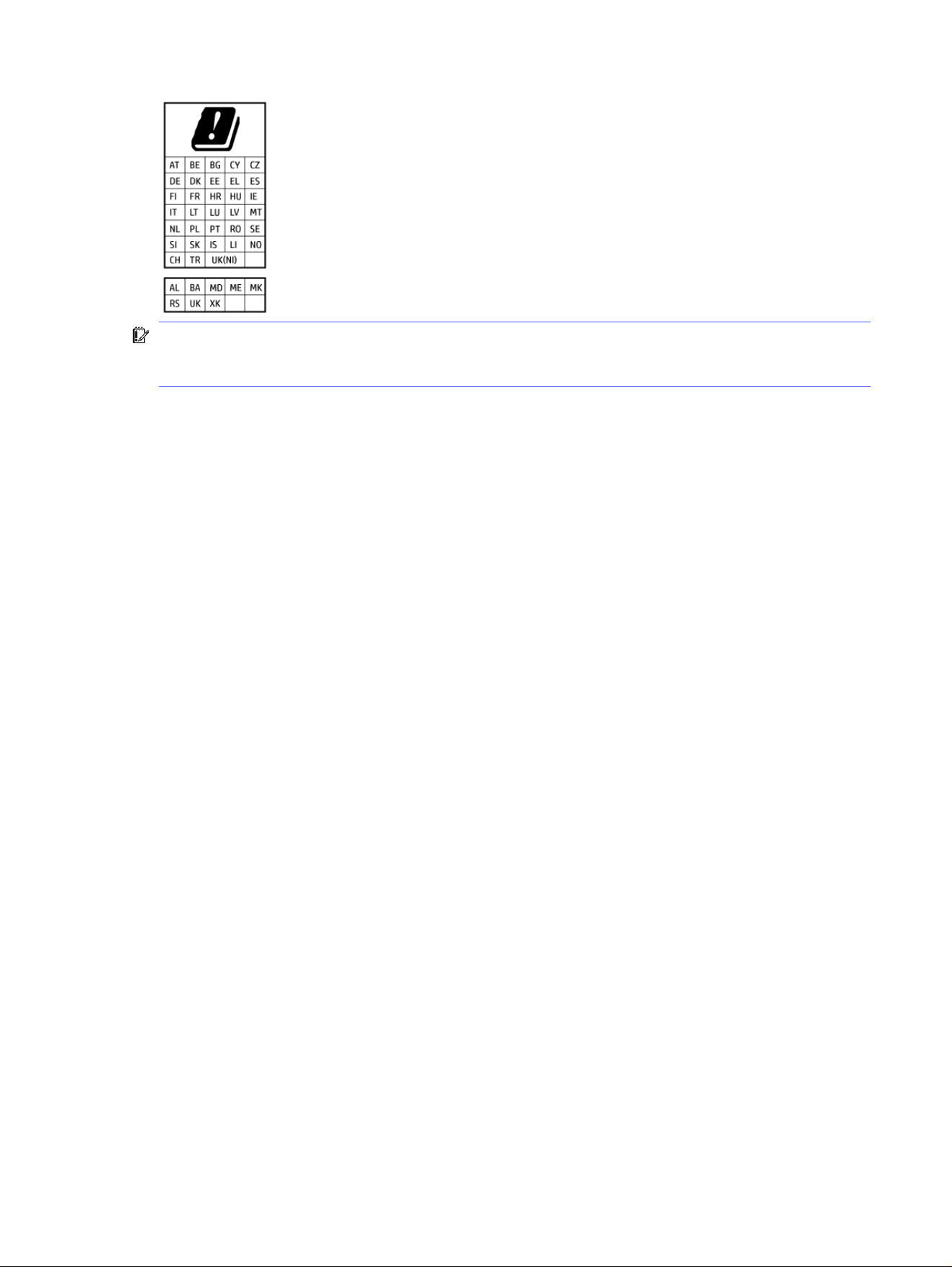
IMPORTANT: IEEE 802.11x wireless LAN with 5.17-5.33 GHz frequency band is restricted for indoor use only in
all countries reected in the matrix. Using this WLAN application outdoor might lead to interference issues with
existing radio services.
Visual display workplaces statement for Germany
GS-Erklärung (Deutschland)
Das Gerät ist nicht für die Benutzung im unmittelbaren Gesichtsfeld am Bildschirmarbeitsplatz vorgesehen.
Um störende Reexionen am Bildschirmarbeitsplatz zu vermeiden, darf dieses Produkt nicht im unmittelbaren
Gesichtsfeld platziert werden.
Notice to users of the U.S. telephone network: FCC requirements
This equipment complies with Part 68 of the FCC rules and the requirements adopted by the ACTA. On the rear
(or bottom) of this equipment is a label that contains, among other information, a product identier in the format
US:AAAEQ##TXXXX. If requested, this number must be provided to the telephone company.
Applicable connector jack Universal Service Order Codes ("USOC") for the Equipment is: RJ-11C.
A telephone cord, plug and jack used to connect this equipment to the premises wiring and telephone network
must comply with the applicable FCC Part 68 rules and requirements adopted by the ACTA. HP recommends a
compliant plug, jack and 2-wire telephone cord to connect this product to the premises wiring and telephone
network. See installation instructions for details.
The REN is used to determine the quantity of devices, which may be connected to the telephone line. Excessive
RENs on the telephone line may result in the devices not ringing in response to an incoming call. In most, but
not all, areas, the sum of the RENs should not exceed ve (5.0). To be certain of the number of devices that
may be connected to the line, as determined by the total RENs, contact the telephone company to determine the
maximum REN for the calling area. For products approved after July 23, 2001, the REN for this product is part of
the product identier that has the format US-AAAEQ##TXXXX. The digits represented by ##are the REN without
a decimal point (e.g., 01 is a REN of 0.1).
If this equipment causes harm to the telephone network, the telephone company will notify you in advance that
temporary discontinuance of service may be required. If advance notice is not practical, the telephone company
will notify the customer as soon as possible. Also, you will be advised of your right to le a complaint with the FCC
if you believe it is necessary.
The telephone company may make changes in its facilities, equipment, operations, or procedures that could
aect the operation of the equipment. If this happens, the telephone company will provide advance notice in
order for you to make the necessary modications in order to maintain uninterrupted service.
If trouble is experienced with this equipment, please contact the manufacturer, or look elsewhere in this manual,
for repair and (or) warranty information. If the equipment is causing harm to the telephone network, the
Visual display workplaces statement for Germany
117

telephone company may request that you disconnect the equipment from the network until the problem is
resolved.
Connection to Party Line Service is subject to state taris. Contact the state public utility commission, public
service commission, or corporation commission for information.
CAUTION: If your home has specially wired alarm equipment connected to the telephone line, ensure the
installation of this equipment does not disable your alarm equipment. If you have questions about what will
disable alarm equipment, consult your telephone company or a qualied installer.
WHEN PROGRAMMING EMERGENCY NUMBERS AND (OR) MAKING TEST CALLS TO EMERGENCY NUMBERS:
1. Remain on the line and briey explain to the dispatcher the reason for the call.
2. Perform such activities in the o-peak hours, such as early morning or late evening.
NOTE: The FCC hearing aid compatibility rules for telephones are not applicable to this equipment.
The Telephone Consumer Protection Act of 1991 makes it unlawful for any person to use a computer or other
electronic devices, including FAX machines, to send any message unless such message clearly contains in a
margin at the top or bottom of each transmitted page or on the rst page of the transmission, the date and
time it is sent and an identication of the business or other entity, or other individual sending the message
and the telephone number of the sending machine or such business, other entity, or individual. (The telephone
number provided may not be a 900 number or any other number for which charges exceed local or long-distance
transmission charges.)
In order to program this information into your FAX machine, you should complete the steps described in the
software.
Notice to users of the Canadian telephone network
Cet appareil est conforme aux spécications techniques des équipements terminaux d’Innovation, Science
et Développement Economique Canada. Le numéro d’enregistrement atteste de la conformité de l’appareil.
L’abréviation ISED qui précède le numéro d’enregistrement indique que l’enregistrement a été eectué dans
le cadre d’une Déclaration de conformité stipulant que les spécications techniques d’Innovation, Science et
Développement Economique Canada ont été respectées. Néanmoins, cette abréviation ne signie en aucun cas
que l’appareil a été validé par Innovation, Science et Développement Economique Canada.
Pour leur propre sécurité, les utilisateurs doivent s’assurer que les prises électriques reliées à la terre de la source
d’alimentation, des lignes téléphoniques et du circuit métallique d’alimentation en eau sont, le cas échéant,
branchées les unes aux autres. Cette précaution est particulièrement importante dans les zones rurales.
REMARQUE: Le numéro REN (Ringer Equivalence Number) attribué à chaque appareil terminal fournit une
indication sur le nombre maximal de terminaux qui peuvent être connectés à une interface téléphonique. La
terminaison d’une interface peut se composer de n’importe quelle combinaison d’appareils, à condition que le
total des numéros REN ne dépasse pas 5.
Basé sur les résultats de tests FCC Partie 68, le numéro REN de ce produit est 0.1.
This equipment meets the applicable Innovation, Science and Economic Development Canada Terminal
Equipment Technical Specications. This is conrmed by the registration number. The abbreviation ISED before
the registration number signies that registration was performed based on a Declaration of Conformity indicating
that Innovation, Science and Economic Development Canada technical specications were met. It does not imply
that Innovation, Science and Economic Development Canada approved the equipment.
118
Appendix ATechnical information

Users should ensure for their own protection that the electrical ground connections of the power utility,
telephone lines and internal metallic water pipe system, if present, are connected together. This precaution
might be particularly important in rural areas.
NOTE: The Ringer Equivalence Number (REN) assigned to each terminal device provides an indication of
the maximum number of terminals allowed to be connected to a telephone interface. The termination on an
interface might consist of any combination of devices subject only to the requirement that the sum of the Ringer
Equivalence Numbers of all the devices does not exceed 5.
The REN for this product is 0.1, based on FCC Part 68 test results.
Notice to users of the German telephone network
Hinweis für Benutzer des deutschen Telefonnetzwerks
Dieses HP-Fax ist nur für den Anschluss eines analogen Public Switched Telephone Network (PSTN) gedacht.
Schließen Sie den TAE N-Telefonstecker, der im Lieferumfang des HP All-in-One enthalten ist, an die
Wandsteckdose (TAE 6) Code N an. Dieses HP-Fax kann als einzelnes Gerät und/oder in Verbindung (mit seriellem
Anschluss) mit anderen zugelassenen Endgeräten verwendet werden.
Australia wired fax statement
In Australia, the HP device must be connected to Telecommunication Network through a line cord which meets
the requirements of the Technical Standard AS/ACIF S008.
Regulatory information for wireless products
This section contains the following regulatory information pertaining to wireless products:
Exposure to radio frequency radiation
CAUTION: The radiated output power of this device is far below the FCC radio frequency exposure limits.
Nevertheless, the device shall be used in such a manner that the potential for human contact during normal
operation is minimized. This product and any attached external antenna, if supported, shall be placed in such a
manner to minimize the potential for human contact during normal operation. In order to avoid the possibility of
exceeding the FCC radio frequency exposure limits, human proximity to the antenna shall not be less than 20 cm
(8 inches) during normal operation.
Notice to users in Canada (5GHz)
CAUTION: When using IEEE 802.11a wireless LAN, this product is restricted to indoor use, due to its operation
in the 5.15- to 5.25-GHz frequency range. The Innovation, Science and Economic Development Canada requires
this product to be used indoors for the frequency range of 5.15 GHz to 5.25 GHz to reduce the potential for
harmful interference to co-channel mobile satellite systems. High-power radar is allocated as the primary user
of the 5.25- to 5.35-GHz and 5.65- to 5.85-GHz bands. These radar stations can cause interference with and/or
damage to this device.
ATTENTION: Lors de l'utilisation du réseau local sans l IEEE 802.11a, ce produit se limite à une utilisation
en intérieur à cause de son fonctionnement sur la plage de fréquences de 5,15 à 5,25 GHz. Innovation, Science
et Développement Economique Canada stipule que ce produit doit être utilisé en intérieur dans la plage de
fréquences de 5,15 à 5,25 GHz an de réduire le risque d'interférences éventuellement dangereuses avec les
systèmes mobiles par satellite via un canal adjacent. Le radar à haute puissance est alloué pour une utilisation
principale dans une plage de fréquences de 5,25 à 5,35 GHz et de 5,65 à 5,85 GHz. Ces stations radar peuvent
provoquer des interférences avec cet appareil et l'endommager.
Notice to users of the German telephone network
119

Notice to users in Taiwan (5 GHz)
應避免影響附近雷達系統之操作。
高增益指向性天線只得應用於固定式點對點系統。
Notice to users in Serbia (5 GHz)
Upotreba ovog uredjaja je ogranicna na zatvorene prostore u slucajevima koriscenja na frekvencijama od
5150-5350 MHz.
Notice to users in Thailand (5GHz)
เครื่องวิทยุคมนาคมนี้มีระดับการแผ่คลื่นแม่เหล็กไฟฟ้ าสอดคล้องตามมาตรฐานความปลอดภัยต่อสุขภาพของมนุษย์จากการ
ใช้เครื่องวิทยุคมนาคมที่คณะกรรมการกิจการโทรคมนาคมแห่งชาติประกาศกําหน
This radio communication equipment has the electromagnetic eld strength in compliance with the Safety
Standard for the Use of Radio Communication Equipment on Human Health announced by the National
Telecommunications Commission.
Notice to users in Brazil
Este equipamento opera em caráter secundário, isto é, não tem direito à proteção contra interferência prejudicial,
mesmo de estações do mesmo tipo, e não pode causar interferência em sistemas operando em caráter primário.
Este equipamento não tem direito à proteção contra interferência prejudicial e não pode causar interferência em
sistemas devidamente autorizados.
Para obter mais informações, verique o site da ANATEL anatel.gov.br.
Notice to users in Canada
Under Innovation, Science and Economic Development Canada regulations, this radio transmitter may only
operate using an antenna of a type and maximum (or lesser) gain approved for the transmitter by Innovation,
Science and Economic Development Canada. To reduce potential radio interference to other users, the antenna
type and its gain should be so chosen that the equivalent isotropically radiated power (e.i.r.p.) is not more than
that necessary for successful communication.
This device complies with Innovation, Science and Economic Development Canada licence-exempt RSS
standard(s). Operation is subject to the following two conditions: (1) this device may not cause interference,
and (2) this device must accept any interference, including interference that may cause undesired operation of
the device.
WARNING! Exposure to Radio Frequency Radiation. The radiated output power of this device is below the
Innovation, Science and Economic Development Canada radio frequency exposure limits. Nevertheless, the
device should be used in such a manner that the potential for human contact is minimized during normal
operation.
To avoid the possibility of exceeding the Innovation, Science and Economic Development Canada radio frequency
exposure limits, human proximity to the antennas should not be less than 20 cm (8 inches).
Conformément au Règlement d'Innovation, Science et Développement Economique Canada, cet émetteur
radioélectrique ne peut fonctionner qu'avec une antenne d'un type et d'un gain maximum (ou moindre) approuvé
par Innovation, Science et Développement Economique Canada. An de réduire le brouillage radioélectrique
potentiel pour d'autres utilisateurs, le type d'antenne et son gain doivent être choisis de manière à ce que la
puissance isotrope rayonnée équivalente (p.i.r.e.) ne dépasse pas celle nécessaire à une communication réussie.
Cet appareil est conforme aux normes RSS exemptes de licence d'Innovation, Science et Développement
Economique Canada. Son fonctionnement dépend des deux conditions suivantes : (1) cet appareil ne doit
120
Appendix ATechnical information

pas provoquer d'interférences nuisibles et (2) doit accepter toutes les interférences reçues, y compris des
interférences pouvant provoquer un fonctionnement non souhaité de l'appareil.
AVERTISSEMENT relatif à l'exposition aux radiofréquences. La puissance de rayonnement de cet appareil se
trouve sous les limites d'exposition de radiofréquences d'Innovation, Science et Développement Economique
Canada. Néanmoins, cet appareil doit être utilisé de telle sorte qu'il doive être mis en contact le moins possible
avec le corps humain.
An d'éviter le dépassement éventuel des limites d'exposition aux radiofréquences d'Innovation, Science et
Développement Economique Canada, il est recommandé de maintenir une distance de plus de 20 cm entre les
antennes et l'utilisateur.
Notice to users in Taiwan Region
取得審驗證明之低功率射頻器材,非經核准,公司、商號或使用者均不得擅自變
更頻率、加大功率或變更
原設計之特性及功能。低功率射頻器材之使用不得影響 飛航安全及干擾合法通信;經發現有干擾現象時,
應立即停用,並改善至無干擾 時方得繼續使用。前述合法通信,指依電信管理法規定作業之無線電通信。
低功 率射頻器材須忍受合法通信或工業、科學及醫療用電波輻射性電機設備之干擾。
Notice to users in Mexico
La operación de este equipo está sujeta a las siguientes dos condiciones: (1) es posible que este equipo o
dispositivo no cause interferencia perjudicial y (2) este equipo o dispositivo debe aceptar cualquier interferencia,
incluyendo la que pueda causar su operación no deseada.
Para saber el modelo de la tarjeta inalámbrica utilizada, revise la etiqueta regulatoria de la impresora.
Notice to users in Japan
この機器は技術基準適合証明又は工事設計認証を受けた無線設備を搭載しています。
Dynamic Security Enabled Printers
This printer is intended to work only with cartridges that have a new or reused HP chip. A reused HP chip enables
the use of reused, remanufactured, and relled cartridges.
The printer uses dynamic security measures to block cartridges using a non-HP chip. Periodic rmware updates
delivered over the internet will maintain the eectiveness of the dynamic security measures and block cartridges
that previously worked.
Updates can improve, enhance, or extend the printer’s functionality and features, protect against security threats,
and serve other purposes, but these updates can also block cartridges using a non-HP chip from working in
the printer, including cartridges that work today. Unless you are enrolled in certain HP programs such as Instant
Ink or use other services that require automatic online rmware updates, most HP printers can be congured
to receive updates either automatically or with a notication that allows you to choose whether to update or
not. For more information on dynamic security and how to congure online rmware updates, please go to
www.hp.com/learn/ds.
Accessibility
Learn more about our eorts to create accessible products, share your story, or connect with customer support
for accessibility help all at:
hp.com/accessibility
For more information about the accessibility of your printer, please visit hp.com/support/inkjet/accessibility
Notice to users in Taiwan Region
121

Environmental product stewardship program
HP is committed to providing quality products in an environmentally sound manner. Design for recycling has
been incorporated into this product. The number of materials has been kept to a minimum while ensuring
proper functionality and reliability. Dissimilar materials have been designed to separate easily. Fasteners and
other connections are easy to locate, access, and remove using common tools. High priority parts have been
designed to access quickly for eicient disassembly and repair. For more information, visit HP'sCommitment to
the Environment website at:
hp.com/sustainableimpact
HP tips for reducing environmental impact
● Choose from a wide variety of HP papers with FSC
®
or PEFC
TM
certication, which indicates that the paper
pulp came from a reputable and well-managed source.
1
● Conserve resources-look for paper made with recycled content.
● Recycle your Original HP cartridges-it's easy and free with the HP Planet Partners program, available in 47
countries and territories worldwide.
2
● Save paper by printing on both sides of the page.
● Conserve energy by choosing ENERGY STAR
®
certied HP products.
● Lower your carbon footprint-all HP printers include power management settings that help you control
energy use.
● Discover more ways HP and our customers are reducing environmental impact at HP EcoSolutions.
1
HP papers certied under FSC®C017543 or PEFC™TMPEFC/29-13-198.
2
Program availability varies. Original HP cartridge return and recycling is currently available in more than
50 countries, territories, and regions in Asia, Europe, and North and South America through the HP Planet
Partners program. For more information, visit: hp.com/recycle.
Eco-Tips
HP is committed to helping customers reduce their environmental footprint. Please visit the HP Eco Solutions
website for more information on HP’s environmental initiatives.
hp.com/sustainableimpact
Paper
This product is suited for the use of recycled paper according to DIN 19309 and EN 12281:2002.
Plastics
Plastic parts over 25 grams are marked according to international standards that enhance the ability to identify
plastics for recycling purposes at the end of product life.
European Union Commission Regulation 1275/2008
For product power data, including the power consumption of the product in networked standby if all wired
network ports are connected and all wireless network ports are activated, please refer to section P15 ‘Additional
122
Appendix ATechnical information

Information’ of the product IT ECO Declaration at hp.com/us-en/hp-information/sustainable-impact/document-
reports.html.
Safety data sheets
Safety Data Sheets, product safety and environmental information are available at hp.com/go/ecodata or on
request.
Chemical substances
HP is committed to providing our customers with information about the chemical substances in our products
as needed to comply with legal requirements such as REACH (Regulation EC No 1907/2006 of the European
Parliament and the Council). A chemical information report for this product can be found at: hp.com/go/reach.
EPEAT
Most HP products are designed to meet EPEAT. EPEAT is a comprehensive environmental rating that helps
identify greener electronics equipment. For more information on EPEAT go to epeat.net.
Click here for information on HP's EPEAT registered products.
SEPA Ecolabel User Information (China)
中国
环境标识认证产品用户说明
噪声大于 63.0 dB(A) 的办公设备不宜放置于办公室内,请在独立的隔离区域使用。
如需长时间使用本产品或打印大量文件,请确保在通风良好的房间内使用。
如您需要确认本产品处于零能耗状态,请按下电源关闭按钮,并将插头从电源插座断开。
您可以使用再生纸,以减少资源耗费。
Recycling program
HP oers an increasing number of product return and recycling programs in many countries/regions, and
partners with some of the largest electronic recycling centers throughout the world. HP conserves resources by
reselling some of its most popular products. For more information regarding recycling of HP products, please
visit: hp.com/recycle
HPinkjet supplies recycling program
HP is committed to protecting the environment. The HPInkjet Supplies Recycling Program is available in
many countries/regions, and lets you recycle used print cartridges and ink cartridges free of charge. For more
information, go to the following website: hp.com/recycle
Safety data sheets 123

Battery disposal in Taiwan
California Perchlorate Material Notice
Perchlorate material - special handling may apply. See: dtsc.ca.gov/hazardouswaste/perchlorate
This product's real-time clock battery or coin cell battery may contain perchlorate and may require special
handling when recycled or disposed of in California.
European Union Battery Directive
This product contains a battery that is used to maintain data integrity of real time clock or product settings and is
designed to last the life of the product. Any attempt to service or replace this battery should be performed by a
qualied service technician.
Battery notice for Brazil
A bateria deste equipamento nao foi projetada para ser removida pelo cliente.
Power consumption
HP printing and imaging equipment marked with the ENERGY STAR® logo is certied by the U.S. Environmental
Protection Agency. The following mark will appear on ENERGY STAR certied imaging products:
Additional ENERGY STAR certied imaging product model information is listed at: hp.com/go/energystar
China Energy Label for Printer, Fax and Copier
复印机、打印机和传真机能源效率标识实施规则
依据“复印机、打印机和传真机能源效率标识实施规则”,该打印机具有中国能效标识。标识上显示的能效
等级和操作模式值根据“复印机、打印机和传真机能效限定值及能效等级”标准(“GB 21521”)来确定和计
算。
124
Appendix ATechnical information

1. 能效等级
产品能效等级分 3 级,其中 1 级能效最高。能效限定值根据产品类型和打印速度由标准确定。能效等
级则根据基本功耗水平以及网络接口和内存等附加组件和功能的功率因子之和来计算。
2. 能效信息
喷墨打印机
● 操作模式功率
睡眠状态的能耗按照 GB 21521 的标准来衡量和计算。该数据以瓦特 (W) 表示。
● 待机功率
待机状态是产品连接到电网电源上功率最低的状态。该状态可以延续无限长时间,且使用者无法
改变此状态下产品的功率。对于“成像设备”产品,“待机”状态通常相当于“关闭”状态,但也可能相
当于“准备”状态或者“睡眠”状态。该数据以瓦特 (W) 表示。
● 睡眠状态预设延迟时间
出厂前由制造商设置的时间决定了该产品在完成主功能后进入低耗模式(例如睡眠、自动关机)
的时间。该数据以分钟表示。
● 附加功能功率因子之和
网络接口和内存等附加功能的功率因子之和。该数据以瓦特 (W) 表示。
标识上显示的能耗数据是根据典型配置测量得出的数据,此类配置包含登记备案的打印机依据复印机、
打印机和传真机能源效率标识实施规则所选的所有配置。因此,该特定产品型号的实际能耗可能与标识
上显示的数据有所不同。
要了解规范的更多详情,请参考最新版的 GB 21521 标准。
Disposal of waste equipment by users
This symbol means do not dispose of your product with your other household waste. Instead, you should protect
human health and the environment by handing over your waste equipment to a designated collection point for
the recycling of waste electrical and electronic equipment. For more information, please contact your household
waste disposal service, or go to hp.com/recycle.
Disposal of waste equipment by users
125

Waste disposal for Brazil
Este produto eletrônico e seus componentes não devem ser descartados no lixo comum, pois embora estejam
em conformidade com padrões mundiais de restrição a substâncias nocivas, podem conter, ainda que em
quantidades mínimas, substâncias impactantes ao meio ambiente. Ao nal da vida útil deste produto, o usuário
deverá entregá-lo à HP. A não observância dessa orientação sujeitará o infrator às sanções previstas em lei.
Após o uso, as pilhas e/ou baterias dos produtos HP deverão ser entregues ao estabelecimento comercial ou
rede de assistência técnica autorizada pela HP.
Para maiores informações, inclusive sobre os pontos de recebimento, acesse: hp.com.br/reciclar
126 Appendix ATechnical information
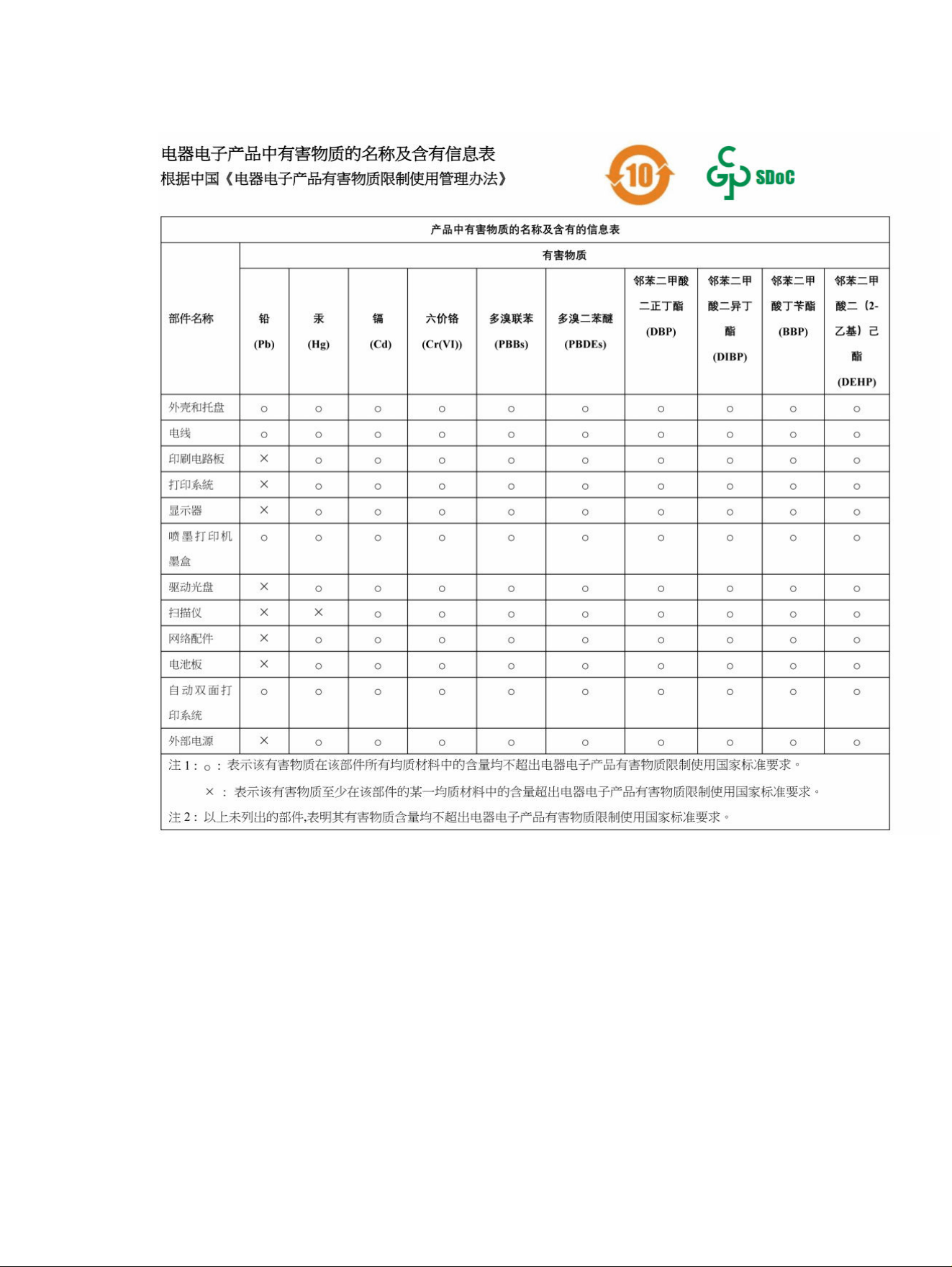
The Table of Hazardous Substances/Elements and their Content (China)
Regulation on the Control of Waste Electrical and Electronic Equipment (Turkey)
Türkiye Cumhuriyeti: AEEE Yönetmeliğine uygundur
Restriction of hazardous substance (India)
This product, as well as its related consumables and spares, complies with the reduction in hazardous substances
provisions of the "India E-waste (Management and Handling) Rule 2016." It does not contain lead, mercury,
hexavalent chromium, polybrominated biphenyls or polybrominated diphenyl ethers in concentrations exceeding
0.1 weight % and 0.01 weight % for cadmium, except for where allowed pursuant to the exemptions set in
Schedule 2 of the Rule.
The Table of Hazardous Substances/Elements and their Content (China)
127
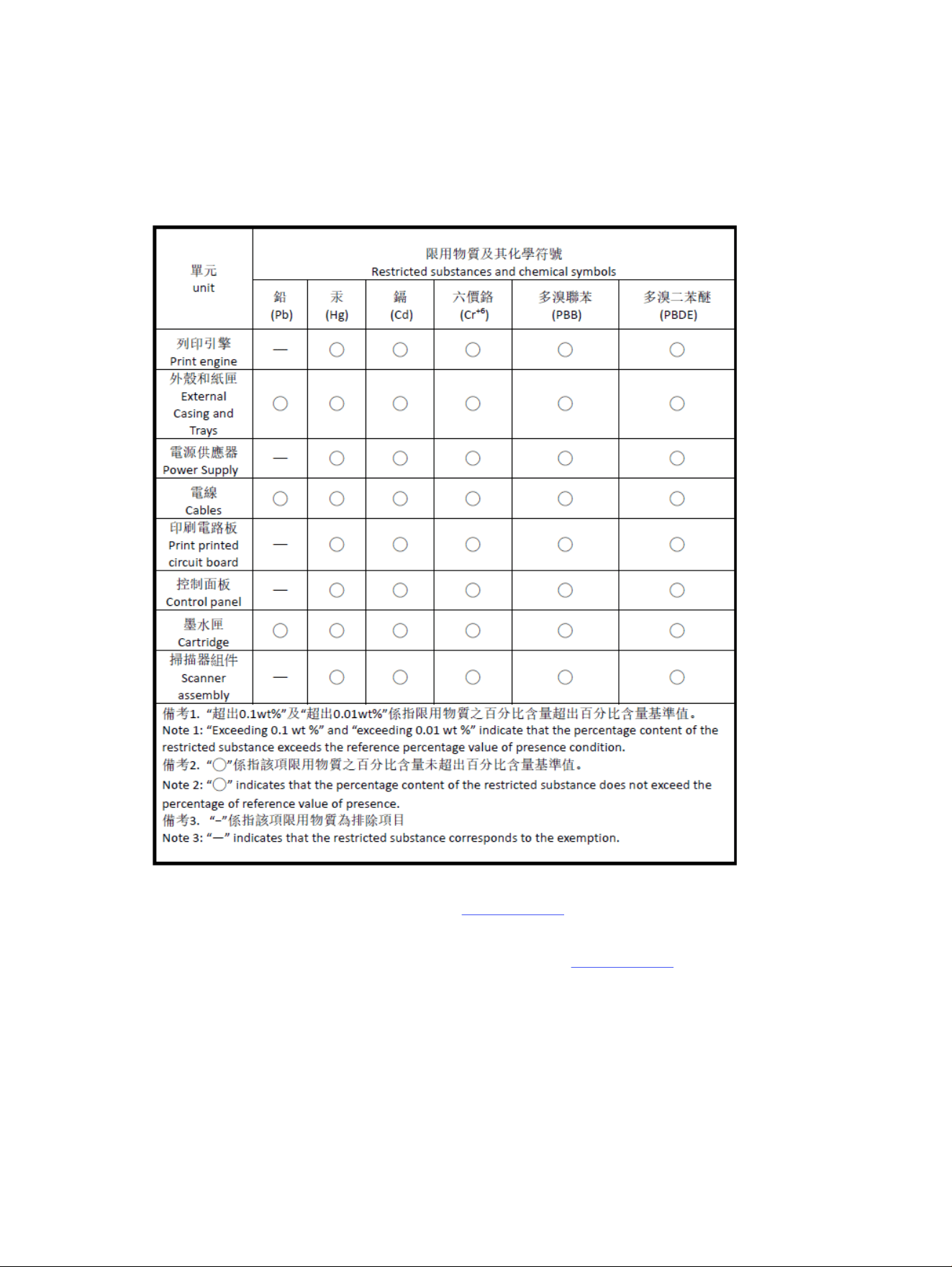
Declaration of the Presence Condition of the Restricted Substances Marking (Taiwan
Region)
限用物質含有情況標示聲明書
Taiwan Declaration of the Presence Condition of the Restricted Substances Marking
若要存取產品的最新使用指南或手冊,請前往 hp.com/support。選取搜尋您的產品,然後依照 畫 面上的指
示繼續執行。
To access the latest user guides or manuals for your product, go to hp.com/support. Select Find your product,
and then follow the on-screen instructions.
128
Appendix ATechnical information