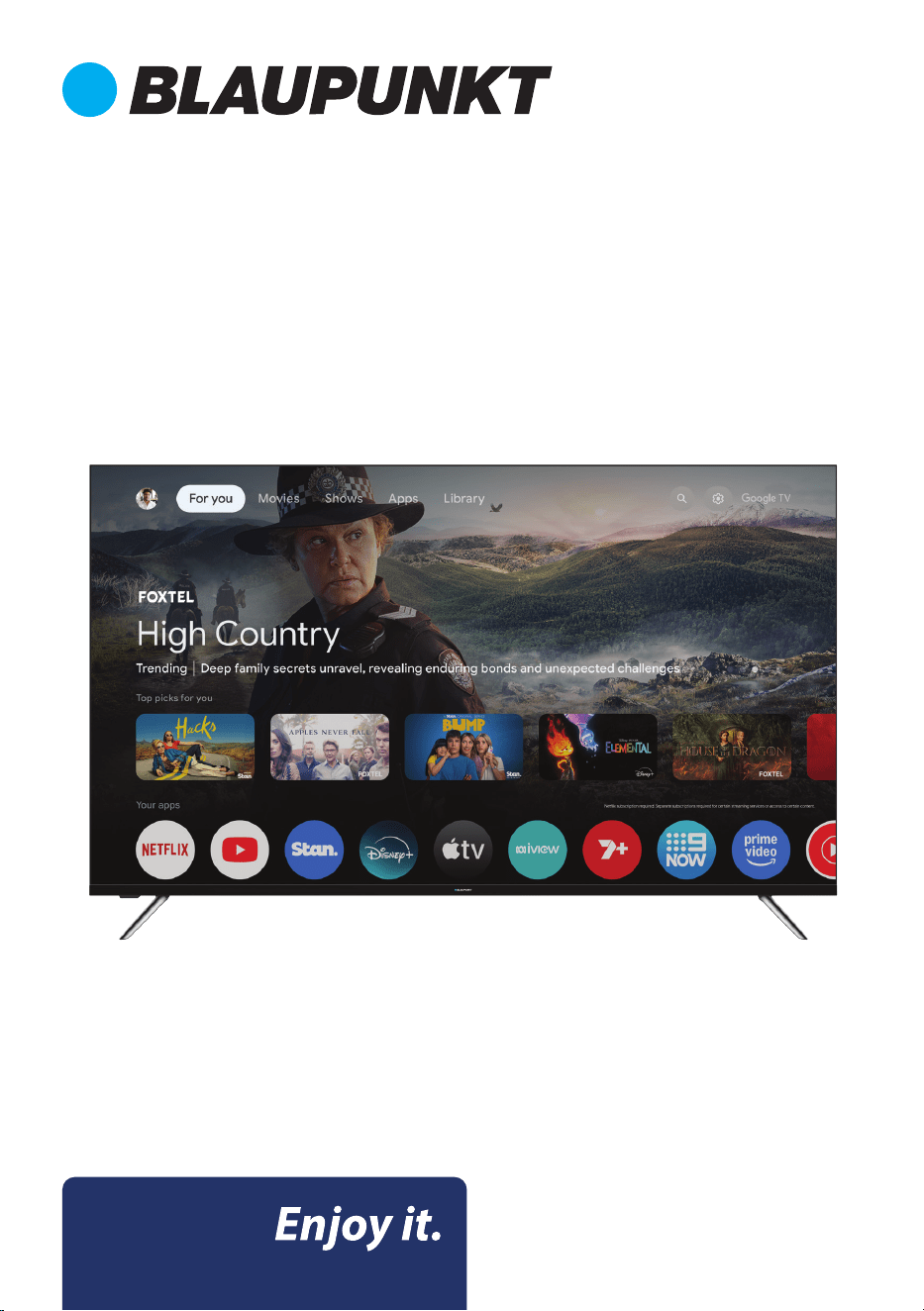
Instruction Manual
55” MiniLED 4K Ultra HD Smart TV - BP550USG60100


CONTENTS
General Safety 4
Installation 8
Wall Mounting Instructions 9
Controls and Connections 10
Remote Control 12
Initial Setup 15
Wi-Fi 17
Google 17
Acceptance - Terms of Service 18
Google Assistant Setup 19
Channel Installation 22
Google TV™ 23
Dashboard 24
Google Assistant 25
MENU 26
Display 27
Sound 28
System 29
About 30
Parental Control 31
FAQs 32
Specifications 34
Customer Helpline Last Page
4
Read this manual thoroughly before you start using the TV.
Store this manual, the completed warranty card, your receipt and the product packaging.
The safety precautions instructions reduces the risk of fire, electric shock and injury when
correctly complied to.
Please follow all instructions and take notice of all warnings.
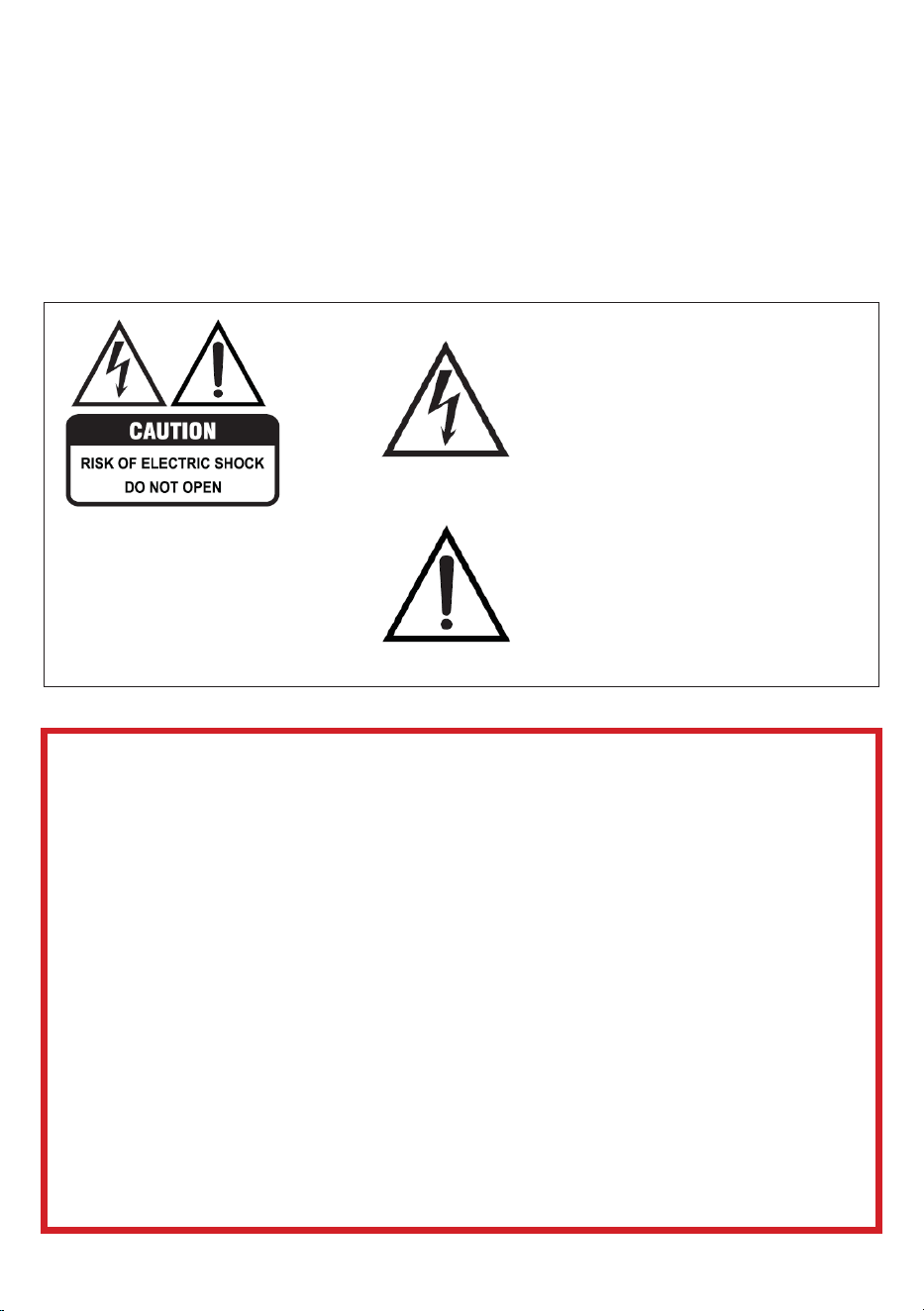
The lightning flash symbol within the triangle is intended to warn you of
non-insulated dangerous voltage the product’s enclosure that could be of sucient
magnitude to generate a risk of electric shock to persons.
• Using Cabinets or stands recommended by the manufacturer of the television.
• Only using furniture that can safely support the Products.
• Ensure the Product is not overhanging the edge of the supporting furniture.
• Do not place the product on a high furniture without securing both the furniture
and the product to a stable support.
• Do not place the product on cloth or other conductive materials.
• Warn children of the dangers of climbing on furniture to reach the television
or its controls and to call for an adult to assist.
IMPORTANT INFORMATION
The lightning flash with symbol within the
triangle is intended to warn you of a
non-insulated dangerous voltage in the
product’s enclosure that could be of
sucient magnitude to generate a risk of
electric shock to persons.
The exclamation point within the triangle
is intended to warn you to the presence
of important operating and maintenance
instructions in the documents included with
the product.
The cover (or back) of the unit should
not be removed to prevent risk of electric
shock.
This unit must be serviced by a qualified
service personnel only.
GENERAL SAFETY
5
Installation
Please follow instruction when installing this product in accordance with the instruction
manual. This product must be positioned in a suciently stable location, it can be
potentially hazardous due to falling and can cause injury, particularly to children if it
positioned incorrectly.
• Before installing this TV set, make sure your outlet voltage corresponds to the voltage
stated on the product rating label
• Do not use a damaged power cord, plug or loose outlet. Doing so may cause an
electric shock.
• Do not plug several devices into the same outlet. Doing so may cause the outlet to
overheat and start a fire. Make sure the outlet is readily accessible during operation
of the equipment.
• Do not bend, twist or kink the power cord excessively.
• Do not allow anything to rest on or roll over the power cord and antenna cable.
Doing so may cause a fire or an electric shock.
• Do not run the power cord near heat-producing appliances such as radiators, stoves or
irons. The excessive heat could melt the insulation and expose live wires, resulting in
fire or electric shock.
• Unplug this TV during lightning storms or when unused for long periods of time.
Not doing so may result in fire or electric shock.
• Do not cover the ventilation openings of the product with items such as newspapers,
tablecloths, curtains etc or insert objects into the slots available on the products.
As this could result in the product temperature rising and could cause a fire.
• If you notice any unusual odors or smoke around the unit, immediately disconnect the
unit from the outlet and contact the service center. Failure to do so may result in fire
or electric shock.
• When not using the unit for long periods of time or when you are moving the unit
please ensure to disconnect the power cord from the wall socket.
• Do not expose this appliance to rain or moisture as it may result in fire or an
electric shock hazard
• Do not tamper or change or modify the product in any way.
• Only use Accessories outlined and recommended by the manufacturer.
• Please do not expose the product to splashing or water contact
• Please do not place any object on top of the product including objects filled with liquids
such as vases.
• Danger of explosion if battery is incorrectly placed. Replace with same or equivalent type.
IMPORTANT INFORMATION
GENERAL SAFETY (CONT.)
6
If a television is not positioned in a suciently stable location, it can be potentially
hazardous due to falling. Many injuries, particularly to children, can be avoided by taking sim-
ple precautions such as:
• Using cabinets or stands recommended by the manufacturer of the television.
• Only using furniture that can safely support the television.
• Ensuring the television is not overhanging the edge of the supporting furniture.
• Not placing the television on tall furniture (for example, cupboards or bookcases)
without anchoring both the furniture and the television to a suitable support.
• Not standing the television on cloth or other materials placed between the television
and supporting furniture.
• Educating children about the dangers of climbing on furniture to reach the television
or its controls.
It is STRONGLY RECOMMENDED that you ANCHOR this product.
Toppling furniture and TV’s can cause serious injury or death.
TO HELP AVOID ANY SERIOUS OR FATAL INJURY, WE STRONGLY RECOMMEND THAT THIS
PRODUCT BE PERMANENTLY FIXED TO THE WALL OR OTHER SUITABLE SURFACE. FIXING
DEVICES ARE NOT INCLUDED SINCE DIFFERENT SURFACE MATERIALS REQUIRE DIFFERENT
ATTACHMENTS. PLEASE SEEK PROFESSIONAL ADVICE IF YOU ARE IN DOUBT WHAT
FIXING DEVICE TO USE.
WARNING!
GENERAL SAFETY (CONT.)
• Please beware that Dust could accumulate over time on the unit and cause it to generate
heat and or deteriorate insulation, which in turn may result in an electrical fire.
• The product is not intended for use by persons (including children) with reduced physical,
sensory or mental capabilities, or young children of any age, They must be supervised
product by a person responsible for their safety.
• Batteries from the remote control must be only removed by an adult, the adult must
ensure to keep them out of reach of infants and children. Seek medical attention
immediately if a child has swallowed a battery.
• Batteries (battery pack or batteries installed) shall not be exposed to excessive heat such
as sunshine, fire or the like.
• To maintain the product do not use any chemical or cleaning agent or wet cloth, please
only ensure to utilize a dry cloth to wipe it down from marks or dust and only after
unplugging the product from the power socket.
• Please ensure to contact our call center for any repair or service required for the products.
• Make sure to always carry TV from the sides, always be sure to have assistance by another
person. Do not carry the TV from the middle.

7
This symbol indicates that the appliance has double insulation between the
dangerous mains voltage and the parts accessible to the user. In the event of
repairs use only identical spare parts.
Please make sure upon positioning this product, the place is:
• Not wet or damp and Well ventilated
• Away from direct sunlight or heaters.
• Away from splashes or food.
• Protected from excessive dust or grease.
• Do not install this equipment in a confined space such as a bookcase or similar unit.
• Do not install the TV set near heat sources such as radiators, stoves or other audio
visual equipment that produce heat.
• Do not place containers with liquids, if liquid falls inside the products it may result in
short-circuit, fire or electric shock.
• Do not place small metallic objects on top of the unit. Metal object falls inside the
product it may result in short-circuit, fire or electric shock.
• Do not use or store flammable or combustible materials near the unit. Doing so may
result in fire or explosion. Do not place any naked flame sources, such as lit candles,
cigarettes or incense sticks on top of the TV set.
• The antenna must be installed away from high-voltage power line,
• Please contact an antenna professional installer to install the antenna to avoid
incorrect installation which could result in fire, electric shock or serious injury.
• Install the unit at a reasonable distance from the wall to ensure sucient ventilation.
• If mains plug or an appliance coupler is used as the disconnect device, the disconnect
device shall remain readily operable.
GENERAL SAFETY (CONT.)
The terms HDMI, HDMI High-Definition Multimedia
Interface, HDMI Trade dress and the HDMI Logo are
trademarks or registered trademarks of HDMI Licensing
Administrator, Inc.
8
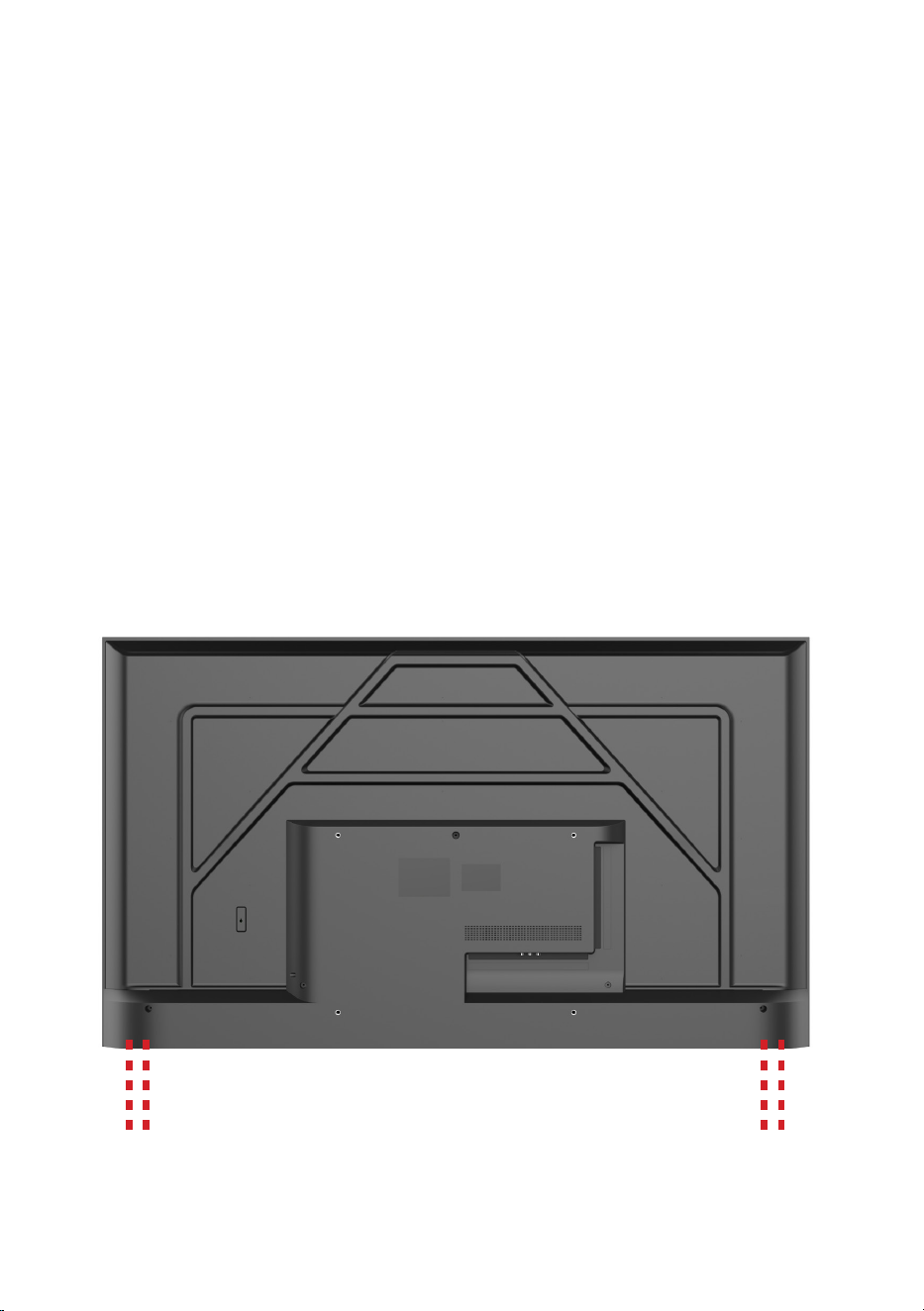
Install the stand as described below, or if you want to mount it to a wall, please contact a
professional installer.
Please ensure the TV is not plugged into the wall socket and furthermore we recommend
to get another person to assist in the following task.
Attaching the stand
Step 1
Place a soft cushioned material on top of a flat surface to prevent damaging the screen
panel. Then place the TV screen flat on top, with the screen side facing down, as
illustrated on the right.
Step 2
Align the stand leg to the installation point, as illustrated below.
Step 3
Tighten the screws (supplied) with a screwdriver to ax the stand to the panel, as
illustrated on the right.
CAUTION!
Do not apply excessive force as this may damage the screw holes.
INSTALLATION
9
Wall-Mounting Instructions
Please ensure the TV is not plugged into the wall socket and furthermore we recommend
to get another person to assist in the following task.
• We recommend you use a professional installer as we assume no liability for any eventual
damage to the product or injury to yourself if you mount the TV on your own.
NOTE: If you are wall-mounting the TV, this should be done by a qualified installer.
INSTALLATION (CONT.)
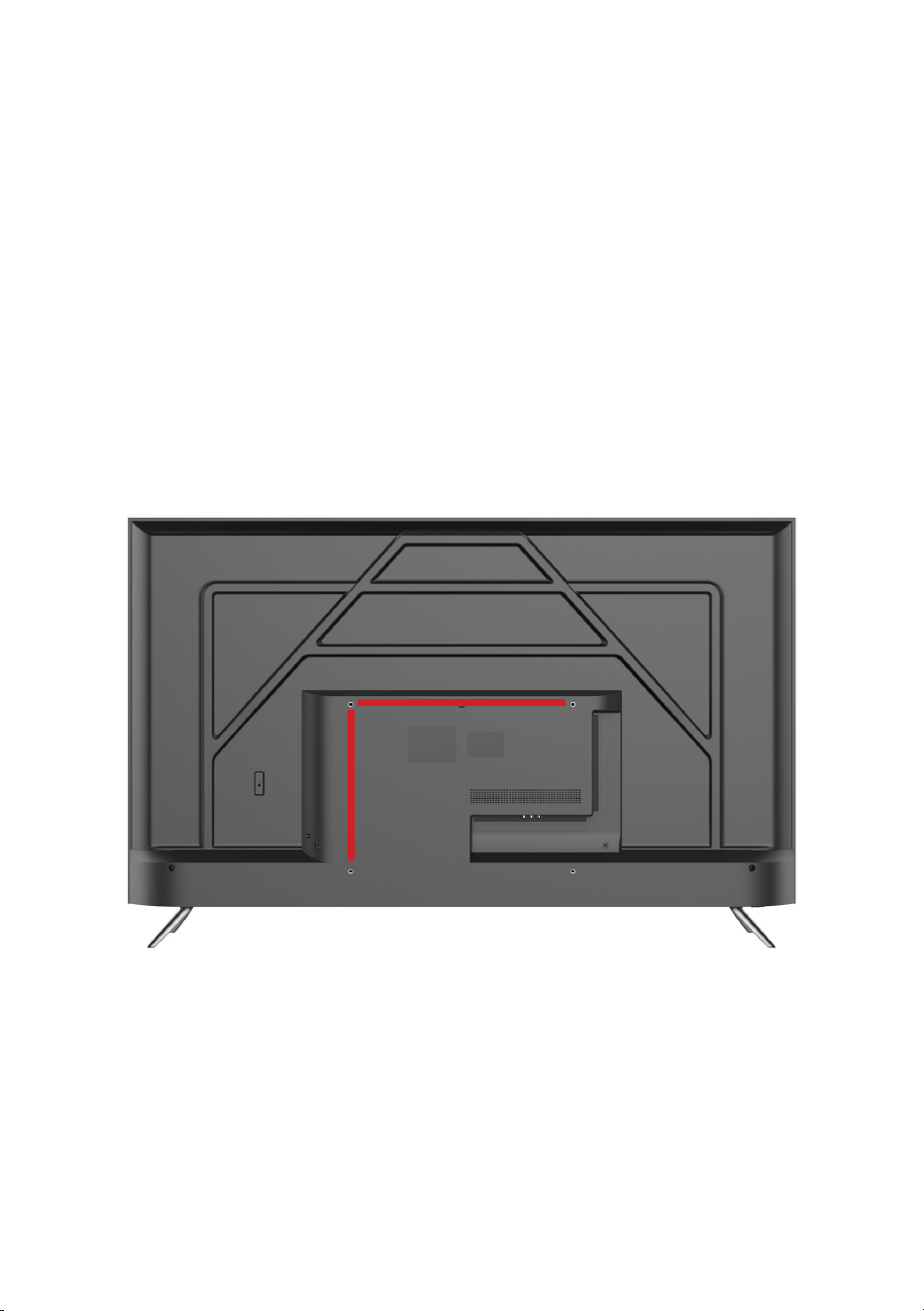
BACK OF TV
VESA PATTERN: 400(w) x 300(h) mm
10
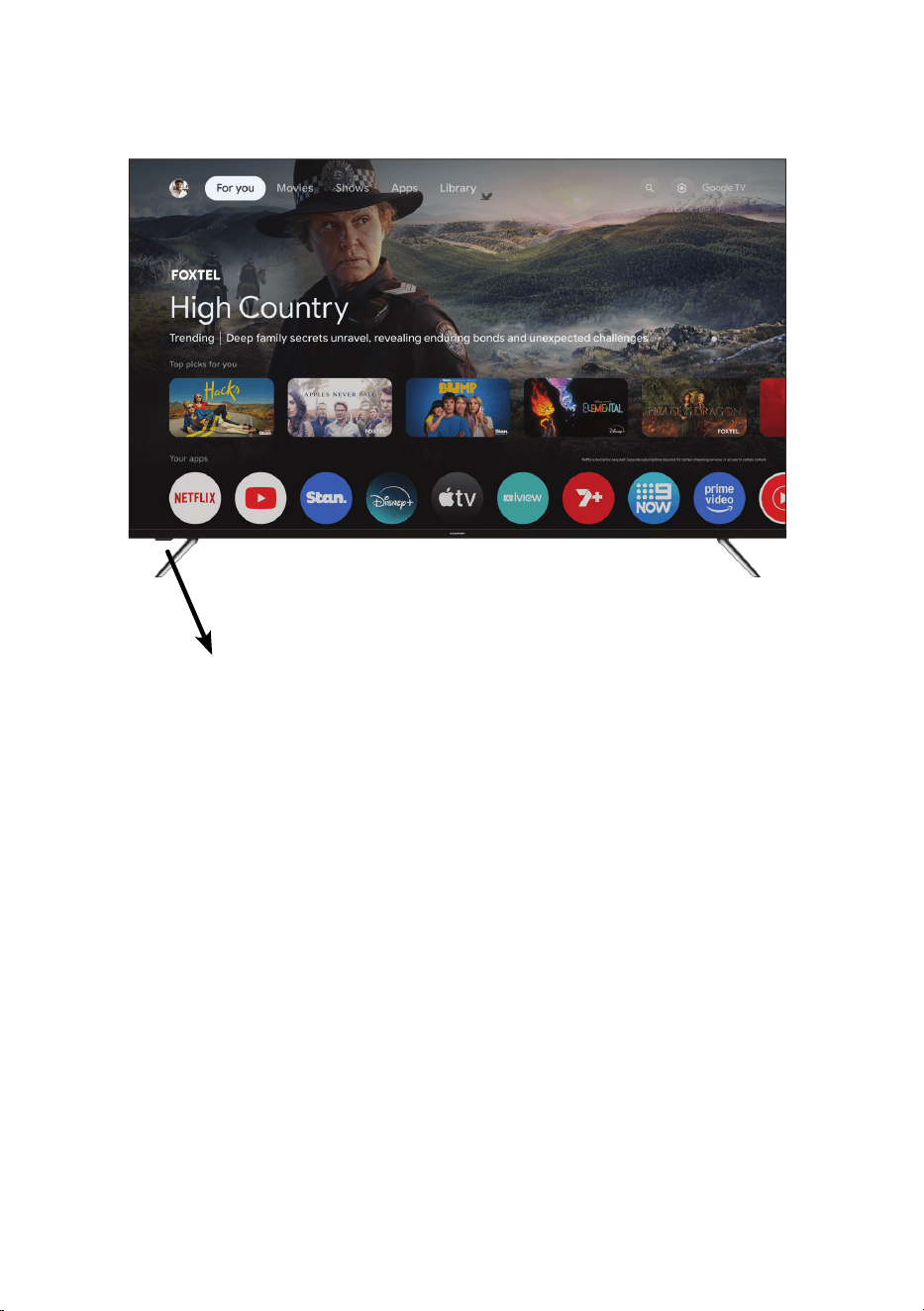
CONTROLS AND CONNECTIONS
1. Standby Mode:
In non-third-party apps, the main interface or USB mode, press and hold (over 3 seconds)
to enter standby.
2.Local Key Menu Operation
When not in third-party apps, main interface, or USB mode, and no local key menu is dis-
played on screen:
Short press: Opens the local key menu.
Menu options: Power On/O, Channel +, Channel –, Volume +, Volume –, Input Source.
Menu Navigation:
Short press: Cycles to the next option.
Long press: Confirms the currently highlighted option.
Timeout: The menu automatically closes after 5 seconds of inactivity.
3. Input Source Selection:
When the Input Source menu is displayed:
Short press: Move focus to the next source sequentially.
Long press or no action for 1.5s: Switch to the currently highlighted source.
11
CONTROLS AND CONNECTIONS
USB connection
Insert a USB storage device into the USB port to record, playback of video/music/photo.
BOTTOM PORTS
SIDE PORTS
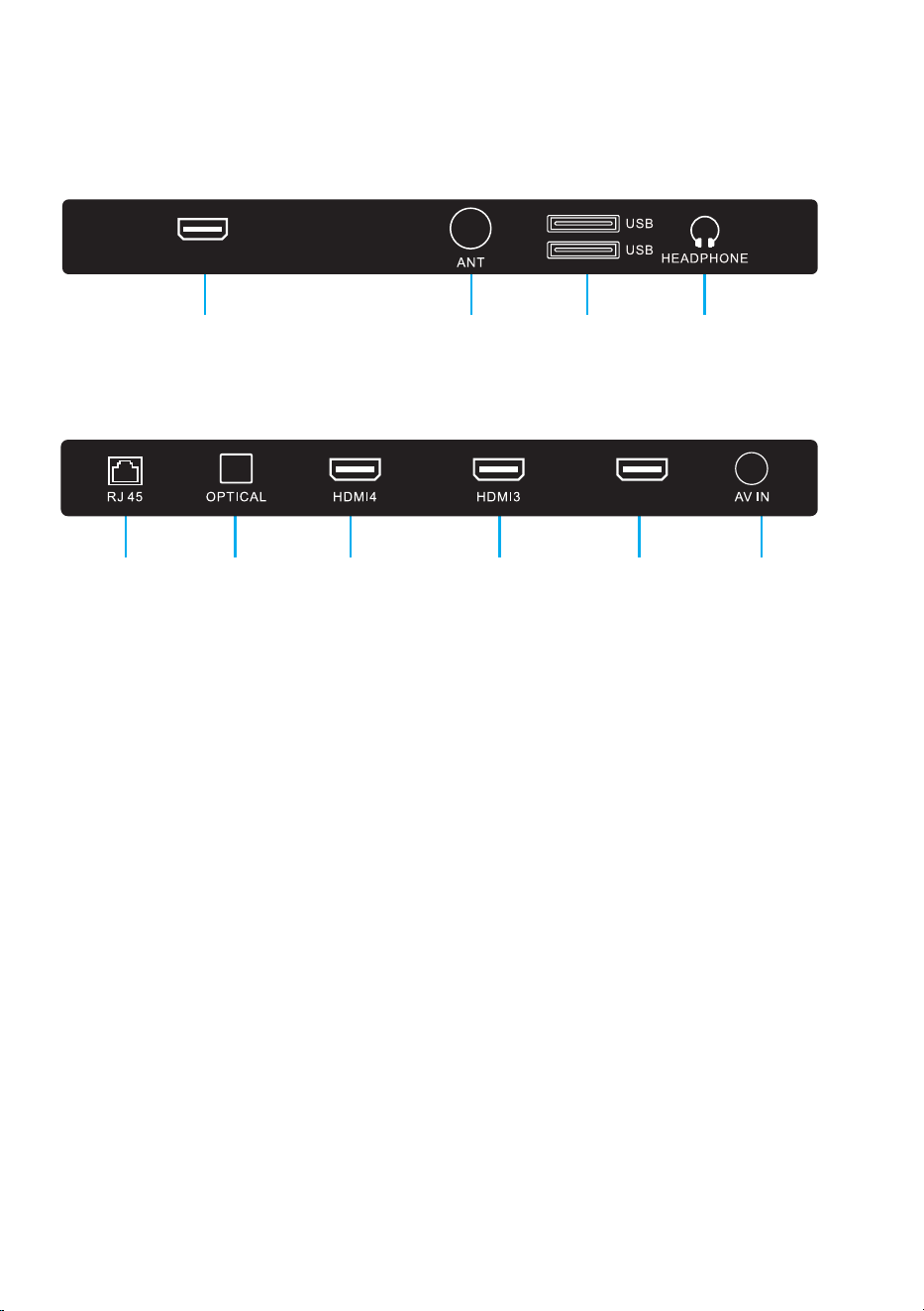
4
5 6 7 8 9 10
1. HDMI 1
2. ANT (ANTENNA)
3. USB x2
4. HEADPHONE
5. RJ45 (ETHERNET)
6. OPTICAL
7. HDMI 4
8. HDMI 3
9. HDMI 2 eARC/ARC
10. AV IN
1 2 3
HDMI2
eARC/ARC
HDMI 1
12
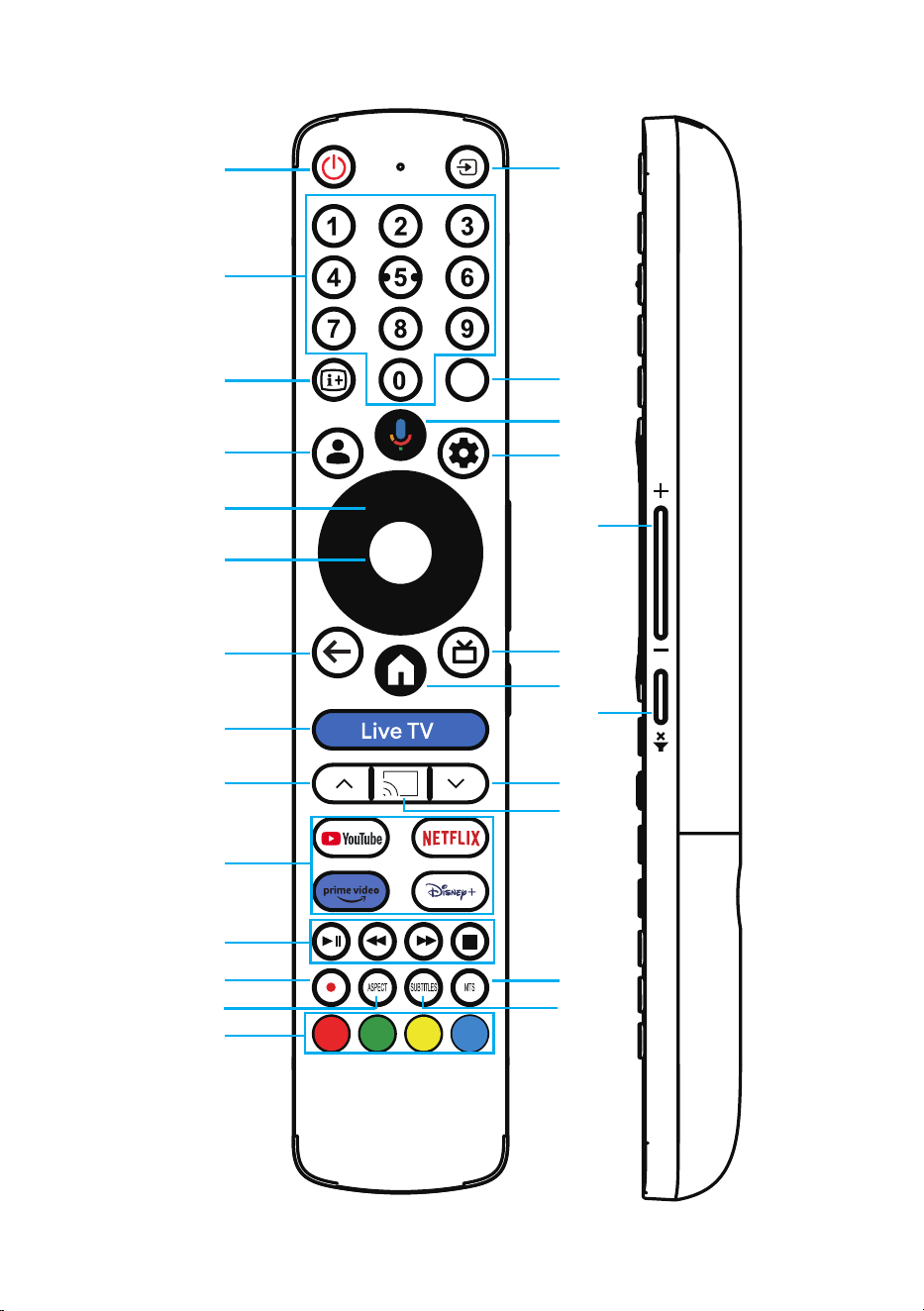
REMOTE CONTROLREMOTE CONTROL
TEXT
AS
1
4
7
12
16
17
20
21
22
26
24
11
9
3
2
5
6
8
13
18
23
19
14
10
15
25
13
REMOTE CONTROL
1. POWER: Turn the TV on/o.
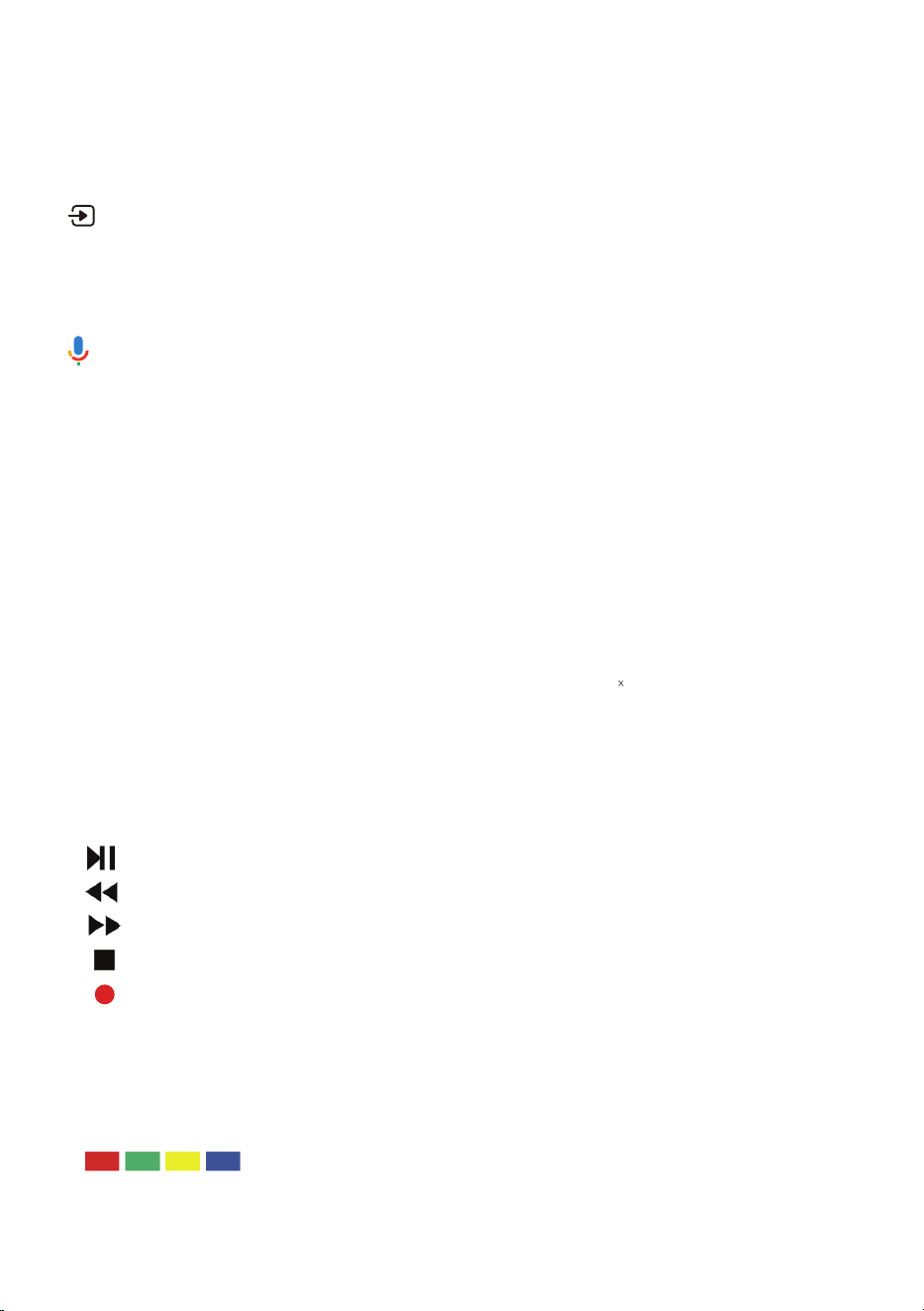
2. : Press to open the input source list.
3. NUMBER BUTTONS (0-9): Select a TV channel.
4. i+: Display channel information.
5. TEXT: Turn Teletext ON/OFF.
6 : Start a voice search or speak to Google Assistant.
7. MEMBER: Choose or add an account.
8. SETTING: Press to open the setting option.
9. ARROWS: Navigate on-screen menu.
10.VOLUME: Increase or decrease TV volume.
11. OK: OK to confirm selection.
12. BACK: Return to previous menu.
13. GUIDE: Display electronic TV guide in DTV mode.
14. HOME: Open Google TV home page.
15. MUTE: Turn the sound on or o.
16. Live TV: Open ATV or DTV channels on LiveTV .
17. CHANNEL-: Previous TV channel.
18. CHANNEL+: Next TV channel.
19. AS: Open Airscreen APP.
20. APPS: Open Netflix, YouTube, PrimeVideo, Disney.
21. : Pause and Play playback in multimedia/timeshift mode.
: Rewind playback in multimedia/timeshift mode.
: Fastforward playback in multimedia/timeshift mode.
: Stop multimedia playback, Recording and Timeshift mode.
22. : Start recording DTV Channel.(must have USB drive inserted)
23. MTS: Press to select Mono, Nicam, Stereo for ATV channels
and Audio Language for DTV channels.
24. ASPECT: Switches the preset screen size mode.
25. SUBTITLES: Turn subtitles ON/OFF.
26. : Operations according to the prompt within menu or while
watching TV.
14
REMOTE CONTROL (CONT.)
Using the Remote Control
• Do not mix old and new batteries in the remote
• Do not use dierent types of battery
• If you do not intend to use the unit for a long time, please remove batteries from the
remote to avoid accident.
• Keep batteries away from children and pets.
• Never throw batteries into a fire.
• Do not drop, or impact the remote control as it void warranty immediately.
• The remote control operate at a range of 5 to 6M eectively
• Do not expose the remote control sensor to a bright light.
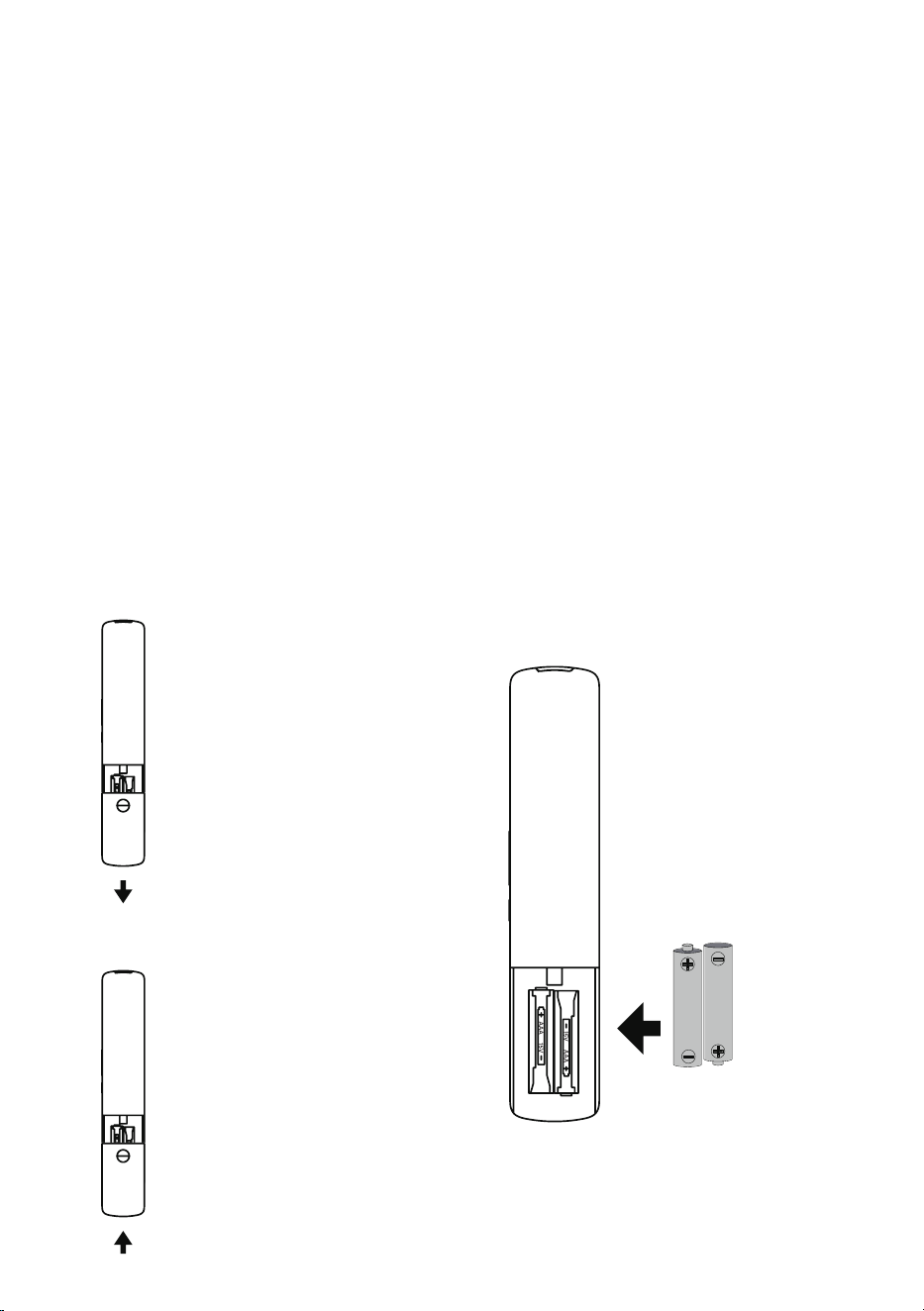
How to open back of remote control to replace batteries
Place/Replace the batteries making sure that the 2x AAA batteries
(included) polarities (+/-) match the battery compartment polarities (+/-).
1. Open the battery compartment
cover on the back side.
3. Closed the cover
2. Insert 2 x 1.5V AAA batteries in
correct polarity. Do not mix old
or used batteries with new ones.
15
INITIAL SETUP
For the first initial setup, on screen setup wizard will guide you through setting up your TV.
Please follow according to onscreen guide to setup your TV correctly.
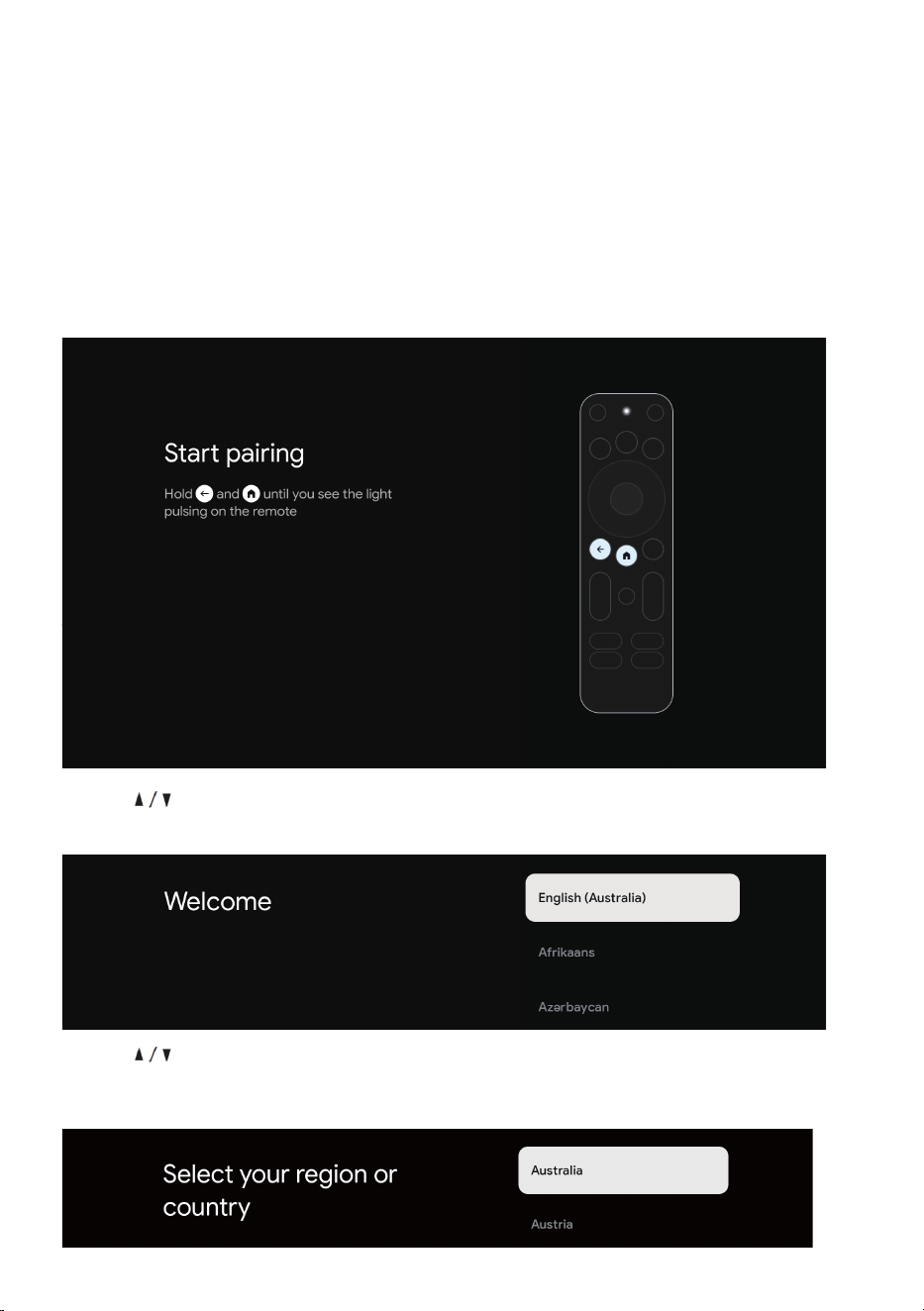
Be sure to follow the below prompts to pair your Bluetooth remote control. After the pairing is
successful, you can now operate the TV.
Press BACK and HOME buttons on RC at the same time for 3 seconds to enter pairing mode.
Use the buttons to select system language, then press OK/SELECT to confirm.
Select CORRECT country you are located in otherwise Google TV will not work correctly.
Use the buttons to select system language, then press OK/SELECT to confirm.
Select the language you want.
16
INITIAL SETUP (Cont.)
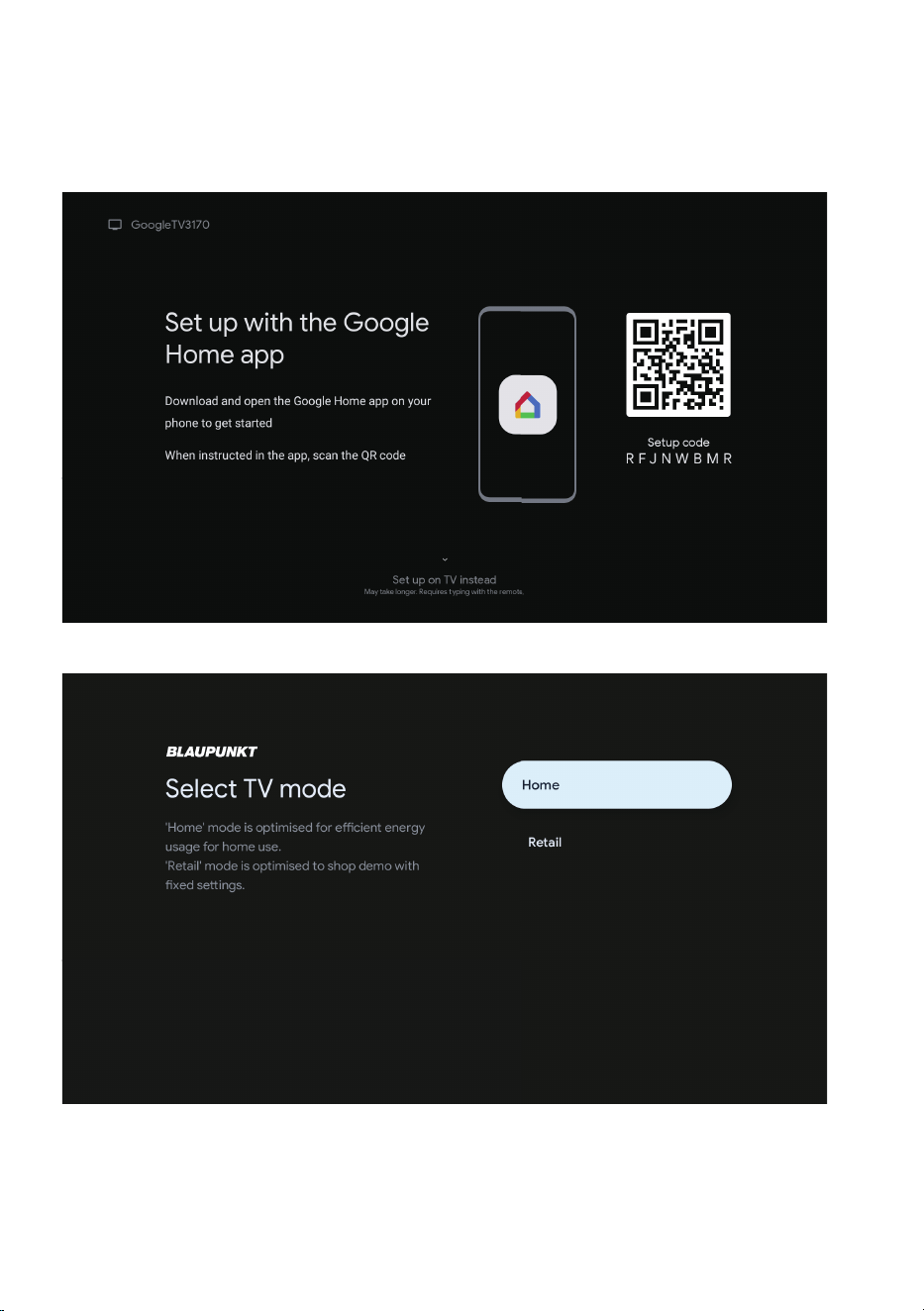
During the initial setup Google will ask you to log in to Google TV, please follow the instructions
below:
Select TV Mode, you can set Home Mode or Retail Mode.
17
WI-FI
GOOGLE
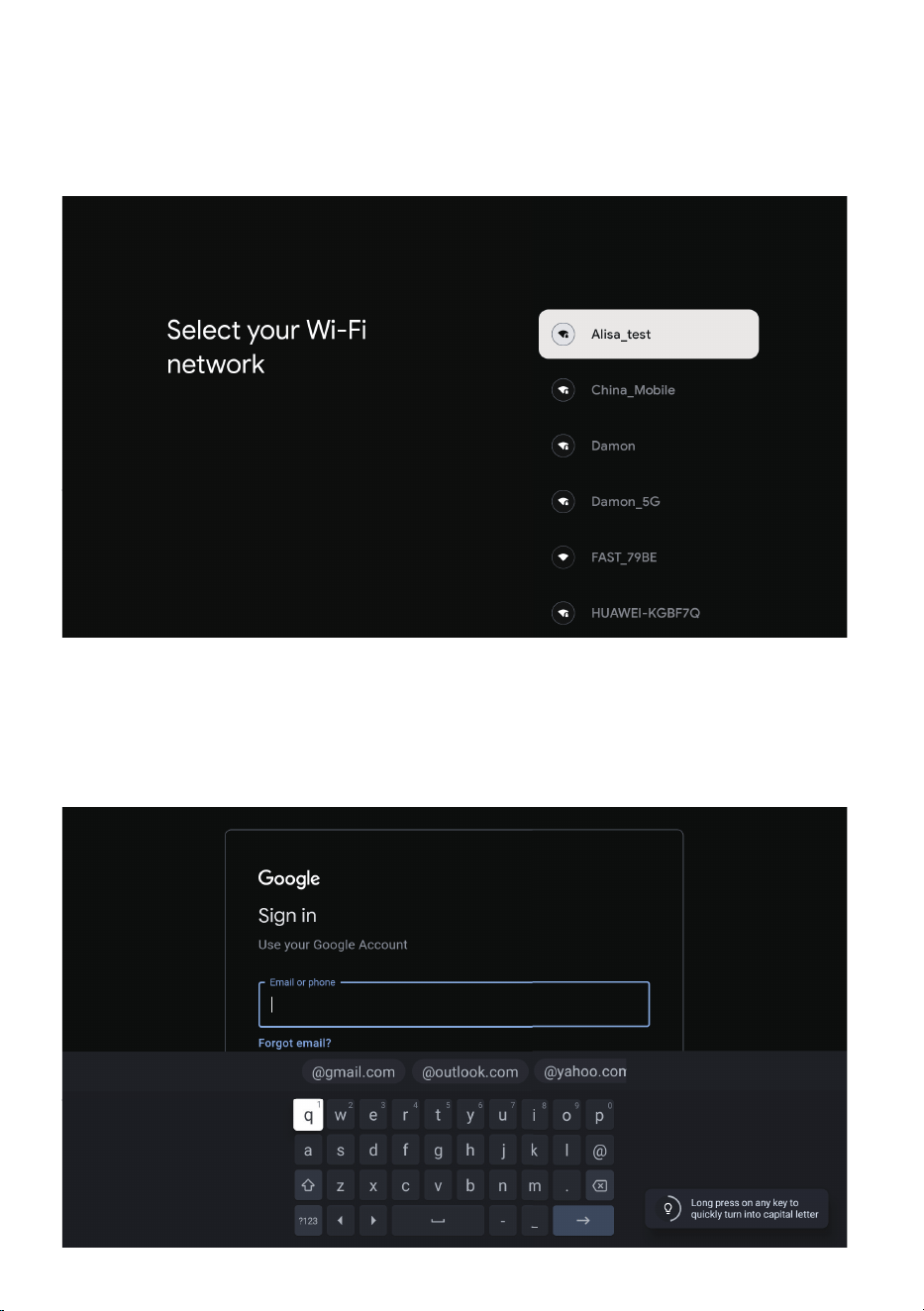
Select your home Wi-Fi network and enter in the password to start connection process.
Once successfully connected you will proceed to the next step.
To have access and to download applications from Google Play, you must sign in with a Google
Account. Once you open Google Play, you will be prompted to sign in or create a new account.
18
ACCEPTANCE - TERMS OF SERVICE
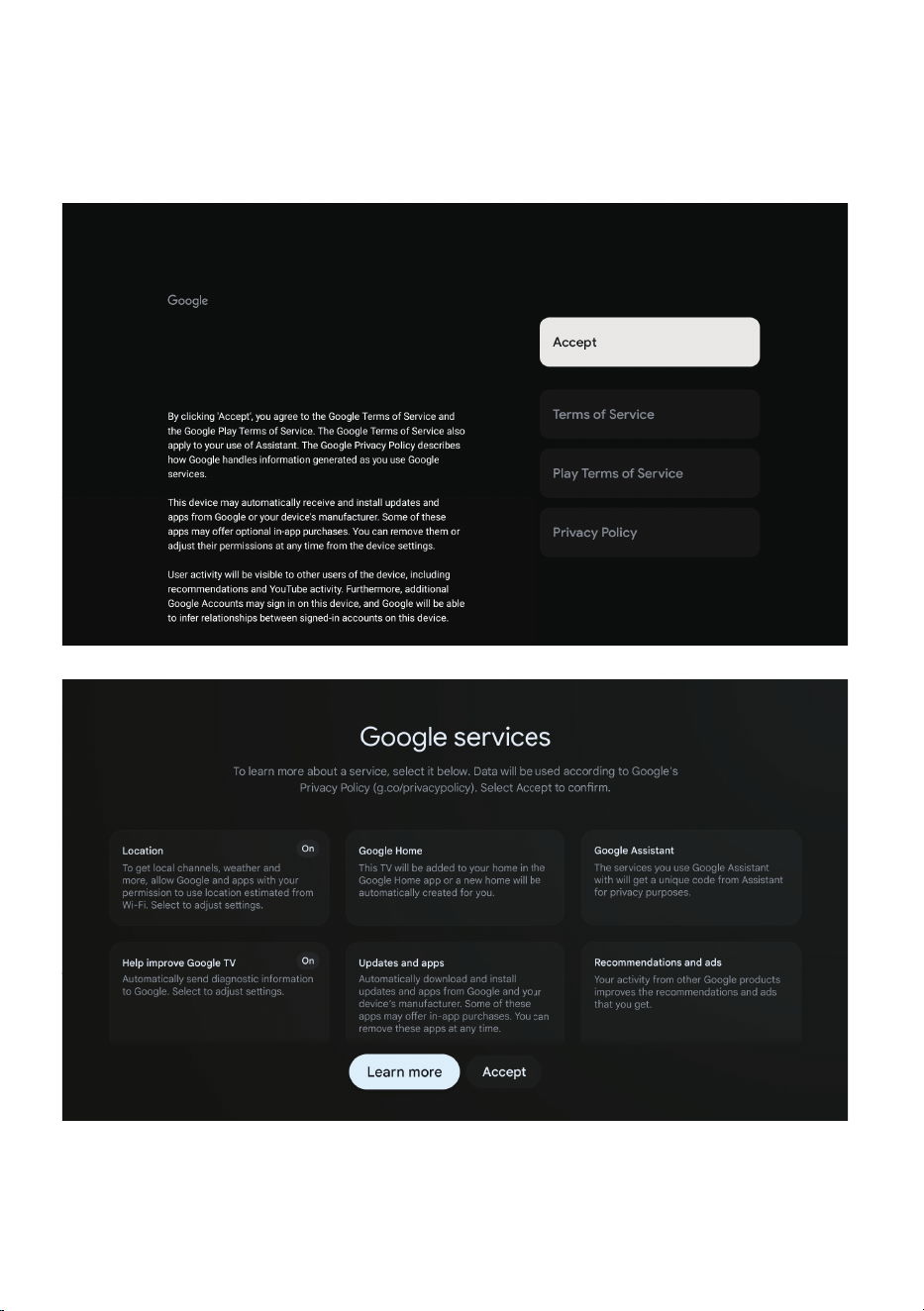
By accepting the Google Terms of Service to improve the product experience, Select “ACCEPT”
to proceed with this condition.
19
ACCEPTANCE - TERMS OF SERVICE GOOGLE ASSISTANT SETUP
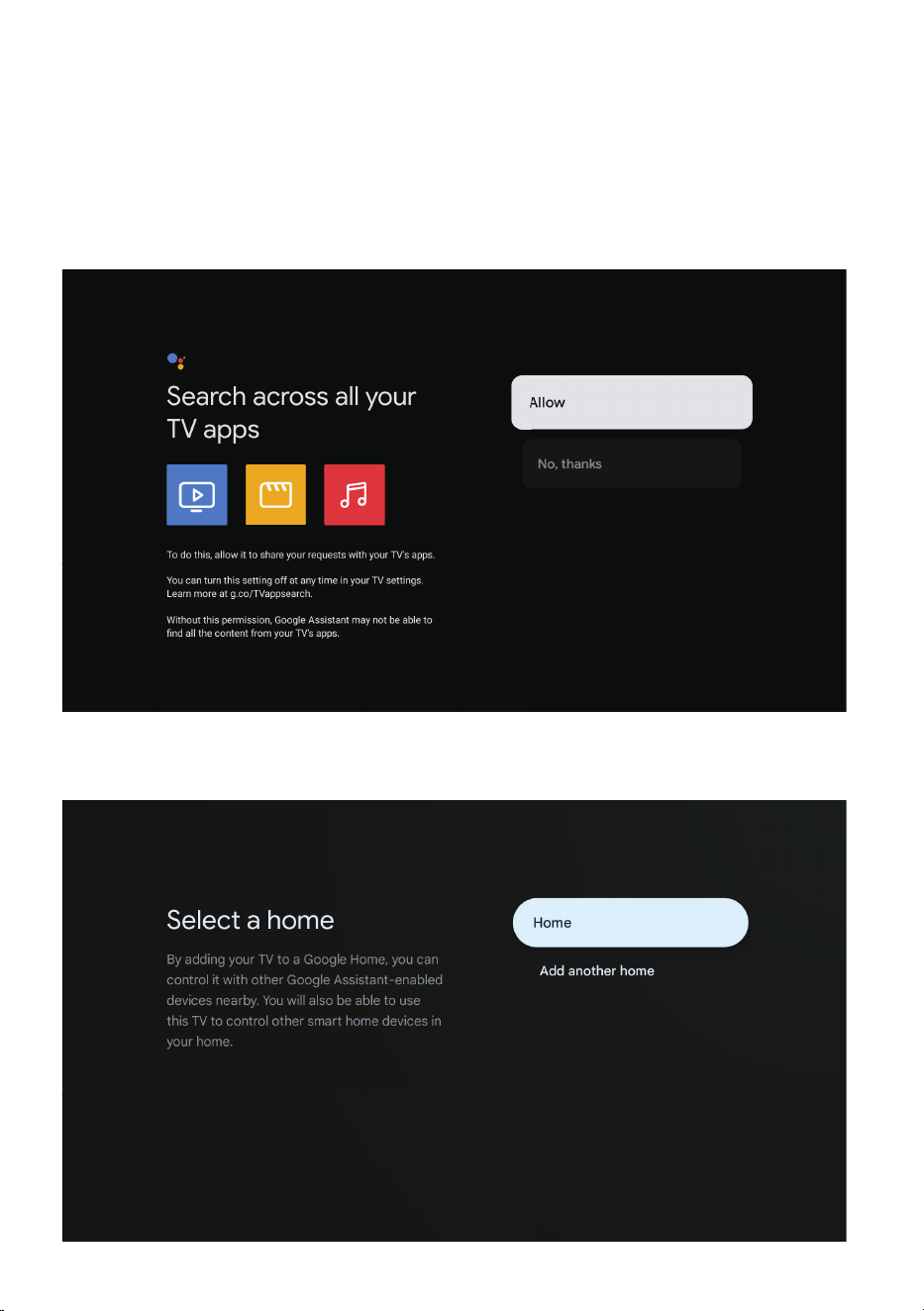
For the best experience with Google Assistant, please select “Allow” for Google Assistant
to share requests with your TV’s Installed apps.
Without this permission, Google Assistant may not be bale to find all the content
from your TV’s Apps.
Add TV to a Google Home, you can control it with other Google devices nearby.
20
GOOGLE ASSISTANT SETUP (CONT.)
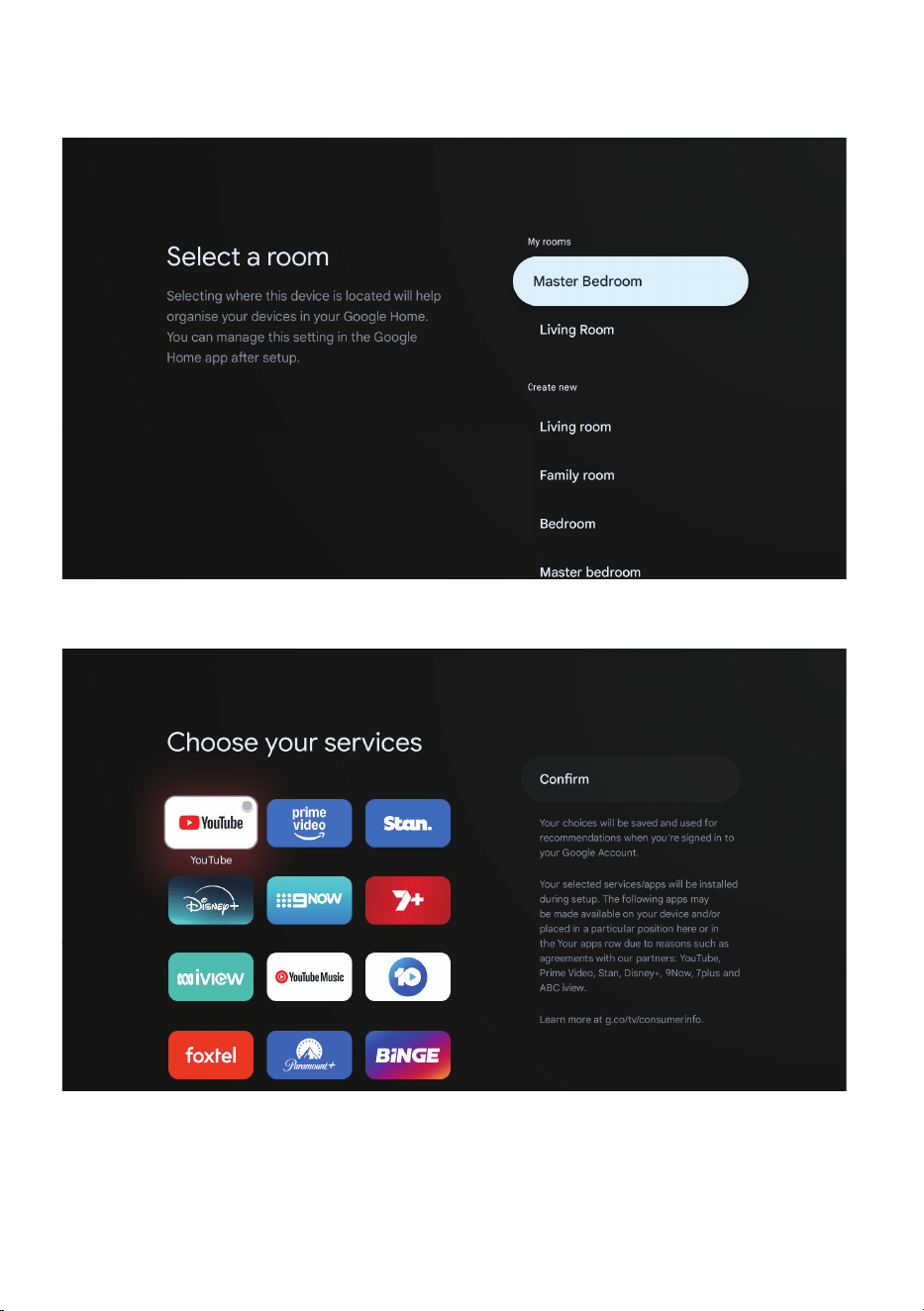
Google will recommend apps for TV based on your account and network.
21
GOOGLE ASSISTANT SETUP (CONT.)
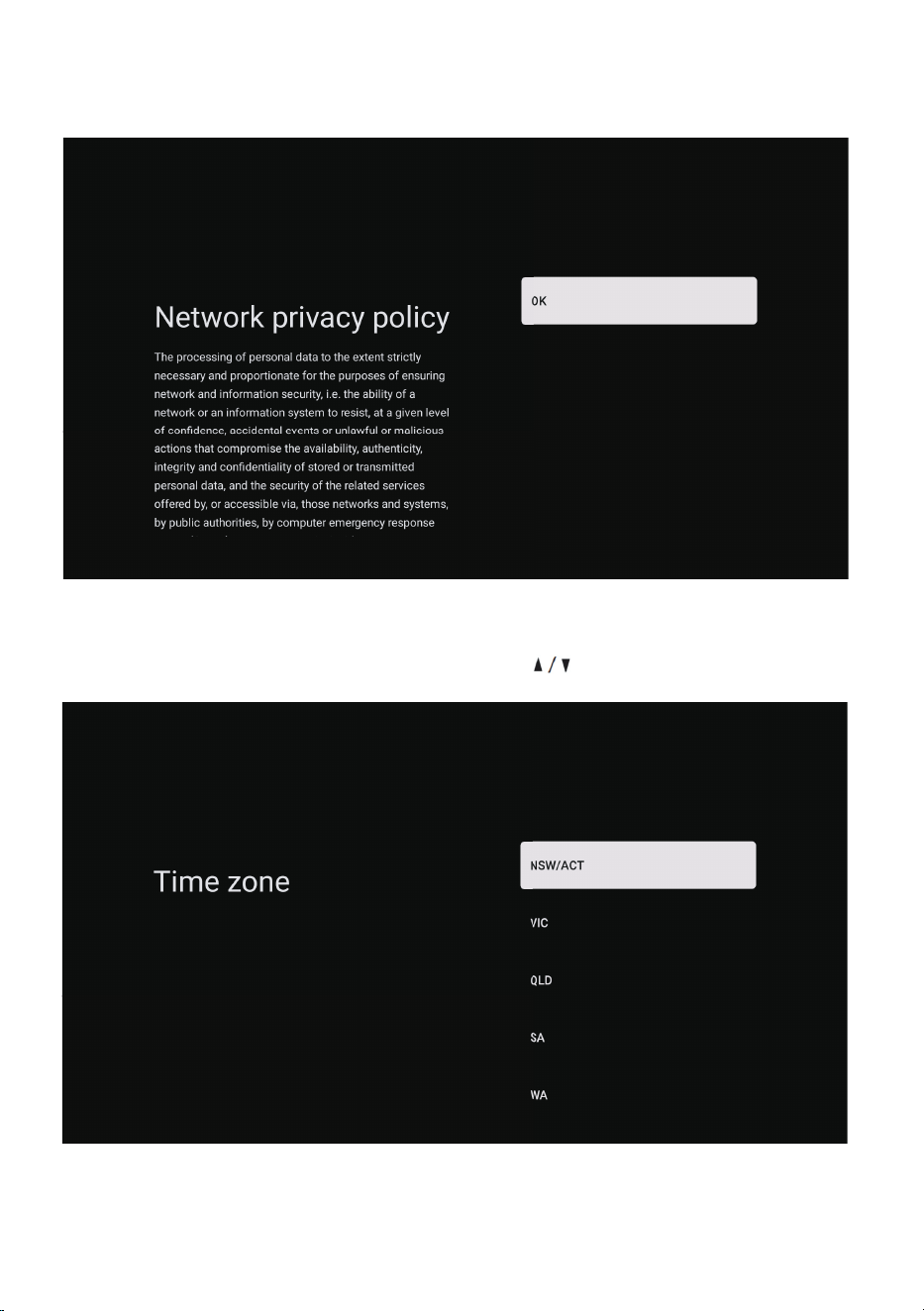
TIMEZONE
Select the timezone you are using the device in with the directional buttons.
22
DISCLAIMER
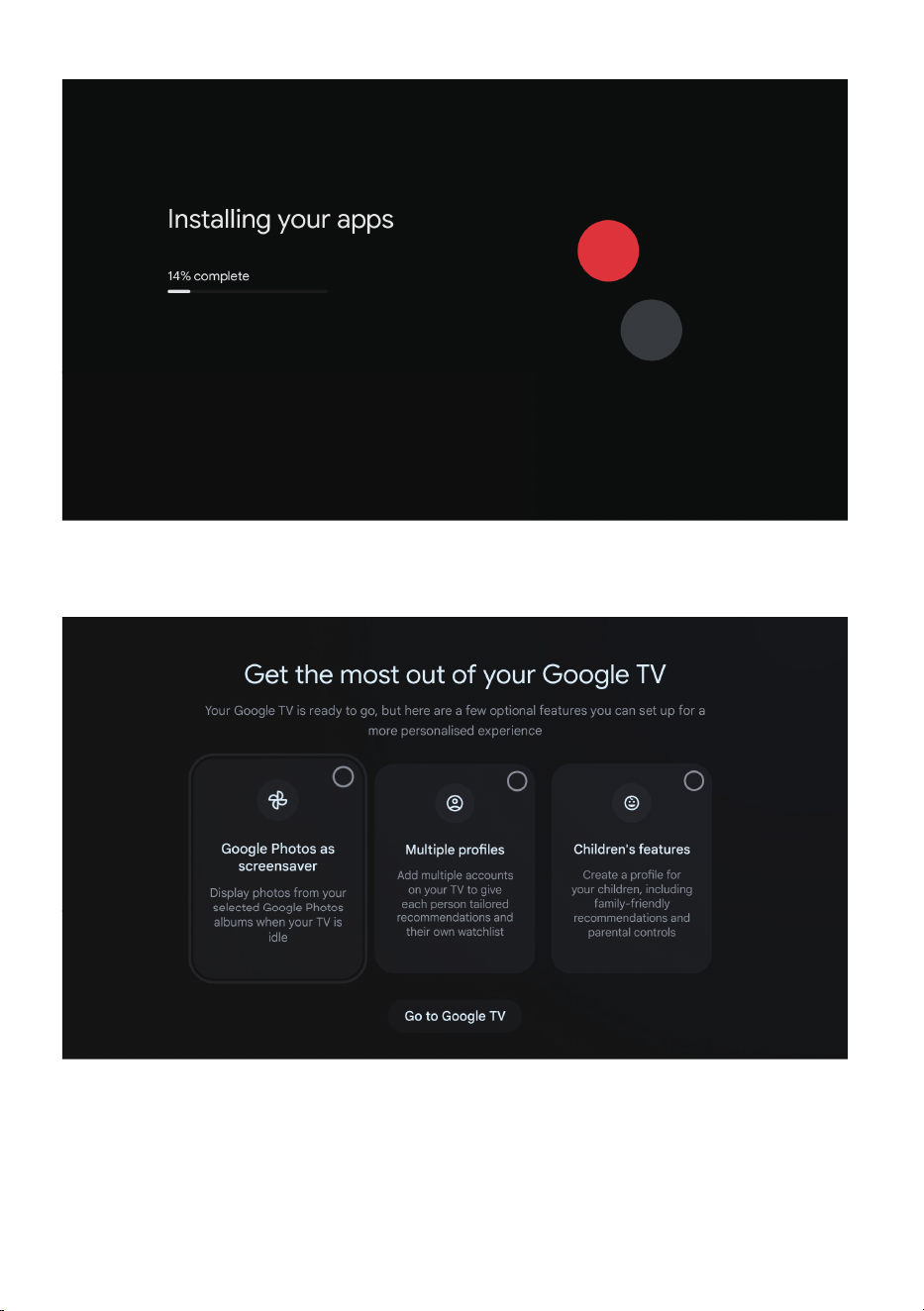
CHANNEL INSTALLATION
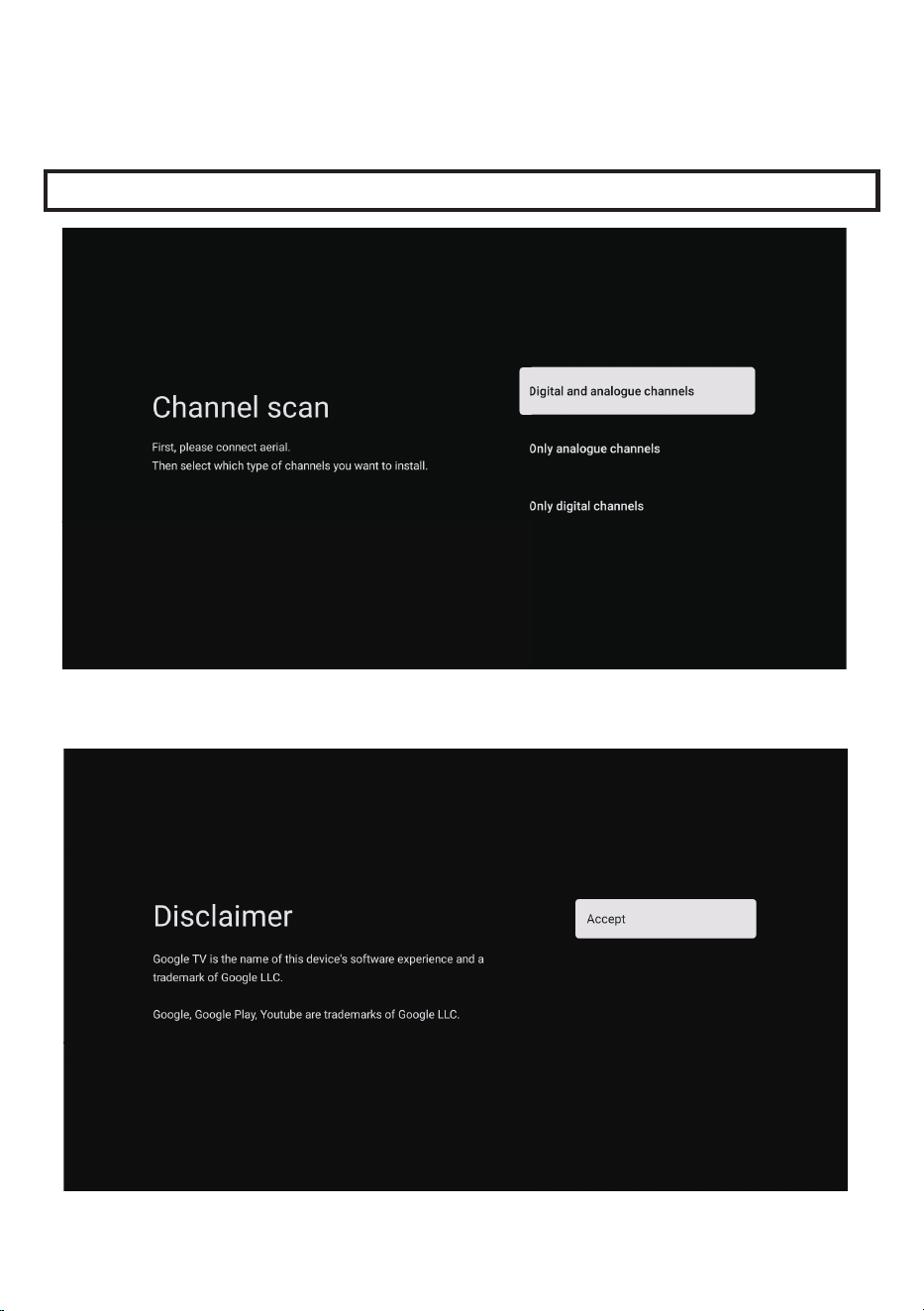
NOTE: Please make sure Antenna (RF) cable is plugged into the TV port located on back of TV.
Scan channels using antenna cable.
23
GOOGLE TV
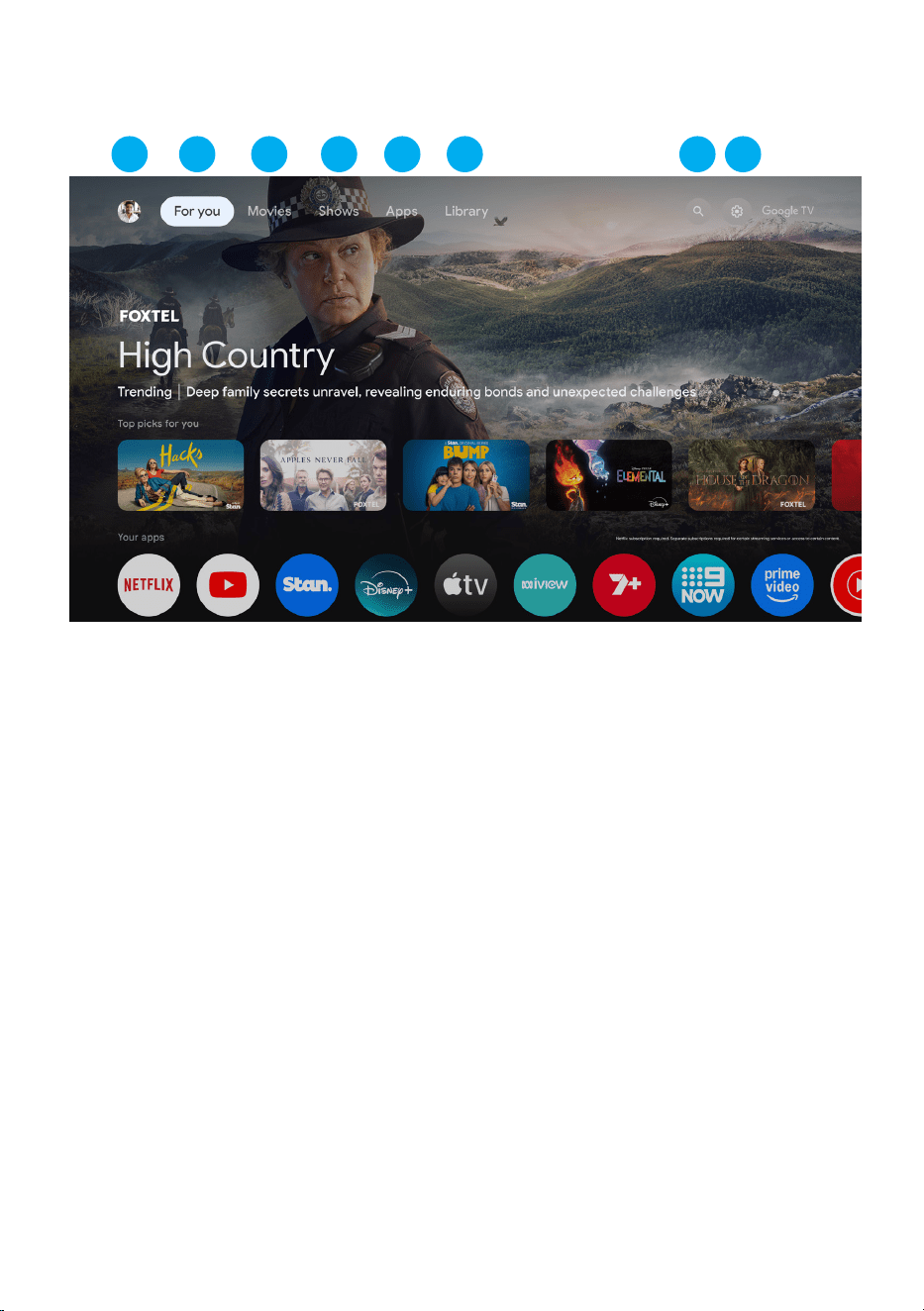
Once you have completed initial setup, you will now enter the Google TV home screen.
24
GOOGLE TV (CONT.)
1. PROFILE - Select this option if you want to manage your Google Account.
2. FOR YOU - Main page for advertised TV shows, Live TV, Installed Apps, and top picks
based on content recommendations tailored for you.
3. MOVIES - This menu is all movies recommended for you to watch.
4. SHOWS - This menu is all TV shows recommended for you to watch.
5. APPS - To search for and download/install onto your Google TV.
6. LIBRARY - All installed app will appear in this menu, including updates and more.
7. SEARCH - Press the Google Assistant button on your remote to do more on your
TV with your voice, or select “Search” and type in what you are looking for.
8. SETTINGS - Select it to open the setting option,.
83 4 6 7521
25
“What’s the
weather today?”
GOOGLE ASSISTANT
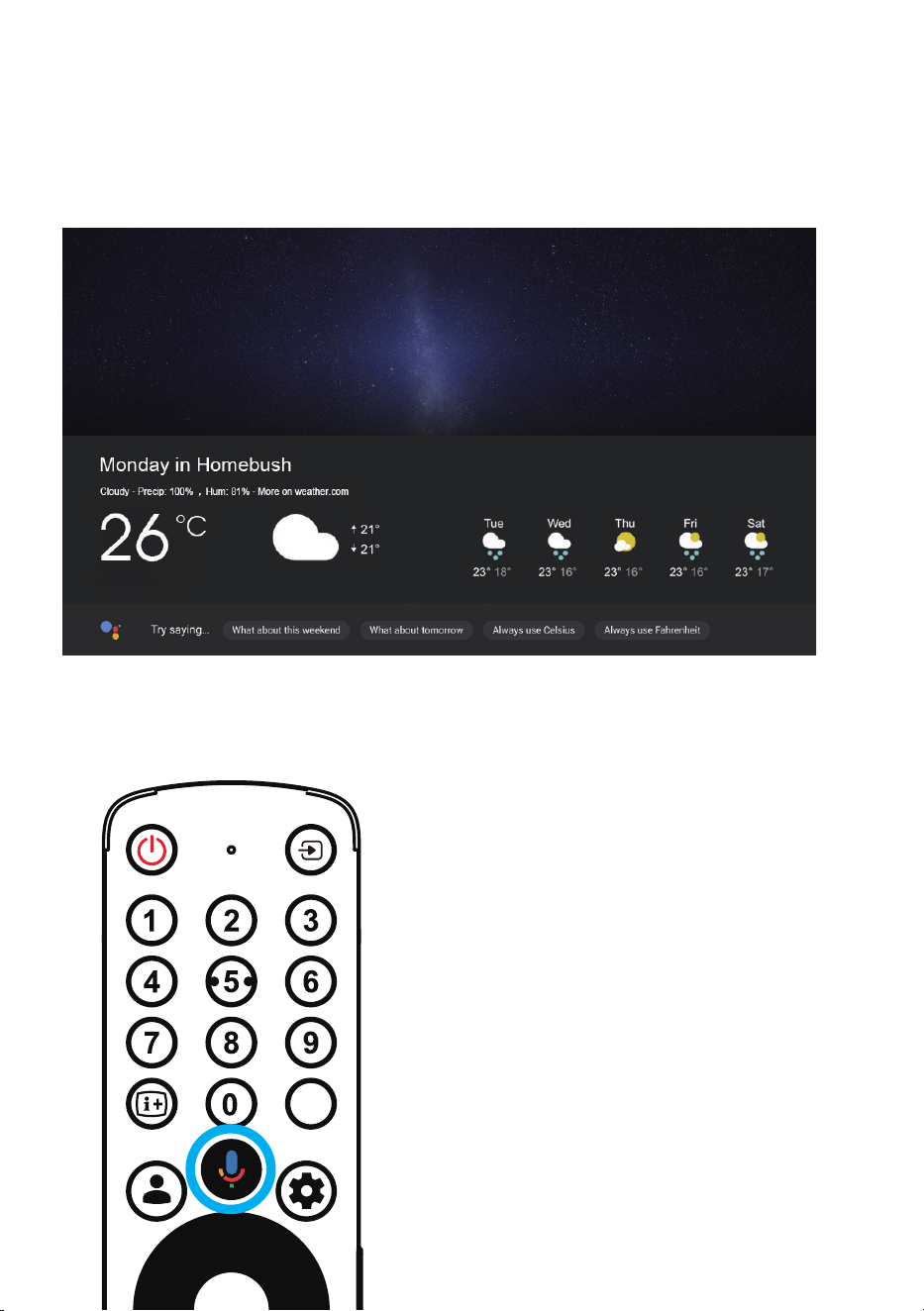
Ask Google to search for the latest blockbuster, stream shows, or open multiplayer games.
Have it dim the lights by connecting smart home devices. Manage tasks and see your
calendar. Or ask it questions and see the answers on your TV.
Do more on your TV with your voice. Press the Google Assistant button on your remote to
quickly search 400,000+ movies and shows, get recommendations to match your mood, control
smart home devices, and more.
TEXT
26
SETTINGS MENU
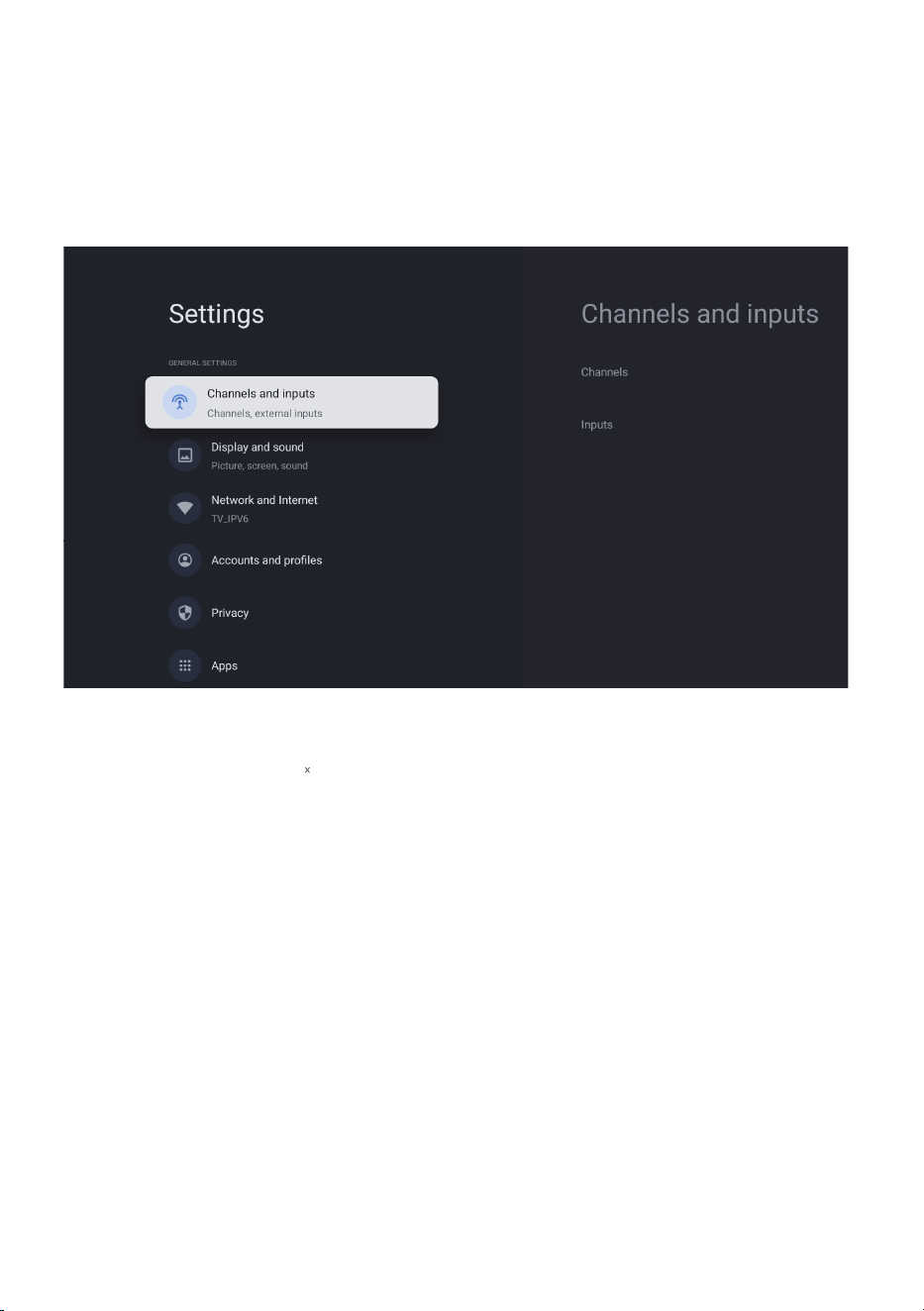
To access SETTINGS menu:
1. Select Settings Icon (#8 on page 24) menu
2. Select Settings
SETTINGS AVAILABLE ARE:
- Channels & Inputs - Live TV and TV inputs menu
- Display & Sound - Picture and Audio settings
- Network & Internet - Wi-Fi or Ethernet connection settings
- Accounts & Sign in - Google Account settings
- Privacy
- App
- System
- Accessibility
- Remotes and accessories
- Help and feedback
27
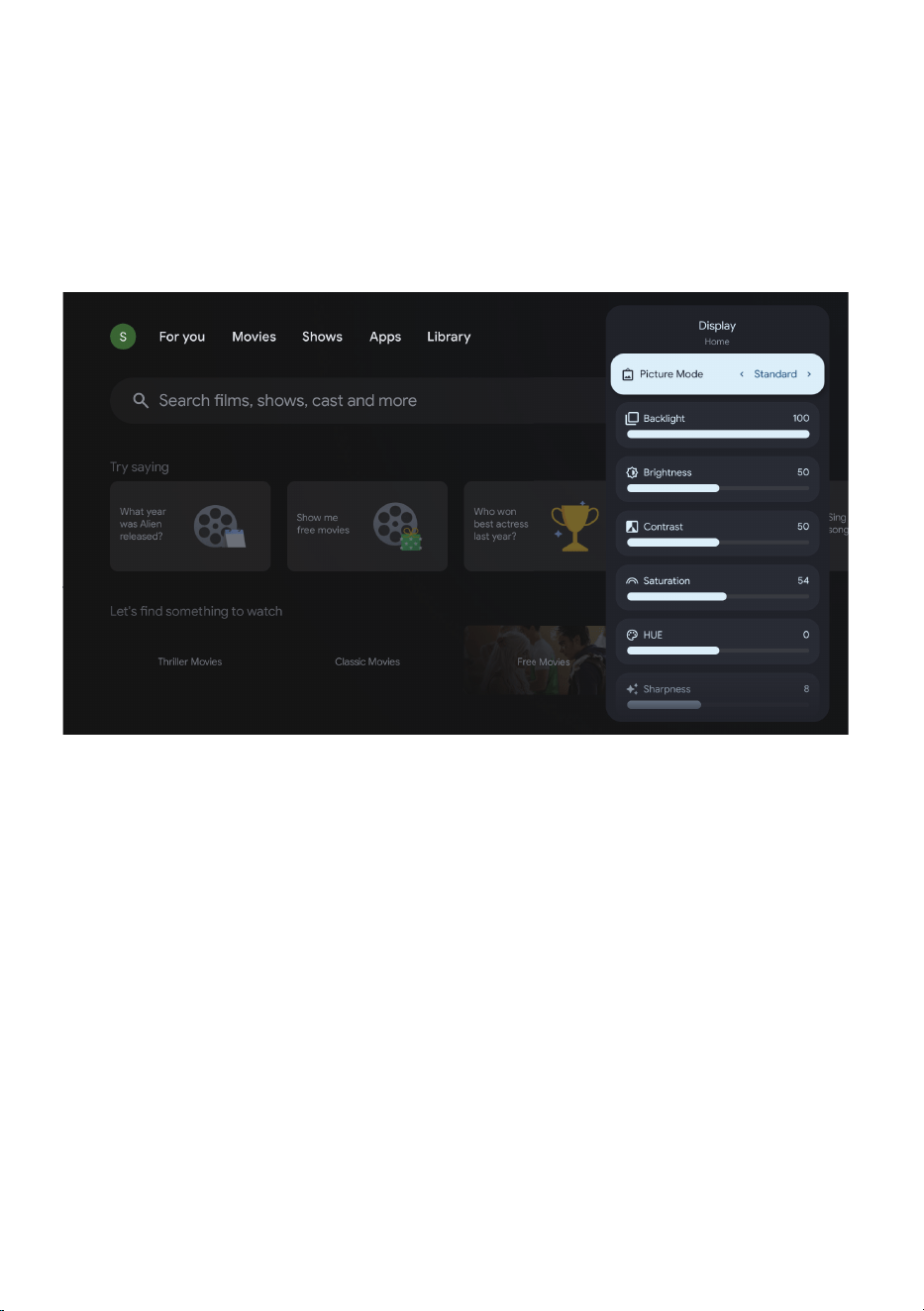
DISPLAY MENU
To access DISPLAY menu:
1. Select Settings Icon (#8 on page 24) menu
2. Select Settings
3. Go down and select Display & Sound.
4. Then select DISPLAY
28
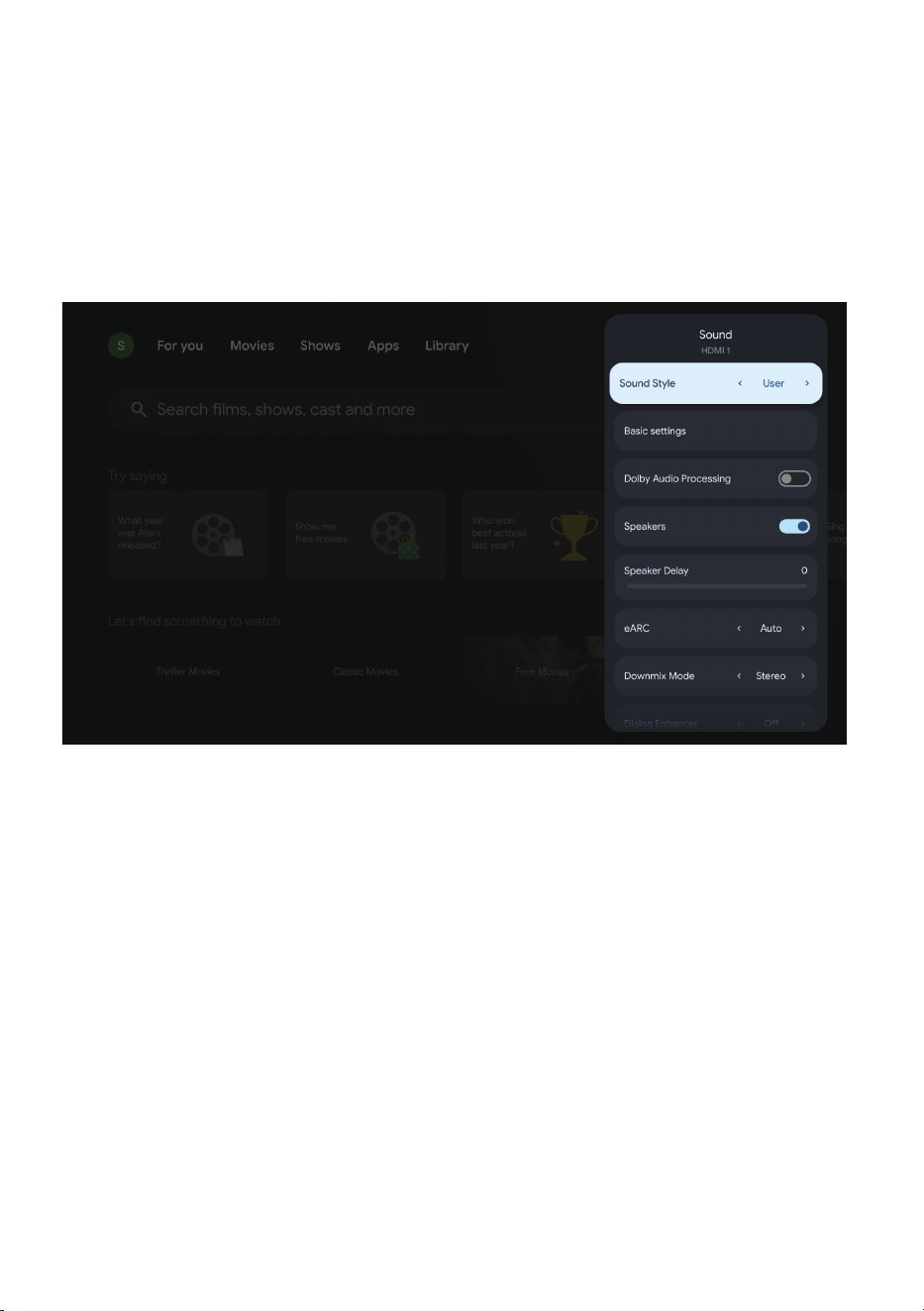
SOUND MENU
To access Sound menu:
1. Select Settings Icon (#8 on page 24) menu
2. Select Settings
3. Go down and select Display & Sound.
4. Then select Sound
29
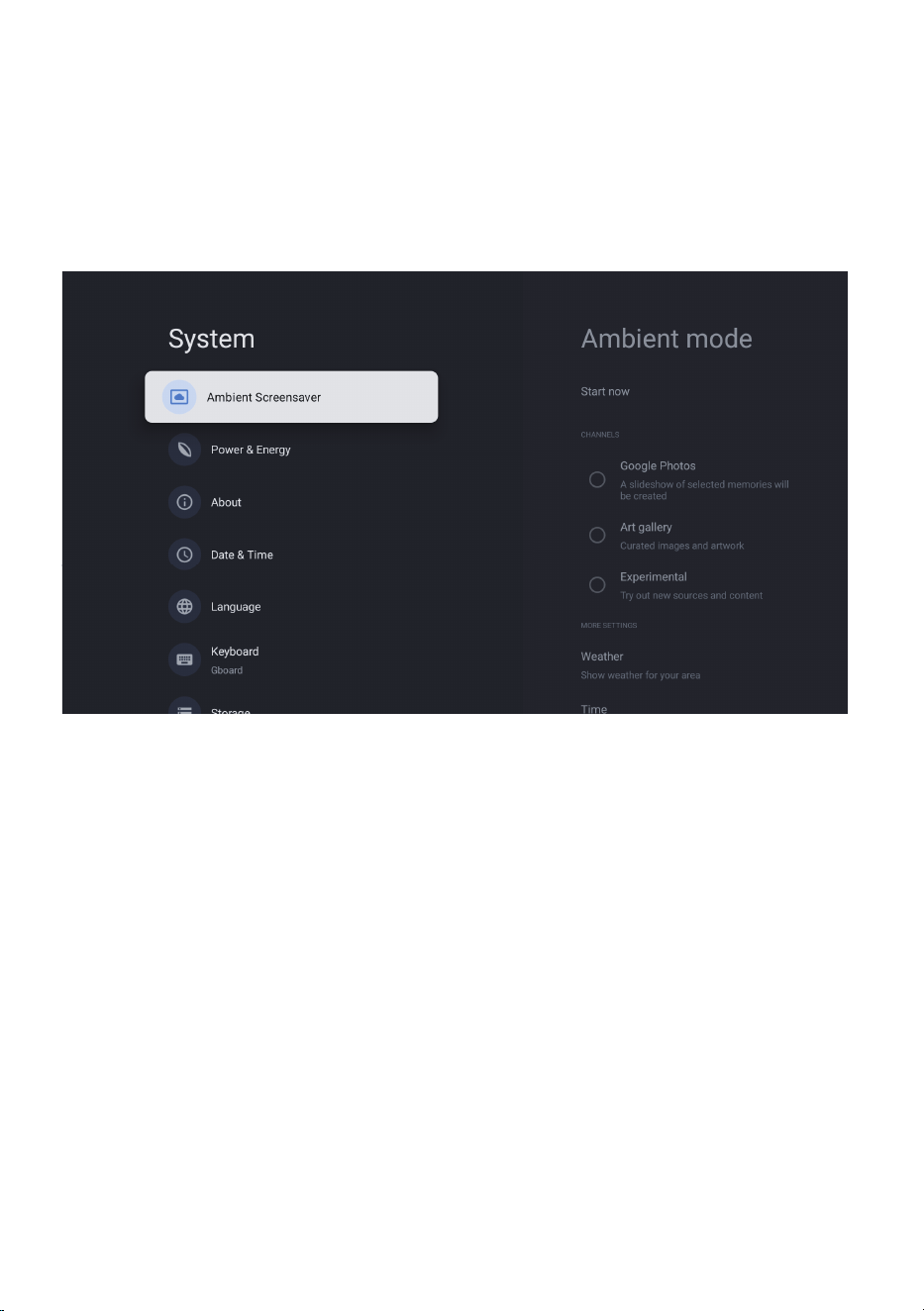
SYSTEM MENU
To access SYSTEM menu:
1. Select Settings Icon (#8 on page 24) menu
2. Select Settings
3. Go down and select SYSTEM
30
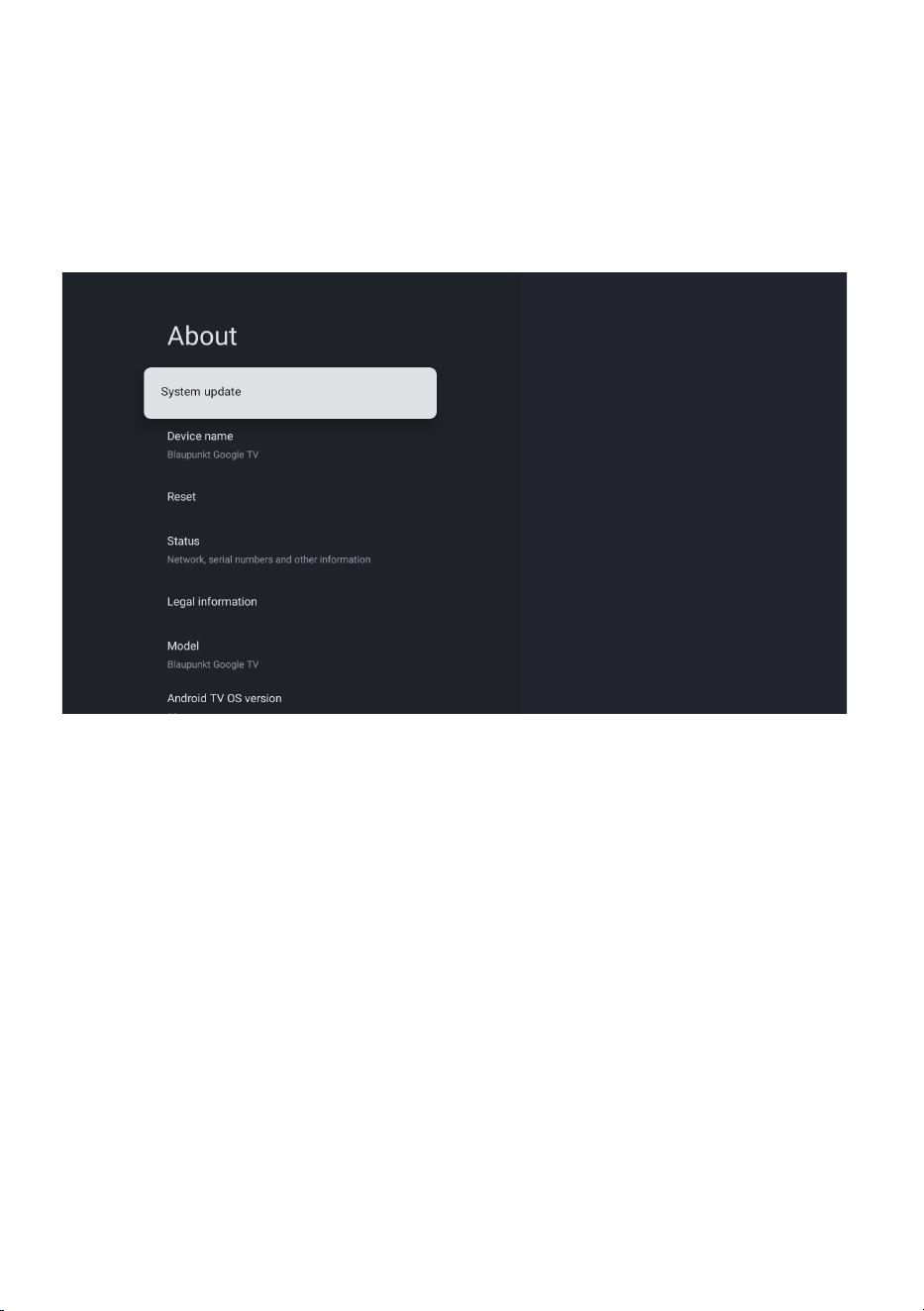
ABOUT MENU
To access ABOUT menu:
1. Select Settings Icon (#8 on page 24) menu
2. Select Settings
3. Go down and select ABOUT
31
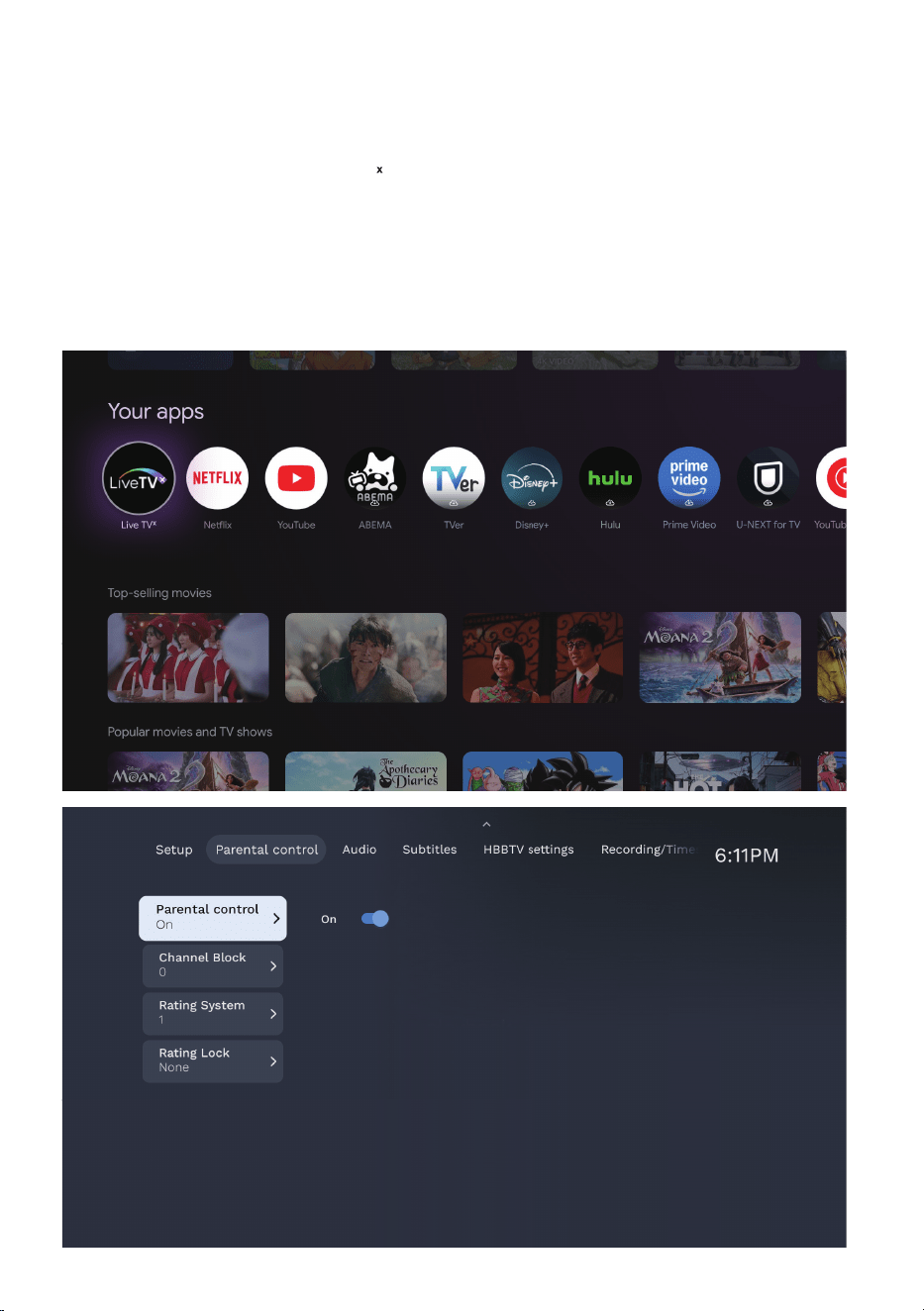
PARENTAL CONTROL
To access PARENTAL CONTROL menu,
1. Go down and select Live TV APP
2. Select setting icon
3. Move to Parent controls.
4. Press OK, then input your password to open Parent controls menu
Note: The password for parental control is set based on your Google account. lf you forget
password, you can reset it by your Google account.
32
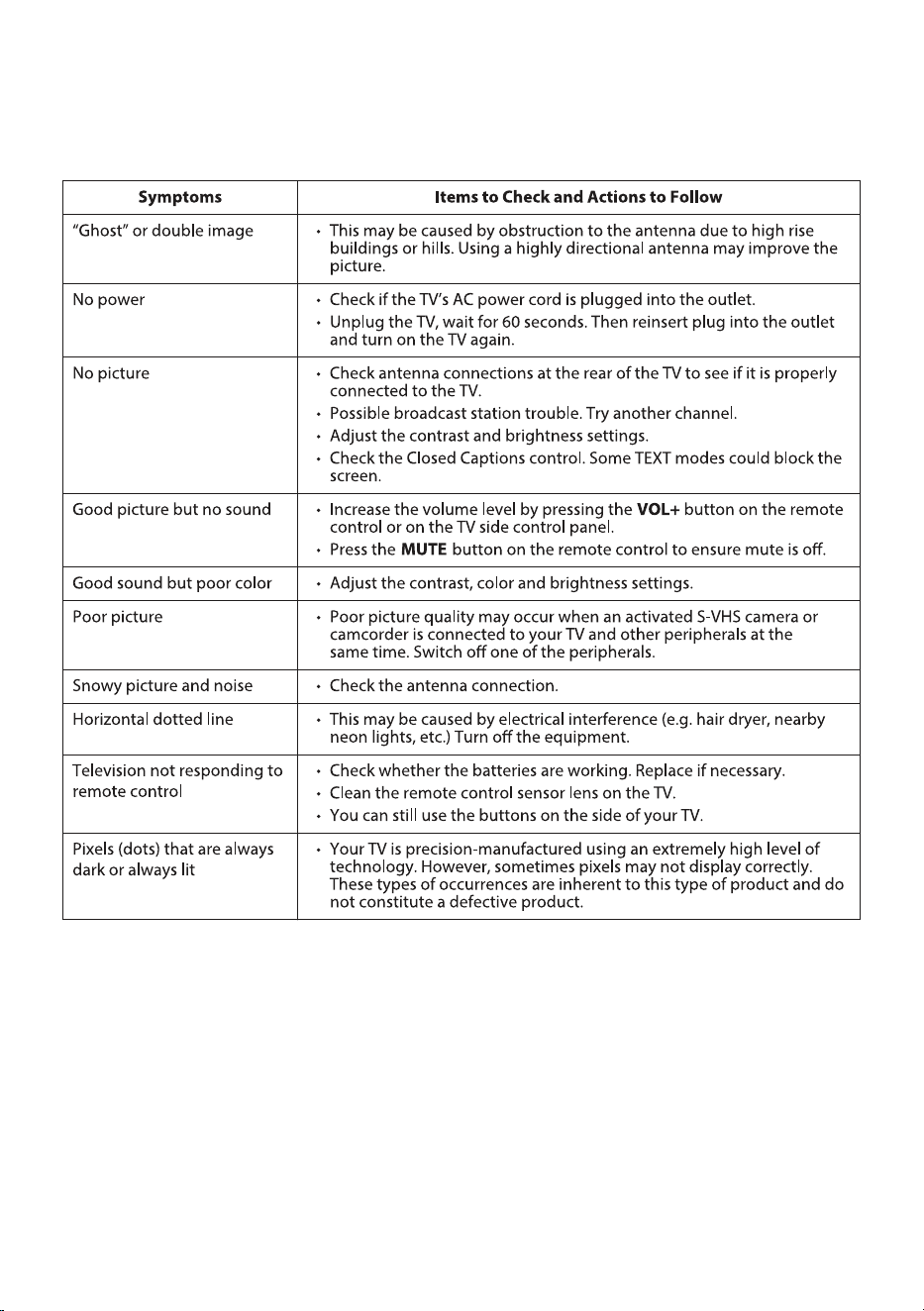
GENERAL PROBLEMS WITH TV SET
FAQS

33
FAQS (Cont.)
MY REMOTE CONTROL ISN’T PAIRING WITH MY GOOGLE TV?
If your remote control is not pairing or becomes disconnected, please recon-
nect it and pair it again in the Settings menu:
1. Press SETTINGS Icon
2. Select “REMOTES & ACCESSORIES”
3. Select “PAIR ACCESSORY”
4. Follow the onscreen instructions to pair your remote. Once you detect
your Bluetooth Remote control, Press OK on remote control to select
it and pair.
If it doesnt connect, try the process again until it pairs, otherwise contact our
call centre.
NOTE: NOTE: You can still use your remote control without pairing. However,
Google Assistant will not be available until the remote control is paired.
GOOGLE TV REMOTE CONTROL - APP
If you want to control your TV via your smart device. Search for:
“Google TV or Google Home” app and download. Once following prompts to
connect your smart device to your Google TV, you will then be able to control
your TV from your smart phone.
TURN OFF SUBTITLES ON LIVE TV?
To turn o subtitles on your Google TV, while watching Live TV :
1. While watching Live TV , press “MENU” on remote control.
2. Go down and select “Subtitle”.
3. Switch all choices of subtitles to OFF.
Once all options for subtitle are switched o, then you can exit and continue
watching Live TV !
If the Subtitle persists to appear, you may need a software update or for further
assistance please contact our customer support centre.
34
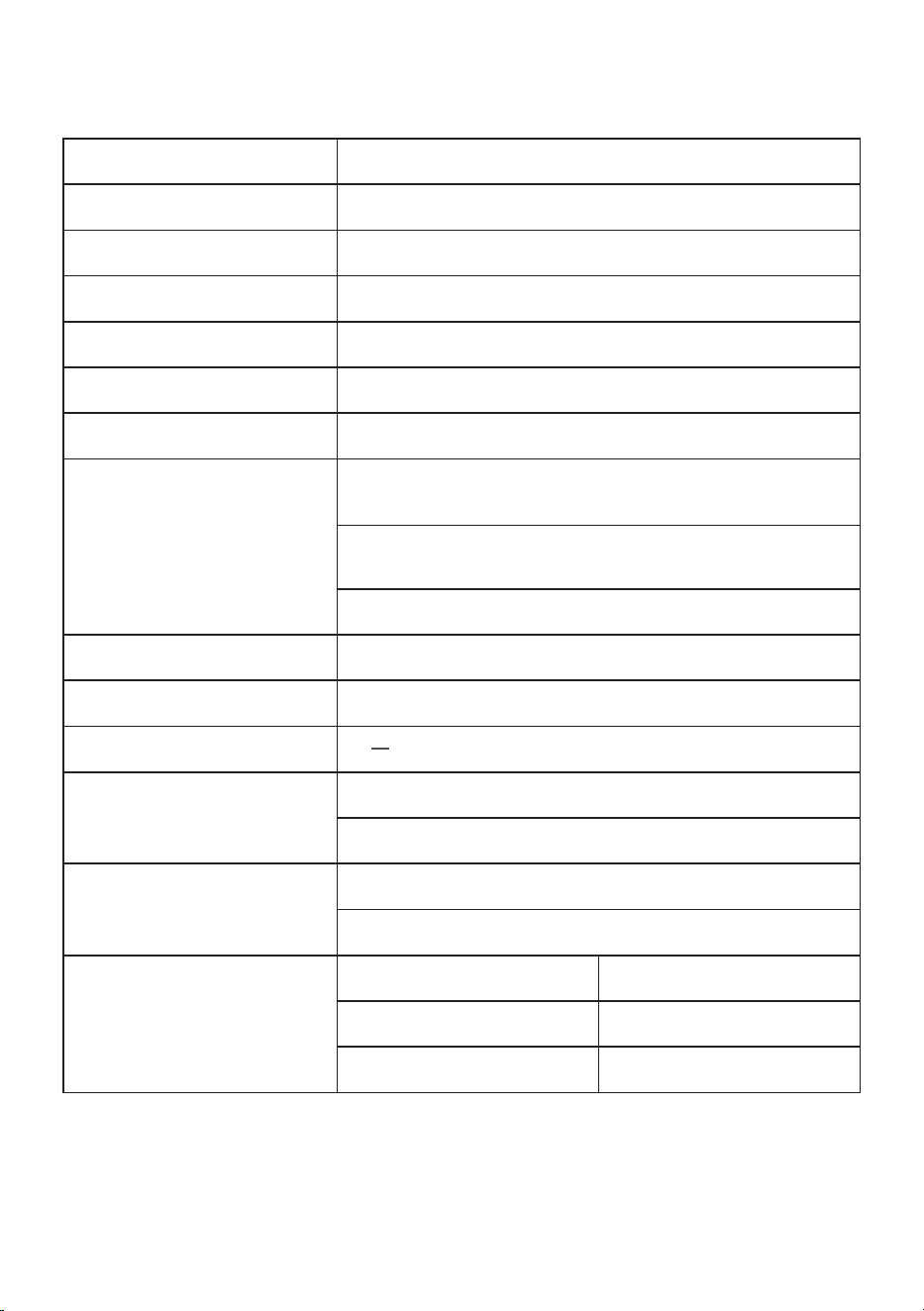
SPECIFICATIONS
NOTE: This document is for reference only, the operation interface is subject to the
TV software.
Operating System Google TV™
HDR (High Dynamic Range) Yes
Resolution 3840 x 2160
Display Colours 1.07 Billion
Aspect Ratio 16 : 9
Refresh Rate 60Hz
ETHERNET / WiFi Yes/ 802.11 a/b/g/n/ac
Multimedia Playback
Format under
USB Mode
Movie: MPEG, TS, TRP, TP, MP4, MOV, 3GP, AVI, MKV, ASF, FLV,
WEBM
Music: MPEG1, MPEG2, VORBIS, LPCM, FLAC
Photo: JPEG, BMP, PNG, GIF
Power Source 100-240V ~ 50/60Hz
Power Consumption 260W
USB 5V
---
max. 500mA
Dimensions
With stand: 1226 (w) × 265 (d) × 772 (h) mm
Without stand: 1226 (w) × 84 (d) × 718 (h) mm
Weight
Net: 11 kg
Gross: 15.5 kg
Accessories
1 x Instruction Manual 2 x AAA Batteries
1 x Remote Control 2 x TV Stand (Left and Right)
1 x Warranty Card Screws (For TV Stand)


CUSTOMER SUPPORT:
info@ayonz.com
02 8279 8606
DISTRIBUTED BY:
Ayonz Pty Ltd
