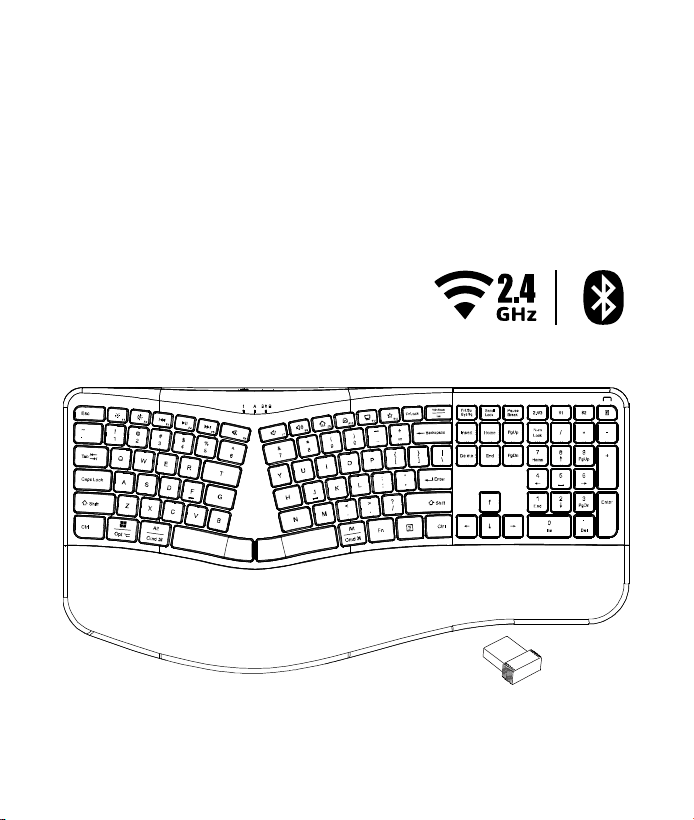
Bluetooth
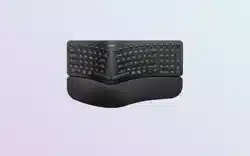
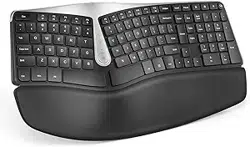
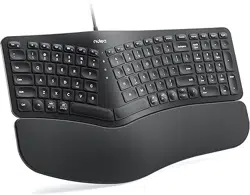
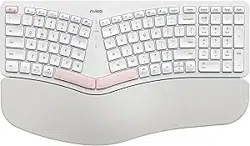
Ergonomic Keyboard
w/Nano Receiver
USER'S GUIDE
Ver.:1.00
CAUTION: To use this product properly, please read the user's guide before installation

1
Federal Communication Commission Interference Statement
This equipment has been tested and found to comply with the limits for a
Class B digital device, pursuant to Part 15 of the FCC Rules. These limits
are designed to provide reasonable protection against harmful interference in
a residential installation. This equipment generates, uses and can radiate
radio frequency energy and, if not installed and used in accordance with the
instructions, may cause harmful interference to radio communications.
However, there is no guarantee that interference will not occur in a particular
installation. If this equipment does cause harmful interference to radio or
television reception, which can be determined by turning the equipment off
and on, the user is encouraged to try to correct the interference by one of the
following measures:
- Reorient or relocate the receiving antenna.
- Increase the separation between the equipment and receiver.
- Connect the equipment into an outlet on a circuit different from
that to which the receiver is connected.
- Consult the dealer or an experienced radio/TV technician for help.
FCC Caution: Any changes or modifications not expressly approved by the
party responsible for compliance could void the user's authority to operate
this equipment.
This device complies with Part 15 of the FCC Rules. Operation is subject to
the following two conditions: (1) This device may not cause harmful
interference, and (2) this device must accept any interference received,
including interference that may cause undesired operation.
Radiation Exposure Statement:
The product comply with the FCC portable RF exposure limit set forth for an
uncontrolled environment and are safe for intended operation as described in
this manual. The further RF exposure reduction can be achieved if the
product can be kept as far as possible from the user body or set the device to
lower output power if such function is available.
2
Functional Introduction
3
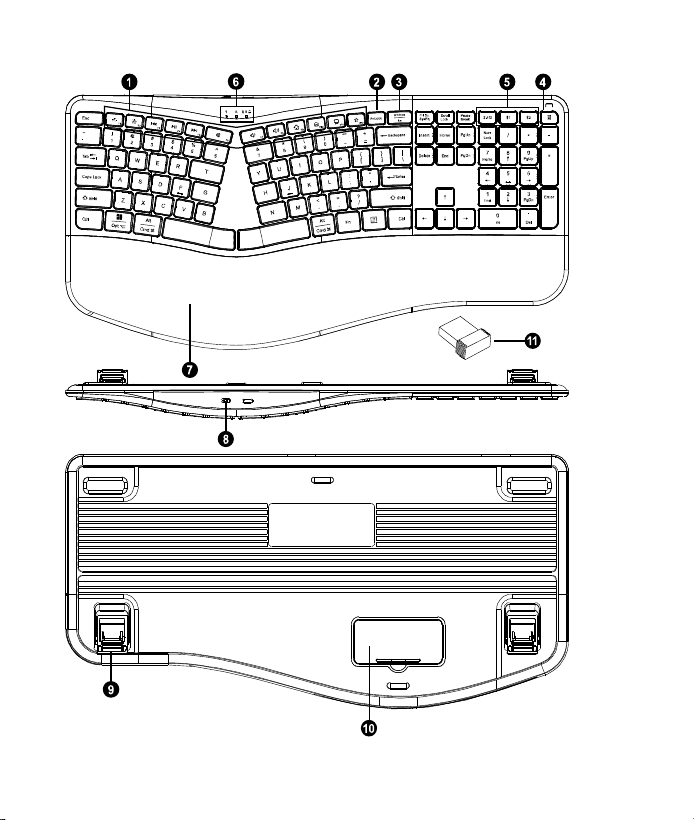
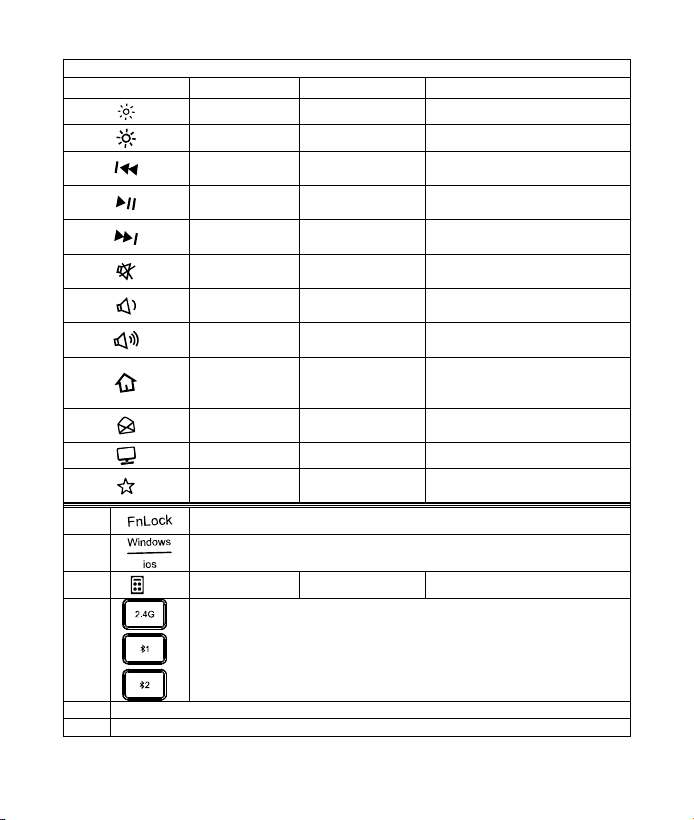
1. Key Function (* compound key, Press with Fn key)
Keys
Mac
Win
Key Function
Brightness-
Brightness-
Decrease display brightness
Brightness+
Brightness+
Increase display brightness
Previous
Previous
Switch to the previous
media track
Play / Pause
Play / Pause
Switch between playing and
pausing media
Next
Next
Switch to the next media
track
Mute
Mute
Mute (turns off) the
computer's sound
Volume down
(Voice-)
Volume down
(Voice-)
Decrease the computer's
sound volume.
Volume up
(Voice+)
Volume up
(Voice+)
Increase the computer's
sound volume.
/
Homepage
(www/e)
Start the default Web
browser and loads the home
Web page
/
Outlook(E-mail)
Default
Start the default e-mail
program
/
My Computer
My Computer
/
Favorites
Open My favorite after into
Internet browser application
2
FN Lock
3
Switching Between Win / Mac Systems
4
/
Calculator
Calculator
5
Switch to USB nano receiver channel (2.4GHz )
Switch to Bluetooth channel 1
Switch to Bluetooth channel 2
6
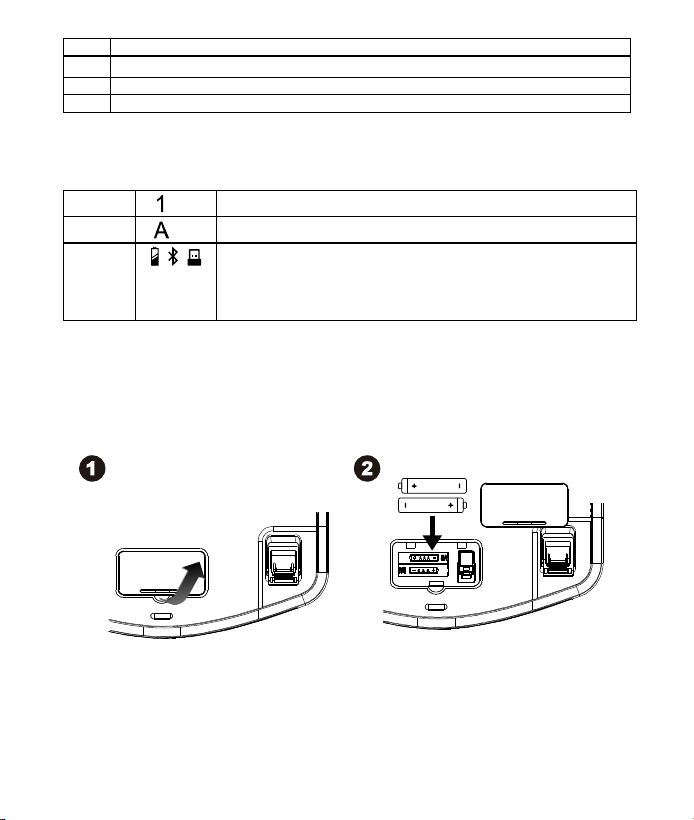
LED Indicator
7
Wrist Rest
4
8
Power On/Off Switch
9
Folding Bracket
10
Battery & USB Receiver Storage Cover
11
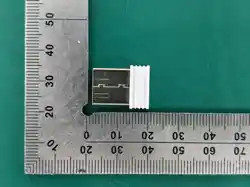
Nano Receiver
LED /Status Indicator LED
LED1
Nums lock : White LED
LED2
Cap lock : White LED
LED3
Low battery Warning : Red LED
2.4G : Purple LED
BT1 : Blue LED
BT2 : Green LED
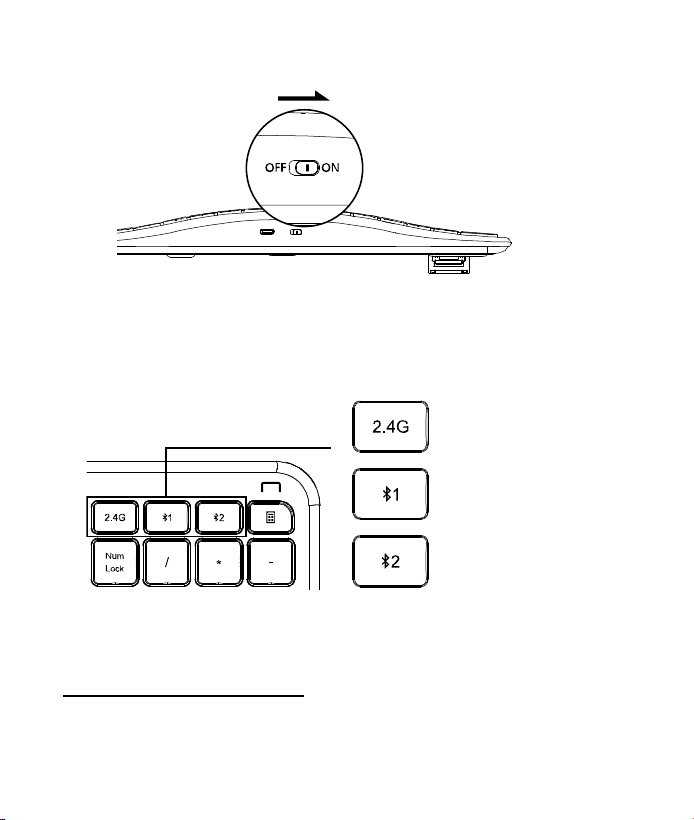
Battery and Power Management:
Step 1: Take the battery cover off.
Step 2: Insert the battery as shown inside the battery compartment.
AAA Battery X 2
5
Step 3: Replace the cover.
Step 4: Turn on power switch
**Warning:
*Please insert the battery with the correct position according to the instruction
labeled on the mouse & Keyboard.
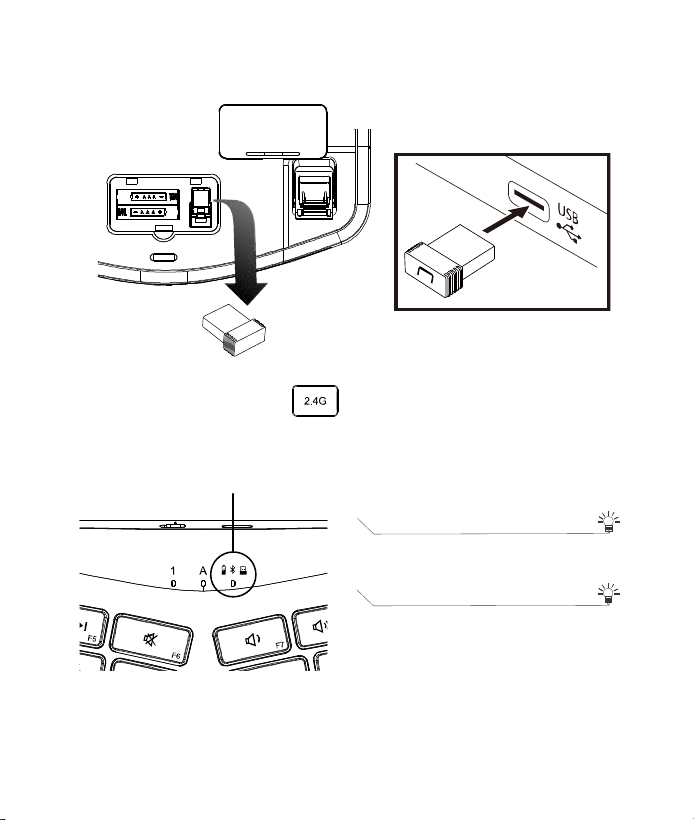
Switch Connection Channel
Connect via USB nano receiver
2.4G Mode – Purple LED
1. Insert the battery into the keyboard, then follow the steps below.
USB receiver
Bluetooth 1
Bluetooth 2
6
2. In the meantime, to open the cover under the keyboard, take the
nano receiver out.
3. Plug the Nano receiver into the USB A port on your computer.
4. Once press 2.4G button and switch to 2.4 G mode(Purple
light flashes), plug the receiver then connect successfully.
5. If pairing is not successful, the LED blinks for 5 seconds and then
turns off. Once pairing is successful, the LED turns off immediately.
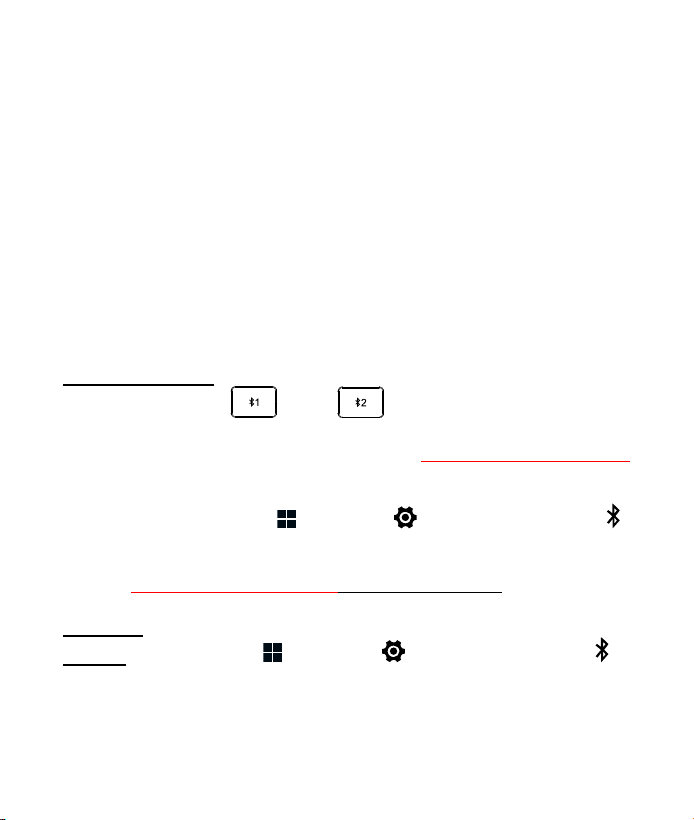
LED Indicator
*2.4G Mode
Purple LED Blinking
Pairing(LED OFF when paired or failed
after 10 Sec
Red LED Blinking for 10 Sec
Low battery Warning
7
6. Power On:
When powered on without the receiver inserted, the LED will blink slowly
for 5 seconds.
When powered on with the receiver inserted, the LED will remain
steadily lit for 2 seconds.
Connect via Bluetooth in windows
Bluetooth Mode
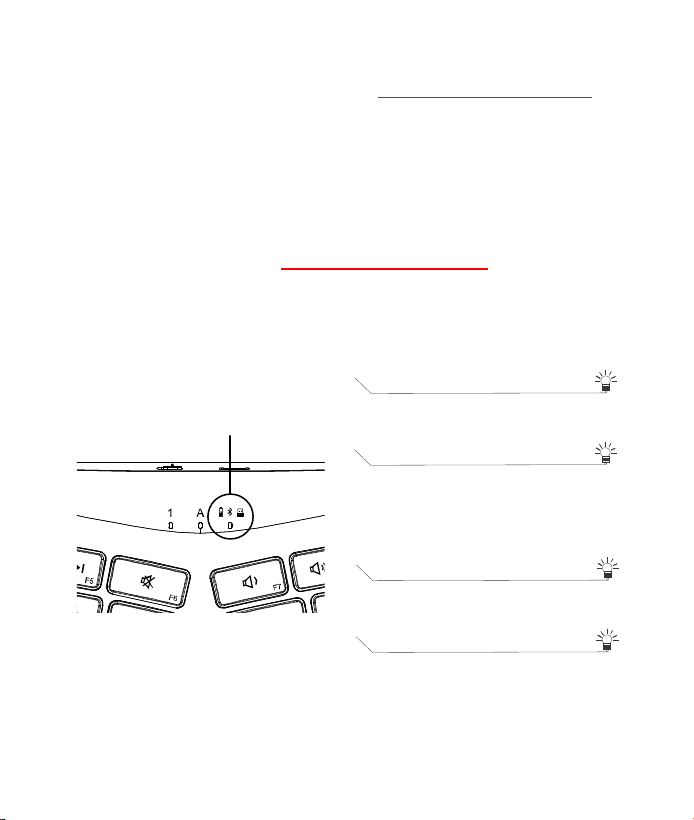
Once press the BT1 / BT2 button and switch to bluetooth
mode (Blue or Green light flashes), press the BT1/BT2 button for 3s,
indication will flash rapidly. Paring name of ” ST63682-1 or ST63682-2”
will appear in the bluetooth searching, press "pair" to connect.
1.On your PC, select Start > Settings > Bluetooth & devices
> Turn on Bluetooth > Add device > Bluetooth.
2.Mouse switch to BT mode and press Connect Button.
3.Find ” ST63682-1 or ST63682-2” and press connect.
Swift pair
On your PC, select Start > Settings > Bluetooth & devices >
View more devices > Turn on the Show notifications to connect using
Swift Pair.
8
2. Mouse switch to BT mode and press Connect Button.
3. Windows will show a notification ” ST63682-1 or ST63682-2” and
Selecting “Connect” starts pairing.
Connect via Bluetooth in Mac
1.Click on “Apple menu” (top left corner of your screen).
2.Go to System Preferences-> Bluetooth-> Turn Bluetooth on to set up
Bluetooth device and find ” ST63682-1 or ST63682-2” press connect.
LED Indicator
* Bluetooth 1 Mode
Blue LED Blinking
Pairing(LED OFF when paired or failed
after 10 Sec
Red LED Blinking for 10 Sec
Low battery Warning
* Bluetooth 2 Mode
Green LED Blinking
Pairing(LED OFF when paired or failed
after 10 Sec
Red LED Blinking for 10 Sec
Low battery Warning

9
Reset USB receiver connection
Mouse and keyboard are not working on USB receiver ?
Make sure both keyboard and mouse are powered on and the channels
are set to ( ). Make sure USB receiver is securely plugged into a
USB port, or try different USB ports. If it is plugged into a USB hub, plug
it directly into a USB port on your computer.
Reset Bluetooth connection
Mouse and keyboard are not working on Bluetooth?
Make sure both keyboard and mouse are powered on and the channels
are set to ( or ). Make sure to turn on Bluetooth function
on your computer. Set them in pairing mode, find them on the pairing list
on your computer and complete the pairing.
Note:
Under Bluetooth connection, mouse and keyboard should automatically
reconnect to their last connected computer, if it is not, you can always
re-pair again.
Power saving features:
To conserve the battery power, the mouse offers power management
functions as below:
The mouse goes into “Saving Mode” after inactivity. There may be a
slight delay while the mouse re-establishes Bluetooth connection from
power saving or sleeping mode.
Establishing a Bluetooth Connection
The Bluetooth mouse can work in any Bluetooth environment. Before
connecting your Bluetooth mouse with your computer, make sure your
computer has a working Bluetooth configuration with Human Interface

10
Device (HID) profile. If your computer does not support Bluetooth, you
need to obtain and install a commercially available Bluetooth dongle
which converts your computer to a Bluetooth environment.
Troubleshooting
A. Mouse does not work upon installation or is not detected
Try one or more of the following:
Make sure the batteries are installed correctly and turn the switch on.
Replace a fresh set of batteries if it still does not work.
Verify that the computer is Bluetooth enabled.
Press the connection button to reset the Bluetooth connection between your
mouse and your computer. Make sure it has been detected by the Operating
Systems properly.
B. The screen cursor does not move properly
If your screen cursor lags behind the movement, then your Bluetooth
connection may not be able to transmit all of the data from the mouse
with the necessary speed. This may be caused by interference from
other radio sources, obstructions in the radio wave path, excessive
distance from the computer, or a combination of the above.
※ Try the following actions to improve your Bluetooth
connection and optimize your mouse performance:
Remove any metallic objects from the line of sight between your computer
and the Bluetooth mouse.
If you are using a computer with a built-in Bluetooth antenna, try
reorienting the computer until you get a better data rate.
If you are using a Bluetooth dongle, use a USB extension cable and place
the Bluetooth dongle onto your desktop or somewhere in sight of your
Bluetooth mouse.
Move the mouse closer to your Bluetooth dongle.
Turn off the mouse and turn it on again for better connection.
Disconnect any Bluetooth audio devices, such as headsets, that may be

11
connected to your computer.
Switch off any other devices operating in the 2.4 GHz radio spectrum, such as
Wi-Fi network, mobile telephones, etc., or move their antennas further away from
your computer.