PrtScn
support@nulea.com
www.nulea.com
Nulea is happy to provide its clients with help around the
clock. Visit www.nulea.com and select 24/7 live chat, or send
an email to support@nulea.com for immediate assistance.
This product is covered in a 12-month warranty program.
24
7
1
2
M
O
N
T
H
S
WORK WITH YOUR FAVORITE

At Nulea, we believe you should choose the work you love and work in an
environment that makes you comfortable and happy.
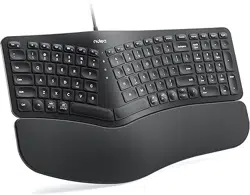
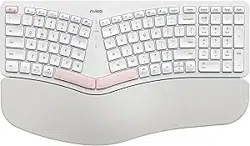
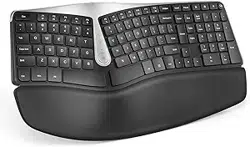
Nulea Ergonomic Series is designed for people who demand maximum typing
experience with minimum fatigue and stresses.
Nulea hopes RT05 will become your favorite keyboard and first choice, OR
DO NOT HESITATE to contact support@nulea.com for money back.
Your suggestion to help us improve is also highly appreciated.
Work with your favorite
Q.1
1. Check the keyboard power. Low battery power can adversely affect the
connectivity and overall functionality of the keyboard. For your better
experience, fully charge the keyboard with the included USB-C cable before
using it for the first time.
2. The delay and disconnection of the Bluetooth device may be interfered
with by other devices. Try to stay away from other wireless signal sources.
3. If you are using a Bluetooth receiver for pairing connection, please insert
the Bluetooth receiver closer to the keyboard to make sure the Bluetooth
signal is stable. If the Bluetooth signal is still unstable, you can try to use
2.4G USB for connection.
4. Computer lag can cause unstable Bluetooth connection. Please check the
computer operation or restart the computer.
How to deal with Bluetooth disconnection,
duplicate input and input lag?
How to deal with Bluetooth pairing doesn't work,
Bluetooth can't connect problem?
Q.2
1. Check and make sure that the Bluetooth on your computer is turned on and
make sure that the keyboard's connection channel is on the appropriate
device. (Up to three devices can be connected, one for each channel)
2.Unpair and delete the keyboard's Bluetooth name on your computer's
paired device. Navigate to the Bluetooth Settings pane:
Click Start > Settings > Devices > Bluetooth & other devices.
Locate your device in the Devices list, click on it and select Remove device.
Re-pair the device you need on the computer lists.
Q.3
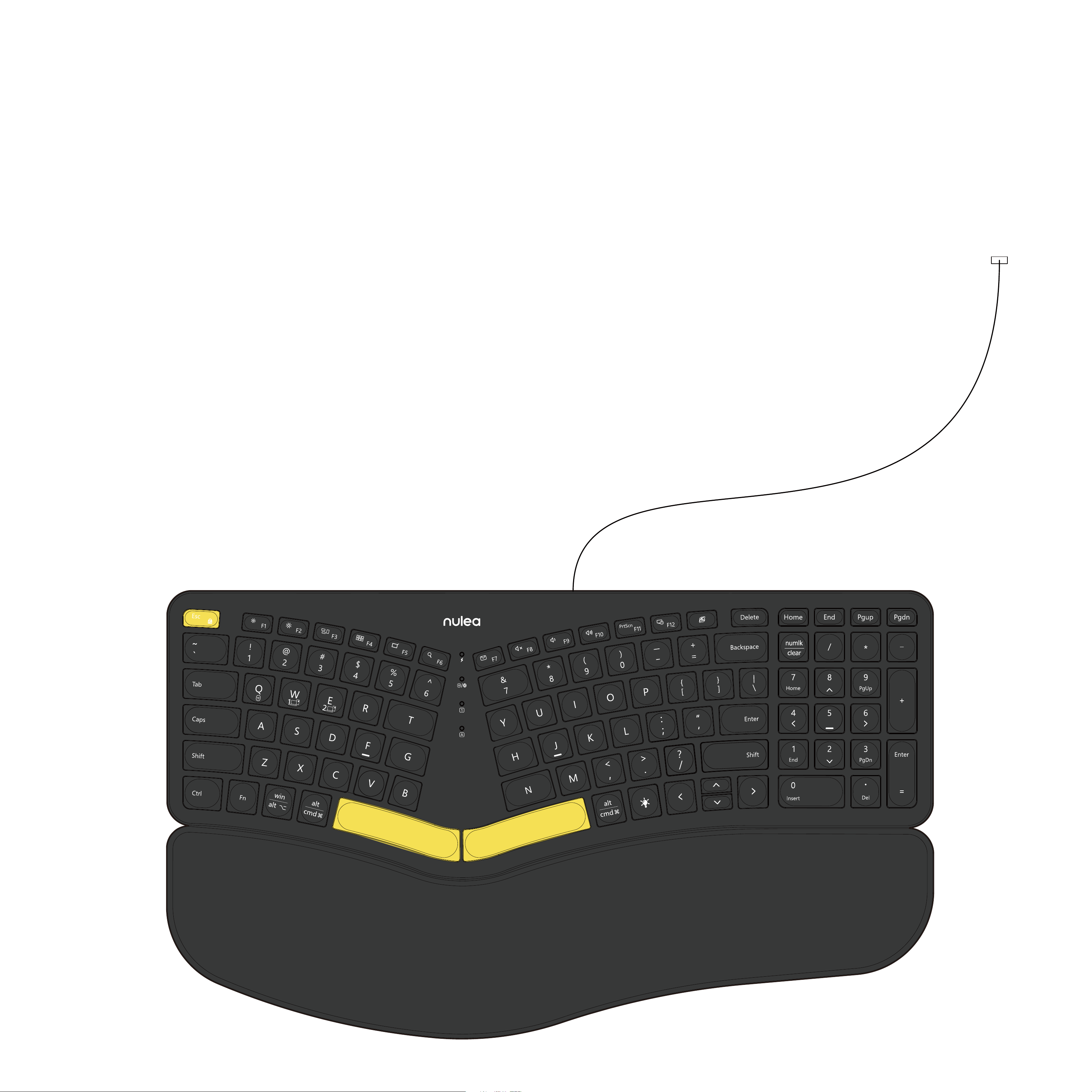
1. To charge the keyboard, plug the included USB-C to USB-A cable
into the keyboard and laptop respectively. (Or use a 5V/1A charger)
2. During charging, the charging indicator light is red, and the
indicator light turns green when fully charged.
How to charge the keyboard?
3. When the battery is low, the indicator light flashes red. In
order not to affect the experience and function of the
keyboard, please charge in time.
If you are not used to it, please contact customer
service
Q.4
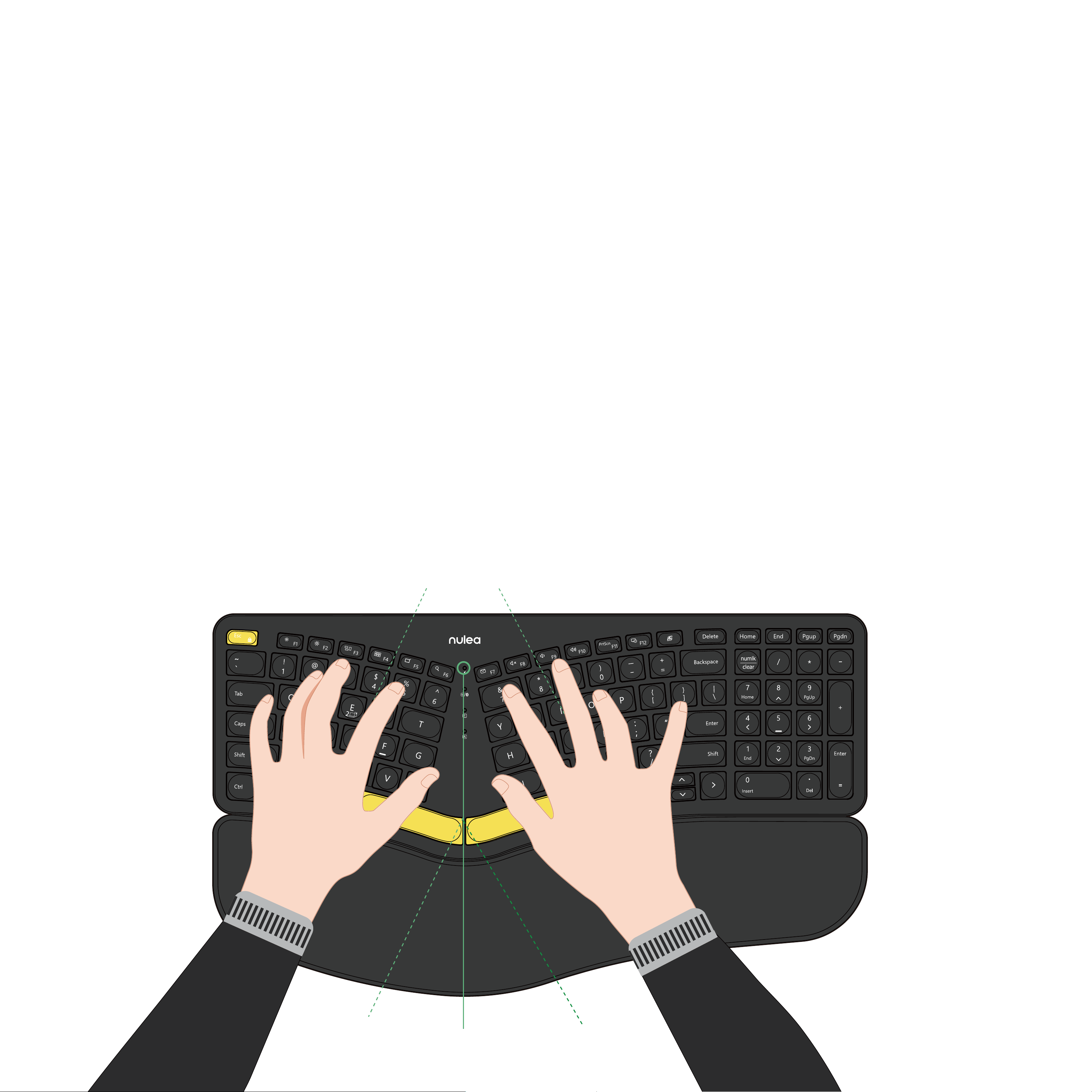
The ergonomic layout and keyboard curve can help solve wrist problems and
make it more comfortable. We' ve heard from some customers that don't
adapt to the layout design of the keyboard. So if you don't adapt to it, please
stick with it for a while.
If you still don't like it, please don't hesitate to contact our service for help.
Customer Service:support@nulea.com
Model
Connected by
Product Dimensions
Connection
Operating Distance
Rechargeable Lithium Battery
Compatibility
HD315
Bluetooth & 2.4G receiver
418.04 × 244.08 × 32.71mm / 16.5 × 9.6 × 1.3 in
2.4G Wireless & Bluetooth
8 m / 26.2 ft
2000mAh
Windows 2000/XP/Vista/7/8/10/11,Mac OS 10.0 above
Packing Contents
1 × Wireless Ergonomic Keyboard
1 × 2.4G USB Receiver ( For 2.4G connection only )
1 × USB-C Charging Cable
1 × User Manual
Specification
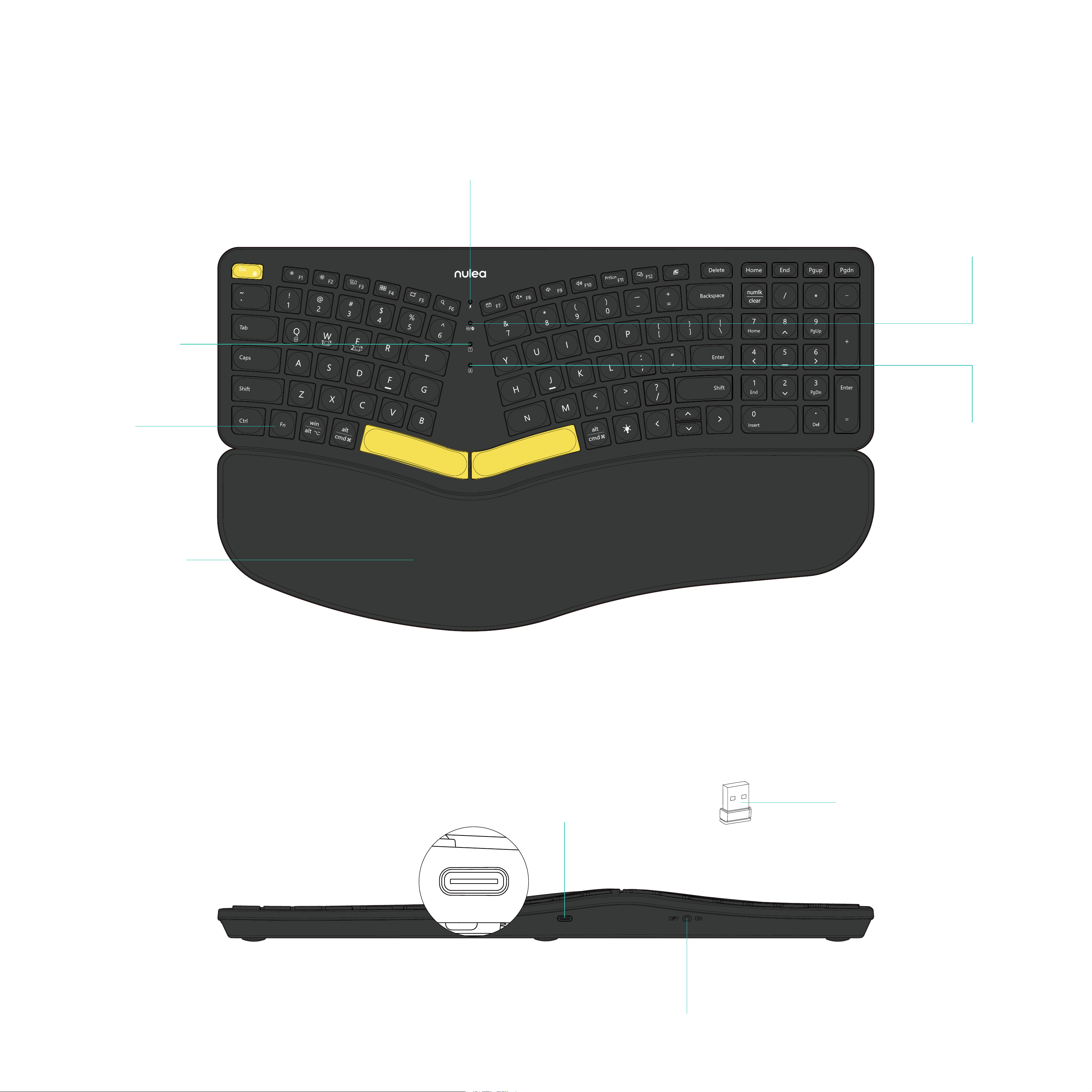
Hardware Basics
Power Switch
Fn Key
Connection
Indicator
Power On/Charging Indicator
Leather
Wrist Rest
Num Lock
Indicator
Caps Lock
Indicator
Charging Ports
USB Receiver
2.4G
1 BT Device
2 BT Device
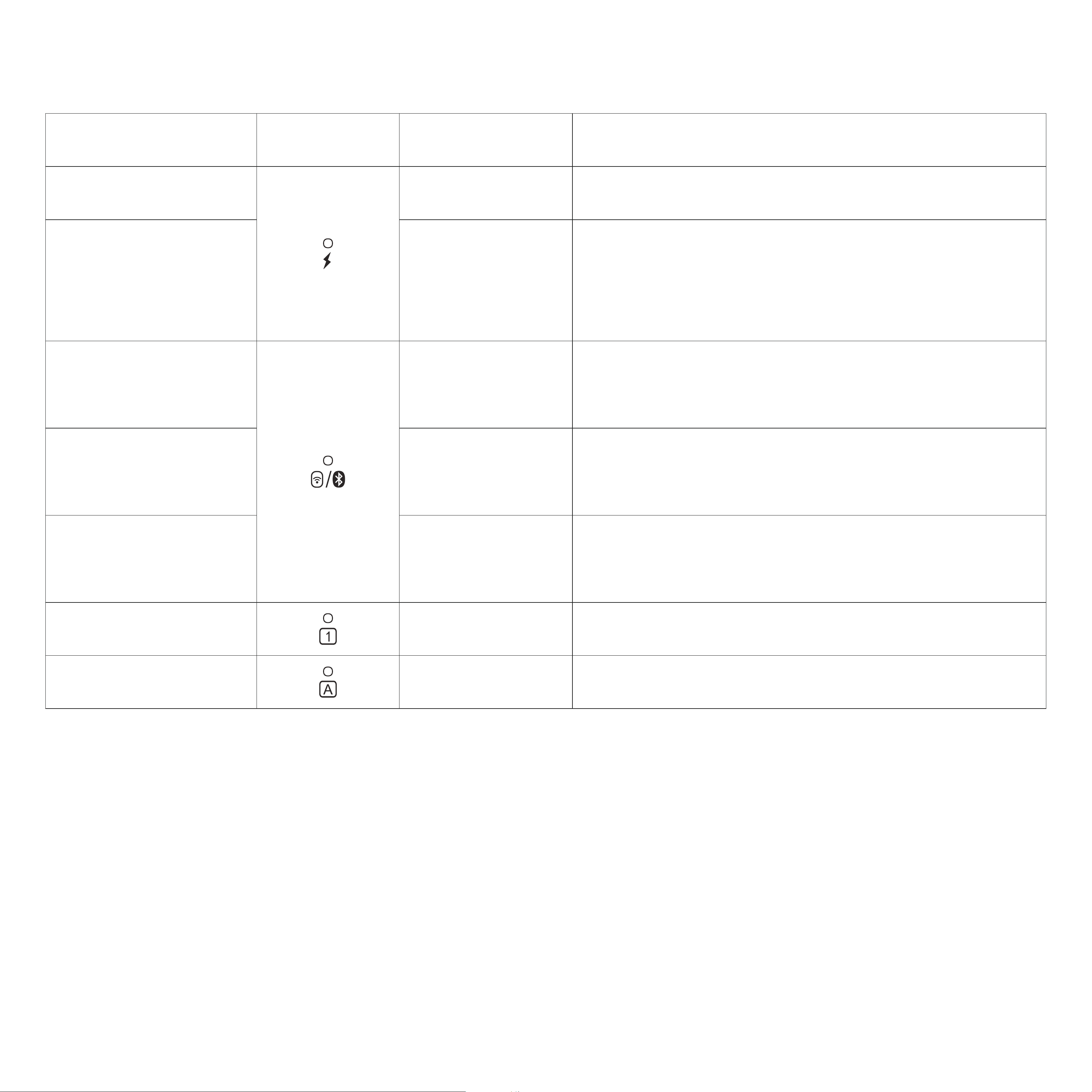
Indicator Icon Color Definition
Power On
nd
st
Green
Indicators & Definition
Charging Red- Green
Low battery indicator flashes red.
Stay in red color when charging, and
it will turn green after fully charged.
Green indicator is on for 3s then off.
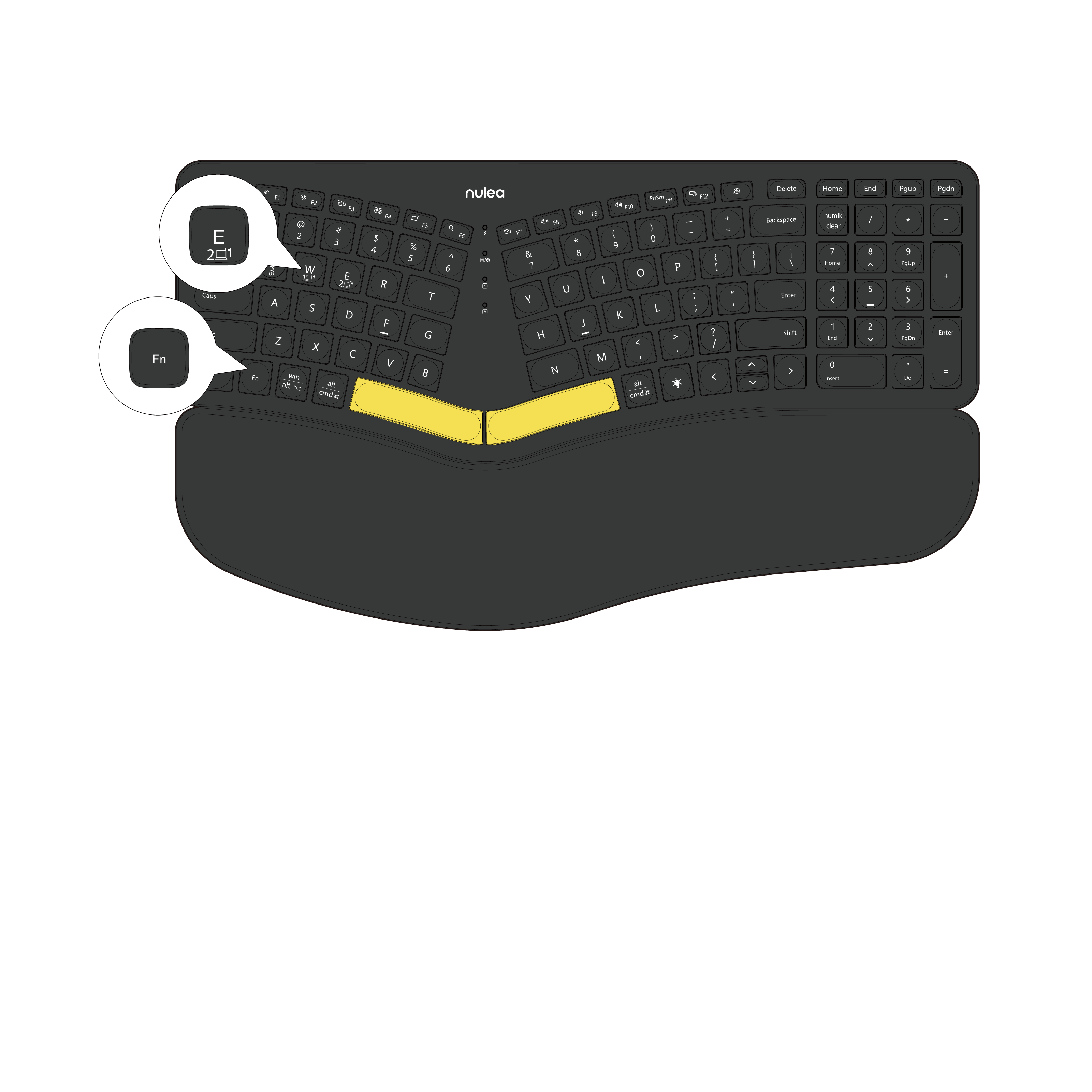
Press Fn+Q to 2.4G mode, green
indicator flashes slowly.
Press Fn+W to BT1, blue indicator
flashes slowly
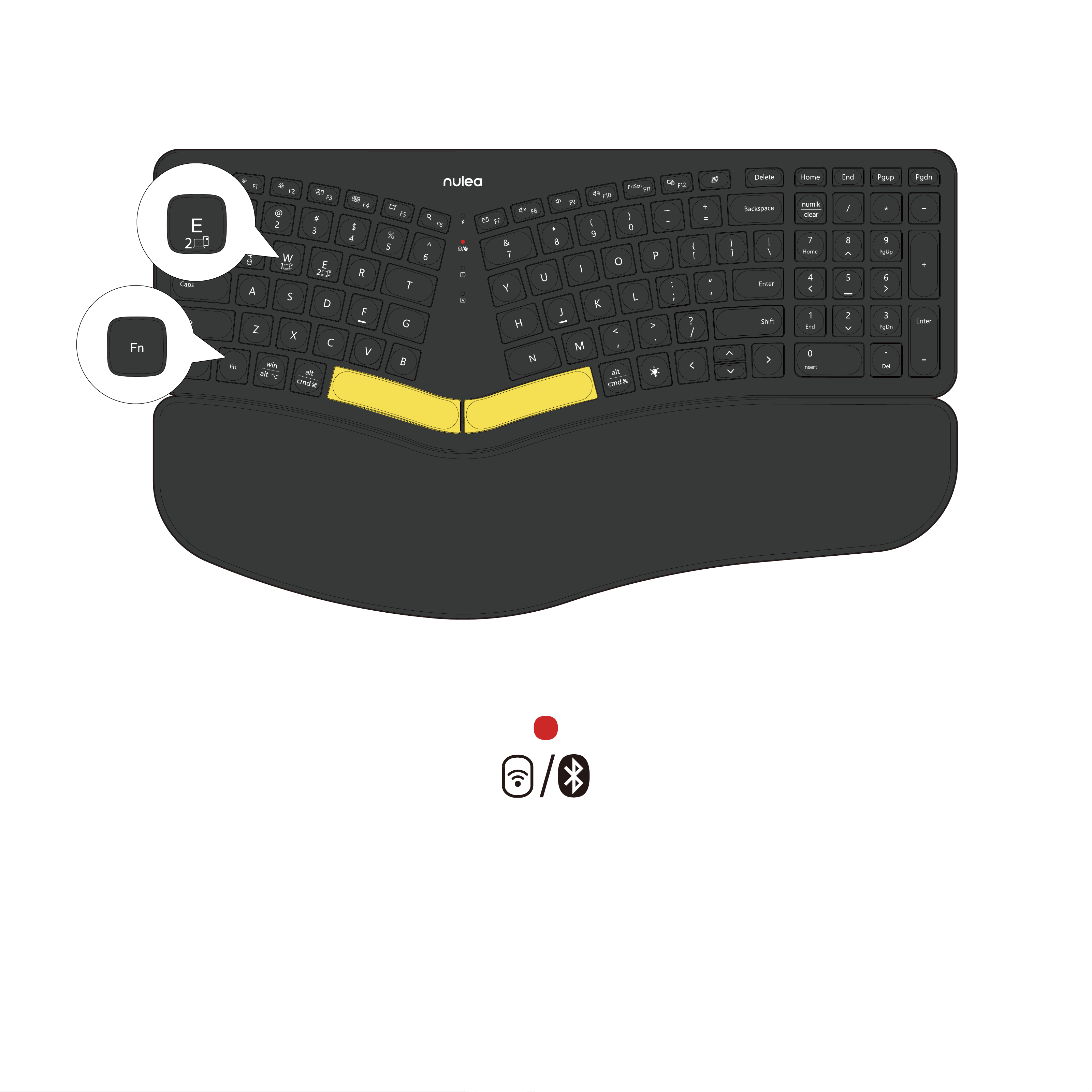
Press Fn+E to BT2, red indicator
flashes slowly.
Green indicator is on.
Green indicator is on.
Green
Green
Green
Blue
Red
Num Lock
Caps Lock
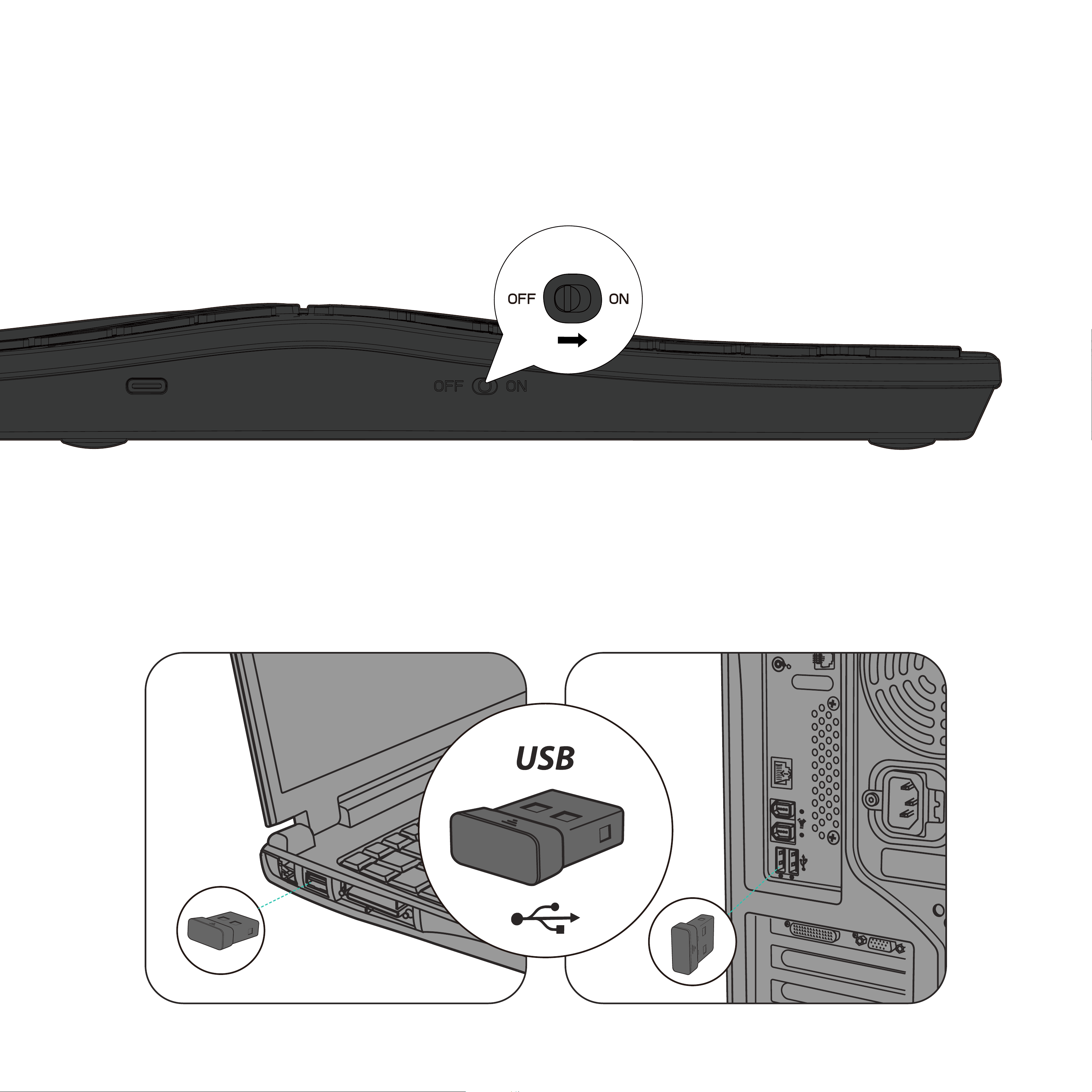
A.2.4G Connection
Pairing Steps
Step 1. Flip the power switch to the ON position.
Step 2. Plug the 2.4G USB receiver into the port of computer.
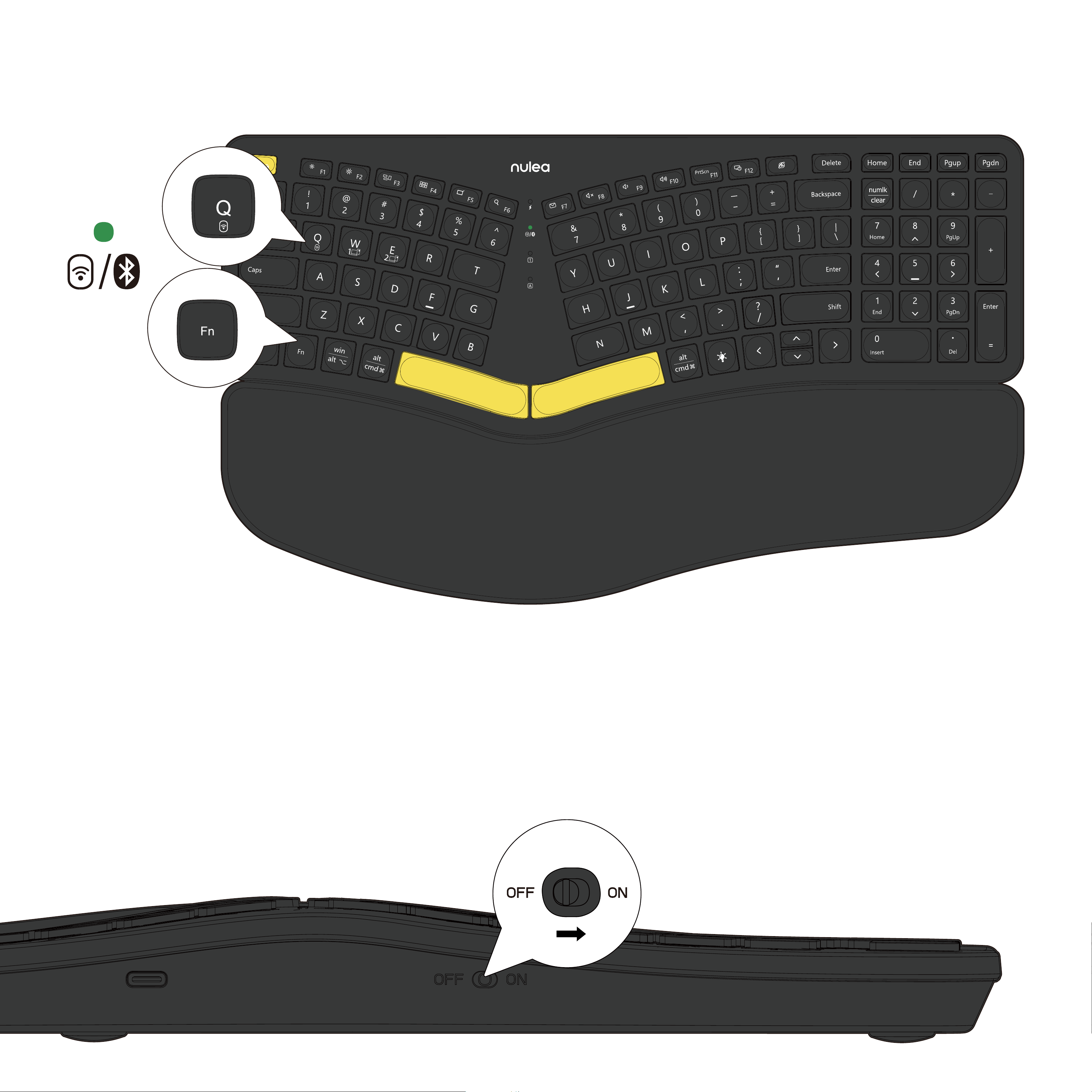
Green
Step 3. Press "Fn+Q", the mode light will light up green and switch to 2.4G
wireless mode.
B. Bluetooth Connection
Step 1. Flip the power switch to the ON position.
Pair with 1 device
st
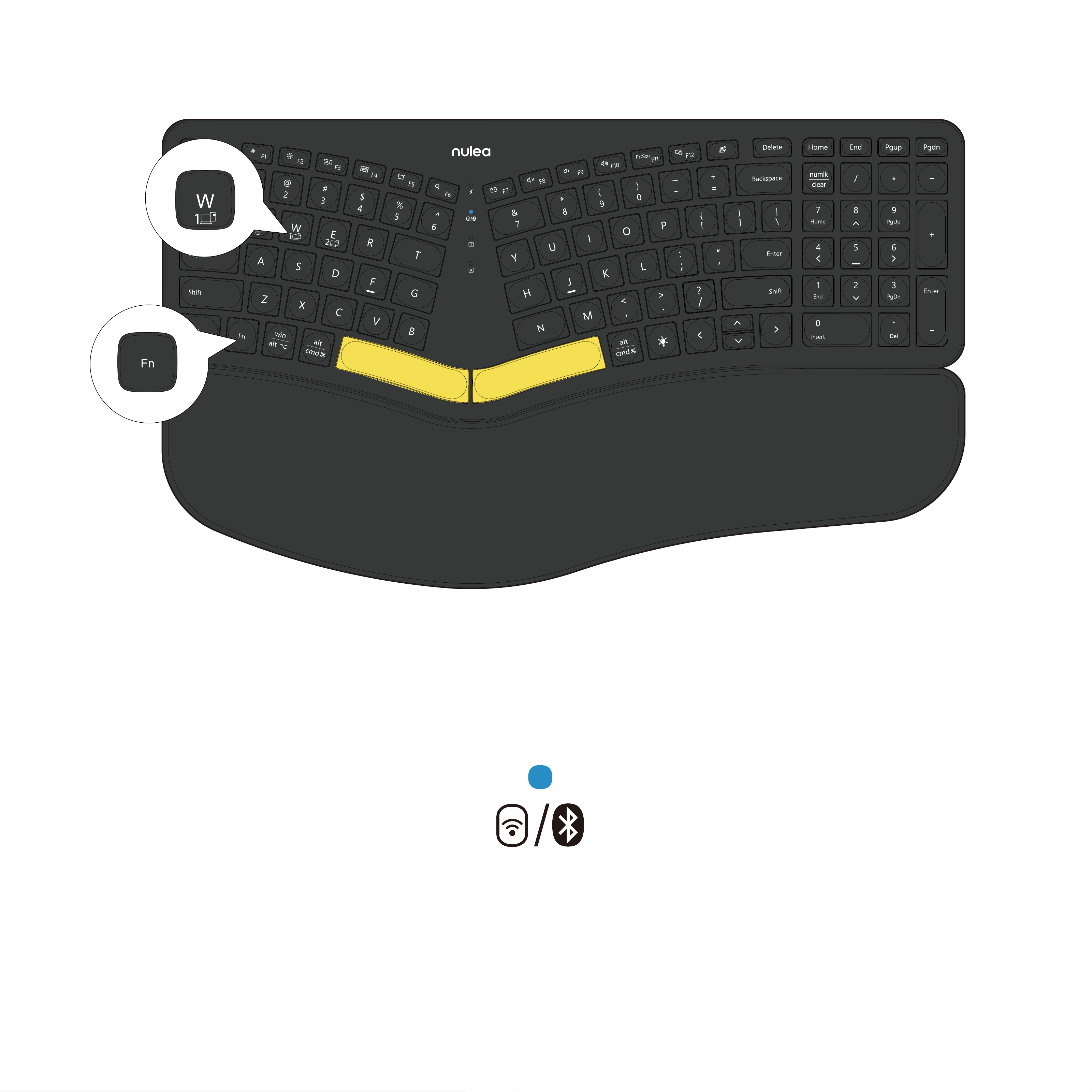
Step 2. Press “Fn+W” to enter channel 1 mode.
Long press “Fn+W” for 5 seconds to enter pairing mode, Bluetooth channel 1
indicator will flash blue and start to search the available Bluetooth device.
Blue
Bluetooth
Show Bluetooth in menu bar
Bluetooth: On
Now discoverable as
”forter
的iMac”
Devices
Advanced...
Turn Bluetooth Off
Search
Nulea RT05
connected
Not Connected
Not Connected
”foeter”
IK6650
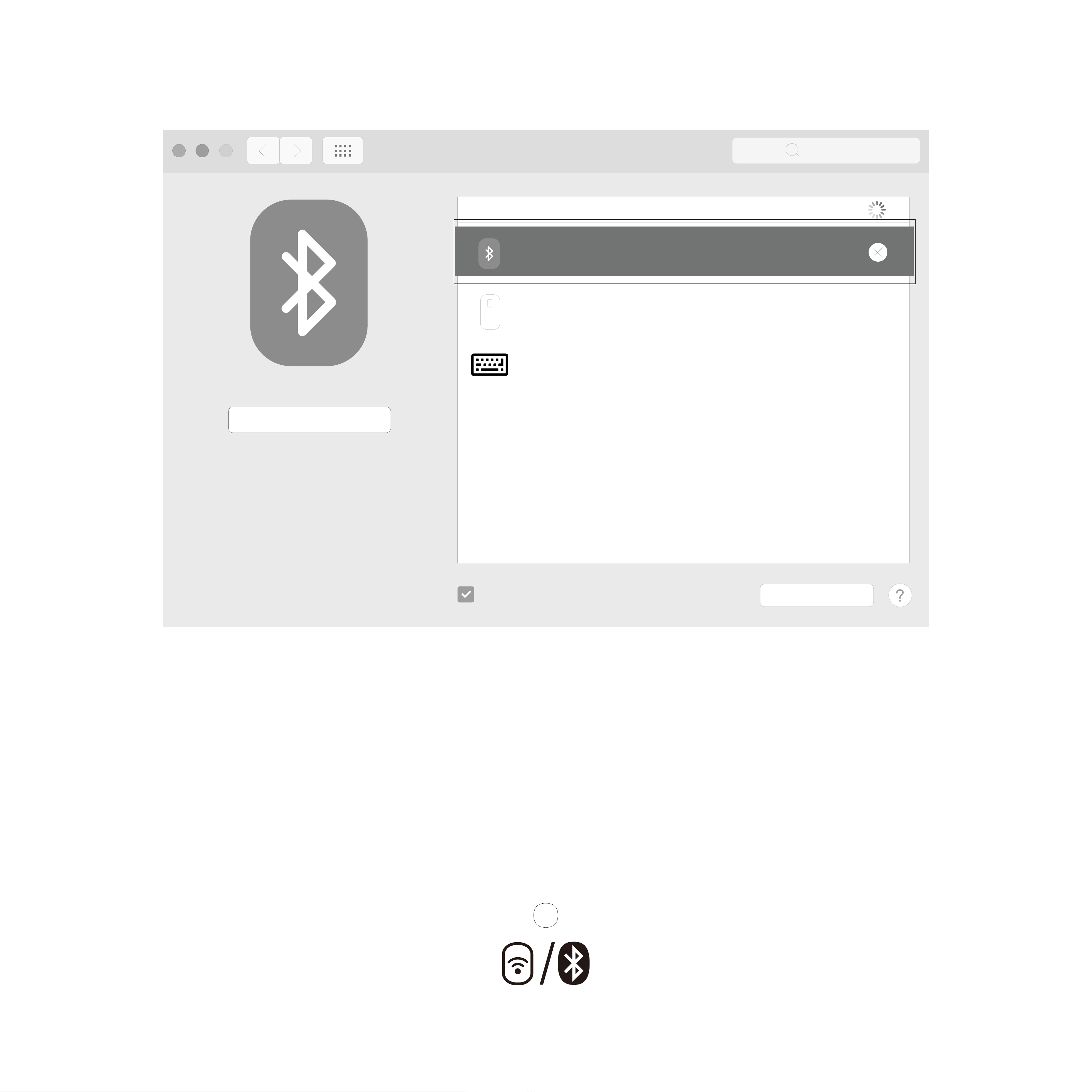
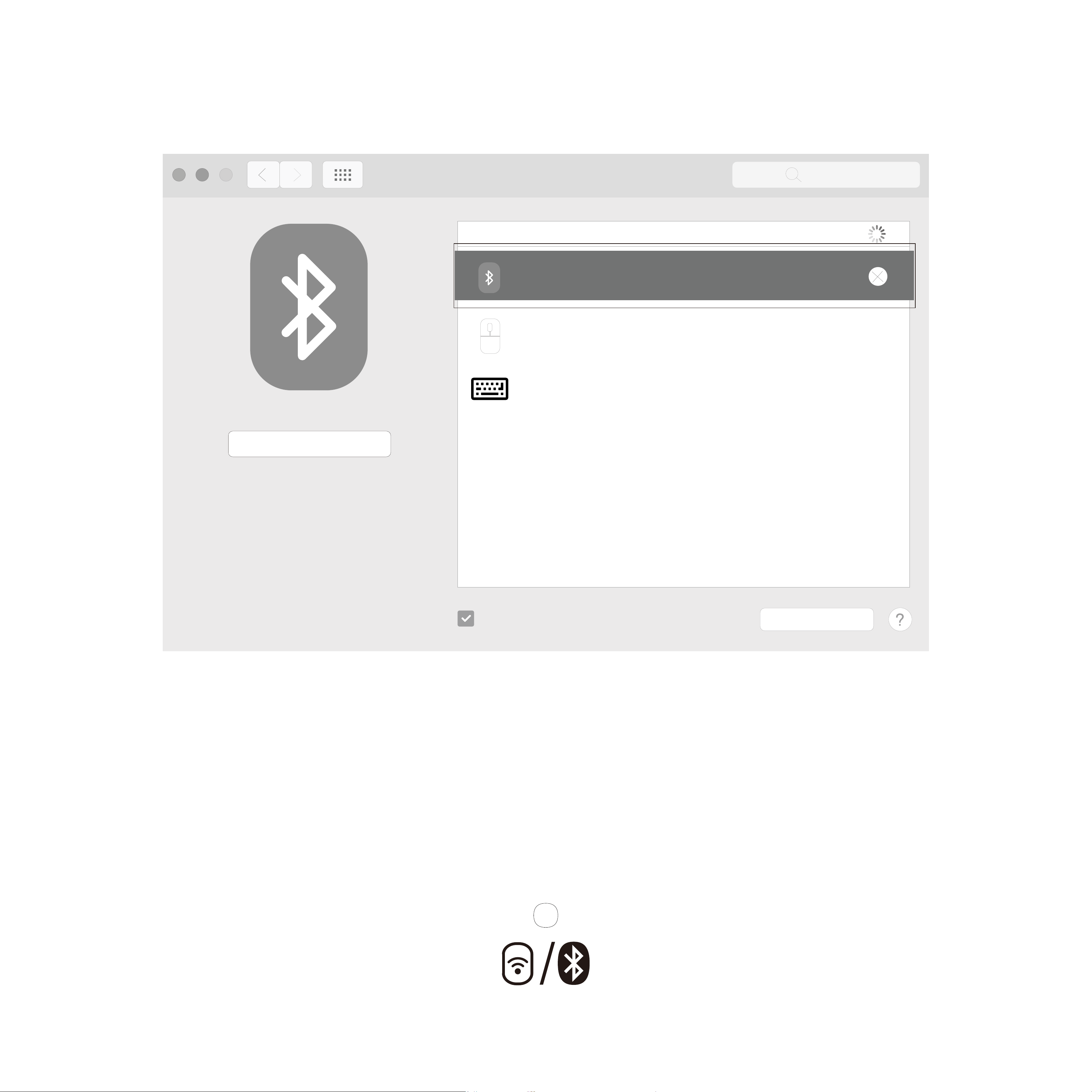
Step 3. On your Bluetooth device, find the Bluetooth name “Nulea RT05” and
click to connect it.
Step 4. The status indicator will be off after successfully paired.
Pair with 2 device
Step 1. Press “Fn+E” to enter channel 2 mode.
nd
Red
Long press “Fn+E” for 5 seconds to enter pairing mode, Bluetooth channel 2
indicator will flash red and start to search the available Bluetooth device.
Bluetooth
Show Bluetooth in menu bar
Bluetooth: On
Now discoverable as
”forter
的iMac”
Devices
Advanced...
Turn Bluetooth Off
Search
Nulea RT05
connected
Not Connected
Not Connected
”foeter”
IK6650
Step 2. On your Bluetooth device, find the Bluetooth name “Nulea RT05” and
click to connect it.
Step 3. The status indicator will be off after successfully paired.
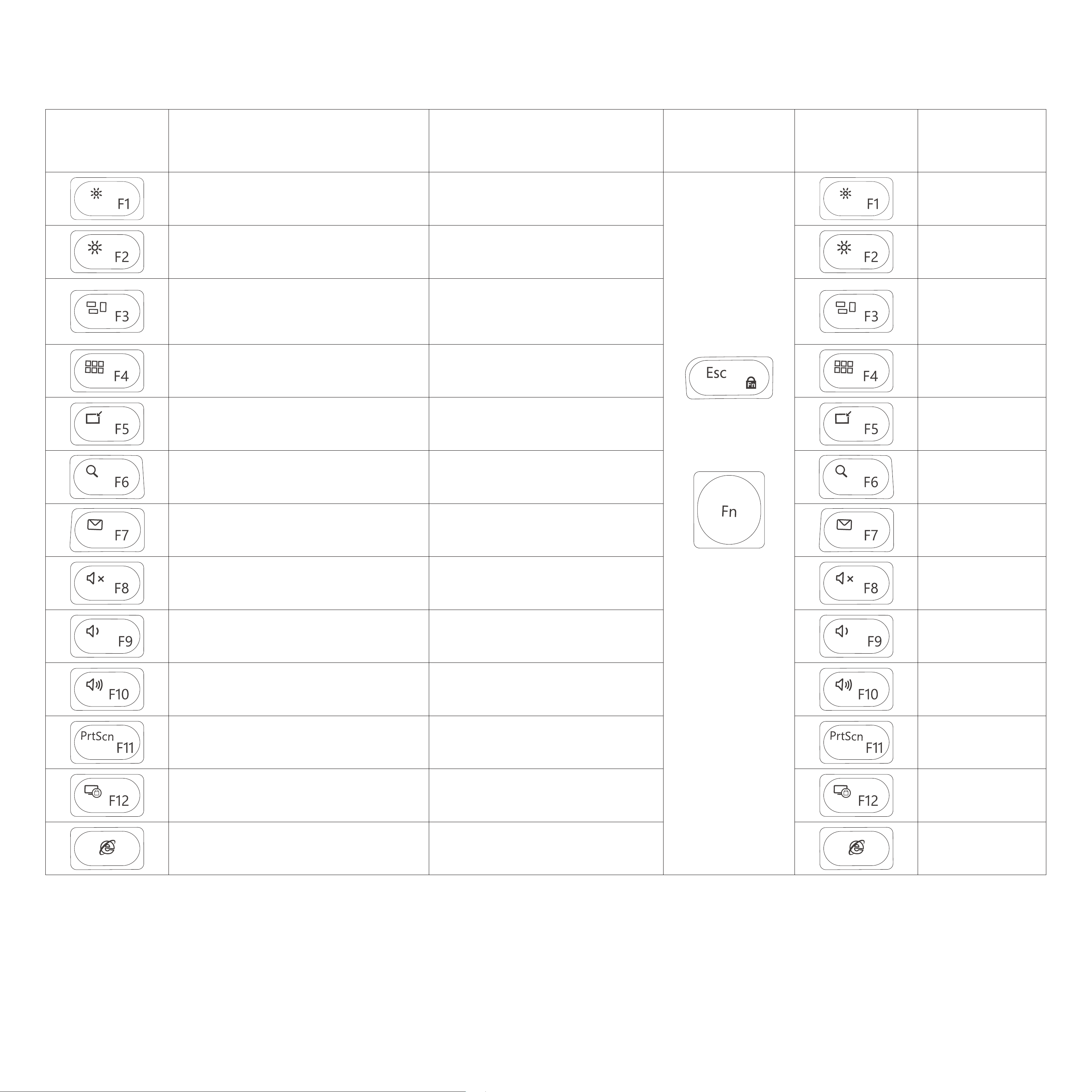
Keys & Functions
Mac /
Windows
+
F1
F2
Task View
Show Desktop
Search
Email
Mute
Volume-
Volume+
Screenshot
Lock Screen
Open Web Browser
Key Icon Windows Mac
Turn on
Fn Lock
Fn Lock
is on
Brightness- (Win 10)
Brightness+ (Win 10)
Switch Between
Open Apps
Brightness-
Brightness+
Switch Between
Open Apps
Mission Control
Show Desktop
Spotlight
N/A
Mute
Volume-
Volume+
Screenshot
Lock Screen
N/A
F4
F5
F6
F7
F8
F9
F10
F11
F12
F3
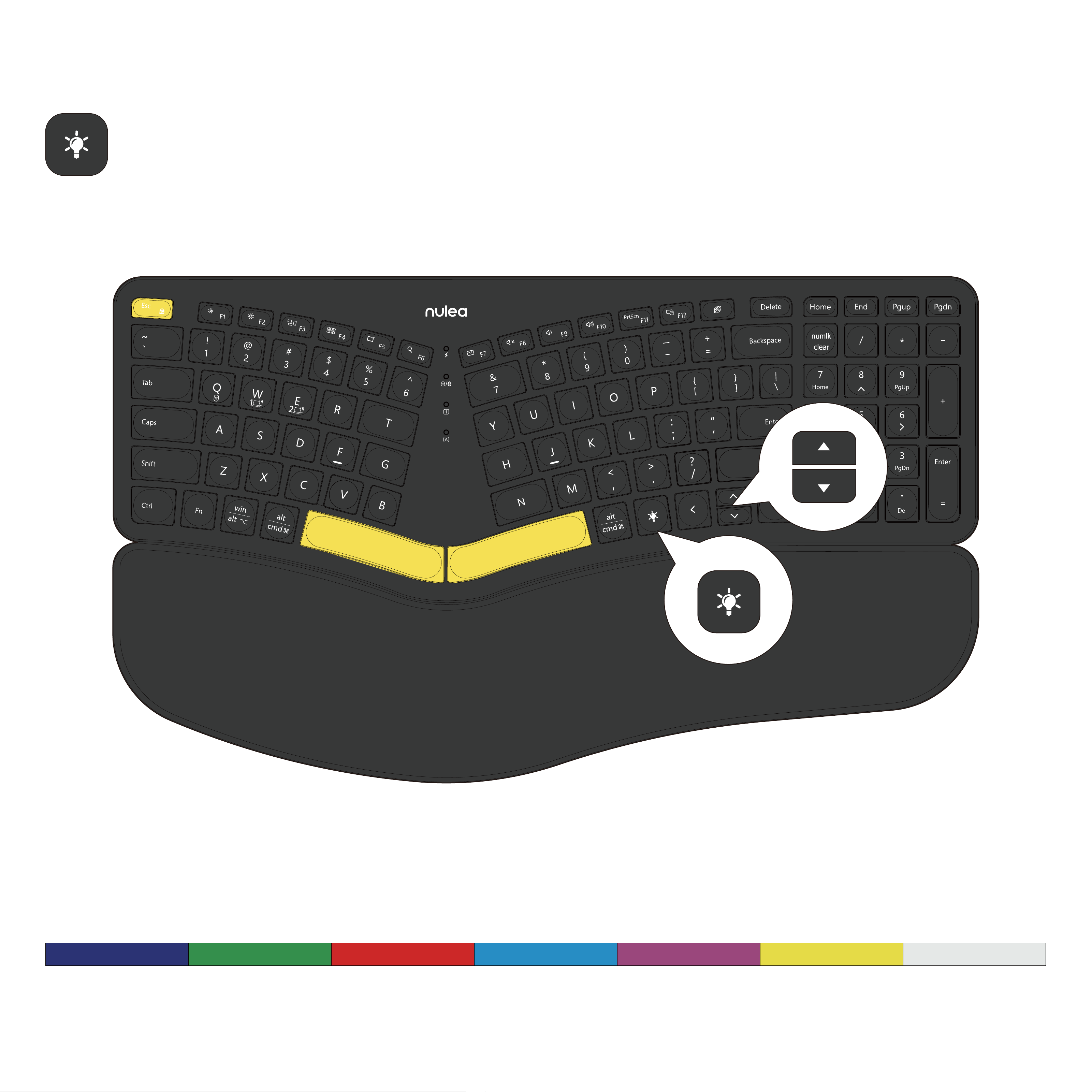
Press the light adjustment button and the up or down buttons to adjust the
backlight color.
How to change the backlight color?
Switch Color: Blue/Green/Red/Cyan/Purple/Yellow/White
Blue Green Red Cyan Purple Yellow White
Press the light adjustment button, three levels of brightness adjustable.

Sleep Mode
The keyboard will enter sleep mode if idle for 30min.
To save keyboard power, if you don't use the keyboard, the keyboard backlight
will go into sleep mode after three minutes.
Press any key to exit sleep mode.
Charging
Low battery indicator flashes red, in order not to affect the experience and
function of the keyboard, please charge in time.
Step 1. Connect one end of the included type-c cable to a USB charger, and
connect the opposite end to the charging slot on the keyboard.
(Note: Output: DC 5 V / 1A; USB charger is not included)
Step 2. The charging indicator will glow red while the keyboard is charging.
The indicator light turns green when fully charged.
A full charge takes approximately 4 hours.

Any changes or modifications not expressly approved by the party
responsible for compliance could void the user's authority to operate the
equipment.
This device complies with part 15 of the FCC Rules. Operation is subject to the
following two conditions: (1) this device may not cause harmful interference,
and (2) this device must accept any interference received, including
interference that may cause undesired operation.
FCC Radiation Exposure Statement:
This equipment complies with FCC radiation exposure limits set forth for an
uncontrolled environment.
FCC ID Statement

(Waste Electrical & Electronic Equipment)
This marking shown on the product or its literature, indicate that it should
not be disposed with other household wastes at the end of its working life.
To prevent possible harm to the environment or human health from
uncontrolled waste disposal, please separate this from other types of wastes
and recycle it responsibly to promote the sustainable reuse of material
resources. Household user should contact either the retailer where they
purchased this product or their local government office, for details of where
and how they can take this item for environmentally safe recycling.
Business users should contact their supplier and check the terms and
conditions of the purchase contact. This product should not be mixed with
other commercial wastes for disposal.
Correct Disposal of This Product
The Bluetooth word mark and logos are registered trademarks owned by the
Bluetooth SIG, Inc. and any use of such marks by Nulea is under license. Other
trademarks and trade names are those of their respective owners.
®
MADE IN CHINA
FCC ID: 2AKHJ-HD315
UAB Qixiang Europe
Pranciškonų g. 6-46, LT-01133 Vilnius, Lithuania
Technical Information Center
Geschwister-Scholl-Str. 73, 60488 Frankfurt, Germany
Email: qixiang.europe@gmail.com
Phone: +49 6976 895074
CET Product Service Ltd.
Beacon House Stokenchurch Business Park,
Ibstone Rd, Stokenchurch
High Wycombe HP14 3FE UK
Email: info.cetservic[email protected]om
Phone: +44 741 932 5266
UK REP
EC REP