
NKR570 QSG
This guide outlines the operating procedures and safety precautions. Please
read it carefully to make sure you are using your product properly and keep it
for future reference.
Specifications
- Model: NKR570
- 96Keys Mechanical Keyboard
- Backlight: Monochrome mixed color / Monochrome
- Lithium battery: 3.7v 1000mA
- Cable Length: 1800mm
- Dimensions (L x W x H): Keyboard without palm rest: 386 x 137 x 39 mm
- Weight: 680g ± 5g
- System compatibility : Windows® 7/8/8.1/10/11
- Connector Type: USB
- All Keys Anti-ghosting Keys
Package Contents
- Nitro Gaming Keyboard x 1
- purpose key puller x 1
- Quick Start Guide x 1
- Warranty booklet x 1
I. Mode Switching
1. Bluetooth Mode: Switch both positions to "ON"
1) Press and hold FN+Q to switch to BT1 Bluetooth Channel 1. The Q button
will flash rapidly at 2.5Hz, stopping after successful pairing.
2) Press and hold FN+W to switch to BT2 Bluetooth Channel 2. The W button
will flash rapidly at 2.5Hz, stopping after successful pairing.
3) Press and hold FN+E to switch to BT3 Bluetooth Channel 3. The E button
will flash rapidly at 2.5Hz, stopping after successful pairing.
4) Short press FN+Q, W, or E to switch Bluetooth channels. The
corresponding Bluetooth channel will attempt to reconnect, and the
corresponding indicator light will flash slowly at 0.5Hz, stopping after
successful reconnection.
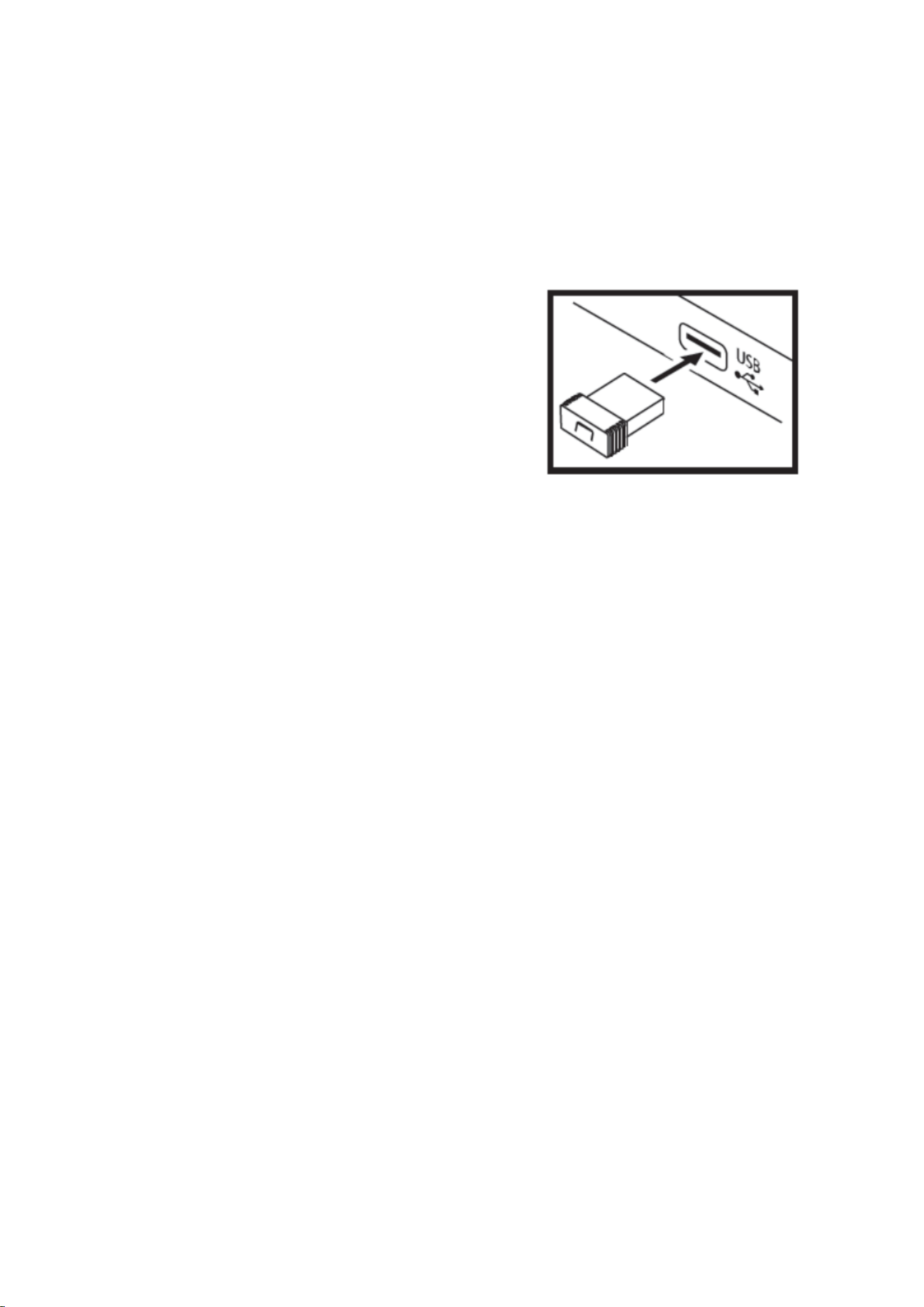
2. 2.4G Mode: Switch the two-position switch to "ON".
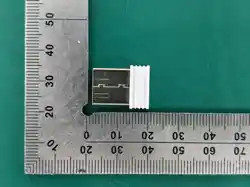
The tri-mode keyboard is pre-paired at the factory. Plug the 2.4G adapter into
the device's USB 2.0 interface and briefly press FN+R to use. To re-pair:
Press and hold FN+R to switch to 2.4G pairing mode. The R key will flash
rapidly at 2.5Hz. Plug in the 2.4G adapter; the flashing will stop after
successful pairing. (Requires pre-customized software and a 2.4G adapter.)
3. Wired Mode
Connect the keyboard to your computer using the data cable. Briefly press
FN+TAB to switch to wired mode. After the driver is automatically installed,
the keyboard is ready to use.
4. Power Saving Instructions
1) Power Saving Design: In wireless mode, if no key is pressed for 2
minutes, the keyboard backlight will automatically turn off, and the
keyboard will enter standby mode. After 30 minutes of inactivity, the
keyboard will enter deep sleep mode, simultaneously disconnecting 2.4G
or Bluetooth and turning off all LEDs. Press any key to exit sleep mode.
2) In USB wired mode, the keyboard never enters sleep mode. A
constantly lit FN key indicates charging, and the backlight will change
when fully charged.
II. Lighting Adjustment
This device supports multiple lighting effects.
* Fn + \| key: Switch main button area lighting effects. Multiple effects are
included by default.
* Fn + ↓ / ↑ key: Adjust main button area lighting brightness. At its
maximum, the light flashes 3 times.

* Fn + ← / → key: Adjust main button area lighting speed. At its
maximum, the light flashes 3 times.
* Game lighting and custom lighting (the number may vary depending on
the version; please refer to the actual product).
FN + Right Shift + 1 = Custom Lighting 1
FN + N = Lighting Recording/Save
III. Multimedia Knob
Long press encoder button = Encoder Lighting Mode:
Short press encoder button: Switch backlight mode; rotate clockwise to
increase backlight brightness, rotate counter-clockwise to decrease backlight
brightness.
Long press encoder button = Encoder Volume Mode:
Short press encoder button: Toggle mute; rotate clockwise to increase volume,
rotate counter-clockwise to decrease volume.
IV. Other Key Functions:
FN+A = Switch to Windows system (Flash A key indicator)
FN+S = Switch to macOS system (Flash S key indicator)
FN+WIN = Lock/Unlock WIN key
FN+C = Toggle side lighting effect
FN+Space = Turn off backlight with one key
FN+ESC = Press and hold for 3 seconds to restore factory settings
Key
combination
Function
Key
combination
Function
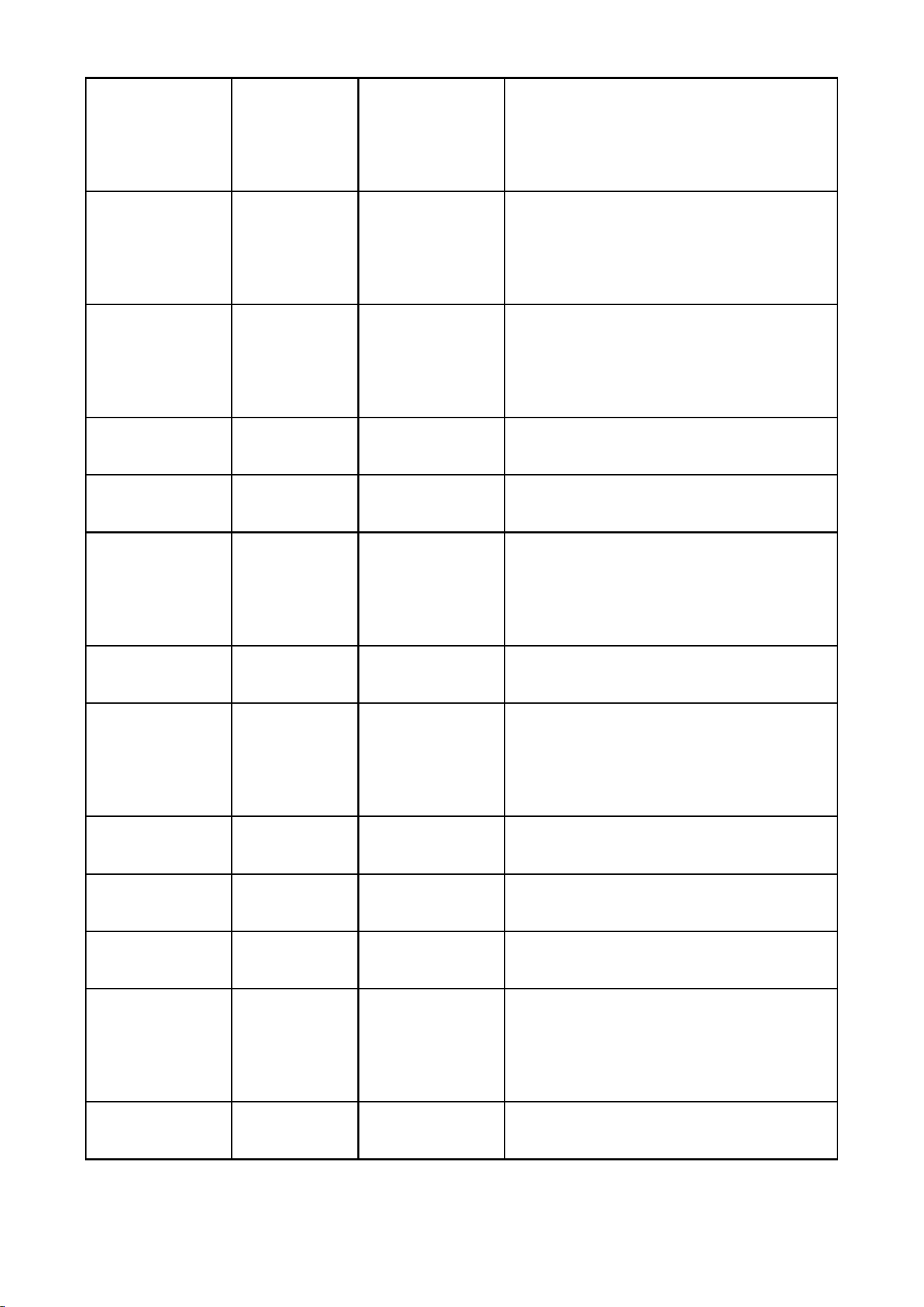
FN+F1
my
computer
FN+\|
Switch main key lighting effects
FN+F2
Home
FN+↓/↑
Adjust main key lighting
brightness
FN+F3
mail
FN+←/→
Adjust main key lighting speed
FN+F4
calculator
FN+ritht shift+1
Custom lighting 1
FN+F5
Music
Player
FN+ritht shift+2
Custom lighting 2
FN+F6
Stop
FN+N
Record/Save lighting effects
FN+F7
Previous
song
FN+A
Switch to Windows system
FN+F8
paused
FN+S
Switch to macOS system
FN+F9
Next song
FN+WIN
Lock/Unlock Windows
FN+F10
Mute
FN+C
Switch side lighting effects
FN+F11
Volume
Down
FN+Space
On/Off backlight
FN+F12
Volume Up

Federal Communication Commission Interference Statement
This equipment has been tested and found to comply with the limits for a Class B digital
device, pursuant to Part 15 of the FCC Rules. These limits are designed to provide
reasonable protection against harmful interference in a residential installation. This
equipment generates, uses and can radiate radio frequency energy and, if not installed and
used in accordance with the instructions, may cause harmful interference to radio
communications. However, there is no guarantee that interference will not occur in a
particular installation. If this equipment does cause harmful interference to radio or
television reception, which can be determined by turning the equipment off and on, the user
is encouraged to try to correct the interference by one of the following measures:
- Reorient or relocate the receiving antenna.
- Increase the separation between the equipment and receiver.
- Connect the equipment into an outlet on a circuit different from
that to which the receiver is connected.
- Consult the dealer or an experienced radio/TV technician for help.
FCC Caution: Any changes or modifications not expressly approved by the party
responsible for compliance could void the user's authority to operate this equipment.
This device complies with Part 15 of the FCC Rules. Operation is subject to the following
two conditions: (1) This device may not cause harmful interference, and (2) this device
must accept any interference received, including interference that may cause undesired
operation.
Radiation Exposure Statement:
The product comply with the FCC portable RF exposure limit set forth for an uncontrolled
environment and are safe for intended operation as described in this manual. The further
RF exposure reduction can be achieved if the product can be kept as far as possible from
the user body or set the device to lower output power if such function is available.