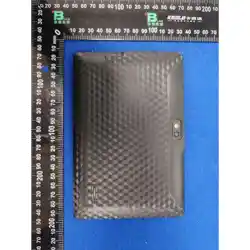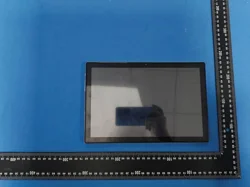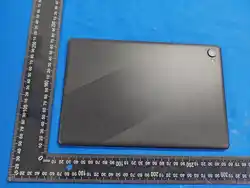

Tablet PC
USER GUIDE
Please read this instruction throughly before using this product and keep it for
future reference.

EN
GETTING STARTED
Power On/Offff
Press and hold the power button for 2-3s to turn on your tablet. Select your
language and set up your tablet following the start guide.
Press and hold the power button for 2s, then release it. It will show Power Off and
Restart on the screen. Tap Power Off to turn off the tablet.
Press and hold the power button for 5s to do a forced shutdown when it's frozen.
Battery
A rechargeable Li-ion battery is installed in the tablet.
We suggest you drain the battery completely once a month if only use your tablet
occasionally.
DO NOT dispose of tablet in a fire.
Sleep Mode
Simply press the power button once to switch the tablet to the Sleep Mode when the
tablet is ON; press again to wake it up.
Tip:
Go to Settings > Display > Sleep to set the time of entering the Sleep Mode.
01
EN
EN
HOME SCREEN
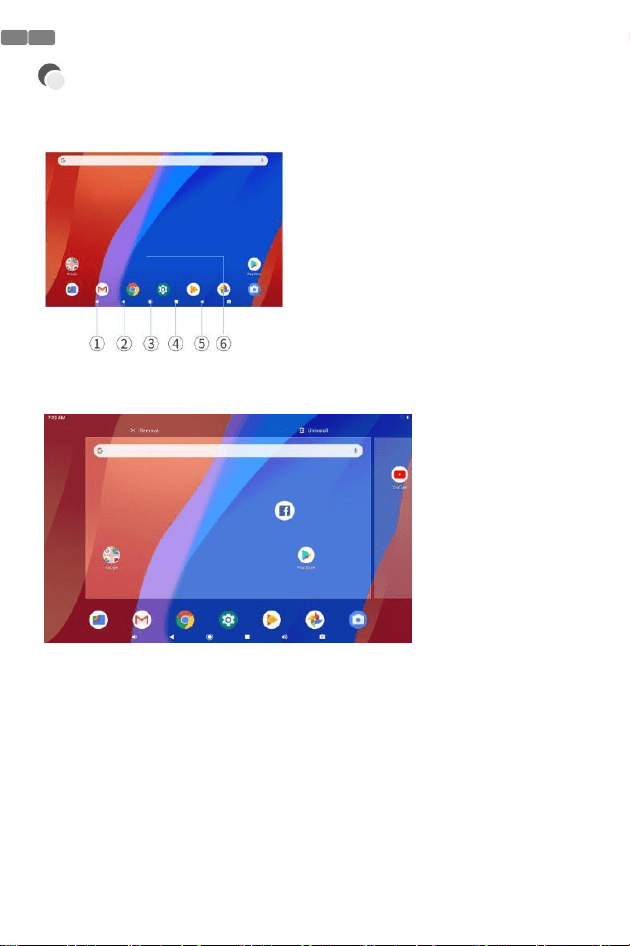
Icons on the Bottom Menu
1.Volume Down
2.Back
3.Home Screen
4.Recent Activities
5.Volume Up
6.Apps Collection
Wallpapers, Widgets and Home Settings
02
Tap and hold the empty section of a Home screen, WALLPAPERS, WIDGETS and
HOME SETTINGS will be displayed.
Tap WALLPAPERS icon to change the current wallpaper of the tablet from the default
wallpapers or your photos.
Tap WIDGETS, touch and hold any widget (e.g.
Clock), then slide and add it to a Home screen.
Remove it by sliding to X.
Tap HOME SETTINGS to enable/disable Add icon to Home screen. This is applicable to
the new Apps installed from Play Store.
EN
SETTING BASICS
Quick Settings
EN
More Settings
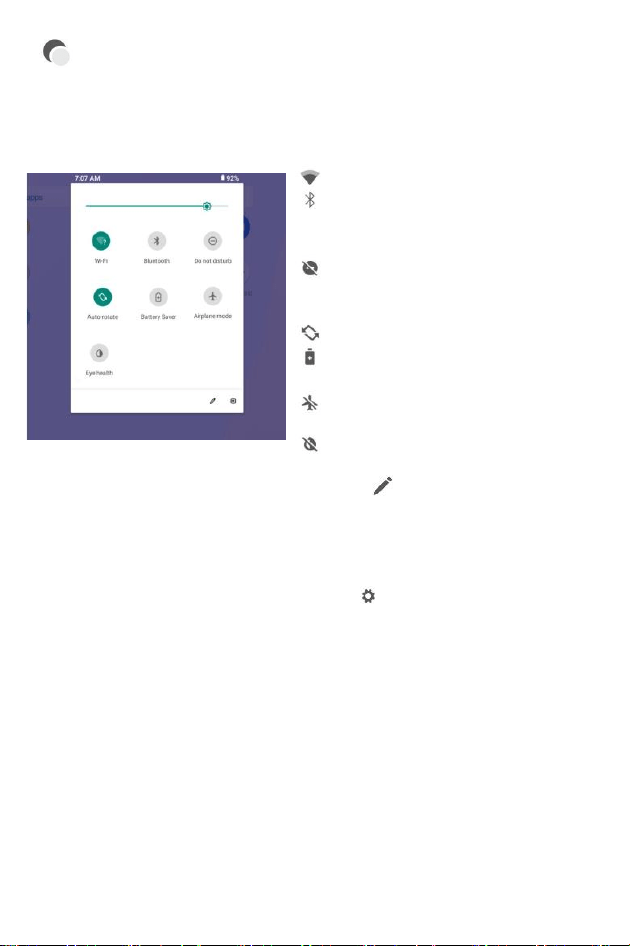
Swipe down from the top of the screen to
access Quick Settings.
: Wi-Fi. Tap to connect to a wireless network
: Bluetooth. Enable/disable the Bluetooth
on the tablet; pair with other Bluetooth
devices or view paired devices
: Do Not Disturb. Block sounds or vibrations
according to the different modes (Total
silence, Alarms only and Priority only)
: Portrait/Auto-rotate/Landscape
: Battery Saver. Enable/disable the
low power mode
: Airplane Mode. Turn on/off all the
network connectivity
E Eye protection mode reduces eye damage
In different environments
Tap the icon to change the options in the
Quick Settings.
Swipe down from the top of the screen, then tap the icon to enter the detailed
Setting interface. Or, tap the Settings icon on the Home screen to enter.
Network & Internet
*Connect to any working Wi-Fi
*Enable/disable the Airplane Mode
*Monitor the data usage
Connected devices
*Turn on/off Bluetooth
*Pair with Bluetooth devices and check the paired devices
*Cast device and check the cast device
*Add and check printers
03

EN
Apps & notifications
*Check the Apps recently opened
*Check all the Apps on the tablet
*Set the App permissions
*Uninstall the third-party Apps
*Adjust App notification settings
*Clear the cache of the Apps
Battery
*Display the remaining battery power as a percentage
*Enable/disable the Battery Saver
*Adjust the time of entering the Sleep Mode
Display
*Adjust the screen brightness
*Adjust the font size and display size
*Set a screen saver
*Change the wallpaper
*Adjust the time of entering the Sleep Mode
Sound
*Set volume levels for media, alarms, and notifications
*Set preferences of Do Not Disturb
*Set the tunes for notifications and alarms
*Turn on/off the sound for screen lock, charging and touch
Screenshot
*Set the delay time for a screenshot
*Set the location folder of screenshots
*Switch on/off Show the screenshot button in the statusbar
Tip:
Press the volume down button and the power button together to capture a screenshot.
Or, switch on Show the screenshot button in the statusbar, then tap
the icon on the bottom menu to capture a screenshot.
04
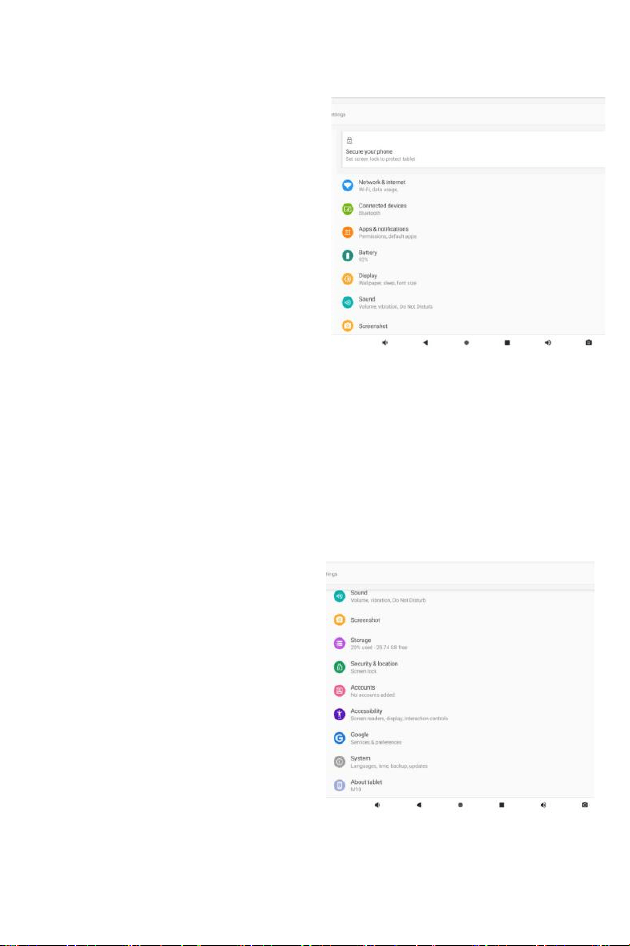
Storage
*View and manage your storage space
Security & location
*Set screen lock pattern, e.g. password,
PIN, Swipe etc.
*Enable/disable all the notifications while the
screen is locked
*Turn on/off the location services for
specific Apps
*Set to show/hide the password when input a
password
Users & accounts
*Add and manage the user accounts on
your tablet
Accessibility
*For vision and hearing impaired users,
manage settings for Screen readers,
Subtitle , and more
EN
GoogleTM
*Set the preferences for Google related services
System
* Set Language
Tap Languages & input > Languages > +add a
language to add your language. After
adding, hold and slide the to the top to
change the language.
*Restore factory setting
Tap Reset options > Erase all data (factory
reset) to restore the factory setting.
*Set the date and time
*Turn on/off the Backup
*Check the detailed information about the
tablet
05
E
NETWORK CONNECTION
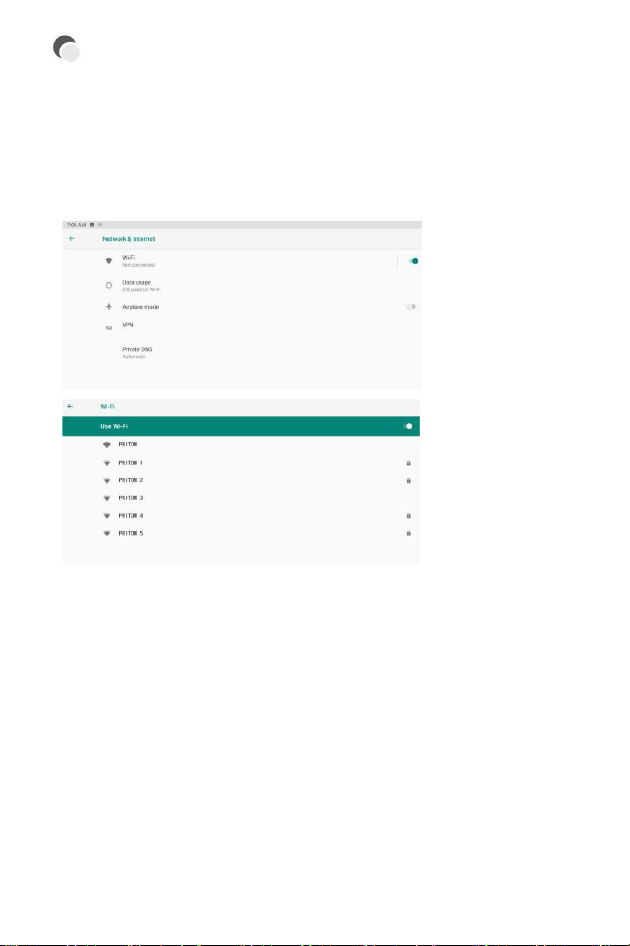
Go to Wi-Fi settings in the Settings interface or directly enter through Quick Settings.
Wi- Fi Connection
1. Tap Network and Internet and turn on the Wi-Fi. All Wi-Fi connections available will
be listed;
2. Select your Wi-Fi and input the correct password.
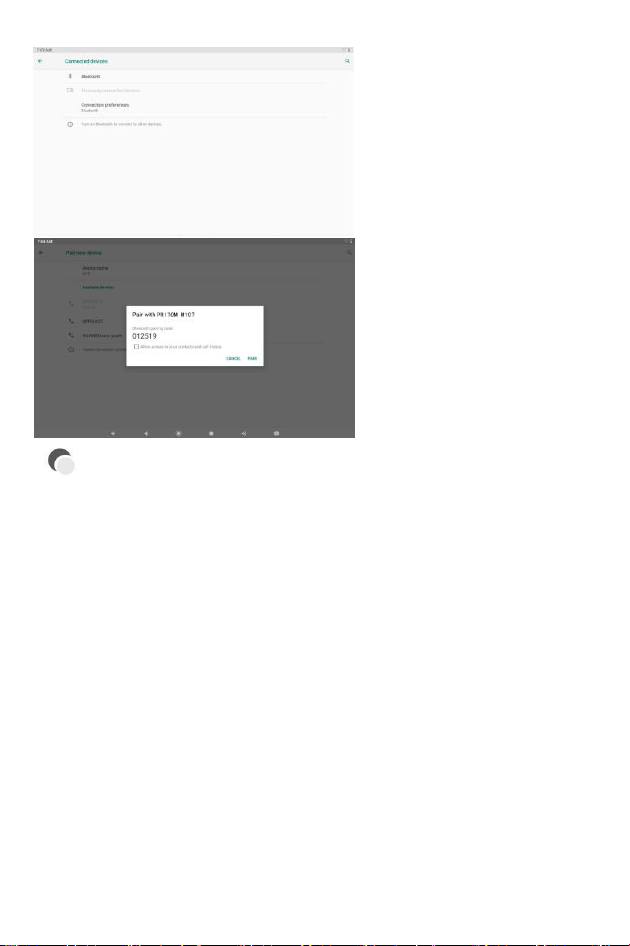
Bluetooth Paring
Please turn on the Bluetooth on your tablet and your bluetooth device.
1. Tap Connected devices and turn on the Bluetooth;
2. Tap Bluetooth > +pair new device to enter the scanning interface. Devices
available will be displayed after a few seconds;
3. Tap the desired device to get a paring code and click PAIR on both devices.
An automatic connection will be applied to some devices.
06
EN
APP MANAGEMENT
App Download and Installation
1. Tap and open Play Store on the Home screen;
2. Log into your google account, search and download the App you need.
App Management
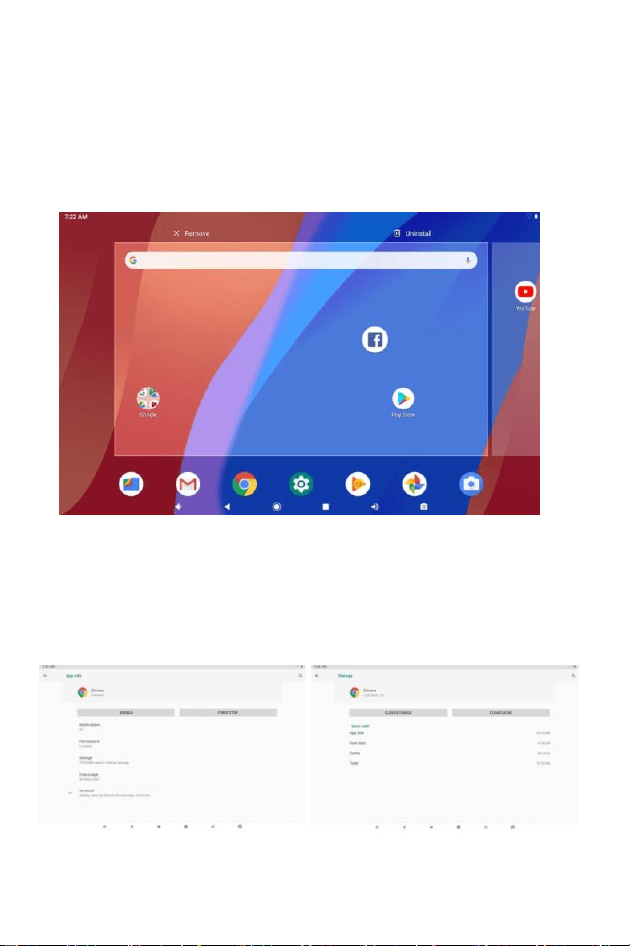
Move the App
Tap and hold the App, then slide it to a desired screen.
Remove the App from the Home screen
Tap and hold the App, then slide to X to remove it from your Home screen.
Uninstall the App
Tap and hold the App, then slide to the trash bin to uninstall the App.
07
EN
Clear the Cache of the App
1. Go to Settings > Apps & notifications;
2. Select an App > Storage > CLEAR CACHE.
08
INTERNET NAVIGATION
EN
Please make sure the tablet is connected to a working Wi-Fi network before
navigating the Internet.
You may use the Chrome browser pre-installed or use another browser downloaded from
Play Store.
MULTIMEDIA
Connecting to the Computer
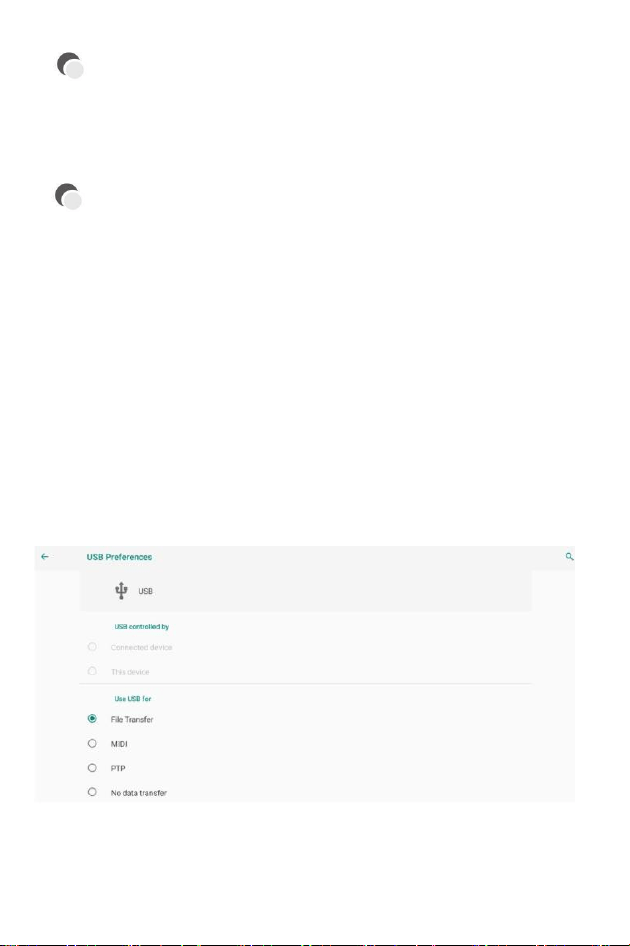
1. Connect your tablet to the computer with USB cable and go to Quick Settings;
2. Tap Androi TM ystems. USB charging this device > Tap for more options > Use USB
to;
3. Select Transfer files;
4. Go to your computer and find your tablet P7 to transfer files between your tablet and
computer.
Tip:
Select Charging this device to charge your tablet;
Select Transfer photos (PTP) to transfer photos between the devices.
09
EN
Connecting to an External Device
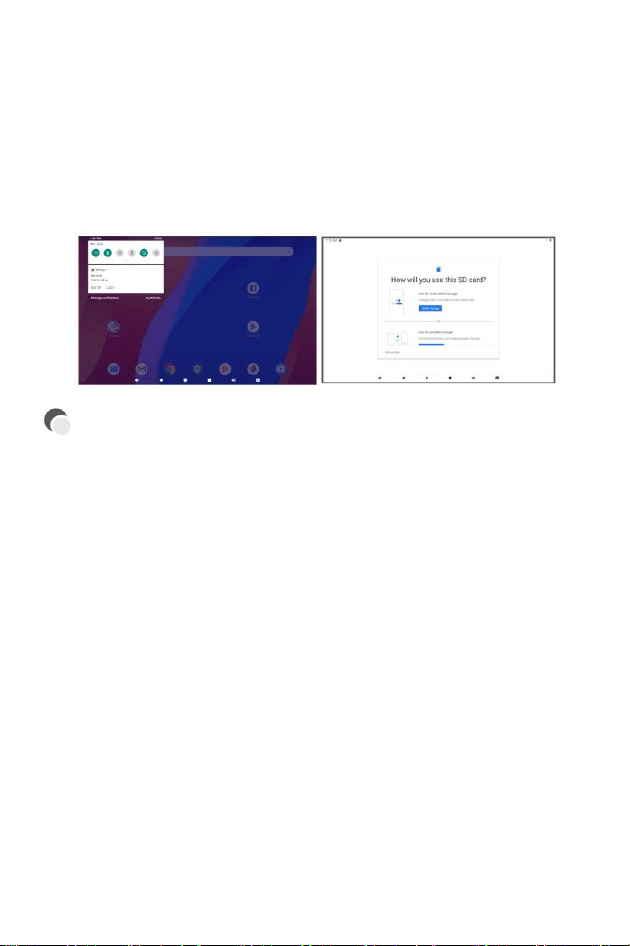
1. Install a microSD card into the microSD card slot and go to Quick Settings;
2. Tap New SD card detected or Set Up prompt;
3. Set the microSD card as a portable storage by selecting Use as portable storage.
Enter microSD Card storage to move files between the car d a nd tablet.
10
SPECIFICATION

TROUBLESHOOTING
EN
Q1. The tablet doesn't power on.
*Reboot your tablet after charging for 30 minutes;
*Press the power button to check if the tablet is in the Sleep Mode;
*Press and hold the power button for 5s to turn off the tablet, then reboot it;
*Press the Reset button with a pin to reboot the tablet.
Q2. The tablet doesn't charge.
*Make sure the USB cable is properly plugged into the charing port; *Try
another compatible USB cable and adapter.
Q3. Error message occurs during the operation.
*Uninstall the App with the error message, then download and install again;
*Press the Reset button with a pin to re boot the tablet.
Q4. The tablet cannot be detected by the computer.
*Make sure the tablet is powered on;
*Try another USB cable;
*Try another USB port on the computer;
*Instead of Charge this device,choose Transfer files or Transfer photos(PTP) when
connecting the tablet to the computer.
Q5. The tablet cannot connect to the Wi-Fi.
*Make sure the Wi-Fi in your tablet is ON;
*Make sure you input the correct password when connecting the Wi-Fi;
*Restart the router;
*Make sure there is no filter setting or device connection limitation in the setting of the
router;
*Forget t he current Wi-Fi, reset the router and connect the Wi-Fi again.
Q6. The storage space of the tablet is not enough.
*Delete the Apps you don't use;
*Clear the cache of the Apps regularly;
*Install an microSD card to expand the storage.
Google, Android, Google Play, YouTube and other marks are trademarks of Google
LLC.Oreo is a trademark of Mondelez International, Inc. group.
11

This device complies with part 15 of the FCC Rules. Operation is subject to the
following two conditions: (1) This device may not cause harmful interference, and (2)
this device must accept any interference received, including interference that may cause
undesired operation.
Any Changes or modifications not expressly approved by the party responsible for
compliance could void the user's authority to operate the equipment.
Note: This equipment has been tested and found to comply with the limits for a Class B
digital device, pursuant to part 15 of the FCC Rules. These limits are designed to
provide reasonable protection against harmful interference in a residential installation.
This equipment generates uses and can radiate radio frequency energy and, if not
installed and used in accordance with the instructions, may cause harmful interference
to radio communications. However, there is no guarantee that interference will not
occur in a particular installation. If this equipment does cause harmful interference to
radio or television reception, which can be determined by turning the equipment off and
on, the user is encouraged to try to correct the interference by one or more of the
following measures:
-Reorient or relocate the receiving antenna.
-Increase the separation between the equipment and receiver.
-Connect the equipment into an outlet on a circuit different from that to which the
receiver is connected.
-Consult the dealer or an experienced radio/TV technician for help.
FCC Radiation Exposure statement
The device has been evaluatec to meel general RF exposure requirement. The device
can be used in portable exposure condition without restriction.