
User Operating
Manual
T4-001
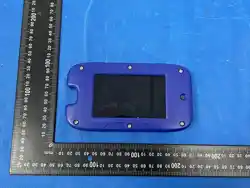
Tablet computer

About This User Guide
• Some of the contents of this guide may appear differently on your device. Your
actual device may differ from the illustration, depending on the software and your
service provider. All information in this document is subject to change without prior
notice.
• Your device's applications and their functions may vary by region, or hardware
specifications. CPC cannot be held liable for performance or incompatibility issues
resulting from edited registry settings being edited or operating system software
being modified. Any attempt to customize your operating system may cause the
device or its applications to not work as they should.
Important
• We do not suggest you reinstalling the system. You may contact CPC support if
reinstallation is necessary.
• You may not disassemble the device in any circumstance.
• Please keep your device away from fire, water or any extreme weather condition.
• Please avoid any heavy object or hard press on front face of your device.
Disclaimer of Warranties
CPC shall not be liable for any damages of any kind resulting from the purchase or
use the product or arising from the breach of the express warranty, including
incidental, special or consequential damages, or loss of anticipated profits or benefits.
CPC is not liable for performance issues or incompatibilities caused by your editing or
registry settings, or your modification of operating system software. Using custom
operating system software may cause your device and applications to work
improperly.
1. Getting started
Hold the power button for 3 seconds, devices start up directly.
2. Wi-Fi connection
Tap settings-Wireless& Networks-Wi-Fi-tap to turn it to “ON”. After a moment, your
Wi-Fi network nearby will be listed. If you need to rescan for available networks, tap
the menu on right top corner, and tap “Refresh”. You device lists the networks it finds
within range. Tap the network you have access to, enter password, and tap
“Connect”. When you tablet is connected to the network, the wireless indicator
appears in the status bar. Waves indicate connection strength.
3. Bluetooth
Turn on Bluetooth. You must pair your device with another device before you can
transfer files between them. Under “Settings”, choose “Bluetooth”. Tap Bluetooth to

“ON”. The Bluetooth indicator then appears in the status bar. It will start searching
available devices nearby. If you need to rescan, tap the menu on top right corner, and
tap “Refresh”.
4. Camera/Video
Click and select the camera;
The system enters into the camera interface;
Click and select the Photo button and easily take the photos;
In the camera mode, move the mouse to the right, it can choose the video mode.
Click the button and easily take the video.
5. Gallery
You can view your digital pictures or videos in Gallery.
6. Device factory mode
You may reset your tablet when necessary. This will clear all info in your tablet and
get your device back to factory mode.
WARNING!
If you perform factory mode, all user applications, user data will be deleted. Please
remember to backup any important data before performing factory mode.
Troubleshooting
1. Device crash
Hold the power buttons for 10 seconds to restart.
2. Error message during operation
Delete and clear the system to factory mode with a system reset.
3. Device can’t be connected with Wi-Fi
Make sure you turn Wi-Fi to “ON” status.
Unplug Wi-Fi router, wait for 2 minutes and plug to connect again.
Make sure you input correct password by selecting “show password
when your input it.
Check and make sure there is no filtering setting or device connection
limit in your router setting.
Forget original Wi-Fi connection, reset Wi-Fi router, and connect again.
FCC Statement
Changes or modifications not expressly approved by the party responsible for compliance could
void the user's authority to operate the equipment.
This equipment has been tested and found to comply with the limits for a Class B digital device,
pursuant to Part 15 of the FCC Rules. These limits are designed to provide reasonable protection
against harmful interference in a residential installation. This equipment generates uses and can
radiate radio frequency energy and, if not installed and used in accordance with the instructions,

may cause harmful interference to radio communications. However, there is no guarantee that
interference will not occur in a particular installation. If this equipment does cause harmful
interference to radio or television reception, which can be determined by turning the equipment
off and on, the user is encouraged to try to correct the interference by one or more of the
following measures:
-- Reorient or relocate the receiving antenna.
-- Increase the separation between the equipment and receiver.
-- Connect the equipment into an outlet on a circuit different from that to which the receiver is
connected.
-- Consult the dealer or an experienced radio/TV technician for help
This device complies with part 15 of the FCC rules. Operation is subject to the following two
conditions (1)this device may not cause harmful interference, and (2) this device must accept any
interference received, including interference that may cause undesired operation.
This equipment complies with FCC radiation exposure limits set forth for an uncontrolled
environment.
FCC/IC RF Radiation Exposure and SAR Statements
The Tablet computer T4-001 has been tested for body-worn Specific
Absorption Rate(SAR) compliance. The FCC/IC has established
detailed SAR requirements and has established that these
requirements. RF Exposure Information The radio module has been
evaluated under FCC Bulletin C95.1 and IEEE 1528 and found to be
compliant
to RF Exposure from radio frequency devices. This model meets the
applicable government requirements for exposure to radio frequency
waves. The highest reported SAR level for usage near the body
(0mm) is 0.089 W/kg