
Instructions

Product Introduction
Product hardware parameters
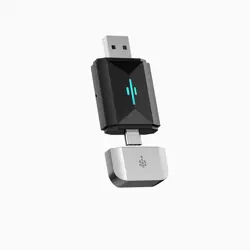
The 2 IN 1 USB Dongle is designed to seamlessly convert the original wired Carplay
to wireless Carplay,wired Android Auto to wireless Android Auto. Having CarPlay in
your vehicle enables you to link your Phone/Android phone and effortlessly interact
with it through the car's integrated display and controls, or through Siri control.
Users can effortlessly and securely make phone calls, enjoy music, send and receive
messages, access navigation, cast their cell phone screen, and much more.
1. working temperature: -20°C +70°C
2. Input voltage: 5V 1A
Product Features
Conditions of use
1. Enjoy the convenience of wireless CarPlay connectivity with our support for
wired-to-wireless connection. Simply connect your phone and go!
2. Choose between wired and wireless Android Auto connections to suit your
preferences and needs.
The 2 IN 1 USB Dongle is specifically designed to work with wired car hosts
manufactured after 2016, and is compatible with iOS 10+ and Android 11+ for
wireless phone connections.
Tip: In the event that the product cannot be paired with your car, please don't
hesitate to contact us with your car model for further assistance.
Packing List
1. 2 IN 1 USB Dongle 2. USB A to C cable 3. Instruction manual
1
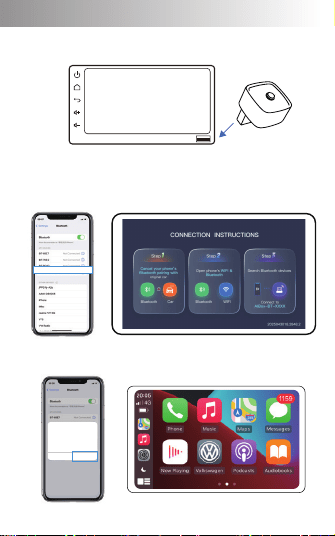
Wireless CarPlay/Android Auto connection
Step 1: Simply plug it into the original CarPlay interface and wait for the box interface
to appear.
Step 4: Once successfully connected, a CarPlay window will pop up on your phone.
Click "Use CarPlay" to enter the CarPlay interface.
Step 2: Cell phone search for Bluetooth name.
Step 3: Simply pair the Bluetooth connection with the name:"AIBox-BT-XXXX".
Wireless Android Auto connection process as above
Insert the original car's CarPlay USB interface
Use CarPlay with
“AIBox-BT-7ECE"?
Not Now Use CarPlay
CarPlay automatically connects your
iPhone to your car's built-in display
and can access your phone while it
islocked.
AIBox-BT-XXXX
2
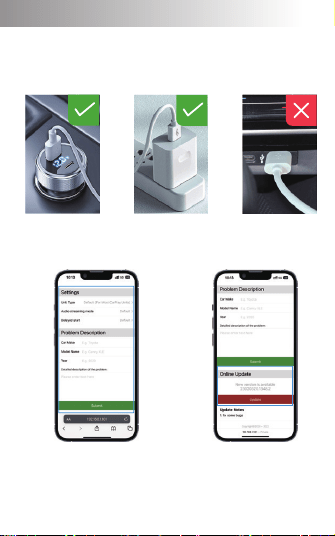
Issue submission and device upgrade
Plug the product into the USB 5V power supply (as shown in the figure below). After
the device is powered on, use the mobile phone to connect to the device WIFl. WIFI
name: AIBox-BT-XXXX , password 88888888, and enter http://192.168.1.101 in the
browser to enter the background system.
use a cigarette lighter
Issue submission Device Upgrade
Using a mobile
phone charger
Use the original Carplay port
(not recommnended)
Enter the background system to fill in
the problem description, click "Submit"
and take a screenshot of the mobile
phone to contact the dealer.
Enter the backstage system and
click "Update" to realize the
software upgrade.
3

FCC Caution.
This device complies with part 15 of the FCC Rules. Operation is subject to the following two
conditions:
(1) This device may not cause harmful interference, and
(2) this device must accept any interference received, including interference that may cause
undesired operation.
Any Changes or modifications not expressly approved by the party responsible for compliance
could void the user's authority to operate the equipment.
Note: This equipment has been tested and found to comply with the limits for a Class B digital
device, pursuant to part 15 of the FCC Rules. These limits are designed to provide reasonable
protection against harmful interference in a residential installation. This equipment generates uses
and can radiate radio frequency energy and, if not installed and used in accordance with the
instructions, may cause harmful interference to radio communications. However, there is no
guarantee that interference will not occur in a particular installation. If this equipment does cause
harmful interference to radio or television reception, which can be determined by turning the
equipment off and on, the user is encouraged to try to correct the interference by one or more of
the following measures:
-Reorient or relocate the receiving antenna.
-Increase the separation between the equipment and receiver.
-Connect the equipment into an outlet on a circuit different from that to which the receiver is
connected.
-Consult the dealer or an experienced radio/TV technician for help.
*RF warning for Mobile device:
This equipment complies with FCC radiation exposure limits set forth for an uncontrolled
environment. This equipment should be installed and operated with minimum distance 20cm
between the radiator & your body.