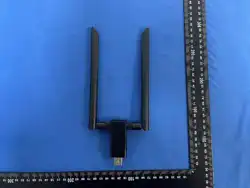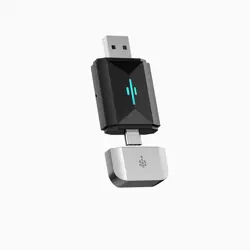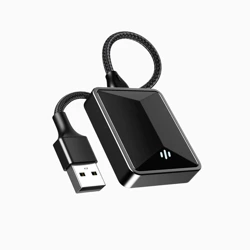
size:58*89mm
折页
Note: Based on the differences in region, car model, phone brand, model,
and function, it may not automatically connect next time before the
next connection. At this time, please delete the Bluetooth pairing
information, or re-plug the adapter, or refer to "If you can't connect
again, please try the following" for solutions.
Notice:
1. Before connecting, please make sure that the Bluetooth and WiFi of your
phone are not connected to other devices. If there is a connection, please
password is 12345678. In Safari browser, enter the website: 192.168.43.1 to
search for and update the software. This is only applicable to iPhone. Note: Do
not turn off the power during the upgrade process.
disconnect the Bluetooth and WiFi from other devices on the phone; before
1. check for and upgrade any updates to Android Auto on your mobile device
through the Google Play app store.
2. Check and make sure the Wireless Android Auto feature is enabled in the
Android Auto settings on your device.
3. First, pair your phone's Bluetooth with the car stereo. Make sure your phone
is connected to the car for hands-free calling (Bluetooth HFP).
You can simply make or receive a call to confirm that your phone is connected
to the car for hands-free calling (Bluetooth HFP). A properly handled Bluetooth
HFP call will use the car's own speakers and microphone.
4. Before connecting with a different mobile phone, please turn off the
Bluetooth and WiFi of the mobile phone that has previously connected to the
adapter, or enable airplane mode.
5. If you need to turn off the Wireless Android Auto function, you need to turn
off the Bluetooth and WiFi of the adapter on the mobile phone, or unplug the
adapter.
6. After the Wireless Android Auto is successfully connected, the Bluetooth of
and environmental temperature differences, using the Wireless Android Auto
If you can't connect again, please try the following:
the Android phone will be disconnected from our adapter. There is no need to
enter a password for the device WiFi, and the backup password is 12345678.
7. If you have inserted the adapter and successfully connected to the adapter's
Bluetooth, but the Android Auto continuation interface has not appeared on
the car head unit or the mobile phone, please seek help in "If you can't connect
again, please try the following" in the troubleshooting. If you still cannot
connect after this method, it means that this device does not support your car
model.
8. The content (including fonts, music, audio, maps, lyrics, touch, calls, etc.)
generated by this Wireless Android Auto function has nothing to do with this
product.
9. Due to regional differences, mobile phone models, mobile phone brands,
1: Make sure the Android Auto app on your phone is updated to the latest
version in the Google Play Store.
2: Just make or receive a phone call to confirm that your phone is connected to
the car for hands-free calling (Bluetooth HFP). Correctly handled Bluetooth HFP
calls will use the car's own speakers and microphones.
3: Please restart your phone, unplug/replug the adapter, and then restart the
car's infotainment system.
4: On the car screen, find the Bluetooth phone list, and then "forget" or "delete"
all paired phones.
5: On the phone, find the system settings for Bluetooth, and then "forget" or
"delete" the paired car and the paired Cxzconcerter-xxx.
6: On the phone, find the system settings for the application; select Android
Auto; under "Storage", tap "Clear data" (this may vary slightly depending on the
phone brand).
7: Plug in the data cable again and use wired Android Auto to make sure wired
Androidaut can connect normally.
Indicator light:
1. After the adapter is powered on, the indicator light flashes, which means the
Wireless Android Auto usage method:
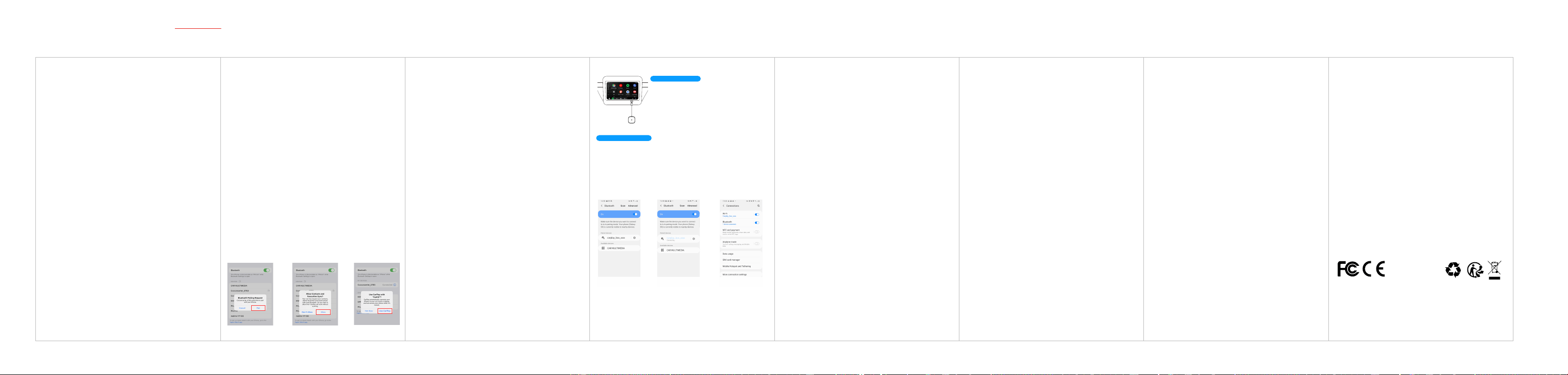
1. Plug this adapter into the original car's USB port.
2. Wait for 3-10 seconds.
3. Find and pair the adapter's Bluetooth in the Bluetooth list on the Android
phone.The Bluetooth name is carplay- box -xxxx
4. Pairing is successful, once pairing is successful, the Android Auto continuation
page will appear on the phone, and the indicator light will turn blue.
5. Please click the Android Auto icon on the original car to enter the wireless
Android Auto function.
Before connecting the adapter, please use a phone
that supports the Android Auto function to connect to
the wired Android Auto function of the car head unit
to ensure that the wired Android Auto function can be
used normally. If the wired Android Auto cannot be
used normally, please set it up through the setting
process. If the original car does not have the wired
Android Auto function, the product cannot be used.
RoHs Compliance
function may cause the phone to consume power too quickly or the phone to
heat up significantly, resulting in disconnection or degraded experience.
10. If there is a connection problem, restart the car or restore the car to factory
Hereby declare that this product complies with the electrical specification
requirements of RoHS Directive 2011/65/EU and Commission Delegated
Directive (EU) 2015/863 as amended.
Online upgrade
Connect to the adapter WiFi, the WiFi name is carplay- box -xxxx, the WIFI
Settings.
11. When you start the car again, the Wireless Android Auto function may not
be enabled automatically. You can reconnect by re-pairing the Bluetooth or
unplugging and plugging in the adapter.
12. When using this adapter in a German car, after the Bluetooth connection is
successful, when the "USB recognition" appears on the car head unit interface,
please click the Android Auto icon.
13. Most phone makes and models that shipped from the factory with Android
11 will work with this adapter. You can refer to the Google support page for
wireless Android Auto at: https://support.google.com/androidauto/answer/
6348019 # wireless
14. If you have problems with wireless Android Auto, you can browse https://an
-
droid.com/auto
8: If wired Android Auto can connect normally, then reinsert the adapter and
reconnect Bluetooth.
9: If wired Android cannot connect normally, please follow the above (1) (2) (3) (4).
10: Start again according to the "Connection Method".
changing to a new phone to connect, please turn off the Bluetooth and WiFi of
the phone that has previously connected to the device.
2. Restart your phone.
3. If the WiFi and Bluetooth of the phone are currently connecting to other
devices, please ignore the Bluetooth and WiFi of other devices on the phone and
connect to the Bluetooth and WiFi of our device. If it fails to connect, please
ignore the Bluetooth name of this product and keep the Bluetooth off for 5
seconds, then reconnect the Bluetooth.
4. The device WiFi does not require a password, and the backup password
is 12345678
5. If the connection is unsuccessful, please unplug the box and try again.
6. This product may experience abnormal conditions (such as phone overheat
ing, resulting in disconnection or degraded experience) when used in a specific
environment that may affect the user experience.
7. The network data (including network content such as audio and video data,
map data, call data, etc.) generated by this function has nothing to do with this
product.
8. If you are in the process of connecting and the "Allow CarPlay" pop-up
appears on the phone, select "Later", the connection will not be successful. You
need to go to "General" = "CarPlay" on the phone, select "Device Name" = and
turn on "CarPlay".
9. To turn off the CarPlay function, you need to disconnect the device's
Bluetooth and WiFi on the phone or unplug the box.
10. If there is a problem with the connection, please restart the car head unit or
restore the factory settings of the car head unit.
11. After the CarPlay connection is successful, the Bluetooth on the phone will
be disconnected from our device.
12. If the car fails to automatically connect again after starting, please delete the
Bluetooth and WiFi of this device from the phone's Bluetooth list and WiFi list,
and then search for and connect to the Bluetooth of this device again.
Set up your device
Connect the adapter
Switching between the two-in-one mode
1. The adapter defaults to CarPlay mode. When you are in CarPlay mode, use an
device is normal.
2. If the indicator light is always on or not on, the product is a faulty product.
Please contact the seller.
FCC Statement
iPhone to connect to the adapter's Bluetooth. If you need to use the Android
Auto function, you need to turn off the Bluetooth and WiFi of the iPhone, and
Mini Wireless 2 in 1 Adapter
INSTRUCTION MANUAL
This symbol indicates that this product shall not be treated as house
hold waste. Instead it shall be handed over to the applicable collection
point for the recycling of electrical and electronic equipment.
Made in China
RoHS
-2-
-3-
-4- -5- -6-
Wireless CarPlay usage method:
1. Plug this product into the original car's usb port and wait for the display of
the car UI interface. After the UI interface comes out, please use the mobile
phone to connect to the Bluetooth name on the interface, and at the same time
realize the function of the product under the prompt and guidance of the
mobile phone.
at the same time use an Android phone to connect to the adapter's Bluetooth.
The adapter will automatically switch to the Android Auto mode. After the
Bluetooth.
2. If you are currently in the Android Auto mode and need to use the CarPlay
function, you need to turn off the Bluetooth and WiFi of the Android phone,
indicator light fashes, use the Android phone to connect to the adapter's
and at the same time use an iPhone to connect to the adapter's Bluetooth. The
adapter will automatically switch to the CarPlay mode. After the indicator light
f
ashes, use the iPhone to connect to the adapter's Bluetooth.
Connect and pair Bluetooth Bluetooth connected Connection is successful
Use CarPlayPair Bluetooth Allow contacts and favorites Sync
Product Specifications:
• Input : 5V/1A
• Operating temperature : 28 ° -
34 °
• Supported temperature : -20°to 75°
• Phone model : iPhone 8 or above, or Android Auto phones
Function:
Convert the original car's wired CarPlay to wireless CarPlay function
Original car's wired Android Auto to wireless Android Auto
Note:
The adapter defaults to CarPlay mode
-1-
This device complies with part 15 of the FCC rules. Operation is subject to the
following two conditions:
(1) this device may not cause harmful interference, and
(2) this device must accept any interference received, including interference
that may cause undesired operation.
Changes or modifications not expressly approved by the party responsible for
compliance could void the user’s authority to operate the equipment.
NOTE: This equipment has been tested and found to comply with the limits
for a Class B digital device, pursuant to part 15 of the FCC Rules. These limits
are designed to provide reasonable protection against harmful interference
in a residential installation. This equipment generates uses and can radiate
radio frequency energy and, if not installed and used in accordance with the
instructions, may cause harmful interference to radio communications.
However, there is no guarantee that interference will not occur in a particular
installation. If this equipment does cause harmful interference to radio or
television reception, which can be determined by turning the equipment off
and on, the user is encouraged to try to correct the interference by one or
more of the following measures:
-Reorient or relocate the receiving antenna.
�-Increase the separation between the equipment and receiver.
-Connect the equipment into an outlet on a circuit different from that to
which the receiver is connected.
-Consult the dealer or an experienced radio/TV technician for help important
*Please read the product manual carefully before
announcement
Note:
Radiation Exposure Statement
This equipment complies with FCC radiation exposure limits set forth for an
uncontrolled environment. This equipment should be installed and operated
with minimum distance 20cm between the radiator and your body.
This transmitter must not be co-located or operating in conjunction with any
other antenna or transmitter.
EU Compliance
Hereby declare that this wireless device complies with the specifications of
Article 3 of Directive 2014/53/EU.
youuse the product, and keep it properly,
250906