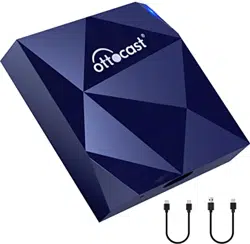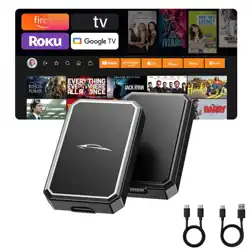
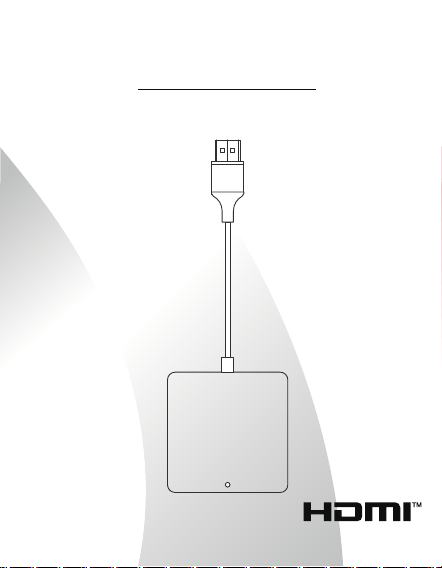
Wireless CarPlay / Android Auto / TV Mate Adapter
USER MANUAL

-2-
Notice
* Before using this product, please read all instructions and
warnings carefully. lmproper use may cause product damage or
safety risks to persons/property.
* Do not store this product in high temperature, strong light,
orstrong magnetic field environments, and avoid placing it in
other harsh environments.
* If consumers violate the product instructions and use it
inappropriately,Users shall bear full responsibility for any
consequences arising from misuse, and the company will not
assume any legal liability.
* Non-professionals are strictly prohibited from disassembling
this product.
* The information in this manual is subject to change without
prior notice.
*The terms HDMI, HDMI High-Definition Multimedia Interface,
HDMI Trade dress and the HDMI Logos are trademarks or
registered trademarks of HDMI Licensing Administrator, Inc.
-3-
Check the Adaptablility
CarPlay
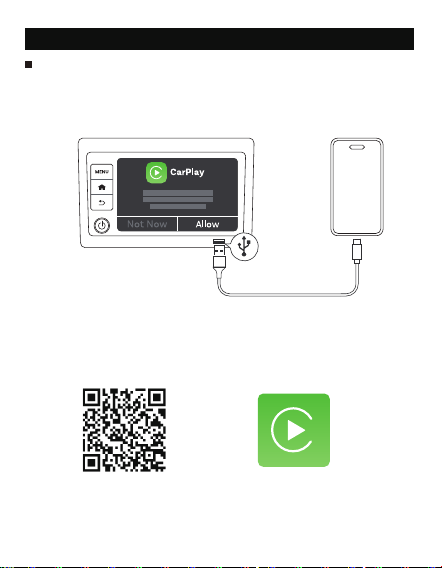
How to check if your vehicle has factory-installed wired CarPlay?
Scan the QR code
to get the
operation video
Connect your iPhone to the car's USB port by your phone’s
original charging cable. lf the following notification pops up on
the car, it means your car has built-in CarPlay.
* iPhones must run iOS 10 or later; Android phones must run
Android 11 or later for Android Auto.
* If you are still unable to determine whether your car support
swired CarPlay, please contact your car dealer for help.
-4-
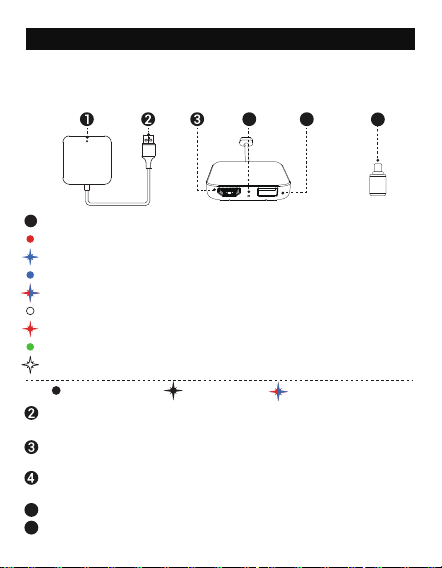
Hardware Interface
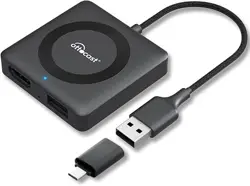
USB-A port
Used for power supply and data transmission.
USB-A to Type-C Adapter
Long press for 15s to clear all data and restore to factory settings.
HDMI 1.4 , supports a maximum input of 2K (2560*1440) at 60Hz.
Hidden button
5
Type-C to A adapter
6
HDMI Input
Where this diagram is inconsistent with the product, the product
shall prevail.
4
5 6
LED indicator
USB-A to
Type C AdapterHidden buttonUSB-A port Type-C to A adapterHDMI Input
LED indicator
Always on flashes Alternating colors
1
Red bright light: Power on
Blue blinking (1Hz): Carcommunication is successful
Blue light always on: HDMl/CarPlay is working
Red-blue alternating flashing: Firmware upgrade is in progress
White light always on: Firmware upgrade is completed
Red flicker: Firmware upgrade is abnormal
Green light always on: P2P mode
White flashes until the key is released: Reset is completed
-5-
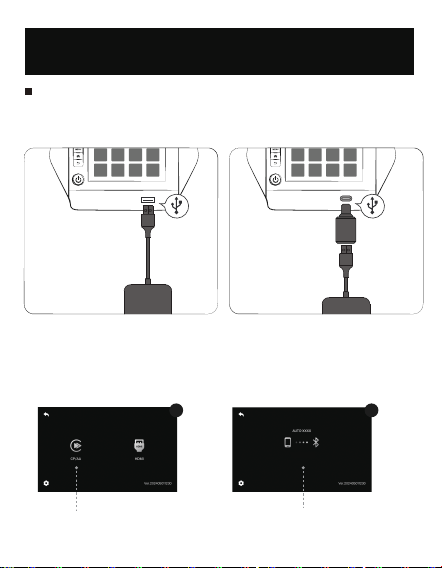
How to Connect Wireless CarPlay or
Wireless Android Auto
Product usage steps
Where this diagram is inconsistent with the product, the product
shall prevail.
Tap on CP/AA
Turn on the Bluetooth of your
mobile phone to search and pair
1
2
USB-A
Type-C
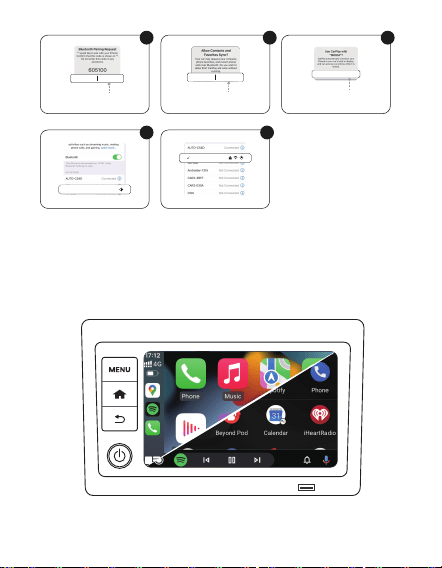
1. Tap the CP/AA icon.
2.Turn on the Wi-Fi and Bluetooth on your phone, then pair with
the Bluetooth device named[AUTO-XXXX], and confirm all pairing
requests on your phone.
-6-
* The connection steps for Android Auto are similar to those for CarPlay.
* After the connection is successful, Bluetooth can be turned off, but
WiFi must keep turn on.
3
6 7
4
5
Bluetooth pairing
was successful.
WIFI connection
was successful.
Click "Allow"
AllowNo Allow
PairingCancel
Click "Pair"
Use CarPlay
for the car
Use CarPlay for the car
AUTO-C54D Connected
AUTO-C54D
3. Successfully connected to CarPlay or Android Auto (and there is
no need to repeat the pairing steps the next time it starts)
-7-
How to Connect HDMI TV (HDMI input)
Product usage steps
If this diagram does not correspond to the product, the product
shall prevail.
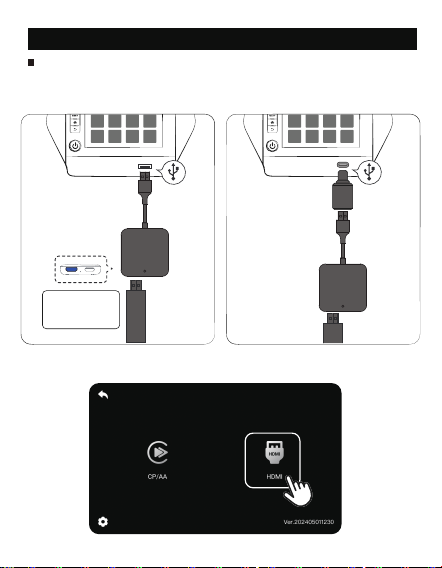
1.Click the HDMI icon.
HDMI Device HDMI Device
USB-A
Type-C
* HDMI devices
require external
power (5V/2A min)
-8-
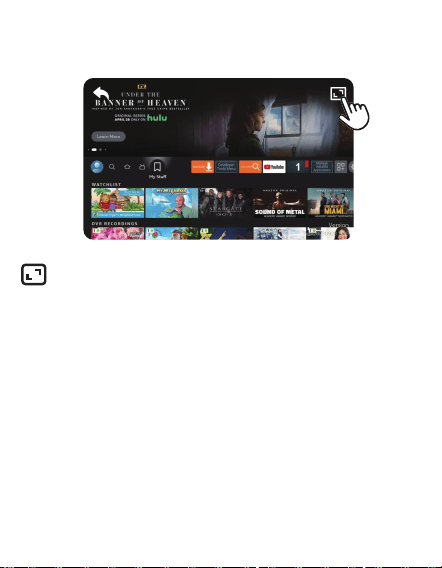
2.Insert the HDMI input source, and the car screen will automatically
play the HDMI screen.
Tap to switch to the image stretching, proportional cropping,
or original aspect ratio mode.
* When the screen is fully occupied, the zoom function will not work.
* The HDMl interface supports hot plugging.* This system supports
quick switching between HDMl and CarPlay.
* You can set the HDMl icon as the default function in the system
settings, and this function will be automatically entered every time
the device is turned on.
* When connecting an HDMl device, please use the control method
provided with that device (for example: remote control).

-9-
Why can't the device connect to the vehicle?
Solution to Fault Problems
1. Check Wired CarPlay
2. Reset Your Car and Ottocast
3. Update or Contact Support
If the issue persists, ensure your Ottocast software is up to date.
If problems persist, Contact online customer support for further
assistance.
1. Reset and Update Your Device: Press and hold the reset hole or
button on your device for 15 seconds to perform a reset. After
the reset, follow the on-screen prompts or instructions to update
the software to the latest version.
Wireless CarPlay cannot connect, disconnect, difficulty connecting
or cannot connect automatically?
First, use your original USB cable to plug your iPhone directly into your
car's USB port.
If CarPlay activates: Your car supports wired CarPlay. Proceed to
thenext step.
If CarPlay doesn't activate: Your car likely lacks wired CarPlay support,
meaning the Ottocast won't work. Double-check you're using the
original cable and try all available USB ports.
If your car supports wired CarPlay but you still can't connect, reset
both your car's media system and the Ottocast.
Car System: Consult your car's manual or look for a "factory reset" in
its settings.
Ottocast: Press and hold the reset button on your Ottocast for 15
seconds.
After resetting, attempt to reconnect.

-10-
Wireless Android auto cannot connect, disconnect, connect
difficultly or cannot connect automatically?
2. Clear iPhone Settings: On your iPhone, clear all Bluetooth and
Wi-Fi connection records. Then, navigate to Settings > General >
CarPlay and remove any previously connected devices. Next, go
to Settings > General > Transfer or Reset iPhone > Reset > Reset
Network Settings. After resetting your network settings, restart
your iPhone and try connecting again. When prompted, make
sure to select "Allow" for "Use CarPlay."
Verify Your Phone's Setup:
First, make sure your phone is running Android 11 or newer.
Confirm your phone actually supports Android Auto.
Test with a Wired Connection:
If your phone has Android Auto, connect it to your car using its
original USB cable.
If the wired connection fails, it might mean your phone or car
doesn't support Android Auto at all.In this case, it's best to check
your phone's manual or ask you
r car dealer for more info.
If wired Android Auto works fine, try these steps:
a. Forget Bluetooth Devices: Go to your phone's Settings >
Bluetooth, press and hold on any paired devices, and select
"Forget device."
b. Forget Wi-Fi Networks: Head to your phone's Settings > Wi-Fi,
press and hold on any connected networks, and select "Forget
network."
c. Clear Android Auto Cache: Go to your phone's Settings > Apps
>App management > Android Auto > Storage, then hit "Clear all
stored data."
First, use your original USB cable to plug your iPhone directly into your
car's USB port.
If CarPlay activates: Your car supports wired CarPlay. Proceed to
thenext step.
If CarPlay doesn't activate: Your car likely lacks wired CarPlay support,
meaning the Ottocast won't work. Double-check you're using the
original cable and try all available USB ports.
If your car supports wired CarPlay but you still can't connect, reset
both your car's media system and the Ottocast.
Car System: Consult your car's manual or look for a "factory reset" in
its settings.
Ottocast: Press and hold the reset button on your Ottocast for 15
seconds.
After resetting, attempt to reconnect.

-11-
Why Is My Car's Head Unit Repeatedly Restarting?
Why Does My Car's Head Unit Restart After First Connection?
d. Reconnect Your Ottocast: After those steps, try connecting your
Ottocast product again. If it still doesn't connect, unplug it, then
plug it back in and wait for it to connect automatically.
Still having trouble? Check the online upgrade interface for any
software updates, or simply contact our online customer support
for a quick fix.
1. Inspect the USB Cable: First, ensure your USB cable is plugged in
correctly, securely, and completely according to the connection
instructions. If it looks good, try swapping it out for a different USB
cable.
2. Consider Power Supply: If the issue persists, your car's USB port
might not be providing enough power. In this case, you'll need an
additional power supply. Please contact our online customer
service for a purchase link and a detailed tutorial: https://youtu.be/
1xfme9vLCMg
3.Important Note for Y-Cable Use: You'll need to provide your own
car charger with a cigar
ette lighter to 5V/2A USB-A female port. Do
NOT use a 12V power supply, as this will damage the product.
It's completely normal for your car's head unit to restart when you
first connect. This happens because different car screens have
varying sizes and resolutions. The restart allows your device to
adapt to your car's specific display settings, preventing issues like
an incomplete or shrunken screen image.
-12-
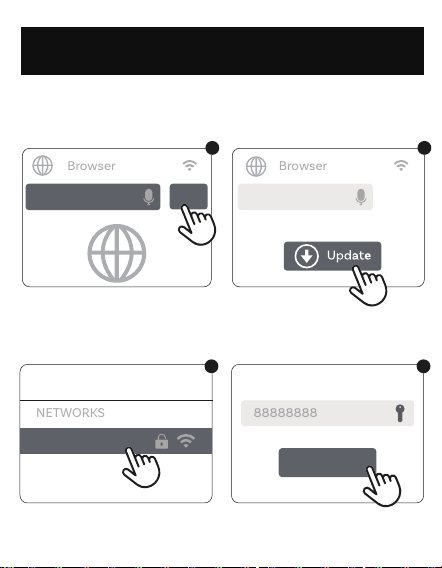
1.2 Upgrade when CarPlay is not connected.
NETWORKS
WLAN
AUTO-XXXX
Join
Enter Password
1 2
88888888
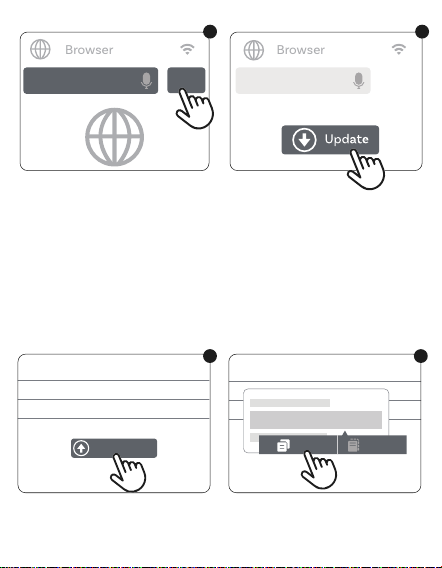
1. Firmware Upgrade
1.1 Upgrade in CarPlay connected state.
Instructions for upgrading and reporting issues
for iPhone users
Enter
Browser
192.168.1.101 192.168.1.101
Browser
1
2
-13-
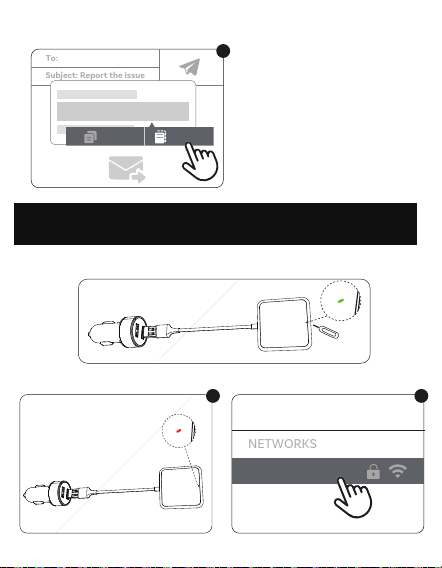
2. Reporting issues
2.1 Fill in the table and submit.
2.2 Copy the case number.
Enter
Browser
192.168.1.101 192.168.1.101
Browser
3 4
Car brands
Volkswagen
Car models
Car years
2023
Case No.:XXXXXXXXXX
Copy Paste
2
Car brands Volkswagen
Car models Passat
Car years 2023
1
Upload log
* Please do not turn off the power during the update process.
* After the upgrade is completed (LED turns white), please unplug
the adapter.
* After updating, please re-pair your phone.
-14-
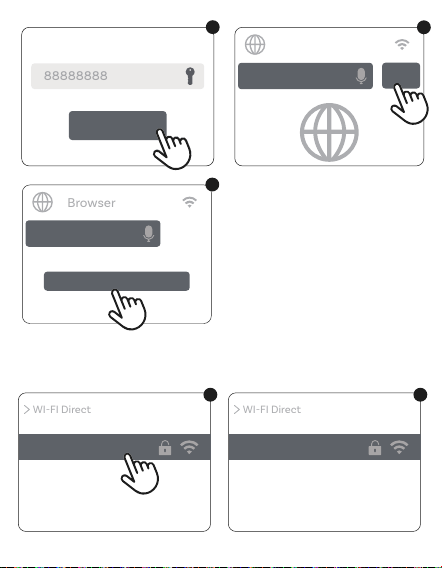
1. Enter P2P path 1
2. Enter P2P path 2
Instructions for upgrading and reporting issues
for Android phone users
2.3 Send the case number to the seller.
NETWORKS
WLAN
AUTO-XXXX
2
To:
Subject: Report the issue
Case No.:XXXXXXXXXX
Copy Paste
3
1
-15-
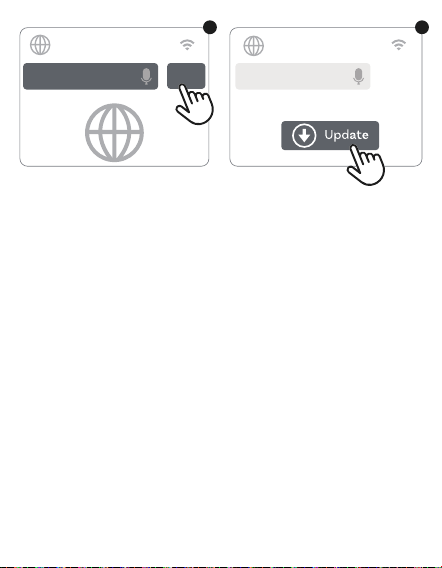
3. Firmware upgrade in P2P mode
WI-FI Direct
Switch P2P mode
Please find the Wi-Fi Direct feature on your phone.
Join
Enter Password
88888888
3
1
Browser
192.168.1.101
5
AUTO-XXXX
Available
WI-FI Direct
2
AUTO-XXXX
Connected
Enter
Browser
192.168.1.101
4
-16-
Enter
Browser
192.168.1.101 192.168.1.101
Browser
3 4
Settings → Network & internet → Internet → Network preferences
→ WiFi Direct
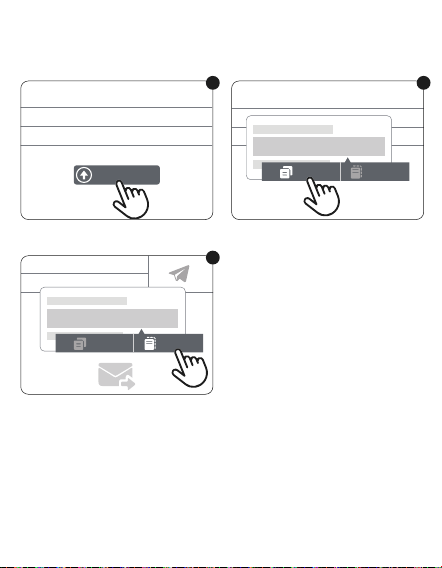
* Please wait for WiFi to be connected before performing any
otheroperations
* Please do not turn off the power during the update process.
* After the upgrade is completed (with the LED in color
white),please unplug the adapter.
* After updating, please re-pair your phone.
* Please find the Wi-Fi Direct feature on your phone.
* The path to enter WiFi Direct function varies slightly among
different phones.Taking Google Pixel 6Pro as an example:
-17-
4. Reporting issues in P2P mode
To:
Subject: Report the issue
Case No.:XXXXXXXXXX
Copy Paste
3
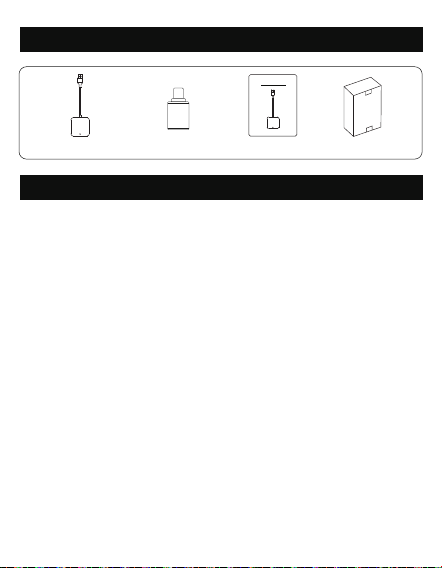
4.1 Fill in the table and submit.
4.3 Send the case number to the seller.
4.2 Copy the case number.
Car brands Volkswagen
Car models Passat
Car years 2023
1
Car brands
Volkswagen
Car models
Car years
2023
Case No.:XXXXXXXXXX
Copy Paste
2
Car brands Volkswagen
Car models Passat
Car years 2023
1
Upload log
-18-
Car TV Mate Max x1 USB to plug adapter x 1 User Manual x 1 Packaging Box x 1
Packing list
After-sales service commitment
2. Warranty Coverage
The warranty covers failures caused by defects in materials or
manufacturing.
The following are not covered by the warranty:
...Man-made damage (such as dropping, liquid spillage).
...Unauthorized modifications or repairs.
...Normal wear and tear or consumables (such as batteries, accessories).
1. Warranty period:
This product has a 2-year warranty from the date of purchase.
Please keep the purchase receipt (such as invoice or order screenshot)
as the basis for warranty.
3. Lifetime technical support
We provide lifetime free technical support.
You can contact us via email:
For inquiries submitted on weekdays (Monday to Friday), we promise
to respond within 18 hours. There may be a slight delay on weekends
and statutory holidays.
Wireless CarPlay / Android Auto / TV Mate Adapter
USER MANUAL

-19-
This device complies with Part 15 of the FCC Rules. Operation
is subject to the following two conditions:
(1) This device may not cause harmful interference;
(2) this device must accept any interference received,
including interference that may cause undesired operation.
FCC Warning
This device complies with Industry Canada’s license-exempt RSSs.
Operation is subject to the following two conditions:
(1) This device may not cause interference; and (2) This device must
accept any interference, including interference that may cause
undesired operation of the device.
« Le présent appareil est conforme aux CNR d'Industrie Canada
applicables aux appareils radio exempts de licence.
L'exploitation est autorisée aux deux conditions suivantes :
(1) l'appareil ne doit pas produire de brouillage, et
(2) l'utilisateur de l'appareil doit accepter tout brouillage
radioelectrique subi, meme sile brouillage est susceptible
d'en compromettre le fonctionnement. »
The product should be kept at least 20cm away when used.
Le produit doit être conservé au moins 20cm une fois utilisé.
IC Warning
Warning
The warranty covers failures caused by defects in materials or
manufacturing.
The following are not covered by the warranty:
...Man-made damage (such as dropping, liquid spillage).
...Unauthorized modifications or repairs.
...Normal wear and tear or consumables (such as batteries, accessories).

-20-
「取得審驗證明之低功率射頻器材,非經核准,公司、商號或使用者均不
得擅自變更頻率、加大功率或變更原設計之特性及功能。低功率射頻器
材之使用不得影響飛航安全及干擾合法通信;經發現有干擾現象時,應
立即停用,並改善至無干擾時方得繼續使用。前述合法通信,指依電信
管理法規定作業之無線電通信。低功率射頻器材須忍受合法通信或工
業、科學及醫療用電波輻射性電機設備之干擾。」
Google, Google Play, Android, Android Auto are trademarks of Google
Inc., registered in the U.S. and other countries.
Apple, iPhone, iPad, and CarPlay are trademarks of Apple Inc.,
registered in the U.S. and other countries.
We are not affiliated with Google Inc. or Apple Inc. All other product
and service names mentioned are the trademarks of their respective
companies.
LP0002警語:
5G Wi-Fi的警語:
應避免影響附近雷達系統之操作。
高增益指向性天線只得應用於固定式點對點系統。
「減少電磁波影響,請妥適使用」
Public Land Mobile Network
Copyright Notice
-21-
「取得審驗證明之低功率射頻器材,非經核准,公司、商號或使用者均不
得擅自變更頻率、加大功率或變更原設計之特性及功能。低功率射頻器
材之使用不得影響飛航安全及干擾合法通信;經發現有干擾現象時,應
立即停用,並改善至無干擾時方得繼續使用。前述合法通信,指依電信
管理法規定作業之無線電通信。低功率射頻器材須忍受合法通信或工
業、科學及醫療用電波輻射性電機設備之干擾。」