USER MANUAL
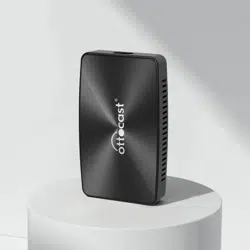
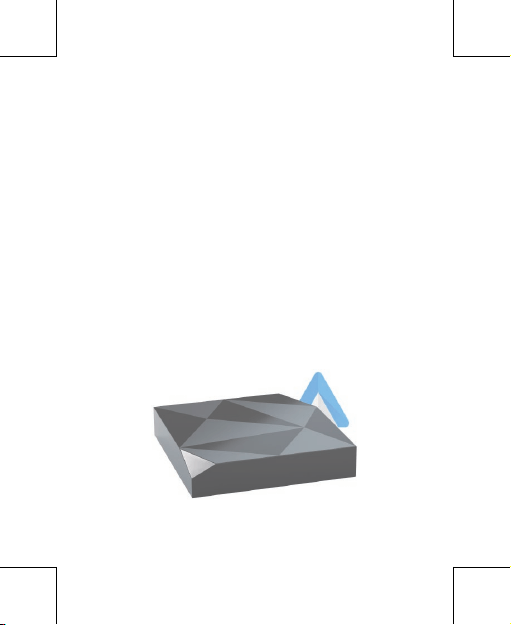
Wireless Android Auto Adapter

READ ME FIRST
This adapter is designed for Android smartphones
to use Android Auto wirelessly on factory car
multimedia system which has built-in wired Android
Auto function.
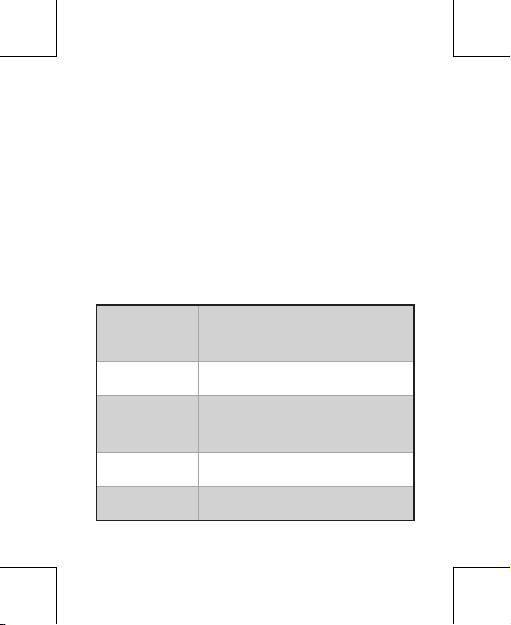
Function
Convert OEM wired Android Auto
to wireless
Compatibility Cars with OEM Android Auto
Control
OEM touch screen, steering
wheel, and joystick control
Input Power USB 5V~1A
Connectivity WiFi & Bluetooth

What's in the box
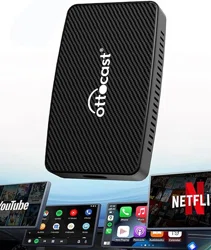
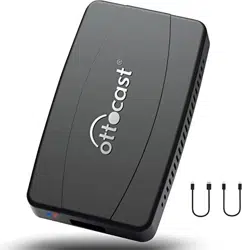
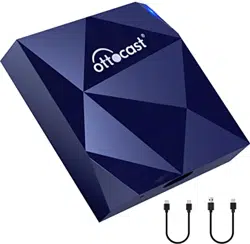
• Wireless adapter *1
• USB cable (Type-C to A) *1
• USB cable (Type-C to C) *1
• User manual *1
4
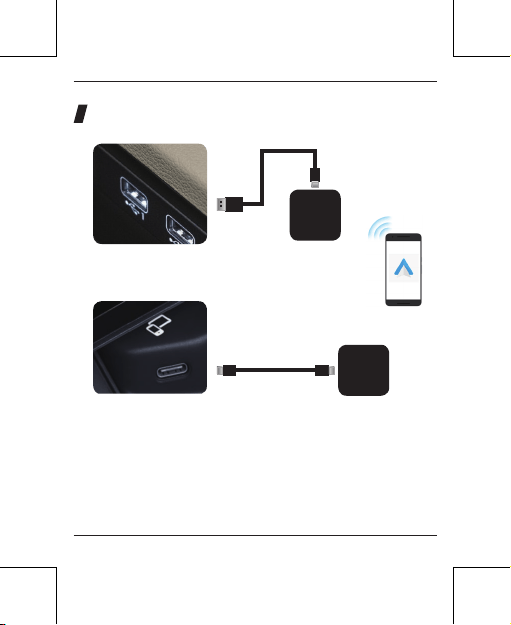
Type-C
Type-CType-C
USB-A
or
Adapter
Adapter
Factory USB A port
Factory USB C port
NOTE! The adapter should be plugged into the
Android Auto-enabled USB port if there are multi USB
ports in your car.
Connection diagram
5
6
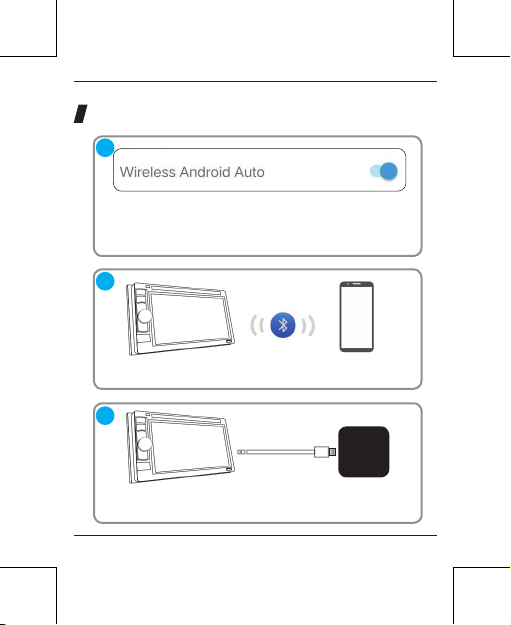
Setting up wireless Android Auto
Install Android Auto on your smartphone, next
enable [Wireless Android Auto] in Android Auto
app settings.
Pair your smartphone with the vehicle's Bluetooth.
Plug the adapter into your vehicle's Android Auto-
enabled USB port.
Adapter
1
2
3
7
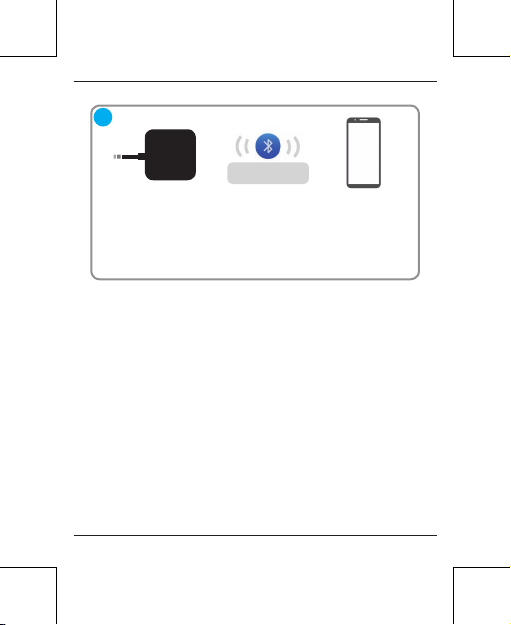
Continue to pair your smartphone with the
adapter's Bluetooth: [AUTO-xxxx].
It will then connect to Android Auto wirelessly
after a few seconds.
Adapter
AUTO-xxxx
4
8
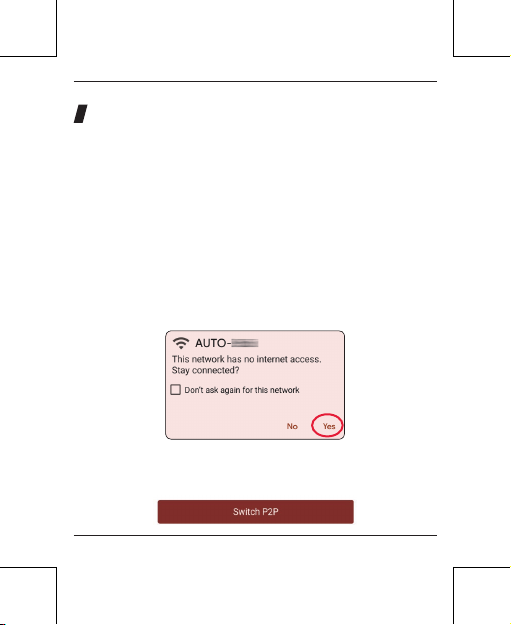
1. If you have connected to the Android Auto
wirelessly, disable Bluetooth and forget the WiFi
network first
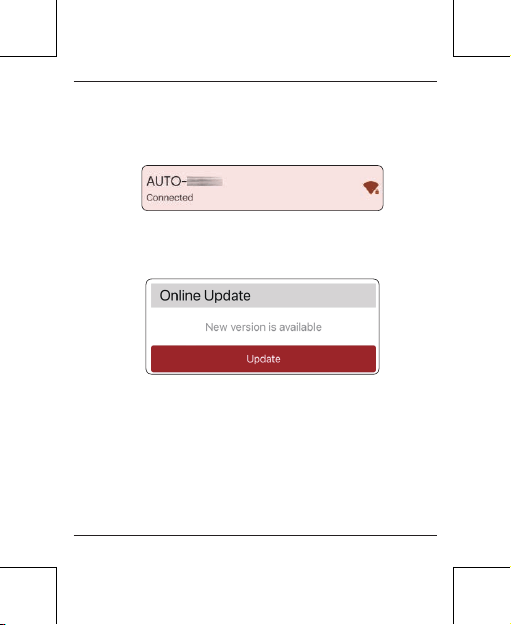
2. Join the adapter's WiFi network [AUTO-xxxx]
again by manual and the password is 88888888
(Tap YES if there is a pop-up notification of
internet access)
3. Enter 192.168.1.101 on smartphone browser,
next tap "Switch P2P"
Firmware update
Firmware update is NOT recommended when every
function works well.
9
5. Enter 192.168.1.101 again on smartphone browser,
next tap "Update".
4. On your phone, go to WiFi >> Advanced settings
>> WiFi direct, tap [AUTO-xxxx] and make sure it
has connected
NOTE! The blue led indicator will flash rapidly while
updating. Wait for more 30s after the light is always
on, then disconnect and reconnect the adapter from
USB port to finish the whole update.

10
How to report an issue
Any issue while using the adapter, you could directly
report the issue online and send us the feedback
screenshot. We will fix it as soon as possible.
Follow the 1-4 steps of [Firmware update] on the
previous page, then enter 192.168.1.101 again on
the browser to submit the issue.

Google, Google Play, Android, Android Auto, are trademarks
of Google Inc., registered in the U.S. and other countries.
Apple, iPhone, iPad, and CarPlay are trademarks of Apple
Inc., registered in the U.S. and other countries.
We are not affiliated with Google Inc. or Apple Inc. All other
product and service names mentioned are the trademarks of
their respective companies.
This device complies with part 15 of the FCC Rules. Operation
is subject to the following two conditions:
(1) This device may not cause harmful interference
;
(2) this device must accept any interference received,
including interference that may cause undesired operation.
11

V20924