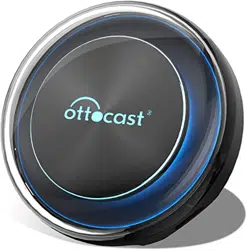
USER MANUAL
Plug In Car Android System
via Original USB

Warning
To protect the driving safety of yourself and other
road users, and to avoid breaking the traffic law
in your respective country; please DO NOT watch
videos while driving.
Due to the product's continuous updating,some
contents of this manual may differ from the
product you actually purchased.
TIPS! To adapt to the factory display, the Android
system will automatically restart once when the
first time connecting to the car.

CONTENT
Getting To Know Before Using ...................... 4
How To Check A Car Has CarPlay Or Not ....... 5
What's In The Box ......................................... 6
Specifications ............................................... 7
Connectors ................................................... 8
User Interface ............................................... 9
Quick Settings ............................................ 11
Firmware Update........................................ 14

This AI box is designed for the factory car stereo with built-in
wired Apple CarPlay, which can convert wired CarPlay into a full
Android system. Besides, it integrates wireless Apple CarPlay/
Android Auto functions.
Getting to know before using
4
5
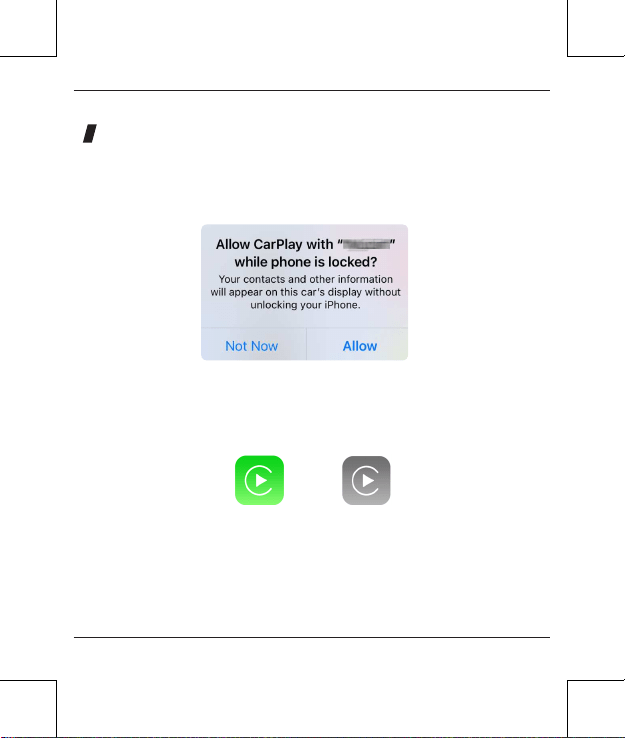
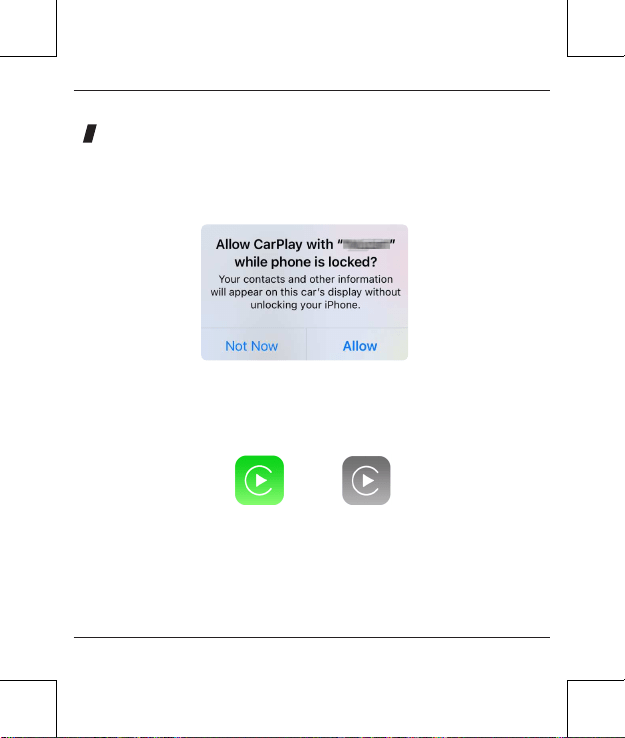
1. Plug an iPhone (running iOS 10 or newer) into the car USB ports
with genuine factory lightning cable. If there is a notification pop
up on iPhone like below, that your car has built-in Apple CarPlay.
2. If there is a CarPlay icon in the car stereo menu, that your car
has built-in Apple CarPlay.
3. Contact your car dealer for help.
or
How to check a car has CarPlay or not

6
What's in the box
• Android AI box *1
• Bypass power cable *1
• USB cable (type-C to A) *1
• USB cable (type-C to C) *1
• User manual *1
• Installation guide *1
• Ejection pin *1

7
OS
Processor
RAM+ROM
Expandable Memory
SIM Card
Wi-Fi
Bluetooth
GNSS
Power Input
Operating Temperature
Dimensions
Weight
Android 10
Qualcomm Snapdragon 665 Octa-core,
64 bit 11 nm, up to 2.0 GHz
4GB + 64GB
Micro SD card, up to 128GB
2G/3G/4G LTE Nano SIM card
Dual-band Wi-Fi 802.11 a/b/g/n/ac 2.4 GHz+5 GHz
Built-in GPS/GLONASS/Beidou
USB 5V~1A
-30~75
℃
78*78*32 mm
86g
BT 5.0, for iPhone/Android smartphone hands-free
calling & audio streaming, external BT mouse,
remote controller, etc.
Specifications
8
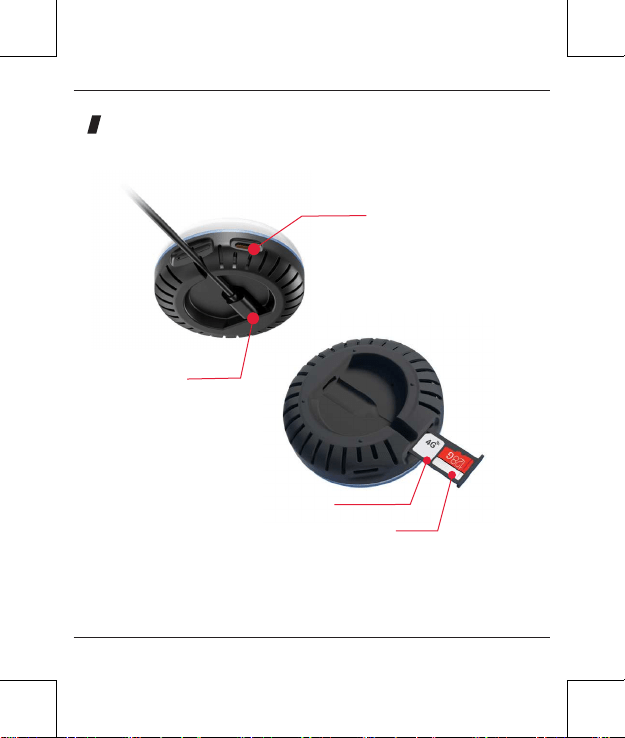
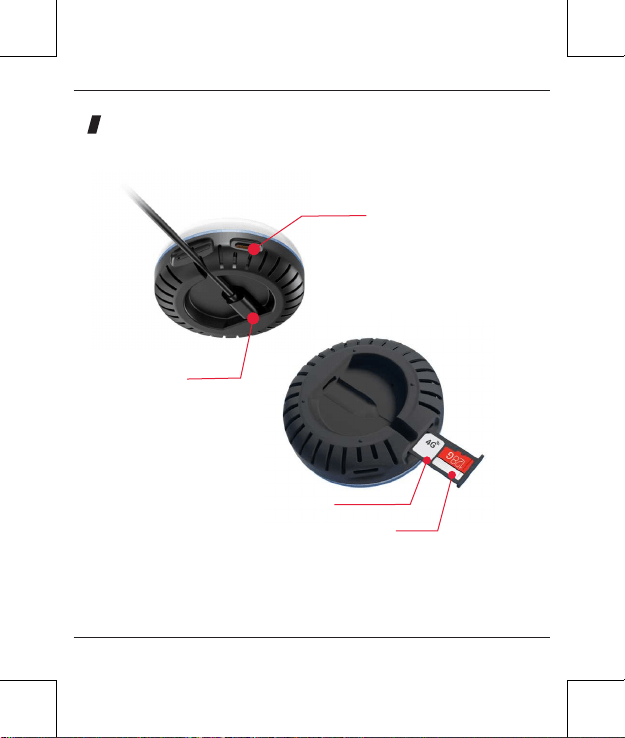
NOTE! Power off before inserting or removing the nano SIM card.
Nano SIM card and Micro SD card are not included in the package.
For how to insert the cards please refer to this diagram.
USB-C port
Mini HDMI out
Nano SIM card
Micro SD card
Connectors
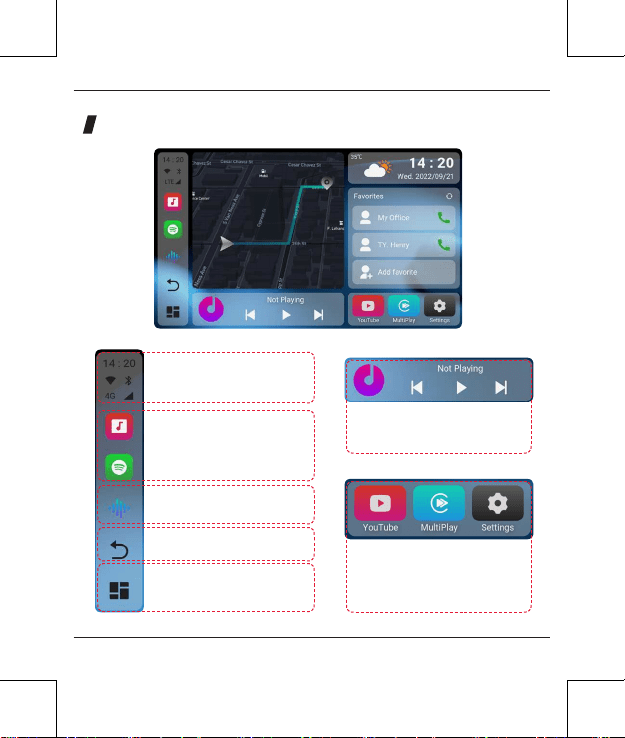
User Interface
9
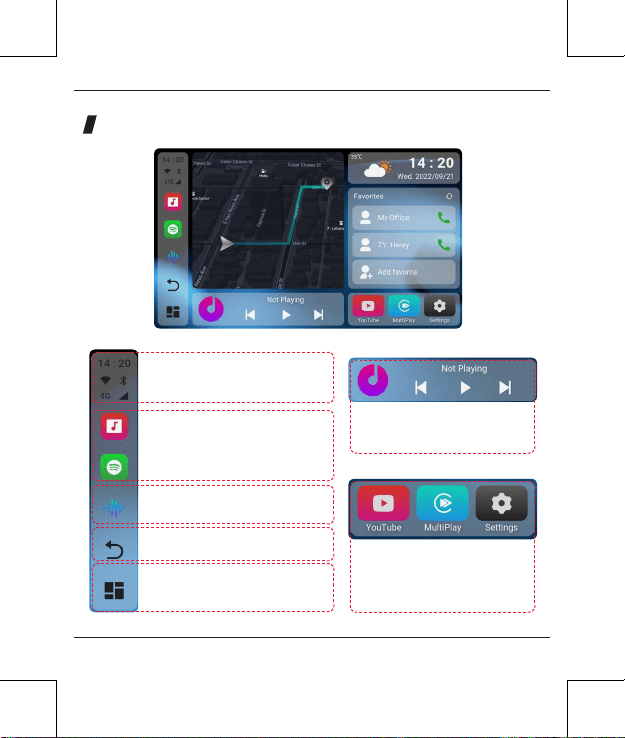
Common apps, press & hold the
icon to replace installed app.
Music playback widget
WiFi / BT / SIM card
network status bar
Recent running apps
Google Assistant by default.
Select another app in Settings >
CAR > Voice assistant.
Tap: Back
Press & hold: all recent apps
Tap: Home
Press & hold: enable split screen
(only available in 3rd party app)
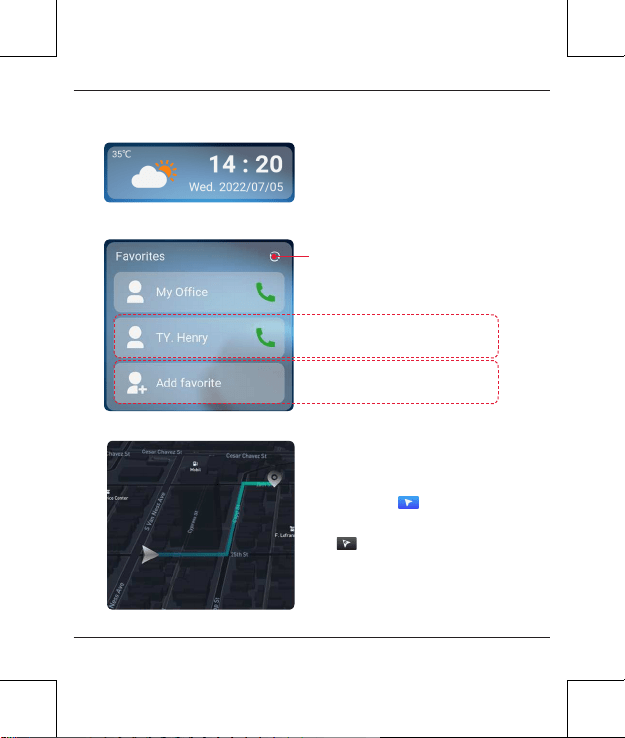
10
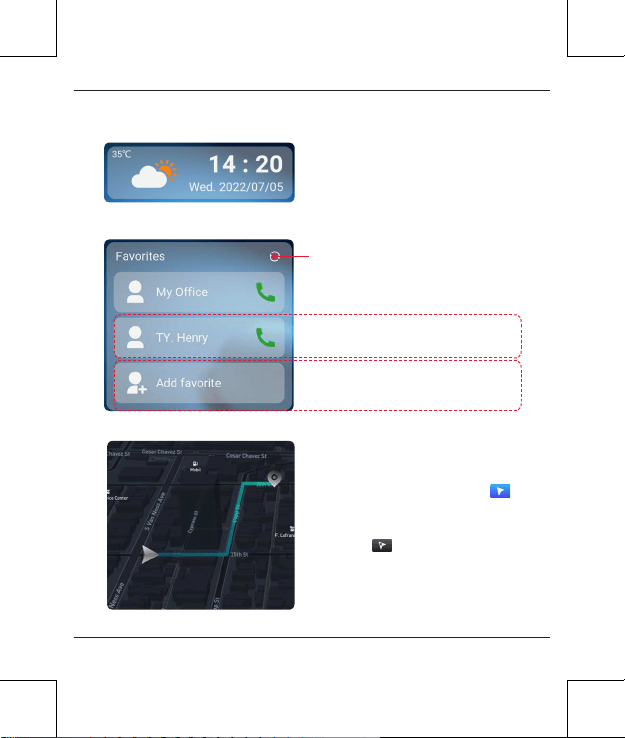
Shortcut for navigation app by default:
open the select app while tapping this
widget. To replace the default navigation
app, please open
To enable PIP navigation, open PIP Navi
app tick and select navigation app.
NOTE! The selected app will only display
on the homepage with PIP mode instead
of full-screen mode.
Weather & clock widget
Add your location by tapping the
weather icon.
Long press: delete all favorite contact
shortcuts
Tap: call this contact
Long press: replace the contact
Tap to add favorite contact shortcut
(please pair to Bluetooth first)
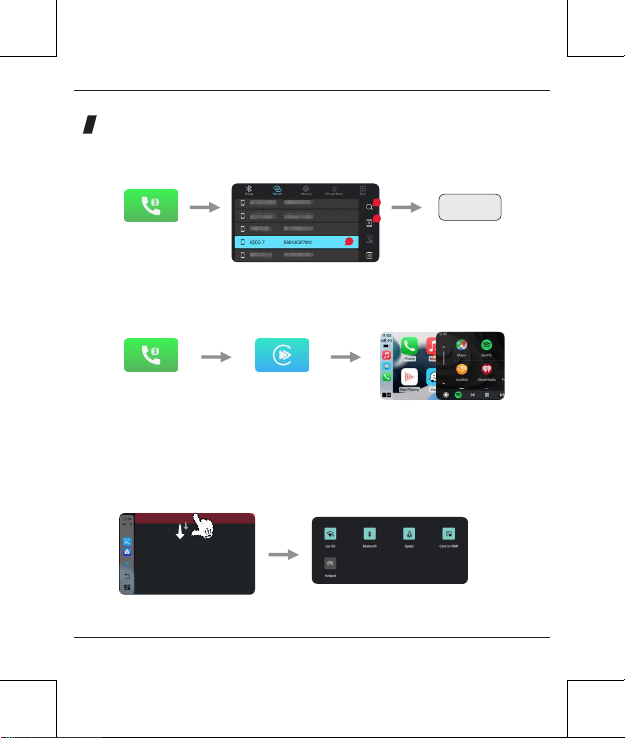
Quick settings
11
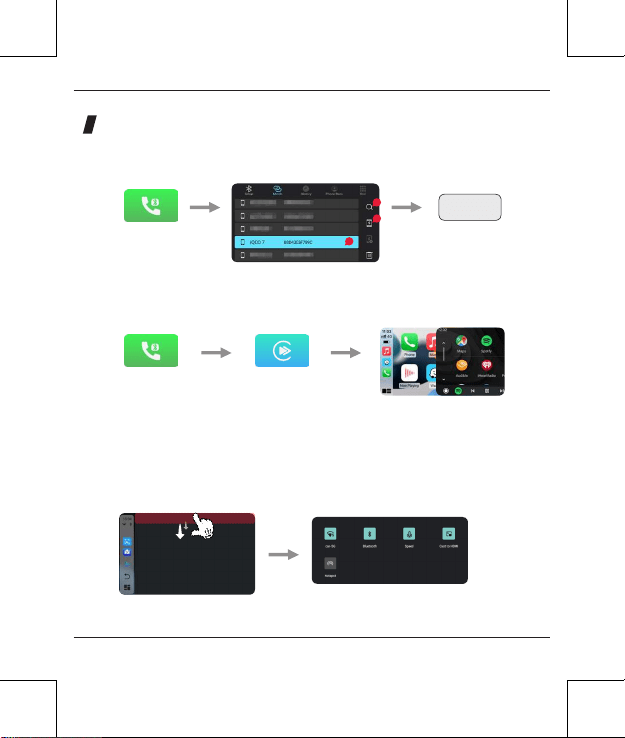
• Pairing your iPhone/Android phone with Bluetooth
• Setting up wireless Apple CarPlay/Android Auto
• Opening notification bar
TIPS! Disable [wireless auto connect] in MultiPlay app settings if you don't want to
automatically start wireless CP/AA every time you pair to Bluetooth.
Enable your mobile
phone's Bluetooth,
next open Bluetooth
app on AI box
Pair your iPhone/
Android smartphone to
AI box's Bluetooth first.
Swipe down twice from the top
Open MultiPlay app. Tap
confirm if there are pop-up
notifications on your phone.
Enter pair code 0000
on your mobile phone
to finish pairing
0000
1
3
2
12
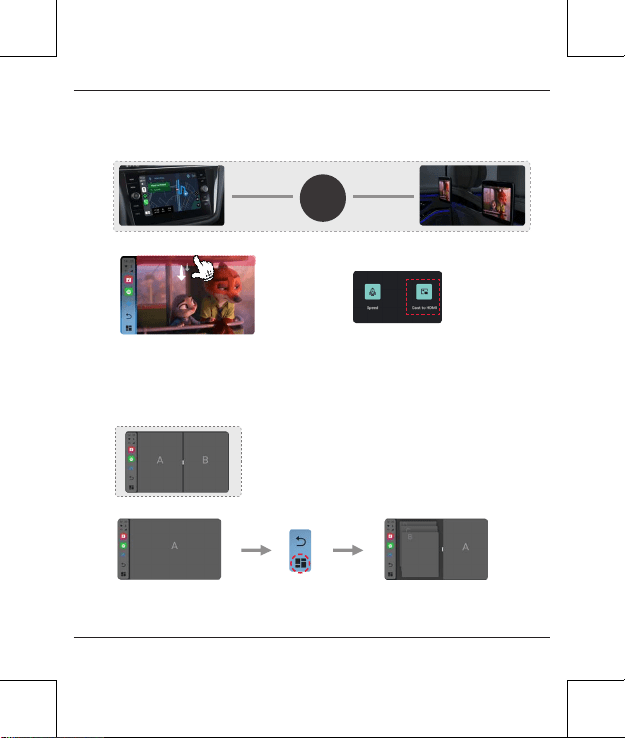
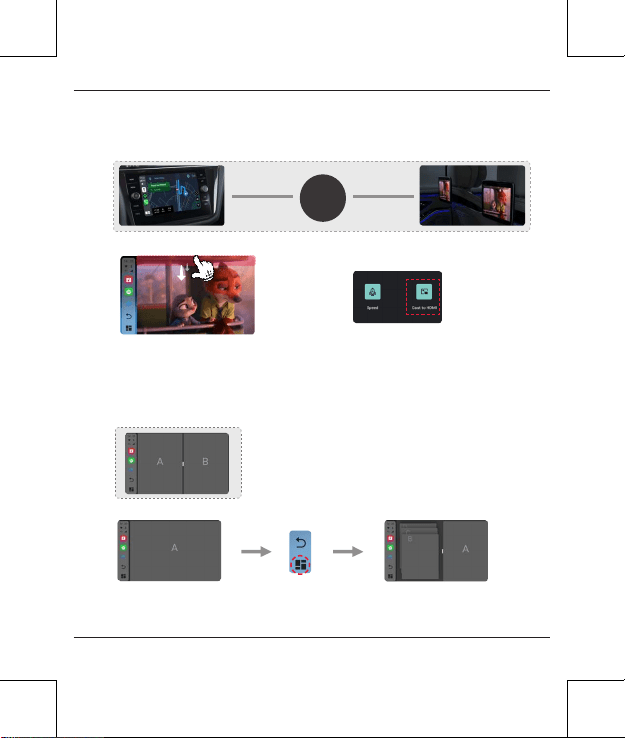
• Casting different contents to HDMI monitor
• Enable split-screen mode
Preview
How
How
Preview
USB cable
In video-playback app Open the notification bar by twice swiping down
from the top, next tap [Cast to HDMI] icon to start
casting. Tap this icon again will disable casting.
Open any app supporting
split-screen mode
Press and hold
home button
Select another app. Press
and hold the home button
again to exit split mode.
HDMI cable
AI box
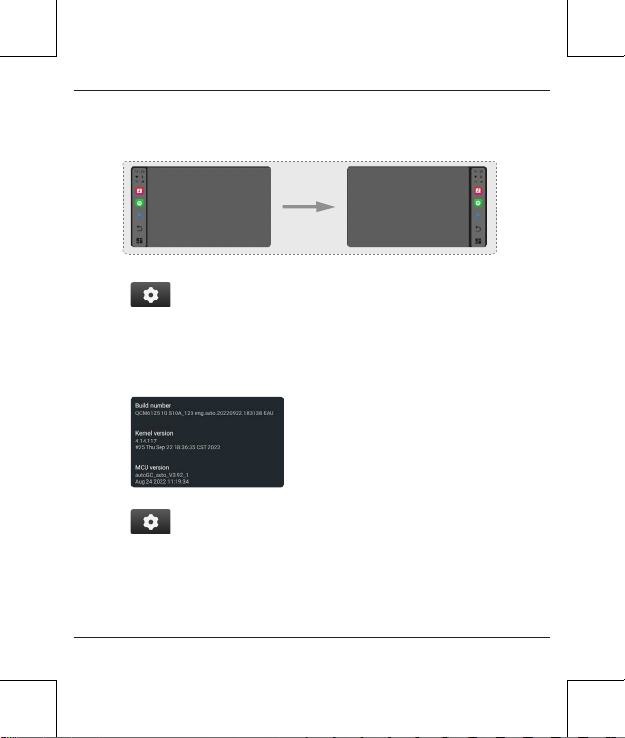
Preview
13
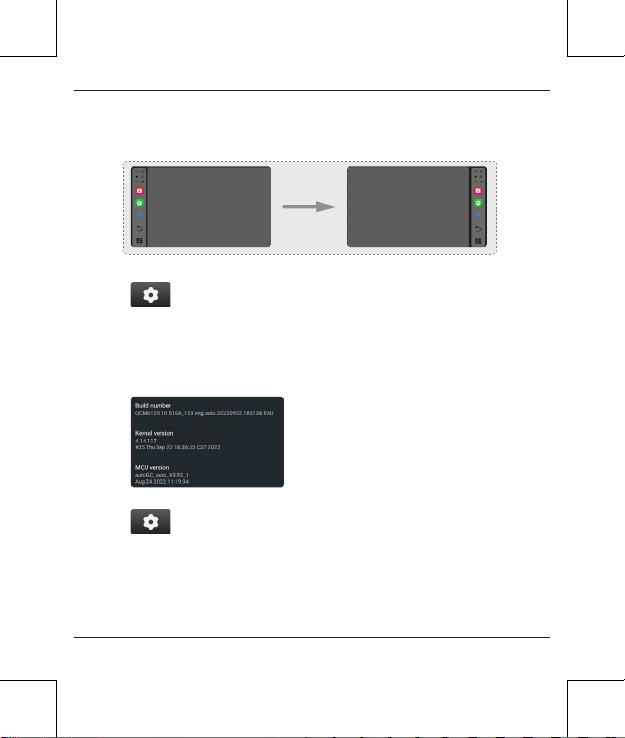
• Setting nav bar to the right side
• Software version
Go to Settings > CAR > Driving settings > Right Rudder, enable.
Go to Settings > About machine > Build number
How
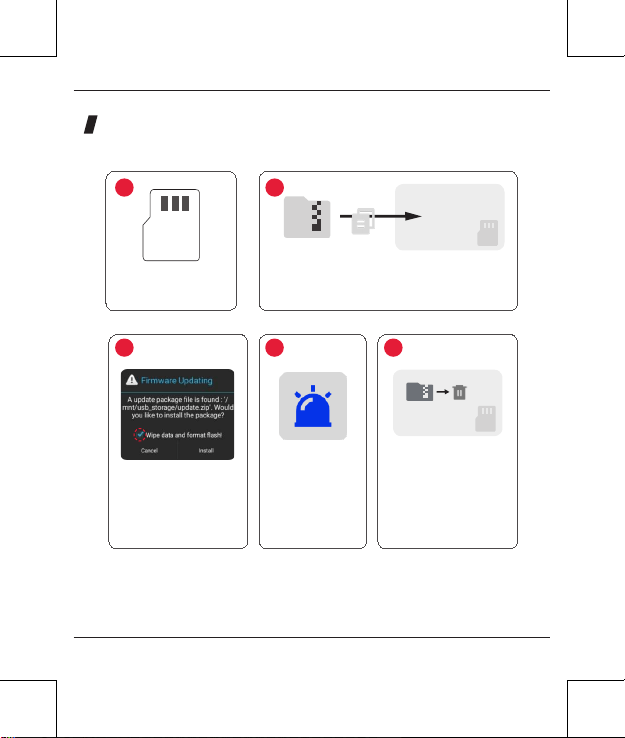
14
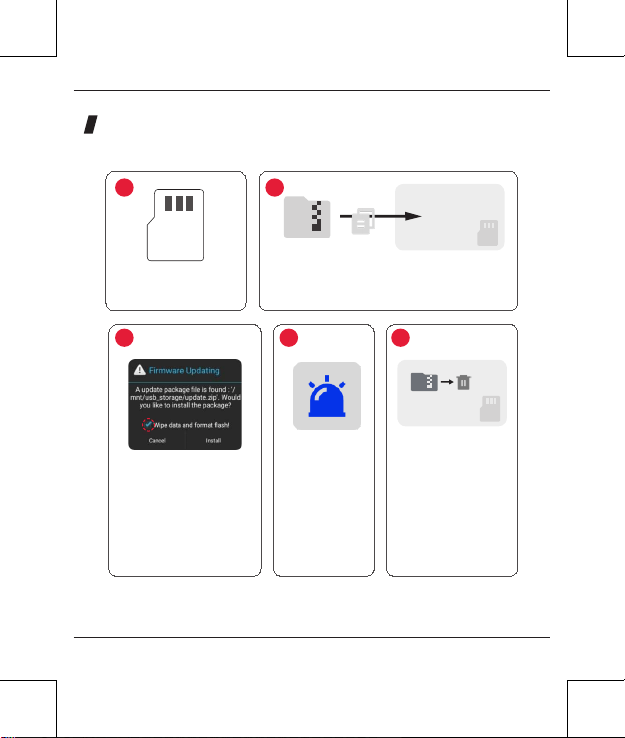
Format micro SD
card into FAT32
Insert the micro SD card
into the AI box then
power on. Tick [Wipe
data and format flash],
next tap install.
The blue light
flashes rapidly
while updating.
After the update is
finished, the system will
restart. Delete the update.
zip file or remove the
micro SD card.
Copy update.zip to the root folder of micro SD card
update.zip
FAT32
1
3 4 5
2
Root folder
update.zip
Firmware update

Google, Google Play, Android, Android Auto, are trademarks of Google Inc.,
registered in the U.S. and other countries.
Apple, iPhone, iPad, and CarPlay are trademarks of Apple Inc., registered in the
U.S. and other countries.
We are not affiliated with Google Inc. or Apple Inc. All other product and service
names mentioned are the trademarks of their respective companies.
This device complies with part 15 of the FCC Rules. Operation is subject to the
following two conditions:
(1) This device may not cause harmful interference
;
(2) this device must accept any interference received, including interference
that may cause undesired operation.

取扱説明書
車の USB に挿すだけで車載ナビを
Android タブレット化

ご注意
本製品は運転者以外の同乗者が走行中にマルチメディア
を楽しむためのものです。運転者が走行中に AV 機器に表
示された画像を注視することや走行中の画面操作等は道
路交通法で禁じられています。注視や操作は必ず運転者
以外の方が行うか、停車後に行うことを遵守してくださ
い。
また、製品の継続的な更新により、ご購入されたものは
本説明書の記載内容と異なる場合があります。
TIPS! 純正ナビに合わせるために、初めて接続する時、
Android システムは自動的に再起動することがあります。

目次
使う前に知っておきたいこと .......................20
CarPlay 搭載車であるかどうかの確認方法 .. 21
同梱品一覧 ...................................................22
製品仕様.......................................................23
本体接続端子................................................24
ユーザインターフェース ..............................25
設定..............................................................27
ファームウェアの更新..................................30

この AI box は有線式の Apple CarPlay を内蔵した純正カ
ーマルチメディアをアンドロイドシステムに変換できるよ
うにするためのものです。また、この製品を装着すると、
Android auto と CarPlay がワイヤレス ( 無線 ) での接続も
可能になります。
使う前に知っておきたいこと
20
21
1. iPhone(iOS 10 以降)を純正 Lightning ケーブルで車
の USB ポートに接続します。iPhone に以下のような通知
が表示されれば、車に Apple CarPlay が内蔵されています。
2. カーステレオのメニューにCarPlay のアイコンがあれば、
お車には Apple CarPlay が内蔵されています。
3. CarPlay アイコンが表示されない場合、ディーラーに
CarPlay 機能が搭載している車両か確認をしてください。
or
CarPlay 搭載車であるかどうかの確認方法

22
同梱品一覧
• Android AI box 本体 *1
• バイパス電源ケーブル *1
• USB ケーブル(Type-C to A)*1
• USB ケーブル(Type-C to C)*1
• 取扱説明書(本書)*1
• インストールガイド *1
• エジェクションピン ×1

23
OS
プロセッサー
RAM+ROM
拡張可能なメモリ
SIM カード
Wi-Fi 対応規格
Bluetooth 対応規格
GNSS
入力
動作温度
本体寸法
本体質量
Android 10
Qualcomm Snapdragon 665 8 コア、64 bit 11
nm、最大 2.0 GHz
4GB + 64GB
Micro SD カード(up to 128GB)
2G/3G/4G LTE Nano SIM カード
デュアルバンド 802.11 a/b/g/n/ac 2.4 GHz+5 GHz
GPS/GLONASS/Beidou が内蔵
USB 5V~1A
-30~75℃
78*78*32 mm
86g
Bluetooth 5.0、iPhone や Android スマホでのハン
ズフリー通話や、オーディオのストリーミング再生、
Bluetooth マウス、Bluetooth リモコン等の外付デバイ
スに対応可能
製品仕様
24
ご注意 !
Nano SIM カードを挿入する前に、電源を切ってください。
カードの挿入方法は上の画像をご参照ください。※Nano SIM カー
ドや Micro SD カードは付属しません。
USB-C ポート
Mini HDMI 出力端子
Nano SIM カード
Micro SD カード
本体接続端子
ユーザインターフェース
25
よく使うアプリ。長押しすると、
そのアプリを削除します
音楽再生ウィジェット
WiFi / BT / SIM カードネットワーク
ステータスバー
最近使用したアプリ
デフォルトは Google Assistant。「設定」
> 「カー」>「Voice assistant」と入り、他
のアプリに切り替えることができます
タップすると :
戻る
押したままにすると :
直近のアプリを表示
タップすると :
ホーム画面に入る
押したままにすると :
2 分割表示になる
(第三者アプリのみ対応可)
26
デフォルトはナビゲーションアプリのショート
カットです。このウィジェットをタップしなが
ら選択するアプリを開きます。デフォルトのナ
ビゲーションアプリを置き換えるには、
をクリックしてください
PIP ナビゲーションを有効にするには、PIP
Navi アプリ を開き、ナビゲーションア
プリを選択します。
ご注意 ! 選択したアプリは、ホームページでフ
ル画面ではなく、PIP モードで表示されます。
天気&時計のウィジェット
天気アイコンをタップすると、現在地を追
加できます
長押しすると、お気に入りの連絡先のショ
ートカットをすべて削除します
タップすると、この連絡先に電話します。
長押しすると、この連絡先を削除します
タップすると、お気に入りの連絡先の
ショートカットを追加します(まずは
Bluetoothペアリングしておいてください)
製品設定
27
• 携帯電話を Bluetooth 接続する
• ワイヤレス Apple CarPlay/Android Auto の使用方法
• 通知バーを表示させる
TIPS! Bluetooth にペアリングするとすぐ自動的にワイヤレス CarPlay/Android Auto を起動し
たくない場合は、MultiPlay アプリの設定で「ワイヤレス自動接続」をオフにしてください。
iPhone/Android スマホの
Bluetooth を有効にして、
本製品の「Bluetooth」ア
プリを開きます
iPhone/Android スマホ
を本製品の Bluetooth に
ペアリングします
上から下に 2 回スワイプします
「MultiPlay」アプリを開きま
す。スマートフォンにポップア
ップ通知が現れたら、「確認す
る」をタップします
携帯電話にペアコード
「0000」 を入力して、
ペアリングします
0000
1
3
2
28
• 外付モニターとの同期
• 2 画面表示の方法
プレビュー
設定方法
設定方法
プレビュー
USB ケーブル
動画再生中 上から下に2 回スワイプして、通知バーを表示させます。「Cast
to HDMI」をタップして同期を開始します。 このアイコンを
もう一度タップすると、同期機能が無効になります。
分割画面モードに対応可能
なアプリを開きます
ホームボタンを
長押しします
もう一つのアプリを選択します。 再
度ホームボタンを長押ししたら、2 画
面表示モードが終了となります
HDMI ケーブル
AI box
プレビュー
設定方法
29
• ナビゲーションバーを右側に設定
• ファームウェアバージョン
「設定」>「カー」>「運転設定」>「Right Rudder」と入り、オンにします
「設定」>「デバイス情報」>「ビルド番号」
30
micro SD カードを FAT32
にフォーマットします
micro SD カードを AI box に
挿入。AI box とナビシステム
を USB ケーブルで接続しま
す。「Wipe data and format
flash」というポップアップ通
知が現れたらそれをタップし
ます。そして、「Install」を
タップします
ファームウェアの入手方法は購入先へお問い合わせください。
「update.zip」ファームウェアを micro SD カードの
ルートフォルダーにコピーします
update.zip
FAT32
1
3
2
Root folder
更新を開始します。
更新中は青色ライト
が素早く点滅します
更新が完了すると、システ
ムは改めて起動します。
「update.zip」ファームウ
ェアを削除して、micro SD
カードを取出してください
4 5
update.zip
ファームウェアの更新

Google、Google Play、Android 及び Android Auto は米国および他の
国で登録された Google 社の商標です。
Apple、iPhone、iPad 及び CarPlay は、米国および他の国で登録
された Apple Inc. の商標です。
当社は Google 社や Apple 社と提携していません。記載されているその
他の製品及びサービス名は関係のない会社の商標です。
「このデバイスは FCC 規則パート 15 に適合する。運用は以下の 2 つの
条件の対象となる :
(1) このデバイスが有害な干渉を生じてはならない、かつ;
(2) このデバイスは、望ましくない動作を引き起こすかも知れない、そ
れが受けるいかなる干渉も受け入れなければならない。

V21008