USER MANUAL
All-in-One Multimedia Adapter

Warning
To protect the driving safety of yourself and other
road users, and to avoid breaking the traffic law in
your respective country; please DO NOT watch videos
while driving.
Due to the product's continuous updating, some
contents of this manual may differ from the product
you actually purchased.
TIPS! To adapt to the factory display, the system
will automatically restart once when the first time
connecting to the car.

Specifications ...........................................4
What's in the box .....................................5
Interfaces .................................................6
Connection diagram .................................7
User interface ........................................... 8
Quick settings ...........................................9
Firmware update ....................................11
CONTENT

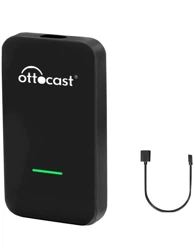
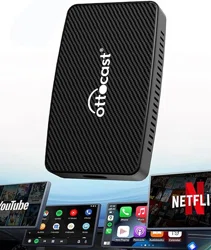
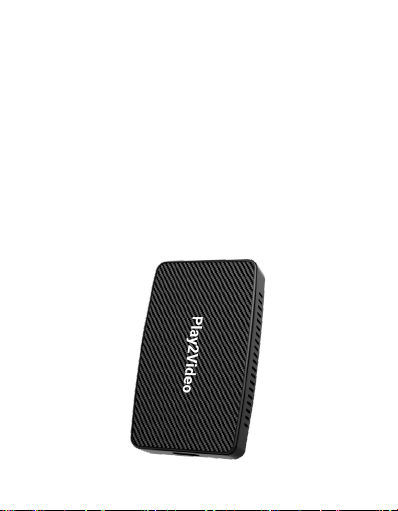
This all-in-one multimedia adapter allows you to
watch online & offline video on your stock car
monitor comes with built-in wired Apple CarPlay.
Function
• Online video playback (Netflix &
YouTube)
• USB flash drive music & video
playback
• Bluetooth hands-free talking
• Wireless CarPlay & Android Auto
Compatibility Cars with OEM Apple CarPlay
Control
OEM touch screen, steering
wheel, and joystick control
Input Power USB 5V
Connectivity WiFi & Bluetooth
Specifications
4

5
What's in the box
• All-in-one adapter *1
• USB cable (Type-C to A) *1
• USB cable (Type-C to C) *1
• User manual *1
6
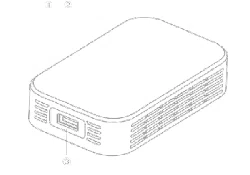
Interfaces
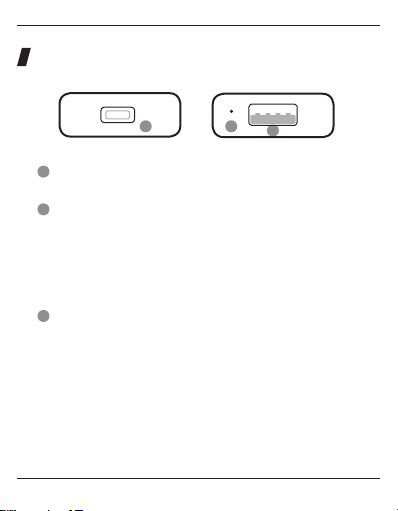
USB Type-C port: connect to car
LED indicator
USB-A port: for USB flash drive music/video
playback and firmware update.
1
1
2
2
3
3
• Power on: red light flashes slowly
• Connected to car successfully: blue light on
• Updating: green light flashes rapidly
7
Connection diagram
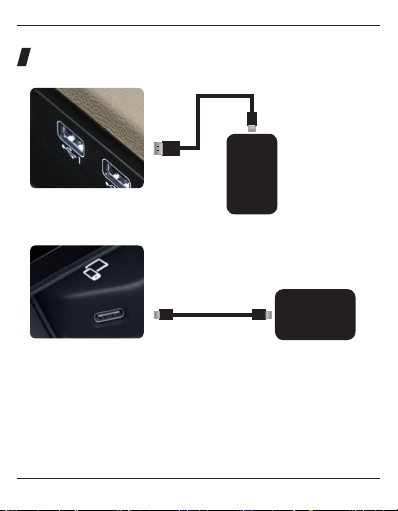
Type-C
Type-CType-C
USB-A
or
Adapter
Adapter
Factory USB A port
Factory USB C port
NOTE! The adapter should be plugged into the USB
port that is for wired Apple CarPlay connecting if
there are multi USB ports in your car.
8
User interface
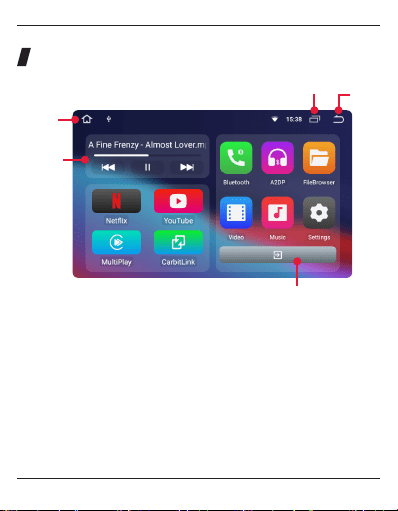
Home
Music
Widget
Recent
apps
Exit
Back
• MultiPlay: app for wireless CarPlay & Android Auto
• CarbitLink: app for wireless screen mirroring
• Bluetooth: Bluetooth hands-free talking for iPhone
and Android smartphone
• A2DP: Bluetooth audio streaming
• Music & Video: apps for USB flash drive multimedia
playback
Quick settings
9
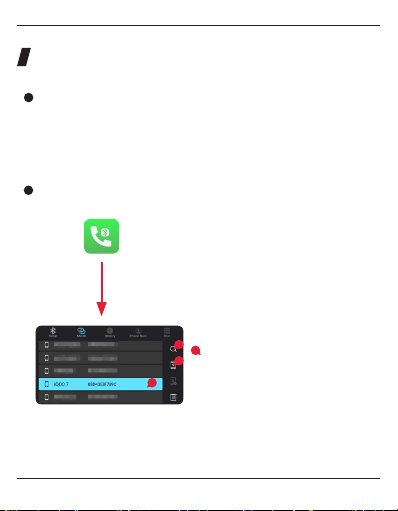
Connect to WiFi network
Pairing your mobile phone with Bluetooth
Go to settings > Network & Internet > Wi-Fi.
Enable your mobile phone's
Bluetooth, next open Bluetooth
app on adapter.
Enter pair code 0000 on
your mobile phone to
finish pairing.
1
3
4
2
10
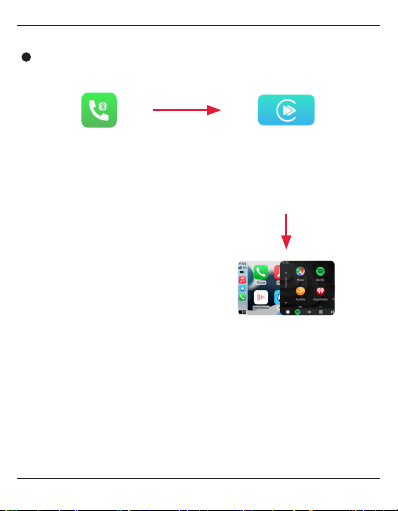
Setting up wireless CarPlay/Android Auto
TIPS! Disable [wireless auto connect] in MultiPlay
app settings if you don't want to automatically start
wireless CP/AA every time you pair to Bluetooth.
Pair your iPhone/
Android smartphone
to adapter's
Bluetooth first.
Open MultiPlay app. Tap
confirm if there are pop-
up notifications on your
phone.
NOTE! Using wireless CarPlay
or Android Auto will disable the
adapter's WiFi network function.
11
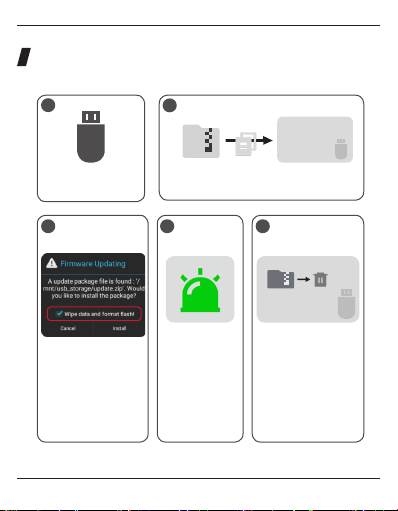
Firmware update
Format USB flash
drive into FAT32.
Copy update.zip to the root folder of
USB flash drive.
update.zip
1
2
Root folder
Insert the USB flash
drive into the adapter
then power on.
Tick [Wipe data and
format flash], next tap
install.
The green light
flashes rapidly
while updating.
After the update is
finished, the system
will restart. Delete
the update.zip file or
remove the USB flash
drive.
update.zip
3 4 5

V21122