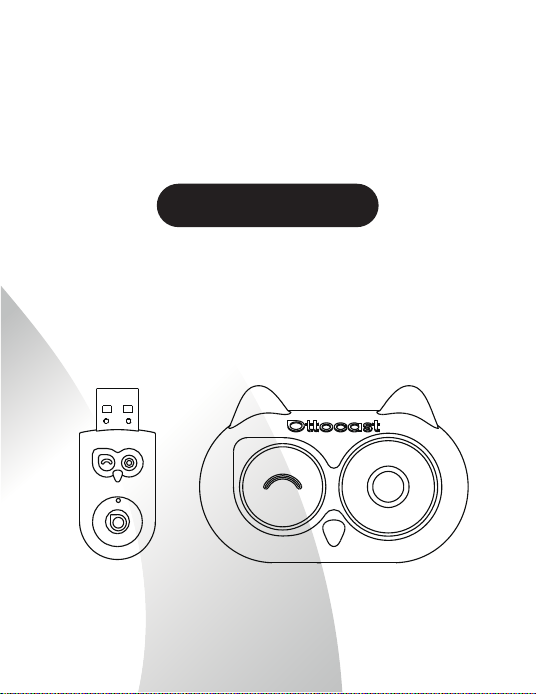
User Manual
Ottocast Cabin Care
Car Adapter
English/Français/Español

2
Contents
Important Notices.............................................................................................3
Is this product compatible with my car?...................................................4
Package Contents..............................................................................................5
Parts Names & Functions................................................................................6
Key Features.........................................................................................................8
How to install the product correctly?.........................................................10
User Interface......................................................................................................12
How to use Wireless CarPlay? .......................................................................13
How to use Camera?.........................................................................................16
iPhone User System Update & Issue Reporting ......................................18
Android User System Update & Issue Reporting ....................................21
FAQ..........................................................................................................................24
Warning..................................................................................................................25

3
※ Note: Information in this manual is subject to change without
prior notice.
• Please read all instructions and warnings carefully before
using this product.
• For your safety and the safety of others, do not watch
videos while driving. Always comply with local traffic laws.
• Do not use or store this product in environments with high
temperatures, strong light, magnetic fields, or other
extreme conditions.
• Avoid any strong physical impact, such as dropping,
stepping on, or crushing the device.
• Use only power supplies that match the product’s rated
voltage. Using an incorrect power source may result in
malfunction or damage.
• Do not disassemble the product. Doing so is strictly
prohibited and will void the warranty.
• Always operate the device in accordance with the
instructions provided. The user assumes full responsibility
for any damage or risk caused by improper use.
Important Notices
4
Is this product compatible with my car?
※ Your iPhone must be running iOS 10 or later.
※ If you’re still unsure whether your car supports wired CarPlay,
contact your car dealer for assistance.
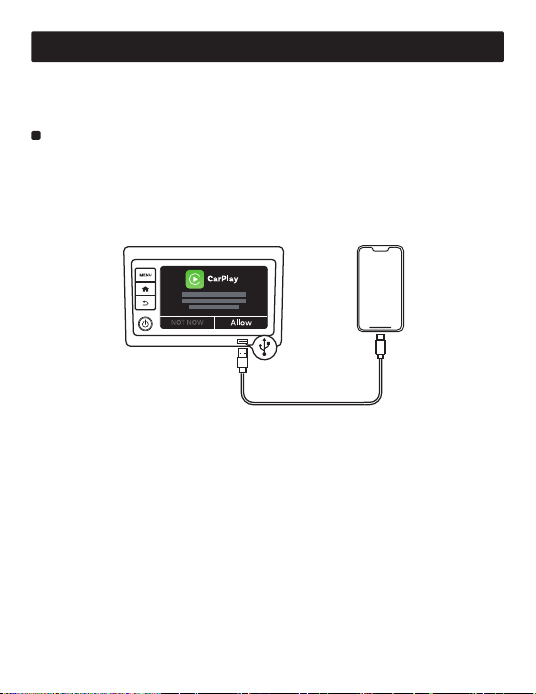
Connect your iPhone to the car’s USB port using the original data
cable. If the CarPlay icon or a related prompt appears on the car’s
display, your car supports CarPlay, and this product is compatible.
How to check if your car has wired CarPlay?
iPhone
This product is only compatible with vehicles that originally
support wired CarPlay.
Head Unit
5
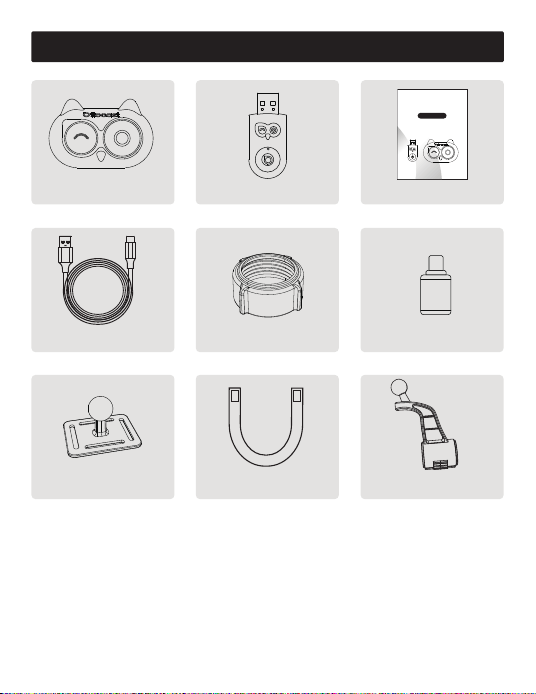
Package Contents
※ If the actual items differ from the list above, the contents of the
received package shall take precedence.
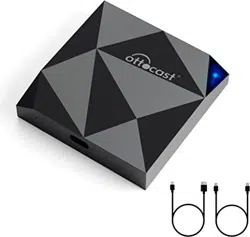
Camera
Cable Ties*2
(for strap fixation)
Camera Power Cable (3m)
Receiver User Manual
User Manual
Ottocast Cabin Care
Car Adapter
English/Français/Español
Bracket
(for bracket fixation)
Nut
Mounting Plate
(for strap fixation)
A to C Adapter
6
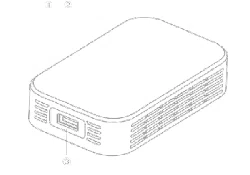
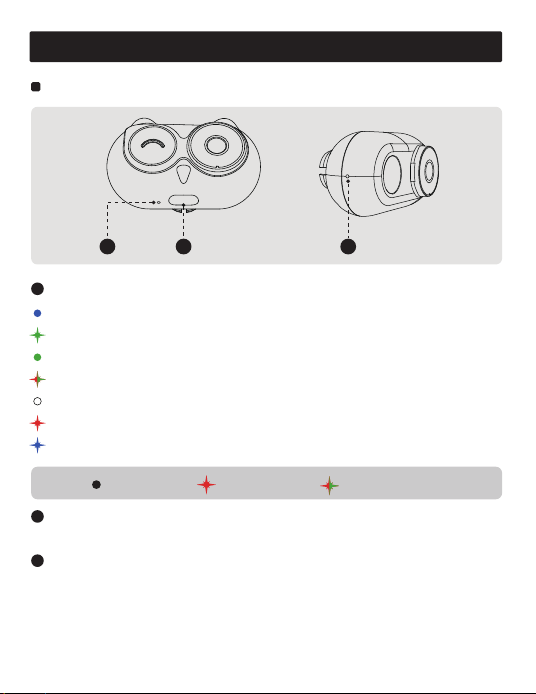
Camera
Solid Blue: Power On
Flashing Green: Waiting for Protocol Connection
Solid Green: Normal Operation
Alternating Red/Green: System Updating
Solid White: System Update Complete
Flashing Red: System Update Error
Flashing Blue (until button release): Reset Initiated
Hidden Button
Press and hold for 10 seconds to erase all data and restore factory
settings (requires re-pairing with receiver after reset).
Press and hold for 3 seconds to re-pair with receiver.
Type-C Port
Power Supply.
2
3
1
LED Light
Solid Flashing Color Alternating
1 2
Parts Names & Functions
3
7
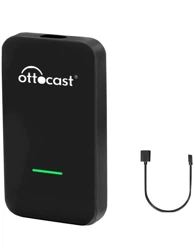
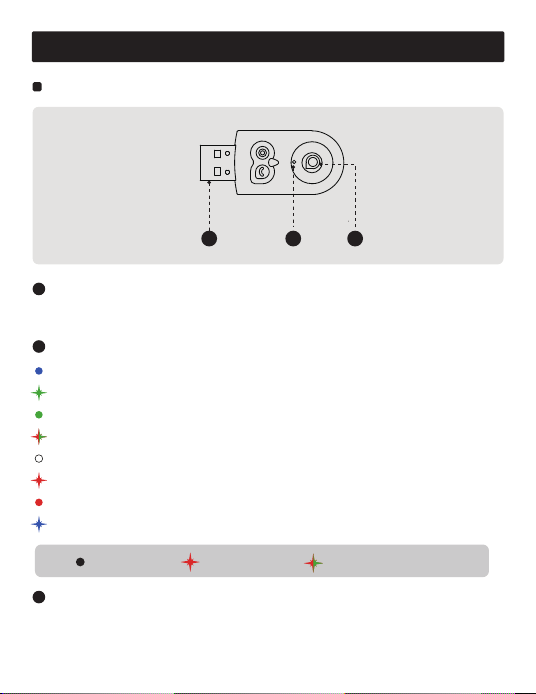
Receiver
Solid Blue: Power On
Flashing Green: Waiting for Protocol Connection
Solid Green: Normal Operation
Alternating Red/Green: System Updating
Solid White: System Update Complete
Flashing Red: System Update Error
Solid Red: P2P Mode
Flashing Blue (until button release): Reset Initiated
Smart Button
Short press: Quick disconnect.
Long press 3s: Enter P2P mode.
Long press 10s: Erase all data and restore factory settings.
USB Plug
Power supply and data transmission, connect to the data port of
the head unit.
1
3
2
LED Light
Parts Names & Functions
3
21
Solid Flashing Color Alternating
8
When the last connected iPhone has Bluetooth and Wi-Fi enabled,
the receiver will automatically connect to it.
The receiver remembers the last two iPhones and prioritizes the
most recently used one. If connection fails within the timeout
period (15-30 seconds), it will automatically attempt to connect to
the other iPhone.
Key Features
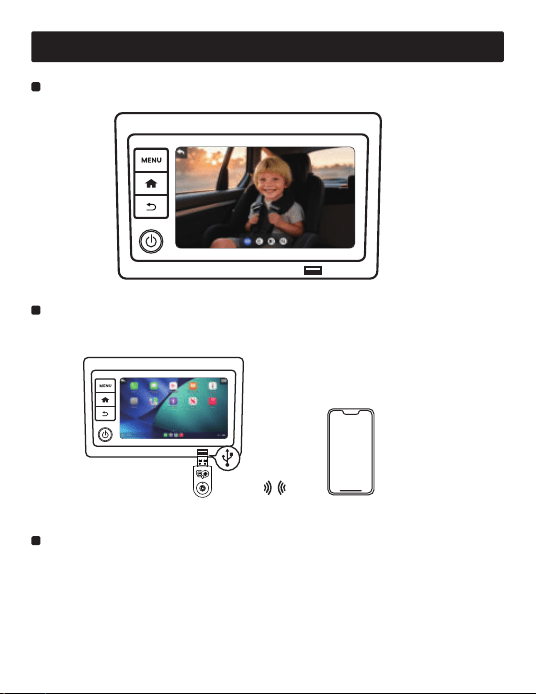
Receiver
Upgrade wired CarPlay to wireless CarPlay.
Auto Reconnection.
Head Unit
iPhone
Real-time monitoring display on factory head unit screen.
9
Key Features
※ The other iPhone must have Bluetooth and Wi-Fi enabled.
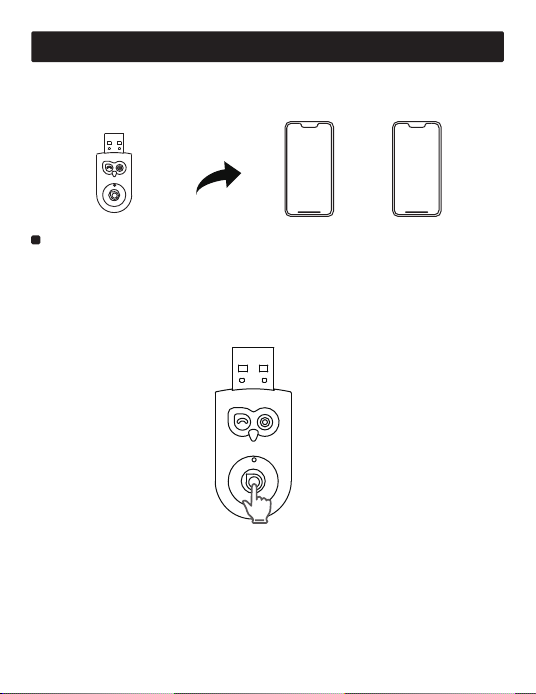
Short press the Smart button on the receiver to disconnect the
current iPhone.
If the receiver has memorized two iPhones, it will automatically
connect to the other one after disconnection.
Quick Disconnect.
iPhone A iPhone B
Receiver
10
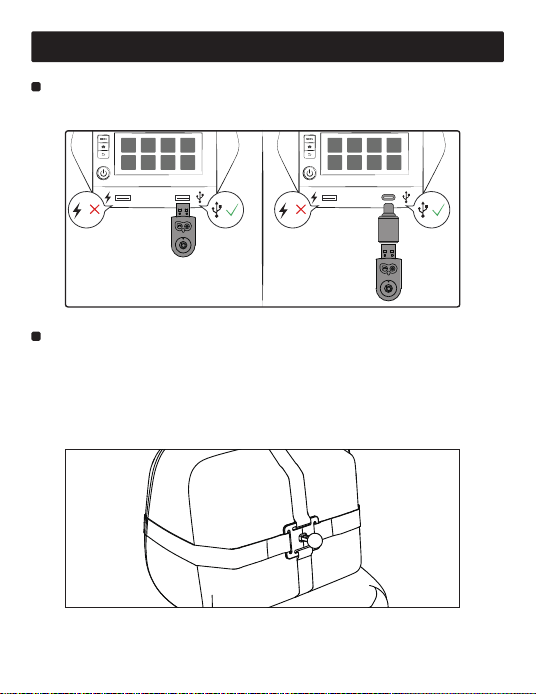
Insert the receiver into the vehicle's USB communication port.
Receiver
1.Fixed mounting structure with two methods:
Camera
How to install the product correctly?
a.Strap fixation: Thread the straps through the mounting plate - one
horizontally and one vertically in a cross pattern. Adjust the
position of the hook and loop fasteners on the straps to secure
the mounting plate to the headrest.
USB-A Type-C
11
How to install the product correctly?
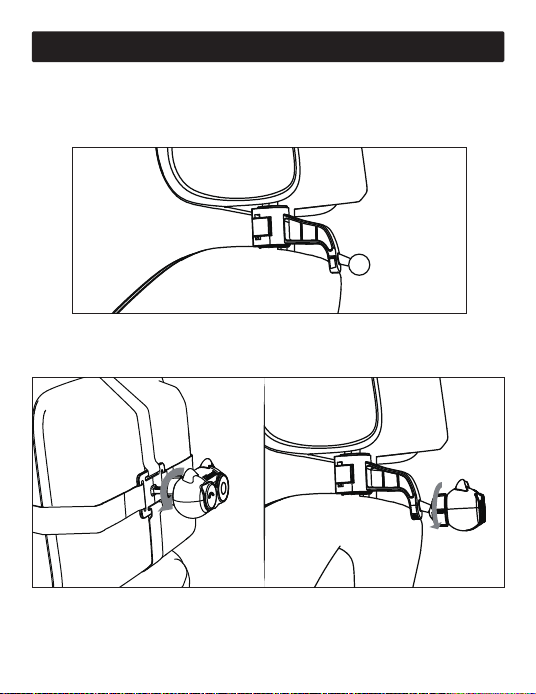
2.Install the Camera together with the nut into the ball head, adjust
to the desired shooting angle, and tighten the nut.
b.Bracket fixation: Open the bracket buckle, clamp it onto the
headrest support rod, and select different buckle positions to
tighten the support rod.
12
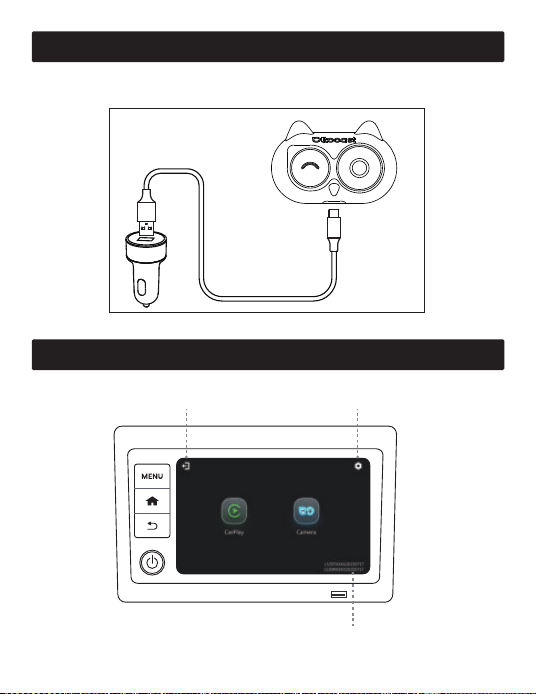
3.Power the Camera via the Camera power cable.
How to install the product correctly?
User Interface
System Version
Return to Car Menu
Settings
13
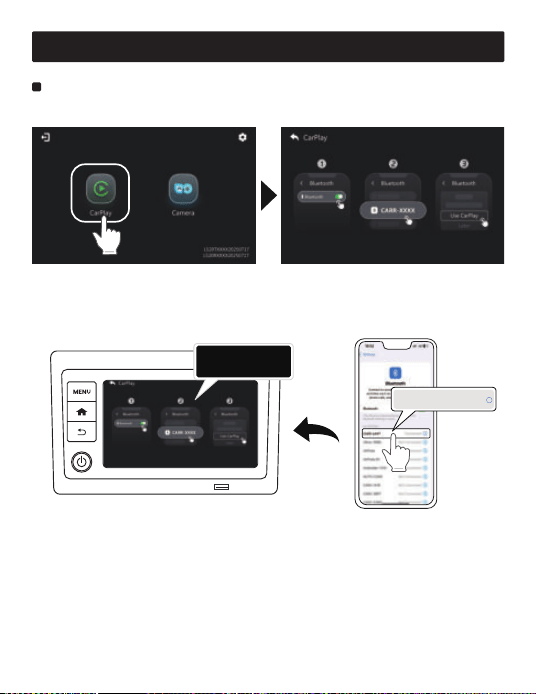
How to use Wireless CarPlay?
1.Tap CarPlay.
2.Turn on Bluetooth and Wi-Fi on your iPhone, pair with the product
via Bluetooth, and approve all requests on your iPhone.
How to connect iPhone?
Bluetooth device
CARR-XXXX
CARR-XXXX Connected
i
14
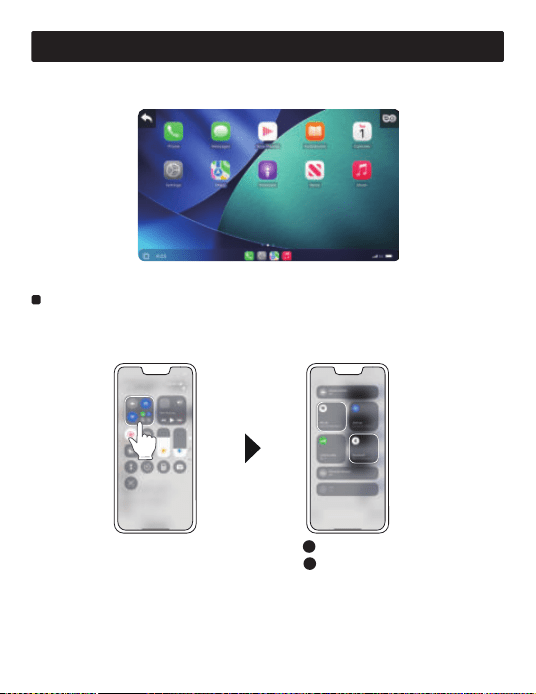
How to use Wireless CarPlay?
3.Wireless CarPlay connected successfully.
1.Go to the Control Center of the currently connected iPhone and
turn off Wi-Fi and Bluetooth.
How to switch iPhone?
Turn off WLAN
1
Turn off Bluetooth
2
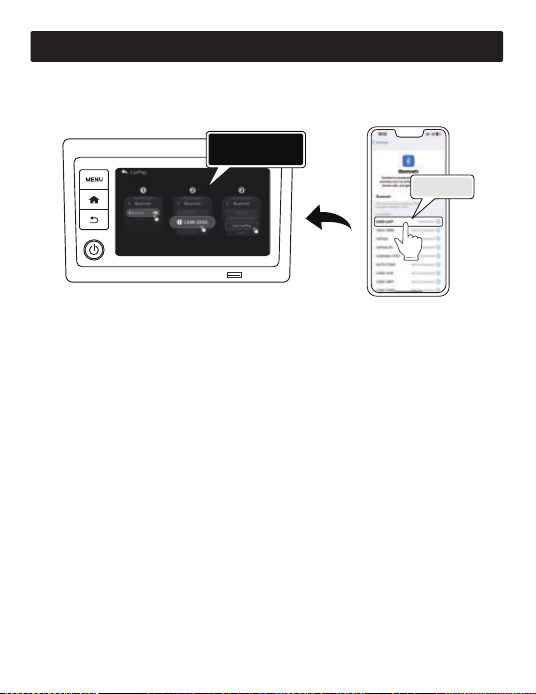
15
How to use Wireless CarPlay?
2.After successful disconnection, turn on Bluetooth on another
iPhone and tap the Bluetooth name of this product to pair.
Bluetooth device
CARR-XXXX
CARR-XXXX
16
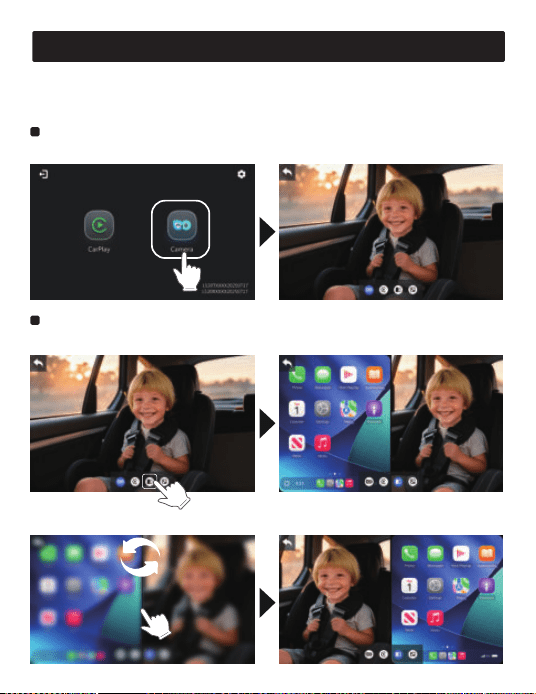
The shortcut bar will auto-hide after 3s of inactivity. Touch the
screen or use the knob to show it again.
2X
How to use Camera?
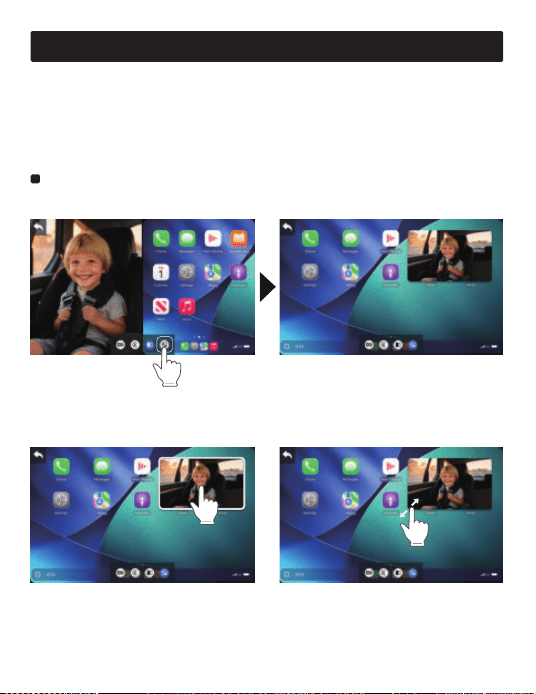
Tap Camera to enter full screen mode by default.
2.Double-tap the divider to swap CarPlay and Camera interfaces.
Full Screen
1.Toggle split screen display.
Split Screen
17
2.Press and hold the center
area of PiP to drag.
1.Toggle Picture in Picture display.
3.Press and hold the
bottom-left or bottom-right
corner of PiP to resize.
How to use Camera?
※ Split screen is unavailable when CarPlay is disconnected.
※ Due to CarPlay protocol minimum resolution requirements, if your
head unit has low resolution, the CarPlay interface may display
abnormally (e.g. icon overlap, incomplete display) during split screen.
※ Picture in Picture is unavailable when CarPlay is disconnected.
Picture in Picture
18
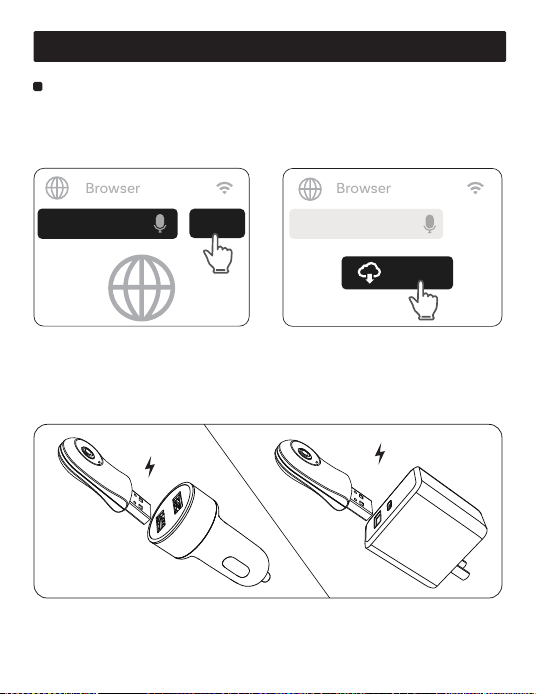
※ Receiver must be powered - connect to 5V car power supply, or
use portable power bank/power adapter as alternative.
iPhone User System Update & Issue Reporting
1. Update with CarPlay connected.
1.1.Enter http://192.168.1.101 in
iPhone browser.
2.Update when CarPlay is disconnected.
1.2.If update is available, tap
Update button.
System Update
Enter
Browser
192.168.1.101
192.168.1.101
Browser
Update
19
※ Do not power off during update.
※ After update completion (LED shows white), replug the receiver.
※ Reconnect your iPhone to use Wireless CarPlay.
iPhone User System Update & Issue Reporting
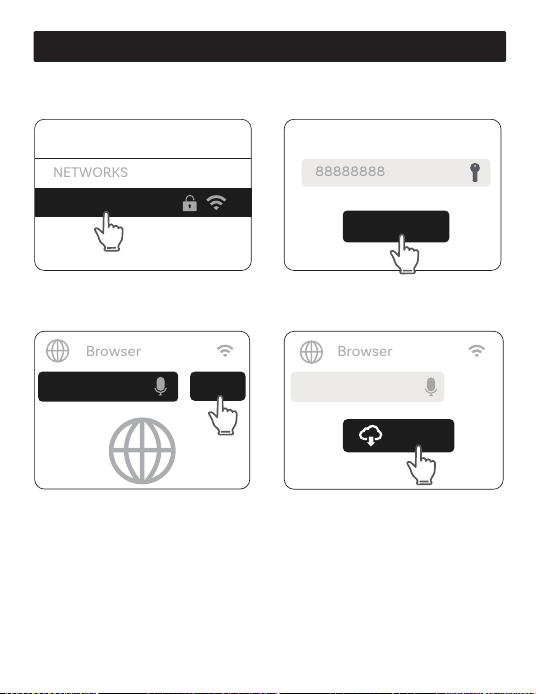
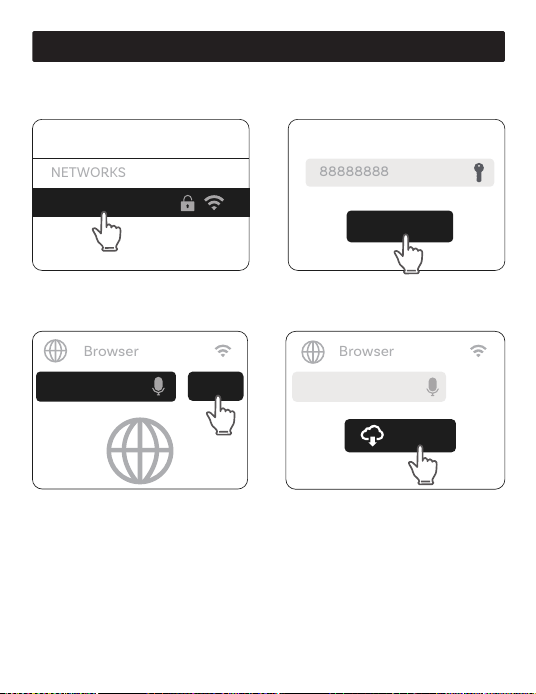
2.1.Connect iPhone to Wi-Fi
network [CARR-XXXX].
2.2.Enter password 88888888
and confirm.
2.3.Enter http://192.168.1.101 in
iPhone browser.
2.4.If update is available, tap
Update button.
NETWORKS
WLAN
CARR-XXXX
Join
Enter Password
88888888
Enter
Browser
192.168.1.101
192.168.1.101
Browser
Update
20
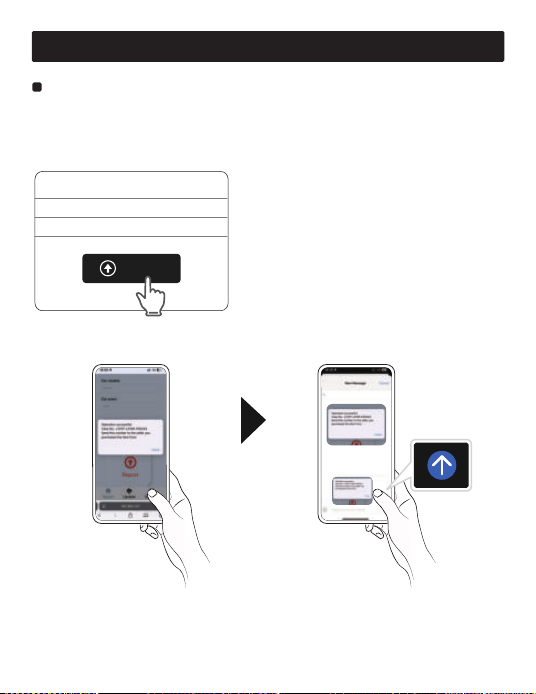
Report issues on the same page used for upgrading
[http://192.168.1.101].
1.Fill out the form and submit.
Issue Reporting
Car brands Volkswagen
Car models Passat
Car years 2023
Report
iPhone User System Update & Issue Reporting
2.Take a screenshot of this page and send it to your seller.
21
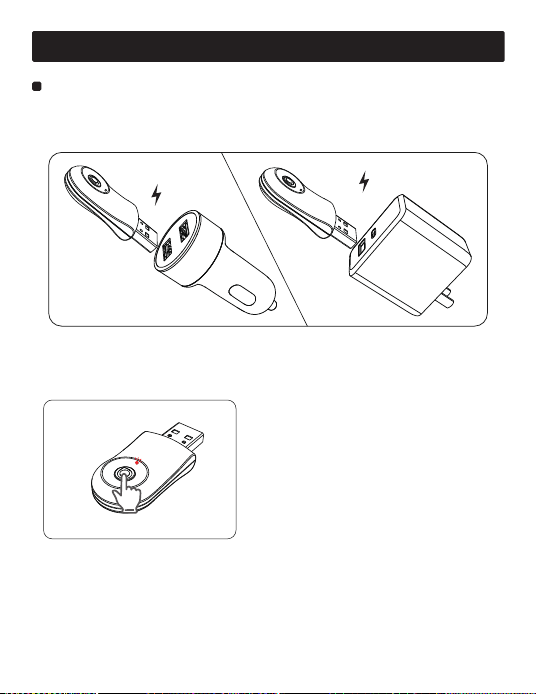
※ Receiver must be powered - connect to 5V car power supply, or
use portable power bank/power adapter as alternative.
System Update
1.Long press receiver Smart button for 3s until indicator turns red
to enter P2P mode.
2.Find Wi-Fi Direct function on your Android phone.
Path to Wi-Fi Direct varies by phone model. Example for Google
Pixel 6 Pro: Settings→Network & internet→Internet→Network
preferences→Wi-Fi Direct.
Android User System Update & Issue Reporting
22
※ Do not power off during update.
※ After update completion (LED shows white), replug the receiver.
※ Reconnect your iPhone to use Wireless CarPlay.
Android User System Update & Issue Reporting
NETWORKS
WLAN
CARR-XXXX
Join
Enter Password
88888888
Enter
Browser
192.168.1.101
192.168.1.101
Browser
Update
3.Select [CARR-XXXX] from
Wi-Fi Direct list.
4.Enter password 88888888
to connect.
5.Enter http://192.168.1.101 in
Android phone browser.
6.If update is available, tap
Update button.
23
Android User System Update & Issue Reporting
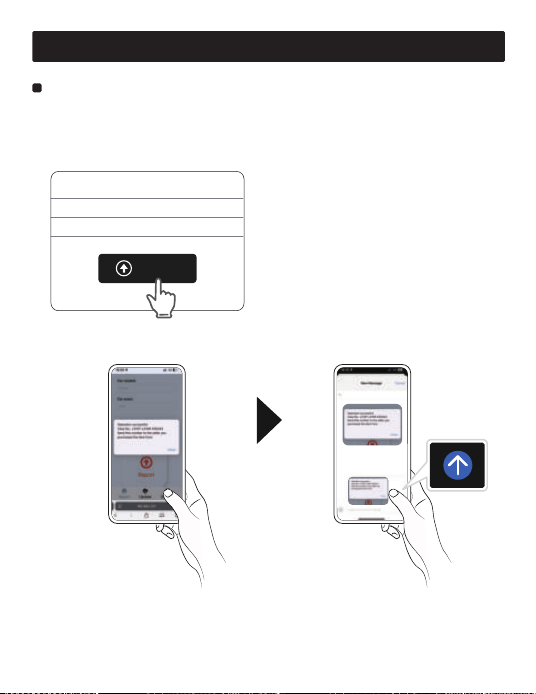
Issue Reporting
Report issues on the same page used for upgrading
[http://192.168.1.101].
1.Fill out the form and submit.
Car brands Volkswagen
Car models Passat
Car years 2023
Report
2.Take a screenshot of this page and send it to your seller.

24
FAQ
(1)Check if the vehicle has wired CarPlay (refer to "Is this product
compatible with my car?");
(2)If confirmed, reset the head unit, then connect iPhone to car
USB port with original cable to activate wired CarPlay before
reinstalling the product.
Delete Bluetooth/Wi-Fi pairing records on iPhone, then reconnect
iPhone to receiver.
(1)Reset receiver (hold Smart button 10s), clear iPhone
Bluetooth/Wi-Fi records, then reconnect.
(2)If unresolved, update to latest firmware (refer to "iPhone/An-
droid Software Update & Issue Reporting").
(3)If still unresolved, reset head unit, activate wired CarPlay via
USB, then reinstall the product.
1.No response after product installation?
2.Bluetooth/Wi-Fi connected but no CarPlay interface?
3.CarPlay connection failures/frequent disconnections?
※ If issues persist, submit logs (refer to "iPhone/Android System
Update & Issue Reporting") with vehicle model/year/failure
description/VIN, and send screenshot of successful upload to
Ottocast after-sales customer service.
(1)Reset head unit, activate wired CarPlay via original USB cable,
then reinstall product;
(2)If unresolved, reset product and reinstall.
4.Product stops working after normal use?

25
Warning
FCC Warning
IC Warning
This device complies with part 15 of the FCC Rules.
Operation is subject to the following two conditions:
(1) This device may not cause harmful interference;
(2) this device must accept any interference received,
including interference that may cause undesired operation.
This device complies with Industry Canada’s license-exempt RSSs.
Operation is subject to the following two conditions:
(1) This device may not cause interference; and(2) This device must
accept any interference, including interference that may cause
undesired operation of the device.
« Le présent appareil est conforme aux CNR d'Industrie Canada
applicables aux appareils radio exempts de licence.
L'exploitation est autorisée aux deux conditions suivantes:
(1) l'appareil ne doit pas produire de brouillage, et
(2) l'utilisateur de l'appareil doit accepter tout brouillage
radioelectrique subi, meme sile brouillage est susceptible
d'en compromettre le fonctionnement. »
The product should be kept at least 20CM away when used.
Le produit doit être conservé au moins 20CM une fois utilisé.