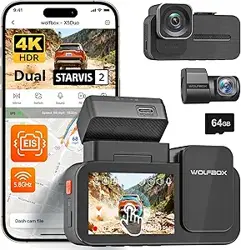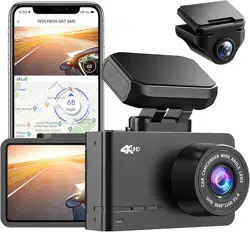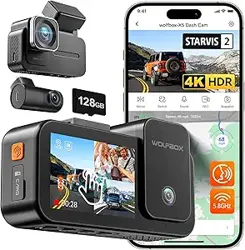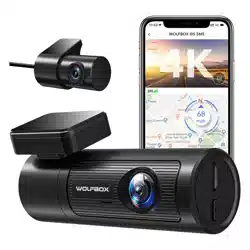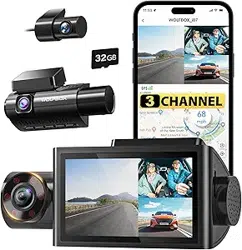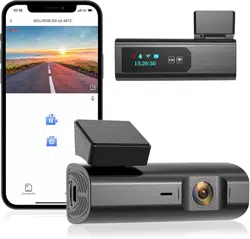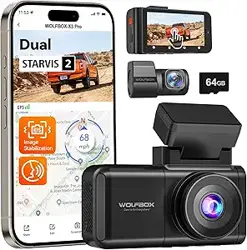

X3 Pro
2-CHANNEL DASH CAM
User Manual
wolox.com
The information in this manual is subject to change without notice.
V1.0

Language
English .��.��.��.��.��.��.��.��.��.��.��.��.��.��.��.��.��.��.��.��.��.��.��.��.��.��
1 - 28
Español ��.��.��.��.��.��.��.��.��.��.��.��.��.��.��.��.��.��.��.��.��.��.��.��.��
29 - 56

1
Content
Precautions�����.��.��.��.��.��.��.��.��.��.��.��.��.��.��.��.��.��.��.��.��.��.��.��.��.��.��.
2
Warnings ��.��.��.��.��.��.��.��.��.��.��.��.��.��.��.��.��.��.��.��.��.��.��.��.��.��.��.��.
2
Product�Oveiew�����.��.��.��.��.��.��.��.��.��.��.��.��.��.��.��.��.��.��.��.��.��.��.
3
Warranty��� ��.��.��.��.��.��.��.��.��.��.��.��.��.��.��.��.��.��.��.��.��.��.��.��.��.��.��.��.
3
Product�Specications�� .��.��.��.��.��.��.��.��.��.��.��.��.��.��.��.��.��.��.��.��.
4
Package�Contents�����.��.��.��.��.��.��.��.��.��.��.��.��.��.��.��.��.��.��.��.��.��.��.
5
Appearance��� .��.��.��.��.��.��.��.��.��.��.��.��.��.��.��.��.��.��.��.��.��.��.��.��.��.��.
6
Buttons�and�Functions ��.��.��.��.��.��.��.��.��.��.��.��.��.��.��.��.��.��.��.��.
7
User�Inteace�Oveiew���.��.��.��.��.��.��.��.��.��.��.��.��.��.��.��.��.��.��.��.
9
Voice�Control�Function ��.��.��.��.��.��.��.��.��.��.��.��.��.��.��.��.��.��.��.�
12
Driver�Assistance�Feature�.��.��.��.��.��.��.��.��.��.��.��.��.��.��.��.��.��.��.�
13
Function�Oveiew�� .��.��.��.��.��.��.��.��.��.��.��.��.��.��.��.��.��.��.��.��.��.�
15
Play�on�APP�(About�Wi-Fi�and�APP)�����.��.��.��.��.��.��.��.��.��.��.��.
20
How�to�Play�Video�on�Computer����.��.��.��.��.��.��.��.��.��.��.��.��.��.�
21
Installation�����.��.��.��.��.��.��.��.��.��.��.��.��.��.��.��.��.��.��.��.��.��.��.��.��.��.
23
TroubleShooting�����.��.��.��.��.��.��.��.��.��.��.��.��.��.��.��.��.��.��.��.��.��.��.�
26
Customer�Seice�Center�����.��.��.��.��.��.��.��.��.��.��.��.��.��.��.��.��.��.
28

2
Precautions
1.�For fuher inquiries, please contact our customer seice via
email at seice@wolox.com.
2.�Please use original accessories to avoid compatibility issues and
insucient current supply from non-compatible accessories.
For example, 2-in-1 or 3-in-1 cigar sockets will not provide
enough current to the device.
3.�Please do not tamper or splice the rear camera wire for the
purpose of extension, as the rear image/feed to the display may
be lost. The length of the included cable for the rear camera is
20 feet, and is suitable for most types of cars.
4.�If you wish to use a micro SD card with a capacity > 32GB,
Please change the micro SD card [Class10 (10MB/s) required]
format to FAT 32 on PC.
Warnings
• Keep small accessories out of the reach of children. If this
product is damaged or malfunctions, stop using it immediately
and contact WOLFBOX suppo. Continued use may cause re,
electric shock or vehicle failure.
• This product is intended to be used as reference material in
the event of an accident. We do not guarantee its eectiveness
or admission as complete evidence.
• Please note that this product may infringe on privacy and other
rights depending on how it is used. We are not responsible
for any cases where this product infringes on privacy or other
rights.
• This product is for DC12V/24V vehicles only.
• The specications and appearance of this product are subject
to change without notice for improvement.

3
Product Oveiew
• Thank you for choosing WOLFBOX X3 Pro 2.5K Dash Cam. This
product provides a high-quality image and captures irrefutable
evidence in the event of an accident, and records the beauty
along the way for you.
• WOLFBOX is a professional automotive supplies manufacturing
company. We have worked in the eld of dash cams for more
than ten years. We have a team of experienced and imaginative
engineers who are committed to building a reliable and
trustwohy automotive supplies brand.
Warranty
• We are committed to giving customers the best product
experience and after-sale seice.
• Our warranty period is one year. If the machine pas are
damaged or there are any problems during use, we will solve
them in time and provide you with a satisfacto shopping
experience.
Note: The specic warranty period is subject to local laws.
• Please contact us with your online order, and we will provide
free replacement and lifetime technical suppo.
• Free extended warranty seice: After registering information
on WOLFBOX.com, you may extend the warranty for an
additional 6 months free of charge.
URL:https://wolox.com/pages/warranty-form
4
Product Specications
RAM DDR3 4Gb Display�Type IPS
Video�Format MP4 Image�Format JPG
Front�Camera 2.5K Front�Lens�FPS 60 fps
Rear�Camera
2.5K
Rear�Lens�FPS 30 fps
Display�Size 3''
Power
Inteace
USB-C
GPS internal
Wi-Fi�
Connection
Suppoed
Voice�Control Suppoed
Full�Touch�
Screen
Suppoed
Driver�
Assistance
FCW; LDW; S&G
Operating
Temperature
-4°F ~158°F
SD�Card Max Suppo 512GB
5
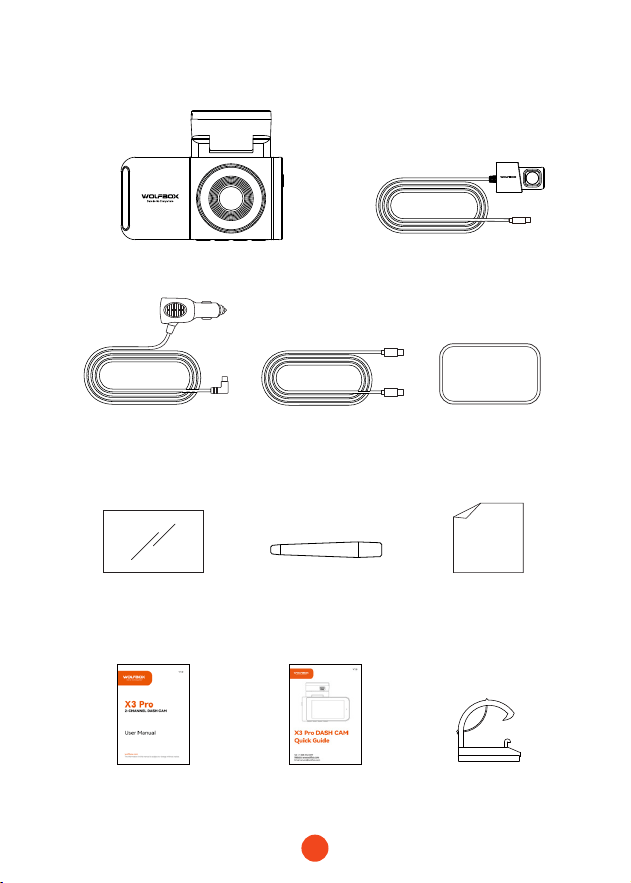
Package Contents
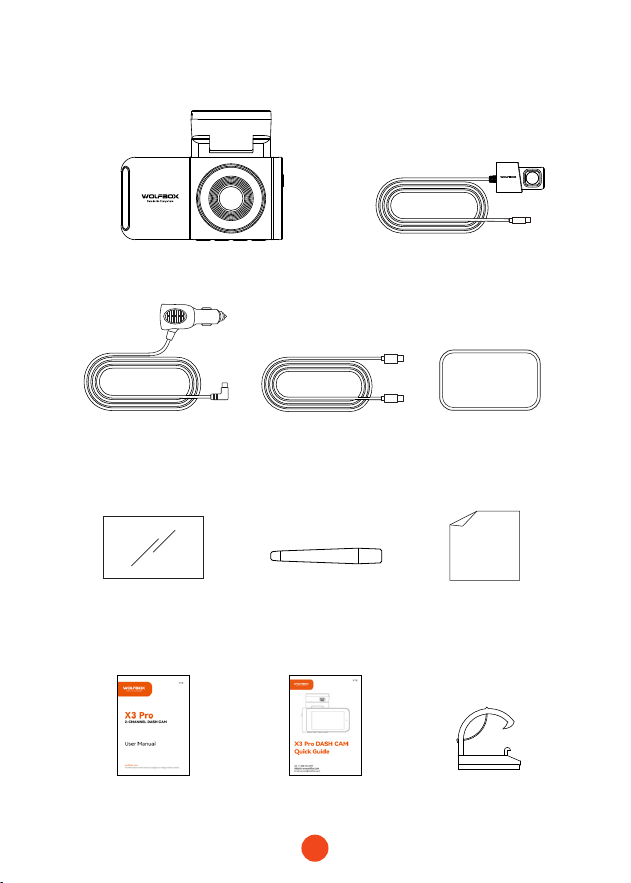
• 2.5K Rear Camera
• Adhesive
• User Manual • Quick Guide
• Power Supply Cable
with Car Charger
• Rear Cam Cable
•2.5K Dash Cam
• Electrostatic
Sticker *2
• Tool
• Cable Clips*5
• Lens Cloth
6
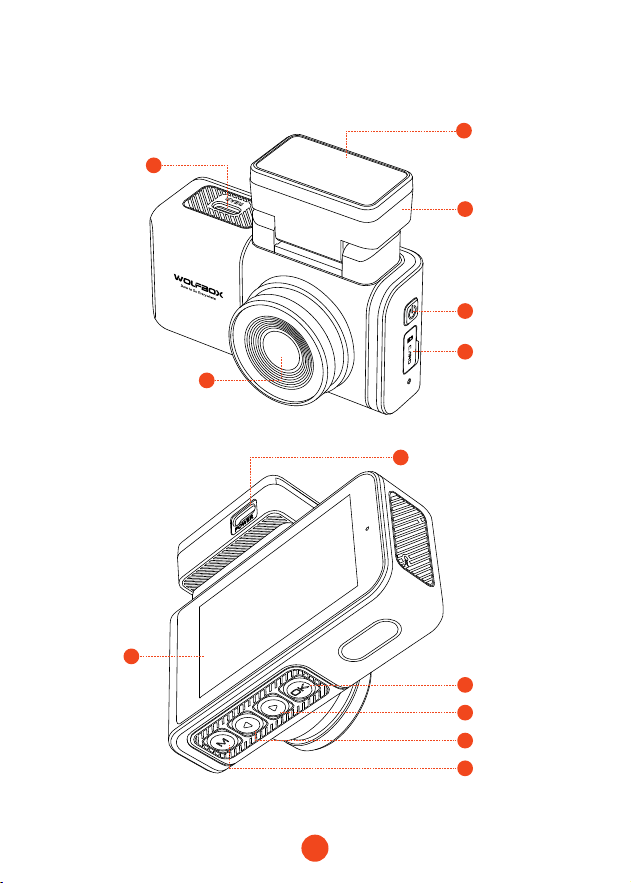
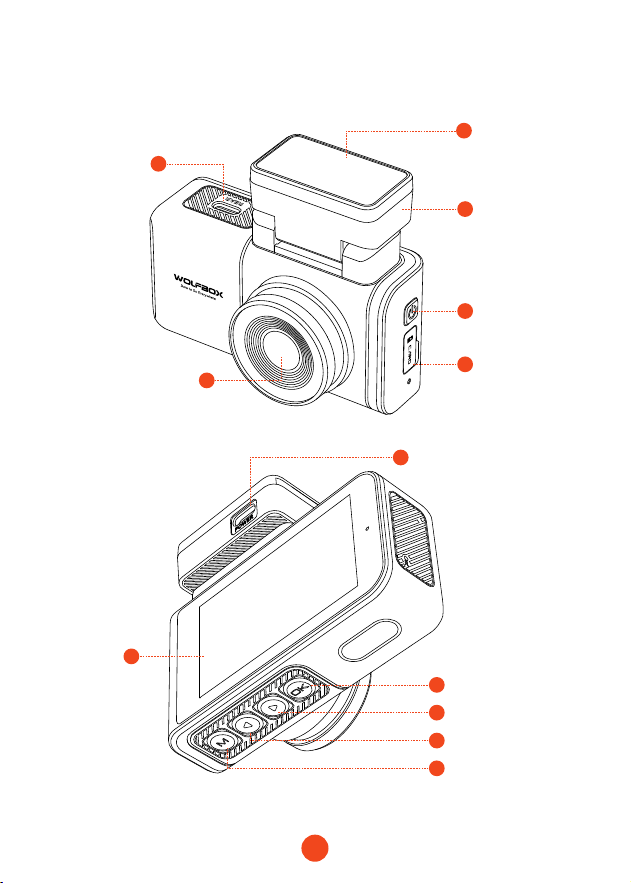
Appearance
6
8
1
2
7
10
12
9
11
5
4
3
Front Camera
Screen
Rear Cam
Po
Adhesive
Power Po
Right Button
Menu Button
OK Button
Left Button
Memo Card
Slot
Power Button
GPS Mount
7
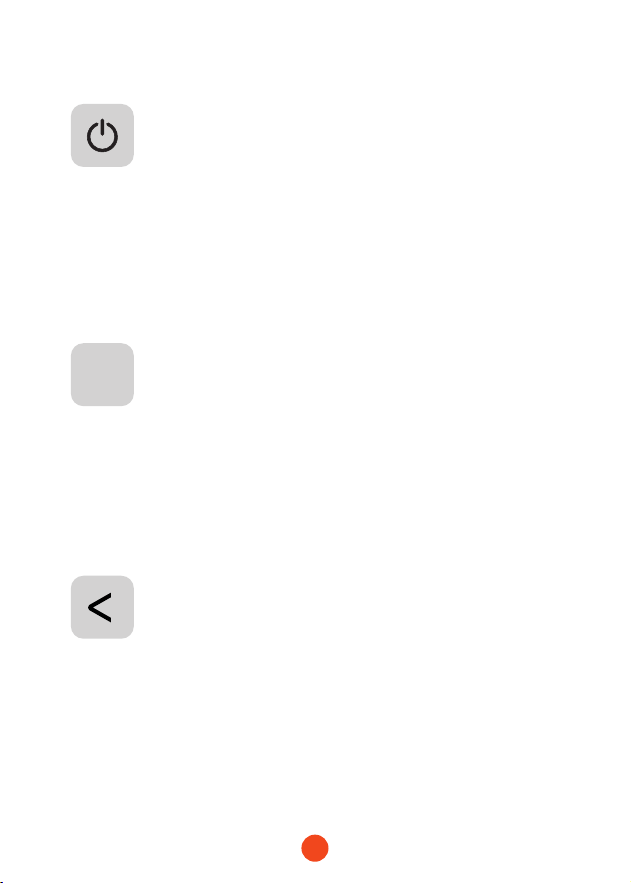
Buttons and Functions
Power Button
Recording�Mode:
• Sho press-to Take a snapshot
• Long press-to Turn o the Camera
Setup�Mode:�
• Sho press-to Return to the previous screen
Playback�Mode:�
• Sho press-to Return to the previous screen
Menu Button
Recording�Mode:
• Sho press to Enter main menu
Setup�Mode:�
• Sho press-to Return to the previous screen
Playback�Mode:�
• Sho press-to Return to the previous screen
Left Button
Recording�Mode:
• Sho press-to Lock/Unlock the recording le
• Long press-to Turn on/o WiFi
Setup�Mode:�
• Sho press-to Select the previous function
Playback�Mode:�
• Sho press-to Select the previous le
• Sho press-to Fast rewind while vidio being played
M

8
OK
Right Button
Recording�Mode:
• Sho press-to Enter playback mode
• Long press-to Turn on/o Audio
Setup�Mode:�
• Sho press-to Select the next function
Playback�Mode:�
• Sho press-to Select the next le
• Sho press-to Fast forward while video is being played
OK Button
Recording�Mode:
• Sho press-to Switch screen
Setup�Mode:�
• Sho press-to Enter/Conrm specic settings
Playback�Mode:�
• Sho press-to Select and play the specic le
9
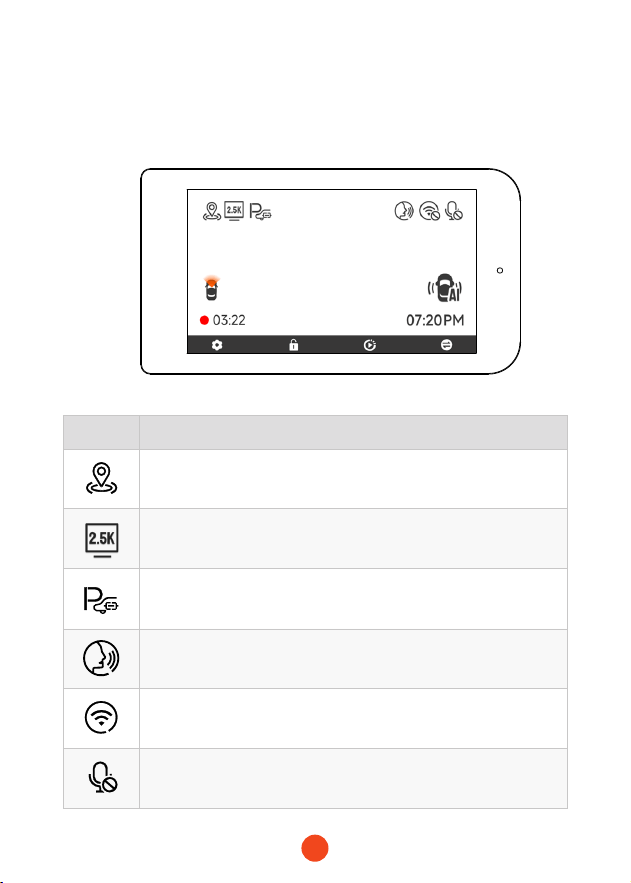
User Inteace Oveiew
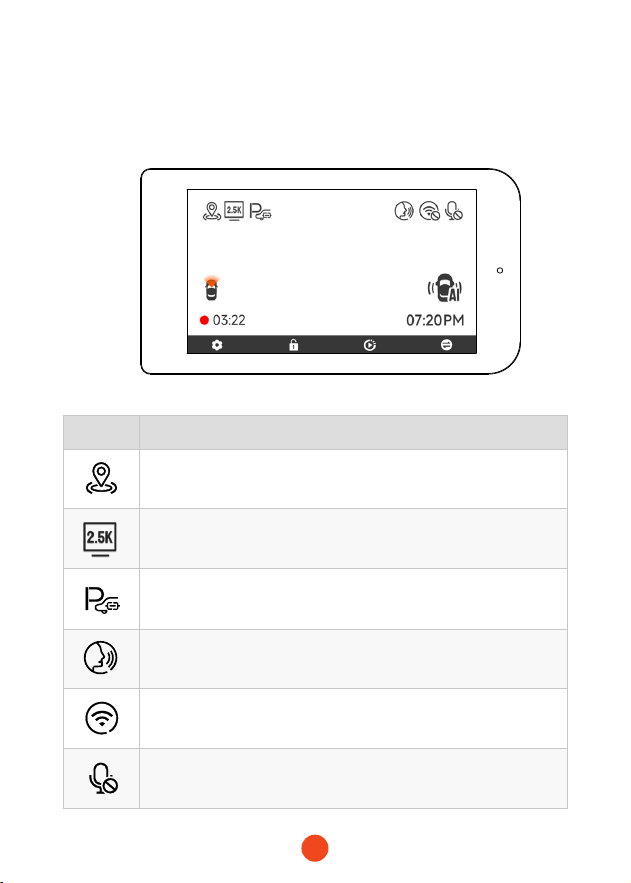
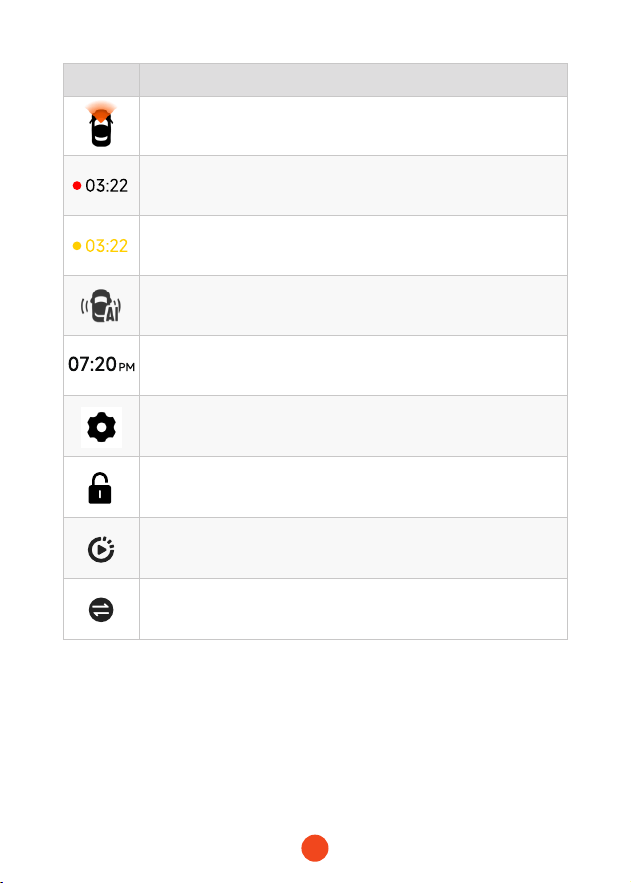
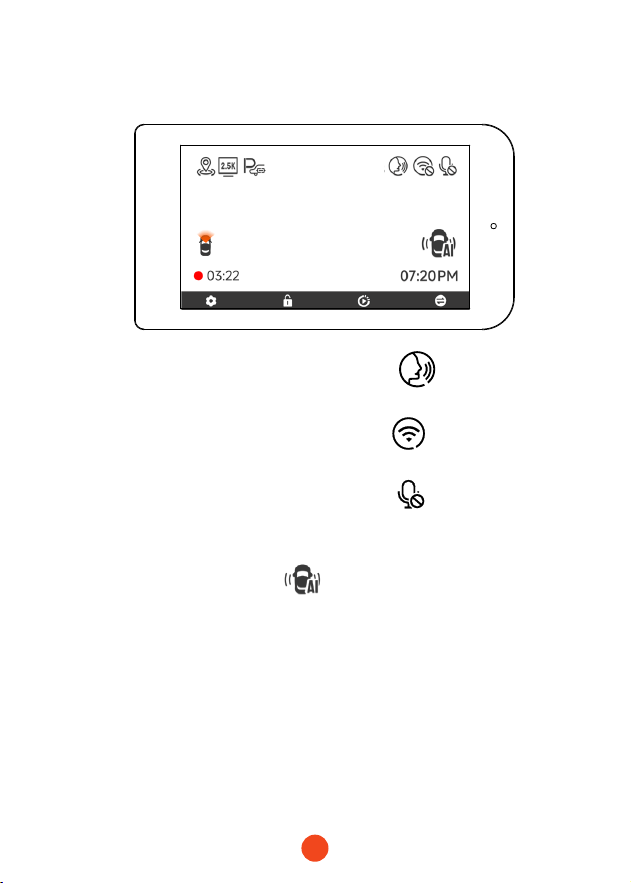
• Recording Mode
Icon Description
GPS status
Recording resolution
Whether to connect the hardwired kit and set up parking
monitoring
Voice control
Wi-Fi status
Voice recording statusd
10
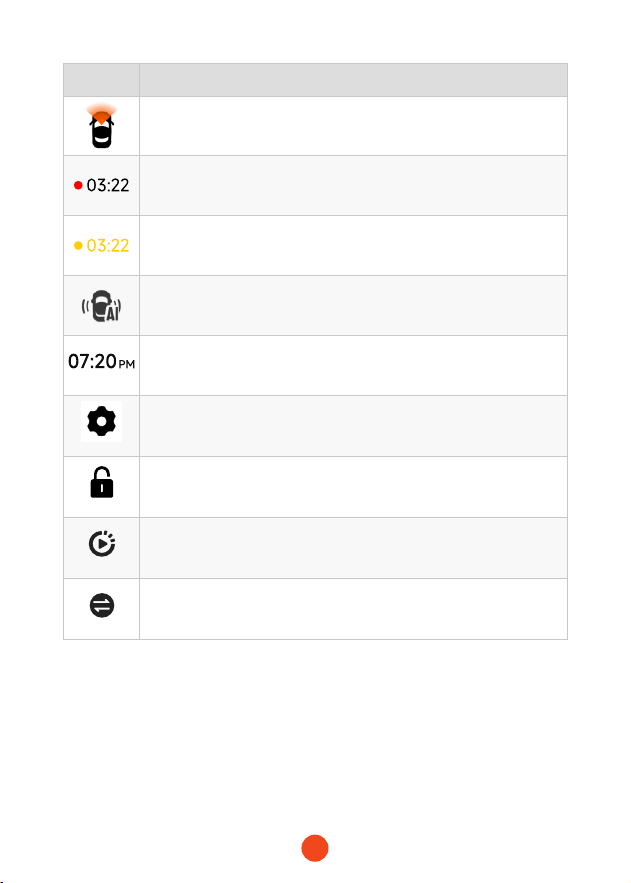
Icon Description
Whether the rear camera is connected
Recording status and recording time
Emergency recording is on
Driver Assistance
Date and time of the camera
Sho press to enter settings
Emergency recording. Sho press to lock the video.
Playback
Switching from front and rear cameras
11
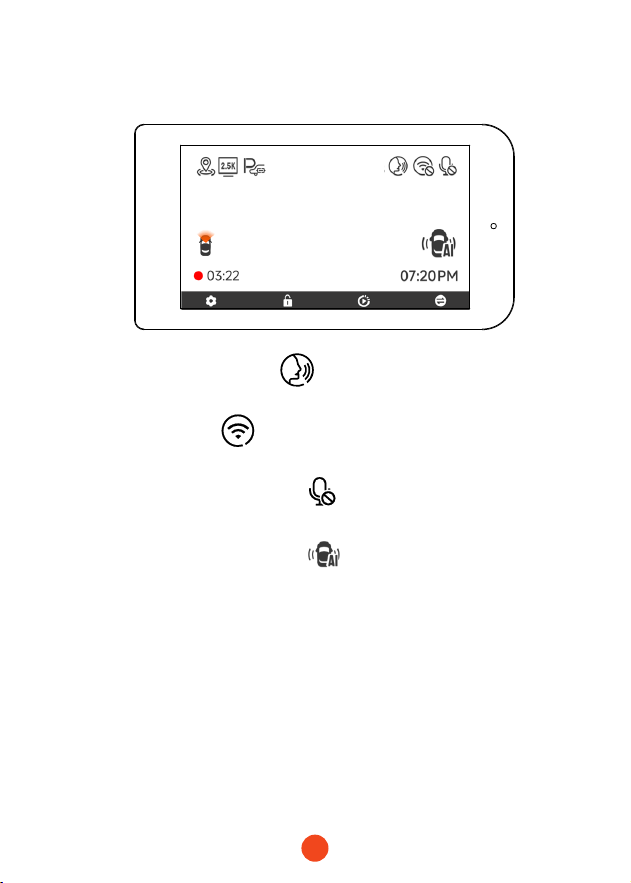
Click the Voice Control icon at the top of the screen to turn
the feature on or o.
Click the Wi-Fi icon at the top of the screen to connect to
or disconnect from a network.
Click the Audio Recording icon at the top of the screen to
enable microphone capture during video recording.
Click the Driver Assistance icon at the lower right corner to
show or hide the driving assist frame.
• Video Mode
12
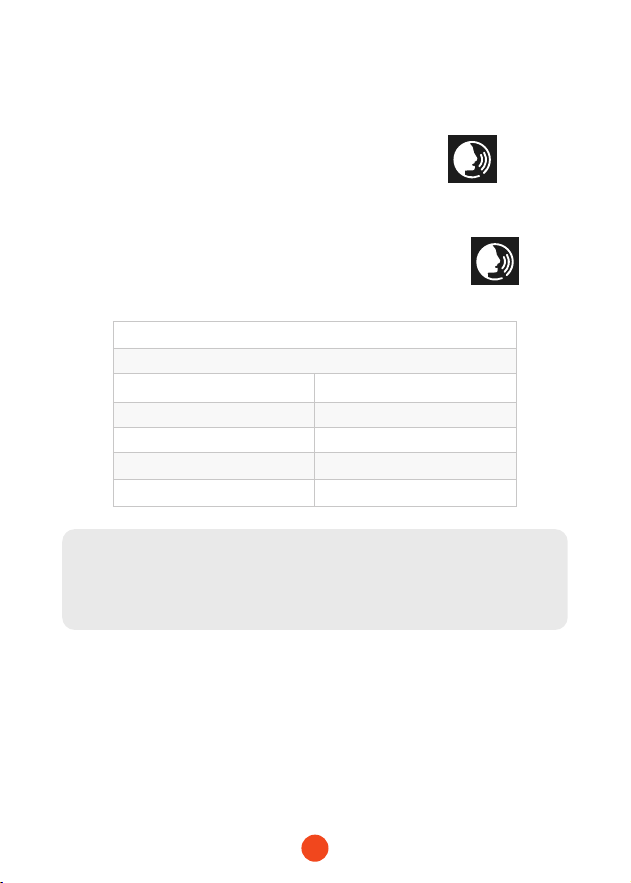
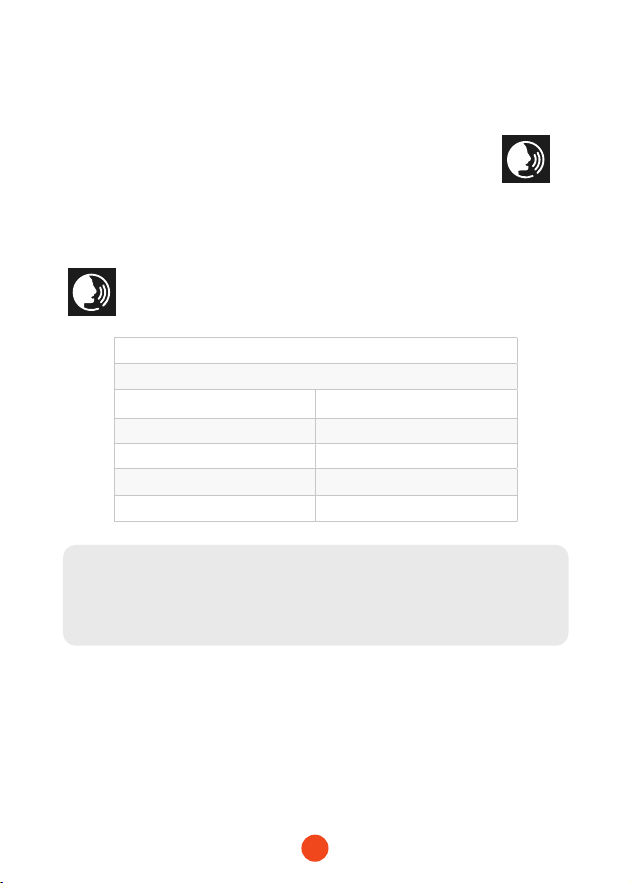
Voice Control Function
Fast control through simple voice commands.
When the recording inteace displays a white icon , it
means that the Voice Control function is activated.
You can enable/disable the voice control function through the
"Voice Control" in the menu or by clicking on the icon on
the screen.
Note:
You can access specic voice commands by tapping on the 'Voice
Command' submenu within the 'Voice Control' section.
lock�the�video
take�picture
turn�on�audio turn�o�audio
turn�on�screen turn�o�screen
turn�on�WIFI turn�o�WIFI
turn�on�recording turn�o�recording
show�front�camera show�rear�camera
13
Note:
The dashcam will automatically calibrate the driver assistance
features eve time it stas up. Please drive at a speed of 20km/
h(10mph) or above for 2-3 minutes on the road to complete the
automatic calibration. lf GPS is not positioned or the signal is
weak, the speed measurement may be inaccurate.
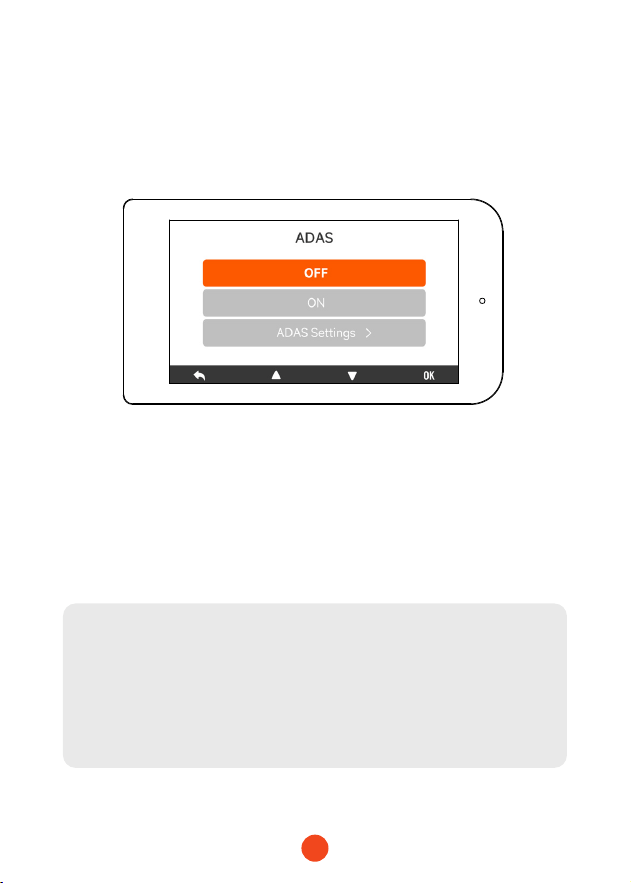
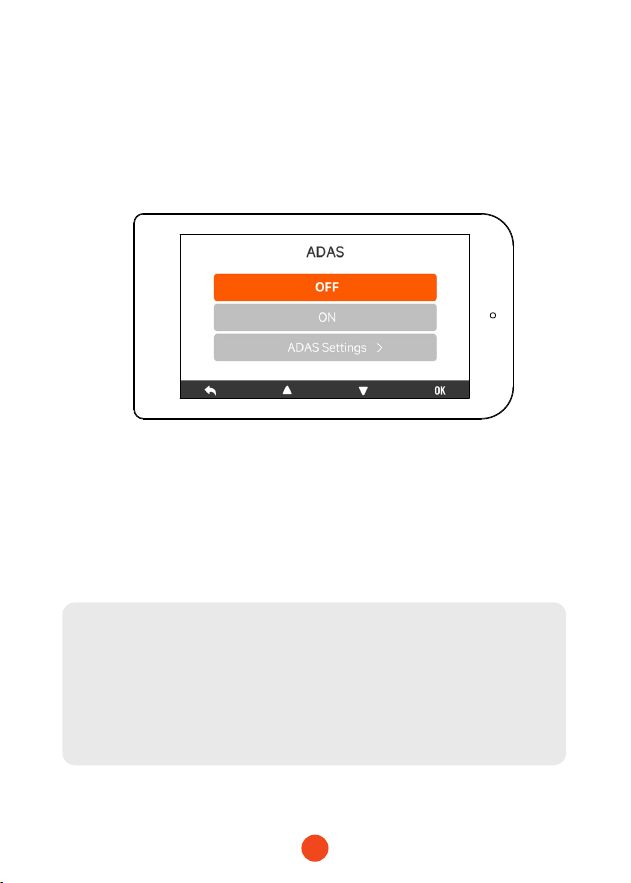
Driver Assistance Feature
Driver Assistance is designed to enhance safety and convenience
throughout your vehicle's journey. You can customize the settings
of each feature according to your requirements in the menu.
1. ON/OFF
Turn on/o the corresponding feature.
2. Setting
Manually adjust the detailed settings for each driver
assistance feature.
14
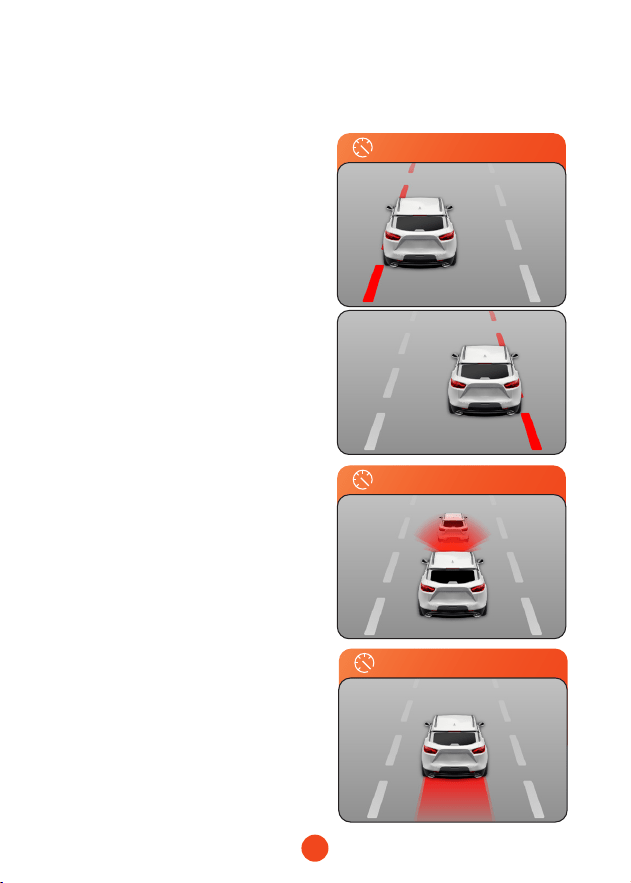
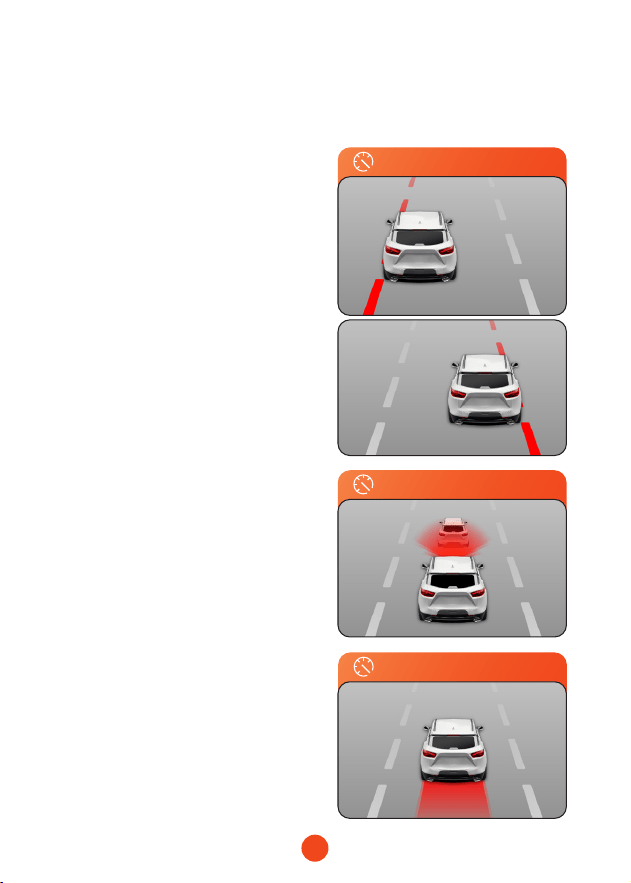
Here is a detailed introduction to the Driver Assistance features:
• ADAS
(Front Camera Driver Assistance Features)
1. Lane Depaure
Automatically detects lane
markings and ales you when
the vehicle deviates from the
lane.
2. Forward Collision
Accurately calculates the
distance to the vehicle
ahead and warns of potential
collision risks.
>60km/h(37mph)
>30km/h(19mph)
=0km/h(0mph)
3. Stop & Go
Automatically monitors the
front vehicle's depaure
and reminds you to sta in a
timely manner.
15
Function Oveiew
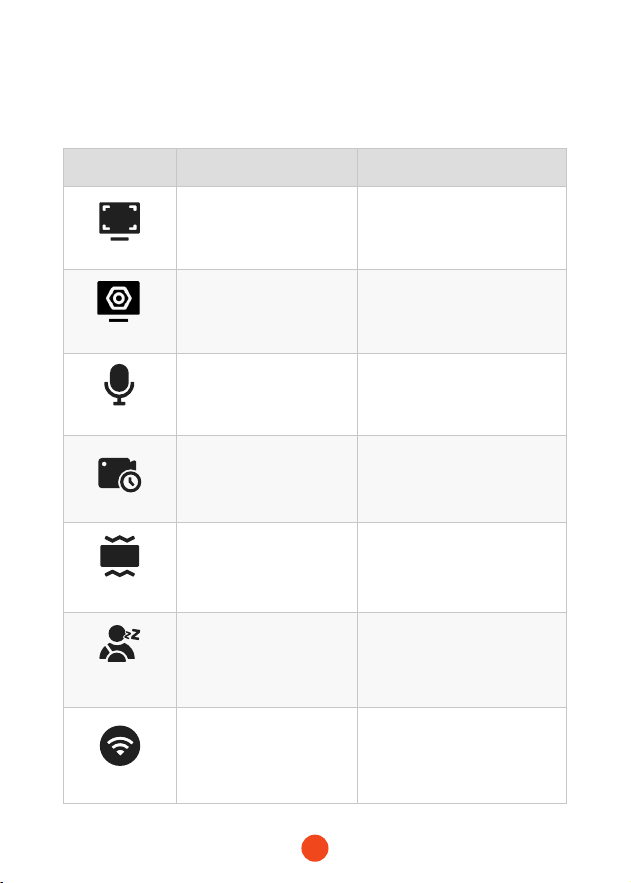
Customize the machine by modifying its settings and parameters.
Function Option Description
Resolution
2.5K60fps+2.5K30fps/
2.5K30fps+2.5K30fps
Video resolution selection.
Image�Setting
HDR(30fps)/
Image Stabilization(30fps)
Set the switch for HDR
(30fps) and Image
Stabilization functionality.
Sound�Record
ON/OFF Set whether to record sound.
Loop�Recording
1 Minute
/3 Minutes
/5 Minutes
Set the duration for loop
recording of video les.
Gsensor
OFF
/Low
/Medium
/High
Set the sensitivity of the
G-sensor.
Fatigue�
Reminder
OFF
/1 Hour
/2 Hours
/3 Hours
/4 Hours
Set the time for fatigue
reminder.
WI-FI
ON/OFF
Set the status of the device's
WIFI connection.
16
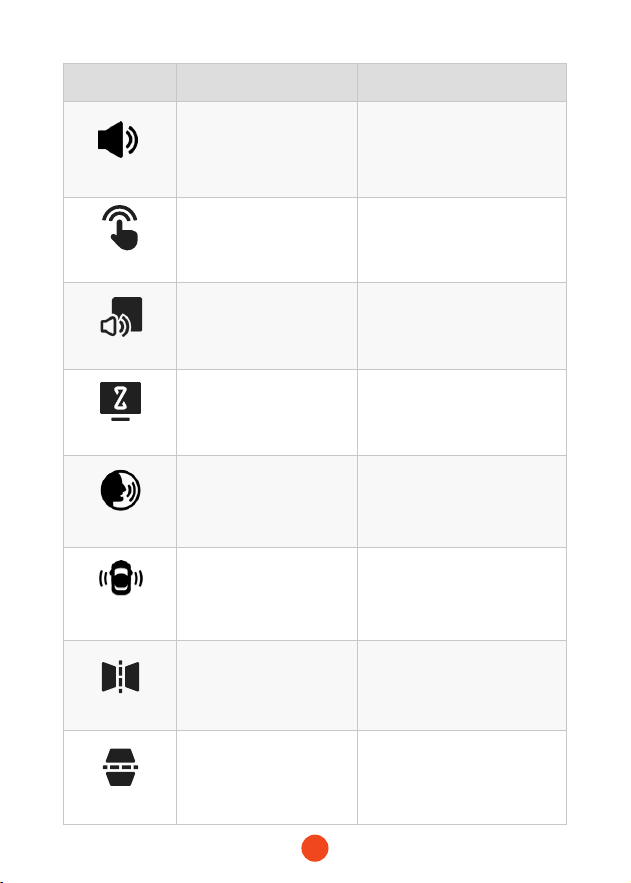
Function Option Description
Volume
OFF
/Low
/Medium
/High
Set the volume level of the
device.
Click�Tone
ON/OFF Set the switch for key tones.
Staup�Sound
ON/OFF
Set whether to play a staup
sound.
Screen�Saver
OFF
/10 Seconds
/30 Seconds
/2 Minutes
Set the activation time for the
screen saver.
Voice�Control
OFF/ON/Voice Command
Set the switch for voice
control functionality
Driver�
Assistance
ON/OFF/Settings
Set the switch for driver
assistance functionality
Mirror�Flip
ON/OFF
Adjust the left-right ip of the
rear camera image.
Rear�Cam�Flip
ON/OFF
Adjust the up-down ip of the
rear camera image.
17
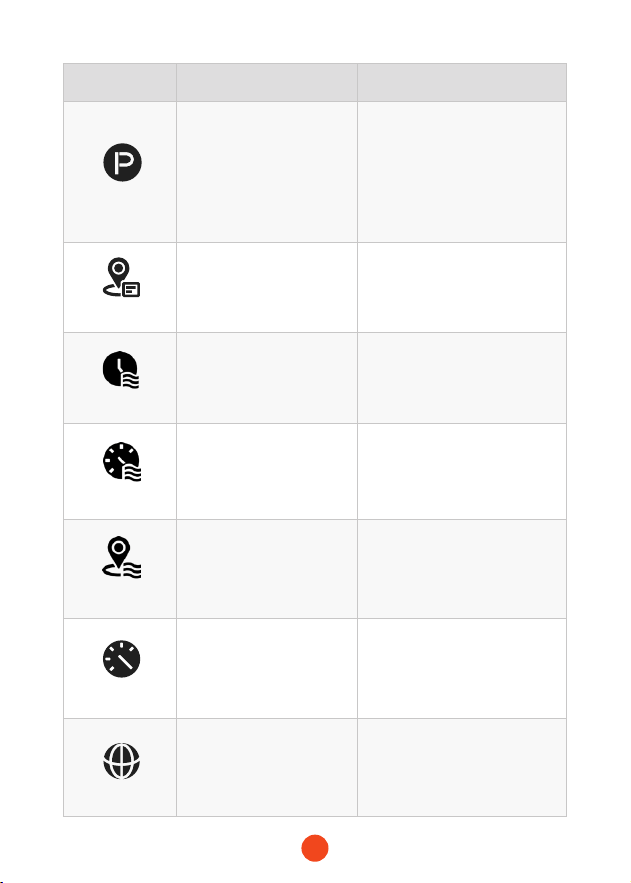
Function Option Description
Parking�Mode
OFF
/G-Trigger Recording
/12H Time-lapse
recording
/24H Time-lapse
recording
/48H Time-lapse
recording
Monitor the vehicle's status
after the engine is turned o.
GPS
/ Display recorded GPS data.
Date�Stamp
ON/OFF
Set the switch for time
watermark.
Speed�Stamp
ON/OFF
Set the switch for speed
watermark.
GPS�Stamp
ON/OFF
Set the switch for GPS
watermark.
Speed�Unit
KM/H / MPH Set the unit for speed display.
Language
English/Français/
Deutsch/Italiano/
Español/...
Set the language for the
device.
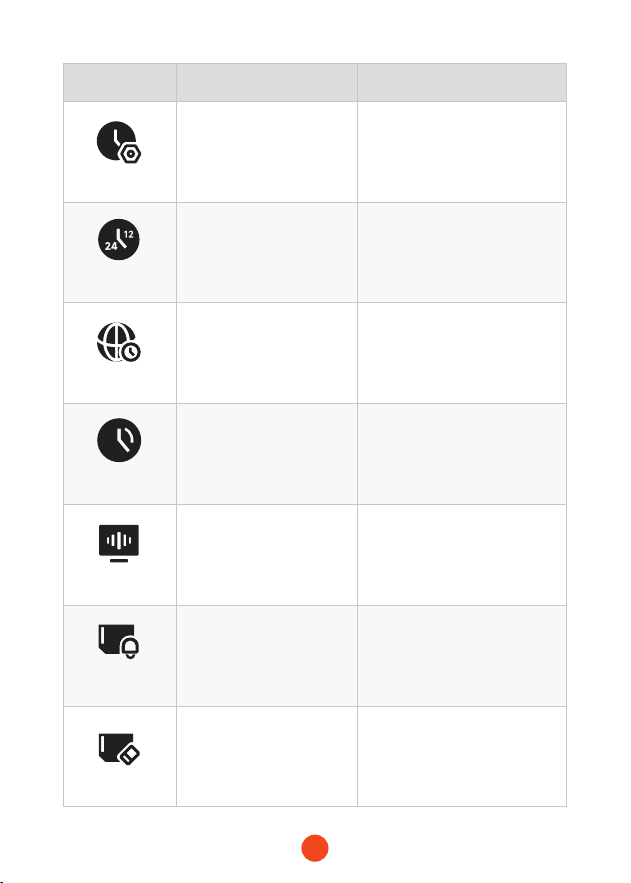
18
Function Option Description
Clock�Setting
/
Adjust the current time
displayed on the device.
Time�Style
12 Hours/24 Hours Set the time display system.
Time�Zone
/
Adjust the time zone based on
geographical location.
DST
ON/OFF
Set the reminder for
formatting the SD card.
Flicker
50 Hz/60 Hz Set the screen refresh rate.
Format�
Reminder
OFF
/Each 15 days
/Each 25 days
Set the reminder for
formatting the SD card.
Format�SD�Card
/
Format the SD card and delete
videos and photos stored on
it.
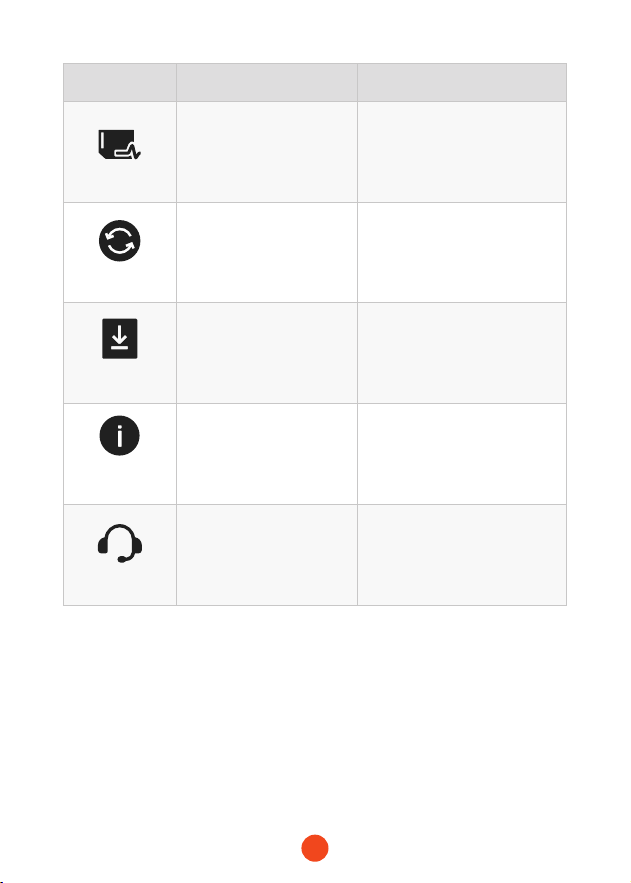
19
Function Option Description
Card�Speed
/
Test the SD card's read
and write speeds to ensure
they meet the machine's
requirements.
Reset�Setup
/
Restore all settings to facto
defaults.
APP
/
Provide QR code for
downloading the app.
Product�
Information
/ Display device information.
Help�Center
/
After-sales contact
information.
Note:
Parking Mode requires a hardware kit (purchased separately) in
order to activate.
With the hardware kit connected and Parking Mode enabled, the
dash cam will enter Lapse Recording mode when the car turns
o. This mode captures video at 1 frame per second until the set
duration ends or the car batte voltage drops below 12V.
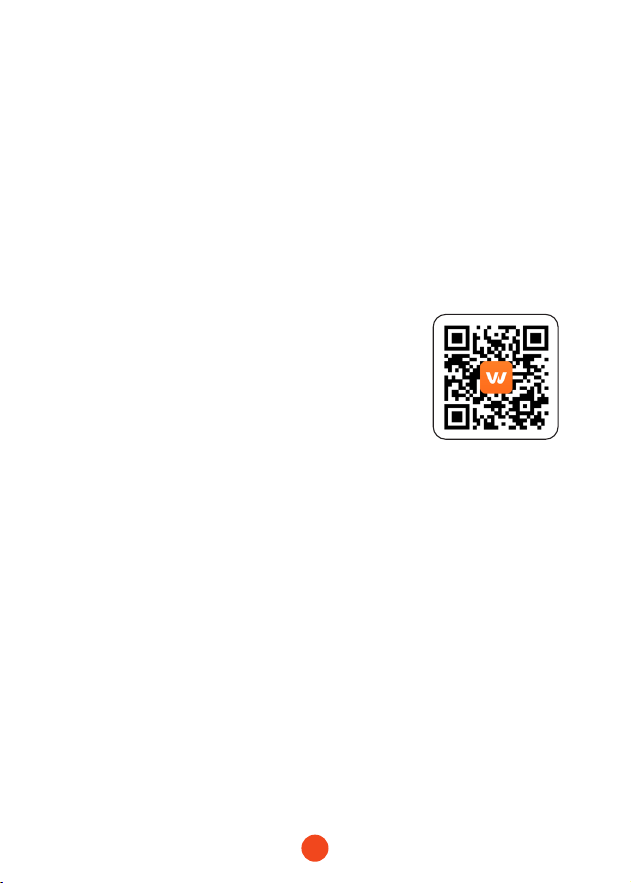
20
Play on APP (About Wi-Fi and APP)
The Wi-Fi feature has been designed so you can pair your
dash camera wirelessly with your smaphone and access your
recordings instantly from the dash cam. Here you can view,
download and share your videos easily with your friends and
family.
The app “Wolox�Auto” is a free app that allows you to operate
this WLAN built-in drive recorder from your smaphone.
• How to connect Wi-Fi?
1. Download the “Wolox Auto” app
Go to the following address to download
the “ Wolox Auto” app: https://
wolox.com/app/�You may also use your
smaphone to scan the QR code to go to
the download page.
2. Enable Wi-Fi
Go to Settings to turn on Wi-Fi. Go to Settings to turn on the
Wi-Fi. Then, the device screen will display the Wi-Fi name and
password.
3. Connect Wi-Fi
To connect your iPhone or Android phone to the X3 Pro's Wi-Fi
network,go to Settings > Wi-Fi and select X3 Pro Wi-Fi. Then,
enter the default password: 12345678.
4. Open the “Wolox Auto” app
Once your mobile phone is connected to the X3 Pro's Wi-Fi
network,open the Wolox Auto app. The camera will sync
automatically, and you should see the live video feed on your
phone.
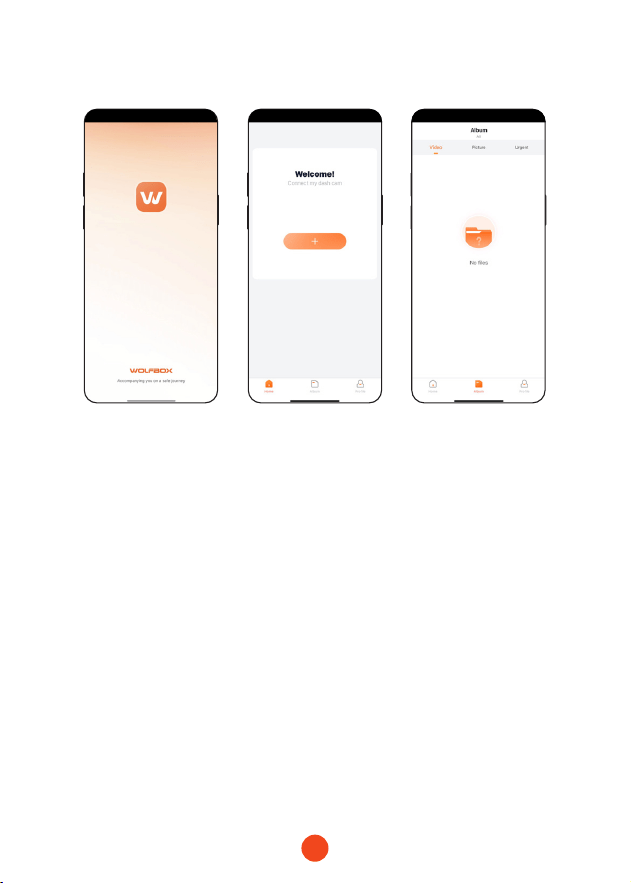
21
• Edit and share Your Videos in the App
In the app, you can view and edit downloaded local albums and
share them with others.
How to Play Video on Computer
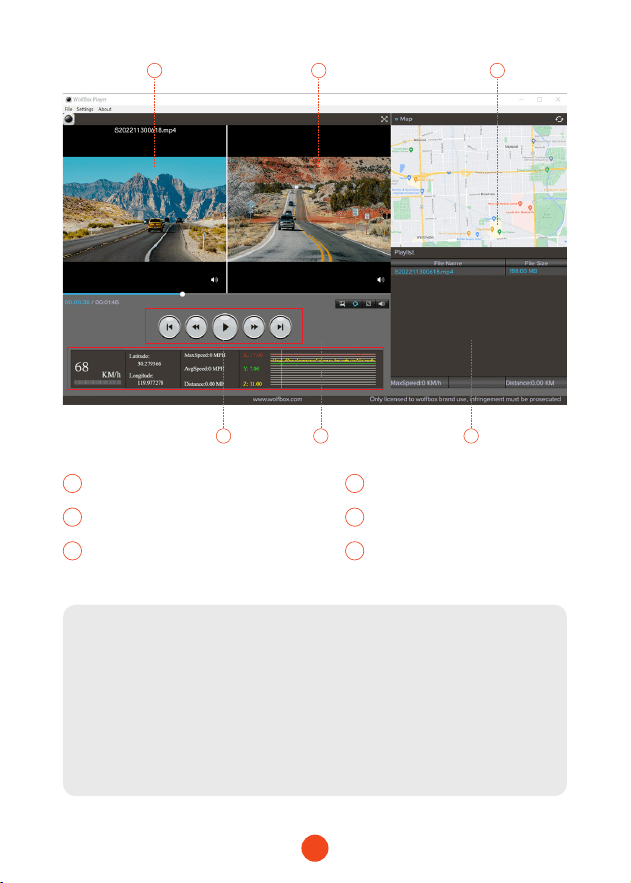
We recommend the application “GPS Media Player” to watch and
play dash cam videos, and view Google Maps.
You can download it for free on Mac or Windows from the
following link: https://wolox.com/gps-player/
22
1 2
5 64
3
1 2
3 4
5 6
Note:
If the video les of Front and Rear road tracks are recorded
synchronously and loaded into the playing list at the same time,
they can be played separately in split left and right screens.
When you nd the desired video le, hold down the left mouse
button and drag the desired les to the video play window to
play it.
Video play window (Front)
Map and track display
Play control panel
Video play window (Rear)
Speed and driving state indication Play list
23
Installation
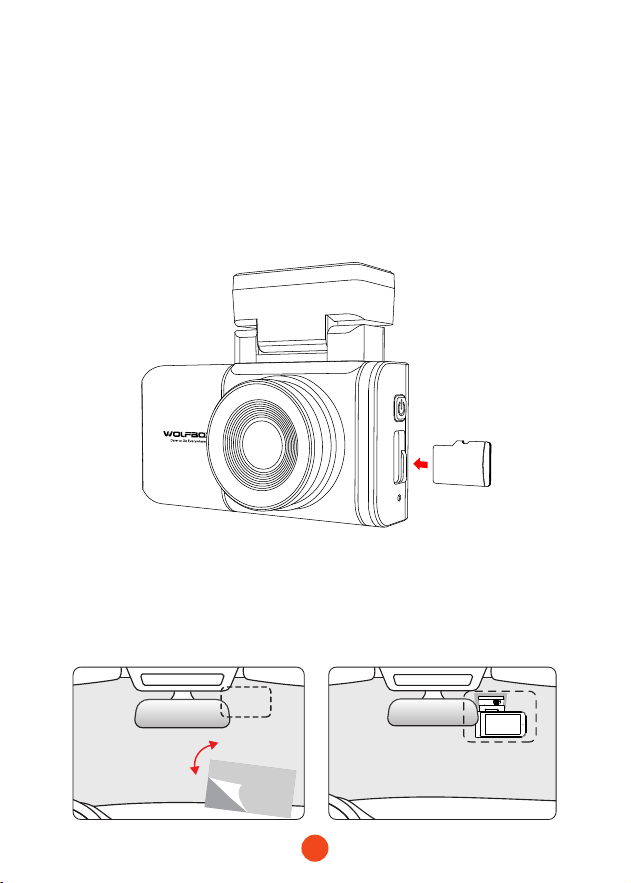
Before installing your dash cam, please test its functionality with
all accessories and change the default settings to your preference.
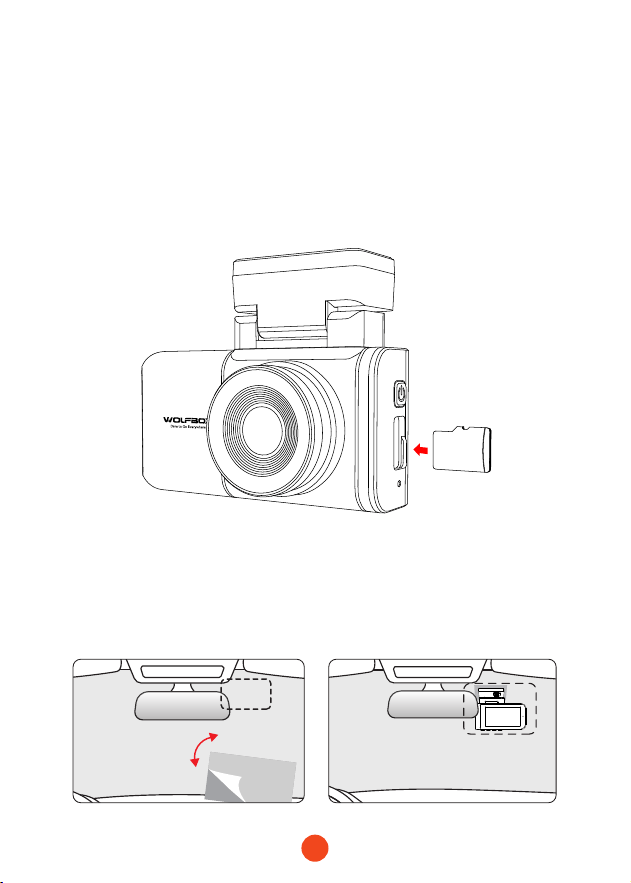
SD
• Front Camera Installation
Peel o the electrostatic sticker on the cellophane and transfer
it to where you want to stick it. Attach the front camera to the
electrostatic sticker and press to make it rmer.
• SD Card Installation
Ensure that the dash cam is powered o when inseing or
ejecting the SD card.
24
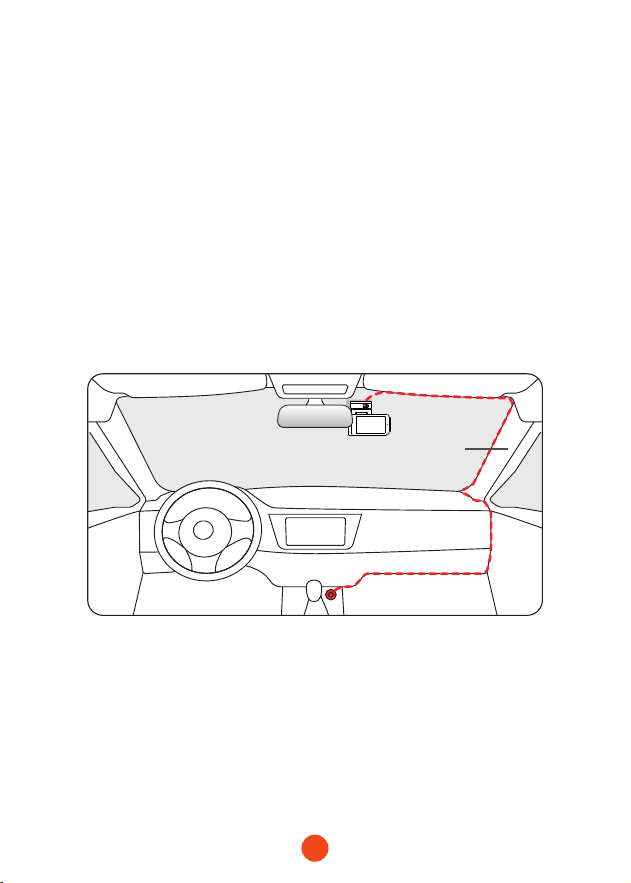
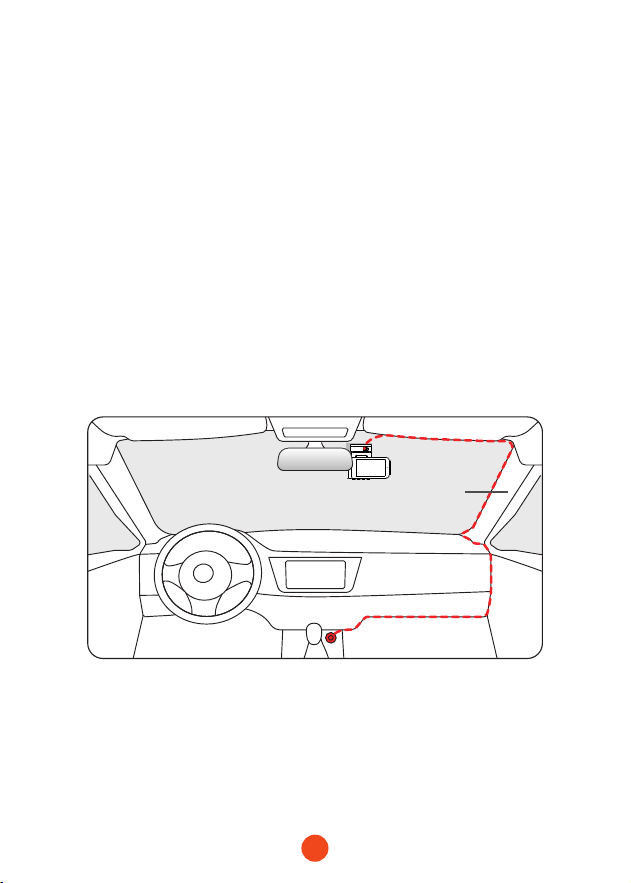
• Wire Layout In The Vehicle
1. The car charger is connected to the cigar socket.
2. Connect the other end of the car charger to the dash cam.
3. Use the crowbar to run the power cable along the front
windshield and the roof, and hide the cable down the A-pillar,
so as not to block the driver's sight and cause danger.
4. Connect the inteace of the rear cable with the inteace of
the rear cam cable.
5. Hide the rear cam cable along the gaps between the front
windshield and the ceiling, between the car body and the
ceiling on the side of the passenger seat, and between the
rear seats and the ceiling.
Pillar A
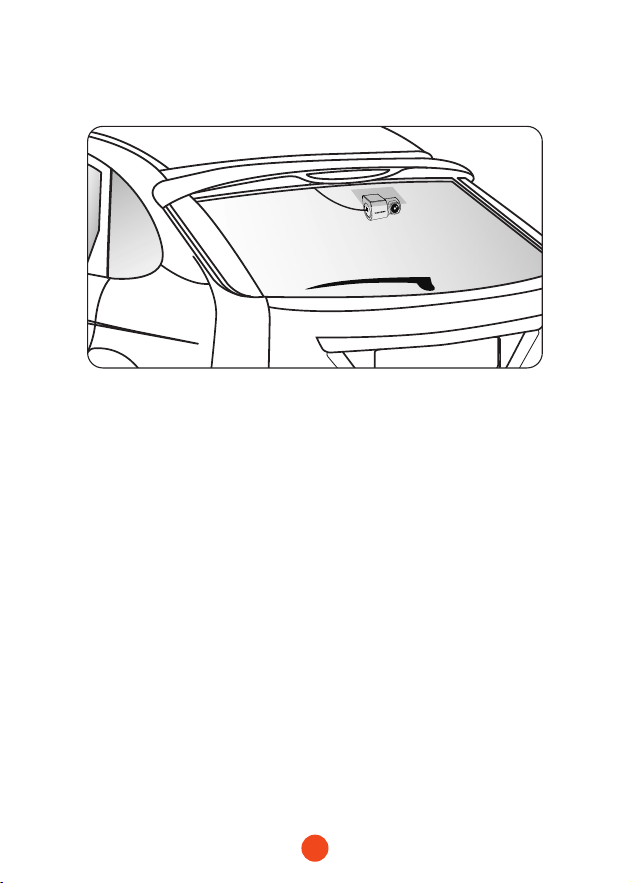
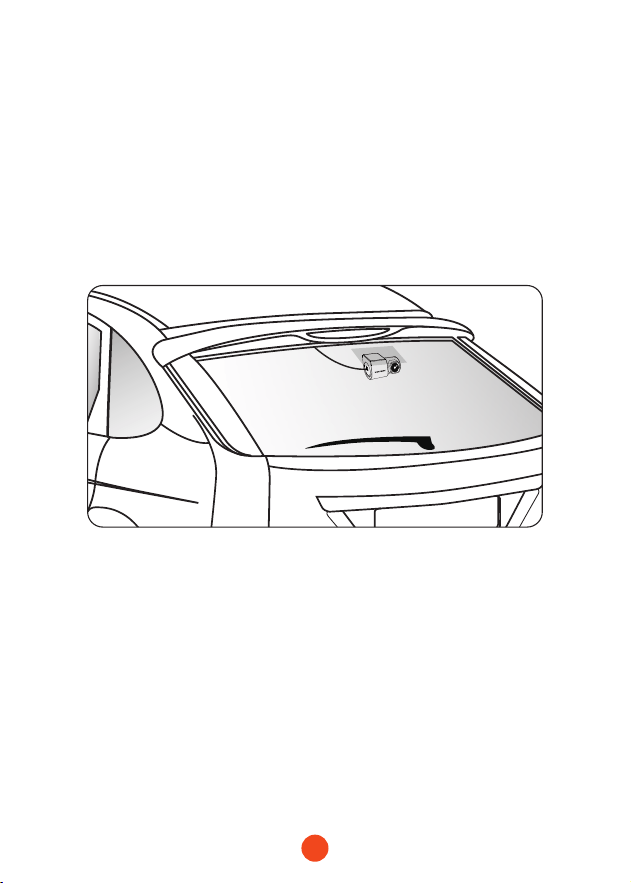
• Mount The Rear Camera
1. Use a clean cloth to wipe the rear windshield where the rear
camera needs to be installed.
2. Peel o the electrostatic sticker, transfer it to the place you
want to stick it.
3. Drain the air bubbles on the electrostatic sticker.
25
4. Peel o the adhesive on the rear camera and stick it on the
electrostatic sticker.
26
Trouble Shooting
• Why is there no GPS signal?
1. Clean and reconnect the probe on the main unit and bracket.
Check for any inteerence in your car, like metal lm on the
windshield, radio antenna, or radar detector.
2. Move your car to an open area.
3. If the GPS icon is , it means the GPS signal is good.
If the GPS icon is , it means there is no GPS signal.
• Why does my dash cam prompt card error or please format
Memo Card eve once in a while?
Please follow the steps below to check:
1. Please go to Settings > Format Reminder to check whether
the regular format reminder is enabled.
2. Format the Memo Card.
3. Restore facto settings and resta the dash cam.
4. Update the rmware.
• Dash cam repeated resta/no boot?
1. Make sure you are using the original car charger.
2. Unplug the Memo Card and car charger in turn, and
reinstall them. Check whether the sho circuit is caused by
accessories.
3. Reset the machine through the small reset hole on the right
side of the dash cam.
4. If none of the above can solve the problem, please t to
power on the USB cable to conrm whether the host can be
used normally.
5. Please go to the ocial website to update the rmware.
6. If it is not resolved, please contact your dedicated customer
seice for a replacement.

27
• Why can't I connect to Wi-Fi?
1. Check the working distance of Wi-Fi, about 15ft.
2. Check the SSID and password of the Wi-Fi, or whether there
are other devices connected to the Wi-Fi..
3. Turn o mobile data, security software, and VPN on your
phone.
4. If the issue persists, please contact customer suppo for
assistance.
• Why is the time setting incorrect?
The dash cam features built-in GPS. It automatically adjusts
time based on your location and time zone, eliminating the
need for manual time changes. And you can adjust the time
through Settings > Time Zone/DST.
28
For more information:
seice@wolox.com
https://wolox.com/contact-us
www.wolox.com
Customer Seice Center
If you have any problems with the function or installation, please
contact us with any questions.
Help�Center WhatsApp
WOLFBOX

29
Contenido
Precauciones � � � � � � � � � � � � � � � � � � � � � � � � �
30
Adveencias � � � � � � � � � � � � � � � � � � � � � � � � �
30
Producto Visión General � � � � � � � � � � � � � � � � � � �
31
Garantía � � � � � � � � � � � � � � � � � � � � � � � � � � � �
31
Especicaciones del Producto � � � � � � � � � � � � � � �
32
Paquete Contenido � � � � � � � � � � � � � � � � � � � � �
33
Apariencia � � � � � � � � � � � � � � � � � � � � � � � � � � �
34
Botones y Funciones � � � � � � � � � � � � � � � � � � � � �
35
Descripción�General�de�la�Inteaz�de�Usuario
� � � � � � � �
37
Función�de�Control�por�Voz
� � � � � � � � � � � � � � � � � �
40
Función�de�Asistencia�al�Conductor�
� � � � � � � � � � � � �
41
Descripción�General�de�la�Función
� � � � � � � � � � � � � �
43
Utiliza la APLICACIÓN (Wi-Fi e INFORMACIÓN SOBRE LA
APLICACIÓN) � � � � � � � � � � � � � � � � � � � � � � � � � �
48
Cómo Reproducir Vídeo en el Ordenador � � � � � � � � � �
49
Instalación � � � � � � � � � � � � � � � � � � � � � � � � � � �
51
Solución de Problemas � � � � � � � � � � � � � � � � � � � �
54
Seicio de Atención al Cliente Center � � � � � � � � � � �
56

30
Precauciones
1.�Para más consultas, comuníquese con nuestro seicio de atención
al cliente por correo electrónico a seice@wolox.com.
2.�Utilice accesorios originales para evitar problemas de
compatibilidad y suministro de corriente insuciente de accesorios
no compatibles. Por ejemplo, las tomas de cigarros 2 en 1 o 3 en 1
no proporcionarán suciente corriente al dispositivo.
3.�No manipule ni empalme el cable de la cámara trasera con el n
de extenderlo, ya que se puede perder la imagen trasera o la
alimentación a la pantalla. La longitud del cable incluido para la
cámara trasera es de 20 pies y es adecuado para la mayoría de
los tipos de automóviles.
4.�Si desea utilizar una tarjeta micro SD con una capacidad > 32
GB, cambie el formato de la tarjeta micro SD [se requiere Clase
10 (10 MB/s)] a FAT 32 en la PC .
Adveencias
• Mantenga los accesorios pequeños fuera del alcance de
los niños. Si este producto está dañado o no funciona
correctamente, deje de usarlo inmediatamente y comuníquese
con el sopoe de WOLFBOX. El uso continuo puede causar
incendio, descarga eléctrica o falla del vehículo.
• Este producto está destinado a ser utilizado como material de
referencia en caso de accidente. No garantizamos su efectividad
o admisión como evidencia completa.
• Tenga en cuenta que este producto puede infringir la privacidad
y otros derechos dependiendo de cómo se utilice. No somos
responsables de ningún caso en el que este producto infrinja la
privacidad u otros derechos.

31
Producto Visión General
• Gracias por elegir Wolox X3 Pro 2.5K Dash Cam. Este
producto proporciona una imagen de alta calidad y captura
evidencia irrefutable en caso de un accidente, y registra la
belleza a lo largo del camino para usted.
• WOLFBOX es una empresa profesional de fabricación de
suministros para automóviles. Hemos trabajado en el campo
de las cámaras de tablero durante más de diez años. Contamos
con un equipo de ingenieros experimentados e imaginativos
que están comprometidos a construir una marca de suministros
automotrices conable y digna de conanza.
Garantía
• Estamos comprometidos a brindar a los clientes la mejor
experiencia de producto y seicio postventa.
• ONuestro período de garantía es de primer año. Si las piezas de
la máquina están dañadas o hay algún problema durante el uso,
lo resolveremos a tiempo y le brindaremos una experiencia de
compra satisfactoria.
Nota: El período de garantía especíco está sujeto a las leyes
locales.
• Comuníquese con nosotros con su pedido en línea y le
brindaremos reemplazo gratuito y sopoe técnico de por vida.
• Seicio gratuito de garantía extendida: Después de registrar
información en wolox.com, puede extender la garantía por 6
meses adicionales sin cargo.
URL: https://wolox.com/pages/warranty-form
32
Especicaciones del Producto
RAM DDR3 4Gb Tipo�de�pantalla IPS
Formato�de�
vídeo
MP4
Formato�de�
imagen
JPG
Cámara�frontal 2.5K
Lente�frontal�
FPS
60fps
Cámara�trasera 2.5K
Lente�trasera�
FPS
30 fps
Tamaño�de�
pantalla
3"
Inteaz�de�
alimentación
USB-C
GPS interno Wi-Fi Sopoado
Control�por�voz Sopoado
Pantalla�táctil�
completa
Sopoado
Asistencia�al�
Conductor
FCW; LDW; S&G
Temperatura�de�
funcionamiento
-4°F~158°F
Tarjeta�SD Max Suppok 512GB
33
Paquete Contenido
• Cámara trasera 2.5K
• Adhesivo
• Manual de usuario
• Cable de alimentación
con cargador para coche
• Cable de cámara
trasera
•Cámara de tablero 2.5K
• Pegatina
electrostática *2
• Herramienta
•Abrazaderas de
manguera*5
• Guía rápida
• Paño para lentes
34
Apariencia
6
8
1
2
7
10
12
9
11
5
4
3
Cámara
frontal
Screen
Ranura de la
leva trasera
Adhesivo
Pueo de
alimentación USB-C
Botón izquierdo
Botón de menú
Botón OK
Botón derecho
Ranura para
tarjeta de
memoria
Botón de
encendido
GPS
35
M
Botones y Funciones
Botón de Encendido
Modo�de�Grabación:
• Pulsación coa - para tomar una instantánea
• Pulsación larga - para apagar la cámara
Modo�de�Conguración:
• Pulsación coa - para volver a la pantalla anterior
Modo�de�Reproducción:�
• Pulsación coa - para volver a la pantalla anterior
Botón de Menú
Modo�de�Grabación:
• Pulsación coa - para entrar en el menú principal
Modo de conguración
Modo�de�Conguración:�
• Pulsación coa - para volver a la pantalla anterior
Modo�de�Reproducción:�
• Pulsación coa - para volver a la pantalla anterior
Botón Izquierdo
Modo�de�Grabación:
• Pulsación coa - para bloquear el archivo de grabación
• Pulsación larga - para activar o desactivar el Wi-Fi
Modo�de�Conguración:�
• Pulsación coa - para seleccionar la función anterior
Modo�de�Reproducción:�
• Pulsación coa - para seleccionar el archivo anterior
• Pulsación coa - para rebobinar rápidamente
(mientras se reproduce el vídeo)

36
OK
Botón OK
Modo�de�Grabación:
• Pulsación coa - para cambiar de pantalla
Modo�de�Conguración:�
• Pulsación coa - para Introducir/Conrmar ajustes
especícos
Modo�de�Reproducción:�
• Pulsación coa - para seleccionar y reproducir el
archivo especíco
Botón Derecho
Modo�de�Grabación:
• Pulsación coa - Para entrar al modo de reproducción
• Pulsación larga - para activar/ desactivar grabación de
audio
Modo�de�Conguración:�
• Pulsación coa - para seleccionar la función siguiente
Modo�de�Reproducción:�
• Pulsación coa - para seleccionar el archivo siguiente
• Pulsación coa - para avanzar rápidamente (mientras
se reproduce el vídeo)
37
Descripción General de la Inteaz de Usuario
• Modo de Grabación
Icono Descripción
Estado del GPS
Resolución de grabación
Si conectar el kit cableado y congurar la monitorización de
estacionamiento
Control por voz
Estado del Wi-Fi
Estado de la grabación de voz
38
Icon Description
Si la cámara trasera está conectada
Estado de grabación y tiempo de grabación
Grabación de emergencia activada
Asistencia al conductor
Fecha y hora de la cámara
Pulsación coa para acceder a la conguración
Grabación de emergencia: Pulsación coa para bloquear el
vídeo
Reproducción
Cambio entre cámara frontal y trasera
39
Puedes hacer clic manualmente en el icono en la pae
superior de la pantalla para elegir si activar el control por voz.
Puede hacer clic manualmente en el icono situado en la
pae superior de la pantalla para elegir si desea activar el Wi-Fi.
Puede hacer clic manualmente en el icono situado en la
pae superior de la pantalla para elegir si desea grabar audio
durante la grabación de vídeo.
Puede hacer clic en el icono de Asistencia al Conductor
situado en la esquina inferior derecha para activar o desactivar
esta función.
• Modo de Vídeo
40
Función de Control por Voz
Control rápido a través de comandos de voz simples.
Cuando la inteaz de grabación muestra un icono blanco ,
signica que la función de control por voz está activada.
Puedes habilitar/deshabilitar la función de control por voz a través
del "Control por voz" en el menú o haciendo clic en el icono
en la pantalla.
Nota:
Puedes acceder a comandos de voz especícos tocando en el
submenú 'Comando de voz' dentro de la sección 'Control por voz'.
lock�the�video
take�picture
turn�on�audio turn�o�audio
turn�on�screen turn�o�screen
turn�on�WIFI turn�o�WIFI
turn�on�recording turn�o�recording
show�front�camera show�rear�camera
41
Función de Asistencia al Conductor
La Asistencia al Conductor está diseñada para mejorar la
seguridad y la comodidad durante todo el viaje de su vehículo.
Puede personalizar las conguraciones de cada función según sus
requisitos en el menú.
1. Encendido/Apagado
Activa/desactiva la función correspondiente.
2. Conguración
Ajuste manualmente los detalles de las conguraciones de
cada función de Asistencia al Conductor.
Calibración CalibraciónConguración Conguración
Note:
La cámara del tablero calibra automáticamente las función de
asistencia al conductor con cada arranque. Una velocidad minima
de 20 km/h (10 mph) durante 2-3 minutos en la carretera para
completar el calibrado automático. Si el GPS no está posicionado
o el señal es débil, la medición de velocidad puede ser inexacta.
42
A continuación le presentamos en detalle las funciones del
sistema de Asistencia al Conductor:
• ADAS
(Funciones de la cámara frontal - Asistencia al Conductor)
1. Desvío de carril
Detecta automáticamente las
marcas del carril y te avisa
cuando el vehículo se sale del
carril.
2. Colisión frontal
Calcula con precisión la
distancia al vehículo que te
precede y te avisa de posibles
riesgos de colisión.
>60km/h(37mph)
>30km/h(19mph)
3. Arranque del vehículo
delantero
Supeisa automáticamente
la paida del vehículo
delantero y te recuerda iniciar
la marcha a tiempo.
=0km/h(0mph)
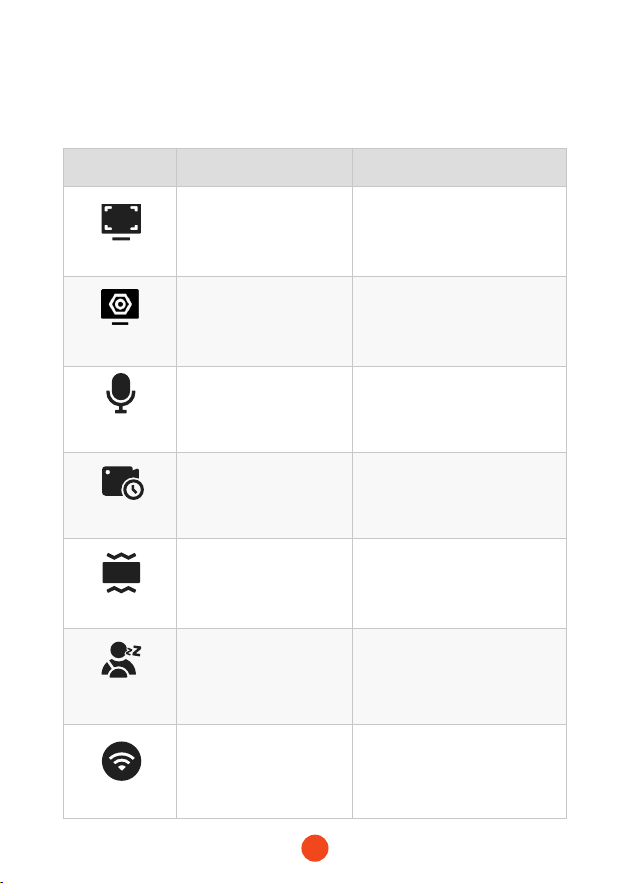
43
Descripción General de la Función
Personalice la máquina modicando sus conguraciones y parámetros.
Función Opción
Descripción
Resolución
2.5K60fps+2.5K30fps/
2.5K30fps+2.5K30fps
Selección de resolución de
video.
Ajustes�de�
imagen
HDR(30fps)/
Estabilización de
imagen(30fps)
Establece el interruptor para
la funcionalidad de HDR
(30fps) e Image Stabilization.
Grabación�de�
sonido
Encendido/Apagado
Establece si deseas grabar
sonido.
Grabación�en�
bucle
1 Minuto
/3 Minutos
/5 Minutos
Establece la duración para la
grabación en bucle de archivos
de video.
Sensor�G
Apagado
/Bajo
/Medio
/Alto
Establece la sensibilidad del
sensor G.
Recordatorio�de�
fatiga
Apagado
/1 Hora
/2 Horas
/3 Horas
/4 Horas
Establece el tiempo para el
recordatorio de fatiga.
WI-FI
Encendido/Apagado
Establece el estado de la
conexión WIFI del dispositivo.
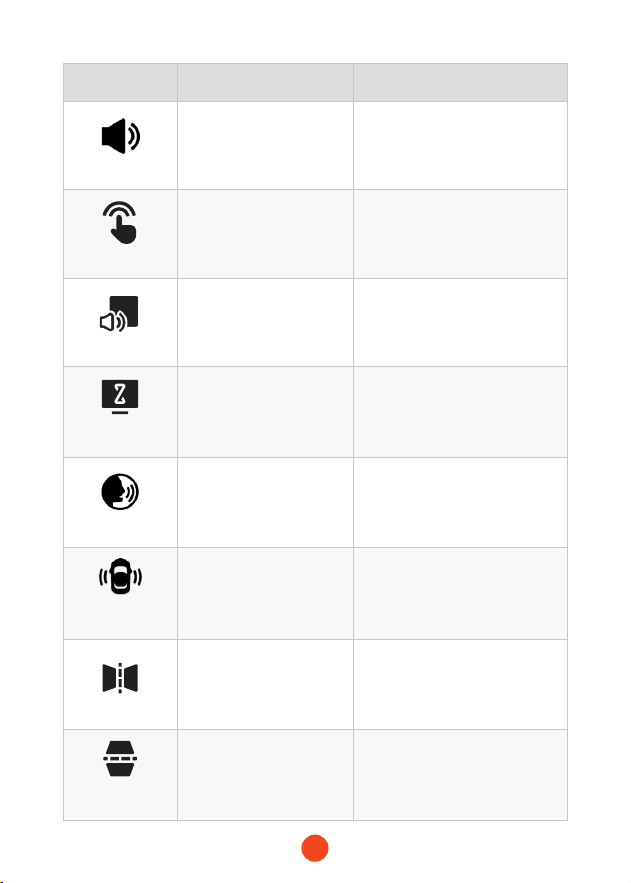
44
Función Opción
Descripción
Volumen
Apagado
/Bajo
/Medio
/Alto
Congurar el nivel de volumen
del dispositivo.
Tono�de�clic
Encendido/Apagado
Establece el interruptor para
los tonos de las teclas.
Sonido�de�inicio
Encendido/Apagado
Congurar si se reproduce un
sonido al iniciar.
Protector�de�
pantalla
Apagado
/10 Segundos
/30 Segundos
/2 Minutos
Establece el tiempo de
activación para el protector
de pantalla.
Control�de�voz
Apagado/Encendido/
Comando de voz
Establece el interruptor para
la funcionalidad de control de
voz.
Asistencia�al�
Conductor
Encendido/Apagado/
conguración
Congurar el interruptor para
la funcionalidad de Asistencia
a la Conducción
Volteo�de�espejo
Encendido/Apagado
Ajusta el volteo izquierda-
derecha de la imagen de la
cámara trasera.
Volteo�de�
cámara�trasera
Encendido/Apagado
Ajusta el volteo arriba-abajo de
la imagen de la cámara trasera.
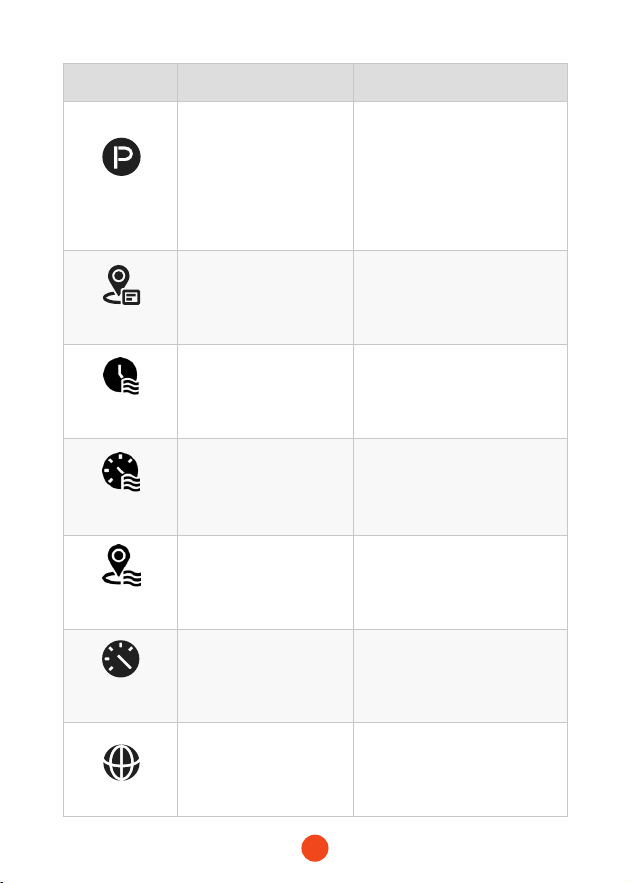
45
Función Opción
Descripción
Modo de
estacionamiento
Apagado
/Grabación por disparo G
/Grabación a intealos
de 12H
/Grabación a intealos
de 24H
/Grabación a intealos
de 48H
Monitorea el estado del
vehículo después de que el
motor se apague.
GPS
/
Muestra los datos GPS
registrados.
Marca�de�agua�
de�tiempo
Encendido/Apagado
Congura el interruptor para
Marca de agua de tiempo.
Marca�de�agua�
de�velocidad
Encendido/Apagado
Congura el interruptor para
Marca de agua de velocidad.
Visualización�
GPS
Encendido/Apagado
Congura el interruptor para
Visualización GPS.
Unidad de
velocidad
KM/H/MPH
Establece la unidad de
visualización de velocidad..
Idioma
English/Français/
Deutsch/Italiano/
Español/...
Establece el idioma para el
dispositivo.
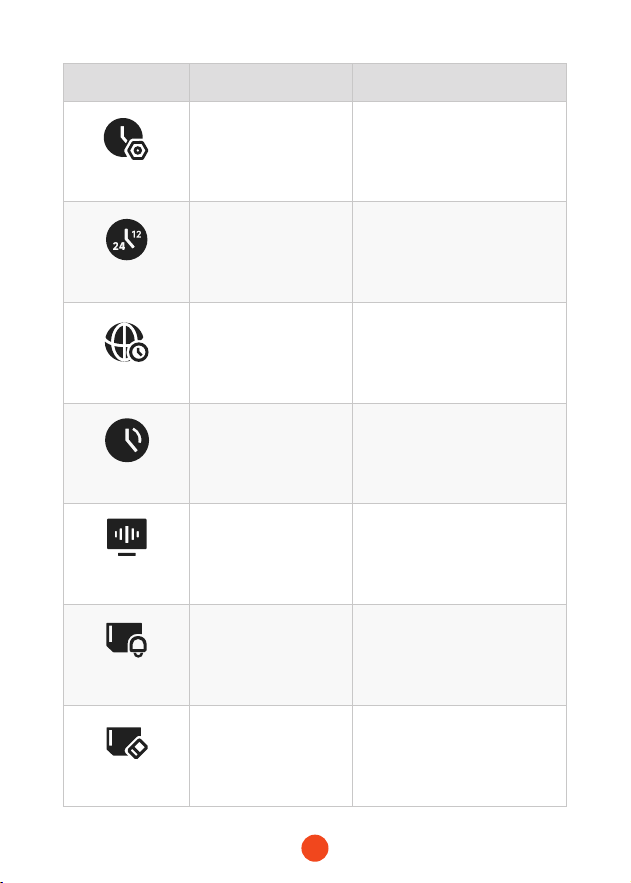
46
Función Opción
Descripción
Ajuste�del�reloj
/
Ajusta la hora actual mostrada
en el dispositivo.
Formato�de�hora
12 Horas / 24 Horas
Establece el sistema de
visualización de la hora.
Zona�horaria
/
Ajusta la zona horaria según
la ubicación geográca.
Horario�de�verano
Encendido/Apagado
Establece el interruptor para el
horario de verano.
Frecuencia�
estroboscópica
50 Hz/60 Hz
Establece la frecuencia de
actualización de la pantalla.
Recordatorio�de�
formato
Apagado
/Cada 15 días
/Cada 25 días
Establece el recordatorio para
formatear la tarjeta SD.
Formatear�tarjeta�
SD
/
Formatea la tarjeta SD y elimina
los videos y fotos almacenados
en ella.
47
Función Opción
Descripción
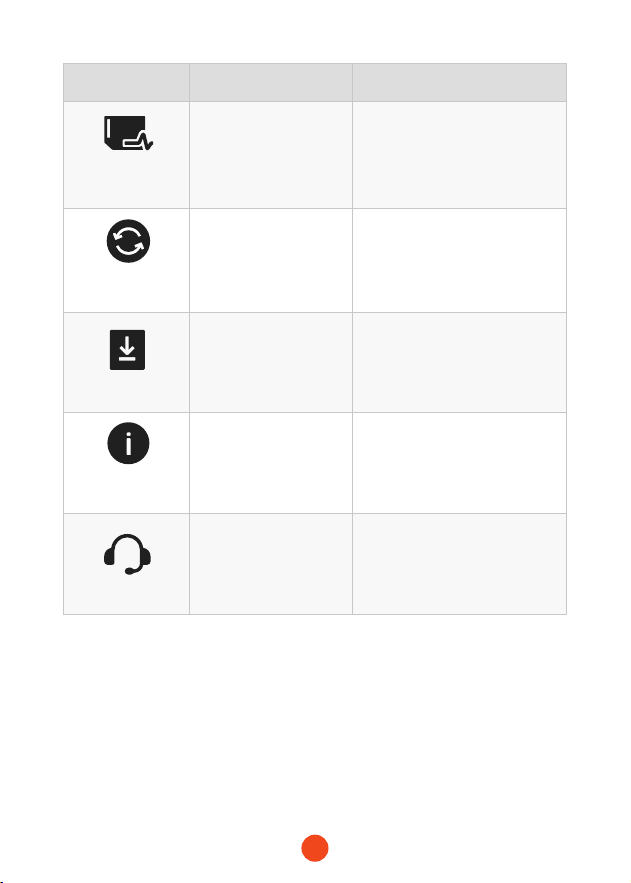
Prueba�de�
velocidad�de�la�
tarjeta
/
Prueba las velocidades de
lectura y escritura de la tarjeta
SD para asegurae de que
cumplan con los requisitos del
dispositivo.
Restaurar�ajustes�
de�fábrica
/
Restaurar todas las
conguraciones a los valores
predeterminados de fábrica.
APP
/
Proporcionar código QR para
descargar la aplicación.
�Información�del�
producto
/
Mostrar información del
dispositivo.
Centro�de�ayuda
/
Información de contacto para
postventa.
Note:
El modo de estacionamiento requiere un kit de hardware
(comprado por separado) para activarse.
Con el kit de hardware conectado y el modo de estacionamiento
habilitado, la dash cam entrará en modo de grabación a intealos
cuando el coche se apague. Este modo captura video a 1
fotograma por segundo hasta que nalice la duración establecida
o el voltaje de la batería del coche caiga por debajo de 12V.
48
Utiliza la APLICACIÓN (Wi-Fi e
INFORMACIÓN SOBRE LA APLICACIÓN)
La función Wi-Fi te permite conectar tu cámara de salpicadero
de forma inalámbrica a tu teléfono inteligente, para acceder
instantáneamente a las grabaciones. Desde aquí, podrás ver,
descargar y compair tus videos fácilmente con amigos y
familiares.
La aplicación "
Wolox Auto
" es gratuita y te permite controlar
esta cámara de conducción con WLAN integrada directamente
desde tu teléfono inteligente.
•¿Cómo conectarse al Wi-Fi?
1. Descarga la aplicación "Wolox Auto"
Visita la siguiente dirección para descargar la
aplicación "Wolox Auto": https://wolox.
com/app/. También puedes escanear el
código QR con tu teléfono inteligente para
acceder a la página de descarga.
2. Activa el Wi-Fi
Ve a los Ajustes de tu dispositivo y activa el Wi-Fi. En la
pantalla del dispositivo aparecerán el nombre y la contraseña
de la red Wi-Fi.
3. Conecta al Wi-Fi
Para conectar tu iPhone o teléfono Android a la red Wi-Fi
del X3 Pro, ve a Ajustes > Wi-Fi, elige la red "X3 Pro Wi-Fi" e
introduce la contraseña predeterminada: 12345678.
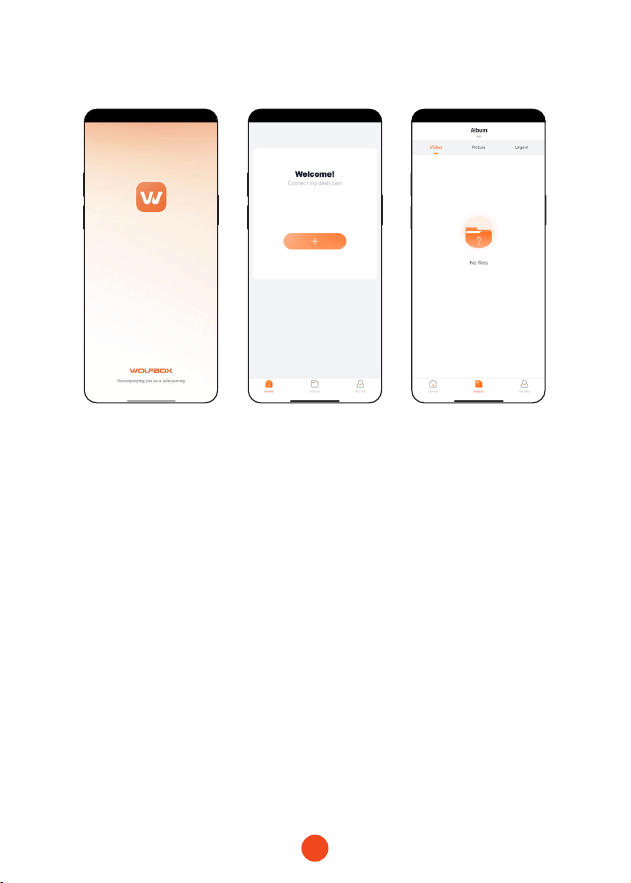
4. Abre la aplicación "Wolox Auto"
Una vez que tu teléfono esté conectado a la red Wi-Fi
del X3 Pro, abre la aplicación Wolox Auto. La cámara se
sincronizará automáticamente, y podrás ver la transmisión
de video en vivo directamente en tu teléfono.
49
•Modica y compae tus videos en la App
En la app, puedes ver y editar álbumes locales descargados y
compairlos con otros.
Cómo Reproducir Vídeo en el Ordenador
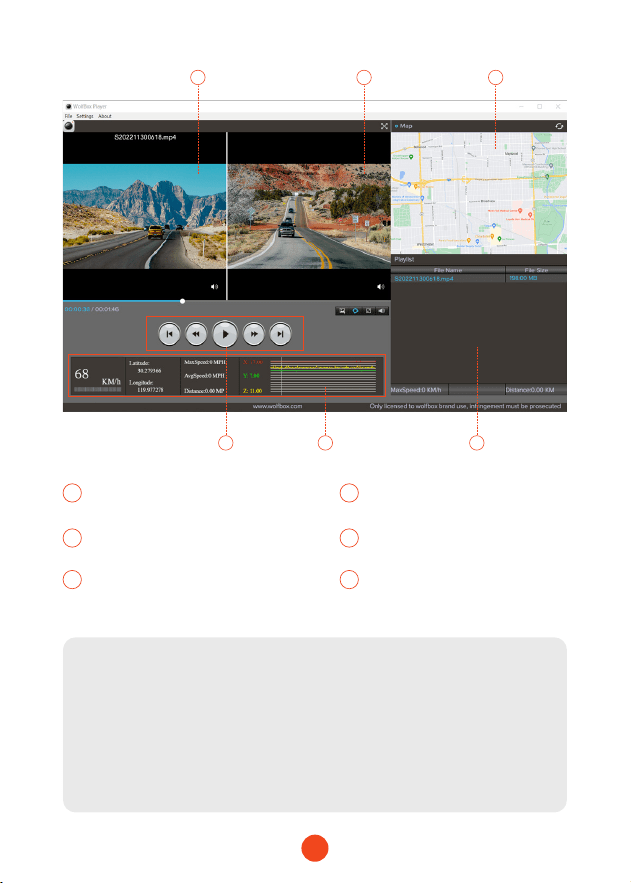
Recomendamos la aplicación "GPS Media Player" para ver y
reproducir vídeos de la cámara del tablero y ver Google Maps.
Puede descargarlo gratuitamente en Mac o Windows desde el
siguiente enlace: https://wolox.com/gps-player/
50
1 2
4 65
3
1 2
Ventana de reproducción
de video (frontal)
Ventana de reproducción
de video (trasera)
3 4
Visualización de mapas y rutas
Panel de control de
reproducción
5 6
Indicación de velocidad y estado
de conducción
Lista de reproducción
Note:
Si graba los videos de la cámara del tablero delantera y trasera
simultáneamente y los agrega a la lista de reproducción, puede
reproducirlos uno al lado del otro en modo de pantalla dividida.
Para reproducir un archivo de video, arrástrelo y suéltelo en el
reproductor de video.
51
Instalación
Antes de instalar su cámara de tablero, pruebe su funcionalidad
con todos los accesorios y cambie la conguración
predeterminada según sus preferencias.
SD
• Instalación de la tarjeta SD
Asegúrese de que la cámara del tablero esté apagada al insear o
expulsar la tarjeta SD.
•
Instalación de la cámara frontal
Despegue la pegatina electrostática del celofán y transérala al
lugar donde desee pegarla. Pega la cámara frontal a la pegatina
electrostática y presiona para que quede más rme.
52
•
Distribución de cables en el vehículo
1.
El cargador de coche se conecta a la toma de corriente.
2. Conecta el otro extremo del cargador de coche a la cámara
del salpicadero.
3. Utilice la palanca para pasar el cable de alimentación a lo
largo del parabrisas delantero y el techo, y ocultar el cable
por el pilar A, a n de no bloquear la vista del conductor y
causar peligro.
4.
Conecte la inteaz del cable trasero a la inteaz del cable de
la cámara trasera.
5. Oculte el cable de la cámara trasera a lo largo de los huecos
entre el parabrisas delantero y el techo, entre la carrocería y
el techo en el lado del asiento del acompañante, y entre los
asientos traseros y el techo.
Pillar A
53
• Montaje de la cámara trasera
1. Use un paño limpio para limpiar el parabrisas trasero donde
se debe instalar la cámara trasera.
2. Despegue la etiqueta electrostática y transérala al lugar
deseado.
3. Elimine las burbujas de aire en la etiqueta electrostática.
4. Despegue el adhesivo de la cámara trasera y péguelo en la
etiqueta electrostática.
54
Solución de Problemas
• ¿Por qué no hay señal GPS?
1. Limpia y vuelve a conectar la sonda en la unidad principal y
el sopoe. Verica si hay inteerencias en tu coche, como
película metálica en el parabrisas, antena de radio o detector
de radar.
2. Mueve tu coche a un área abiea.
3. Si el icono GPS es , signica que la señal GPS es buena.
Si el icono de GPS es , signica que no hay señal de
GPS.
• ¿Por qué mi dashcam muestra un error de tarjeta o pide
formatear la tarjeta de memoria de vez en cuando?
Sigue los pasos a continuación para vericar:
1. Ve a Conguración > Recordatorio de Formato para vericar
si el recordatorio de formato regular está habilitado.
2. Formatea la tarjeta de memoria.
3. Restaura los ajustes de fábrica y reinicia la dashcam.
4. Actualiza el rmware.
• ¿Reinicio repetido de la dashcam/no arranca?
1. Asegúrate de estar usando el cargador de coche original.
2. Desconecta la tarjeta de memoria y el cargador del coche
por turno, y vuelve a instalarlos. Verica si el coocircuito es
causado por los accesorios.
3. Restablezca el dispositivo a través del pequeño oricio en la
pae inferior del registrador de conducción.
4. Si ninguno de los anteriores puede resolver el problema,
intente encender el cable USB para conrmar si el dispositivo
principal puede usarse normalmente.

55
5. Visite el sitio web ocial para actualizar el rmware.
6. Si no se resuelve, comuníquese con su seicio al cliente
dedicado para un reemplazo.
• ¿Por qué no puedo conectarme al Wi-Fi?
1. Verique la distancia de trabajo del Wi-Fi, aproximadamente
15 pies.
2. Verique el SSID y la contraseña del Wi-Fi, o si hay otros
dispositivos conectados al Wi-Fi.
3. Apague los datos móviles, el software de seguridad y la VPN
en su teléfono.
4. Si el problema persiste, comuníquese con el sopoe al cliente
para obtener ayuda.
• ¿Por qué la conguración de la hora es incorrecta?
La cámara del tablero cuenta con GPS incorporado. Ajusta
automáticamente la hora según tu ubicación y zona horaria,
eliminando la necesidad de cambios de hora manuales. Y
puedes ajustar la hora a través de Conguración > Zona horaria/
DST.
56
Centro�de�ayuda WhatsApp
Seicio de Atención al Cliente Center
Si tiene algún problema con el funcionamiento o la instalación
de su cámara para tablero, no dude en ponerse en contacto con
nosotros.
Para más información:
seice@wolox.com
https://wolox.com/contact-us
www.wolox.com
WOLFBOX

www.wolox.com
Email:�seice@wolox.com
Phone:�+1�888�296�8399
Check us out here!
Product and seice are the foundation of WOLFBOX.