RadioLink Electronic Ltd
www.radiolink.com
RC6GS V3
Digital 7-Channel Proportional RC System
Instruction Manual
Adaptable to RC Cars/Boats/Robot
CE FCC RoHS
* Please be kindly noted that this manual will be updated regularly and please visit RadioLink official website
www.radiolink.com to download the latest version.

RadioLink Electronic Ltd
www.radiolink.com
1
Thank you for choosing RadioLink 2.4 GHz 7 channels radio -- RC6GS V3.
To fully enjoy the benefits of this product and ensure safety, please read the manual carefully and set up
the device as instructed steps.
If any problems found during the operation process, either way listed below can be used as online tech
support.
1. Send mails to after_service@radiolink.com.cn and we will answer your question at the earliest.
2. Send private message to us on our Facebook page or leave comments on our YouTube page
3. If the product is purchased from the local distributor, you can also ask them for support and repair as
prefer.
The manual and latest firmware are available on RadioLink official website www.radiolink.com and more
tutorials are uploaded. Or follow our Facebook and YouTube homepage to stay tuned with our latest news.
SAFETY PRECAUTIONS
Never operate your model during adverse weather conditions. Poor visibility can cause disorientation
and loss of control of your model.
Never use this product in a crowd and illegal area.
Always ensure the trim levers at 0 and battery properly charged before connecting the receiver.
Always check all servos and their connections prior to each run.
Always be sure about turning off the receiver before the transmitter.
WARNING
This product is not a toy and is NOT suitable for children under the age of 14. Adults should keep the
product out of the reach of children and exercise caution when operating this product in the presence of
children.
Water or moisture may enter the transmitter inside through gaps in the antenna or joystick and cause model
instability, even out of control. If running in the wet weather(such as game) is inevitable, always use plastic
bags or waterproof cloth to cover the transmitter.

RadioLink Electronic Ltd
www.radiolink.com
2
FCC Statement
This equipment has been tested and found to comply with the limits for a Class B digital device, pursuant to
Part 15 of the FCC Rules. These limits are designed to provide reasonable protection against harmful
interference in a residential installation. This equipment generates uses and can
radiate radio frequency energy and, if not installed and used in accordance with the instructions, may cause
harmful interference to radio communications. However, there is no guarantee that interference will not occur
in a particular installation. If this equipment does cause harmful interference to radio or television reception,
which can be determined by turning the equipment off and on, the user is encouraged to try to correct the
interference by one or more of the following measures:
-- Reorient or relocate the receiving antenna.
-- Increase the separation between the equipment and receiver.
-- Connect the equipment into an outlet on a circuit different from that to which the receiver is connected.
-- Consult the dealer or an experienced radio/TV technician for help.
This device complies with part 15 of the FCC Rules. Operation is subject to the following two conditions:
(1) This device may not cause harmful interference, and this device must accept any interference
received, including interference that may cause undesired operation.
(2) Changes or modifications not expressly approved by the party responsible for compliance could void
the user's authority to operate the equipment.
Packing list
No.
Items
Qty
1
RC6GS V3 Transmitter
1
2
R7FG Receiver
1
3
XT60 Model Battery Voltage
Telemetry Cable
1
4
Lanyard
1
5
User Manual
1
6
Packing Box
1

RadioLink Electronic Ltd
www.radiolink.com
3
CONTENTS
I. RC6GS V3 Remote Control System ................................................................................................................5
1.1 Transmitter ................................................................................................................................................ 5
1.2 Receiver R7FG(Standard Pack) ...............................................................................................................6
1.2.1 R7FG Specification ................................................................................................................................6
1.2.2 Receiver Installation and Binding .......................................................................................................... 7
1.2.3 Working Mode ........................................................................................................................................7
1.2.4 Gyro Setup .............................................................................................................................................8
1.2.5 Signal/RSSI Real-time Return ............................................................................................................... 9
1.2.6 Telemetry of Model Battery and Receiver Voltage ................................................................................ 9
II. RC6GS V3 Functions ................................................................................................................................... 10
2.1 Display on LCD Screen .......................................................................................................................... 10
2.2 Language "LANGUAGE" ........................................................................................................................ 12
2.3 Model Select "MODEL" ...........................................................................................................................12
2.4 End Point Adjust "EPA" ...........................................................................................................................12
2.5 Steering Exponential "STEXP" ............................................................................................................... 13
2.6 Steering Speed "STSPD" ....................................................................................................................... 14
2.7 Throttle Exponential "THEXP" ................................................................................................................ 14
2.8 Throttle Speed "THSPD" .........................................................................................................................16
2.9 A.B.S. Function "A.B.S" .......................................................................................................................... 17
2.10 Throttle Acceleration "ACCEL" ............................................................................................................. 20
2.11 Idle-Up "IDLUP" .................................................................................................................................... 21
2.11.1 Idle up at engine start ........................................................................................................................ 21
2.11.2 Throttle Lock "TH-LOCK" ...................................................................................................................21
2.12 Sub-trim "SUB-TRIM" ........................................................................................................................... 21
2.13 Channel Reverse "REVERSE" ............................................................................................................. 22
2.14 Steering/Throttle Dual Rate "D/R" ........................................................................................................ 23
2.15 Brake Side Adjustment "ATL" ............................................................................................................... 24
2.16 Programmable Mixes "PMIX01/02" ...................................................................................................... 24
2.16.1 Mix Control Setup .............................................................................................................................. 26
2.17 Auxiliary Channel "AUX-CH" .................................................................................................................30
2.18 Model Name "NAME" ........................................................................................................................... 30
2.19 ALARM(Safety alarm for low voltage and Signal strength ) ................................................................. 31
2.20 Gyro Sensitivity “GYRO” .......................................................................................................................32
2.21 Fail Safe”F/S” ........................................................................................................................................32
2.22 Subsidiary ID “ID SEED” .......................................................................................................................33
2.23 DSC port setting “DSC” ........................................................................................................................ 33
2.24 Timer Setting “TIMER” .......................................................................................................................... 35
2.25 Factory Reset “RESET” ........................................................................................................................ 36

RadioLink Electronic Ltd
www.radiolink.com
4
III. Tutorials ....................................................................................................................................................... 36
3.1 Firmware Update of RC6GS V3 ............................................................................................................. 36
3.2 Throttle and Steering Calibration ............................................................................................................37
3.3 THSPD Throttle Delay Function on RC6GS V3 ..................................................................................... 39
3.4 TIMER Function on RC6GS V3 .............................................................................................................. 39
3.5 Dual Rate Function on RC6GS V3 ......................................................................................................... 39
3.6 EPA Function on RC6GS V3 .................................................................................................................. 39
3.7 Set Different ALARM for 30 Different Models on RC6GS V3 ................................................................. 39
3.8 ID Seed Function on RC6GS V3 ............................................................................................................ 39
3.9 Cruise Control Function on RC6GS V3 ..................................................................................................39
3.10 Head Track Function on RC6GS V3 .....................................................................................................39
3.11 Set up FPV Monitor on RC6GS V3 .......................................................................................................39
3.12 TX Low Power & Battery Power Supply Options of RC6GS V3 ...........................................................39
3.13 Connect RC6GS V3 to TBS Crossfire .................................................................................................. 39
3.14 LK-A/LK-D Button Setup on RC6GS V3 ...............................................................................................39
RadioLink Electronic Ltd
www.radiolink.com
5
I. RC6GS V3 Remote Control System
RC6GS V3, 12ms response only from transmitter to the receiver, thus provide synchronous control and
perfect performance .
The same FHSS spread spectrum and 67 channels pseudo random frequency sequence hopping of AT9S
Pro makes RC6GS V3 have superior anti-interference ability both at the same frequency band and different
frequency bands. Control distance is up to 600 meters.
1.1 Transmitter
RadioLink Electronic Ltd
www.radiolink.com
6
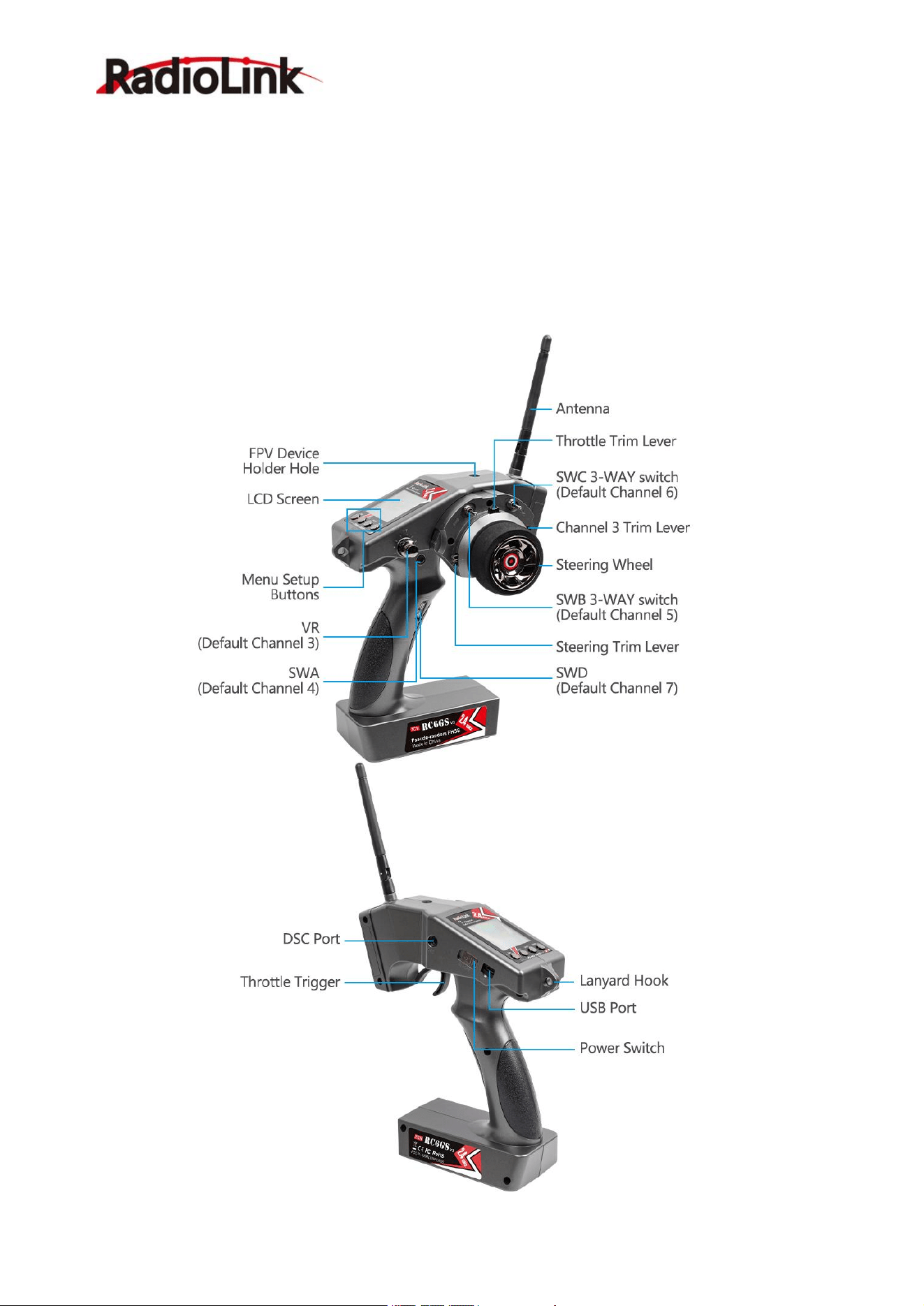
Size: 174.8*116.4*224.2mm(6.88*4.58*8.83")
Weight: 340g(11.99oz)
Channel: 7CH
Model Memory: 30 ID seed: 10
Antenna Length: 106mm(4.17")
Control Range: 600 meters
Operating Current: 80-120mA
Operating Voltage: 4.8-16.8V, (6pcs of AA batteries or a 2S-4S LiPo battery)
RF Power: <20dbm
Frequency: 2.4Ghz ISM Band
(
2400MHz--2483.5MHz
)
Modulation Mode: GFSK
LCD Screen: 128*64 Resolution, LCD Backlight
Channel resolution: 4096 with regular jitter of 0.5us
Spread Spectrum: FHSS 67 Channels Pseudo Random Frequency Sequence Hopping
Low Voltage Alarm: Yes. When less than 7.2V or customized on 2-4S battery. (Customizable for each
model)
Adaptable Models: Crawler, Buggy, Drifting Car, Boat, Tank, Robot, etc.
Compatible Receiver: R7FG(Standard), R8FG, R6FG,R6F, R8EF, R8F, R4FGM,R4F
Battery Tray Dimension: 89*59*25mm (3.5”*2.32”*0.98")
1.2 Receiver R7FG(Standard Pack)
RC6GS V3, come with R7FG, 2.4GHz 7 channels receiver, splash-proof, gyro integrated and high voltage
servo supported.
1.2.1 R7FG Specification
Size: 35*22*13 mm(1.37*0.86*0.5")
Weight: 6g (0.21 oz)
Channel: 7CH
Antenna Length: 205mm(8.07")
Operating Current: 30mA
Operating Voltage: 3-12V
RadioLink Electronic Ltd
www.radiolink.com
7
1.2.2 Receiver Installation and Binding
Binding
The transmitter and R7FG receiver in standard pack have been paired by factory setting default, there is no
need to rebind. Switch on the transmitter and receiver without any additional operations, when the signal
tower displayed on the transmitter screen, binding is complete.
If you purchase a new R7FG receiver, binding needs to be done before using, otherwise the receiver won’t
work. Every transmitter has a unique ID code, when binding is finished, ID code will be stored in the receiver,
and no need to rebind. Binding steps are as follow:
1.Put the transmitter and the receiver close to each other (about 50 centimeters).
2.Switch on the transmitter first, then power on the receiver.
3. There is a black binding button(ID SET) on the side of receiver. Press the button for more than 1 second
and release, the LED will flash quickly, meaning binding process is ongoing.
4. When the LED stops flashing and is always on, binding is complete and there will be a signal tower shown
on top of the LCD screen of the transmitter. If not succeed, the LED will keep flashing slowly to notify, repeat
the above steps.
Note
1. The binding between your R7FG and RC6GS V3 is already complete by default. Just need to make sure
there is the solid light of R7FG and the signal tower in the transmitter.
2. NO gyro by default as factory setting. Since integrated gyro in R7FG will self-check, it is very imporant to
remain R7FG still when powering it on. GREEN LED (always on) indicates normal working mode while
PURPLE and RED LEDs (always on) indicate gyro working mode. When RED is off means NO gyro. If
binding is not successful, the green LED will keep flashing to notify.
Note of receiver usage
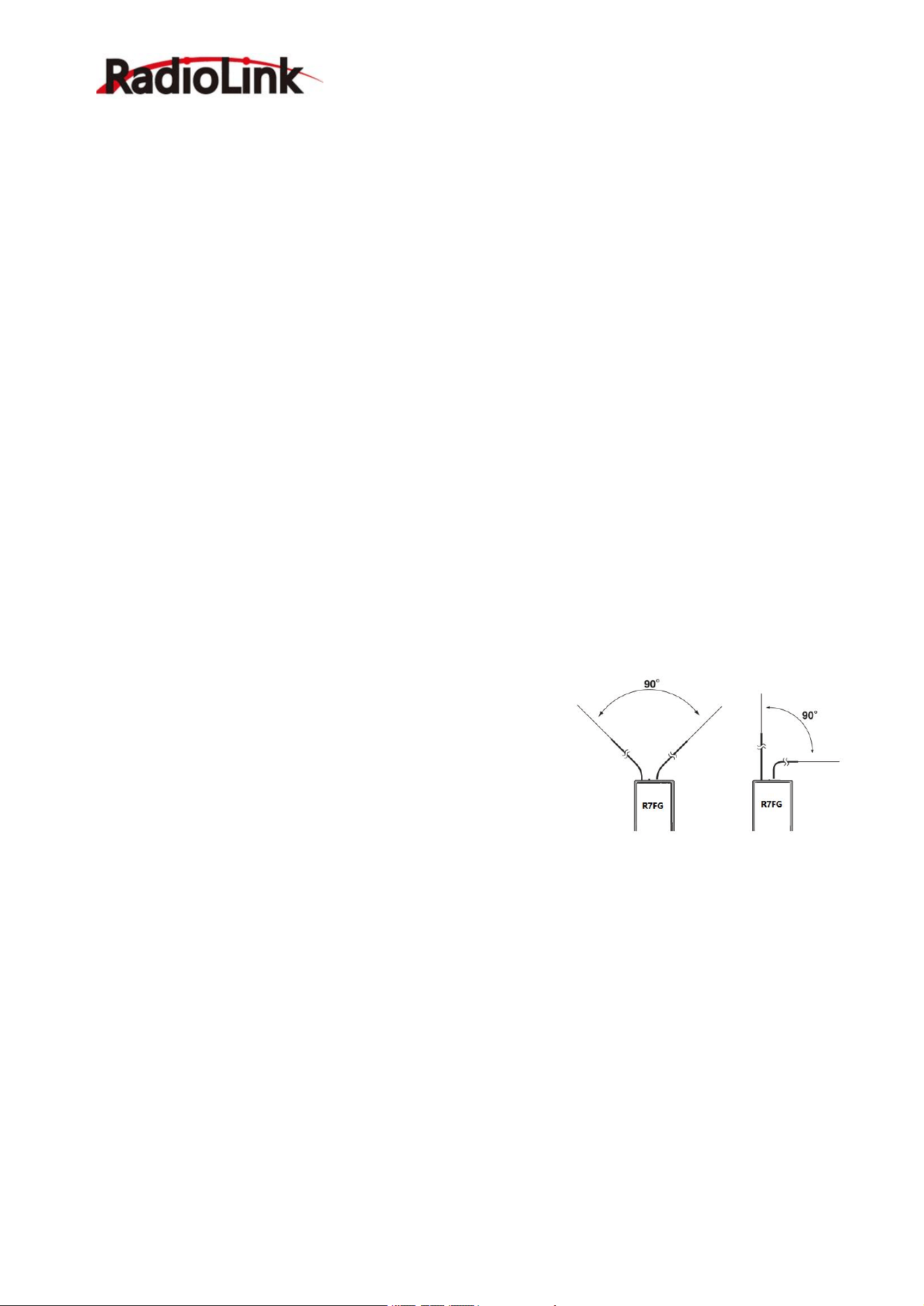
1. Keep the two antennas at a 90-degree angle (as shown on right):
2. Big models may contain metal parts that influence signal
emission. In this case, antennas should be positioned at both sides
of the model to ensure the best signal status in all circumstances.
3. Antennas should be kept away from metal conductor and carbon
fiber at least half inch away and no over bending.
4. Keep antennas away from motor, ESC or other possible
interference sources.
5. Sponge or foam material is advised to use to prevent vibration when installing receiver.
6. Receiver contains some electronic components of high-precision. Be careful to avoid strong vibration and
high temperature.
7. Special vibration-proof material for R/C like foam or rubber cloth is used to pack to protect receiver.
Keeping the receiver in a well sealed plastic bag can avoid humidity and dust, which would possibly make the
receiver out of control.
When all the above steps are complete, please turn off the transmitter and re-power on to test if the receiver is
correctly connected with it.
1.2.3 R7FG Working Mode
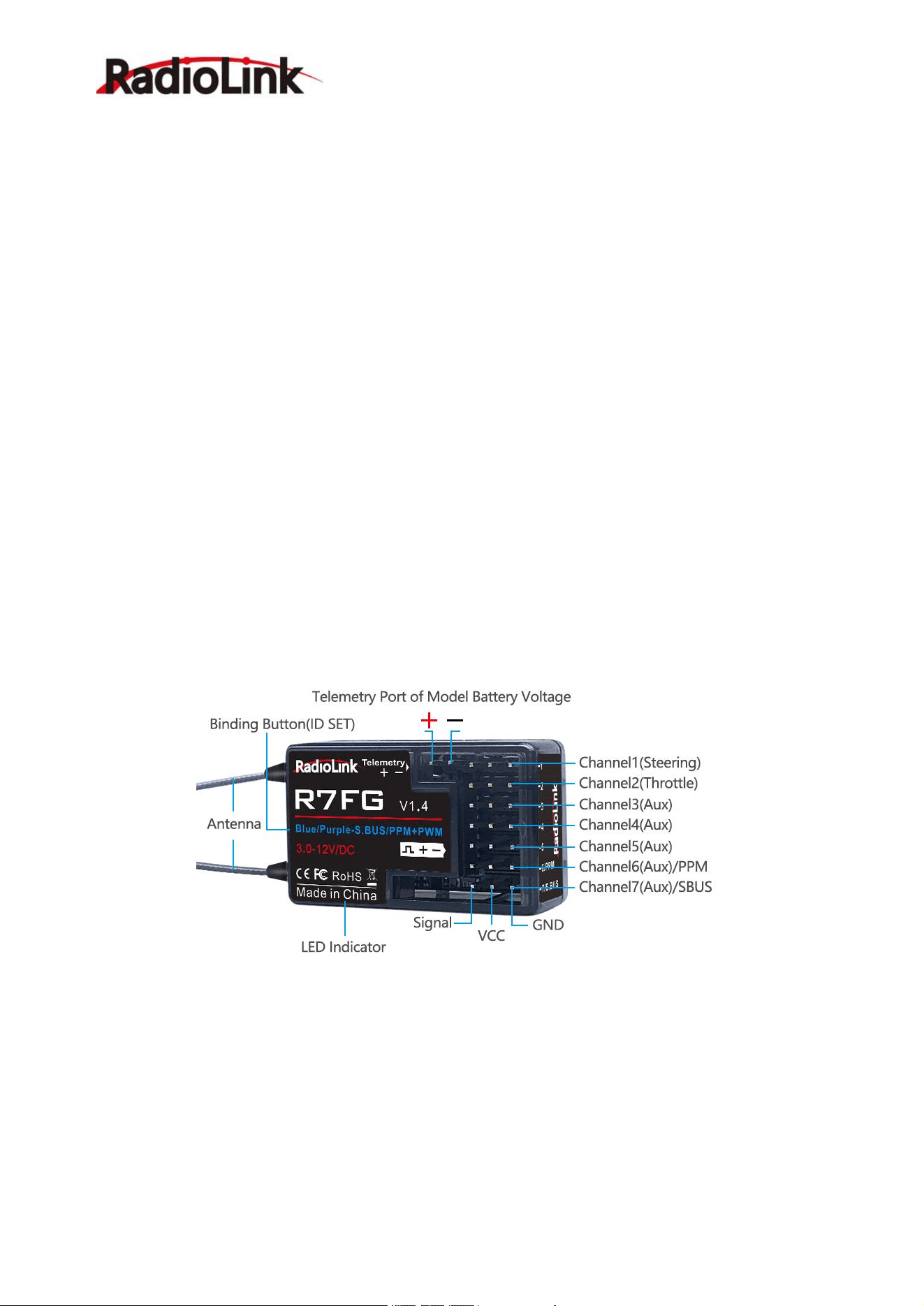
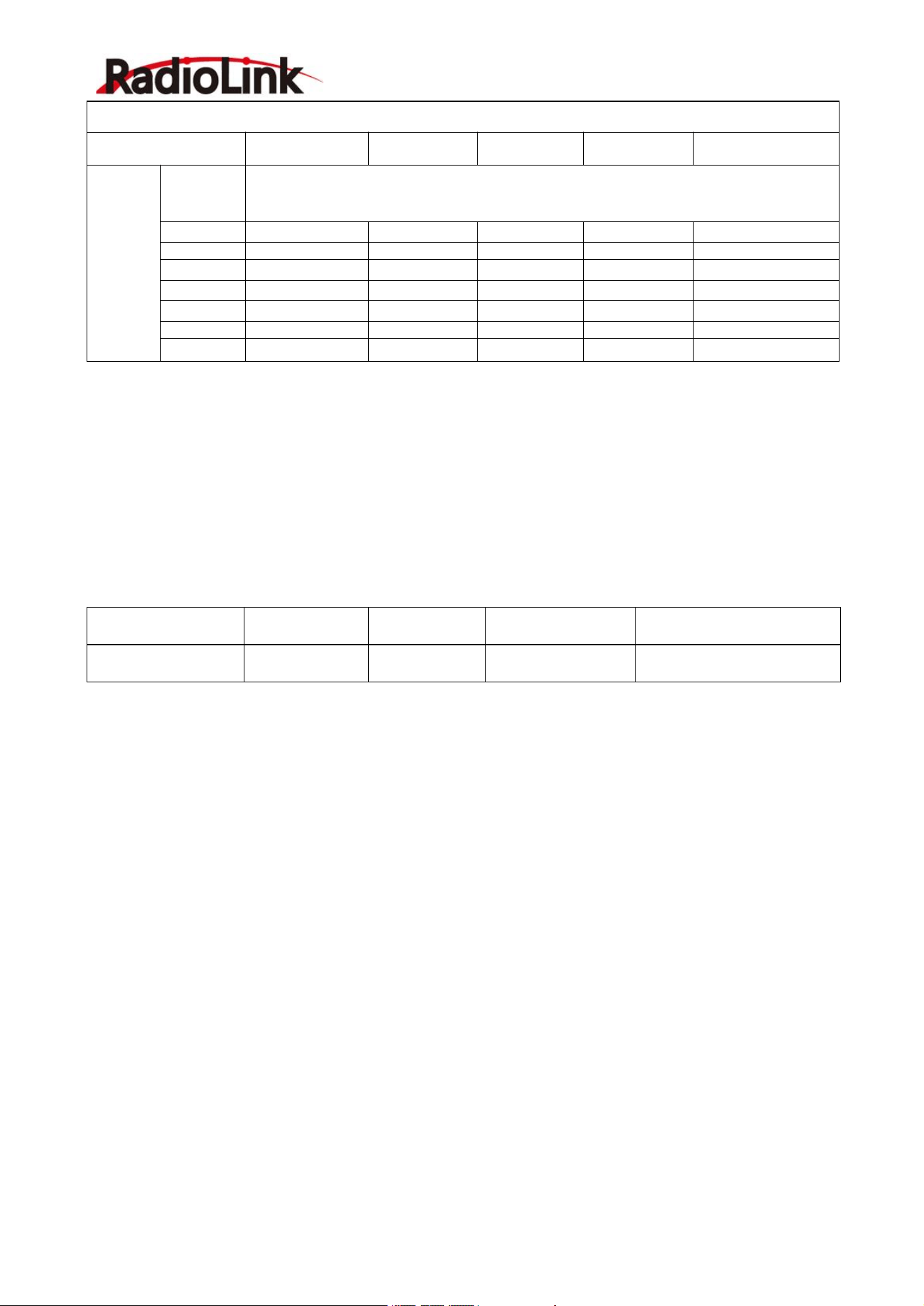
R7FG has a built-in gyroscope, which can output not only PWM signal but also PPM and SBUS signals.
There are four working modes, including ordinary PWM mode, SBUS mode, Gyro mode, and Gyro + SBUS
mode. The channel signal corresponding to each mode are as follows:
RadioLink Electronic Ltd
www.radiolink.com
8
R7FG Working Mode
Working Mode
PWM Mode
SBUS Mode
Gyro mode
Gyro + SBUS
Mode
Note
Channel
Telemetry
Telemetry Port of Model Battery Voltage
(
+ -
)
TELEMETRY port is only for 2S-8S battery voltage telemetry. The port cannot be used to
power the receiver.
1
PWM
PWM
PWM
PWM
Steering
2
PWM
PWM
PWM
PWM
Throttle
3
PWM
PWM
PWM
PWM
Aux
4
PWM
PWM
PWM
PWM
Aux
5
PWM
PWM
PWM
PWM
Aux
6/PPM
PWM
PPM
PWM
PPM
Aux
7/S.BUS
PWM
S.BUS
PWM
S.BUS
Aux
Working mode settings
1.Turn on/off the gyro: Short press the binding button 3 times within 2 seconds to switch the gyro on
and off, and the color of the LED indicator will switch accordingly.
2.Gyro phase switch: Short press the binding button twice within 2 seconds to switch the gyro phase.
3.Turning on/off the SBUS: short press the binding button once to turn on/off the SBUS, and the color of
the LED indicator will switch accordingly. After SBUS signal is enabled, channel 1-5 output PWM; the sixth
channel outputs the PPM signal, and the seventh channel outputs the SBUS signal.
LED Indicator Color in Different Working Modes
Working Mode
PWM Mode
Gyro mode
SBUS Mode
Gyro + SBUS Mode
Indicator Color
Green
Red
Blue
Purple(Red+Blue)
Note: When the receiver is connected to the power supply, if there is no successful binding between the
receiver and the transmitter or the receiver loses the signal, the indicator of the receiver will flash slowly.
1.2.4 R7FG Gyro Setup
A. Gyro Enabled
Factory setting is gyro function OFF by default.
Short press ID SET three times with interval less than 1 second, the RED indicator flashes three times. Red
LED on/off indicates the gyro function is on/off.
B. Gyro Phase
When the gyro forward is enabled, try to turn the model car to check if the gyro is correcting the wheels.
Normally, the wheels should turn right to correct when the car is turned left while the wheels should turn left to
correct when the car is turned right. If the gyro phase is reversed, short press the binding button (ID SET)
twice in 1 second in mode 3 and mode 4. The indicator flashes once means the gyro phase setting is
complete.
C. Gyro Sensitivity Adjustment
Gyro sensitivity setting is Channel 3 by default (factory setting) and can be adjusted by the VR rotary switch.
Percentage is displayed when sensitivity is adjusted while the bigger percentage means higher sensitivity. If
the VR rotary switch/Channel 3 is set with other function, MODE can be changed to STD in GYRO setting of
the menu to adjust gyro sensitivity with buttons Dec(-) and Inc(-).
RadioLink Electronic Ltd
www.radiolink.com
9
1.2.5 Signal/RSSI Real-time Return
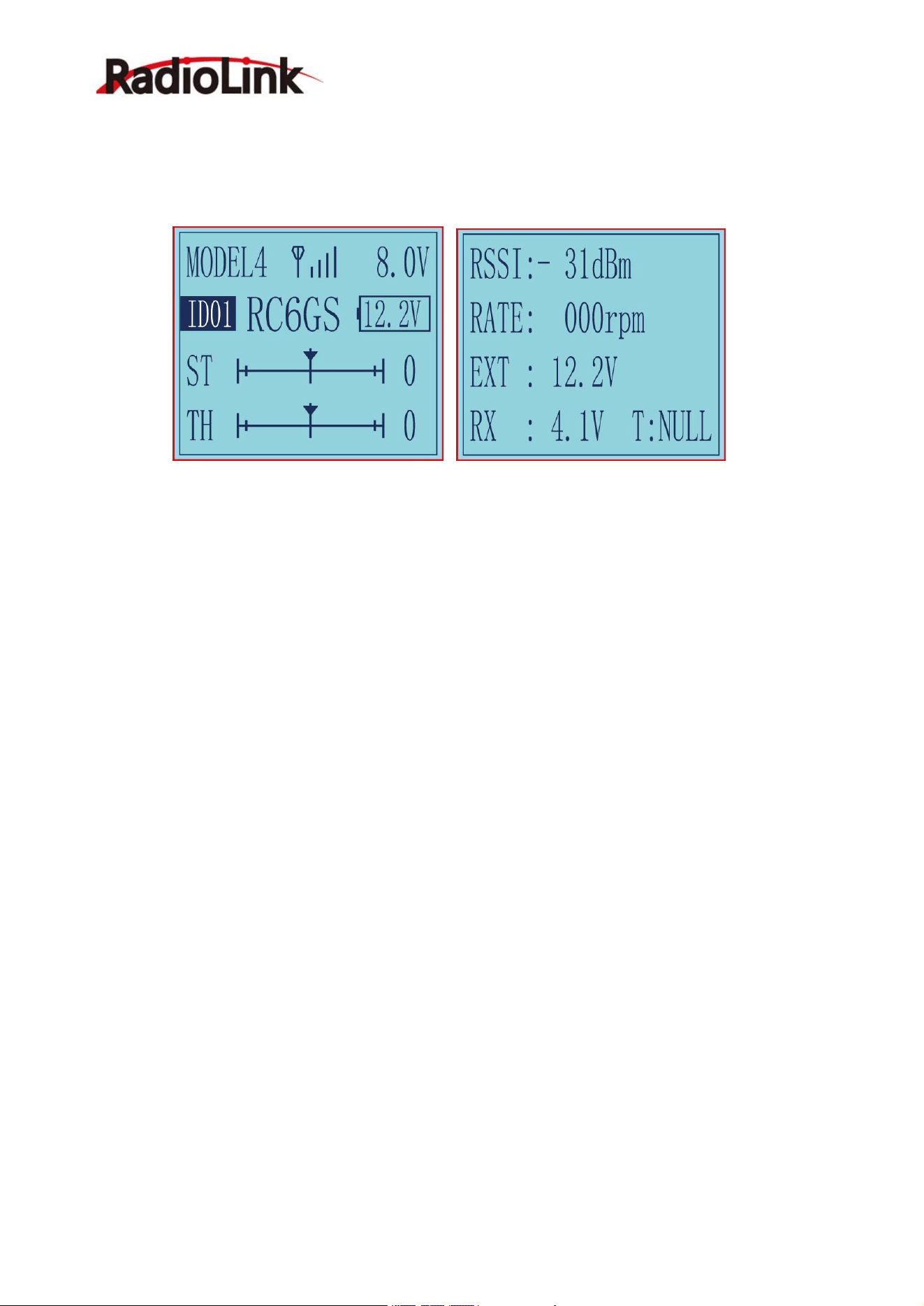
Power on the transmitter and the receiver and complete the binding, signal will be displayed on the main
interface of transmitter. Short press EXIT button twice and enter the interface with returned information
including RSSI value.
Warning can be set with a certain low RSSI value after testing by changing distance:
Press EXIT and ENTER simultaneously to enter MENU=>press Inc(+) to highlight “19. ALARM” =>Press
ENTER to (dis)activate the warning and set the RSSI warning value. The RSSI alarm value is turned off by
default.
Note: The 'RATE: RPM' and 'T: NULL' telemetry functions are still under development. If there are new
developments, we will announce them to the RadioLink official website as soon as possible.
1.2.6 Telemetry of Model Battery and Receiver Voltage
Besides the return of RSSI, receiver voltage, model battery voltage (maximum up to 8S lithium battery) can
also be returned in real time. Users can personalize the warning value of low model battery voltage
depending on the actual needs.
Press EXIT and ENTER simultaneously to enter MENU=>press Inc(+) to highlight “19. ALARM =>Press
ENTER to set the model battery voltage warning value.
Normally we set the warning value with the single cell voltage as 3.7V. For example, if it is 3S lithium battery
used in the model car, the warning value should be set as (3.7V*3S=)11.1V.
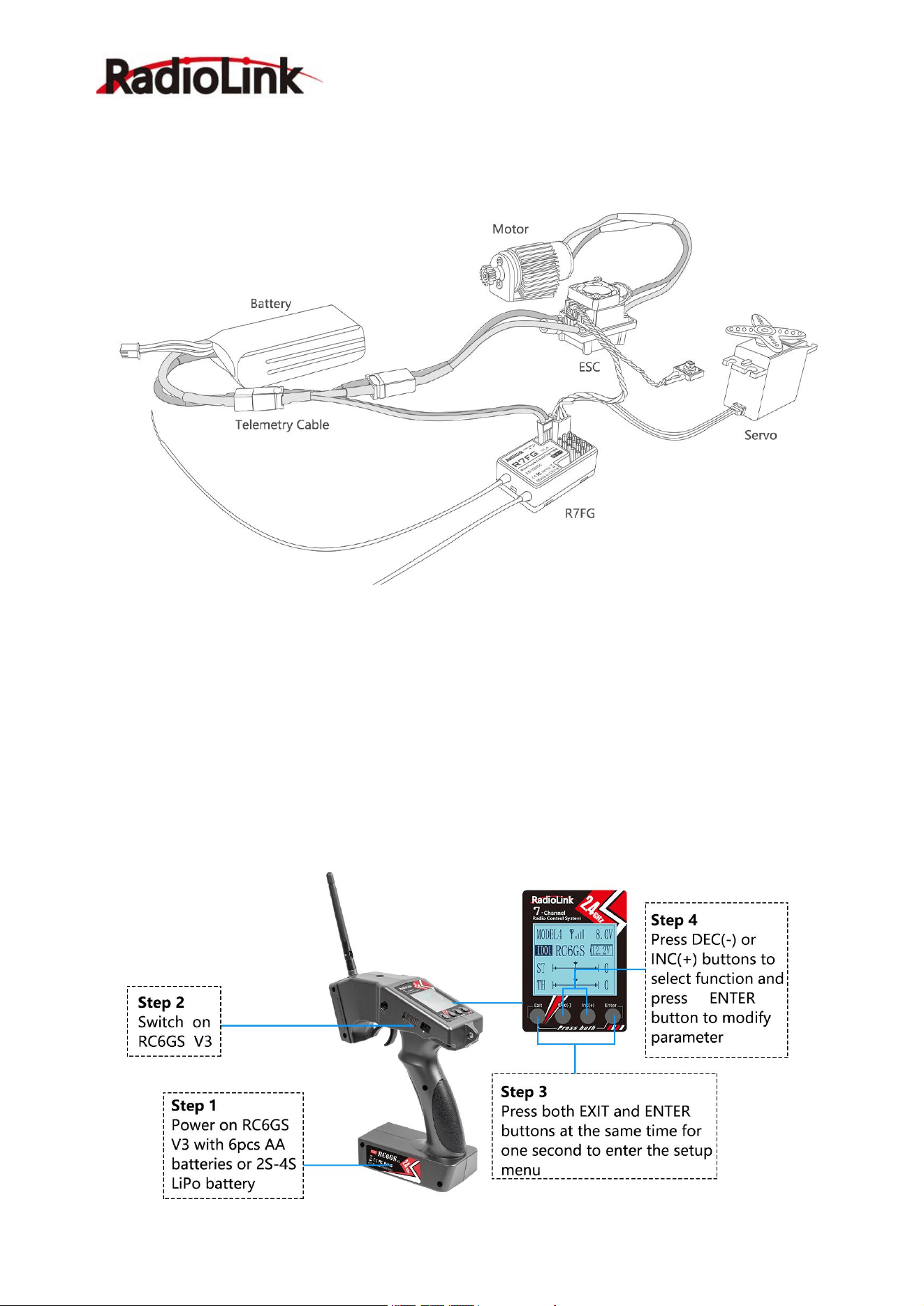
Model battery voltage telemetry can be easily achieved by connecting the male end of the battery wire to ESC
while the female end to the battery and the wire with a JST head connects TELEMETRY (+-) of
R8FG/R7FG/R8F as below picture shown. No extra module is needed.
Once connect with success, the returned model voltage will be displayed on the interface of returned flight
information.
Note
1. Battery connected to TELEMETRY port is only for 2S-8S battery voltage telemetry. The TELEMETRY
port cannot be used to power the receiver.
2. Make sure the polarity of the battery is not reversed. Otherwise reverse insertion will cause abnormal
voltage display of telemetry.
RadioLink Electronic Ltd
www.radiolink.com
11
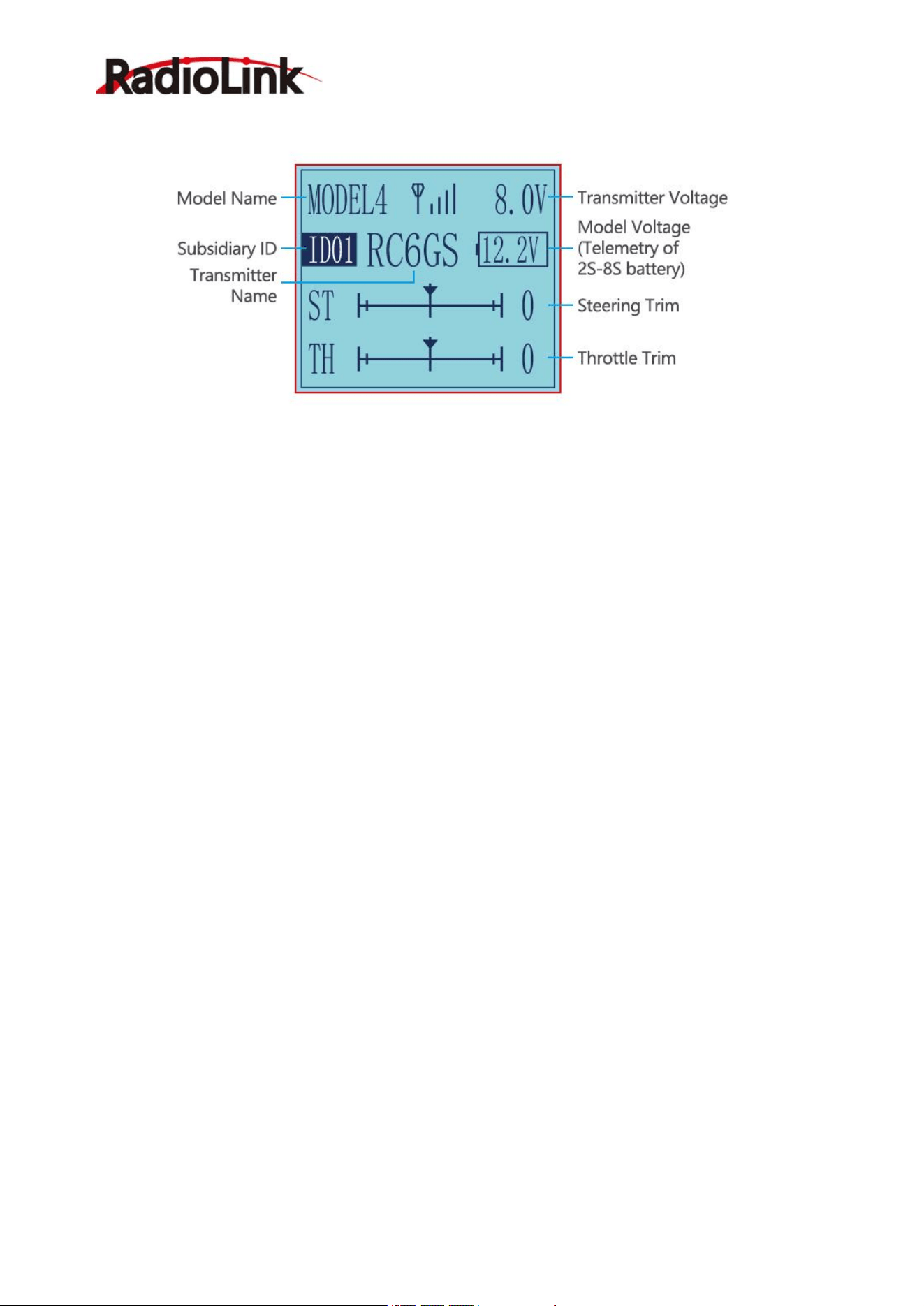
When you power on the transmitter, LCD screen shows Model Name, Transmitter Name, Transmitter Voltage,
Steering Trim, Throttle Trim, Model Voltage, Subsidiary Model ID, Returned Signal.
Note The Subsidiary ID won’t display until the function is activated in the menu ID SEED.
The telemetry function of model battery voltage can only be realized with R8FG/R7FG/R8F.
Model Name
The system can store the data for 30 models, model name will show on the LCD when you power on the
transmitter. Please make sure the model name is the right one that you want.
If the model name you chose is not corresponding with your model, the settings will be wrong.
Transmitter Voltage
In addition to the model, LCD can show the voltage of transmitter battery. Users can set transmitter low
voltage alarm in the basic menu -- ALARM. Low voltage alarm of the transmitter is 7.2V by factory default.It
can be customized on 2-4S battery. When the voltage reaches the alarm value, there will be a text displayed
on the transmitter screen and a "didi" sound dual alarm prompt to remind you.
Transmitter Function Menu Setting
When you want to browse or change a setting of transmitter, you should go into function menu setting mode.
Under function menu setting mode, you can set up Language "LANGUAGE" , Model Select "MODEL", End
Point Adjust "EPA", Steering Exponential "STEXP", Steering Speed "STSPD", Throttle Exponential "THEXP",
Throttle Speed "THSPD", A.B.S. Function "A.B.S", Throttle Acceleration "ACCEL", Idle-Up "IDLUP", Sub-trim
"SUB-TRIM", Channel Reverse "REVERSE", Steering/Throttle Dual Rate "D/R", Brake Side Adjustment
"ATL", Programmable Mixes "PMIX01/02", Auxiliary Channel 3, 4, 5 , 6 and 7 "AUX-CH"
,
Model name
"NAME", Low Voltage “ALARM”. Gyro Sensitivity”GYRO”, Fail Safe”F/S”, Subsidiary ID”ID SEED”, DSC port
setting "DSC", Timer setting "TIMER", Factory Reset "RESET".
Below menu introduction is based on this firmware V6.8.0 now. Menus may be various if the firmware
version is different. The latest firmware can be downloaded from
https://www.radiolink.com/rc6gsv3_firmware
RadioLink Electronic Ltd
www.radiolink.com
12
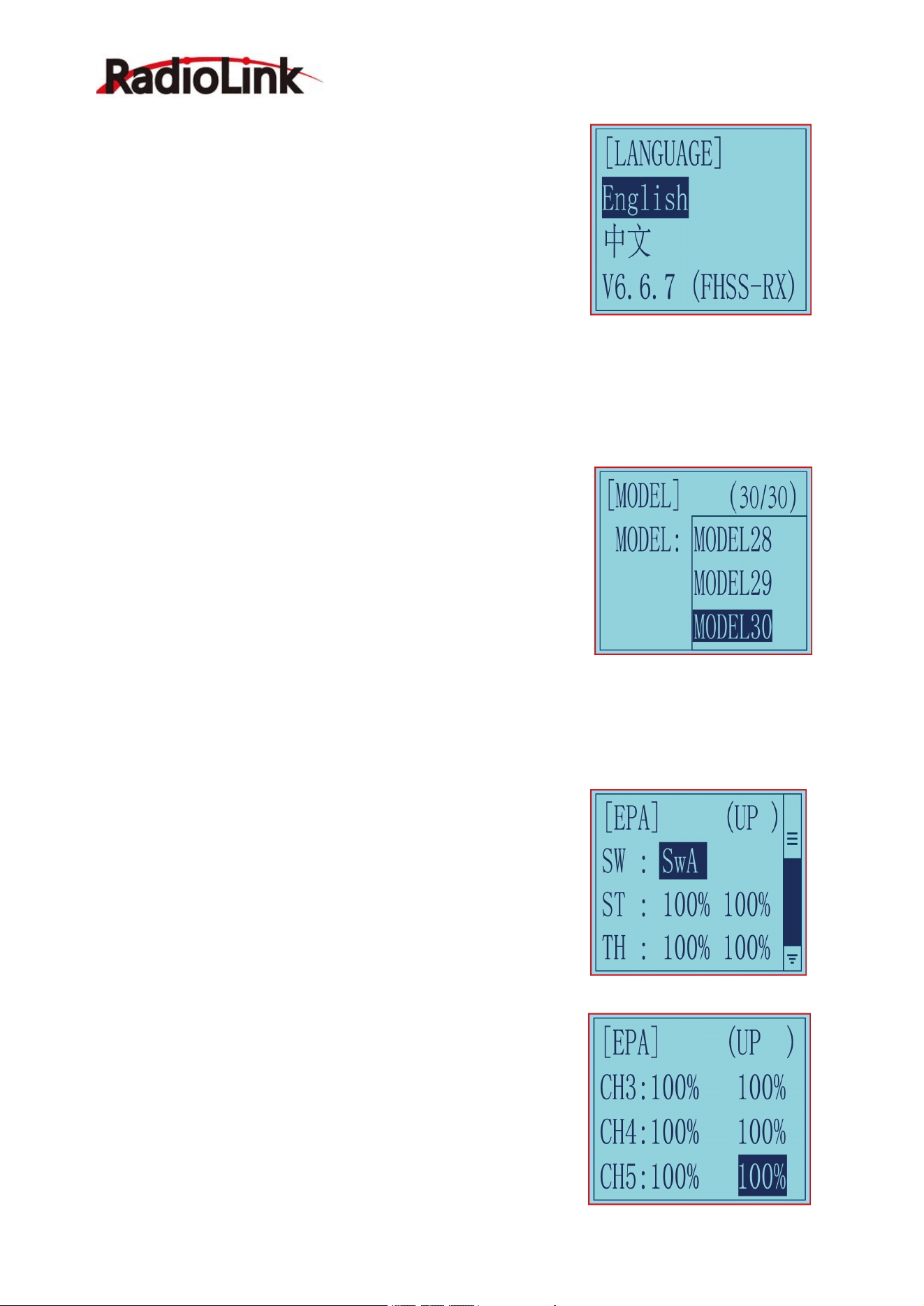
2.2 Language "LANGUAGE"
Both English and Chinese version menu are available for which
is convenient for Chinese and English-speaking players
to personalize function menus.
(1) Access the function menu (By pressing “Exit” and “Enter”
buttons simultaneously and holding them down for one second), the
Language select function will be chosen.
(2) Press “Enter” button to get into “LANGUAGE” function interface.
(3) Use“Dec(-)”or “Inc(+)”key to select “
中文
”or “English”, the selected
language will be with black shading effect.
(4) Press “Enter” button, the desired language is selected, Numbers at the bottom means the current firmware
version. Eg. V6.6.7 in above picture.
2.3 Model Select "MODEL"
RC6GS V3 can store model memories for 30 models. Use
this function to call a new model. Each model can independently set the
parameters of each function.
(1) Access the function menu (By pressing “Exit” and“Enter” buttons
simultaneously and holding them down for one second), press “Enter”
key once, the Model select function will be chosen.
(2) Press “Enter” button, the current active model will be blinking.
(3) To activate a different model by pressing “Dec(-)” or “Inc(+)” button
until the desired model blinks.
(4) Press “Enter” button, the selected model stops blinking, now the model has been selected.
(5) Return to the initial screen by pressing “Exit” button twice.
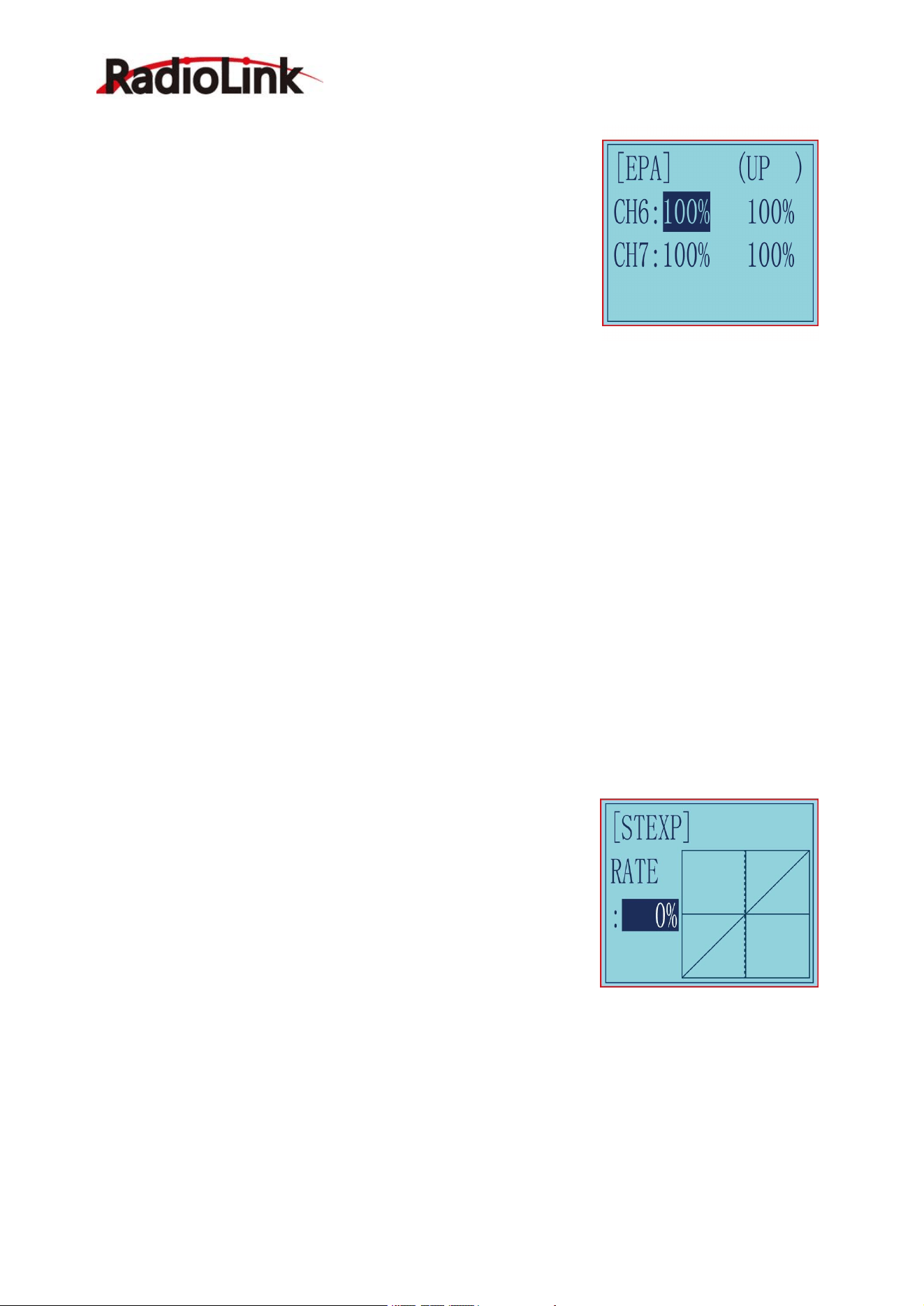
2.4 End Point Adjust "EPA"
Use EPA when performing left and right steering angle adjustments,
throttle high side/brake side operation amount adjustment, and channel
3 servo up side/down side operation amount adjustment during linkage.
Correct the maximum steering angle and left and right steering angles
when there is a difference in the turning radius due to the
characteristics, etc. of the vehicle.
Setting item (channel and direction)
Steering EPA Throttle EPA
ST:0%~120%(left/ right) TH:0%~120%(forward/brake)
Initial value:100% Initial value : 100%
Aux Servo EPA Aux Servo EPA
CH3:0%~120%(left/ right) CH4:0%~120%(left/ right)
Initial value: 100% Initial value: 100%
RadioLink Electronic Ltd
www.radiolink.com
13
Aux Servo EPA Aux Servo EPA
CH5:0%~120%(left/ right) CH6:0%~120%(left/ right)
Initial value: 100% Initial value: 100%
End point adjustment
(1) Long press "Exit" and "Enter" button simultaneously for one second
to enter the function menu of RC6GS V3. Press "Inc(+)" button at the
bottom of the screen to move the cursor to "3. EPA", and then press "
Enter” button to enter the function setting interface.
(2) Switch setting: Set a switch or button to switch in different end points.
A. You can set SWA, SWB, SWC, SWD, or the lock modes of these
four switch buttons LK-A, LK-B, LK-C, LK-D.
B. "NULL" means no switch assigned. After setting the end point parameter of the corresponding channel,
the transmitter will always execute the set end point by default.
C. UP (up)/DOWN (down)/CNT (central): It indicates the position of the selected switch. Push/Press the
switch to different positions to set different end points.
D. Setting method: Press "Dec(-)" or "Inc(+)" button at the bottom of the screen to move the cursor to
"NULL" next to the switch, then press "Enter" button, the corresponding setting starts to flash, then press
"Dec(-)" or "Inc(+)" button to select the switch or button to be set, and press "Enter" button to confirm the
option after the selection. The switch setting stops flashing and the switch setting is complete.
(3) Set the end point of each channel: press “Dec(-)” or “Inc(+)” button to move the cursor to the rate next to
the channel, and then press the “Enter” button, the corresponding value starts to flash , and then press
“Dec(-)” or “Inc(+)” button to adjust the rate value. After setting, press "Enter" key, the rate value stops flashing,
and the channel rate value is set.
(4) Press "Exit" to return to the home page.
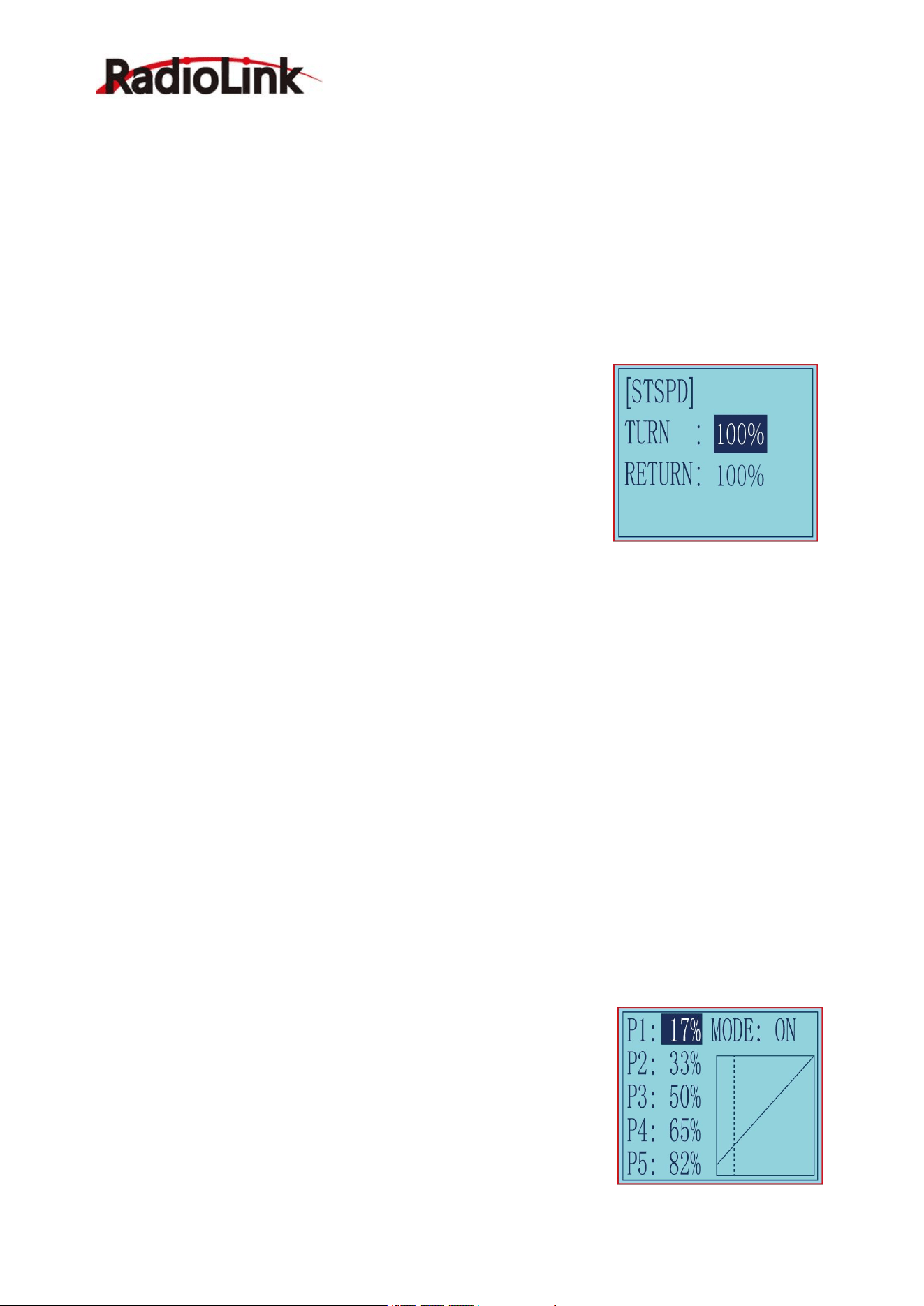
2.5 Steering Exponential "STEXP"
This function is used to change the sensitivity of the steering
servo around the neutral and both ends position. It has no effect
on the maximum servo travel.
Adjust the sensitivity of direction wheel both in neutral position and ends.
Setup Item
RATE: Steering EXP rate
Adjustment range
-100%~0%~+100%
Initial value: 0%
0%~-100%: Sensitivity around neutral position is low, getting higher when approaching ends.
0%: Sensitivity around the neutral and ends position is equal
0%~+100%: Sensitivity around neutral position is high, getting lower when approaching ends
Steering operation curve adjustment
(1) Access the function menu (By pressing “Exit” and “Enter ”buttons simultaneously and holding them down
for one second ), press “Inc(+)” button three times to chose EAP function.
(2) Press “Enter” button to get into STEXP function interface, press “Enter”key and the initial value of the rate
RadioLink Electronic Ltd
www.radiolink.com
14
will blink, then you can press “Dec(-) ”or “Inc(+)”button to adjust the value and the curve of the rate shown in
the figure will change correspondingly.
(Note: In the interface of adjusting the value, return to the initial value "0%" by pressing “Dec(-)” and“Inc(+)”
buttons simultaneously for about 1 second.)
(3) Press “Enter” button, the adjusted value of the rate stops blinking, now the value of the rate has been set.
(4) Return to the initial screen by pressing“Exit” button twice.
Note: the Vertical cursor shown in the figure moves in step with steering wheel operation.
2.6 Steering Speed "STSPD"
Quick steering operation will cause momentary under steering, loss of speed, or spinning. This function is
effective in such cases.
Setup item
TURN: turn direction
RETURN: return back to the original direction
Adjustment range
0%~100% (each direction)
At 100%, there is no delay
Steering servo delay
(1) Access the function menu (By pressing “Exit” and “Enter” buttons simultaneously and holding them down
for one second), press “Inc(+)” button four times to chose STSPD function.
(2) Press“Enter” button to get into STSPD function interface, press “Dec(-)” or“Inc(+)” button to select setup
item, then press “Enter” key and the initial value of selected setup item will blink.
(3) Use“Dec(-)” or “Inc(+)” button to adjust the value of the selected setup item.
(Note : In the interface of adjusting the value, return to the initial value "100%" by pressing“Dec(-)” and“Inc(+)”
buttons simultaneously for about 1 second.)
(4) Press “Enter”button, the adjusted value of the selected setup item stops blinking, now the value of the
selected setup item has been set.
(5) Return to the initial screen by pressing “Exit” button twice.
2.7 Throttle Exponential "THEXP"
This function makes the throttle high side and brake side direction servo operation quicker or milder.
I
t has no
effect on the servo maximum operation amount. For the high side, selection from among three kinds of curves
(CRV/VTR/EXP) is also possible.
The curve can be divided into: Five dots throttle curve adjustment, Single point adjustment,
Exponential curve adjustment, Braking index curve adjustment. To elevation point,
we can select(Exponential curve/Single point curve/Five points
curve).
Curve point adjustment(select five points 1-5)
(1) Press"Enter" button,The curve point value start flashing,then
press"Dec(-)"and"Inc(+)" button to adjust the starting value.
(2) Press "Enter" button ,starting value stop flashing,adjustment is
completed.
(3) Press "Exit" button for two times,back to the initial interface.
RadioLink Electronic Ltd
www.radiolink.com
15
Throttle curve adjustment
Adjustment method for CRV curve
Setup Items
Mode: ON/OFF
RATE: 0%~100%
1. Enter the function menu and use“ Dec(-) ” or “ Inc(+) ”button
to access THEXP function. Select “FWD-CRV” function.
2. Press “Dec(-)” or “Inc(+)” button to select curve points 1~5
for curve point adjustment that you want, from the graph you
will clearly see the changes you have made.
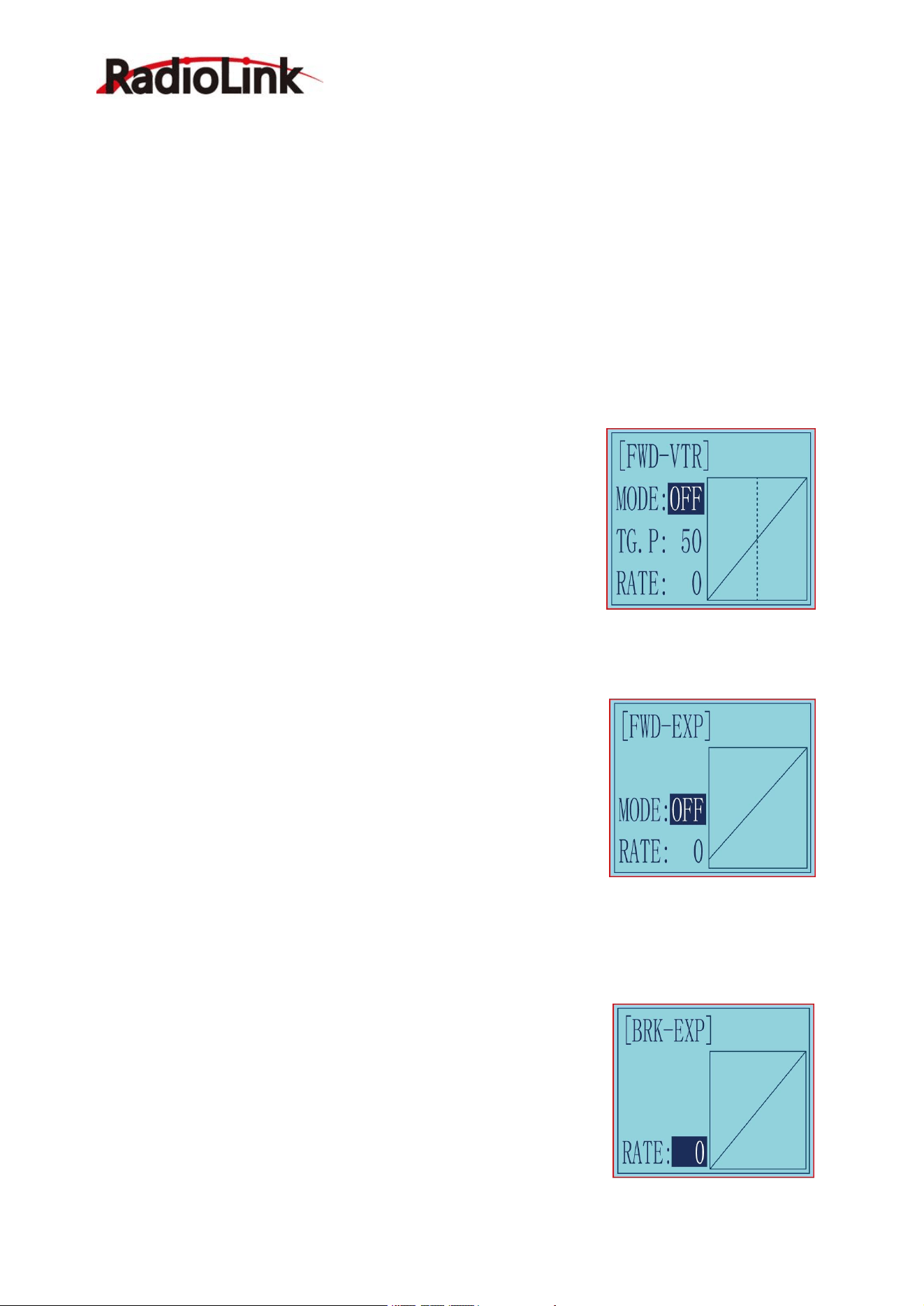
Adjustment method for VTR curve
Adjustment range
TG.P: 20-80
RATE: -100~0~+100
1.Enter the function menu and use “Dec(-)” or“Inc(+)”button
to access THEXP function. Select“FWD-VTR” function.
2.Press “Dec(-)” or “Inc(+)” button to select RATE for forward
side adjustment that you want, when the “MODE” value is “OFF” the VTR
will not work, only the “MODE” value set to “ON” the VTR function is
available. From the graph you will clearly see the changes
you have made on TG.P and RATE.
Adjustment method for EXP curve
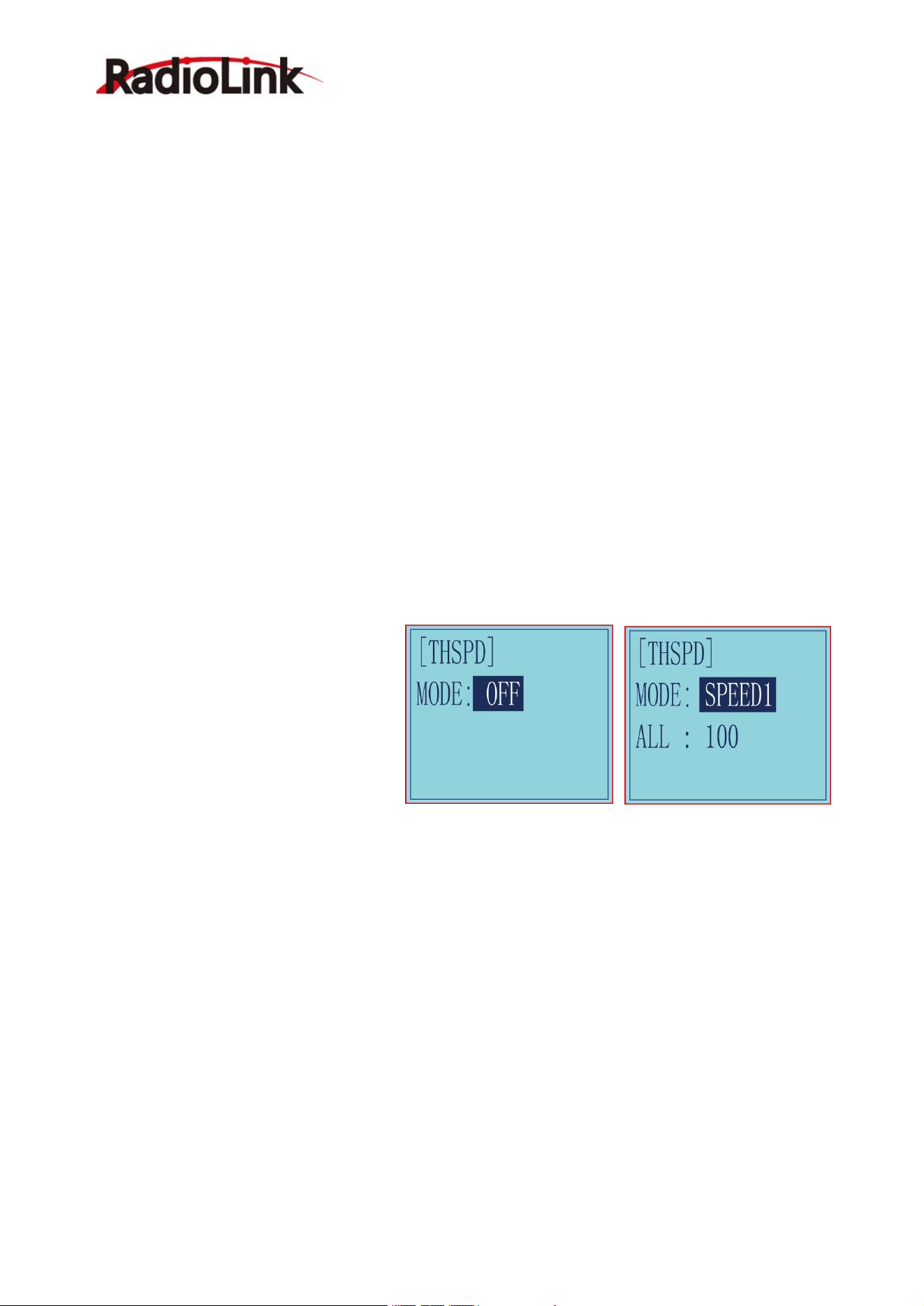
Setup items
MODE: EXP turn on or turn off
RATE: EXP rate
Adjustment range
MODEL: OFF/ON
RATE: -100 ~ 0 ~ +100
1. Enter the function menu and use “Dec(-)” or “Inc(+)” button
to access THEXP function, then select the “FWD-EXP” function.
2. Press “Dec(-)” or “Inc(+)” button to select RATE for adjustment, set the most comfortable value you want.
From the graph you will clearly see the changes you have made on the EXP RATE, also move the trigger to
check the throttle status.
Adjustment method for BRK-EXP curve
Setup Items
RATE: BRK-EXP rate
Adjustment range
RATE: -100 ~ 0 ~ +100
0~-100: flat braking
0: uniform braking
RadioLink Electronic Ltd
www.radiolink.com
16
0~+100: sensitive braking
Brake side adjustment (select BRK)
(1) Press “Enter” key, the current BRK value will blink, use “Inc(+)” button to adjust the + side when you want
to quicker the rise and use“Dec(-)” button to adjust the - side when you want to make the rise milder.
(Note: In the interface of adjusting the value, return to the initial value "0" by pressing “Dec(-)” and “Inc(+)”
buttons simultaneously for about 1 second.)
(2) Press “Enter” button, the adjusted BRK value stops blinking, now the BRK value has been set.
(3) When ending setting, return to the initial screen by pressing “Exit” button twice.
2.8 Throttle Speed "THSPD"
Throttle servo delay
Sudden trigger operation on a slippery road only causes the wheels to spin and the vehicle cannot accelerate
smoothly. Setting the throttle speed function reduces wasteful battery consumption while at the same time
permitting smooth, enjoyable operation.
Operation
Throttle servo(amp) operation is delayed so that the drive wheels will not spin even if the throttle trigger is
operated more than necessary. This delay function is not performed when the throttle trigger is returned and
at brake operation.
OFF: Speed1 or speed2 can be selected.
OFF means shut down the throttle speed function
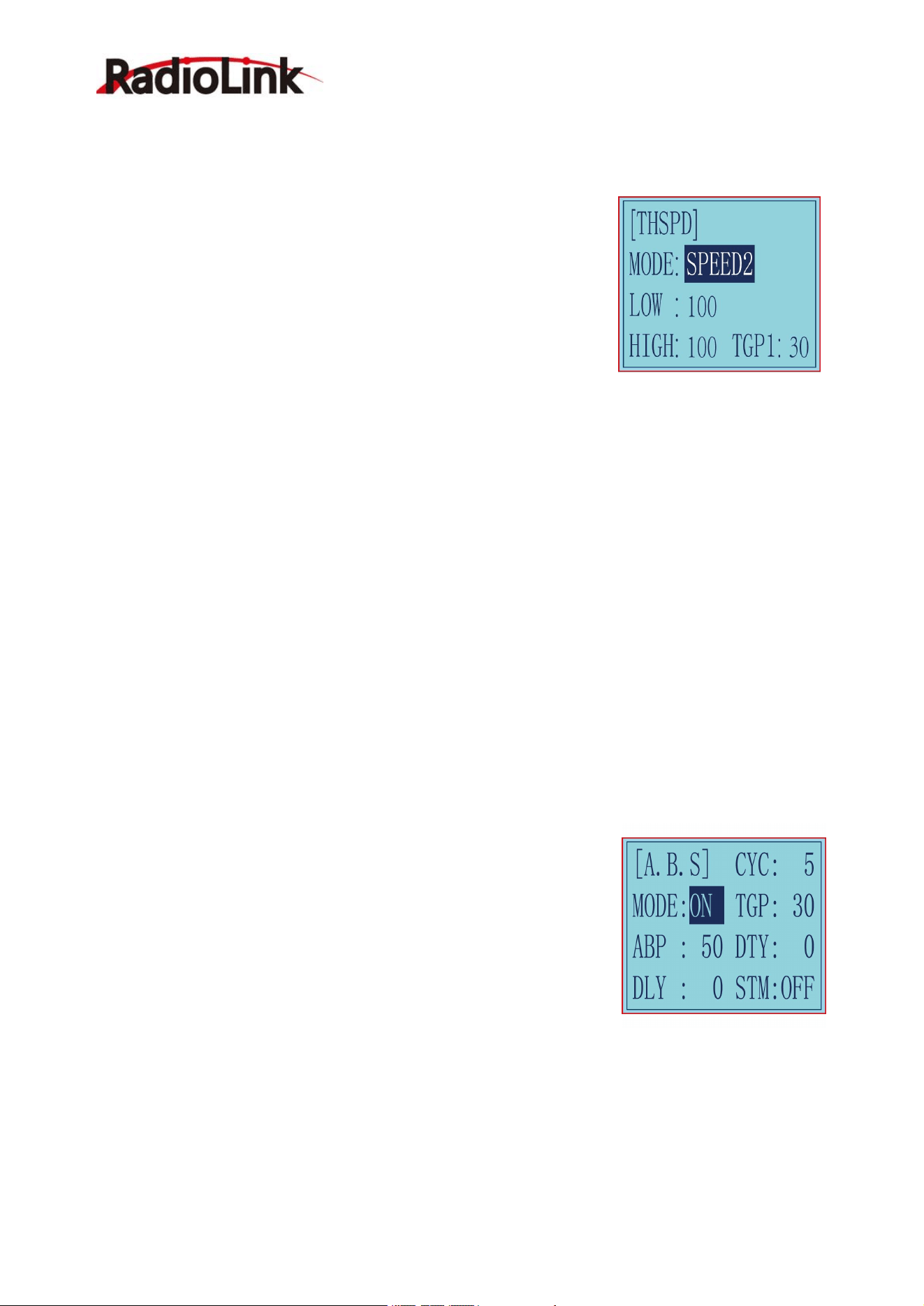
Adjustment method for SPEED1
Setup items
MODE: Speed type selection
ALL: Speed adjustment
Adjustment range
0~100 (each direction)
At 100, there is no delay
(1) Enter the function menu and use
“Dec(-)”or“Inc(+) ” button to access THSPD function.
(2) Press “Enter” button to get into THSPD function interface.
(3) If initial MODE setup item is SPEED1, {if initial MODE setup item is SPEED2 or OFF, you need to select
SPEED1 by pressing“Dec(-)” or “Inc(+)”button to select MODE setup item , then press “Enter” key, SPEED2
or OFF will blink, press “Dec(-)” or “Inc(+)” button, when the blinking SPEED 2 or OFF change to blinking
SPEED 1, press “Enter” key, SPEED1 will stop blink, now SPEED1 is selected}, press “Dec(-)” or “Inc(+)”
button to select ALL setup item, then press“Enter” key, the initial value will blink, use“Dec(-)”or“Inc(+)” button
to adjust the delay of the entire throttle forward side range.
(Note: In the interface of adjusting the value, return to the initial value "100" by pressing “Dec(-)” and “Inc(+)”
buttons simultaneously for about 1 second.)
Press “Enter” button, the adjusted value stops blinking, now the value has been set.
(4) When ending setting, return to the initial screen by pressing “Exit” button twice.
Adjustment method for SPEED2
Setup items
MODE: Speed type selection
RadioLink Electronic Ltd
www.radiolink.com
17
LOW: Low side range speed adjustment
HIGH: High side range speed adjustment
TGP1: Low and medium speed switching point
Adjustment range
LOW: 0~100
HIGH: 0~100
At 100, there is no delay
TGP1: 0~100
(1) Enter the function menu and use “Dec(-)”or “Inc(+) ” button to access
THSPD function.
(2) Press “Enter” button to get into THSPD function interface.
(3) If initial MODE setup item is SPEED 2, {if initial MODE setup item is
SPEED 1, you need to select SPEED2 by pressing “Dec(-)” or “Inc(+)” button to select MODE setup item, then
press “Enter” key, SPEED1 or OFF will blink, press “Dec(-)” or “Inc(+)” button, when the blinking SPEED1 or
OFF change to blinking SPEED2, press “Enter” key, SPEED2 will stop blinking, now SPEED2 is selected},
press “Dec(-)” or “Inc(+)” button to select "LOW" or "HIGH" delay adjustment or“TGP1” speed switching
point adjustment.
(4) Press “Enter” key to confirm "LOW" or "HIGH" or “TGP1” setup item, and the value of your selected
setup item will blink. Use “Dec(-)” or “Inc(+)” button to adjust the value.
(Note: In the interface of adjusting the value, return to the initial value (the initial value of LOW and HIGH is
“100”, the initial value of TGP1 is “30”) by pressing “Dec(-)” and “Inc(+)” buttons simultaneously for about 1
second.)
Press “Enter” button, the adjusted value stops blinking, now your selected value has been set.
(5) When ending setting, return to the initial screen by pressing “Exit” button twice.
2.9 A.B.S. Function "A.B.S"
Pulse brake
When the brakes are applied while cornering with a 4 Wheel Drive or other type of vehicle, under-steer may
occur. The generation of under-steer can be eliminated and corners can be smoothly cleared by using this
function.
Operation
- When the brakes are applied, the throttle servo will pulse intermittently.
This will have the same effect as pumping the brakes in a full size car.
- The brake return amount, pulse cycle, and brake duty can be adjusted.
- The region over which the ABS is effective can be set ac-cording to the
steering operation. (Mixing function)
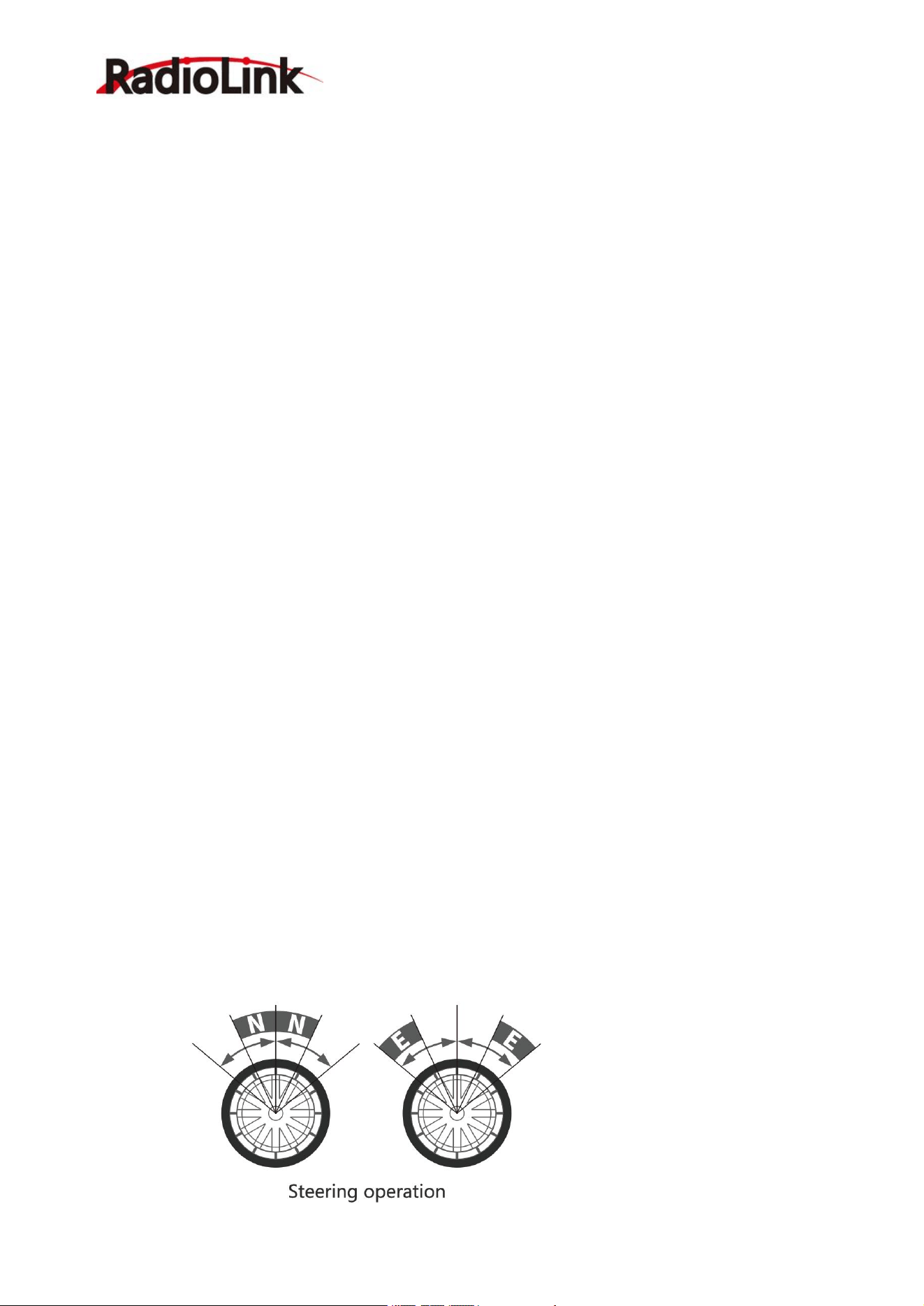
Setup items
ABP: Brake return amount
DLY: Delay amount
CYC: Cycle speed
TGP: Operation point
DTY: Cycle duty ratio
STM: Steering mixing
-ABP(Amount of brake return): Sets the rate at which the servo returns versus trigger operation for brake

RadioLink Electronic Ltd
www.radiolink.com
18
release. When set to 0, the ABS function is not
Performed. When set to 50, the servo returns 50% (1/2)of the trigger operation amount and when set to 100,
the servo returns to the neutral position.
-DLY(Delay): Sets the delay from brake operation to ABS operation. When set to 0, the ABS function is
activated without any delay. At 50%, the ABS function is activated after a delay of approximately 0.7 second
and at 100, the ABS function is activated after a delay of approximately 1.4 seconds.
-CYC(Pulse speed): Sets the pulse speed (cycle). The smaller the set value, the faster the pulse cycle.
- TGP(Trigger point): Sets the trigger point at which the ABS function begins to operate at brake operation.
-DTY(Cycle duty ratio): Sets the proportion of the time the brakes are applied and the time the brakes are
released by pulse operation. The ratio can be set to +3 ~ 0~-3 in 7steps.
- STM(Steering mixing): Sets ABS operation ON/OFF according to the steering operation range.
A.B.S function adjustment
Enter the function menu and use “Dec(-)” or “Inc(+)” button to access A.B.S function, then press“Enter” button
to get into A.B.S function interface.
(1) Brake return amount adjustment
Select the setting item "ABP" by pressing “Dec(-)” or “Inc(+)” button, then press “Enter” key and the initial
value of “ABP” will blink. Use “Dec(-)”or“Inc(+)”button to adjust the return amount.
(Note: In the interface of adjusting the value, return to the initial value "50" by pressing “Dec(-)” and “Inc(+)”
buttons simultaneously for about 1 second.)
Press “Enter” button, the adjusted value stops blinking, now the value has been set.
"0": No return
"50": Return to the 50% position of the brake operation amount
"100": Return to the neutral position.
Brake return amount (ABP)
0 ~ 50 ~ 100
Initial value: 50
- Brake return amount (ABP) is influenced by the "EXP" rate on the brake side.
(2) Delay amount setup
Select the setting item "DLY" by pressing “Dec(-)” or “Inc(+)” button, then press “Enter” key and the initial
value of “DLY” will blink. Use “Dec(-)”or “Inc(+)”button to adjust the delay amount.
(Note: In the interface of adjusting the value, return to the initial value "0" by pressing “Dec(-)” and “Inc(+)”
buttons simultaneously for about 1 second.)
Press “Enter” button, the adjusted value stops blinking, now the value has been set.
"0": A.B.S. function performed without any delay
"50": A.B.S function performed after an approximate 0.7 sec delay
"100": A.B.S. function performed after an approximate 1.7 secs delay
Delay amount (DLY)
0 ~ 100
Initial value; 0
(3) Pulse speed adjustment
Select setting item "CYC" by pressing “Dec(-)” or “Inc(+)” button, then press “Enter” key and the initial value of
“CYC” will blink. Use “Dec(-)” or “Inc(+)”button to adjust the pulse speed (cycle).
(Note: In the interface of adjusting the value, return to the initial value "5" by pressing“Dec(-)” and “Inc(+)”
buttons simultaneously for about 1 second.)
RadioLink Electronic Ltd
www.radiolink.com
19
Press “Enter” button, the adjusted value stops blinking, now the value has been set.
- The smaller the set value, the faster the pulse speed.
Cycle speed (CYC)
0 ~ 30
Initial value: 5
(4) Operation point setup
Select setting item "TGP" by pressing “Dec(-)” or “Inc(+)” button, then press “Enter” key and the initial value of
“TGP” will blink. Use “Dec(-)” or “Inc(+)”button to adjust the operation point.
(Note: In the interface of adjusting the value, return to the initial value "30" by pressing “Dec(-)” and “Inc(+)”
buttons simultaneously for about 1 second.)
Press “Enter” button, the adjusted value stops blinking, now the value has been set.
- Sets the throttle trigger position at which the A.B.S. function is performed. The number is the 100 display
with the full brake position made 100%.
Operation point (TGP)
0 ~ 100
Initial value: 30
(5) Cycle duty ratio setup
Select setting item "DTY" by pressing “Dec(-)” or “Inc(+)” button, then press“Enter” key and the initial value of
“DTY” will blink. Use “Dec(-)” or “Inc(+)”button to adjust the duty ratio.
(Note: In the interface of adjusting the value, return to the initial value "0" by pressing “Dec(-)” and “Inc(+)”
buttons simultaneously for about 1 second.)
Press “Enter” button, the adjusted value stops blinking, now the value has been set.
"-3": Brake application time becomes shortest. (Brakes lock with difficulty)
"+3": Brake application time becomes longest (Brakes lock easily)
(Remark) For low grip set at the - side and for high grip set at the + side.
Duty ratio (DTY)
-3 ~ 0 ~ +3
Initial value: 0
(6) Steering mixing setup
Select setting item "STM" by pressing“Dec(-)”or“Inc(+)”button, then press“Enter” key and the initial value of
“STM”will blink. Use “Dec(-)”or “Inc(+)”button to adjust the steering mixing range.
(Note: In the interface of adjusting the value, return to the initial value "OFF" by pressing “Dec(-)” and “Inc(+)”
buttons simultaneously for about 1 second.)
Press“Enter”button, the adjusted value stops blinking, now the value has been set.
-Sets the range within which the A.B.S. function is performed relative to steering wheel operation.
RadioLink Electronic Ltd
www.radiolink.com
20
Steering mixing (STM)
OFF, N10 ~ N100, E10 ~ E100
Initial value: OFF
When steering mixing is set and steering operation enters the set range, "*" is displayed in front of the number.
When mixing is OFF, the A.B.S function can operate over the entire steering range.
When ending setting, return to the initial screen by pressing “Exit” button twice.
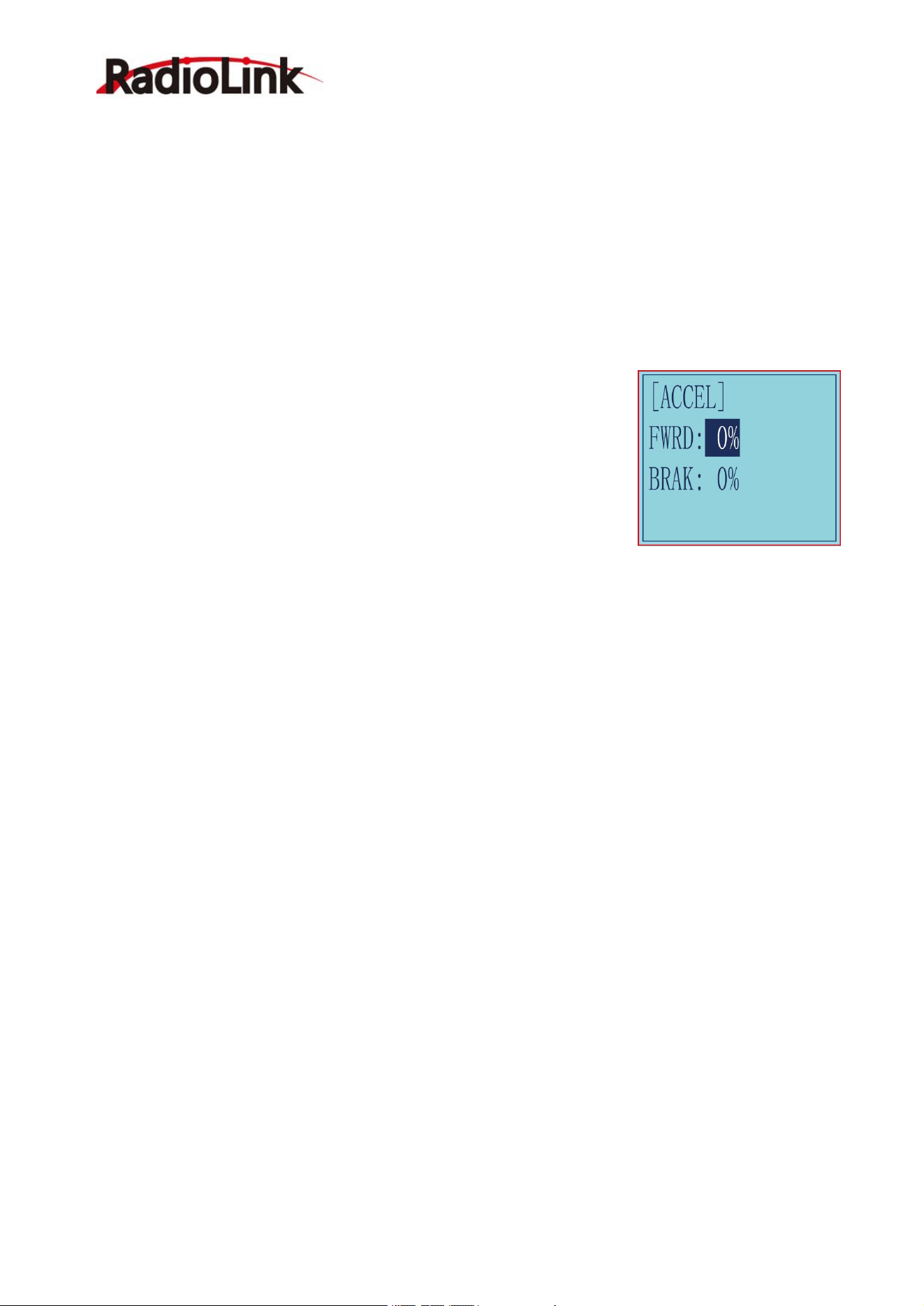
2.10 Throttle Acceleration "ACCEL"
Function which adjusts the movement characteristic from the throttle neutral position.
The servo will jump to the input position at its maximum possible speed. Unlike
exponential, which adjusts the whole throttle movement into a curve, throttle
acceleration simply "jumps" away from neutral and then leaves the remaining
response linear.
Setup item
FWRD: Forward side acceleration amount
BRAK: Brake side acceleration amount
Throttle acceleration adjustment
Enter the function menu and use “Dec(-)” or “Inc(+)” button to access ACCEL function, then press “Enter”
button to get into ACCEL function interface.
(1) Forward acceleration amount adjustment
Press “Dec(-)” or “Inc(+)” button to select “FWRD”, press“Enter”key to confirm and the initial value of “FWRD”
will blink, then use “Dec(-)”or“Inc(+)” button adjust the acceleration amount.
(Note: In the interface of adjusting the value, return to the initial value "0%" by pressing “Dec(-)” and “Inc(+)”
buttons simultaneously for about 1 second.)
Press“Enter”button, the adjusted value stops blinking, now the value has been set.
"0%": No acceleration
"100%": Maximum acceleration(Approximately1/2of the forward side steering angle)
Forward acceleration amount(FWRD)
0%~100%
Initial value: 0%
(2) Brake side acceleration amount adjustment
Press “Dec(-)” or “Inc(+)” button to select “ BRAK ”, press“Enter”key to confirm and
the initial value of “BRAK” will blink, then use“Dec(-)”or“Inc(+)”button adjust the acceleration amount.
(Note: In the interface of adjusting the value, return to the initial value"0%" by pressing
“Dec(-)” and “Inc(+)” buttons simultaneously for about 1 second.)
Press “Enter” button, the adjusted value stops blinking, now the value has been set.
"0%": No acceleration
"100%": Maximum acceleration (Brake side maximum steering angle)
Brake side acceleration amount(BRAK)
0%~100%
Initial value: 0%
When ending setting, return to the initial screen by pressing “Exit” button twice.
RadioLink Electronic Ltd
www.radiolink.com
21
2.11 Idle-Up "IDLUP"
2.11.1 Idle up at engine start
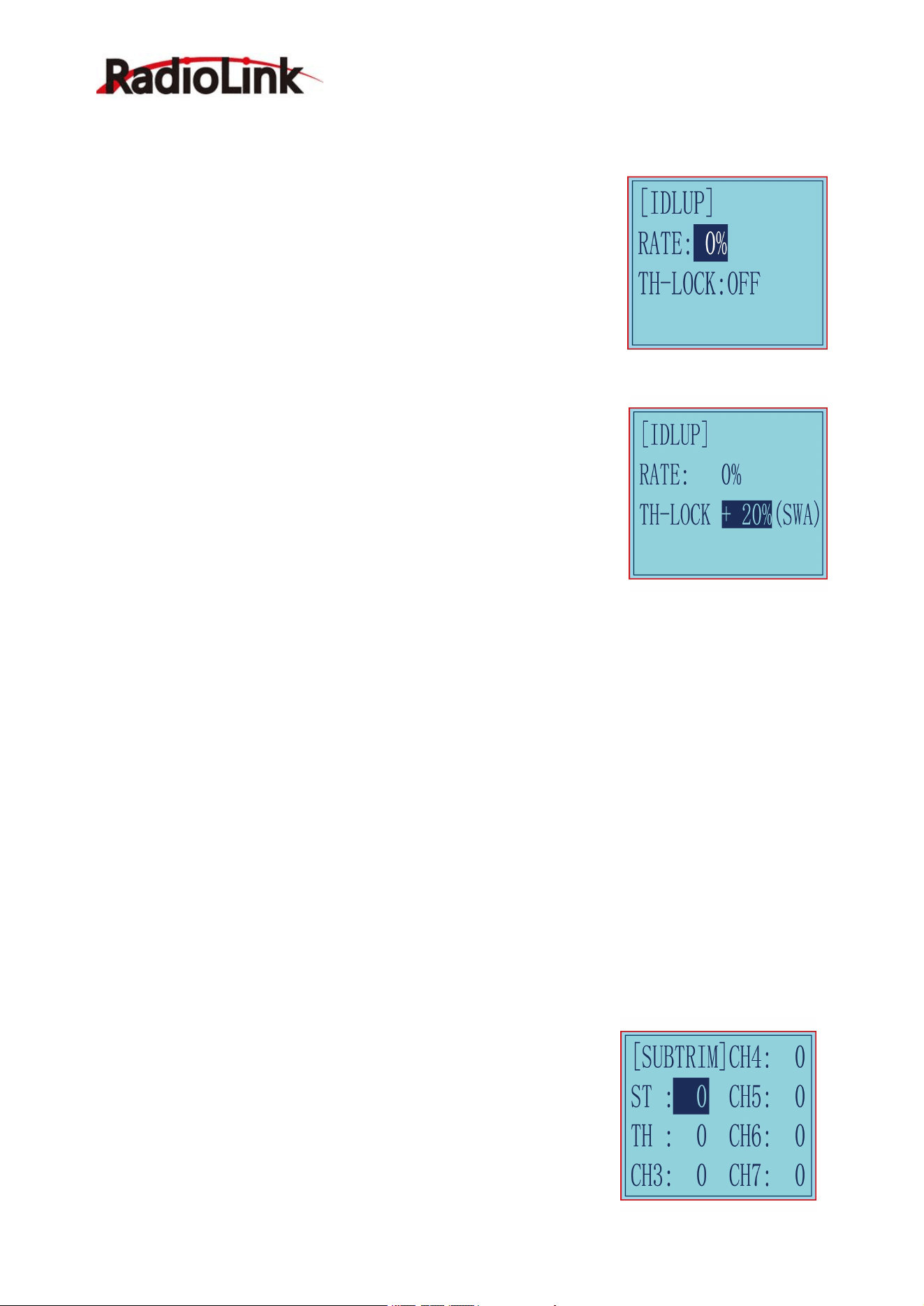
Use this function to improve the starting characteristics of the engine by
raising the idling speed when starting the engine of a gas powered car.
Idle-Up rate (RATE)
-50% ~ -1%, 0%, +1% ~ +50%
Initial value: 0%
"-": Brake side
"+": Forward side
Idle-Up "IDLUP"
(1) Enter the function menu and use “Dec(-)” or“Inc(+) ” button to access IDLUP function.
(2) Press “Enter” button to get into IDLUP function interface.
(3) Press “Enter” key, and the initial value of RATE will blink. Use“ Dec(-) ” or
“Inc(+)” button to adjust the value.
(Note: In the interface of adjusting the value, return to the initial value "0%" by
pressing “Dec(-)” and “Inc(+)” buttons simultaneously for about 1 second.)
Press “Enter”button, the adjusted value stops blinking, now the value has
been set.
(4) When ending setting, return to the initial screen by pressing “Exit”button
twice.
2.11.2 Throttle Lock "TH-LOCK"
In addition to adjusting the throttle speed when the throttle trigger is in the neutral position, the Idle up at
engine start function can also set the throttle lock, select the throttle value that needs to be locked, and the
setting range is -100% to +100%. After the throttle is locked, no matter the current No matter where the
throttle trigger is, the throttle output will jump to the set value.
This function is controlled by the trigger of the SWA jog switch, press to lock, press again to unlock, the control
switch defaults to SWA and cannot be modified.
The specific setting method is as follows:
1. Enter the function menu and use the "Dec(-)" or "Inc(+)" key to select the "TH-LOCK" setting item.
2. Press the "Enter" button to enter the "TH-LOCK" function interface.
3. Move the cursor to "Throttle Lock", press the "Enter" key again, "Throttle Lock" will start to flash, and then
use the "Dec(-)" or "Inc(+)" key to adjust the amount of throttle lock.
Press the "Enter" key, the adjusted value stops flashing, and the setting is complete.
3.After setting, press the "Exit" key to return to the initial interface, and press the SWA switch to switch
between locking and unlocking the throttle.
https://www.youtube.com/watch?v=vCEHpUoTLzE
2.12 Sub-trim "SUB-TRIM"
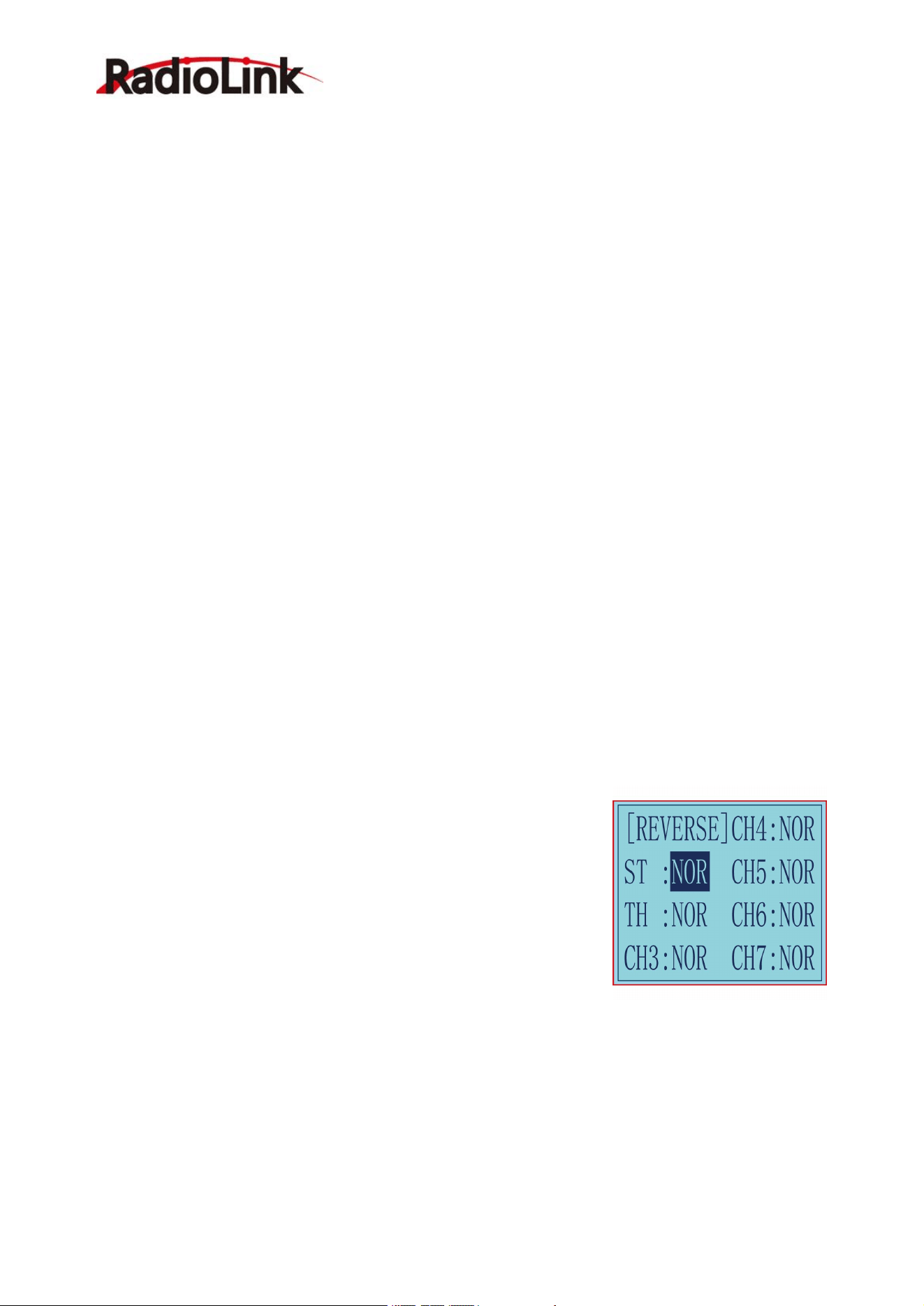
Servo center position adjustment
Use this function to adjust the neutral position of the steering, throttle and all
other channel.
Channel
ST: Steering(CH1)
TH: Throttle(CH2)
RadioLink Electronic Ltd
www.radiolink.com
22
CH3: Channel3(VR)
CH4: Channel4(SWA)
CH5: Channel5(SWB)
CH6: Channel6(SWC)
CH7: Channel7(SWD)
Sub-trim
ST: -100~0~+100
TH: -100~0~+100
CH3: -100~0~+100
CH4: -100~0~+100
CH5: -100~0~+100
CH6: -100~0~+100
CH7: -100~0~+100
Initial value : 0
(1) Enter the function menu and use “Dec(-)”or “Inc(+)” button to access SUBTRIM function.
(2) Press “Enter” button to get into SUBTRIM function interface.
(3) Use “Dec(-)” or “Inc(+)” button to select ST channel, press “Enter”key, and the initial value of ST will blink.
Use “Dec(-)” or “Inc(+)” button to adjust the center.
(Note: In the interface of adjusting the value, return to the initial value "0" by pressing “Dec(-)” and “Inc(+)”
buttons simultaneously for about 1 second.)
(4) Press “Enter” key, the adjusted value stops blinking, now the center of ST has been adjusted.
(5) TH channel and CH3 can be set similarly.
(6) When ending setting, return to the initial screen by pressing “Exit” button twice.
2.13 Channel Reverse "REVERSE"
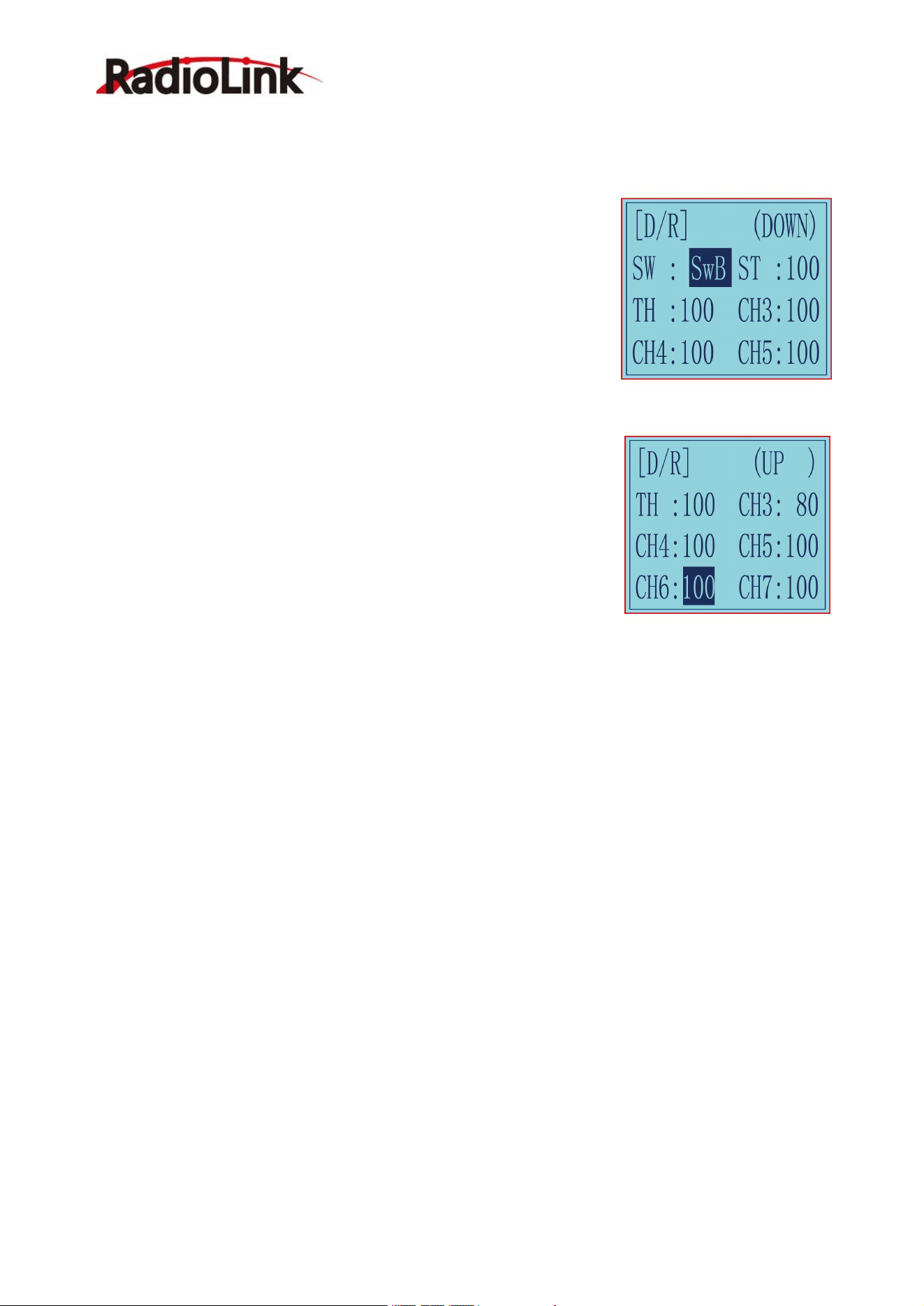
Servo operation reversing
This function reverses the direction of operation of the servos related to
transmitter steering, throttle, channel 3, channel 4, channel 5, channel 6
and channel 7 operation.
Channel
ST: Steering(CH1)
TH: Throttle(CH2)
CH3:Channel3(VR)
CH4: Channel4(SWA)
CH5: Channel5(SWB)
CH6: Channel6(SWC)
CH7: Channel7(SWD)
(1) Enter the function menu and use “Dec(-)” or“Inc(+)” button to access REV function.
(2) Press “Enter” button to get into REV function interface.
(3) Use “Dec(-)” or “Inc(+)” button to select ST channel, press “Enter”key, and the “NOR” will blink.
(4) Press “Enter” key, the “NOR” stops blinking, Use “Dec(-)”or“Inc(+)”button to reverse the ST servo
operation direction.
(5) TH channel, CH3, CH4, CH5, CH6 and CH7 can be set similarly.
(6) When ending setting, return to the initial screen by pressing “Exit” button twice.
RadioLink Electronic Ltd
www.radiolink.com
23
2.14 Steering/Throttle Dual Rate "D/R"
Dual rate
The steering left and right servo travels are adjusted simultaneously. When
you want to increase the servo travel, adjust the + side. When you want to
decrease the servo travel, adjust the - side.
The servo travel amount of all channels can be reduced by Dual Rate
setting. Dual rate function is different from EPA, which requires the travel
amount on both sides of the channel to be set separately. Setting the rate of
D/R will affect the left and right travel amount at the same time. For example,
after setting a smaller throttle value, the travel amount of the model forward
and brake will be reduced at the same time, the setting range is 0-100, the
default is 100.
Dual Rate Setting:
(1) Long press "Exit" and "Enter" button simultaneously for one second to
enter the function menu of RC6GS V3. Press "Inc(+)" button at the bottom of
the screen to move the cursor to "13. D/R", and then press " Enter” button to
enter the function setting interface.
(2) Switch setting: Set a switch or button to switch in different travel amount
of each channel.
A. You can set SWA, SWB, SWC, SWD, or the lock modes of these four
switch buttons LK-A, LK-B, LK-C, LK-D.
B. "NULL" means no switch assigned. After setting the travel amount of the corresponding channel, the
transmitter will always execute the set value by default.
C. UP (up)/DOWN (down)/CNT (central): It indicates the position of the selected switch. Push/Press the
switch to different positions to set different travel amount.
D. Setting method: Press "Dec(-)" or "Inc(+)" button at the bottom of the screen to move the cursor to
"NULL" next to the switch, then press "Enter" button, the corresponding setting starts to flash, then press
"Dec(-)" or "Inc(+)" button to select the switch or button to be set, and press "Enter" button to confirm the
option after the selection. The switch setting stops flashing and the switch setting is complete.
(3) Set the travel amount of each channel: press “Dec(-)” or “Inc(+)” button to move the cursor to the rate next
to the channel, and then press the “Enter” button, the corresponding value starts to flash , and then press
“Dec(-)” or “Inc(+)” button to adjust the rate value. After setting, press "Enter" button, the rate value stops
flashing, and the channel rate value is set.
(4) Press "Exit" to return to the home page.
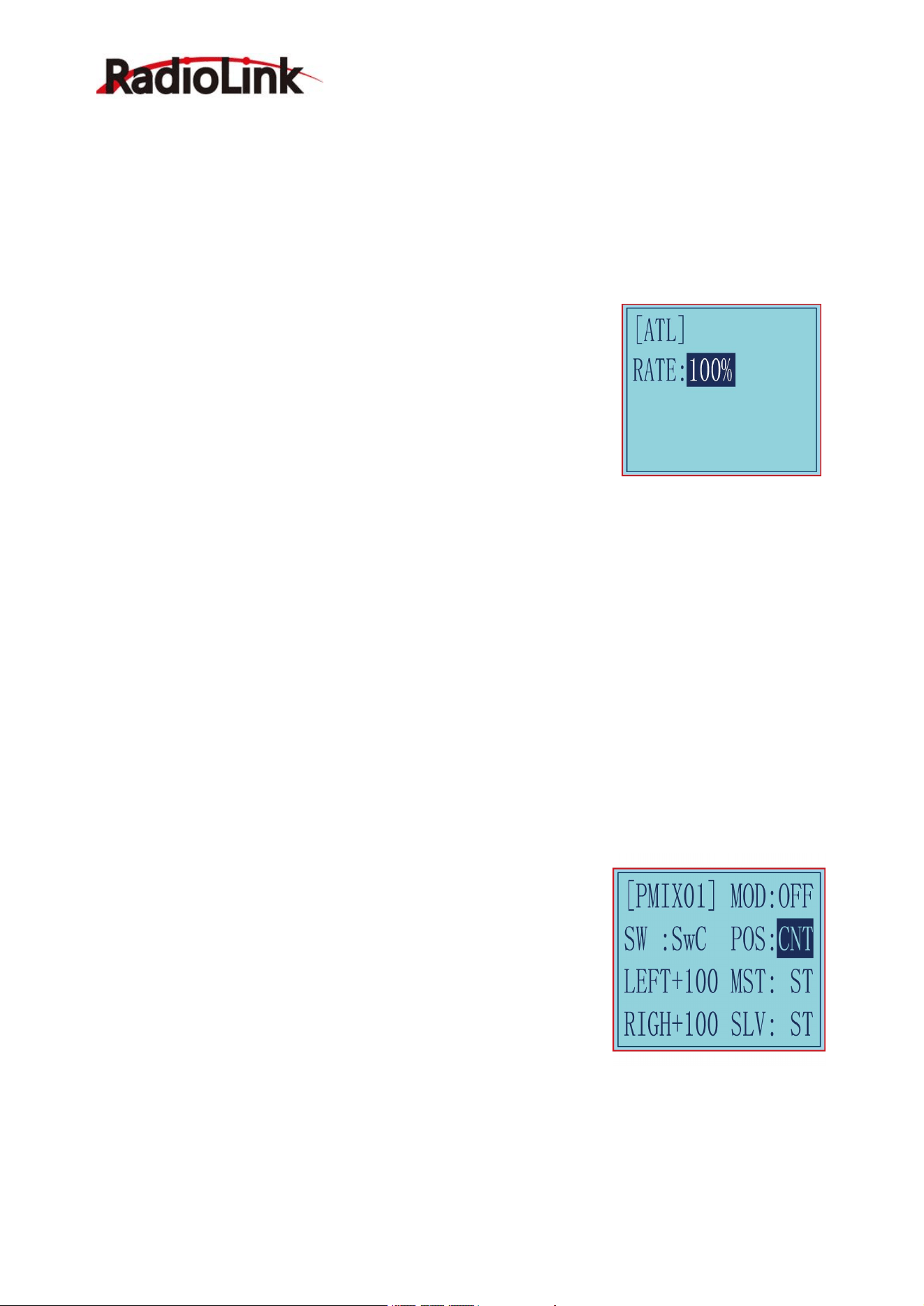
Example:
1. Set a 3-way switch such as SWB or SWC.Switch three different values of travel amount when SWB or
SWC be switched to the upper, central and lower positions.
Setting method:
Push SWB/SWC switch to the UP position (UP will be displayed in the upper right corner of the screen), press
"Dec(-)" or "Inc(+)" at the bottom of the screen to adjust the dual rate value of the channel to be set. When
SWB/SWC switch is switched to the UP position, the transmitter will execute the preset dual rate value;
Push SWB/SWC to the central position (CNT will be displayed in the upper right corner of the screen), the
method is the same as above;
RadioLink Electronic Ltd
www.radiolink.com
24
Push SWB/SWC switch to the lower position (DOWN will be displayed in the upper right corner of the screen),
the method is the same as above;
2. If you set SWA or SWD switch. Press it to one dual rate value, and release it to another dual rate value.
3. LK-A, LK-B, LK-C, LK-D are corresponding to the lock mode of SWA, SWB, SWC, SWD switches. Press it
to one dual rate value, and press it again to another dual rate value.
2.15 Brake Side Adjustment "ATL"
Brake side adjustment
This function decreases the set value when the braking effect is strong and
increases the set value when the braking effect is weak.
Setup Item
RATE: Brake amount
Brake amount (RATE)
0%~100%
Initial value: 100%
(1) Enter the function menu and use “Dec(-)” or “Inc(+)”button to access ATL
function.
(2) Press “Enter” button to get into ATL function interface.
(3) Press “Enter” key, and the initial value of RATE will blink. Use “Dec(-)”or“Inc(+)” button to adjust the value.
(Note: In the interface of adjusting the value, return to the initial value "100%" by pressing “Dec(-)” and “Inc(+)”
buttons simultaneously for about 1 second.)
Press “Enter” button, the adjusted value stops blinking, now the value has been set.
(4) When ending setting, return to the initial screen by pressing“Exit” button twice.
2.16 Programmable Mixes "PMIX01/02"
Programmable mixes between arbitrary channels
These functions allow you to apply mixing between the steering, throttle, CH3, CH4, CH5, CH6 and CH7.
PMIX01 setting is the same with PMIX02.
Programmable Mixes "PMIX"
MXMD:Mix mode
Enter the function menu and use“Dec(-)”or “Inc(+)” button to access PMIX
function, then press “Enter” button to get into PMIX function interface.
MOD: Mixing mode.
INH: means the mixing function is disabled. Regardless of whether there is
a set control switch or value under this function, it is not enabled.
ON/OFF: means turning the function on and off. Set the mode to ON, the
current mixing control can take effect.
SW: Switch to control the mix function. You can set SWA, SWB, SWC,
SWD, or the lock modes of these four switch buttons LK-A, LK-B, LK-C,
LK-D. "NULL" means no switch assigned. After setting the travel amount of the corresponding channel, the
transmitter will always execute the set value by default.
POS: means the position of the switch used to control this function. UP (up)/DOWN (down)/CNT (central): It
indicates the position of the selected switch. Push/Press the switch to different positions to set different travel
amount.
LEFT: Mixing rate (Left side)

RadioLink Electronic Ltd
www.radiolink.com
25
RIGN: Mixing rate (Right side)
MST: Master channel
SLV: Slave channel
(1) Master channel
Channel selection (MST)
ST, TH, CH3, CH4, CH5, CH6, CH7
Initial value: ST
Select setup item"MST" by pressing “Dec(-)” or“Inc(+)”button, press“ Enter ” button, the initial master channel
will blink. Use“ Dec(-)”or“ Inc(+) ” button to select the master channel you wish to adjust, press“Enter”
button,the blinking master channel you selected will stop blinking.
(2) Slave channel
Channel selection (SLV)
ST, TH, CH3, CH4, CH5, CH6, CH7
Initial value: ST
Select setup item "SLV" by pressing “Dec(-)” or “Inc(+)” button, press “Enter” button, the initial slave channel
will blink. Use “Dec(-)” or “Inc(+)”button to select the slave channel you wish to adjust, press “Enter” button,
the blinking slave channel you selected will stop blinking.
(3) Left, forward or up side mixing amount adjustment
Mixing amount
-100~0~+100
Select the setting item "LEFT", "FWRD", or "UP"(These setup items are different depend on the master
channel. ST: "LEFT"; TH: "FWRD"; CH3:"UP") by pressing “Dec(-)” or “Inc(+)” button. Press “Enter” key, the
initial value of "LEFT", "FWRD", or "UP" will blink, Use “Dec(-)” or “Inc(+)” button to adjust the left, forward,
or up side mixing amount.
(Note: In the interface of adjusting the value, return to the initial value "0" by pressing“Dec(-)” and “Inc(+)”
buttons simultaneously for about 1 second.)
Press “Enter” key, the adjusted value stops blinking, the selected mixing amount has been adjusted.
(4) Right, brake or down side mixing amount adjustment
Mixing amount
-100~0~+100
Select the setting item "RGHT", "BRAK", or "DOWN"(These setup items are different depend on the master
channel.ST:"RGHT"; TH:"BRAK";CH3:"DOWN") by pressing “Dec(-)” or “Inc(+)” button. Press“Enter”key,the
initial value of "RGHT", "BRAK", or "DOWN" will blink, Use“Dec(-)”or“Inc(+)”button to adjust the right, brake,
or down side mixing amount.
(Note: In the interface of adjusting the value, return to the initial value "0" by pressing “Dec(-)” and “Inc(+)”
buttons simultaneously for about 1 second.)
Press “Enter” key, the adjusted value stops blinking, the selected mixing amount has been adjusted.
(5) Mixing mode setup
Mixing mode (MXMD)
OFF, MIX
Initial value: OFF
Select setup item"MXMD"by pressing“Dec(-)”or “Inc(+)” button, press “Enter “ button, the initial mixing
mode“OFF”will blink. Press“Dec(-)”or “Inc(+)”button to switch “OFF” to “MIX”, press “Enter” button, the
RadioLink Electronic Ltd
www.radiolink.com
26
blinking “MIX” will stop blinking.
"OFF": Mixing proportional to master channel operation.
"MIX": Mixing by master channel another function considered.
(6) When ending setting, return to the initial screen by pressing “Exit” button twice.
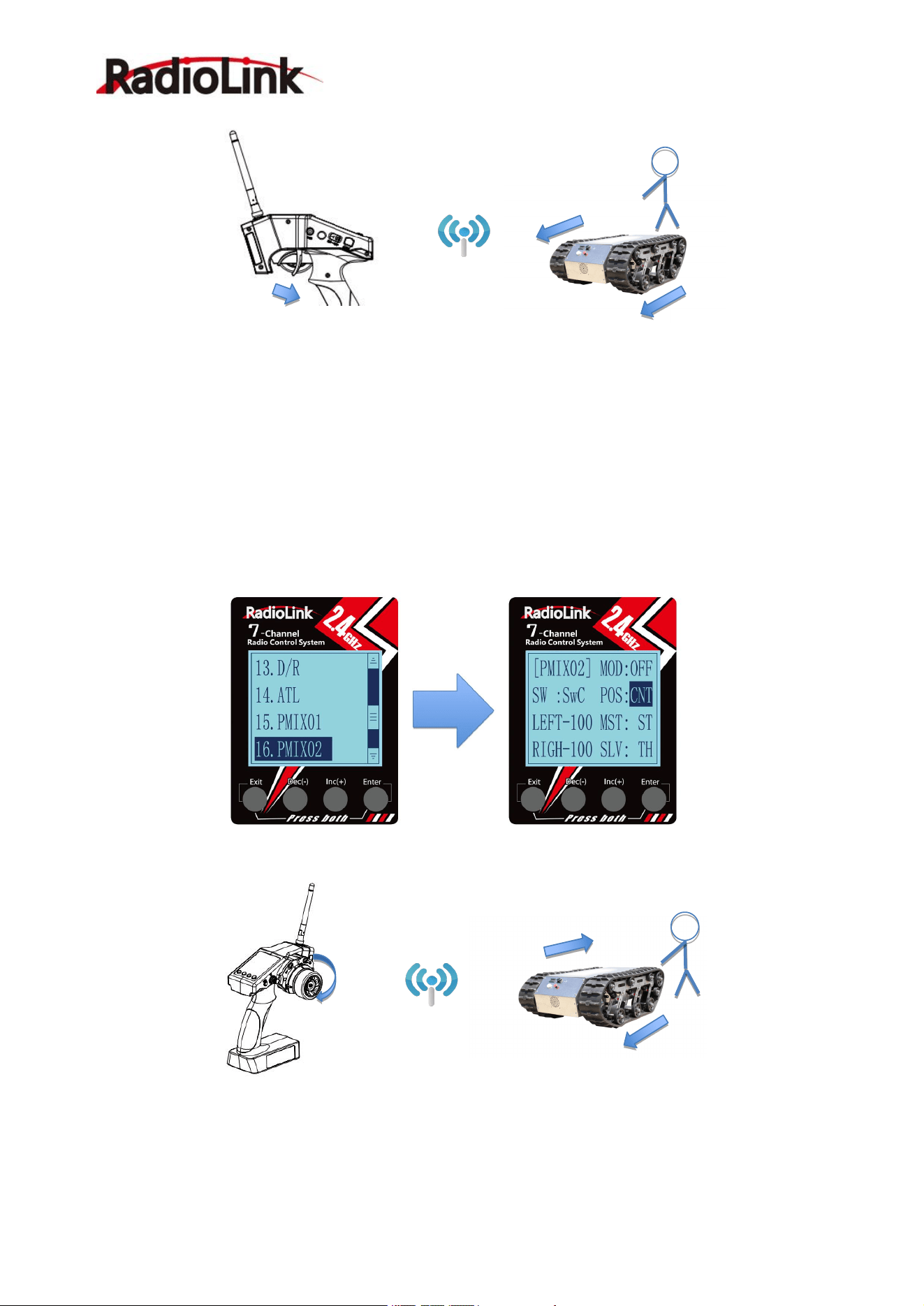
2.16.1 Mix Control Setup
Take a dual-engine model (eg. Tracked vehicle) as an setting example.
Working theory of tracked vehicles
1. RC Cars: One execute unite of radio controls a movement of a car (eg. Steering wheel to Ch1-Direction
to turn left/right). Every R/C channel operation and every execute unite of car is ONE TO ONE.
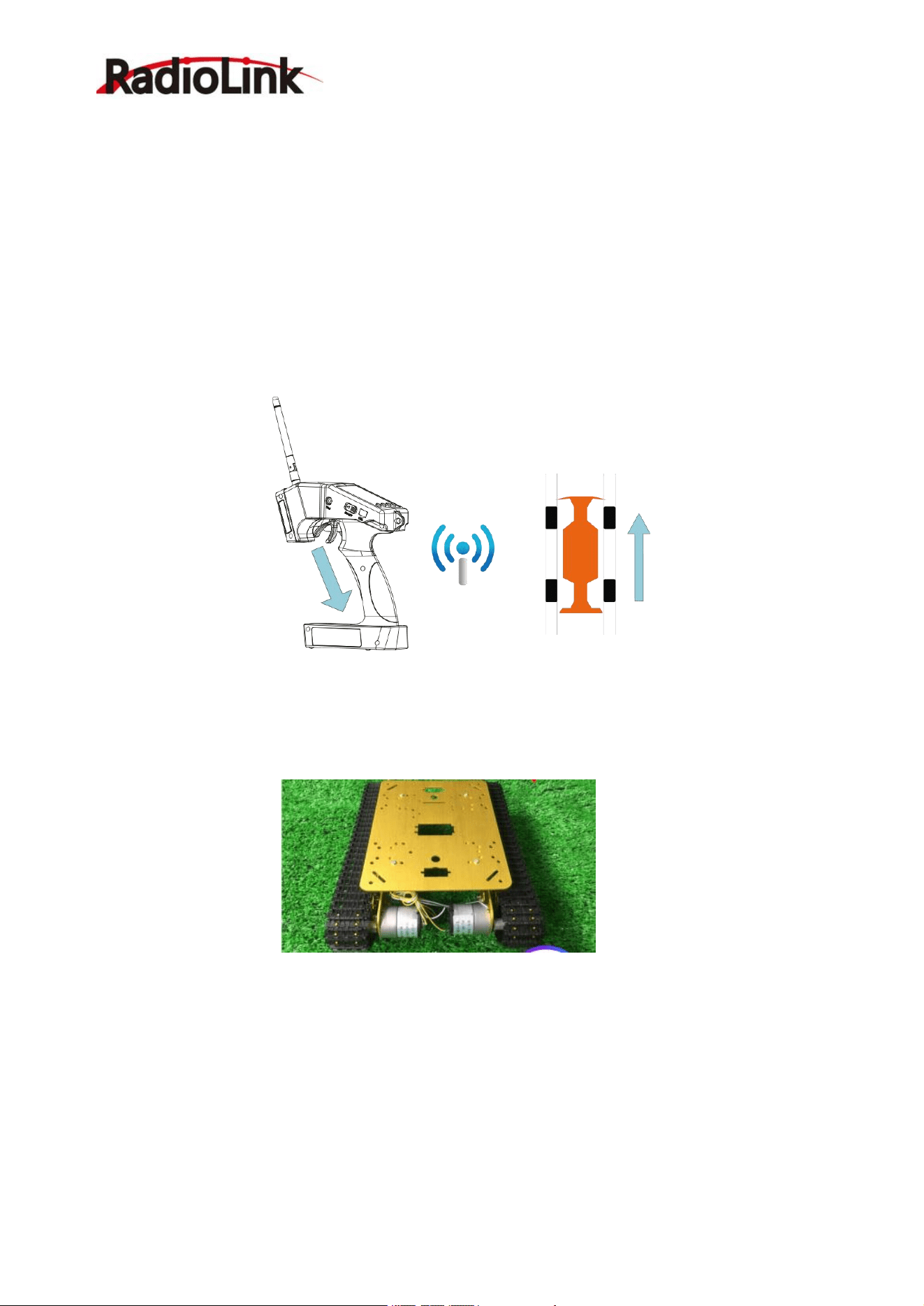
When pulling the trigger, the car moves forward
2. Dual-engine Models: Being dual-engine category, tracked vehicle has two motors and each track is
driven by each motor.
3. Mix Control: The throttle (a function) on R/C monitors two motors ( two execute unites) move
forward/backward simultaneously. That is, ONE TO TWO mix control. On the other hand, the turning of
steering wheel makes one motor forward while the other backward at the same time to achieve direction
turning. Same as ONE TO TWO mix control.
4. Dual Mix Control: As controlling dual-engine vehicles drive forward/backward and turn left/right, two mix
controls at the same time are needed. RadioLink RC6GS V3 has two programmable mix controls.
Reverse Setup before Mix Control Setup
Before setting the mix controls, please check if the reverses working correctly by testing its wheel and
throttle. Take steering wheel-- left track (Ch1 on receiver) and throttle--right track(Ch2 one receiver) as
RadioLink Electronic Ltd
www.radiolink.com
27
example.
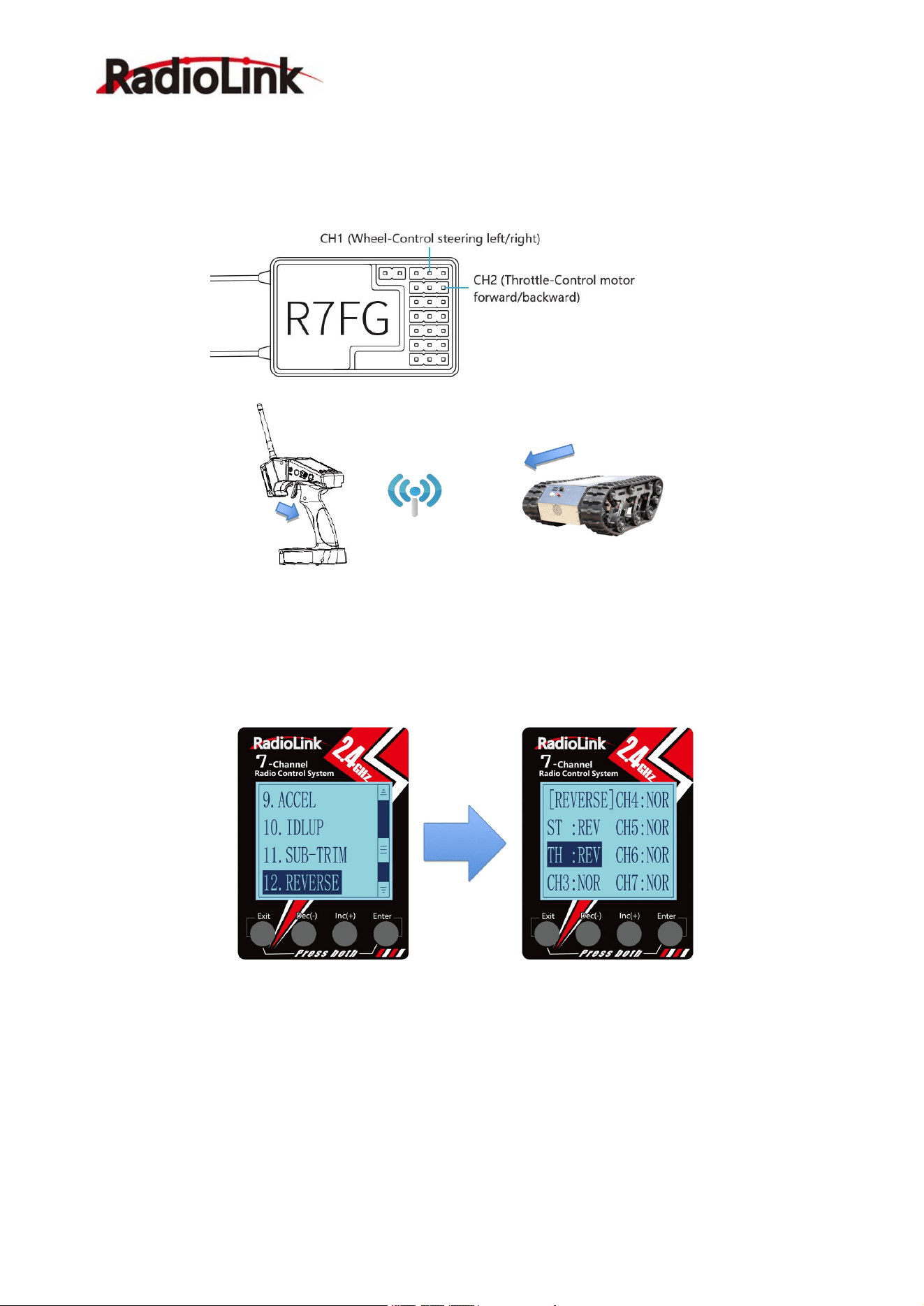
1. Throttle Reverse:NOR-REV
Hold RC6GS V3 as the below pic. Normally, pull the throttle, the right track should be moving forward while
push the throttle and the right track should be backward.
If pulling the throttle and the left track moves backward; Or pushing the throttle and the left track moves
forward, meaning the initial throttle is reversed and needs to be set. Please refer to the “button operation”and
get into below interface to complete the setup.
* If the throttle reverse is correct, skip this throttle reverse setup.
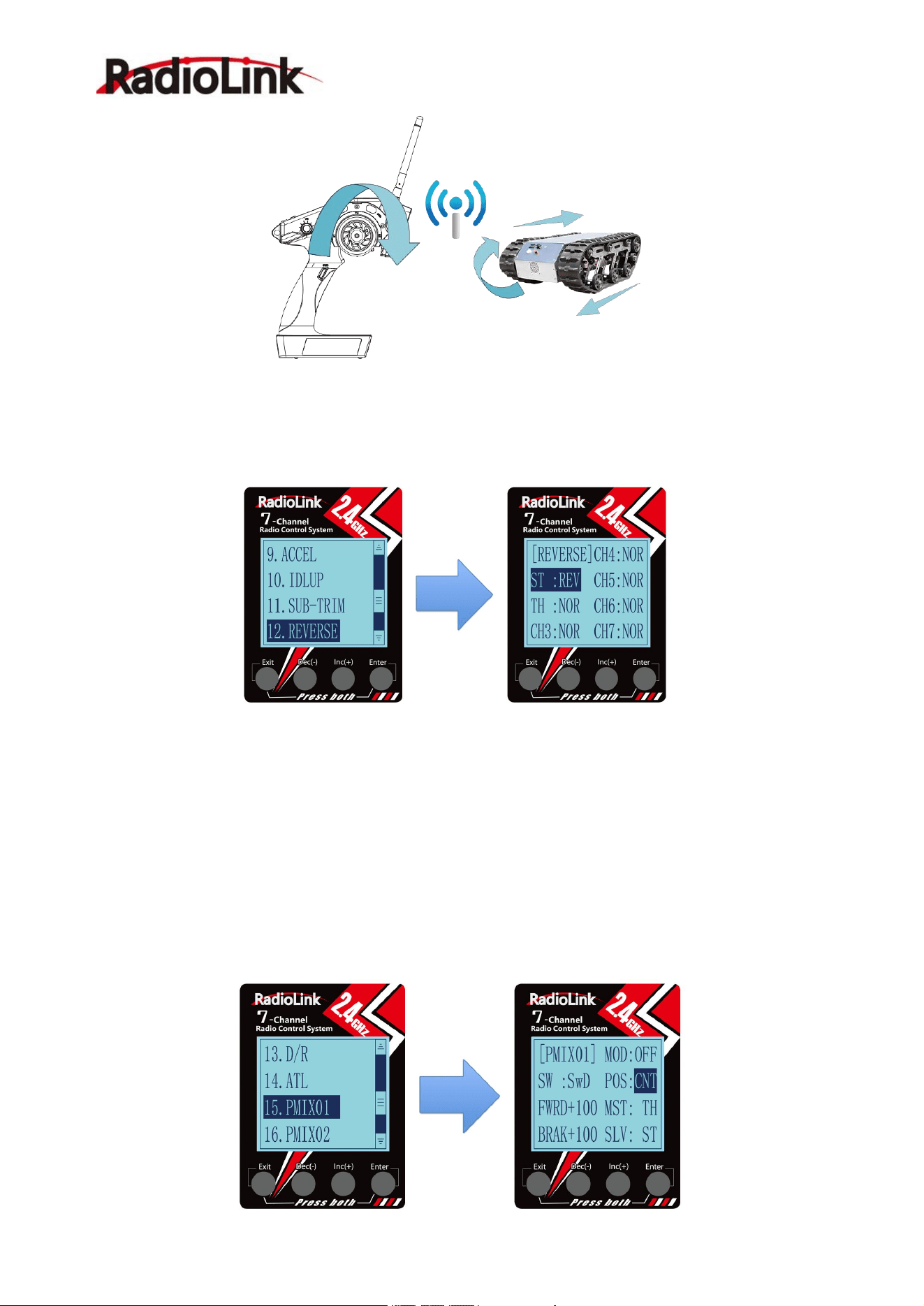
2. Steering Reverse:NOR/REV
Hold RC6GS V3 as the below pic. Normally, if turn the wheel right/clockwise, the left track should be moving
forward while turn the wheel left/anticlockwise and the left track should be backward.
Pull the throttle,right track moves forward,left track remains still
RadioLink Electronic Ltd
www.radiolink.com
28
If turning the wheel right and the right track moves backward; Or turning the wheel left and the right track
moves forward, meaning the initial steering is reversed and needs to be set. Please refer to the “button
operation”and get into below interface to complete the setup.
*
If the steering reverse is correct, skip this steering reverse setup.
After setting the throttle/ steering reverse, then mix control can be set.
Mix Control Setup
1. Throttle mix steering
:
Tracked vehicles moving forward/backward
As tracked vehicles moving forward/backward is controlled by throttle, throttle leads steering in the mix control.
That is, Master-Throttle, Slave-Steering. Please refer to the “button operation”and get into below interface to
complete the setup.
* Percentage value varies the speed;
”+”means Master and Slave move to same direction at the same time
Turn the wheel clockwise, the left track moves forward,the right track remains still
RadioLink Electronic Ltd
www.radiolink.com
29
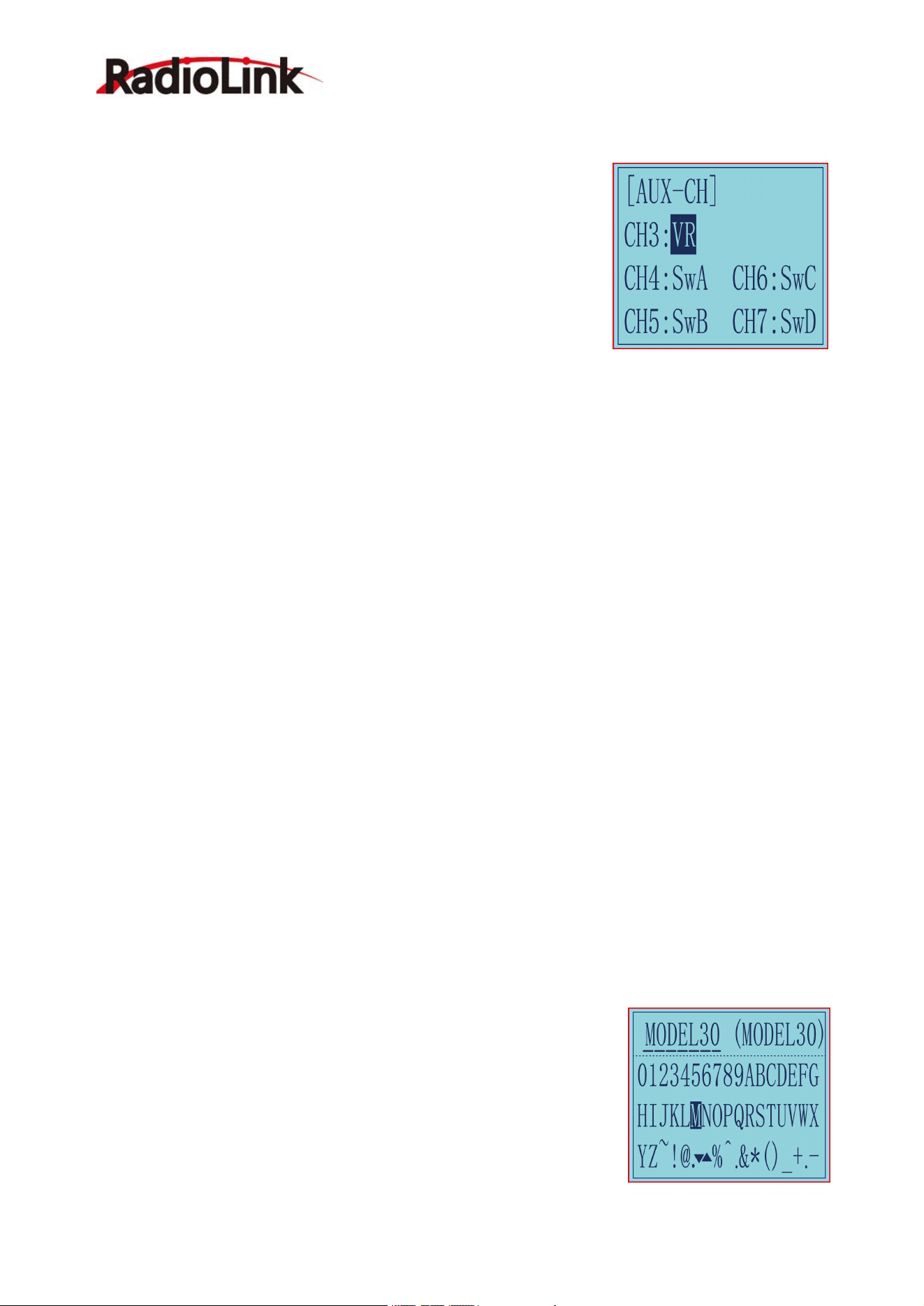
2. Steering mix Throttle:Tracked vehicles turning left/right
As tracked vehicles turning left/right is controlled by steering, steering leads throttle in the mix control. That is,
Master-Steering, Slave-Throttle. Please refer to the “button operation”and get into below interface to complete
the setup.
* Percentage value varies the turning angle;
”-”means Master and Slave move to different directions at the same time
Throttle mix steering setup completed, both tracks moves forward
when pulling the throttle
Steering mix throttle setup completed, left track moves forward while right backward when
turning the wheel clockwise. The differential realizes the right turning of track vehicle
RadioLink Electronic Ltd
www.radiolink.com
30
2.17 Auxiliary Channel "AUX-CH"
In addition to the two basic channels of the steering channel (channel 1)
and the throttle channel (channel 2), RC6GS V3 also has five auxiliary
channels, all of which can be customized to assign control switches.
The control switch of the auxiliary channel can be selected as ST, TH, VR,
SwA, SwB, SwC, SwD, LK-A, LK-B, LK-C, LK-D, NULL.
When it is set to NULL, the channel will not be controlled by any switch;
When the channel is set to ST as the control switch, the channel will be
controlled by the steering wheel;
When the channel is set as TH as the control switch, the channel will be
controlled by the throttle trigger;
SwB and SwC are three-way switches. After they are set as the control switches of the auxiliary channel, they
can directly control the minimum, maximum and middle values of the output value of the channel;
SwA and SwD are jog switches. When SwA/SwD is pressed, the channel output value will jump from the initial
value to the maximum value (or minimum value), and when the switch is released, it will return to the initial
value (For example, after pressing SwA, the channel output +100 , and after releasing SwA, the channel
output will return to -100);
LK-A is the lock mode of SwA. When the channel is set to LK-A as the control switch,after pressing SwA, the
output of the channel will jump to the maximum value (or minimum value), and will not return to the initial
value when the switch is released. (For example, after pressing SwA, the channel outputs +100, and after
releasing the switch, the +100 will remain unchanged. After pressing SwA again, the channel will output -100 ,
and the rudder will remain unchanged after releasing it).
LK-D is the lock mode of SwD, LK-B is the lock mode of SwB, and LK-C is the lock mode of SwC.
Note: The lock mode is another working logic of the jog switch and the three-way switch. After the channel
control switch is set to LK-A or LK-D, the SwA or SwD switch is also used to control the current auxiliary
channel, but the effect achieved is different from SwA and SwD. When setting to LK-A and LK-D, releasing the
switch will not return to the initial value. When set to SwA and SwD, releasing the switch will return to the
initial value. The effect of LK-B and LK-C is the same.
Setting method:
(1) Long press "Exit" and "Enter" button simultaneously for one second to enter the function menu of RC6GS
V3. Press "Inc(+)" button at the bottom of the screen to move the cursor to "17. AUX-CH", and then press "
Enter” button to enter the function setting interface.
(2) Press “Enter” button to get into CH3, CH4, CH5, CH6 or CH7 function interface.
(3) Press “Enter” button, the adjusted value stops blinking, now the value has been set.
2.18 Model Name "NAME"
RC6GS V3 stores model memories for 30 models. Each model memory can
be named separately according to user’s requirement.
Factory default name: MODEL1
(1) Long press "Exit" and "Enter" button simultaneously for one second to
enter the function menu of RC6GS V3. Press "Inc(+)" button at the bottom of
the screen to move the cursor to "18. NAME".
(2) Press “Enter” button to get into NAME function interface, the first
character of current name will blink, and the blinking character can be reset.
The common use characters appear at the bottom of the screen, use “Dec(-)”
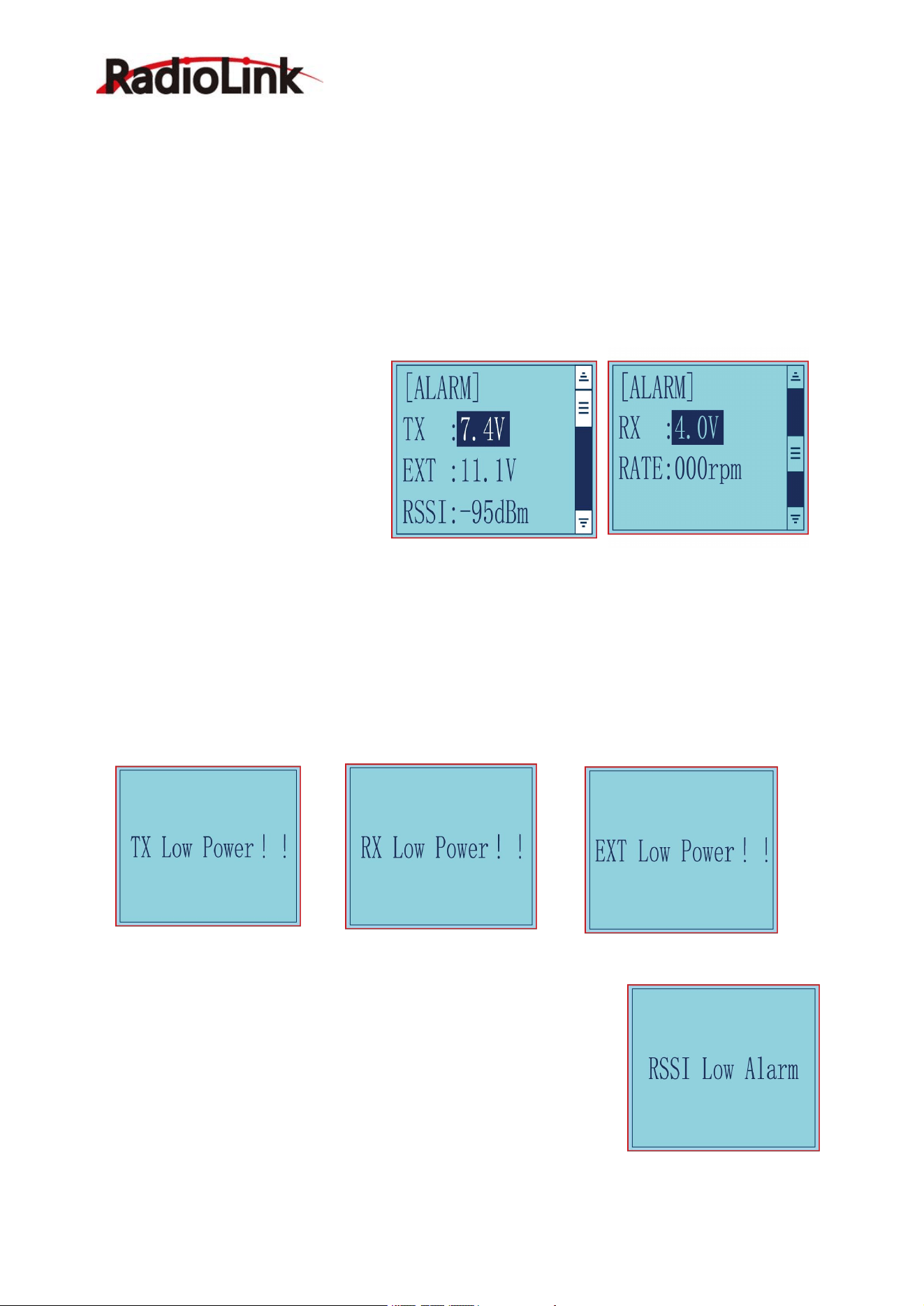
RadioLink Electronic Ltd
www.radiolink.com
31
or “Inc(+)” button to choose the character you desired.Press“Enter” button again, the next character of current
name will blink. Reset other characters of current name in same manner.
(3) After accomplishment of naming, all characters of current name will stop blinking, the new name will be
stored automatically.
(4) When ending setting,return to the initial screen by pressing“Exit”button twice.(the new setting model name
will appear on the initial screen)
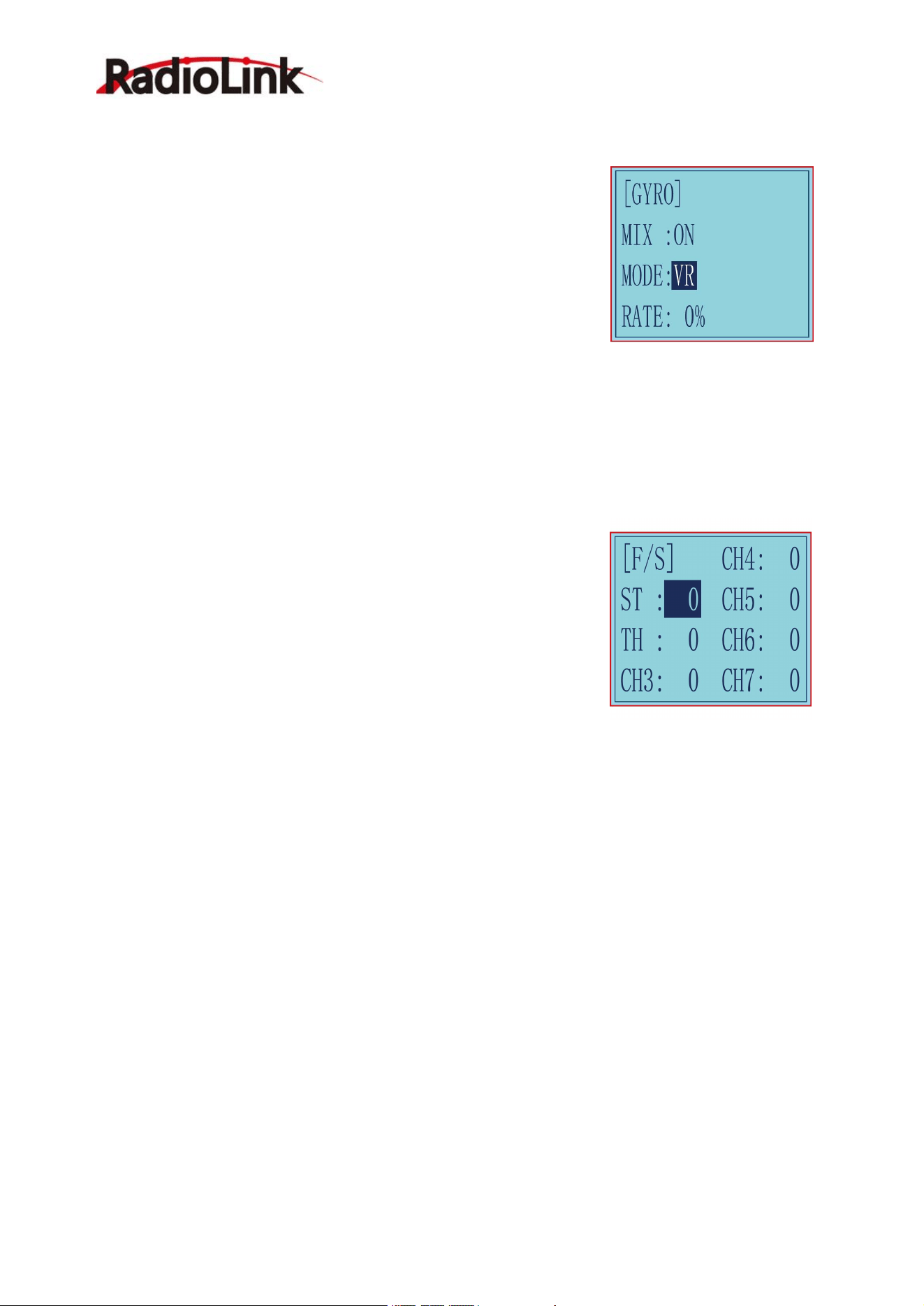
2.19 ALARM(Safety alarm for low voltage and Signal strength )
Each model can independently set low voltage and RSSI value alarms, but the alarm functions of RATE is not
yet available.
When the voltage of the transmitter,
receiver, vehicle battery, and RSSI signal
strength are lower than the set value,
there will be a text displayed on the
transmitter screen and a "didi" sound dual
alarm prompt to remind you.
You can set the value in the "ALARM"
menu: Press “Exit” and “Enter”button at
the same time to enter menu, select the "19. ALARM" option, press “Enter”button to access the “ALARM”
function interface. The transmitter default alarm voltage is 7.2V, and it can be customized on 2-4S
battery .The receiver default alarm voltage is 4.0V, and the vehicle battery default alarm voltage is 11.1V.
The default alarm voltage of single-chip battery is 3.7V. For example, if you use a 3S lithium battery for your
model, then the low voltage alarm value should be set to 11.1V (3.7V×3S). The setting method of transmitter
and receiver is the same.
Transmitter voltage is low Receiver voltage is low RC model battery voltage is low
The RSSI alarm value is turned off
by default. Users can set it as the RSSI value corresponding to the farthest
safe distance of the actual control. For example, the farthest remote control
distance is 400m, the corresponding RSSI value is -85dBm, then you can set
the RSSI alarm value as -85dBm. When the vehicle is running, if the
transmitter battery or vehicle battery is exhausted, or the RSSI signal is week,
the vehicle will lose control. Therefore, when the alarm sounds, please stop
driving immediately and take the vehicle back, check the cause of the alarm,
and deal with it properly. The alarm prompt is as right:
RadioLink Electronic Ltd
www.radiolink.com
32
2.20 Gyro Sensitivity “GYRO”
This function is available to set gyro sensitivity and VR mixing ON or OFF.
When MIX set OFF, gyro is disabled while when MIX set ON, you can
adjust gyro sensitivity STD or VR. STD is adjusted on screen and VR is
default CH3.
In normal mode (STD), range of sensitivity is 0%-100%.
(1) Enter the menu, use Dec(-) and Inc(+) to select options for gyro
sensitivity.
(2) Press the key button “Enter” to enter sub-menu gyro sensitivity.
(3) Press “Enter” again, the initial value will start flashing, then use Dec (-)
and Inc (+) to change the value.
(4) Press the button key “Enter”, the value stops flashing, the setting is finished now.
(5) "Mode"and "Rate" can also be set by the same step.
(6) Press button key “Exit” to be back to initial screen.
2.21 Fail Safe”F/S”
This function is set by servo, throttle, CH3, CH4, CH5, CH6 and CH7.
Option:
ST: Steering(CH1)
TH: Throttle(CH2)
CH3: Channel3(VR)
CH4: Channel4(SWA)
CH5: Channel5(SWB)
CH6: Channel6(SWC)
CH7: Channel7(SWD)
RANGE:
Servo: -100~+100
Throttle: -100~+100
CH3: -100~+100
CH4: -100~+100
CH5: -100~+100
CH6: -100~+100
CH7: -100~+100
Initial value: 0
(1) Enter the menu, use “Dec (-)” and “Inc (+)” to select options to set.
(2) Press the button key “Enter” to enter menu.
(3) Use “Dec (-)” and “Inc (+)” to select SERVO, then press “Enter”. Now the initial value
of SERVO will start flashing, use handle to change the value.
(4) Press the button key “Enter”, the value stops flashing, now the value of SERVO is set.
(5) THROTTLE is to set by the trigger.
CH3 is to set by VR controller.
CH4 is to set by the button switch.
CH5 is to set by the toggle switch.
CH6 is to set by the toggle switch.
CH7 is to set by the button switch.
(6) Press “Exit” two times to back to initial screen.
RadioLink Electronic Ltd
www.radiolink.com
33
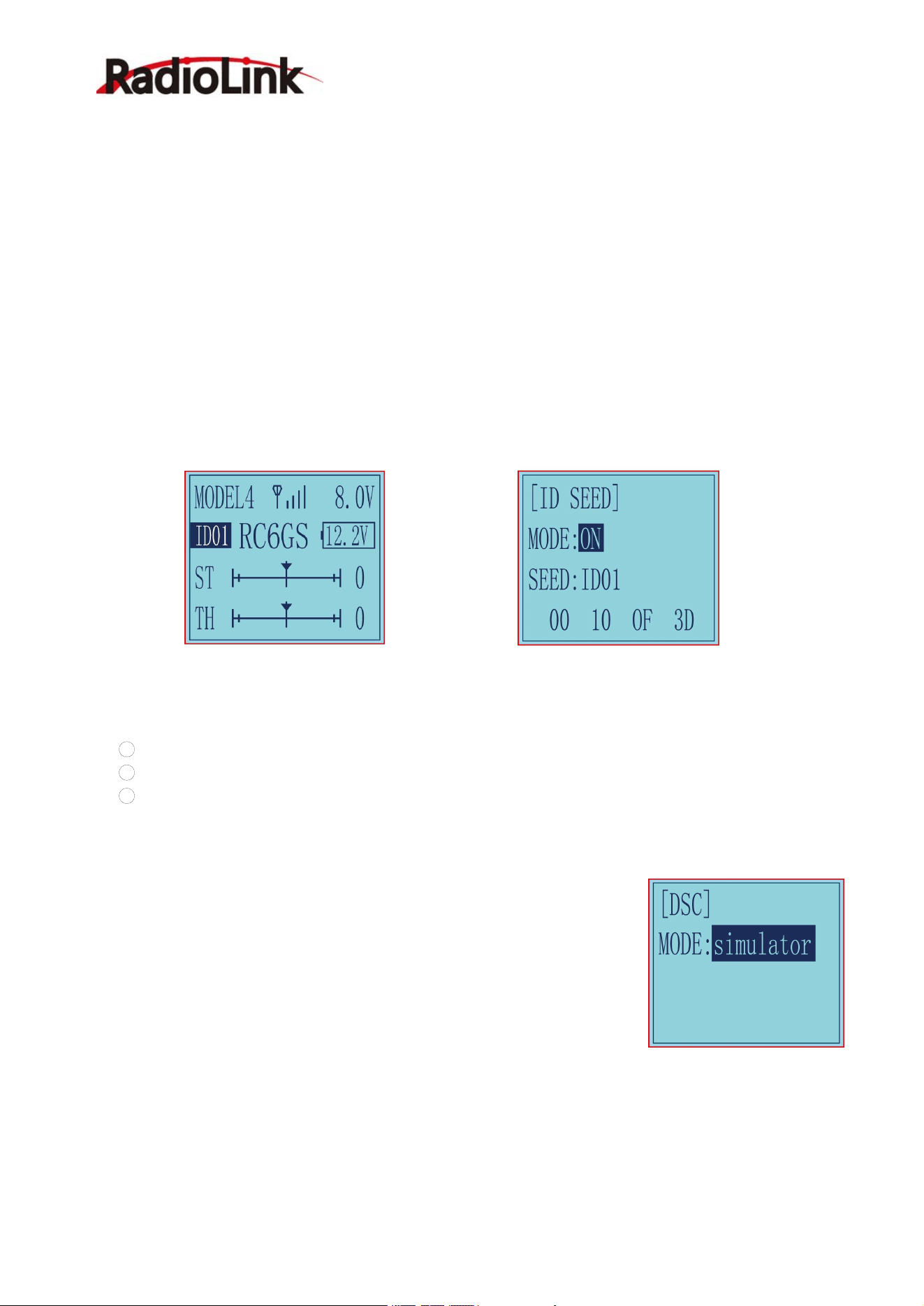
2.22 Subsidiary ID “ID SEED”
ID SEED function means designating a subsidiary ID among multiple binding receivers to realize the control.
There are totally 10 independent subsidiary IDs can be stored. The four numbers displayed at the bottom of
the screen are the independent ID codes of this transmitter.
For example, RC6GS V3 has completed the binding with 10 different boats and the setup of respective
parameters. Turn on the ID SEED function, select ID.1 boat and drive it to the central of water but it stops
working unexpectedly. Then we can change to the ID.2 boat (or any other subsidiary ID boat preferred) and
control it independently to rescue ID. 1 boat instead of controlling both boats at the same time, which makes
the rescue more difficult. Unlike traditional binding mode, independent ID can easily realize rescuing stalled
boat in the water caused by various reasons.
Press EXIT and ENTER simultaneously to enter MENU=>press Inc(+)/DEC ( - ) to highlight “22. ID
SEED=>Press ENTER => Change the MODE from OFF to ON=> set the subsidiary ID number=> complete
biding and parameters setting.
Once finished , the corresponding ID number will be displayed on the RC6GS V3 main interface .
2.23 DSC port setting “DSC”
There are 3 modes for DSC function.
1 Simulator: Connect to the simulator or TBS Crossfire;
2 2 axis track: Connect to FPV goggles with head track function.
3 3 axis track: Connect to FPV goggles with head track function. (RC6GS V3 with firmware V6.7.7 or
above supports 3 axis track. If the firmware version is lower than V6.7.7, please update the firmware to use
the 3 axis track function)
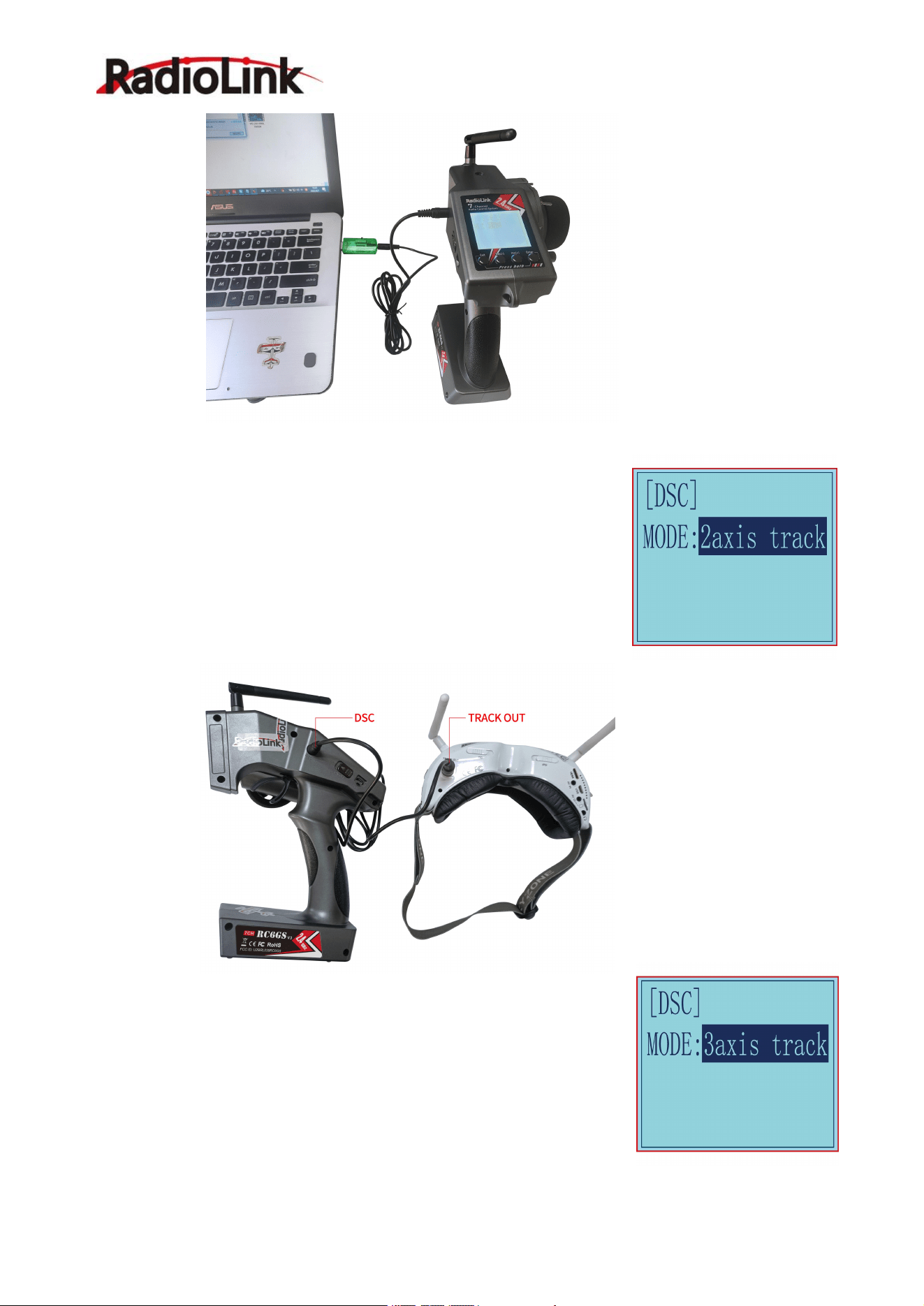
Simulator mode: If you need to connect simulator or TBS Crossfire to the DSC
port of RC6GS V3, please select the mode as: simulator. When connecting the
simulator, insert one end of the standard audio head of the simulator into the
DSC port of RC6GS V3, and follow the steps in the simulator instruction manual
to calibrate and operate the transmitter in the simulation software. The following
picture is for reference. (Please refer to the video for the method of connecting
RC6GS V3 to TBS Crossfire:
https://www.youtube.com/watch?v=6vt5QexQSQs
RadioLink Electronic Ltd
www.radiolink.com
34
2 axis track mode: If you need to connect FPV goggles with 2 axis track function to the DSC port of RC6GS
V3, please set the mode to: 2 axis track (or head track in firmware below
V6.7.7). Then directly insert one end of the standard audio head of the FPV
goggles into the DSC port of the remote control, and the other end into the
Track Out port of the FPV goggles. When the DSC mode is selected as head
track, the DSC port of RC6GS V3 outputs in channel 5 and channel 6 by
default. Connect the roll servo and pitch servo used to control the pan-tilt to
the pins of R7FG receiver in channel 5 and channel 6, and then swing the
FPV goggles up and down or left and right, and the servos of the
corresponding channel will swing accordingly.
3 axis track mode: If you need to connect FPV goggles with 3 axis track
function to the DSC port of RC6GS V3, please set the mode to: 3 axis track.
When the DSC mode of RC6GS V3 is selected as 3 axis track, the DSC port
outputs in channel 5, channel 6 and channel 7 by default, which are used to
control the pan, tilt and yaw servos.
Note: If you want to realize the head track function, please make sure the FPV
goggles used support corresponding 2 axis or 3 axis head track function.
Please refer to the video for The connection method of RC6GS V3 to FPV goggles:
https://www.youtube.com/watch?v=COYvtdWBTdY
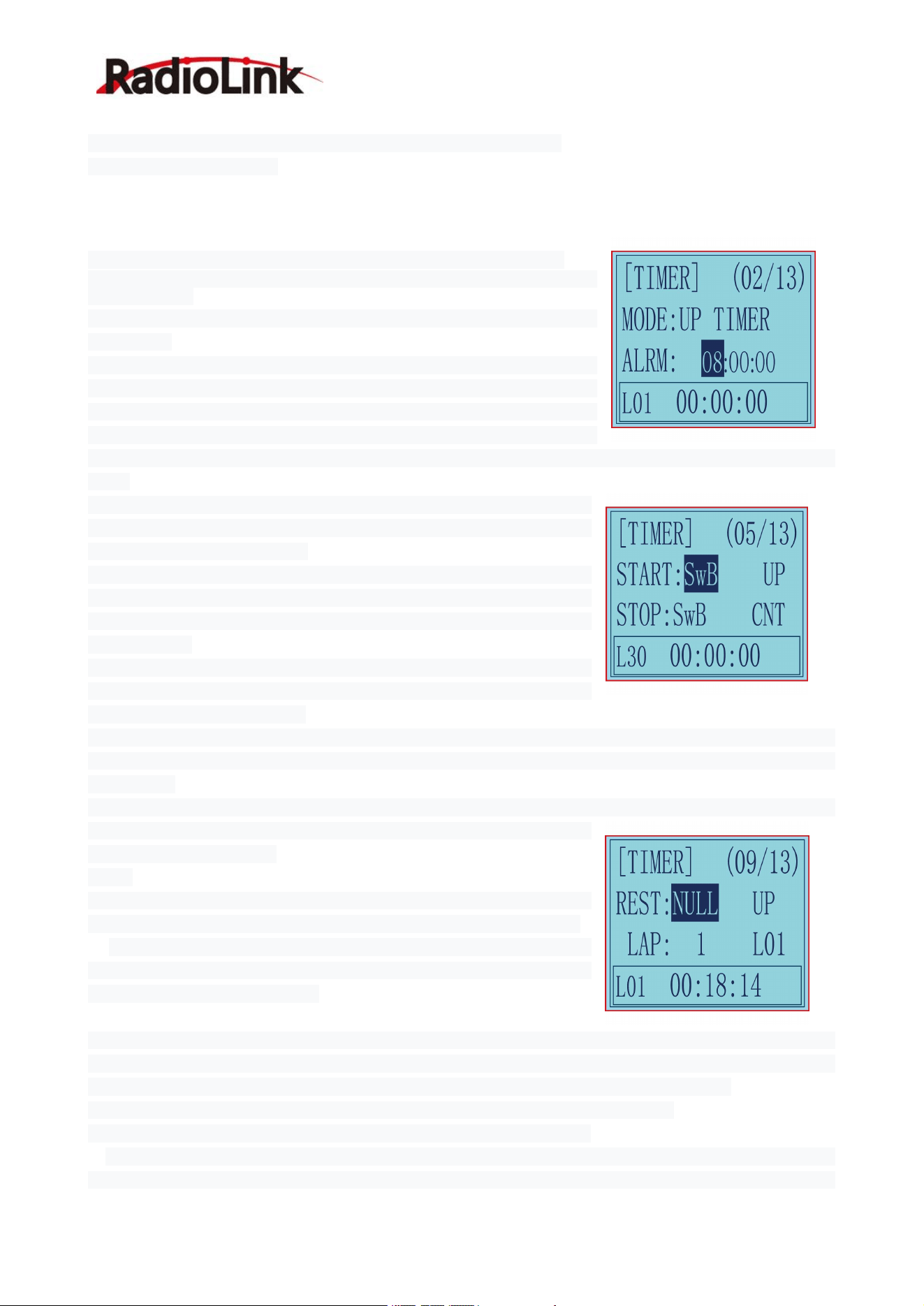
RadioLink Electronic Ltd
www.radiolink.com
35
2.24 Timer Setting “TIMER”
TIMER function is mainly used for game timing, and for daily training.
Enter the setting interface: Long press "Exit" and "Enter" button simultaneously for one second to enter the
function menu of RC6GS V3. Press "Inc(+)" button at the bottom of the screen to move the cursor to "24.
TIMER", and then press " Enter” button to enter the function setting interface.
Mode: Timer mode, you can choose "UP TIMER" or "DOWN TIMER".
UP TIMER: After triggering the timing function, the timing number will
count upwards.
DOWN TIMER: After triggering the timing function, the timing numbers will
count down.
Alarm: The timer starts. When it reaches the set time, the transmitter starts
to alarm. In the countdown 20S, it starts to alarm every 1S. In the
countdown 10S, it starts to alarm twice every 1S. When the alarm time is
reached, the transmitter will give a alarm. If the switch is not toggled now,
the timing will continue. The default alarm time is 8 minutes. The alarm time can be set according to actual
needs
START: Select a switch or button used to trigger the timing function. You
can choose SWA, SWB, SWC, SWD, TH (throttle trigger), and the lock
mode of the four switch buttons.
NULL means that the timing function is not enabled. If the switch is set to
SWA, SWB, SWC, SWD or their lock modes, you can select UP (up),
CNT (central), or DOWN (down) for the position of the switch to trigger the
timing function.
If the start switch is TH (throttle trigger), you can set the throttle rate to
0%-100%, and the timing function will be triggered when the throttle
trigger is pushed to the set rate.
STOP: It is used to stop the timing function. The setting method is the same as the above "START" setting.
When the number of laps set is greater than 1, the number of laps will automatically increase by 1 lap each
time it stops.
RESET: By toggling the switch set here, all the previously generated timing values will be cleared.Alarm
values and laps are retained. The switch setting method is the same as
the above "START" setting.
Note:
1. When triggering the timing function, please do not put the switch in the
stop or reset position, otherwise the timing function cannot be activated.
1. When the switch is not enough, there are 2 ways to reset all timings: a.
By setting the "alarm" value, all timings can be reset. b. All timings can be
reset by setting the "mode" value.
Recommendation: Choose one 3-way switch such as SWB or SWC for START,STOP and RESET. Set
the same switch with three different positions to control START, STOP and RESET. For example, set
(SWB, UP) to start timing, (SWB, CNT) to stop timing, and(SWB, DOWN) to reset timing.
LAP: used to set the number of laps required for timing, 1-30 lap numbers can be set;
Display laps: used to display the lap corresponding to the current timing.
L01-L30 can be selected. For example, when it is L02, the timing below correspond to Lap 2. When the
number of laps set is greater than 1, the number of laps will automatically increase by 1 lap each time it stops.
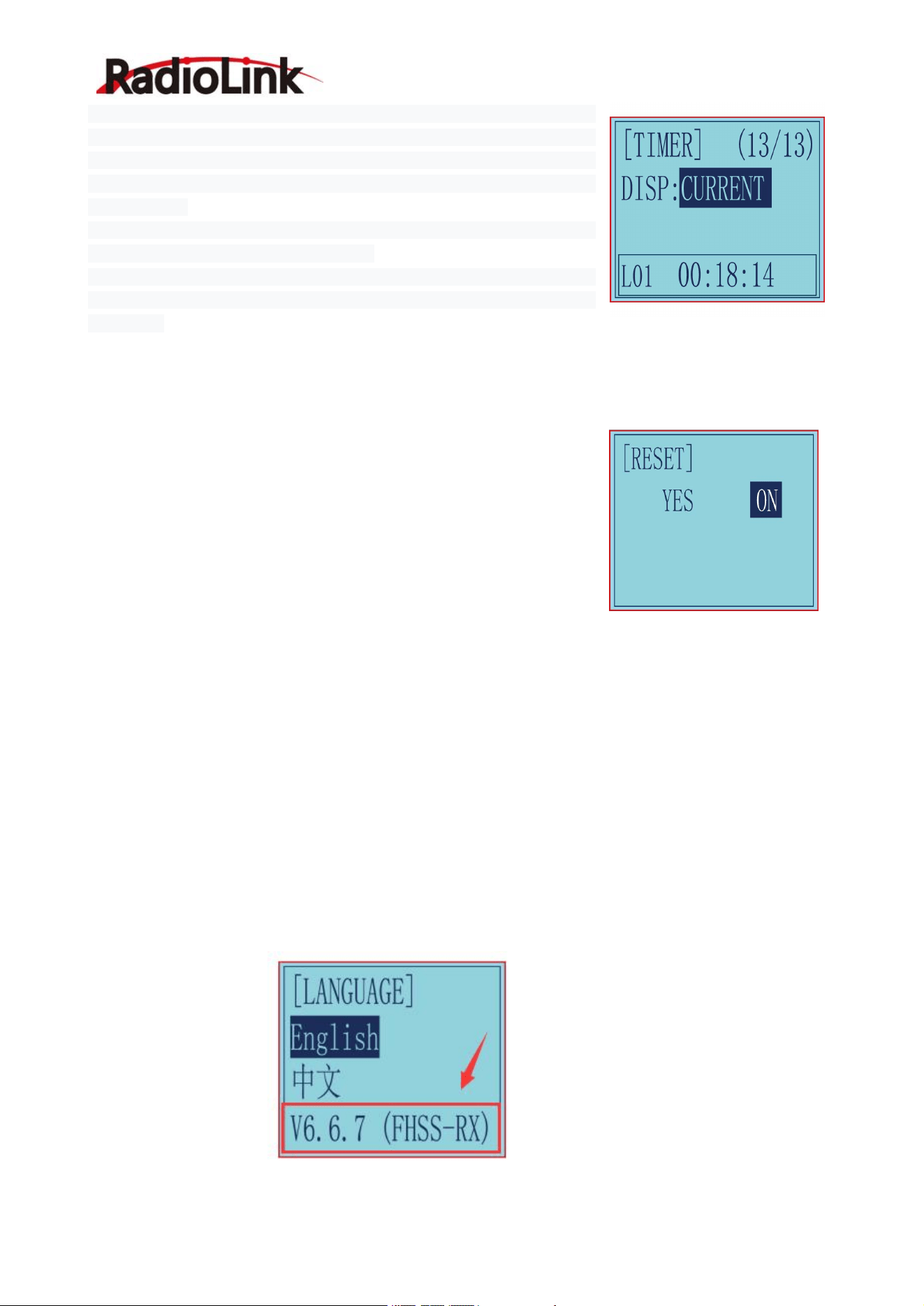
RadioLink Electronic Ltd
www.radiolink.com
36
How to check the timing of each lap: move the cursor to: L01-L30, press
the "Enter" button, the cursor starts to blink, and then press the "Dec(-)" or
"Inc(+)" buttons at the bottom of the screen to select the laps to check the
timing time. The corresponding timing lap and timing will be displayed in
the box below.
Display: CURRENT, the ON or OFF status of the timing function is only
displayed in the function menu of "Timer".
HOME PAGE, the ON or OFF status of the timer function is displayed both
in the "Home Page" and "Timer" function menu of the transmitter at the
same time.
2.25 Factory Reset “RESET”
RESET- Data reset function:
All the data for any model memory can be reset to original factory defaults.
Often this function is done to get a “fresh start” and clear the memory
before inputting new model settings.
(1) Enter the function menu and use “Dec(-)” or “Inc(+)” button to access
RESET function.
(2) Press “Enter” button to get into RESET function interface, the symbol
“YES” will blink.
(3) Press “Enter” key, the symbol “YES” will stop blinking, and the
transmitter will make three beeps. Then it will return to the initial screen
automatically. Now the model data is reset to the initial setting that is the default value set at the factory.
CAUTION: Resetting the current model memory will permanently erase ALL programming information for that
model. The data cannot be recovered. Do not reset the model unless you are certain you want to clear-out
that memory and start from scratch.
III. Tutorials
3.1 Firmware Update of RC6GS V3
Video tutorial
:
https://www.youtube.com/watch?v=XLyTnSlou-4
Firmware update steps:
1. Check the firmware version in the basic menu--LANGUAGE before firmware update.
2. Download the newest firmware in RadioLink official website. (https://www.radiolink.com/rc6gsv3_firmware)
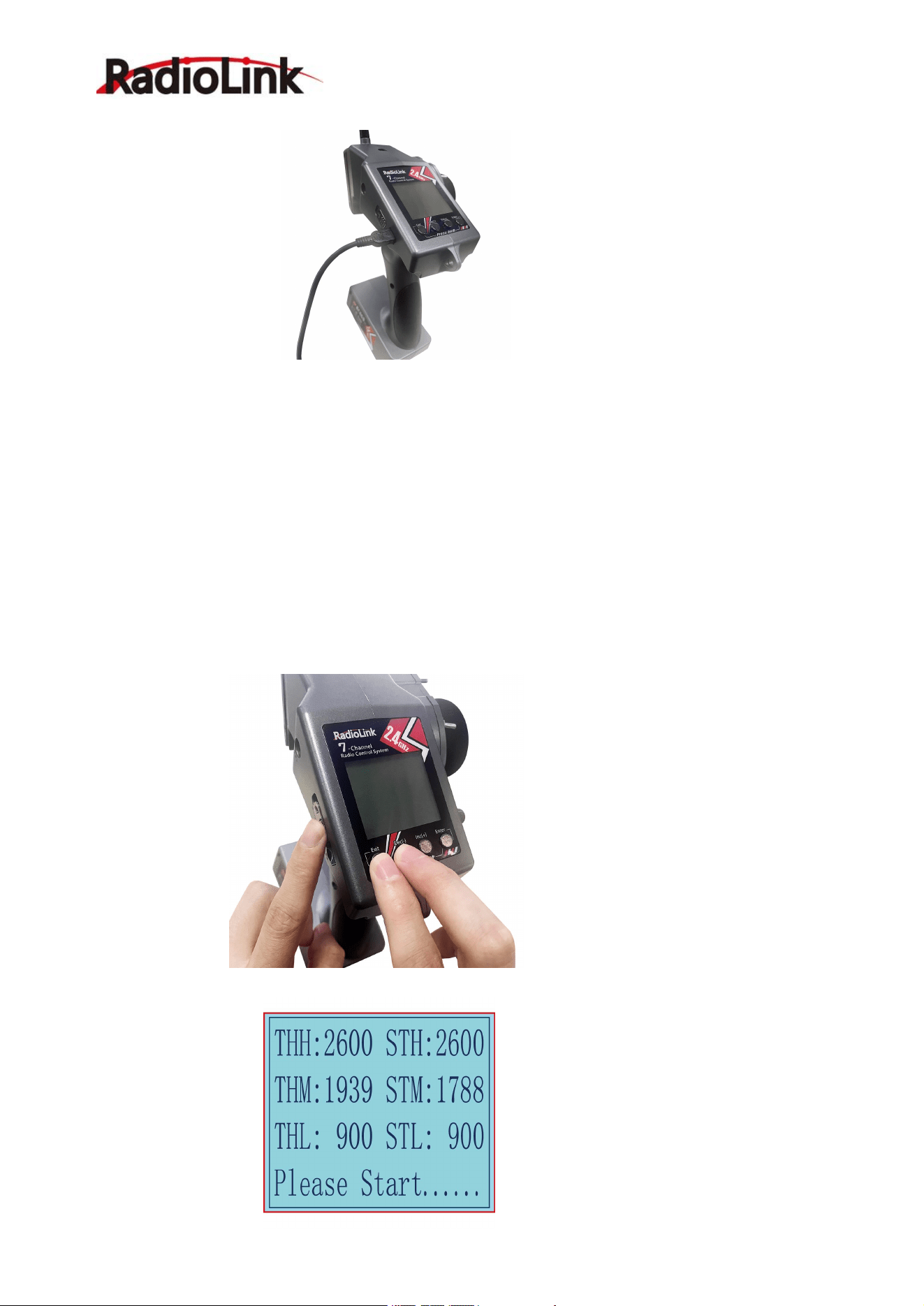
RadioLink Electronic Ltd
www.radiolink.com
37
3. Power off RC6GS V3. And then connect it to the computer with a USB cable.
4. Power on RC6GS V3.
Note: The screen won’t light up at this time.
5. Don’t need to format the Drive of the transmitter. Just copy the newest firmware and paste it into the Drive.
Note: The original firmware will be kept if you don’t copy the newest firmware after connection
6. Unplug the USB cable. Firmware update is done.
After firmware update, check the firmware version in the basic menu--LANGUAGE to confirm firmware
update.
3.2 Throttle and Steering Calibration
The function is used to correct the steering wheel, throttle trigger and VR knob of the transmitter. When there
is mechanically offset of the travel amount, the function can also be used.
Video tutorial
:
https://www.youtube.com/watch?v=UsbM9p7jx5s
1. Power the transmitter with the battery. Press and hold Exit and Dec(-) buttons at the same time and turn on
the transmitter.
2. After powering it on, the transmitter will enter the following calibration interface.
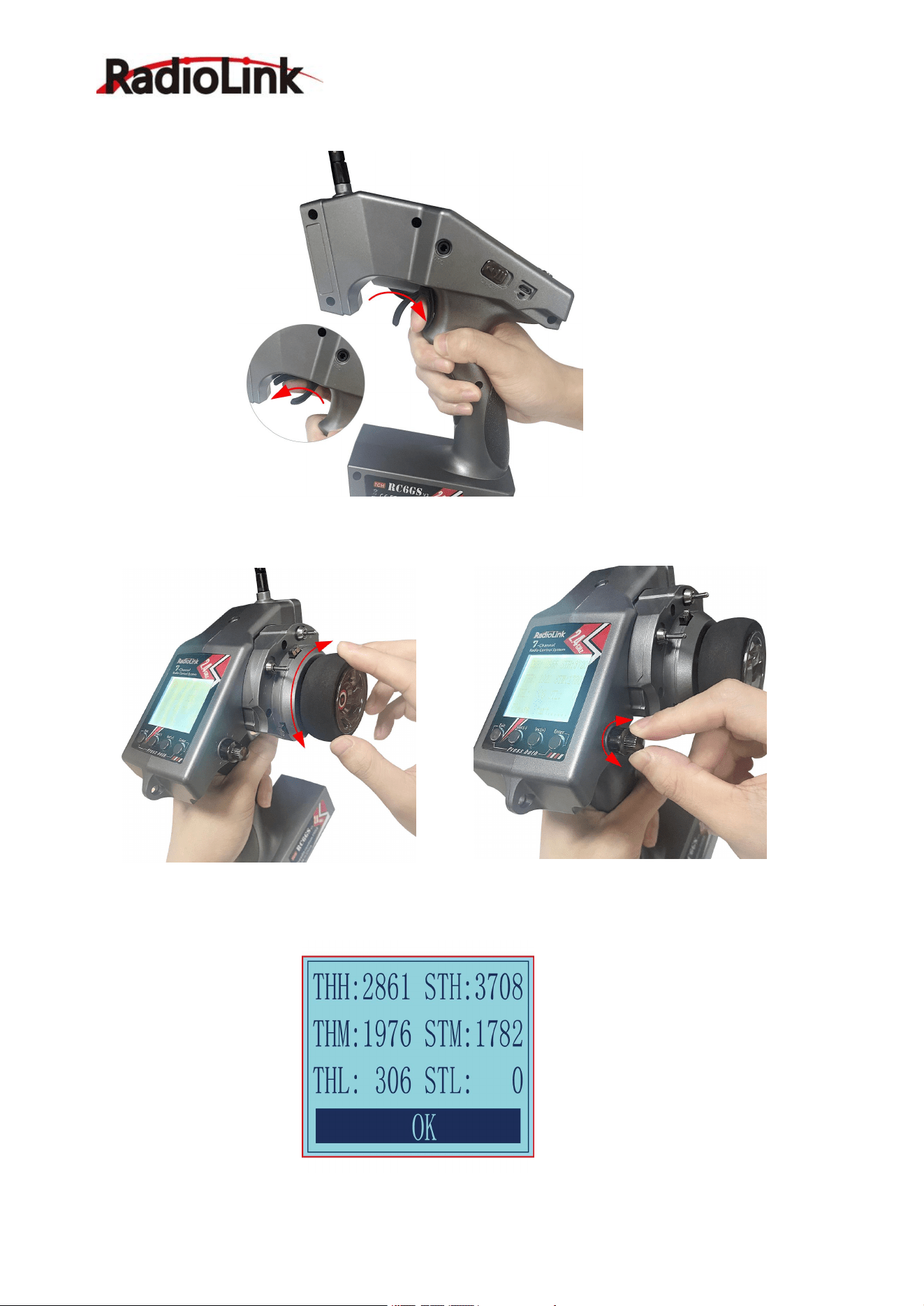
RadioLink Electronic Ltd
www.radiolink.com
38
3. Push the throttle trigger all the way forward and then push it all the way back. The value of the calibration
interface will change at the same time.
4. Turn the wheel and VR knob fully clockwise and then fully counterclockwise. The value of the calibration
interface will change at the same time.
5. After that, press Enter button in the transmitter to confirm. The following OK will appear on the screen,
indicating that the calibration is complete.
6. Turn off the transmitter. It can be used normally when powered on again.

RadioLink Electronic Ltd
www.radiolink.com
39
3.3 THSPD Throttle Delay Function on RC6GS V3
Video tutorial:https://www.youtube.com/watch?v=6r8rWS79ups
3.4 TIMER Function on RC6GS V3
Video tutorial
:
https://www.youtube.com/watch?v=Zobji480tVY
3.5 Dual Rate Function on RC6GS V3
Video tutorial:https://www.youtube.com/watch?v=CjvbySByvvw
3.6 EPA Function on RC6GS V3
Video tutorial:https://youtu.be/IunGUACFDlo
3.7 Set Different ALARM for 30 Different Models on RC6GS V3
Video tutorial
:
https://www.youtube.com/watch?v=NaFS6yijjVw
3.8 ID Seed Function on RC6GS V3
Video tutorial:https://www.youtube.com/watch?v=dp6DriYgUhw
3.9 Cruise Control Function on RC6GS V3
Video tutorial:https://www.youtube.com/watch?v=mbBltmpR9KI
3.10 Head Track Function on RC6GS V3
Video tutorial
:
https://www.youtube.com/watch?v=0H5zo-yfWdw
3.11 Set up FPV Monitor on RC6GS V3
Video tutorial:https://www.youtube.com/watch?v=FP5nGmbiL6g
3.12 TX Low Power & Battery Power Supply Options of RC6GS V3
Video tutorial:https://www.youtube.com/watch?v=ppcpfiuq8b4
3.13 Connect RC6GS V3 to TBS Crossfire
Video tutorial
:
https://www.youtube.com/watch?v=6vt5QexQSQs
3.14 LK-A/LK-D Button Setup on RC6GS V3
Video tutorial:https://www.youtube.com/watch?v=PicDCwbseXU
Thank you again for choosing our product.