
USER MANUAL
9 Inches Touchscreen Multimedia Player

Customer service:Catalogue
Do not hesitate to get in touch with us if you meet any difficulties
installing the unit, we are always available to answer any of your
questions and more than happy to take your suggestions.
We try our best to be as responsive as possible, you can always
get in touch with us through:
1. Your order on Amazon, Contact Seller Service. Reply within 24 hours.
2. Email Service: [email protected] Reply within 24 hours.
Features of This Product:
1. Support Wireless Carplay, Android Auto, Screen Mirroring
2. 1280P full HD multimedia decoder
3. Backup Camera
4. Suitable for 12V~24V vehicles
5. BT Compatible; Voice Control
6. User-friendly Digital Control Interface
7. Support TF card & AUX IN Connectivity
8. EQ Audio Setting
9. Multiple Language Settings
10. Date and Time Setting
11. Easy installation with included mount
12. Allow transfer sound to your car's speaker
Customer Service &
Features of This Product---------------------------Page 1
Product Overview------------------------------------Page 2
Package Contents-----------------------------------Page 3
Product description----------------------------------Page 4
Specification requirements of SD card &
Wiring instructions------------------------------------Page 5
Camera installation-----------------------------------Page 6
Interface specification-----------------------------Page 6&7
Apple Carplay-----------------------------Page 7 to Page 9
Android Auto------------------------------Page 9 to Page 11
iPhone Mirror-------------------------------------------Page 11
Android Mirror------------------------------------Page 12&13
Audio Output------------------------------------------Page 14
Setup----------------------------------------------------Page 15
Troubleshooting---------------------------------Page 16&17
Product parameters---------------------------------Page 17
FAQ------------------------------------------------Page 17&18
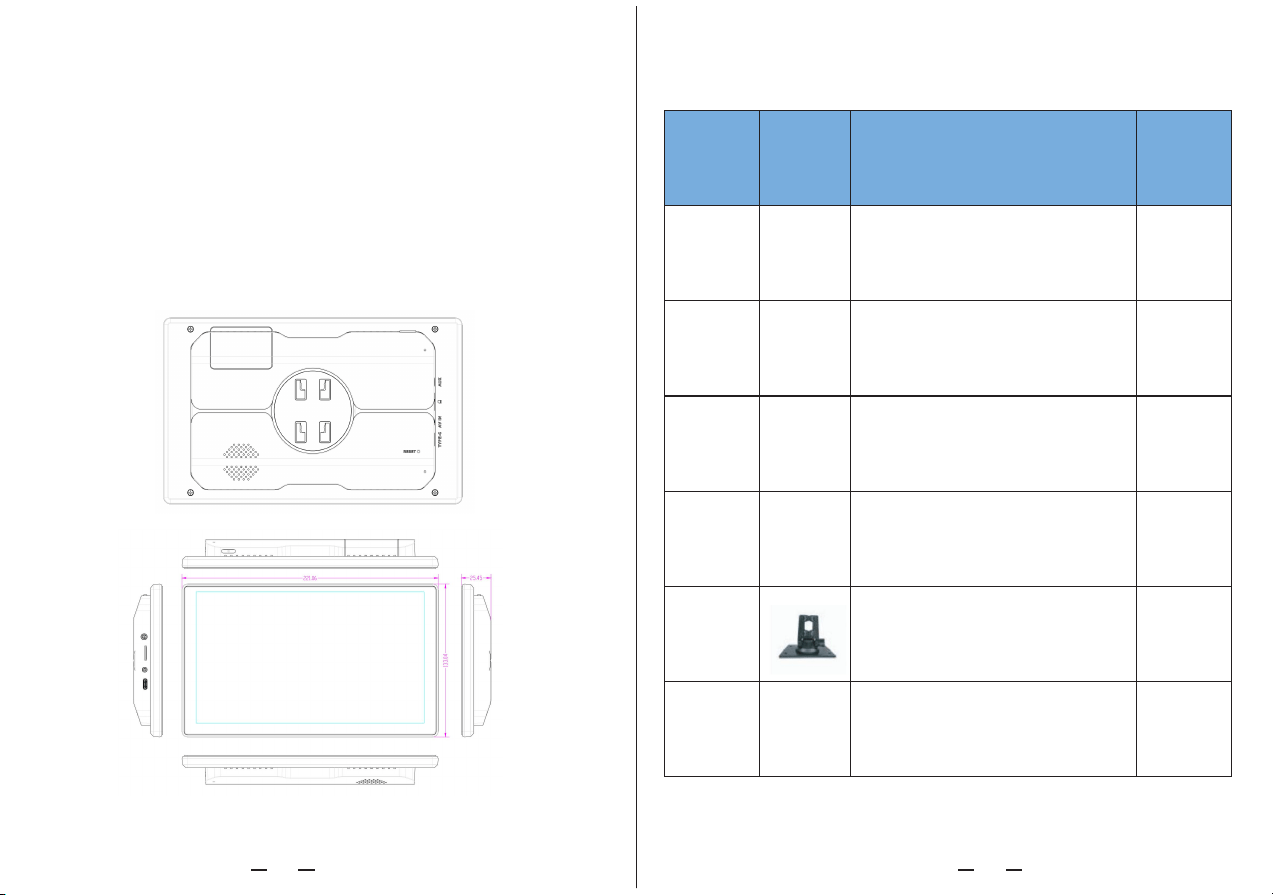
1. Product Overview
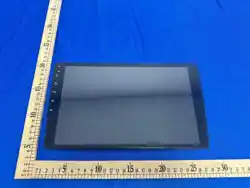
This portable car stereo is equipped with a sturdy adhesive mount,
which can be installed on the dashboards with 90°adjustable. You
don't need to disassemble the car central console, keep the car's
original radio, and coexist perfectly. This 7” car multimedia player
supports wireless Apple CarPlay & Android Auto, wireless mirroring,
backup-camera, TF card playback, voice control, BT music, AUX out,
etc...
2. Package Contents
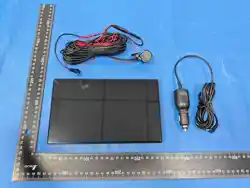
name
Car
Multimedia
Player
Power
cable
Back-up
Camera
AUX Cable
Adhesive
Mount
User
Manual
graphic instructions number
1
1
1
1
1
FHD display (1080*720) / touch
control / Bluetooth / Wi-Fi / Type C
interface power supply
Type C power cable / 12V-24V / 3A
current / integrated line /
cigarette lighter
You can use this Aux cable to
transmit the audio to your car's
speaker
To support the display and fix it on
the center console
keep the user manual for future
reference
1
PAL (640P)
01 02 03 04 05 06 07 08 09 10 11 12 13 14 15 16 17 18
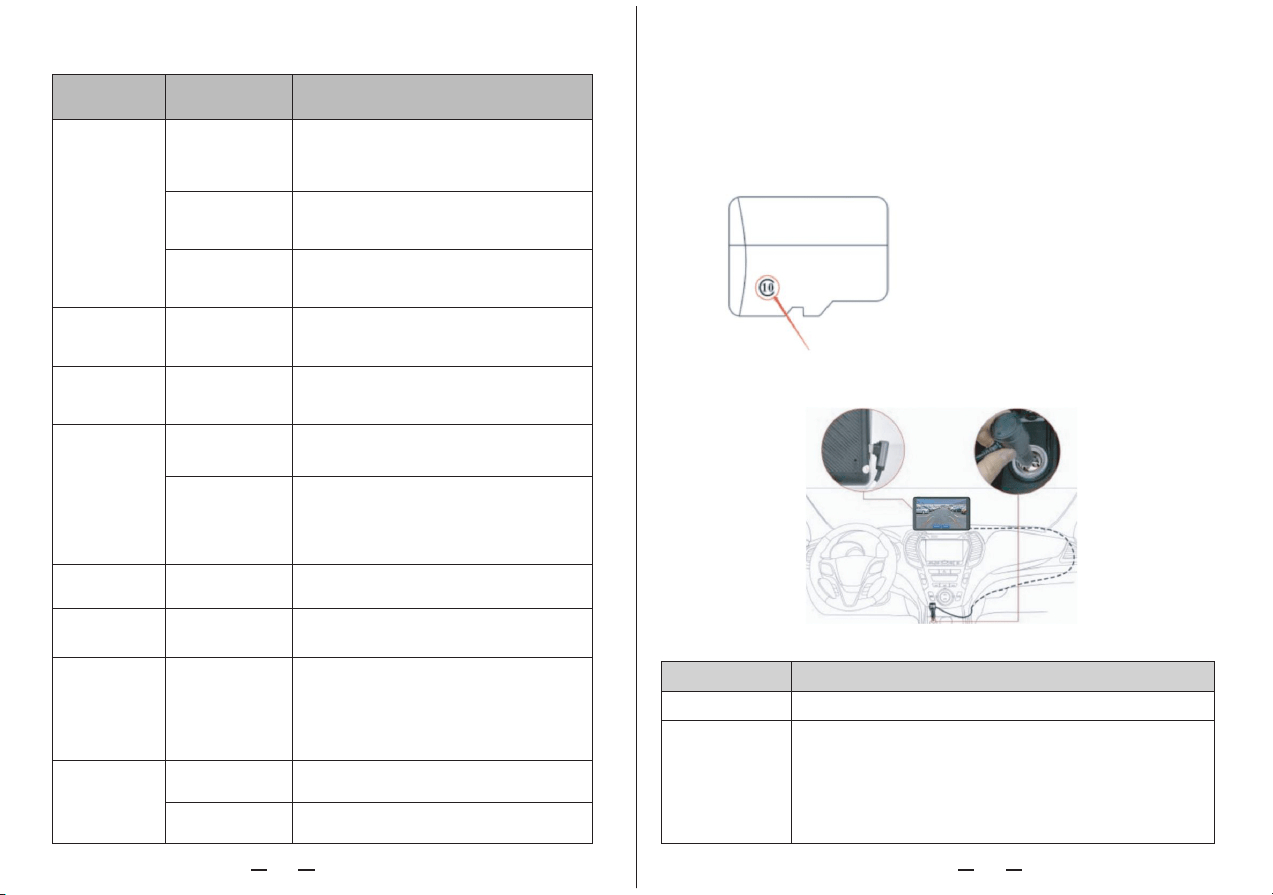
Port
Instructions
SD card can be used to store movies and music, which can be played
after being inserted into the machine. please use SD cards from major
brands such as SanDisk, Kingston, Toshiba, and Samsung, Speed
certification must be at least Class10.
3. Product description
4.Specification requirements of SD card
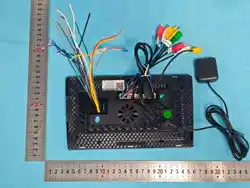
5. Wiring instructions
Project
system
Video display
Reverse display
Smart
connected
Audio part
Pre-content
storage
SD card
Play movies and music;
SD card is not included
Power part
Other
Function
introduction
language
Operation
interface
Real-time
Mode of
operation
display
Reverse
display
Wi-Fi
Bluetooth
The
microphone
The power
input
Working
temperature
The cooling
way
Graphical menu operation
Touch
HD IPS screen, 1080 x 720
Automatically switches to the rear view
The details are as follows:
Type C interface
Monitor power supply interface
The cigarette lighter takes power directly
Note: The product comes with a cigarette charger as standard. If you do not use
our original charger, you need to buy a compliant high-quality cigarette charger,
otherwise it is easy to damage the machine or cause other injuries due to
insufficient voltage and heat.
Cigarette charger
Support Bluetooth music playback
Support voice control
-4~149℉
Passive cooling
Performance indicators
English / Simplified Chinese / French /
German / Arabic / Italian / Japanese /
Russian / Spanish / etc...
Supports Apple CarPlay / Android Auto /
Apple AirPlay / MirrorCast
The voltage drop line supports 12V-24V
wide voltage and has power protection
circuits such as surge, overload,
overvoltage, undervoltage and short
circuit
01 02 03 04 05 06 07 08 09 10 11 12 13 14 15 16 17 18
Wireless Carplay supported phone models that should be above IOS 9 and phone
compatible with Carplay:
iPhone 17e、iPhone 17 Pro Max、iPhone 17 Pro、iPhone 17、iPhone 16e 、
iPhone 16 Pro Max、iPhone 16 Pro、iPhone 16 Plus、 iPhone 16、iPhone 15 Pro
Max、iPhone 15 Pro、 iPhone 15 Plus、 iPhone 15、iPhone 14、iPhone 14 Plus、i
Phone 14 Pro、iPhone 14 Pro-Max、iPhone 13 Pro、iPhone 13 Pro-Max、iPhone 1
3、iPhone 13 mini、iPhone 12 Pro、iPhone 12、iPhone 12 mini、iPhone 11 Pro、i
Phone 11 Pro Max、iPhone 11、iPhone XS、iPhone XS-Max、iPhone XR、iPhone
X、iPhone 8、iPhone 8 Plus、iPhone 7、iPhone 7 Plus
Note: Currently, lower versions of the IOS system may not be able to use the Carplay
application. If you encounter compatibility issues with your phone's Carplay, please try
upgrading the IOS system.
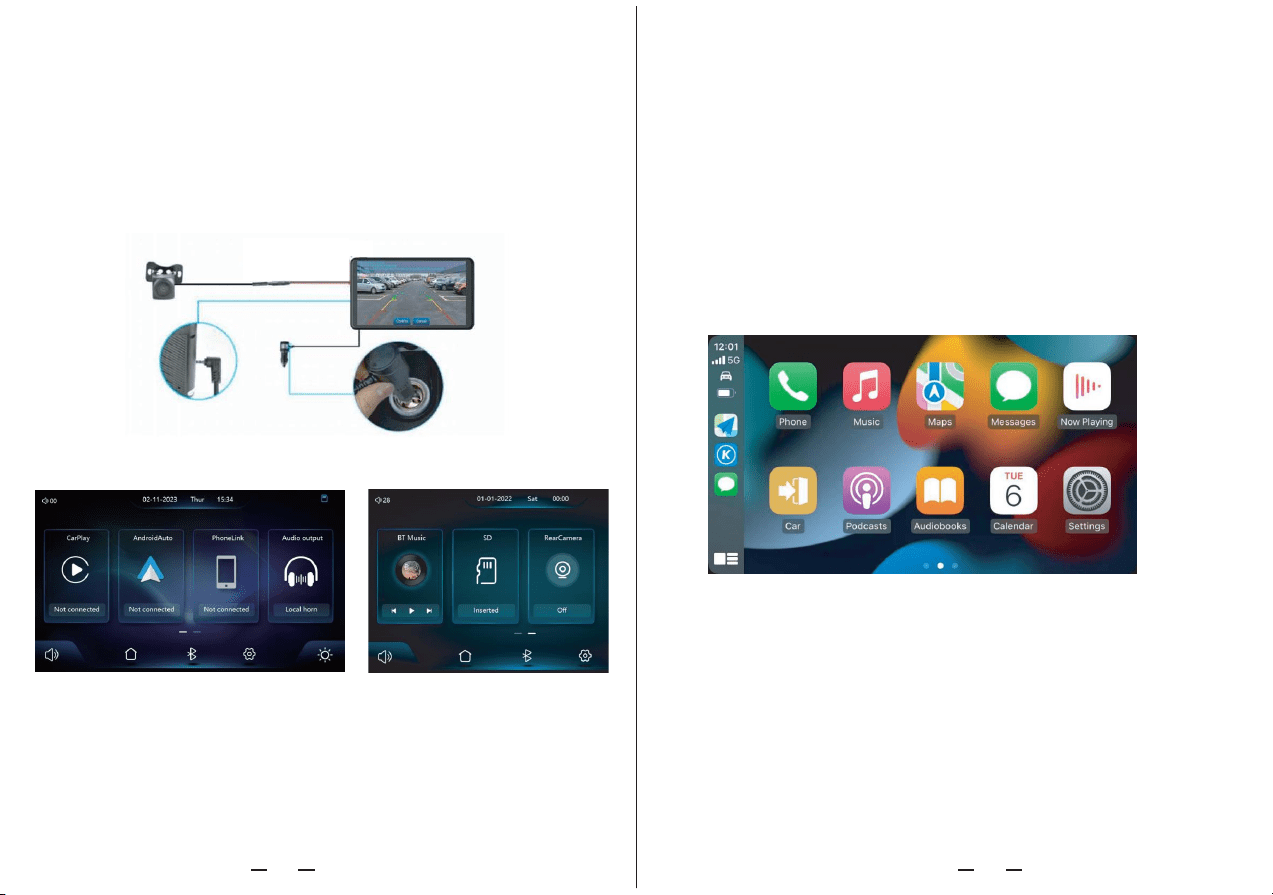
6. Camera installation
A. Apple Carplay
Fix the camera to the rear of the car with screws, the reversing trigger
wire (red thin wire) needs to be connected to the positive pole of the
reversing light, and finally use the camera extension cable to connect
to the monitor.
Note: If you have any issues installing the backup camera, please scan QR code at
the end of the user manual for video tutorial or contact us for help.
Reverse trigger
Connect to the positive pole of reverse light
1. CarPlay: click to check the details of how to connect to wireless Apple
carplay
2. Android Auto: click to check the details of how to connect to wireless
Android Auto
3. Phone Link: Clink to enter mirroring function for iPhone and Android
phone.
4. Audio output: there are 3 ways to output audio: original BT (car
7. Interface specification
1 2 3 4
5 6 7 8 9
10 11 12
speaker), AUX (3.5mm Jack), Local horn(built-in speaker).
5. Volume: Click to adjust the volume, slide the volume bar to adjust it
6. Menu: Directly back to the main menu page.
7. BT: Click to enter BT phone dial interface.
8. Setup: Click to enter the setup interface.
9. Brightness: tap to adjust screen brightness, slide the bar to adjust it
10. BT Music: Play music in Bluetooth mode
11. SD: View the SD card contents
12. Rear Camera: The screen will show reversing image after you click
this icon. (You need to connect the camera correctly.)
01 02 03 04 05 06 07 08 09 10 11 12 13 14 15 16 17 18
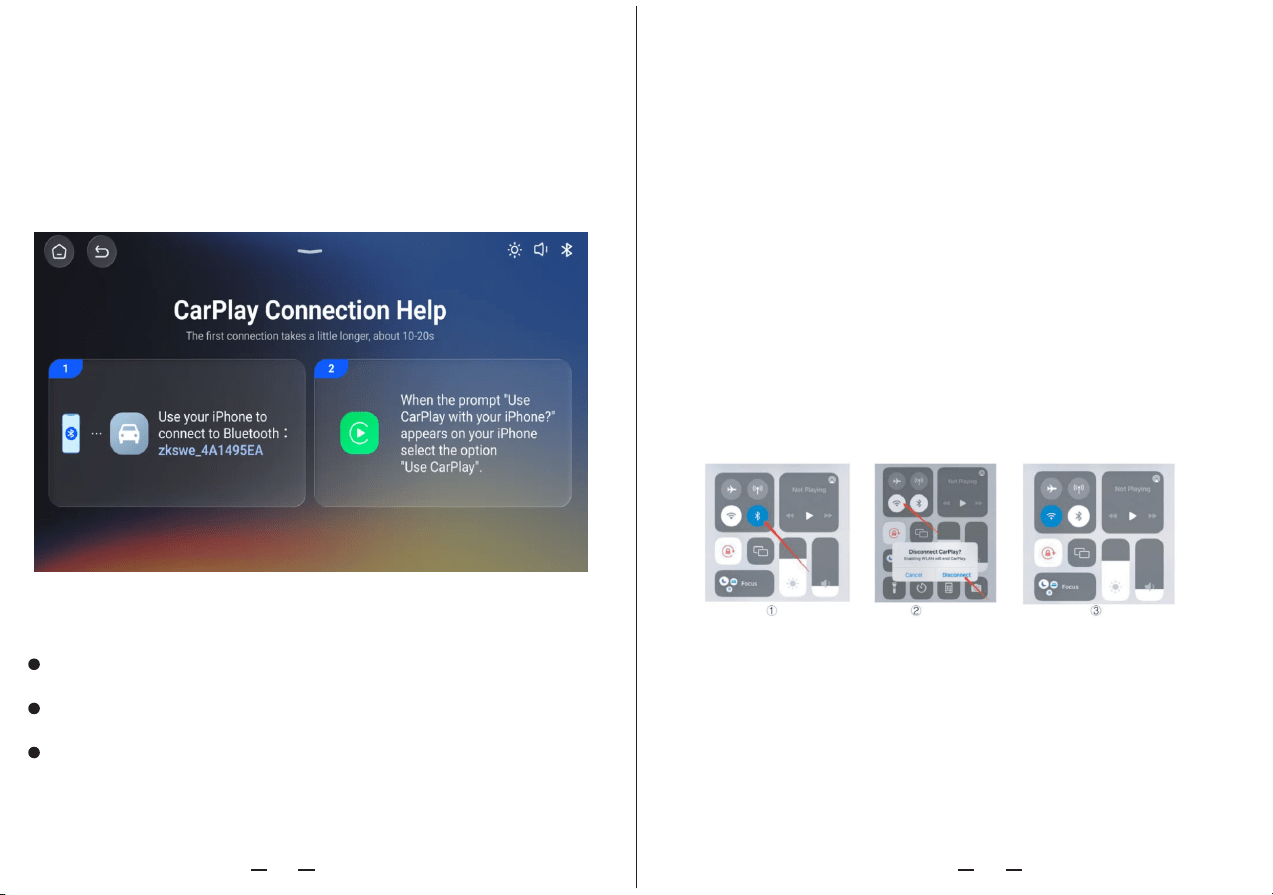
ADDITIONAL EXPLANATION
How to set-up:
1. Click the CarPlay icon on the main menu of the car stereo.
2. Turn on the Wi-Fi and Bluetooth of the mobile phone first; Find the Bluetooth name
“zkswe_4A1495EA” in the Bluetooth list, cilck to pair, (If need pin code, try 0000)
3. The pop-up “Allow Contacts and Favorites Sync" will pop up on your iPhone,
please click "Allow".
4. The pop-up “Use Carplay with “IVT” will pop up on your iPhone, please click “Use
Carplay”, and then car stereo will automatically enter into carplay interface.
Working Principle:
Wireless CarPlay uses Bluetooth to set up the connection between the phone and
the vehicle and then it switches to using WiFi for the actual functionality.
After the Bluetooth pairing is successful, the phone WiFi will automatically connect
to the car player's WiFi, and then disconnect the Bluetooth connection by default.
When the car stereo is powered on, it will try to automatically connect to the last
connected phone.
Based on the working principle of the car player, please pay attention to the following:
1. When enjoying the wireless CarPlay/Android Auto function, the phone's WiFi will be
occupied by the car player, other WiFi cannot be used during this period. If there is a
B. Android Auto
conflict between other WiFi and car stereo's WiFi, you may need to manually
disconnect the connection of other WiFi to keep the wireless CarPlay/Android Auto
use.
2. The auto-connection function of the car stereo requires you to keep the WiFi and
Bluetooth of the mobile phone available. In addition, please set the WiFi network of
the car stereo to "Auto-Join".
3. Since the car stereo will disconnect the Bluetooth connection after pairing, your
phone's Bluetooth may automatically connect to other devices, which may cause car
stereo mic input or sound playing to be unavailable. You may need to manually
disconnect your phone from the other Bluetooth or switch off the Bluetooth directly to
fix it. (Bluetooth plays a pairing role in the work of the car player. When the pairing is
completed, it only needs WiFi to keep working, so it doesn't matter to turn off
Bluetooth. But when you use it next time, you still need to turn on Bluetooth, so that
the car stereo can be automatically paired and connected.)
Note: In the drop-down menu of the mobile phone, you need to click to turn off
Bluetooth first, and then click the Turn off WiFi button to disconnect. Just turn off the
WiFi button alone, and the car player will keep trying to reconnect.
01 02 03 04 05 06 07 08 09 10 11 12 13 14 15 16 17 18
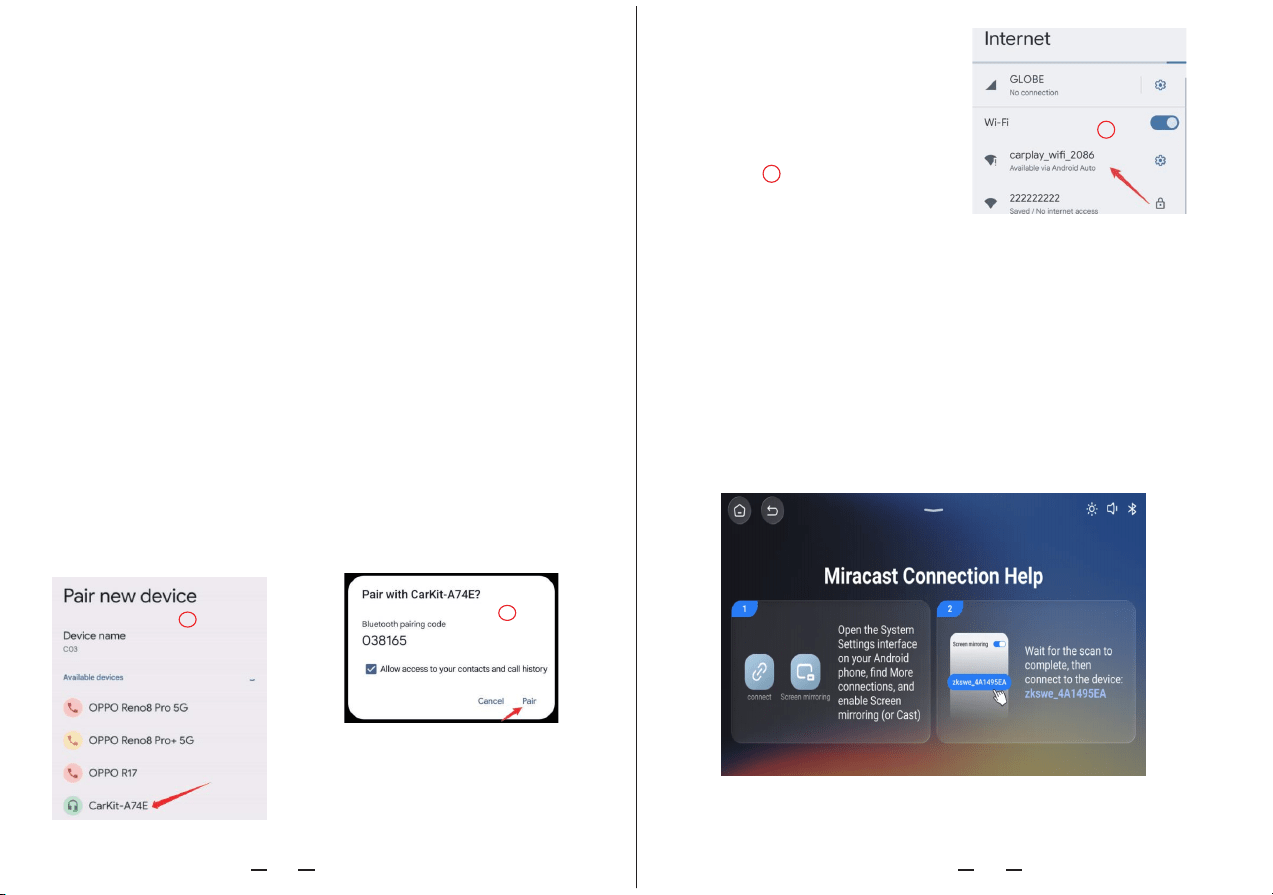
Wireless Android Auto supported phone models which should support 5Ghz WIFI and
Google service:
1. Android 11.0 or above system version,
2. Google or Samsung phones with Android 10.0
3. Samsung Galaxy S8; Galaxy S8+; Note 8 with Android 9.0
How to set-up:
1. Click the Android Auto icon on the main menu of the car stereo.
2. Turn on the Wi-Fi and Bluetooth of the mobile phone first; Pair new device and find
the Bluetooth name “CarKit-xxxx” in the Bluetooth list, click to pair, (If need pin code,
try 0000)
3. The pop up "Pair with Carkit-xxxx" will pop up on your phone, please click "Pair".
4. The pop up "Allow access to messages?" will pop up on your phone, please click
"Allow"; and then car player will automatically enter into Android Auto interface. When
the car player is powered on, it will try to automatically connect to the last connected
Important Note: Open Android Phone Settings – Connection Settings, Check if
Android Auto exists, or search for Android Auto on the Settings page. If there is an
Android Auto option, it means that the protocol connection is supported. If not, try
restarting your phone and logging back into the Google Play store to see if Android
Auto can be found. If it still cannot be found or cannot be installed and used properly,
it may be due to local policies/laws that do not support the application. Please ensure
that your country or region supports Android Auto wireless services.
phone.
C. iPhone Mirror
iPhone Mirror can transmit video, audio and pictures from iPhone device to car
equipment. The carrier of transmission is WiFi, which is fundamentally different from
Bluetooth wireless.
1. Requires an iPhone to connect to WiFi, wifi name is “XT_300F“; wifi
pasword is 12345678
2. Select Car in the Screen image in the iPhone Control Center.
Note: Only support iPhone. You can use wired mirroring, but you need to buy
additional accessory cable.
(Turn off Wi-Fi button to disconnect)
After replacing the mobile phone, the connection data of the previous mobile phone
will be erased.
3
4
1
2
01 02 03 04 05 06 07 08 09 10 11 12 13 14 15 16 17 18
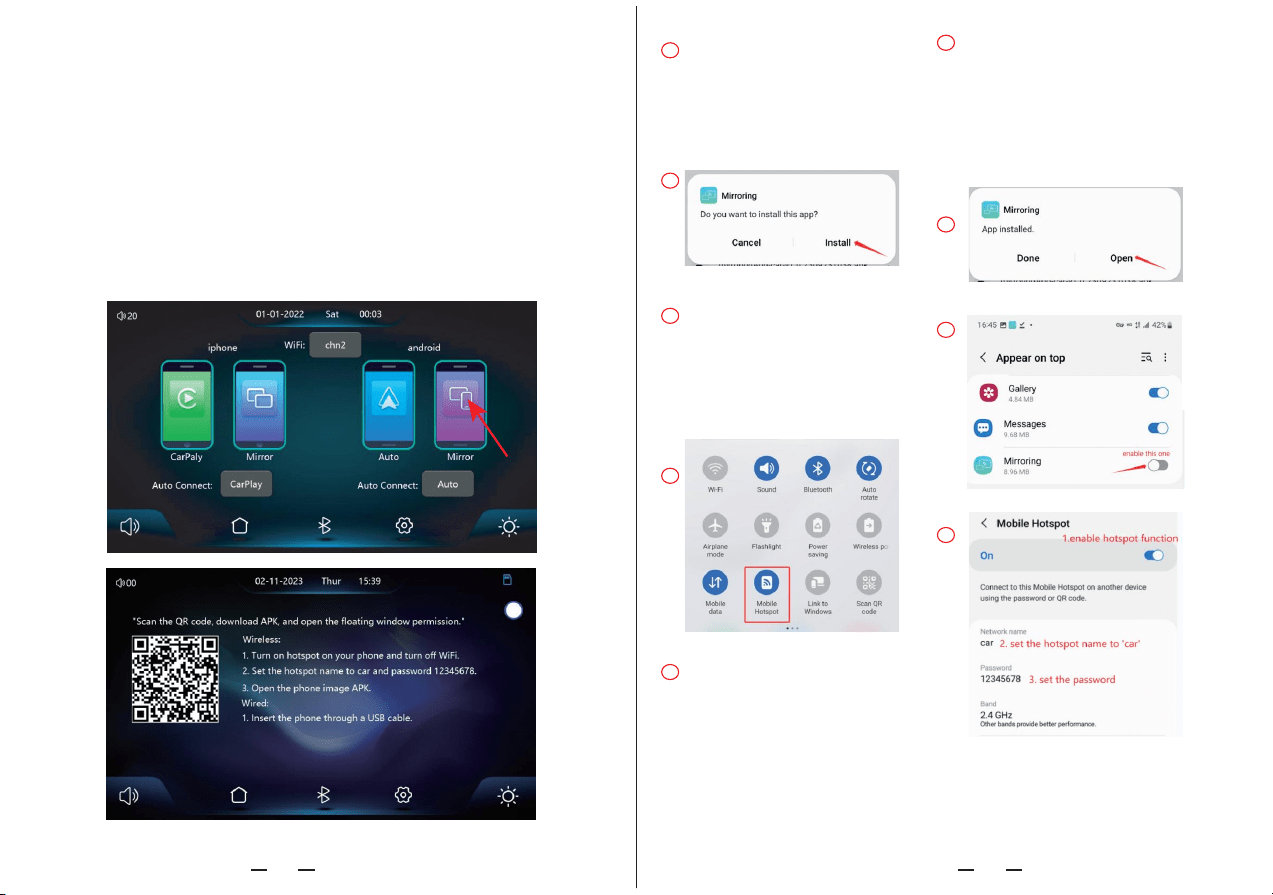
D. Android Mirror
It can realize the mirror projection of the mobile phone and the car machine.
You need to scan the code with your Android mobile phone to download, install and run
the "Mirroring" application.
1. Click the “PhoneLink” option in the Menu, and then click the “Mirror” option under
Android.
2. Scan QR code and download AICAST, and open the floating window permission.
3. Turn on hotspot on your phone and turn off WiFi, and set the hotspot name to ‘car’
and set the password as 12345678
4. Open Phone Mirror APK-AICAST on your phone.
Note: You can use wired mirroring, but you need to buy additional accessory cable.
1
2
3
4
5
6
7
8
9
01 02 03 04 05 06 07 08 09 10 11 12 13 14 15 16 17 18
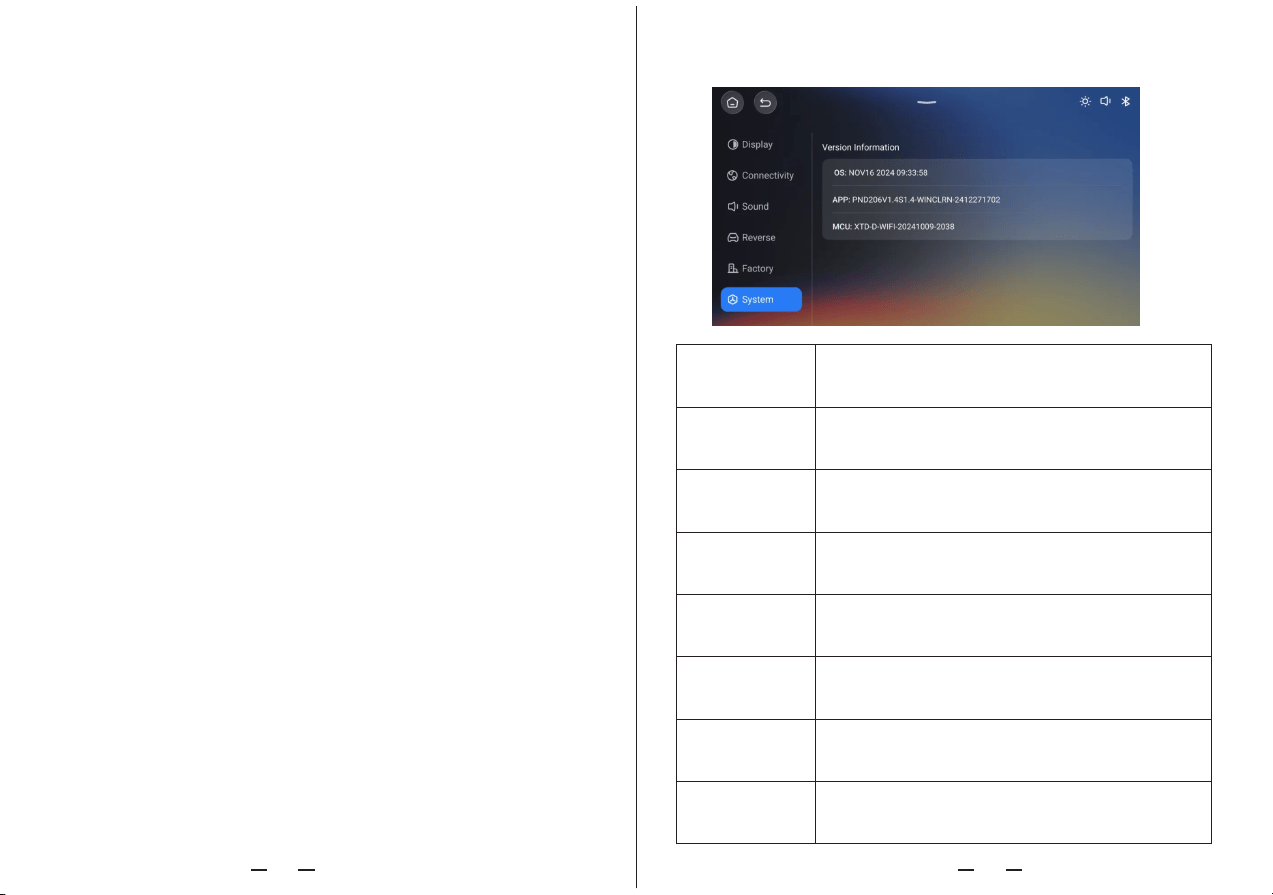
F. Setup
You can restore factory if the car player doesn't work as expected.
You can set some parameters for the rear-view camera.
The input password is “112345”.
You can change the sound effect if you want, available
effect: Jazz, Classic, Rock, Pop, Flat, User.
You can adjust the brightness, contrast, hue, saturation.
Choose the language you want.
Setup the time or date for the car player.
You can change the background if you need.
Check the system version of the car player.
01 02 03 04 05 06 07 08 09 10 11 12 13 14 15 16 17 18
E. Audio Output
Important Note:
After you connected your phone to this carplay screen, if you don’t choose from above
3 audio output modes, the sound will still be coming through your phone. You need to
manually choose the audio output channel.
Details are as follows:
1.Media: After you
click this one, the screen will pop up a notification saying
‘Audio output via bulit-in speaker?’ you need to choose ‘Confirm’. And then the sou
nd will be coming out from built-in speaker of this unit.
2.AUX: After you click this one, the screen will pop up a notification saying ‘Switch to
AUX?’, you need to choose ‘Confirm’. And then use the included AUX cable to connect
this carplay screen to your car’s aux port.
Note: Some machines may show AV IN instead of AUX, it is due to version difference,
functions are all good, please rest assured.
3.Carplay/Auto: After you click this one, the screen will pop up a notification saying
‘CarPlay/Android Auto audio output via mobile phone Bluetooth?’, And then use your p
hone to connect to the car Bluetooth, in this way the sound will come out from your car
speaker.

SolutionProblemItem
1
2
3
4
5
6
8. Troubleshooting
① Check whether the DC head of the cigarette
lighter power cord is damaged or aging.
② Check whether the fuse of the power
plug is disconnected or burned.
Unable to
turn on the
car player
① Please reset the unit to factory mode and try again.
② Please contact seller for a replacement.
Touch screen is
not responding
① Make sure you have connected it right.
② Whether the AV IN interface is inserted to the bottom.
③ Check if the camera format matches. Make sure the
camera is CVBS signal and plug into the AV IN port.
The rear view
camera has
no image
①Avoid direct sunlight or exposure to sunlight
during use.The normal operating temperature of
this car player is-4 ~149 ℉.After disconnecting the
power supply,the temperature of this car player will
be lower than 149 ℉ and work normally.
①The first connection takes a little longer.
②Only iPhone supports Carplay.
③Check that the WiFi and Bluetooth functions of
the mobile phone are normal.
④Enter Settings-General-Carplay vehicle, delete
all records and reconnect.
⑤Restart the iPhone and reconnect it.
① Only Android phones are supported.
② Update Auto and related applications on
mobile phones to the latest version.
③ Do not enable VPN on the mobile phone.
④ Check that the WiFi and Bluetooth functions of
the mobile phone are normal.
⑤Restart the Android phone and connect it again.
Machine getting
hot after some
time use
Carplay
cannot
connect
Android Auto
cannot
connect
01 02 03 04 05 06 07 08 09 10 11 12 13 14 15 16 17 18
* Explanation on terms under “Basic setup”:
1.Touch Screen Calibration: Usually we don’t suggest you to use this function, it
may cause malfunction.
2.Restore Factory Set: If the unit is not working as expected, or the touchscreen is
not working correctly, you can try to reset the unit back to factory mode to see if it
works better.
3.Camera Mirroring Settings: If your find the video image is upside down or
abnormal in any way when in reverse mode, please try to set the video image here.
There are 4 options for you to choose: Mirroring Horizontal, Mirroring Vertical,Fully
Mirroring and Mirroring OFF.
4.Revering Guide Lines Setting: If you find there is no parking assistance lines
when you go reverse, you can check this option and make sure this option is turned
on.
5.Suspension key swittch: This equal to a shortcut key, that is, when you use
carplay for example, there will be a small round suspension key on the screen,if you
click on it, it will quickly show 3 options for you: such as quickly adjust the volume of
the unit, back to main menu and turn off the screen. If you don’t want this feature,
you can just set this option to “OFF”.
* Explanation on “Online upgrade” under “Version”:
If you find your IOS phone cannot mirror because you have update the IOS system
version to newest version, then you can online upgrade this unit to keep up with your
phone’s newest IOS version:
Click on this button “online upgrade” under “Version”:, and then click “YES”.
FAQ
9. Product parameters
Car stereo doesn’t have sound
1. Please make sure you have chosen the audio output channel on the fourth icon on the
main menu; if not, the sound will still be coming through your phone.
2. Please check if you set the volume to zero, or mute the radio.
Wireless Android Auto function cannot be used 1. Please contact seller to update the
device to newest version
7
①Please set the screen casting mode to Bluetooth
music. Other modes do not support Bluetooth music.
The bluetooth
music
Master control Hight performance SOC
Wireless function
Apple Carplay / Android Auto / Apple AirPlay / Mirror Cast
Screen
IPS material, 1080*720 resolution
Storage
SD ≤ 256 G Class 10
Wireless module
WIFI, Bluetooth
Camera
Rear camera
Horn
2W speaker
Reversing video
Automatic reversing video display
Working voltage
12V- 24V
Power
Less than 10W
Size
220*133*25mm
Weight
515g
Meterial
ABS/PC
2. Make sure your Android phone has downloaded the Mirroring app as mentioned.
I cannot see the Bluetooth of the device or I cannot connect to the Bluetooth
successfully.
Please try to check if other phones have connected to the car stereo ( or other phones
are trying to auto-connect to this car stereo), if yes, this situation may happen. In this
case, you need to disconnect the Bluetooth or WiFi between other phones and this car
stereo, and then try to connect with your desired phone.
The volume of the built-in speaker is not sufficient.
If you think built-in speaker isn't loud enough. Please choose other 3 audio output
channels. Check details on the fourth icon on the main menu.
1.You can transfer the sound to your car Bluetooth.
2. Please use the AUX cable to connect to your car to transfer the sound to your car
speaker;
Screen get stuck I cannot do anything or click on anything.
If the unit crashes and screen get stuck, please restart the unit by using a small needle to
insert into the ‘RESET’ hole at the back of the unit.
Or you can simply cut off the power and turn on the unit to try again.
How to change the boot up logo
1. Prepare an empty TF card and create a folder named 'update' in the root directory.
2. Prepare your own car logo picture with a size of 1080 x 720 pixels, name it: stalogo.
jpg, and put it in the update folder.
3. Insert the prepared TF card into the multimedia car player after the unit is powered on.
It will automatically update the new boot logo.
4. Disconnect the power supply, and then connect the power supply again. The screen
will display a new custom logo, indicating that the setting is successful.
Also make sure not to use the frequency band occupied by local radio's.
The player cannot turn off by itself
Kindly note this is not the issue of the CarPlay screen. It has something related to your
car. Some cars still provide power to the cigarette lighter after turning off the key. In this
case, you may need to turn off the carplay screen manually or buy a 12V battery saver.
My carplay screen is the newest version, but I cannot do iPhone screen mirroring.
1.Please turn off your Bluetooth and WiFi, and turn off your smartphone and turn on to
try again. After you turn on your iPhone, please directly use the mirror link function. And
for the mirror link, you don't need to open the Bluetooth.
2.If first tip didn’t help, please reset the unit back to factory mode. You can do it through
- “Settings-Basic setup-Restore Factory Set-Yes”.
There is strange clicking noise when use aux cable mode
1.Please use another aux cable to check if the situation improves.
2.If it still exists, we suggest you to add a noise isolator to the unit.
Android screen mirroring is not working
1.When you set the hotspot, please pay attention to the "car"- capitalized the C in car
for the hotspot will also affect it and just make sure it is in lowercase and then it will
work.
2.Please turn off your phone and turn on to try again.
3.Please reset the carplay screen back to factory mode, you can do it through -
“Settings-Basic setup-Restore Factory Set-Yes”.
4.Please uninstall the mirroring app and download it again to try.
How do I transfer the sound to car speaker when in screen mirroring mode
You can still get the audio to your car sepakers, you can use AUX cable or FM
transmission function to transfer the sound to your car speraker, but not through car
Bluetooth function.
Android Auto always show “connecting”but it won’t connect
1.Please turn off your android smartphone and turn on to try again.
2. Please uninstall the Android auto app and re-install it to try again.
3. Do not enable VPN on the smartphone.
4. Check that the WiFi and Bluetooth functions of the smartphone are normal.
01 02 03 04 05 06 07 08 09 10 11 12 13 14 15 16 17 18

Car stereo doesn’t have sound
1. Please make sure you have chosen the audio output channel on the fourth icon on the
main menu; if not, the sound will still be coming through your phone.
2. Please check if you set the volume to zero, or mute the radio.
Wireless Android Auto function cannot be used 1. Please contact seller to update the
device to newest version
2. Make sure your Android phone has downloaded the Mirroring app as mentioned.
I cannot see the Bluetooth of the device or I cannot connect to the Bluetooth
successfully.
Please try to check if other phones have connected to the car stereo ( or other phones
are trying to auto-connect to this car stereo), if yes, this situation may happen. In this
case, you need to disconnect the Bluetooth or WiFi between other phones and this car
stereo, and then try to connect with your desired phone.
The volume of the built-in speaker is not sufficient.
If you think built-in speaker isn't loud enough. Please choose other 3 audio output
channels. Check details on the fourth icon on the main menu.
1.You can transfer the sound to your car Bluetooth.
2. Please use the AUX cable to connect to your car to transfer the sound to your car
speaker;
3. you can also use the FM transmission function to transmit sound from this portable car
screen to your original car audio system.
Screen get stuck I cannot do anything or click on anything.
If the unit crashes and screen get stuck, please restart the unit by using a small needle to
insert into the ‘RESET’ hole at the back of the unit.
Or you can simply cut off the power and turn on the unit to try again.
How to change the boot up logo
1. Prepare an empty TF card and create a folder named 'update' in the root directory.
2. Prepare your own car logo picture with a size of 1024 x 600 pixels, name it: stalogo.jpg,
and put it in the update folder.
3. Insert the prepared TF card into the multimedia car player after the unit is powered on.
It will automatically update the new boot logo.
4. Disconnect the power supply, and then connect the power supply again. The screen
will display a new custom logo, indicating that the setting is successful.
No sound on the FM transmission channel.
After you confirm to Switch to FM transmission function, please make sure your car's
original radio does tune the same band frequency to receive the sound. That is, set the
transmission frequency the same both on this carplay screen and your original car radio.
Also make sure not to use the frequency band occupied by local radio's.
The player cannot turn off by itself
Kindly note this is not the issue of the CarPlay screen. It has something related to your
car. Some cars still provide power to the cigarette lighter after turning off the key. In this
case, you may need to turn off the carplay screen manually or buy a 12V battery saver.
My carplay screen is the newest version, but I cannot do iPhone screen mirroring.
1.Please turn off your Bluetooth and WiFi, and turn off your smartphone and turn on to
try again. After you turn on your iPhone, please directly use the mirror link function. And
for the mirror link, you don't need to open the Bluetooth.
2.If first tip didn’t help, please reset the unit back to factory mode. You can do it through
- “Settings-Basic setup-Restore Factory Set-Yes”.
There is strange clicking noise when use aux cable mode
1.Please use another aux cable to check if the situation improves.
2.If it still exists, we suggest you to add a noise isolator to the unit.
Android screen mirroring is not working
1.When you set the hotspot, please pay attention to the "car"- capitalized the C in car
for the hotspot will also affect it and just make sure it is in lowercase and then it will
work.
2.Please turn off your phone and turn on to try again.
3.Please reset the carplay screen back to factory mode, you can do it through -
“Settings-Basic setup-Restore Factory Set-Yes”.
4.Please uninstall the mirroring app and download it again to try.
How do I transfer the sound to car speaker when in screen mirroring mode
You can still get the audio to your car sepakers, you can use AUX cable to transfer
the sound to your car speraker, but not through car Bluetooth function.
Android Auto always show “connecting”but it won’t connect
1.Please turn off your android smartphone and turn on to try again.
2. Please uninstall the Android auto app and re-install it to try again.
3. Do not enable VPN on the smartphone.
4. Check that the WiFi and Bluetooth functions of the smartphone are normal.
19
FCC WARNING
This device complies with part 15 of the FCC Rules. Operation is subject to the
following two conditions: (1) this device may not cause harmful interference, and
(2) this device must accept any interference received, including interference that
may cause undesired operation.
Any changes or modifications not expressly approved by the party responsible for
compliance could void the user's authority to operate the equipment.
NOTE: This equipment has been tested and found to comply with the limits for a
Class B digital device, pursuant to Part 15 of the FCC Rules. These limits are
designed to provide reasonable protection against harmful interference in a
residential installation. This equipment generates, uses and can radiate radio
frequency energy and, if not installed and used in accordance with the
instructions, may cause harmful interference to radio communications. However,
there is no guarantee that interference will not occur in a particular installation.
If this equipment does cause harmful interference to radio or television reception,
which can be determined by turning the equipment off and on, the user is
encouraged to try to correct the interference by one or more of the following
measures:
-- Reorient or relocate the receiving antenna.
-- Increase the separation between the equipment and receiver.
-- Connect the equipment into an outlet on a circuit different from that to which
the receiver is connected.
-- Consult the dealer or an experienced radio/TV technician for help.
To maintain compliance with FCC’s RF Exposure guidelines, This equipment should
be installed and operated with minimum distance between 20cm the radiator your
body: Use only the supplied antenna.