AI 眼镜 AG03
使用说明书
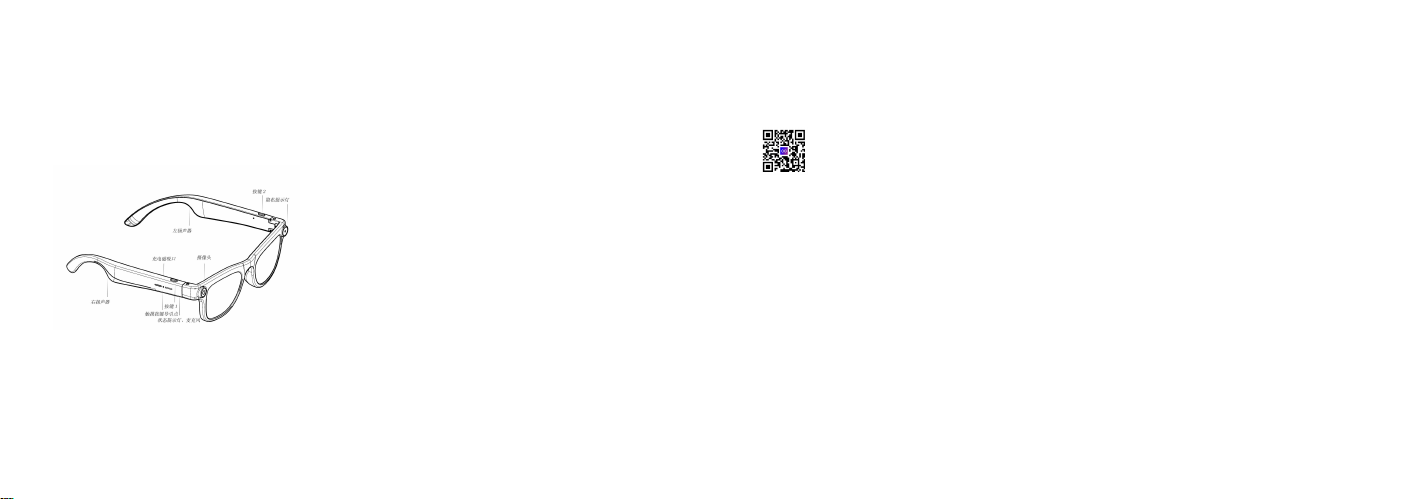
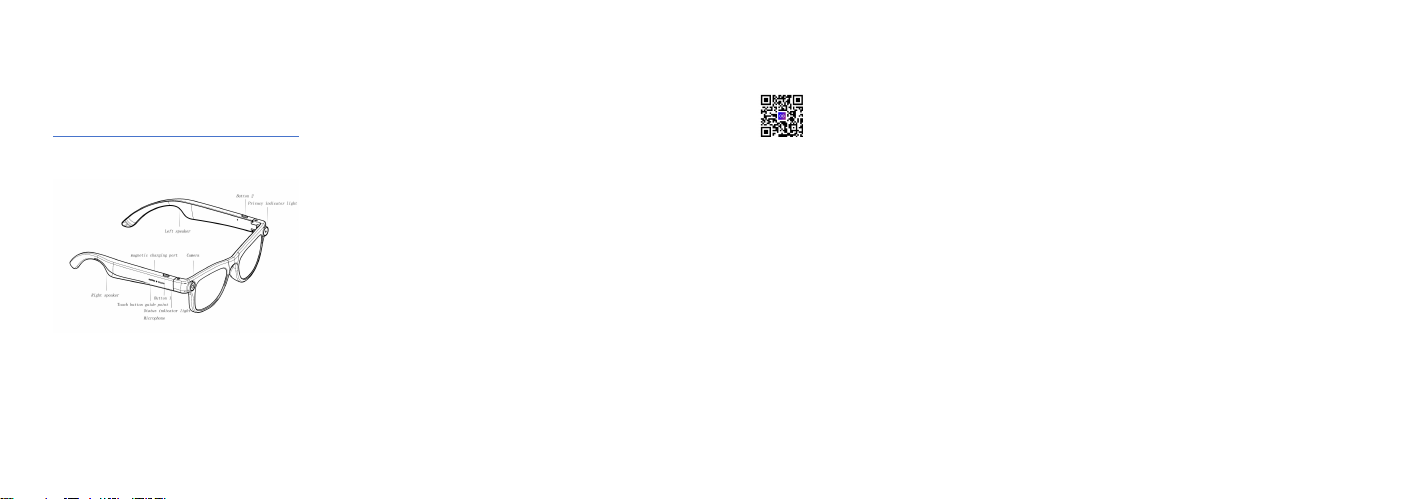
(一)外观说明
(二)包装内容
智能眼镜、眼镜布、眼镜袋、磁吸充电线、说明书及其他可能所需配件
(三)使用说明
1. 开关机
开机:关机状态下,长按按键① 3 秒开机
关机:开机状态下,同时长按按键①和按键②,3 秒关机
2. 拍照
开机状态下,短按按键① 1 次可拍摄照片,照片会自动存储在产品的本地内存,
可连接 APP 后导入手机;
3. 录像
开机状态下,长按按键① 3 秒开启录像功能,录像过程中,再长按 3 秒结束本
次录像,拍摄的视频会自动存储在产品本地内存,可连接 APP 后导入到手机;
4. 录音
开机状态下,长按按键② 3 秒,开启录音功能,录音过程中,再长按 2 秒结束
本次录音,录制的音频会自动存储在产品本地内存,可连接 APP 后导入手机;
5. AI 识图
开机状态下,快速短按按键① 2 次,开启拍照识物功能;同时请保持头部静止,
摄像头会对眼前物体进行拍照,并同步到 APP 进行分析,结果须在 APP 的 AI
板块里查看。
6. AI 语音助手
开机状态下,短按按键② 1 次,唤醒 AI 语音助手,可与 AI 语音助手进行对话,
此操作需让 OneGlance 应用程序保持在前端显示;
7. 隐私提示灯
白色灯闪烁一次:拍照提示
白色灯常亮:录像/直播/视频通话中
8. 状态提示灯
红色指示灯闪烁:提示设备电量不足,请及时为设备充电。
蓝色指示灯亮: 表示设备已充电完成。
(四)连接设备
1.
扫描下方二维码或进入网站 https://oneglance.cn/apk/og.html,下载并安
装本产品眼镜 APP
2. 也可在 Google Play 或 iPhone 的 App Store 搜索 “OneGlance” 下
载并安装到手机;
3. 打开本产品眼镜 APP,按提示完成注册;
选择【眼镜】,点击添加设备;
选择搜索到的本设备名称【AG03】;
听到“connected” 声时,AI 眼镜与手机连接成功。
(五)控制眼镜
1. 使用触控及实体按键
手指放在触摸按键导引点后侧:
单指前滑:音量+
单指后滑:音量-
单指长按:下一首(媒体)
单指双击:播放/暂停(媒体)
单指三击:上一首(媒体)
2. 使用 APP 软件 OneGlance
可通过 APP 设置眼镜工作模式、控制眼镜工作并使用其它相关功能。详情请登
录 APP 并参考使用导引。
(六)温馨提示
·本产品支持拍照和录像,但电量低于 20%时,设备将停用拍照和录像功能并暂
停向手机传输数据,充电后可恢复使用;
·本产品支持 WiFi 传输数据至手机并保存,需要手机允许 APP 使用相关权限
方可实现。
·本智能眼镜是单机产品,许多功能需与手机连接后进行使用。
(七)关键安全提示
使用产品前请仔细阅读本说明书,并妥善保管。
• 本产品不防水蒸汽,请勿在洗澡/淋浴/汗蒸等高湿环境下使用或充电
• 请使用本产品配套的充电线充电;
• 充电时,如佩戴设备感觉温度异常,请立即取下并停止使用。
• 若设备未佩戴,但出现过热或无响应的情况,请及时断开充电线,避免损坏
设备。
• 为了防止可能的听力损伤,请勿长时间使用高音量。
• 进行剧烈运动时,请勿使用本产品,以免因意外带来人身伤害。
• 本产品支持拍照、录像功能,使用本产品时,请遵守隐私保护原则,避免未
经许可录音、录像或拍摄他人,以免侵犯隐私权。请在使用前了解并遵守当地规
定。请确保符合当地法规要求,避免违规使用。
(八)免责声明
使用说明书中的产品、配件、用户界面等插图均为说明参考示意图,与产品实物
可能略有差异,请以实物为准。
因产品的升级可能您拿到的产品部分显示内容或功能会与说明书有所区别,具体
以实物为准。
因产品的升级可能随时对本说明节中的印刷错误、不准确的信息进行必要更改,
或对程序/设备进行改进,不做另行通知,但是,此类更改将纳入到本说明的新
版本中。
AI Glasses AG03
User Manual
(I) Appearance
(II) Package Contents
Smart glasses, cleaning cloth, glasses pouch, magnetic charging cable, manual, and other possibly
needed accessories
(III) Usage Instructions
1. Power On/Off
Power On: Long press Button ① for 3 seconds in power-off state to turn on the device.
Power Off: Long press both Button ① and Button ② simultaneously for 3 seconds in power-on
state to turn off the device.
2. Take Photos
In power-on state, short press Button ① once to take a photo. Photos are automatically saved to
the product's local memory and can be imported to your mobile phone after connecting to the
APP.
3. Record Videos
In power-on state, long press Button ① for 3 seconds to activate the video recording function.
During recording, long press again for 3 seconds to stop recording. Recorded videos are
automatically saved to the product's local memory and can be imported to your mobile phone
after connecting to the APP.
4. Record Audio
In power-on state, long press Button ② for 3 seconds to activate the audio recording function.
During recording, long press again for 2 seconds to stop recording. Recorded audio files are
automatically saved to the product's local memory and can be imported to your mobile phone
after connecting to the APP.
5. AI Image Recognition
In power-on state, double short press Button ① quickly to activate the image recognition
function. Please keep your head still at the same time; the camera will take a photo of the object
in front of you and sync it to the APP for analysis. Results can only be viewed in the AI section of
the APP.
6. AI Voice Assistant
In power-on state, short press Button ② once to wake up the AI Voice Assistant and you can
have a conversation with it. This operation requires the OneGlance application to be displayed in
the foreground.
7. Privacy Indicator Light
White light flashes once: Photo taking prompt
White light stays on: Video recording/Live streaming/Video call in progress
8. Status Indicator Light
Red indicator light flashes: Low battery alert, please charge the device in a timely manner.
Blue indicator light stays on: Indicates the device is fully charged.
(IV) Connect to Device
1. Scan the QR code below or go to the website https://oneglance.cn/apk/og.html to download
and install the eyewear APP of this product.
2. You can also search for "OneGlance" on Google Play or the iPhone App Store to download and
install it on your mobile phone.
3. Open the Glasses APP of this product and complete the registration as prompted.
• Select [Glasses] and click Add Device.
• Select the detected device name [AG03].
• The AI Glasses are successfully connected to the mobile phone when you hear the voice
prompt "connected".
(V) Control the Glasses
1. Use Touch and Physical Buttons
Place your finger on the rear side of the Touch Button Guide Point:
• Single finger swipe forward: Volume +
• Single finger swipe backward: Volume -
• Single finger long press: Next track (Media)
• Single finger double tap: Play/Pause (Media)
• Single finger triple tap: Previous track (Media)
2. Use the APP Software (OneGlance)
You can set the working mode of the glasses, control their operation and use other related
functions through the APP. For details, log in to the APP and refer to the user guide.
(VI) Tips
• This product supports photo taking and video recording, but when the battery level is below
20%, the device will disable the photo taking and video recording functions and suspend data
transmission to the mobile phone, which can be restored after charging.
• This product supports WiFi data transmission to and storage on the mobile phone, which
requires the mobile phone to grant the relevant permissions to the APP.
• This smart glasses is a standalone device, and many functions need to be used after connecting
to a mobile phone.
(VII) Important Safety Warnings
Please read this user manual carefully before using the product and keep it properly for future
reference.
• This product is not resistant to water vapor. Do not use or charge it in high-humidity
environments such as bathing/showering/sauna.
• Please use the dedicated charging cable provided with this product for charging.
• If you feel abnormal temperature on the device while charging with it worn, please remove it
immediately and stop using it.
• If the device overheats or becomes unresponsive when not worn, please disconnect the
charging cable in a timely manner to avoid device damage.
• To prevent potential hearing damage, do not use high volume for a long time.
• Do not use this product during strenuous exercise to avoid personal injury caused by accidents.
• This product supports photo taking and video recording functions. When using this product,
please abide by the privacy protection principles, avoid recording audio/videos or taking photos
of others without permission to prevent infringement of privacy rights. Please understand and
comply with local regulations before use and ensure compliance with local legal requirements to
avoid unauthorized use.
(VIII) Disclaimer
FCC Caution:
This device complies with part 15 of the FCC Rules. Operation is subject to the following two conditions: (1) This device may not cause harmful
interference, and (2) this device must accept any interference received, including interference that may cause undesired operation.
Any Changes or modifications not expressly approved by the party responsible for compliance could void the user's authority to operate the
equipment.
Note: This equipment has been tested and found to comply with the limits for a Class
B digital device, pursuant to part 15 of the FCC Rules. These limits are designed to provide reasonable protection against harmful interference in
a residential installation.
This equipment generates uses and can radiate radio frequency energy and, if not installed and used in accordance with the instructions, may
cause harmful interference to radio communications. However, there is no guarantee that interference will not occur in a particular installation
. If this equipment does cause harmful interference to radio or television reception, which can be determined by turning the equipment off and
on, the user is encouraged to try to correct the interference by one or more of the following measures:
-Reorient or relocate the receiving antenna.
-Increase the separation between the equipment and receiver.
-Connect the equipment into an outlet on a circuit different from that to which the receiver is connected.
-Consult the dealer or an experienced radio/TV technician for help.
The device has been evaluated to meet general RF exposure requirement. The device can be used in portable exposure condition without
restriction.