Installation Guide
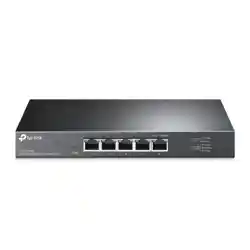
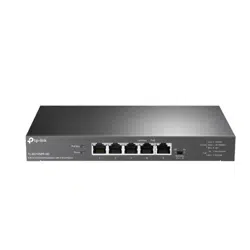
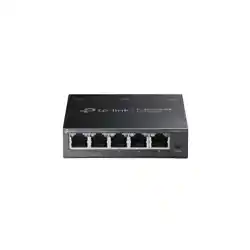
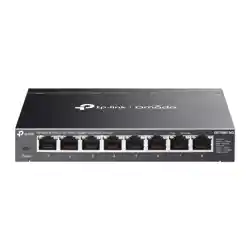
5/8-Port 2.5G Multi-Gigabit Desktop Switch
Note:
For simplicity, we will take DS105G-M2 for example in this Guide.
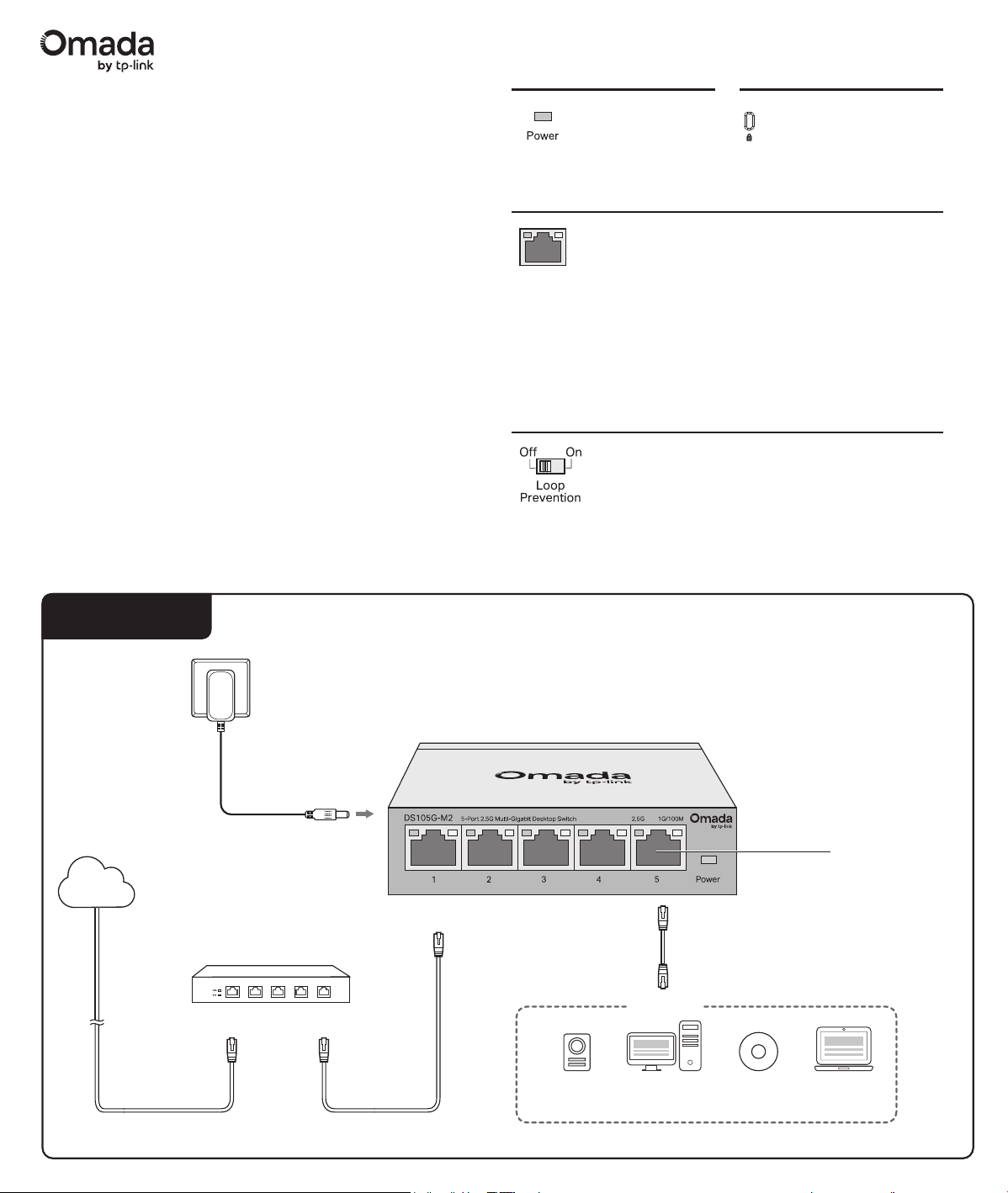
Panel Explanation
Connection
Power Adapter
Gateway
LAN PortWAN Port
Internet
On: Power on
O: Power o
Power
When one of the LED is on/ashing
On: Connecting to a device but no activity
Flashing: Transmitting or receiving data
Left LED (2.5G)
Green: Running at 2.5 Gbps
Port LED
Right LED (1G/100M)
Green: Running at 1 Gpbs
Yellow: Running at 100 Mbps
Devices
2.5G
Wi-Fi 6/7 AP
2.5G NAS/Server 2.5G Gaming
Computer
Laptop*
*With a USB to 2.5G Ethernet adapter, you can enjoy the Ethernet up to 2.5 Gbps on your laptop.
Kensington Security Slot
Secure the lock (not
provided) into the slot
to prevent the device
from being stolen.
Ethernet Ports
© 2025 TP-Link
7100001817 REV1.0.0
Switch
On: The switch will monitor and address
loop-related issues within the network
structure to prevent disruptions caused by
redundant pathing
O: (default) The switch will not try to
monitor or address loop-related issues
The Power LED should be lit when the power system is working normally. If
the Power LED is not lit, check as follows:
A1:
Make sure the power adapter is connected to the switch with power
source properly.
A2:
Make sure the voltage of the power supply meets the requirements of
the input voltage of the switch.
A3:
Make sure the power source is ON.
Q1. The Power LED is not lit.
Frequently Asked Questions (FAQ)
Specications
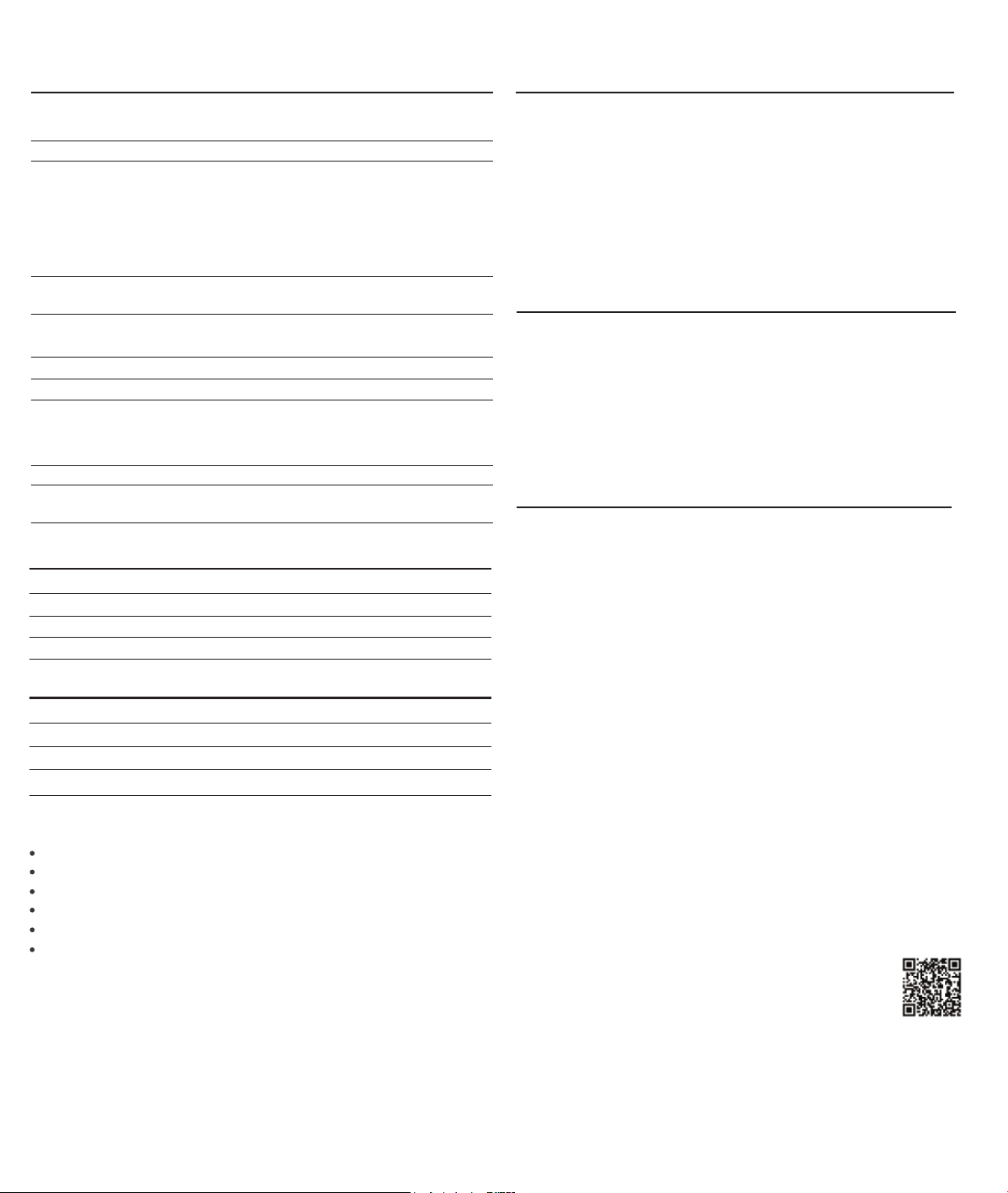
General Specications
IEEE802.3i, IEEE802.3u, IEEE802.3ab,
IEEE802.3bz, IEEE802.3x, IEEE802.1p
CSMA/CD
100Base-TX: UTP category 5 cable or above
(max. 100 m)
1000Base-T: UTP category 5e cable or above
(max. 100 m)
2.5GBase-T: UTP category 5e cable or above
(max. 100 m)
5/8 100 Mbps/1 Gbps/2.5 Gbps Auto-Negotiation
RJ45 Ports
DS105G-M2: 25 Gbps
DS108G-M2: 40 Gbps
Store-and-Forward
Automatically learning, automatically aging
100Base-TX: 148810pps/Port
1000Base-T: 1488095pps/Port
2.5GBase-T: 3720238pps/Port
Yes
DS105G-M2: 52 mm
DS108G-M2: 110 mm
Standard
Protocol
Interface
Transfer Method
MAC Address Learning
Frame Forward Rate
Ethernet Cable
(Twisted Pair)
Switching Capacity
Wall mountable
Distance bewteen
mounting holes
Operating Temperature
Storage Temperature
Operating Humidity
Storage Humidity
Environmental and Physical Specications
-5˚C to 40˚C (23˚F to 104˚F)
-40˚C to 70˚C (-40˚F to 158˚F)
10% to 90% RH non-condensing
5% to 90% RH non-condensing
運作溫度
存放溫度
運作濕度
存放濕度
環境和物理規格
-5˚C - 40˚C (23˚F - 104˚F)
-40˚C - 70˚C (-40˚F - 158˚F)
10% - 90% RH 無凝結
5% - 90% RH 無凝結
Q2. The right and left LED are not lit when a device is
connected to the corresponding port.
It is recommended that you check the following items:
A1:
Make sure that the cable connectors are rmly plugged into the switch
and the device.
A2:
Make sure the connected device is turned on and works normally.
A3:
The cable must be less than 100 meters long (328 feet).
Q3. Why does the switch fail to detect and block a loop
from occurring in the network topology when Loop
Prevention is enabled?
A:
When connecting this switch to other non-terminal devices, such as
switches from other brands, and those devices cannot properly process
or forward loop detection packets, the Loop Prevention function may be
limited. It is recommended to connect terminal devices directly to this
switch or use non-terminal devices with full forwarding capability.
For technical support, user guides and other information, please visit
https://support.omadanetworks.com/, or simply scan the QR code.
Safety Information
Keep the device away from water, re, humidity or hot environments.
Do not attempt to disassemble, repair, or modify the device. If you need service, please contact us.
Do not use damaged charger or USB cable to charge the device.
Do not use any other chargers than those recommended.
Adapter shall be installed near the equipment and shall be easily accessible.
Place the device with its bottom surface downward.
Please read and follow the above safety information when operating the device. We
cannot guarantee that no accidents or damage will occur due to improper use of the
device. Please use this product with care and operate at your own risk.
FCC STATEMENT
Responsible party:
TP-Link Systems Inc.
Address: 10 Mauchly, Irvine, CA 92618
Website: https://www.tp-link.com/us/
Tel: +1 626 333 0234
Fax: +1 909 527 6804
E-mail: [email protected]
This equipment has been tested and found to comply with the limits for a Class B digital
device, pursuant to part 15 of the FCC Rules. These limits are designed to provide
reasonable protection against harmful interference in a residential installation. This
equipment generates, uses and can radiate radio frequency energy and, if not installed
and used in accordance with the instructions, may cause harmful interference to radio
communications. However, there is no guarantee that interference will not occur in a
particular installation. If this equipment does cause harmful interference to radio or
television reception, which can be determined by turning the equipment o and on, the
user is encouraged to try to correct the interference by one or more of the following
measures:
• Reorient or relocate the receiving antenna.
• Increase the separation between the equipment and receiver.
• Connect the equipment into an outlet on a circuit dierent from that to which the
receiver is connected.
• Consult the dealer or an experienced radio/ TV technician for help.
This device complies with part 15 of the FCC Rules. Operation is subject to the following
two conditions:
1) This device may not cause harmful interference.
2) This device must accept any interference received, including interference that may
cause undesired operation.
Any changes or modications not expressly approved by the party responsible for
compliance could void the user’s authority to operate the equipment.
Product Name: 5-Port 2.5G Multi-Gigabit Desktop Switch
Model Number: DS105G-M2
Responsible party:
TP-Link Systems Inc.
Address: 10 Mauchly, Irvine, CA 92618
Website: https://www.tp-link.com/us/
Tel: +1 626 333 0234
Fax: +1 909 527 6804
E-mail: [email protected]
This equipment has been tested and found to comply with the limits for a Class B digital
device, pursuant to part 15 of the FCC Rules. These limits are designed to provide
reasonable protection against harmful interference in a residential installation. This
equipment generates, uses and can radiate radio frequency energy and, if not installed
and used in accordance with the instructions, may cause harmful interference to radio
communications. However, there is no guarantee that interference will not occur in a
particular installation. If this equipment does cause harmful interference to radio or
television reception, which can be determined by turning the equipment o and on, the
user is encouraged to try to correct the interference by one or more of the following
measures:
• Reorient or relocate the receiving antenna.
• Increase the separation between the equipment and receiver.
• Connect the equipment into an outlet on a circuit dierent from that to which the
receiver is connected.
• Consult the dealer or an experienced radio/ TV technician for help.
This device complies with part 15 of the FCC Rules. Operation is subject to the following
two conditions:
1) This device may not cause harmful interference.
2) This device must accept any interference received, including interference that may
cause undesired operation.
Any changes or modications not expressly approved by the party responsible for
compliance could void the user’s authority to operate the equipment.
We, TP-Link Systems Inc., has determined that the equipment shown as above has
been shown to comply with the applicable technical standards, FCC part 15. There is no
unauthorized change is made in the equipment and the equipment is properly
maintained and operated.
Issue Date: 2025-09-09
Product Name: Power Adapter
Model Number:
T090060-2B1, T120100-2B1
Component Name Model
Power Adapter T090060-2B1
Component Name Model
Power Adapter T120100-2B1
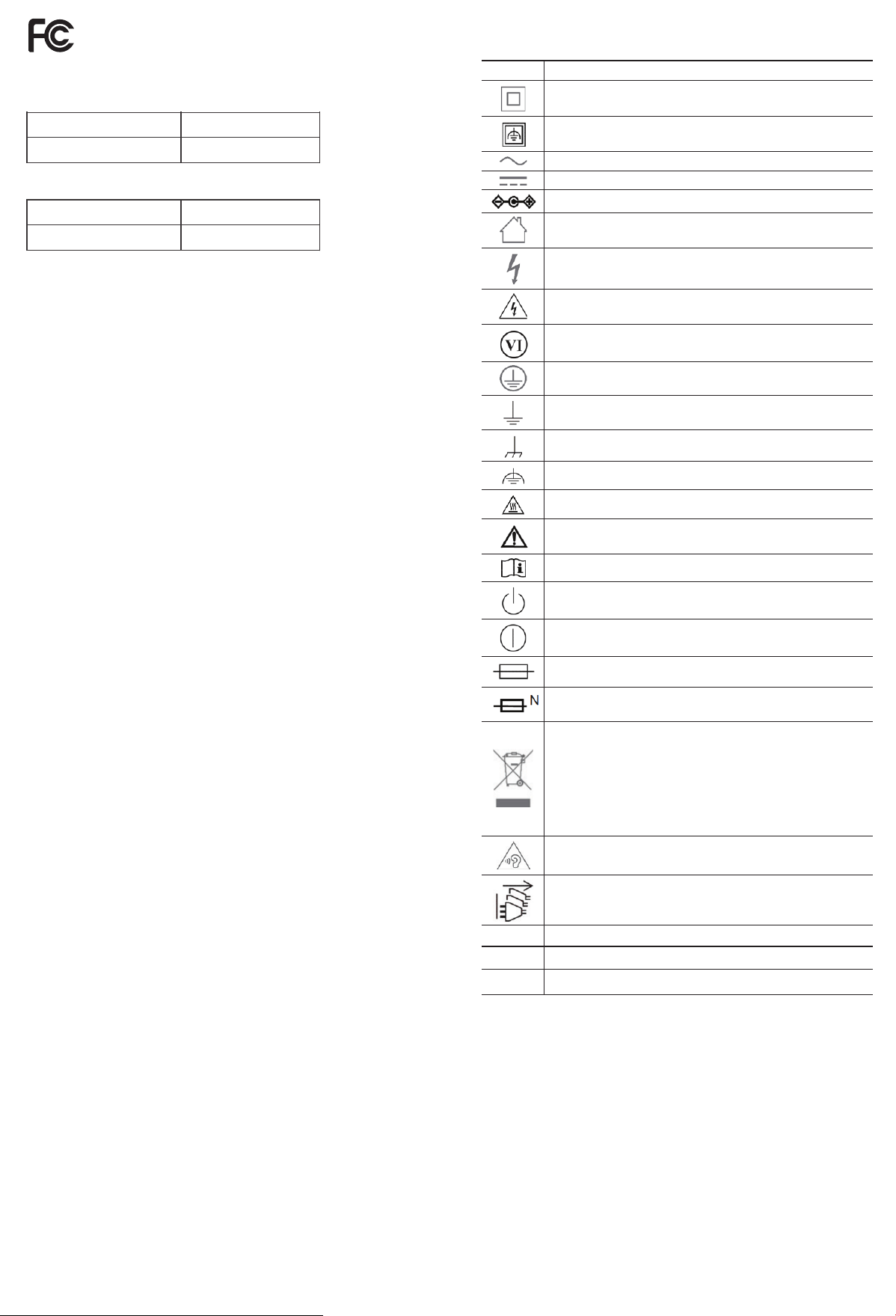
Explanation of the symbols on the product label
Note: The product label can be found at the bottom of the product. Symbols may vary from products.
Symbol
Explanation
Class II equipment
Class II equipment with functional earthing
Alternating current
Direct current
Polarity of DC power connector
For indoor use only
Dangerous voltage
Caution, risk of electric shock
Energy eciency marking
Protective earthng
Earth
Frame or chassis
Functional earthing
Caution, hot surface
Caution
Operator's manual
Stand-by
"ON"/"OFF" (push-push)
Fuse
Fuse is used in neutral N
RECYCLING
This product bears the selective sorting symbol for Waste electrical
and electronic equipment (WEEE). This means that this product must
be handled pursuant to European directive 2012/19/EU in order to be
recycled or dismantled to minimize its impact on the environment.
Users have the choice to give their product to a competent
recycling organization or to the retailer when they buy new
electrical or electronic equipment.
Caution, avoid listening at high volume levels for long periods
Disconnection, all power plugs
m
Switch of mini-gap construction
µ
Switch of micro-gap construction (for US version)
ε
Switch without contact gap (Semiconductor switching device)
Industry Canada Statement
CAN ICES-003 (B)/NMB-003(B)
Product Name: 8-Port 2.5G Multi-Gigabit Desktop Switch
Model Number: DS108G-M2