1
User Manual
P102 Smart Diagnostic System
Shenzhen Xtooltech Intelligent CO., LTD.

2
Please read this user manual carefully before using the Smart Diagnostic System, referred to as the “Scan
Tool” throughout this document. When reading the manual, please pay attention to the words “Note” or
“Caution”, and read them carefully for appropriate operation.
OPERATION INSTRUCTIONS
For safe operation, please follow the instructions below:
Keep the device away from heat or fumes when in use.
If the vehicle battery contains acid, please keep your hands and skin or fire sources away from the
battery during testing.
The exhaust gas of the vehicle contains harmful chemicals. Please ensure adequate ventilation.
Do not touch the vehicle cooling system components or exhaust manifolds when the engine is
running due to the high temperatures reached.
Make sure the car is securely parked, Neutral is selected or the selector is at the P or N position to
prevent the vehicle from moving when the engine starts.
Make sure the (DLC) Diagnostic Link Connector is functioning properly before starting the test to
avoid damage to the Diagnostic Computer.
Do not switch off the power or unplug the connectors during testing.
Doing so may damage the ECU (Electronic Control Unit) and/or the Diagnostic Computer.
CAUTIONS!
Avoid shaking, dropping or dismantling the scan tool as it may damage the internal components.
Use only your fingertips to touch the LCD screen. Hard or sharp objects may damage the scan tool.
Do not use excessive force.
Do not expose the screen to strong sunlight for a long period.
Please keep the scan tool away from water and moisture.
Store and use the scan tool only within the temperature ranges identified in the Technical
Specifications section.
Keep the unit away from strong magnetic fields.
AFTERSALES-SERVICES
E-Mail: supporting@xtooltech.com
Tel: +86 755 21670995 or +86 755 86267858 (China)
Official Website: www.xtooltech.com

3
Catalogue
1 General Introduction .......................................................................................... 4
1.1 Outlook & Ports ....................................................................................... 4
Tablet ....................................................................................................... 4
1.2 Specifications ........................................................................................... 5
2 Getting Started ................................................................................................... 6
2.1 Navigation Buttons .................................................................................. 6
2.2 Vehicle Connection .................................................................................. 7
2.2.1 Wireless Connection ....................................................................... 7
2.2.1 Wired Connection ........................................................................... 7
3 Diagnosis ........................................................................................................... 9
3.1 Guide to Activation .................................................................................. 9
3.2 Introduction of Diagnosis Application ................................................. 11
3.3 Diagnosis Application Setting ............................................................... 13
3.4 Battery pack detection ........................................................................... 16
3.5 Diagnostic menu .................................................................................... 17
3.5.1 Vehicle Selection .......................................................................... 17
3.5.2 Common diagnostic functions ...................................................... 19
3.5.3 Component Test ............................................................................ 25
3.5.4 Updates ......................................................................................... 25
3.5.5 Report............................................................................................ 26
4 Remote Control ............................................................................................... 27
4
1 General Introduction
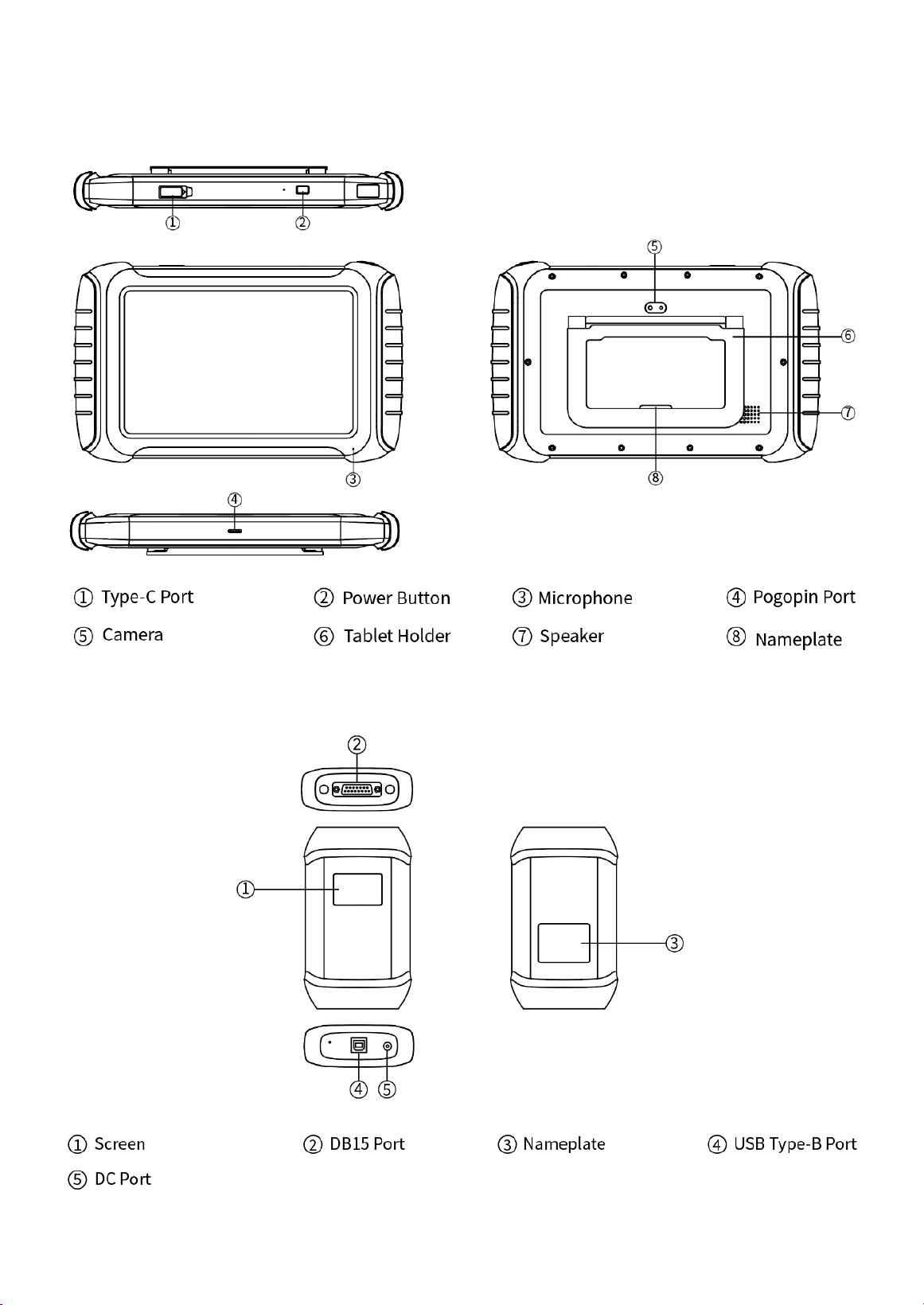
1.1 Outlook & Ports
Tablet
VCI BOX

5
1.2 Specifications
Operating System:Android
Processor:Quad-core processor
Display:10.1-inch capacitive screen
Resolution:1920×1200
Battery:6400mAh 7.2V
Camera:8-megapixel autofocus rear camera with flash
Input voltage:5V/9V⎓ 3A
Operating temperature: -10~50℃
Dimensions (W x H x D):311.0 × 190.0 × 41.0(mm)
Caution:
1. Do not use non-standard power adapters. Otherwise at your own risk.
2. To protect the battery, please charge the device at a temperature between
0~40℃.
6
2 Getting Started
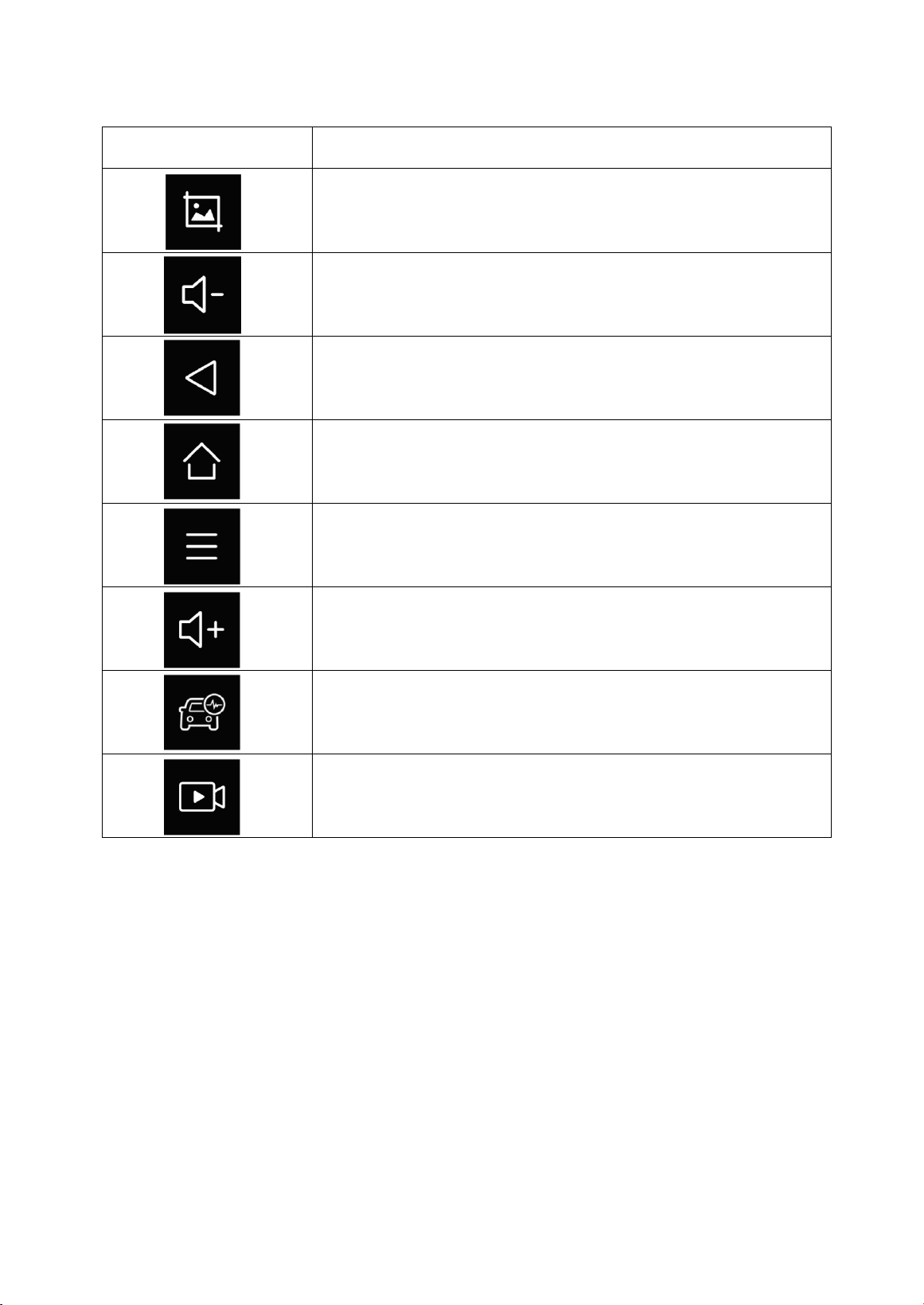
2.1 Navigation Buttons
【ITEMS】
【DESCRIPTIONS】
Press for screenshot
Decrease volume
Back to the previous interface
Back to the main interface of the Android system
Shows recently used applications
Increase volume
Click this button to display the diagnostic vehicle interface
Press for screen recording
7
2.2 Vehicle Connection
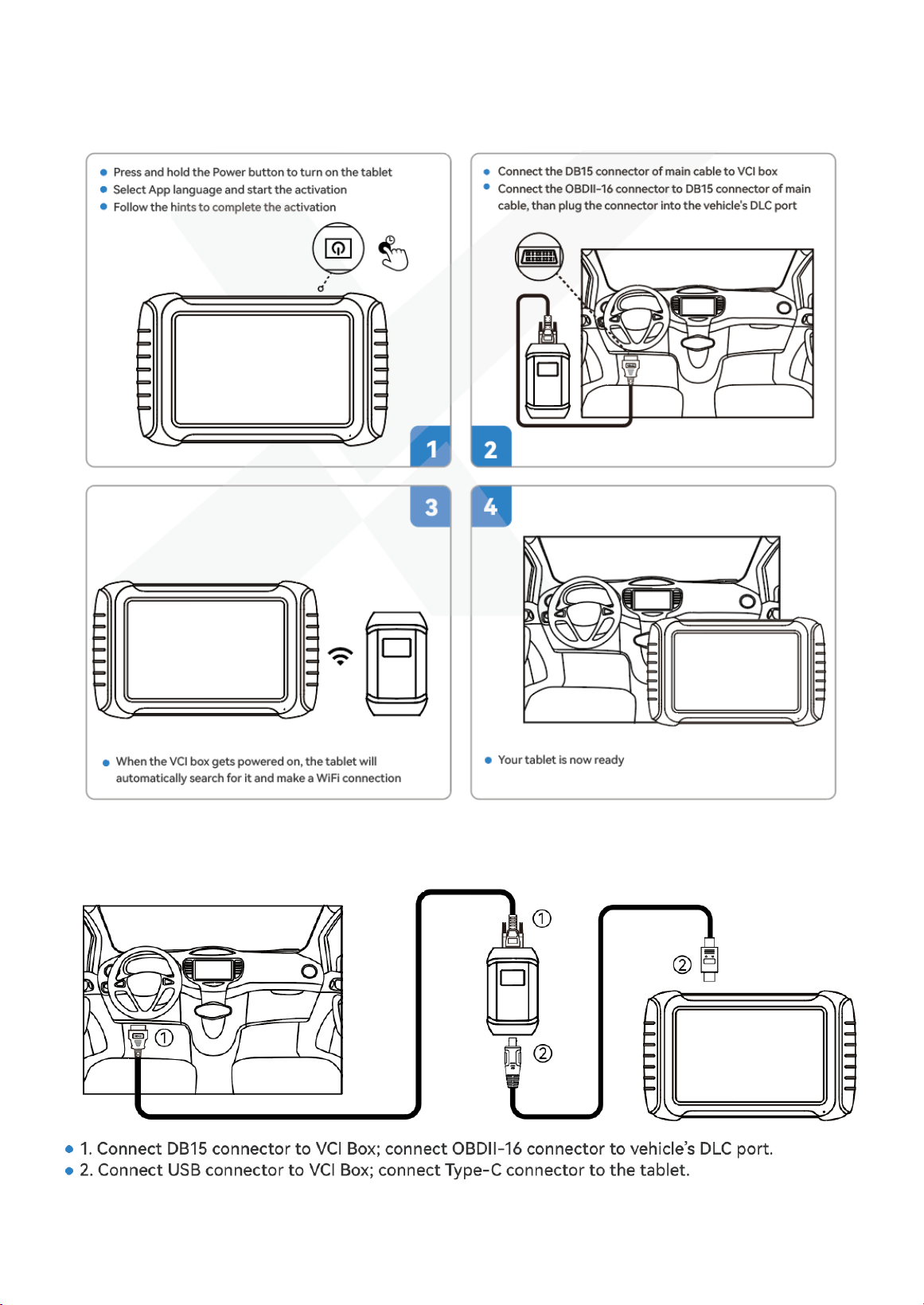
2.2.1 Wireless Connection
2.2.1 Wired Connection

8
Precautions for Diagnosis
1. The voltage range on the car: +9~+36V DC;
2. When testing some special functions, the operator must operate according to the prompts
and meet the test conditions. For some models [special functions], the conditions that need to
be met are: engine water temperature 80 ℃~105 ℃, turn off headlights and air conditioners,
keep the accelerator pedal in the released position, etc.;
3. The electronic control systems of different models are very complicated. If you encounter
situations where it is impossible to test or a large amount of test data is abnormal, you can
search for the ECU of the vehicle and select the menu for the model on the ECU nameplate;
4. If the vehicle type or electronic control system to be tested is not found in the diagnostic
function, please upgrade the vehicle diagnostic software to the latest version using the
Updates menu or consult the XTOOL technical service department;
5. Only wiring harnesses provided by XTOOL and designed for the device are permitted to
be used with this device to avoid damage to the vehicle or the device;
6.When running a Diagnostics function, it is forbidden to shut down the device directly. You
should cancel the task before returning to the main interface and then shutting down the
device.
9
3 Diagnosis
3.1 Guide to Activation
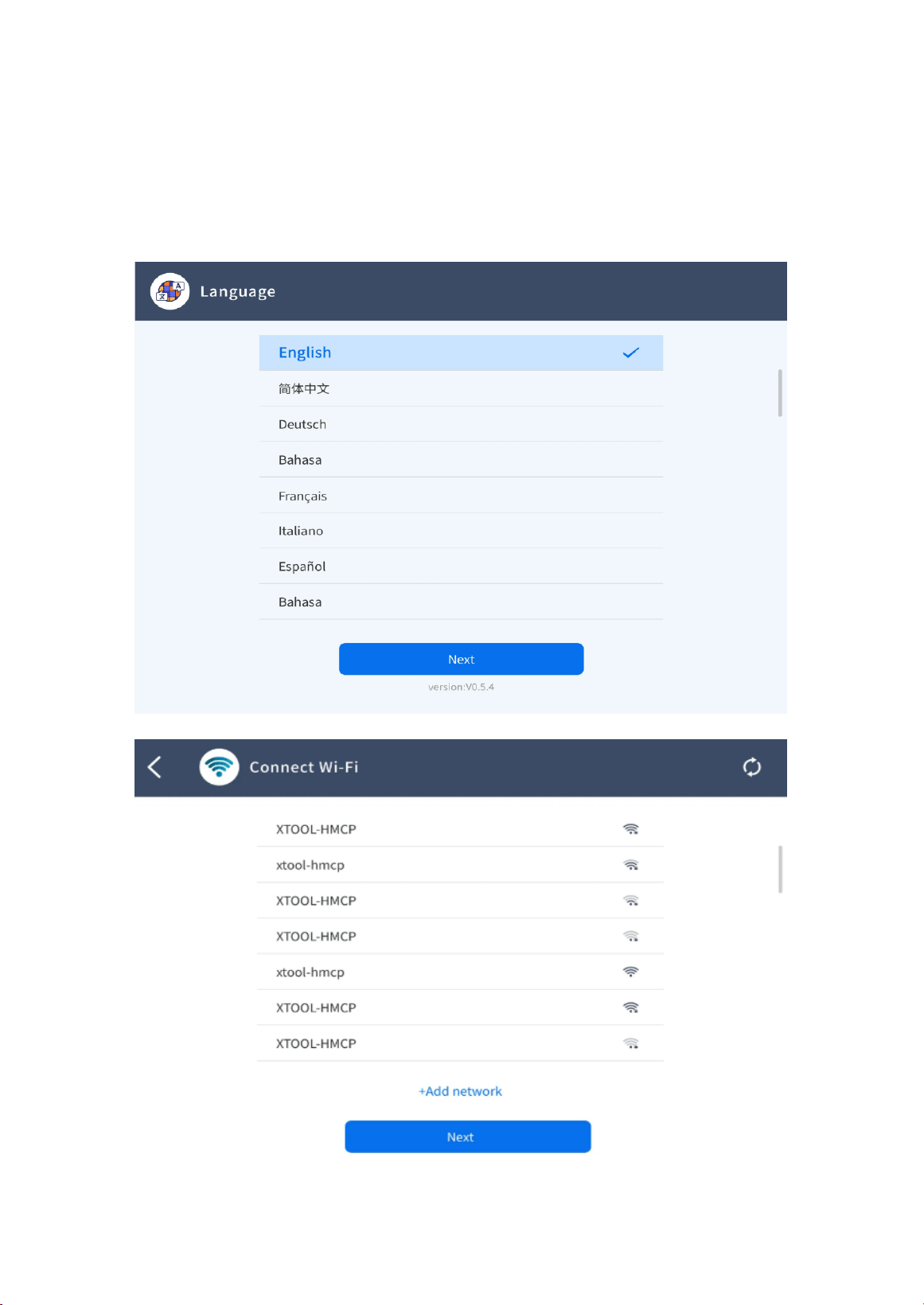
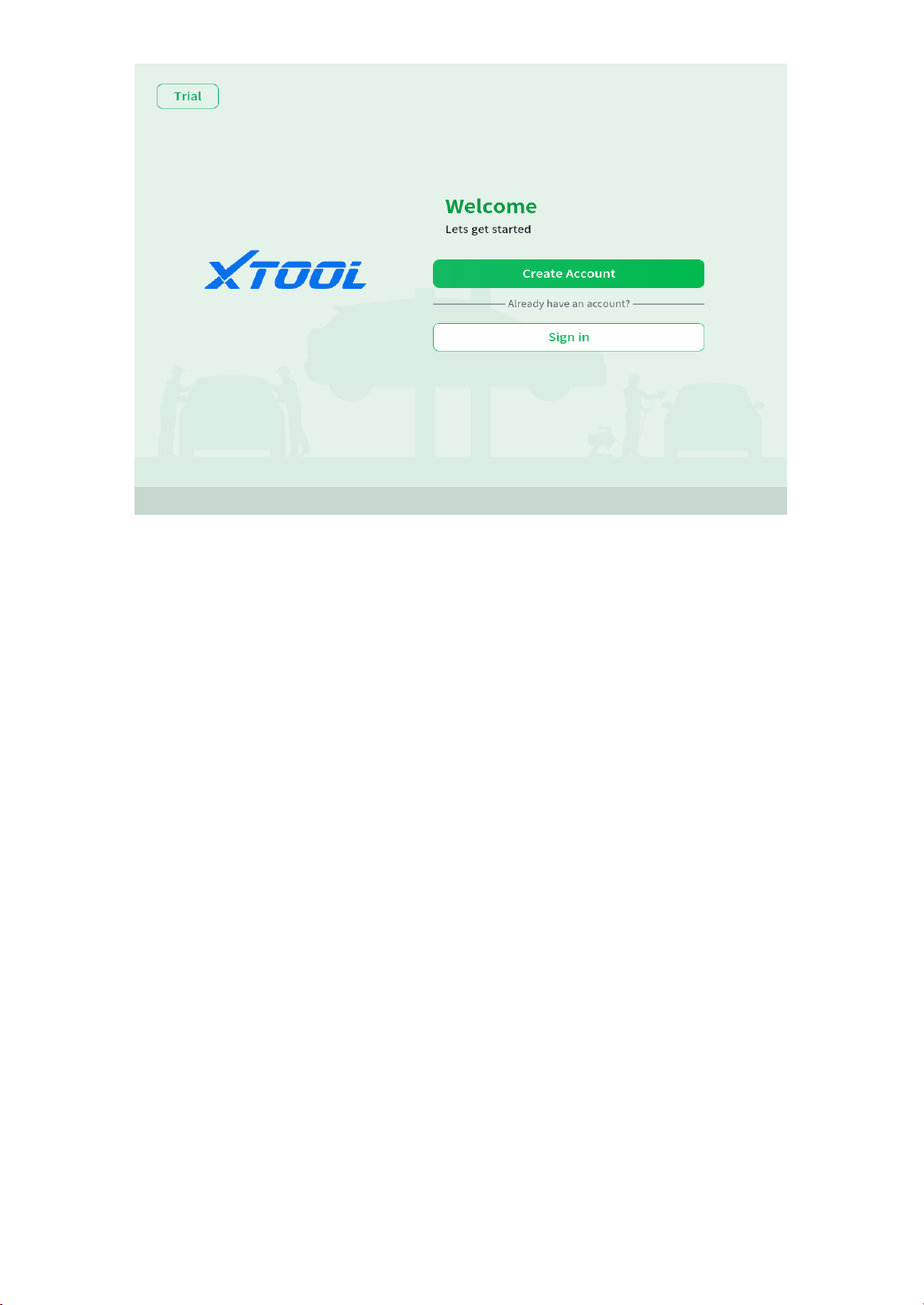
At the first time users turn on the system, the system will automatically enter the
activation guide process and request the user to select the system operating
language.
10
11
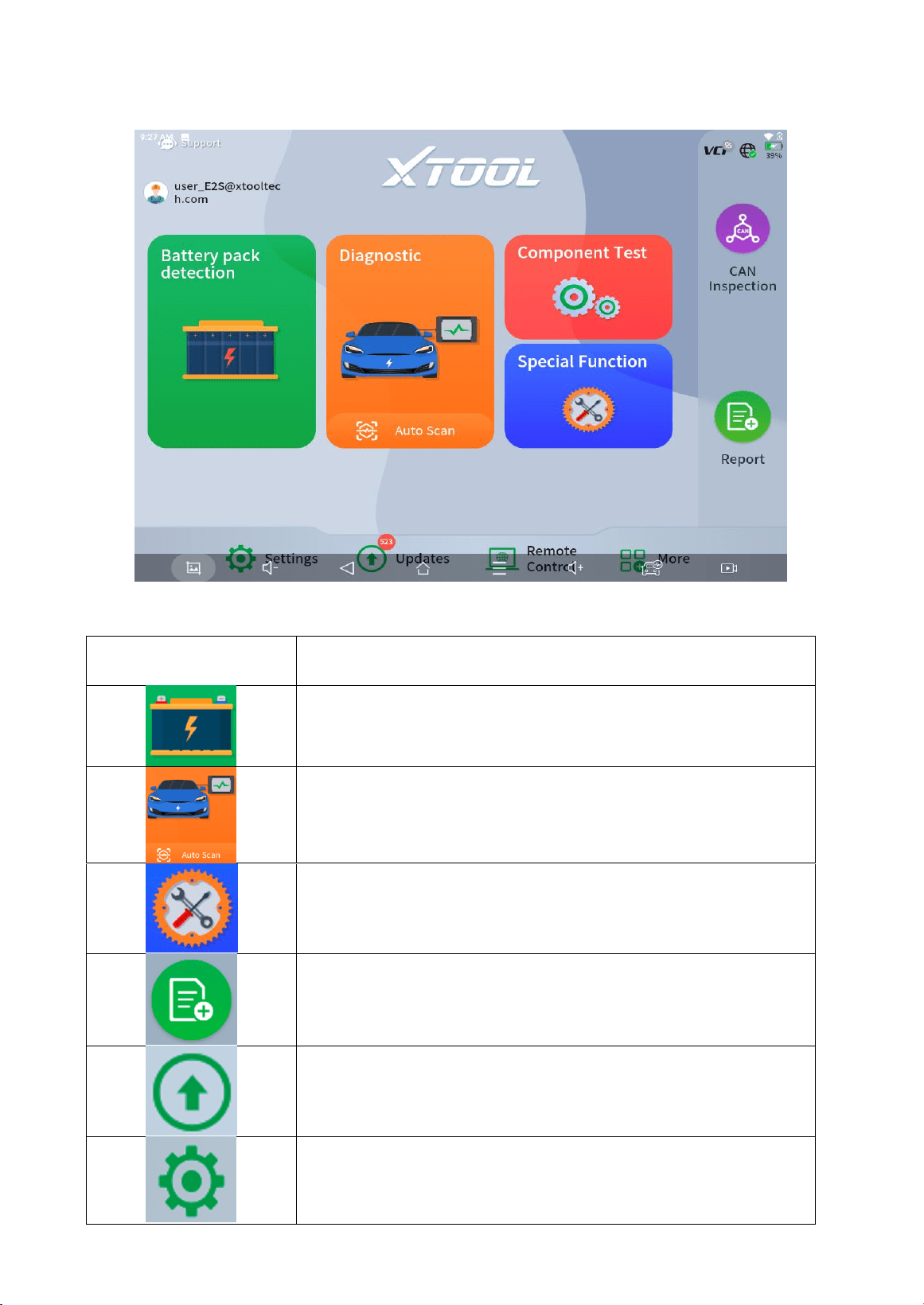
3.2 Introduction of Diagnosis Application
【ITEMS】
【DESCRIPTIONS】
Diagnostic function for NEV battery
Start to diagnose / Auto identify test vehicle model and diagnose
Advanced diagnostic functions for vehicle
Here to view the saved diagnosis report and Data Playback
Here to upgrade available software
Here to set the diagnosis application, such as language etc.,
12
Accept remote control assistance from after-sales team
Collect diagnosis data information
Vehicle units test (Support disassembled units)
13
3.3 Diagnosis Application Setting
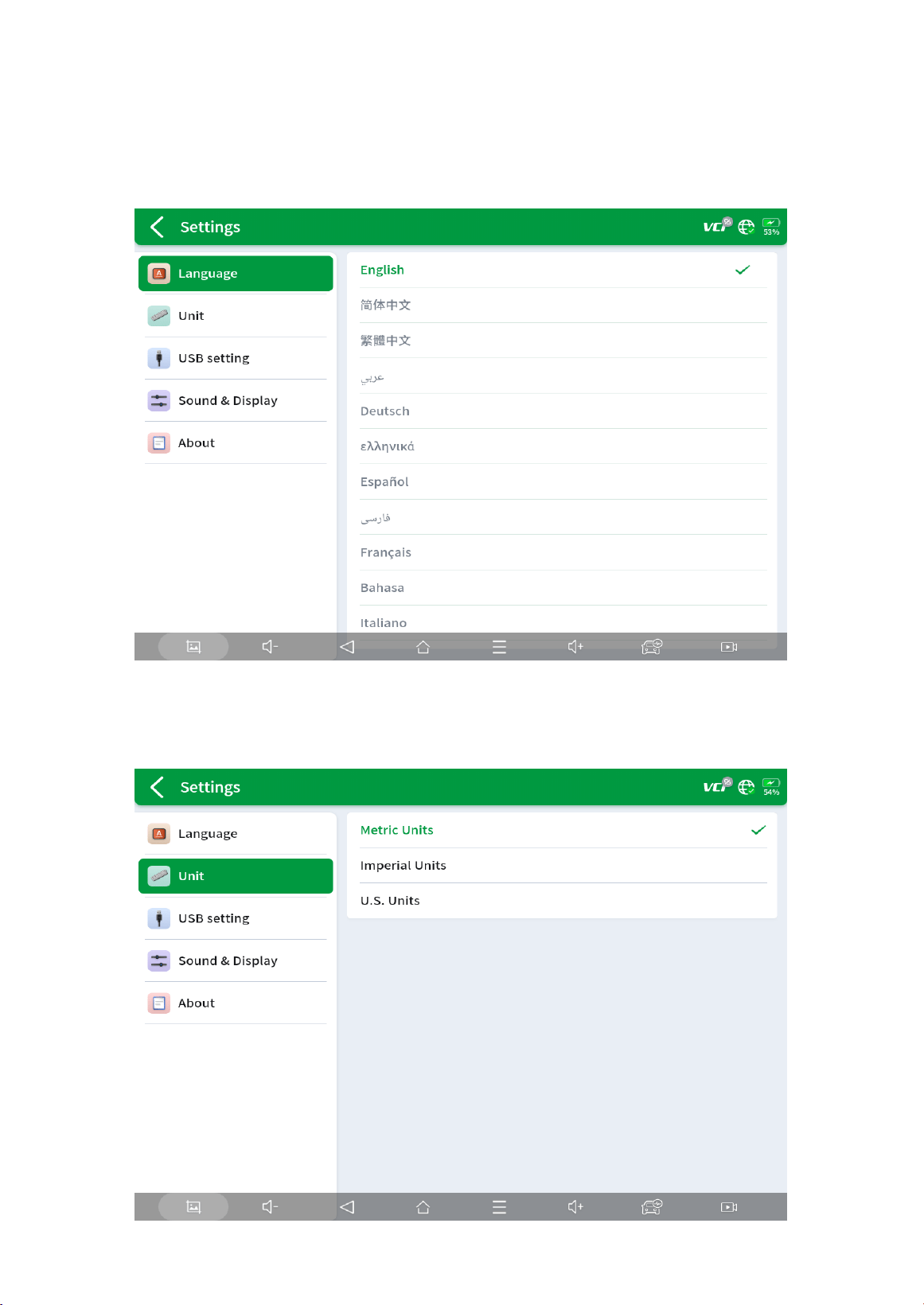
【Language】
Select the language you need on this page
【Unit】
Select measuring units
14
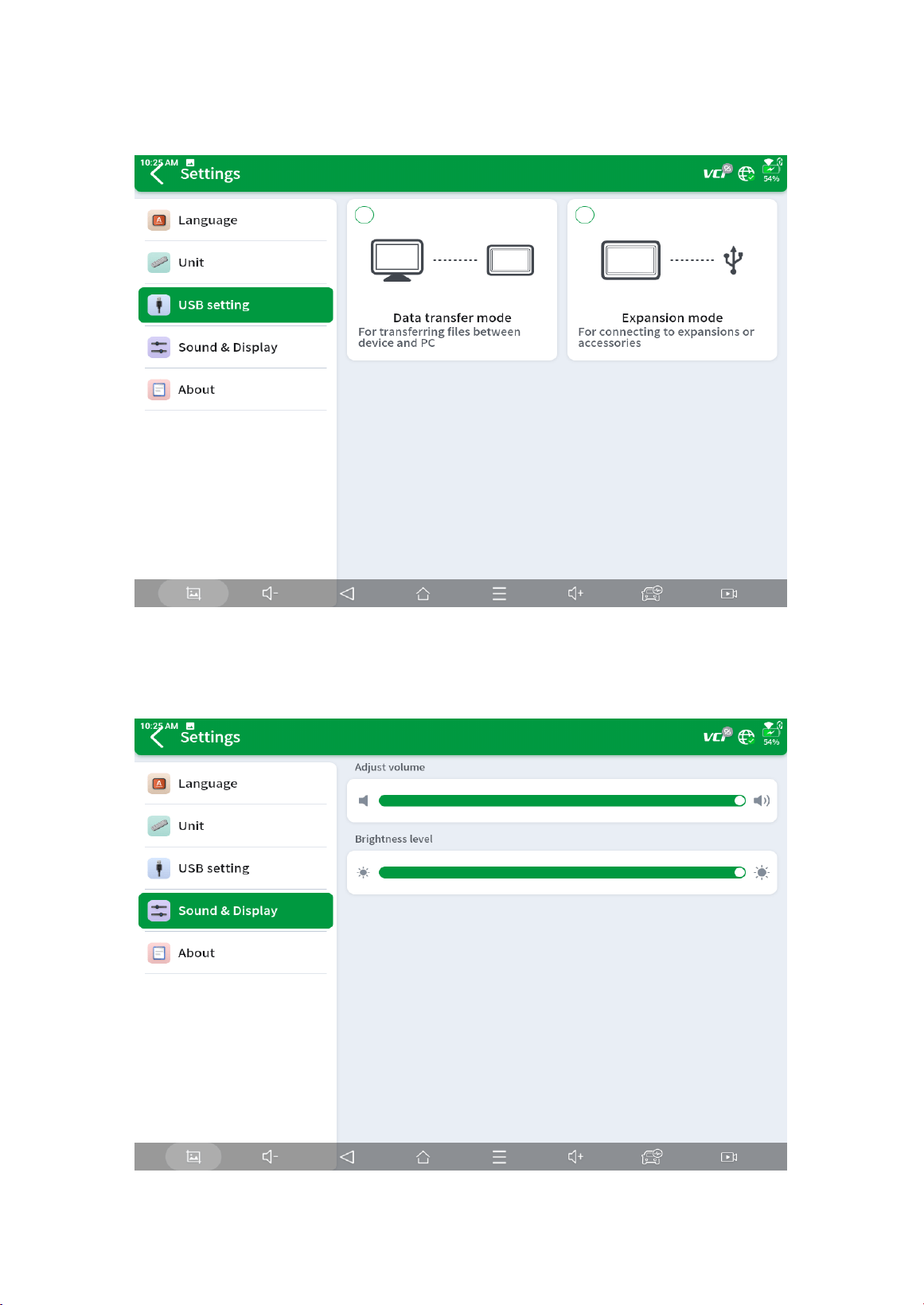
【USB setting】
Select the USB connection model you need
【Sound/Display】
Adjust Volume and Brightness level
15
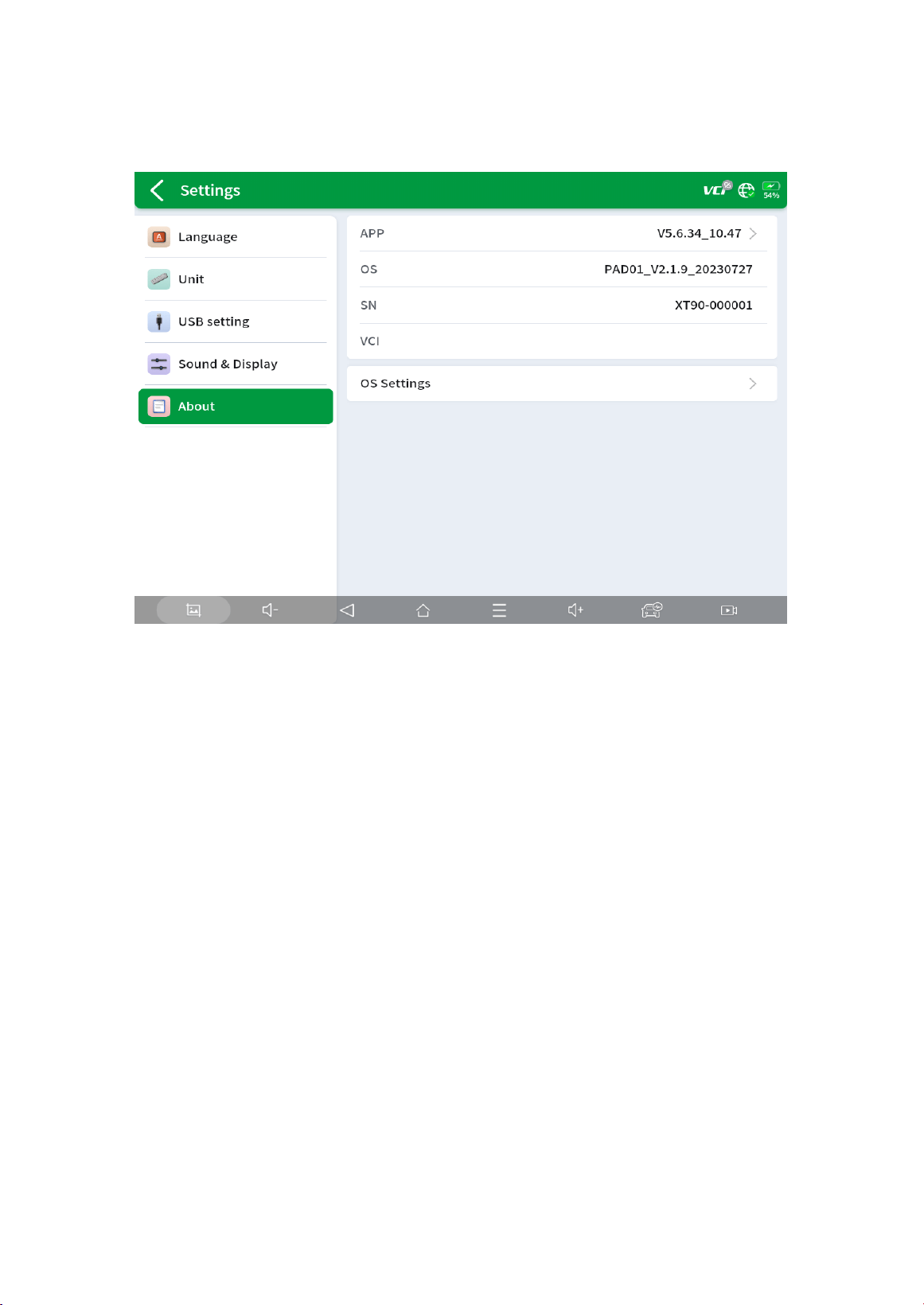
【About】
Here to check the version of diagnosis application, serial number of diagnostic tablet, and the
serial number of VCI box matched
16
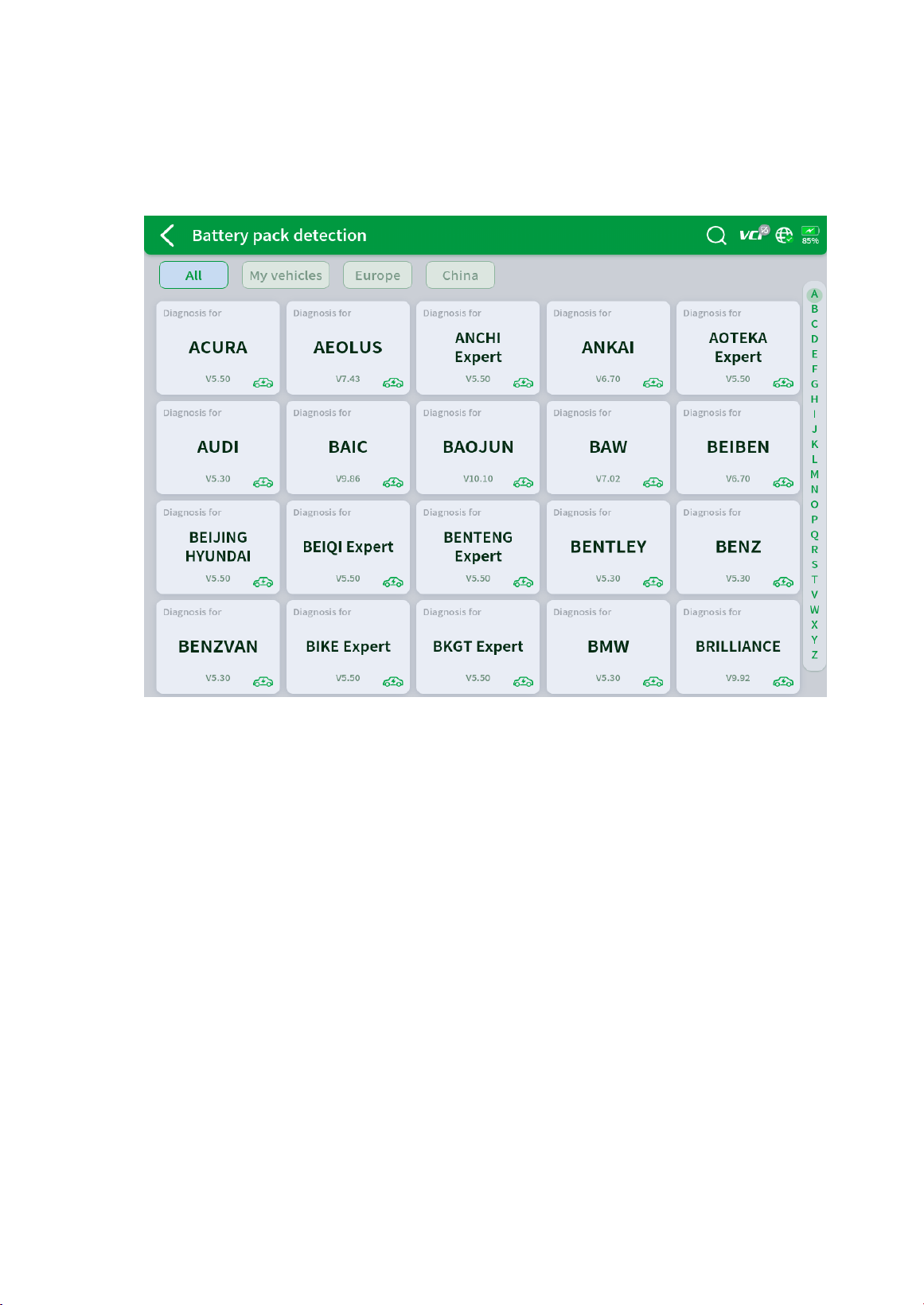
3.4 Battery pack detection
Battery pack detection can be performed via OBD or directly with included specialty cables
and jumpers to monitor the voltage and temperature for battery cell.
17
3.5 Diagnostic menu
3.5.1 Vehicle Selection
The scan tool supports the following 3 ways to access the smart diagnostics system.
AUTO SCAN
MANUAL INPUT
SELECT VEHICLE BY AREA
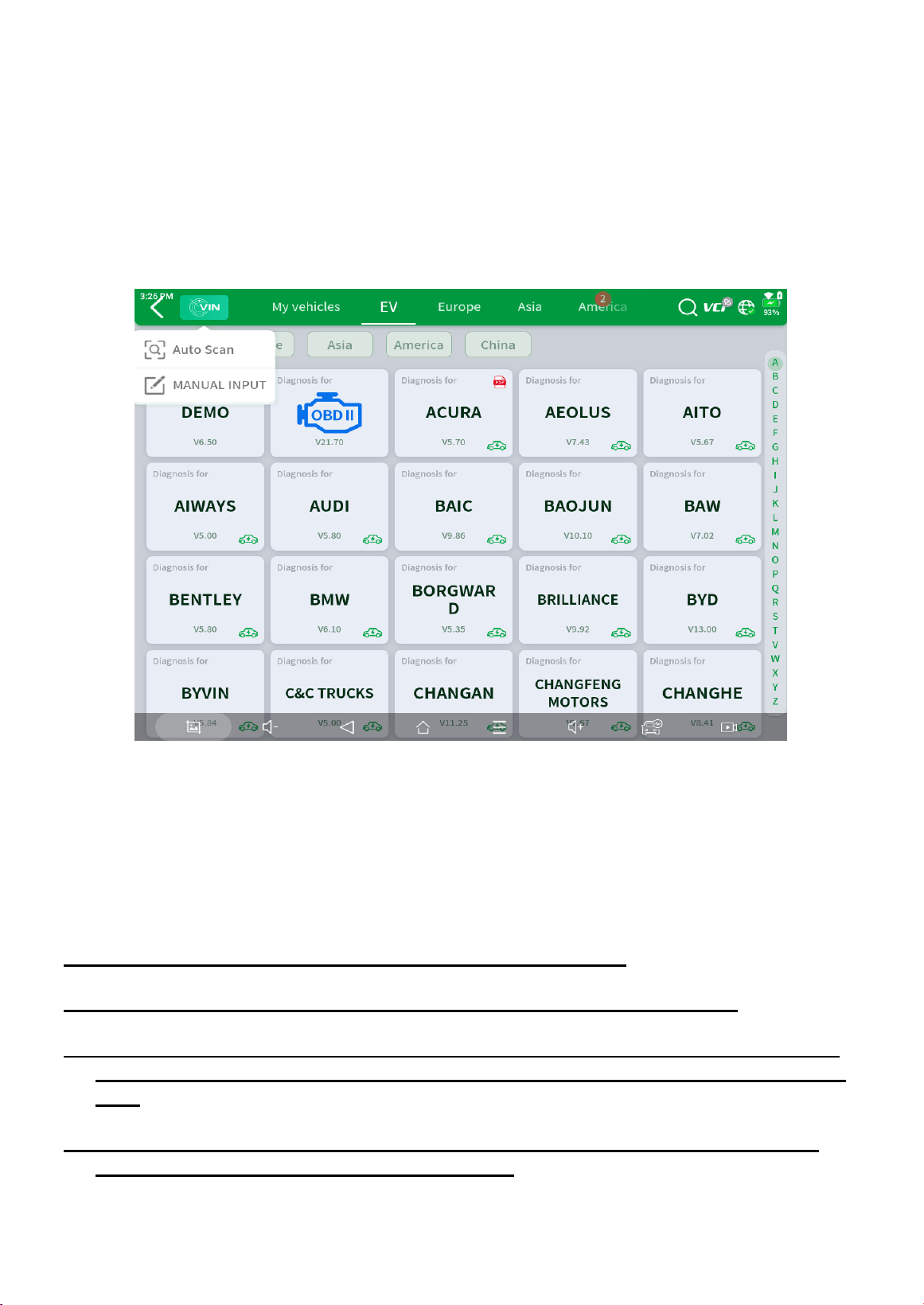
Click the VIN button in the upper left corner and then choose to enter the vehicle diagnosis
through either AUTO SCAN or MANUAL INPUT.
AUTO SCAN: It supports the automatic reading of vehicle VIN code. You also can tap on
the button “AUTO SCAN” on the diagnosis system entrance to use this function. Please
make sure that the car and the device are well connected before using this function.
⚠ If your model is not recognized, please try the following steps:
① UPDATE all software, and check whether the APP is updated in [Settings]
① Please click Diagnosis on the main menu to enter the selection menu, manually select
the engine system to read the ECU information, and confirm whether the VIN can be
read.
① Contact the XTOOL technical team to provide the VIN code to confirm whether the
model supports automatic identification of VIN.
18
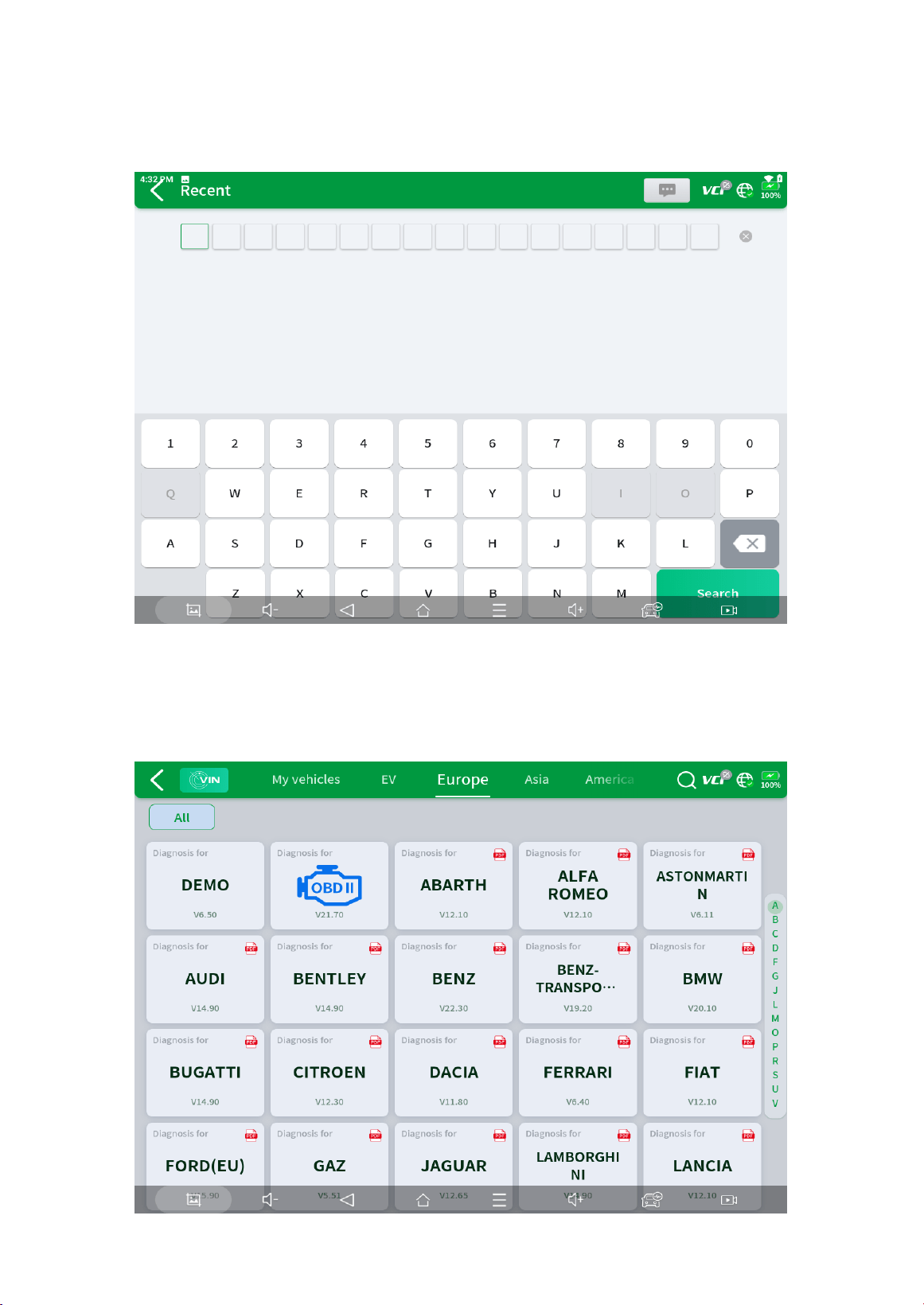
MANUAL ENTER: It supports manual input of car VIN code. When entering the VIN code
manually, make sure that the 17 characters entered are correct to ensure accurate test results.
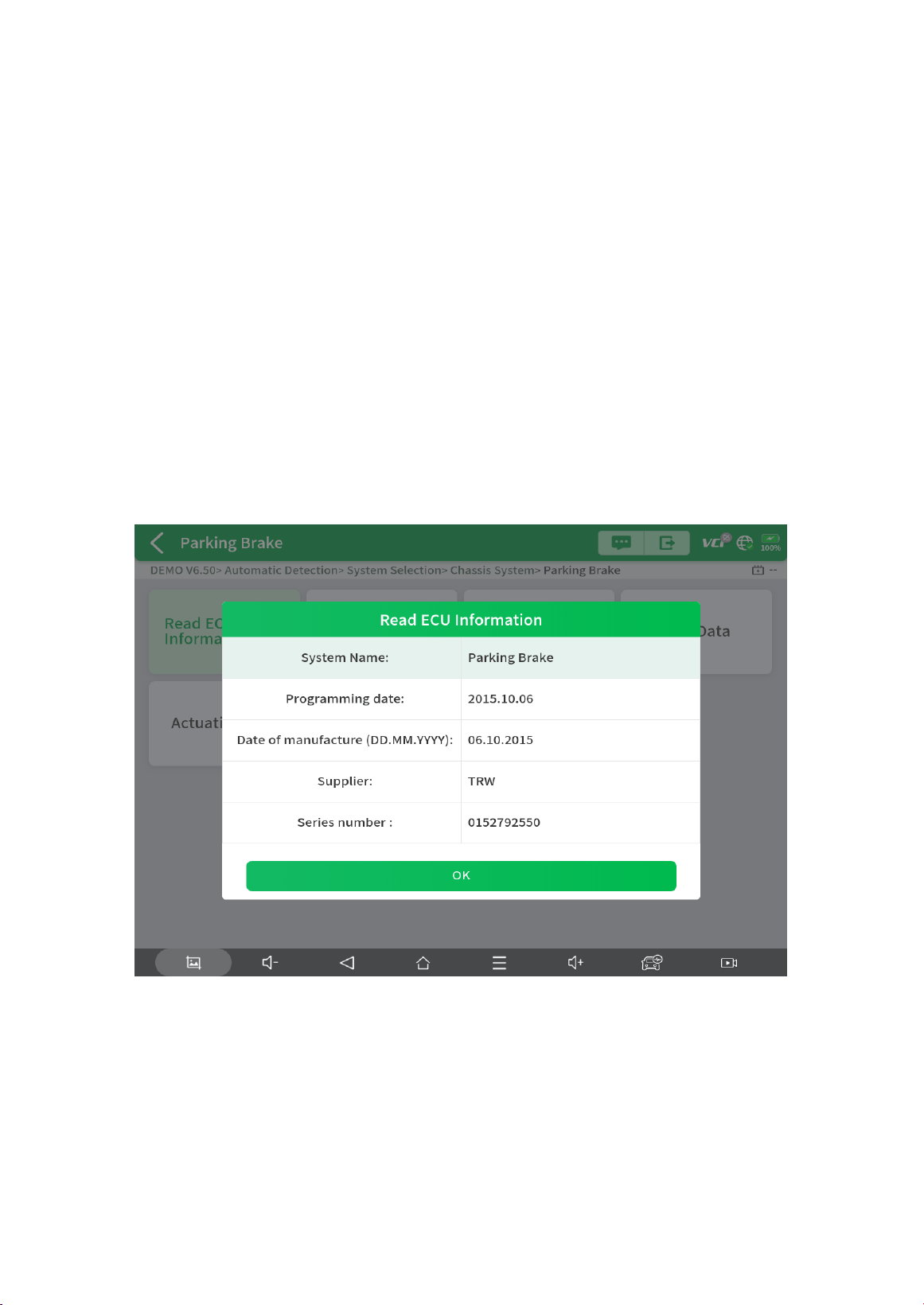
SELECT VEHICLE BY AREA
In addition to the above 3 methods, you can also choose a car brand by selecting the
appropriate region at the top of the screen. You can select the vehicle model that needs to be
diagnosed according to the area, as shown below:
19
3.5.2 Common diagnostic functions
Diagnostics functions supported by the scan tool are listed below:
Read ECU Information
Read/Clear Trouble Code
Read Live Data
Actuation Test (Bi-Directional Control)
Special functions
【Read ECU Information】
This function is to read ECU version information and is the equivalent of "System
Identification" or "System Information” in some electronic control systems. These
equivalent terms all refer to reading ECU-related software and hardware versions, models
and production date of diesel engines, part numbers, etc. This information is helpful when
recording maintenance records and ordering new parts.
20
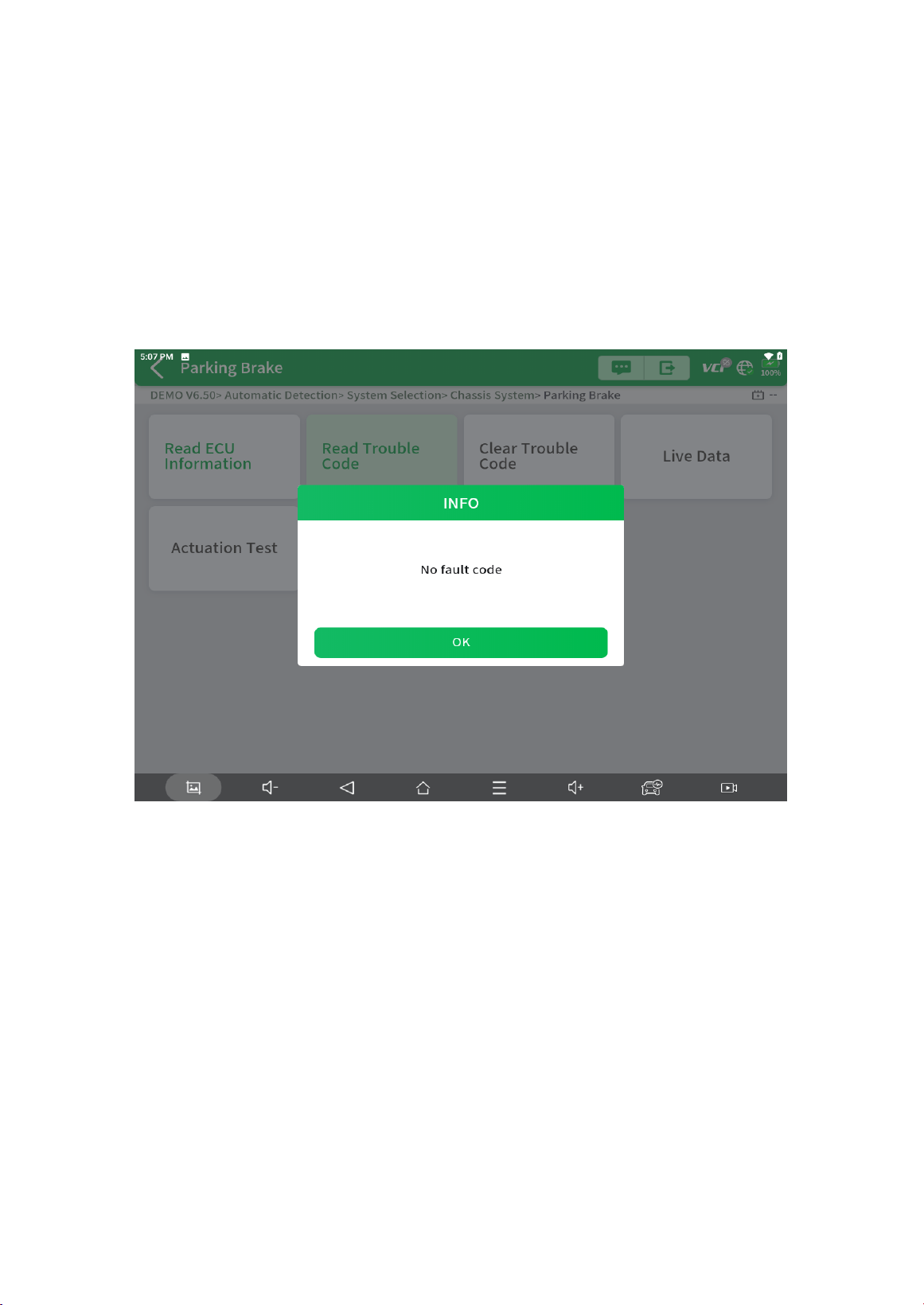
【Read Trouble Code】
In the process of diagnosis, if the device shows “System is OK” or “No Trouble Code”, it
means there is no related trouble code stored in ECU or some troubles are not under the
control of ECU.
Most troubles are mechanical system troubles or executive circuit troubles. It is also possible
that the signal of a sensor may be inaccurate but within limits, which can be examined using
Live Data.
21
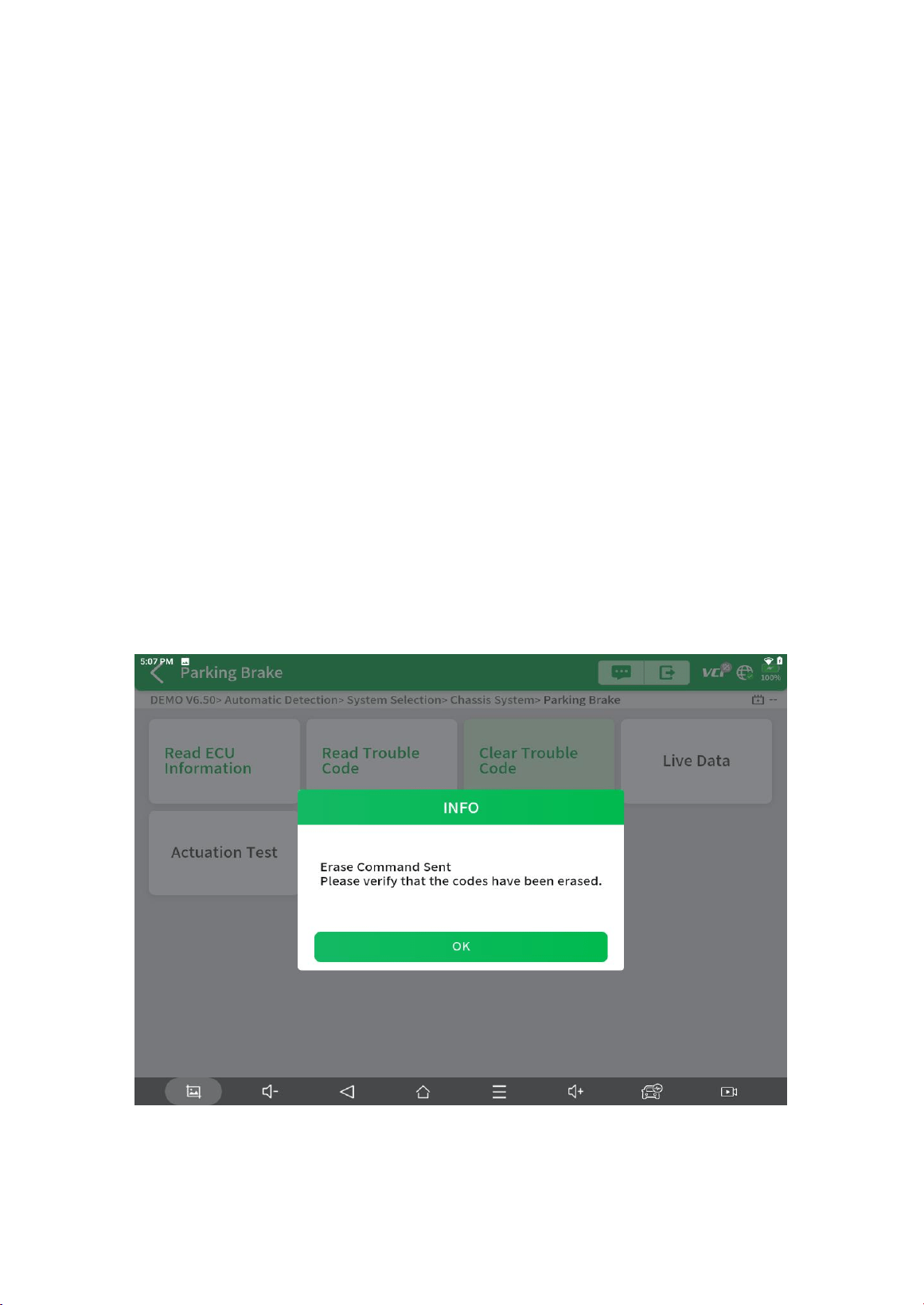
【Clear Trouble Code】
It allows for clearing current and historical trouble codes stored in the ECU memory, under
the premise that all the troubles have been resolved.
Some troubles are immediately detected by the ECU with the key in the run position and
without the engine running. Other troubles are not detected until very specific test conditions
are met such as engine coolant temperature within a range, speed within a range for a
duration of time, throttle percentage within a range, etc.
If the trouble codes are erased when the trouble remains unresolved, the trouble code will
reappear in the ECU the next time the ECU performs the specific diagnostic test for that
trouble.
If the trouble is resolved but there is a stored trouble code, sometimes the ECU will detect the
resolution and clear the trouble code or more likely, classify it as “historical” trouble.
If the trouble is resolved and the user clears the trouble codes, the trouble history will be
cleared.
If the user intends to have another colleague or mechanic investigate the problem, it is not
recommended for the user to clear the trouble code since doing so may erase information
helpful to others who may investigate the issue.
22
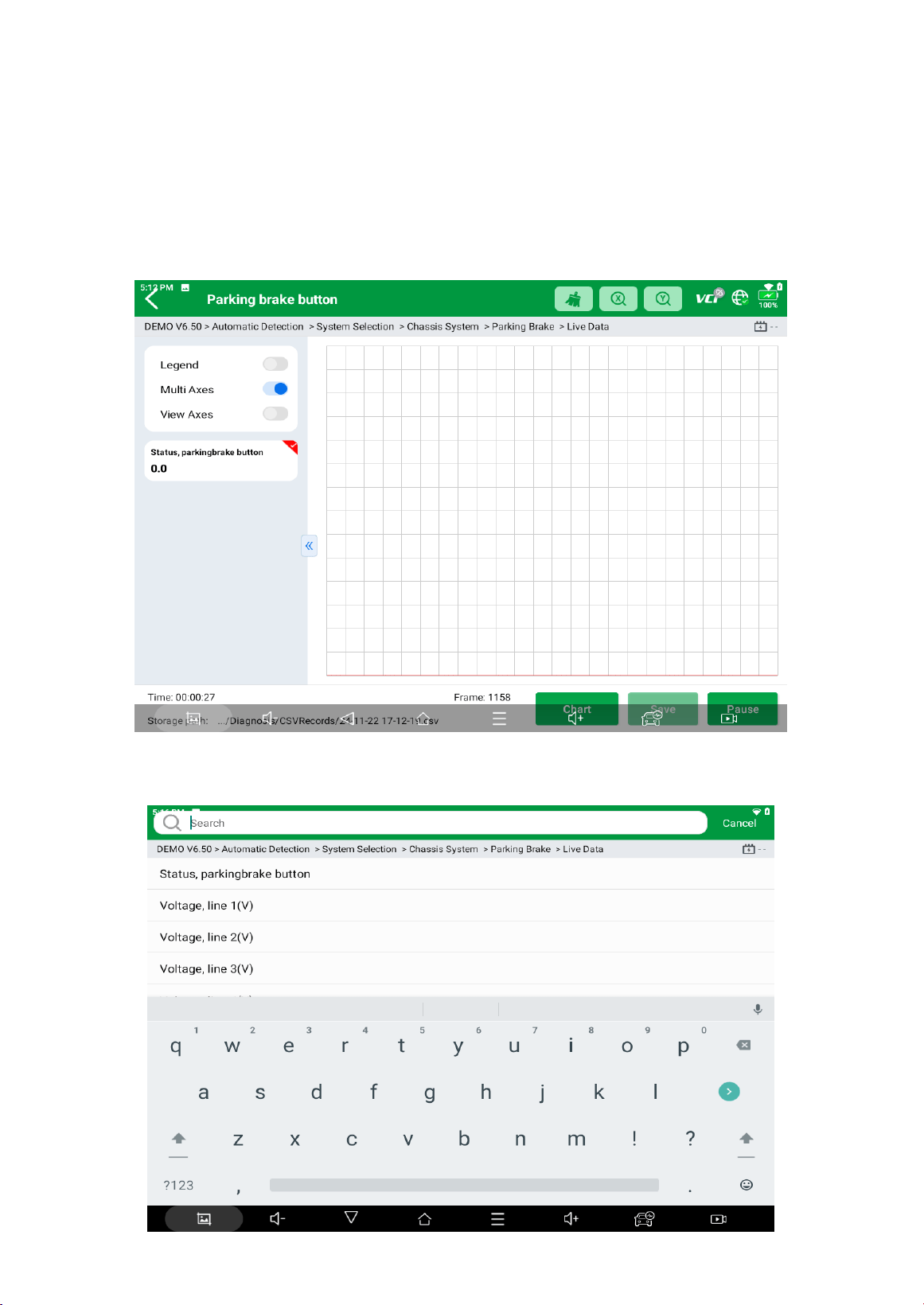
【Read Live Data】
Real-time information about various sensors is called “Live Data”. Live Data includes
parameter identifications (PIDs) of the running engine such as oil pressure, temperature,
engine speed, fuel oil temperature, coolant temperature, intake air temperature, etc. Based on
these parameters, we can predict directly where the problem lies, which helps to narrow the
scope of maintenance. For some vehicles, during their actual operation, the problems such as
performance characteristics or sensitivity reduction, can be evaluated using live data.
Click the magnifying glass on the top right, you can search for related PIDs based on
keywords.
23
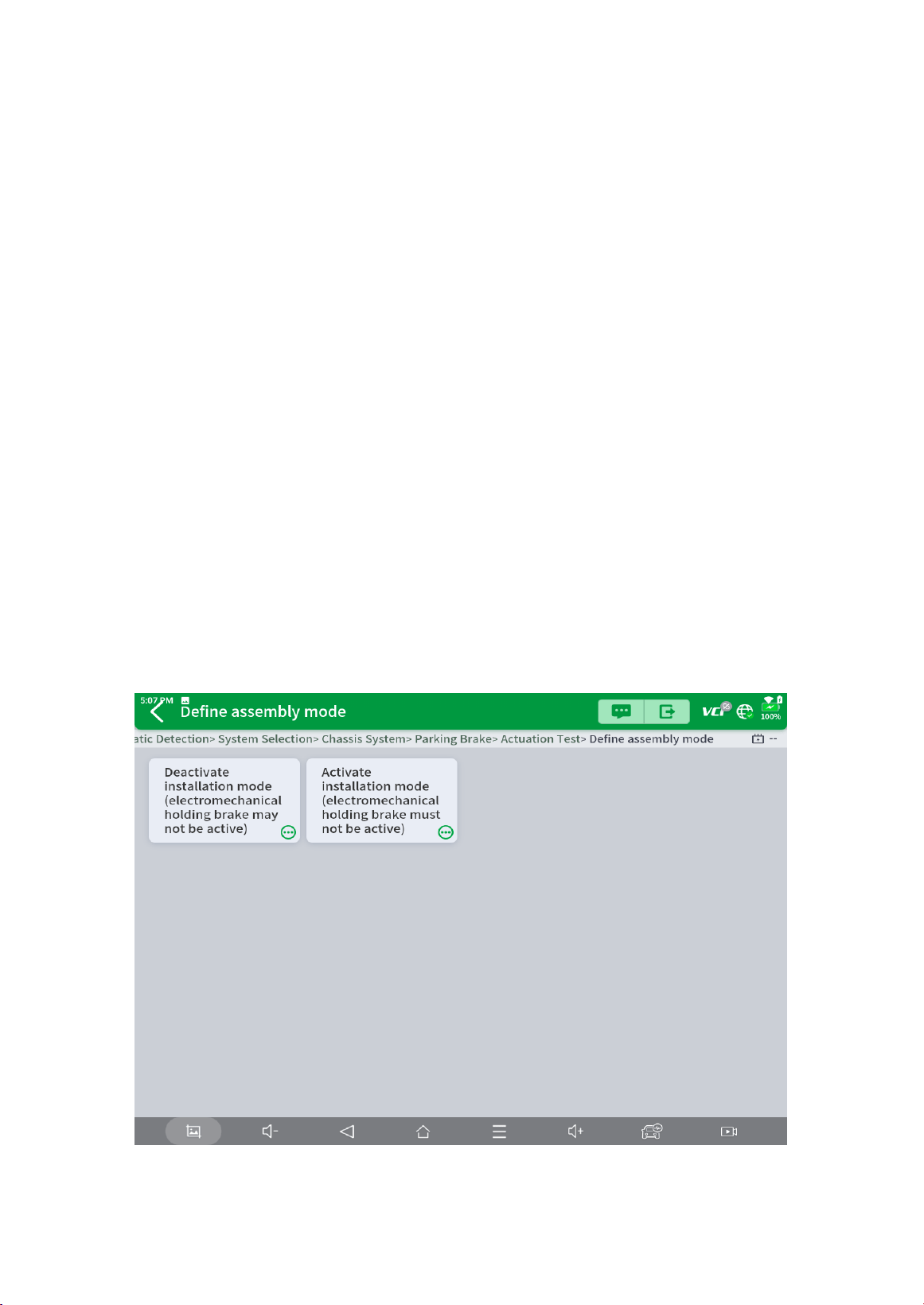
【Actuation test (Bi-directional control)】
Actuation test, also known as bidirectional control, is a generic term used to describe sending
and receiving information between one device and another. This function is used mainly to
judge whether these actuating components of the engine are working properly.
The vehicle engineers responsible for designing computer control systems programmed them
so a scan tool could request information or command a module to perform specific tests and
functions. Some manufacturers refer to bidirectional controls as functional tests, actuator
tests, inspection tests, system tests or the like. Reinitialization and reprogramming also can
be included in the list of bidirectional controls.
This function allows the device to send information to and receive information from, vehicle
control modules. For example, in the case of OBD II generic information Mode 1 (which
relates to data parameters), the scan tool user initiates a request for information from the
powertrain control module (PCM), and the PCM responds by sending the information back to
the scan tool for display. Most enhanced scan tools also can actuate relays, injectors and coils,
perform system tests, etc. Users could check the individual part to see what is working
properly by actuation test.
24
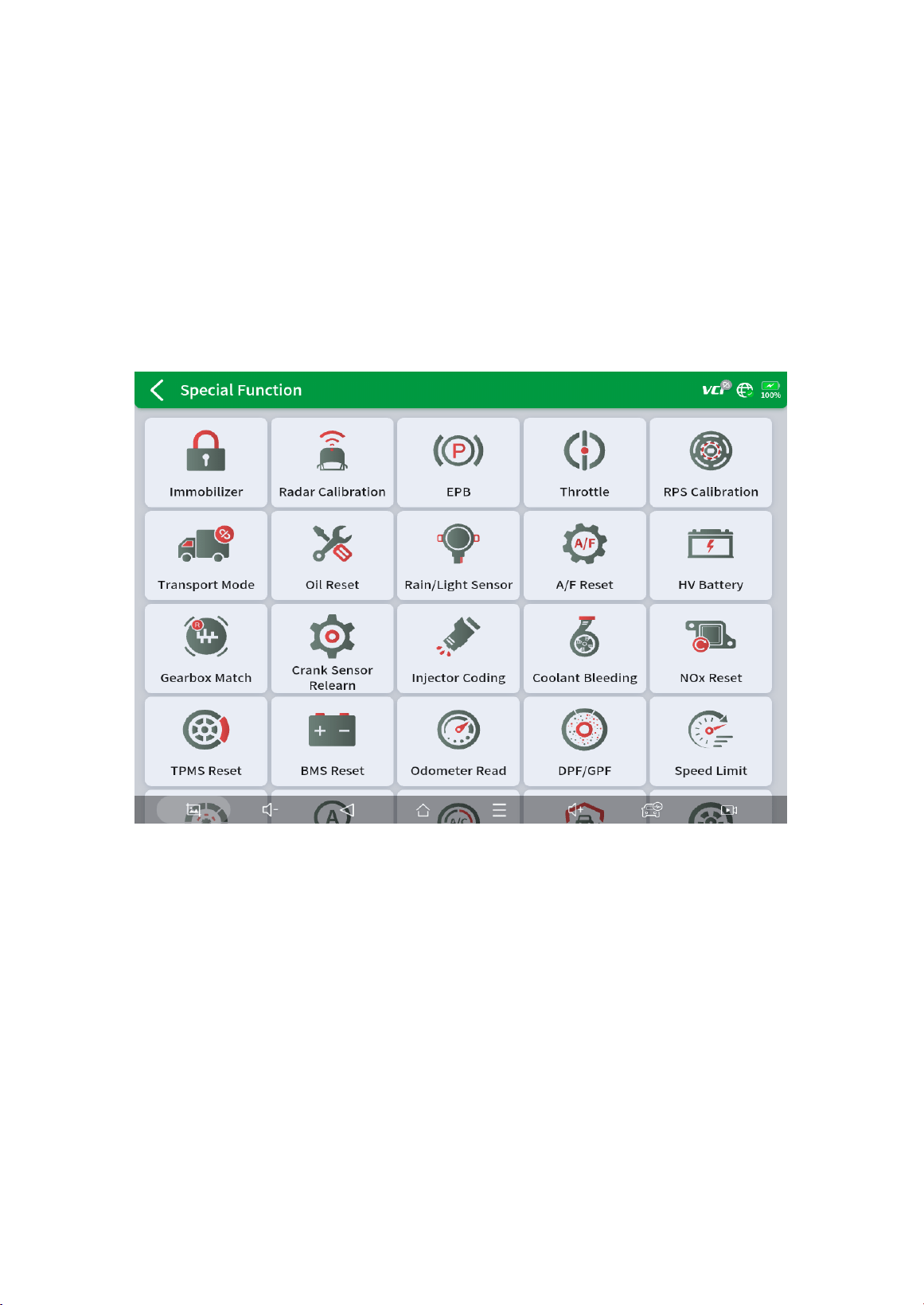
【Special functions】
Usually, special functions provide various reset or re-learning functions menus for most
vehicle systems. You can easily and quickly solve some faults through special functions for
your car. After some functions are successfully executed, fault codes will be generated,
which need to be cleared manually after the car is running for a little while which could
include a single start of the engine or multiple warm up cycles.
And under each system, you can view the special features supported by that system. Different
models and systems often have different special functions. Even for the same system of the
same model, the years and ECU type may lead to different special functions supported.
25
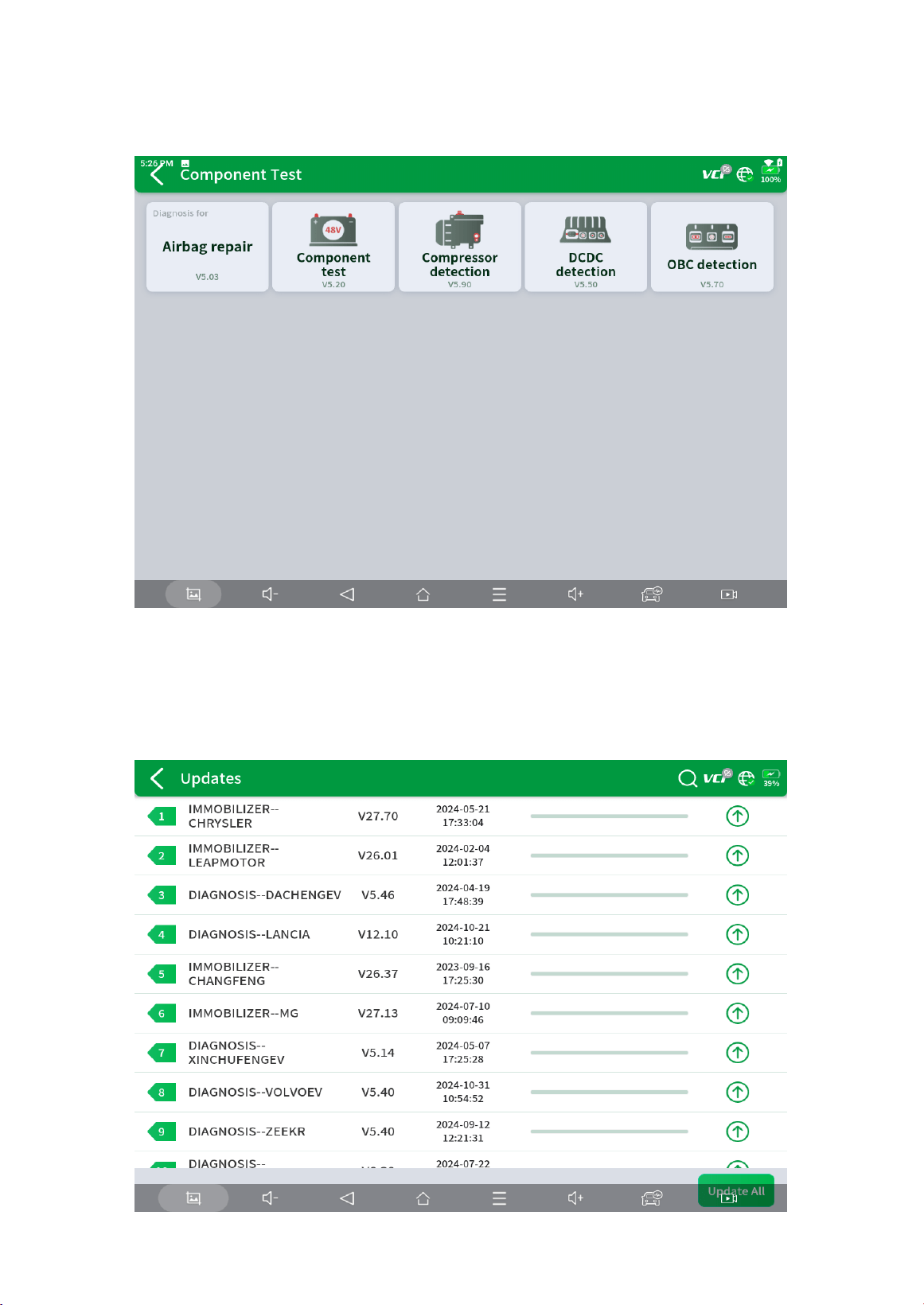
3.5.3 Component Test
Test vehicle units (Support disassembled units).
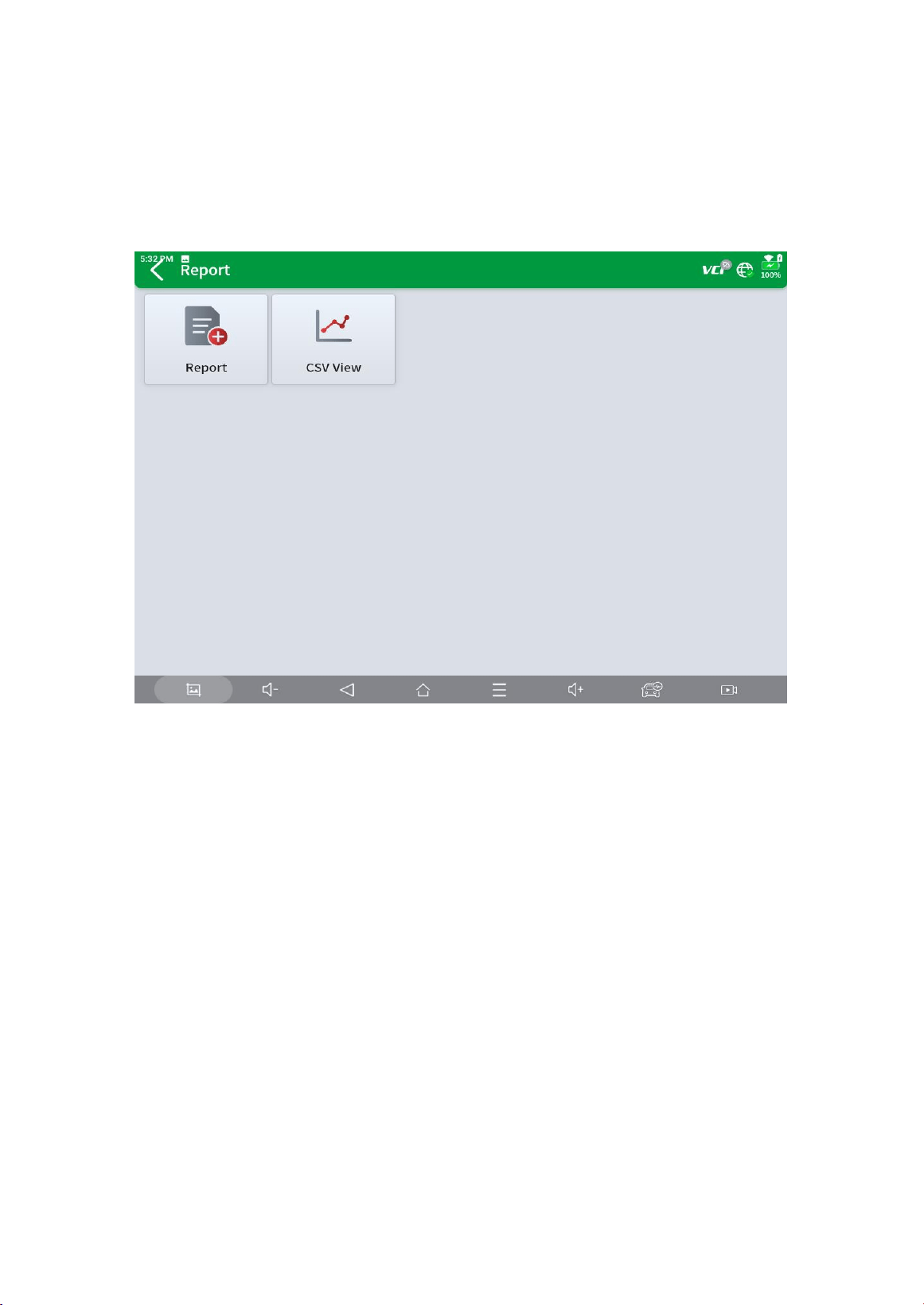
3.5.4 Updates
Click 【Update All】 to upgrade all supported diagnostic software.
26
3.5.5 Report
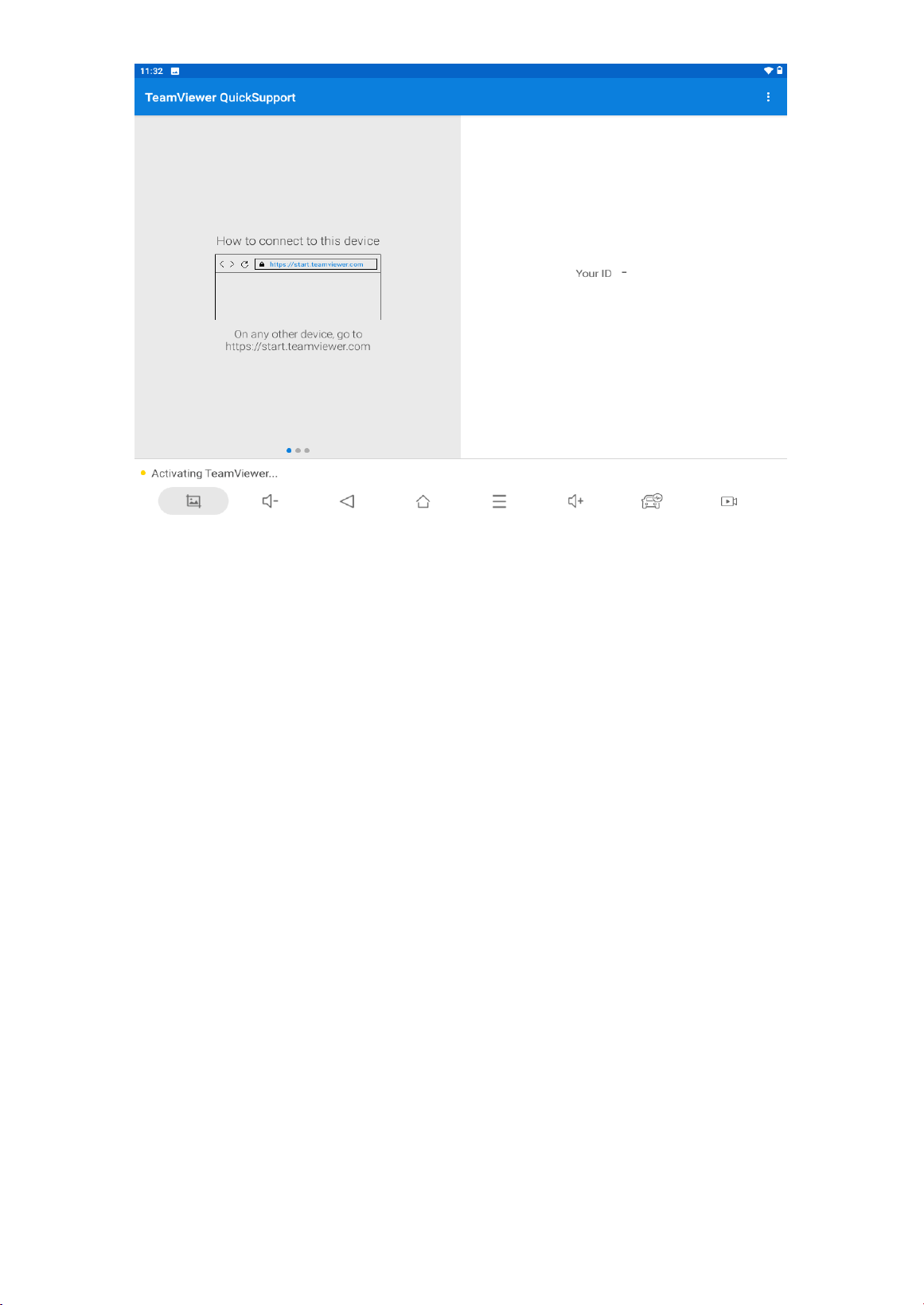
Here to check the saved files, including Diagnosis Report, CSV View.
【Diagnosis Report】Diagnosis report generated during vehicle diagnosis
【CSV View】 Here to view the saved live data

27
4 Remote Control
Tap on "Remote" to start the TeamViewer quick support program, which is a simple, fast,
and secure remote-control screen. You can use this application to enable someone else to use
their computer running TeamViewer software to control your tablet over the Internet. This
feature is frequently used by XTOOL's technical support centre when remotely helping
customers with technical support.
Computers and mobile devices running TeamViewer are identified by a globally unique ID.
When the remote application is started for the first time, the ID will be automatically
generated according to the hardware characteristics and will not be changed in the future.
This TeamViewer ID can individually access all TeamViewer clients.
Before launching the remote desktop application, make sure that the tablet is connected to the
Internet so that you can access the tablet to receive remote support from a third party. If you
encounter problems and are not able to solve them, you could open this application and ask
for remote assistance.
To obtain remote support from your partners or XTOOL AfterSalesService Center:
1. Turn on the power of the tablet.
2. Click Remote in the Diagnostic application. The TeamViewer screen is displayed, and the
device ID will be generated.
3. Your partner must install the remote-control software on their computer by downloading
the full version of the TeamViewer program (http://www.teamviewer.com) online, and then
start the software on their computer at the same time, to provide support and remote control
of the tablet.
4. Provide your ID to the partner or XTOOL technician, and then wait for them to send you a
remote-control request.
5. A pop-up window will be displayed, asking you to permit the remote-control program to
control your device.
6. Click Allow to accept, or click Reject to reject.
28
COMPLIANCE INFORMATION
FCC Compliance
FCC ID:2AW3IP102A
This device complies with Part 15 of the FCC Rules. Operation is subject to the
following two conditions:
(1) this device may not cause harmful interference, and (2) this device must
accept any interference received, including interference that may cause
undesired operation.
Warning
Changes or modifications not expressly approved by the party responsible for
compliance could void the user’s authority to operate the equipment.
Note: This equipment has been tested and found to comply with the limits for a
Class B digital device, pursuant to Part 15 of the FCC Rules. These limits are
designed to provide reasonable protection against harmful interference in a

29
residential installation.
This equipment can generate, use and radiate radio frequency energy and, if
not installed and used in accordance with the instructions, may cause harmful
interference to radio communications. However, there is no guarantee that
interference will not occur in a particular installation. If this equipment does
cause harmful interference to radio or television reception, which can be
determined by turning the equipment off and on, the user is encouraged to try
to correct the interference by one or more of the following measures:
Reorient or relocate the receiving antenna.
Increase the separation between the equipment and the receiver.
Connect the equipment to an outlet on a circuit different from that to which the
receiver is connected.
Consult the dealer or an experienced radio/TV technician for help.
Specific Absorption Rate (SAR) information
This device meets the government's requirements for exposure to radio waves.
The guidelines are based on standards that were developed by independent
scientific organizations through periodic and thorough evaluations of scientific
studies. The standards include a substantial safety margin designed to assure
the safety of all persons regardless of age or health. FCC RF Exposure
Information and Statement the SAR limit of the USA (FCC) is 1.6 W/kg
averaged over one gram of tissue. Device types: This device has also been
tested against this SAR limit. This device was tested for typical body-worn
operations with the back of the device kept 0mm from the body. To maintain
compliance with FCC RF exposure requirements, use accessories that maintain
an 0mm separation distance between the user's body and the back of the device.
The use of belt clips, holsters and similar accessories should not contain
metallic components in its assembly. The use of accessories that do not satisfy
these requirements may not comply with FCC RF exposure requirements, and
should be avoided.
For USA: The frequency stability of all transmission frequencies of U-NII-1,
U-NII 2A, U-NII 2C and U-NII-3 meets the requirements of 47 CFR FCC
Part15.407(g), and the manufacturer declares that their transmission is
maintained at Band U-NII-1, U-NII 2A, U-NII 2C and U-NII-3.
Responsible Party

30
Company name: FCC US Agent, LLC
Address: 3722 Illinois Avenue, Saint Charles, IL, 60174, USA
E-mail: [email protected]
ISED Statement
IC: 29441-P102A
HVIN: P102A
PMN: P102,H6Pro 3, H6DPro 3, AutoProPAD G3 Prime, lP919, IP919 Pro,
E2S, E2 Pro, IP919 MAX
English:This device contains licence-exempt transmitter(s)/receiver(s) that
comply with Innovation, Science and Economic Development Canada’s
licence-exempt RSS(s). Operation is subject to the following two conditions:
(1) This device may not cause interference.
(2) This device must accept any interference, including interference that may
cause undesired operation of the device.
CAN ICES (B) / NMB (B).
For Canada: The frequency stability of all transmission frequencies of U-NII-1,
U-NII 2A, U-NII 2C and U-NII-3 meets the requirements of RSS-Gen Issue 5,
Section 6.11, and the manufacturer states that their transmissions remain within
the U-NII-1, U-NII 2A, U-NII 2C and U-NII-3 bands.
French: Cet appareil contient des émetteurs/récepteurs exempts de licence qui
sont conformes aux RSS exemptés de licence d'Innovation, Sciences et
Développement économique Canada. L'exploitation est soumise aux deux
conditions suivantes :
(1) Cet appareil ne doit pas provoquer d'interférences.
(2) Cet appareil doit accepter toute interférence, y compris les interférences
susceptibles de provoquer un fonctionnement indésirable de l'appareil.
This equipment complies with Canada radiation exposure limits set forth for an
uncontrolled environment.

31
Cet équipement est conforme aux limites d'exposition aux rayonnements du
Canada établies pour un environnement non contrôlé.
The device for operation in the band 5150–5350 MHz is only for indoor use to
reduce the potential for harmful interference to co-channel mobile satellite
systems.
Pour le Canada : La stabilité de fréquence de toutes les fréquences de
transmission U-NII-1, U-NII 2A, U-NII 2C et U-NII-3 répond aux exigences
de la norme CNR-Gen, édition 5, section 6.11, et le fabricant déclare que leurs
transmissions restent dans les bandes U-NII-1, U-NII 2A, U-NII 2C et U-NII-3.
L'appareil destiné à fonctionner dans la bande 5150-5350 MHz est uniquement
destiné à une utilisation en intérieur afin de réduire le potentiel d'interférences
nuisibles aux systèmes mobiles par satellite cocanaux.
This radio transmitter has been approved by Industry Canada to operate with
the antenna types listed with the maximum permissible gain indicated. Antenna
types not included in this list, having again greater than the maximum gain
indicated for that type, are strictly prohibited foruse with this device.
Le présent émetteur radio a étéapprouvé par Industrie Canada pour fonctionner
avec les types d'antenne énumérés ci-dessous et ayant un gain admissible
maximal. Les types d'antenne non inclus dans cette liste, et dont le gain est
supérieur au gain maximal indiqué, sont strictement interdits pour l'exploitation
de l'émetteur.
(1) L' appareil ne doit pas produire de brouillage;
(2) L' appareil doit accepter tout brouillage radioélectrique subi, même si le
brouillage est susceptible d' en compromettre le fonctionnement.
Specific Absorption Rate (SAR) information:
This device meets the government's requirements for exposure to radio waves.
The guidelines are based on standards that were developed by independent
scientific organizations through periodic and thorough evaluation of scientific
studies. The standards include a substantial safety margin designed to assure
the safety of all persons regardless of age or health. ISED RF Exposure
Information and Statement the SAR limit of Canada(ISED) is 1.6 W/kg
averaged over one gram of tissue. Device types: Device has also been tested
against this SAR limit. This device was tested for typical body-worn operations
with the back of the device kept 0mm from the body. To maintain compliance
with ISED RF exposure requirements, use accessories that maintain an 0mm

32
separation distance between the user's body and the back of the device. The use
of belt clips, holsters and similar accessories should not contain metallic
components in its assembly. The use of accessories that do not satisfy these
requirements may not comply with ISED RF exposure requirements, and
should be avoided.
Informations sur le débit d’absorption spécifique (DAS) :
Cet appareil répond aux exigences du gouvernement en matière d’exposition
aux ondes radio. Les lignes directrices sont basées sur des normes qui ont été
élaborées par des organisations scientifiques indépendantes au moyen d’une
évaluation périodique et approfondie des études scientifiques. Les normes
comprennent une marge de sécurité substantielle conçue pour assurer la
sécurité de toutes les personnes, indépendamment de leur âge ou de leur état de
santé. Renseignements et déclaration sur l’exposition aux RF d’ISDELA limite
de DAS du Canada (ISDE) est de 1,6 W/kg en moyenne sur un gramme de
tissu. Types d’appareils : L’appareil a également été testé par rapport à cette
limite DAS. Cet appareil a été testé pour des opérations typiques portées sur le
corps avec l’arrière du appareil maintenu à 0 mm du corps. Pour maintenir la
conformité aux exigences d ’exposition RF d’ISDE, utilisez des accessoires qui
maintiennent une distance de séparation de 0 mm entre le corps de l’utilisateur
et l’arrière du appareil. L’utilisation de clips de ceinture, d’étuis et
d’accessoires similaires ne doit pas contenir de composants métalliques dans
son assemblage. L’utilisation d’accessoires qui ne satisfont pas à ces exigences
peut ne pas être conforme aux exigences d’exposition aux RF d’ISDE et doit
être évitée.
Responsible Party
Company name: Canadian certification consulting, Inc.
Address: 2210 Horizon Drive, Suite 17West Kelowna, BC V1Z 3L4, Canada
E-mail: [email protected]
CE
Declaration of conformity
Hereby, Shenzhen Xtooltech Intelligent Co., Ltd. declares that this Smart
Diagnostic System is in compliance with the essential requirements and other
relevant provisions of Directive 2014/53/EU. In accordance with Article 10(2)
and Article 10(10), this product allowed to be used in all EU member states.

33
UKCA
Hereby, Shenzhen Xtooltech Intelligent Co., Ltd. declares that this Smart
Diagnostic System satisfies all the technical regulations applicable to the
product within the scope of UK Radio Equipment Regulations (SI 2017/1206);
UK Electrical Equipment (Safety) Regulations (SI 2016/1101); and UK
Electromagnetic Compatibility Regulations (SI 2016/1091) and declare that the
same application has not been lodged with any other UK Approved Body.