Quick Guide
PS701 Pro
Intelligent Diagnosis System
Please read the instruction carefully book before usage

QUICK GUIDE
I
Trademarks
is a registered trademark of Shenzhen
Xtooltech Intelligent CO., LTD.
In countries where the trademarks, service marks,
domain names, logos, and the name of the company are
not registered, Xtool claims that it still reserves the
ownership of the unregistered trademarks, service
marks, and domain names, logos, and the company
name. All other marks for the other products and the
company’s name mentioned in the manual still belong
to the original registered company.
You may not use the trademarks, service marks, domain
names, logo, and company name of Xtool or other
companies mentioned without written permission from
the trademark holder.
Xtool reserves the right to the final interpretation of this
manual content.

QUICK GUIDE
II
Copyright
This manual is designed for PS701 Pro Intelligent
Diagnosis System and only applies to it. Any company
or person can’t copy and backup this introduction book
in any form (Electronic, mechanical, photocopy,
record, or other forms) without the written permission
of Xtool. This introduction book is via the product’s
existing configuration and function to compile, if the
product adds a new configuration and function, this
introduction book will be changed accordingly,
without prior notice. The right of final interpretation of
this introduction book belongs to Xtool.

QUICK GUIDE
IV
Disclaimer
This electronic control system diagnostic unit is
provided for vehicle repairing professionals, this
product has higher reliability, but does not exclude the
loss and damage caused by customers’ technical
matters, vehicle problems, or other reasons, Xtool
assumes no liability or responsibility for those.
To know more about related products information, you
can visit Shenzhen Xtooltech Intelligent Co., Ltd’s
official website:http://www.xtooltech.com
Safety instruction
Keep ventilation: When the engine is
running, please keep the repair zone good
ventilation or connect the exhaust system
of the engine and building carefully.

QUICK GUIDE
V
Caution
⚫ Always keep safe conditions to diagnosing vehicle
⚫ Wear the goggles in accord with ANSI standard
⚫ Keep clothes, hair hand, tool, tester, etc. away
from running or calorific engine
⚫ Before starting the engine, you should confirm
parking braking is working, put a barrier on the
front wheels, and put the gear shift lever in neutral
gear or park to avoid hurting people on the spot
when start engine, the vehicle speeds up suddenly
⚫ Be extremely careful when working around the
ignition coil, distributor cap, ignition circuit, and
ignition plug. The voltage generated by these
components when the engine is running is very
dangerous
⚫ Equipped with special fire extinguishers for

QUICK GUIDE
VI
gasoline, chemical, electrical fires in the working
area
⚫ When the ignition switch is turned on or the
engine is running, don’t connect or disconnect the
diagnostic equipment
⚫ Keep the diagnostic device dry and clean, away
from gasoline, water, and grease. If necessary, use
a clean cloth coated with a mild detergent to clean
the surface of the device
⚫ Don’t operate the diagnostic equipment while
driving the vehicle to avoid distractions and cause
accidents
⚫ Please refer to the repair manual when servicing
the vehicle and strictly follow the diagnostic
procedures and precautions. Otherwise, it may
cause personal injury or damage to the diagnostic
device
QUICK GUIDE
VII
⚫ To avoid damaging the diagnostic device or
generating incorrect data, please ensure that the
vehicle battery is sufficiently charged and the
connection of the vehicle diagnostic socket is
clean and safe
⚫ Don’t put the diagnostic device on the vehicle
distributor. Strong electromagnetic interference
will cause damage to the device
Aftersales-services
support1@xtooltech.com
support2@xtooltech.com
+86 755 21670995 / +86 755 86267858
Monday through Friday
09:00~18:30 [UTC/GMT+08:00]
www.xtooltech.com

QUICK GUIDE
i
Content
Product Brief Page 1
In this part, you can know about the basic features of the product
Product Specification Page 2
In this part, you can know about the specification of the product
Start Diagnosis Page 10
In this part, you can know about the functions of the product
FAQs Page 43
In this part, provide answers to frequently questions during
using

QUICK GUIDE
1
1. Product Brief
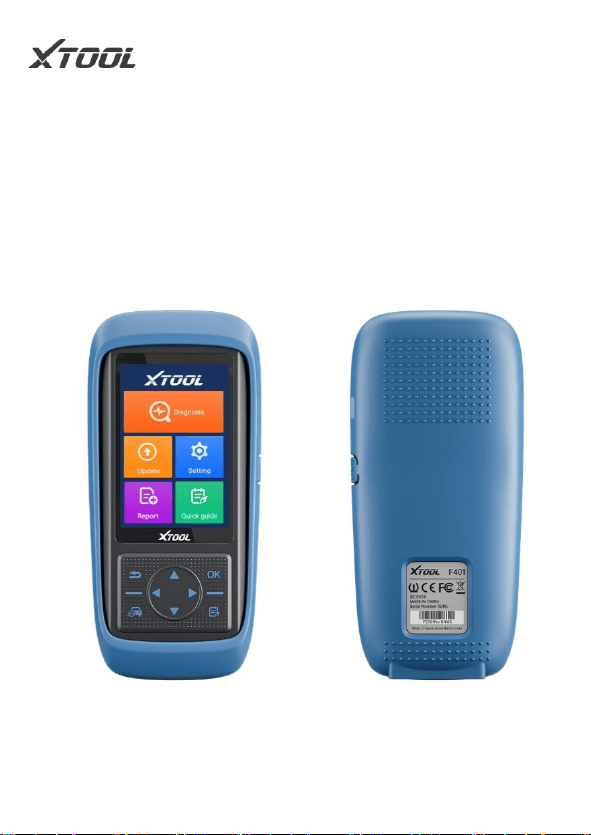
PS701 Pro intelligent diagnosis system is a
professional vehicle diagnosis device for Japanese
automobiles. It supports the detection and bi-
directional control test for vehicle drive, chassis, and
body systems. It has basic diagnostic functions such as
reading fault code, clearing fault code, reading live
data, freezing frame, etc. At the same time, the user
could experience the complete OBD Ⅱ function and
full system diagnosis. It can help maintenance staff
locate faults for vehicles and improve work efficiency.
QUICK GUIDE
2
2. Product Specification
2.1. Appearance
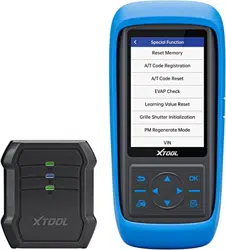
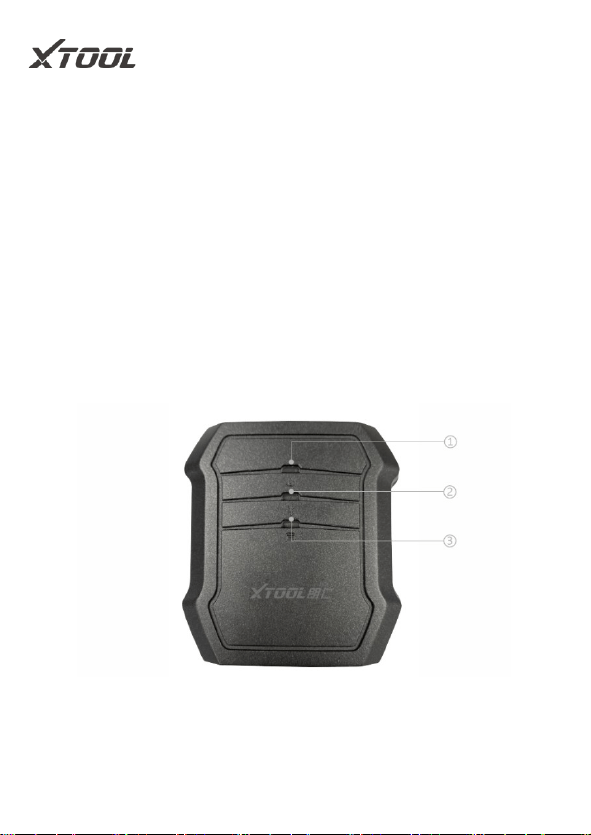
PS701 Pro series Intelligent Diagnosis System.
Front view
Back view
QUICK GUIDE
3
The design with blue and black color is simple and
terse; the body adopts a streamlined design and a large
curvature frame for better grip; the back of the product
adopts a protruding design that is more non-slip and
safer. PS701 Pro products are equipped with VCI as
standard, and the host and VCI are connected via
Bluetooth, which is convenient for connection.
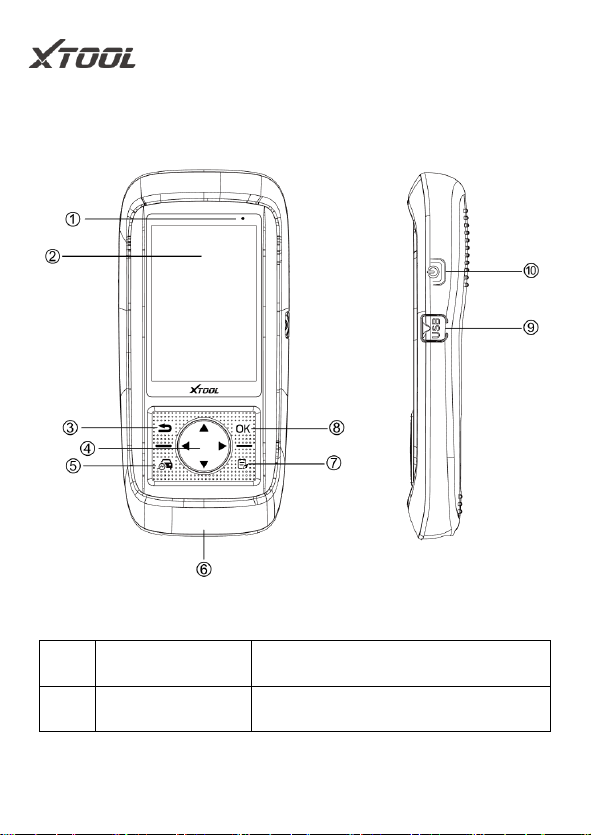
Front view of VCI Box
QUICK GUIDE
4
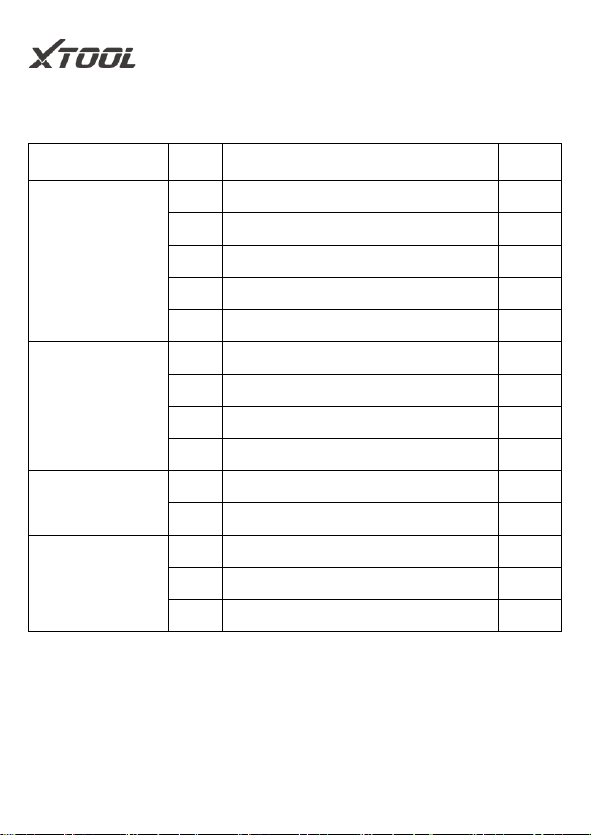
2.2. Ports and Button
No.
Items
Description
1
Charge Lamp
Display status of charge

QUICK GUIDE
5
2
LCD
Display function menu of
product
3
Back
Cancel selection (Or operation)
or return to the previous menu
4
Direction key
Via direction key to move
choosing appoint menu
5
Vehicle
diagnosis
Open/switch vehicle diagnosis
function
6
DB15
connector
Only for charging
7
Speedy guide
Open/switch introduction book
8
OK
Confirm selection
9
USB interface
Connect the device to the PC for
transferring files or battery
charging, a Type-C port.
10
Power switch
The long press can power
on/Power off, the short press can
turn on/turn off the screen

QUICK GUIDE
6
2.3. Parameter
Note: The working temperature and storage temperature are verified in a
laboratory environment, which is for reference only.
Items
Description
System
Android
CPU
ARM Cortex A7 Quad-Core, Basic
frequency 1.2GHz
GPU
Mali-400 MP2 GPU
RAM
1GB
ROM
16GB
Display screen
4-inch 320x480 Color touch display screen
Working voltage
9~18V
Battery
3000mAh built-in lithium battery
Working temperature
-20℃-60℃
Storage temperature
-30℃-70℃
QUICK GUIDE
7
2.4. Packing list
Category
No.
Name
QTY
Test
Connectors
& Cables
1
OBD II-16
1
2
HONDA-3
1
3
NISSAN-14
1
4
Main Cable
1
5
USB Type-C Cable
1
Adaptor
1
Charger DC5V AC (100-300V) 2A
1
2
US plug adapter
1
3
EU plug adapter
1
4
UK plug adapter
1
Main Units
1
PS701Pro
1
2
VCI box
1
Accessories
1
Certificate of Quality
1
2
Packing List
1
3
Carton
1
QUICK GUIDE
8
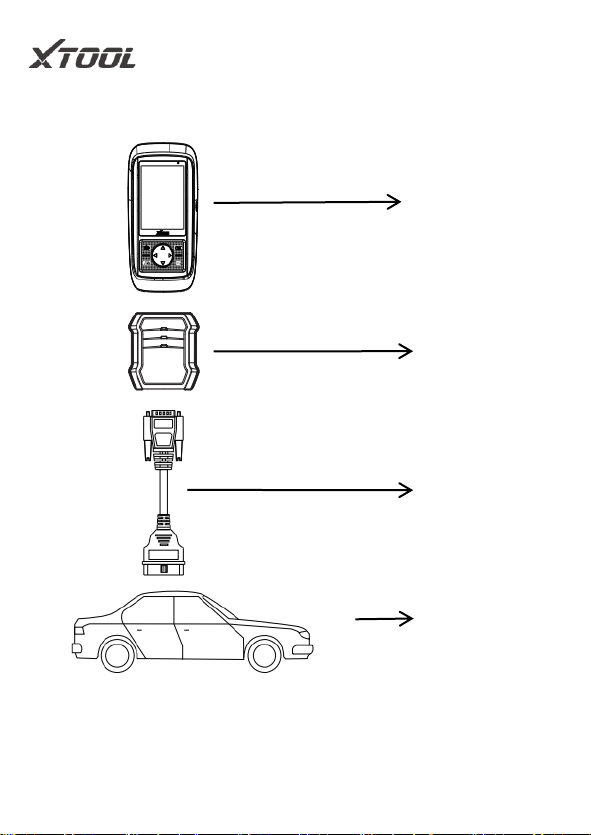
2.5. Connection
Please connect your vehicle to PS701 Pro below steps:
1. First open the PS701 Pro host;
主测试线
Vehicle
VCI
PS701 Pro
Host
Main test line

QUICK GUIDE
9
2. Connect the host and VCI via Bluetooth;
3. Connect the VCI to the car with the main test line;
4. Start the diagnosis.
*Note
The DB15 port on the bottom is only reserved for charging.
Please do not connect directly the PS701Pro to the vehicle
by the main test line, which could lead to a communication
failure.

QUICK GUIDE
10
3. Start Diagnosis
3.1. Activation
The First use of PS701 Pro needs an activation.
Please follow the below steps to activate your device:
Step 1: Long press the power button to boot up and
connect Wi-Fi,
Step 2: Input your email address to activate.
*Note
1. Each device only needs to be activated once;
2. Software will be released in a new version for fixing
bugs, please upgrade it in time for a better user
experience.
QUICK GUIDE
11
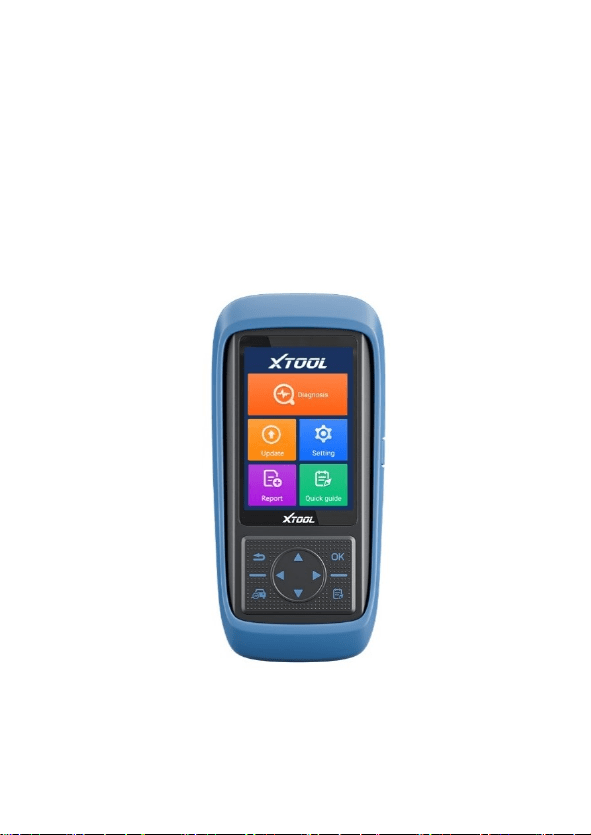
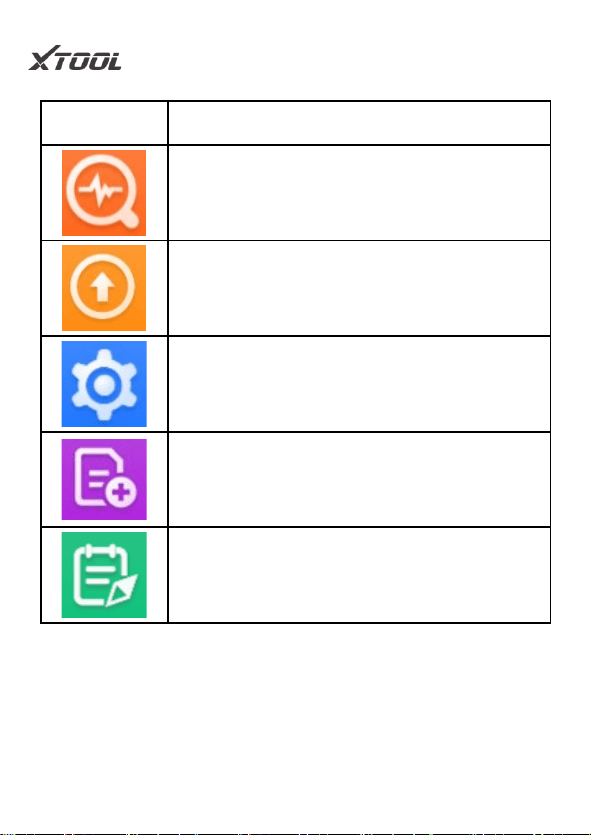
3.2. Main Interface
After booting, the main interface is shown below.
QUICK GUIDE
12
Item
Description
Click to start the diagnosis function
Software that can be updated to the latest
version will be displayed here
You could change the Language, Units,
Date & Time, and so on.
View all historical reports here
Quick guide for PS701 Pro
QUICK GUIDE
13
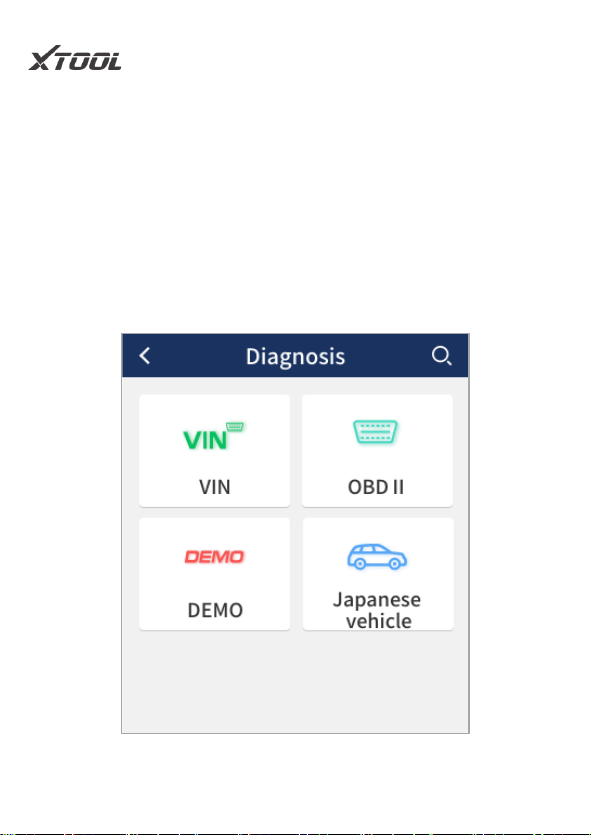
3.3. Diagnosis
This function is the core module of PS701 Pro, which
supports full system diagnosis for Japanese vehicles.
Customers can use these functions to solve practical
problems quickly and precisely.
QUICK GUIDE
14
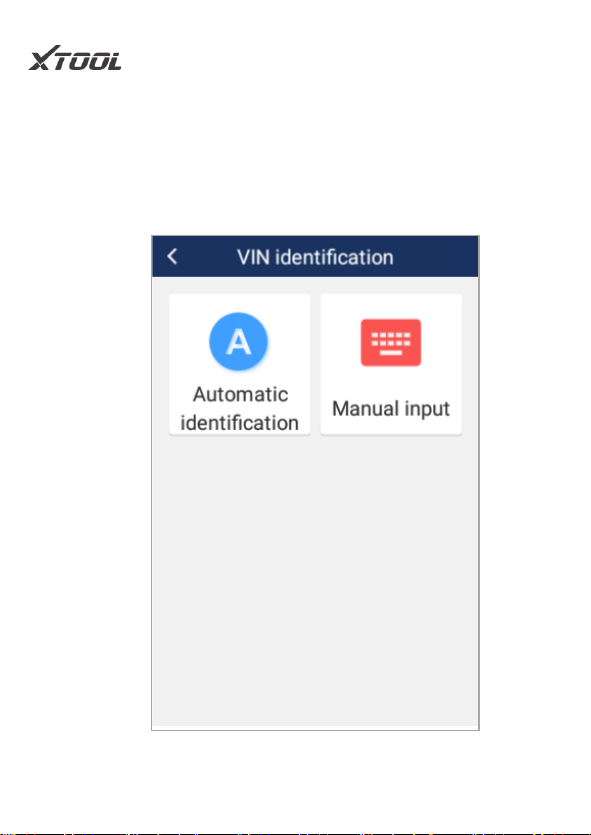
VIN Identification
According to the practical requirement, the user can
choose automatic identification or manual input of the
car VIN code
QUICK GUIDE
15
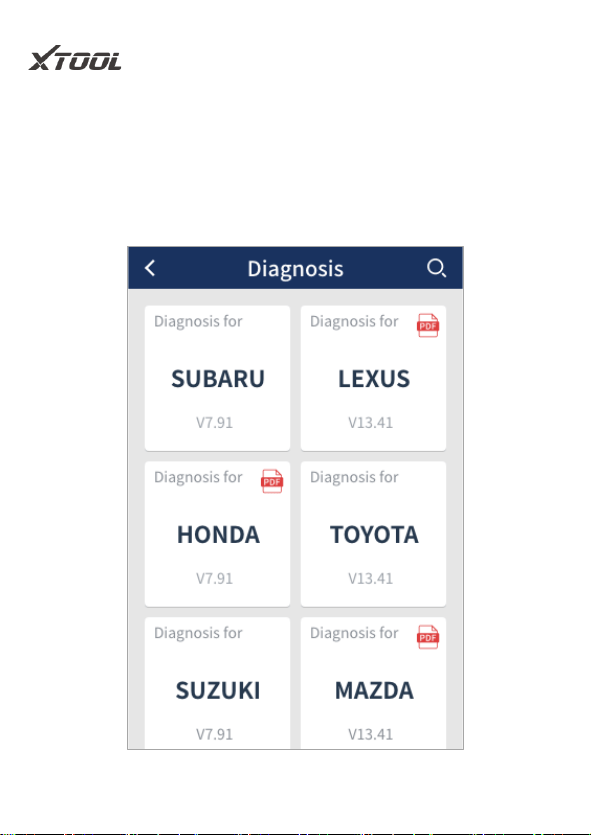
Vehicle Selection
PS701 Pro supports diagnostic functions for 9 Japanese
cars, like Honda, Isuzu, Lexus, Mazda, Mitsubishi,
Nissan, Subaru, and Suzuki Toyota.
QUICK GUIDE
16
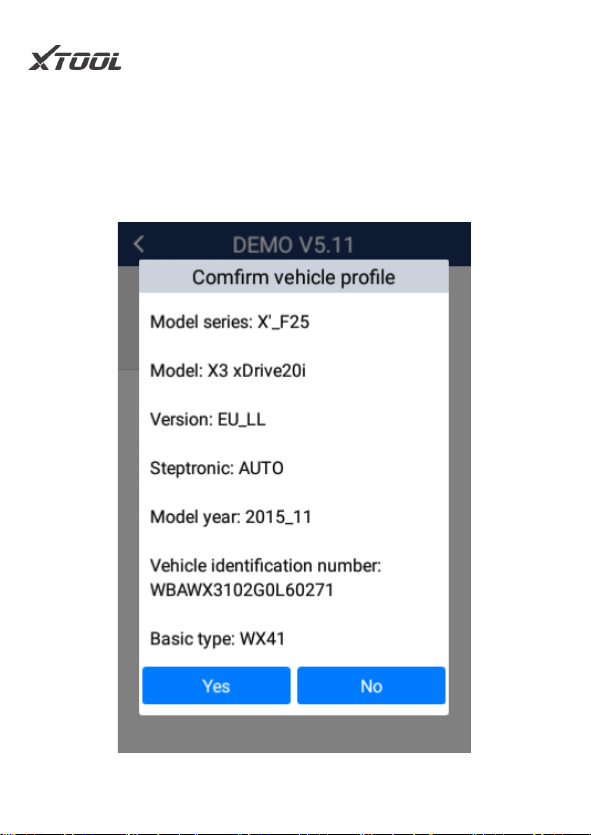
Demo
This function is used for demonstration. Users can view
all of the functions in PS701 Pro without changing any
settings.

QUICK GUIDE
17
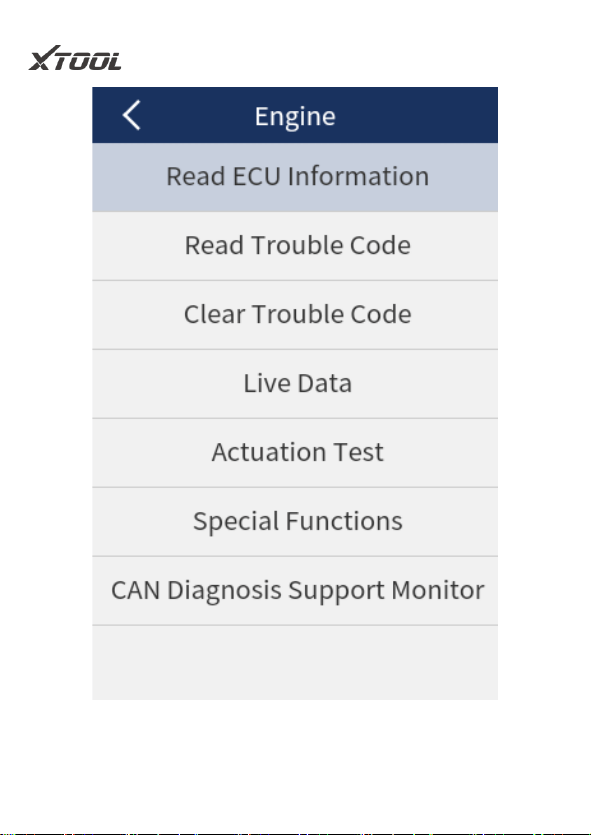
Basic Function
PS701 Pro will enter the diagnosis function after
confirming the vehicle model. The normal function
includes reading ECU version information, Reading
ECU code, reading fault code, reading freeze-frame,
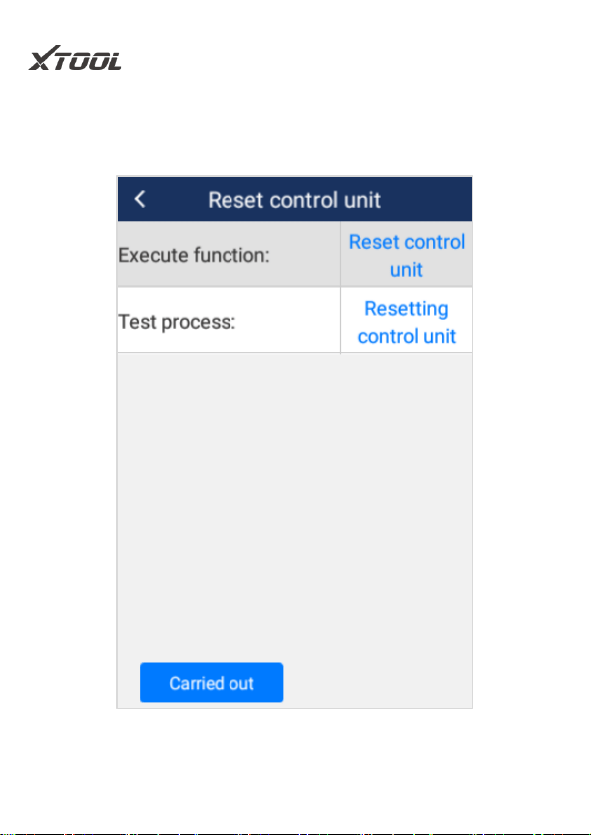
quick clear codes, reading live data, and Resetting the
control unit. There will be some differences among
different vehicle models.
QUICK GUIDE
18

QUICK GUIDE
19
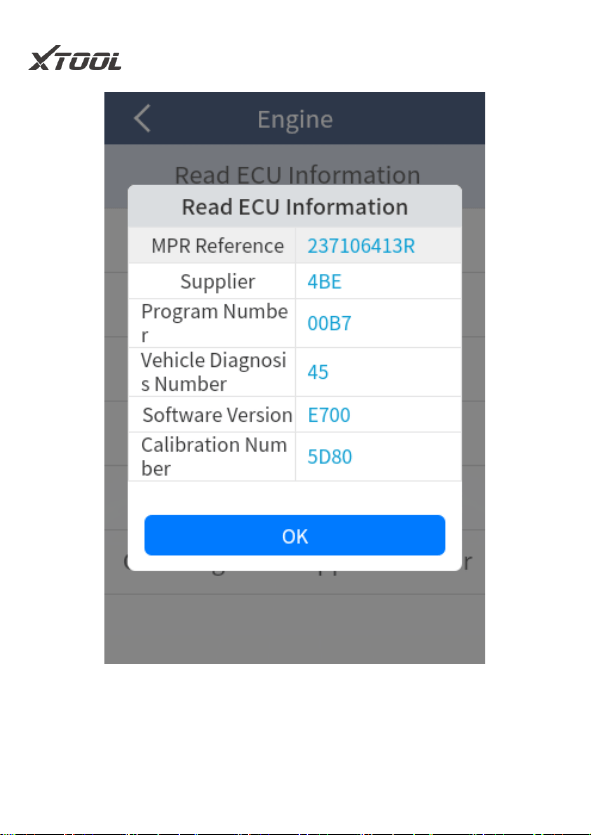
Read ECU Info
This function allows users to read ECU version
information. Some electronic control systems display
system identification or system information menus,
which have the same meaning, and read information
such as software, hardware version numbers, part
numbers, etc.
QUICK GUIDE
20
QUICK GUIDE
21
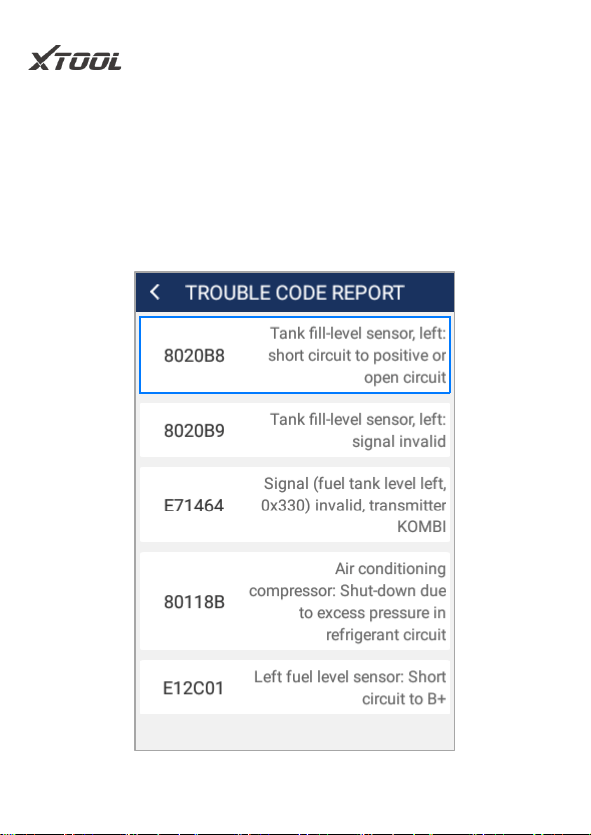
Read Fault Code
This function allows the user to read the fault code
stored in the electronic control ECU. When the fault
code is read, the screen will display it and its definition.
QUICK GUIDE
22
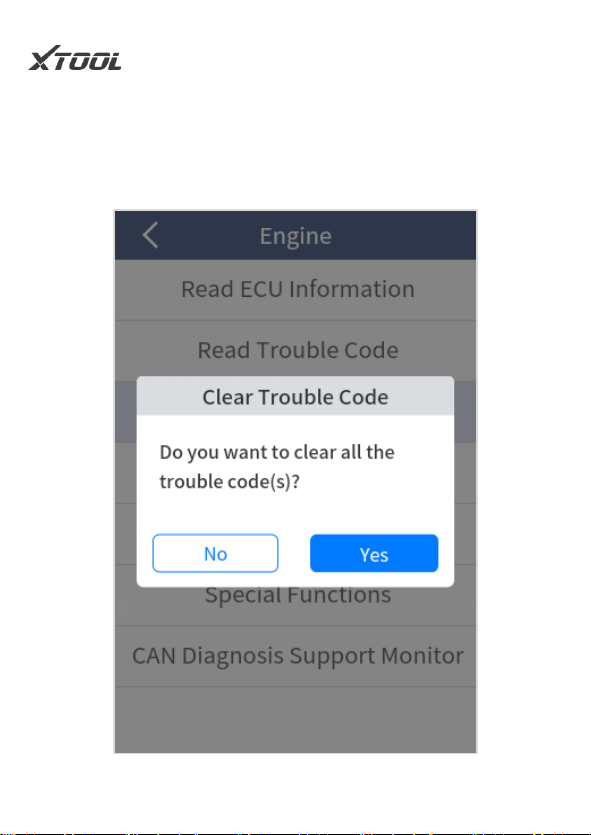
Quick Clear Codes
This function allows the user to clear current and
historical trouble codes memory in ECU.

QUICK GUIDE
23
The trouble codes cannot be erased without eliminating
the related fault. If a problem is not solved, the related
code will remain, and be stored in ECU, which leads to
it can be read by diagnostic.
Read Freeze Frame
This function allows the user to read the trouble codes
that are stored in the ECU at the moment when a vehicle
has faults.
Notice:
1. Save or print the currently stored fault codes
before clearing them in the case of an intermittent
fault, or for further main maintenance. If a
problem is solved, the related code will disappear.
2. Recommend reading the ECU code again to
reconfirm that previous fault codes have been
cleaned

QUICK GUIDE
24
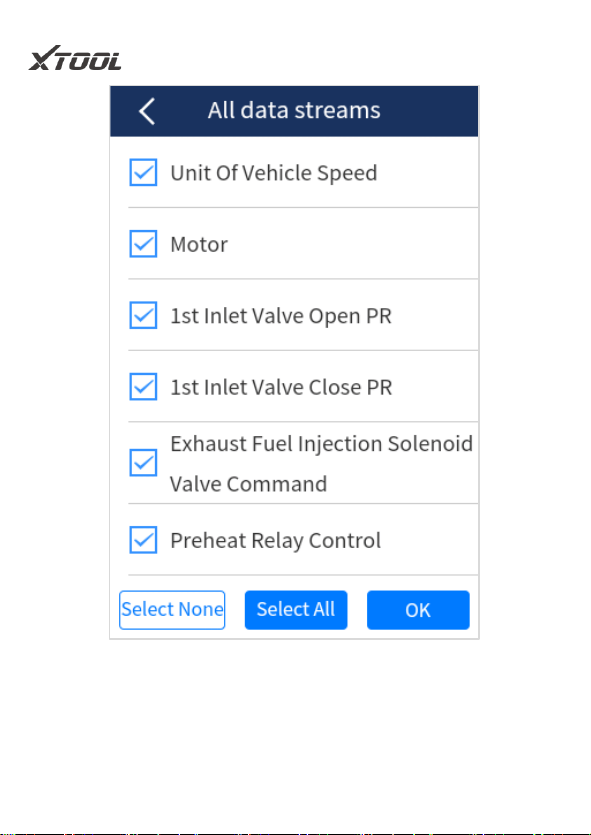
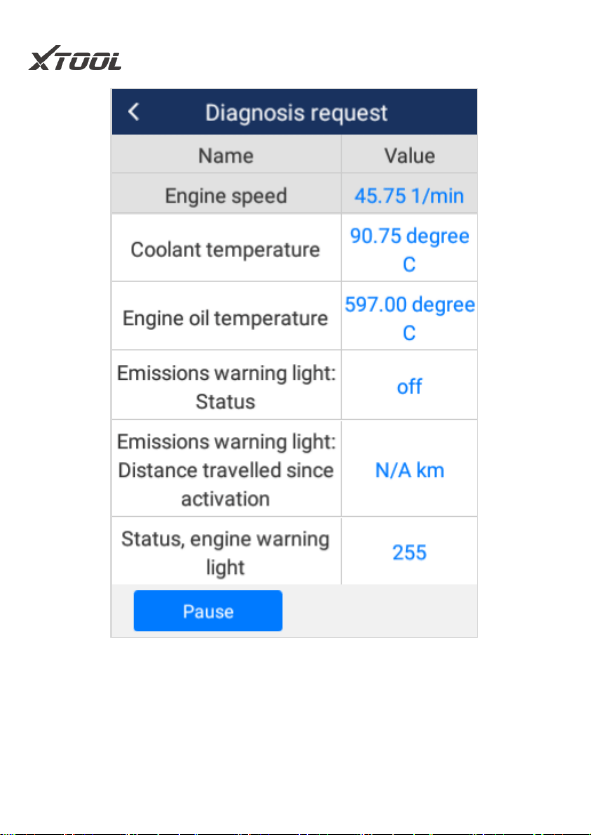
Read Live Data
This function allows the user to read the parameters of
the system on the operating conditions, such as oil
pressure, temperature, engine speed, fuel oil
temperature, coolant temperature, intake air temperature,
etc. By analyzing these parameters, the users can find
out which part works abnormally and narrow the
maintenance scope.
Live Data is an important function that can be used to
help experienced users to further diagnose a problem.
This function requires users to be familiarized with the
sensor data of each system, control signals, and control
modes.
QUICK GUIDE
25
Function Select
QUICK GUIDE
26
Read live data
Actuation test (Bi-directional Control)
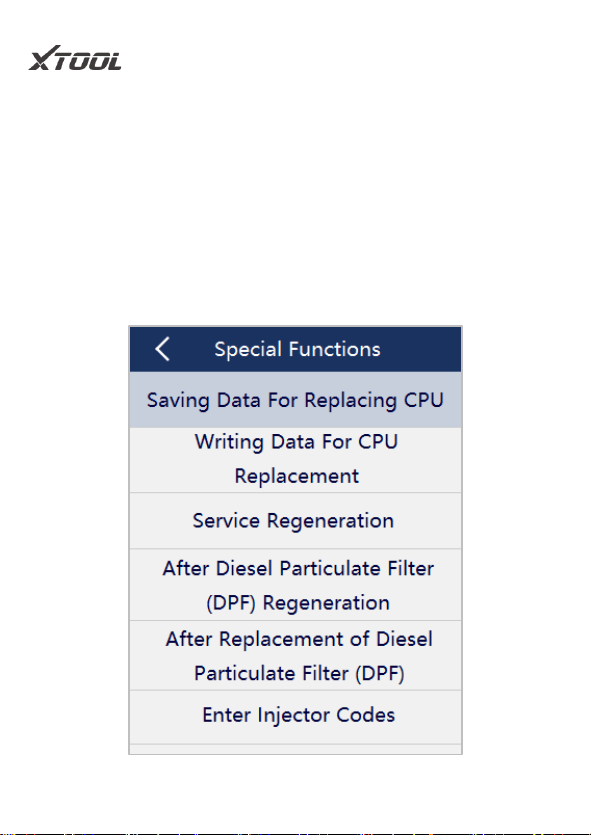
This function allows the user to figure out whether a
QUICK GUIDE
27
specific subsystem or component in the car works well
or not, and to make the tester outputs function.
(This picture is only for reference)
QUICK GUIDE
28
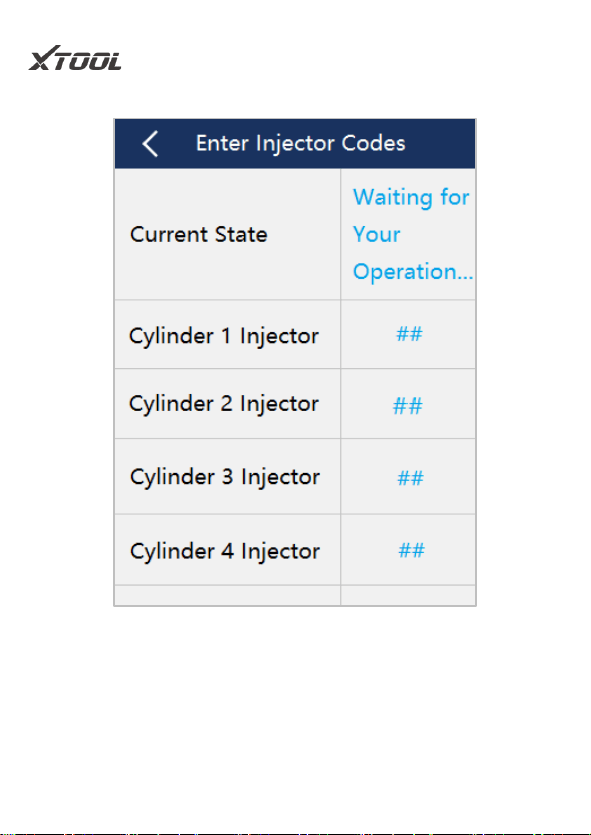
Special function
Special functions provide maintenance services for
different systems of the vehicle, and support users to
perform a various reset, re-learning, or matching
functions when replacing the component or
encountering failures.
QUICK GUIDE
29
Sample of Special functions
Sample of Special functions-Enter Injector Codes
QUICK GUIDE
30
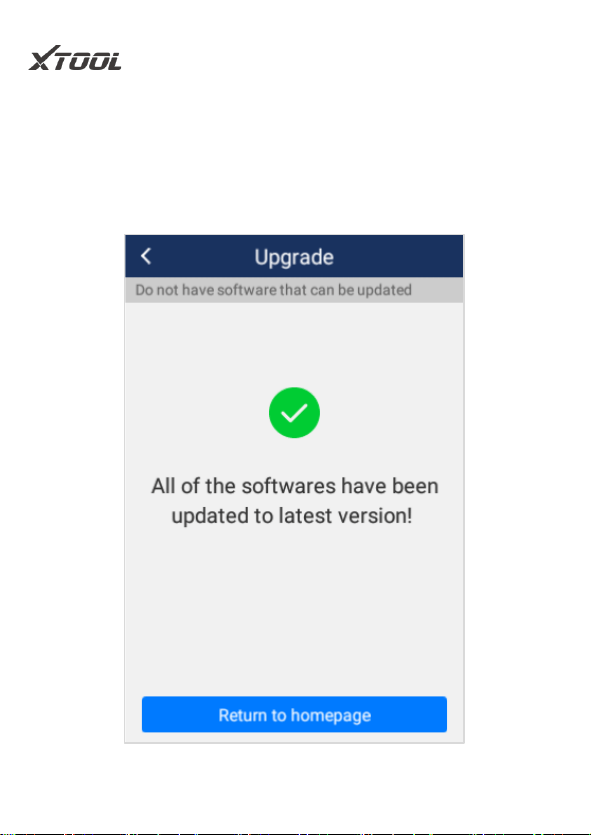
3.4. Upgrade
The PS701 Pro supports a one-click upgrade to renew
software quickly to experience the latest function;

QUICK GUIDE
31
Notice: when new software is released, an update notice will be
shown on the screen, customers can choose to upgrade or not.
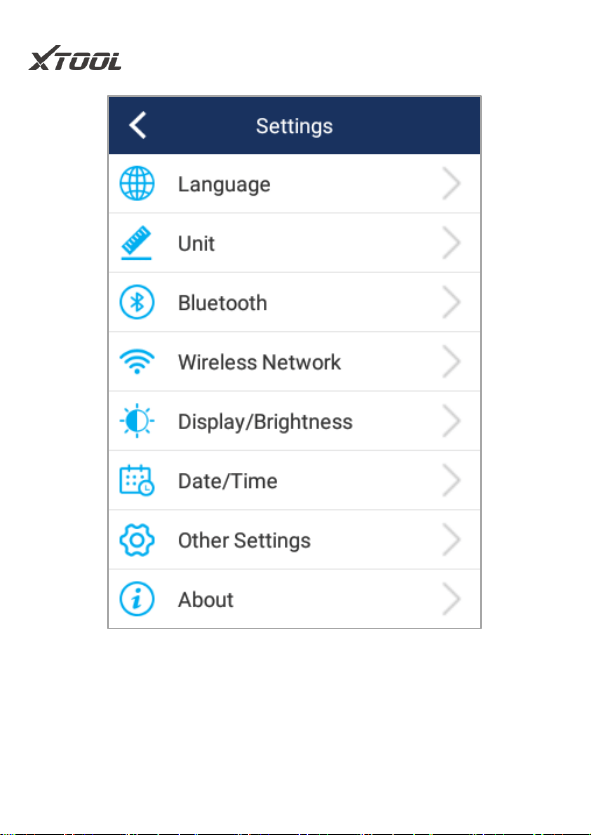
3.5. Settings
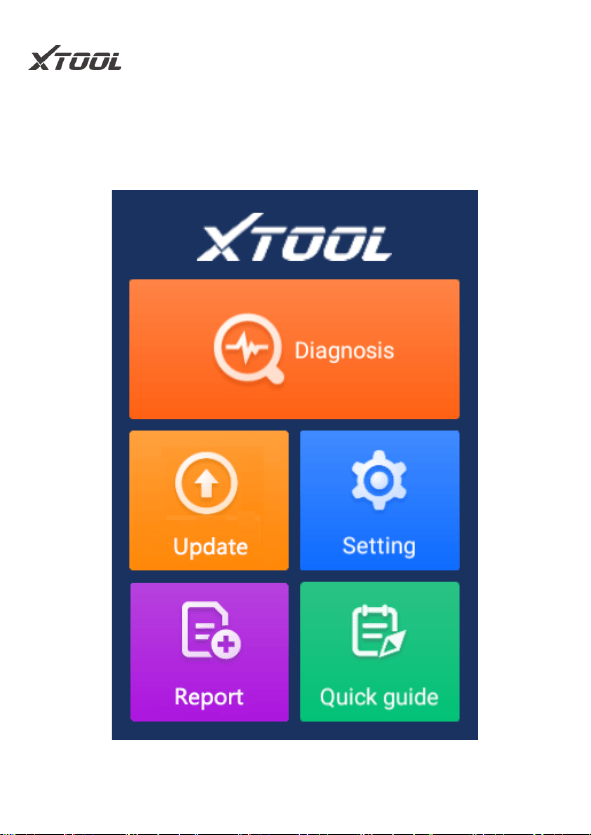
Select the "Settings" menu to open the setting interface.
You can set the language, unit, and system-related
options on this interface. The following 8 options as
shown below:
QUICK GUIDE
32
QUICK GUIDE
33
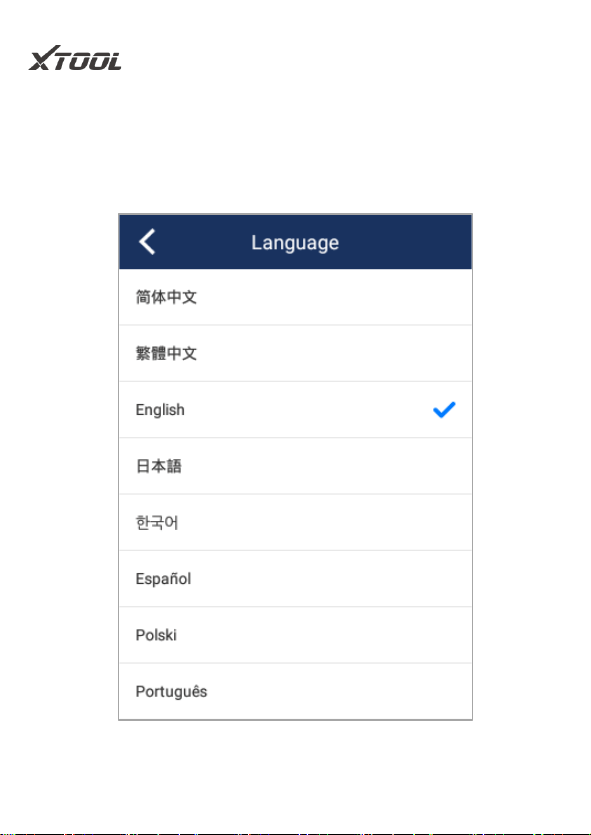
Language: Please select the language according to the
device configuration, otherwise the diagnosis interface
menu will not be displayed.
QUICK GUIDE
34
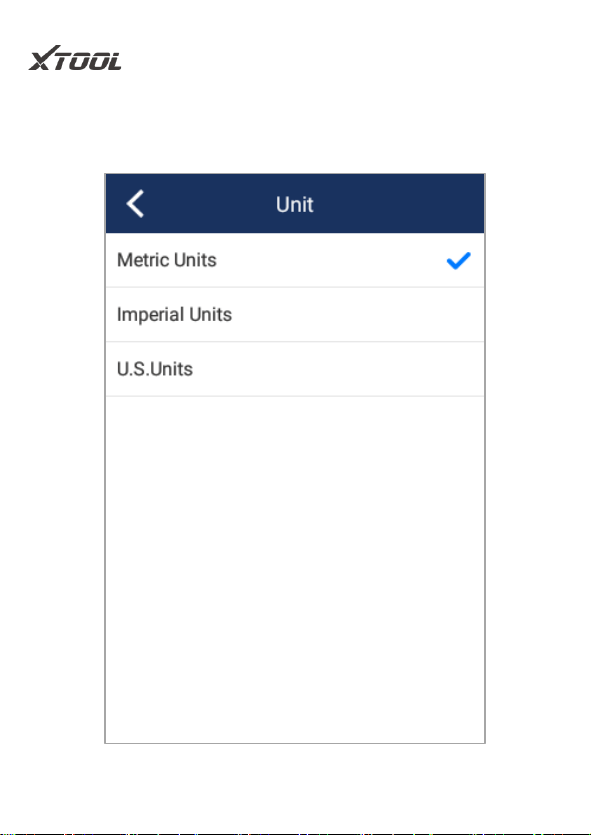
Unit: Select the unit of measurement, users can select
metric, imperial, and U.S. systems.
QUICK GUIDE
35
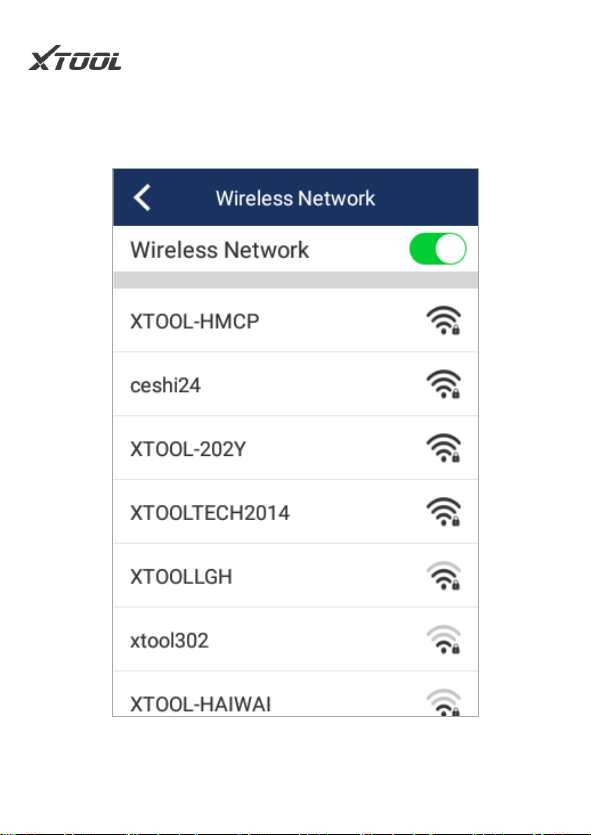
Wi-Fi: Choose a suitable wireless network connection
to perform data transmission and Internet access
Open/Connect Wi-Fi
QUICK GUIDE
36
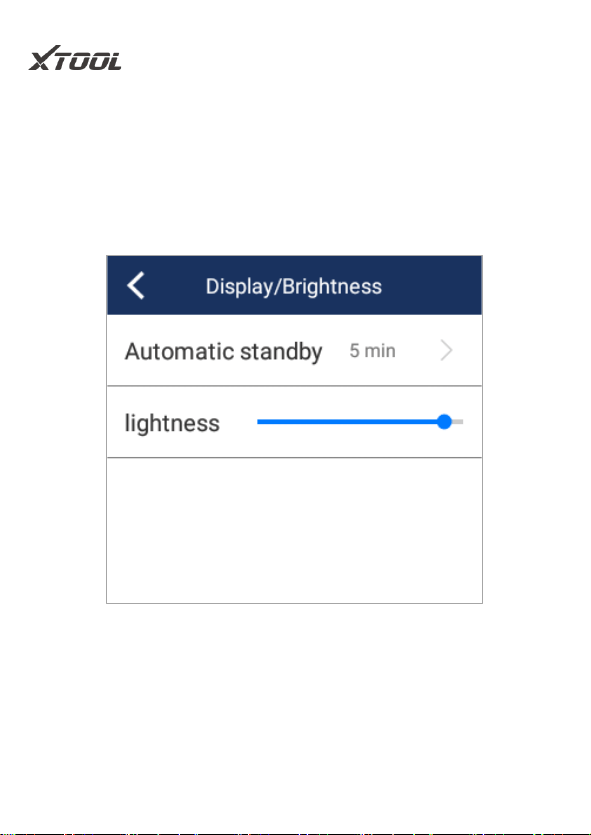
Display/Lightness: Users can adjust the brightness of
the display and the time interval of the host's automatic
standby according to their conditions to achieve a
better experience.
QUICK GUIDE
37
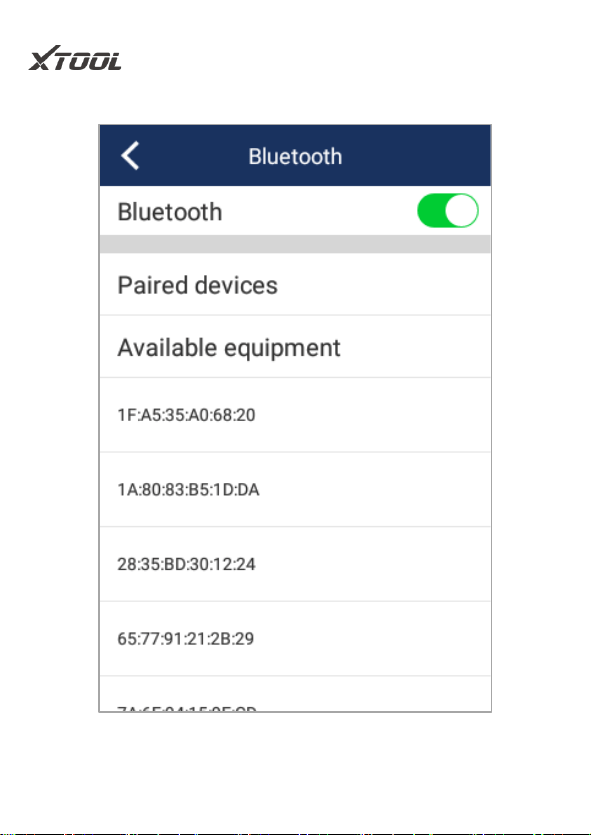
Bluetooth: You can select the Bluetooth to pair.
QUICK GUIDE
38
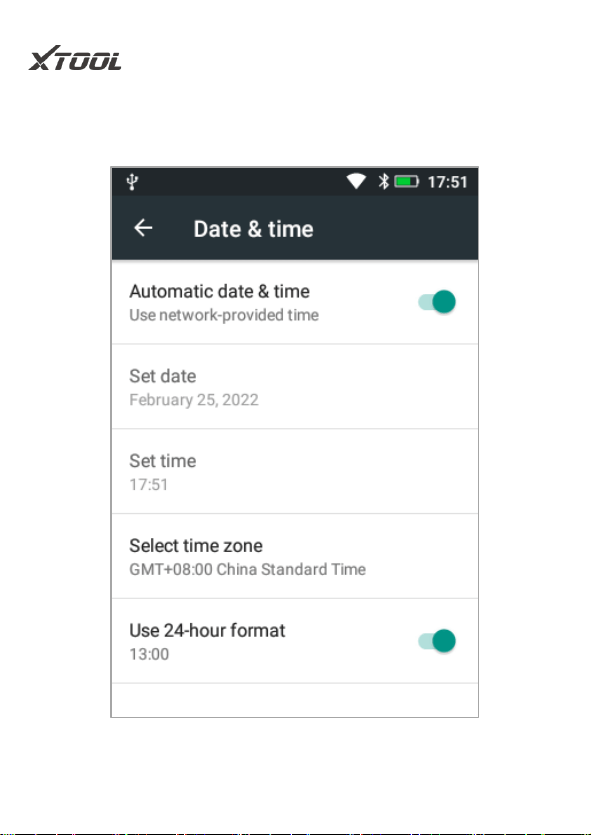
Date/Time: The user can set the date and time of the
system here
Set date
QUICK GUIDE
39
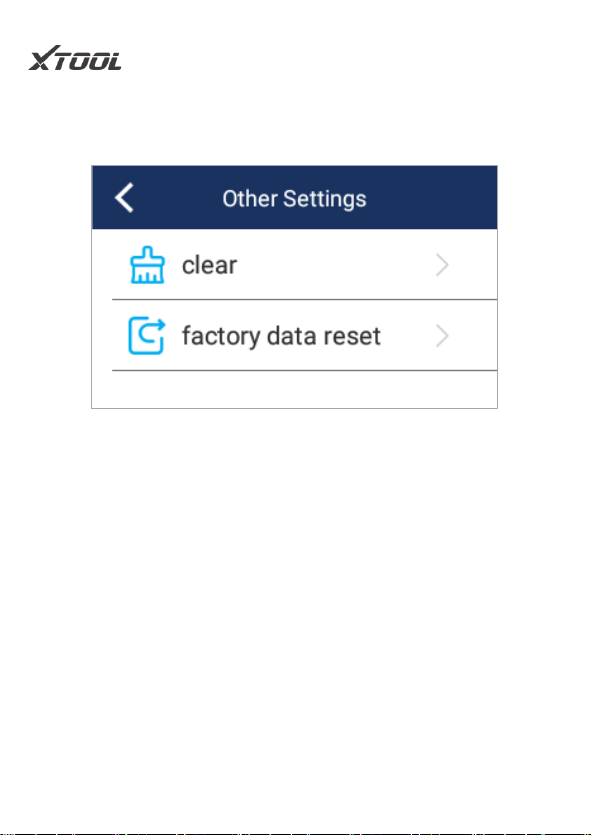
Other settings: Users can clean up the system cache and
restore factory settings
*Note
Before clearing the cache and restoring the factory
settings, please confirm whether the required
information has been saved or backed up, if the losses
are caused by this, Xtool assumes no liability or
responsibility for that.
QUICK GUIDE
40
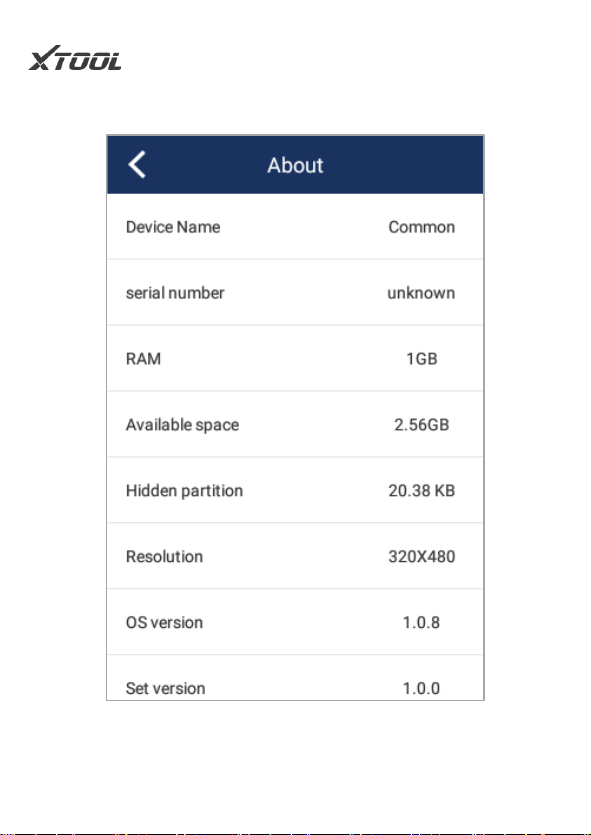
About: Users can the information about the device.
QUICK GUIDE
41
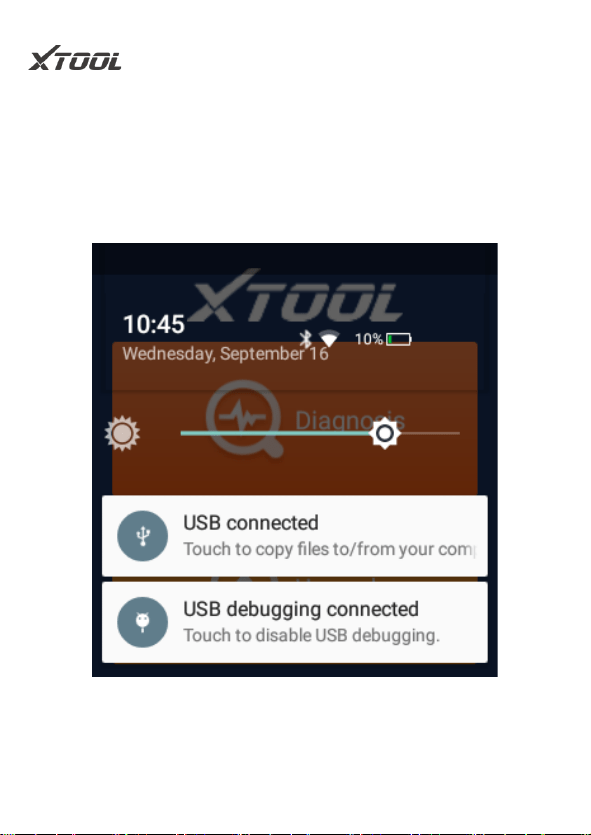
Tooltip: Pull down the top of the screen to call out the
notification bar, you can view the current system time,
power, Bluetooth, and wireless connection information,
and quickly adjust the lightness of the display
QUICK GUIDE
42
3.6. Report

QUICK GUIDE
43
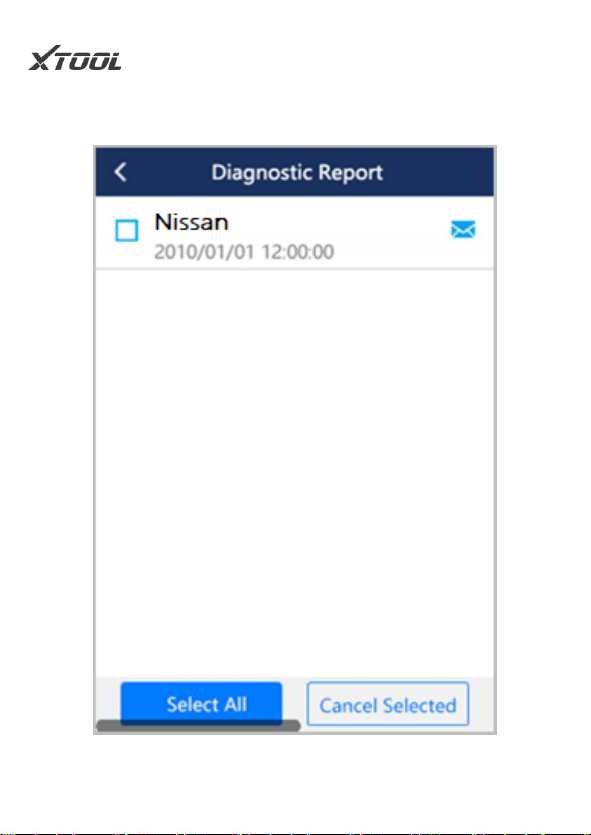
The report function allows users to check and delete all
historical diagnostic reports here.
Click on, reports also can be sent and shared by email,
just need to enter the receiver’s email address.
3.7. Quick Guide
PS701 Pro provides an online user manual, which
could be used to learn the product function at any time.
Users can open Quick Guide by clicking the menu icon
on the screen, or pressing the button on the bottom
right.
Notice: A catalog has already been added to the Quick
Guide. By clicking the title, the user can reach the
corresponding contents directly and easily

QUICK GUIDE
44
4. FAQs
Q1. “Wi-Fi connection timed out”
A1: This device does not currently support Wi-Fi 6 and
security protocol WPA3, please check the type of your
Wi-Fi and the security protocol, please change the
security protocol to WPA2, and enable maximum
compatibility.
If you still cannot connect to Wi-Fi, it is recommended
to try a mobile phone hotspot or other Wi-Fi.
Q2. Bluetooth connection failed
A2: Step 1: First, please check whether the status of
the indicator light of the lower computer is normal: the
red light above the Bluetooth box means the power is
normal, the blue light in the middle means the
Bluetooth connection is successful, and the green light

QUICK GUIDE
45
on the lower computer indicates that the device
successfully communicates with the car. If the light
indicator fails to light up normally, it means that the
hardware of the box is faulty
Step 2: If the Bluetooth box lights up normally, but the
Bluetooth connection with your device fails, please
make sure that you are within the effective
communication range of Bluetooth, and no obstacles
are blocking the communication signal (effective
Bluetooth communication distance: 10m)
Step 3: If you still cannot make the Bluetooth
communication between the device and the VCI box
successful, please contact XTOOL after-sales technical
support email: [email protected] or
Q3. "Activation failed" or "Registration failed"

QUICK GUIDE
46
Q3: Please make sure that your network is stable and
the network traffic from China is not blocked, and try
to activate the device at another period, or use a mobile
phone hotspot or other Wi-Fi to activate the device.

QUICK GUIDE
47
Shenzhen Xtooltech Intelligent Co., Ltd
Company address: 17&18/F, Building A2, Creativity City,
Liuxian Avenue, Nanshan District, Shenzhen, China
Factory address: 2/F, Building 12, Tangtou Third Industrial
Zone, Shiyan Street, Baoan District, Shenzhen, China
Service-Hotline: 0086-755-21670995/86267858
Email: supporting@xtooltech.com
Fax: 0755-83461644
Website: www.xtooltech.com