Shenzhen Xtooltech Intelligent Co., LTD
User Manual
D8 Smart Diagnosis System

I
Please read this user manual carefully before using the D8 Smart
Diagnosis System. When reading the manual, please pay attention
to the words “Note” or “Caution”, and read them carefully for
appropriate operation.
TRADEMARKS
is a registered trademark of Shenzhen Xtooltech
Intelligent CO., LTD.
In countries where the trademarks, service marks, domain names,
logos and the name of the company are not registered, XTOOL
claims that it still reserves the ownership of the unregistered
trademarks, service marks, domain names, logos and the
company name. All other marks for the other products and the
company’s name mentioned in the manual still belong to the
original registered company.
You may not use the trademarks, service marks, domain names,
logo and company name of XTOOL or other companies mentioned
without written permission from the trademark holder.
XTOOL reserves the right to the final interpretation of this manual
content.

II
COPYRIGHT
Without the written consent of Shenzhen Xtooltech Intelligent Co.,
Ltd., any company or individual shall not copy or backup this
operation manual in any form (electronic, mechanical,
photocopying, recording or other forms).
D
ECLARATION
This manual is designed for the usage of the D8 Smart Diagnosis
System and provides operating instructions and product
descriptions for users of the D8 Smart Diagnostic system.
No part of this manual can be reproduced, stored in a retrieval
system or transmitted, in any form or by any means (electronic,
mechanical, photocopying, recording, or otherwise), without the
prior written permission of XTOOL.
Use the device only as described in this manual. XTOOL is not
responsible for any consequences of violating the laws and
regulations caused by using the product or its data information
XTOOL shall not be liable for any incidental or consequential
damages or for any economic consequential damages arising from
the accidents of individual users and the third parties, misuse or
abuse of the device, unauthorized change or repair of the device,

III
or the failure made by the user not to use the product according to
the manual.
All information, specifications and illustrations in this manual are
based on the latest configurations and functions available at the
time of printing. XTOOL reserves the right to make changes at any
time without notice.
O
PERATION
I
NSTRUCTIONS
For safe operation, please follow the instructions below:
Keep the device away from heat or fumes when you use it.
If the vehicle battery contains acid, please keep your hands
and skin or fire sources away from the battery during testing.
The exhaust gas of the vehicle contains harmful chemicals,
please ensure adequate ventilation.
Do not touch the cooling system components or exhaust
manifolds when the engine is running due to the high
temperatures reached.
Make sure the car is securely parked, Neutral is selected or the
selector is at P or N position to prevent the vehicle from moving
when the engine starts.
Make sure the (DLC) diagnostic link connector is functioning
properly before starting the test to avoid damage to the
Diagnostic Tablet.

IV
Do not switch off the power or unplug the connectors during
testing, otherwise, you may damage the ECU and/or the
Diagnostic Tablet.
CAUTIONS!
Avoid shaking or dismantling the unit as it may damage the
internal components.
Do not use hard or sharp objects to touch the LCD screen;
Do not use excessive force;
Do not expose the screen to strong sunlight for a long period.
Please keep it away from water, moisture, high temperature or
very low temperature.
If necessary, calibrate the screen before testing to ensure the
accuracy of LCD performance.
Keep the main unit away from strong magnetic fields.
A
FTERSALES
-S
ERVICES
E-Mail: supporting@xtooltech.com
Tel: +86 755 21670995 or +86 755 86267858 (China)
Official Website: www.xtooltech.com

i
C
ONTENT
TRADEMARKS................................................................................. I
COPYRIGHT.....................................................................................II
DECLARATION................................................................................II
OPERATION INSTRUCTIONS
....................................................
III
CAUTIONS!.....................................................................................IV
AFTERSALES-SERVICES
...........................................................
IV
CONTENT...........................................................................................I
1 GENERAL INTRODUCTION......................................................5
Tablet
....................................................................................................
5
Front View of Tablet............................................................................................. 6
Back View of Tablet..............................................................................................7
Host Ports...............................................................................................................8
Technical Specifications
....................................................................
9
Packing List
.......................................................................................
10
2 GETTING STARTED
.................................................................
11
Guide to Activation
...........................................................................
11
Main Interface
...................................................................................
14
Operation system................................................................................................14
Diagnosis system entrance
...............................................................................
17
Function Buttons.................................................................................................18

ii
Navigation Buttons............................................................................................. 19
Notification Bar....................................................................................................20
Delete Software
................................................................................
21
Factory reset
.....................................................................................
22
3 UPDATE
.......................................................................................
24
4 DIAGNOSIS
.................................................................................
25
Vehicle Connection..........................................................................25
Diagnosis
...........................................................................................
27
Vehicle Selection................................................................................................ 27
Basic functions
....................................................................................................
32
5 SPECIAL FUNCTIONS............................................................. 41
Oil Light Reset
..................................................................................
42
EPB
.....................................................................................................
43
SAS
.....................................................................................................
44
DPF
.....................................................................................................
44
BMS Reset........................................................................................ 46
Throttle
...............................................................................................
47
TPMS Reset
......................................................................................
47
ABS Bleeding
....................................................................................
48
Injector Coding..................................................................................48
Gearbox Match
.................................................................................
49
Key Programming
............................................................................
49

iii
Suspension
........................................................................................
51
Windows Initialization
......................................................................
52
Seat Calibration
................................................................................
52
Headlight............................................................................................52
ECU Configuration
...........................................................................
53
*A/F Reset
.........................................................................................
53
*Stop/Start Reset
.............................................................................
54
Airbag Reset..................................................................................... 54
Instrument Cluster
............................................................................
54
*Language Change
..........................................................................
55
Transport Mode
................................................................................
55
Tire Upgrade..................................................................................... 55
Gear Learning
...................................................................................
55
Power Balance
..................................................................................
56
Electronic Pump Activation
.............................................................
58
EEPROM........................................................................................... 58
6 REPORT.......................................................................................58
Report
.................................................................................................
59
Replay................................................................................................ 63
File Manager
.....................................................................................
63
7 SETTINGS................................................................................... 64
Language
...........................................................................................
65

iv
Units
....................................................................................................
66
My Workshop Info
............................................................................
67
VCI Information
.................................................................................
68
About.................................................................................................. 69
8 REMOTE ASSISTANCE...........................................................71
9 FAQ...............................................................................................73
Q1: Failed to generate diagnosis report
......................................
73
Q2: How to print diagnosis report
.................................................
75
Q3: Failed to extract files................................................................76
Q4: Mailbox supported
....................................................................
76
Q5: How to make an appointment for remote support
..............
76
Q6: How to generate and upload diagnostic log files
................
77
Q7: How to switch language.......................................................... 77
Q8: Failed to diagnose vehicle
......................................................
77
Q9: Failed to activate or register
...................................................
78
Q10: Failed to turn on when charging
..........................................
78
Q11: Failed to open the diagnosis app........................................ 79

5
1 G
ENERAL
I
NTRODUCTION
The D8 smart diagnostic system is an advanced scanning tool
based on the Android operating system. It supports multi-language
switching and is suitable for different countries and regions. The
advantage of this OBD Ⅱ scanner is not only its comprehensive
functions, including complete system diagnosis, all OBD Ⅱ
functions, various reset functions can also achieve a faster and
more accurate diagnosis.
TABLET
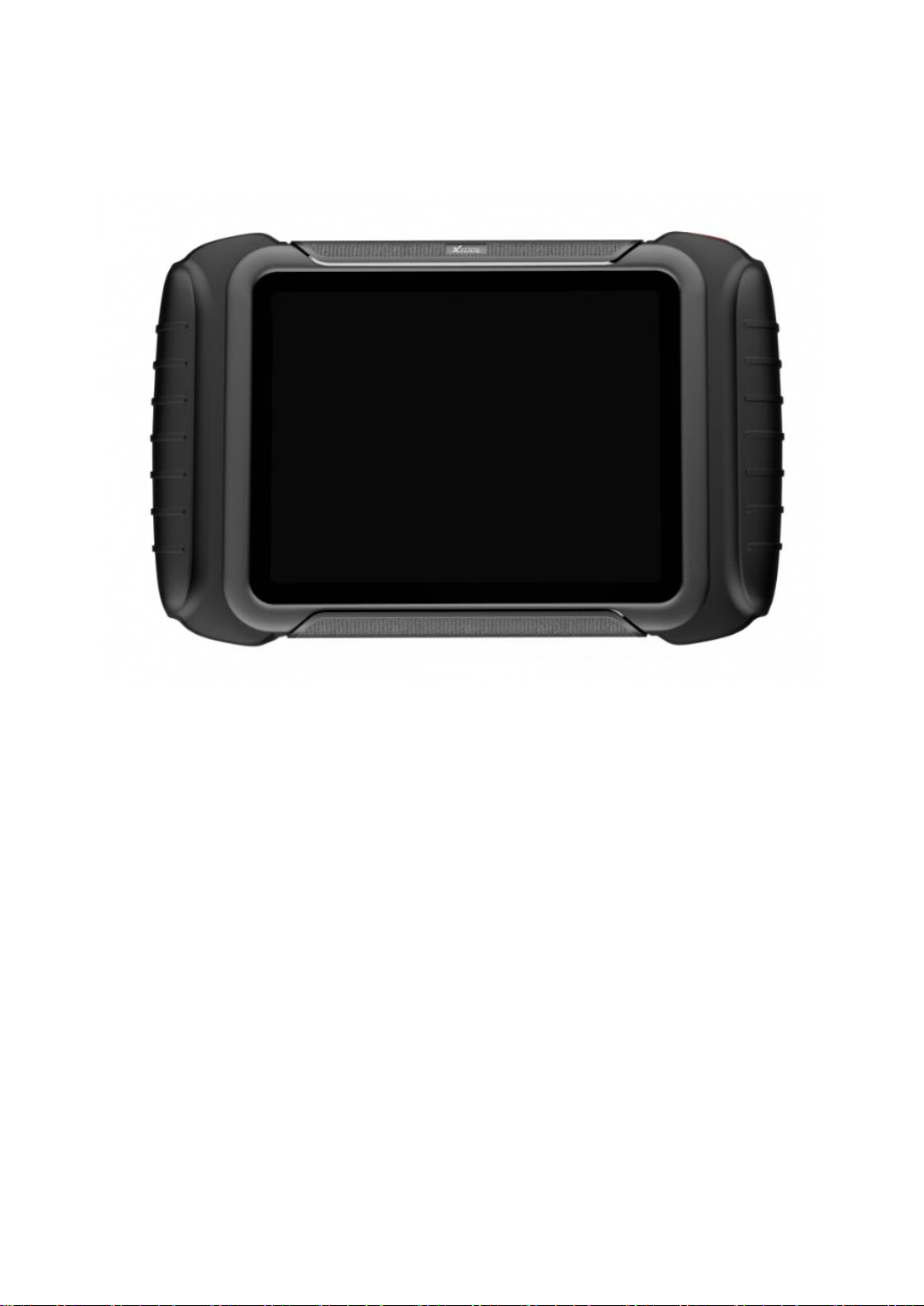
The main unit of the D8 is the tablet, which has a built-in VCI
module, which can be directly connected to the tablet and the car
with the main test cable, without the need to connect to an
external VCI box via Bluetooth.
6
FRONT VIEW OF TABLET
Fig 1-1 Tablet Front View
The front of the main unit is a touchable display screen, you can
use your fingers to operate on the screen to complete the car
diagnosis.
7
BACK VIEW OF TABLET
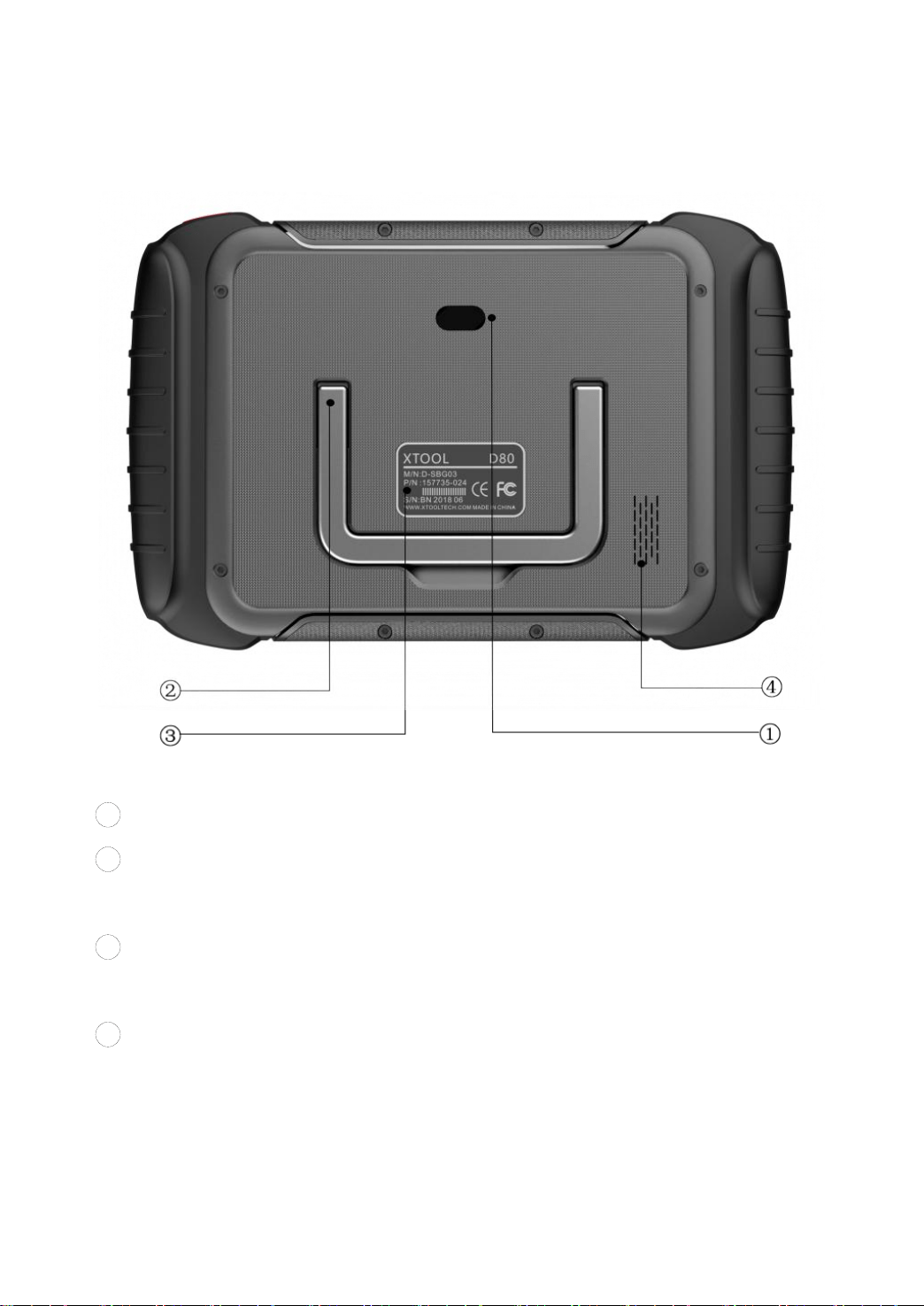
Fig 1-2 Tablet Back View
1
Camera: 8-megapixel camera, for taking pictures.
2
Tablet Holder: Used to support the tablet, flexible adjustment
of the tablet height as needed.
3
Nameplate: Display the basic information about the tablet such
as product name and model etc.
4
Loudspeaker: I
t
supports playing external sounds.
8
HOST PORTS
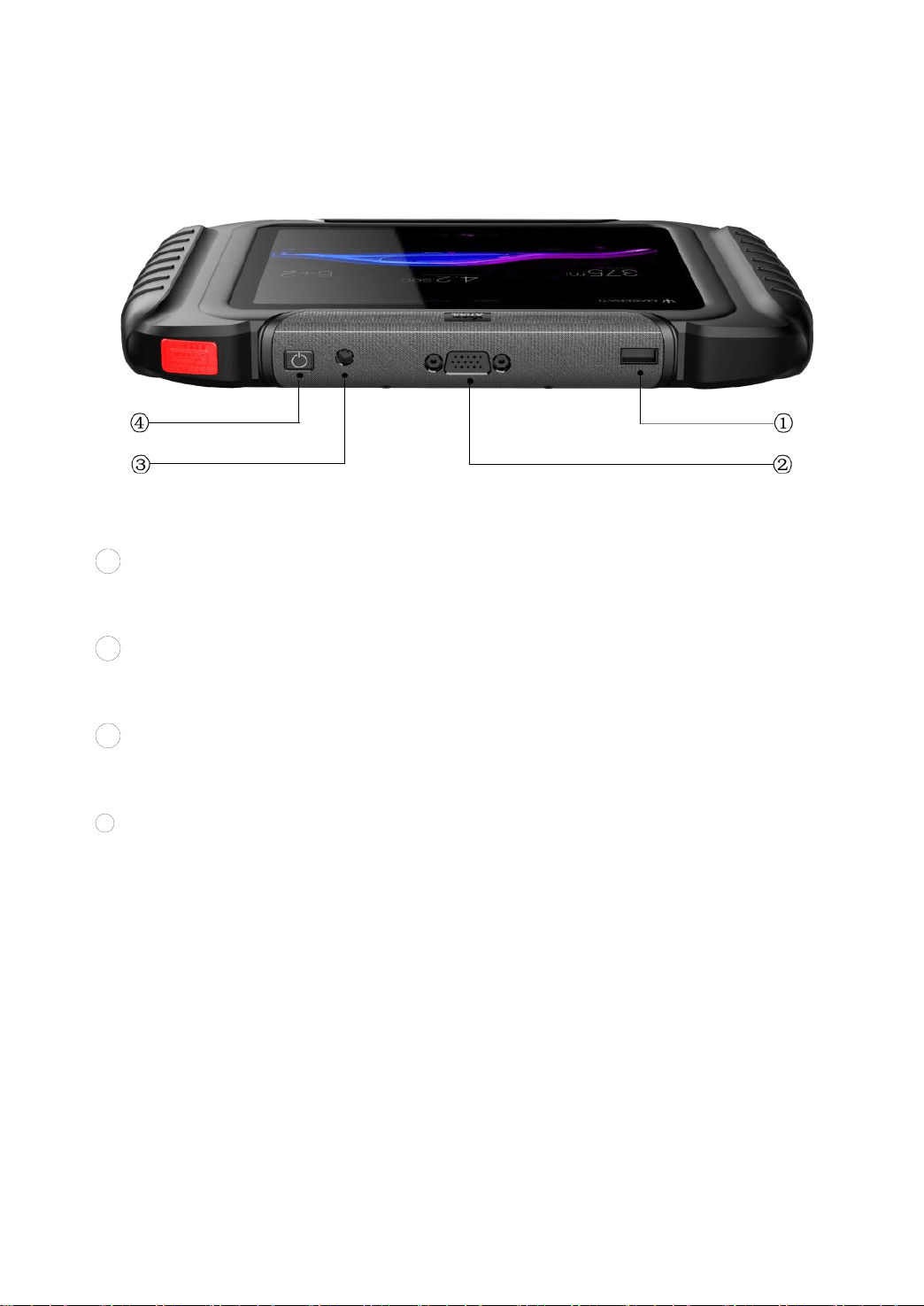
Fig 1-3 Tablet Host Ports
1
USB 3.0 port: Data transfer interface for tablet communication
and diagnostics.
2 VGA port: Diagnostic communication interface, which can be
used for diagnosis.
3
DC charging port: Charging port, connected to the charger
can be charged.
4 Power button: Long press to turn on/off, short press to
rest/brighten the screen.

9
TECHNICAL SPECIFICATIONS
Table 1-1 Specification
Item
Description
OS
Android
Processor
Quad-core processor 1.8GHz
RAM
2G
ROM
64G
Display
8-inch capacitive, 1024×768 resolution
Connectivity
USB
Wi-Fi
Camera
8-megapixel autofocus rear camera with
flash
Sensor
Gravity sensor
Audio Input/ Audio
Output
Microphone/ Loudspeaker
Ports
USB
DC charging port
VGA port
Battery
10000mAh 3.7V lithium polymer battery
Input Voltage
12V DC
Operating
Temperature
-10~50℃
Relative Humidity
< 90%
Dimensions
274.0×175.0×33.8 mm

10
PACKING LIST
Table 1-2 Packing List
Category
No.
Name
QTY
Test
Connectors
and Cables
1
OBD II-16
1
2
DB15 to VGA Cable
1
3
USB 3.0 Cable
1
Adaptor
1
DC12V(AC100~240V) 3A
1
2
US power cable
1
3
EU power cable
1
Main Unit
1
P804
1
Accessories
1
Tool kit
1
2
Certificate of Quality
1
3
Packing List
1
4
User Manual
1
5
Carton
1
*Note
To better protect the battery, it is recommended that the diagnosis device be charged at
an ambient temperature of 0~40°C!
11
2 G
ETTING
S
TARTED
GUIDE TO ACTIVATION
After first-time users press and hold the power button to turn on
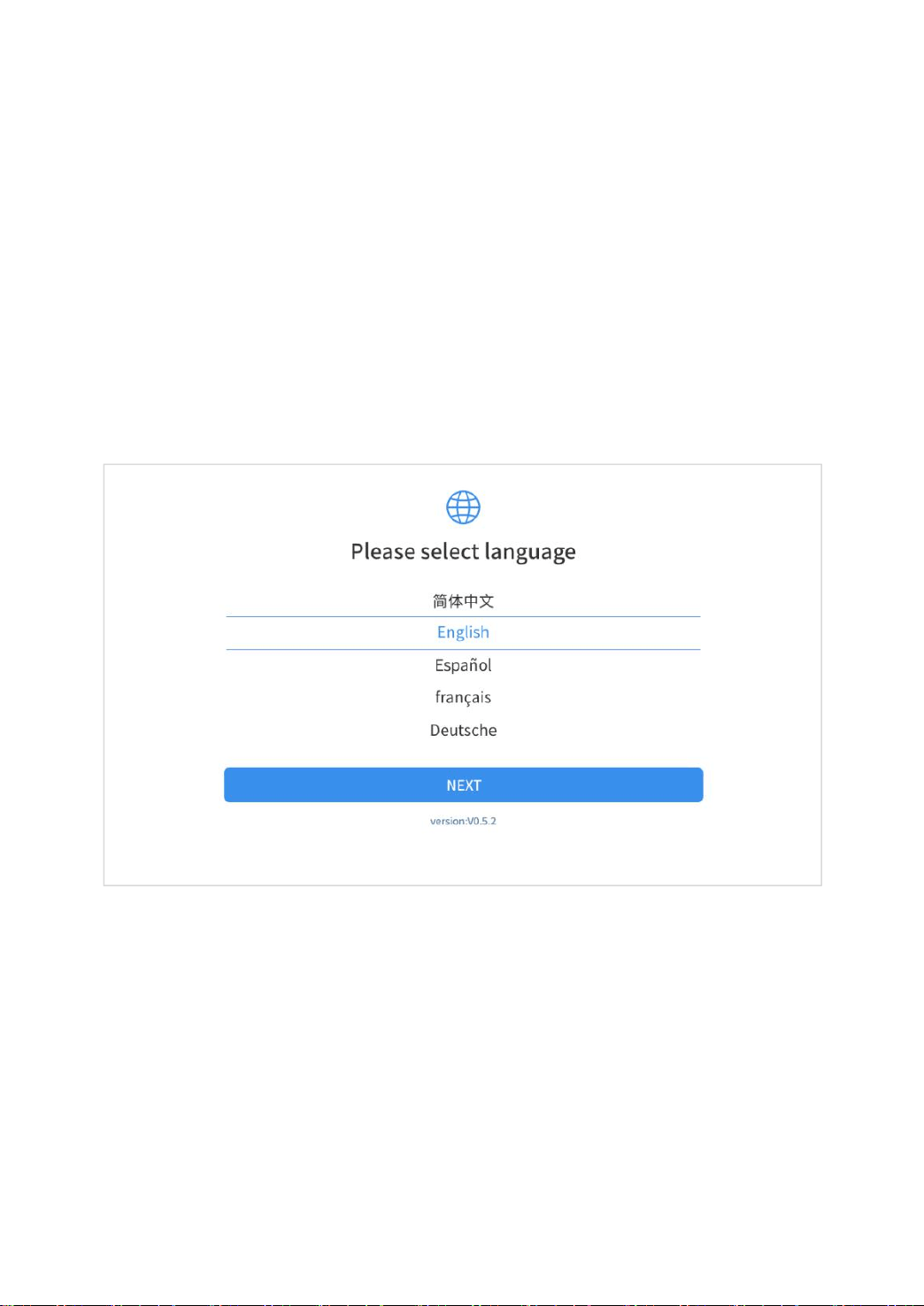
the system, the system will automatically enter the guide process
and request to select the language for the operating system.
Fig 2-1
After setting the system language, you will enter the activation
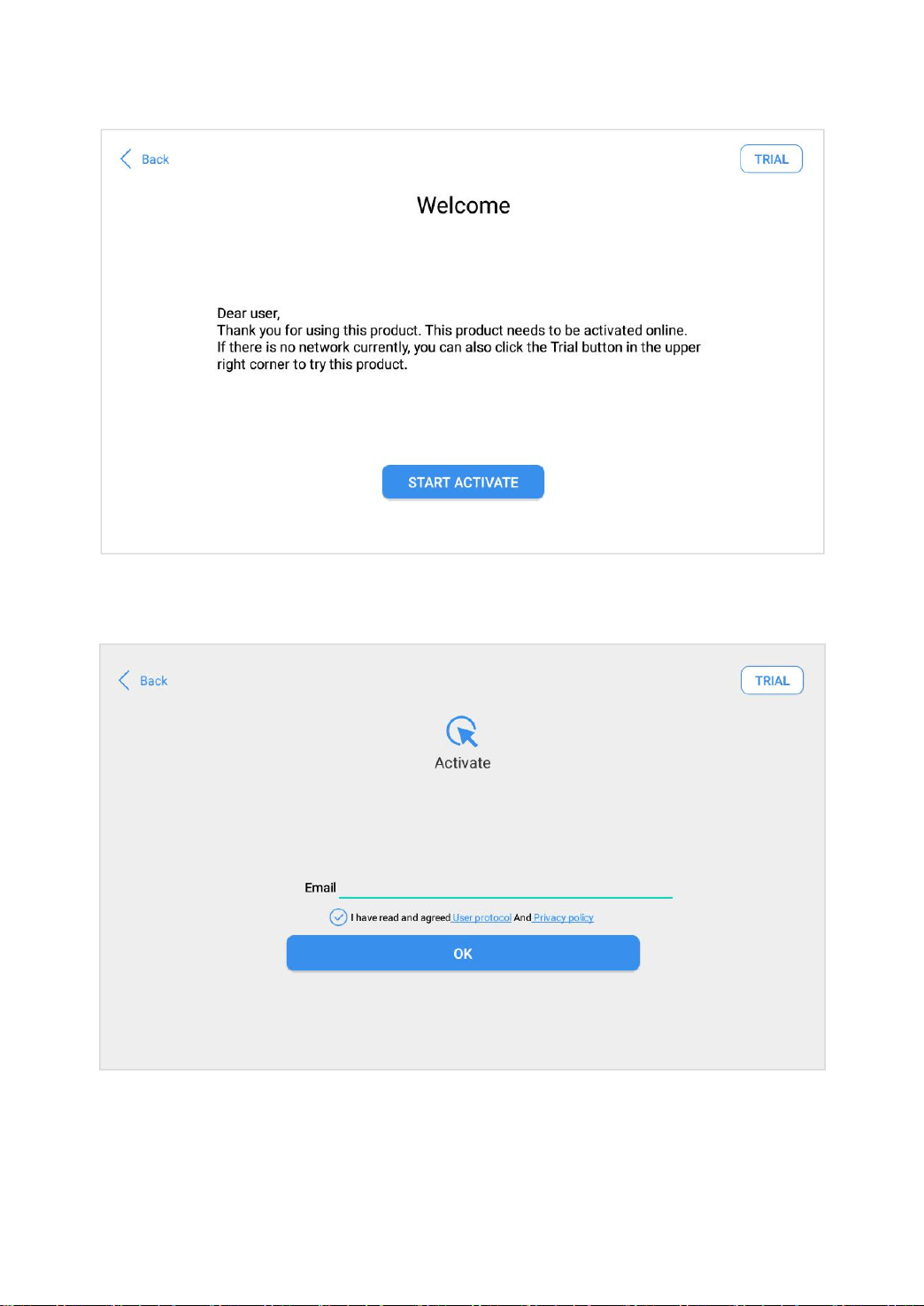
page, as shown in the figure below. You can also click the "Trial"
button in the upper right corner to check the basic functions before
your activation.
12
Fig 2-2
Click Start Activate to enter the activation page, as shown below:
Fig 2-3
13
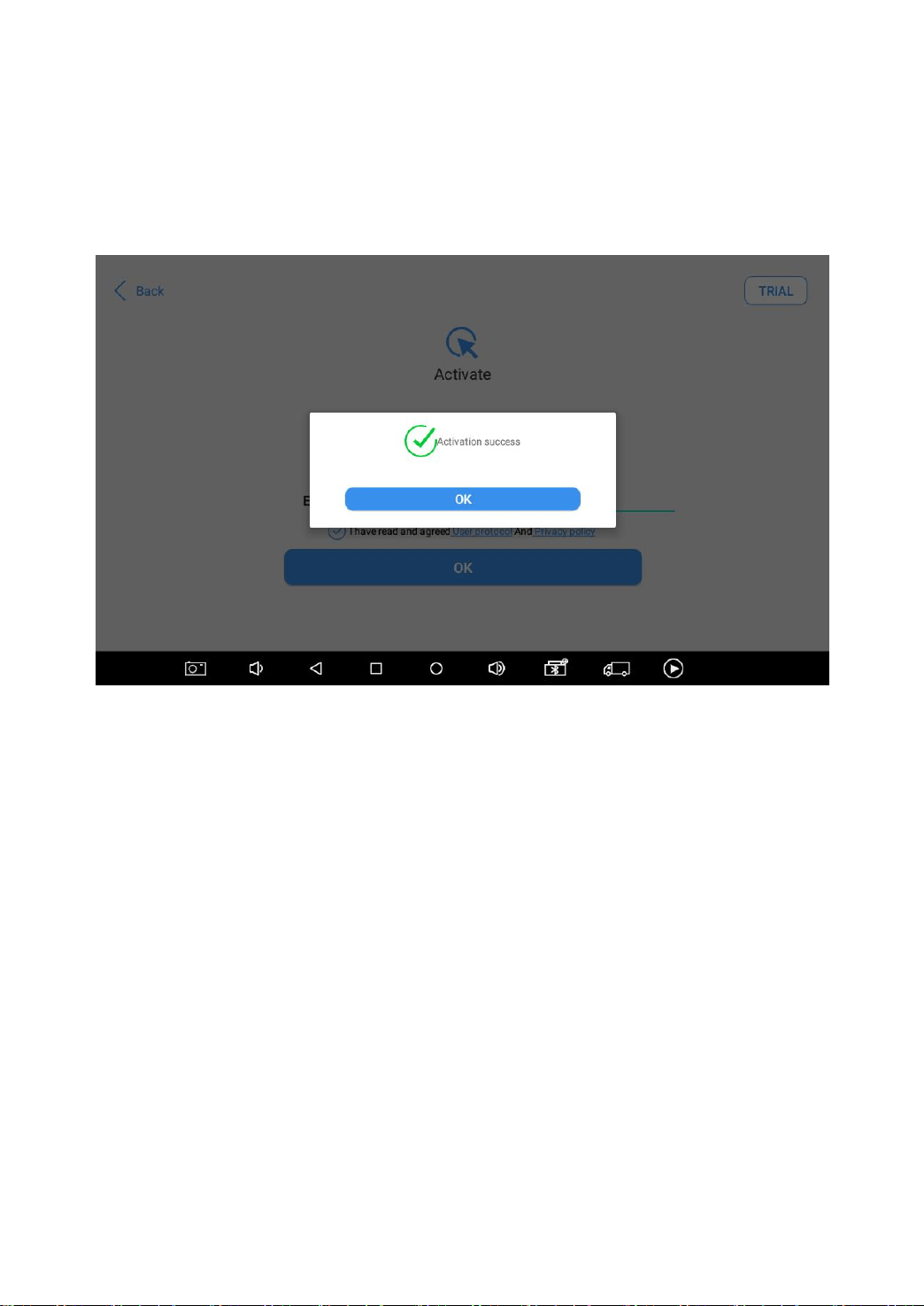
A pop-up window showing Activation Success indicates that you
have completed the first boot setup, click OK to enter the
diagnostic system and start using the device.
Fig 2-4

14
MAIN INTERFACE
OPERATION SYSTEM
As shown in the figure below, this interface is the main page of the
operating system of the device. You can also return to this
interface at any time by clicking
【 】
on the bottom navigation
bar.
Fig 2-5
15
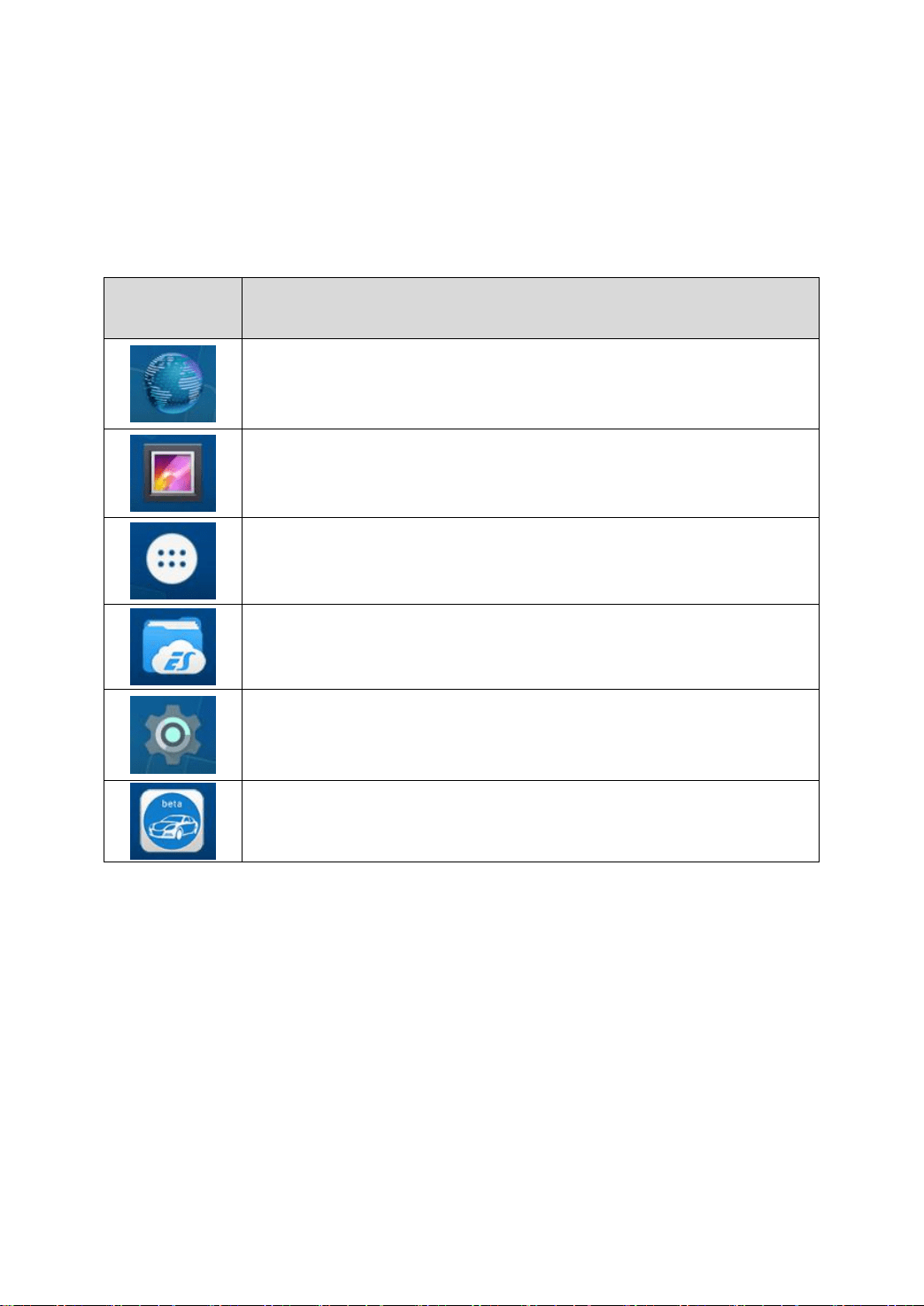
The icons on the right, from top to bottom, are browser, photo
album, application square, file manager, system settings, as
shown below:
Table 2-1
Items
Descriptions
Browser
Album
Application Square
File Explorer
Settings for Android System
D8 Smart Diagnosis System
a) Browser: Click on the browser icon to enter the browser to
view the official website of XTOOL or search for other
information.
b) Gallery: Click the Gallery icon to enter the album to quickly
view the pictures or screenshots stored in the device. You can
select the picture you need, click the share button on the upper
16
right, and send the picture to your mobile phone or PC via
Bluetooth or USB connection
c) Application Square: \You can remove or add Apps here.
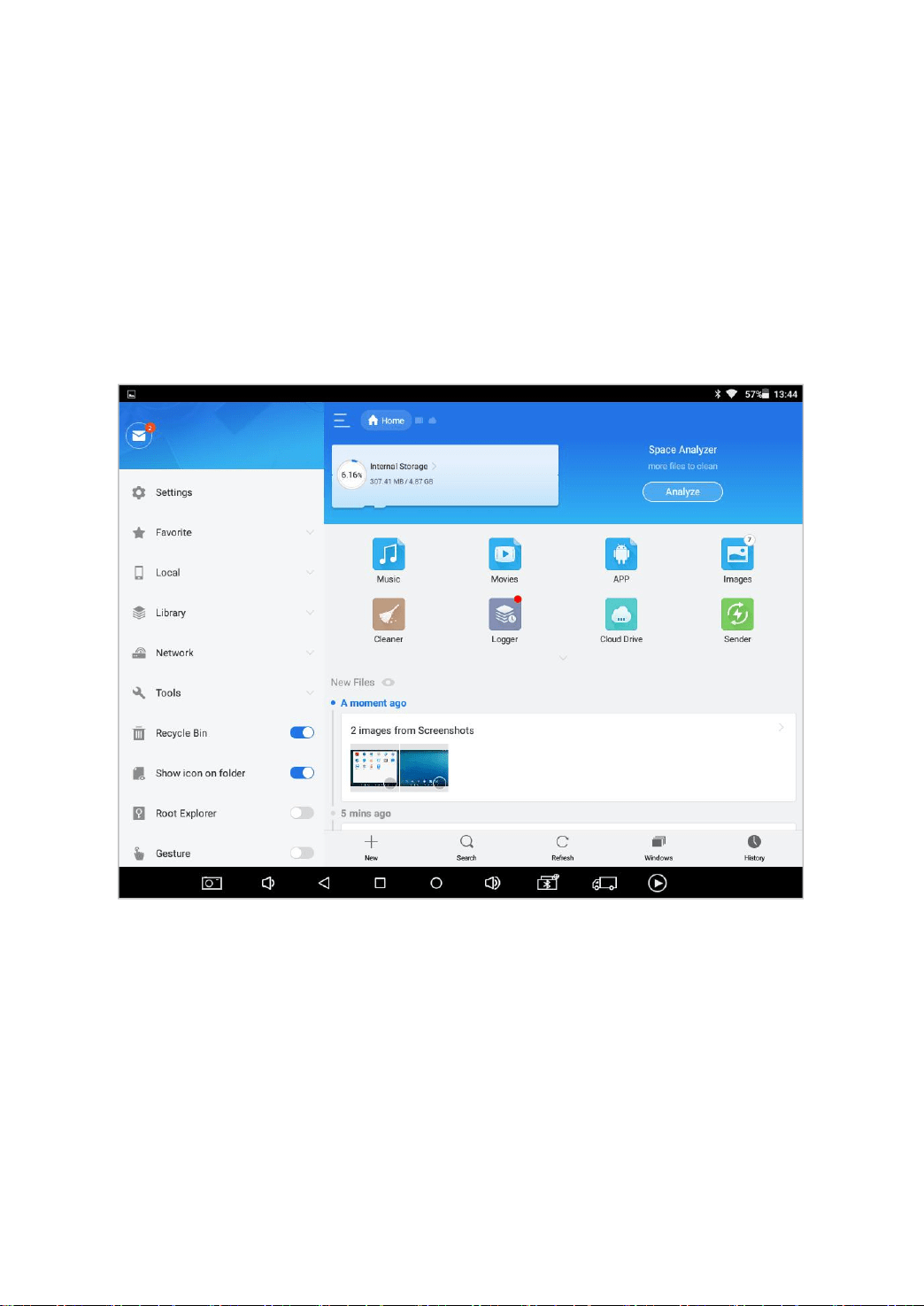
d) ES File Explorer: You can manage APP, music, files, pictures,
etc. in the device in this function, and you can also use
Local/Home/Cleaner to clean up files.
Fig 2-6
e) D8 Smart Diagnosis System: The App allows you to
diagnose your vehicle and offers a range of special
maintenance services.
17
DIAGNOSIS SYSTEM ENTRANCE
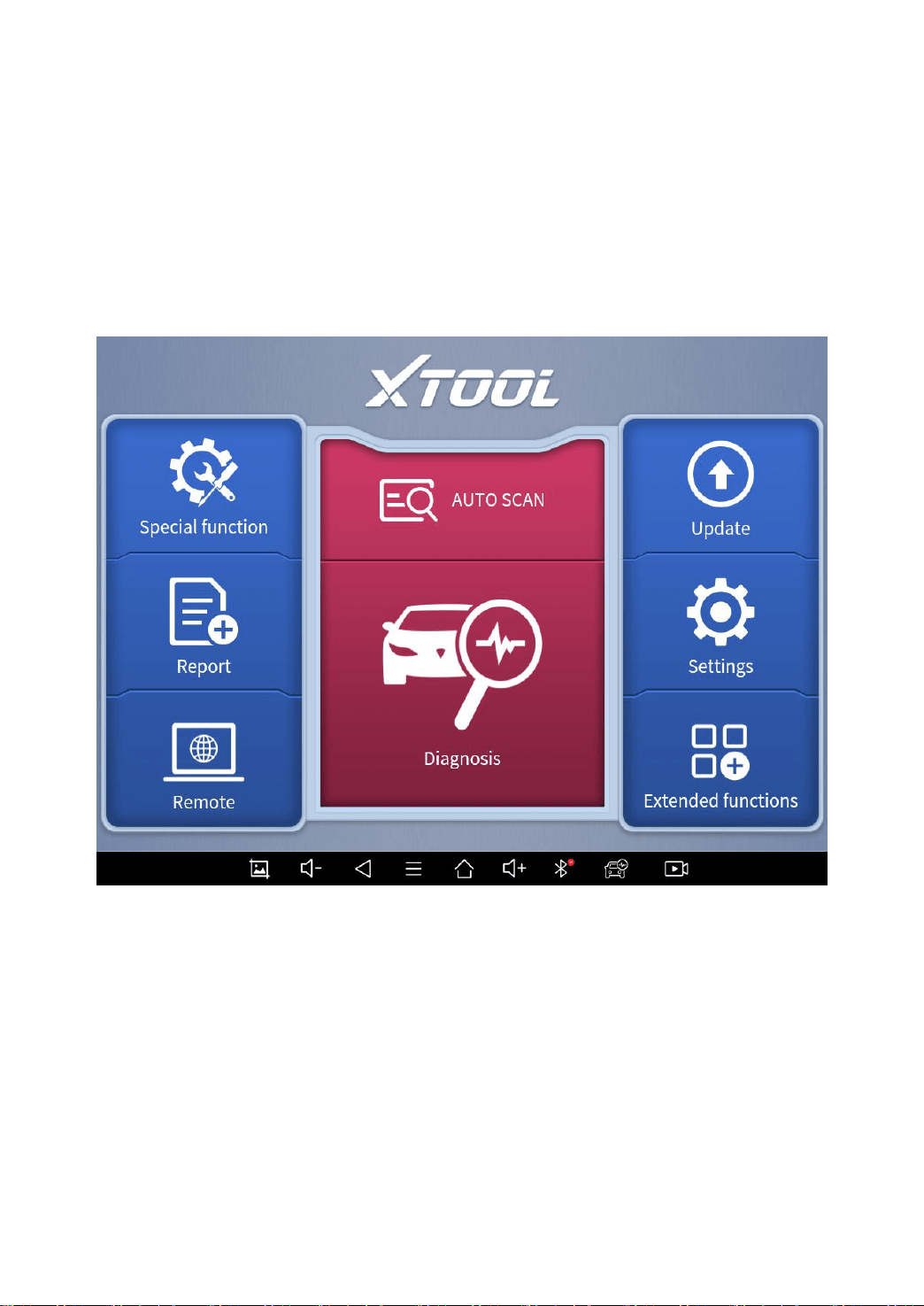
Once activated, you will automatically enter the diagnostic system
with the following main screen. Tap on the diagnosis application
button on the menu, the main interface will be shown as below:
Fig 2-7
The main interface is mainly composed of Function Buttons and
Navigation Buttons. The touch screen navigation is menu-driven,
and you can quickly access functions by clicking on the option title
and answering the dialogue window. A detailed description of the
menu structure can be found in the next section Function
Buttons.
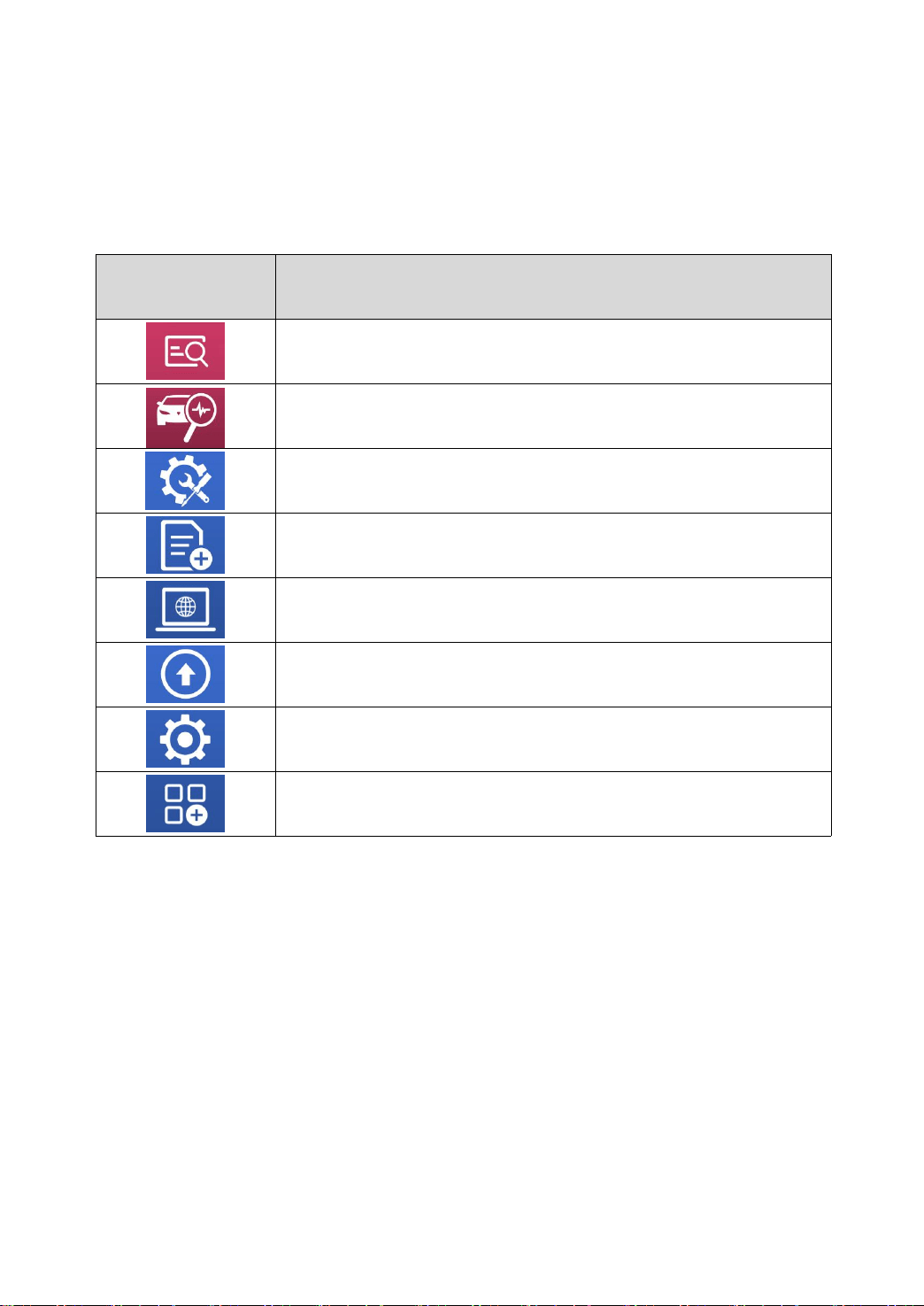
18
FUNCTION BUTTONS
The following table briefly describes each function button
Table 2-2
Item
Description
Quickly access to the vehicle system to identify the vehicle
VIN code
Enter to select a vehicle
Includes special functions for car diagnosis
You can view the vehicle diagnostic report
In case of failure, you can control the diagnostic
equipment remotely
Users can upgrade the upgradeable software with one
click
Users can set the language, unit, Bluetooth, repair shop
information, also can view information about this software
Users can view extended functions such as XTOOL Cloud
here
19
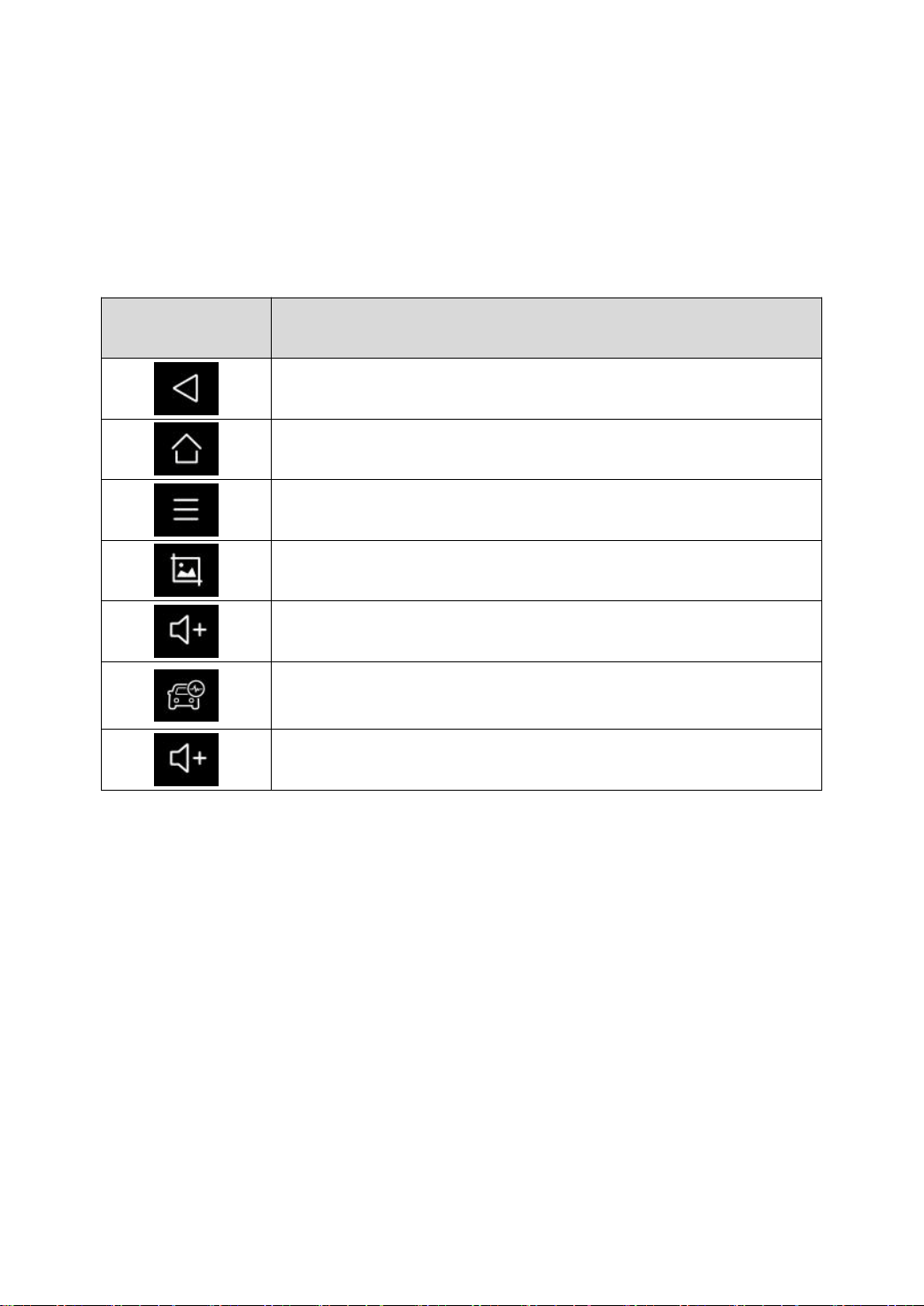
NAVIGATION BUTTONS
Instructions for operating the navigation bar buttons at the bottom
of the screen, as described in the table below:
Table 2-3
Items
Descriptions
Back to the previous interface
Back to the main interface of the Android system
Shows recently used applications
Press for screenshot
Increase volume
Click here to return to the diagnostic vehicle
models interface
Decrease volume
20
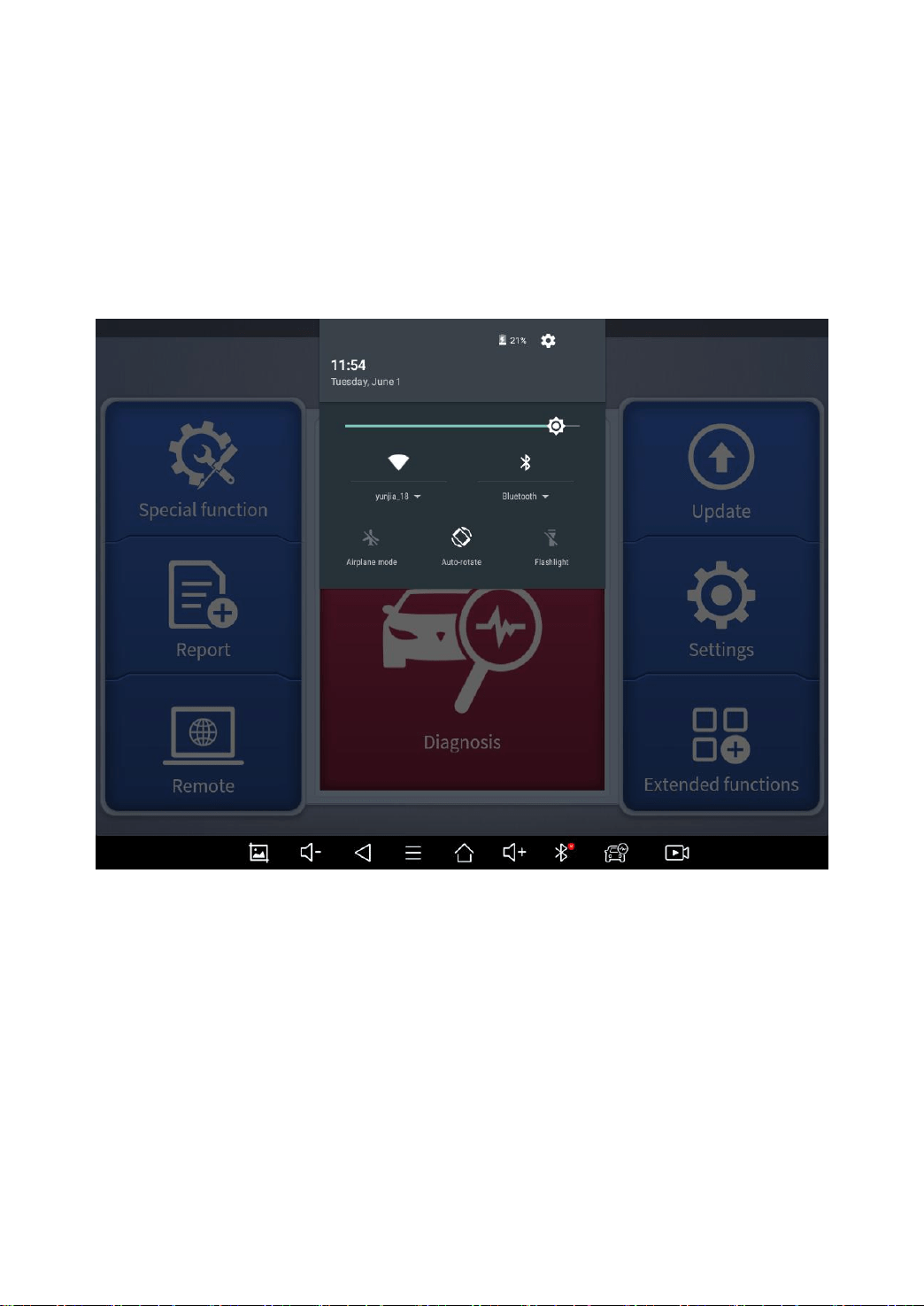
NOTIFICATION BAR
Slide down to open the notification bar. Users can adjust the
brightness of the screen when they need it, and they can also
connect to Wi-Fi and so on.
Fig 2-8
21
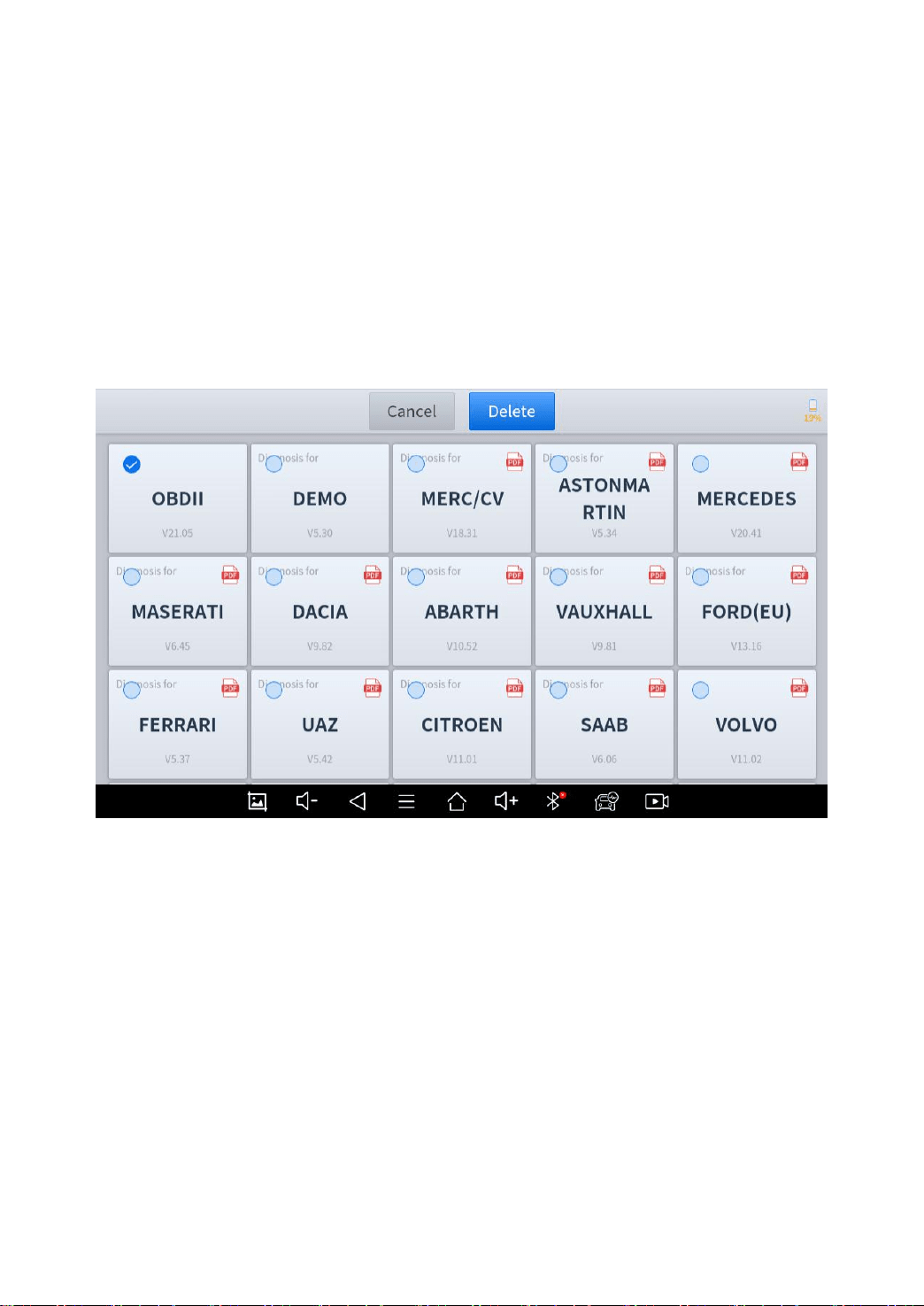
DELETE SOFTWARE
Long-press the unwanted software until it has been selected, then
click the Delete button shown on the upper part of the screen. And
you can select and delete multiple software at once.
Fig 2-9
22
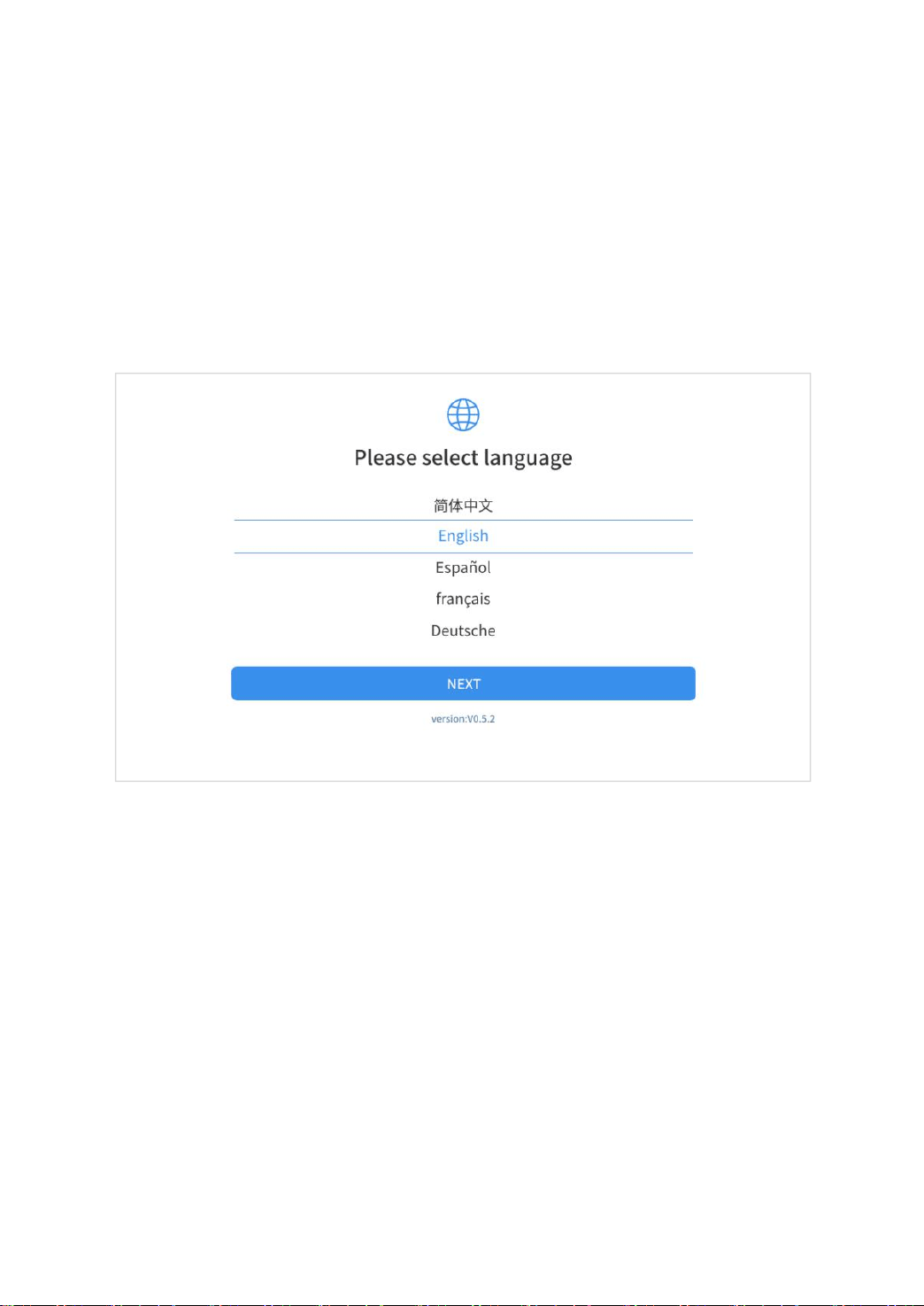
FACTORY RESET
When you choose to restore factory settings in the OS system, the
device will automatically restart and enter the factory mode to pull
the software. You can select the language in the following
interface.
Fig 2-10
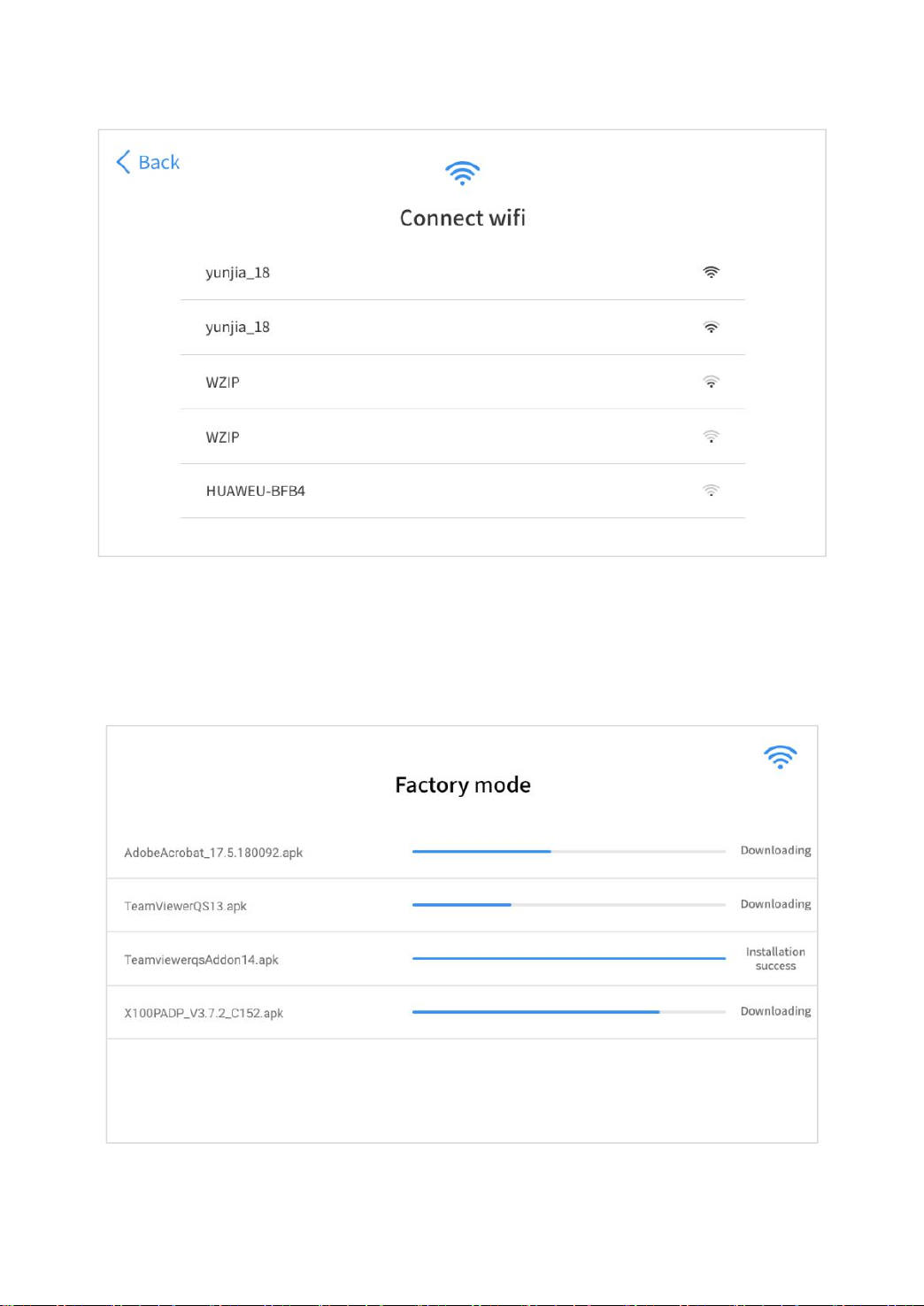
After selecting the system language, click Next to enter the Wi-Fi
connection page, as shown below:
23
Fig 2-11
Select a network to connect to on the Wi-Fi connection page.
After successful network connection, the automatic system will
jump to Factory mode to download the software:
Fig 2-12
24
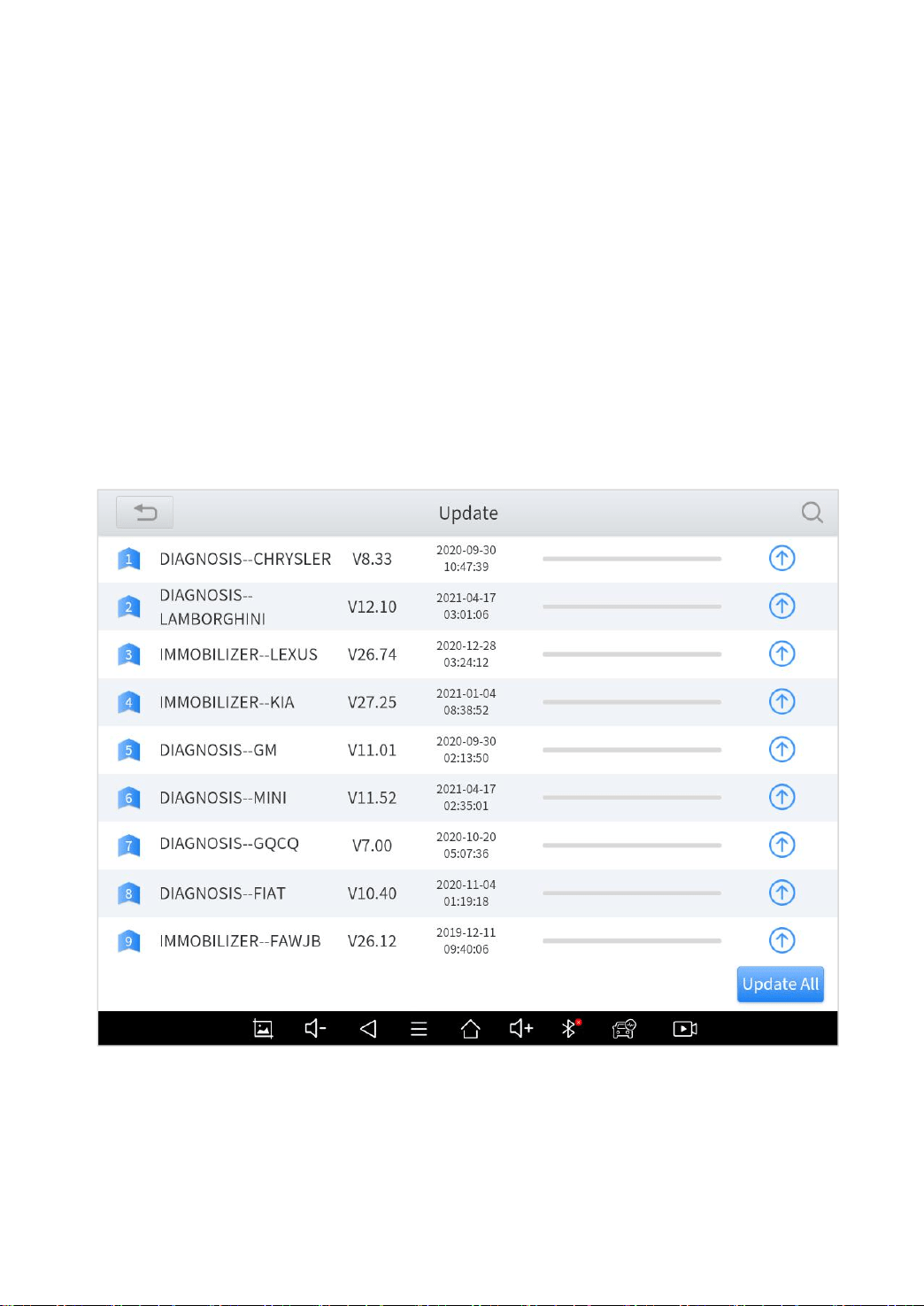
3 UPDATE
After activating the device, please update the software in "Update"
first. The device will pull all currently supported software packages,
and you can download them as needed. ALL software updates
directly via the Internet. To access the update application, open
the diagnosis application and click UPDATE, shown as below:
Fig 3-1
*Note
a) After contacting your dealer to change the language configuration, you need to
download all the software packages on the device again.

25
4 D
IAGNOSIS
The diagnostic application can read ECU information, read and
clear DTC and check living data and freeze frames. The diagnosis
application can access the electronic control unit (ECU) of various
vehicle control systems, including the engine, transmission, anti-
lock braking system (ABS), airbag system (SRS), and perform
kinds of actuation tests.
VEHICLE CONNECTION
The diagnosis operation needs to connect the D8 smart diagnosis
system to a vehicle first so that the tablet can establish correct
vehicle communication. Please perform the following steps:
1 Turn on the tablet;
2 Connect cables and tablet in the following order: ①→②→③→
④;
3 Switch on the ignition and tap on the Diagnosis application to
test vehicles.
Since the display tablet and the VCI box are integrated, to
communicate with the vehicle, the OBD Ⅱ-16 connector must be
connected to the main test cable, and the vehicle data connector
should be inserted into the DLC usually located under the vehicle
dashboard. The OBDII-16 adapter should be connected to the
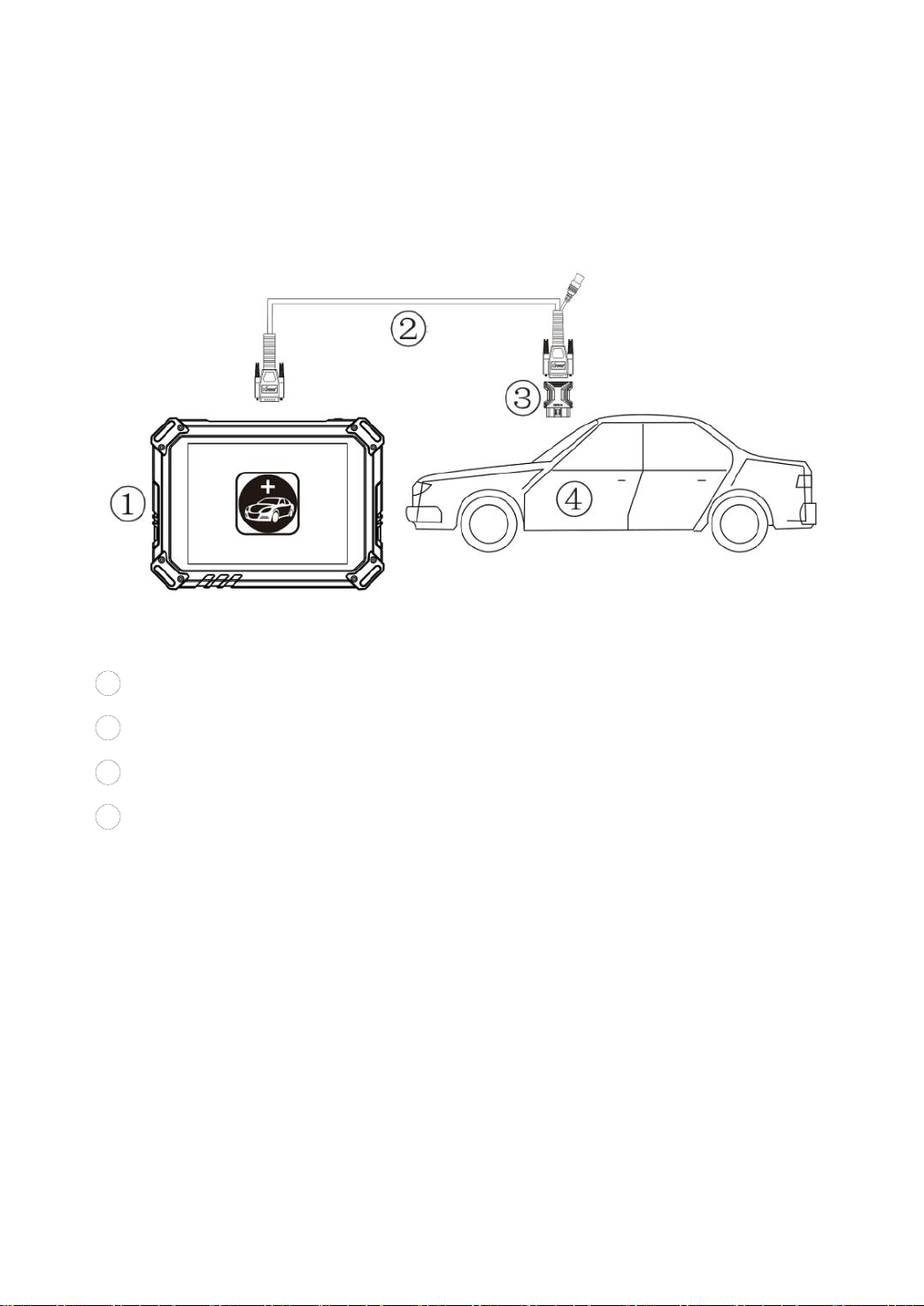
26
vehicle, and the main test line should be connected to the OBDII-
16 adapter and the tablet
The connection method is shown in the figure below:
Fig 4-1
1
Tablet
2
Main Test Cable
3 OBDII-16 Connector
4
Vehicle
*Caution: Please make sure all the cables are connected tightly;
The vehicle’s DLC is not always located under the dash; for the
location of the DLC, please refer to the vehicle’s user manual
27
DIAGNOSIS
After the tablet device is properly connected to the vehicle, you
could start the vehicle diagnosis.
VEHICLE SELECTION
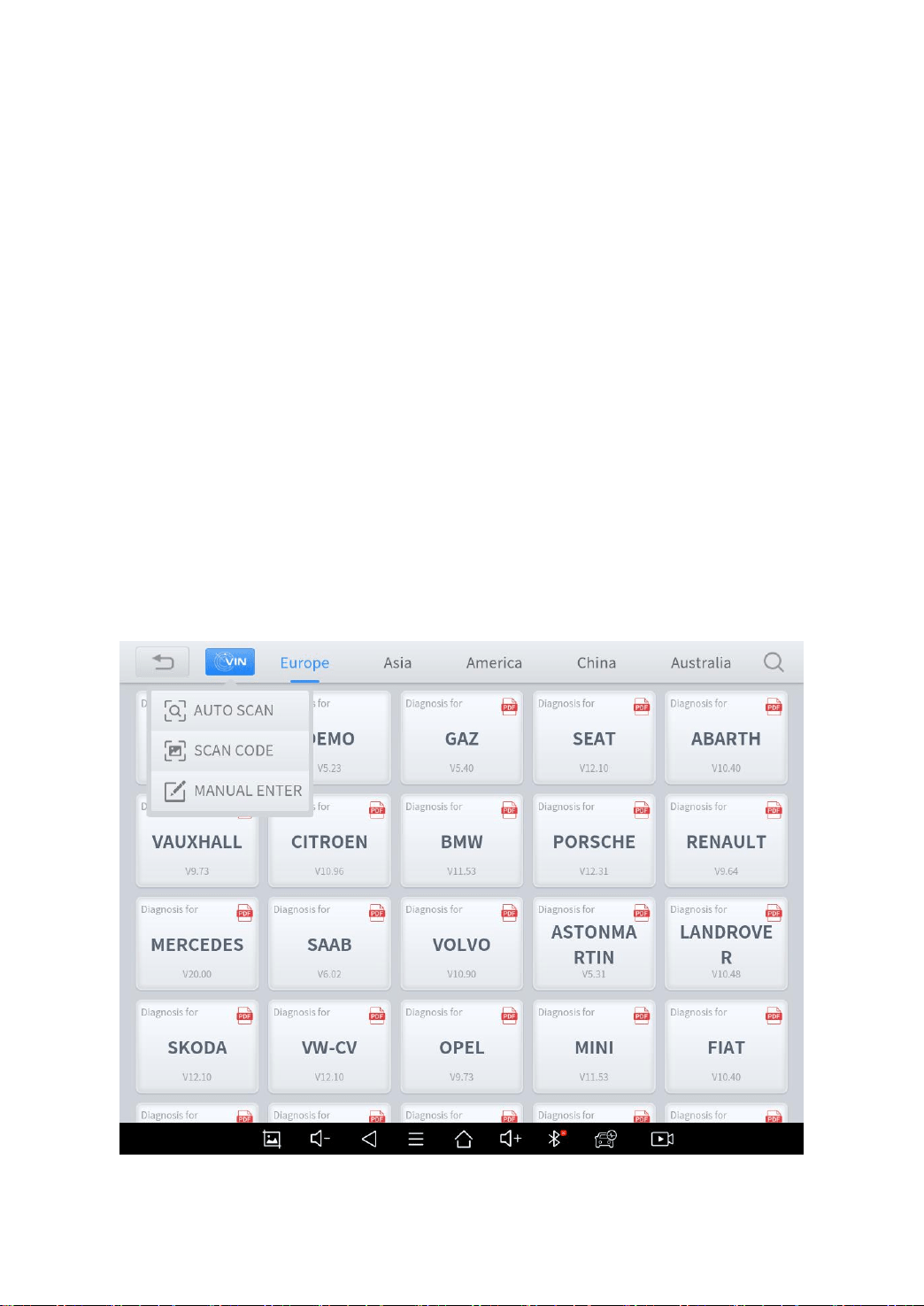
The D8 intelligent diagnosis system supports the following 4 ways
to access the vehicle diagnosis system.
AUTO SCAN
SCAN CODE
MANUAL ENTER
SELECT VEHICLE BY AREA
Fig 4-1
28
Click the VIN button in the upper left corner, you can choose to
enter the vehicle diagnosis through the first 3 ways of AUTO
SCAN/SCAN CODE/MANUAL ENTER.
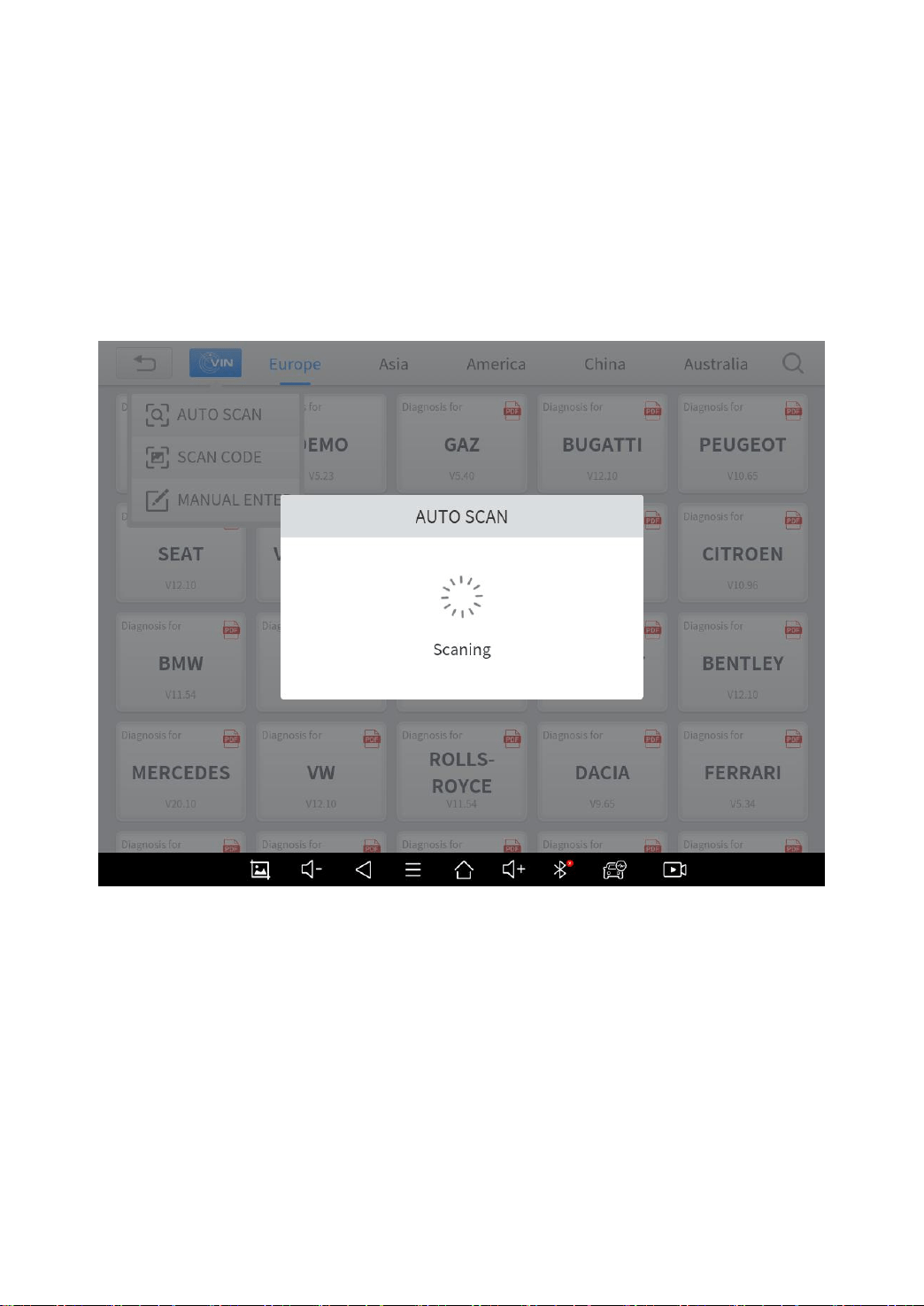
AUTO SCAN: It supports automatic reading of vehicle VIN
code.
Fig 4-2
*Note
a) You also can tap on the button “AUTO SCAN” on the diagnosis system entrance
to use this function.
b) Please make sure that the car and the device are well connected before using
this function.
29
SCAN CODE: It supports scanning the bar code on the vehicle
nameplate through the camera to automatically read the VIN
code.
*Note
a) When using this function, please make sure that the light is sufficient and the bar
code is not obstructed;
b) Please make sure the wireless network environment is stable.
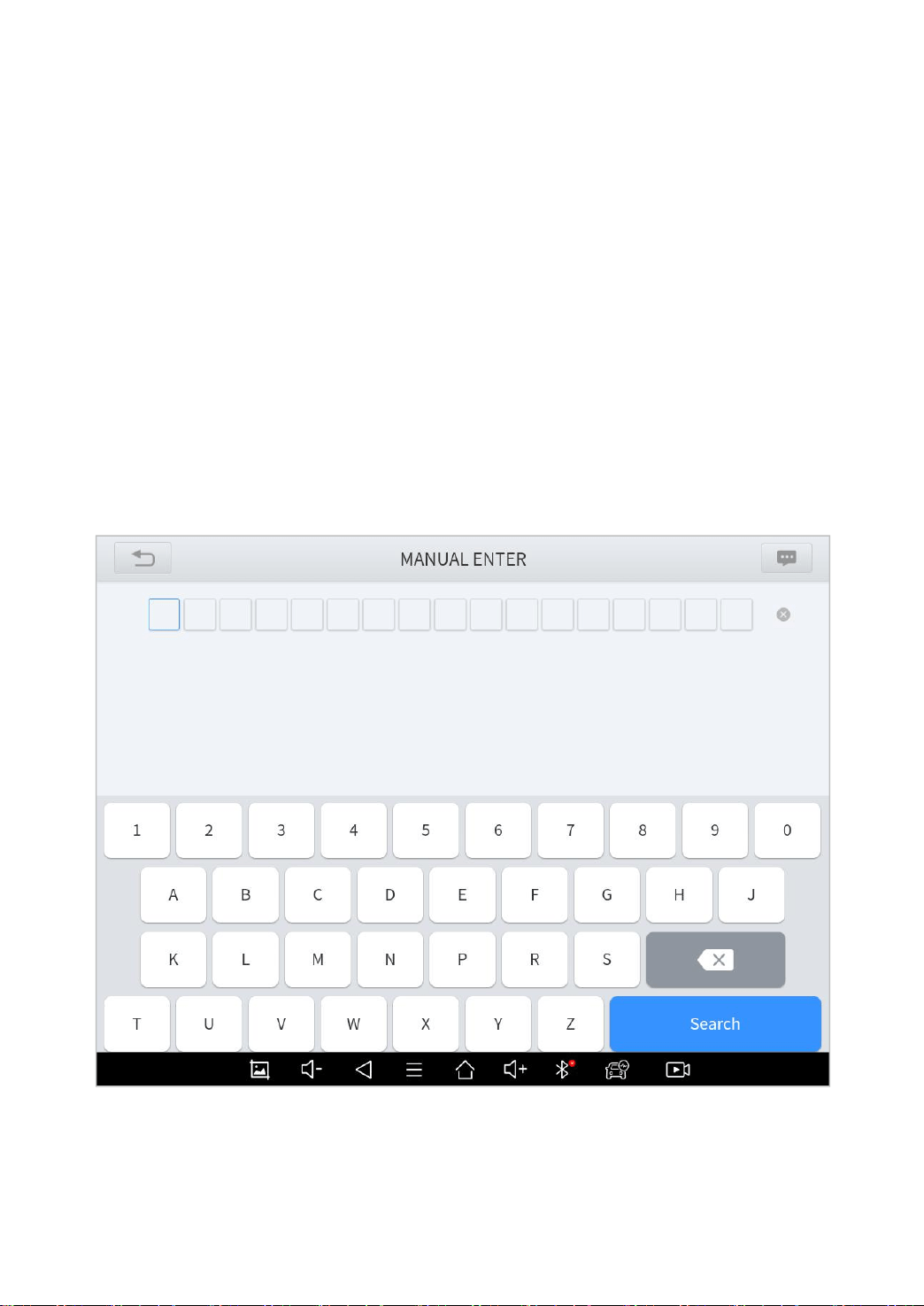
MANUAL ENTER: It supports manual input of car VIN code.
When entering the VIN code manually, make sure that the 17
characters entered are correct to avoid reading failure.
Fig 4-3
Note: This function supports historical VIN codes
30
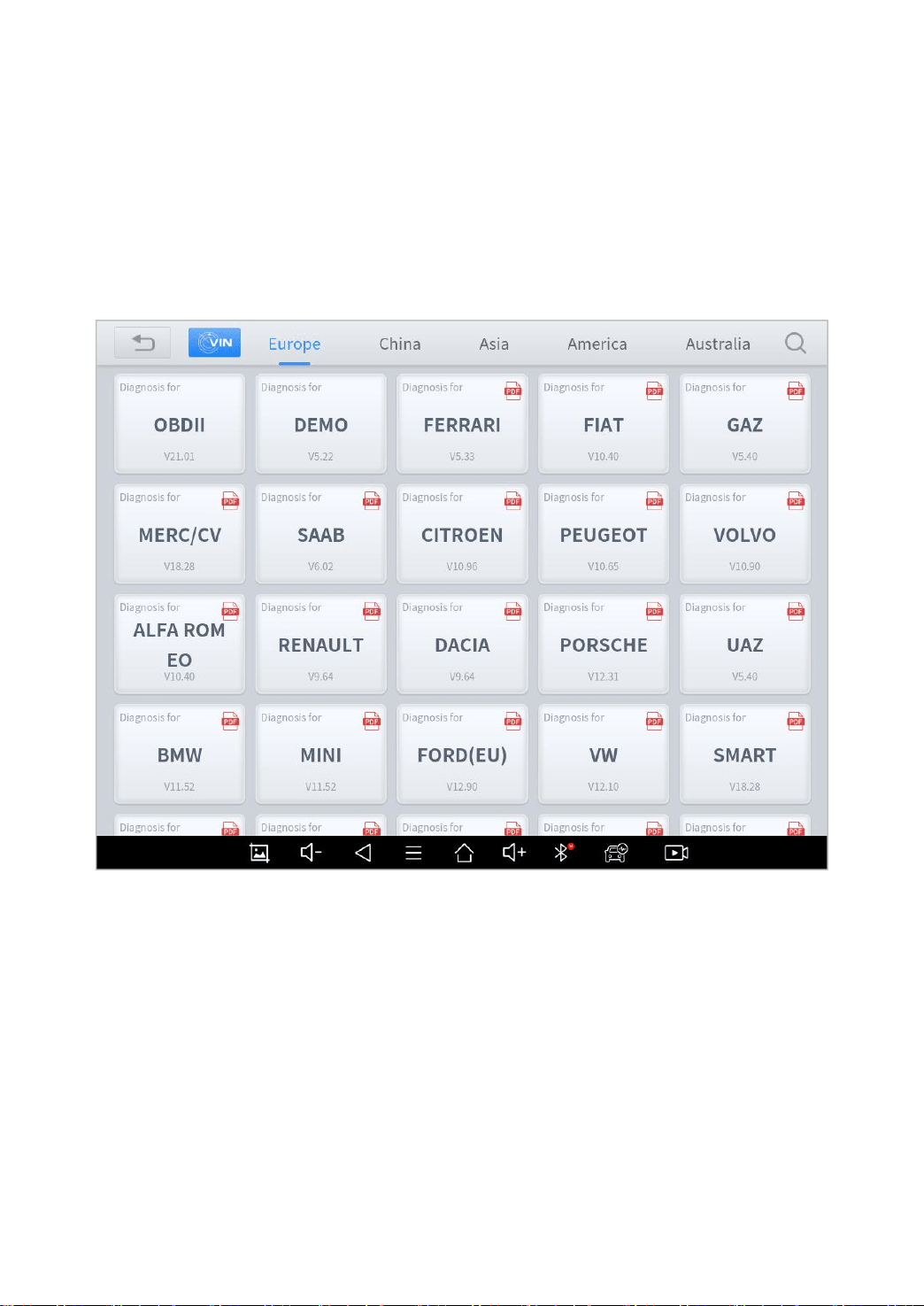
SELECT VEHICLE BY AREA
In addition to the above 3 methods, you can also choose a car
brand according to the region. You can select the vehicle model
that needs to be diagnosed according to the area, as shown below:
Fig 4-4
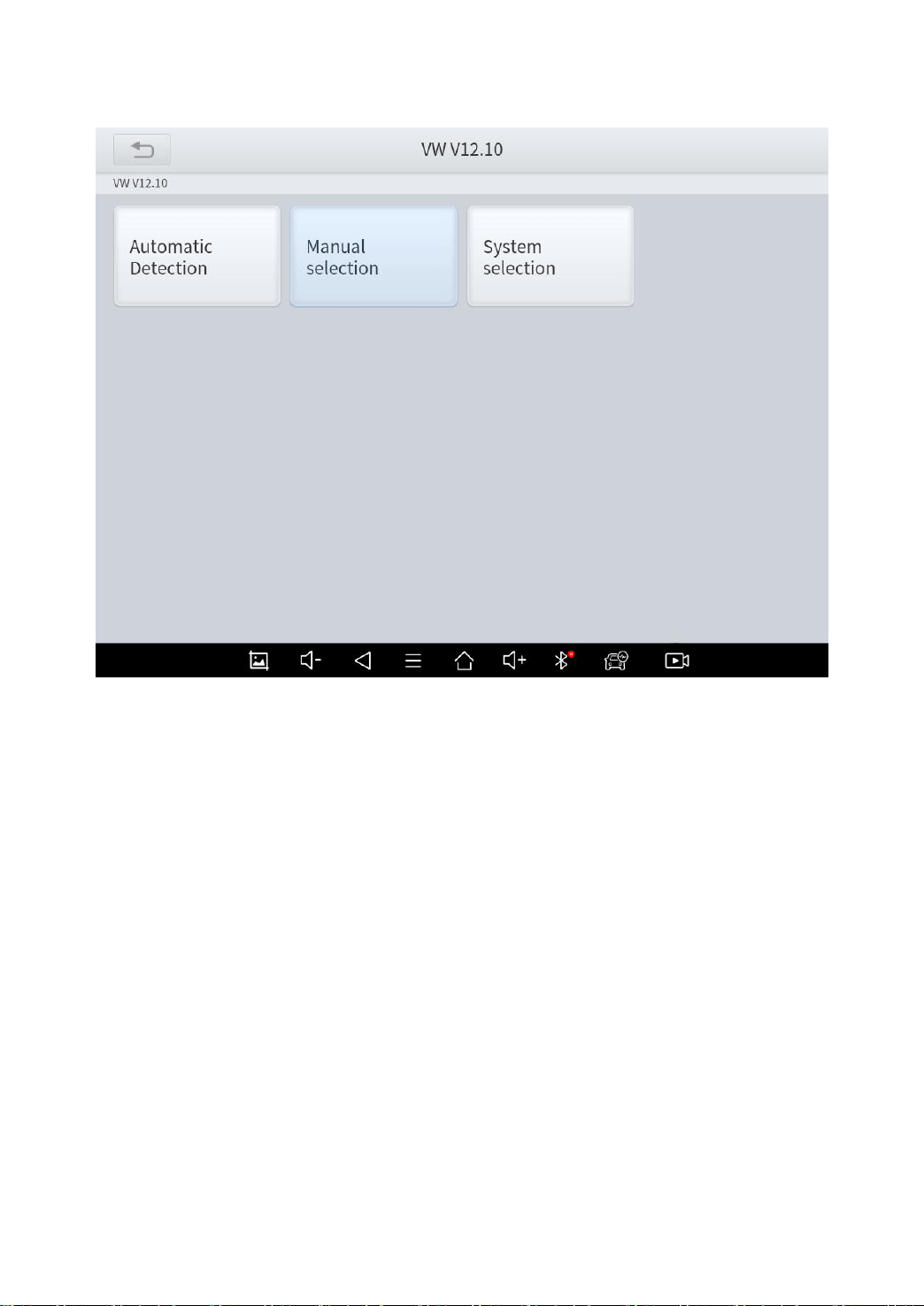
Some models provide multiple entry methods in the sub-menu,
including Automatic Detection, Manual Selection and System
Selection.
31
Fig 4-5
Automatic Detection will automatically identify the vehicle's VIN
code, and then read the information of your target diagnostic
object. If you choose "Manual selection", then you can continue
to select the vehicle brand, year, and model of the vehicle in the
sub-menu to diagnosis the vehicle. Enter "System Selection", you
can also diagnose the vehicle according to the system according
to your needs after selecting the model.
*Note
a) OBDⅡ supports reading the common fault codes in the engine;
b) DEMO, a demonstration program; Click this button to experience and learn the
operation process of the diagnostic function;
32
c) If you need to view the list of functions covered by the model, you can click the PDF
icon at the top right of the model brand button.
BASIC FUNCTIONS
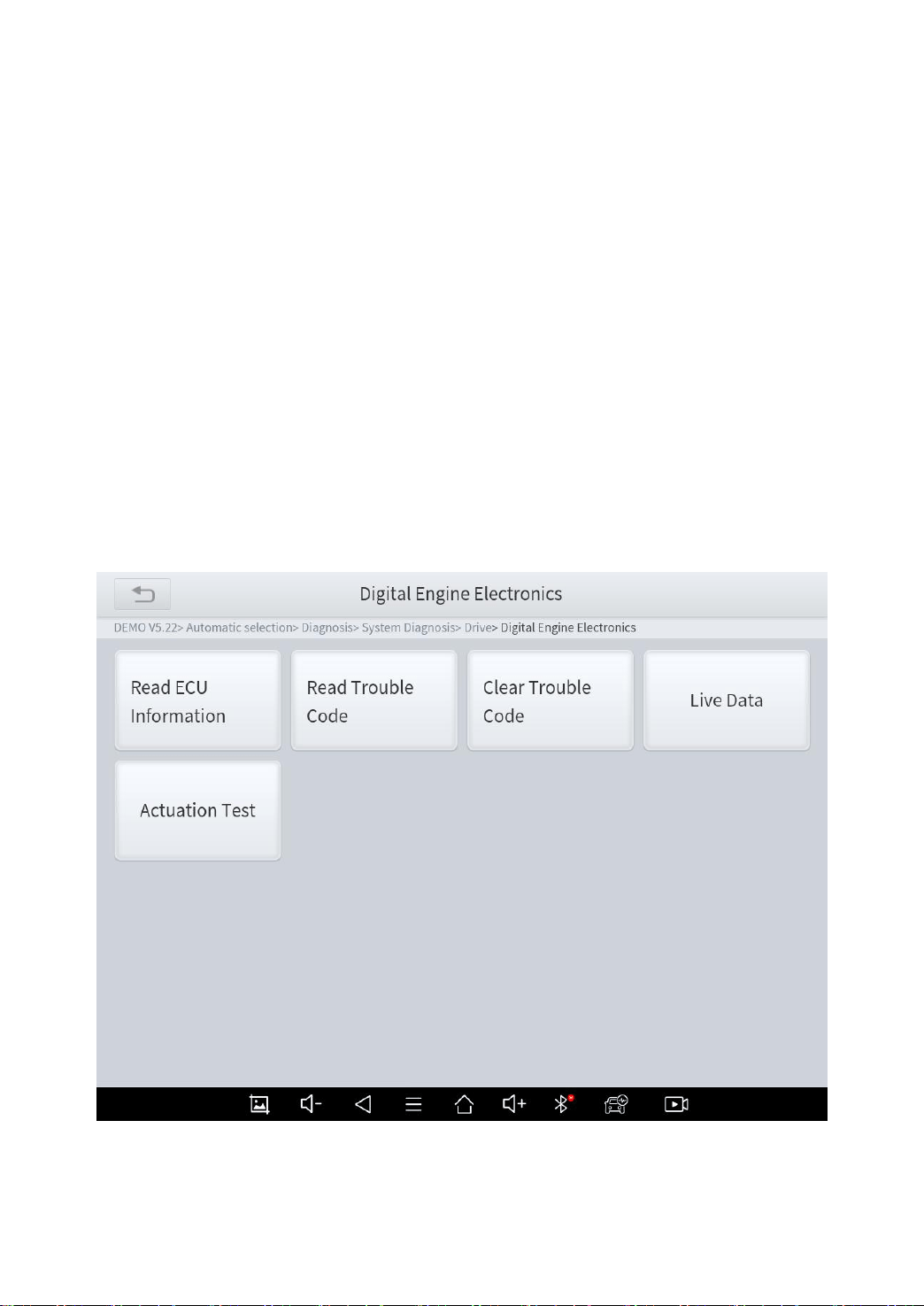
The diagnosis system supports 5 basic diagnosis functions, as
follows:
Read ECU Information
Read/Clear Trouble Code
Read Live Data
Actuation Test (Bi-Directional Control)
Freeze Frame
Fig 4-4
33
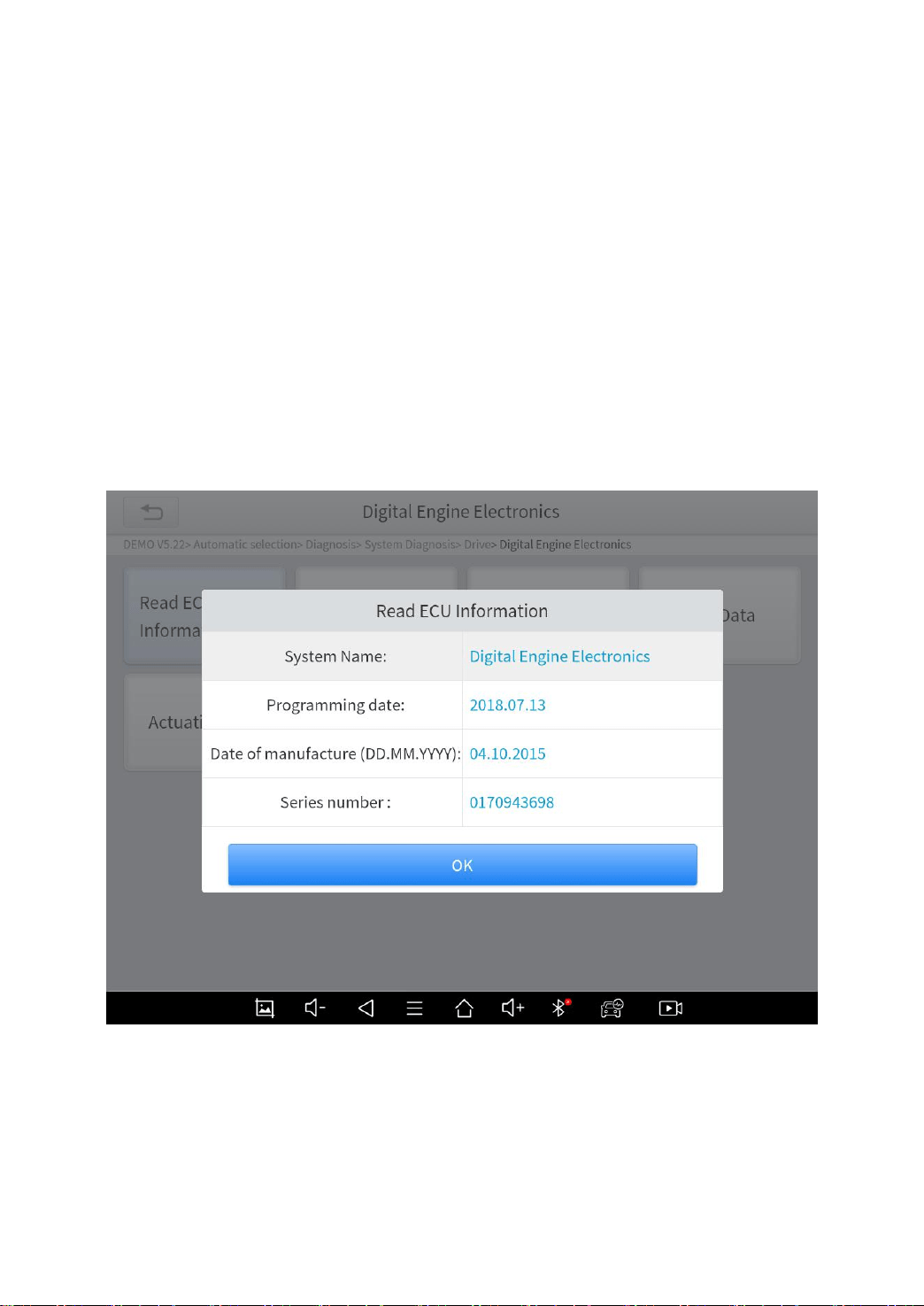
Read ECU Information
This function is to read ECU version information, which is the
equivalent of "System Identification" or "System information in
some electronic control systems, all mean to read ECU related
software and hardware versions, models and production date of
diesel engine, part number, etc. It is convenient for us to make a
record in the maintenance process, and it also makes data
feedback and management easier.
Fig 4-5
34
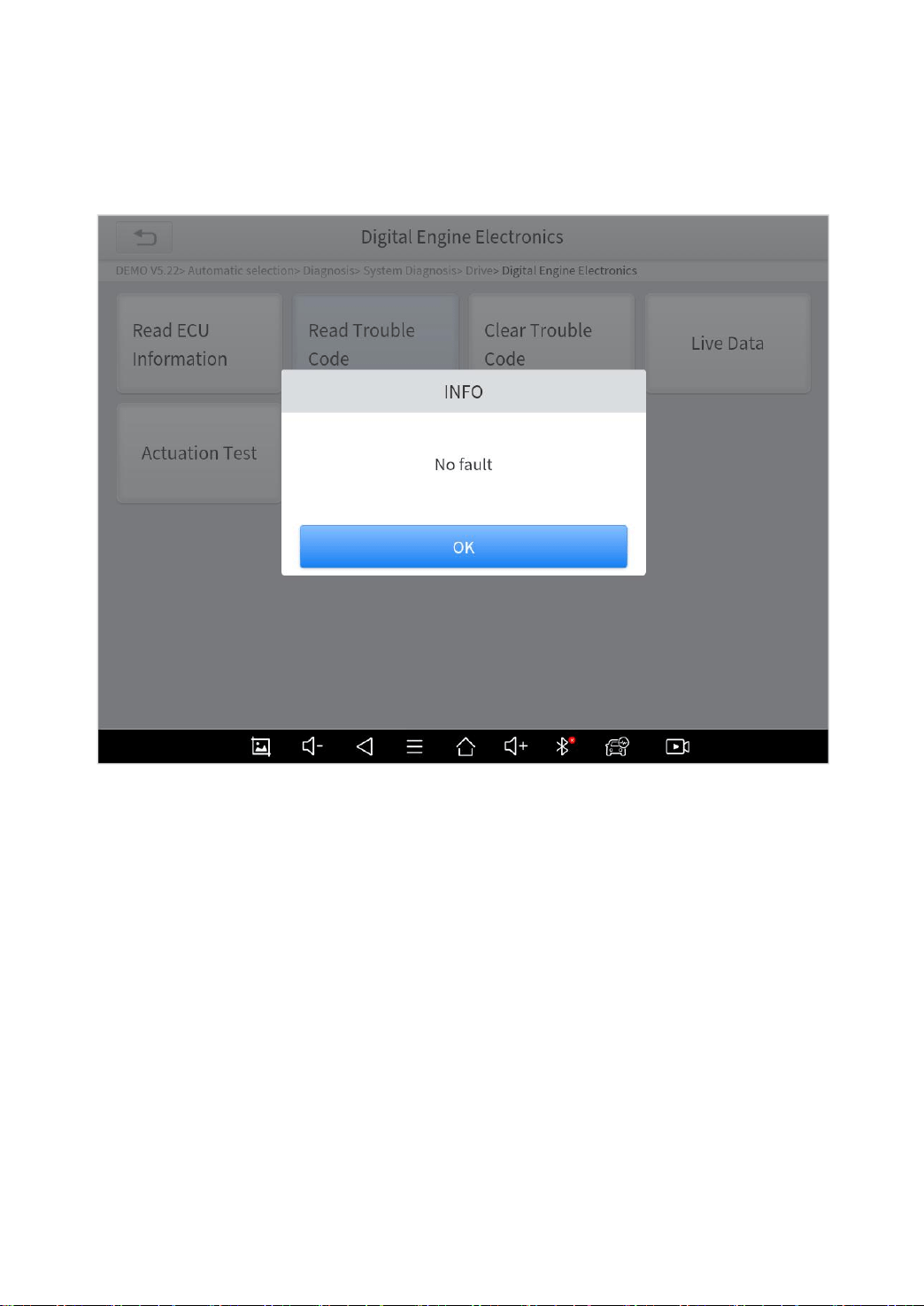
Read Trouble Code
Read trouble codes stored in ECU.
Fig 4-6
*Tip: In the process of diagnosis, if the device shows “System is
OK” or “No Trouble Code”, it means there is no related trouble
code stored in ECU or some troubles are not under the control of
ECU, most of these troubles are mechanical system troubles or
executive circuit troubles, it is also possible that signal of the
sensor may bias within limits, which can be judged in Live Data.
35
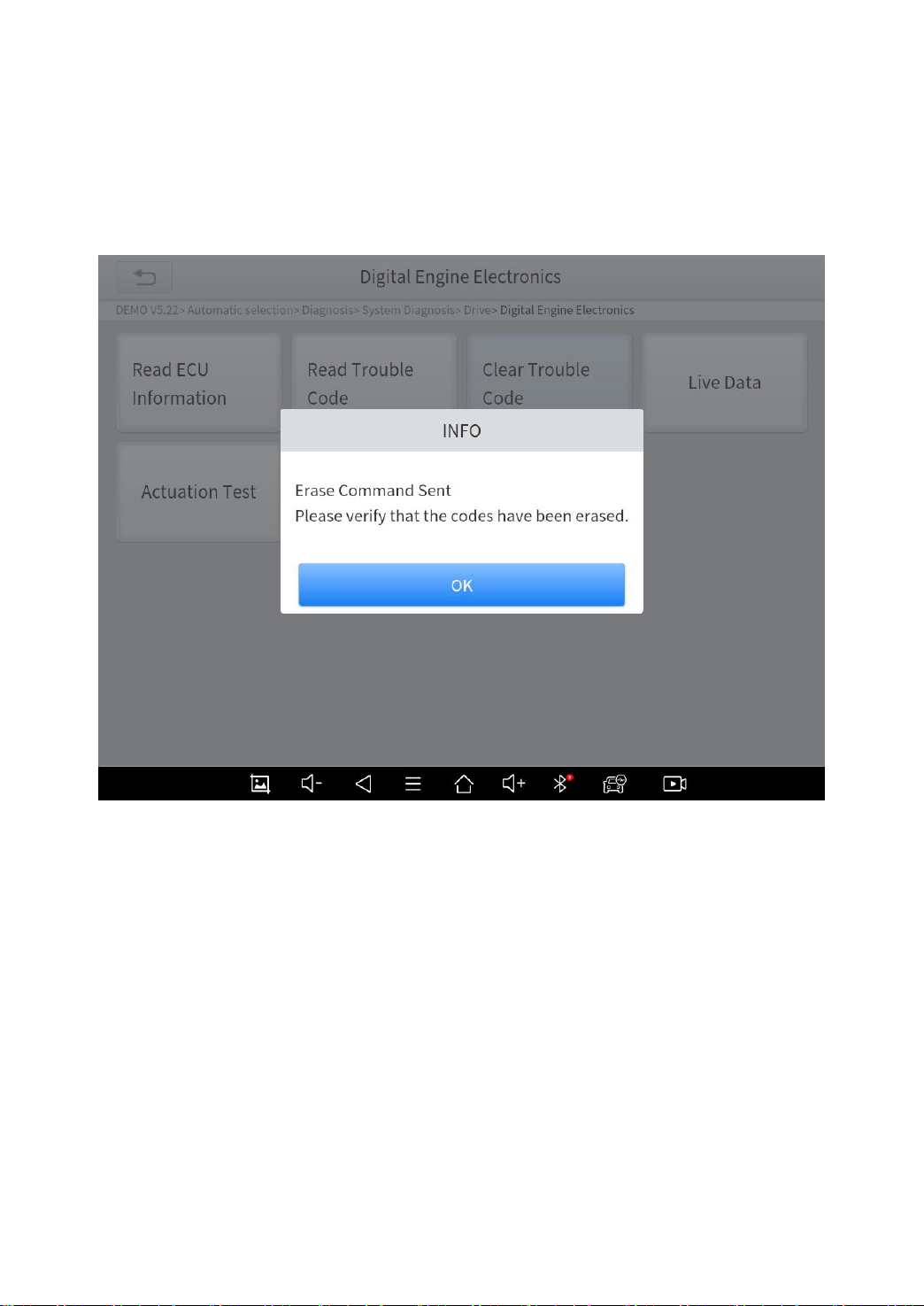
Clear Trouble Code
It allows clearing current and historical trouble codes memory in
ECU, under the premise that all the troubles are eliminated.
Fig 4-7
The trouble codes can’t be erased without eliminating all the
troubles, which will cause the diagnostic tool to always read the
trouble code because the code will always be saved in ECU.
Suggestion: users should better not clear trouble codes, we need
to record the trouble details after reading the code, which is
provided as a reference for maintenance. After dealing with
troubles, there will be no trouble code when we re-read.
36
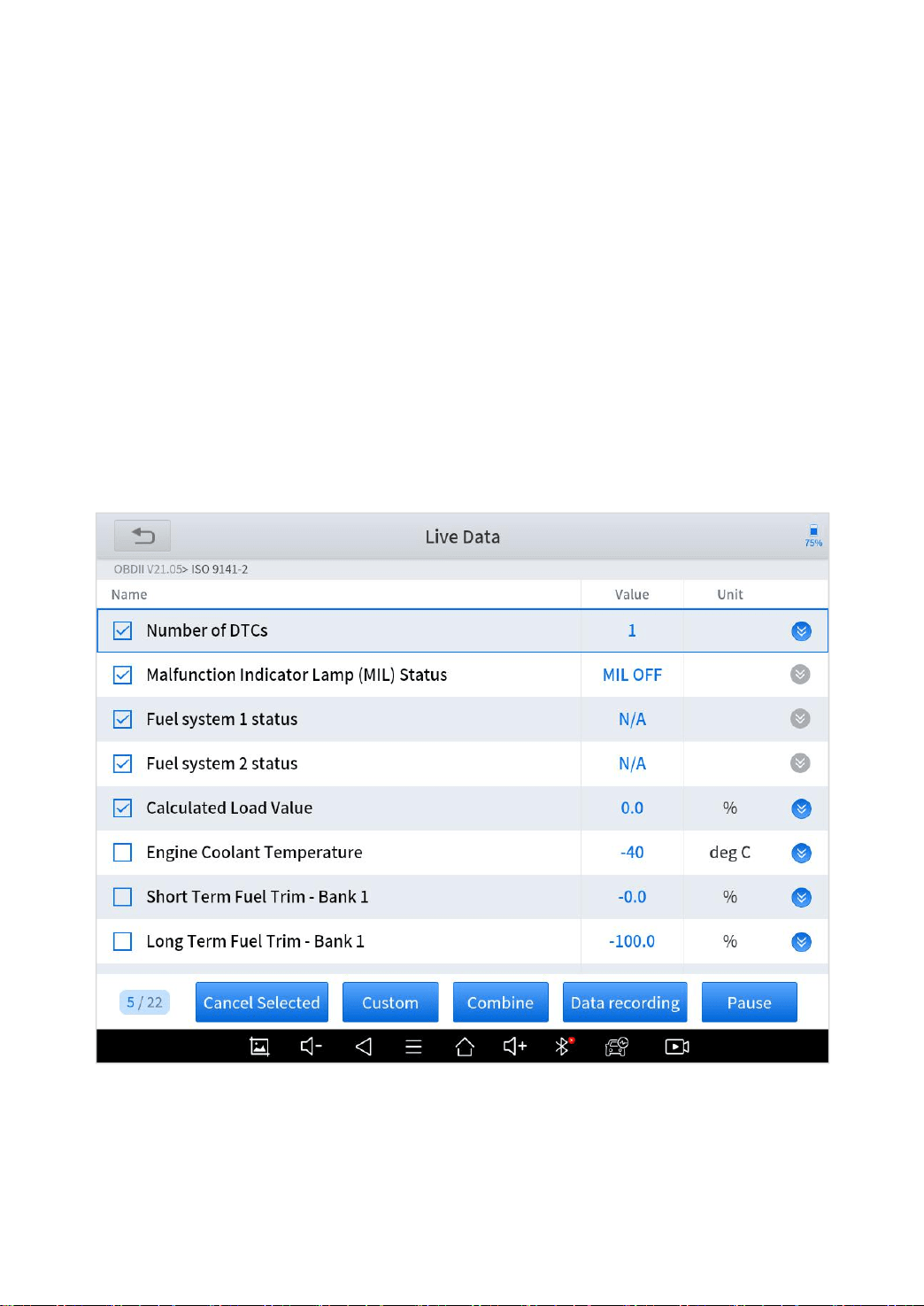
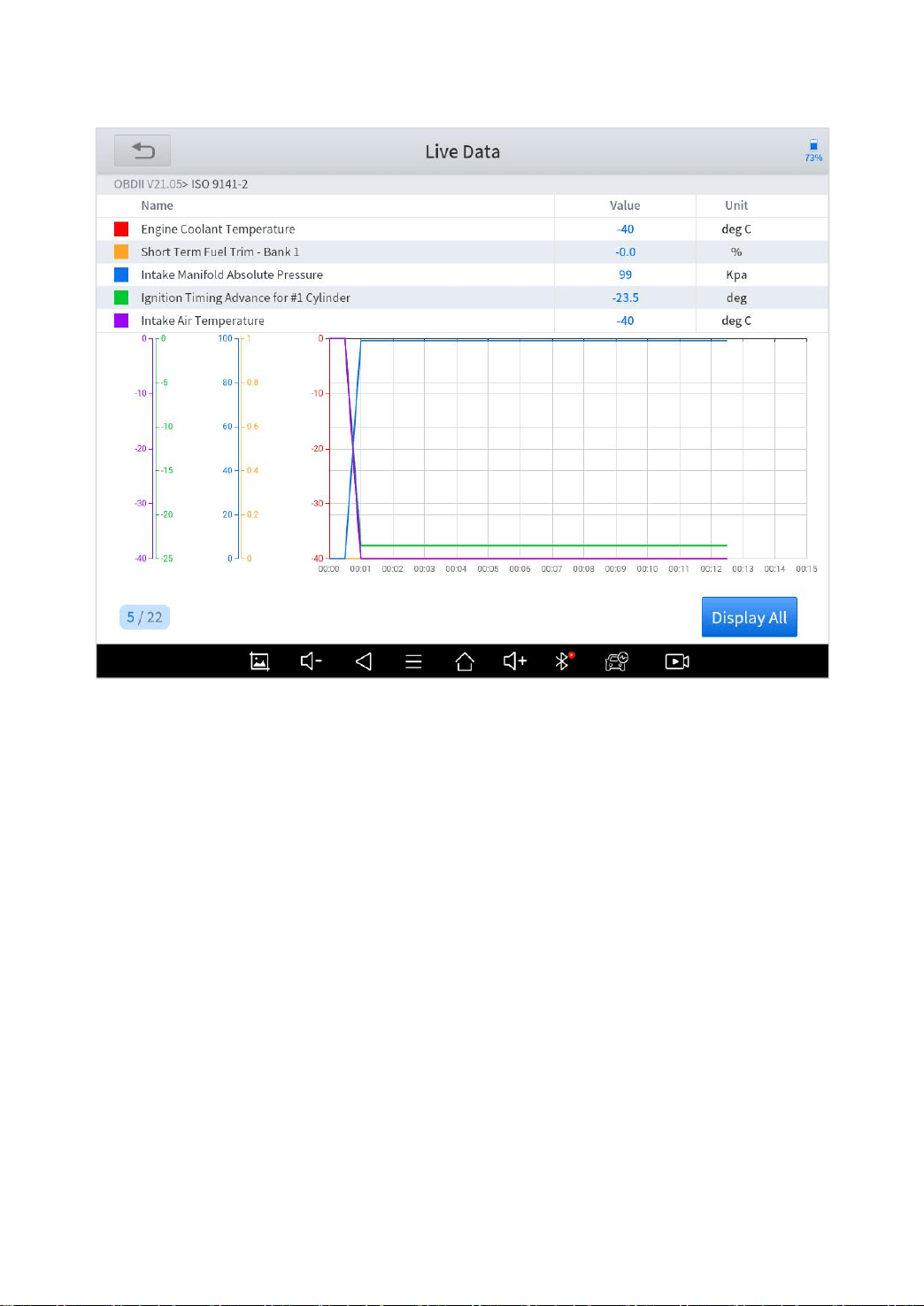
Read Live Data
That is to read the parameters of the running engine, such as oil
pressure, temperature, engine speed, fuel oil temperature, coolant
temperature, intake air temperature, etc. Based on these
parameters, we can judge directly where the problem lies, which
helps to narrow the scope of maintenance. For some vehicles,
during their actual operation, the problems such as performance
characteristics offset, sensitivity reduction, can be judged in live
data.
Fig 4-8
37
Fig 4-8
In the process of diagnosis, if the device shows “System is OK”
or “No Trouble Code”, it means there is no related trouble code
stored in ECU or some troubles are not under the control of ECU,
most of these troubles are mechanical system troubles or
executive circuit troubles, it is also possible that signal of the
sensor may bias within limits, which can be judged in Live Data.
38
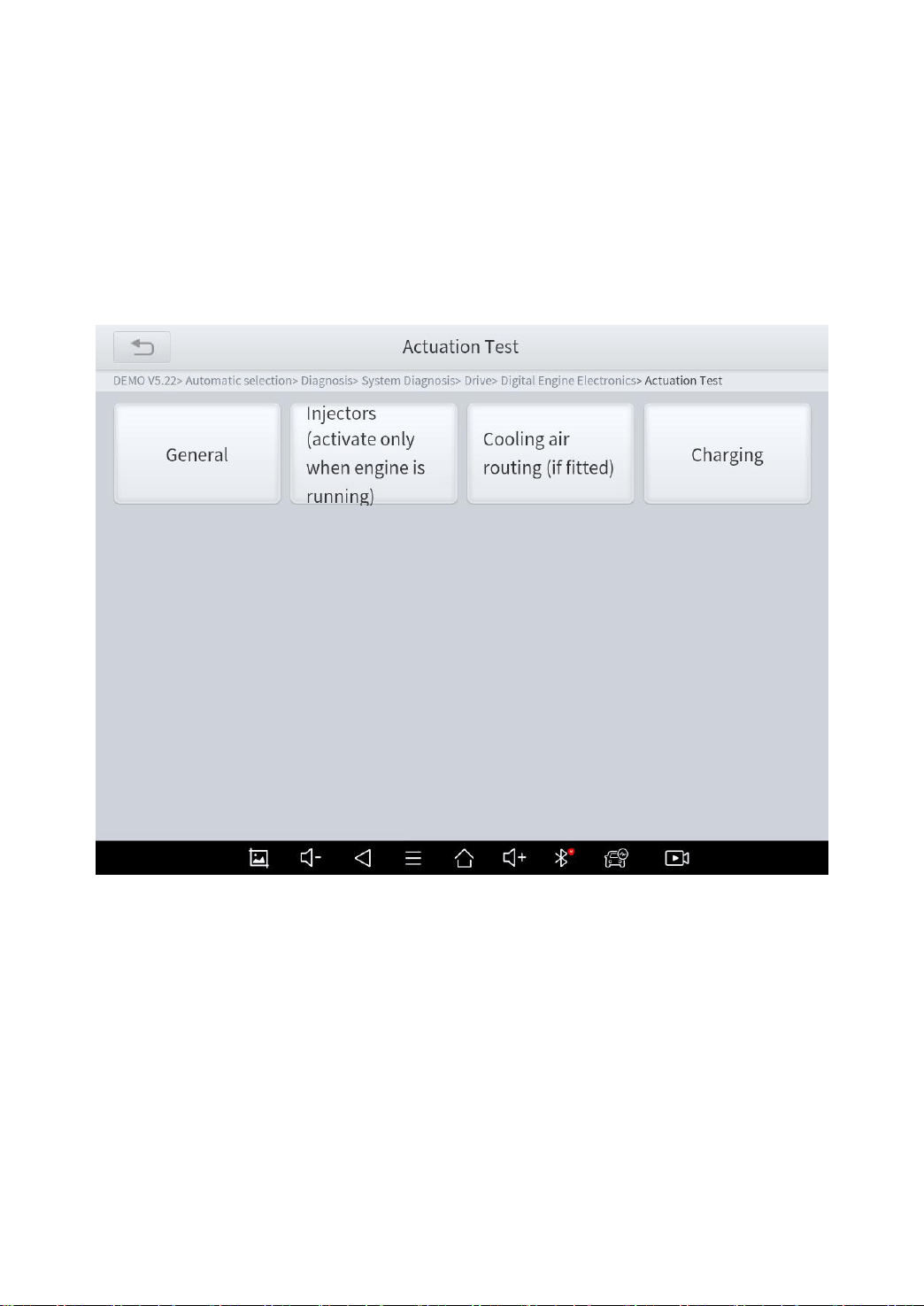
Actuation Test (Bi-Directional Control)
Actuation test, also known as bidirectional control, is a generic
term used to describe sending and receiving information between
one device and another.
The vehicle engineers responsible for designing computer control
systems programmed them so a scan tool could request
information or command a module to perform specific tests and
functions. Some manufacturers refer to bidirectional controls as
functional tests, actuator tests, inspection tests, system tests or
the like. Reinitialization and reprogramming also can be included
in the list of bidirectional controls.
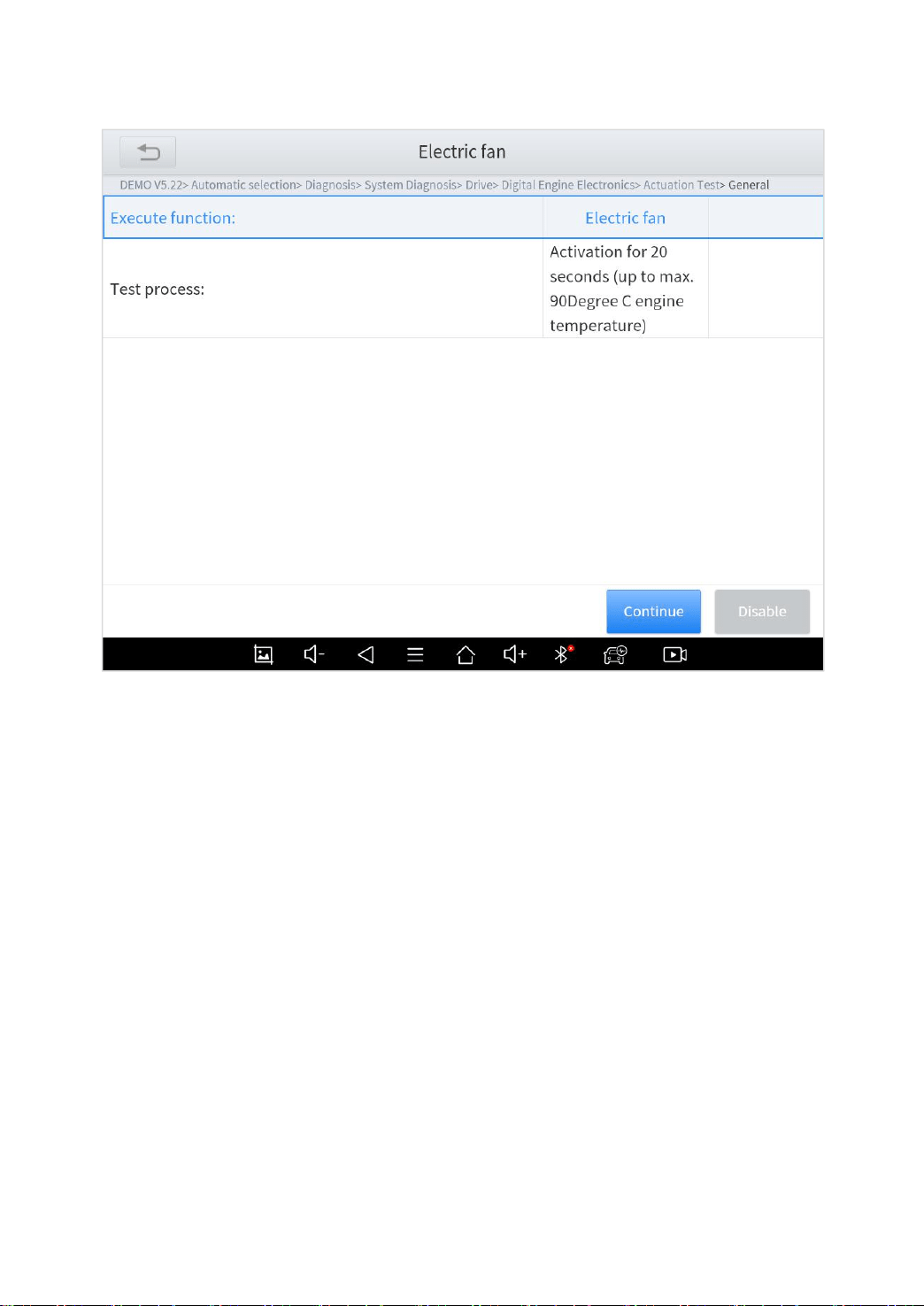
39
Fig 4-9
This function allows the device to send information to, and receive
information from, vehicle control modules. For example, in the
case of OBD II generic information Mode 1 (which relates to data
parameters), the scan tool user initiates a request for information
from the powertrain control module (PCM), and the PCM responds
by sending the information back to the scan tool for display. Most
enhanced scan tools also can actuate relays, injectors and coils,
perform system tests, etc. Users could check the individual part to
see what is working properly by actuation test.
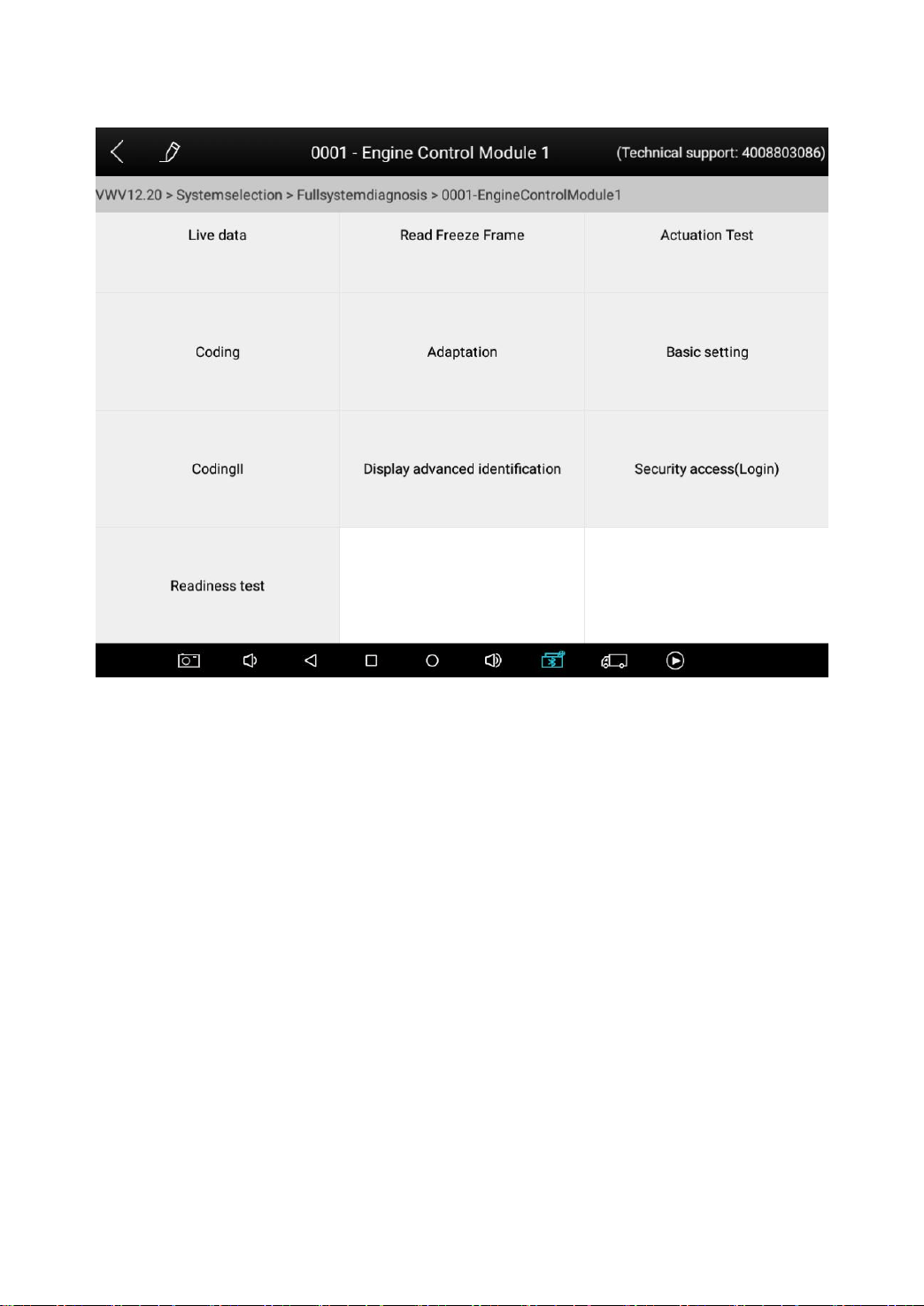
Freeze Frame
40
When the signal of the sensor is abnormal, the ECU will save the
data at that moment of failure to form a freeze-frame. It is usually
used to analyze the reasons that may lead to car failures.
The living data items supported by vehicles of different brands are
not the same, so the freeze frames displayed when diagnosing
vehicles of different brands may also be different. Some vehicles
do not have a freeze frame option, which means that this model
may not support this feature.
41
5 S
PECIAL
F
UNCTIONS
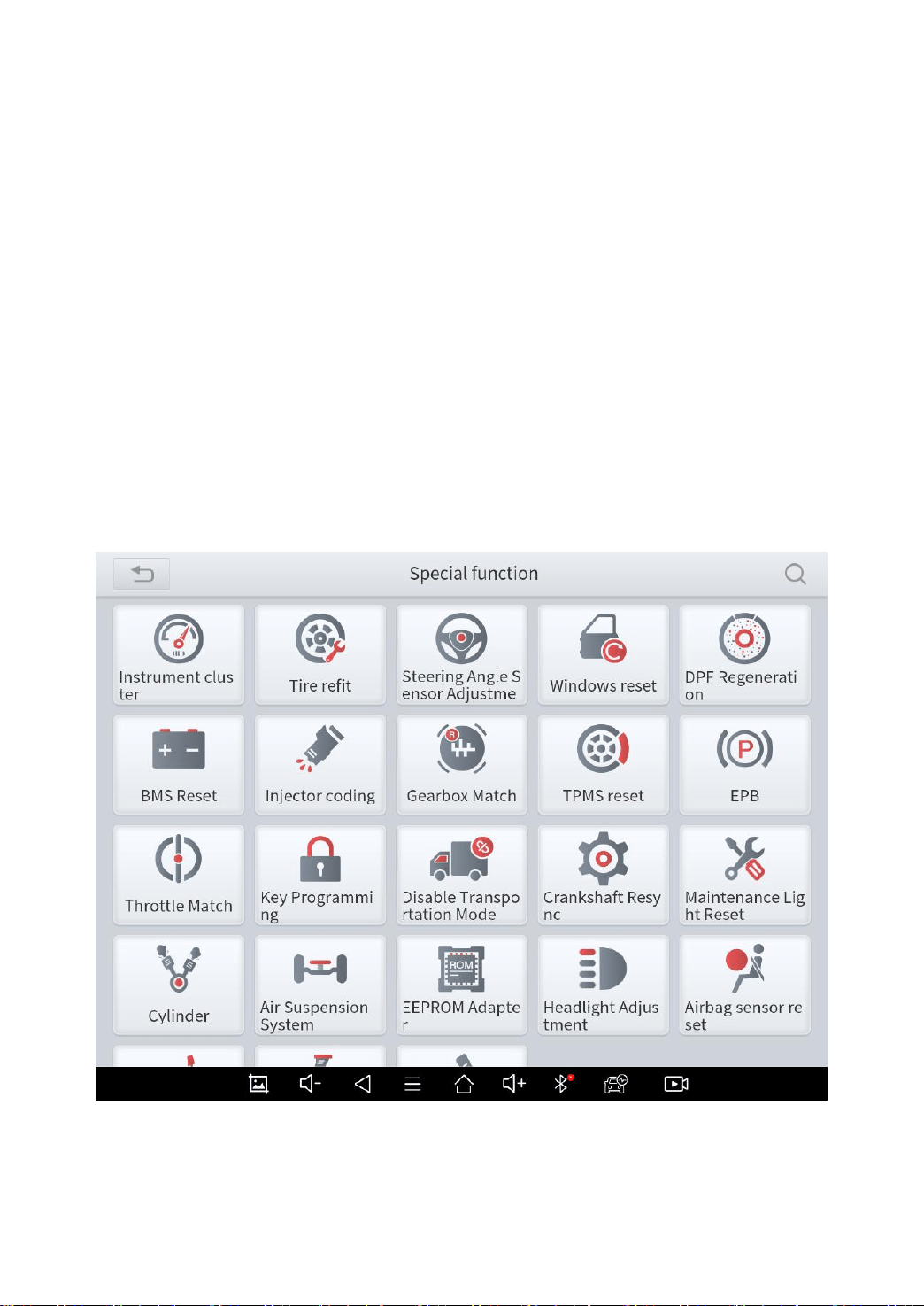
The D8 Smart Diagnosis System supports 23 commonly used
special reset functions, allowing you to quickly access your vehicle
system for various scheduled services, maintenance and reset
performance, eliminating the need to reset after resolving common
problems. This user manual lists some of the commonly used
special reset services for your reference. The special functions
interface is shown as below:
Fig 5-1
*Note:

42
a) Due to the limitation of screenshots, the special functions shown in this picture are
not complete.
b) All special functions supported by D8 are subject to the actual special functions
displayed on the device.
OIL LIGHT RESET
Reset the Engine Oil Life System, which calculates the optimum
oil life change interval based on the vehicle's driving conditions
and climate. The oil life reminder must be reset each time the oil is
changed so that the system can calculate when the next oil
change is required.
This function allows you to perform a reset for the engine oil life
system, which calculates an optimal oil life change interval
depending on the vehicle driving conditions and climate.
This function can be performed in the following cases:
If the service lamp is on, you must provide service for the car.
After service, you need to reset the driving mileage or driving
time so that the service lamp turns off and the system enables
the new service cycle.
After changing engine oil or electric appliances that monitor oil
life, you need to reset the service lamp.

43
EPB
Electronic Parking Brake (EPB) System reset is a popular special
function. You can use this function to reset the electronic parking
brake system and brake pads, which also supports the brake pad
replacement (retraction, release of the brake pump), G-sensor and
body angle calibration. This function has multiple uses and can
safely and effectively maintain the electronic brake system. These
applications include deactivating and activating brake control
systems, assisting in controlling brake fluid, opening and closing
brake pads, and setting brakes after replacing brake discs or
brake pads, etc.
1. If the brake pad wears the brake pad sense line, the brake pad
sense line sends a signal sense line to the onboard tablet to
replace the brake pad.
After replacing the brake pad, you must reset the brake pad.
Otherwise, the car alarms.
2. Reset must be performed in the following cases:
The brake pad and brake pad wear sensor are replaced.
The brake pad indicator lamp is on.
The brake pad sensor circuit is short, which is recovered.
The servo motor is replaced.

44
SAS
Steering Angle Sensors (SAS) System Calibration permanently
stores the current steering wheel position as the straight-ahead
position in the SAS EEPROM. Therefore, the front wheels and the
steering wheel must be set exactly to the straight-ahead position
before calibration. In addition, the VIN is also read from the
instrument cluster and stored permanently in the SAS EEPROM.
On successful completion of calibration, the SAS fault memory is
automatically cleared.
To reset the steering angle, first find the relative zero point position
for the car to drive in a straight line. Taking this position as a
reference, the ECU can calculate the accurate angle for left and
right steering.
After replacing the steering angle position sensor, replacing
steering mechanical parts (such as steering gearbox, steering
column, end tie rod, steering knuckle), performing four-wheel
alignment, or recovering the car body, you must reset the steering
angle.
DPF
The Diesel Particle Filter (DPF) function manages DPF
regeneration, DPF component replacement teach-in and DPF
teach-in after replacing the engine control unit.

45
The ECM monitors driving style and selects a suitable time to
employ regeneration. Cars driven a lot at idling speed and low
load will attempt to regenerate earlier than cars driven more with
higher load and speed. For regeneration to take place, a
prolonged high exhaust temperature must be obtained.
In the event of the car being driven in such a way that
regeneration is not possible, i.e., frequent short journeys, a
diagnostic trouble code will eventually be registered in addition to
the DPF light and “Check Engine” indicators displaying. A service
regeneration can be requested in the workshop using the
diagnostic tool.
DPF regeneration is used to clear PM (Particulate Matter) from the
DPF filter through continuous combustion oxidation mode (such as
high-temperature heating combustion, fuel additive or catalyst
reduce PM ignition combustion) to stabilize the filter performance.
DPF regeneration may be performed in the following cases:
The exhaust back pressure sensor is replaced.
The PM trap is removed or replaced.
The fuel additive nozzle is removed or replaced.
The catalytic oxidizer is removed or replaced.
The DPF regeneration MIL is on and maintenance is performed.
The DPF regeneration control module is replaced.

46
BMS RESET
The Battery Management System (BMS) allows the scan tool to
evaluate the battery charge state, monitor the close-circuit current,
register the battery replacement, and activate the rest state of the
vehicle.
This function enables you to perform a resetting operation on the
monitoring unit of the vehicle battery, in which the original low
battery fault information will be cleared and battery matching will
be done.
Battery matching must be performed in the following cases:
The main battery is replaced. Battery matching must be
performed to clear original low battery information and prevent
the related control module from detecting false information. If
the related control module detects false information, it will
invalidate some electric auxiliary functions, such as automatic
start & stop function, sunroof without one-key trigger function,
power window without automatic function.
Battery monitoring sensor. Battery matching is performed to re-
match the control module and motoring sensor to detect
battery power usage more accurately, which can avoid an error
message displayed on the instrument panel.

47
THROTTLE
Throttle Position Sensor (TPS) Match, this function enables you to
make initial settings to throttle actuators and returns the “learned”
values stored on ECU to the default state. Doing so can accurately
control the actions of regulating throttle (or idle engine) to adjust
the amount of air intake.
TPMS RESET
Tire Pressure Monitor System (TPMS) Reset allows you to quickly
look up the tire sensor IDs from the vehicle ECU, as well as to
perform TPMS replacement and reset procedures after tire
sensors are replaced.
This function allows you to quickly lookup the tire sensor IDs from
the vehicle’s ECU, as well as to perform TPMS replacement and
sensor tests.
After the tire pressure MIL turns on and maintenance is
performed, the tire pressure resetting function must be
performed to reset tire pressure and turn off the tire pressure
MIL.
Tire pressure resetting must be performed after maintenance is
performed in the following cases: tire pressure is too low, tire
leaks, tire pressure monitoring device is replaced or installed,

48
the tire is replaced, the tire pressure sensor is damaged, and
tire is replaced for the car with tire pressure monitoring function.
ABS BLEEDING
Anti-lock Braking System (ABS) Bleeding allows you to perform
various bi-directional tests to check the operating conditions of
ABS.
1. When the ABS contains air, the ABS bleeding function must be
performed to bleed the brake system to restore ABS brake
sensitivity.
2. If the ABS tablet, ABS pump, brake master cylinder, brake
cylinder, brake line, or brake fluid is replaced, the ABS bleeding
function must be performed to bleed the ABS.
3. After the oil in the brake oil tank is seriously insufficient or the
brake fluid is replaced, ABS Bleeding is also required
*Note
a) When performing ABS Bleeding, it is necessary to unscrew the exhaust screw of the
ABS pump.
b) After completing the tire pressure sensor learning, it takes a while for the fault light
to go out.
c) Tire pressure imbalance will also cause the tire pressure light to light up.
INJECTOR CODING
This function can write the identification code of the fuel injector
into the ECU so that the ECU can recognize and work normally.

49
Write injector actual code or rewrite code in the ECU to the injector
code of the corresponding cylinder to more accurately control or
correct cylinder injection quantity.
After the ECU or injector is replaced, the injector code of each
cylinder must be confirmed or re-coded so that the cylinder can
better identify injectors to accurately control fuel injection.
*Note
a) After cleaning, generally there is no need to do the coding matching function.
b) The identification of the fuel injector includes its working accuracy value and type
value. When replacing it, you need to find the corresponding model for replacement.
c) At present, mainstream cars support injector coding function
GEARBOX MATCH
After changing the gearbox or changing the gearbox ECU, you
need to use the gearbox matching function to re-match the engine
and the gearbox.
*Cautions!
Before resetting the gearbox, please check the gearbox control
unit to ensure that there is no fault code. If there is a fault code,
the gearbox memory function cannot be reset. Please road test
after reset.
KEY PROGRAMMING
An immobilizer is an anti-theft mechanism that prevents a vehicle’s
engine from starting unless the correct ignition key or other device

50
is present. Most new vehicles have an immobilizer as standard
equipment. An important advantage of this system is that it doesn’t
require the car owner to activate it since it operates automatically.
An immobilizer is considered as providing much more effective
anti-theft protection than an audible alarm alone.
As an anti-theft device, an immobilizer disables one of the systems
needed to start a car’s engine, usually the ignition or the fuel
supply. This is accomplished by radio frequency identification
between a transponder in the ignition key and a device called a
radio frequency reader in the steering column. When the key is
placed in the ignition, the transponder sends a signal with a unique
identification code to the reader, which relays it to a receiver in the
vehicle’s tablet control module. If the code is correct, the tablet
allows the fuel supply and ignition systems to operate and start the
car. If the code is incorrect or absent, the tablet disables the
system, and the car will be unable to start until the correct key is
placed in the ignition.
To prevent the car from being used by unauthorized keys, the anti-
theft key matching function must be performed so that the
immobilizer control system on the car identifies and authorizes
remote control keys to normally use the car.
When the ignition switch key, ignition switch, combined instrument
panel, ECU, BCM, or remote-control battery is replaced, anti-theft
key matching must be performed.

51
The Key Programming service can disable a lost vehicle key and
program the replacement key fob. One or more replacement key
fobs can be programmed.
*Note
a) Some models need to be used with EEPROM adapter for IMMO service.
b) The EEPROM adapter is not included in this product.
c) Please purchase it separately if you need it.
SUSPENSION
This function can adjust the height of the vehicle body. When
replacing the body height sensor in the air suspension system, or
control module or when the vehicle level is incorrect, you need to
perform this function to adjust the body height sensor for level
calibration.
The air suspension system reset function enables the tablet ECU
to match the current air suspension system information, thereby
ensuring the normal damping effect of the vehicle when driving.
Application scenarios:
The shock absorber is not the same height due to air leakage,
maintenance, replacement, etc.;
After replacing the air pump assembly;
After replacing the electronic control module.

52
WINDOWS INITIALIZATION
This function is to match the windows to restore the initial memory
of the ECU and restore the automatic raising and lowering
functions of the power window. Usually, when the vehicle window
fails or after replacing the window glass, we need to use this
function to initialize the car window.
SEAT CALIBRATION
This function is suitable for the matching of replacement and
maintenance seats with memory functions. After the seat fails or is
replaced or repaired, it is generally necessary to use this function
to match the seat.
*Note
Needed for cars with seats with memory function, general gasoline cars don’t need.
HEADLIGHT
This function is used to initialize the adaptive headlight system. It
refers to the adaptive front lighting system (when using bi-xenon
headlights at night), it can be rotated to the sides, pressing the
button means that they remain direct, and do not turn when you
turn. After replacing the headlights, the adaptive headlight system
needs to be matched.

53
ECU CONFIGURATION
When a car with a high-level configuration and a car with a low-
level configuration share the same ECU, or you need to change or
add some features unique to the high-end vehicles, you can use
this function to support the activation of the hidden functions of the
car (except those that are not supported by the hardware).
Different hidden functions may require different operation steps,
please be sure to operate under the guidance.
Cautions!
The functions that the original ECU must support can be
flashed out.
Brushing to hide will not destroy the ECU system layer, but
only open and close some functions.
Most of them can be re-flashed multiple times.
Support cars:
Volkswagen, Toyota, BMW, Ford, Mazda
*A/F RESET
This function is applied to set or learn Air/Fuel ratio parameters.

54
*STOP/START RESET
This function is used to open or close the automatic start-stop
function via setting the hidden function in ECU (provided that the
vehicle has a hidden function and is supported by hardware).
AIRBAG RESET
Supplemental Restraint System (SRS) Reset allows you to reset
the airbag data to clear the airbag collision fault indicator.
Generally, SRS reset is required after airbag replacement
INSTRUMENT CLUSTER
This function allows you to copy, write or rewrite the kilometres in
the odometer chip by using the car diagnostic tablet and data
cable so that the odometer can display the actual mileage.
*Some models need to be used with an EEPROM adapter for
ODO reset. The EEPROM adapter is not included in this product.
Please purchase it separately if you need to use it.

55
*LANGUAGE CHANGE
This function is used to change the system language of the vehicle
central control panel.
TRANSPORT MODE
ln order to reduce power consumption, the following functions may
be disabled, including limiting the vehicle speed, not waking up the
door opening network, and disabling the remote-control key, etc.
At this time, the transport mode needs to be deactivated to restore
the vehicle to normal.
TIRE UPGRADE
This function is used to set the size parameters of refitting or
replacing tires.
GEAR LEARNING
The crankshaft position sensor learns crankshaft tooth machining
tolerance and saves to the tablet to more accurately diagnose
engine misfires. If tooth learning is not performed for a car
equipped with a Delphi engine, the MIL turns on after the engine is
started. The diagnostic device detects the DTC P1336 'tooth not

56
learned'. In this case, you must use the diagnostic device to
perform tooth learning for the car. After tooth learning is successful,
the MIL turns off. This function can complete the self-learning of
the gearbox and improve the quality of shifting.
After the engine ECU, crankshaft position sensor, or crankshaft
flywheel is replaced, or the DTC 'tooth not learned' is present,
tooth learning must be performed.
POWER BALANCE
The cylinder power balance test can locate cylinders that are
causing a power deficit and not contributing to the balance and
performance of the engine. Using this test in conjunction with
cylinder compression and cylinder leakage tests can identify the
problem.
This test typically measures the speed drop of each cylinder and
tests its effectiveness compared to other cylinders. It measures
the amount a particular cylinder contributes to the total power
output of the engine. The total output of an engine is the sum of all
the power produced by each cylinder. The cylinder power balance
test uses the effect of the cylinder on the engine speed to
determine this power. When the engine is running, the spark plug
or primary circuit is grounded. This prevents the spark plug from
firing in that cylinder, thus preventing combustion in that cylinder.

57
When that cylinder is not operating, the engine speed should drop.
The drop in engine speed is recorded and compared to the drop
when other cylinders are eliminated.
If all cylinders in an engine produce the same amount of power,
the drop in engine speed is equal for all engine speeds in the
cylinder power balance test. If one cylinder does not contribute
much to the total power output of the engine, then the speed drop
for that cylinder will be more than the speed drop for the other
cylinders during the power balance test. When an engine is
running poorly, it is usually caused by one or more cylinders not
producing as much power as the other cylinders.
A cylinder power balance test can identify cylinders with low
productivity. Ignition or fuel is disabled for each cylinder and a
drop in RPM is recorded at a specific speed (800-1000RPM).
The engine analyzer does the same thing as this manual cylinder
power balance test. It tests each cylinder and compares the
results. When the analyzer is not available, the technician can
disconnect the plug bushing from its corresponding spark plug or
distributor connection long enough to disable the desired cylinder.
Please note that the RPM will drop when that cylinder is disabled.
If the drop in one cylinder is not consistent with the other cylinders,
this is an indication of a problem with that cylinder.
This feature is suitable for power balancing when replacing or
repairing cylinders.

58
ELECTRONIC PUMP ACTIVATION
Use this function to activate the electronic water pump before
venting the cooling system.
EEPROM
The EEPROM adapter can read the car anti-theft password, back
up, read and write and restore anti-theft data, and flash ECU data.
Usually, this function is used in conjunction with IMMO or ODO
reset.
*Note
a) The EEPROM adapter is not included in this product. Please purchase it separately
if you need it.
6 REPORT
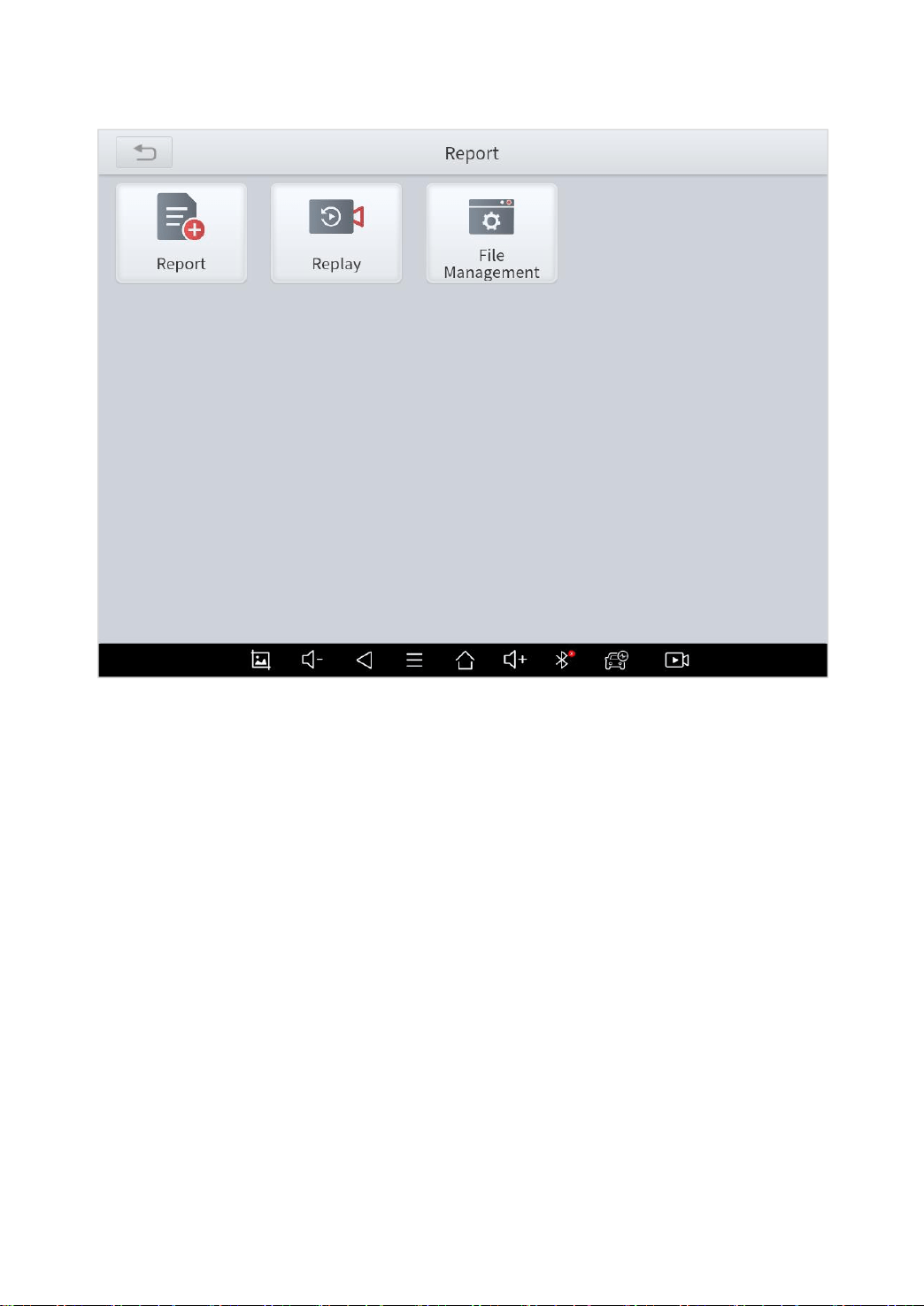
Diagnostic Report is used for viewing and printing the saved files,
such as Live Data, Trouble codes or pictures generated in the
process of diagnosis, users also can view a record of which cars
have been previously tested. It includes 3 parts:
Report
Replay
File Management
59
Fig 6-1
REPORT
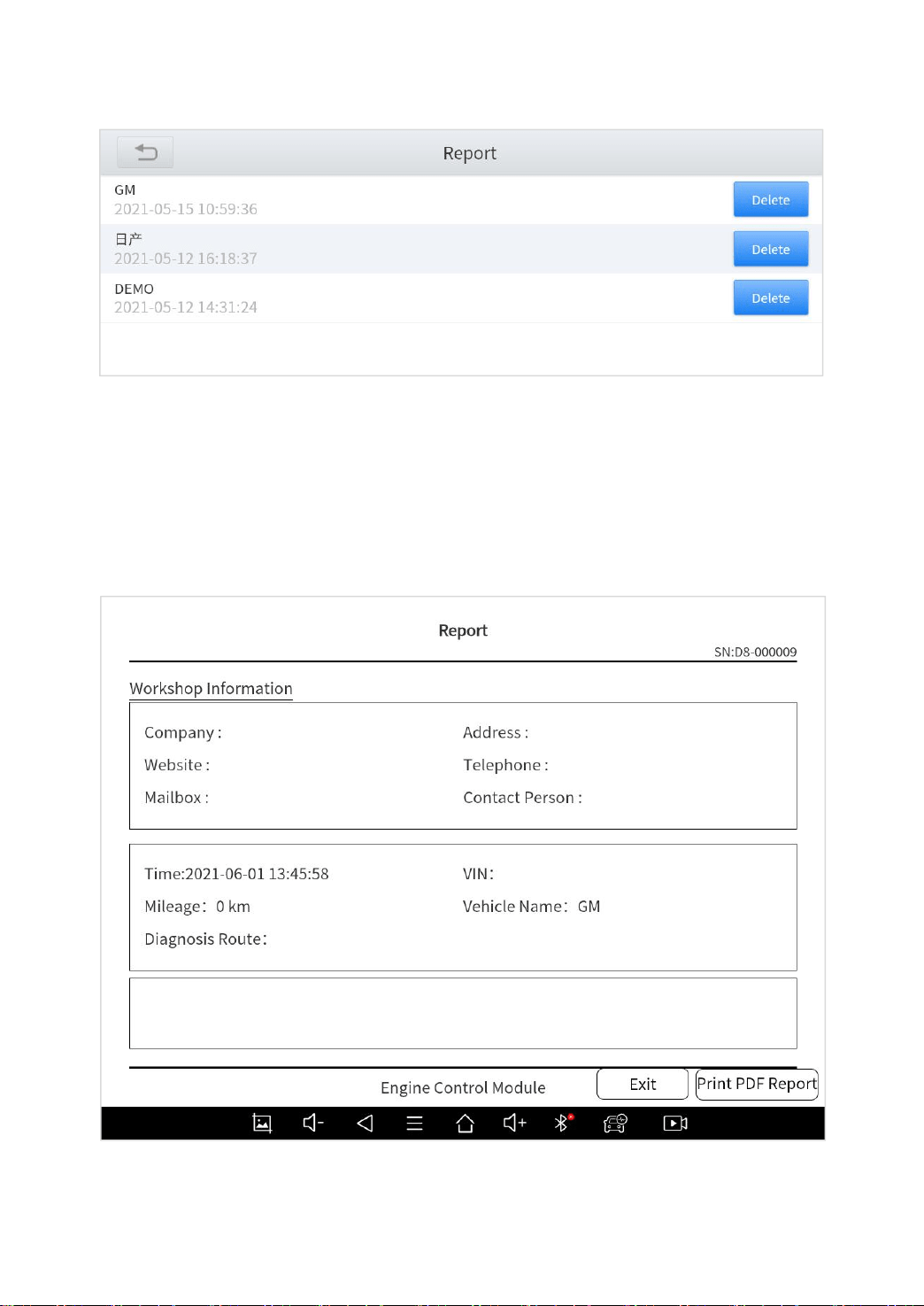
This feature provides a history of diagnostic reports, where you
can view and delete the vehicle's diagnostic reports according to
your needs.
60
Fig 6-2
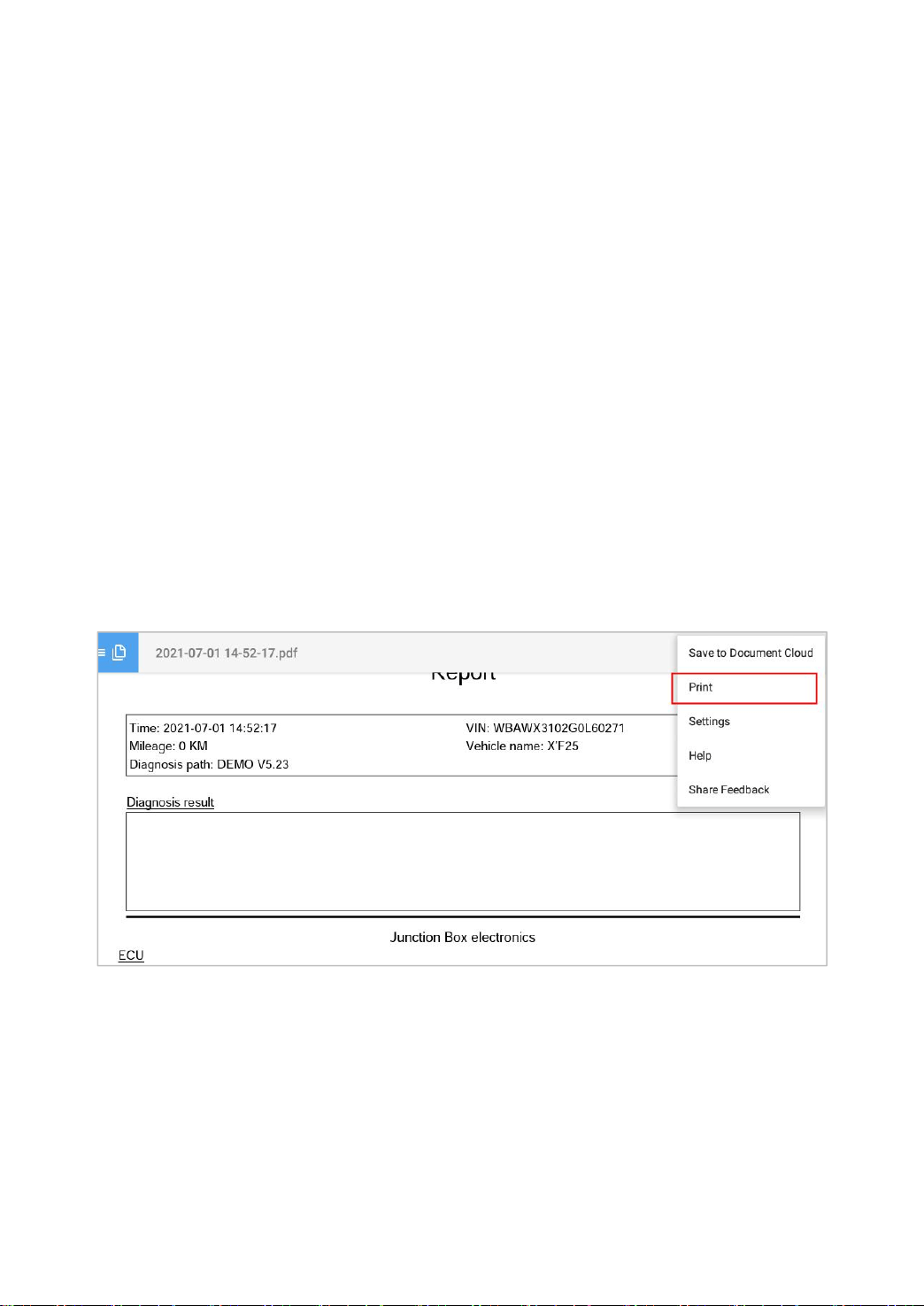
When you open the report, located in the header of the table is the
studio information you filled in advance in the system setup, then
the information of the vehicle, including the diagnosis date and
time, VIN, vehicle brand, diagnosis path, etc., as shown as below:
Fig 6-3
61
Print PDF Report
As you can see, you also could click " Print PDF Report " at the
bottom right corner to output the pdf report. If you need to close
the report, you could tap on the button “Exit”.
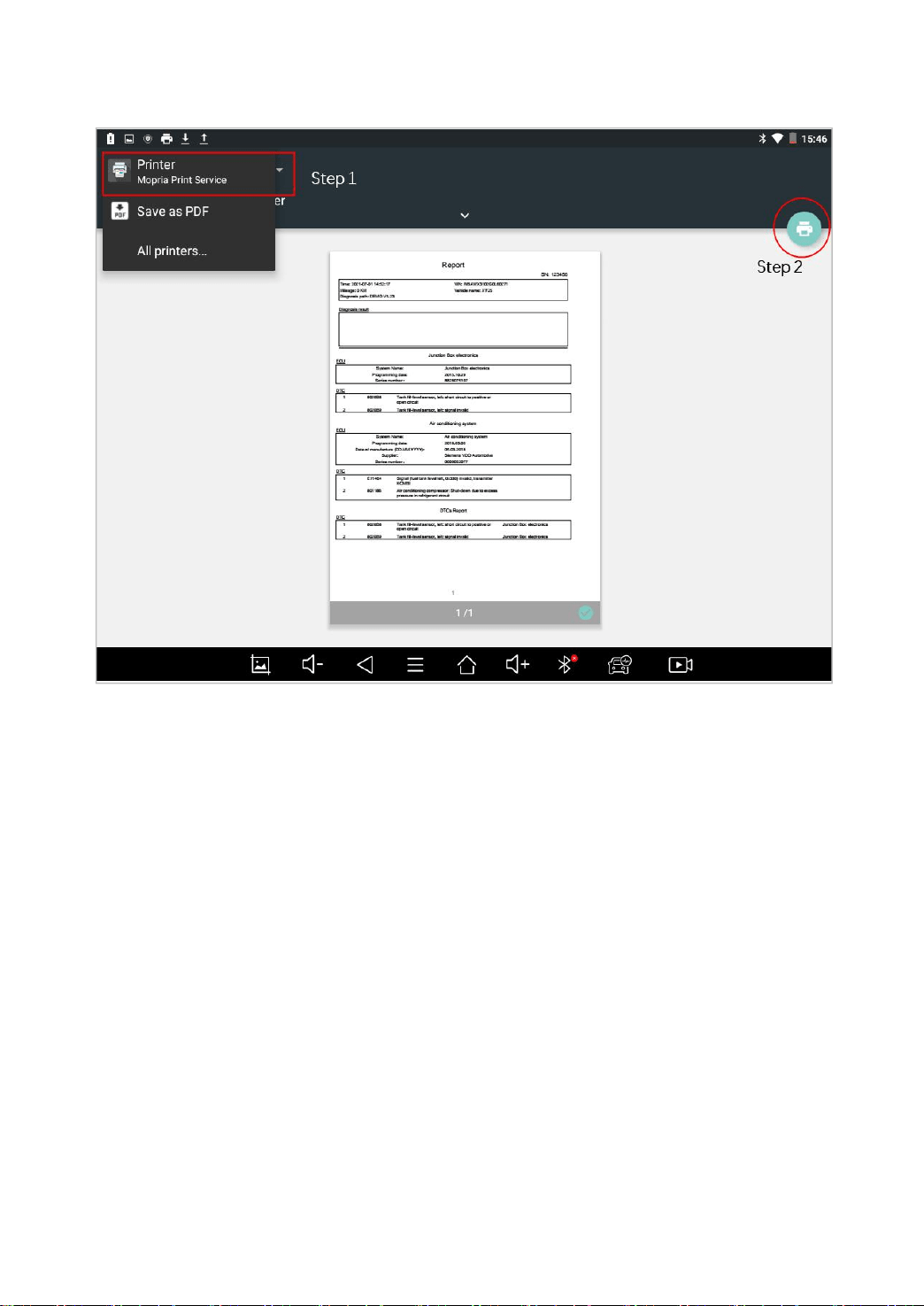
Please follow the below steps to print your report▼
Step 1: Install an APP that can drive your target printer. Add the
printer and input the IP address of the printer in the APP, or you
can contact your dealer for help.
Step 2: Back to the Android main menu, go to Settings -> Printing-
> Turn printer on.
Step 3: Report-> Choose report-> Print PDF Report-> Print
Fig 6-4
Step 4: Click the top-left corner of the screen and choose the
printer you added before. Then click the button on the right to print.
62
Fig 6-5
63
REPLAY
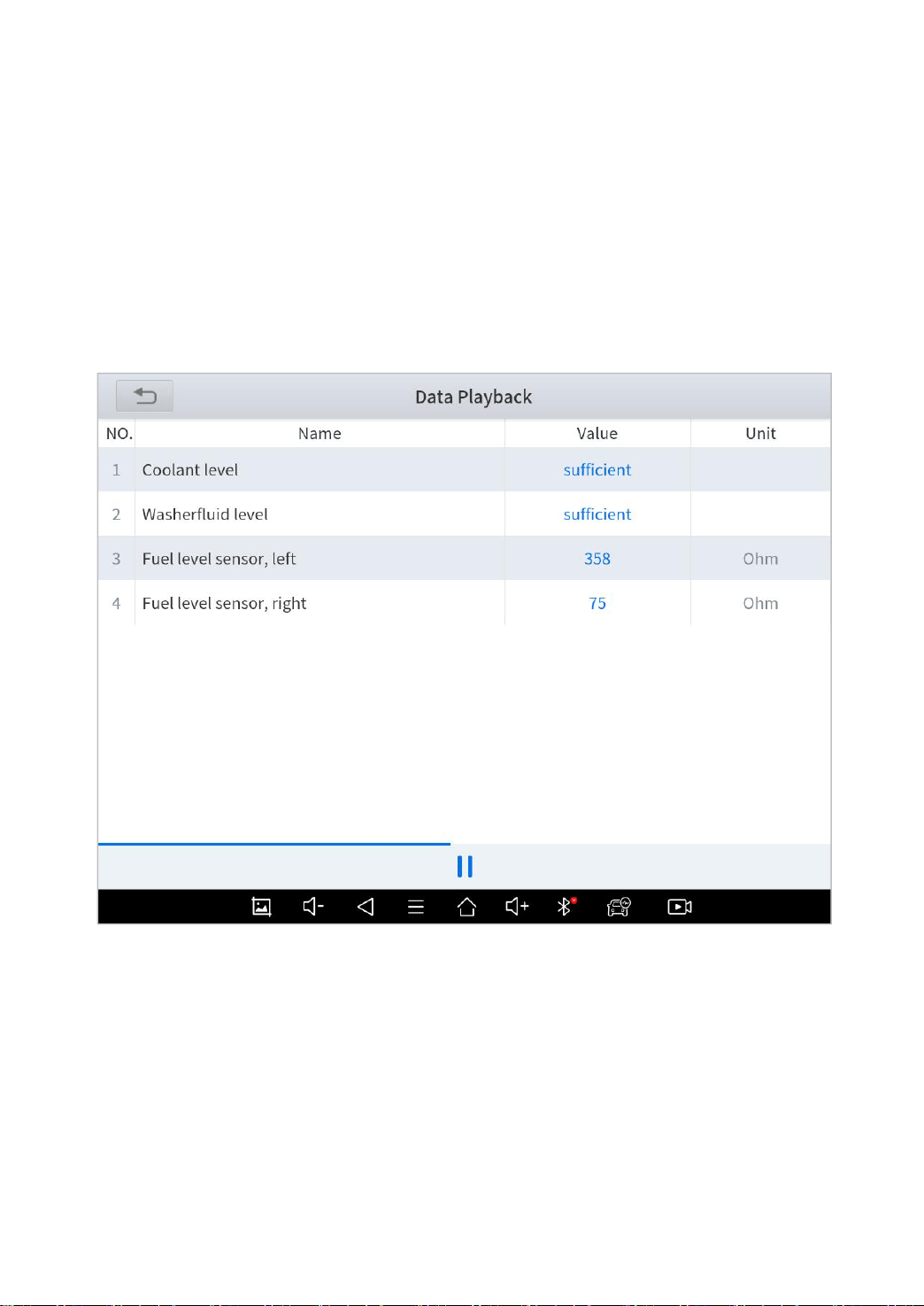
This function allows you to replay the living data recorded during
the diagnosis process.
Before replaying the living data, please make sure you click on the
"Record" button during the diagnosis
Fig 6-6
FILE MANAGER
This function allows you to check and delete files on the device.
Please use this function under the guidance of professionals.
Ordinary users are not recommended to use it by themselves!
64
7 S
ETTINGS
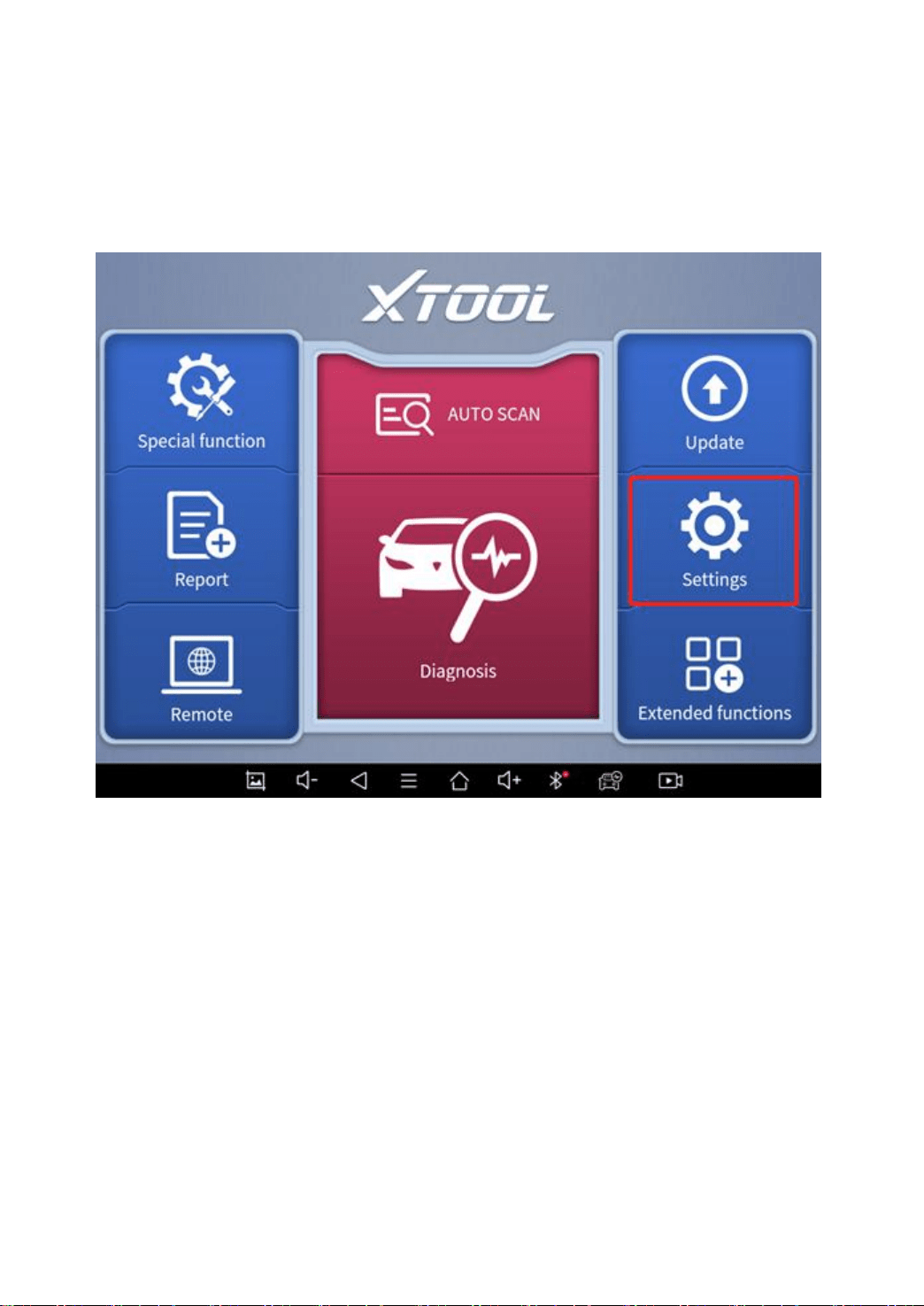
Fig 7-1
Click the Settings button to adjust the default settings and view
information about the D8 Smart Diagnosis System. There are
seven options available in the system settings:
Language
Units
My Workshop Info
VCI Info
About
65
LANGUAGE
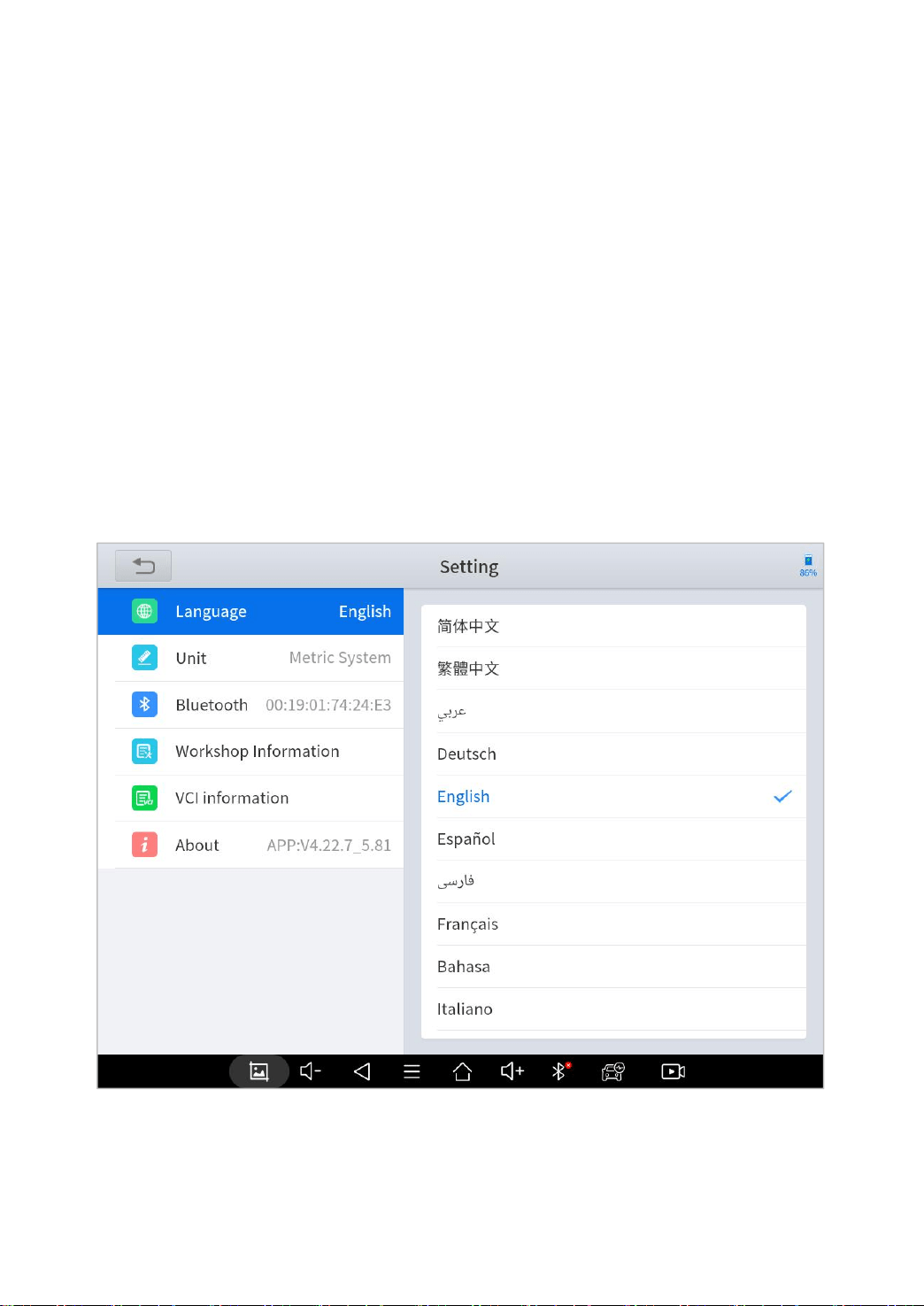
The languages supported by this device are listed in Settings. In
areas outside the English area, the default language is English
and the local official language. Users can switch between English
and local official languages on the device by themselves. If you
need to switch other languages, please contact the dealer to
unbind the current language configuration and rebind it to the
language configuration you need to switch. After the configuration
is successfully changed, you can switch the target language.
Fig 7-2
Note: The types and quantities of languages supported are subject to the actual language types
displayed on the device.

66
Please follow the steps below to switch languages▼
Step1: Contact your dealer and leave a message about the
language you need and the S/N of your device
Step2: Settings->Language->Choose language
Step3: OS Settings->Language & input->Choose Language
Step4: Back to Upgrade
UNITS
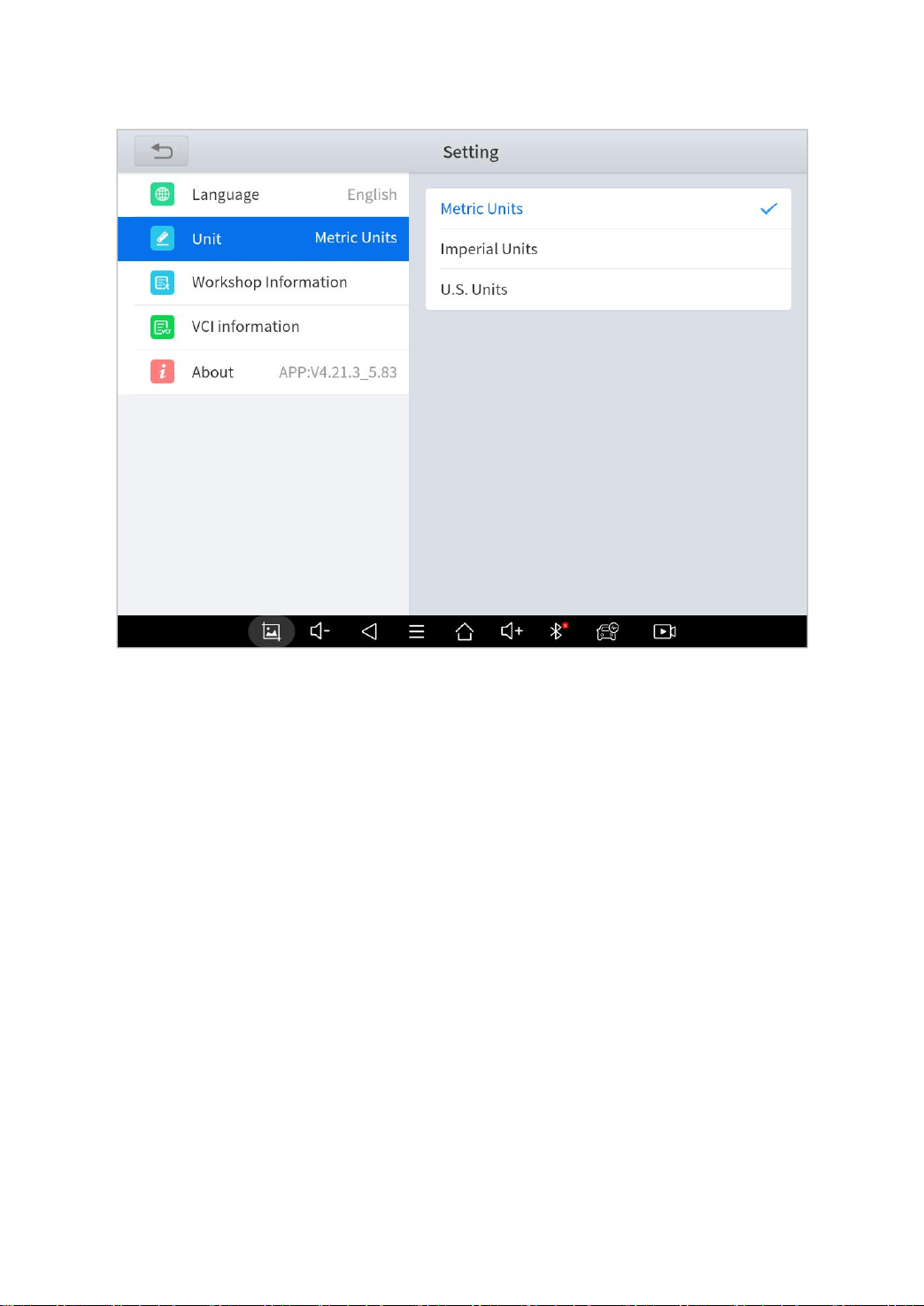
You can switch the unit used by the system. D8 Smart Diagnosis
System provides you with Metric, Imperial, and U.S. units. You
can directly click on the unit you need, after the switch is
successful, a blue checkmark will be displayed behind the unit’s
name.
67
Fig 7-3
MY WORKSHOP INFO
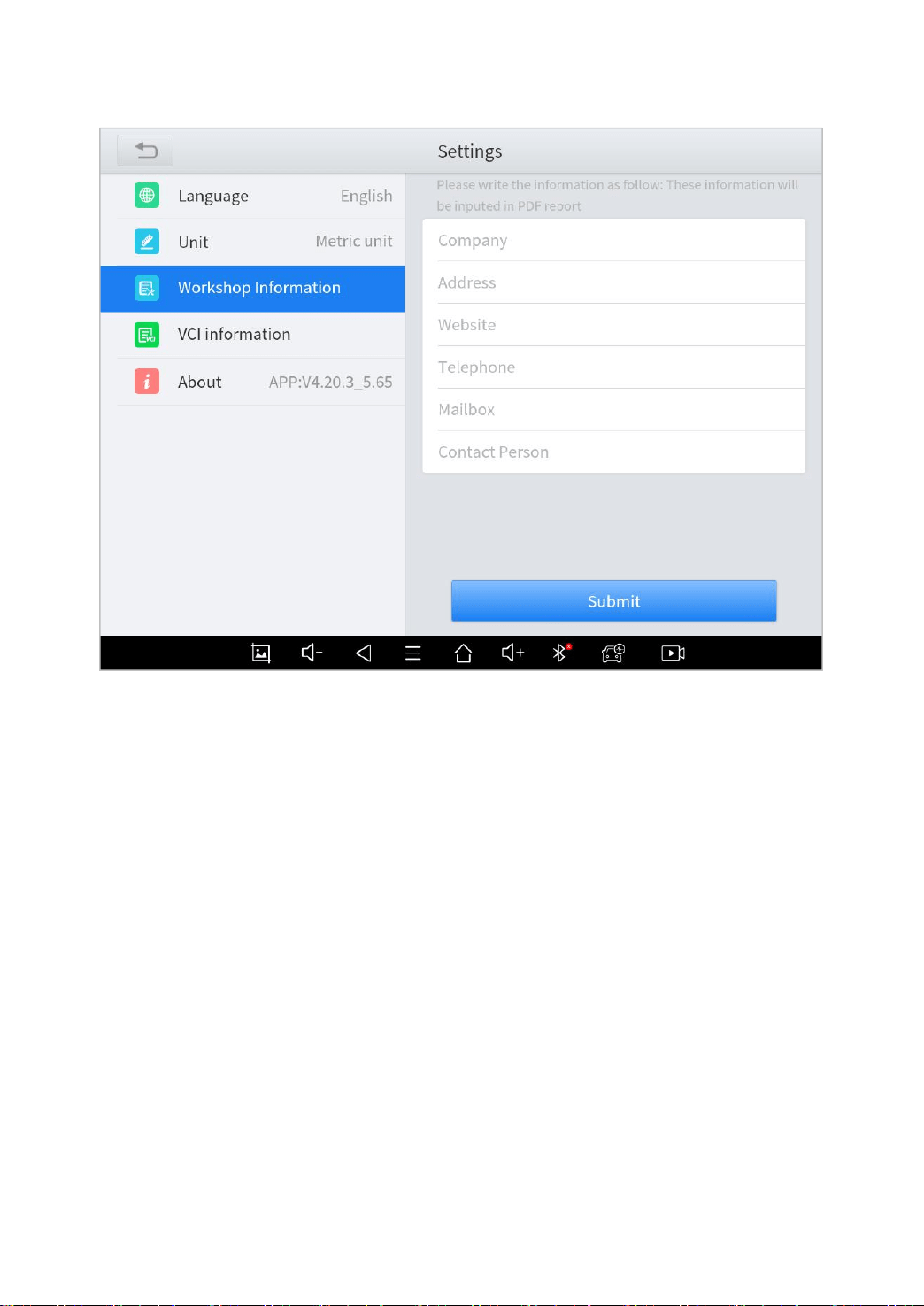
Click on My Workshop Information, you can input your workshop
information here. As shown in the figure below, you just need to fill
in the valid information in the corresponding column and click
"SUBMIT". And then it will show your workshop information in the
report when you generate a diagnostic report, including your
company name, address, website, telephone, and mailbox.
68
Fig 7-4
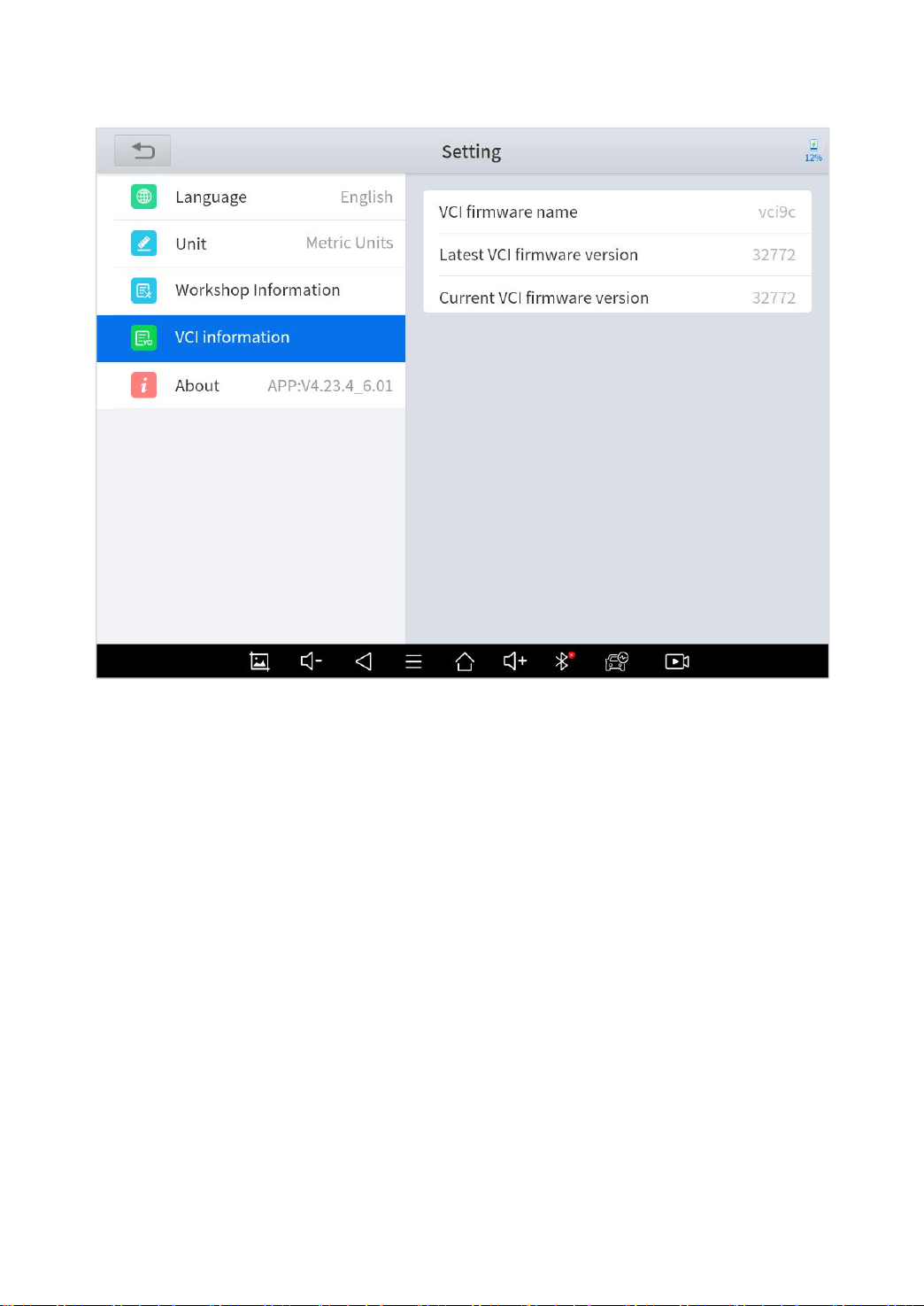
VCI INFORMATION
You can view the VCI information here, including the VCI firmware
name, the latest firmware version, the currently used firmware
version, and the VCI firmware type.
*Note:
The diagnosis tablet supports automatic firmware update, please make sure that the
device is connected to the network when you enter the diagnostic software and the
firmware will be automatically updated to the latest version.
69
Fig 7-5
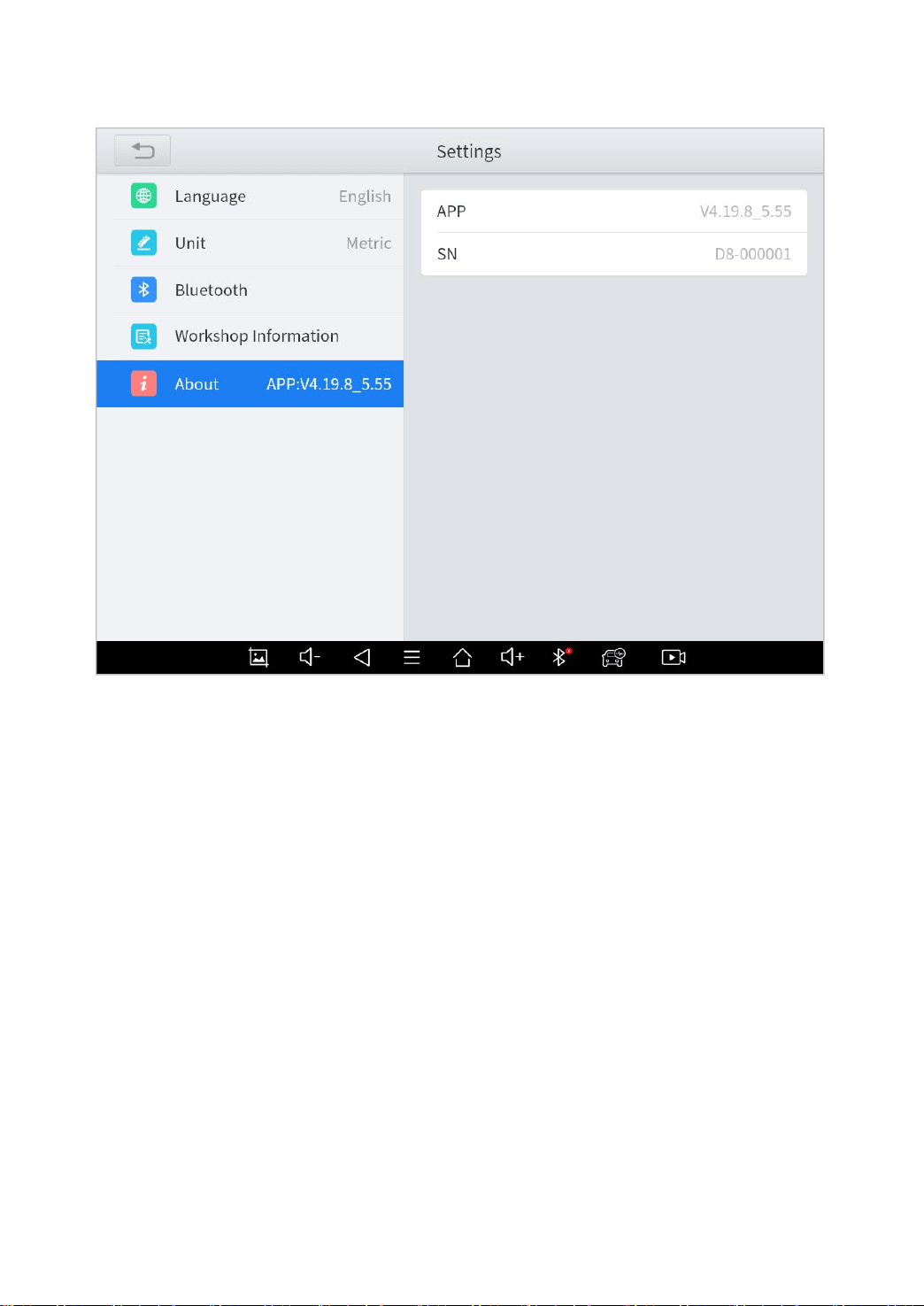
ABOUT
Tap on ABOUT, you can check the serial number and APP
version on here.
70
Fig 7-6

71
8 R
EMOTE
A
SSISTANCE
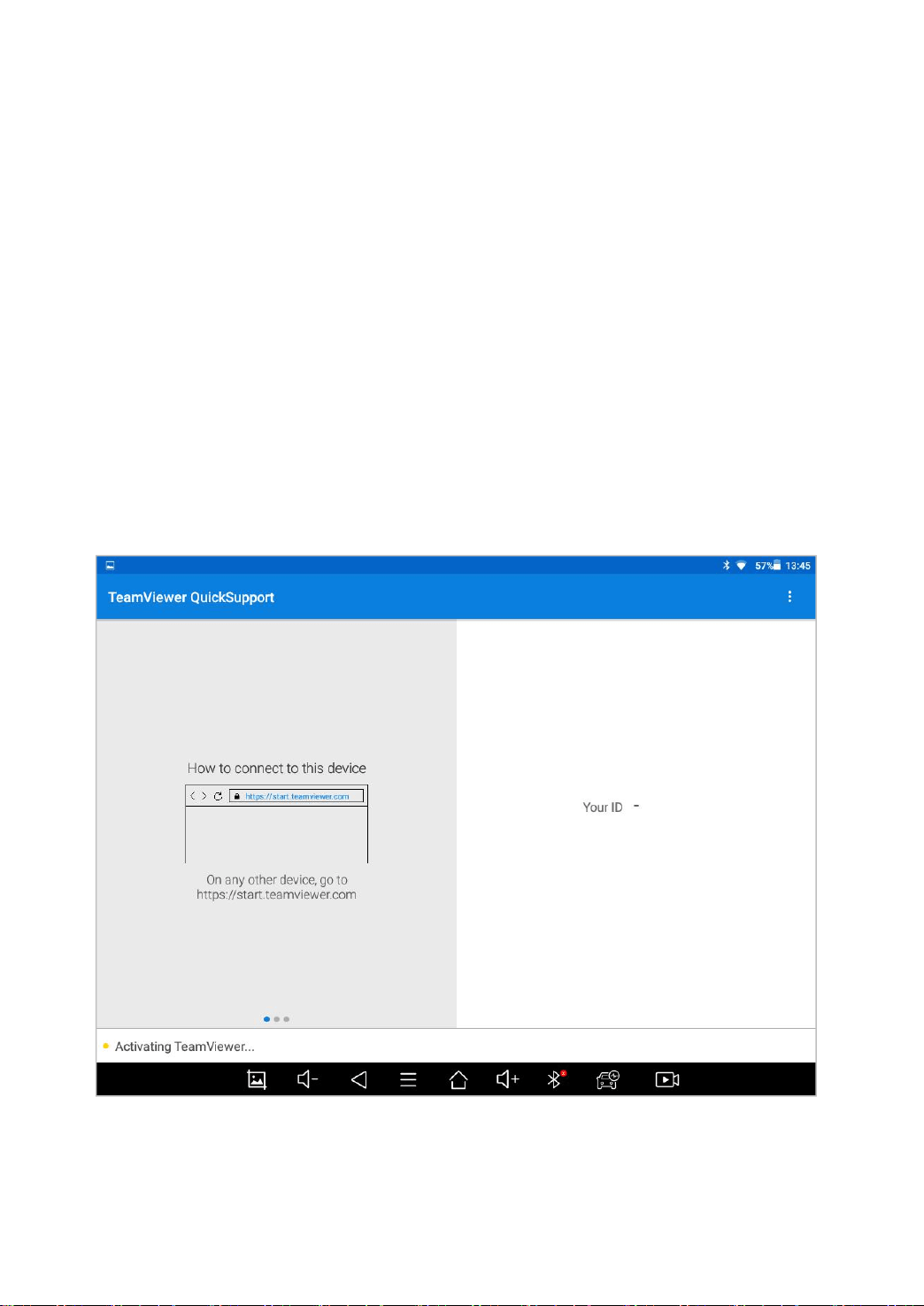
Tap on "Remote" to start the TeamViewer quick support program,
which is a simple, fast, and secure remote-control screen. You can
use this application to enable them to control your tablet on a PC
through the TeamViewer software, thereby obtaining temporary
remote support from XTOOL's technical support centre.
Tablets and mobile devices running TeamViewer are identified by
a globally unique ID. When the remote application is started for the
first time, the ID will be automatically generated according to the
hardware characteristics and will not be changed in the future.
This TeamViewer ID can individually access all TeamViewer
clients.
Before launching the remote desktop application, make sure that
the tablet is connected to the Internet so that you can access the
tablet to receive remote support from a third party. If you
encounter problems and are not able to solve them, you could
open this application and ask for remote assistance.
To obtain remote support from your partners or XTOOL After-
service Center:
1. Turn on the power of the tablet.
2. Click Remote in the diagnosis application. The TeamViewer
screen is displayed, and the device ID will be generated.
72
3. Your partner must install the remote-control software on his/her
tablet by downloading the full version of the TeamViewer program
(http://www.teamviewer.com) online, and then start the software
on his/her tablet at the same time, to provide support and remote
control of the tablet.
4. Provide your ID to the partner or XTOOL technician, and then
wait for him/her to send you a remote-control request.
5. A pop-up window will be shown asking you to confirm to allow
the remote-control program to control your device.
6. Click Allow to accept, or click Reject to reject.
Fig 8-1

73
9 FAQ
Q1: FAILED TO GENERATE DIAGNOSIS REPORT
1. Currently only perform diagnostic functions, that is, read ECU
information, read code and clear code, live data, freeze frame,
which can trigger a diagnostic report. Other functions, such as
immobilization and maintenance services will not be displayed
in the report.
2. After entering the diagnosis menu, you need to perform one
specific function before the system can generate a diagnosis
report normally.
3. After the diagnosis is completed, you need to step back to the
previous menu step by step to generate the diagnosis report
successfully. If the APP is killed directly, the report cannot be
triggered.
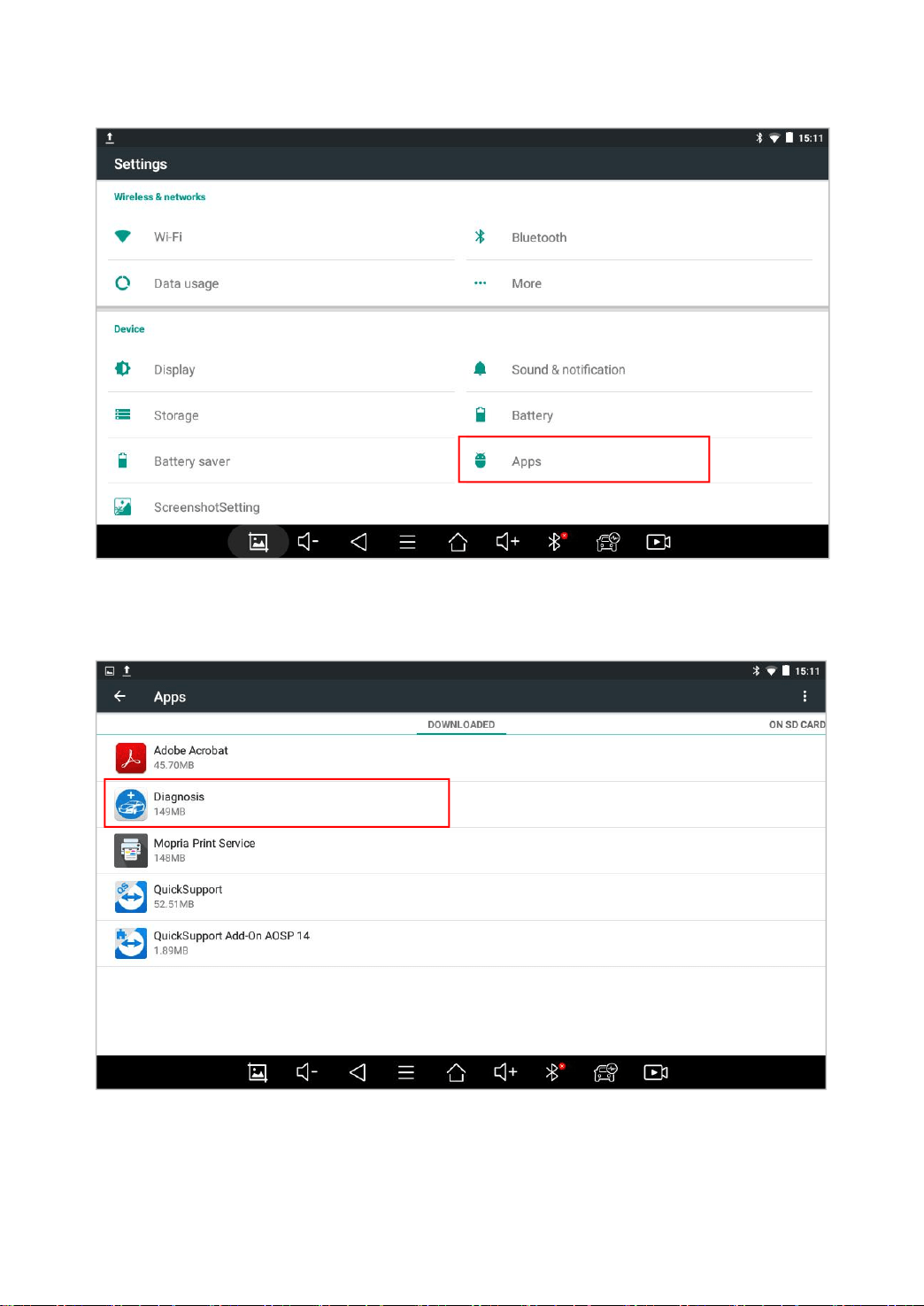
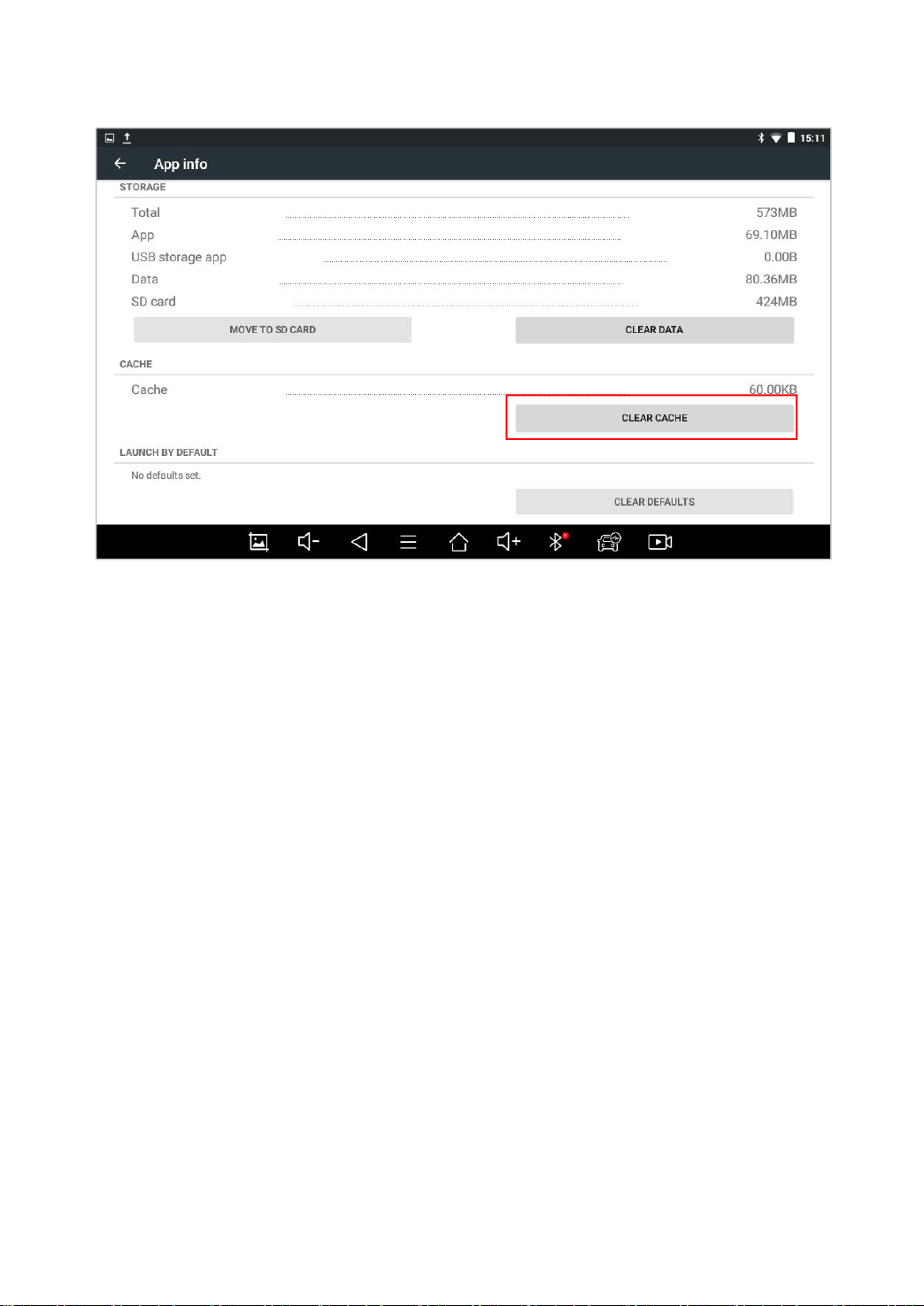
4. If the report still cannot be generated after troubleshooting
according to the above prompts, please try to exit the APP,
enter the system settings, and then choose to clear the APP
cache.
Enter the path: Setting>>Apps>>Diagnosis>>Clear Cache
Sample as follows:
74
Fig 9-1
Fig 9-2
75
Fig 9-3
Q2: HOW TO PRINT DIAGNOSIS REPORT
The XTOOL device is compatible with third-party print drivers. You
can download the printer driver you need in the browser that
comes with the tablet to install it, and then set your printer in the
OS settings. After the setting is completed, you can print it in the
Report.

76
Q3: FAILED TO EXTRACT FILES
Since the XTOOL tablet is equipped with an Android system, you
have to confirm the system type of receiver.
For Android: supports transferring files via Bluetooth, USB cable,
etc.;
For IOS: only supports transferring files through a wired
connection (Bluetooth connection is not available).
Q4: MAILBOX SUPPORTED
The diagnosis tablet supports various mailboxes, including Hotmail,
outlook, yahoo and Gmail, etc. When you set up the email, please
make sure that the email client configuration address you entered
is correct.
Q5: HOW TO MAKE AN APPOINTMENT FOR REMOTE
SUPPORT
Please contact your dealer, or send an email to our technical
support center. (Email address: supporting@xtooltech.com) And
our technical support team will confirm the time of remote support
with you.

77
Q6: HOW TO GENERATE AND UPLOAD DIAGNOSTIC LOG
FILES
The D8 tablet will automatically generate and store the diagnostic
logs. When the device is connected to the Internet, it will
automatically upload all the stored diagnostic logs to the backend
system.
Q7: HOW TO SWITCH LANGUAGE
1. Contact your dealer and leave a message about the language
you need and the S/N of your device, The technician will
modify the language configuration for you in the backend
system.
2. Settings->Language->Choose language
3. Back to Updates to update all the software again
Q8: FAILED TO DIAGNOSE VEHICLE
1. Contact your dealer to confirm whether the vehicle model is
supported by the scan tool you owned.
2. Check whether the vehicle is properly connected (e.g. whether
the ignition is ON, and the diagnosis of some vehicle need to
turn on the engine ), If your tablet is equipped with a VCI box,
please check the status of VCI box indicator.
3. Confirm whether you have entered the correct diagnosis menu.

78
4. Confirm whether the AUTO-SCAN function can assist you to
enter the correct diagnosis menu, or whether OBDII function
work.
5. Check whether the software is the latest version, if not, please
update to the latest version first.
Q9: FAILED TO ACTIVATE OR REGISTER
For ‘Activation Failed’
Generally caused by network instability, please switch to a more
stable network and try to activate again.
For ‘Registration Failed’
Generally, it is caused by the connection timeout or the sending
timeout, please check whether you have blocked the outgoing
network traffic to non-US regions like China. We recommend that
you unblock and try to register again.
Q10: FAILED TO TURN ON WHEN CHARGING
In the charging state, you need to first press the power button to
light up the screen(showing the charging status). Then press and
hold the power button for 4-5 seconds until the boot animation is
shown on screen.

79
Q11: FAILED TO OPEN THE DIAGNOSIS APP
The tablet has to connect to the network every 30 days, otherwise,
the diagnosis app will be locked and disabled until the device is
connected to the network.

80
S
HENZHEN
X
TOOLTECH
I
NTELLIGENT
C
O
., L
TD
Company address: 17&18/F, Building A2, Creativity City, Liuxian Avenue,
Nanshan District, Shenzhen, China
Factory address: 2/F, Building 12, Tangtou Third Industrial Zone, Shiyan Street,
Baoan District, Shenzhen, China
Service-Hotline: 0086-755-21670995/86267858
Email: marketing@Xtooltech.com
Fax: 0755-83461644
Website: www.Xtooltech.com