Version: 1.0
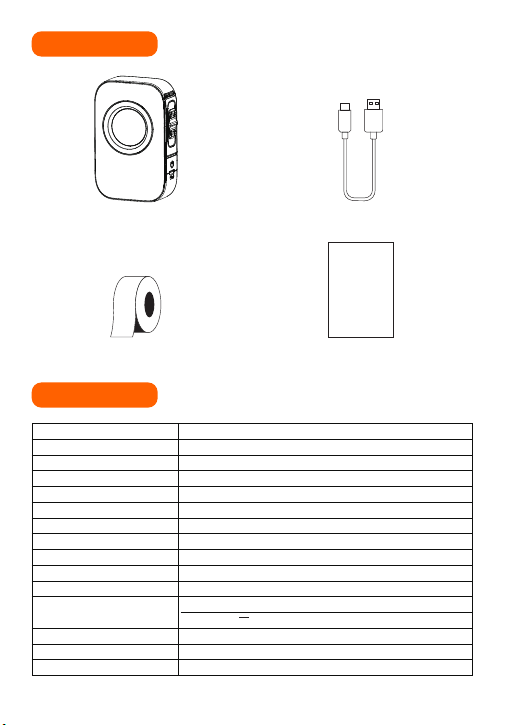
01.Item Checklist
Printer*1 Type-C Cable*1
Instruction
Manual
Instruction Manual*1Continuos Paper*1(In printer)
02.Specifications
Name
Model
Technology
Consumable Max Width
Paper Bin Dimensions
Supported Consumable
Consumable Identification
Darkness
Resolution
Printhead Lifespan
Communication Port
Standby Time
Product Dimensions
OS Supported(Bluetooth)
Power Supply
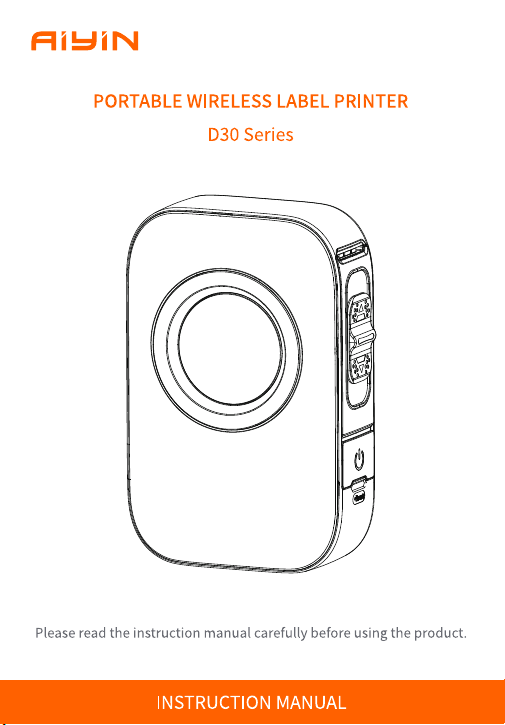
Portable Wireless Label Printer
D30/D30 Pro
Thermal printing
15mm(0.59inch)
17*42*42mm(0.67*1.65*1.65inch)
Gap label、Continuous Paper
D30 not supported/D30 Pro supported
Light, Medium, High
203dpi
50 KM
Bluetooth
1500mAh Lithium Battery
Type-C 5V --- 2A
96h
129*86*40mm(5.08*3.39*1.57inch)
Smartphones with Android 7.0 and iOS 11.0 and above
1
03.Product Introduction
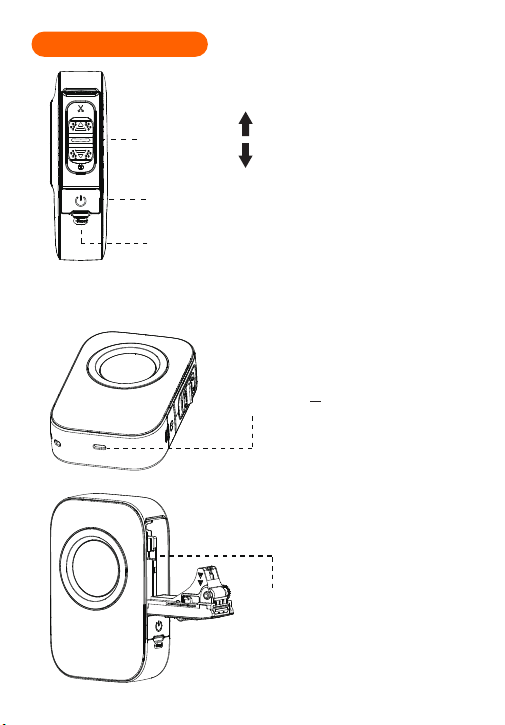
❷ Power button and indicator light
Press and hold 2 seconds to turn on/off.
❸ Reset key
• When the printer is not responding, try inserting the
needle/toothpick into the reset hole for 3 seconds until
the power indicator light goes off and the device shuts
down. If needed, press and hold for 2 seconds to turn on
the device.
❶ Paper change button and paper cutter
Slide UP Cut Paper
Slide Down Open Cover
❹ Type-C Port
• Charged with mobile phone
charger or power bank.
(Input Power:5V --- 2A)
❺ Paper bin
Dimensions:17*42*42mm.
(0.67*1.65*1.65inch)
2
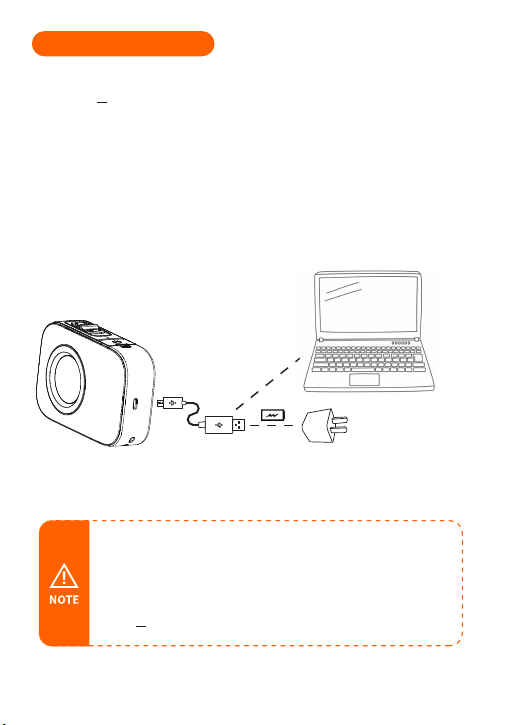
04.Charging Introduction
• Working environment: Use at the ambient temperature of 5℃~40℃;
• Caution!This product doesn’t contain power adapter. If consumers
use a power adapter for power supply, please buy a power adapter
that has obtained CE and FCC certification and meets the standard
requirements.The output specifications of the adapter shall comply
with 5V --- 2A.
• Please connect one end of the included USB cable to the device and the other
end to a 5V --- 2A adapter or computer USB port for charging;
• Charge time: about 3 hours;
• We recommend you to use Mobile phone chargers for charging;
• If not used for a long time, please charge once every 3 months to avoid long-term
natural loss of lithium battery can not be charged.
3
• This product needs to be connected to the printer in the App;
• Due to the requirements of mobile phone system,the Android
mobile phone will use the user's geographic location when
connecting,so that the user needs to turn on the GPS and
confirm the authorization;
• This app only supports phones with Android 7.0 or iOS 11.0 or above
systems.
Usage Overview
05.How to Use
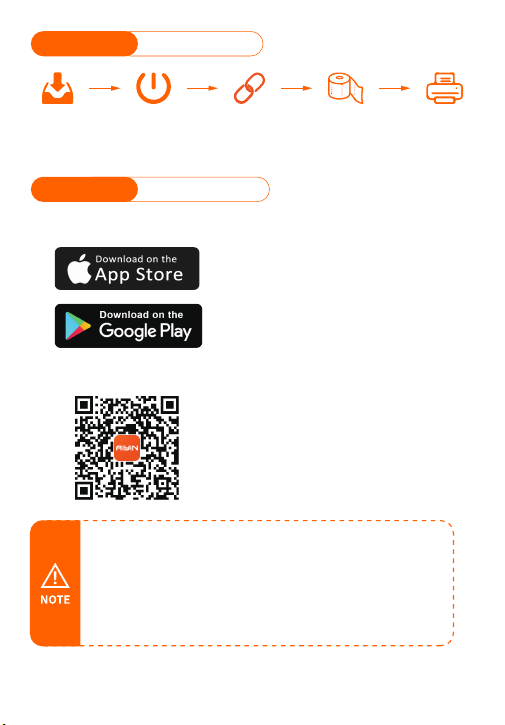
Method 1: Search for [AiYin] on Google Play or App Store.
Method 2: Scan the following QR code to download App.
① APP Download
05.How to Use
❶ APP
Download
❷ Printer
Startup
❸ Connected
Printer
❹ Installation
Consumables
❺ Edit
Print
4
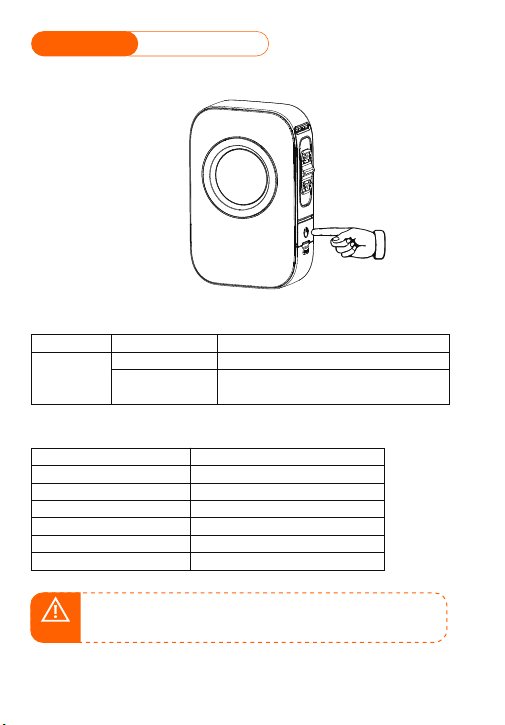
② Printer Startup
05.How to Use
Press and hold the power button of the printer for 2 seconds to turn on the printer.
Power Button Description
Button
Operation
Hold for 2 seconds
Functions
Power on/off
Print diagnostic page and the QR code to
connect the printer with smart phone App
Power button
Press twice
Indictor Light
Light
Light steady on
Light flashing slowly
Green light on
Red light on
Yellow light on
Yellow light flashing quickly
Functions
Bluetooth connected
Bluetooth disconnected
Normal use status /Full charged
Cover opened/Nopaper/Over-heat
Low battery,please charge in time.
Charging
NOTE
Auto power off: The printer will automatically power off after 20
minutes without operation.You can set the timer in the App.
5
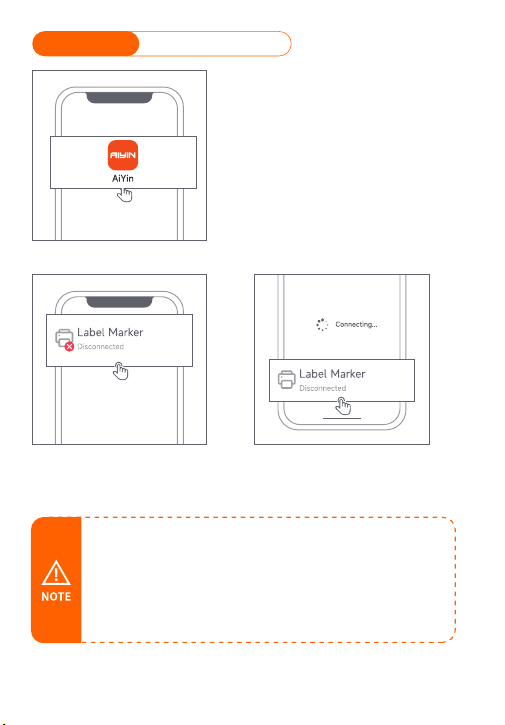
③ Connected Printer
05.How to Use
❶ Open AiYin App.
❷ Click to search for printer Bluetooth and connect.
or scan the device connection QR code by printing
from printer after double clicking the power button.
• When connecting device in the App,please make sure that your
printelis turned on and Bluetooth of your mobile phone is turned on;
• Due to the requirements of mobile phone system,the Android mobile
phone will use the user's geographic location when connecting,so
that the user needs to turn on the GPS and confirm the authorization;
• Please pair Bluetooth in the app, do not pair Bluetooth in the phone
settings;
• If you need a PIN code, please enter 0000.
6
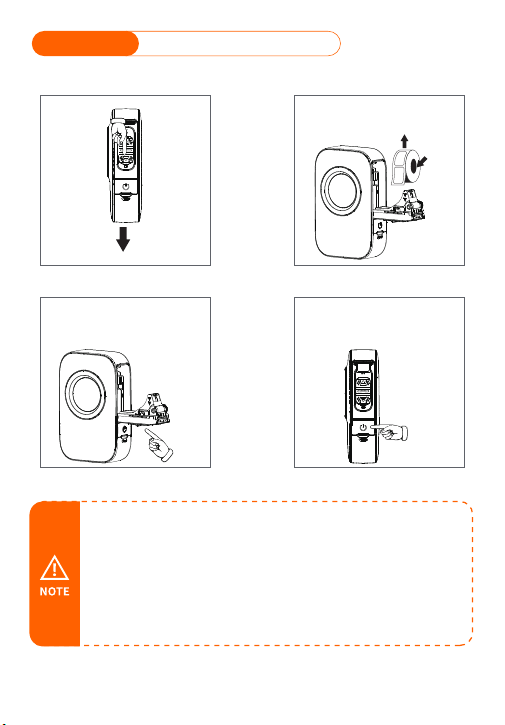
④ Installation Consumables
05.How to Use
Paper Installation Guide
❶ Open cover. ❷ Put paper in.
Load the paper with the
stickers facing up
Please make sure to leave
0.1-0.2 inches of label paper
on the outside
For gap label Press the power
button once, the label will
runout and stay in the gap
Press the
machine to
close the
cover
❸ Close the cover. ❹ Label calibration.
RFID
• In order to give you a better printing experience,please use the AiYin
version of label paper;
• The printer does notsupport continuous labels(labels without gaps);
• If the label is placed upside down, white paper will be printed;
• Not reserving label paper outside can cause abnormal paper feeding.
Without paper feeding, the device will not respond or will not respond
to paper feeding;
• If the paper bin cover is not properly closed, it will cause abnormal paper
feeding and prevent normal printing.
Slide Down Open Cover
7
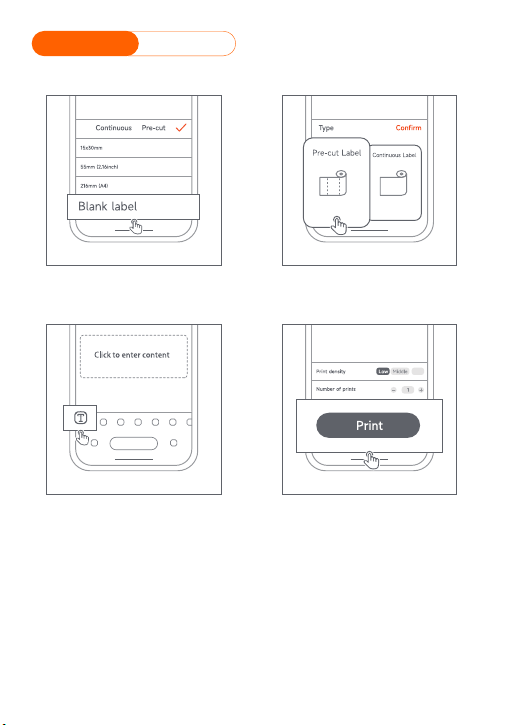
⑤ Edit Print
05.How to Use
❶ Open the App and select
the correct paper size.
❷ Select printing method
for editing.
❹ Click the print after editing.
High
❸ Edit printing content.
8
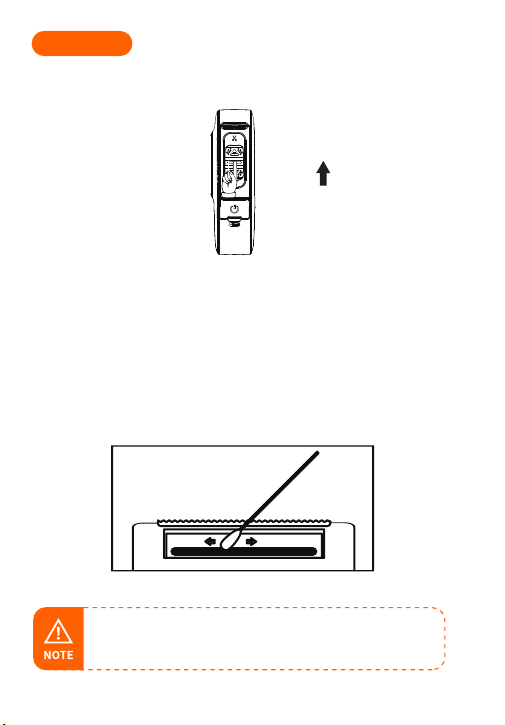
Clean the Printer Head
❶ Please turn off the printer and open the printer cover and take out
the paper.
❷ Dip a cotton cloth or cotton swab with medical alcohol, and wipe
gently along the center to the periphery of the printer head.
❸ After cleaning the printer head, do not use the printer imlmediately.
Please wait for 1 to 2 minutes, and then use the printer after the
alcohol has completely evaporated.
• Please do not directly touch the printing head to avoid damage.
Especially,do not directly touch the printing head immediately
after printing to avoid overheating and scalding.
06.Cut Paper
If you use continuous paper, after printing, please use a cutter to cut
off the paper.
Slide UP Cut Paper
9
www.aiyin.com
Please kindly contact us if you have any touble or question
when installing and using.
Manufacturer: Xiamen AiYin Technology Co., Ltd.
at 10am to 10pm EST
Scan or upload this QR code using
the WhatsApp camera to add us
Scan the following QR code to talk with us
help.aiyin.com

物料编码:BD3000003
物料名称:D30 Pro说明书(AIYIN)
尺寸:80*115mm(成品)
材质:128g哑粉纸
印刷:四色印刷
成型:风琴折
日期:2024.1.9
版本:1.0

