car navigation
– User Guide–
Welcome to the VANTAGE Experience This guide will
help you quickly set up the device and sta enjoying
your game with advanced GPS, food ordering, and
enteainment features.
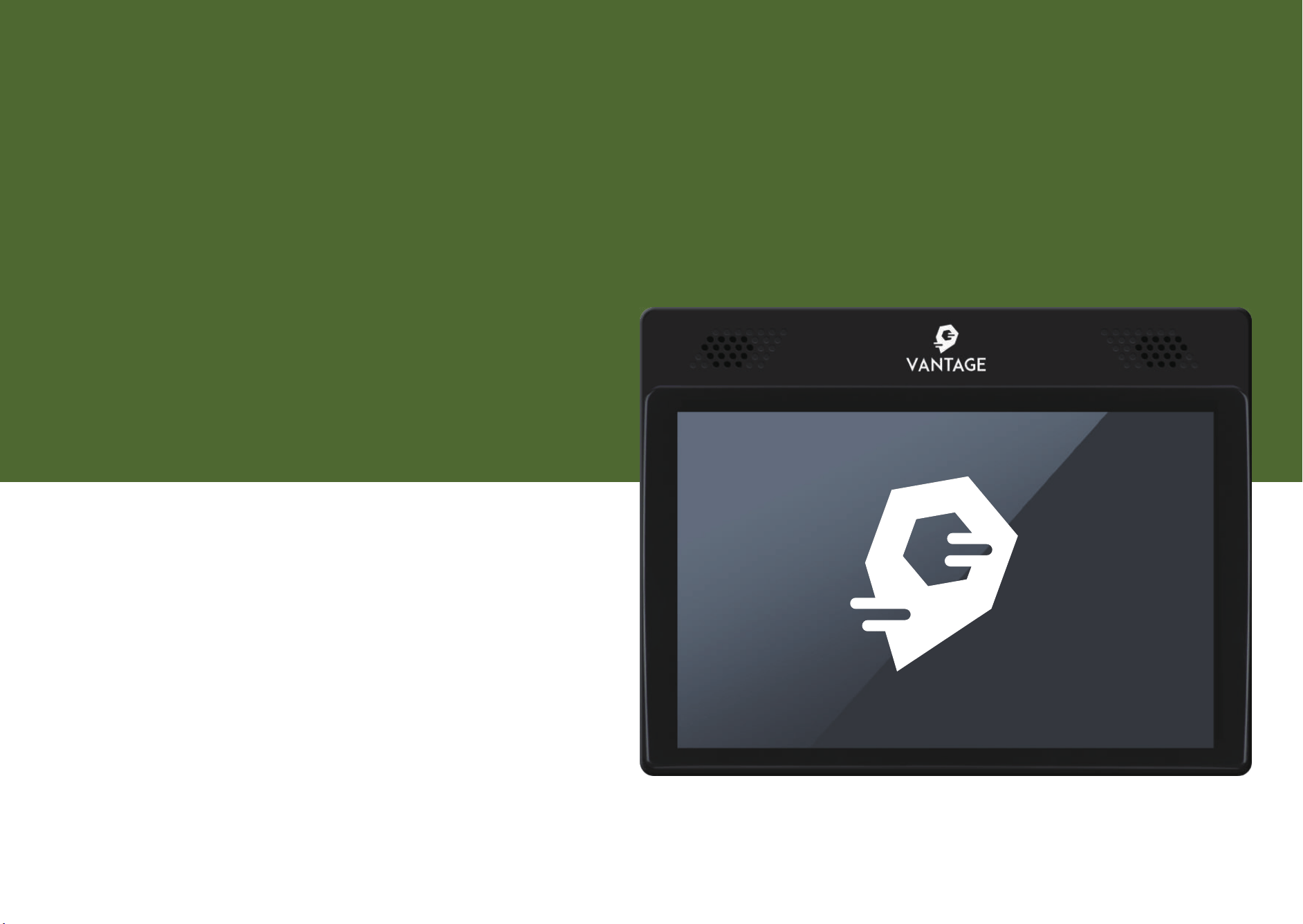
VNT-T10

Table of Contents
Getting Staed & Setup....................................
Understanding the Inteace...........................
On the Course: GPS & Hole View...................
Food & Beverage Ordering...............................
Bluetooth Audio Setup.......................................
Course Selection...................................................
Warnings & Safety Ales...................................
Marshal Features (Restricted Settings).......
1
3
4
5
7
8
9
10
Getting Staed & Setup
Power On and Connection Upon the rst boot of the device, the system needs to pair with
the course system.
-1-
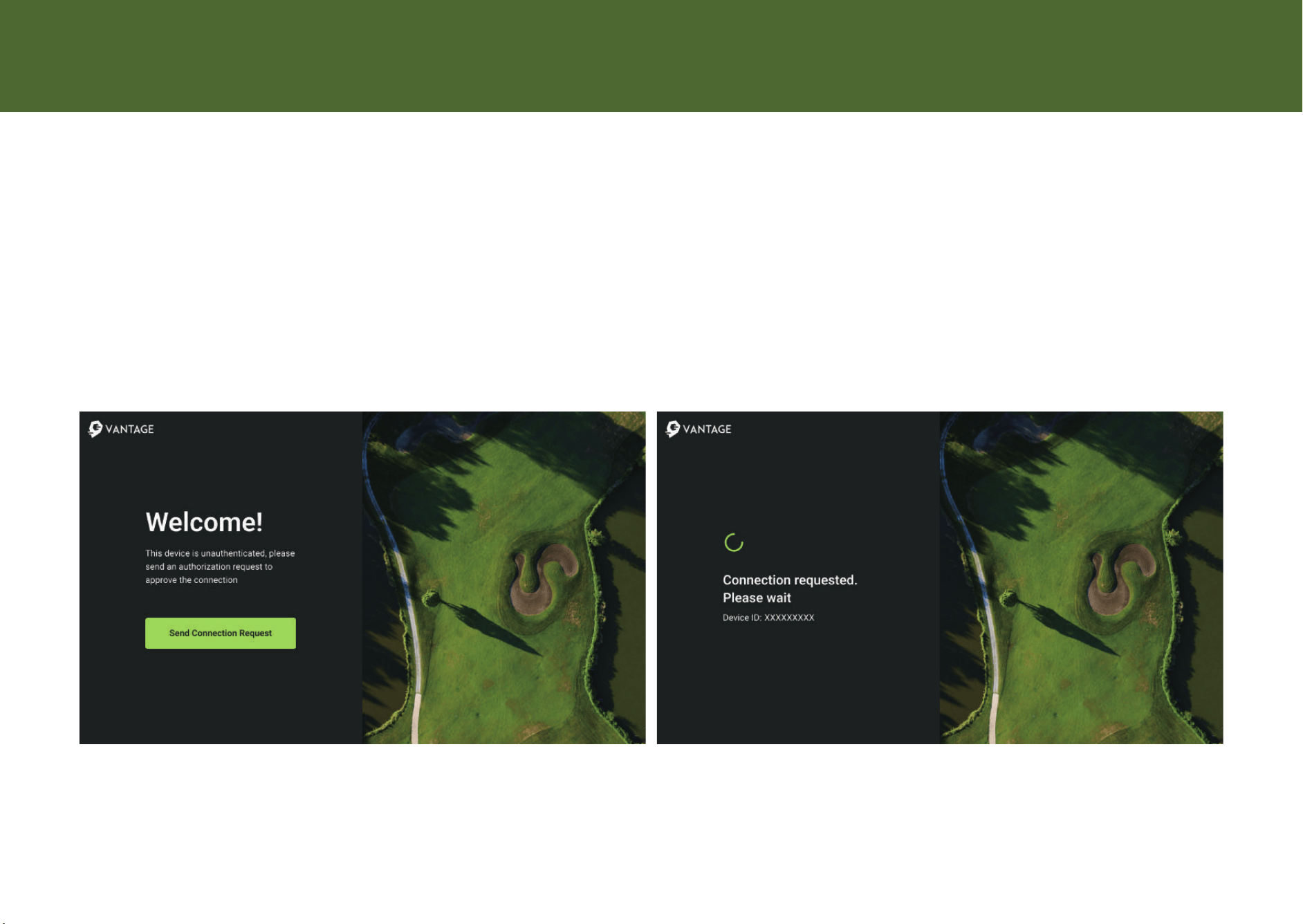
Authorization: You may see a screen stating "This device is unauthenticated."
Tap Send Connection Request to pair with the web platform.
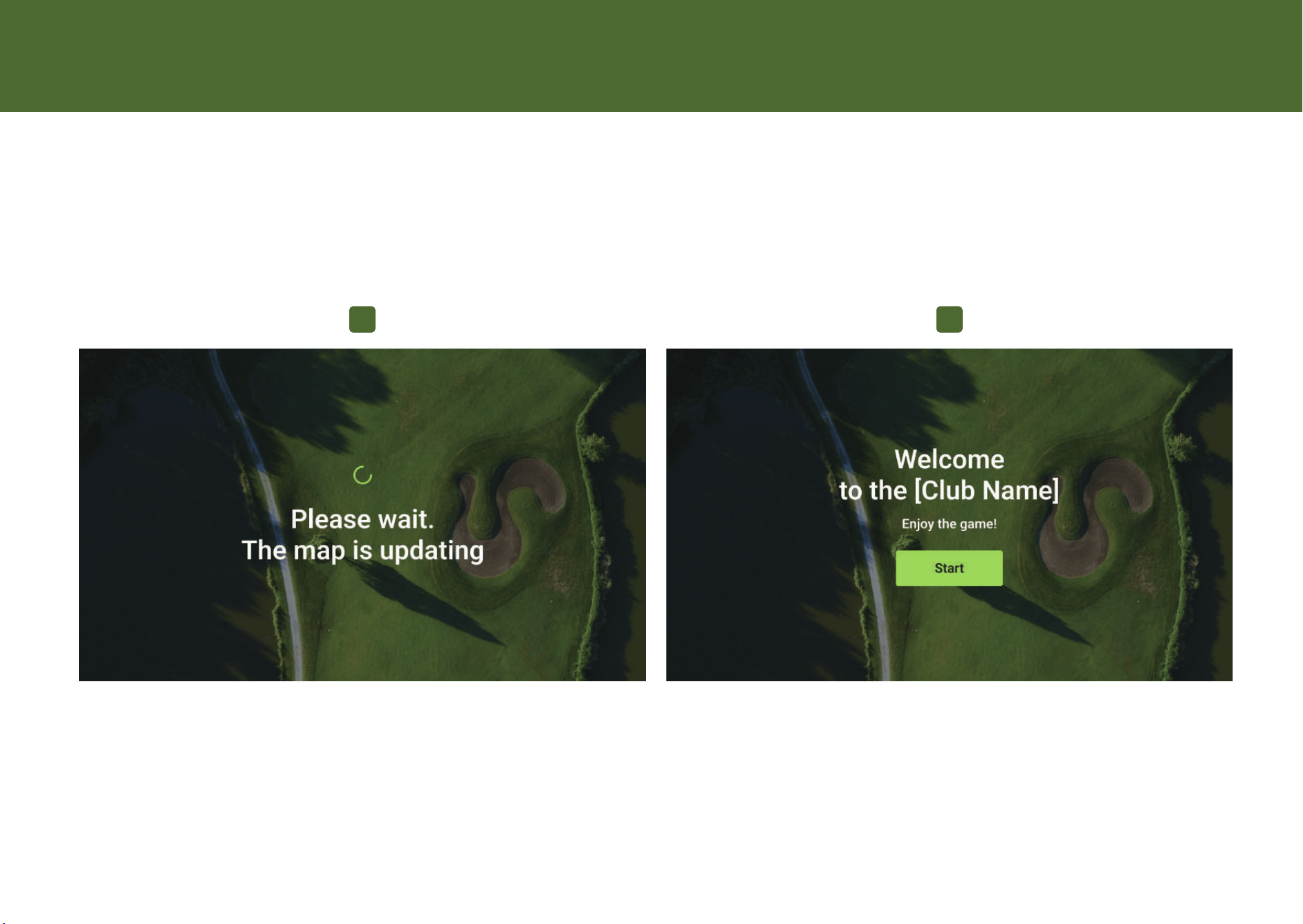
Map Update:The application will automatically update the map with the latest course information.
Please wait while the map updates.
-2-
1
Sta Your Round: Once the "Welcome to [Club Name]" screen appears, simply tap the
Sta button or move the ca to launch into Golng Mode.
2
Getting Staed & Setup
Understanding the Inteace
Main Menu & Controls When Golng Mode is active,
the Home Screen sees as your central hub.
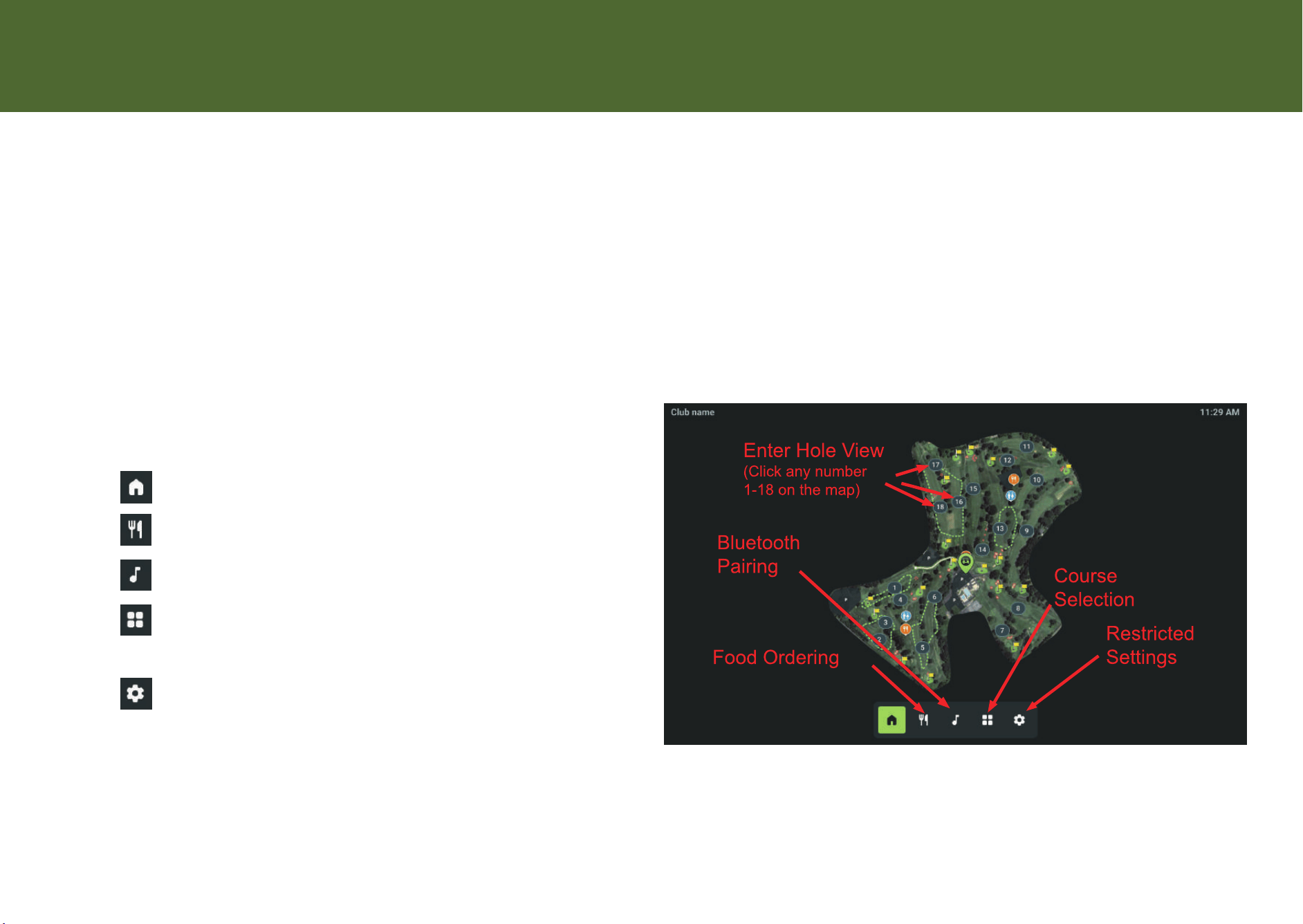
Hole Selection: Tap any number (1-18) on the map to enter the specic Hole View.
Bottom Navigation Bar:
Home: Return to the main map.
Dining (Fork & Knife): Access Food & Beverage ordering.
Music (Note Icon): Open Bluetooth pairing settings.
Course (Grid Icon): Select dierent course loops
(e.g., Highland, Parkland).
Settings (Gear Icon): Access Restricted/Marshal settings
(Requires PIN).
-3-
On the Course: GPS & Hole View
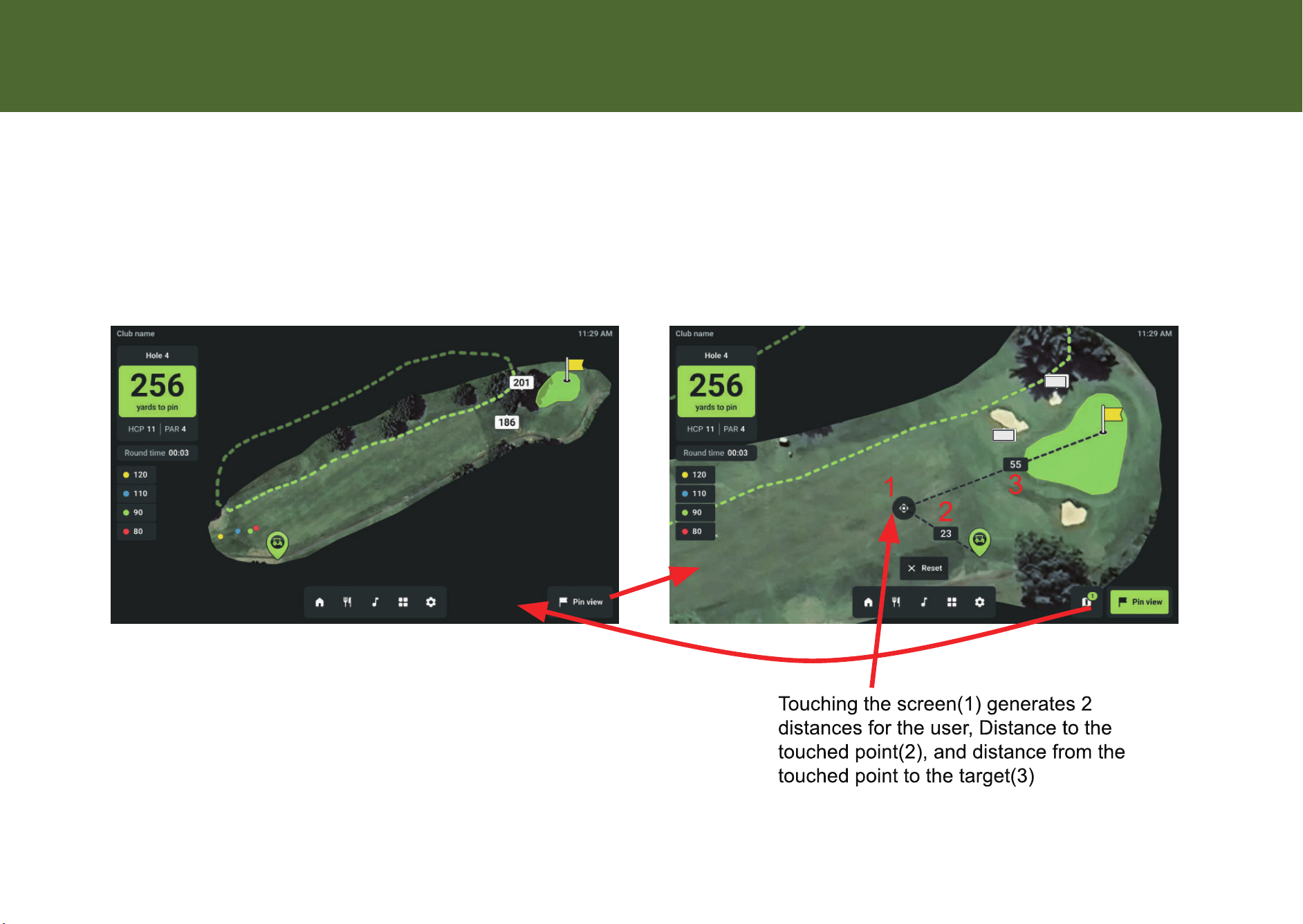
Master Your Game Tap on any hole number or drive to a tee box to view detailed GPS data.
-4-

Food & Beverage Ordering
Order from the Ca Hung? Order lunch or snacks directly from the tablet.
-5-
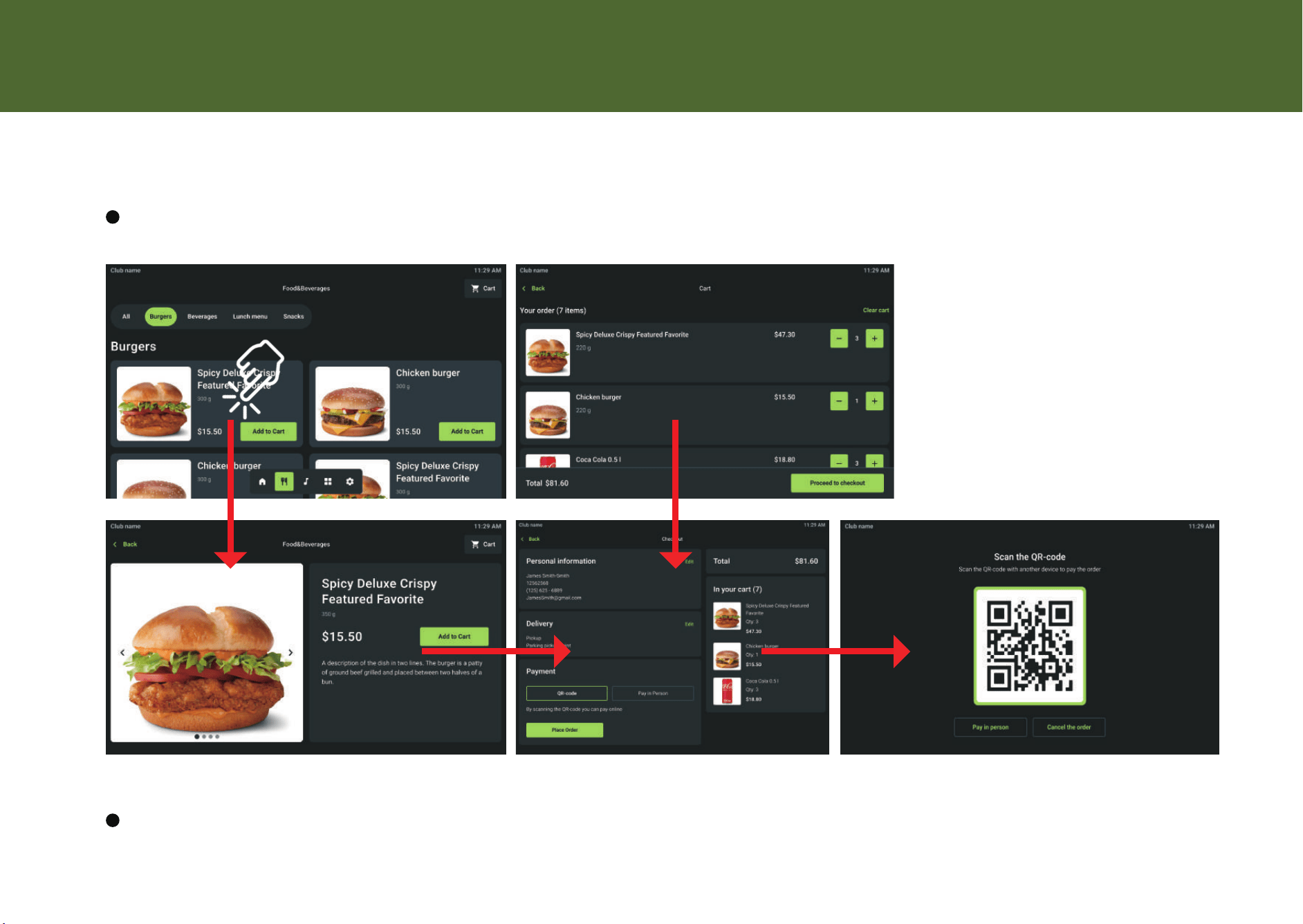
1.Open Menu: Tap the Dining icon on the bottom bar.
2.Browse Items: Filter by "Burgers," "Beverages," or "Snacks."
Select an item (e.g., Spicy Deluxe Crispy Burger) to see details.
3.Add to Ca: Select quantity and tap Add to Ca.
4.Checkout: Tap the Ca button in the top right. Review your
order total and tap Proceed to Checkout.
-6-
Online: Scan the displayed QR code with your phone to pay immediately.
In Person: Select Pay in Person to settle the bill at the clubhouse.
Food & Beverage Ordering
Payment
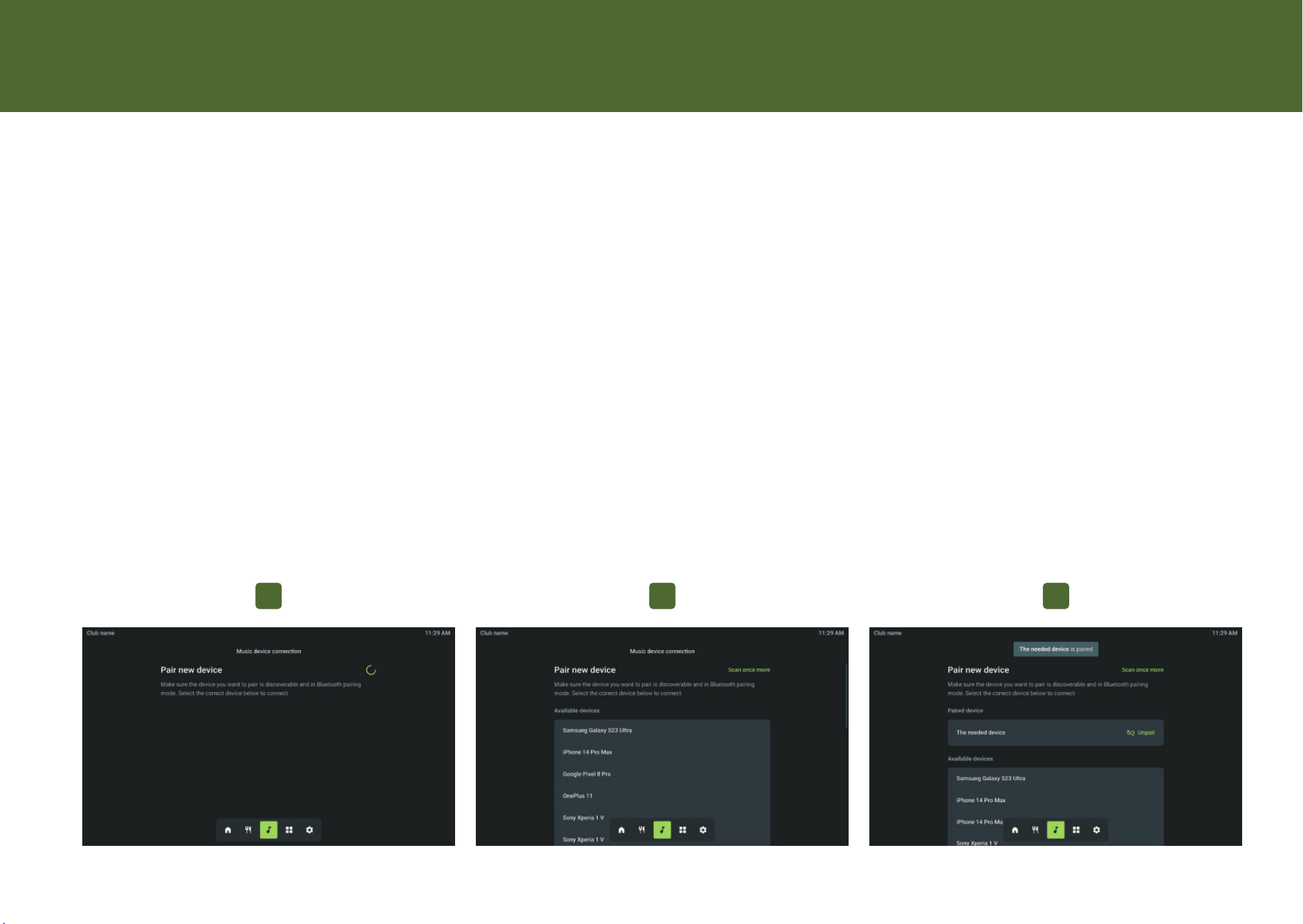
Bluetooth Audio Setup
Connect Your Music Pair your smaphone to play music or
podcasts through the ca's speakers.
-7-
1.Open Bluetooth: Tap the Music icon (Note symbol) on the bottom menu.
2.Pair New Device: Ensure your phone is in pairing mode. The tablet will scan for
"Available devices".
3.Select Your Device: Tap your phone's name (e.g., "iPhone 14 Pro Max") from the list to connect.
4.Success: The screen will show "The needed device is paired." You can now control audio
from your phone.
5.Disconnect: Tap Unpair to disconnect your device.
1 2 3

Course Selection
Switching Courses If your club has multiple courses (e.g., 18 holes vs. 9 holes), tap the Grid Icon
on the bottom menu. Select the correct course (e.g., Highland, Parkland, or Fairway) to update
the map. Note: GPS location usually overrides this selection automatically.
-8-
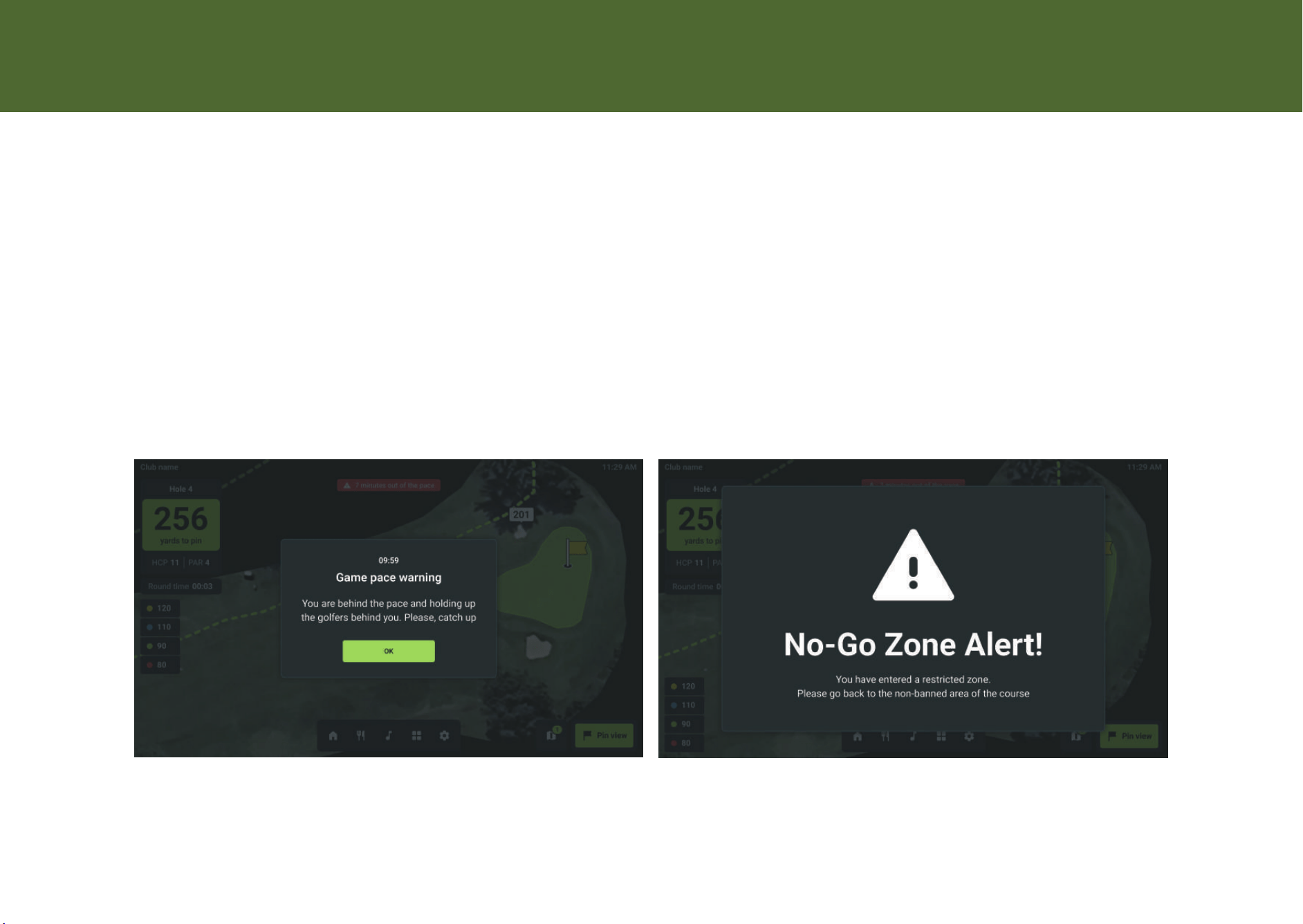
Warnings and Ales The screen may block your view with impoant messages:
Game Pace Warning (Manual): If you fall behind schedule, a message will appear: "You are
behind the pace... Please, catch up." Tap OK to dismiss.
No-Go Zone Ale (Automatic): If you drive into a restricted area, a warning triangle
appears: "You have entered a restricted zone. Please go back." This ale clears only when
you move back to a safe area.
Warnings and Ales
Warnings
-9-
When using the app, the user may receive messages sent by the connected webplatform. These will
block the entire screen until dismissed. These can also showup automatically based on device location.
Warning Message (Manual) Location Based (Automatic)

Marshal Features (Restricted Settings)
-10-
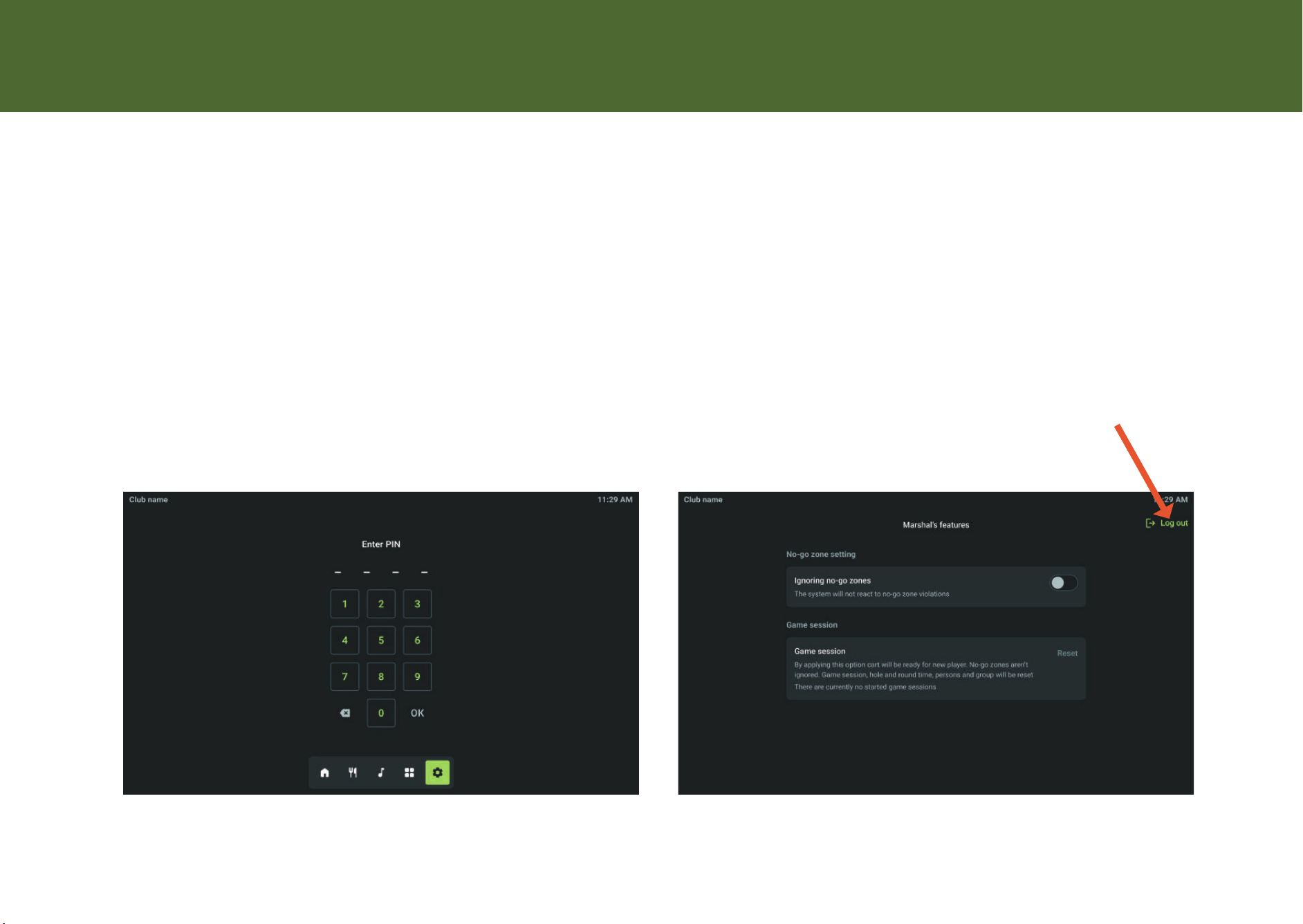
Sta & Maintenance Settings These settings are password-protected for course
marshals and sta.
1.Access: Tap the Settings (Gear) icon.
2.Login: Enter the 4-digit PIN using the keypad.
3.Available Functions:
o Ignore No-Go Zones: Toggle this ON to drive the ca into restricted areas without stopping or alarms
(useful for marshals).
o Reset Game Session: Tap Reset to clear the current round data, hole timers, and ca assignments.
This readies the ca for the next player.
o Log Out: Tap Log out in the top right to return to user mode.
-11-
Password Ent Settings
Takes user back to
home page
Marshal Features (Restricted Settings)
Restricted Settings

This device complies with part 15 of the FCC Rules. Operation is subject to the
following two conditions: (1) This device may not cause harmful interference, and (2)
this device must accept any interference received, including interference that may cause
undesired operation.
Any Changes or modifications not expressly approved by the party responsible for
compliance could void the user's authority to operate the equipment.
Note: This equipment has been tested and found to comply with the limits for a Class B
digital device, pursuant to part 15 of the FCC Rules. These limits are designed to
provide reasonable protection against harmful interference in a residential installation.
This equipment generates uses and can radiate radio frequency energy and, if not
installed and used in accordance with the instructions, may cause harmful interference
to radio communications. However, there is no guarantee that interference will not
occur in a particular installation. If this equipment does cause harmful interference to
radio or television reception, which can be determined by turning the equipment off and
on, the user is encouraged to try to correct the interference by one or more of the
following measures:
-Reorient or relocate the receiving antenna.
-Increase the separation between the equipment and receiver.
-Connect the equipment into an outlet on a circuit different from that to which the
receiver is connected.
-Consult the dealer or an experienced radio/TV technician for help.
-This equipment complies with FCC radiation exposure limits set forth for an
uncontrolled environment. This equipment should be installed and operated with
minimum distance 20cm between the radiator & your body.