
Linux Lexus Product ManualLinu

1. Safety instructions.......................................01
2. Main interface functions.............................02
3. Eyebrow status bar function.......................03
4. Original car function....................................04
5. Music function.............................................05
6. Video function.............................................06
8. Carplay function.......................................11-13
9. Android auto function.................................14
10. Airplay function...........................................15
11. Miracast function.......................................16
12. Setup function........................................17-18
13. Product specifications..................................19
Catalogue

1.Safety instructions
- 01 -
. Disclaimer :
.
Please do not install or repair your navigation system by yourself. Installation or repair of this guide by
unauthorized and trained personnelThe aviation system may cause danger.
.
Watching video programs and related operations while driving are prohibited by the laws of some
countries. For you and othersPersonal safety, please do not watch videos, picture programs and do
related operations when driving a car.
.
Do not expose the system to liquid. The liquid may cause damage to the system, smoke from the machine
and short circuit.Road and so on.
.
The navigation function (and optional functions) of this product is only an auxiliary when you drive the
vehicle, and is notIt means that you can be distracted, careless or lose judgment when driving; the
resulting safety accident and the publicIt has nothing to do with the company.
.
The pictures used in this manual are for reference only.Misunderstandings have nothing to do with the
company.
.
If this product does not work properly, please consult the car dealer.

2.Main interface functions
. Function description of the main interface:
. Original car, mobile phone interconnection, music, video, recorder, settings
- 02 -
3.Eyebrow status bar function
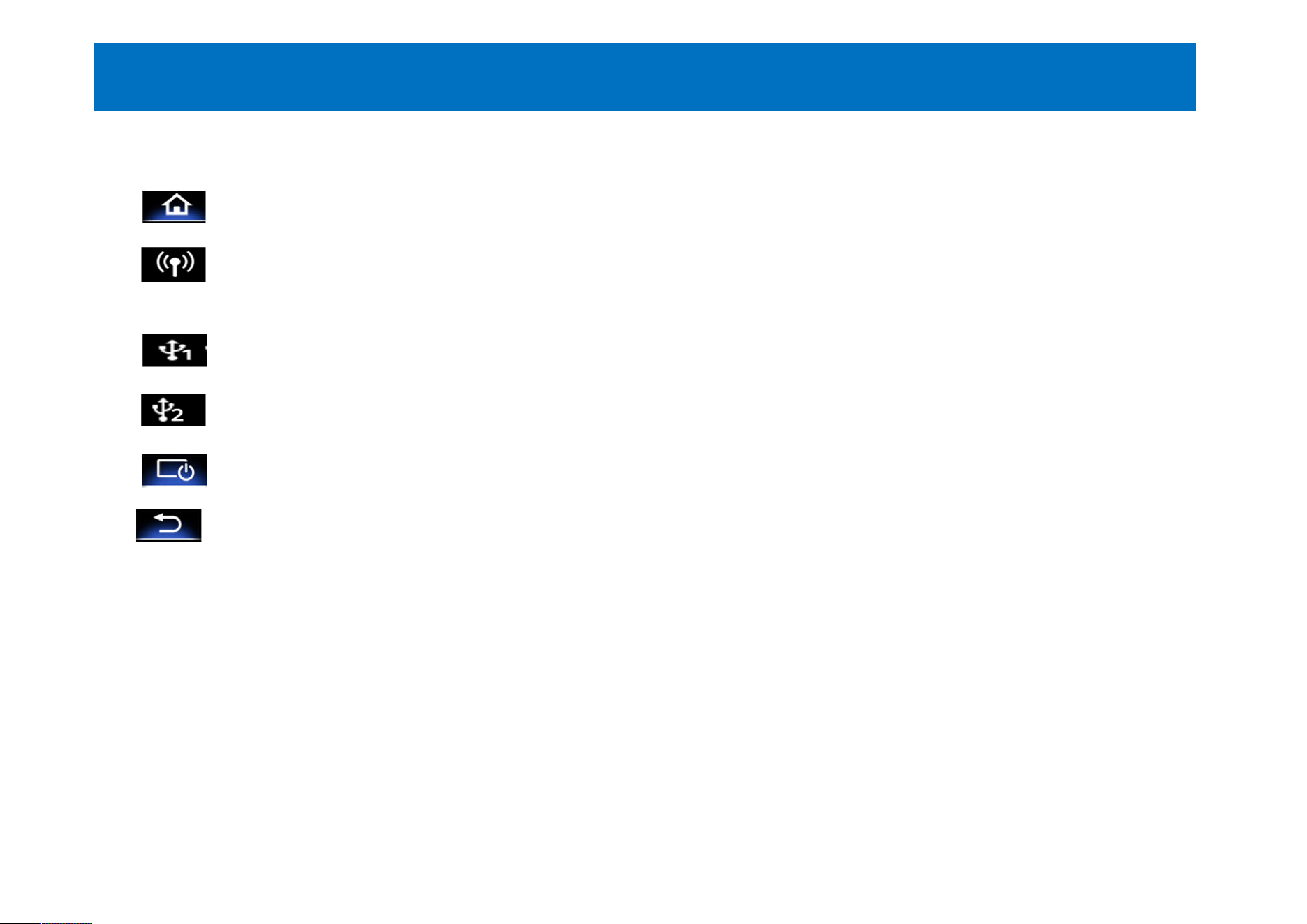
. Function description of the status bar in the main interface
.【 】 Back to the main interface display icon
.【 】 Signal display icon
.【 】 Plug-in USB1 reading display icon
.【 】 Plug-in USB2 display icon
.【 】Turn off the screen display icon
.【 】 Back to the previous display icon
- 03 -
4.Original car interface function
. Function operation instructions of the original car interface:
. Touch the [original car] icon on the main interface to enter the original car interface.
. The original car display can be displayed in [full screen] and [half screen] display.
- 04 -
5.Music features
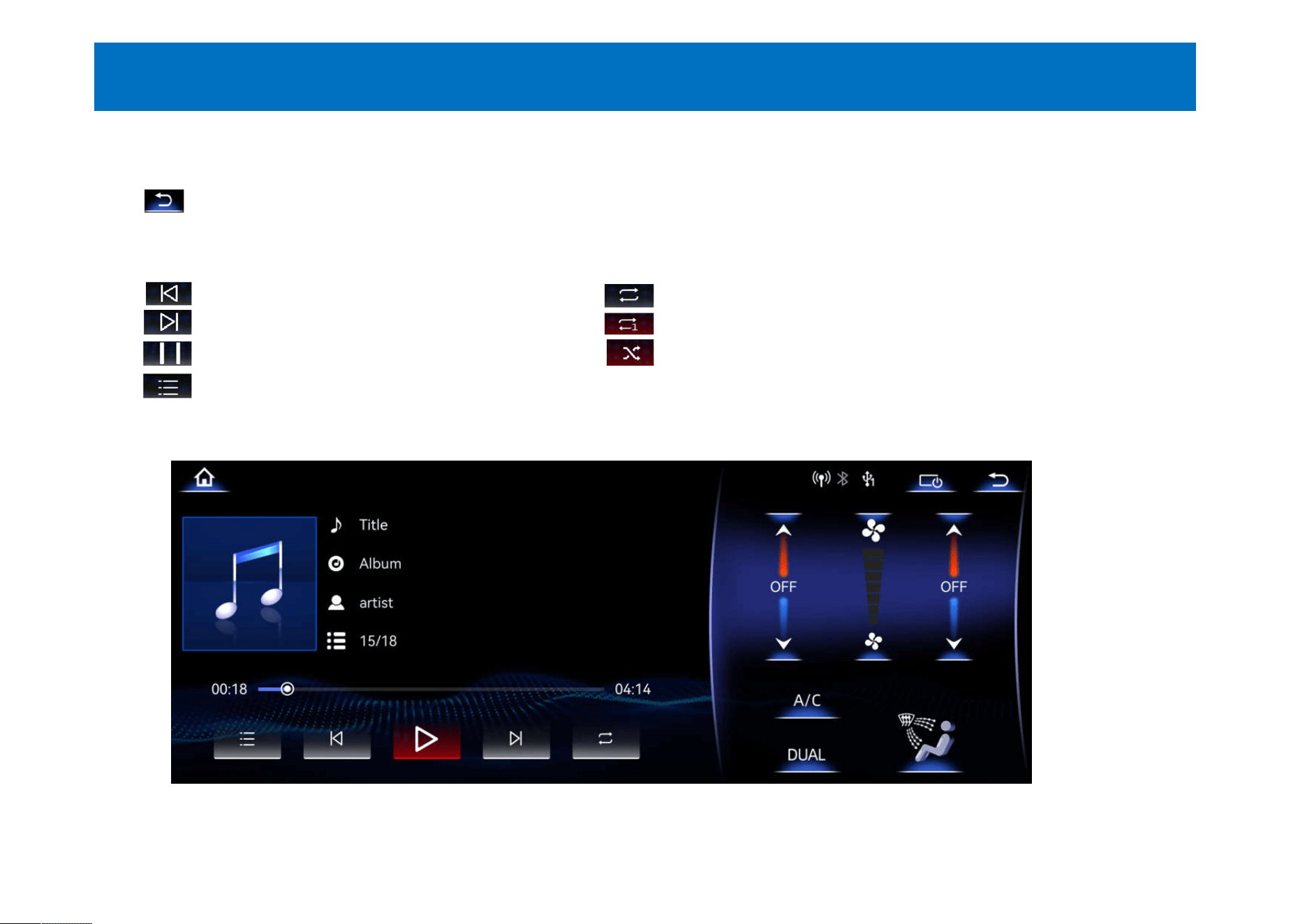
. Operating instructions for music function:
. Touch the [Music] icon on the main interface to enter the music interface, and touch the return button
[ ] through the main interface.You can exit the music interface.
. This function can play 2 USB-(USB1/USB2).
. The music formats supported by this product include: MP3, FLAC, WAV, ,OGG, ACC, etc.
.【 】 Switch to the previous song .【 】Toggle song order playback
.【 】 Switch to the next song .【 】Toggle single loops
.【 】 Toggle Pause/Play .【 】Switch songs for random playback
.【 】 Switch the song list interface (USB1/USB2 file songs can be selected)
- 05 -
6.Video function
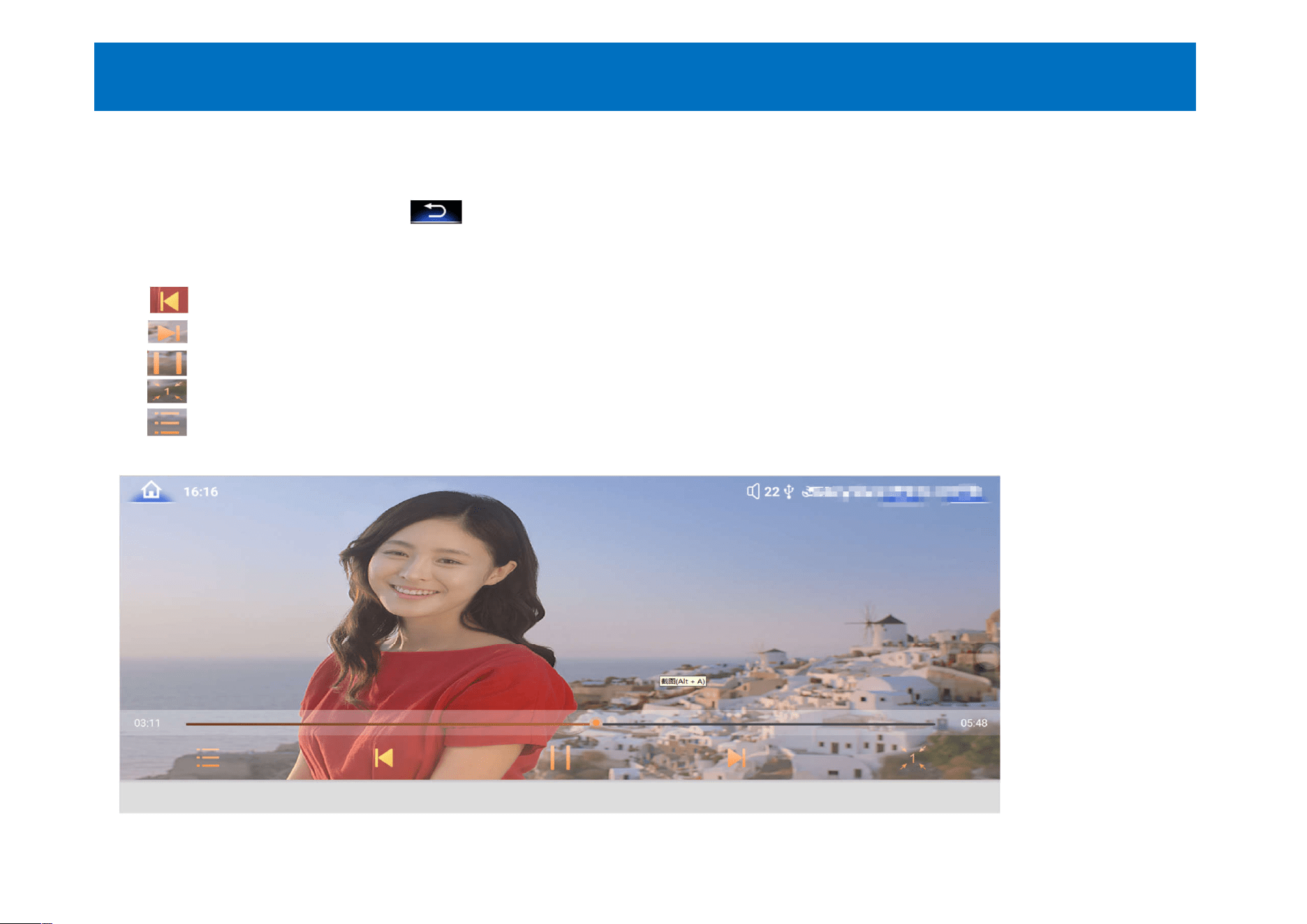
. How-to instructions for video functions:
. Touch the [Video] icon on the main interface to enter the video interface and touch the return button
through the main interface [ ]You can exit the video interface.
. This function can play 2 USB videos - (USB1/USB2). The video formats supported by this product include:
MP4, AVI HD, etc.
.【 】 Switch to the previous video to play
.【 】Switch to the next video playback
.【 】 Toggle video pause/playback
.【 】Switch video picture proportion adjustment/adjustable 1, 0.8, 0.5 pictures
.【 】Toggle the video playlist interface
- 06 -
7. Mobile phone interconnection function
. Instructions for the operation of mobile phone interconnection function:
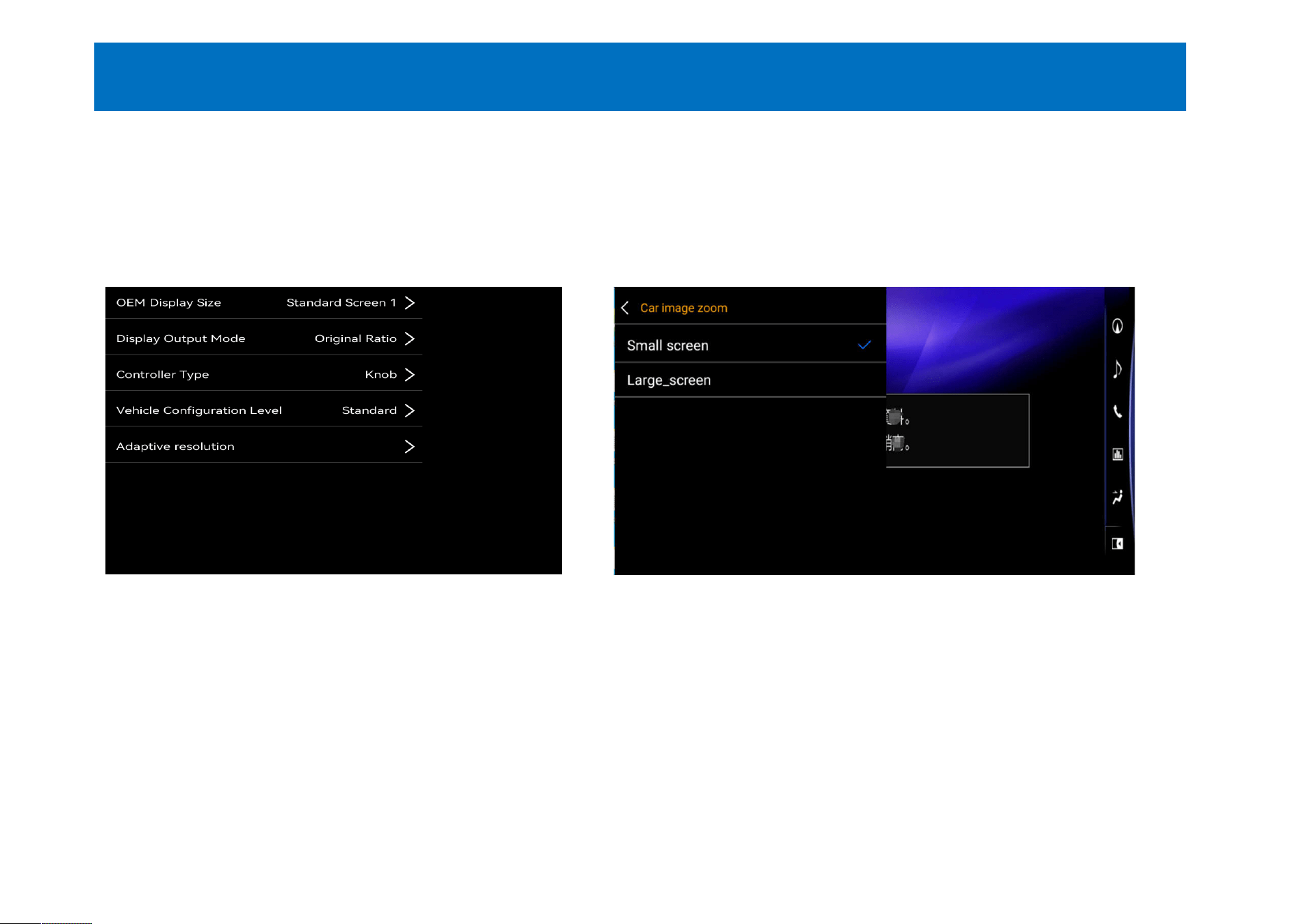
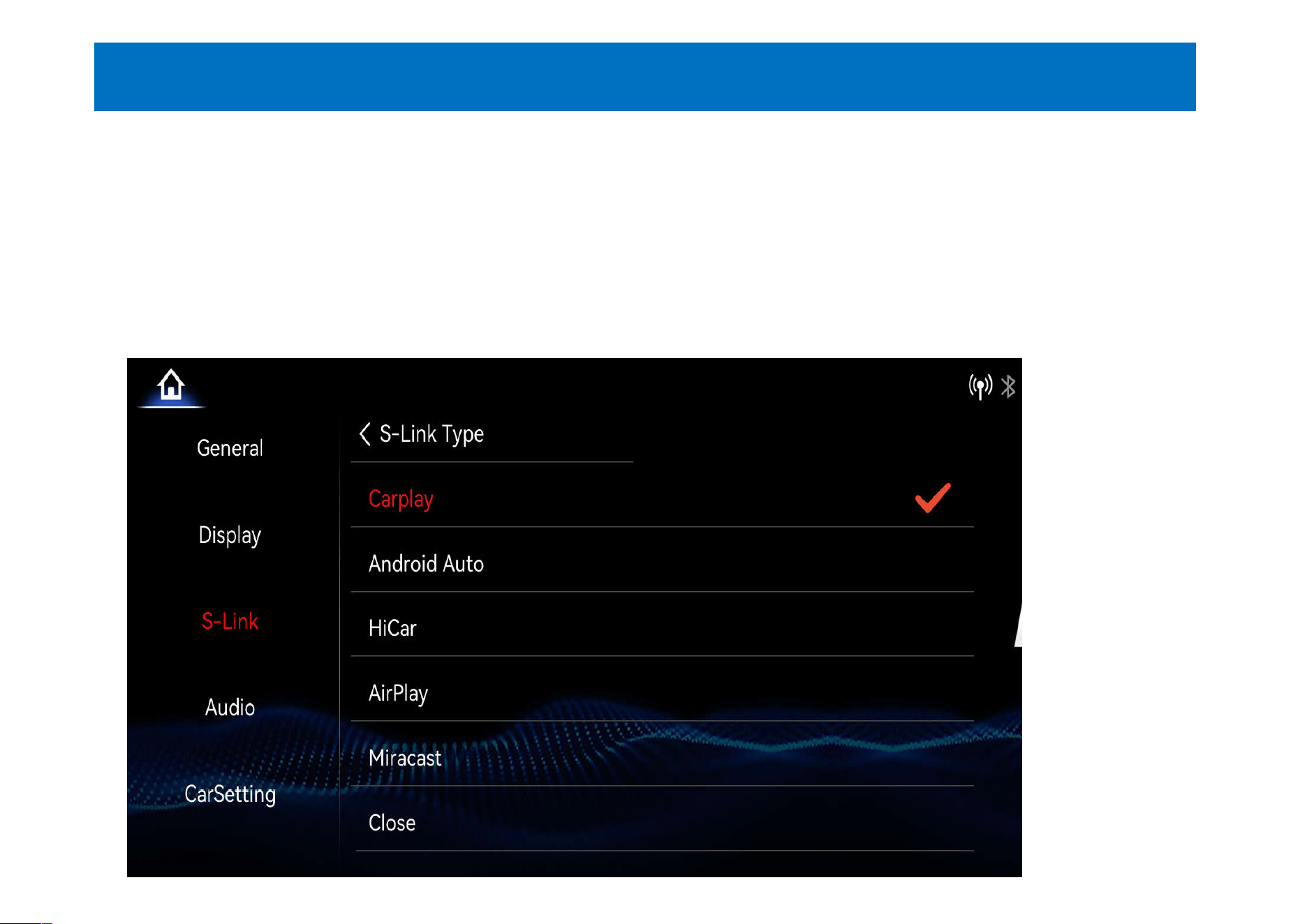
. Touch the [Settings] icon on the main interface to enter the settings interface. Select the [Mobile Internet]
option to enter [MobileInterconnection Type] Select the corresponding mobile phone connection option.
( As shown in the left picture)
. This product supports: Carpaly, AndroidAuto, HiCar, Airplay, Miracast mobile phone interconnectionYes. ( As
shown in the picture on the right)
- 10 -
8.Carplay function connection
. Wireless Carplay connection operation instructions:
. This product can support wireless Carpaly and wired Carplay.
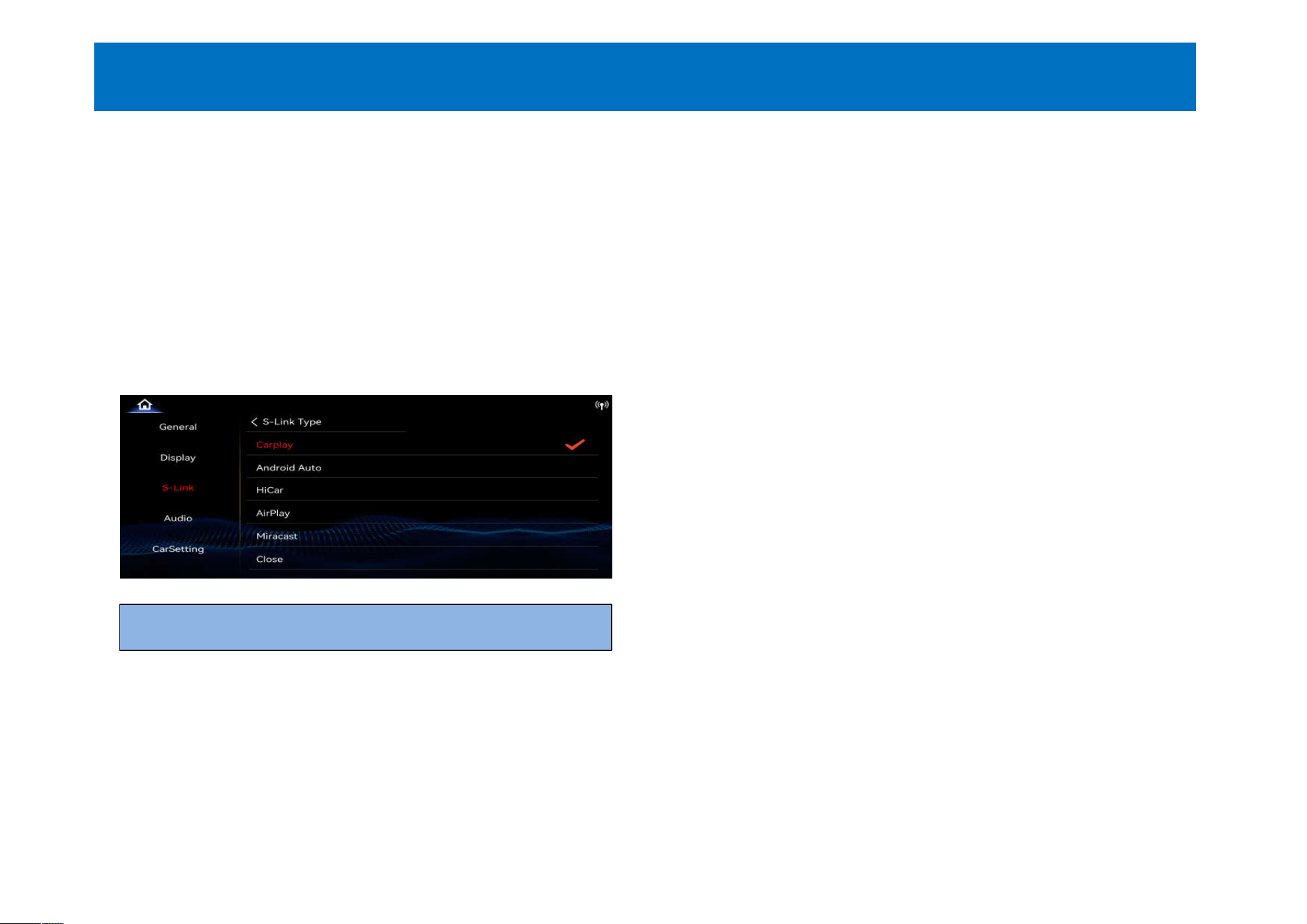
. Touch the [mobile phone interconnection] icon on the main interface to enter the interconnection interface.
Please make sure that the car is in the Carplay.The surface option can be connected, otherwise Carplar
cannot be connected. As shown in the picture on the left)
. If you are not in the Carplay option, you can click the [Settings] interface and click the [Mobile Internet]
option to select.
- 11 -
Select the Carplay option
8.1.Carplay function connection
- 12 -
. How-to instructions for wireless Carplay connection:
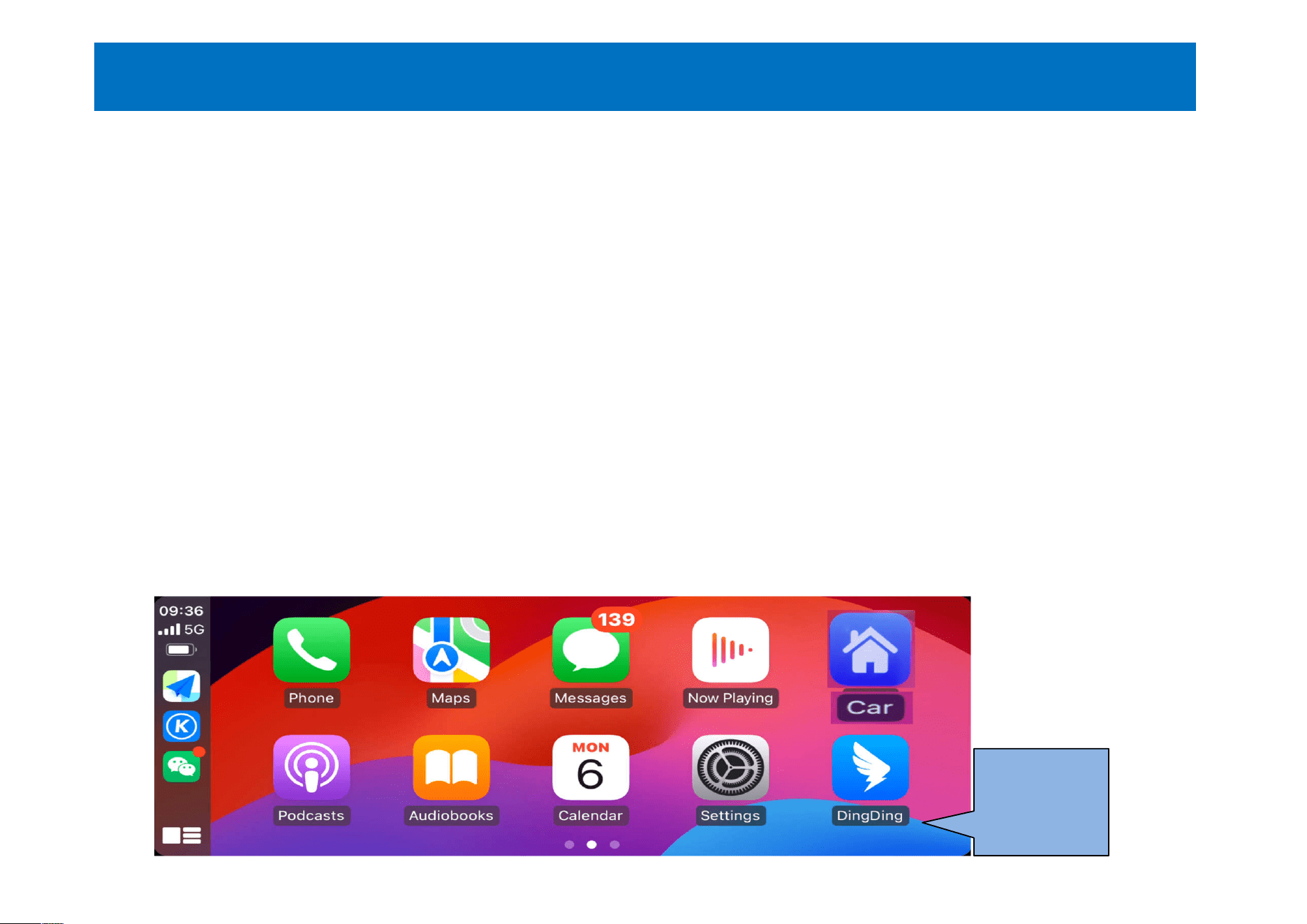
. Wireless Carplay connection(iPhone) .You only need to connect CarPlay.The machine displays the Carplay
application screen. (Figure 3)
Carplay has
connected
the screen
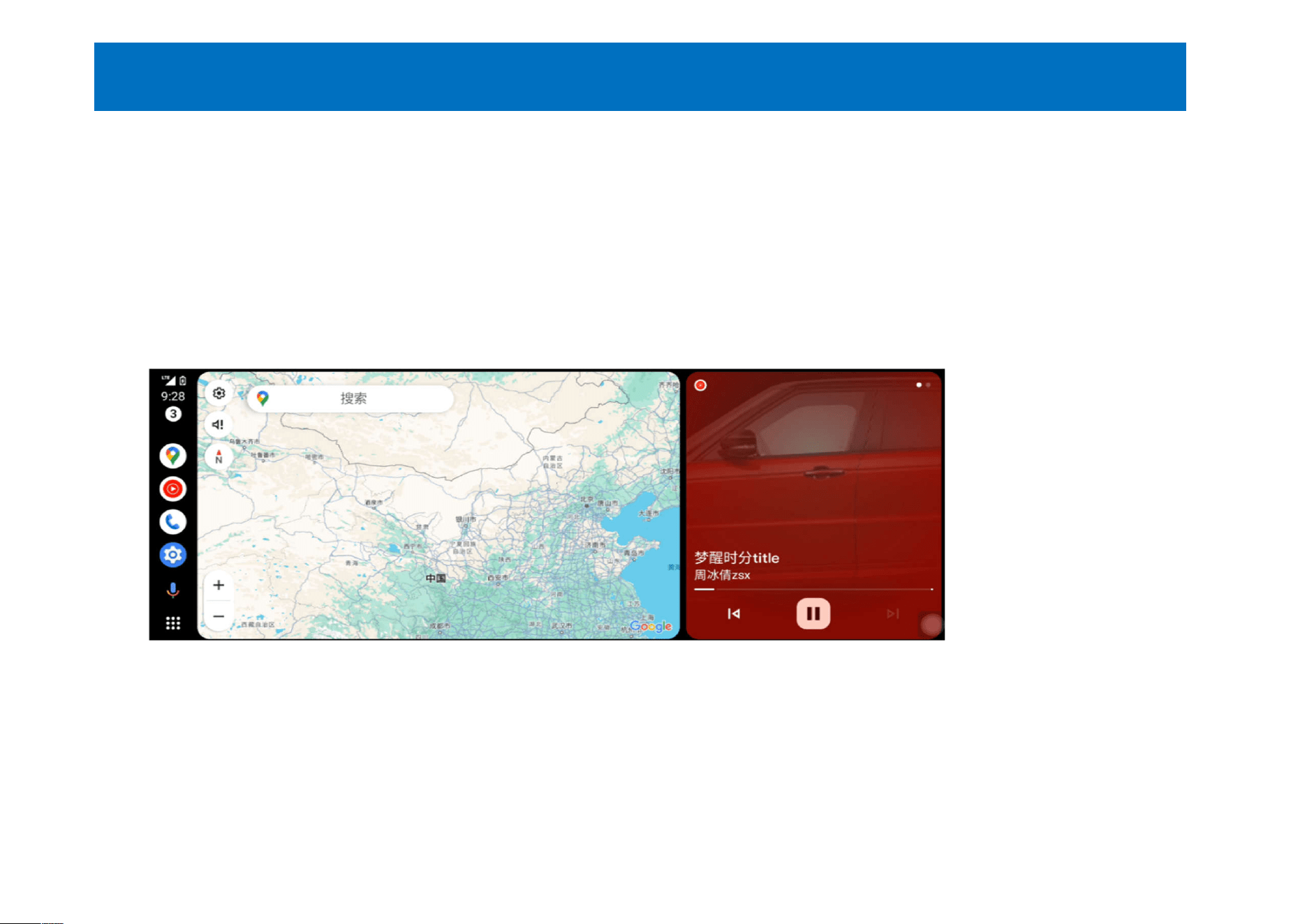
. Instructions for Android auto connection:
. This product supports wireless Android auto and wired Android auto connection functions.
. Touch the [mobile phone interconnection] icon in the main interface to enter the interconnection interface.
Please make sure that the car is in the Android auto world.Only the face option can be connected, otherwise
Android auto cannot be connected. (As shown in the figure on the left)
9. Android auto connection function
- 14-
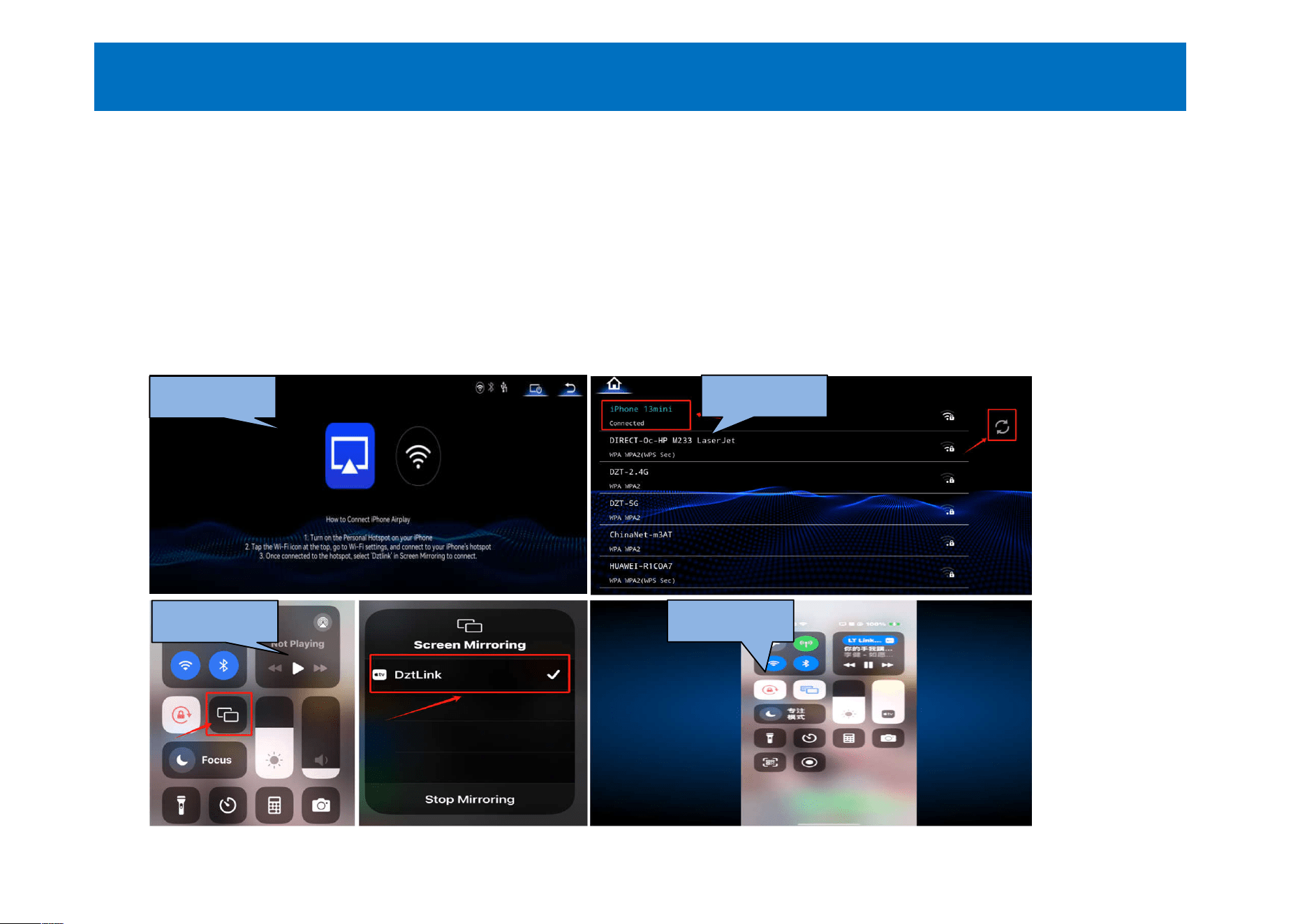
. Airplay connection operation instructions:
. Touch the [mobile phone interconnection] icon on the main interface to enter the interconnection interface.
Please make sure that the car is in the Airplay world.The surface option can only be connected, otherwise
Airplay cannot be connected. (As shown in Figure 1)
. Please turn on the wireless hotspot with your iPhone and click the car WIFI icon in Airplay to enter the WIFI
settings search.Connect the mobile phone hotspot. (As shown in Figure 2)
. After the car is connected to the mobile phone hotspot, search for [DztLink] in the mobile phone screen
mirror opening and click to connect.Projectable screen. As shown in Figure 3.4)
10. Airplay connection function
- 15 -
Picture 1
Picture 2
Picture 3
Picture 4
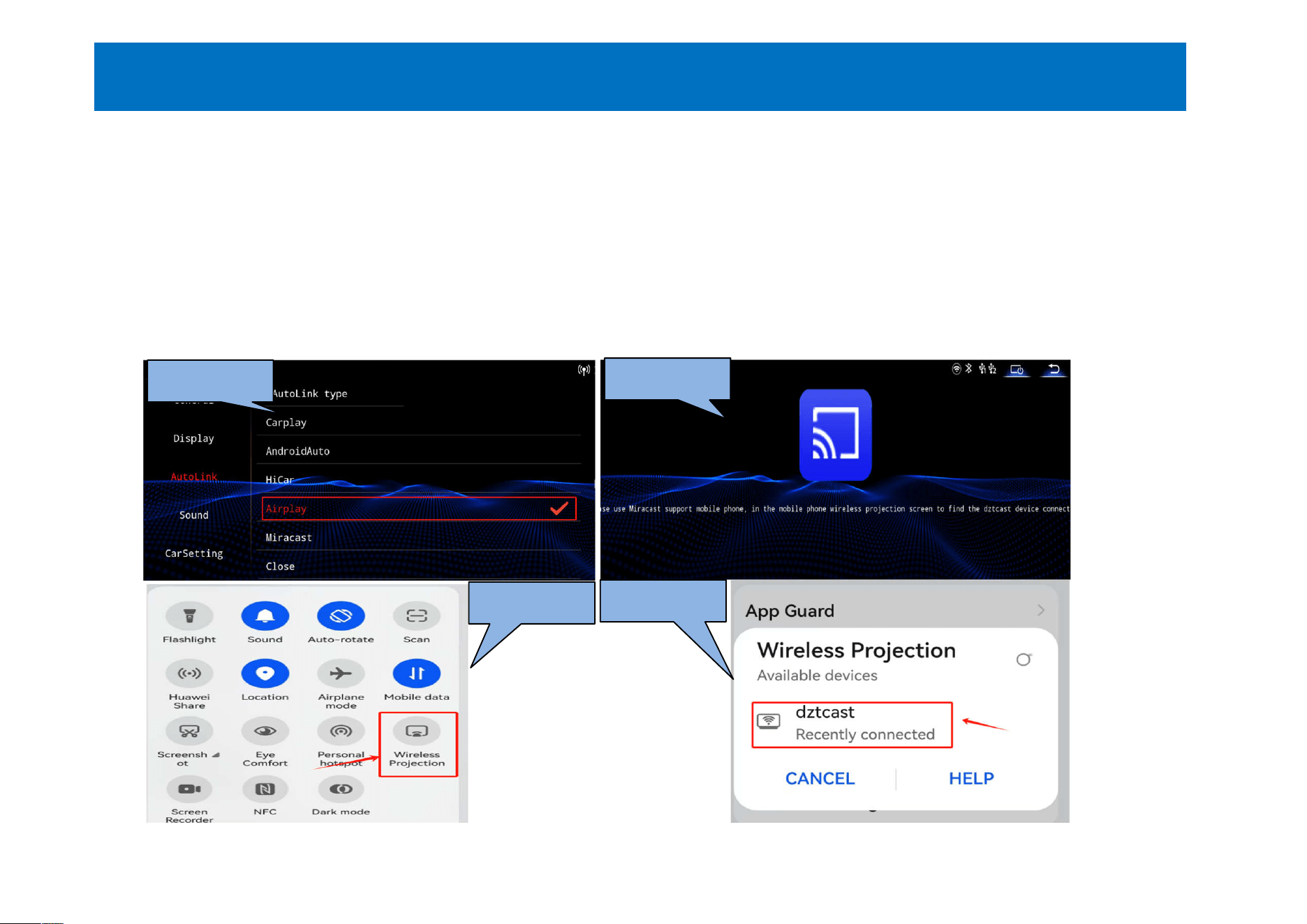
. Instructions for Miracast connection: (Please connect with a mobile phone that supports
Miracast)
. Touch the [Mobile Phone Interconnection] icon on the main interface to enter the interconnection interface.
Please make sure that the car computer is in the Miracast world.Only the surface option can be connected,
otherwise Miracast cannot be connected. ( As shown in Figure 1.2)
. Please open the wireless screen projection with your mobile phone, search for [dztcacst] in the wireless
screen projection of the mobile phone and click to connect.Projectable screen. As shown in Figure 3.4)
11. Miracast connection function
- 16-
Picture 1
Picture 2
Picture 3
Picture 4
12.Setting function
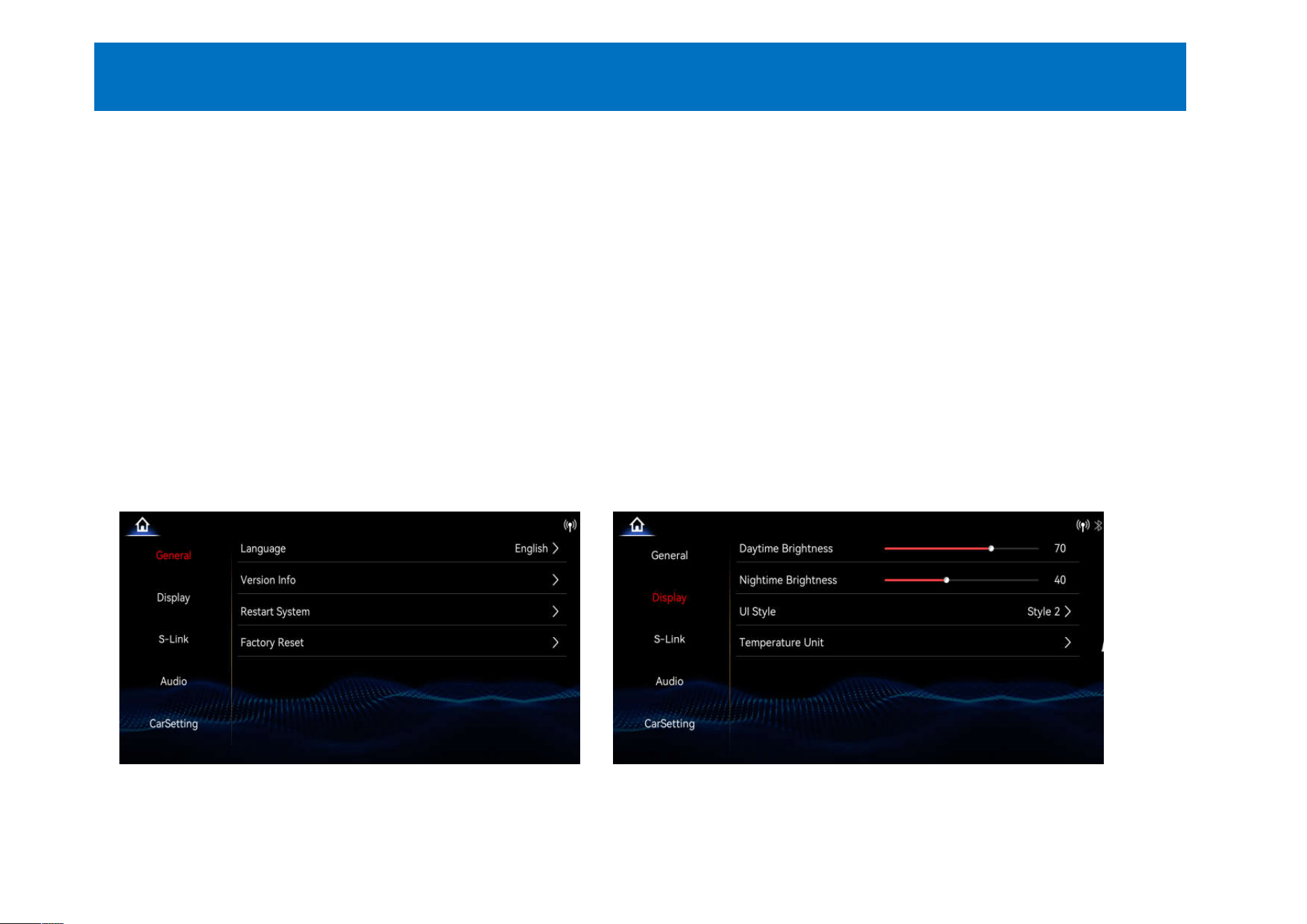
. Instructions for setting up features:
. Touch the [Settings] icon on the main interface to enter the setting interface for the corresponding
setting function options.
. Touch [System Settings] on the settings interface to enter the system settings interface (as shown in the
picture on the left).
. [ Language] Language setting options are available
. [ Version Information] Version Information Content Check
. [ Restart the system] Click to restart the system and the car will automatically restart.
. [ Restore factory settings] Click on the car machine to restore settings
. Touch [Display] on the settings interface to enter the display settings (as shown in the figure on the right)
. [Day/night brightness adjustment] Day/night brightness can be adjusted
. [Style] UI style selection (two types of UI to choose from)
- 17 -
13.1.Setting function
. Instructions for setting up features:
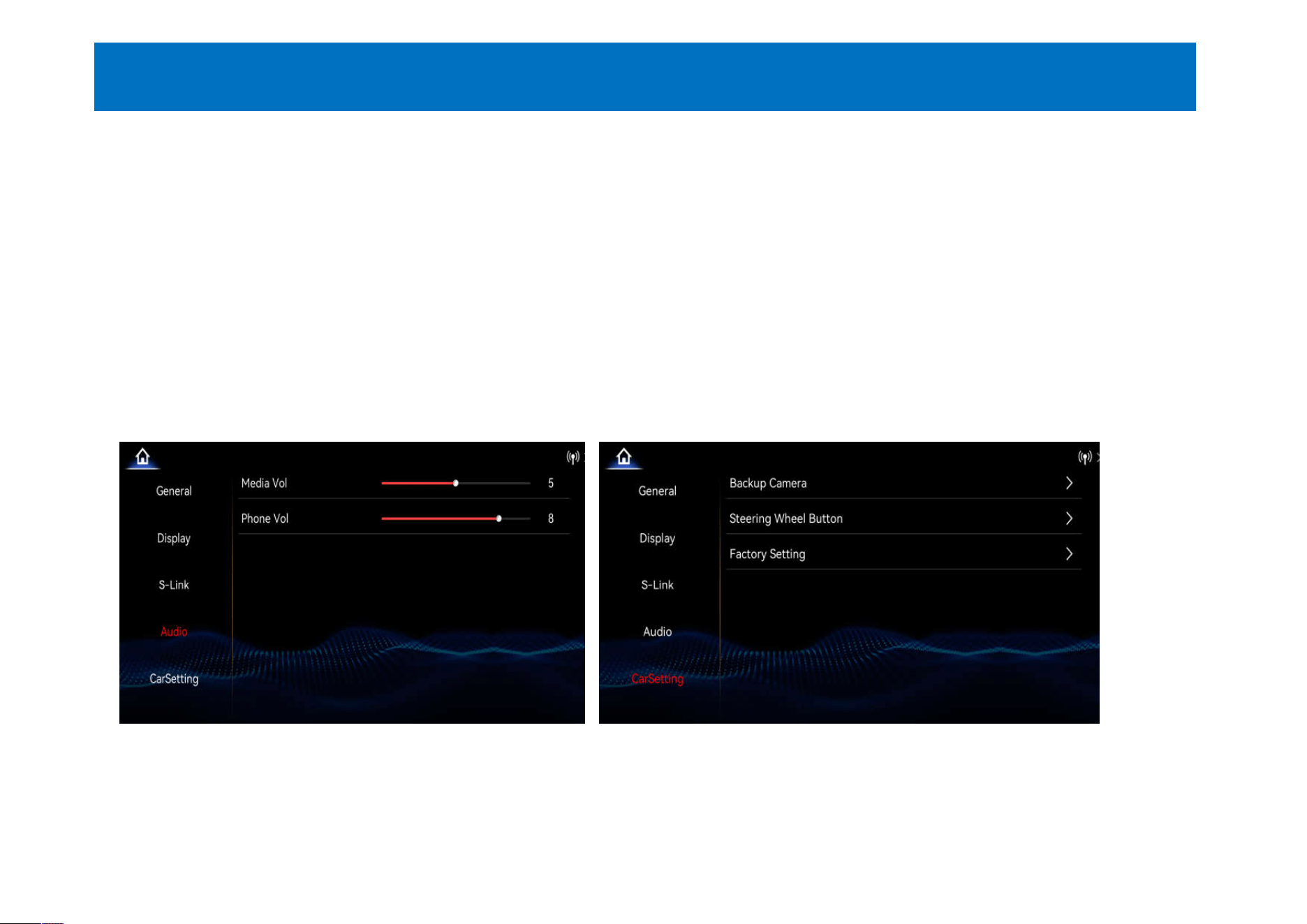
. Touch [Audio] on the setting interface to enter the audio adjustment settings (as shown in the left figure)
. [ Media volume] Media volume can be adjusted
. [ Phone volume] The phone volume can be adjusted.
. Touch [Car Settings] on the settings interface to enter the reversing settings and steering wheel keys to learn
settings
. [Reversing settings] Rear camera/original reversing settings can be adjusted for the corresponding camera
(as shown in the picture on the right)
. Rear camera support: AHD 1080P25 frame / AHD 720P25 frame / CVBS NTSC / CVBS PAL format, etc.
- 18 -
14.Product specifications
- 19 -
T113 (high-speed dual-core CortexTM-A7 processor,
up to 1.2Ghz)
Processor information:
1920x720 high resolution
Graphics card
information:
Built-in HIFI4 DSPSound information:
Dual-band high-
speed WIFI chip 2.5Ghz
802.11b/g/n
WIFI information:
Memory information:1. 128MB / Local Storage: 32MBStorage space:

FCC Warnning:
This equipment has been tested and found to comply with the limits for a Class B digital device,
pursuant to part 15 of the FCC Rules. These limits are designed to provide
reasonable
protection againstharmful interference in a residential installation. This equipment generates,
uses and can radiateradio
frequency
energy
and,
if
not
installed
and
used
in
accordance
with
the
instructions,
maycause
harmful
interference
to
radio
communications.
However,
there
is
no
guarantee
thatinterference
will
not
occur
in
a
particular
installation.
If
this
equipment
does
cause
harmfulinterference to radio or television reception, which can be
determined by turning the equipmentoff
and
on,
the
user
is
encouraged
to
try
to
correct
the
interference
by
one
or
more
of
thefollowing measures:
•
Reorient or relocate the receiving antenna.
•
Increase the separation between the equipment and receiver.
•
Connect the equipment into an outlet on a circuit different from that to which the receiver is
connected.
• Consult the dealer or an experienced radio/TV technician for help.
Caution:
Any
changes
or
modifications
to
this
device
not
explicitly
approved
by
manufacturer
could void your authority to operate this equipment.
This
device
complies
with
part
15
of
the
FCC
Rules.
Operation
is
subject
to
the
following
two
conditions:
(1)This
device
may
not
cause
harmful
interference,
and
(2)
this
device
must
accept
any
interference received, including interference that may cause undesired operation.
This
equipment
complies
with
FCC
radiation
exposure
limits
set
forth
for
an
uncontrolled
environment.
This
equipment
should
be
installed
and
operated
with
minimum
distance
20cm
between the radiator and your body.