QUICK START GUIDE
Smart Digital Calendar for Family Schedules
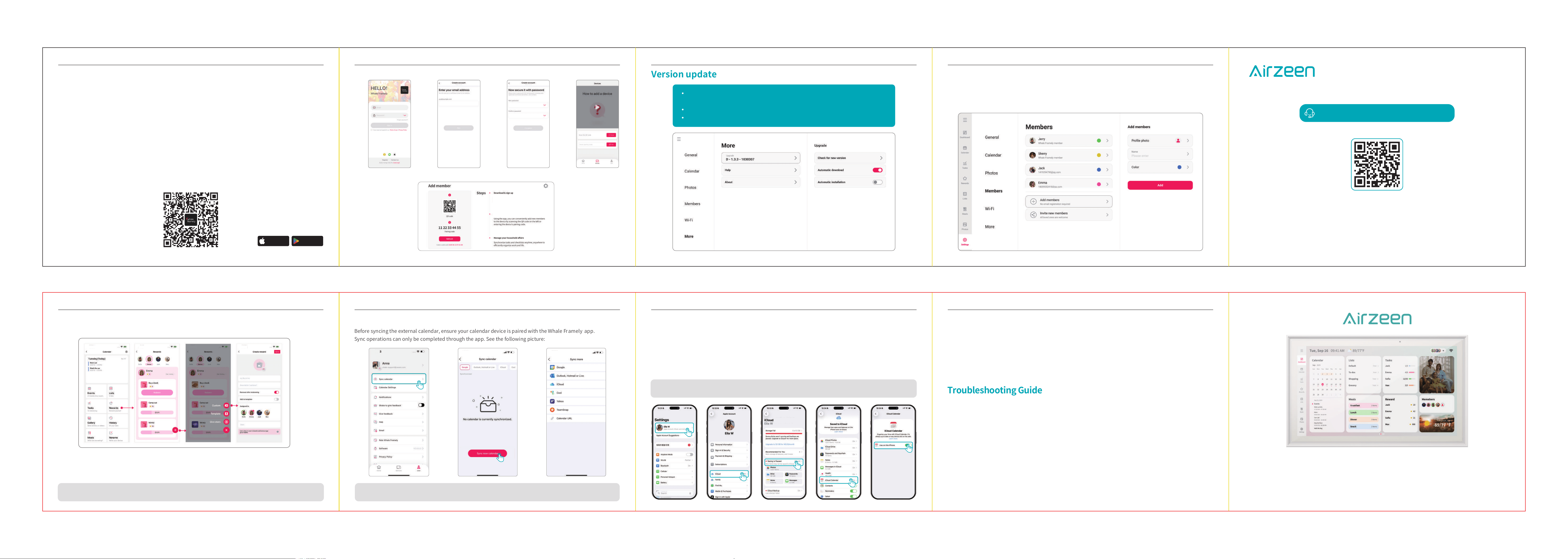
How to Sync an External Calendar with Your Account
Important Notes for Calendar Sync
Before syncing the external calendar, ensure your calendar device is paired with the Whale Framely app.
Sync operations can only be completed through the app. See the following picture:
Note: When you sync your external calendar (such as Google, iCloud, etc.) with Whale Framely, any changes
made to the source calendar will be automatically updated in the Whale Framely calendar.
1. Google Calendar and Outlook Calendar support two-way sync (changes update in both directions). For other calen-
dars (e.g., iCloud, Cozi, etc.), the sync is one-way (from the calendar to the app).
2. iCloud Sync: If you can't find the "Share Link" option as prompted by the app, make sure calendar permissions are
enabled in your iCloud settings. Follow these steps:
(1) Settings > Your Name > iCloud.
(2) Tap "See All" (or "Show All" ), then select iCloud Calendar.
(3) Turn use on this iPhone on.
Note: Screenshots provided are for reference only. The exact layout and options may vary slightly
depending on your operating system version, so some features might be located in different places.
Settings
Sleep Mode < Settings - General - Sleep Mode >
Offers a sleep mode, in which the screen turns off to reduce power consumption. The default setting turns off the
screen at 20:00 and turns it back on at 08:00. To change this, simply set the start/end time for sleep mode.
Time Zone < Settings - General - Time Zone >
Set the time zone used on the calendar.
Account Protection < Settings - Calendar - Account Protection >
The Account Protection feature safeguards family accounts, preventing accidental deletion by children.
Troubleshooting Guide
1. Unable to sync calendar or photos
— Check network connection: Make sure the device is networked and maintains a stable network connection.
— Check the login account: Ensure that the device login account is the same as the synchronization account.
— Update the app: Make sure you are using the latest version of the app.
— Check the login account: Ensure that the device login account is the same as the synchronization account.
— Regrant synchronization permissions: Check and regrant synchronization permissions in Settings.
2.How can I ensure that Google Calendar events sync to Airzeen Calendar?
— Android Devices: After creating a new event in the Google Calendar app, you need to manually tap the "Refresh"
button in the sidebar to sync the event to the Airzeen Calendar.
— iPhone: Events created on an iPhone are automatically synced to the Airzeen Calendar without additional actions.
3.Does it support syncing events from third-party calendars to Airzeen Calendar?
Google Calendar and Outlook Calendar support bidirectional syncing with Airzeen Calendar, allowing events from
Airzeen Calendar to be synced to Google Calendar and Outlook Calendar, and vice versa.Other calendars only
support one-way syncing, meaning they only support syncing events from third-party calendars to Airzeen Calendar.
Create Rewards
1) Members will earn points after completing tasks in the task section. These points will be auto matically synced to
the member's rewards section.
2) When you have collected enough stars, you can redeem our pre-agreed rewards with them! Rewards can be items
or special experience.
Rewards is a feature that helps motivate kids by making their progress toward goals visible and trackable.
Note: Rewards are created by parents on the mobile app,and children can view their rewards and
progress on the device.
US: [email protected] UK: [email protected] US: [email protected] UK: [email protected] US: [email protected] UK: [email protected] US: [email protected] UK: [email protected]
Ver.1.4
Version update
Members
You can create accounts for your family members to manage daily schedules together.
Add member: For people without their own devices.
Invite new members: For people with their own devices.
For first-time use, please make sure your calendar version is the latest by
following the path below:
Settings → More → Upgrade → click "Check for new version".
If "No new version" is displayed, your device is already the latest version.
1. Get Your Activation Code
Download the 'Whale Framely' app by scanning the QR code or search for "Whale Framely" in the App Store (iOS) or
Google Play (Android) to download.
STEP3: Download the 'Whale Framely' App
Click "Whale Framely" and scan the QR code with your
phone to download the free app
Add members
US: [email protected] UK: [email protected] US: [email protected] UK: [email protected] US: [email protected] UK: [email protected] US: [email protected] UK: [email protected]
Operating Instructions
Welcome! Digital Calendar Frame --Your Family Schedule Assistant!
Just 4 steps to connect your phone to your digital calendar frame. Let's get started.
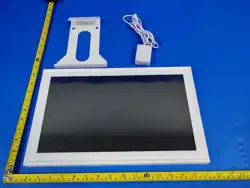
Unbox the frame. Have the frame connected to an AC outlet. The calender frame will power on.
STEP1: Plug in the Frame
1. Select the language after power on.
2. Connect to Wi-Fi in the Wi-Fi settings.
3. Select the time zone and adjust the time zone if necessary.
STEP2: Select Language, Connect to WiFi, Choose City
STEP4: Scan the QR Code on the Calendar Frame to Start
2. Create an App Account and fill in all the required information.
❶ ❷ ❹❸
Please scan the QR code to access the
detailed user manual
If you have any problem about the digital calendar, please feel free to contact us:
US: [email protected] UK: [email protected]
Download the Whale Framely APP
GET IT ON
Google Play
Download on the
Apple Store