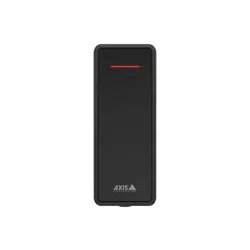

AXISA4030-EReader
User manual
AXIS A4030-E Reader
2
Installation
To watch this video, go to the web version of this document.
Installation video for the device
Wiring
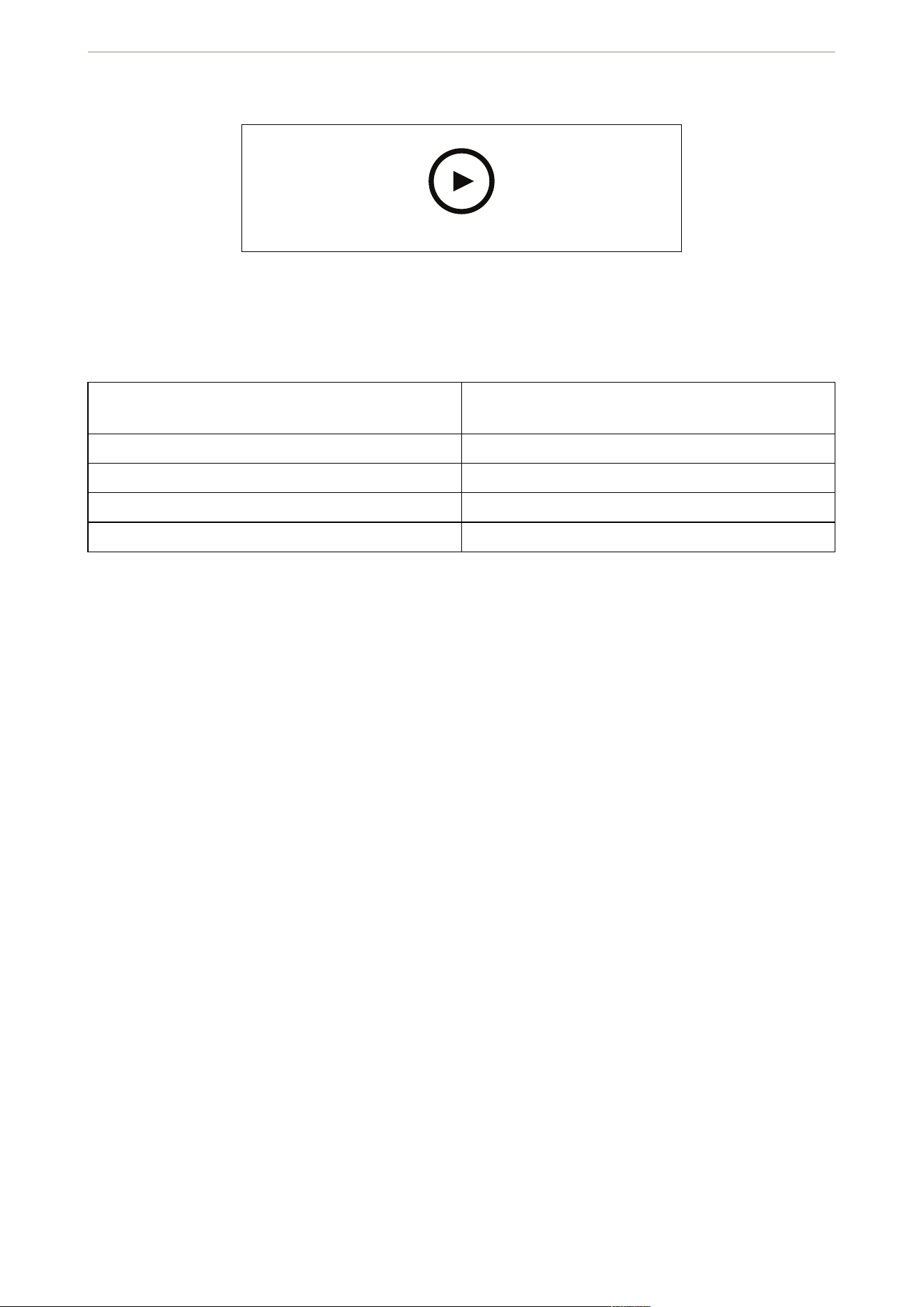
Connect the wires from the reader to the door controller according to the table:
AXIS A4030-E Axis door controller or other OSDP capable control
panel
B B
A A
+ 12 V
- -
AXIS A4030-E Reader

3
Configure your device
The device works as a standard OSDP reader out-of-the-box. To configure features and settings, use access
management software such as AXIS Camera Station Secure Entry.
Encrypted communication
OSDP Secure Channel
AXIS Camera Station Secure Entry supports OSDP (Open Supervised Device Protocol) Secure Channel to active
line encryption between controller and Axis readers.
To turn on OSDP Secure Channel for an entire system:
1. Go to Configuration > Access control > Encrypted communication.
2. Enter your main encryption key and click OK.
3. Turn on OSDP Secure Channel. This option is only available after you enter the main encryption key.
4. By default, the main encryption key generates a OSDP Secure Channel key. To manually set the OSDP
Secure Channel key:
4.1. Under OSDP Secure Channel, click
.
4.2. Clear Use main encryption key to generate OSDP Secure Channel key.
4.3. Enter the OSDP Secure Channel key and click OK.
To turn on or turn off OSDP Secure Channel for a specific reader, see Doors and zones.
Note
If the access control unit, host, or panel supports OSDP secure channel, we recommend that you enforce it on
the reader device to increase communication security. To enforce secure channel, activate DIP #6 on the
reader device.
The encryption key is transmitted in plain text during initial setup, so all RS485 wiring and devices should be
under supervision during this process.
AXIS A4030-E Reader
4
Specifications
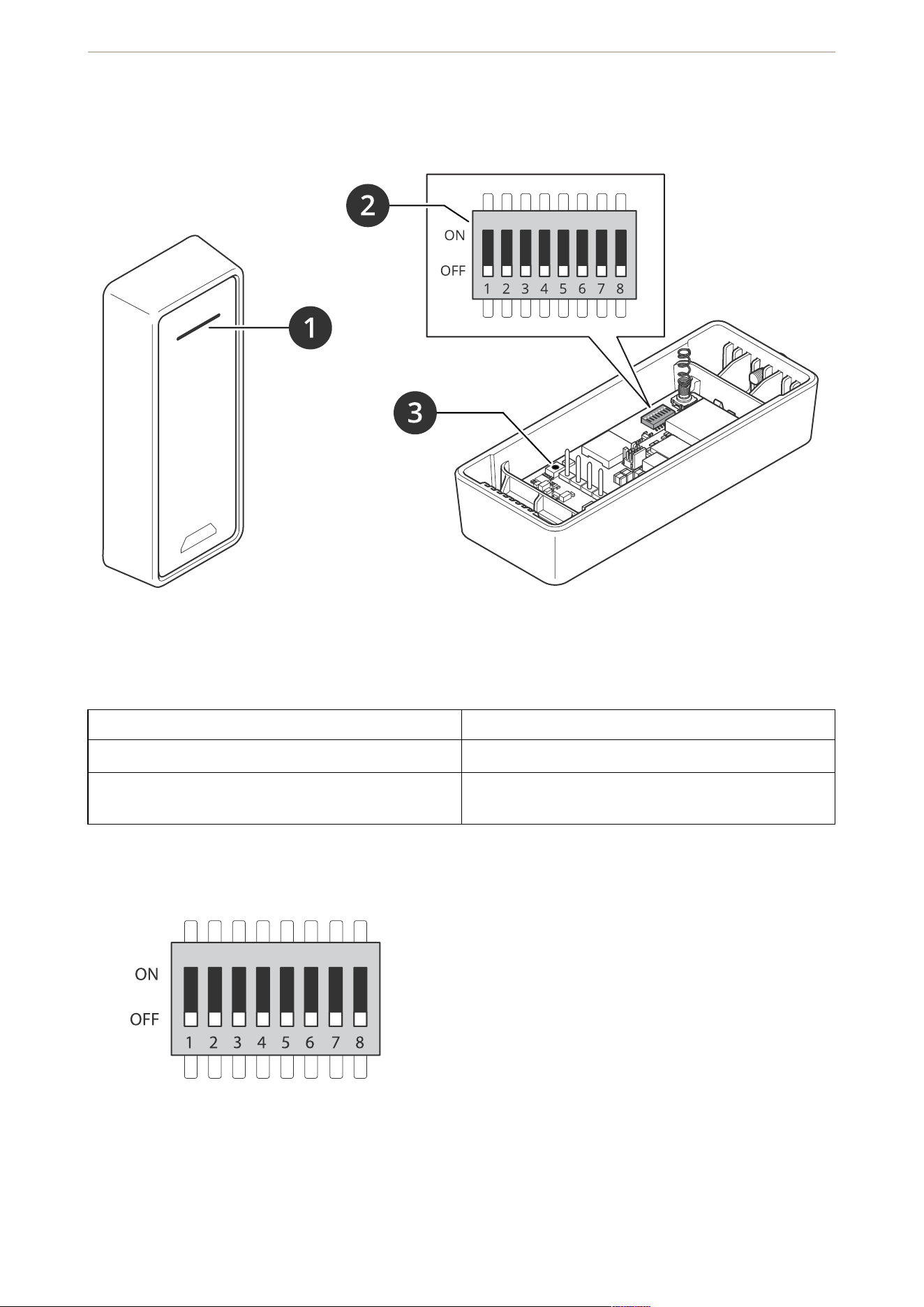
Product overview
1 Reader indicator stripe
2 DIP switches
3 Control button
Reader indicator stripe
State Behavior
Offline (waiting for controller connection) Flashing red and yellow every three seconds
Online Responds to OSDP LED commands according to OSDP
specification version 2.2.2.
DIP switches
AXIS A4030-E Reader

5
DIP switch Default setting Function
1 Off
Switch 1 Switch 2 Address
Off Off 0
Off On 2
On Off 1
On On 3
2 Off
3 Off RS485 120 Ohm termination. Off =
inactive. Turn on for last reader on
the OSDP line.
4 Off Buzzer control. Off = buzzer
sounds. On = buzzer silent.
5 Off -
6 Off Encrypted communication (secure
channel). Off = inactive. On =
active.
The secure channel feature can be
activated on hardware or in AXIS
Camera Station Pro. When
activated on hardware using DIP
switch 6, encrypted
communication is enforced.
7 - -
8 - -
Buttons
Control button
The control button is used for:
• Resetting the product to factory default settings. See Reset to factory default settings, on page 6.
Baud rate
The default baud rate is 9600. To change it, use the command osdp_COMSET.
AXIS A4030-E Reader

6
Troubleshooting
Reset to factory default settings
To watch this video, go to the web version of this document.
1. Remove the device from the backplate. This disconnects power from the device.
2. Remove the connector from the backplate.
3. Use a blunt instrument to press and hold the control button while you reconnect power by connecting
the terminal block to the pins in the device. See Product overview, on page 4. You will hear a short beep
when you reconnect power. It indicates that the control button is pressed.
4. Keep the control button pressed for a few seconds.
5. Release the control button. You will hear a beep that indicates that the device has been reset to the
factory default settings.
6. Put the terminal block in its place in the backplate.
7. Hook the device onto the backplate and close the unit slowly.
Important
If you hold the control button pressed for around 60 seconds, you'll erase the firmware. To reinstall new
firmware, you'll need an AXIS Access Controller. See more information in Upgrade readers.
AXIS A4030-E Reader

7

.
T10235699
2026-05 (M3.2)
© 2026 Axis Communications AB