VBELL 1

VBELL 1 ......................................................................................................................................................... 1
1. Video Doorbell Introduction ......................................................................................................... 3
Device Overview .................................................................................................................................... 3
Status Indicator ...................................................................................................................................... 4
Charge Doorbell .................................................................................................................................... 4
2. Setup and Installation ..................................................................................................................... 4
Set up the Doorbell .............................................................................................................................. 4
Install the Doorbell ............................................................................................................................... 8
Pair the Chime ...................................................................................................................................... 10
3. View Your camera .......................................................................................................................... 11
Adjust Device list ................................................................................................................................. 11
Multiple Views ...................................................................................................................................... 12
Live video ............................................................................................................................................... 13
Pick up the ring call ............................................................................................................................ 14
Manually Capture ................................................................................................................................ 15
Manually Record ................................................................................................................................. 15
Full Screen ............................................................................................................................................. 16
2-Way Audio ........................................................................................................................................ 17
4. Alarm and Detection ..................................................................................................................... 17
Set up Motion detection ................................................................................................................... 17
Human shape detection. .................................................................................................................. 18
Alert Plan ............................................................................................................................................... 19
Set up Push notifications .................................................................................................................. 20
Set Tamper Alarm ............................................................................................................................... 21
5. Recording and Playback ............................................................................................................... 22
Micro SD card Recording ................................................................................................................. 22
Cloud storage service ........................................................................................................................ 23
Playback ................................................................................................................................................. 25
Album ..................................................................................................................................................... 28
6. Camera settings .............................................................................................................................. 29
Camera Name ...................................................................................................................................... 29
Share Arenti Devices with others ................................................................................................... 29

Device information ............................................................................................................................. 31
Installation Guide ................................................................................................................................ 32
Basic function ....................................................................................................................................... 33
Speaker volume .............................................................................................................................. 33
Voice Message ................................................................................................................................ 34
Time setting ...................................................................................................................................... 35
Night Vision ...................................................................................................................................... 35
Power Management ...................................................................................................................... 36
Wireless Chime ................................................................................................................................ 36
Amazon Echo Show & Google Home .......................................................................................... 37
Device version ...................................................................................................................................... 38
Delete the Device ................................................................................................................................ 39
7. Use Arenti APP ................................................................................................................................ 40
Messages ............................................................................................................................................... 40
Sharing History ................................................................................................................................ 41
Alarm Message ................................................................................................................................ 41
System Messages ........................................................................................................................... 41
Scene ....................................................................................................................................................... 42
Account .................................................................................................................................................. 42
APP Settings.......................................................................................................................................... 44
8. FAQ and Troubleshooting ........................................................................................................... 47
FAQS ....................................................................................................................................................... 47
Troubleshooting .................................................................................................................................. 48
1. Video Doorbell Introduction
Device Overview
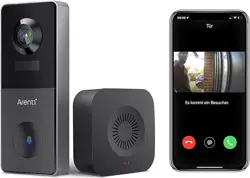
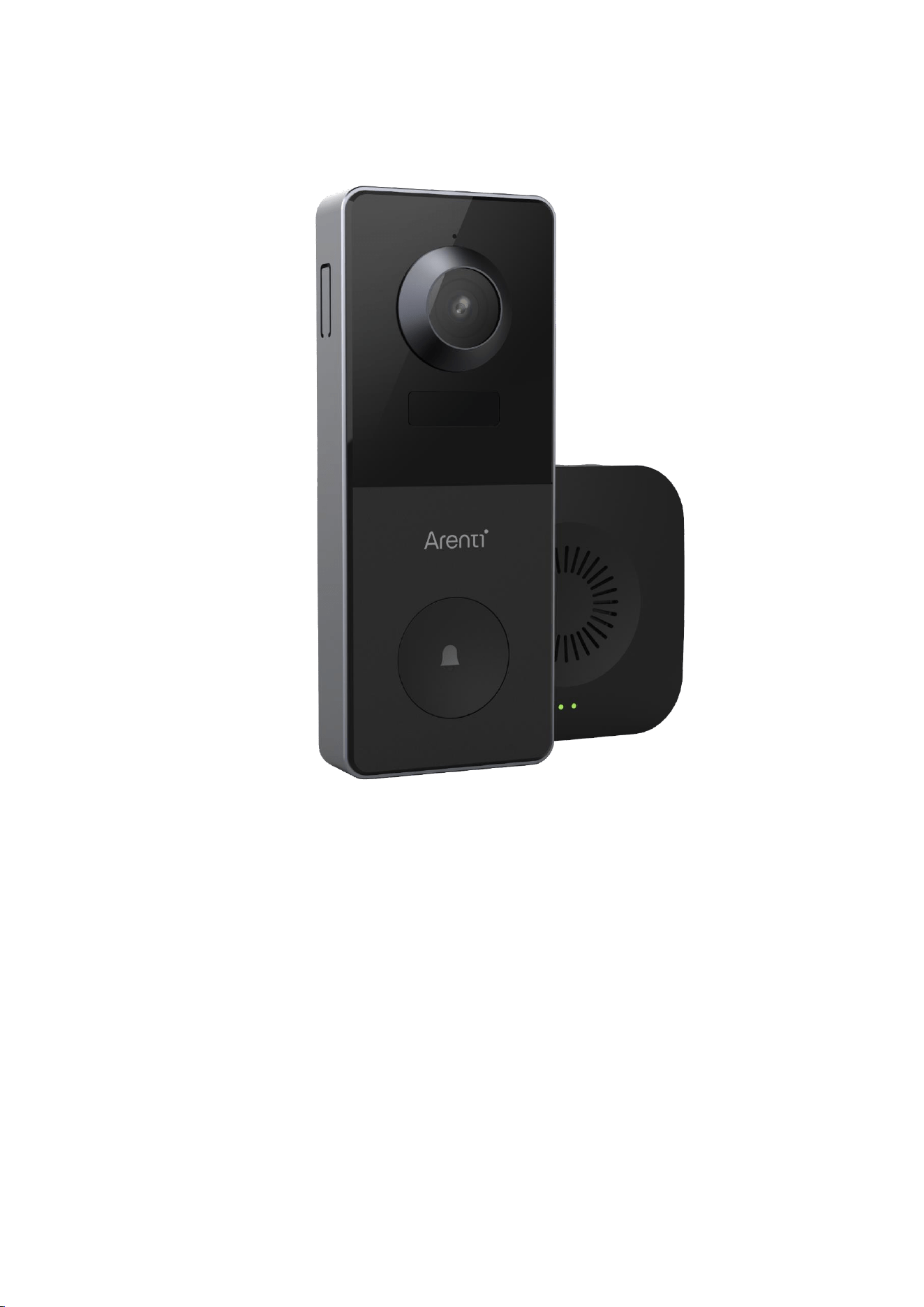
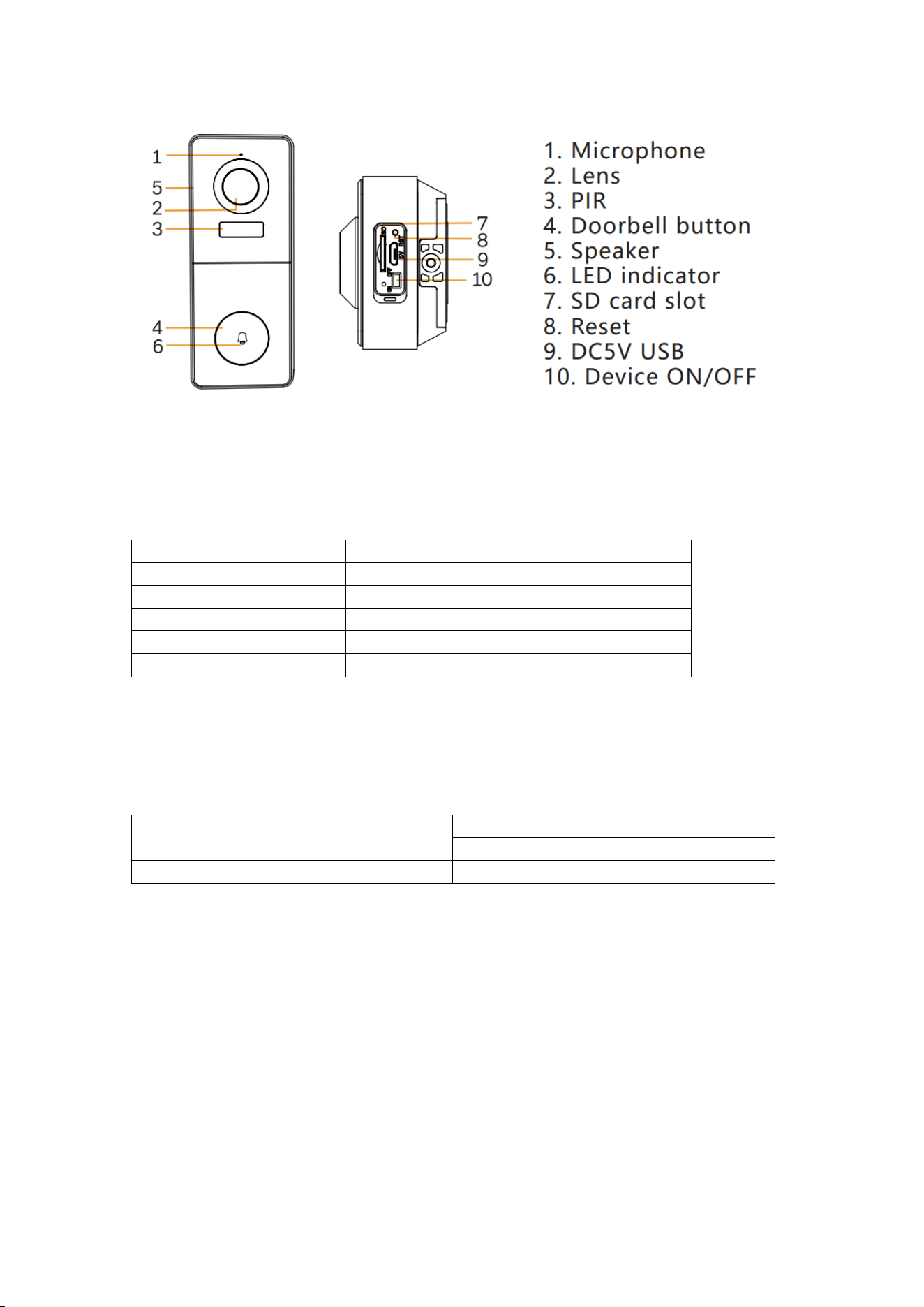
VBELL1 is wireless battery video doorbell that are compact and can be seamlessly integrated
into your home. Loaded with smart features, they can do many things like check the live
video wherever you are. Or send you customized motion alerts. With unbeatable prices,
they make smart and high-quality home protection accessible to everyone.
Status Indicator
Front Status Indicator
Camera status
No light on
Not power /stand by
Constant blue/slow flashing
Working properly/ WiFi Connection succeeded
Blue fast flashing
Upgrading
Red flashing slowly
Waiting to connect/ WiFi is not configured
Red flashing fast
Network abnormal/ WiFi connection failed
Charge Doorbell
Take off the rubber, plug in the Micro-USB charge the camera.
Fully charge it before mounting the doorbell at your front door.
Charge indicator
Constant red: camera in charging
Constant blue: camera fully charged
Charging time(5V/1A)
10 hours from 1%-100%
Notices: The battery life varies depending on usage. In most common cases, a camera
may have up to 10 events(visiters) per day and each recording lasts 20 seconds on average.
Under this scenario, the camera battery life can last 3 to 6 months.
2. Setup and Installation
Set up the Doorbell
•What you’ll need.
1. Wi-Fi and a working broadband internet connection with at least 2 Mbps upload
speed.
2. A phone or tablet with iOS 8 or later or Android 4.2 or later
3. A Phillips screwdriver or power drill with Phillips driver bit
•How the system works
After Doorbell connects with WIFI, allows you to check the view anytime and anywhere via
Arenti APP.
Normally Doorbell camera will be in sleep mode to reduce the battery consumption, it will
wake up and work when the PIR motion sensor is triggered.
•Power on
Find the power key at bottom of the camera body , switch ON to start the Camera, you will see
the front network indicator light will on and flash red slowly means boot up is finished.
Connect Arenti APP
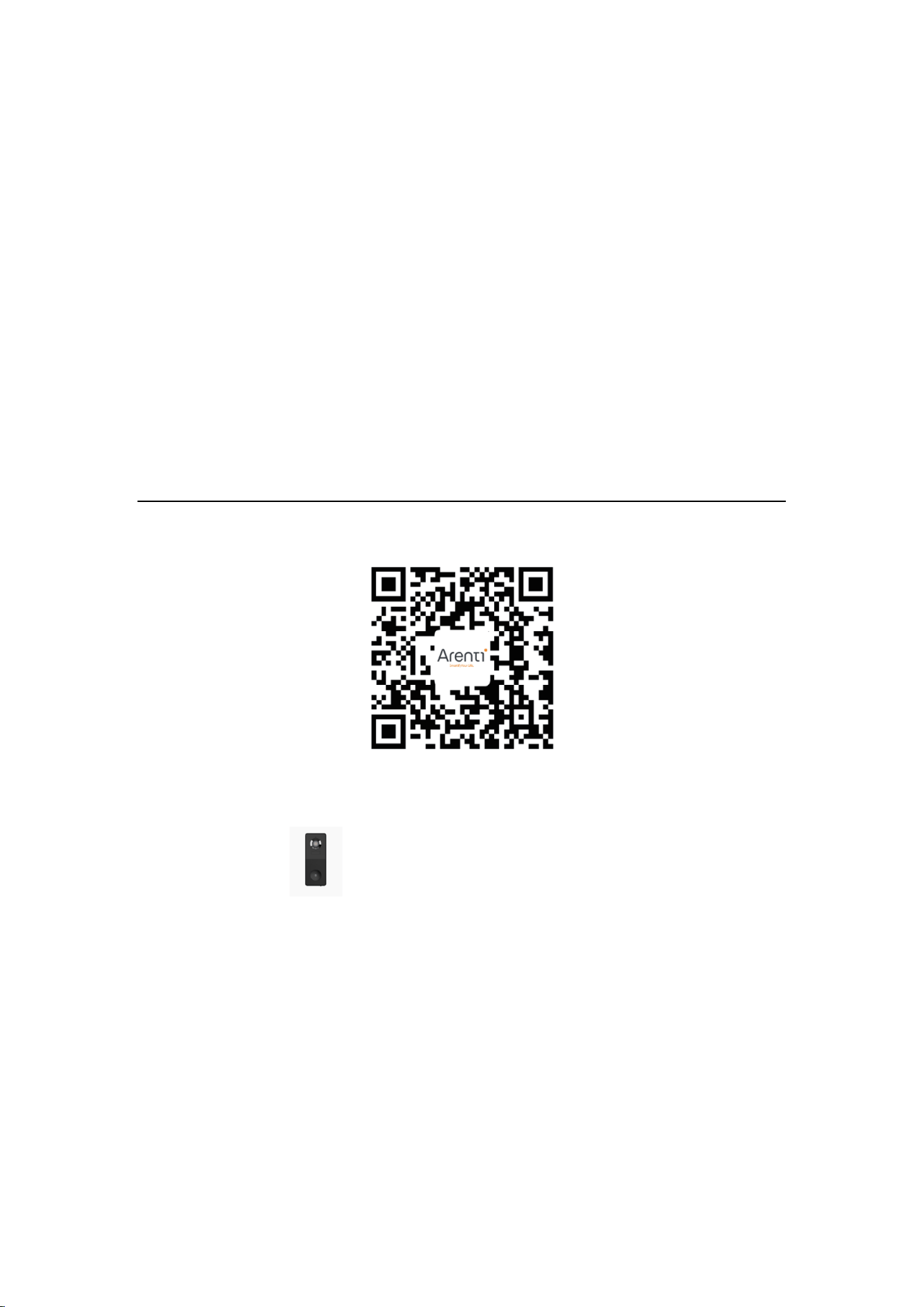
Scan QR code or search ‘Arenti on App Store (IOS); Play Store (Android). Download and
install Arenti APP. Open the APP tap ‘Sign up’’ to create and account and log in.
Open the Arenti APP home page, Click’+’ at the right top page. Follow the guide on the
APP to add the camera.
1. Choose Doorbell on APP and power on the Vbell1 camera
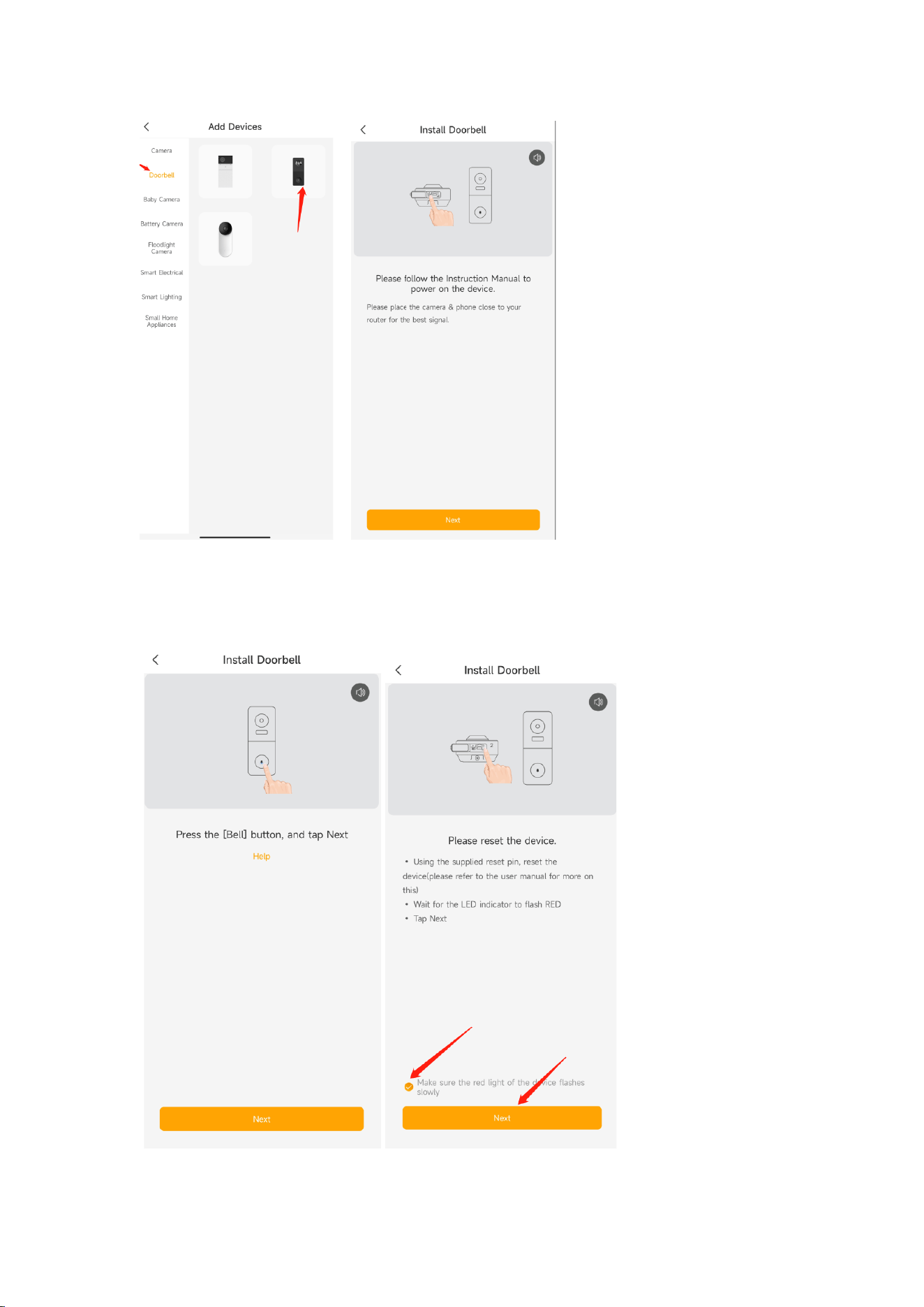
2. Waiting for camera to boot up around 10s. Press the Bell,confirm camera is working.
Make sure the network indicator red flashing slowly and enable it . If not, please
reset the camera(move thecamera head and u top find the reset bottom), then wait the
network indicator red flashing slowly. Then tap ‘Next’.
3. Select the wifi you want camera to connect, and input the correct Password.Tap ‘Next’.
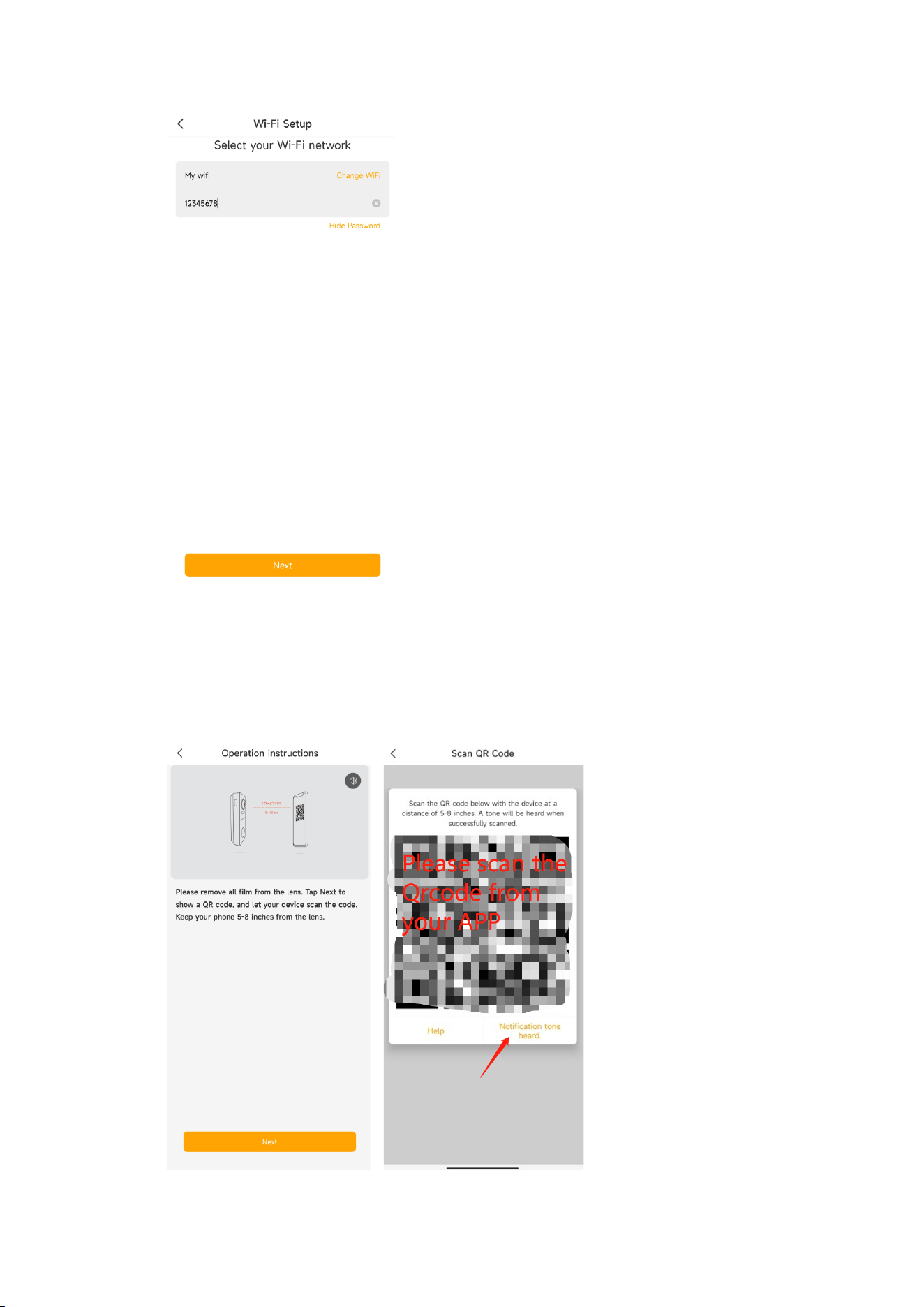
4. APP will generate the QR code for camera to scan. Keep your phone 5-8 inches(15-
25cm) from the lens . Please scan the QR code when indicator in red flashing slowly.
5. A tone will be heard when successfully scanned. Then tap ‘Notification tone heard’
After reading QR code, camera get the WiFi information(name/password) from APP QR
code, and start to connect the WiFi. The network indicator will turn to red fast flashing.
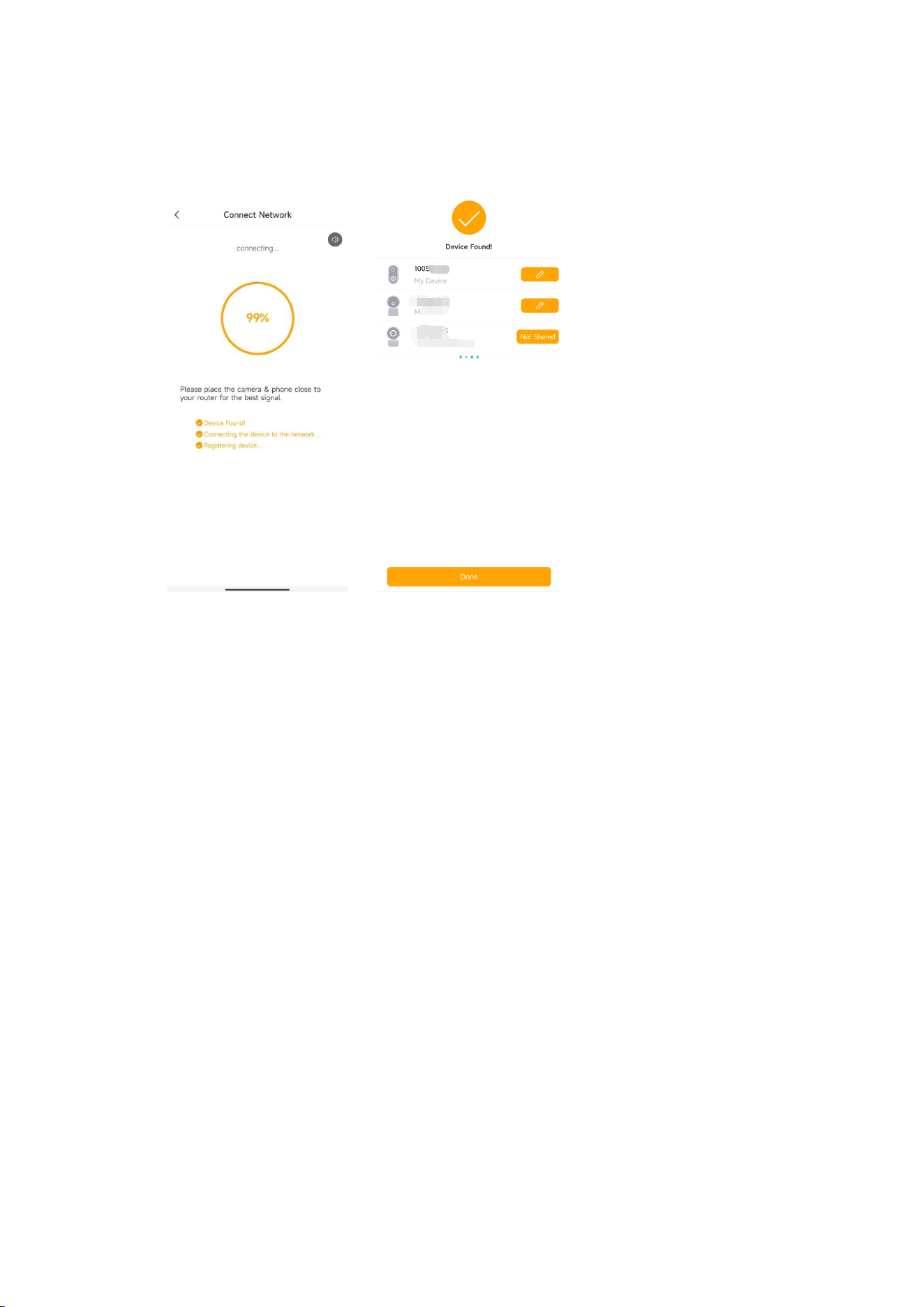
6. Around 10-30s later, the camera indicator turns to constant blue, means camera
connect the WiFi. And APP will find the device and add it to APP. Tap ‘Done’ to finish
the process.
Note: When adding the camera, ensure the WIFI network is good, the camera is normally
turned on, and the indicator light flashes red slowly. After the connection is successful, the
indicator light is blue.
Install the Doorbell
Find a position where you can get the desired field of view.
Consider the below factors:
1. Avoid direct sunlight;
2. Keep it in range of your router WIFI;
3. Avoid the front of the lens facing the plant or porch light; Avoid facing a busy road,
heat source avoids false triggering of PIR.
4. Place it 1-1.6 meters above the ground-close enough to see someone’s face and talk to
them through the camera. Make sure that the camera can see what you want to see.
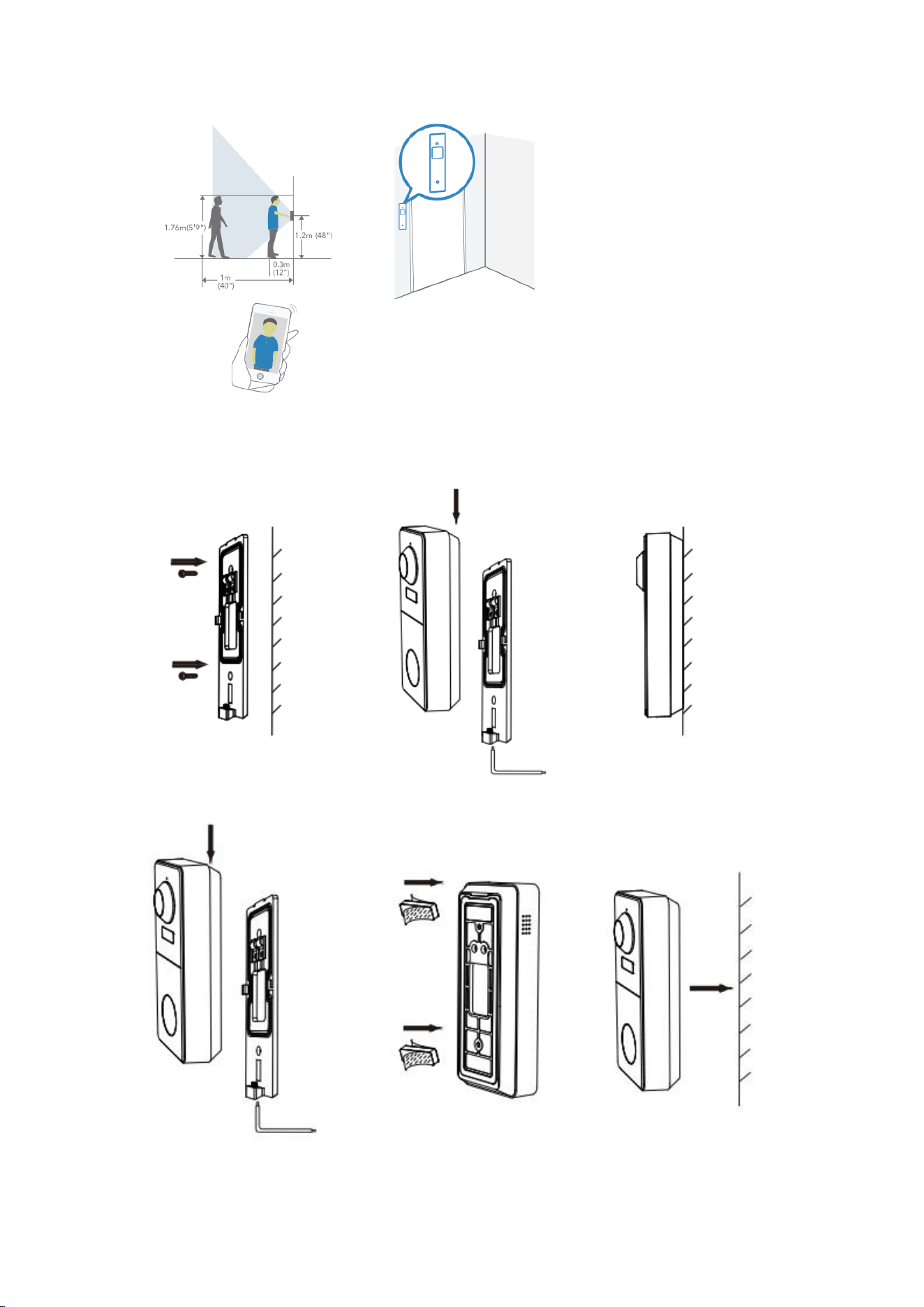
Note: the back plate is fixed on the back of the door bell,please release the back plate screw,
and take off the back plate before install it.
Install with screws:
Install with 3M Stickers:
Installation Precautions:
To prevent injury, the unit must be securely fastened to the wall by the installation
instructions
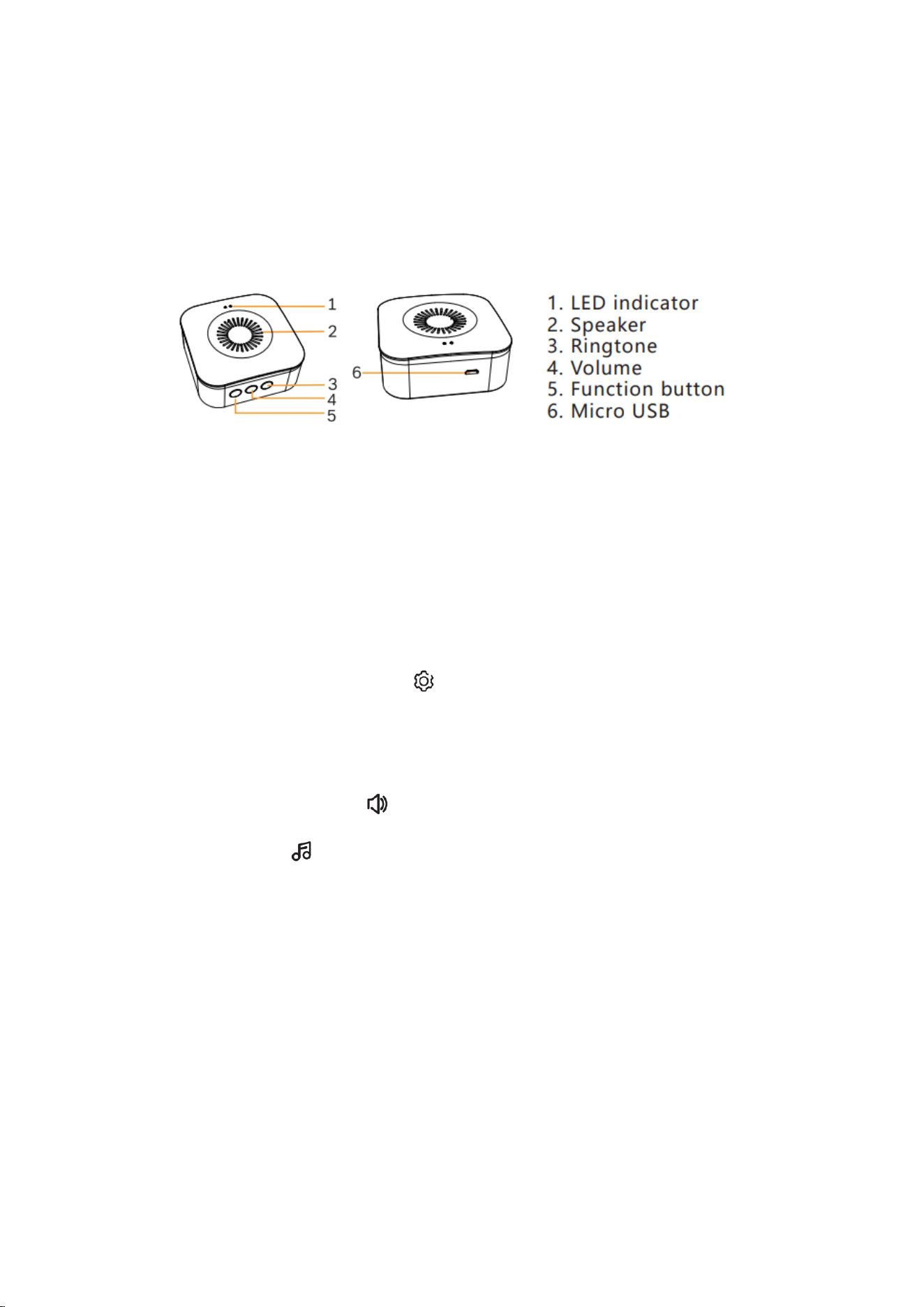
Pair the Chime
LED indicator of chime:
Flashing red light -- Wait for pairing
Fixed blue light --- Succeed to pair
Install the battery or plug in the cable to power on the camera:
1. Short press " " (within 2 seconds), the status light flashes red slowly and the chime
will be in pairing mode.
2. Press the doorbell button to pair, when the chime status light turns off, and the
song will play automatically, the chime pairing is successful at this time. Description:
1. The chime can connect to maximum eight doorbells. 2. When the chime is in
pairing mode, press the " " again (within 2 seconds), the chime will
automatically exit the pairing mode.
3. After adding the chime successfully, the volume will be adjusted to the maximum
automatically. When it is at the minimum volume, it will return to the maximum
volume after pressing " ".
4. Each press " ", will play the next song along with blinking blue light
3. View Your camera
Adjust Device list
You can just the list view (List/Grid) and sequence of your device.
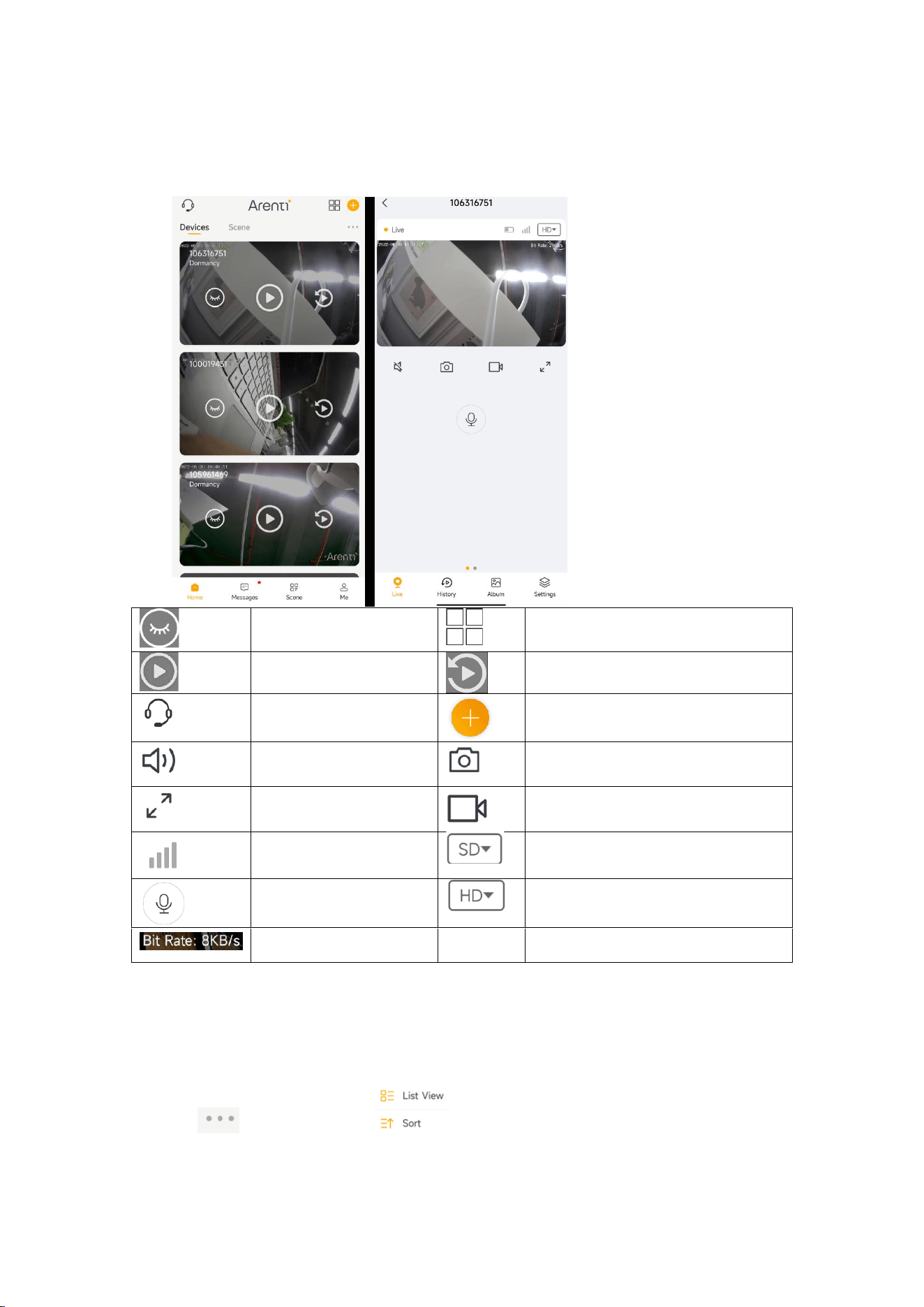
Tap the icon, you will see , tap the List view ,the device will be the simple
camera icon in list. Tap the Sort to adjust the device sequence.
Home page privacy
Multiple views
Play Camera Live video
Play camera history video
Get technical support
Add new device
Video audio ON/OFF
Manually capture, the image will
save to the album
Full screen mode
Manually record, the recording will
save to the album
Device Wi-Fi signal
Sub-stream mode
Press to talk(2-way
audio)
Main-stream mode
Current network bit rate
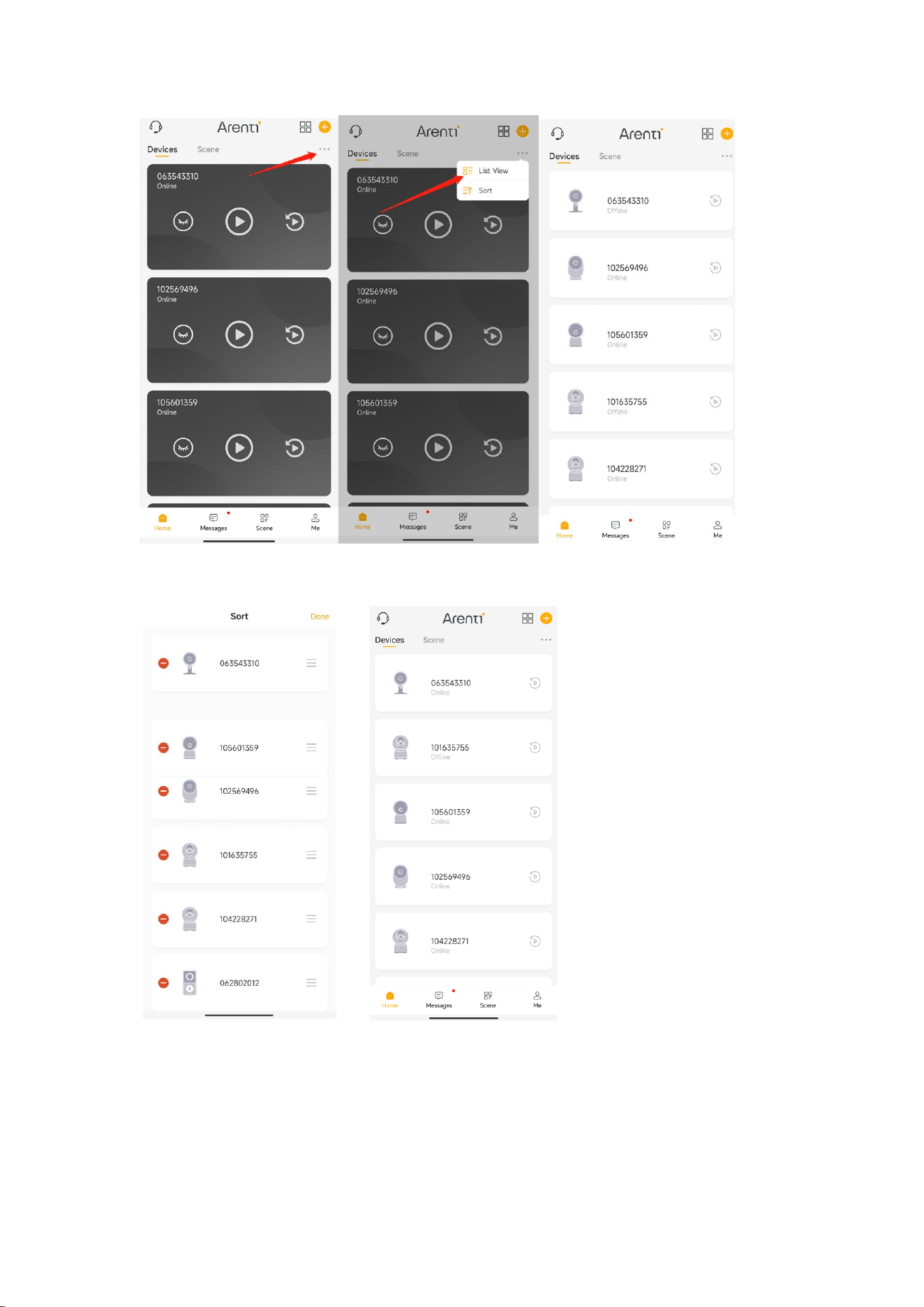
Press and hold to move the camera to the sequence you need. Then tap Done ,back to the
device list.
Multiple Views
If you have 2 or more cameras added in your Arenti App, you can view multiple
streams at the same time.
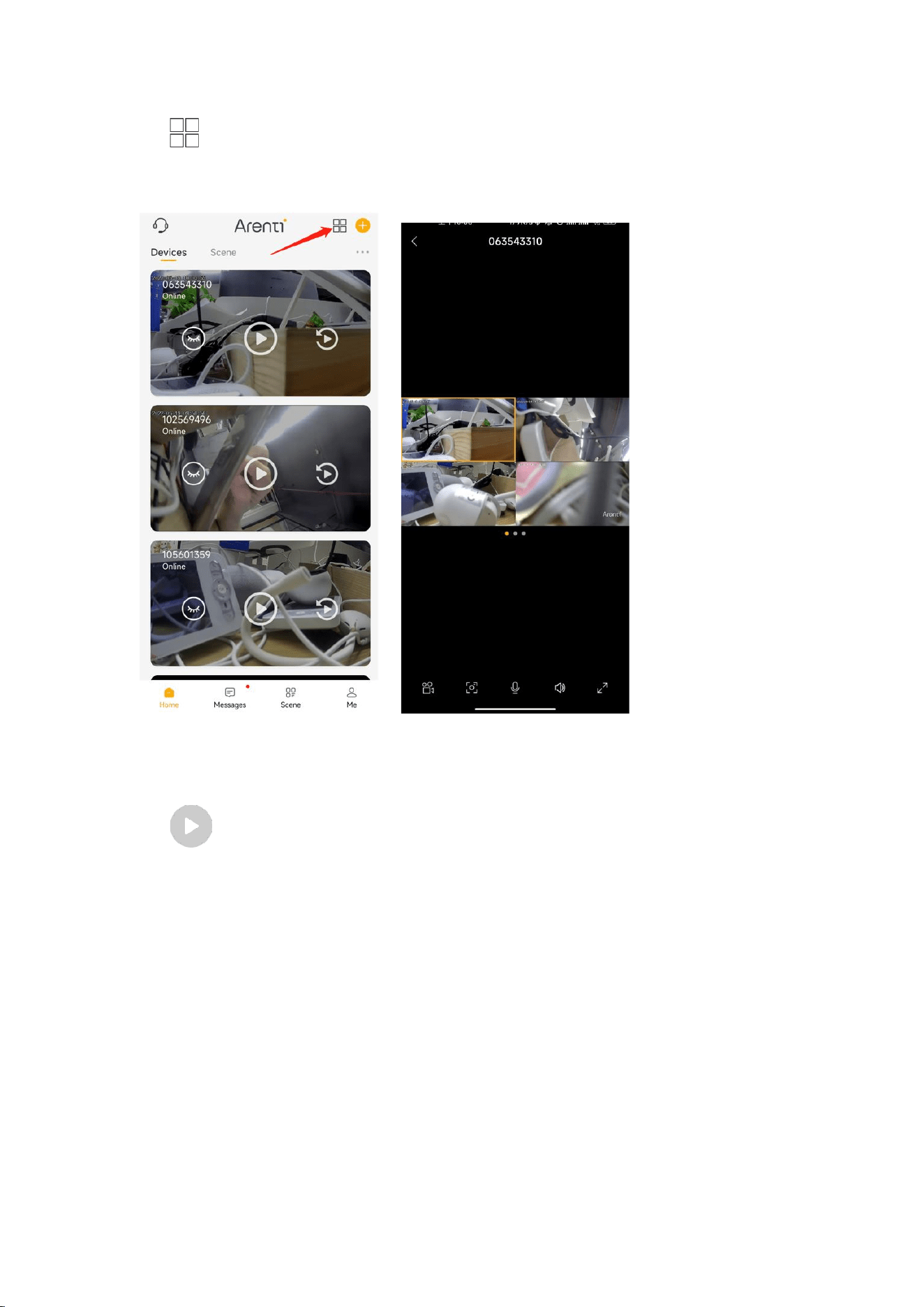
Tap icon , the first 4 cameras will show in one screen. You can slide the screen to
check next 4 camera.
You can choose camera to 2-way audio, Manual capture, record.
Live video
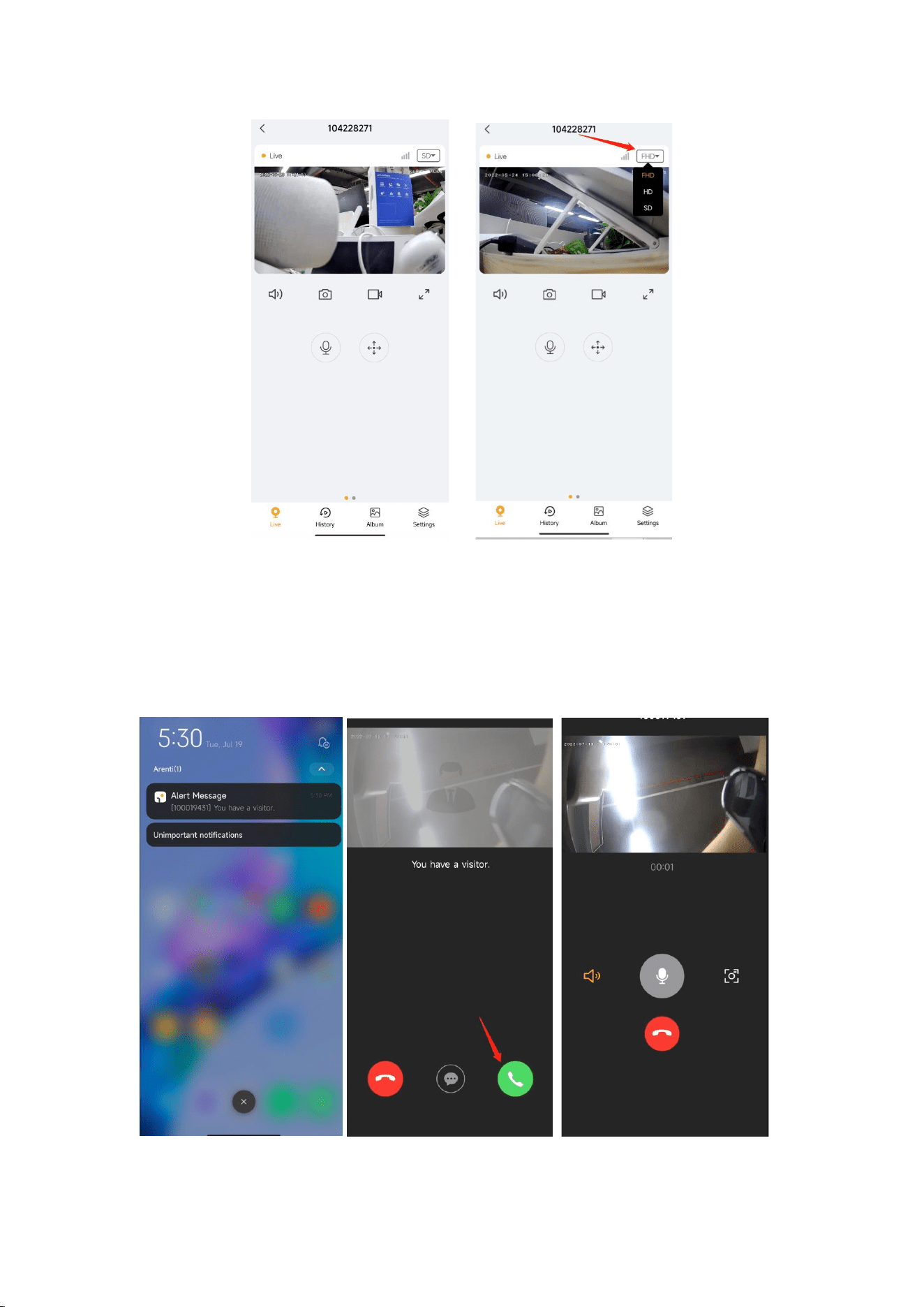
Tap Icon to view the camera Live video. Tap the SD to choose SD/HD different
resolution.
Pick up the ring call
After visitor pressing the Bell, you will receive the notification of the call, and tap the
notification, will open the Arenti APP. You can choose to answer or hang up the call.
After picking up the phone, you will possible to talk with the person at front the doorbell.
Manually Capture
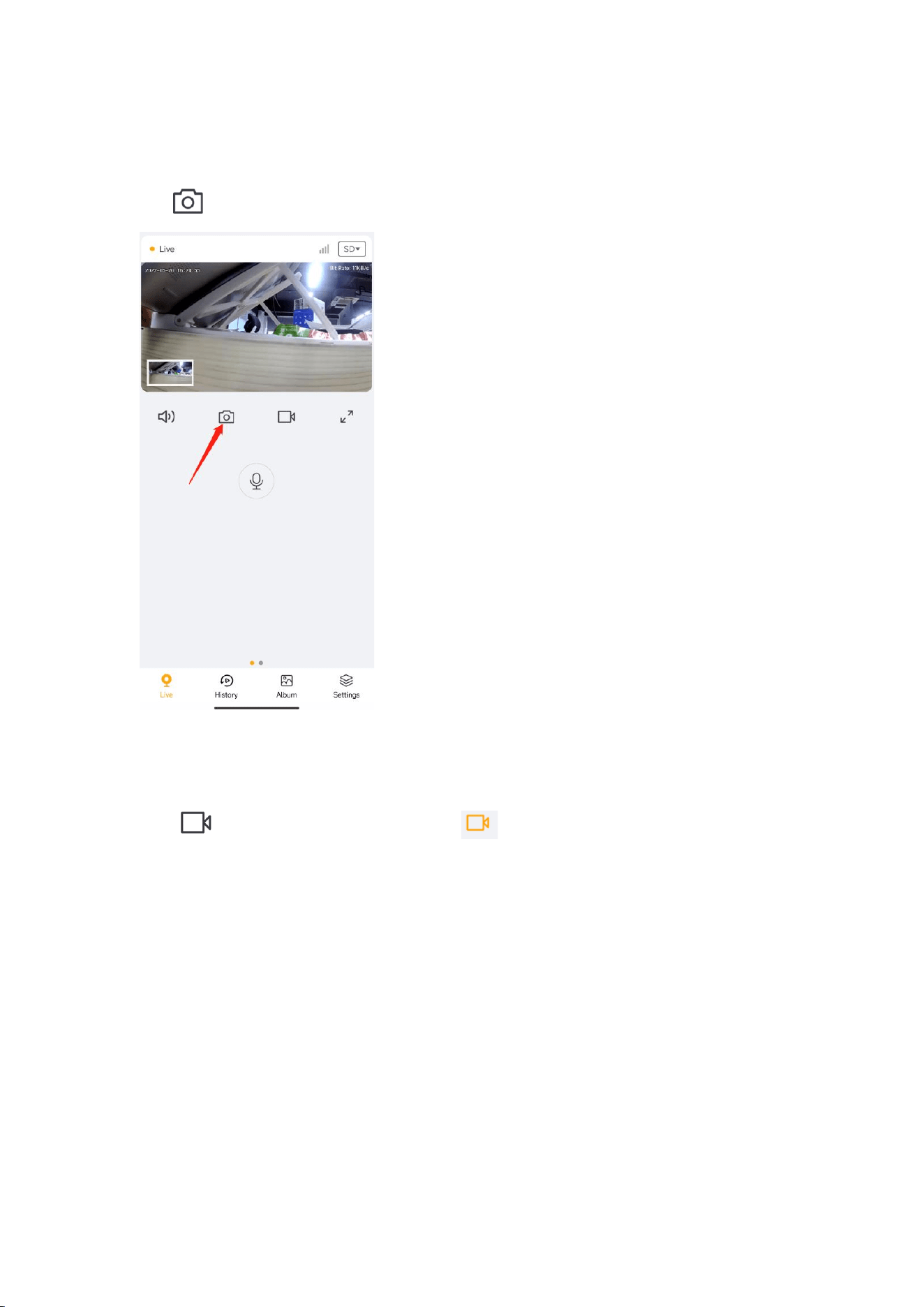
Tap icon to capture the image. Image will save in Album.
Manually Record
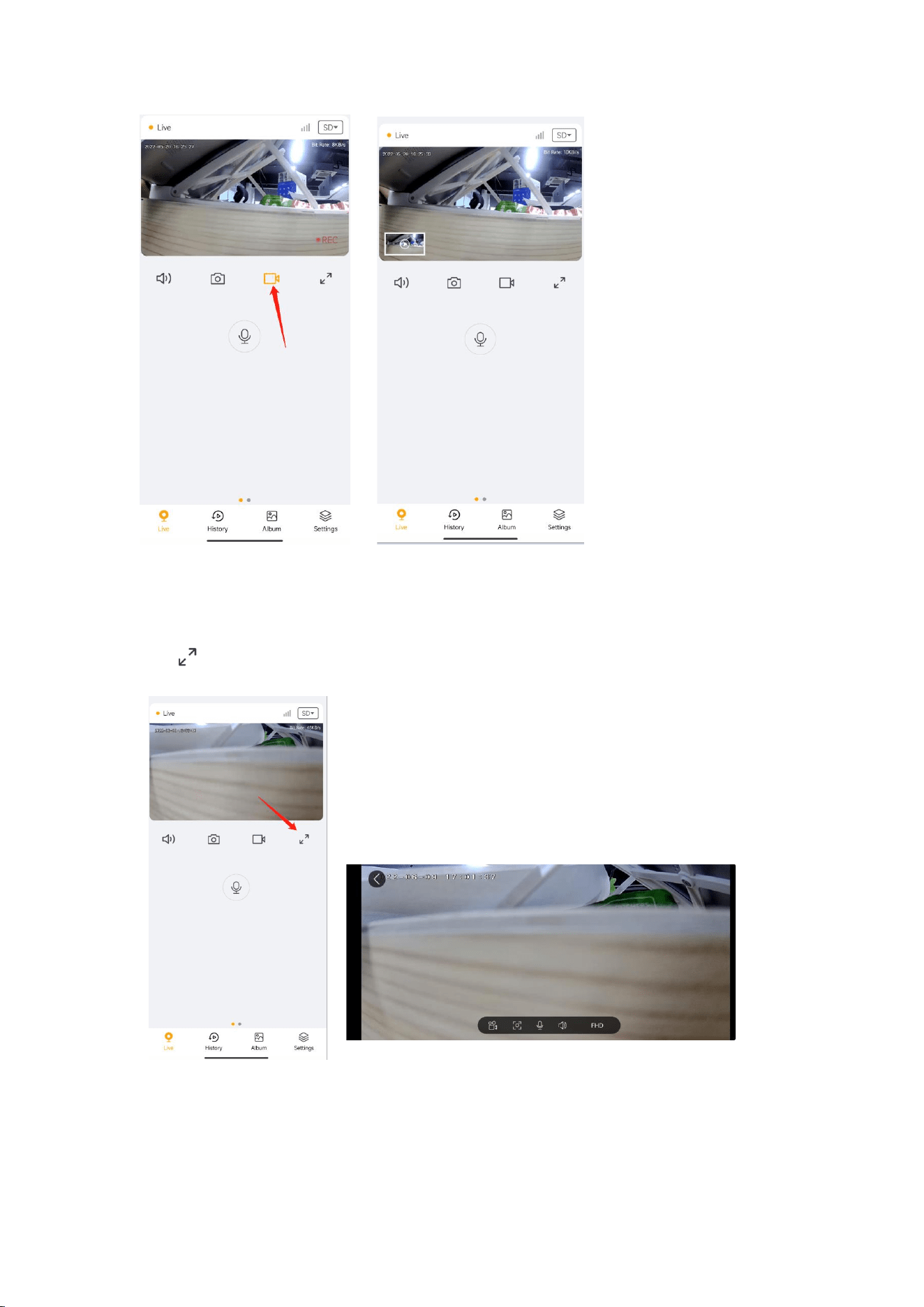
Tap icon to start record the video, tap to stop the record, the record will save
in Album.
Full Screen
Tap icon to check the video in full screen.
2-Way Audio
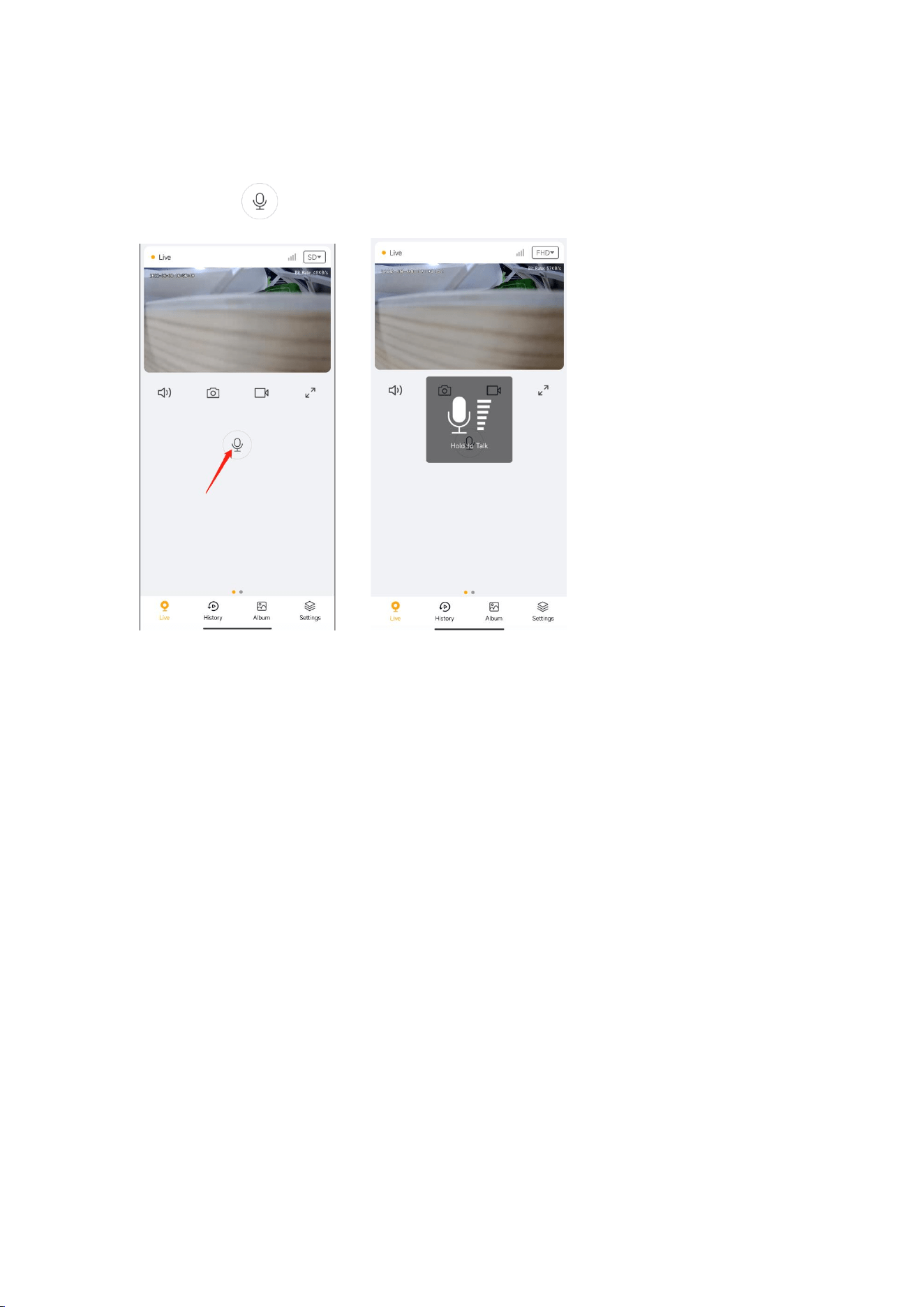
Tap/Press the icon to talk.
4. Alarm and Detection
About Motion Detection
Arenti camera determines whether each macroblock has moved by dividing
the grid. When the number of moved blocks reaches a certain proportion of the
number of armed blocks, the alarm will start. The working principle of motion detection is
that camera will judge it as motion when differences in 2 frames reach 0.5%-10% (customize
by adjusting motion sensitivity) of the image. When the picture changes, the number
calculated and compared will exceed the threshold and instruct the system to automatically
make corresponding process.
Set up Motion detection
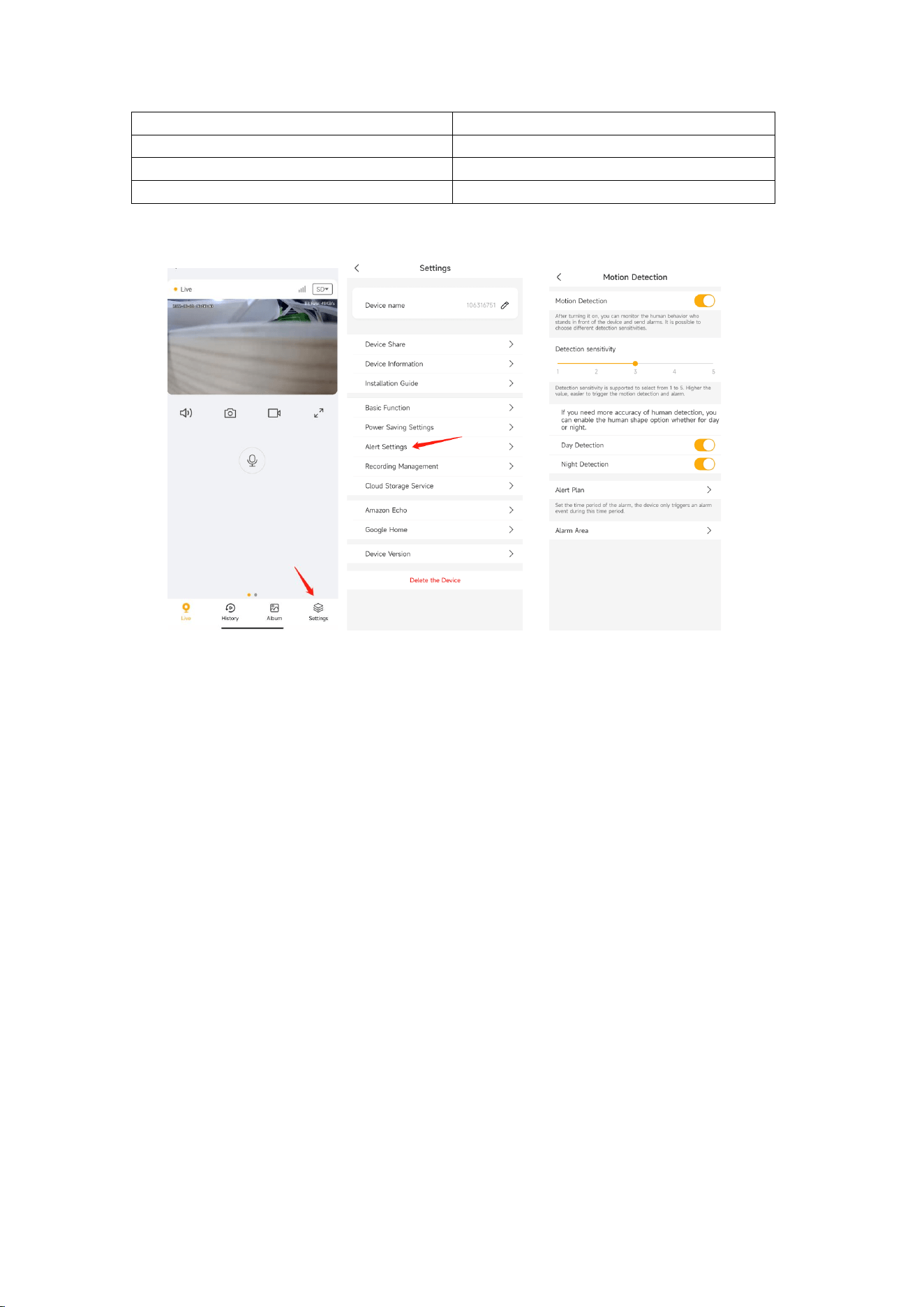
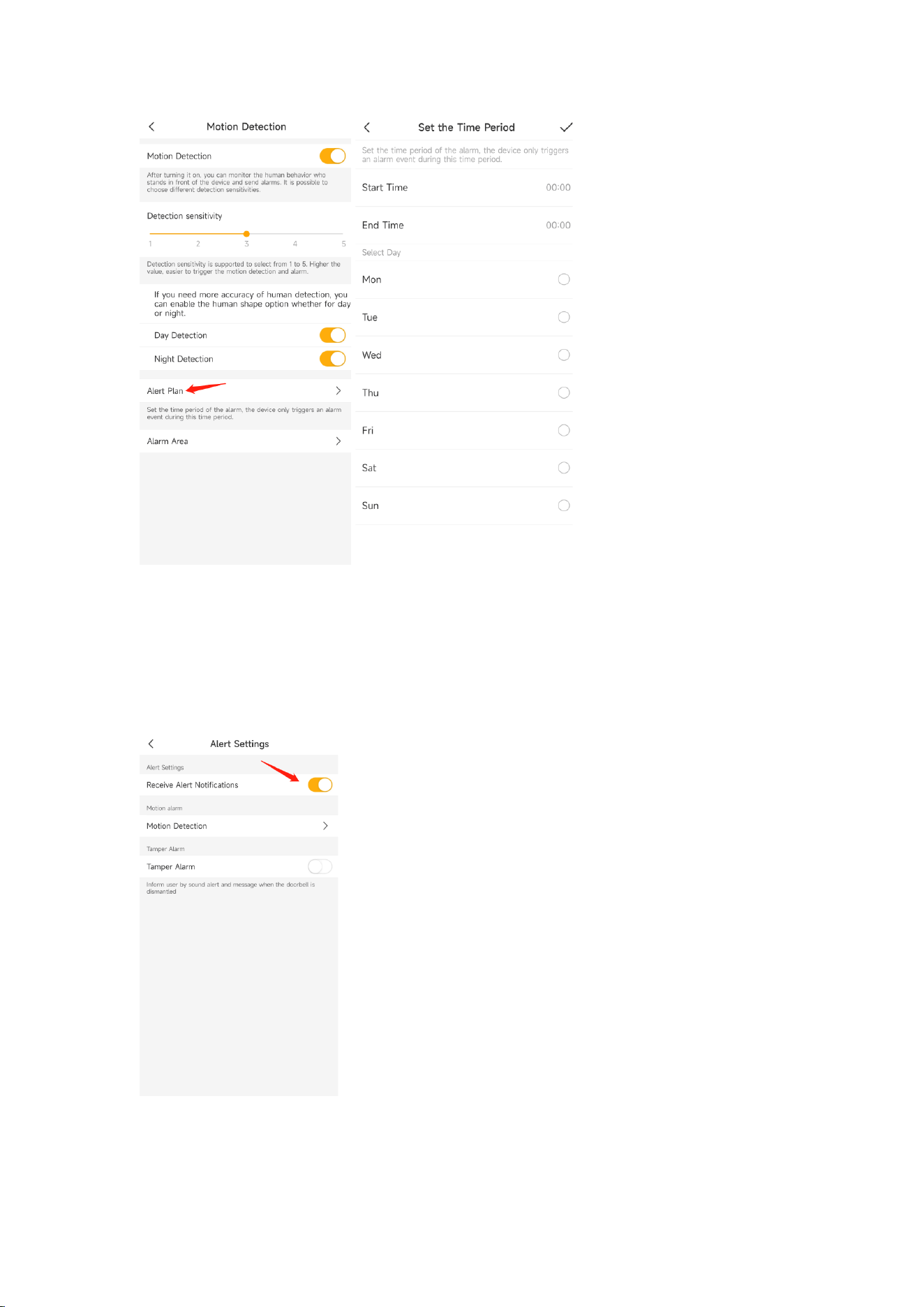
Go to camera live video page- Settings-Alert Settings-Motion detection-On
Battery camera equipped PIR sensor , It will detect the body heat from 2~10 meters. And
you can customize the detection range to meet your needs.
Set from Arenti APP-Device (tap device to live video page)-Settings-Alert settings- Motion
Detection-Sensitivity
Sensitivity
Detection range
Level 1-2 (Low)
Up to 2-5 meters
Level 3 (Mid)
Up to 5-8 meters
Level 4-5 (High)
Up to 8-10 meters
Note: sun's rays, cars, animal, other heat source will trigger the pir sensor and cause the
false alarms.
Human shape detection.
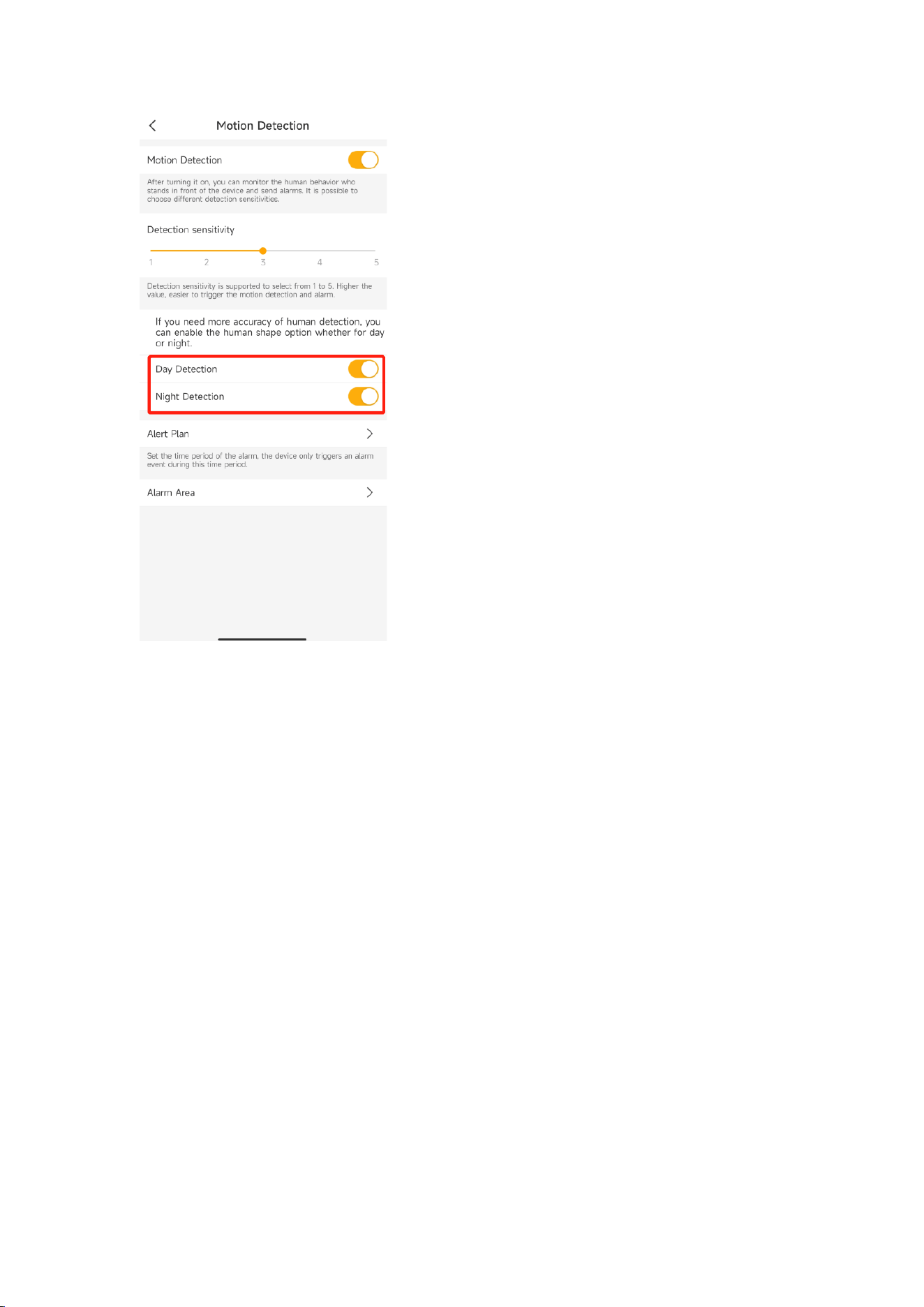
To reduce the false alarms.Camera support set the day/night human detection. If enabled, it
will alert only when detected the human shape .
Note: The arithmetic is not 100% accurate; Especial at the night, camera may think that's not
a human shape and not send alert.
Alert Plan
User can set the time period of the alarm, the device only triggers alarm event during the
time period
Set up Push notifications
1. Go to camera live video page- Settings-Alert Settings-Receive Alert Notifications:
Enable
Your mobile phone will receive the Alarm notification when camera detect the motion.
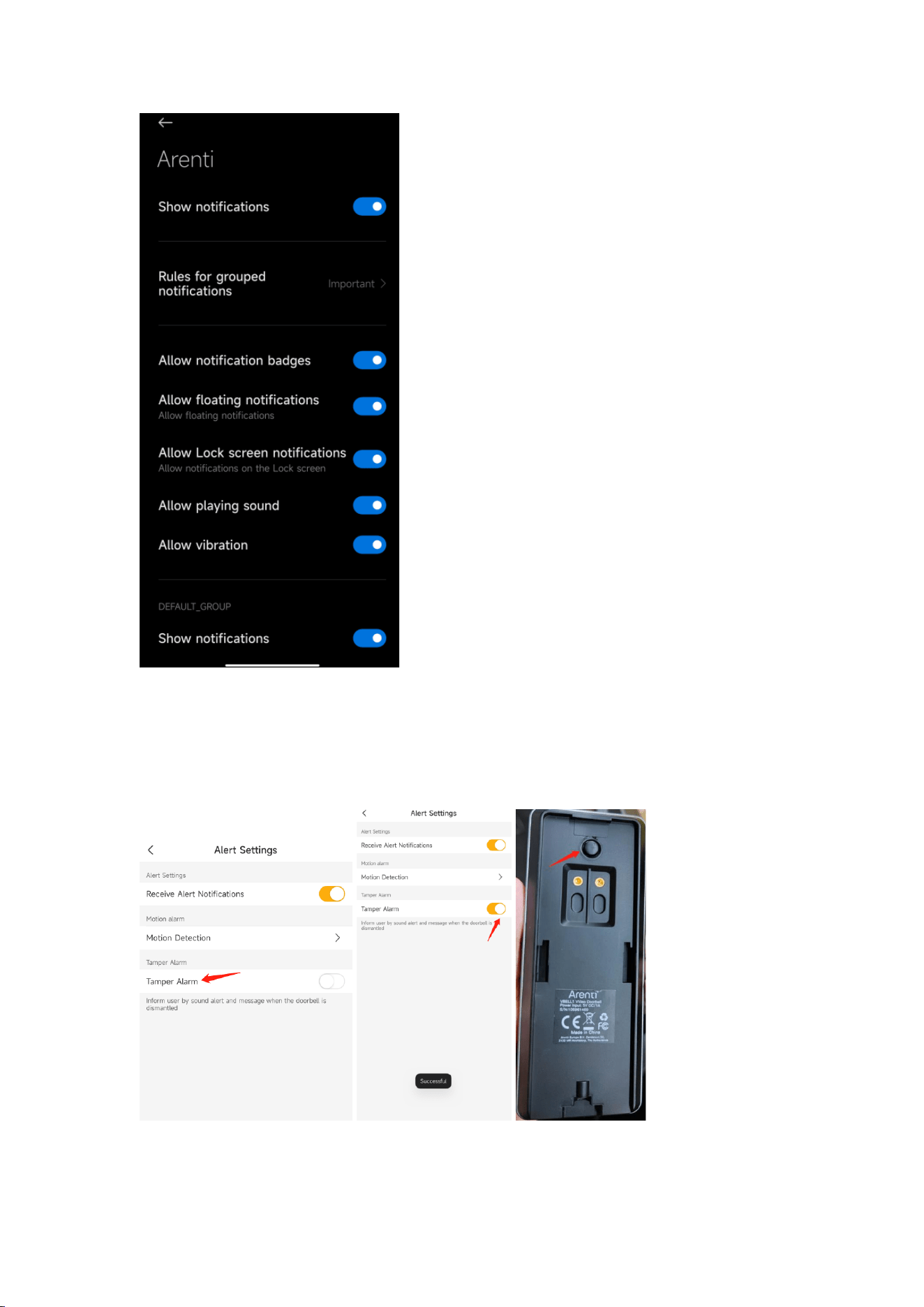
2. Set your phone to allow Arenti App to send push notifications. Go to your phone
Settings, find Notifications and among the App list find the Arenti App. Make sure
the mobile phone allow the Arenti App send notifications.
Mobile phone-Settings-Notifications-APP notifications-Arenti APP
Set Tamper Alarm
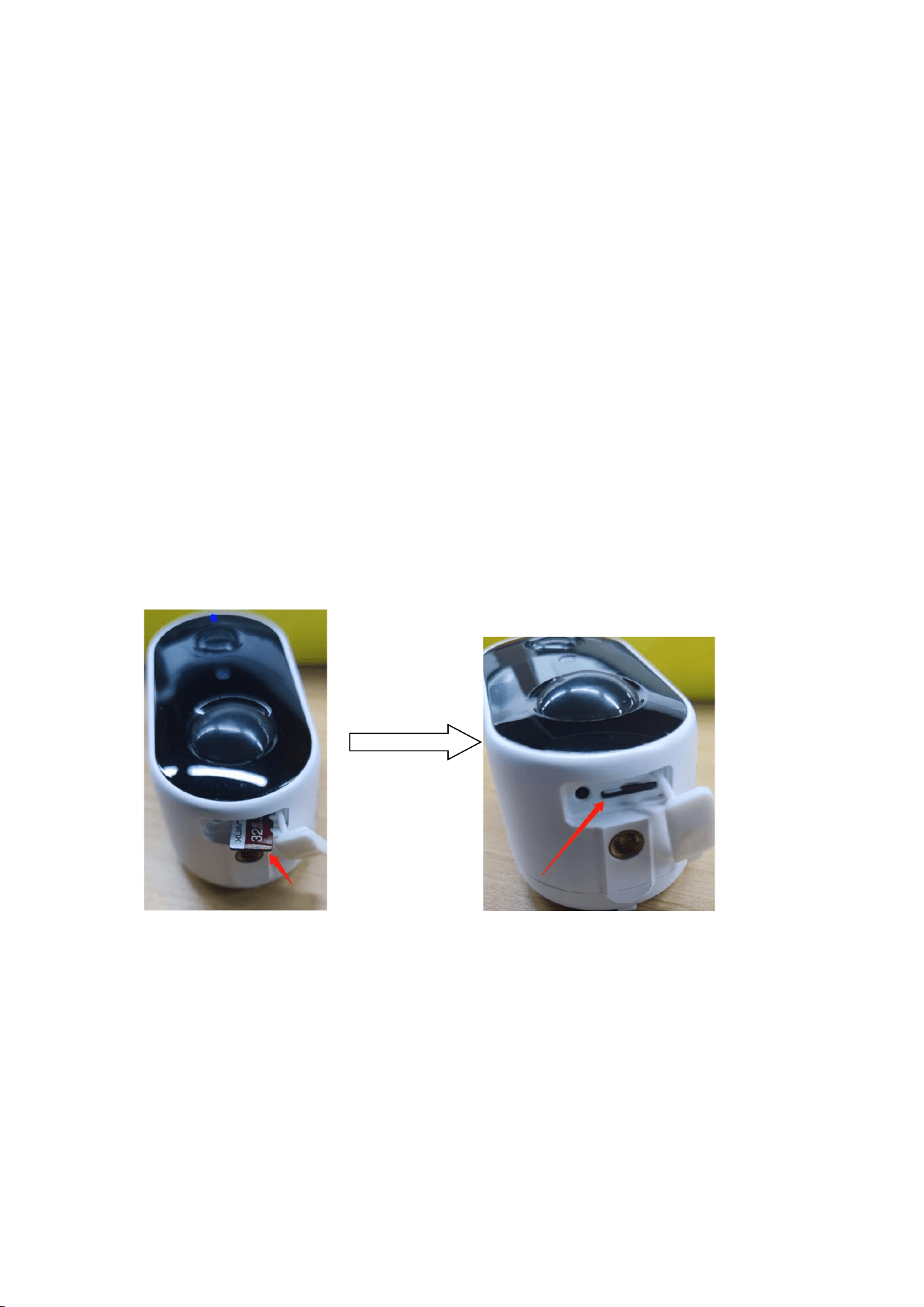
Set the Tamper Alarm, after enable it. If the doorbell is ddismantled, doorbell will make a
sound alert and a notification will send to user APP.
5. Recording and Playback
Micro SD card Recording
With an Micro SD card inserted the camera can save motion alarm recordings or continuous
recordings to the Micro SD card.
Choose a suitable SD card
1. Recommend SD card spec: Class 10 and above, Format FAT32, 2G-128G, brand Micro
SD Card
2. Choose the SD Card Capacity
Example : 32GB SD card with 1080P camera
Event recording (30s for one event,20events per day):around 8 months
Note: When full, Camera will overwrite the oldest recordings.
Insert the Micro SD card
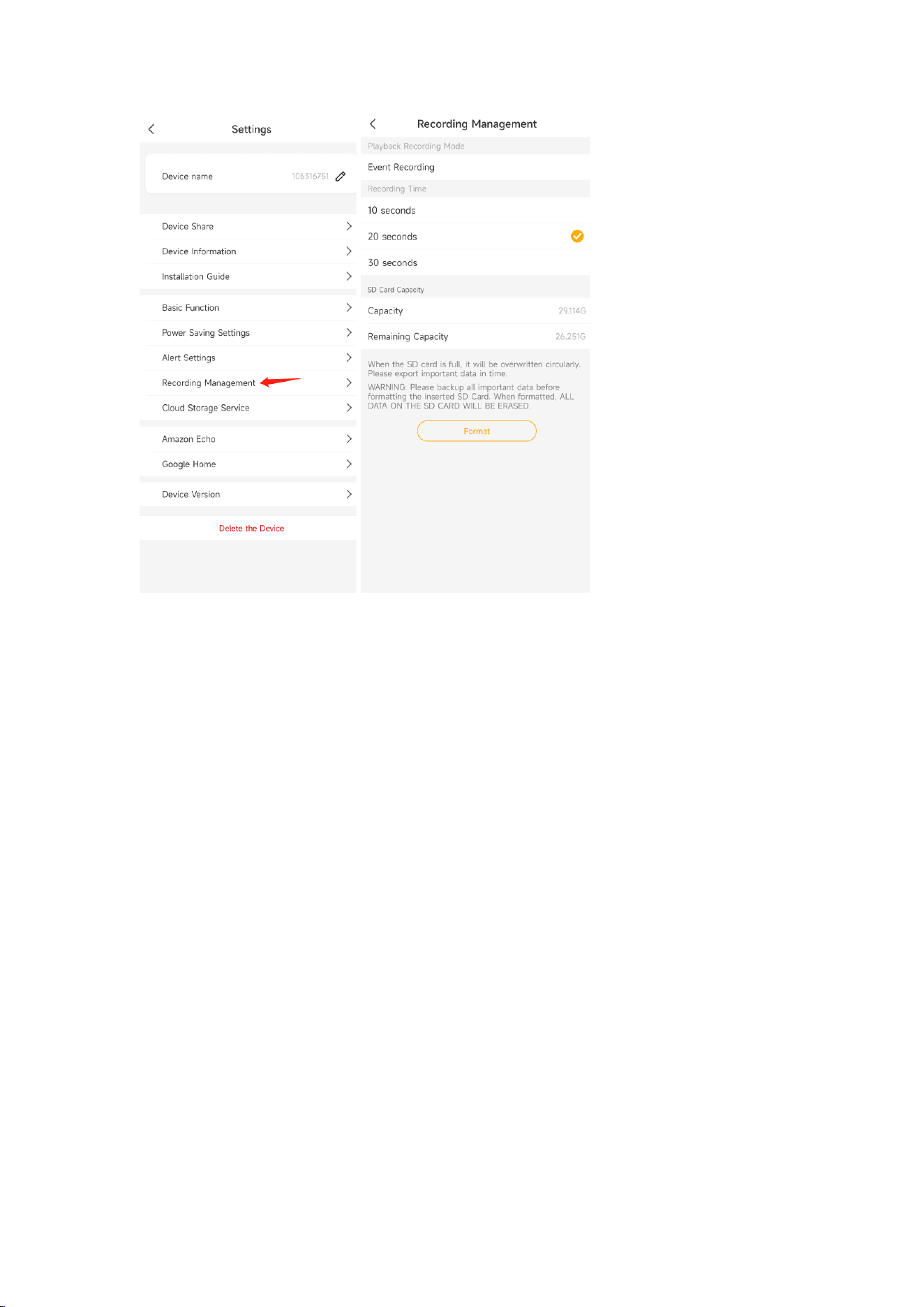
Take off the rubber, following the pictures to push the Micro SD card until it's locked or you
hear a ‘Click ‘sound.
Set Recording(Micro SD card)
1. Event recording: Arenti APP-Device(tap device to live video page)-Settings-Recording
Management- Event recording-Choose the Recording time-10/20/30 sseconds
Note: It will only record the motion alarm recordings to the SD card. Each event
recordings 10/20/30 seconds
SD Card Capacity
After you insert the properly SD card, You can check the SD card Capacity/Remaining
Capacity information.
Support to Format the SD card by APP. After format the SD card, all data will be clear in SD
card.
Cloud storage service
Arenti will give away 3 months free event cloud storage service for each camera. Each
device needs its own plan, Cloud Storage Service Fee will be charged per device.
Note: the rules may change in the future
Activate Cloud storage service
1. Activate the free cloud storage service
Arenti APP-Device(Tap device to live video page)-Settings-Could Storage Service-Try 3
months for free
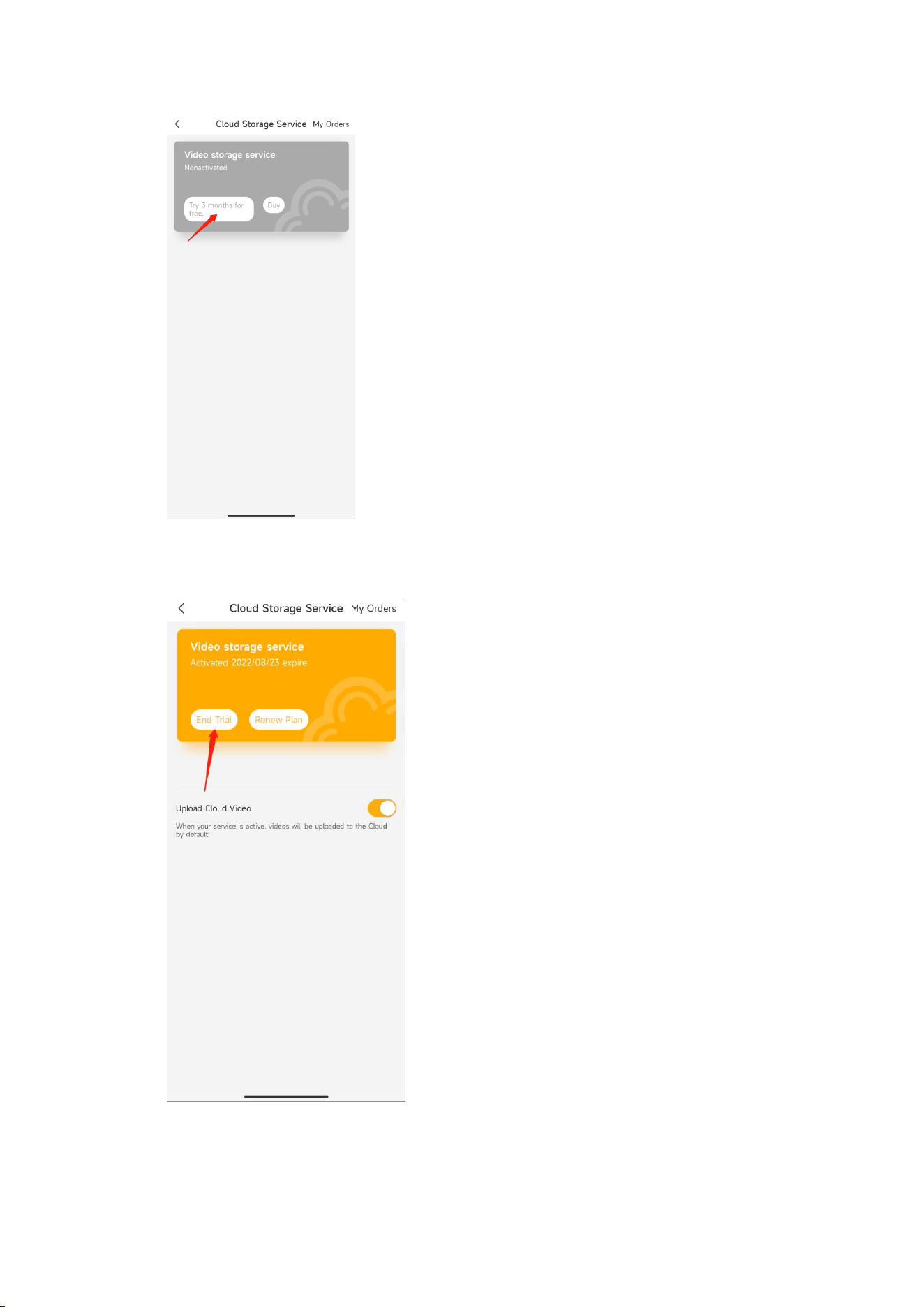
2. End free trial event cloud storage service
Arenti APP-Device(Tap device to live video page)-Settings-Could Storage Service-End
trial
3. Buy/renew the event cloud storage service plan
Tap Buy/Renew Plan icon to order the cloud storage service for your device.
Set recording-Cloud storage
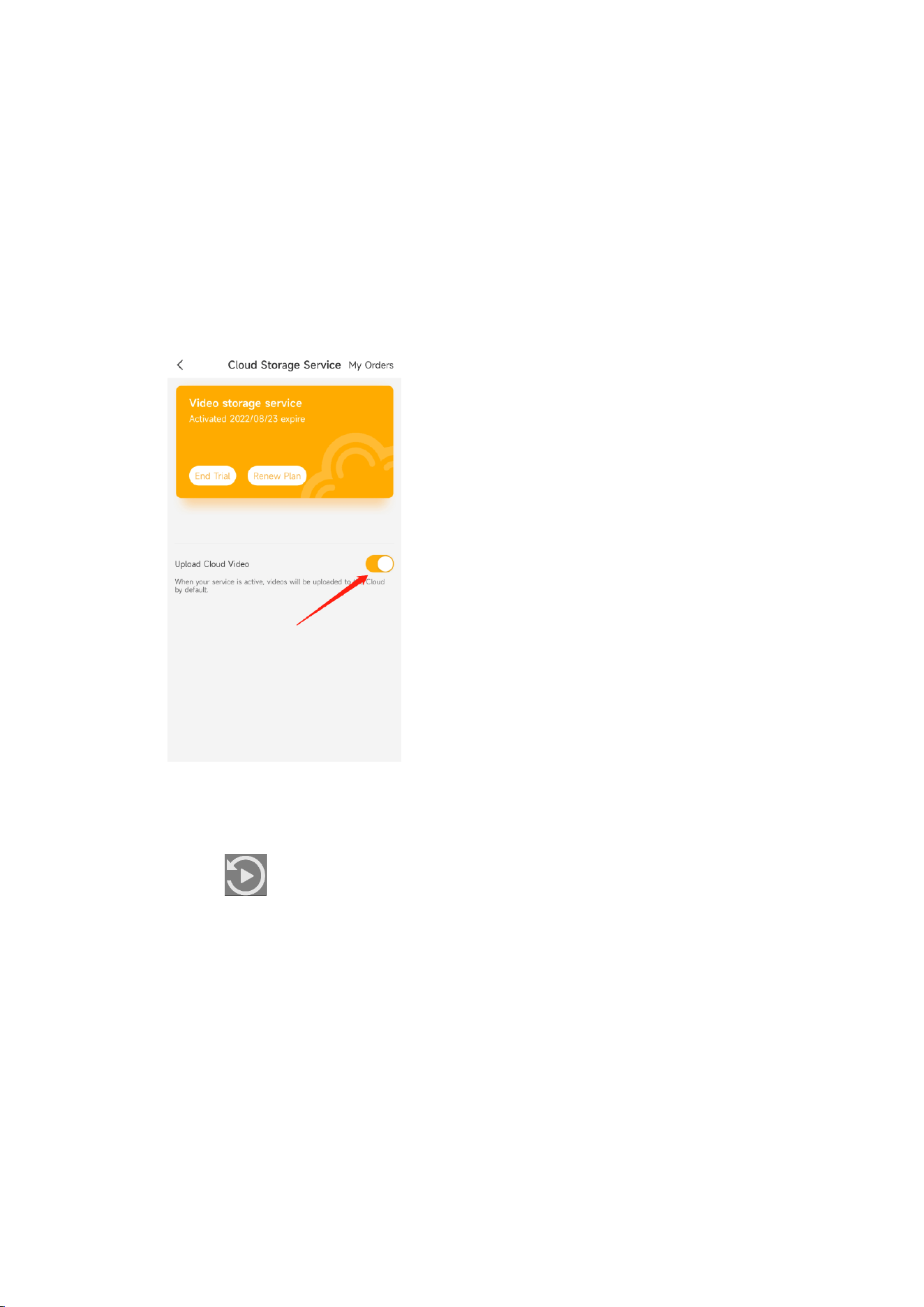
1. Event recording: You can use the free trial or buy/renew the event cloud storage
service plan to save the motion alarm recordings to the cloud storage
2. Full day recordings: You can buy/renew the event cloud storage service plan to save
the Continuous recordings to the cloud storage
Note: Please end trial the free event cloud storage service first, then camera will start
the service that you bought.
Stop Uploading
You can disable the Upload icon, to stop the camera uploading the video to cloud storage
service. There will be no recordings on cloud storage.
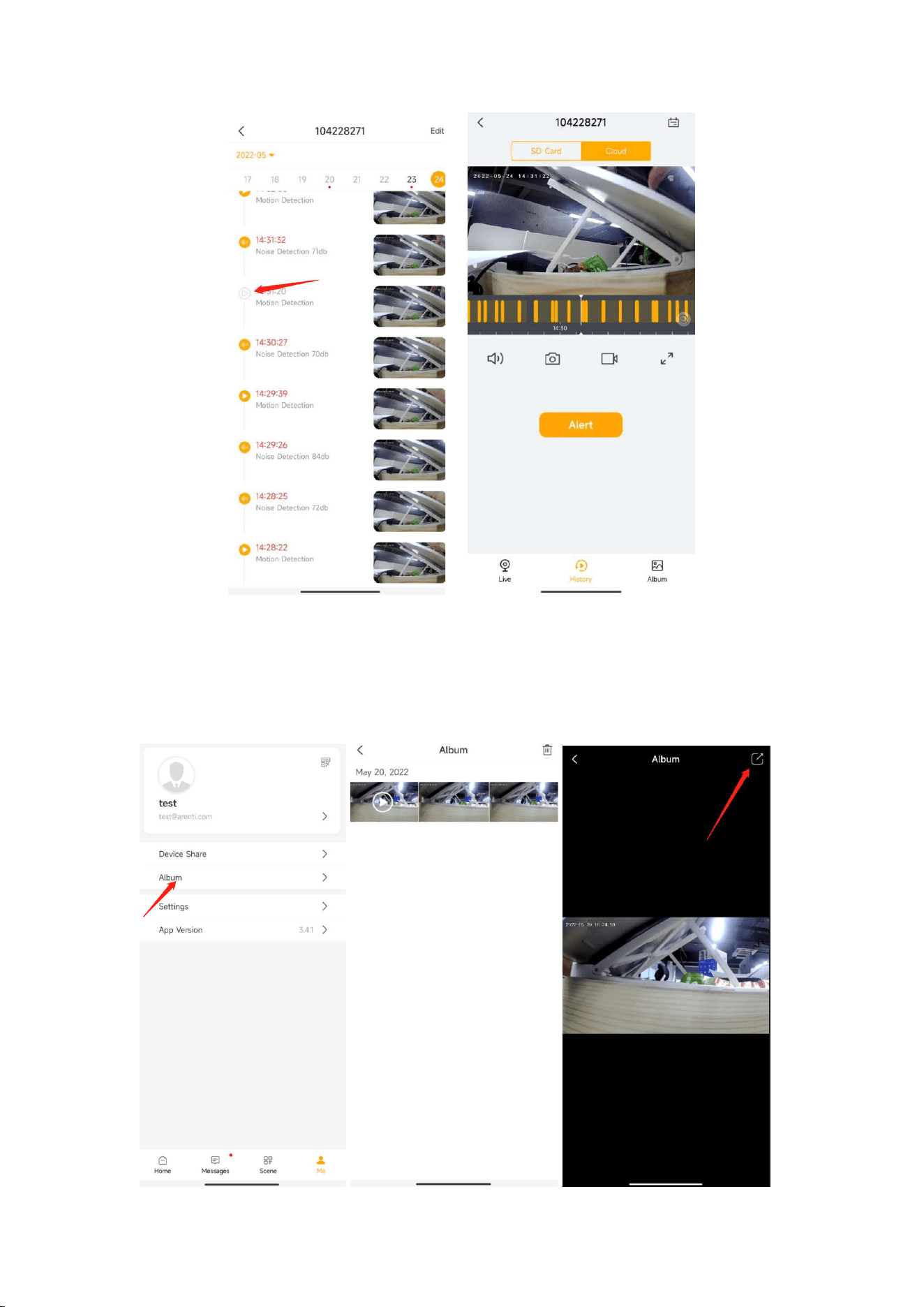
Playback
1. Tap the icon to check the history video. According your own plan choose SD card
or Cloud to playback.
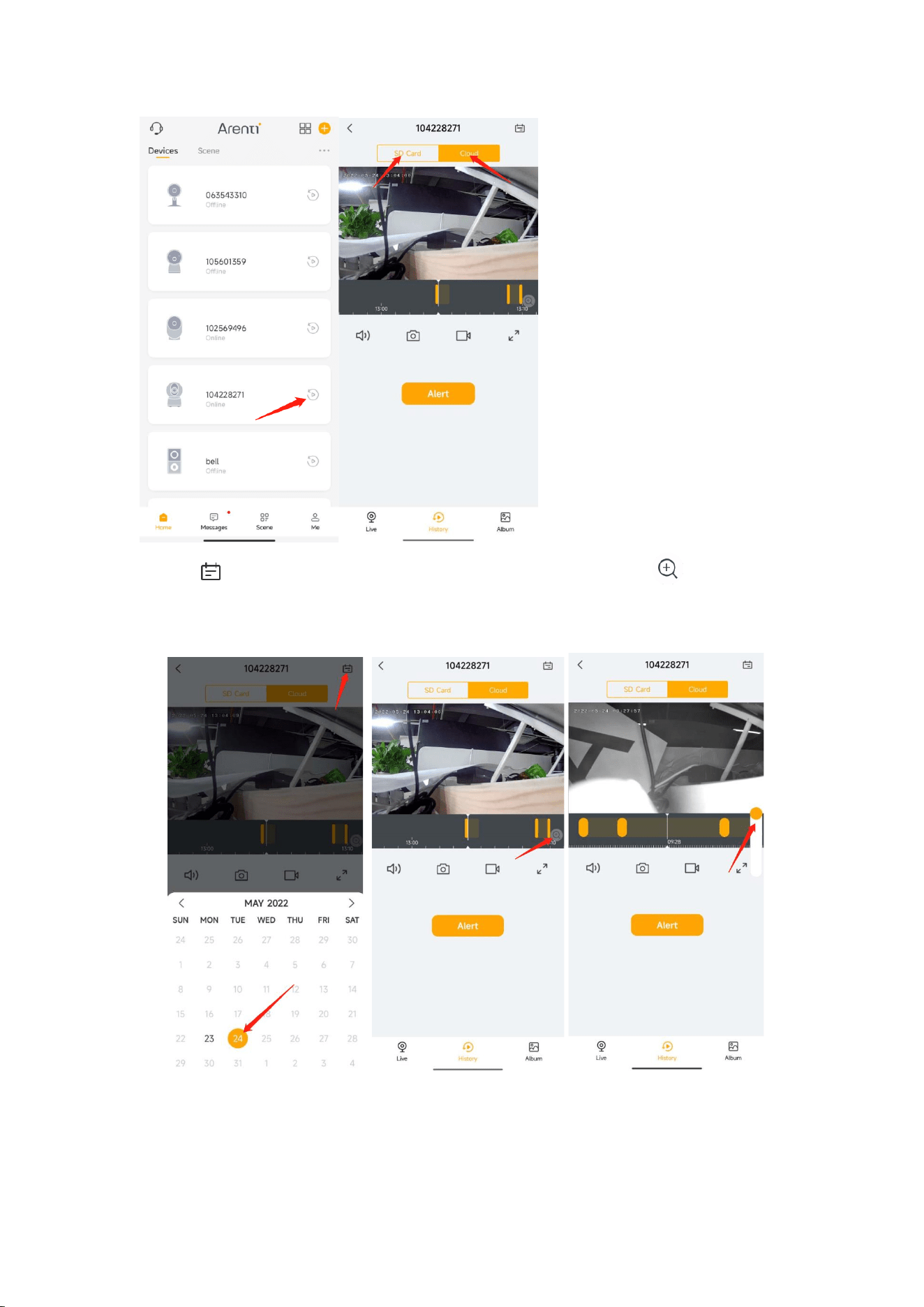
2. Tap icon to select a date to search the recordings. Tap the icon to scale
timeline and slide to find the
recordings you want to replay, waiting for loading and it’ll automatically start to play.
3. Tap ‘Alert’ to search and play alarm recordings.
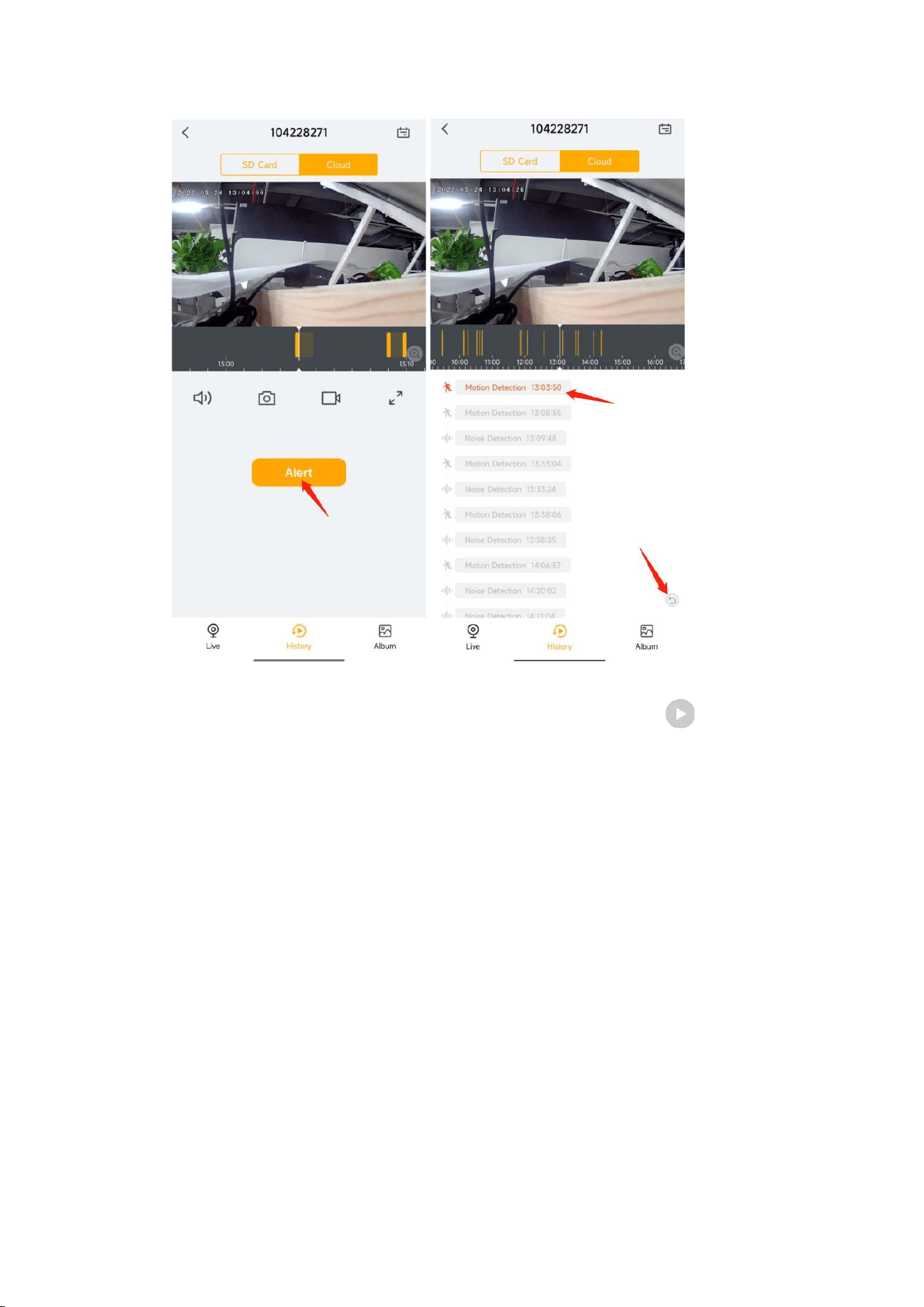
4. Playback from the Alarm messages.
Go to Messages-Alarm messages-Device, choose the messages, tap icon to play
the recording.
Album
You can browser all picture/video that captured manually in album. Also you can share the
video/picture in album.
6. Camera settings
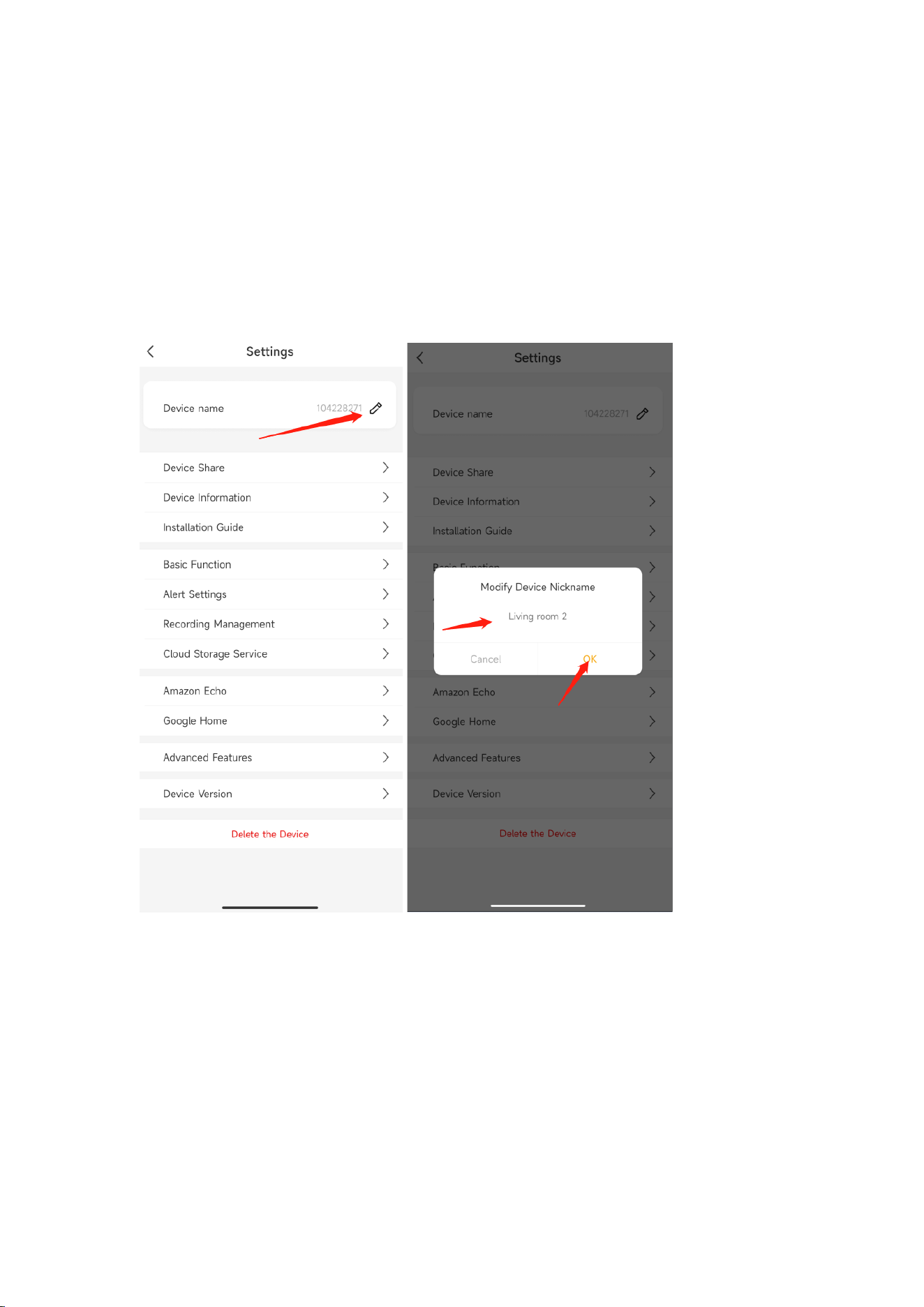
Camera Name
You can rename the camera
Arenti APP-Device(Tap device to live video page)-Settings-Device name,after you input the
new name,tap OK to save.
Share Arenti Devices with others
1. Arenti APP-Device (Tap device to live video page)-Settings-Device Share-Add-
Share the Qrcode
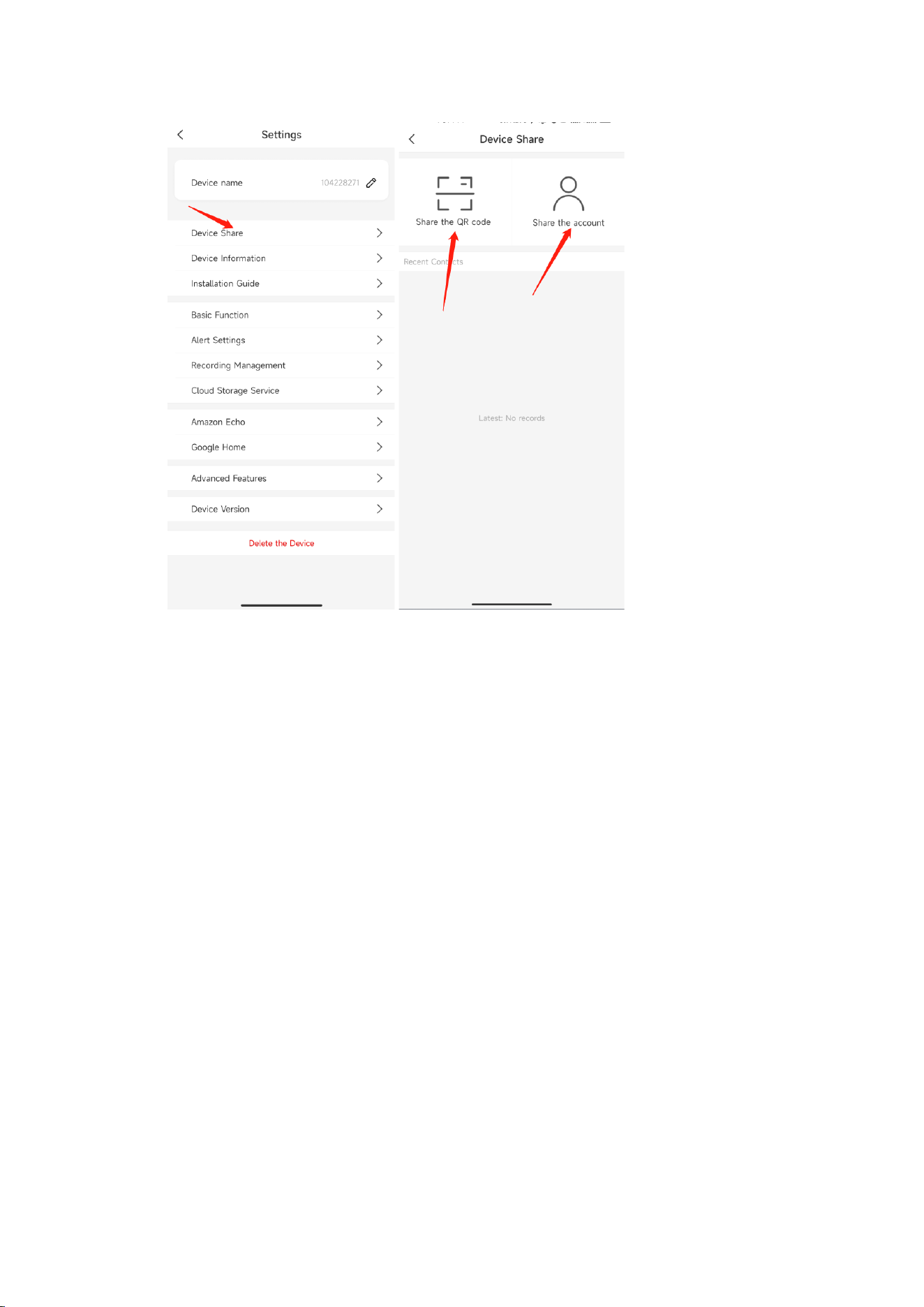
2. Launch the Arenti APP in another mobile phone and tap Me-Qrcode. Scan the
Qrcode to share the device.
Also you can manually input the user account to share the device.And accept the
shared device on another mobile phone.
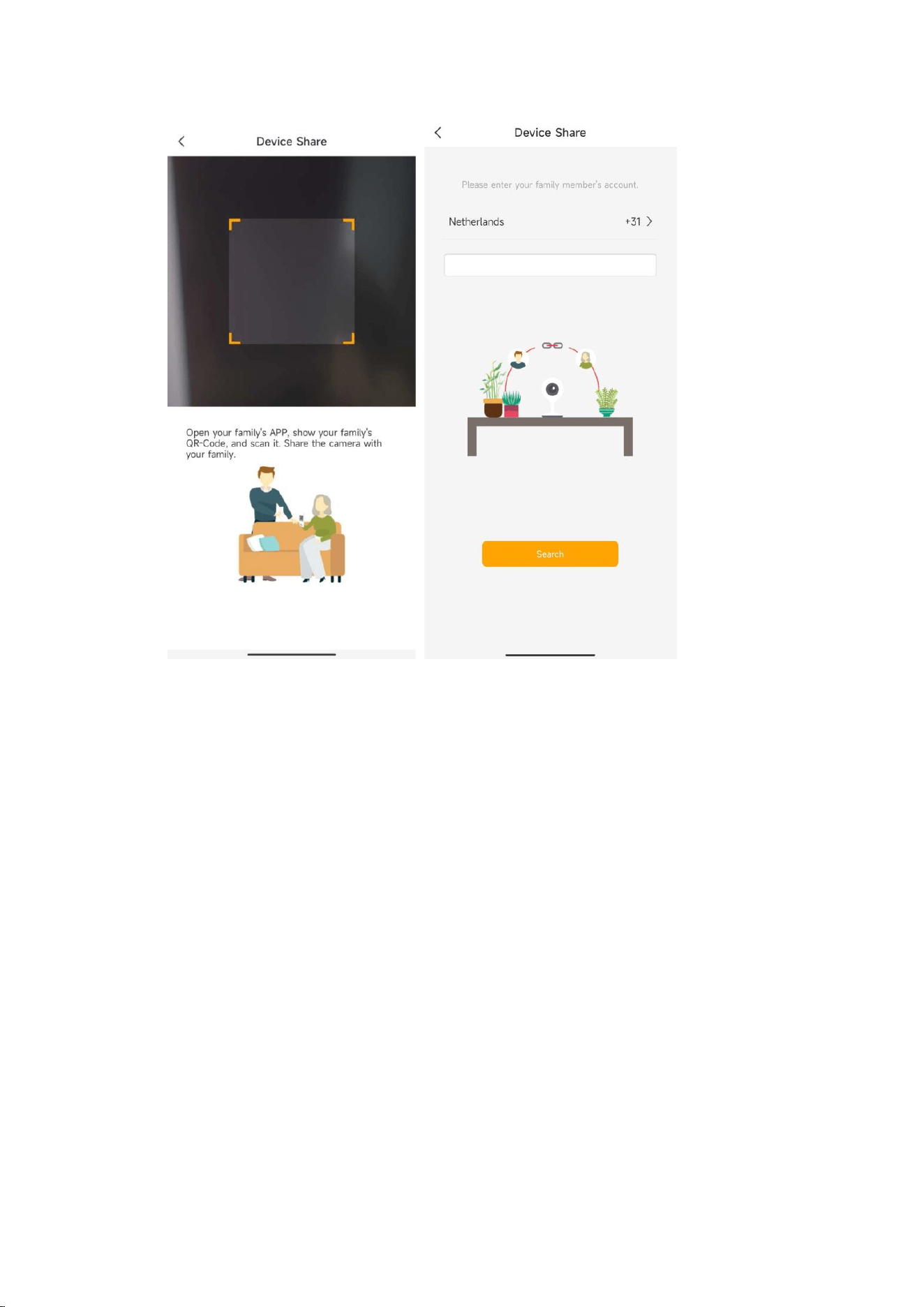
Note: needs your friends create the account(same country) and login the Arenti APP
also. Your friends account could access the Live video, recordings in SD card(not
allowed via cloud storage)
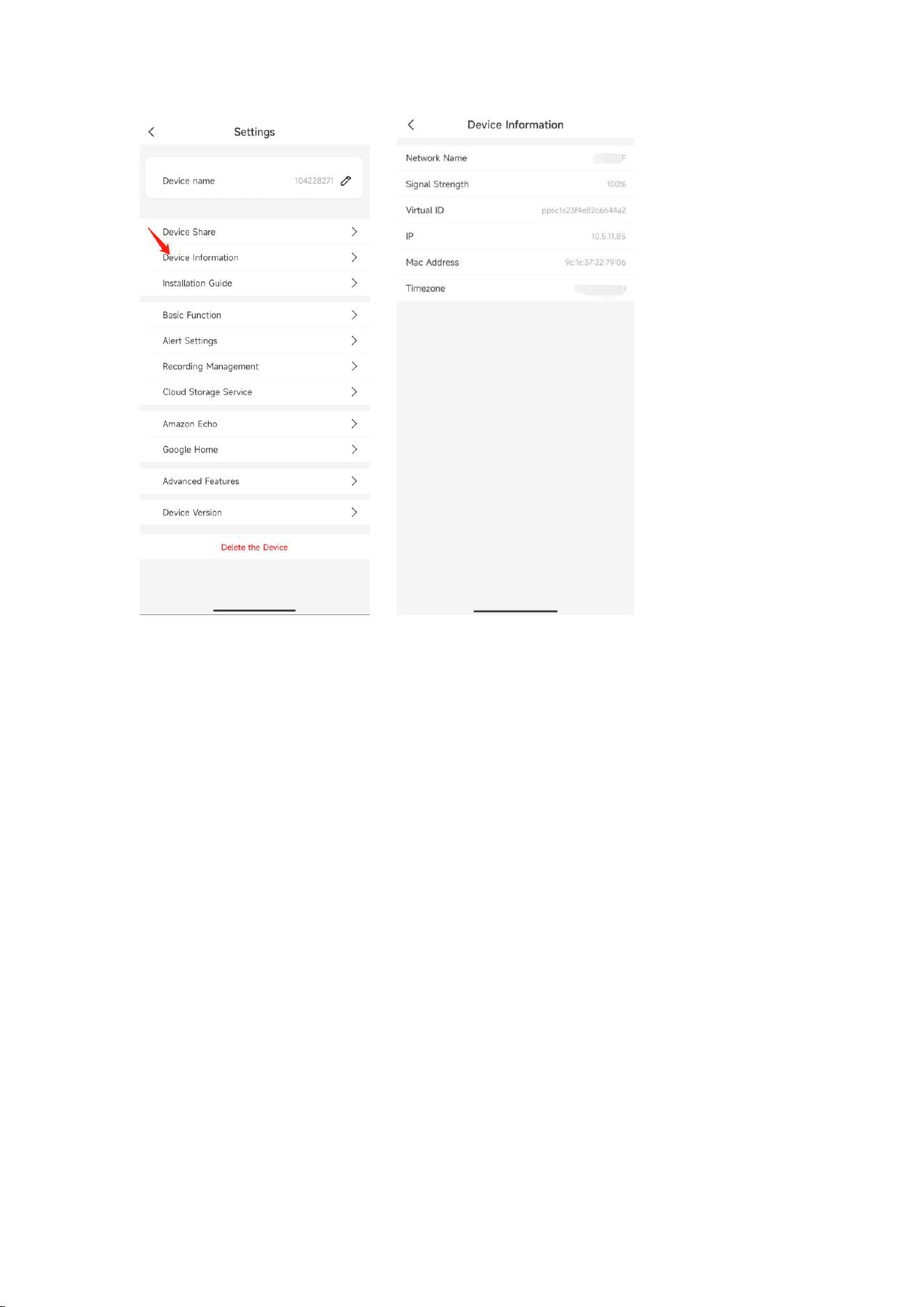
Device information
You can check the camera information from: Arenti APP-Device (Tap device to live video
page)-Settings-Device information: Network Name, Signal Strength, Virtual ID,IP, Mac
Address, Time zone.
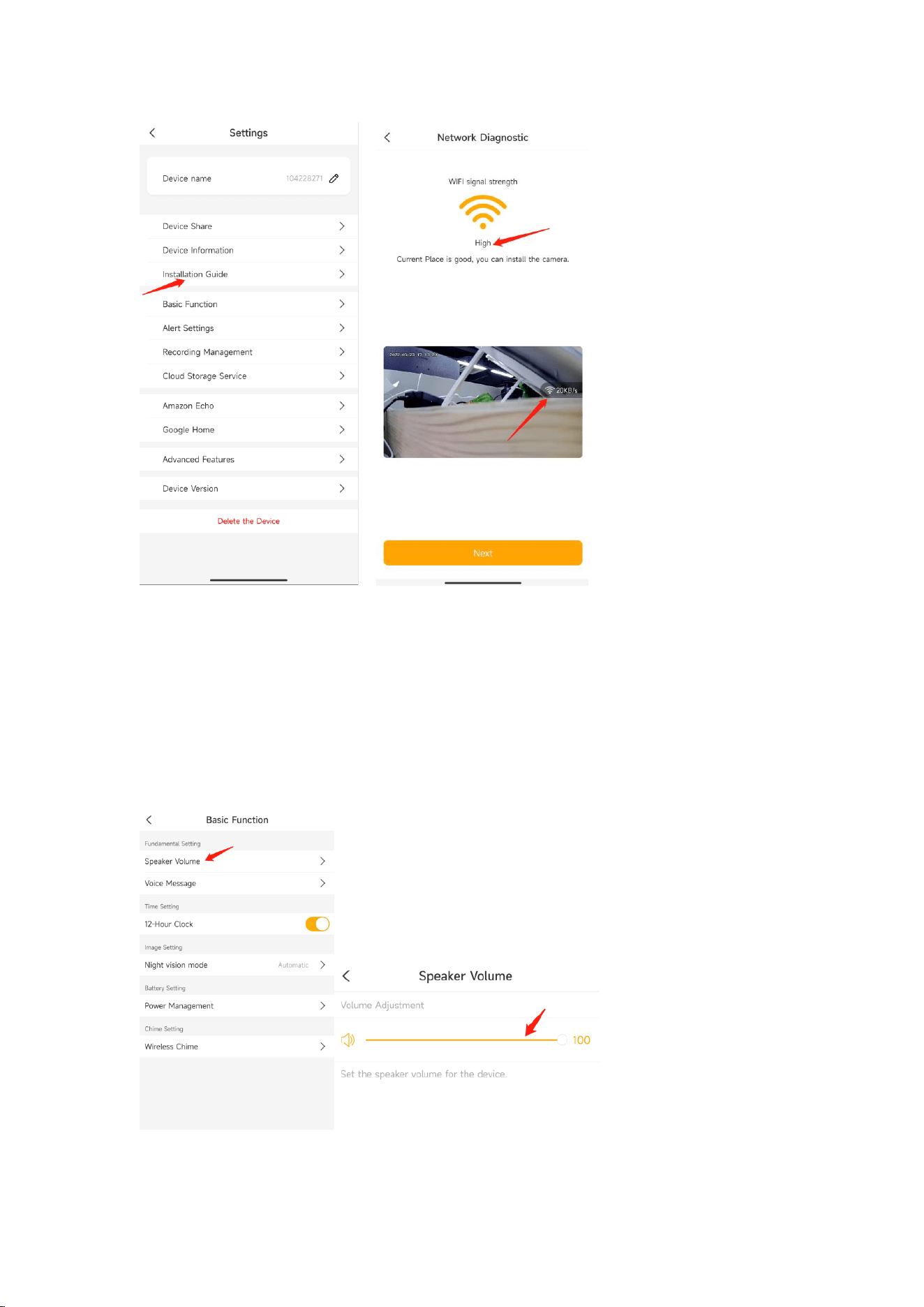
Installation Guide
Check from: Arenti APP-Device (Tap device to live video page)-Settings-Device information
APP will guide you to install the camera in a good wifi position, to keep camera working
properly.
Basic function
Speaker volume
Basic function>Speaker volume
Support user adjust camera speaker volume
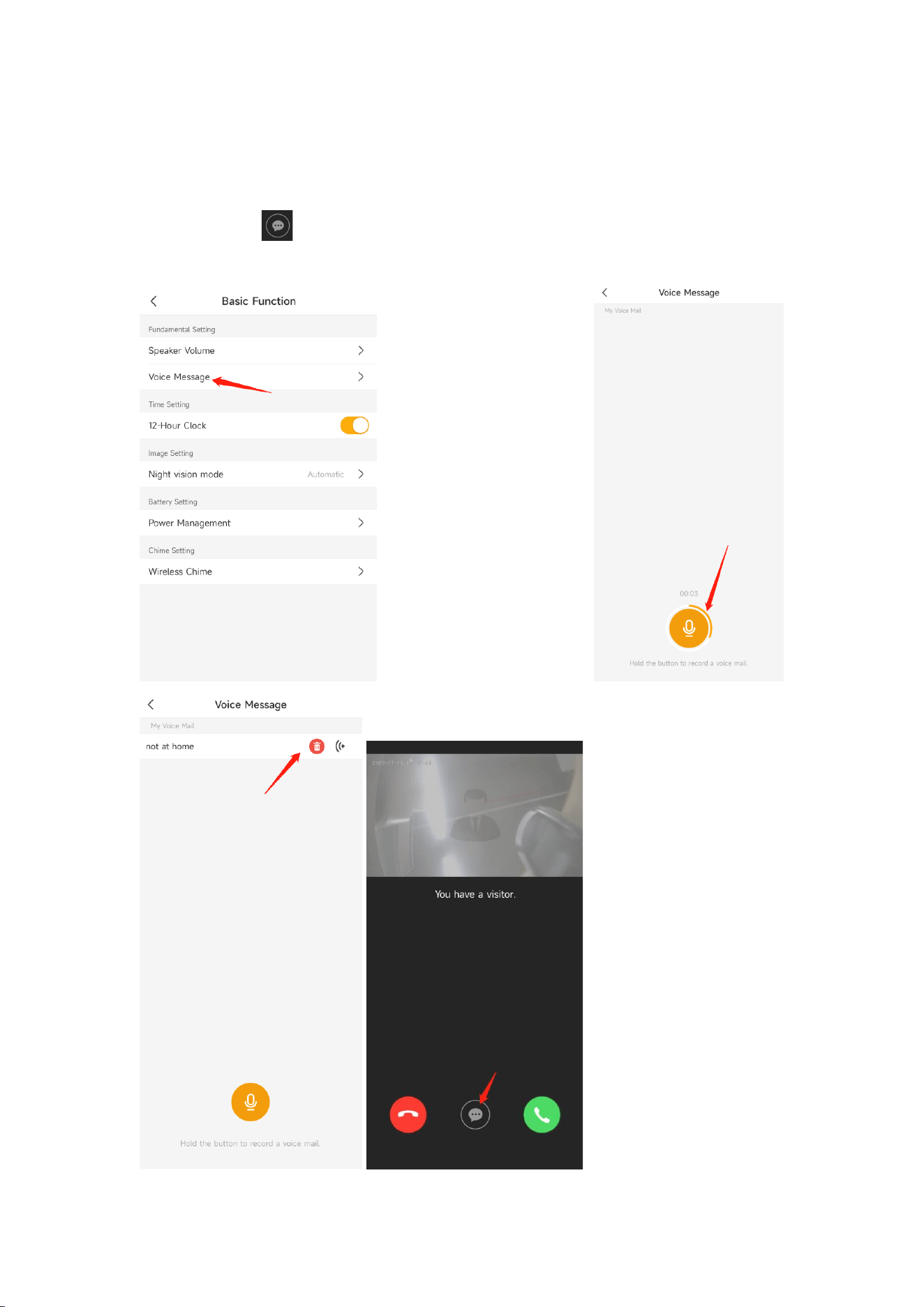
Voice Message
Record a Voice message when you are not convenience to answer the ring call.
You can tap the message icon when you are in pick up page. Doorbell will play the
voice message that you recorded before.
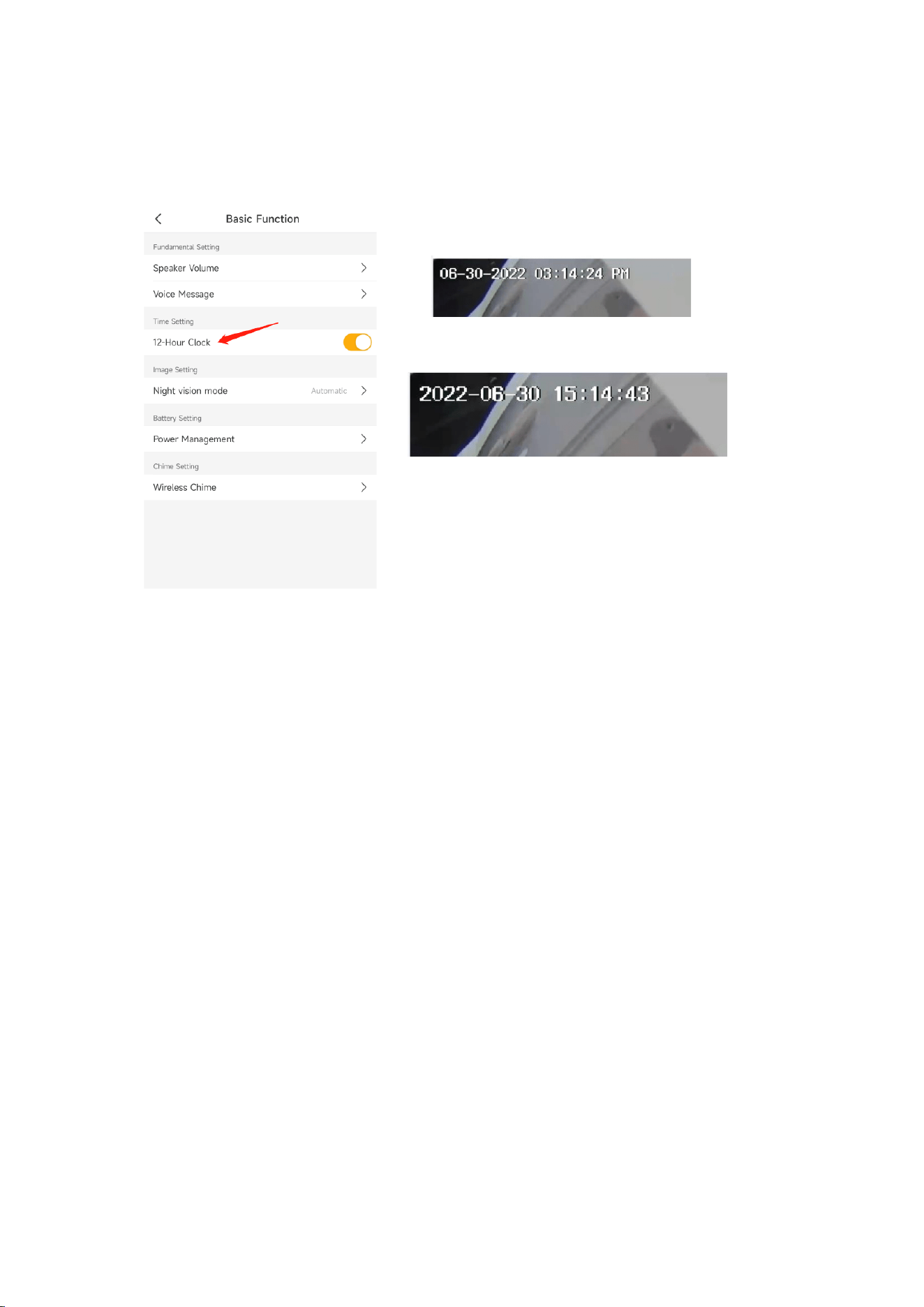
Time setting
Support to change the time format switch to 12h/24h
Night Vision
Set the camera’s color mode during different times of the day and night. When night vision
is on, the infrared light will turn on also--to get clear Black&White image in the night.
Automatic: The camera will automatically switch between Color and Black & White
modes according to the light conditions.
OFF: The camera will capture color images that usually appear during the day.
On: The camera will capture black-and-white images that usually appear during the night
with the IR LEDs on.
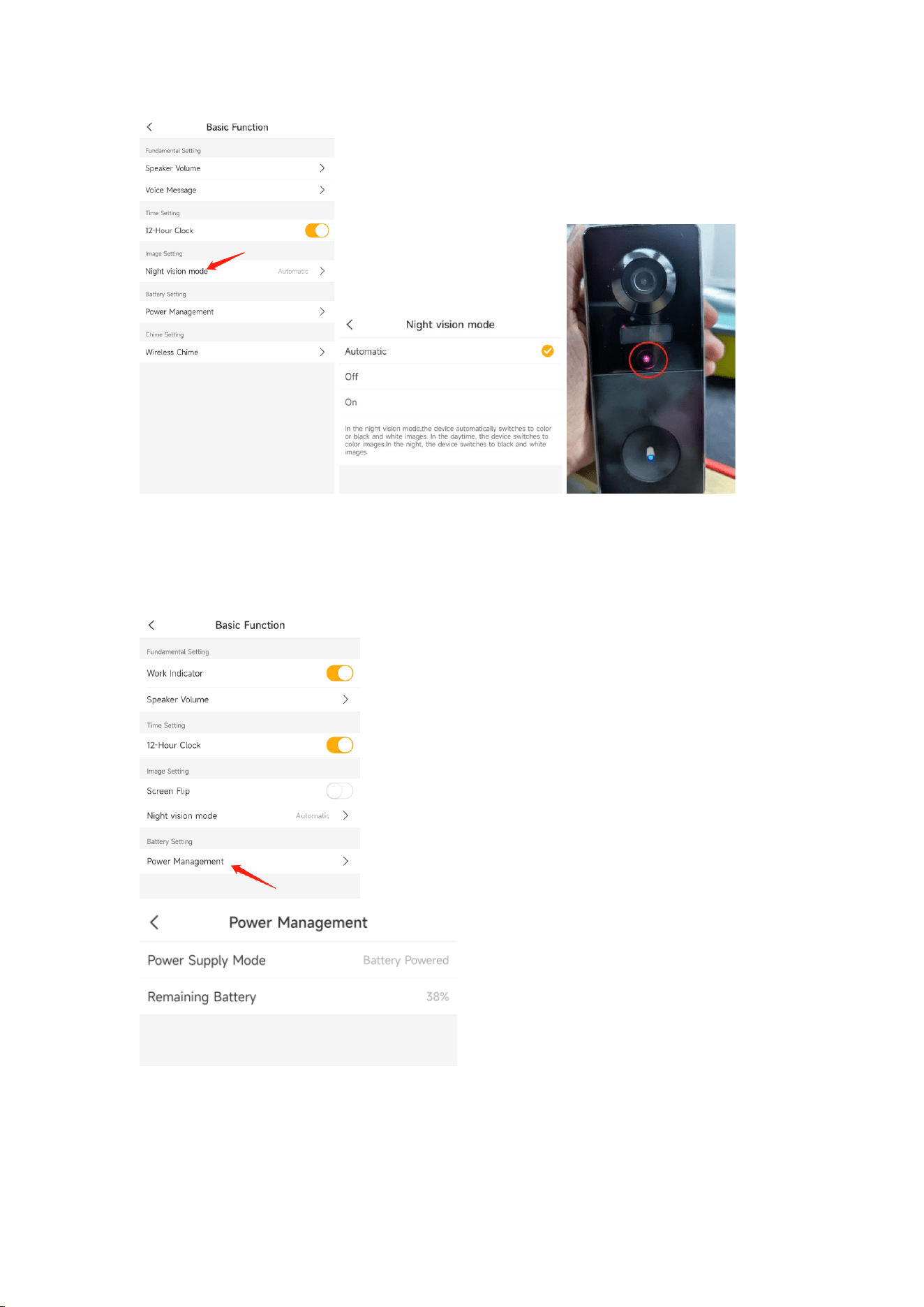
Power Management
Check the camera Power Supply Mode/Remaining Battery (%) from Power Management.
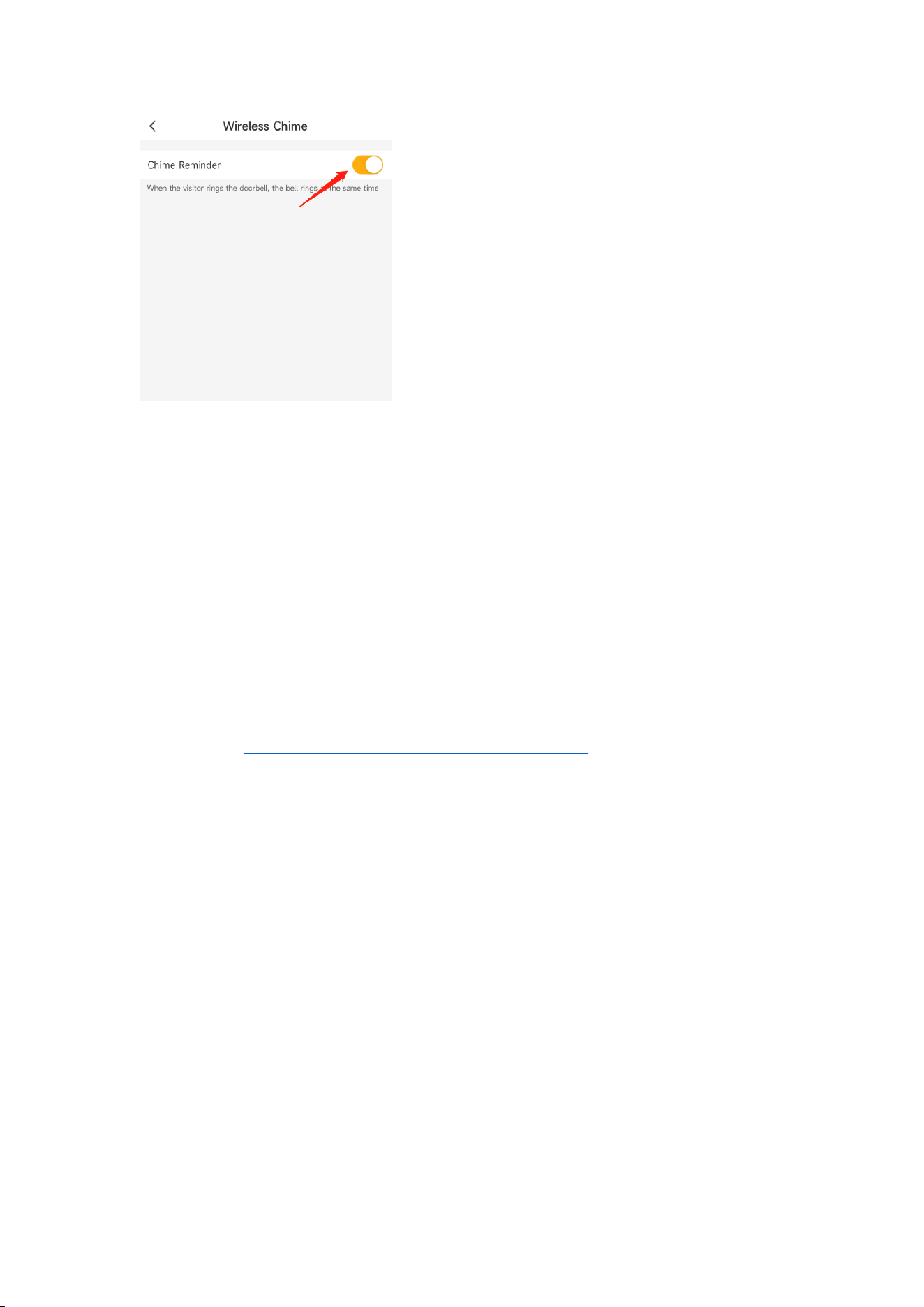
Wireless Chime
Support to choose whether let the Chime rings.
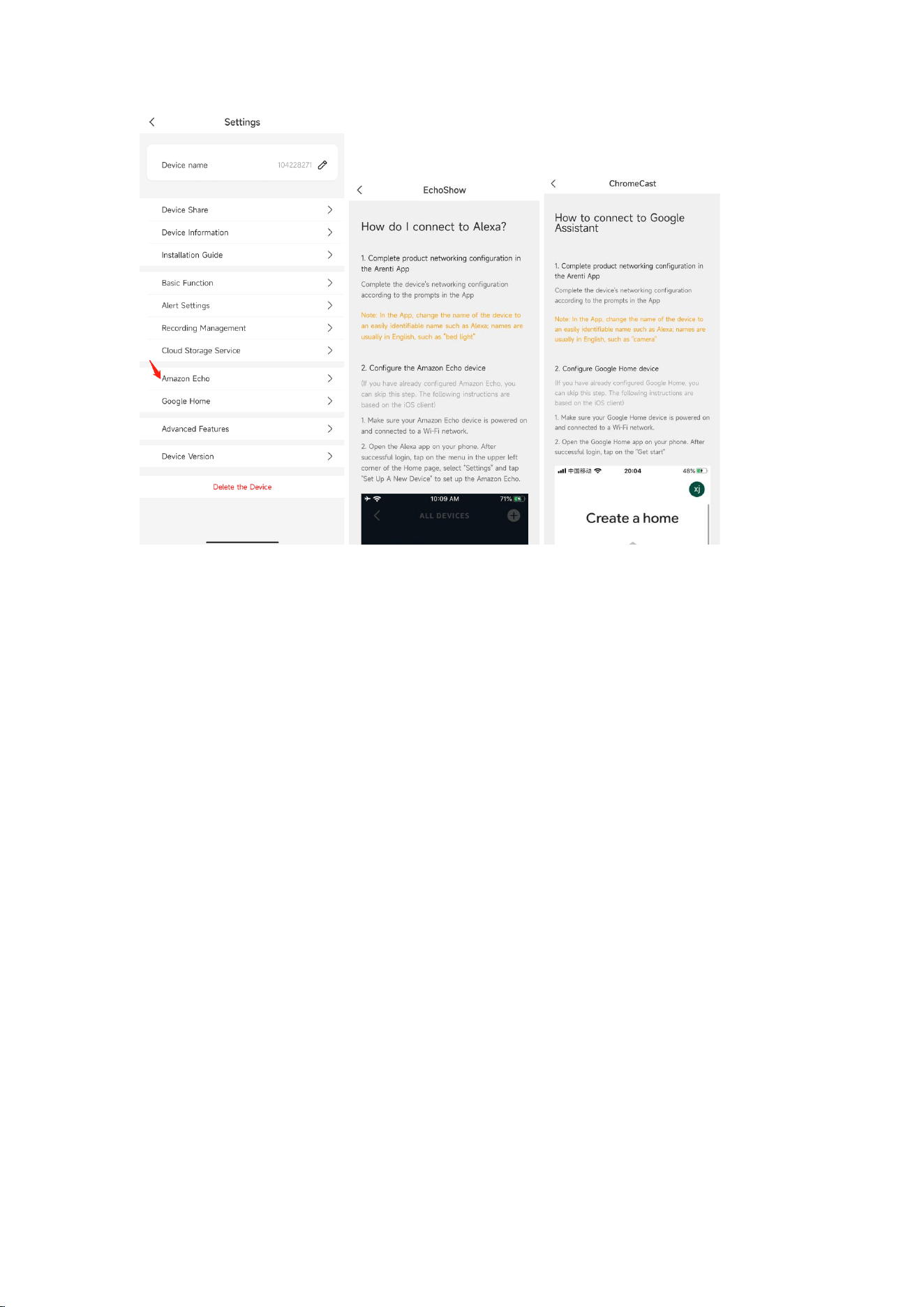
Amazon Echo Show & Google Home
Tap Amazon Echo/Google home to learn how to bind camera.
After bind, you can check the camera Live video on Amazon Device and Google Home
device.
Note:
1. User name is the account name (email address/phone number) in Arenti APP and it is
case sensitive. Need use lower case.
2. Please do not use the auto-filling, input the information manually.
3. Please select the country
4. If login failed, please re-start the Alexa APP and enable the skill again.
Instructions:
Amazon Echo: https://www.youtube.com/watch?v=fUzPfG7zlm4
Google Home: https://www.youtube.com/watch?v=2Bt3xIAGsh4
Device version
You can check the camera firmware whether need to be upgraded.
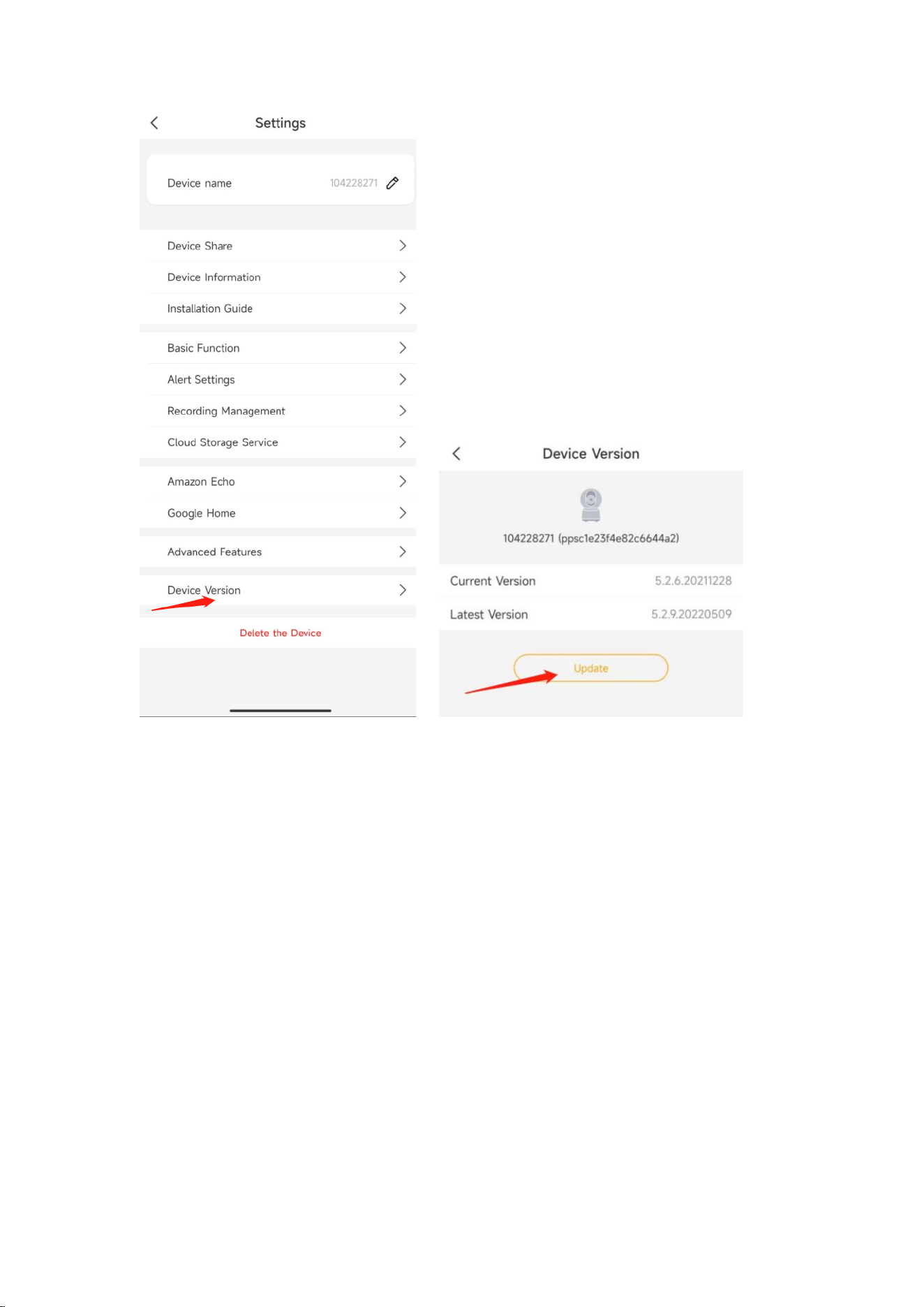
If have new firmware to be upgraded, you can tap ‘upgrade’ to upgrade the camera
firmware.
Note: Whole upgrading process may take 5min, Please do not power off the camera when
upgrading, camera will download the firmware from server and upgrade the firmware.
Suggest keep camera near the wifi router for the better network to download.
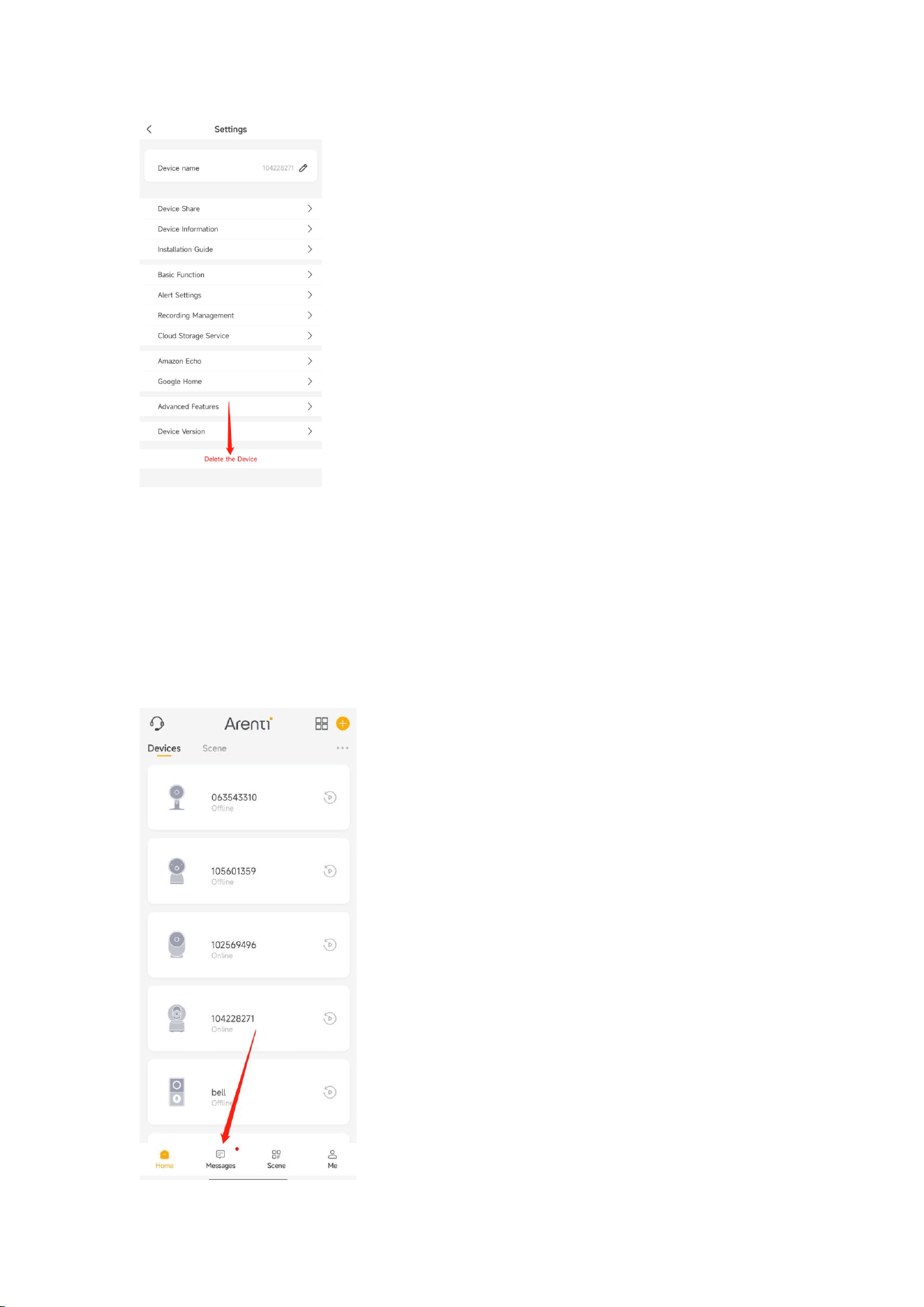
Delete the Device
Tap to delete the device from you account.
7. Use Arenti APP
Messages
Tap the Messages at the bottom.
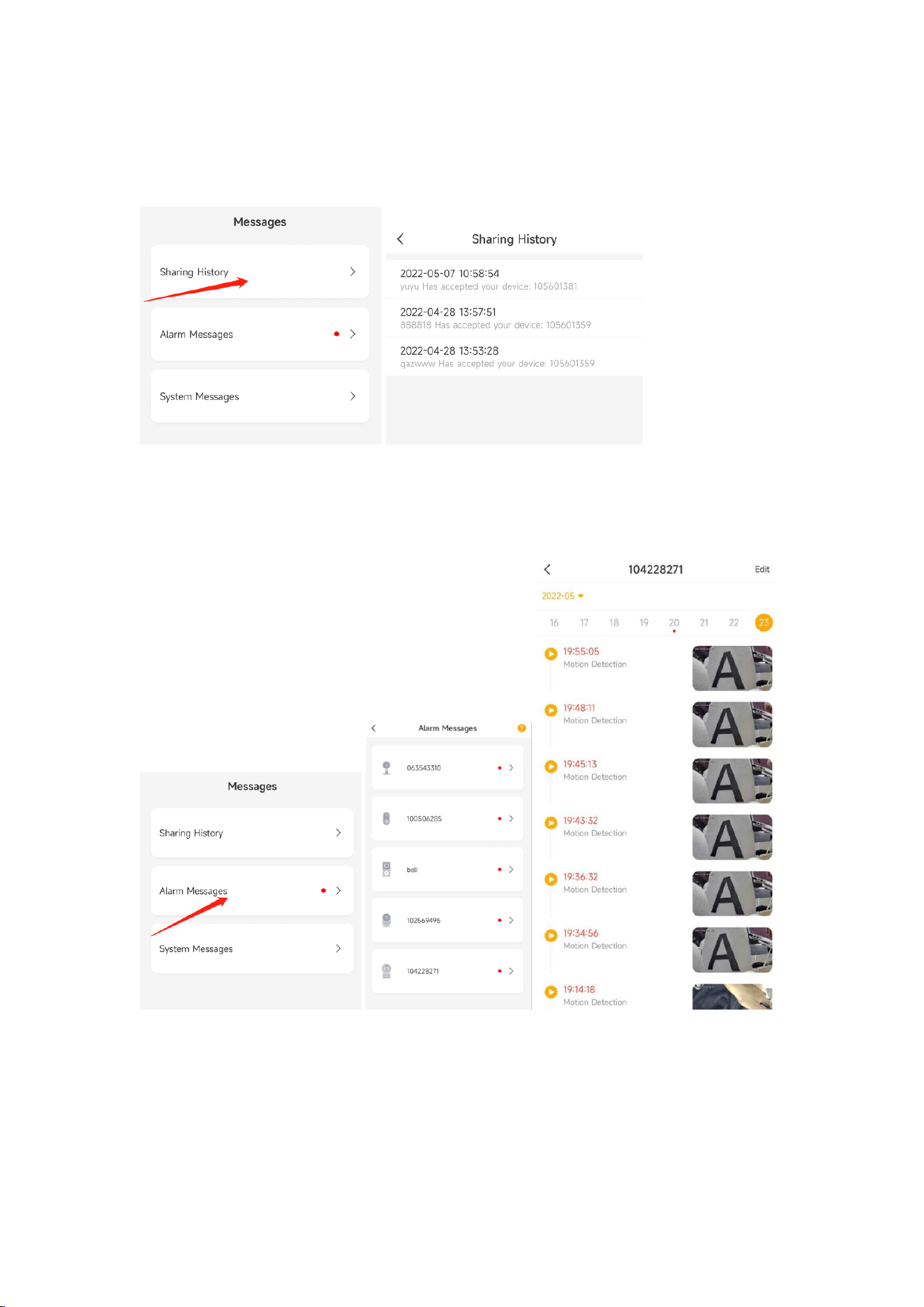
Sharing History
Tap Sharing History to check the sharing messages
Alarm Message
Tap Alarm Messages-Device-check the Alarm message sent from camera
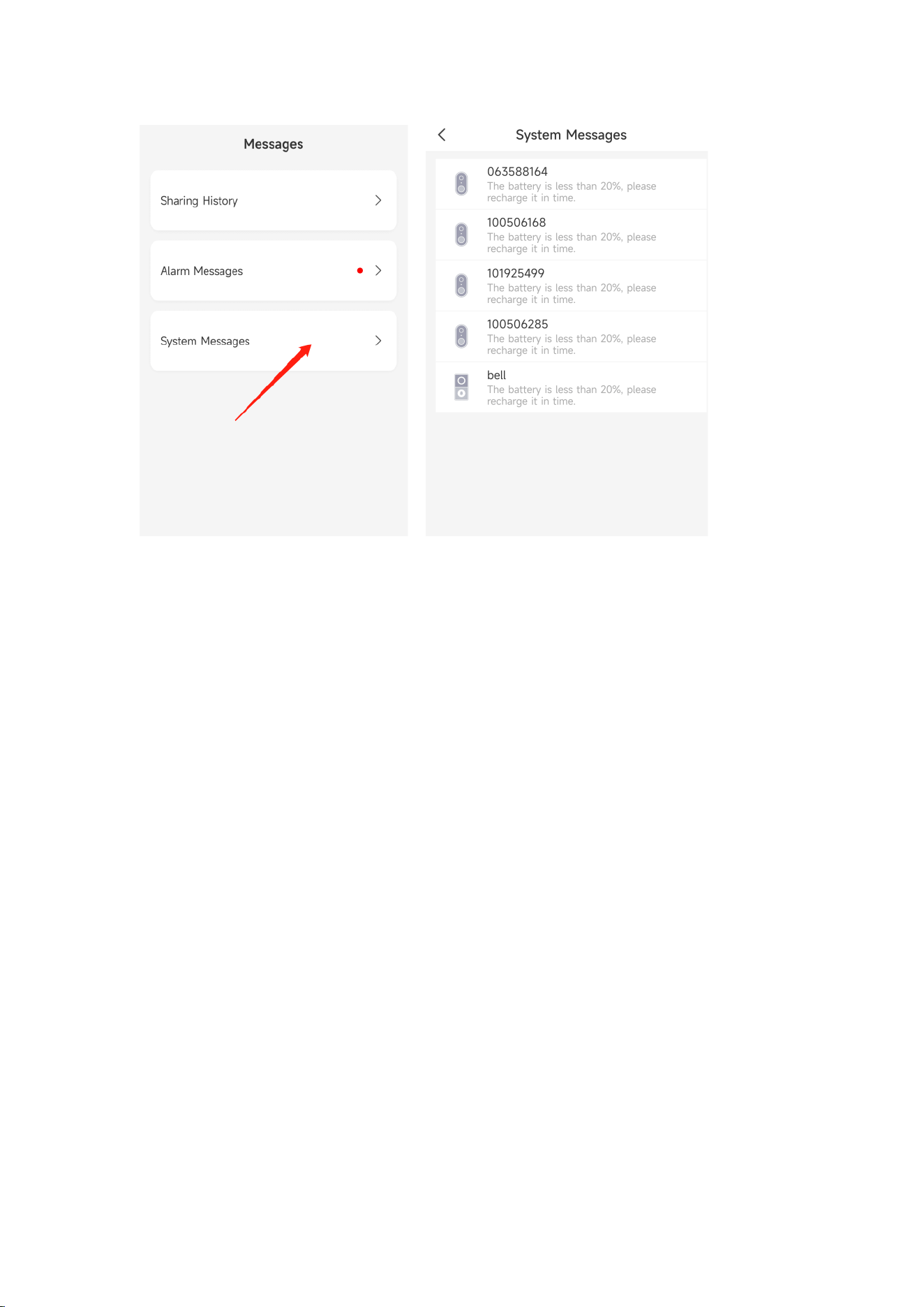
System Messages
Tap System Messages to check the battery low messages.
Scene
No device support now. Coming soon.
Account
Register (Sign up)
1. Open the Arenti App, click "Sign Up, Choose the country and input email address;
enable the "User agreement and Privacy Policy" ,tap ‘Next
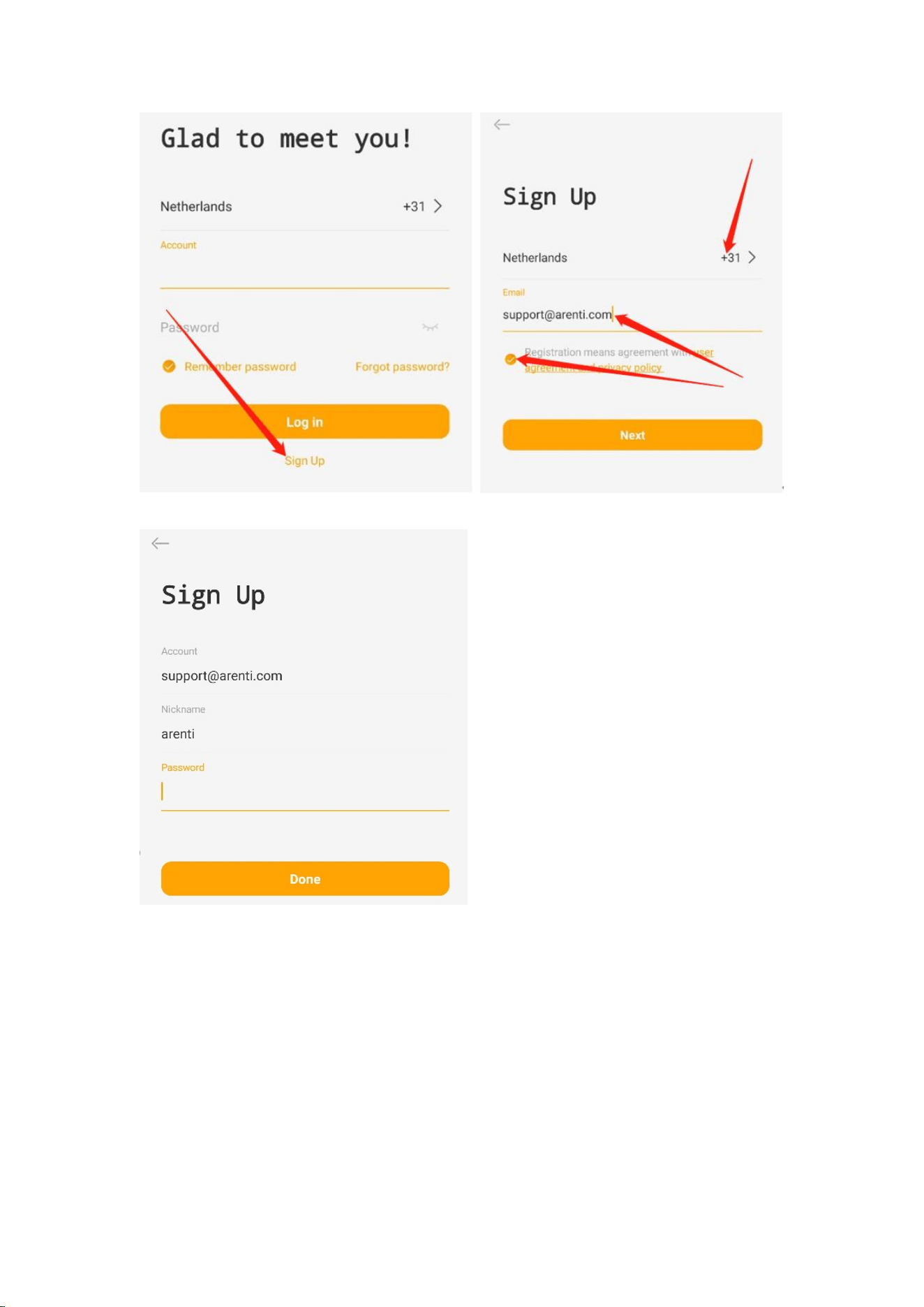
2. Set the Nickname and Password, tap ‘Done’.
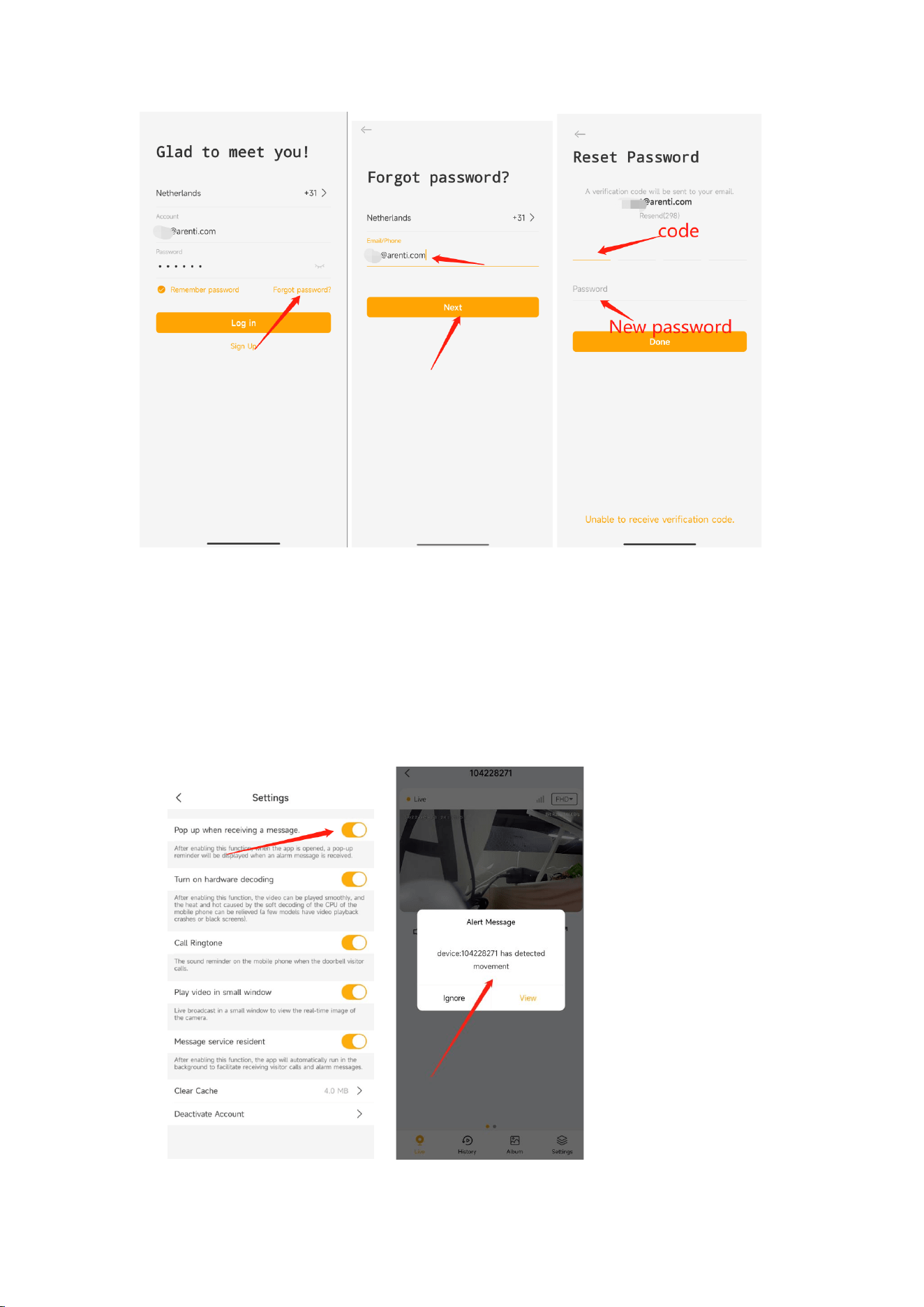
Reset Password
1. Tap the ‘Forget password’
2. Input the correct Email address/Phone number, tap ‘Next’
3. Input the verification code you received, and input the new password you want to set.
Done
APP Settings
Launch APP tap Me-Settings:You can adjust the APP settings.
1. Pop up when receiving a message
After enable and APP is opened, a pop-up page will be displayed when an alarm
message is received.
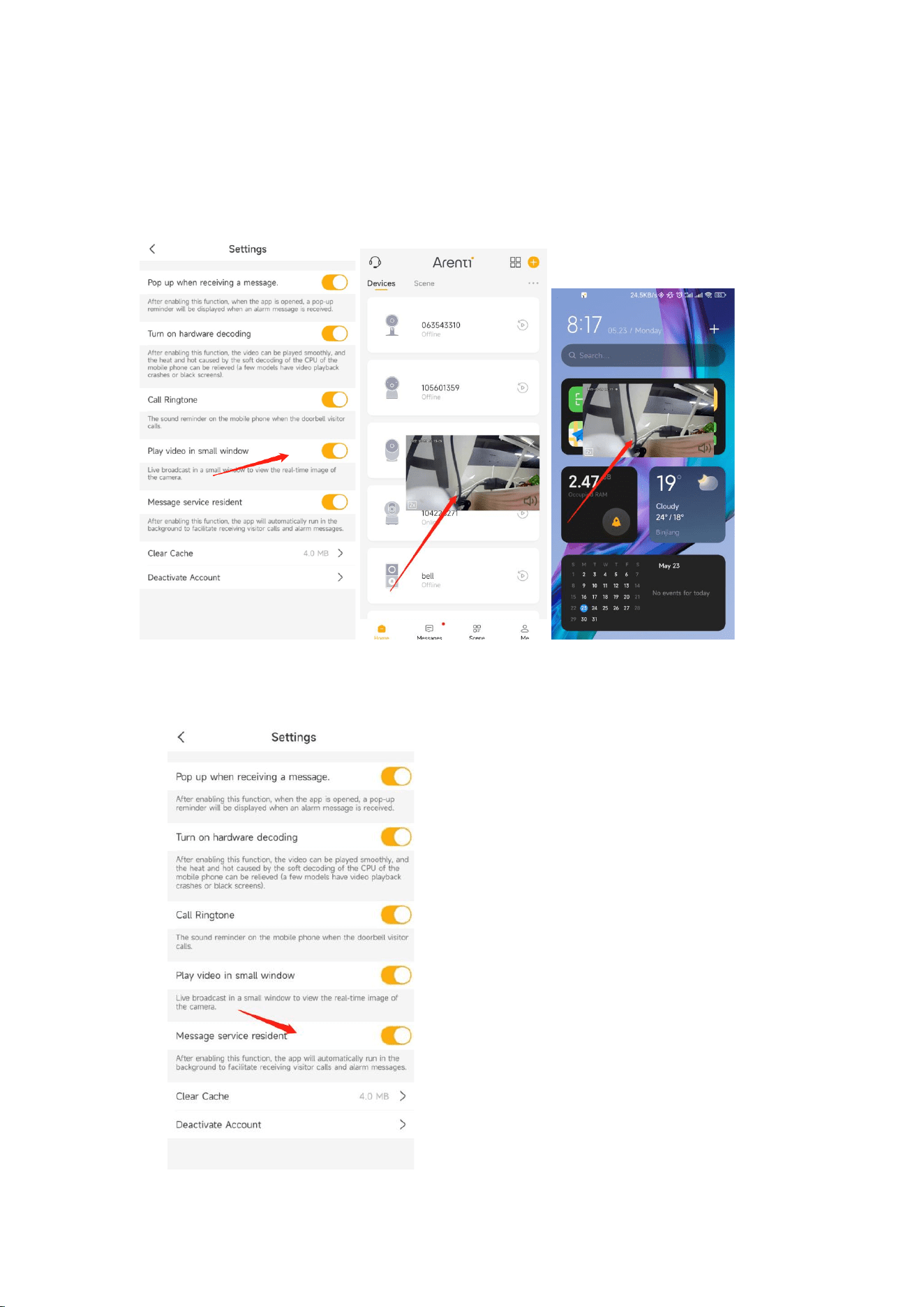
2. Turn on Hardware decoding
3. Call Ringtone
4. Play video in small window.
The window will possible always top, when you using other APP on mobile phone. You
can keep watch the camera Live video.
5. Message Service resident
Enable the ‘Message Service resident ‘, APP will run in the background to facilitete
receiving visitor calls and Alarm messages.
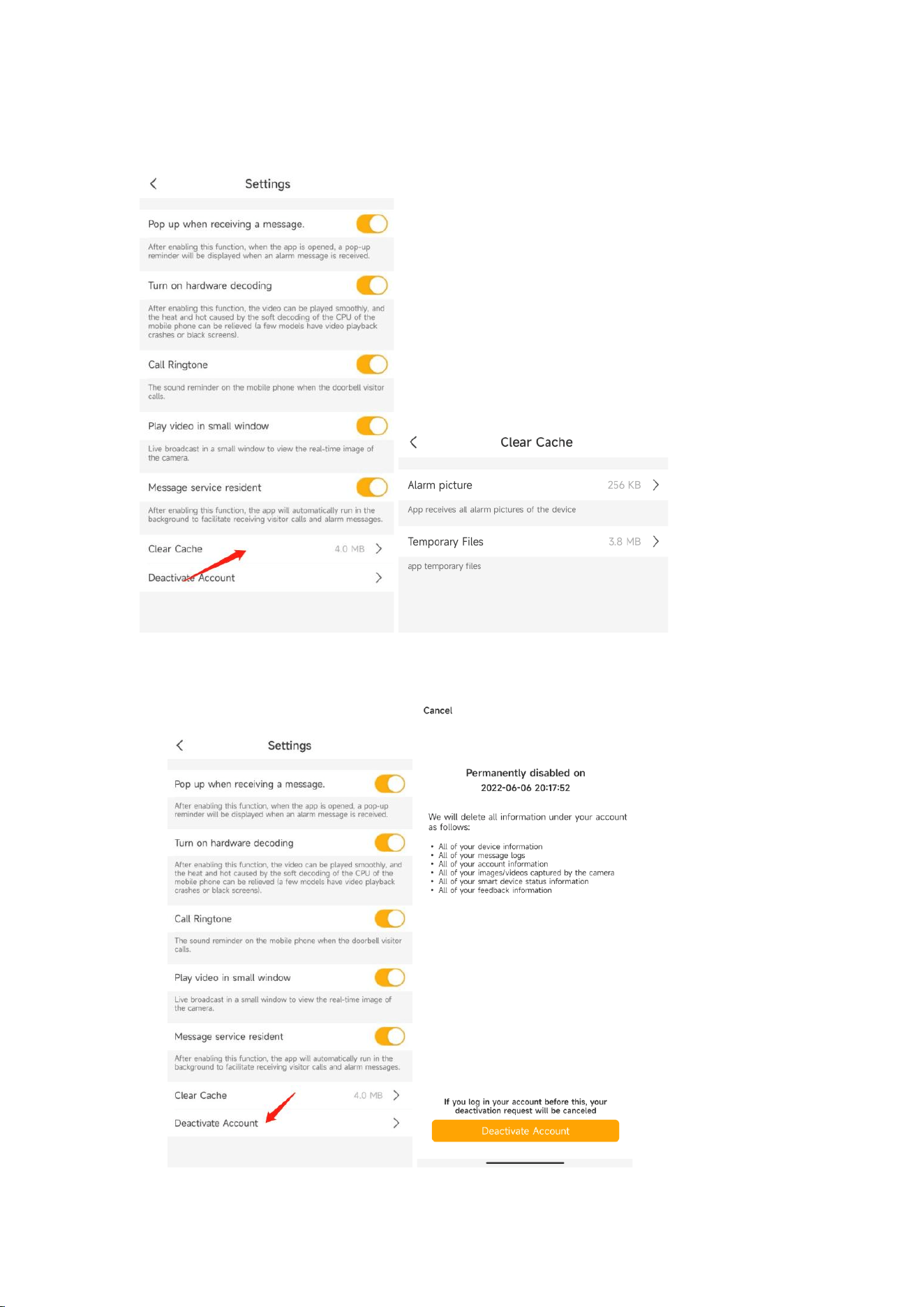
6. Clear Cache
Tap ‘Clear Cache’- delete Alarm pictures/Temporary Files
7. Deactivate Account
Tap to Deactivate Account

8. FAQ and Troubleshooting
FAQS
1. How to switch/change WiFi, update wifi password for device?
1. Delete the devices in your account in Arenti APP device list.(All
recordings/subscription will be there, until you add it again)
2. Open APP click 'Add', and follow the steps use the new WIFI network to add the
camera again.—Scan the qrcode when indicator is red flashing slowly.
2. What to do if I can’t receive alert push notification?
1. Please ensure the Motion Detection: Arenti APP-Device(Tap device to live video
page)-Settings-Alert settings, and Receive Alert Notification is enabled: Arenti
APP-Device(Tap device to live video page)-Settings.
2. Please ensure the Message service resident (Arenti APP-Me-Settings) is enabled.
The APP will Automatically run in the background to facilitate receiving visitor calls
and alarm messages.
3. Please ensure notification for Arenti app has been enabled in phone setting. enter
the phone system settings-notifications-find "Arenti" and enable notification
permissions.
4. If you are using Android mobile phone, if you kill the APP, it will stop to receive the
notification. Please confirm the APP is running there
3. Whether support viewing the SD card video via the computer?
Yes, It is supported.
1. Using the Micro SD card reader. Let the computer read the SD card.
2. You will find the video file in the SD card. It is an MP4 file, you could open and view
the video on the computer directly.
4. How to delete /erase the video record in Micro-SD Card and Cloud storage?
SD card record: need you format the SD card and delete all recordings:APP-Device(tap
to live video page)-Settings-Recording Management-Format SD card. Also you can use
the SD card reader to connect the Micro-SD card with your computer, choose the file
and delete it.
Cloud video record: it will be overwriting/deleted automatically after 3/7/30days
depends on which service you subscribed. We have 3/7/30days looping cloud storage
service.
5. Why the night vision image has a big reflection on window/glass?
When night vision is on, the infrared light will turn on also--to get clear image in the
night. It will be very clear in the open area. If faced the glass, the infrared light will
reflect off the glass, making bad image in night. If want to face the glass in the night,
suggest turn off Night vision.

Troubleshooting
1. Recognized the QR code successfully, but device fails to setup, and camera
indicator shows red fast flashing:
Your steps are all correct, maybe has some compatible issue with the wifi router.
1.Please try to confirm: wifi is 2.4GHz,not WPA3 security mode., password is correct,
not contain special characters such as \';.
2. Please put your device next to the router when set up. If this still does not work,
please reboot your router (unplug for 10 minutes and plug in again) and reset your
device to try again. Also, you can try to use another mobile/laptop as a hotspot to set
up your device to test if it works with hotspot Wi-Fi. If it does not work with the hotspot,
please connect us.
2. Why my camera always offline/ lose connection?
Network problems may cause the camera off-line. Solution:
a) Check whether the power of the camera is sufficient.
b) It is recommended that the wifi signal strength to be above 75%. Check from APP-
Device (tap device to live video page)-Settings-Device information
c) Restart the camera and router.
d) Place the camera next to the router and observe whether the video is smooth. If
the camera is still offline, it may be due to the camera hardware failure, please
contact customer service
3. My camera not working, after powering on/plug in ,there is no indicator light
on.
Please try to use the other adapter/cable and check again, if keep no light on, please
send the camera SN and order number to support@arenti.com
4. Why does the video always with the circle/buffering?
The circle means that the video is loading, and the buffer and delay means that the
network is not smooth. Please check whether the network connected between the
camera and the mobile phone is smooth. It is recommended to place the camera close
to the WIFI router.
5. I already inserted the Micro SD Card Why APP keep shows "No SD card"?
It means that the SD card identification fails or broken. Suggestions:
a) Please use a brand SD card, high speed(Class 10 and above).
b) The SD card can be identified by the computer normally.
c) Only FAT32 format is supported. capacity between 2G-128G.
d) It is recommended to try another SD card.
It may take some time for the camera to identify the SD card. After inserting the card,
wait for about 30S and then observe.
6. I got the alarm notifications, tap to check the video but failed to play.
Please check it few mins later. Because the video may still in uploading to the cloud
storage/Saving to SD card.