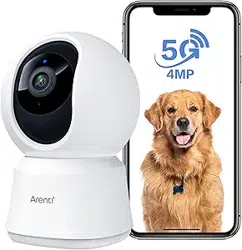
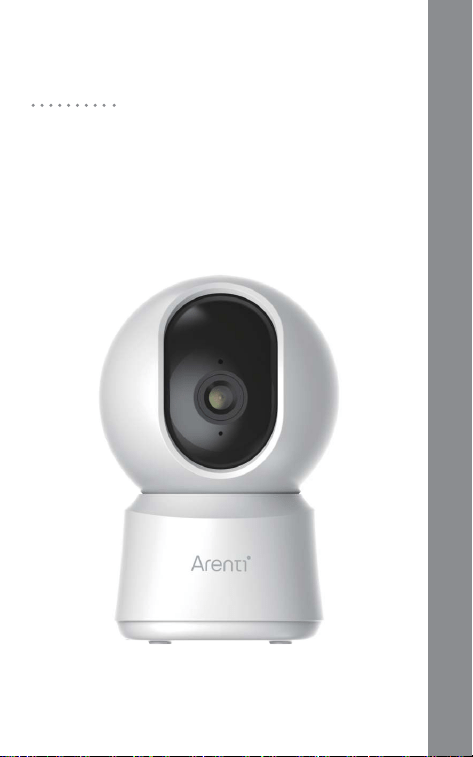
Smart Pan Tilt Wi-Fi Camera
QUICK GUIDE
P2Q
Quick start guide
1. Packing list
2. Product description
3. Installation
4. Product configuration
5. Specification
6. Legal notice
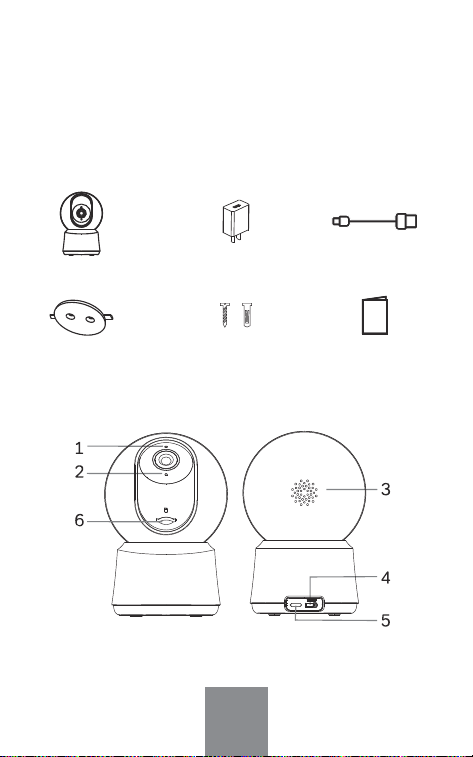
1. Packing list
2. Product description
Power adaptor X1
Power cable X1
Quick guide X1
Camera X1
Bracket X1
Screw X3
EN
1. LED indicator
2. Microphone
3. Speaker
4. Reset
5. Power port
6. SD card slot
Notice
To reset the device, press and hold the reset button for 5s.
The camera beeps when the operation is completed.
LED indicator of camera:
Flashing red light (slow)
Flashing red light (fast)
Fixed red light
Fixed blue light
Wait for network config
Connecting the network
Camera is malfunctional
Camera is working correctly
EN
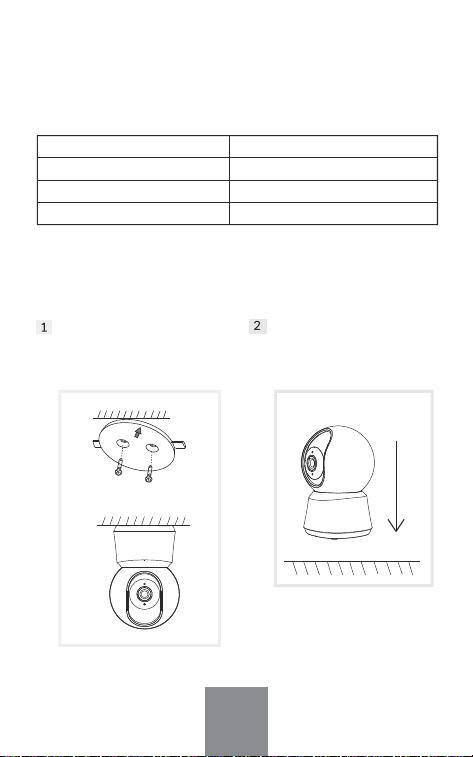
3. Installation
Use the included mounting
bracket to fix the camera to
a clean surface.
Put the camera on a
flat surface.
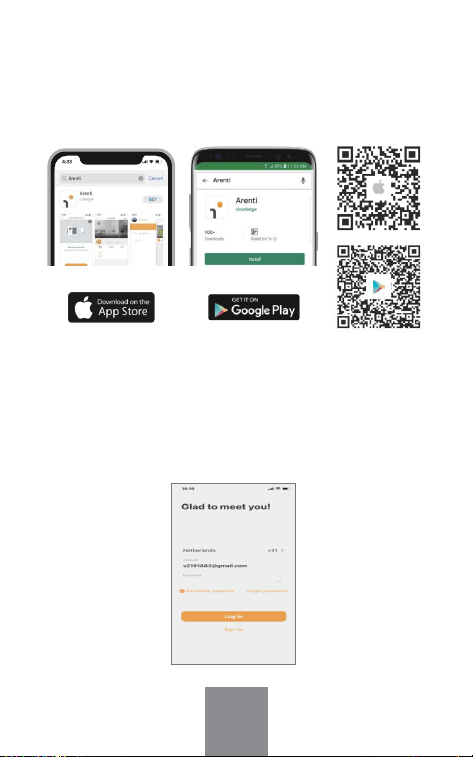
Registration
Open the App. If you are a new user, tap to create a new
account and follow the prompts to complete account setup.
Note: You must agree with the Privacy Agreement.
EN
4. Product configuration
Scan QR code to download and install the Arenti APP. Also,
you can search "Arenti" on App Store (IOS) or Google Play
(Android).
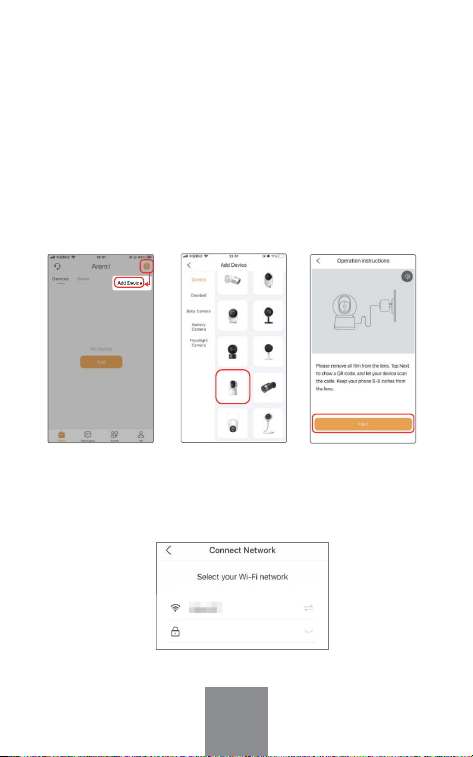
Note: When pairing, please put the camera and mobile phone close to
the router. If camera is not in the red slow blinking after 30 seconds of
powering on, press and hold the reset button for 5 seconds to reset, and
then configure the network again.
Select the Wi-Fi network and input the password, and then
click "Next". Make sure that your phone has connected to a
fluent and steady Wi-Fi already.
Pairing
Open APP home page, Click "+" or "Add" and select icon
according to actual camera.
Power on the device. For about 30 seconds, the camera will
emit start-up tone and LED indicator will flash red slowly.
EN
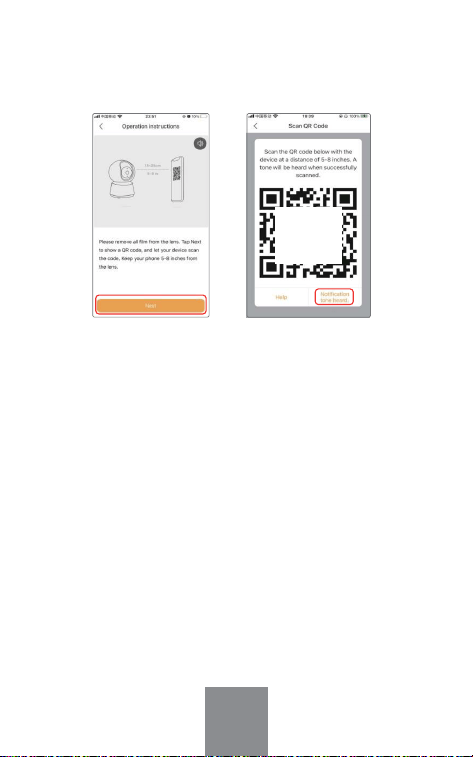
If you have multiple cameras, please follow steps again to add
devices one by one.
To change Wi-Fi network, please restore the camera to factory
settings and follow steps to add the camera.
Notice
If no device is found and the pairing process is not successful,
please check below instructions:
1. Wi-Fi network is 2.4GHz or 5GHz.
2. Wi-Fi password entered is correct and the same Wi-Fi net-
work is used on the mobile device.
3. Camera is in pairing mode.
4. Check your WiFi for network activity.
Scan the QR code in your phone with the camera and click
"Next", when the camera comes out "dong dong dong" and
LED indicator becomes solid blue.
If there doesn't work please or you have any other problems,
please contact [email protected] to get help.
EN
Scan the
QR code
of APP
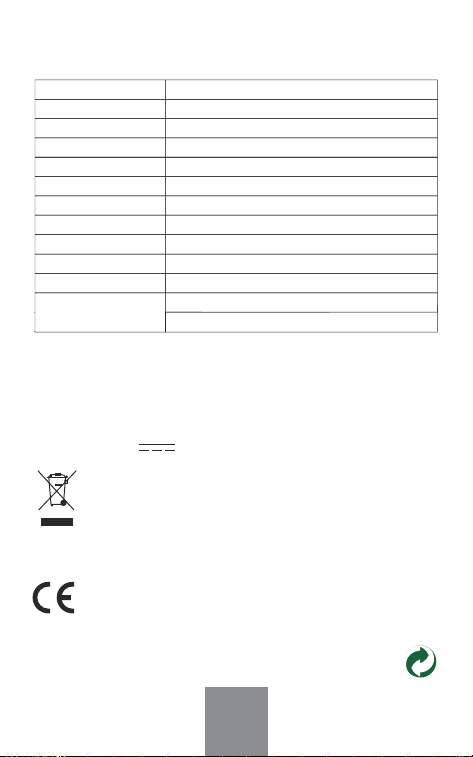
5. Specification
Support
6. Legal notice
www.arenti.com
Symbols
Direct current (DC)
Don't throw batteries or out of order products with the
household waste (garbage). The dangerous substances
that they are likely to include may harm health or the
environment. Make your retailer take back the products
or use selective collect of garbage proposed by your city.
Hereby, we declares that the radio equipment type 'P2Q'
is in compliance with the Directive 2014/53/EU
The full test of the EU declaration of conformity is
available at the following Internet address:
www.arenti.com
EN
Product name
Resolution
Angle of view
IR Distance
Pan/Tilt
Working temp
Local storage
Input power
Consumption
Supported phone OS
2.4G Wi-Fi
5G Wi-Fi
P2Q
2560 x 1440
100°
Up to 10m
0°~355° (Pan); -15°~78° (Tilt)
-20°C to 50°C
Micro SD card (up to 128GB)
DC 5V, 1A
Up to 4.5W
iOS 9 / Android 5.0 and above version
2412-2472 MHz (Max. power<20dBm )
5150-5350 MHz (Max. power<23dBm )
5470-5725 MHz(Max. power<30dBm )

FCC Statement
This equipment has been tested and found to comply with the limits for a
Class B digital device, pursuant to part 15 of the FCC Rules. These limits are
designed to provide reasonable protection against harmful interference in a
residential installation. This equipment generates, uses and can radiate radio
frequency energy and, if not installed and used in accordance with the
instructions, may cause harmful interference to radio communications.
However, there is no guarantee that interference will not occur in a particular
installation. If this equipment does cause harmful interference to radio or
television reception, which can be determined by turning the equipment off
and on, the user is encouraged to try to correct the interference by one or
more of the following measures:
—Reorient or relocate the receiving antenna.
—Increase the separation between the equipment and receiver.
—Connect the equipment into an outlet on a circuit different from that to
which the receiver is connected.
—Consult the dealer or an experienced radio/TV technician for help.
FCC Radiation Exposure Statement
This device complies with FCC radiation exposure limits set forth for an
uncontrolled environment and it also complies with Part 15 of the FCC RF
Rules. This equipment must be installed and operated in accordance with
provided instructions and the antenna(s) used for this transmitter must be
installed to provide a separation distance of at least 20 cm from all persons
and must not be co-located or operating in conjunction with any other
antenna or transmitter. End-users and installers must be provide with antenna
installation instructions and consider removing the no-collocation statement.
This device complies with Part 15 of the FCC Rules. Operation is subject to the
following two conditions: (1) this device may not cause harmful interference,
and (2) this device must accept any interference received, including
interference that may cause undesired operation.
Caution!
Any changes or modifications not expressly approved by the party
responsible for compliance could void the user's authority to operate the
equipment.
EN

Safety Information
Power Adapter Safety:
1.The power plug is intended to serve as a disconnect device.Do not drop or
cause an impact to the power adapter.
2.If the power cable is damaged (for example, the cord is exposed or broken),
or the plug loosens,stop using it at once. Continued use may lead to electric
shocks, short circuits, or fire.
3.Do not touch the device or the power adapter with wet hands. Doing so may
lead to short circuits, malfunctions, or electric shocks.
Child's safety
1. Comply with all precautions with regard to child's safety. Letting children
play with the device or itsaccessories may be dangerous.
2. The device and its accessories are not intended for use by children. Children
should only use the device with adult supervision.
Operation safety
1. Use the device under allowed humidity and temperature conditions.
2. Do not aim the device at strong light sources (such as lamplight, and
sunlight) when focusing it,to avoid reducing the lifespan of the CMOS sensor,
and causing overbrightness and flickering.
3. Observe local laws and regulations, and respect the privacy and legal rights
of others.
Restrictions declaration in the 5 GHz band:
(i)the device for operation in the band 5150-5250 MHz is only for indoor use
to reduce the potential for harmful interference to co-channel mobile satellite
systems
(i)Les dispositifs fonctionnant dans la bande 5150-5250 MHz sont réservés
uniquement pour uneutilisation à l'intérieur afin de réduire les risques de
brouillage préjudiciable aux systèmes de satellites mobiles utilisant les
mêmes canaux.
V1.0 202306
EN
© 2023. All rights reserved. All trade names are registered trademarks of
respective companies Apple, the Apple logo, iPhone are trademarks of Apple
Inc. registered in the U.S. and other countries. Google, the Google logo,
Android are trademarks of Google Inc. App Store is a service mark of Apple
Inc. Google Play is a service mark of Google Inc.