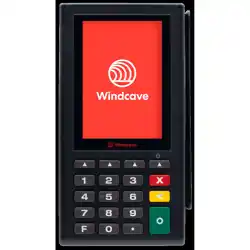
Quick Start Guide - CHU200T
Included in the Box
• CHU200T Payment Terminal
• Cables/Accessories
• Quick Start Guide
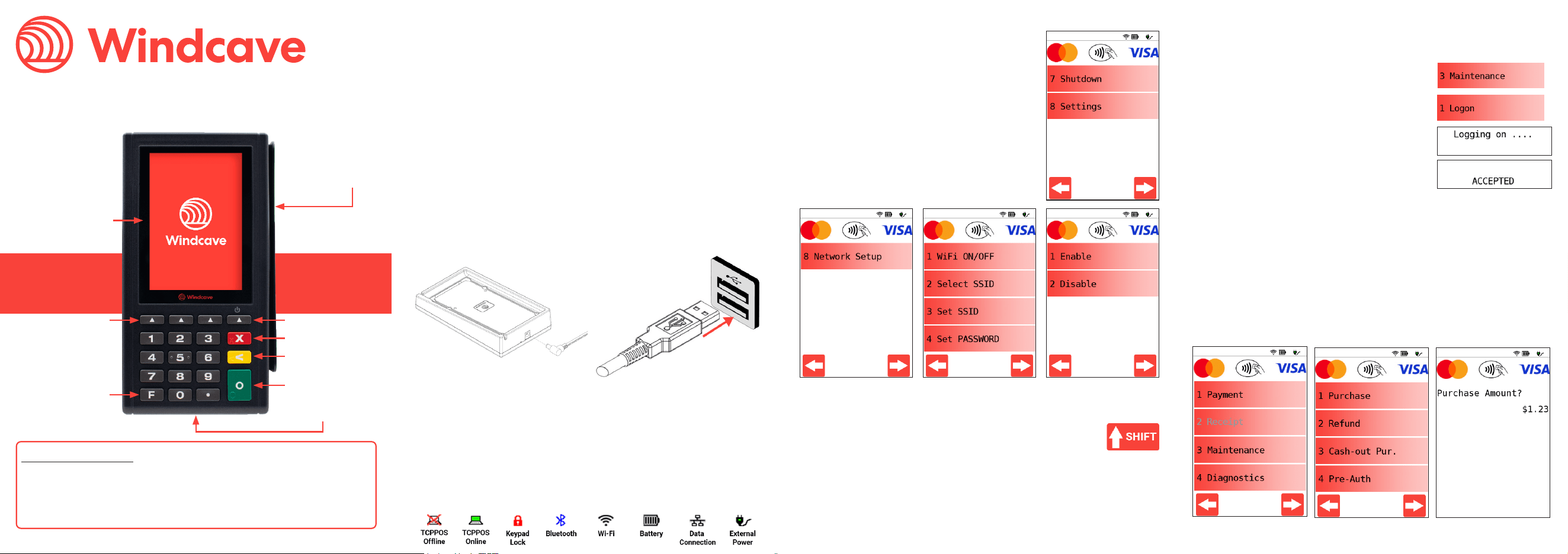
EMV Reader
(Insert Here)
Magstripe Reader
(Swipe Here)
Enter
Cancel
Clear
Function
Contactless/
NFC Reader
(Tap Here)
Wake-Up
Soft Keys
Get Connected
You can power on your CHU200T by holding the Wake-Up key for 3
seconds or by connecting it to an external power source per one of
the below methods:
Turning on the Device
Charging via Cradle
1. Connect the Windcave
supplied power adapter to the
rear of the cradle.
2. Connect the opposite end of
the power cable to a wall outlet.
3. Place the CHU200T on the
cradle to begin charging.
Start Transacting
1. Press Function to open the menu.
2. Use the Arrow Keys to scroll through the
available menu options.
3. Navigate to Maintenance -> Logon.
4. “Logging on ....” will be displayed while
awaiting response from the Windcave host.
5. The logon result will be displayed on screen
and on a small receipt printed.
Logon
Purchase
1. Press Function to open the main menu.
2. Navigate to the Payment -> Purchase option and enter desired
purchase amount.
3. Follow the on screen prompts to complete payment.
Charging via Handset
1. Your Windcave CHU200T
payment terminal is shipped
with its cable already tted.
2. Connect the opposite end of
the cable to a powered USB
port.
3. The CHU200T will begin
charging.
If power is being supplied the screen of the CHU200T will light up.
While charging the CHU200T will display the external power icon in
the top right of the screen, and the battery icon will cycle through
varying charge levels to indicate the battery is charging.
Please ensure the correct trading name and address is printed at
the top of the receipt, if there are any issues contact the Windcave
Support team immediately.
The Contactless Symbol is a trademark owned by and used with permission of EMVCo, LLC.
Checking Device Status
The icons at the top of the screen indicate the current status of the
CHU200T.
Connecting to Wi-Fi (Optional)
1. Press Function to open the menu.
2. Use the Arrow Keys to scroll through the
available menu options.
3. Select Settings and when prompted
enter the code “5210”.
4. Navigate to Network Setup -> WiFi ON/
OFF.
5. Select Enable, the CHU200T will reboot
to enable Wi-Fi.
6. Repeat steps 1-3.
7. Navigate to Network Setup -> Select SSID.
8. Follow the on screen prompts to select your access
point and enter the Wi-Fi credentials. Using the SHIFT
key allows access to alternate characters.
Once the credentials have been changed the CHU200T will reboot.
A successful connection has been established once the Wi-Fi and
data connection icons are both solid at the top of the screen.
The Contactless Symbol is a trademark owned by and used with permission of EMVCo, LLC.
Contact Information
Please see https://www.windcave.com/contact for a full list of
contact details or use one of the below contact methods:
Email: [email protected]
New Zealand: 0800-729-6368
Australia: 1-800-006-254
United States: 1-213-378-1190
United Kingdom: 0800-088-6040
The external face of the EFTPOS terminal should be carefully cleaned
on a regular basis. This is to ensure that the front plate is free of
dirt and solvents which could damage the device or prevent users
from using the device as intended. Windcave recommend cleaning
the device with a damp cloth or mild soap solution. Do not use any
solvents as this may damage the device surface.
Do not attempt to open or modify the unit, this will cause the unit to
be TAMPERED and render it inoperable. If repairs are required, or the
device is no longer needed; the device must be returned to Windcave.
Maintenance
© 2026 Windcave Limited. All rights reserved.
All information in this document is subject to change without notice, and the contents of this document do not
constitute an offer or warranty of any kind. Reproduction or publishing this document without Windcave approval
is prohibited.
This device complies with Industry Canada’s license-exempt RSSs. Operation is subject to the following
two conditions:
1. This device may not cause interference;
2. This device must accept any interference, including interference that may cause undesired operation
of the device.
Le présent appareil est conforme aux CNR d’Industrie Canada applicables aux appareils radio exempts
de licence. L’exploitation est autorisée aux deux conditions suivantes:
1. l’appareil ne doit pas produire de brouillage;
2. l’utilisateur de l’appareil doit accepter tout brouillage radioélectrique subi, même si le brouillage est
susceptible d’en compromettre le fonctionnement.
This device complies with Part 15 of the FCC Rules. Operation is subject to the following two conditions:
1. This device may not cause harmful interference, and
2. This device must accept any interference received, including interference that may cause undesired
operation.
Changes or modications not expressly approved by the party responsible for compliance could void the
user’s authority to operate the equipment.
Note: This equipment has been tested and found to comply with the limits for a Class A digital device,
pursuant to part 15 of the FCC Rules. These limits are designed to provide reasonable protection against
harmful interference when the equipment is operated in a commercial environment. This equipment
generates, uses, and can radiate radio frequency energy and, if not installed and used in accordance
with the instruction manual, may cause harmful interference to radio communications. Operation of
this equipment in a residential area is likely to cause harmful interference in which case the user will be
required to correct the interference at his own expense.
IC: 26550-CHU200TRC
Contains:
• ISED ID: 8595A-NINAW15
FCC ID: 2AC2O-CHU200TRC
Contains:
• FCC ID: XPYNINAW15
Troubleshooting
Timeout
If the CHU200T displays a timeout error, this indicates that the unit
is having diculties connecting to the Windcave Host to process
transactions. The below steps can be taken to test the network
connectivity of the unit:
1. Ensure the CHU200T is connected to the Internet.
a. For Wi-Fi connections the signal strength will be displayed in the
top right of the screen.
b. Check you can browse to the Windcave home page
(www.windcave.com) using another device connected to the
same Wi-Fi network i.e. a phone or laptop.
2. Perform a Logon to test connectivity to the Windcave Host (see the
Start Transacting section of this guide).
Shortcut Keys
There are 4 customizable soft keys that are triggered by touching the
icon or pressing the physical key below the screen.
The default shortcuts are listed below:
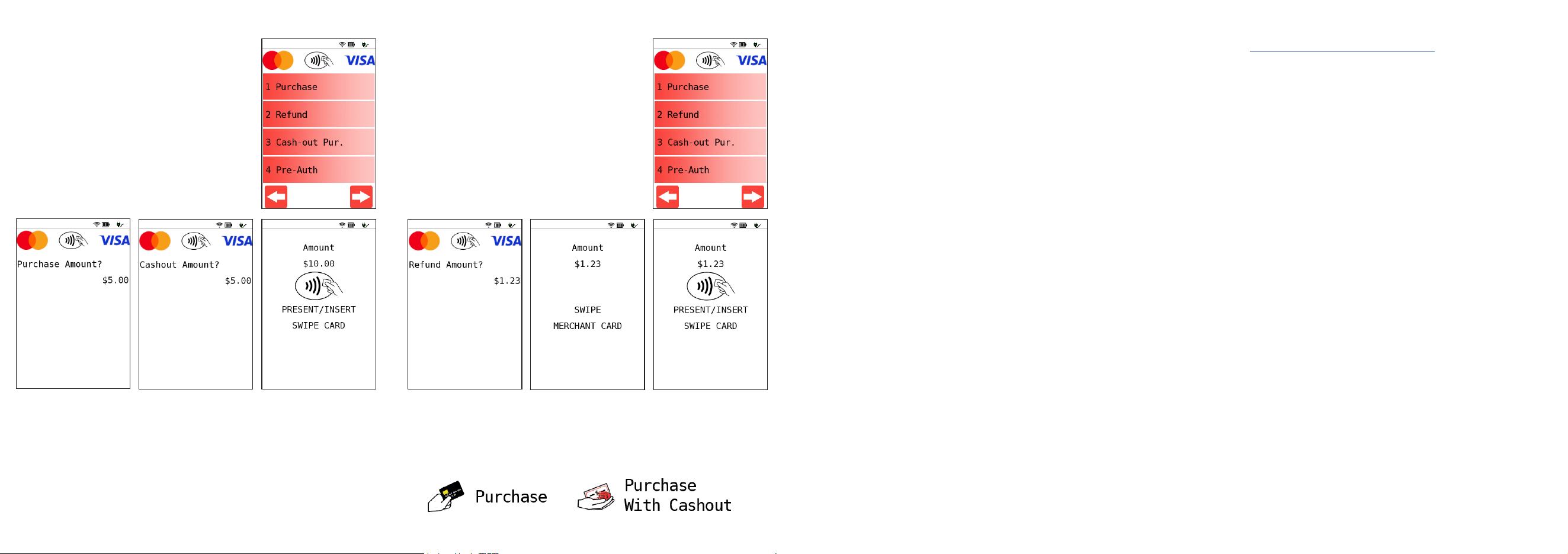
Refund
1. Press Function to open the main menu.
2. Navigate to the Payment -> Refund
option and enter the desired refund
amount.
Cash-out Purchase
1. Press Function to open the main menu.
2. Use the Arrow Keys to scroll through
the available menu options.
Charging Cradle
There are 2 LED’s on the rear of the charging cradle; the green LED
indicates that the cradle is receiving power; while the orange LED
indicates that the device is receiving power.
3. Navigate to the Payment -> Cash-
out Pur. option and enter the desired
purchase and cash-out amounts.
4. Follow the on screen prompts to
complete payment.
3. Swipe your Merchant Refund card and
enter your merchant PIN.
4. Follow the on screen prompts to
complete refund.
The Contactless Symbol is a trademark owned by and used with permission of EMVCo, LLC. The Contactless Symbol is a trademark owned by and used with permission of EMVCo, LLC.