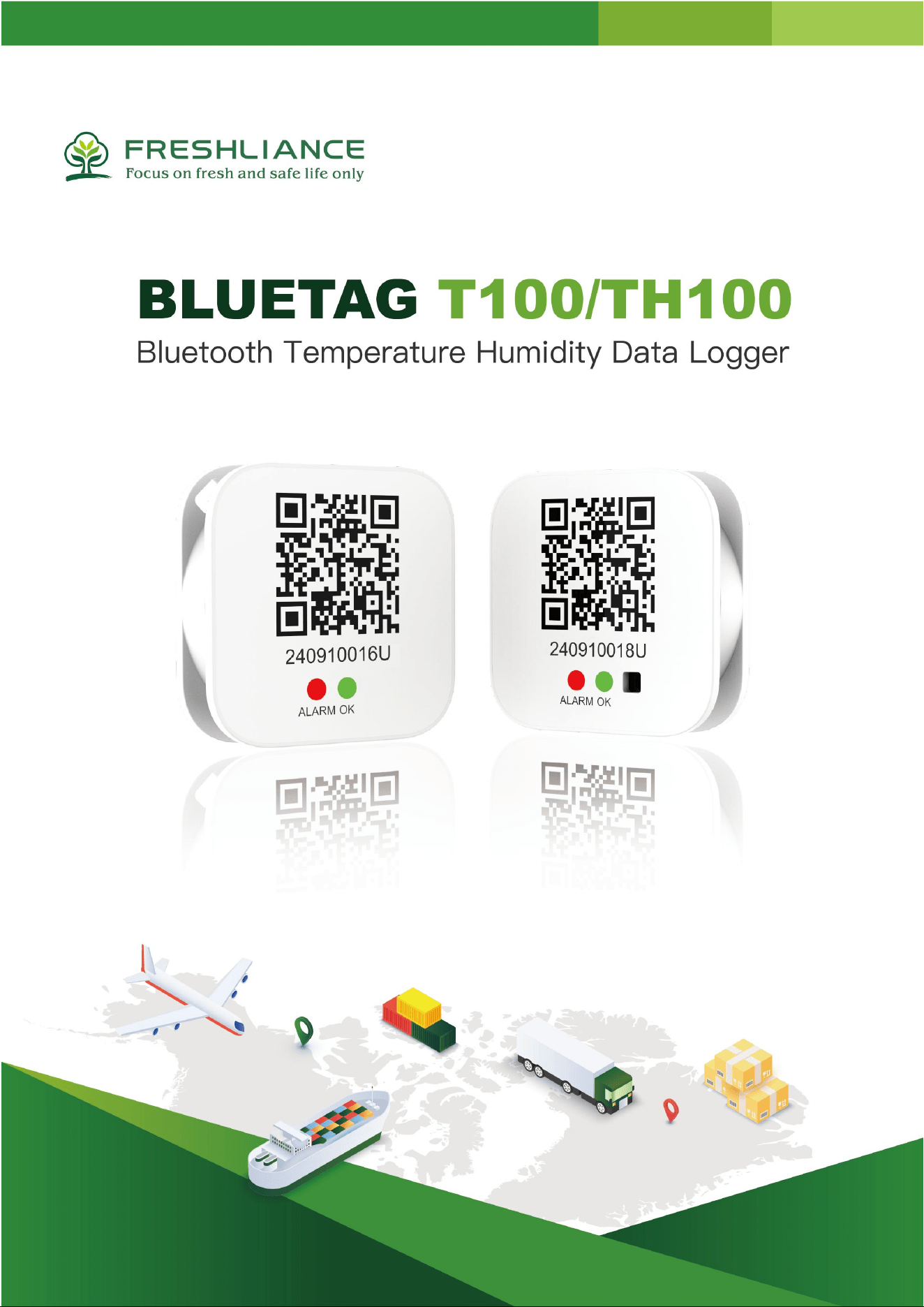
BlueTag T100/TH100 Bluetooth Temperature Humidity Data Logger
Thank you for purchasing Freshliance temperature and humidity data logger. Please read the operation manual through carefully and
be in strict accordance with it in order to prevent injuries and damage to the product. Product damage caused by incorrect operation
is not covered by the warranty.
Freshliance reserves the right to modify and improve the product and user manual at any time without notice. The pictures in this
manual are for reference only. Actual product you receive may vary.
Please keep this manual in a safe place for future reference.
Notice
Before use, please ensure that the battery is installed and the polarity is correctly connected;
Please keep Bluetooth and WiFi or cellular network on from your mobile phone.
When the memory capacity is full, the device will stop recording. To continue to record data, please reuse it for a
new trip.
Please tap on the APP with care. Once tapped, the device will stop recording data.
The battery is replaceable. If the battery level is found to be low during device configuration or data monitoring,
please replace the battery with the standard battery specified by our company in time.
To avoid loss of the data, please be sure to connect the device to the APP to get the data before battery replacement.
1. Product Description
BlueTag T100 and BlueTag TH100 are the Bluetooth data loggers with a replaceable battery. The APP Tkeeper is provided for users
to remotely program them and view monitoring data via a Bluetooth-enabled phone. All data viewed by one user will be automatically
uploaded to the cloud and synchronized to other users, so as to allow multiple users to view data online simultaneously.
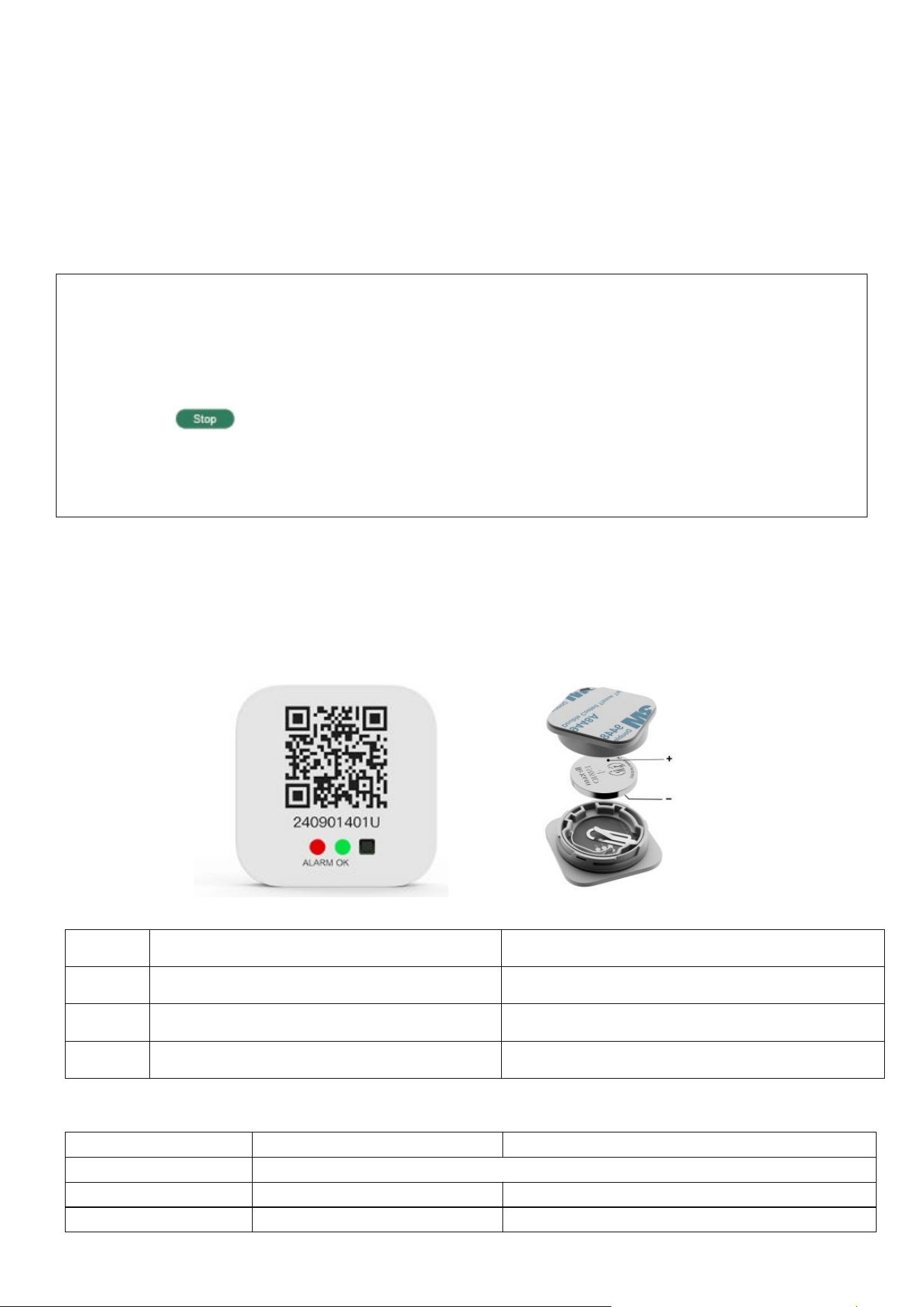
2. Product Appearance
3. Indicator Lights
4. Technical Data
●●
Red light and green light flash three times together.
Powered on
●●
Red light and green light rapidly flash once together.
Bluetooth connection
●
Green light flashes every 30 seconds.
Not configured after power-on / normal working status
●
Red light flashes every 30 seconds.
Alarm status
Model
BlueTag T100
BlueTag TH100
Temperature Range
-30℃~+70℃
Temperature Accuracy
±0.3℃ F.S.
±0.5℃ F.S.
Humidity Range
N/A
0~100%RH
5. Operation
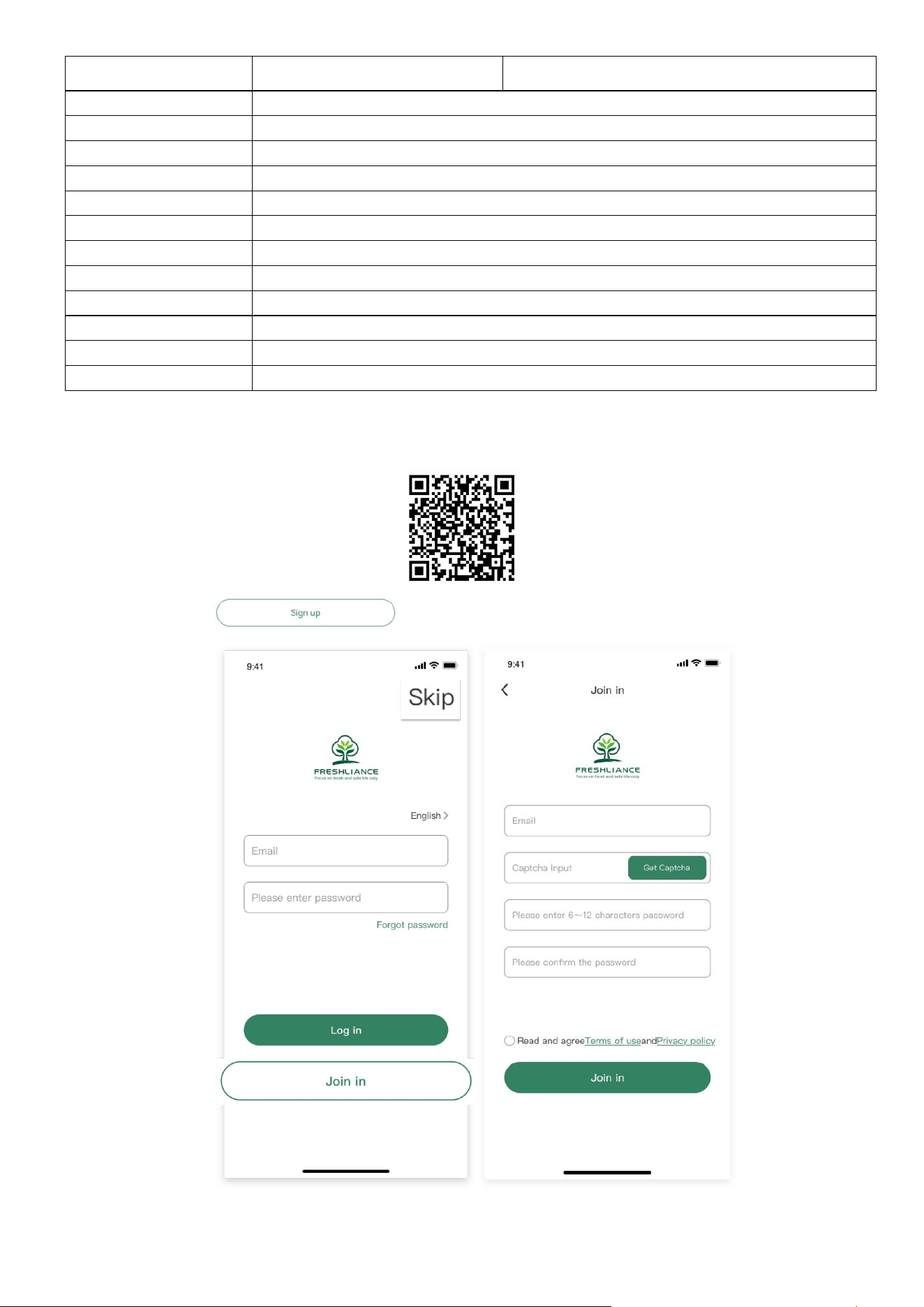
5.1 Please scan the QR code below to download Tkeeper APP.
5.2 Run the App and tap to register. After registration, please log in;
5.3 Start the device: Unscrew the battery cover of the device to remove the white insulation film and reinstall the battery correctly.
Humidity Accuracy
N/A
±3%RH(25℃, 20%~80%RH); ±5%RH(Others)
Start Delay
0min ~ 72h
Logging Interval
1min ~ 99min
Memory
Max. 65,000 readings
Temperature Units
℃, ℉
Report Format
PDF, CSV
Connection
Bluetooth 5.2
APP OS
Android/iOS
APP Language
Chinese, English, French, German, Portuguese, Russian, Spanish
Battery Type
3.0V CR2032, replaceable battery
Installation
3M adhesive tape, hanging
Dimensions
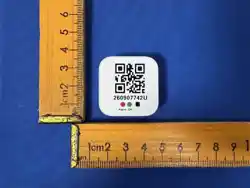
31.8mm*31.8mm*10.5mm
Weight
About 10g
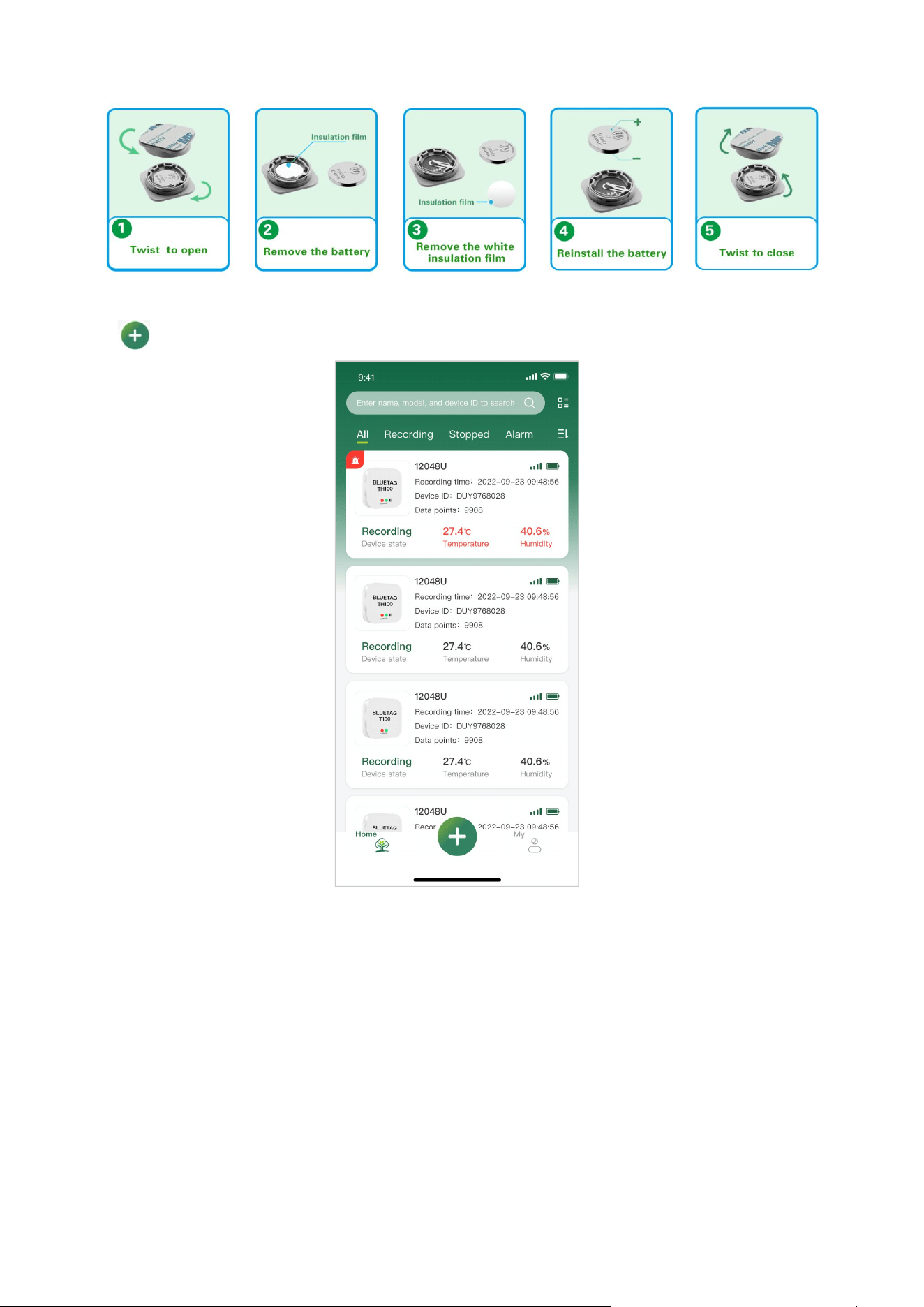
Red light and green light will flash three times together.
5.4 Add Device
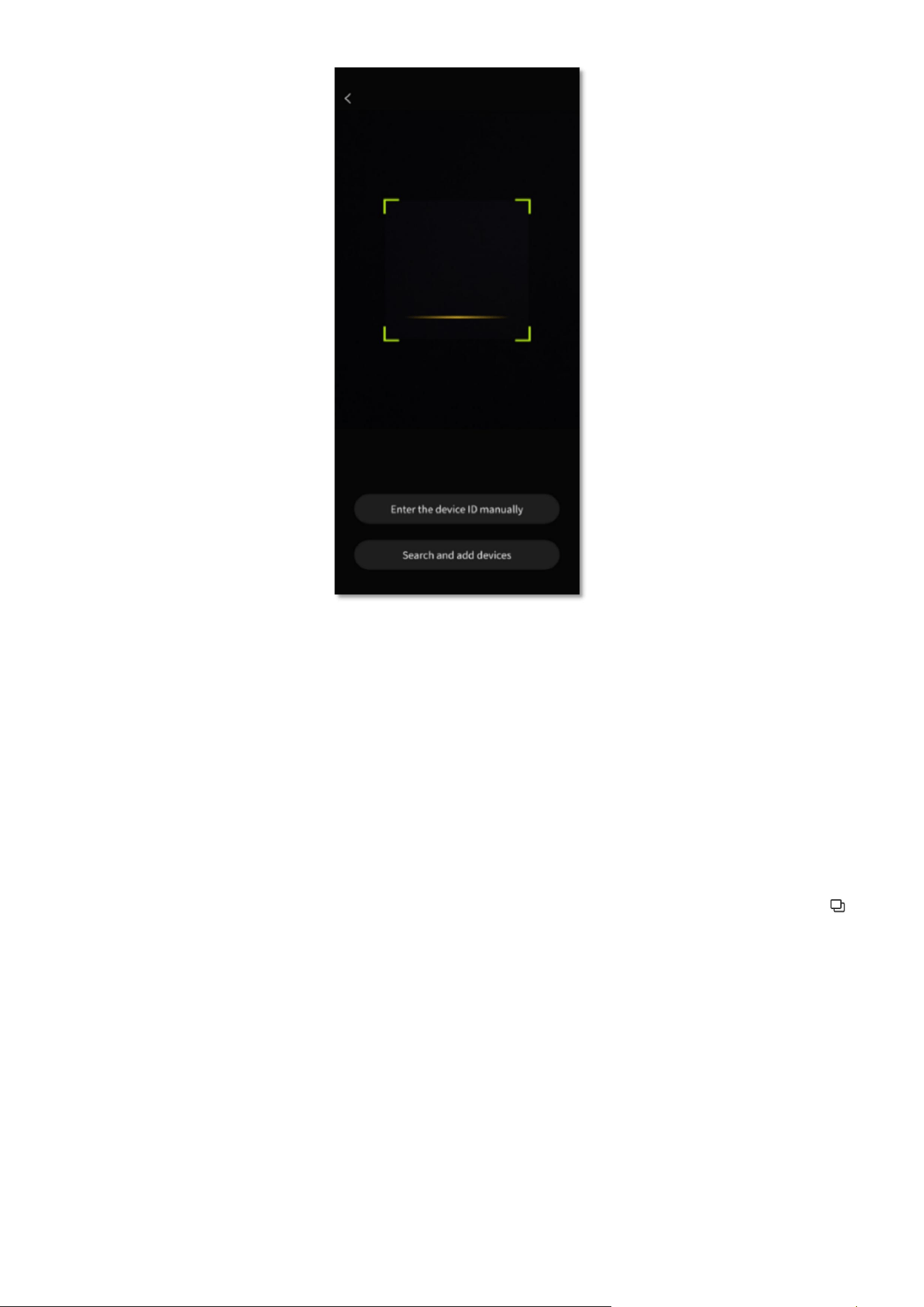
5.4.1 Tap on the home page to enter the Add Device page;
5.4.2 Scan the QR code, manually enter the device ID or search nearby Bluetooth devices to add the device.
Q&A
Q: What should the user do when the device cannot be added successfully?
A: If the device cannot be added with the QR code, please check whether the QR code scanned is the QR code of the device,
or whether there are any damage or stains on the QR code, or dim light and other conditions that may affect QR code scanning, and
try again in a bright environment; if failed to add the device with the device ID, please check whether the device ID entered is correct;
if the device ID is confirmed correct, please place the device near the mobile phone, because an excessively long distance may
cause device addition failed; if the device cannot be found, please check whether the device has been powered on.
5.5 Configuration
5.5.1 After the device is added, the configuration page will be displayed. Please configure the parameters accordingly. Or tap in
the upper right corner to select a template.
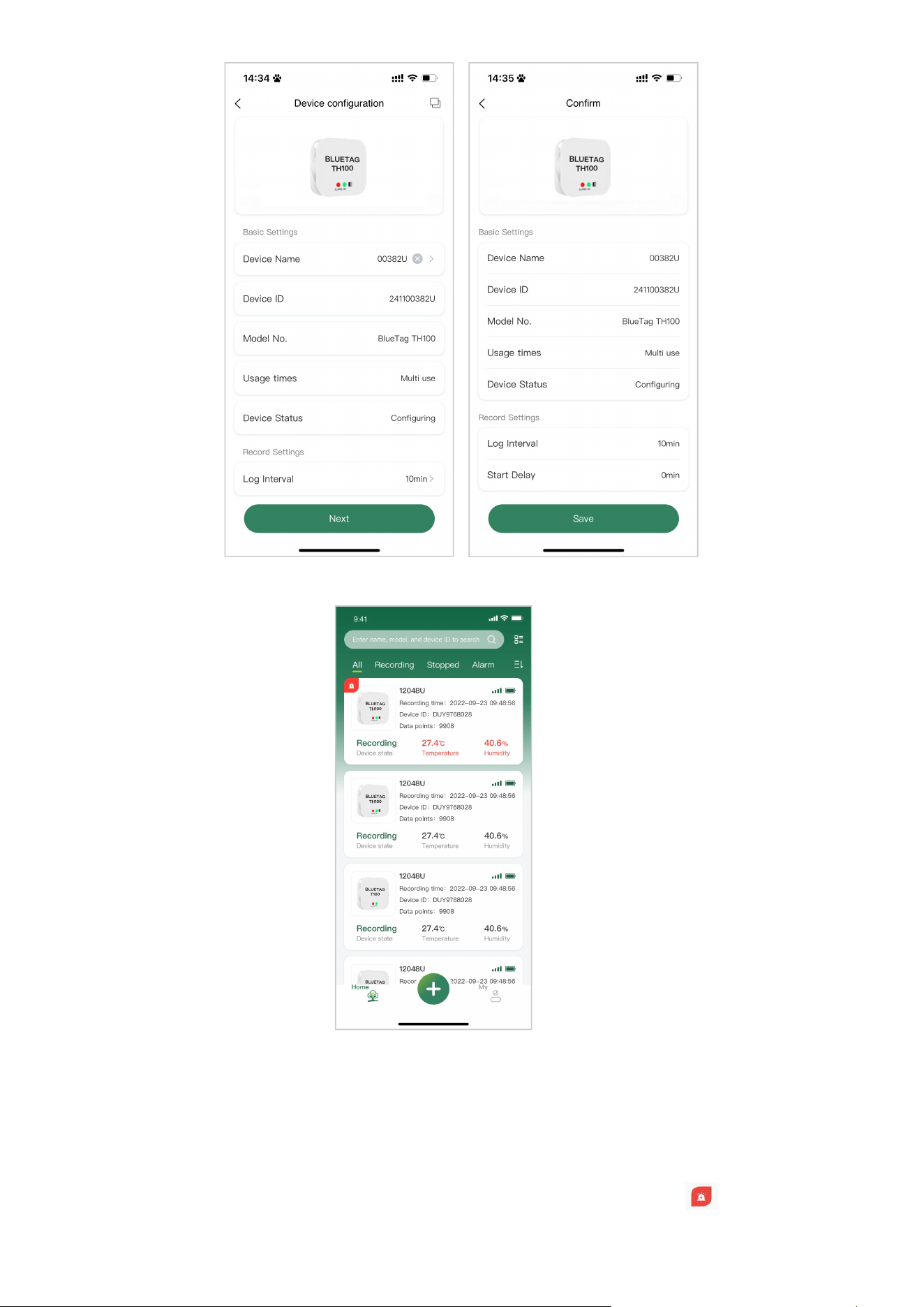
5.5.2 After configuration, the device will start to record.
5.6 View Data
5.6.1 Check Real-time Data
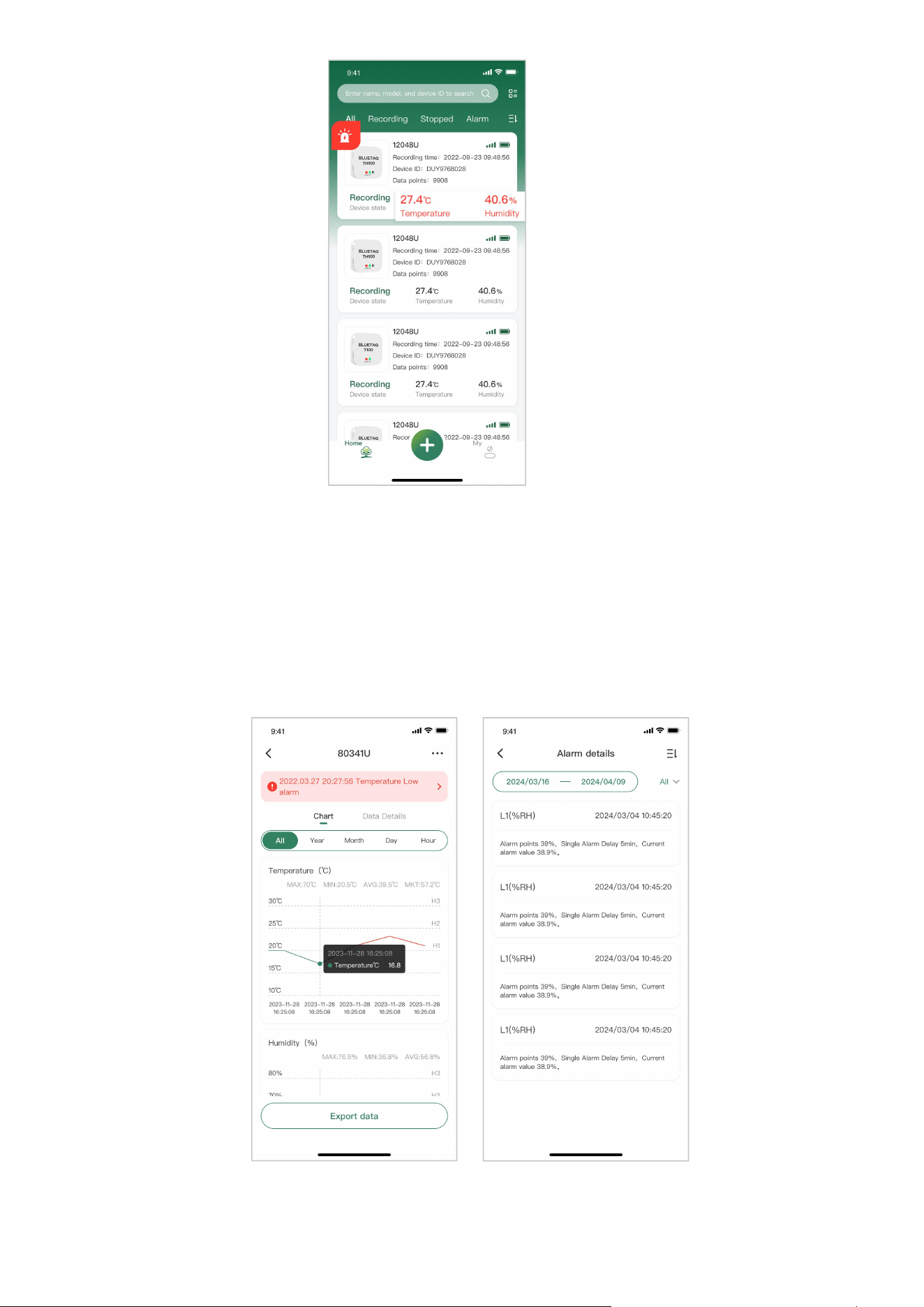
If the mobile is connected with the device, the real time data will be displayed on the home page automatically;
If the real-time data is displayed as “--”, it means that the device has not been connected. Please wait a few seconds;
If the temperature/humidity exceeds the preset alarm thresholds, it will be displayed in red, and will be displayed. They
are all irreversible.
5.6.2 Read Historical Data
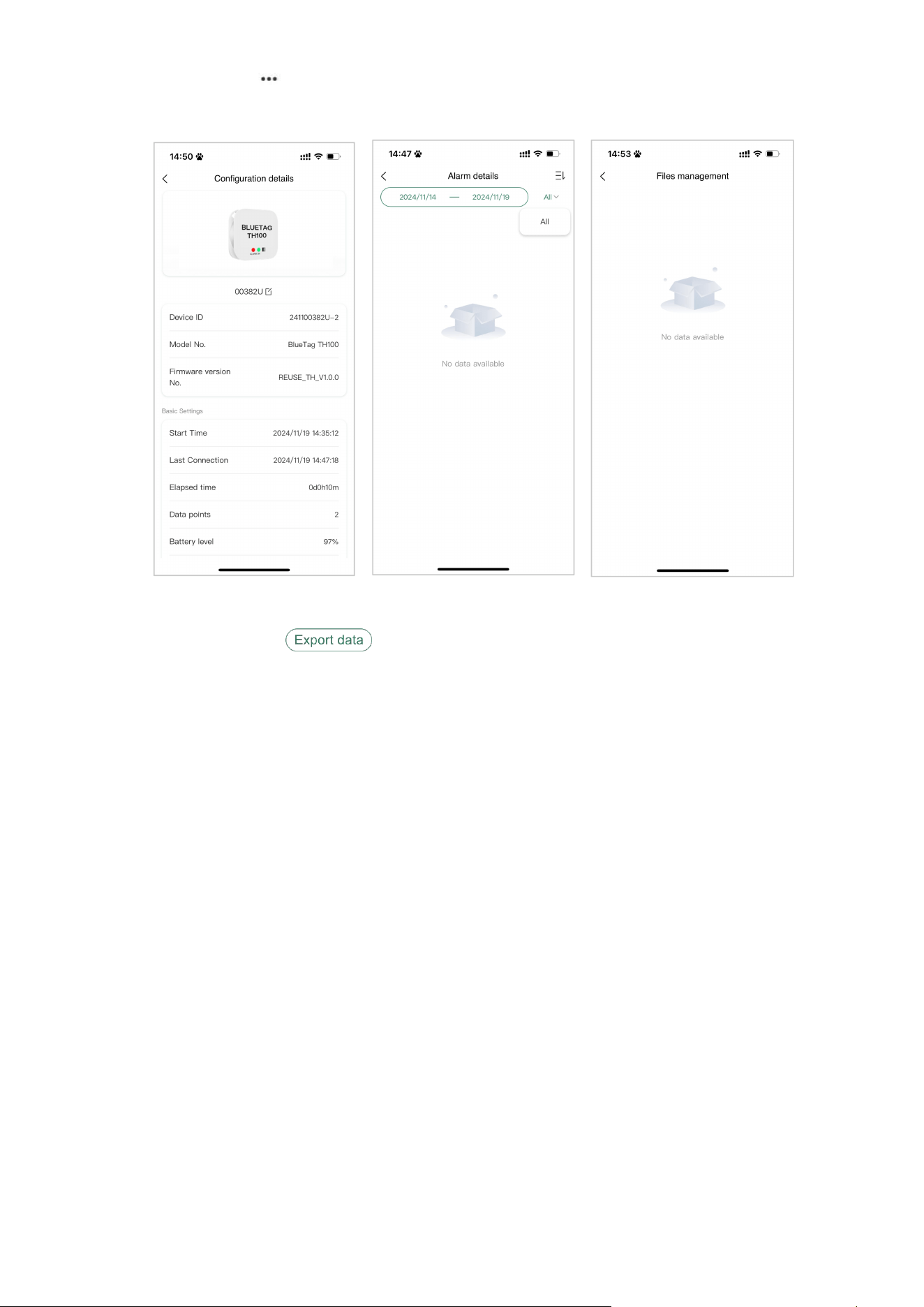
On the home page, tap the device tag to enter the detailed data page for the historical data. With successful Bluetooth connection,
the device data will be read automatically; otherwise, the historical data will be automatically synchronized from the server.
If the temperature or humidity reading is out of the preset alarm thresholds, it will be distinctly displayed in the line chart and
data details.
Drag the floating gauge of the line chart to view the data at specific time points;
Tap the red alarm notification at the top of the page to check alarm details.
5.6.3 View Relevant Information
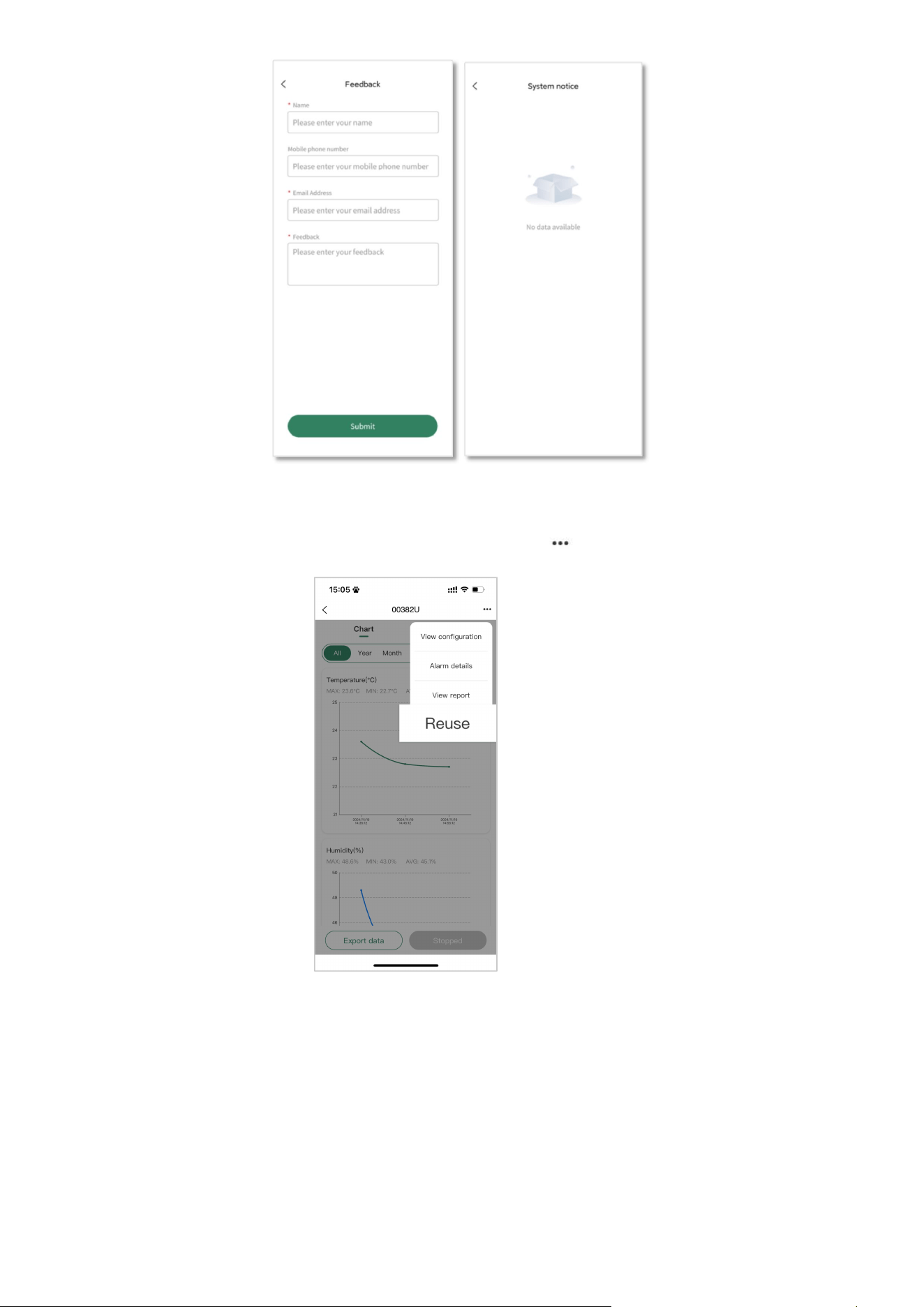
On the detailed data page, tap to pop up a subwindow and tap View configuration for configuration details; tap Alarm details
to check alarm details; tap View report to view the exported report.
5.7 Export Report
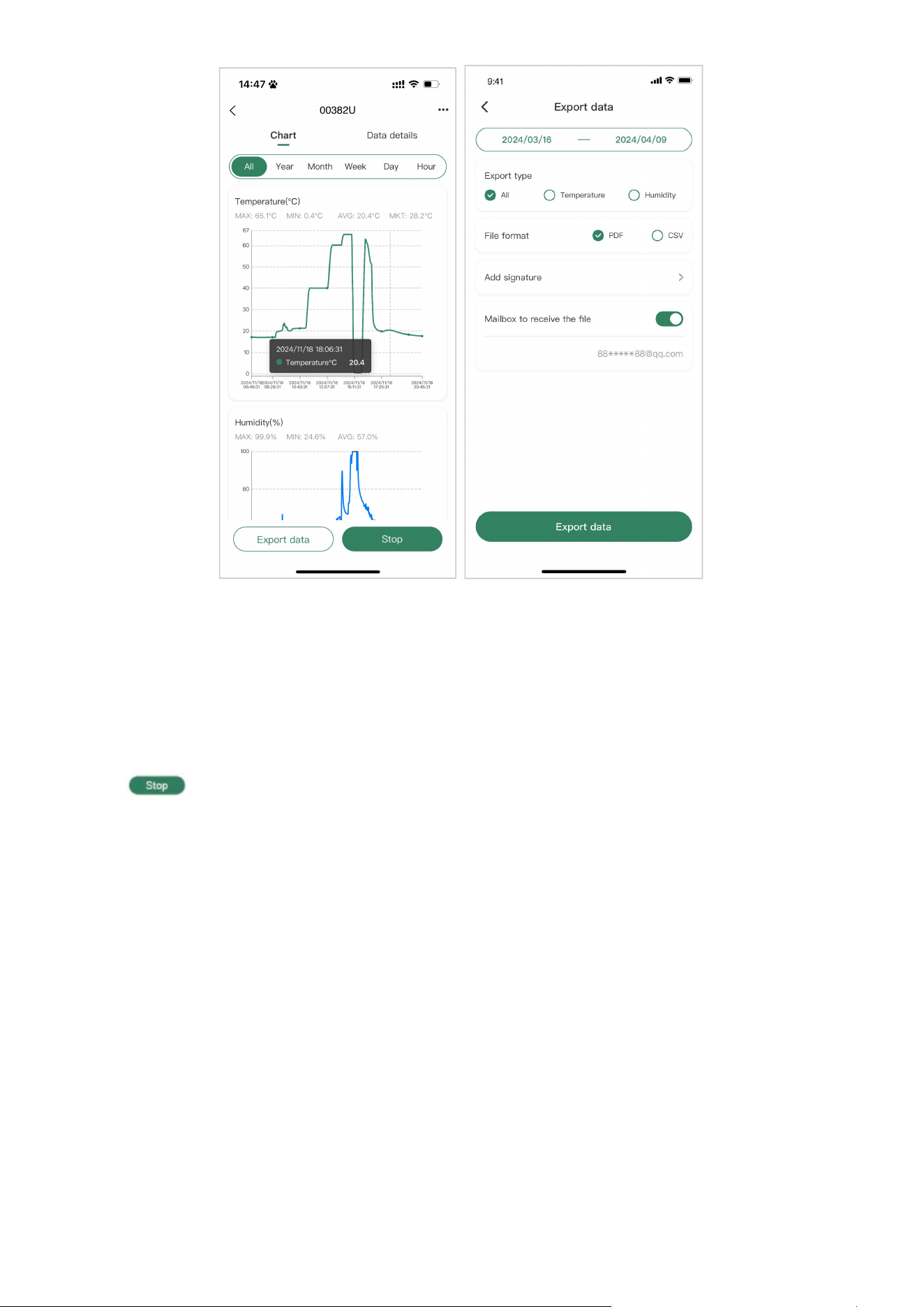
5.7.1 On the detailed data page, tap at the bottom to export the temporary PDF or CSV report.
5.7.2 If any signature on a PDF report or final report is needed, please stop the device on the APP first.
5.7.3 Extreme value report is optional for CSV report.
5.7.4 The report can also be sent to a mailbox.
Q&A
Q: Why is the signature only available for some devices?
A: Only the devices that have been stopped can have a signature on the PDF report. Report signature is not available for the
devices in recording status. For a signature, please stop the device first.
5.8 Stop Device
5.8.1 Tap at the bottom of the detailed data page to stop the device.
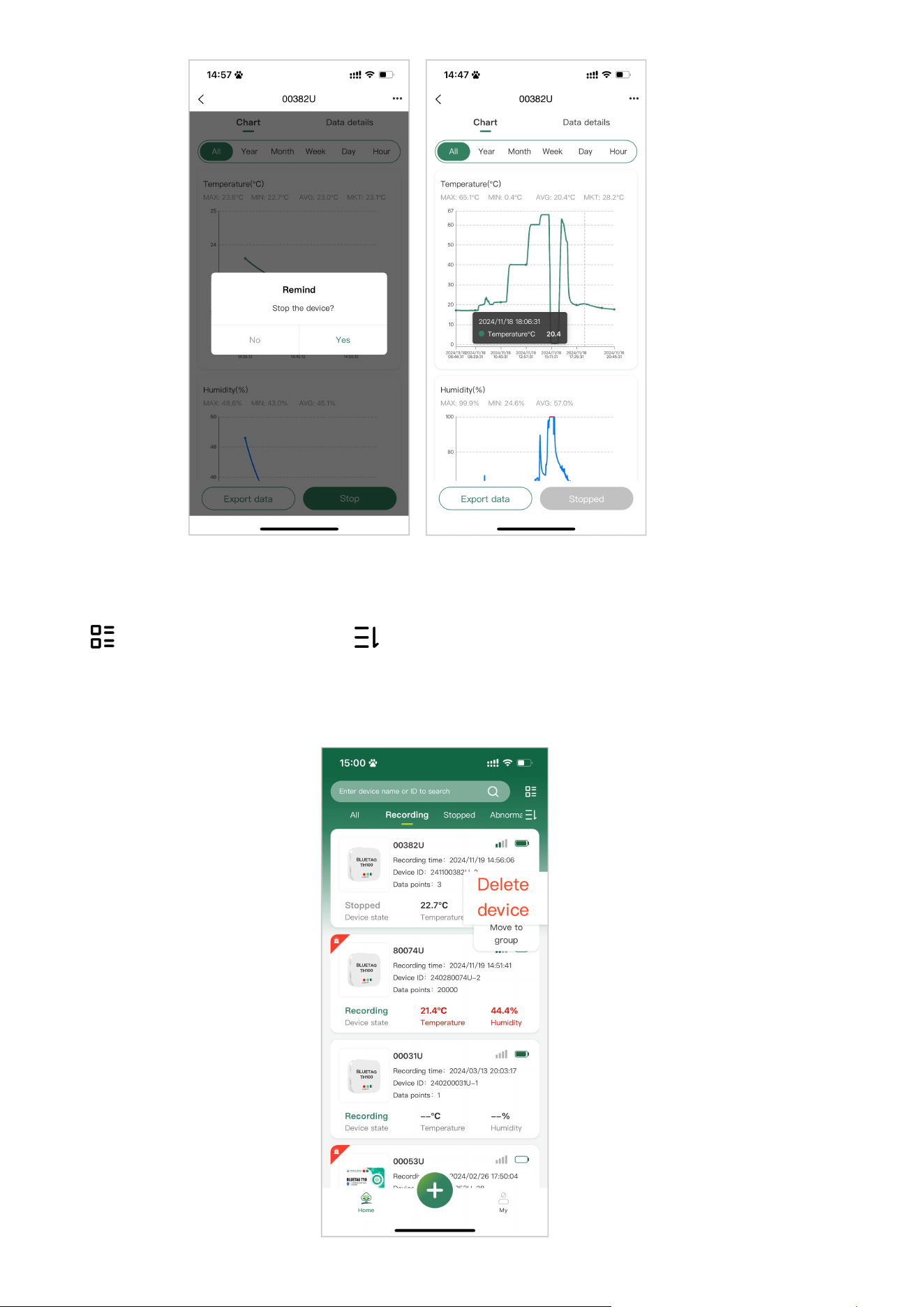
5.8.2 Once stopped, the device status will become Stopped and the device will stop recording data.
5.9 Device Management
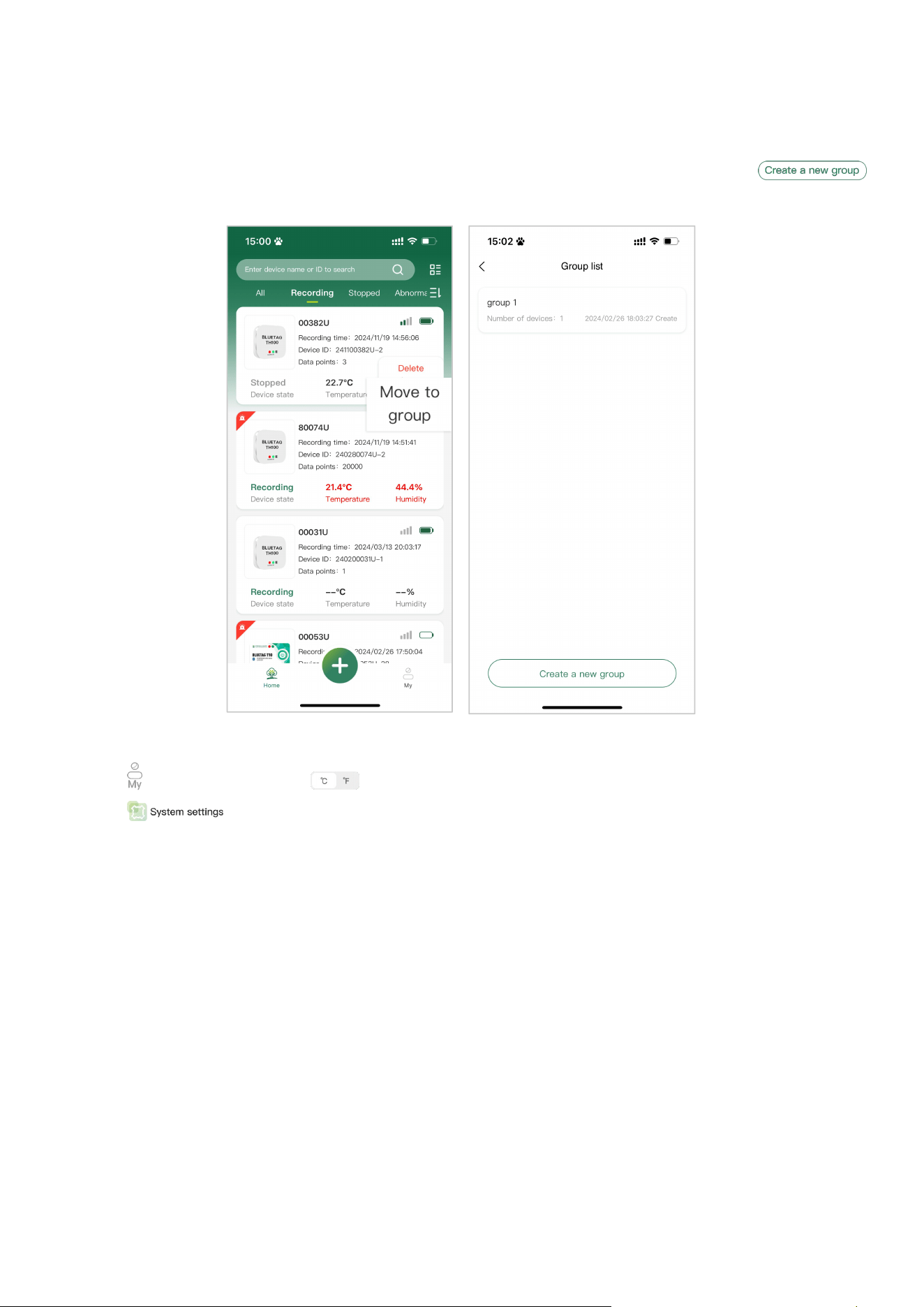
More than one device can be added to an account, and “All”, “Recording”, “Stopped”, “Abnormal” are displayed on the home page.
Tap to switch their display mode and tap to switch their display sequence.
5.9.1 Add Device: Please refer to 5.4 Add Device.
5.9.2 Delete Device: On the home page, long press the device tag. Then one prompt box will display Delete device. Select it and tap
Ok to delete the selected device.
Q&A
Q: Can the device in the recording state be deleted?
A: No, it can’t. The recording device cannot be deleted, only the stopped device can be deleted.
5.9.3 Move Device to Group:
Do as 5.9.2 to open the prompt box. Then tap Move to group to move the device to the expected group. Or tap
at the bottom to create a new group to move in.
5.10 APP Setting
5.10.1 Tap to enter APP setting. Tap to switch Temperature unit.
5.10.2 Tap to set Language, Time zone, Date format, Password management and Sign out. Location information is
optional as needed.
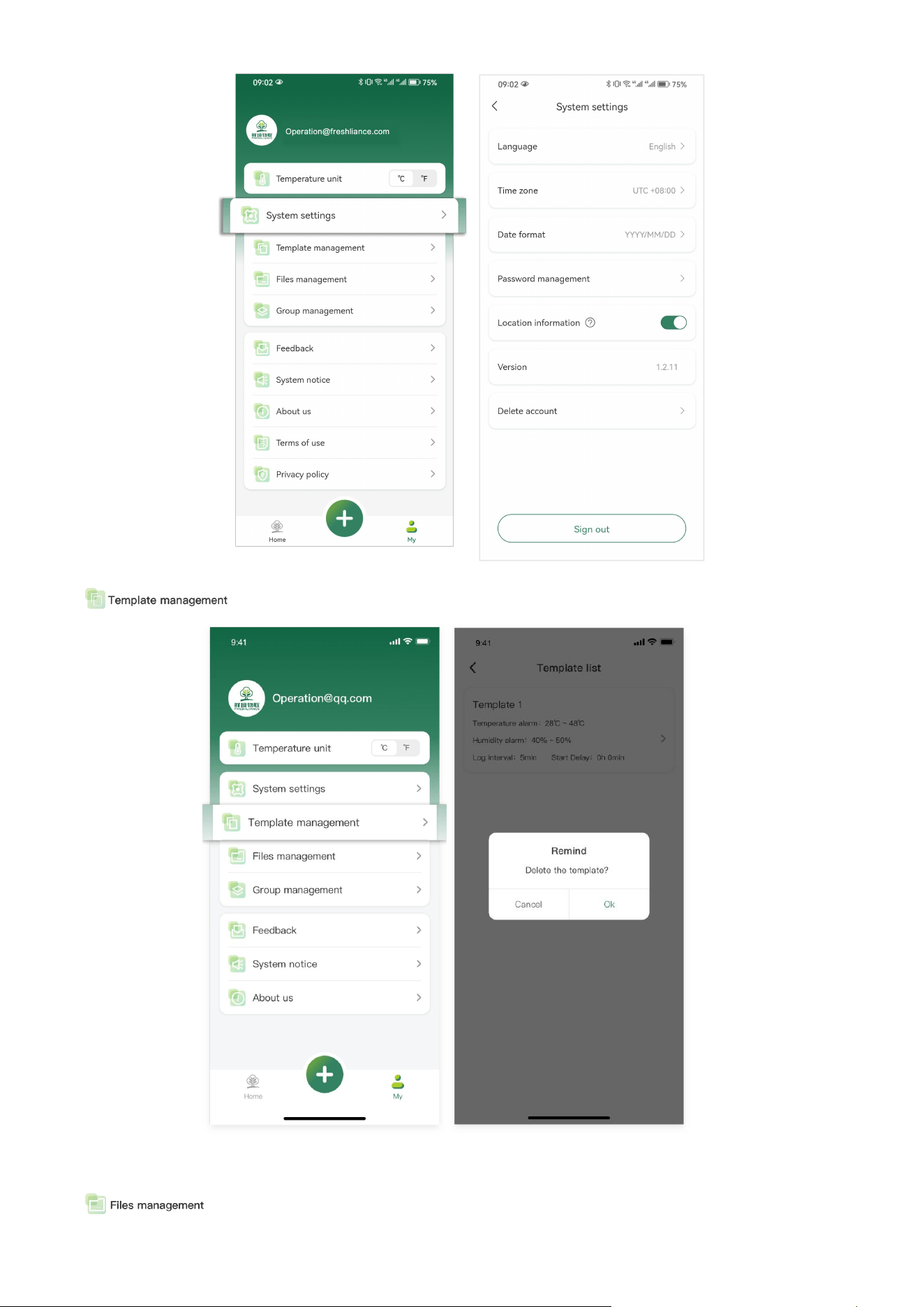
5.10.3 Template Management:
Tap to enter template list. On this page, template deletion and modification can be made.
5.10.4 Files Management:
Tap . Then all reports and report folders will be displayed and deletion operation will be available.
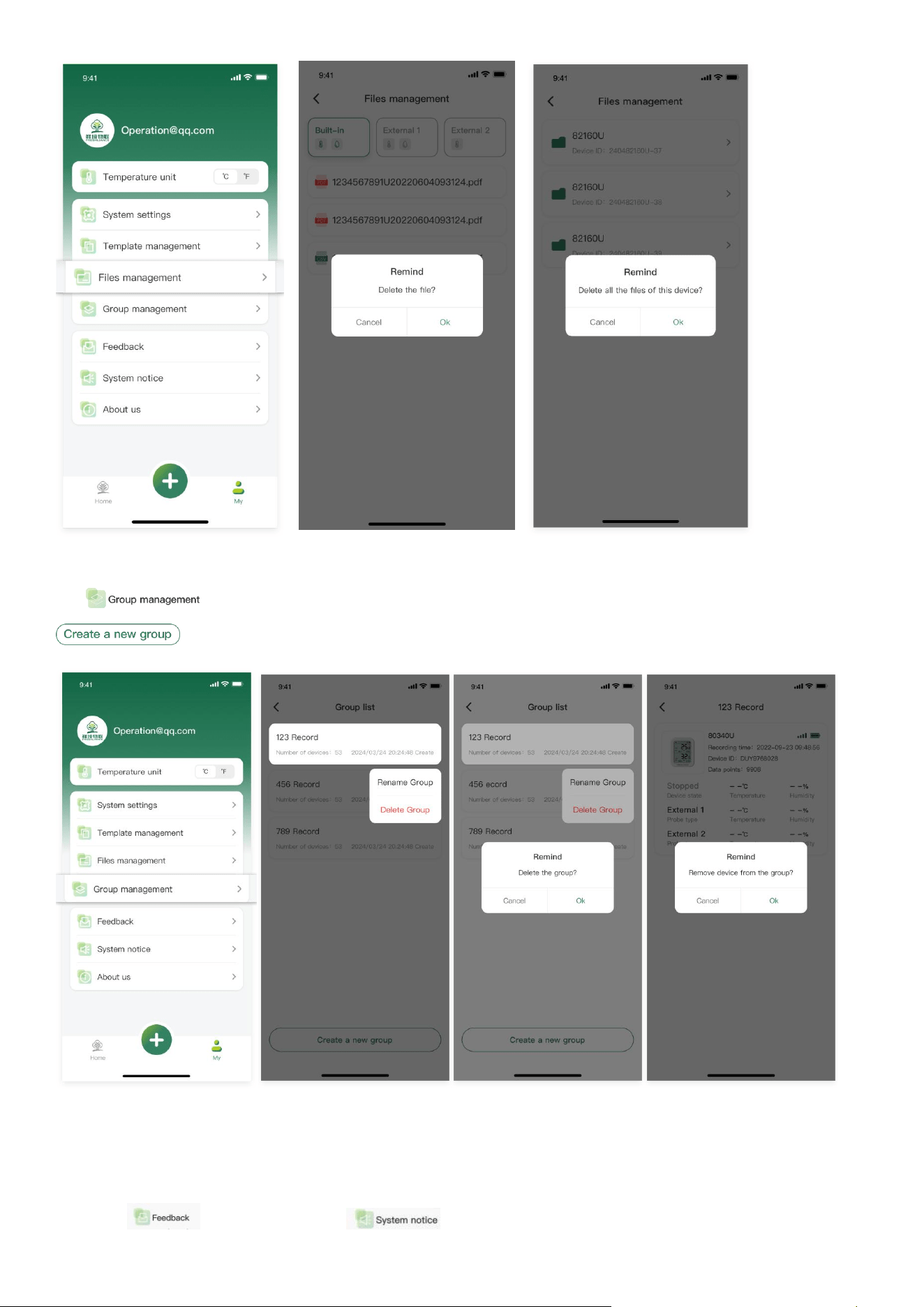
5.10.5 Group Management:
Tap to enter group list. On this page, long press group tag to choose Rename Group or Delete Group, or tap
to add a new group; and tap a group tag to view all devices in the group or remove them from the group.
Q&A
Q: Will the device removed from a group still be displayed on the home page?
A: Yes, it will. Removing a device in a group means removing the device from the group, rather than removing it from the APP.
5.10.6 Tap to submit opinions; tap to check APP update details.
5.11 Reuse
Notes: To avoid loss of the report, before reuse, please be sure to download the report first.
5.11.1 If power is enough, please scan the QR code on the device again or tap on the detailed data page to reuse the device.
5.11.2 If power is not enough, please replace the battery to restart the device.
Note: For data security, please be sure to download the report before battery replacement.

FCC WARNING
FCC Caution:
This device complies with part 15 of the FCC Rules. Operation is subject to the following two conditions: (1) this
device may not cause harmful interference, and (2) this device must accept any interference received, including
interference that may cause undesired operation.
Any changes or modifications not expressly approved by the party responsible for compliance could void the
user's authority to operate the equipment.
NOTE: This equipment has been tested and found to comply with the limits for a Class B digital device, pursuant
to Part 15 of the FCC Rules. These limits are designed to provide reasonable protection against harmful
interference in a residential installation. This equipment generates, uses and can radiate radio frequency energy
and, if not installed and used in accordance with the instructions, may cause harmful interference to radio
communications. However, there is no guarantee that interference will not occur in a particular installation.
If this equipment does cause harmful interference to radio or television reception,which can be determined by
turning the equipment off and on, the user is encouraged to try to correct the interference by one or more of the
following measures:
-- Reorient or relocate the receiving antenna.
-- Increase the separation between the equipment and receiver.
-- Connect the equipment into an outlet on a circuit different
from that to which the receiver is connected.
-- Consult the dealer or an experienced radio/TV technician for help.
To maintain compliance with FCC’s RF Exposure guidelines, This equipment should be installed and operated
with minimum distance between 20cm the radiator your body: Use only the supplied antenna.