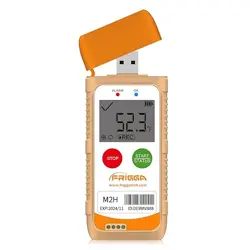
M�
Start the device
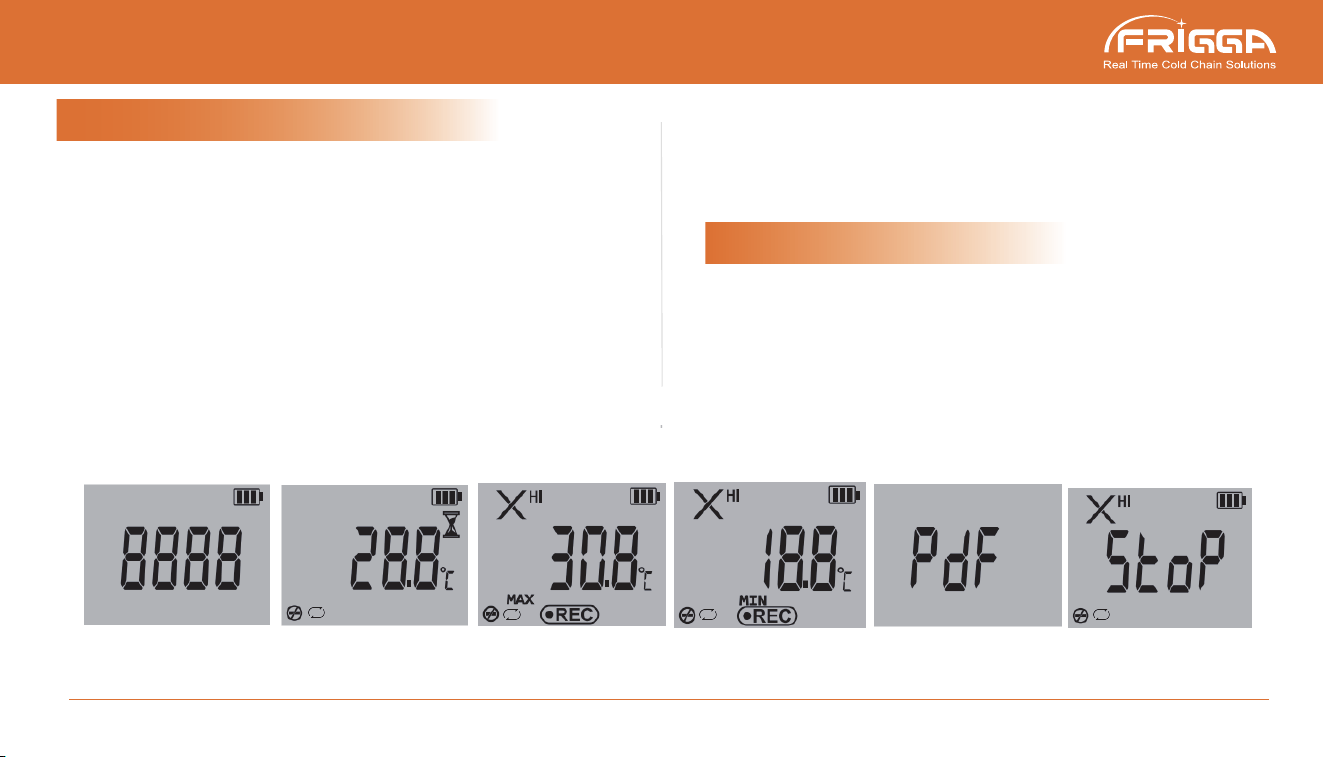
Work Status Instruction
Stop the device
�.SLEEP MODE
�.START DELAY �.RECORDING MODE �.GENERATING REPORT �.STOP MODE
➀
➁
➂
➃
Stop the logger: long press "STOP" for � seconds until the red
LED blinks and then release it within �� seconds.
➀
➁
Short press "START" button for � second, and refer to below work
status instruction of the logger.
Note: If disable manual stop function, stop device by connecting with PC.
www.friggatech.com
China.Norway.Netherlands.Spain.UK.Chile contact@friggatech.com
Confirm whether the device has been turned on: Tap "Stop" and the screen
displays "����", which means the device is brand new, and hasn’t been
turned on before.
Start the logger: long press "START" for � seconds until the blue LED blinks
and then release it within �� seconds.The logger enters into start delay mode
for �� min (blue LED blink every �� seconds).
➄
➅
Please note: When the device is connected with the computer, the device
pauses the recording of data and the screen displays "STOP". Please re-start
the device after setting the parameters.
Parameter settings: After turning on the device, go to Frigga website
(https://www.friggatech.com/application) to download Frigga Data Center,
please refer to the software manual for the user guide. Connect the device to
a computer and set the device parameters through the Frigga Data Center
software.
After start delay, the logger starts recording data.
Re-start the device: Press and hold the "START" button for � seconds.
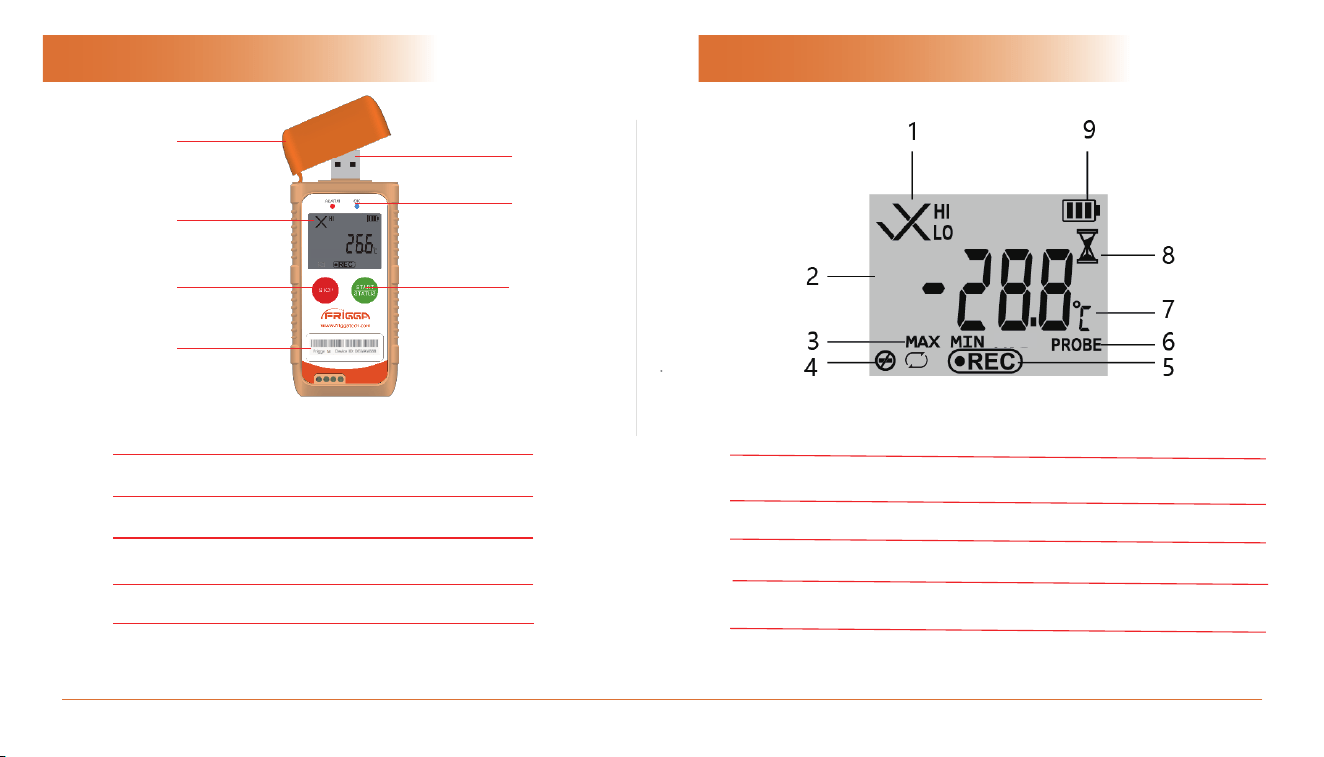
1.USB Cover
2.LCD Screen
3.Stop Bu�on
4.Bar code Label
5.USB Connector
6.LED Indicator
7.Start Bu�on
⑦
①
②
③
④
⑤
⑥
1.Alarm Status
2.Temperature Value
3. Sta�s�cal Type
4. Disable Manual Stop
5.Working Status
6.External Probe (Support for some device)
7.Temperature Unit
8.Start delay Indicator
9.Ba�ery Indicator
www.friggatech.com
China.Norway.Netherlands.Spain.UK.Chile contact@friggatech.com
Appearance LCD Screen Indication