TMDL50_v1_10/25
USER MANUAL
TMDL50
High Temperature Datalogger
- 2 -
Introduction
Welcome, and congratulations on your purchase of the Triplett TMDL50. The TMDL50 High
Temperature Data Logger is designed for accurate and reliable temperature monitoring in
extreme environments. Constructed from durable 316L stainless steel, it provides precise data
logging in applications such as sterilization, pasteurization, and autoclave validation. With a
wide temperature range, high accuracy, and long battery life, the TMDL50 is ideal for quality
assurance professionals, food and pharmaceutical processing, and laboratory research. Its
compact, waterproof design and easy USB interface make setup, configuration, and data
retrieval simple and efficient.
What’s in the box:
(1) TMDL50 High Temperature Datalogger
(1) User Manual
(12) Replacement O-rings (6 Sets for Front and Back)
(1) Cleaning Cloth
Stay updated:
For the most recent version of the user manual, always visit the official Triplett website:
www.triplett.com and search for TMDL50.
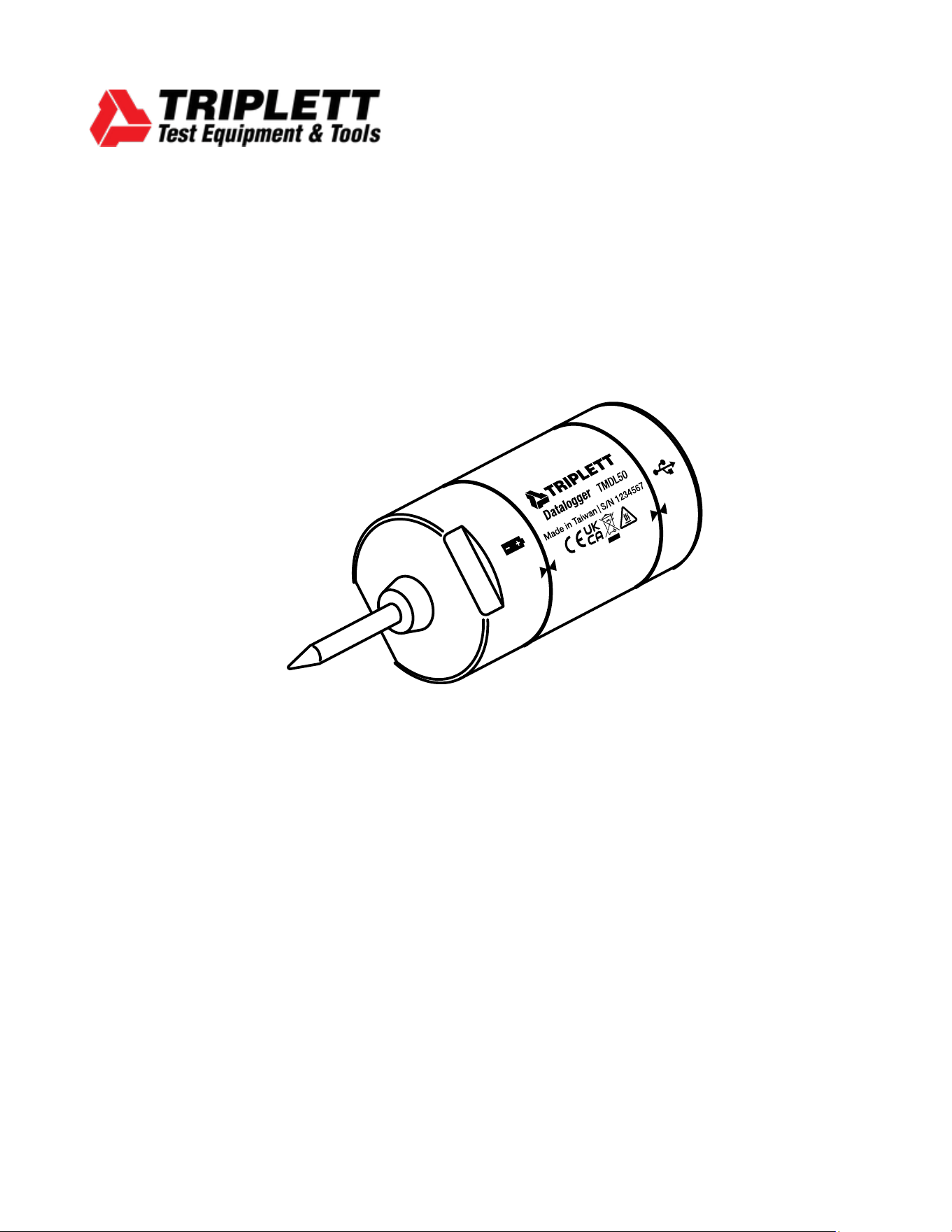
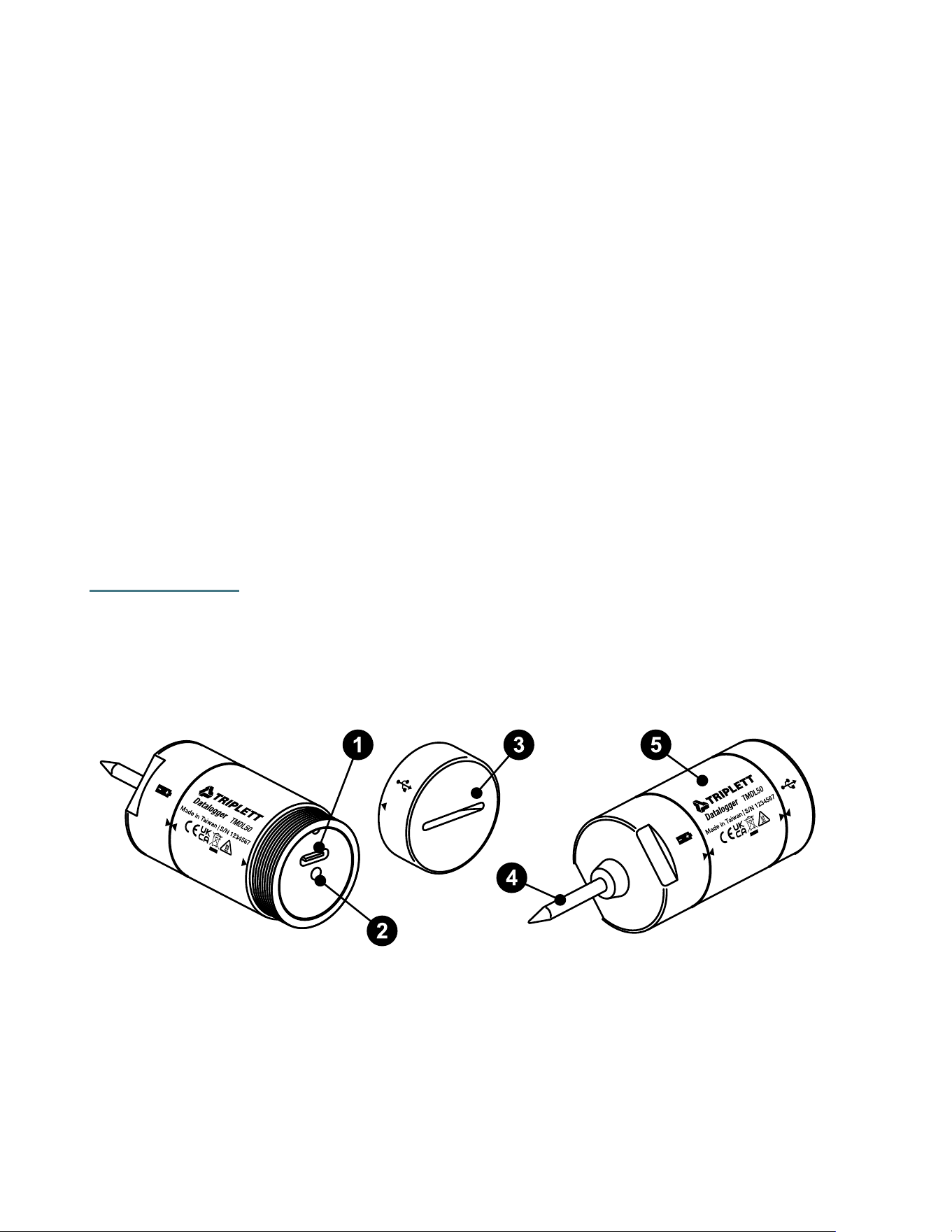
Description
Product Description
1. USB Type-C Interface
The data logger is equipped with a USB 2.0 Type-C plug-and-play connector. No driver or
software installation is required. Simply connect the included Type-C cable to a computer
to congure or download data.
2. LED Indicator
The built-in LED provides visual feedback for the logger’s operating status:
- 3 -
Status
LED Indication
Power O
All LEDs are o.
Standby
Green LED blinks dimly every 5 seconds when the logger is
programmed and waiting to start. The brightness is lower
than during recording.
Recording
Green LED blinks brightly every 5 seconds while data logging
is in progress.
Logging Complete – Data
Not Yet Downloaded
Green LED ashes three times every 5 seconds to indicate
logging has ended but the data has not been retrieved.
Low Battery
Red LED blinks every 5 seconds to indicate that the battery
should be replaced.
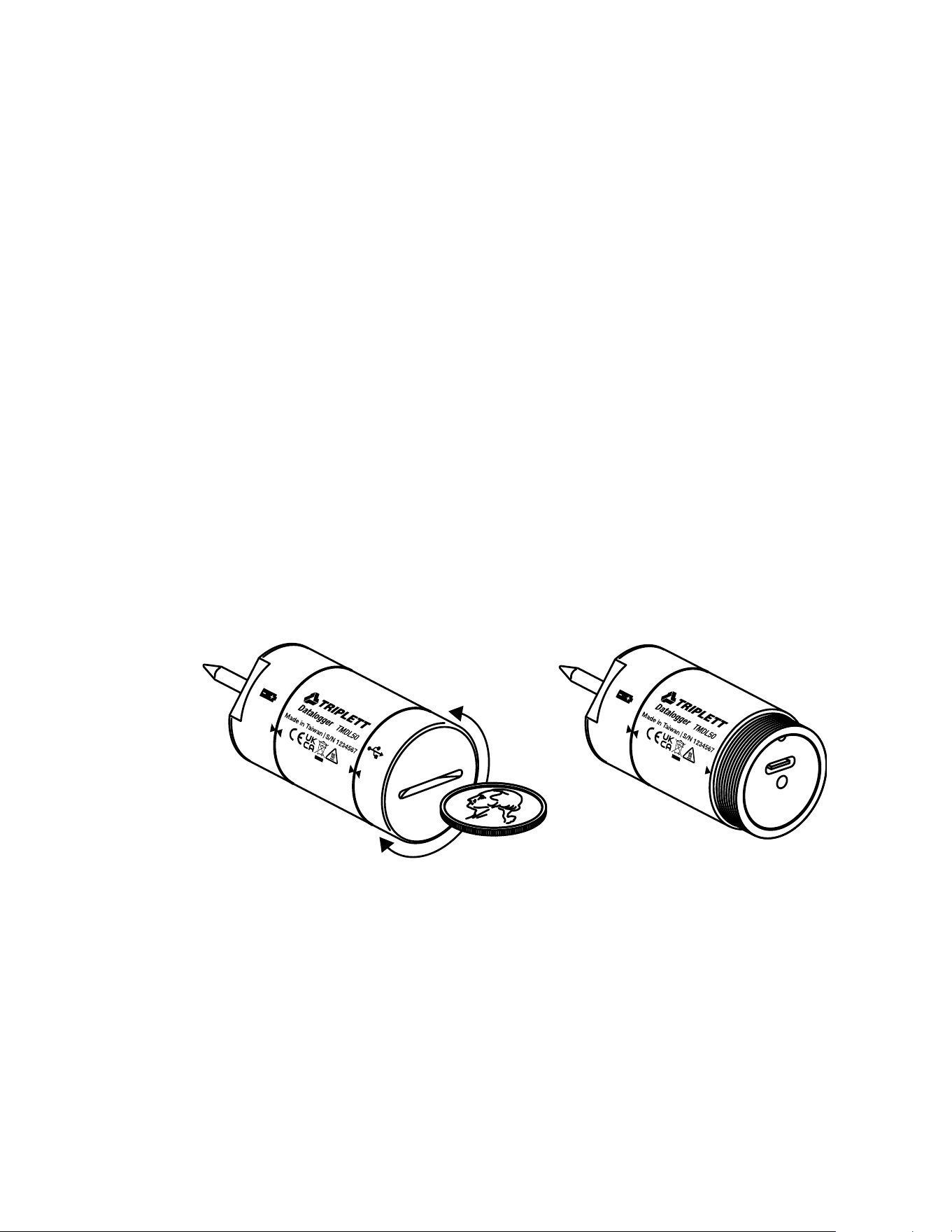
3. Waterproof USB Cover
The waterproof cover must be fully tightened to maintain the unit’s IP68 rating.
o To open, use a coin and rotate the cover counterclockwise to the alignment mark.
The included cloth can help improve grip.
o To close, rotate the cover clockwise until the alignment marks match.
o Periodically clean the inner surface of the USB cover and replace the O-ring to
ensure the best waterproof performance.
4. Temperature Sensor
High-accuracy built-in PT1000 platinum sensor for precise temperature measurement.
5. Battery Compartment
The logger operates on one replaceable 3.6 V lithium battery (pre-installed and factory-
- 4 -
tested). When replacement is required, contact your distributor to obtain the correct
battery type.
Battery Installation
The data logger is powered by a pre-installed, non-rechargeable 3.6 V lithium battery. Under
normal conditions, the battery provides power for up to one million readings or approximately
18 months of use, whichever comes rst.
When the red LED blinks every 5 seconds, the battery is low and should be replaced soon.
Contact your distributor or the place of purchase to obtain a replacement battery of the same
type.
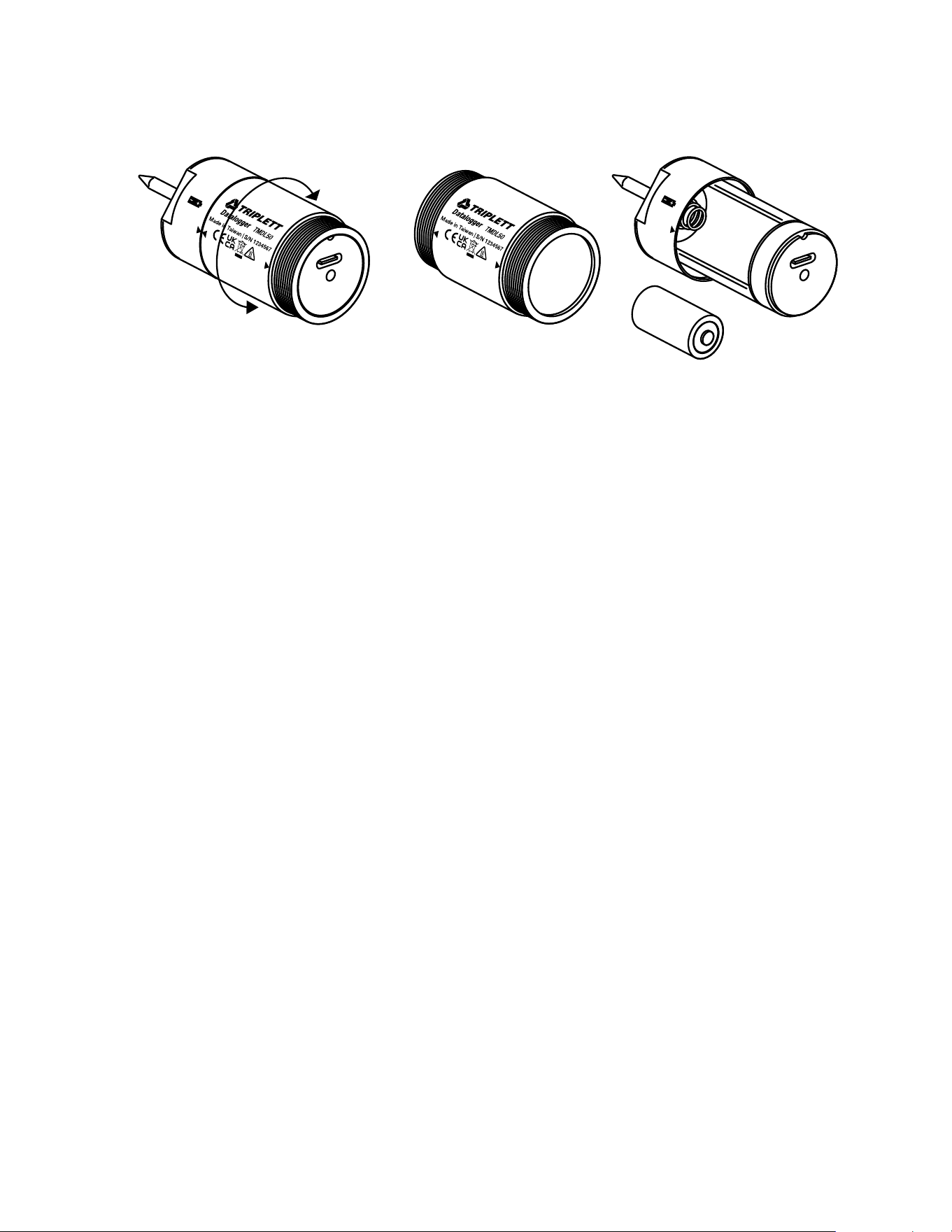
Battery Replacement Procedure
1. Securely hold the logger using a wrench or other suitable tool to keep it steady.
2. Rotate the middle section of the logger counterclockwise to open the battery
compartment.
3. Remove the old battery and O-ring. Install the new battery and O-ring, making sure to
observe the correct polarity.
4. Rotate the middle section clockwise until the alignment marks match and the
compartment is securely closed.
Note: Always check that the O-ring is properly seated and in good condition before closing to
maintain the unit’s waterproof rating (IP68).
Operation
Important Notes:
1. Adobe® Reader is required to view the generated PDF reports.
2. Always program and generate reports at room temperature. If the logger has been used
in high-temperature environments (such as an autoclave), allow it to fully cool to ambient
temperature before connecting to a PC.

- 5 -
3. The conguration software is built into the logger and appears automatically when
connected to a Windows® computer — no separate installation is required.
Step 1: Conguring the Data Logger
Conguration can be performed at any time before recording begins. Once logging starts,
conguration changes cannot be made until the recording session is stopped. If a password has
been enabled, it will be required to modify settings.
1. Use a coin to open the USB cover.
2. Connect the data logger to your PC using the included USB Type-C cable. The green LED
will remain on while communication is established.
3. A Windows File Explorer window will automatically appear. If it does not, open it manually
to view the logger’s folder.
4. Double-click “PDF Logger Conguration Tool.exe.”
5. Select your preferred language. Available options include English, German, French,
Italian, Spanish, and Portuguese.
User-Congurable Settings
• Sampling Rate: Choose an interval between 1 second and 120 minutes.
• Start Delay: Set a delay from 0 minutes up to 24 hours. For example, if a 5-minute delay
and a 5-second sampling rate are selected, the rst measurement will begin 5 minutes
after pressing “Save.”
• Temperature Unit: Choose between °C (Celsius) or °F (Fahrenheit).
• Password: Optionally enable password protection to prevent unauthorized
reconguration. Passwords can include up to 16 letters or numbers.
• Company Name: Enter a custom label (up to 20 characters) such as a company name or
test location. This appears as the title on the PDF report.
• Eective Range: Dene acceptable temperature limits for your process (e.g., 130°C–
140°C). The software will indicate how long the measured temperature remained within
this range.
• Time Zone: Ensure the PC is set to the correct local time zone before programming. The
logger automatically synchronizes its internal clock with the PC when you click “Save.”
Default Settings
• Sampling Rate: 1 second

- 6 -
• Start Delay: 0 minutes
• Temperature Unit: °C
• Eective Range: 120.0°C to 140.0°C
• Password: Disabled
• Company Name: Blank
• Language: English
After conguring all parameters, click “Save” to conrm settings, then disconnect the logger
from the PC.
Step 2: Starting Data Logging
• If the Start Delay is set to 0 minutes, logging begins immediately after disconnecting from
the PC. The green LED will blink once every 5 seconds to indicate active recording.
• If a Start Delay is set, the green LED will blink dimly every 5 seconds while in standby
mode, then switch to a brighter blink once logging begins.
• During operation, the red LED will blink if the battery power becomes low.
Step 3: Downloading Data
1. Allow the logger to cool to room temperature before connecting it to your PC.
2. Connecting the logger to the PC will automatically stop recording.
3. Open “PDF Logger Conguration Tool.exe.”
4. Select “Convert to PDF” or “Convert to Excel” to generate your report in the desired
format.
o The PDF report includes graphs, summary statistics, and temperature data.
o The Excel report includes all measurement data in tabular form.
5. Choose a folder to save your report.
6. After the report is generated, the logger automatically powers o unless reprogrammed
for a new recording session.
If you end a logging session but have not yet downloaded data, the green LED will ash three
times every 5 seconds as a reminder. This consumes battery power, so it is recommended to
download data promptly.
To start a new recording session, reopen the conguration tool, verify or update your settings,
and click “Save” again before disconnecting.

- 7 -
Note:
The generated Excel le is a tab-delimited ASCII text le. When opened in Microsoft Excel, a
warning message may appear because the le is named “.csv” but contains text-format data.
This can be safely ignored — click OK to proceed.
Specications
Feature
Description
Temperature Range
-40.0 °C to 140.0 °C (-40.0 °F to 284.0 °F)
Temperature Sensor
Built-in PT1000 Platinum Resistance Sensor
Resolution
0.1 °C / 0.1 °F
Accuracy
±0.4 °C
Response Time (T90)
Approx. 20 seconds (from room temperature to 90 °C)
Memory Capacity
48,000 readings
Sampling Interval
1, 5, 10, 30 seconds; 5, 10, 30, 60, 90, 120 minutes
Start Delay Options
0, 5, 30, 45, 60, 90, 120 minutes, or 24 hours
Battery Type
3.6 V Lithium Battery (replaceable, pre-installed)
Battery Life
Approx. 1 year @ 5 sec sampling rate (full temperature range)
Continuous Operation
≤ 1 week @ 140 °C (oven); ≤ 30 minutes @ 134 °C (autoclave)
Operating Temperature
-40 °C to 140 °C (during logging); room temperature (PC
connection)
Operating Humidity
< 80 % RH (non-condensing)
Storage Temperature
-40 °C to 85 °C
Storage Humidity
< 90 % RH (non-condensing)
Material
316 Stainless Steel (SUS316) body and probe
Dimensions
0.67(diameter) x 1.85”(height) (17 × 47mm)
Weight
Approx. 175 g
LED Indicators
Recording Status / Low Battery
Protection Rating
IP68 (Waterproof)
Logging Type
Multiple-Use (Non-Disposable)
Compliance
EN 61326-1: 2013
Operating System
Windows® (built-in conguration tool)
Warranty Statement
Triplett Test Equipment offers a two-year warranty to the original purchaser of its products.
We guarantee that our products will be free from defects in workmanship and materials for
two (2) years from the purchase date.
This warranty does not cover:
▪ Products purchased from unauthorized distributors.
▪ Items that have been repaired or altered by unauthorized individuals.
▪ Damage from misuse, abuse, misapplication, negligence, or accidents.
▪ Products with altered, defaced, or removed serial numbers.
▪ Accessories, including batteries.
Copyright © 2026
Triplett www.triplett.com