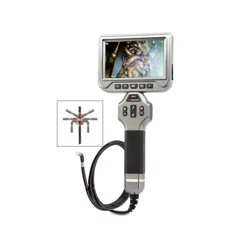
BR400A
360° Rotating Camera High-Definition Borescope

SAFETY INSTRUCTIONS
• This product is designed for industrial inspection cameras.
• Please do not violently hit the camera probe, and do not imprudently pull the cable.
• Please do not use it under high temperature, high magnetic or under strong light.
• Please use 5V household charger that meets the safety regulations to charge this device.
• Do not expose this product to extremely low or high temperatures
• If you do not use the device for a long time, please ensure that it is charged at least once
every 3 months to prevent irreparable damage caused by excessive battery discharge.
• Do not wipe the unit with corrosive chemical wash.
NOTICE:
WARNING! This product is an industrial inspection camera and is not intended for medical
use or human examination.
PRODUCT FEATURES
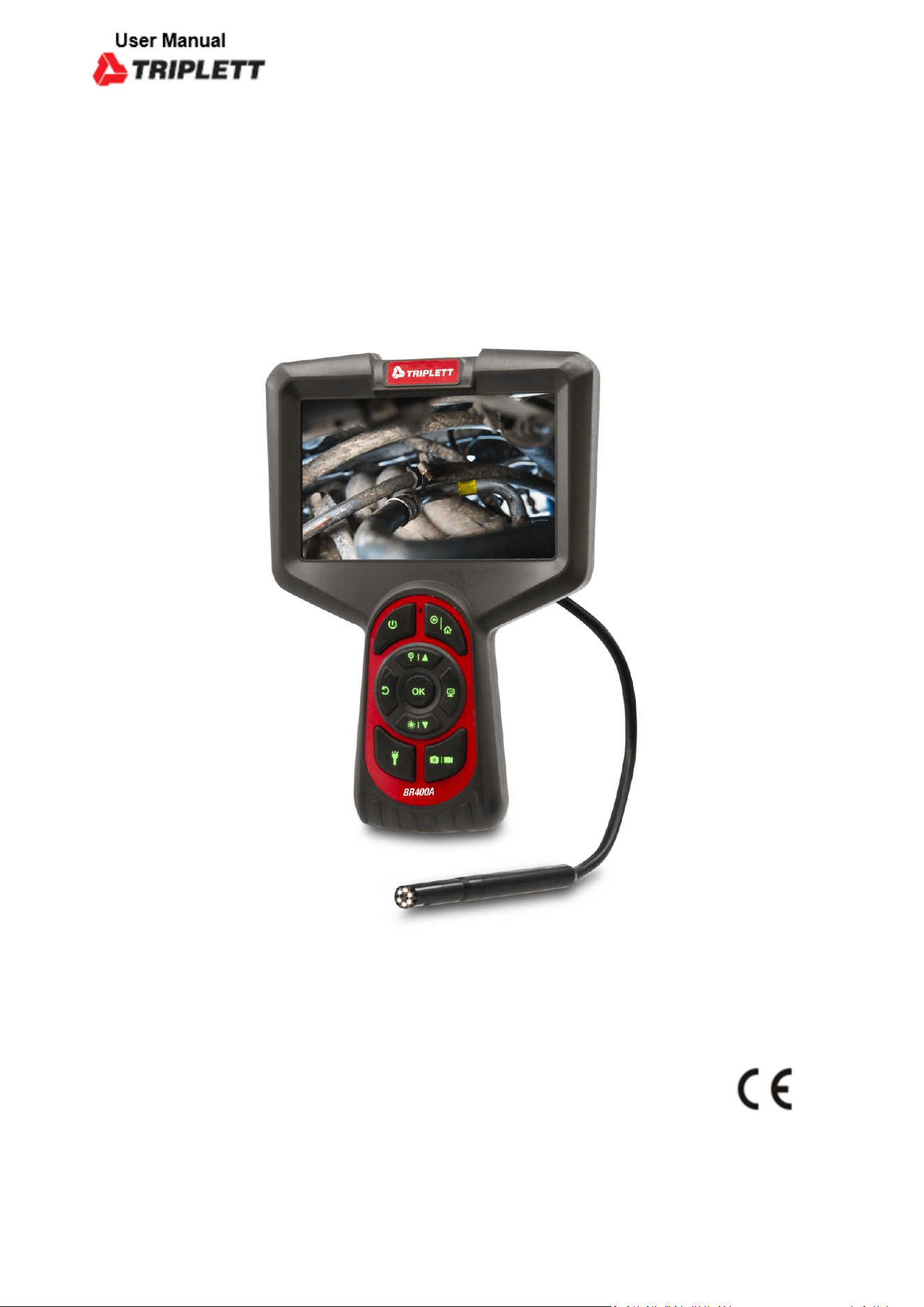
• The BR400A is a high-performance industrial inspection camera with a 5-inch
high-definition color LCD.
• It is ergonomically designed so that the main functional buttons can be controlled with
one hand.
• The built-in 3000mah rechargeable lithium battery allows 3-4 hours of continuous
operation.
• The snapshot and recording functions are supported, photos and videos can be saved on
TF memory card (Micro-SD card).
• Zoom : X3. Auxiliary light source, adjustable LED lights, easy to use in dark environments.
• The waterproof is IP 67 only for camera.
• The camera is HD pixels with clear picture quality. There are 5.5mm or 8mm diameter
lenses to choose from, that is suitable for different working environments.
• The focal length is 3cm-10cm.
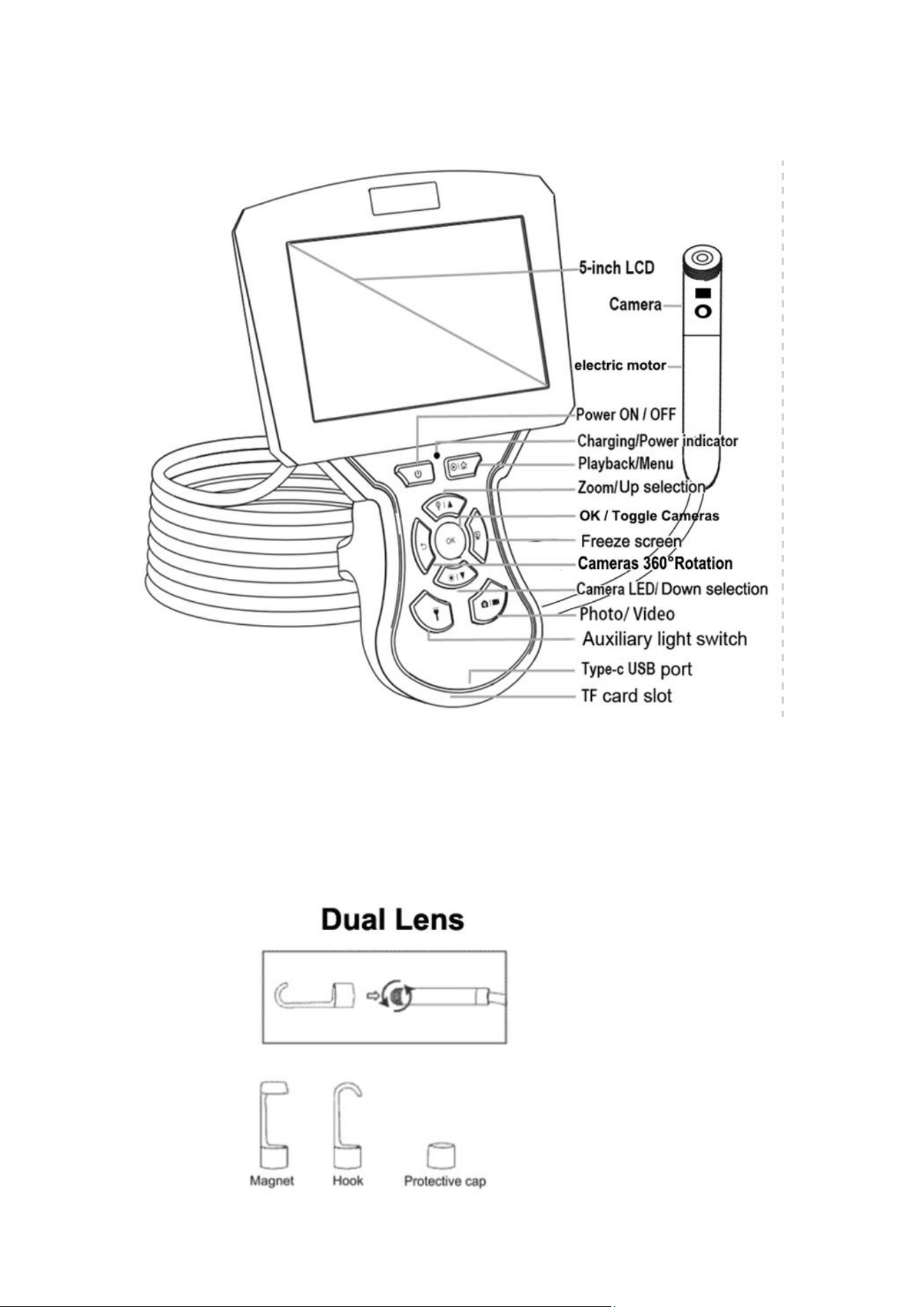
STRUCTURE AND BUTTON FUNCTIONS
ACCESSORIES INSTALLATION
The installation of accessories is shown in the following figures
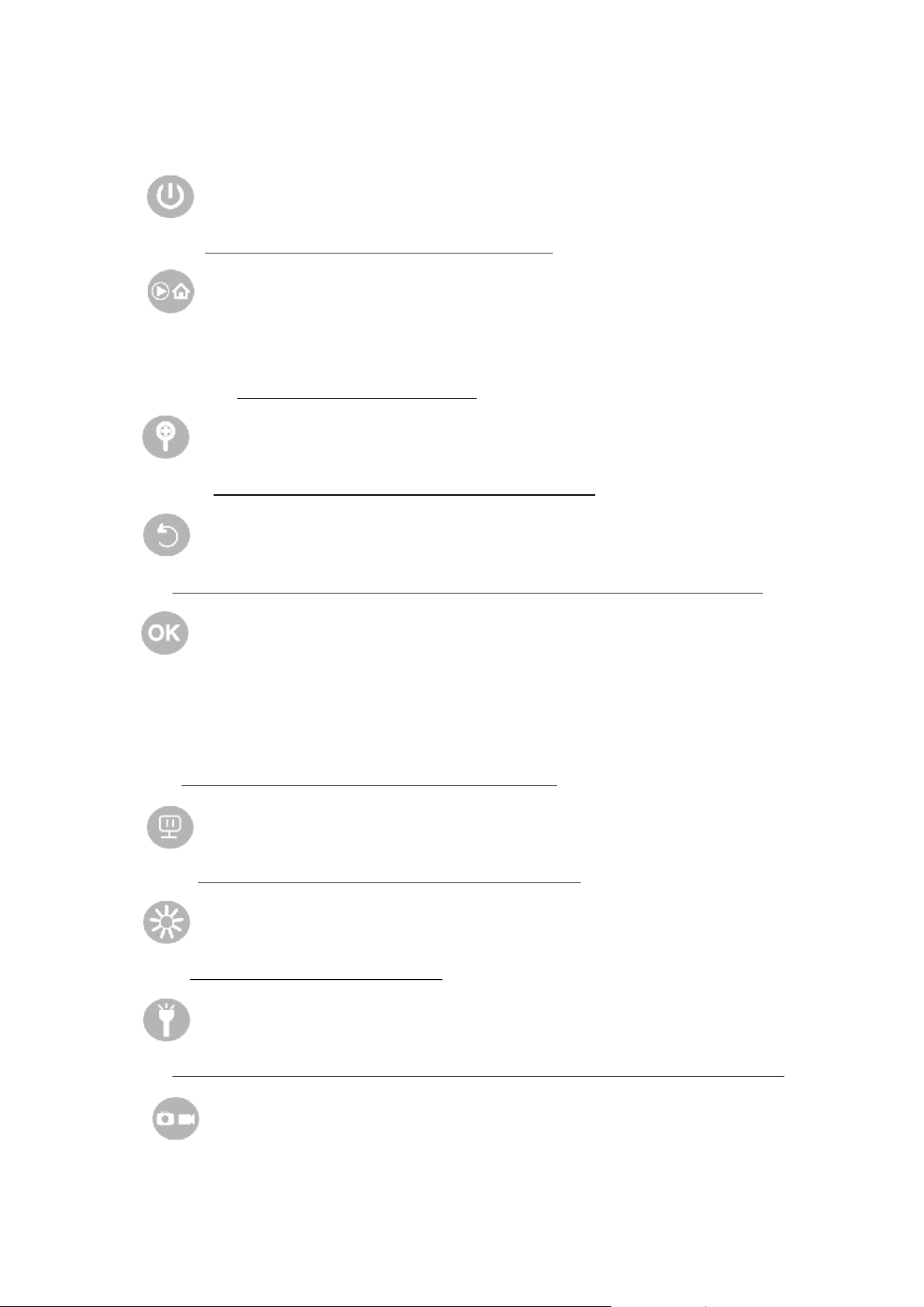
BUTTON OPERATION
Power Button :
Press it for 3 seconds to turn ON / OFF the screen.
Playback/Menu Button: In live view, it is Menu,
press it to enter setting menu ,press again to exit .
Playback : hold it for 3 seconds to enter Photo or
Video Playback, press again to exit.
Zoom:
In live view, presst it o zoom 3X, press again to resume.
Rotate The Camera
Long press and hold to rotate the camera 360°.Short press to rotate the camera 20°
OK Button :
In real-time display status, Press the OK button to toggle between the two cameras. the
current screen displays the front camera. Press the OK key to switch to the side camera, press Ok
key again to switch to dual screens mode, press the OK key again to switch to the front camera,
and cycle in sequence.
In setup menu status , press the OK button to confirm.
Freeze Screen Button :
In live view , press it to freeze screen press again to exit.
Camera LED Button :
Press it to control 3 levels brightness.
Auxiliary light switch:
In live view , press it to turn ON Big LED light . press again to turn OFF the Big LED light .
Photo / Video Button :
Press it for Photo taking. Hold it for 3 seconds to Start video recording / End viedo recording.

ENTER MENU SETTINGS
Date / time settings
Setting path:
Short press the button to enter setting page
Select first item(Date / time)on settings page
Press button to select the Date / Time you need
Press up and down keys to change the Date /Time you need
Press to save your choice
Language settings
The default language is English, and the system supports English, Chinese, German, French,
Spanish, Wayan, Russian and Japanese.
Setting path:
Short press the button to enter setting page
Select second item (Language) on settings page
Press up and down keys to select the language you need
Press to save your choice
TF card format settings
Setting path:
Short press the button to enter setting page
Select the 3rd. item (format) on settings page
Press keys to get into select format
Press up and down keys to select the Cancel ro ok you need
Press to save your choice
Photo taking / Video recording / Playback
Press for 3 seconds to switch to playback mode ,
Press up and down key to select photo or video to view,
and short press the button to enter deleting photo or
video, press to delete photo or video.
Press for 3 seconds to exit playback mode
Camera Rotating
Long press and hold to rotate the camera 360°.
Short press to rotate the camera 20°
Specifications
Model
BR400A
Screen
5.0inch color LCD display
Resolution
1280*720 ; 1920*1080
Horizontal viewing angle
60°
Language
Simplified Chinese, Traditional Chinese, English, French,
German, Italy, Russian, Japanese, etc
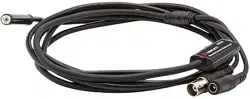
Line length
5M (Optional 10M)
Focal length
3cm-10cm
Waterproof level
IP67(only for lens)
Lens diameter
8mm
Battery capacity
3000mAh
Battery life
About 3-4 hours
TROUBLESHOOTING:
Problem
Solution
The device cannot be turned on
1. Use after fully charging the battery.
2. Confirm whether the power supply has been successfully
connected
TF card reading failed
1. Confirm whether the TF card meets the requirements (the
Highest supported format is 64GB Micro TF card in FAT 32,
and the transmission speed must be Class 10 or higher)
2. Remove the TF card and reinsert it.
After the device is connected to
The PC, can’t read TF card
1. Reconnected the device and the PC
2. Confirm whether to enter mass storage mode
Smudges or smudges on the
screen
1. Clean the screen carefully with a soft cloth