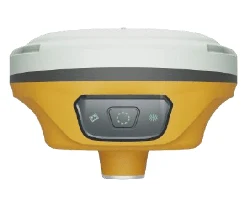
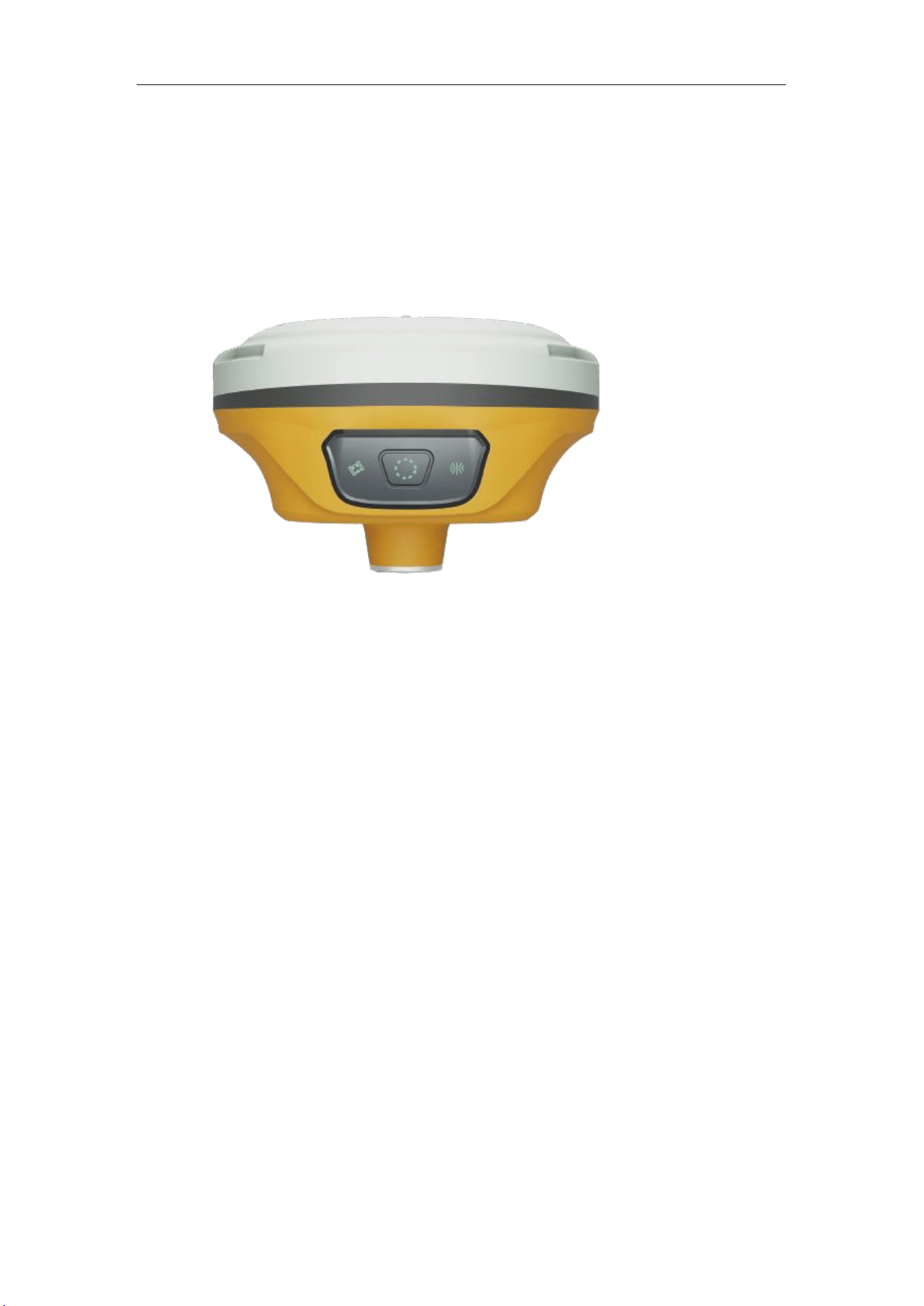
M6 GNSS Receiver
User Guide
M6 GNSS Receiver
User Guide
FCC Warning
This device complies with part 15 of the FCC rules. Operation is subject to the following two conditions: (1)
this device may not cause harmful interference, and (2) this device must accept any inte rference received,
including interference that may cause undesired operation.
Changes or modifications not expressly approved by the party responsible for compliance could void the user's
authority to operate the equipment.
NOTE: This equipment has been tested and found to comply with the limits for a Class B digital device,
pursuant to part 15 of the FCC Rules. These limits are designed to provide reasonable protection against
harmful interference in a residential installation. This equipment generates uses and can radiate radio frequency
energy and, if not installed and used in accordance with the instructions, may cause harmful interference to
radio communications. However, there is no guarantee that interference will not occur in a particular
installation. If this equipment does cause harmful interferenceto radio or television reception, which can be
determined by turning the equipment off and on, the user is encouraged to try to correct the interference by one
or more of the following measures:
• Reorient or relocate the receiving antenna.
• Increase the separation between the equipment and receiver.
• Connect the equipment into an outlet on a circuit different from that to which the receiver is connected.
• Consult the dealer or an experienced radio/TV technician for help.
Radiation Exposure Statement
This equipment complies with FCC radiation exposure limits set forth for an uncontrolled environment. This
equipment should be installed and operated with minimum distance 20cm between the radiator and your body.

M6 GNSS Receiver
User Guide
1 Introduction................................................................................................................. 5
1.1 About the receiver............................................................................................. 5
1.2 Receiver features................................................................................................5
1.3 M6 parts list....................................................................................................... 5
1.3.1 Basic Supply kit....................................................................................... 5
2 Setting up the receiver.................................................................................................. 7
2.1 Environmental requirements.............................................................................. 7
2.2 Front panel.........................................................................................................7
2.3 Lower housing................................................................................................... 7
2.4 Power supply..................................................................................................... 7
2.4.1 Internal batteries ...................................................................................... 7
2.4.2 External Power Supply............................................................................ 8
2.4.3 Charge Battery via M6.............................................................................8
2.5 Pole-mounted setup............................................................................................9
3 General Operation...................................................................................................... 10
3.1 Button functions...............................................................................................10
3.2 LED behavior...................................................................................................10
4 Static survey...............................................................................................................11
4.1 Static Data Collection.......................................................................................12
4.2 Static Data Download...................................................................................... 12
4.3 RINEX Convert............................................................................................... 13
5 Real-Time Kinematic Survey (RTK).......................................................................... 15
5.1 Installation of Mfield........................................................................................15
5.2 Wizard function in Mfield................................................................................15
5.3 Start a New Project.......................................................................................... 17
5.4 Bluetooth connection....................................................................................... 19
5.5 Internal Radio Mode........................................................................................ 20
5.5.1 Start Base Station by Mfield...................................................................21
5.5.2 Start Rover Station by Mfield.................................................................23
5.6 PDA CORS Mode............................................................................................23
6 Basic Survey Functions.............................................................................................. 25
6.1 Topo survey..................................................................................................... 25
6.1.1 Survey settings ....................................................................................... 27
6.1.2 Tilt survey..............................................................................................28
6.2 Auto survey/Area survey..................................................................................28
6.3 Stake points/lines............................................................................................. 29
6.4 PPK..................................................................................................................32
6.5 Site calibration/Grid Shift.................................................................................32
6.5.1 Site calibration....................................................................................... 32
6.5.2 Grid Shift............................................................................................... 34
6.6 Area Calculation and COGO............................................................................34
7 Data Export/Import.................................................................................................... 36
7.1 Import.............................................................................................................. 36
7.2 Export.............................................................................................................. 37
8 Export Result............................................................................................................. 39
8.1 NMEA 0183 output..........................................................................................39
8.2 Register M6 via Mfield Survey........................................................................ 39
9 Firmware Upgrade.................................................................................................... 42

M6 GNSS Receiver
User Guide
Corporate office
MaxNav Technology Ltd.
Ad: 3F, Building 1, No. 400 Fangchun Road, China (Shanghai) Pilot Free Trade Zone, 201203,
Shanghai, China
Email: info@maxnav.com
Tel : +86 21 64056796 Fax: +86 21 54309582
Web: www.maxnav.com
Trademark notice
© 2026 Maxnav Technology Ltd. All rights reserved.
FCC Notice
M6 comply with the limits for a Class B digital device, pursuant to the Part 15 of the FCC rules
when it is used in the Portable Mode.
Operation is subject to the following two conditions:
(1) This device may not cause harmful interference;
(2) It must accept any interference received, including interference that may cause undesired
operation.
Copyright Notice
It cannot be copied or translated into any language without the written permission of Maxnav
Technology Ltd.
Technical Assistance
If you have any question and can't find the answer in this manual, please contact your local dealer
from which you purchased the M6. Alternatively, request technical support from technical support
email: info@maxnav.com Your feedback about this Guide will help us to improve it with future
revisions.
Safety Information
Before using the receiver, please make sure that you have read and understood this User Guide, as
well as the safety requirements.
Connect your devices strictly based on this User Guide
Install the GNSS receiver in a location that minimizes vibration and moisture
Avoid falling to ground, or colliding with other item
Keep a sound ventilation environment
Change the cable if damaged
Related Regulations

M6 GNSS Receiver
User Guide
The receiver contains integral Bluetooth® wireless technology. Regulations regarding the use of
the datalink vary greatly from country to country. In some countries, the unit can be used without
obtaining an end-user license. But in some countries the administrative permissions are required.
For license information, please consult your local dealer.
Use and Care
The receiver can withstand the rough treatment that typically occurs in the field. However, the
receiver is high-precision electronic equipment and should be treated with reasonable care.
Warning and Caution
An absence of specific alerts does not mean that there are no safety risks involved. A Warning or
Caution information is intended to minimize the risk of personal injury and/or damage to the
equipment.
WARNING- A Warning alerts you to a potential risk of serious injury to your person and/or
damage to the equipment, because of improper operations or wrong settings of the equipment.
CAUTION- A Caution alerts you to a possible risk of damage to the equipment and/or data loss.
Warranty Notice
Maxnav Technology does not warranty devices damage because of force majeure (lighting, high
voltage or collision).
Maxnav Technology does not warranty the disassembled devices.

M6
GNSS Receiver User Guide
5
Contents
1 Introduction
The M6 User Guide is aimed to help you get familiar with the M6 and start your
project effectively. We highly recommend you to read this manual before surveying,
even you have used other Global Positioning System (GPS) receivers before.
1.1 About the receiver
M6 can be applied in RTK mode with all GNSS constellations. It has ultra-small size and
strong anti-interference ability to make it possible to work even in harsh environments. It
is the ideal RTK/GNSS product for surveyors.
1.2 Receiver features
The M6 key features:
Ultra small and super light
Size: 13cm × 13cm × 10cm
Weight: 790g
1598 channels of simultaneously tracked satellite signals
Increased measurement traceability with ® Quantum™ algorithm
technology
Cable-free Bluetooth wireless technology
2LEDs (indicating Satellites Tracking, RTK Corrections Data)
IP67 waterproof
Full base/rover interoperability
Integrated receiving & transmitting radio
Integrated IMU sensor
Support NFC Fast connection
Long distance range radio module
Support long baseline E-RTK™ (Beidou B3 signal is included in RTK
calculate engine)
1.3 M6 parts list
This section provides overall M6 parts list, including basic supplies and customized kits
based on your requirements.
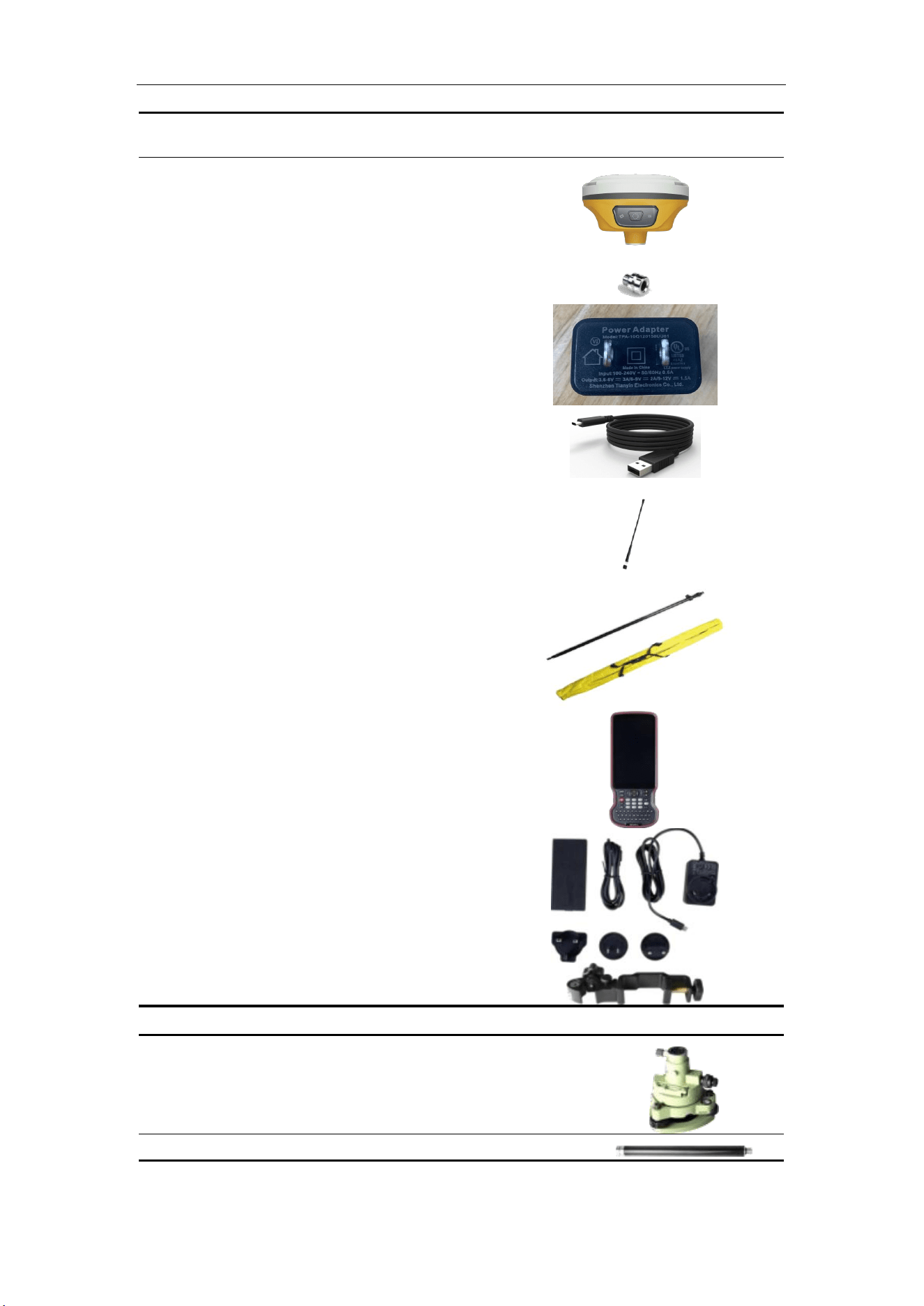
1.3.1 Basic Supply kit
The M6 Basic Supply kit contains one receivers and related accessories.
M6
GNSS Receiver User Guide
6
Item
Picture
1* Kits M6
1*GNSS Connector
1*Charger adapter (EU/USA/UK)
1*USB—Type-C cable
1* Whip Antenna (UHF)
1*2m-Range Pole with yellow bag
C50 Controller
Controller Battery,
Charger and Cable
Controller Bracket
Optional accessories:
Double Bubbles Tribrach with High Adapter
1* 30cm Extension bar
M6
GNSS Receiver User Guide
7
2 Setting up the receiver
This chapter provides general information on environmental requirements, setup, power
supply and connection of the M6.
2.1 Environmental requirements
To keep the receiver with a reliable performance, it is better to use the receiver in safe
environmental conditions:
Operating temperature: -40°C to +65°C(-40 °F to 149 °F)
Storage temperature: -40°C to +85°C(-40 °F to 185 °F)
Out of corrosive fluids and gases
With a clear view of sky
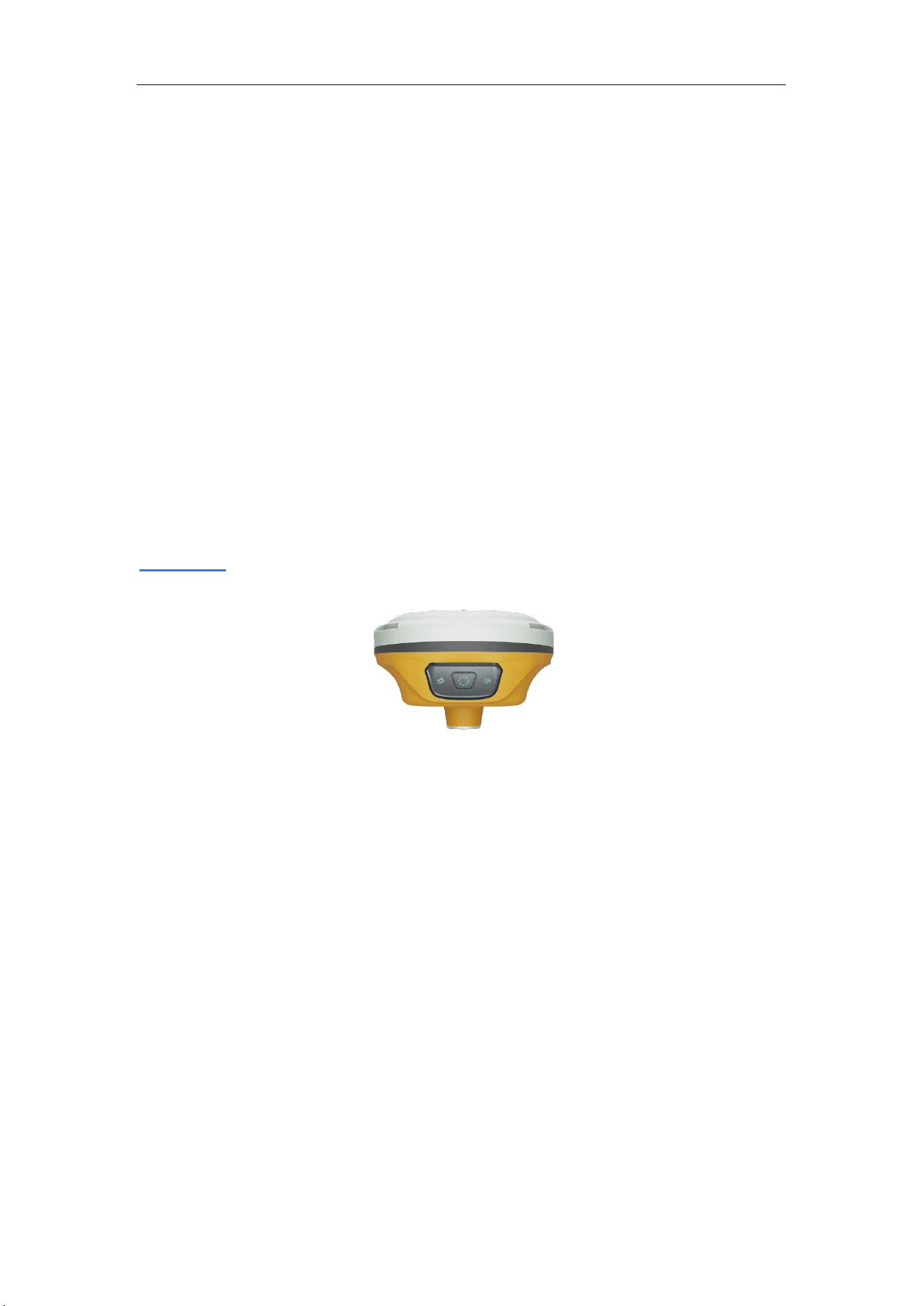
2.2 Front panel
Receiver front panel contains 2 indicator LEDs, Power button. The indicator LEDs show
the status of differential, satellite tracking and battery power.For detailed information, see
chapter 3.2.
2.3 Lower housing
Receiver lower housing contains, UHF radio antenna connector and a threaded insert.
2.4 Power supply
M6 supports internal batteries and external power input.
2.4.1 Internal batteries
The receiver is equipped with Lithium-ion batteries, which can not be disassembled at
will. The M6 adopts the internal battery design that provides you an effective survey
workflow. The internal batteries typically provide about 20-hour operating time as a rover.
However, this operating time varies based on environmental conditions.
M6
GNSS Receiver User Guide
8
Battery Safety
Charge and use the battery only in strict accordance with the instructions below:
Do not use or charge the battery if it appears to be damaged. Signs of damage
include, but are not limited to, discoloration, warping, and leaking battery fluid.
Do not expose the battery to fire, high temperature, or direct sunlight.
Do not immerse the battery in water.
Do not use or store the battery inside a vehicle during hot weather.
Do not drop or puncture the battery.
Do not open the battery or short-circuit its contacts.
Charging the Lithium-ion Battery
Please charge the internal battery via type-c cable
Storage of the Lithium-ion Battery
Keep batteries in dry conditions.
Dispose of the Lithium-ion Battery
Discharge a Lithium-ion battery before dispose of it.
Dispose of batteries is an environmentally sensitive manner, and adhere to any local
and national regulations concerning battery disposing or recycling.
WARNING – Do not damage the rechargeable Lithium-ion battery. A damaged battery
can cause an explosion or fire, and can result in personal injury and/or property damage.
2.4.2 External Power Supply
The receiver is connected to an external power supply through a Type-C cable, and make
sure that use an external power supply with the correct voltage of M6, such as a 6-9V
power pack. Over-voltage function cannot protect your M6 if reverse connection.
Tip: The power consumption will be increasing if the base station transmits correction data through internal
UHF in the RTK mode; therefore, we strongly suggest using external power (6-28 volt DC) for the base
station.
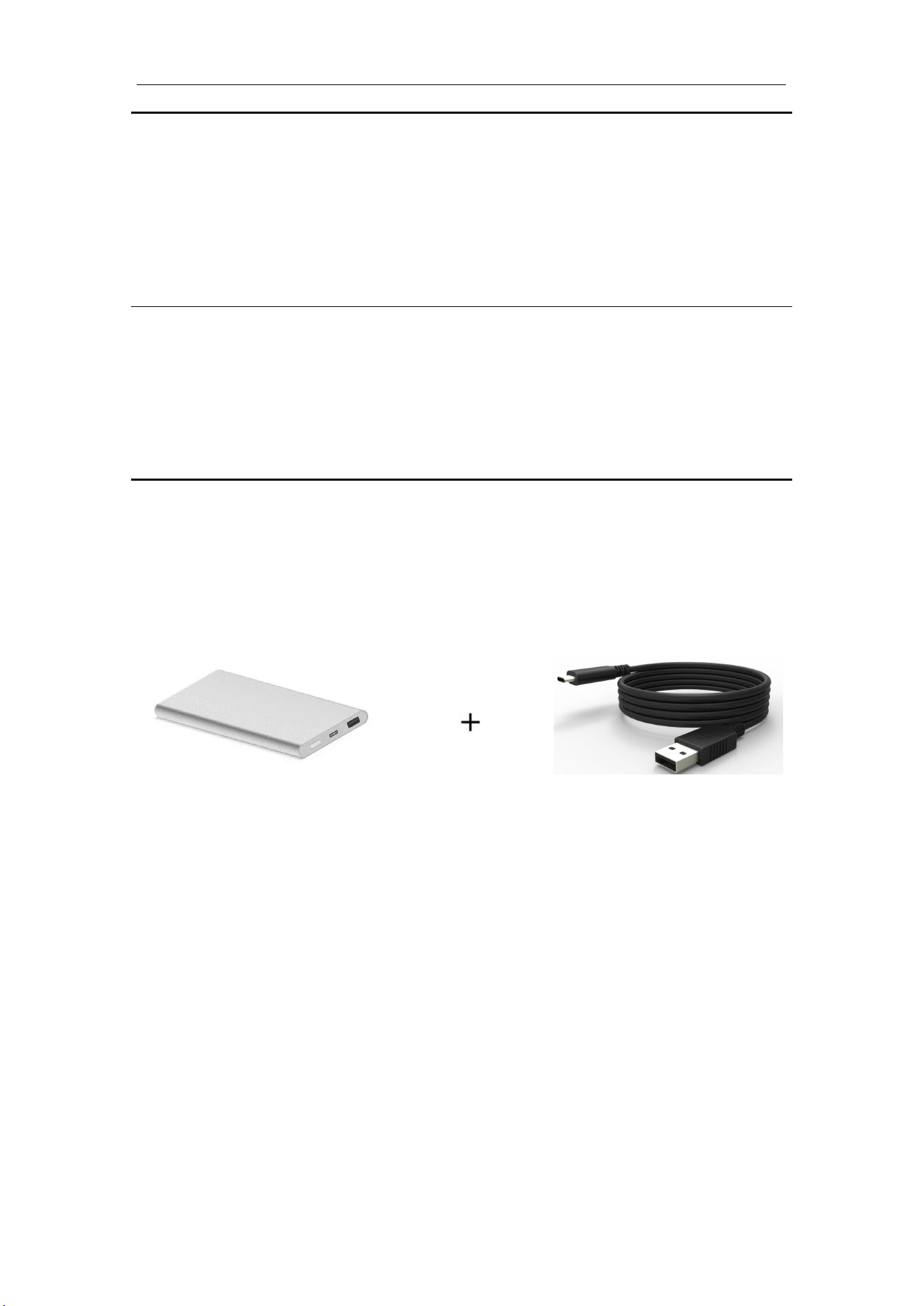
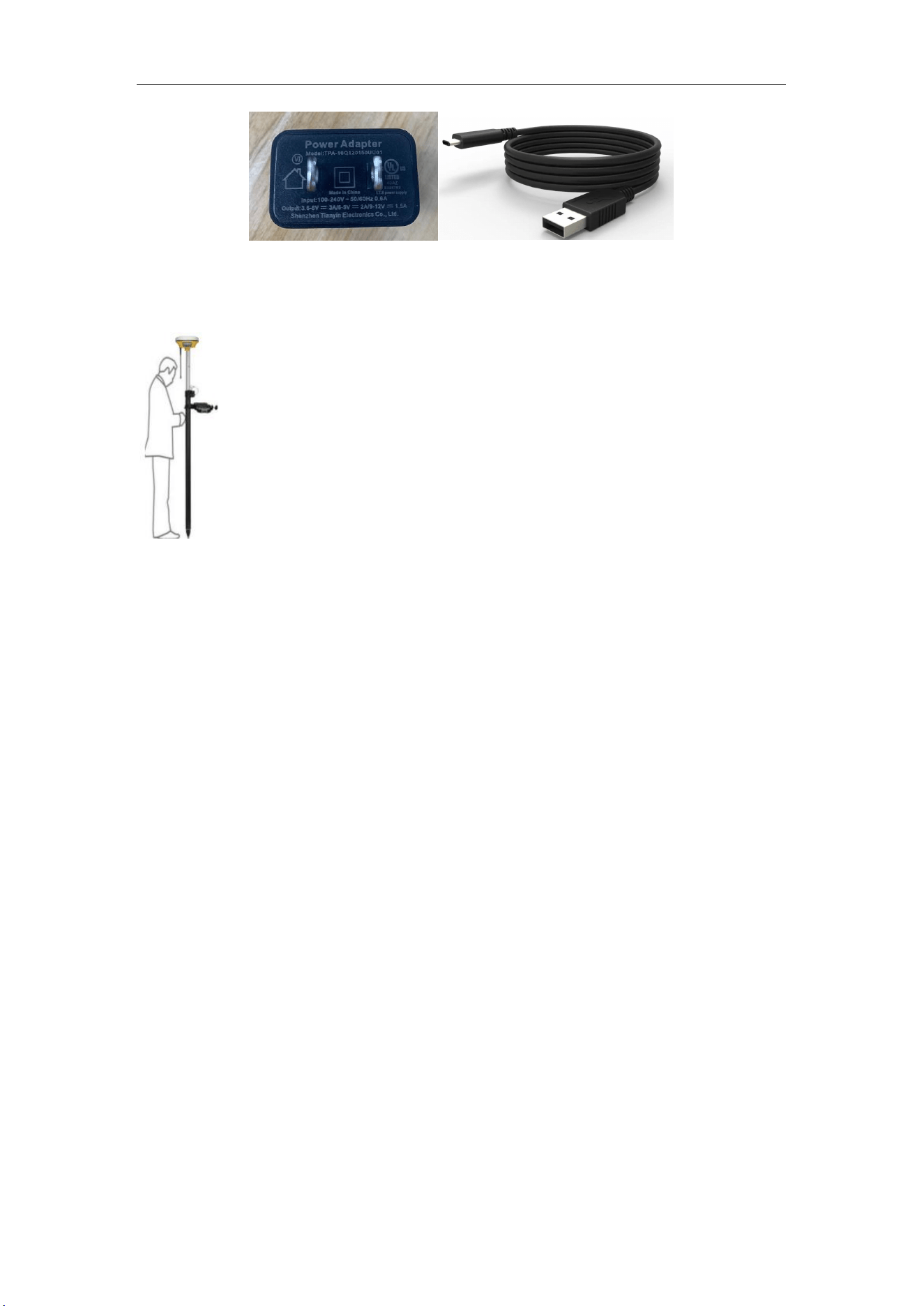
2.4.3 Charge Battery via M6
The battery of the receiver cannot be disassembled at will. However, the Type-c interface
makes its charging mode more flexible. M6 supports adaptive charger for fast charging
protocol. The standard voltage is 9V. The portable mobile power supply can charge and
power it anytime and anywhere.
1.Power off M6 receiver and enter charging mode;
2
.
Connect M6 receiver to Adaptive charger with type-c cable;
3
.
The LED light on the front panel of the receiver will flash according to the
battery percentage, and the green light will be on when it is fully charged.
M6
GNSS Receiver User Guide
9
2.5 Pole-mounted setup
To mount the receiver on a range pole as the figure shown below:
Tip: Do not tightly clamp the controller on the Range Pole.
Thread the receiver onto the range pole
Mount the controller bracket to the pole
Install the controller into the bracket

M6
GNSS Receiver User Guide
10
3 General Operation
This chapter introduces all controls for the general operation, including button functions
and all LED behaviors on the front panel.
3.1 Button functions
There is a power button on the front panel.
Press the power button for about 1 second to turn on the receiver;
To turn off the receiver, long press the button for 3-4 seconds until all LEDs off.
3.2 LED behavior
The LEDs on the front panel indicate receiver working status. Generally, a lit or slowly
flashing indicates normal operation, and an unlit LED indicates that no operation is
occurring. The following table define each possible LED state:
LEDs
States
Description
Power
Green
Battery is above 30%
Yellow
Battery is below 30%
Differential
Data
Flashes once per second
Receiving/transmitting differential data
Satellite
Tracking
Fast flashing/ Flashes 1 time
every 5 seconds
No satellite received
Flashes N times every 5
seconds
Received N satellite signals
Flashes according to the
selected sample interval
1) Sample interval varies from 20Hz to 60s.
2) Flashing 1/s simultaneously with differential
light if internal memory is run off
M6
GNSS Receiver User Guide
11
4 Static survey
Static survey is commonly applied for control points, which requires millimeter accuracy.
After connecting with Bluetooth, you can record static data to your controller or receiver
directly.
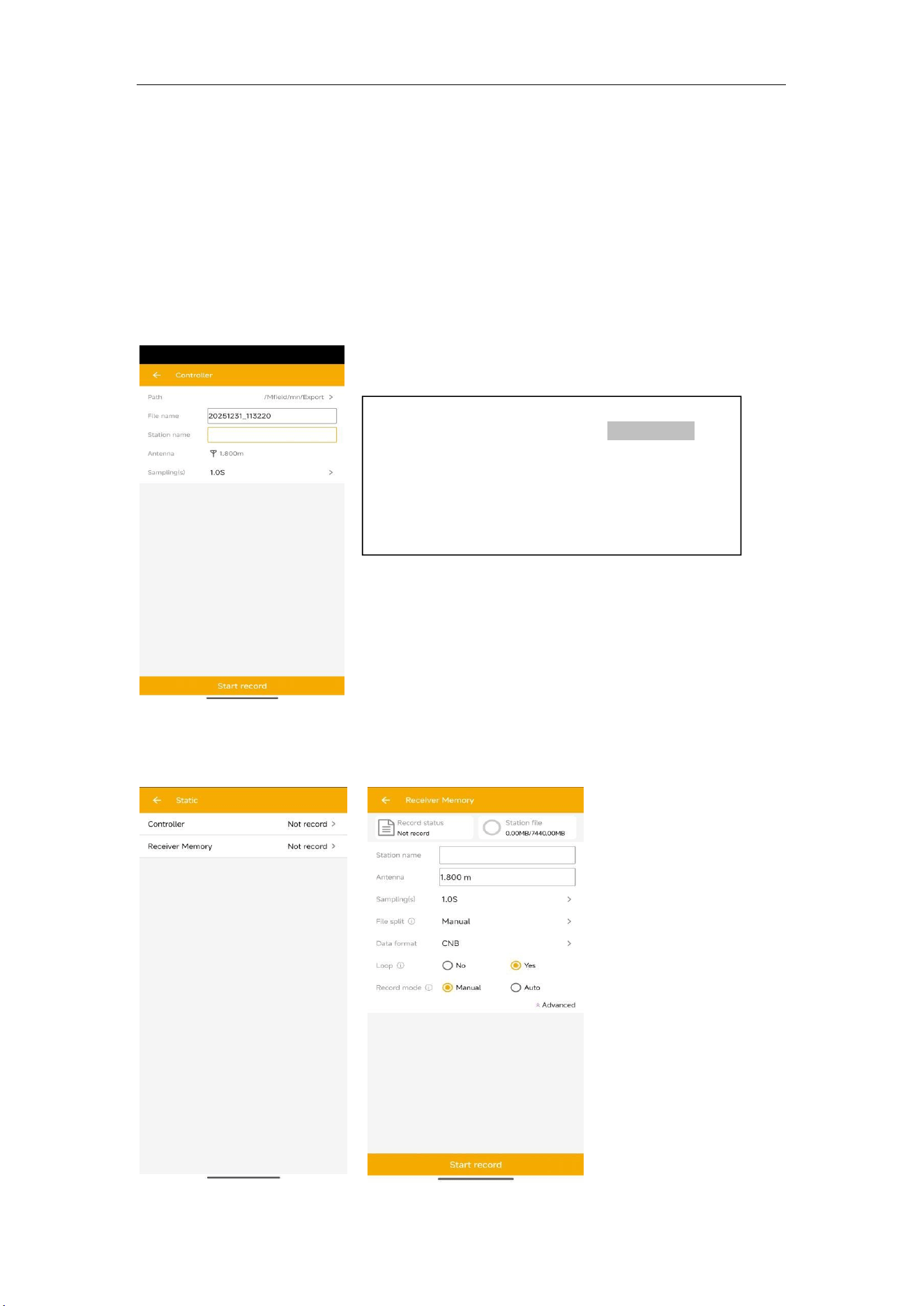
The static data in controller
For record static data in controller, you can configure it and change sampling interval via
GNSS Suvery. It’s sample frequency supports 0.1s, 0.2s, 0.5s, 1s, 2s, 5s, 10s, 15s, 30s,
60s.
You can enter File name, Station name, Antenna
height, Sampling -> Click Start record, the
recorded raw data will be saved in the
corresponding path.
The raw data is in .cnb format, you can transfer
to RINXE format through CRU software.
The static data in receiver
You can record static data to receiver memory by Mfield Survey software, this function is
available for M6 GNSS receiver.
M6
GNSS Receiver User Guide
12
Station name: The static will be stored in this folder,
Record space: Default is 600 MB, this is set record space for the current static file.
Antenna: Set the antenna height and measure type, it will be recorded in the static file.
Sample interval: Choose sample frequency, supports 0.05s, 0.1s, 0.2s, 0.5s, 1s, 2s, 5s,
15s, 30s, 60s.
File split: Choose file split, support every 5\10\15\20\30 minutes or 1\2\4\24 hours to
save a file and file split manually, default is manual. If you select 24 as file split, it
will create two data file when it occurs to 24 o'clock (UTC Time). One is from start
time to 24 o’clock, another is from 0 o’clock to end time.
Data format: Support CNB\ Rinex3.02\Rinex2.10
Loop: When storage is full, Yes means delete earliest data and store continually, No
means stop recording
Mode: Support manually and automatically recording mode.
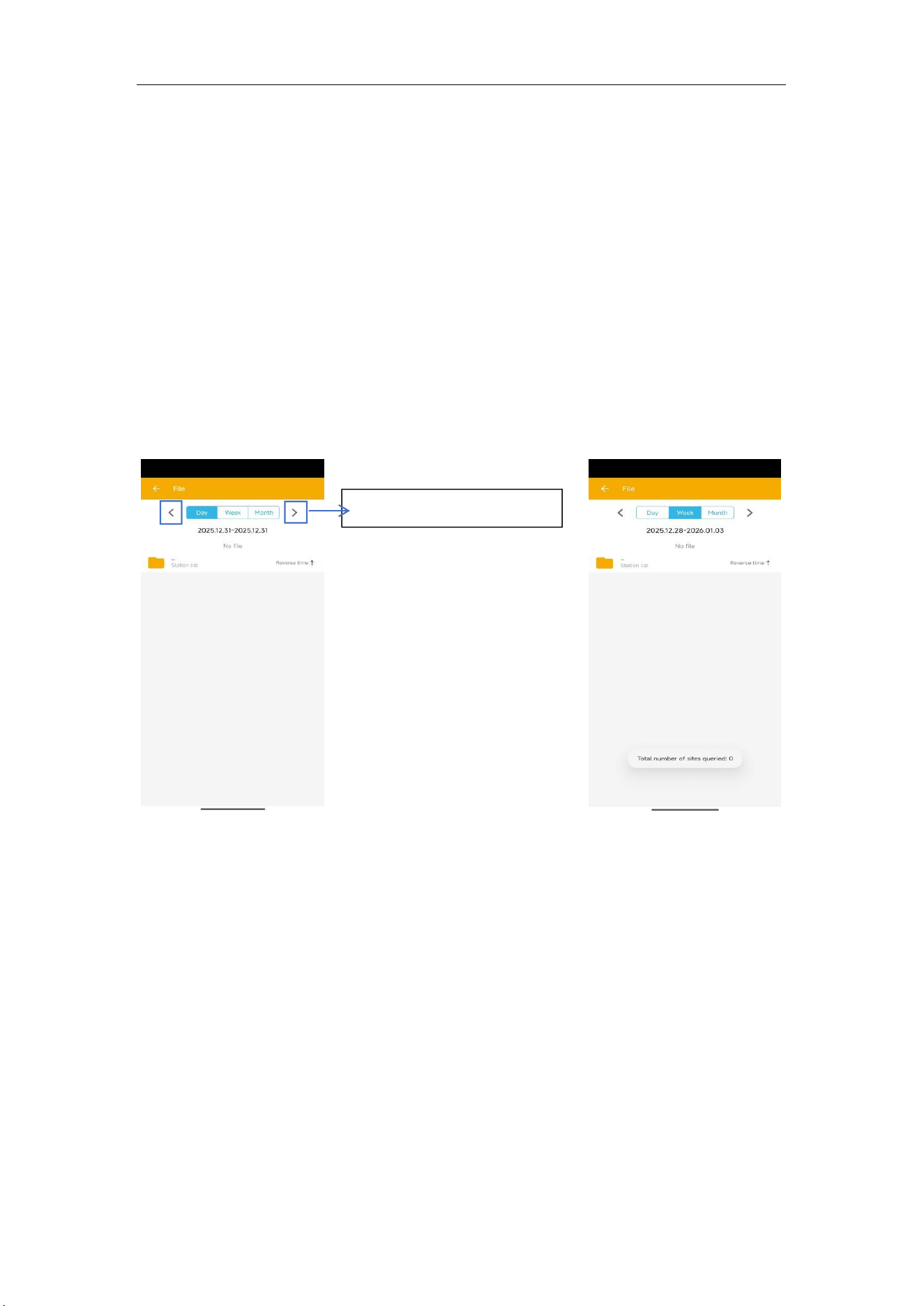
Click to change the data range
In File interface, you can check the static files by day/week/month. You will find the
folder, and the static data is in the specific folder. Long press the static data, choose to
delete the file.
4.1 Static Data Collection
Static survey is mainly used for the control survey. To reach millimeter accuracy, follow
as below:
At least 3 GNSS receivers are required to form a stable triangulation network.
It is better to set Data Log Session as manual on the known point.
Power off the receiver before moving to other observation site.
To quickly post-process static observation raw data, write down the station name,
receiver SN, antenna height, start and end time for each observation site.
4.2 Static Data Download
M6
GNSS Receiver User Guide
13
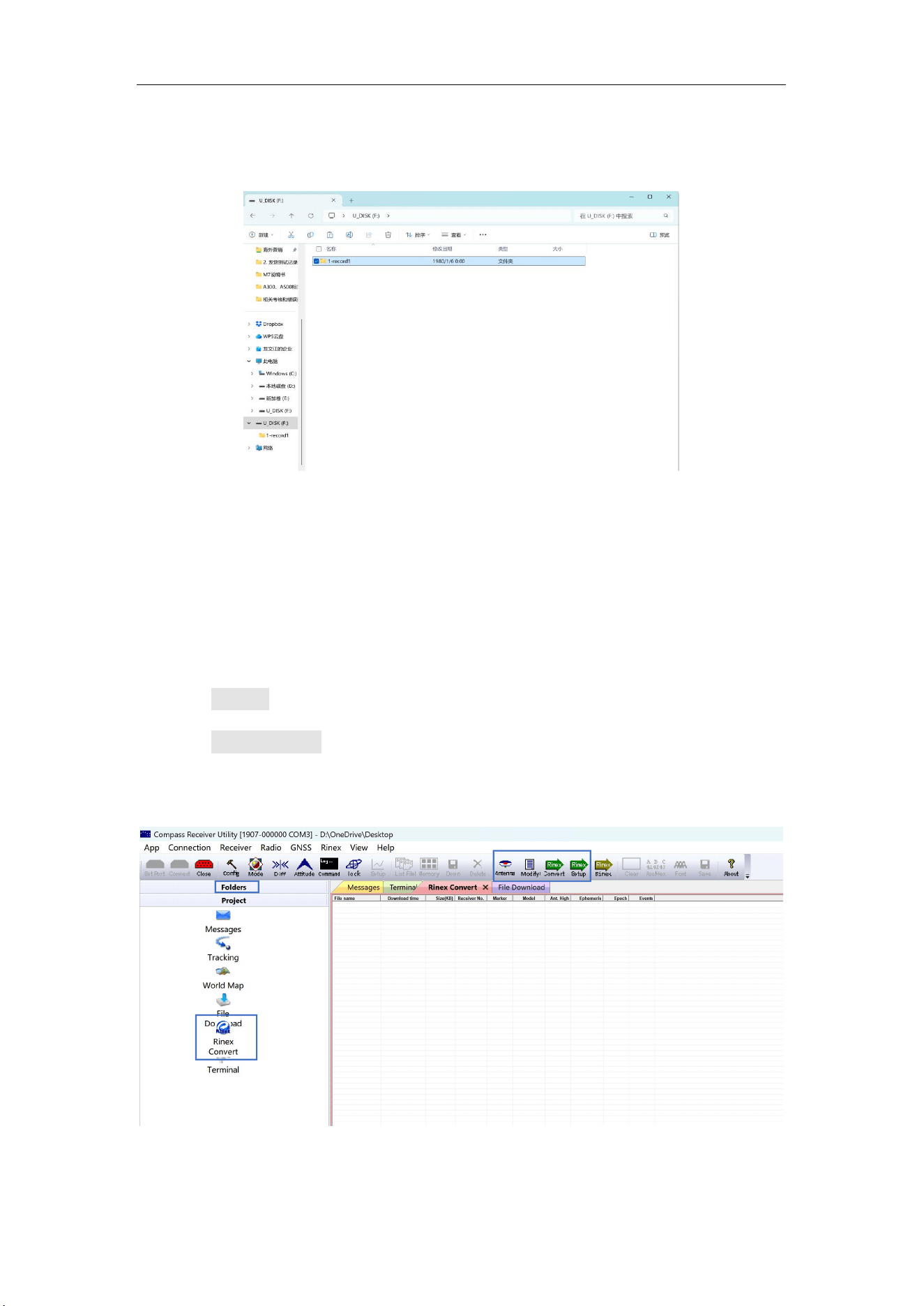
The raw observation data is saved in internal memory of M6 receiver, when connect with
PC via Type-C cable, the M6 receiver can work as a USB Flash Disk, which means you
can copy or cut static data to PC directly.
Tip1: Default memory for M6 receiver is 8GB.
Tip2: The receiver will stop recording raw data if the internal memory runs out.
4.3 RINEX Convert
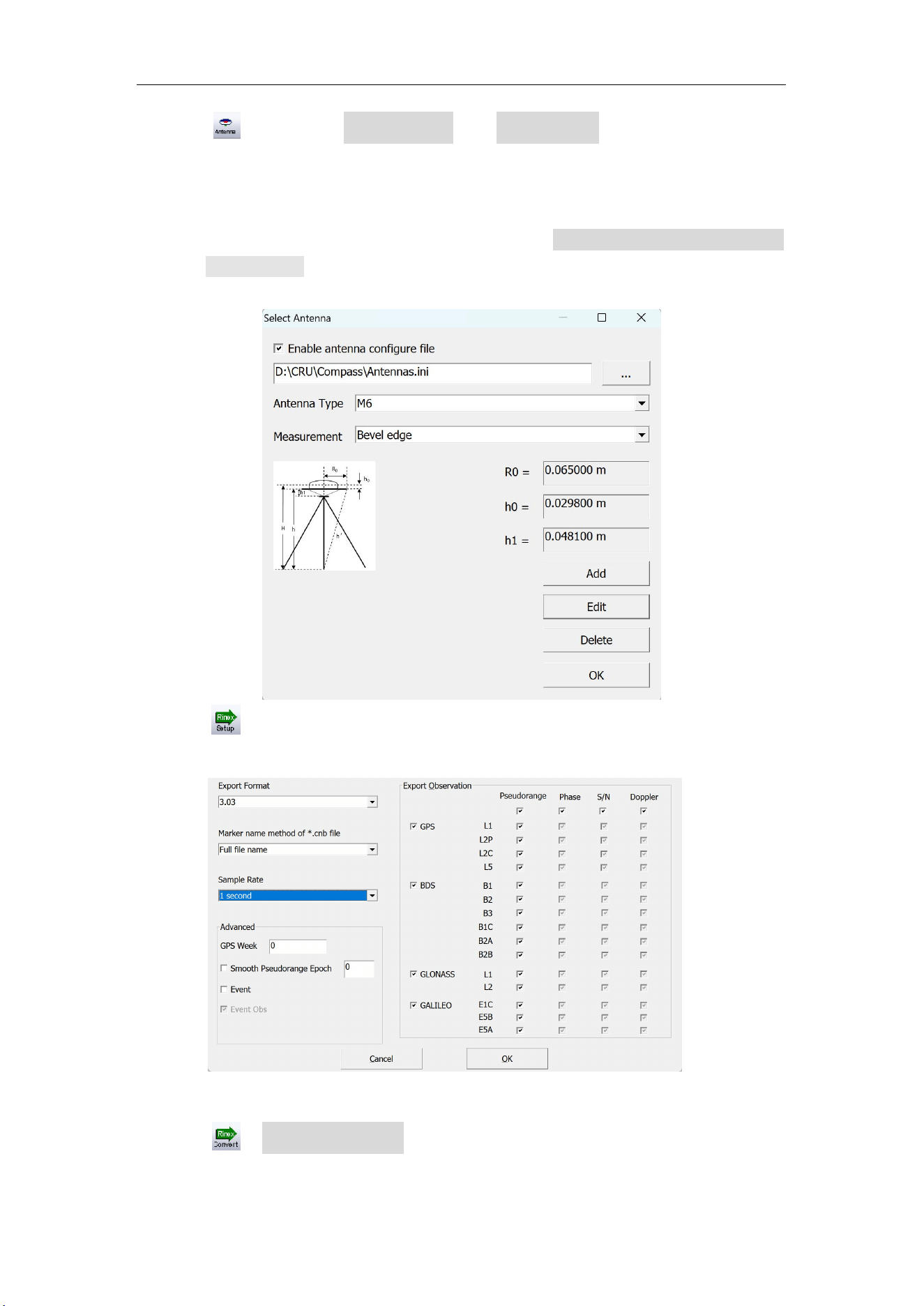
After copy raw observation data to PC, you can convert the data from MaxNav binary
format (*.cnb) to RINEX in CRU software.
1.Start CRU software;
2.Click Folders and select the path of your CNB data;
3.Click Rinex Convert to check all raw data on main window. Right click on
the file to modify antenna, Convert Settings and Convert to RENIX, or use fast
icon in standard bar.
M6
GNSS Receiver User Guide
14
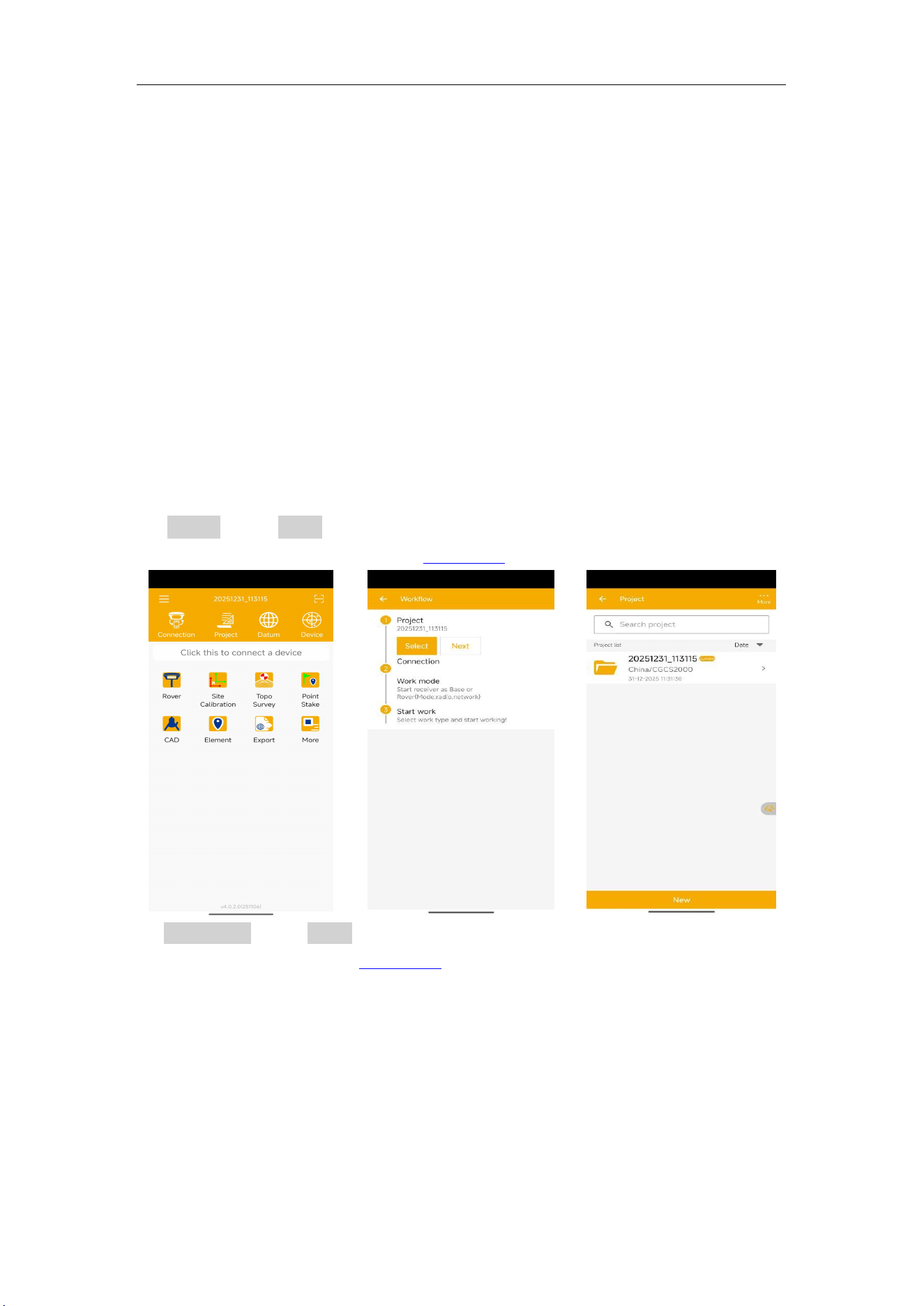
Click to select the Antenna Type and Measurement. If you cannot find M6
antenna, 1) input the value of R0 (horizontal offset from measurement mark to phase
center), h0 (vertical offset from measurement mark to phase center) and h1 (vertical
offset from measurement mark to receiver bottom). R0 is 0.0650m, h0 is 0.0298m
and h1 is 0.0481m respectively for M6; 2) or check Enable antenna configure file
to select Antennas.ini file to select Antenna type again. You can also add, edit and
delete antenna types based on your requirement.
Click to change Convert Settings, mainly export format and export observation
information.
Tip: In some Post Processing software, the BeiDou observations cannot be processed, you can
uncheck the BeiDou B1,B2,B3 observations.
Click to Convert to RINEX, the RINEX data will be save in the same path as
raw observation data.
M6
GNSS Receiver User Guide
15
5 Real-Time Kinematic Survey (RTK)
This chapter introduces how to conduct RTK Survey with Mfield Survey Software,
including software installation, start a new project, receiver connection and RTK
working modes (CORS).
5.1 Installation of Mfield
7 Star is available on Google play, you can download for free and install the software to
controller C100.
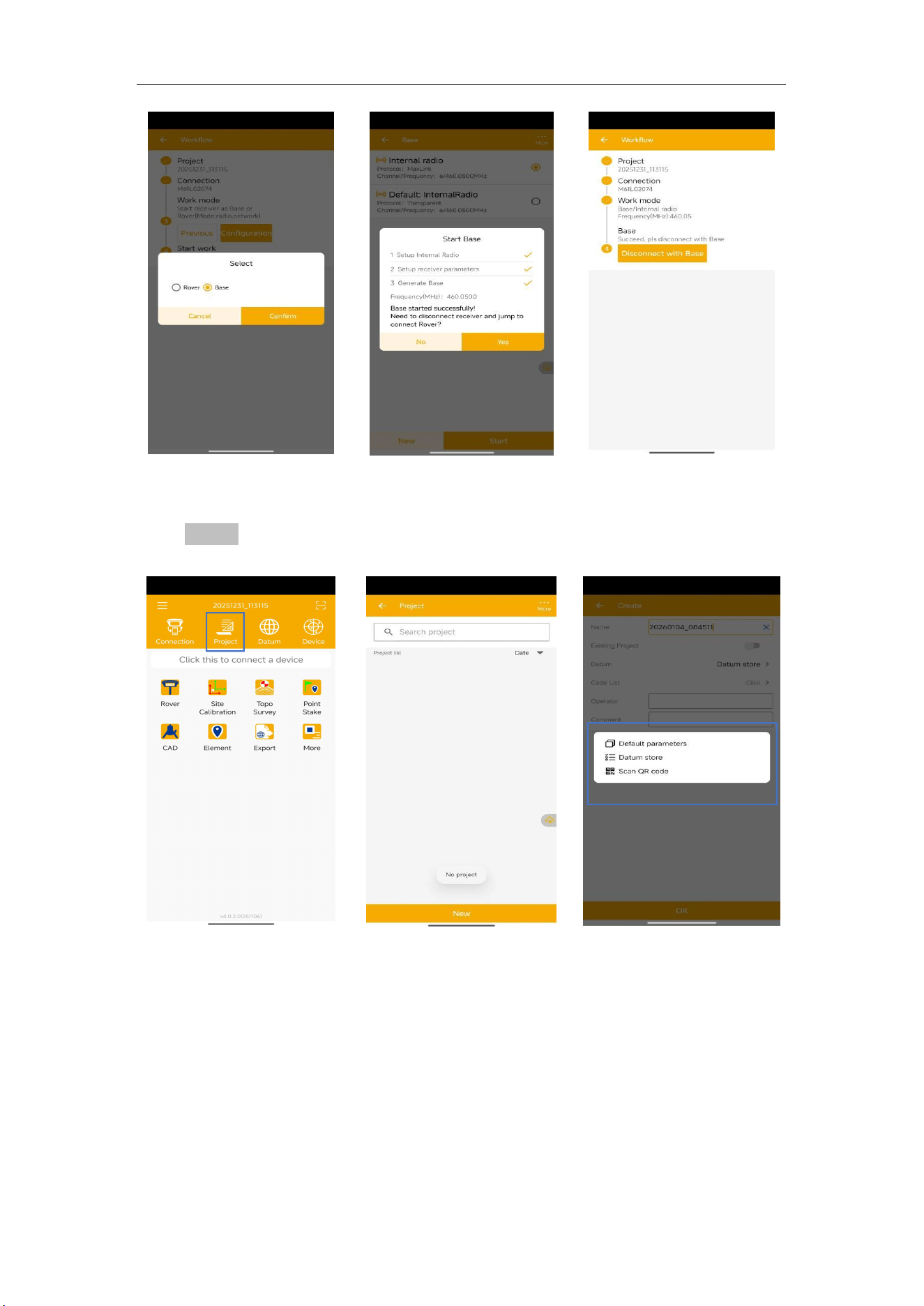
5.2 Wizard function in Mfield
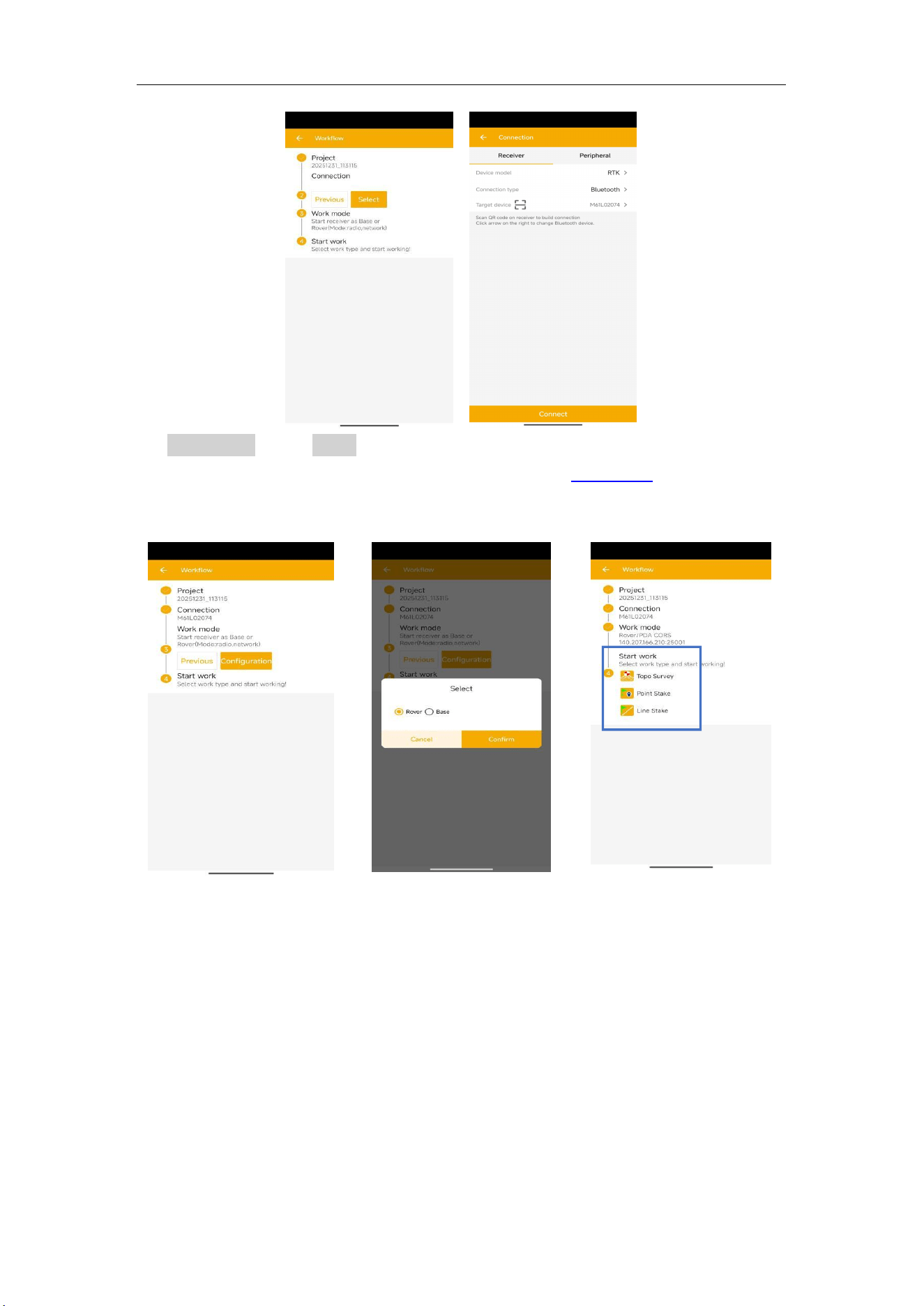
Follow the Wizard, you can quickly learn the general workflow of 7 Star, also you can
quick start your survey by this function no matter you are experienced one or new user.
In Project menu, tap Wizard.
1
.
Project: Click Select to go into Project interface to create or select a project. For
detailed information, you can refer to chapter 5.3.
2
.
Connection: Click Select to go i n t o Bluetooth connection interface. For detailed
information, you can refer to chapter 5.4.
M6
GNSS Receiver User Guide
16
3
.
Work mode: Click Select to go into QuickSetup interface to start your receiver as
Base/Rover. For detailed information, you can refer from chapter 5.5.
If you start your receiver as Rover, then you can start work directly of topo survey or
stakeout.
If you start your receiver as Base, after Disconnect with Base, there will be a Prompt.
YES: will guide you to start Rover in Wizard interface;
NO: will disconnect the base and exit Wizard.
M6
GNSS Receiver User Guide
17
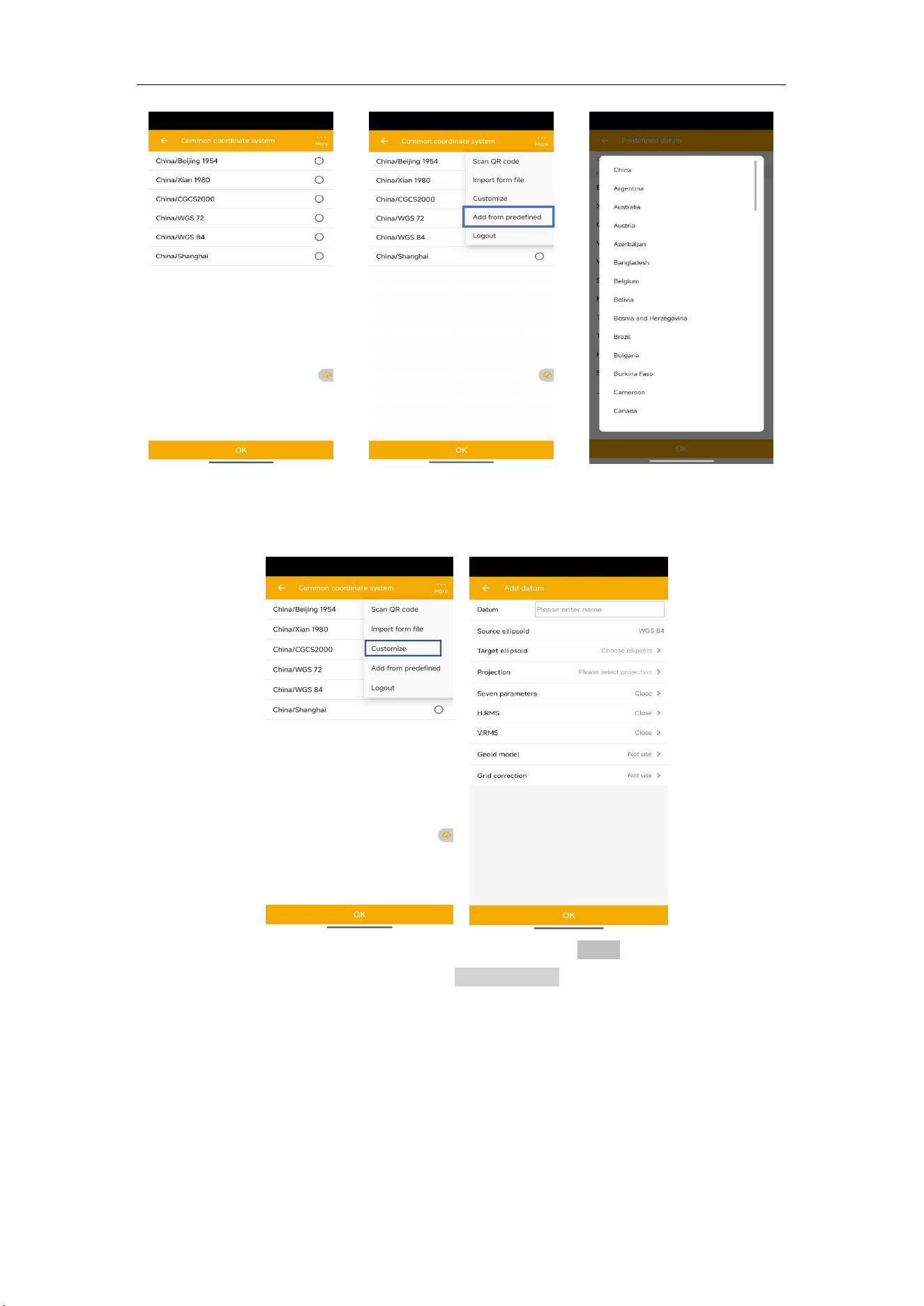
5.3 Start a New Project
Click Project, you can use the same Datum with last project, choose a datum in store
and scan QR code from other controller to add Datum, even sharing project with cloud.
Select a Predefined datum: You can select datum directly from the list. Mfield
Survey currently has 49 countries datum and will add more afterwards.
M6
GNSS Receiver User Guide
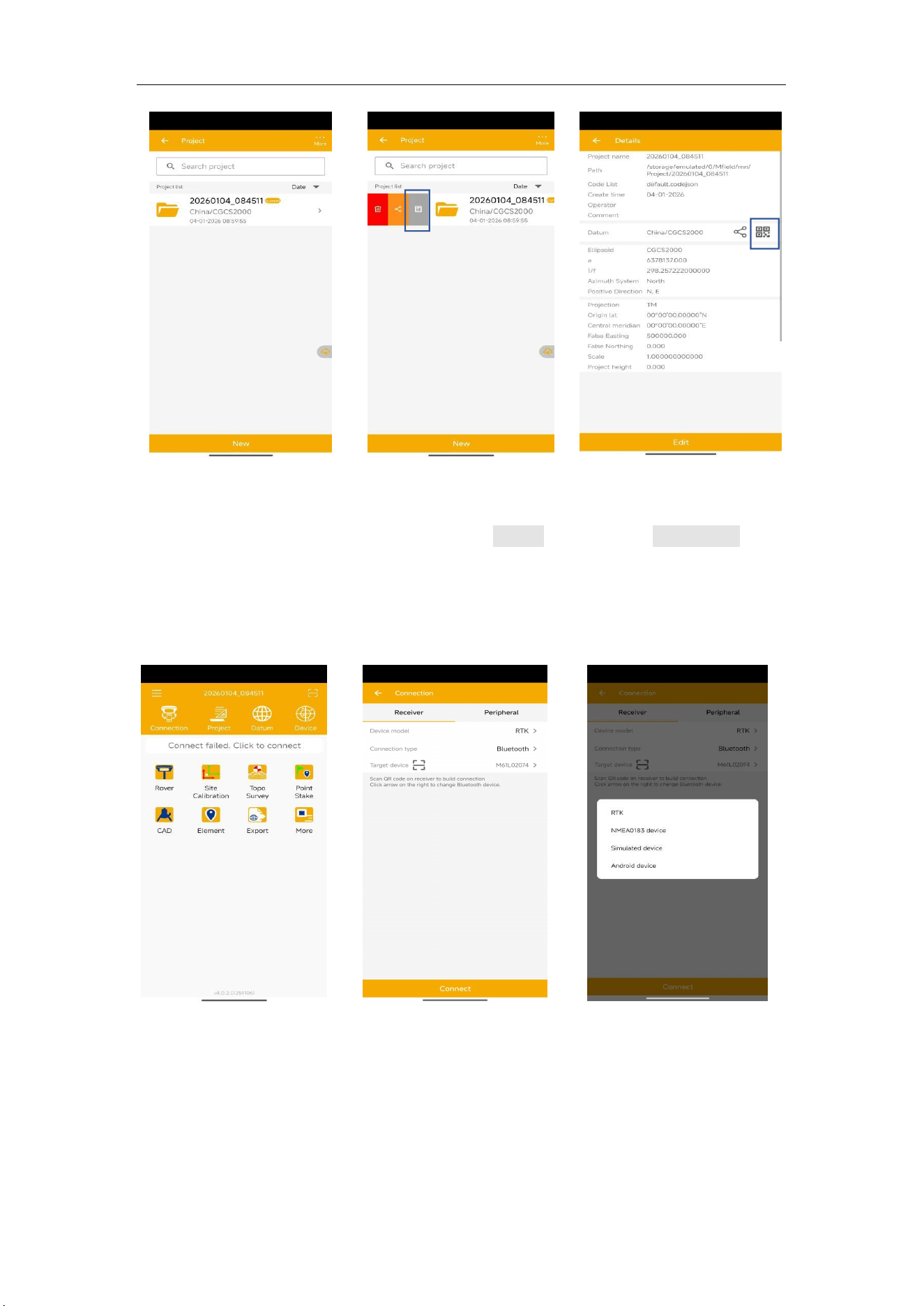
18
Create a User defined datum: If you cannot find datum you want in the list, follow
instructions below to add one: select Ellipsoid, Projection for your datum, and even
seven parameters, geoid model based on your request.
Tip1: if asked username and password for seven parameters, enter admin
Tip2: For H.RMS and V.RMS, it will show if do Site Calibration.
Share Datum via QR code.
After you build a project, press the project name, it will generate a QR code.
Users can use the Scan function in the main interface to access the coordinate
system.
M6
GNSS Receiver User Guide
19
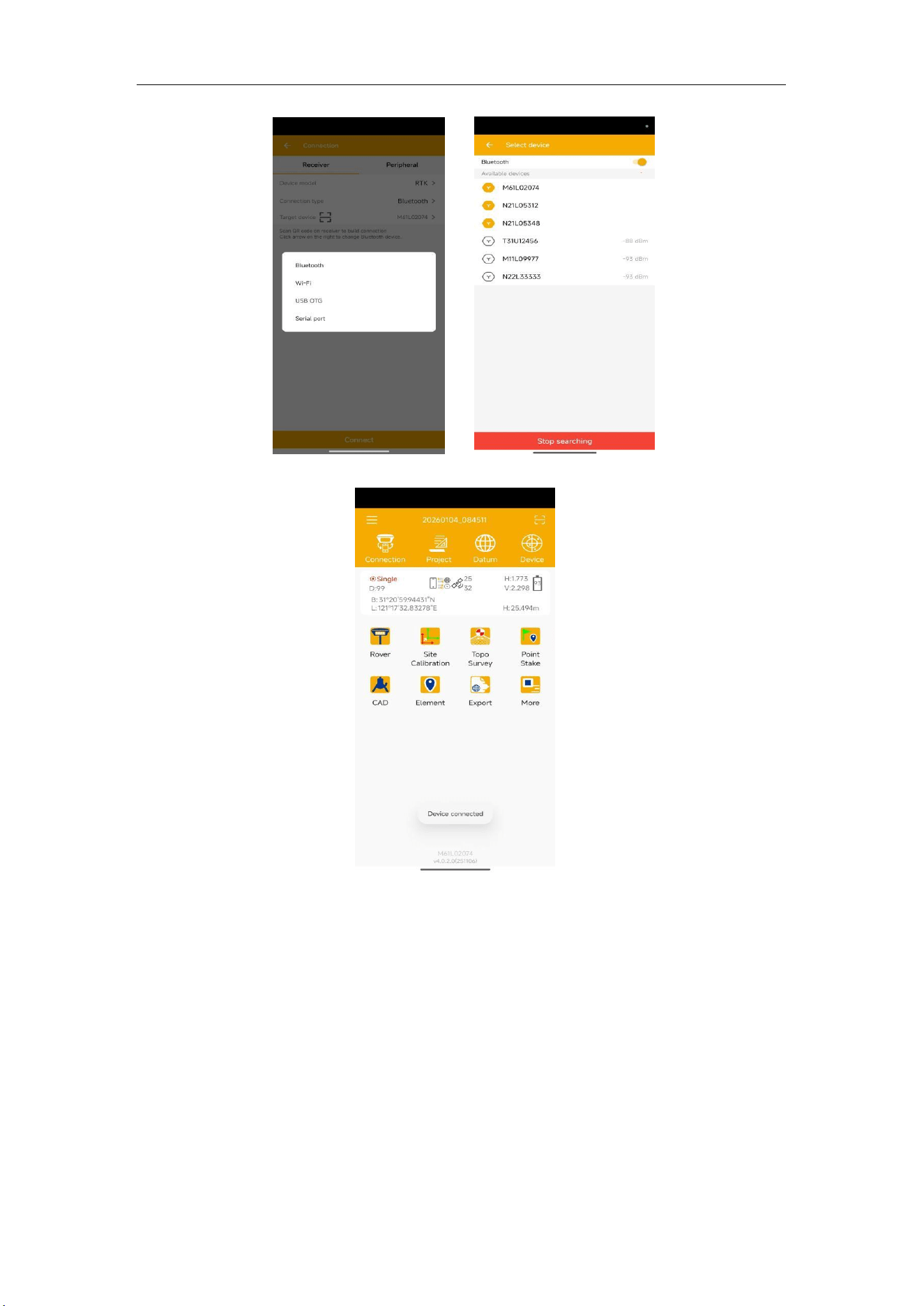
5.4 Bluetooth connection
To connect Mfield Survey with M6, switch to Device interface, tap Connection to go
into Bluetooth connection interface
Make sure device Bluetooth turned on;
Click Find device—select SN of your M6 —allow pair
After connect Maxnav receiver, you can check the device version in Device Info.
M6
GNSS Receiver User Guide
20
After connected successfully, the top will show the positioning status.
Tip: If you are failed to connect with receiver through Mfield Survey, you can just follow prompt info
to go into the device Bluetooth setting interface to make sure Bluetooth paired successfully.
Sometimes you need restart the receiver or Mfield Survey Software.
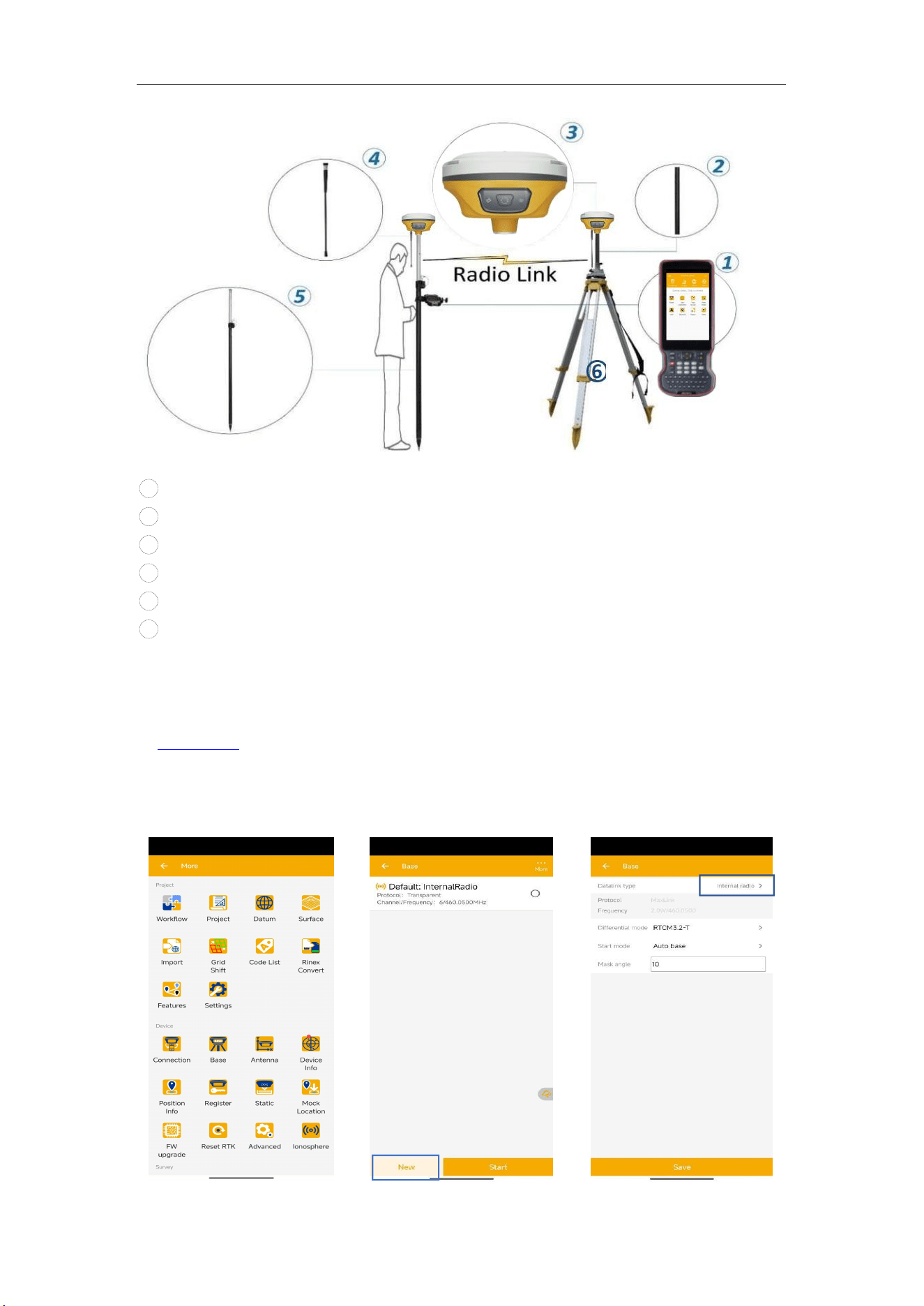
5.5 Internal Radio Mode
M6 GNSS receiver supports transmit & receive the correction data in internal radio
mode. To conduct the RTK survey in internal radio mode, it requires:
M6
GNSS Receiver User Guide
21
1 A controller with software installed
2 An extension bar
3 Two units of M6 GNSS receiver
4 Two whip antennas
5 A range pole with brachet
6 Tripod and tribrach
5.5.1 Start Base Station by Mfield
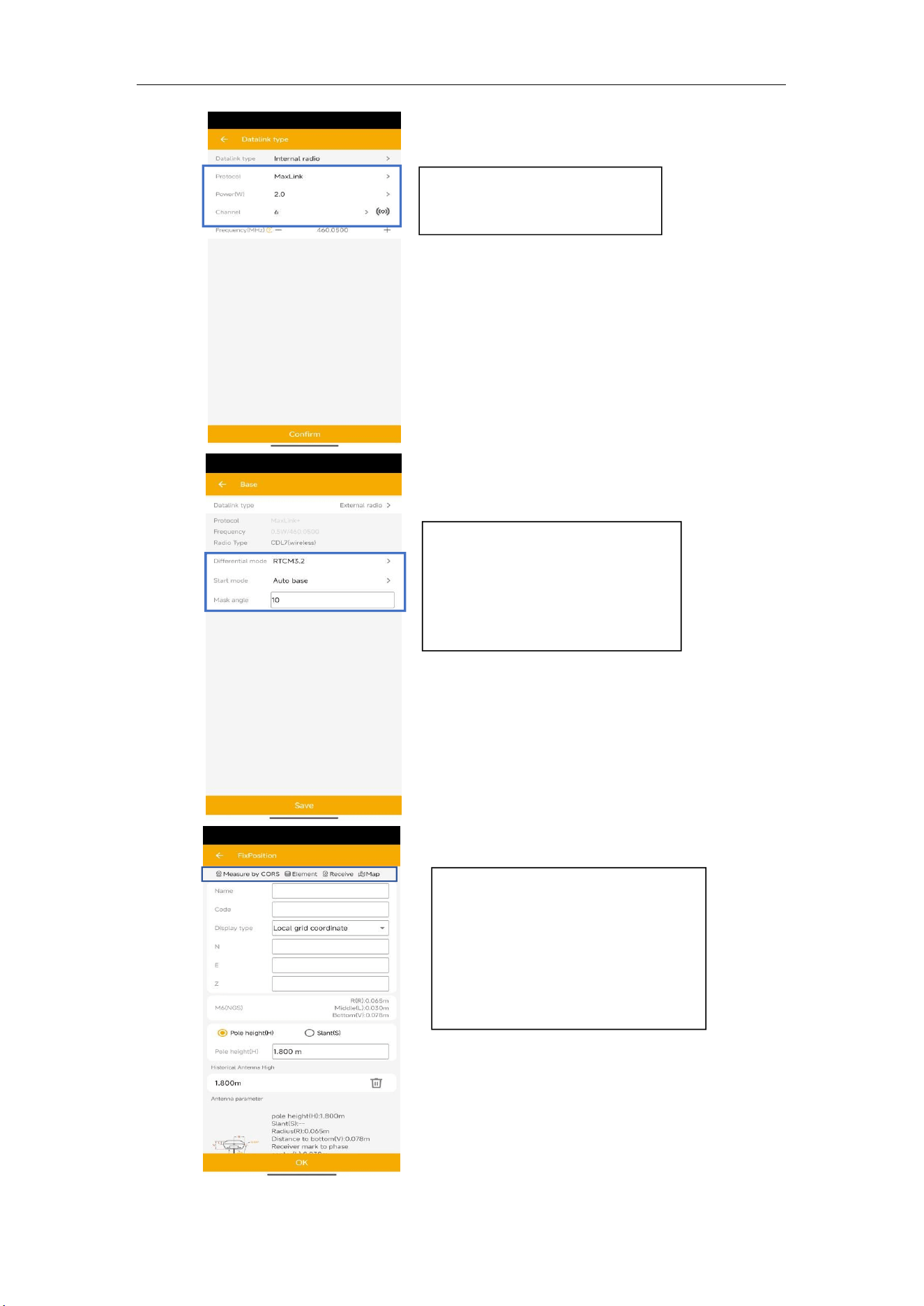
Firstly, build Bluetooth connection between the M6 receiver and your controller as shown
in Chapter 5.4.
Secondly, modify parameters including correction format, antenna type and
communication protocols:
Click Base ->Add, select Internal radio
M6
GNSS Receiver User Guide
22
Protocol and channel: Set
protocol and frequency for
the base;
Start mode: Fix position means
you have a known coordinate
for base, or get a point from
GNSS;
Differential mode: Support
RTCM32.
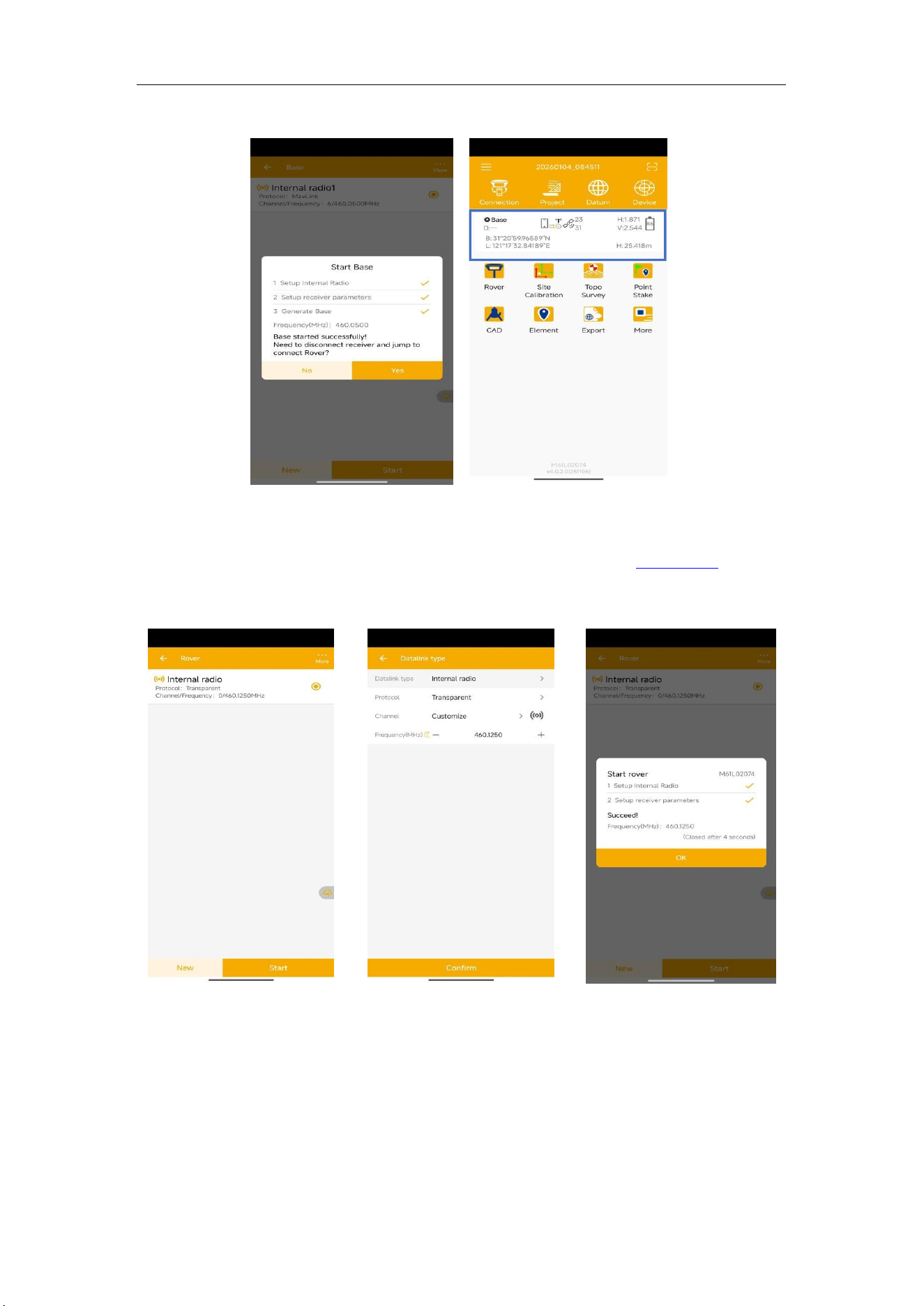
Measure by CORS: Measure a
point form CORS.
Element: Select a known Point
form Element;
Receive: Receive a point form
GNSS.
Map: Select a known Point form
Map;
M6
GNSS Receiver User Guide
23
When start Base succeed, it will show as below in Mfield Survey software.
5.5.2 Start Rover Station by Mfield
Connect Mfield Survey with M6 receiver via Bluetooth based on Chapter 5.4.
Set same protocol and frequency with Base receiver.
The current status on the bottom will change from Single to Fixed.
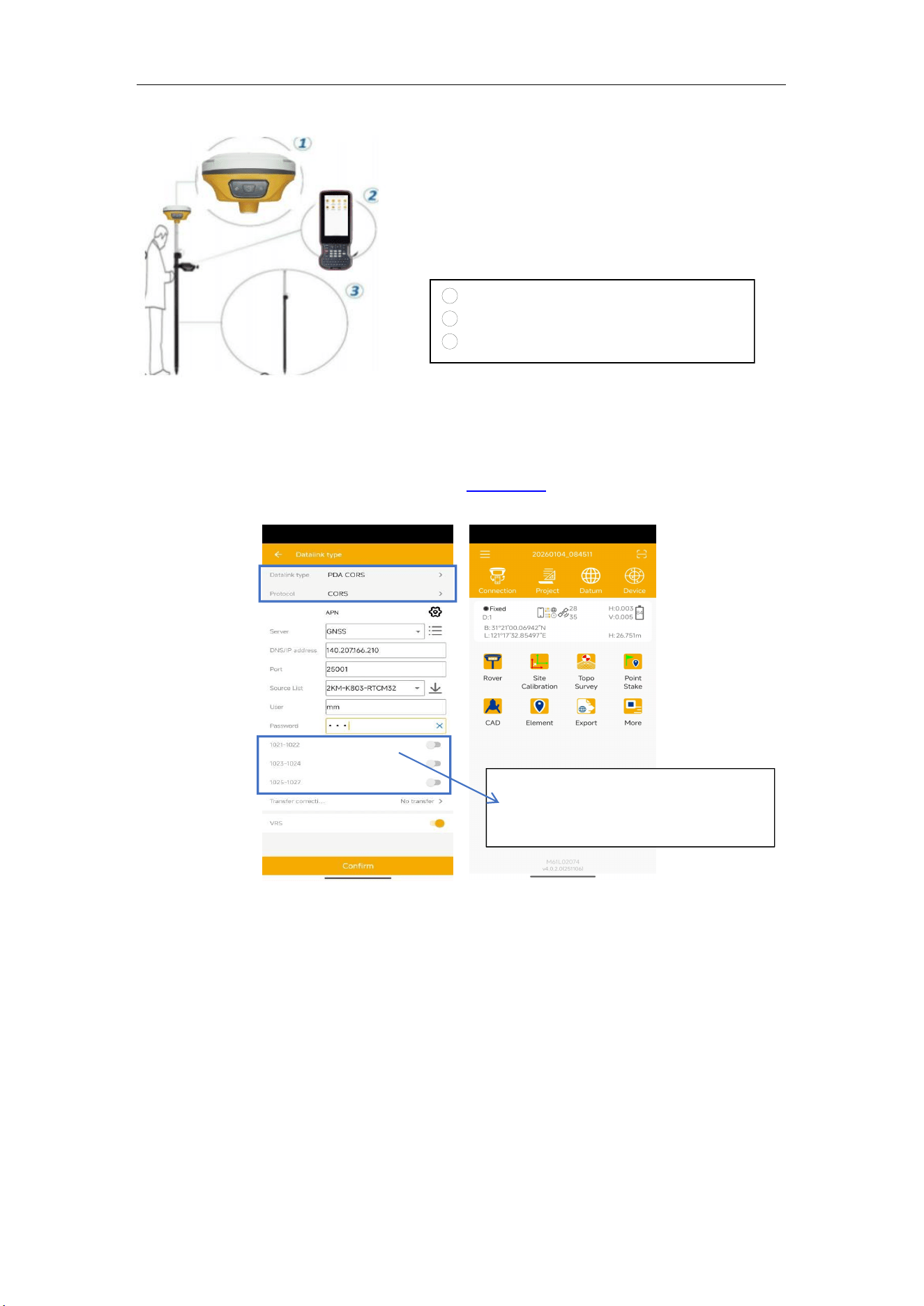
5.6 PDA CORS Mode
Without setting up your own base stations, the M6 can receive correction data transmitted
from continuously operating reference station via PDA’s GPRS. To do RTK survey in
PDA CORS mode, it requires:
M6
GNSS Receiver User Guide
24
1 A M6 GNSS receiver
2
A controller with SIM card and software
3 A range pole with brachet
Configure the Rover as below:
Make sure your controller can access to internet via SIM card or Wi-Fi, then run
Mfield Survey Software.
Build Bluetooth connection as shown in chapter 5.4. Click Device -> Rover -> PDA
CORS.
Enter CORS DNS/IP address and port -> Click Source List and select the proper
source -> enter User and password.
After Confirm succeed, the diff LED on receiver will flash, and software can get a
fixed result.
1021-1027 message is only available for
PDA CORS mode, the message is used for
datum correction for CORS.
M6
GNSS Receiver User Guide
25
6 Basic Survey Functions
This section describes the basic survey functions of Mfield Survey, including point
measurement, Topo survey, Auto survey, Area survey, Static, PPK, staking, site
calibration, import and export measured points.
6.1 Topo survey
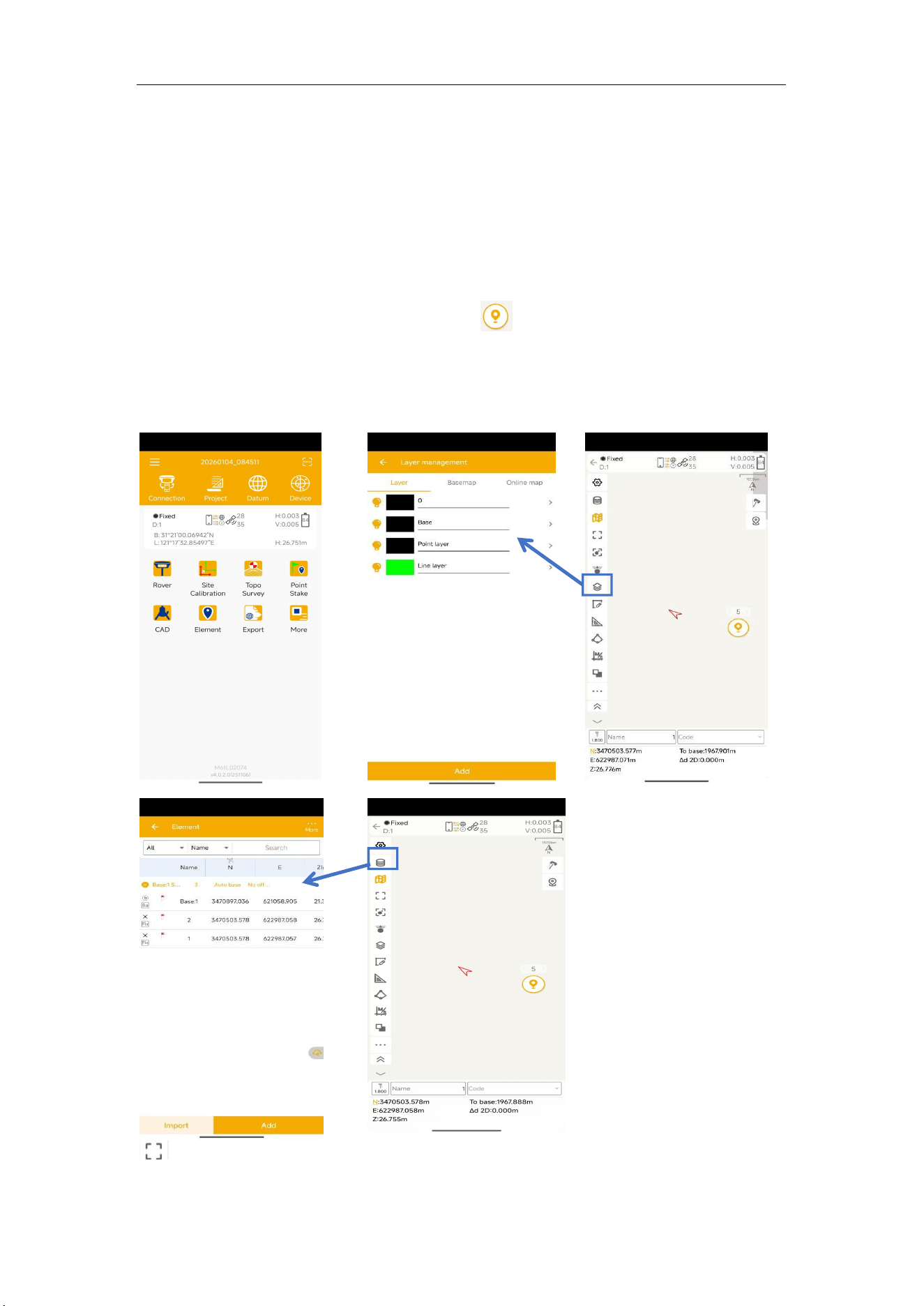
Click Topo Survey-> enter point name, ->click to start or stop collecting data.
You can quickly change antenna height in the survey interface.
Tap Elem to check point coordinates.
Tap Layer to show the layers you want display on map
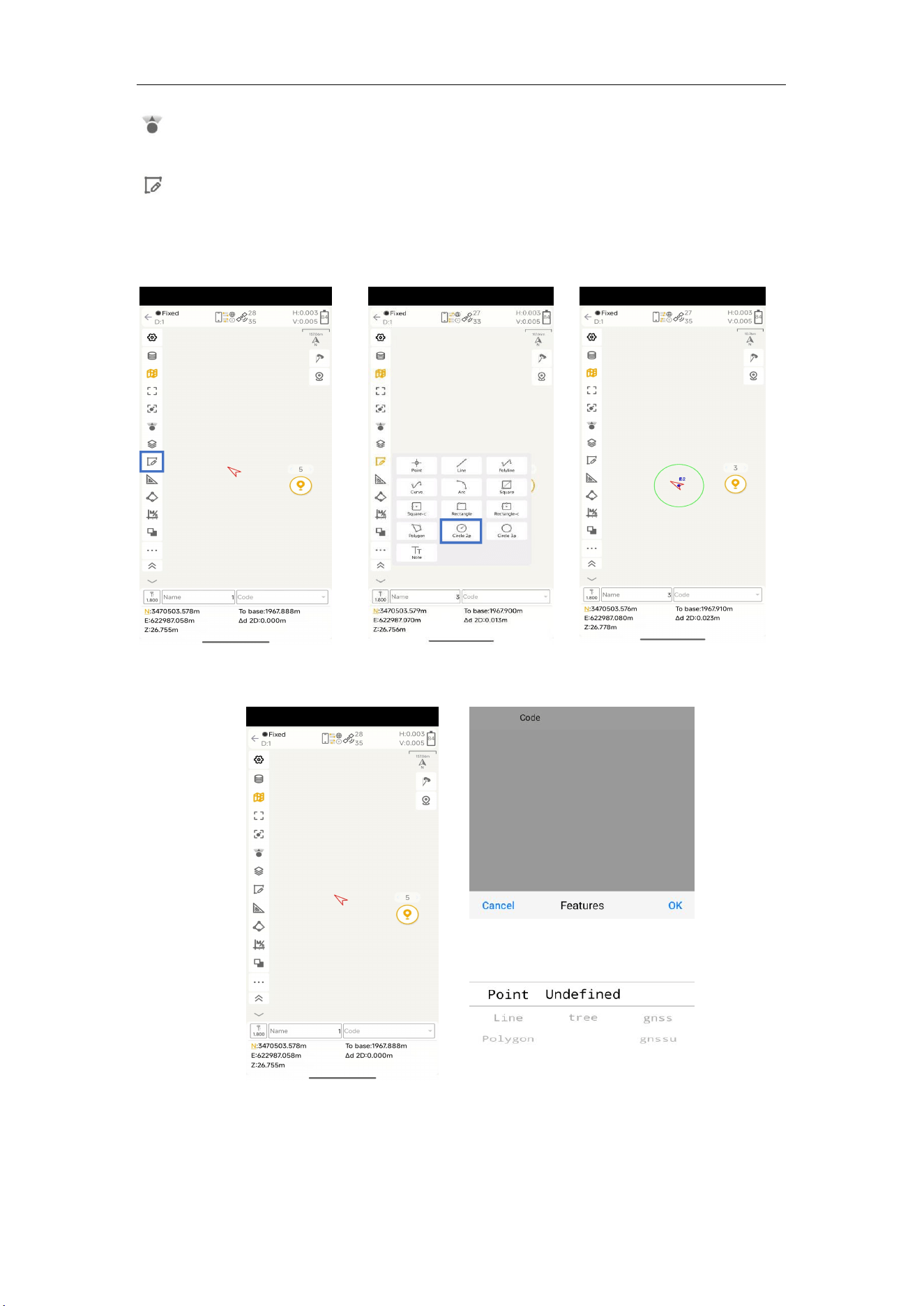
: Click this to show the whole points on the interface.
M6
GNSS Receiver User Guide
26
: If the arrow is out of sight on the interface, you can click this to locate the receiver
position, then the arrow will be shown on the interface.
: Graphic survey: Tap the graphic button, after completing survey, will directly show
the graphic on the map, you can export the graphic survey results as *.dxf format in Export
interface.
Fast survey by pressing Code: Tap the code in nine panels, will survey the point directly.
Go into code management interface to modify code list, then you can choose code to use in
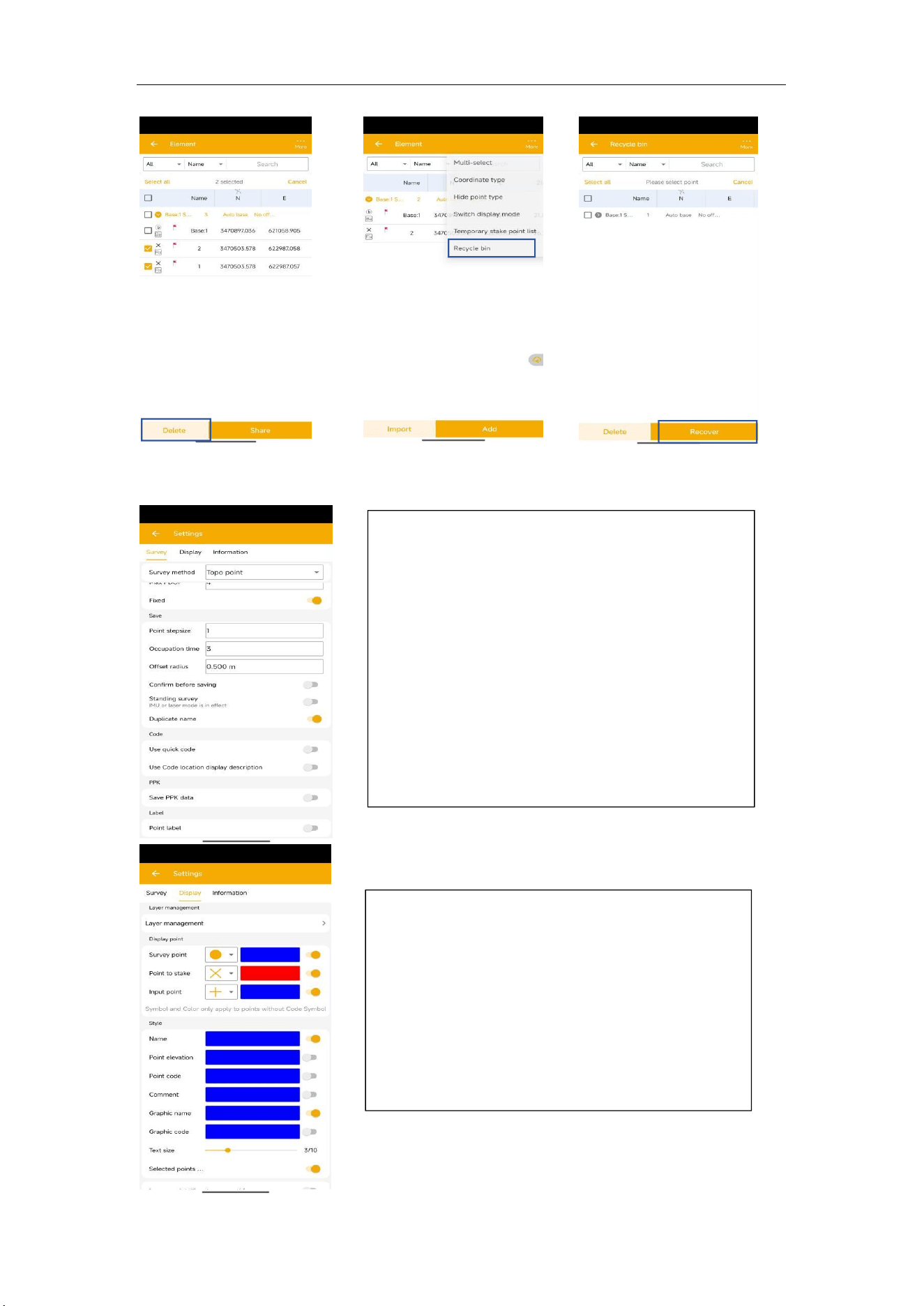
nine panels.
Recover deleted points in Recycle Bin.
M6
GNSS Receiver User Guide
27
6.1.1 Survey settings
Fixed: only fixed result can be saved;
Duplicate name: allow point name same;
Auto save: save points to Element directly;
Save PPK data: you can save PPK data while doing
RTK, and later you can process the PPK data;
HRMS,VRMS:threshold for points accuracy;
PDOP: This sets limit for PDOP, when the PDOP
beyond this value, it won’t allow to survey point;
Offset radius: point cannot offset bigger than the
value during measure;
Occupation time: measure times for one point;
Point stepsize: for point name;
Survey boundary: You can set an area, if you are
beyond this area, it will disable measuring points.
There is no “Keep centered” icon, when you keep
the arrow out of the screen for a while, it will make
the arrow to center of the screen automatically.
Display survey points: will show all survey points on
map;
Display Basemap: for showing DXF/SHP file on
map
M6
GNSS Receiver User Guide
28
6.1.2 Tilt survey
Tilt survey option will appear when receiver supports for tilt survey, it is available for S6
Plus GNSS Receiver, use IMU sensor.
According to the IMU sensor, can meets the requirement of high precision measurement.
When the tilts within 60°, the built-in sensor based IMU precisely calculates the actual
offset, which accuracy can up to 2.5 cm.
1
.
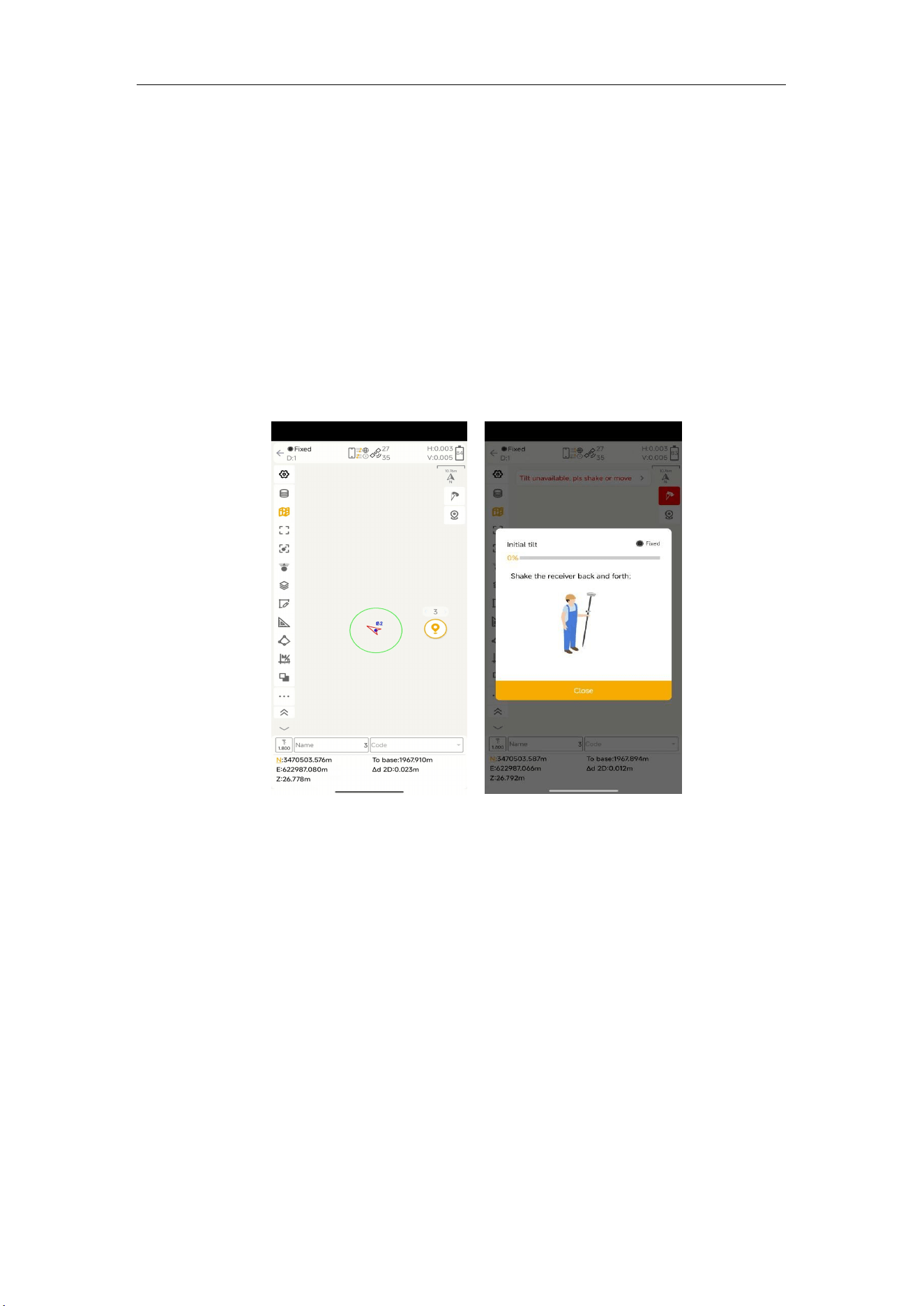
Open IMU: Go into Topo survey—click the button to open.
2.Initialization
If you power off the receiver or freset it, need to initialize again. After open IMU button,
you can follow the guidance in interface to complete it. During operation, make receiver
can search the satellites and get a fixed solution.
In survey interface, you can find the bubble and angle value shows the pole you tilt.
For more accuracy, angle less than 60° will be better.
Tip: Do not shake or rotate the receiver violently, otherwise you need to re-initialize.
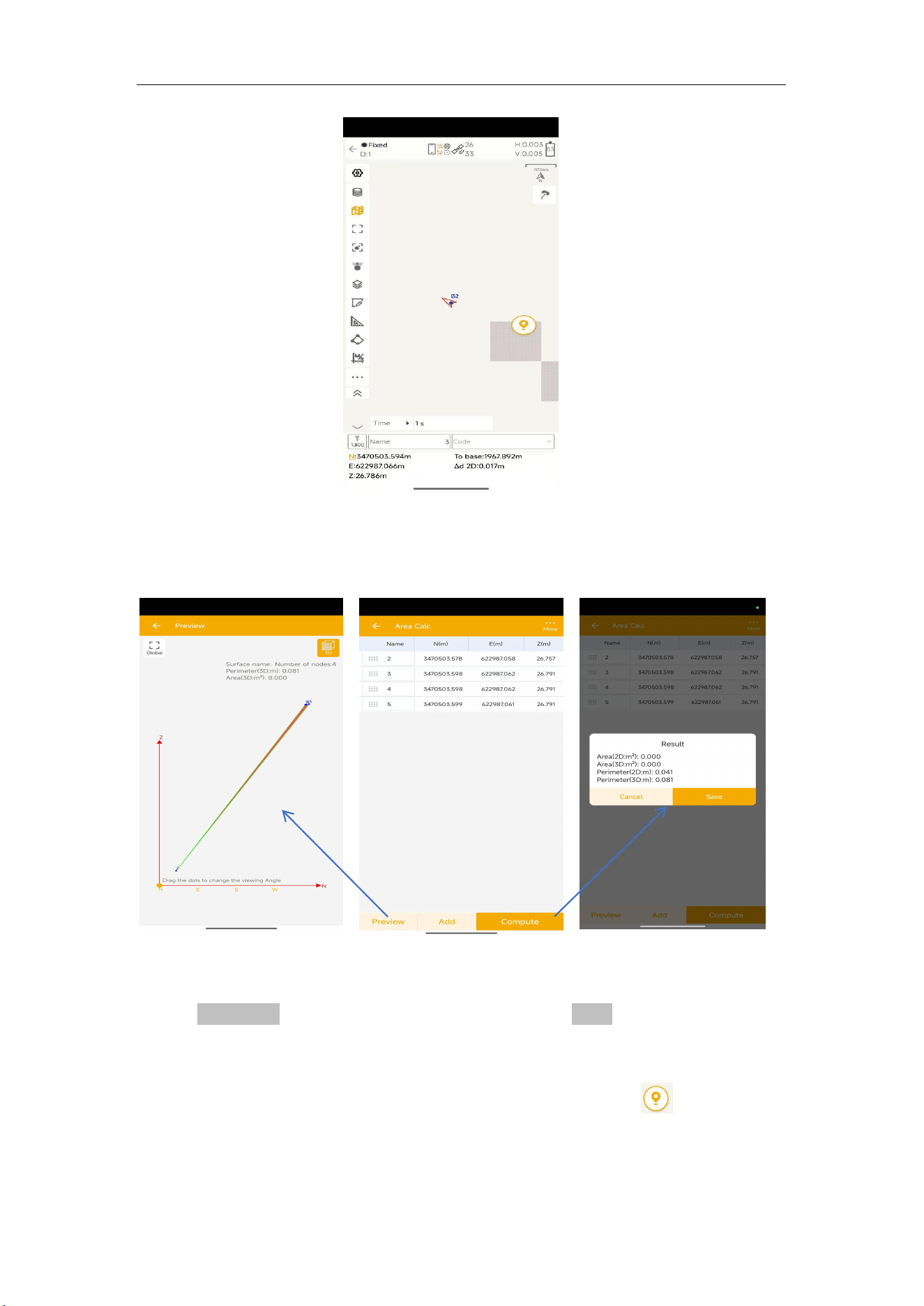
6.2 Auto survey/Area survey
For Auto survey, it supports automatic and continuous survey according to Time
or Distance.
M6
GNSS Receiver User Guide
29
For Area survey, it can compute area directly after getting points.
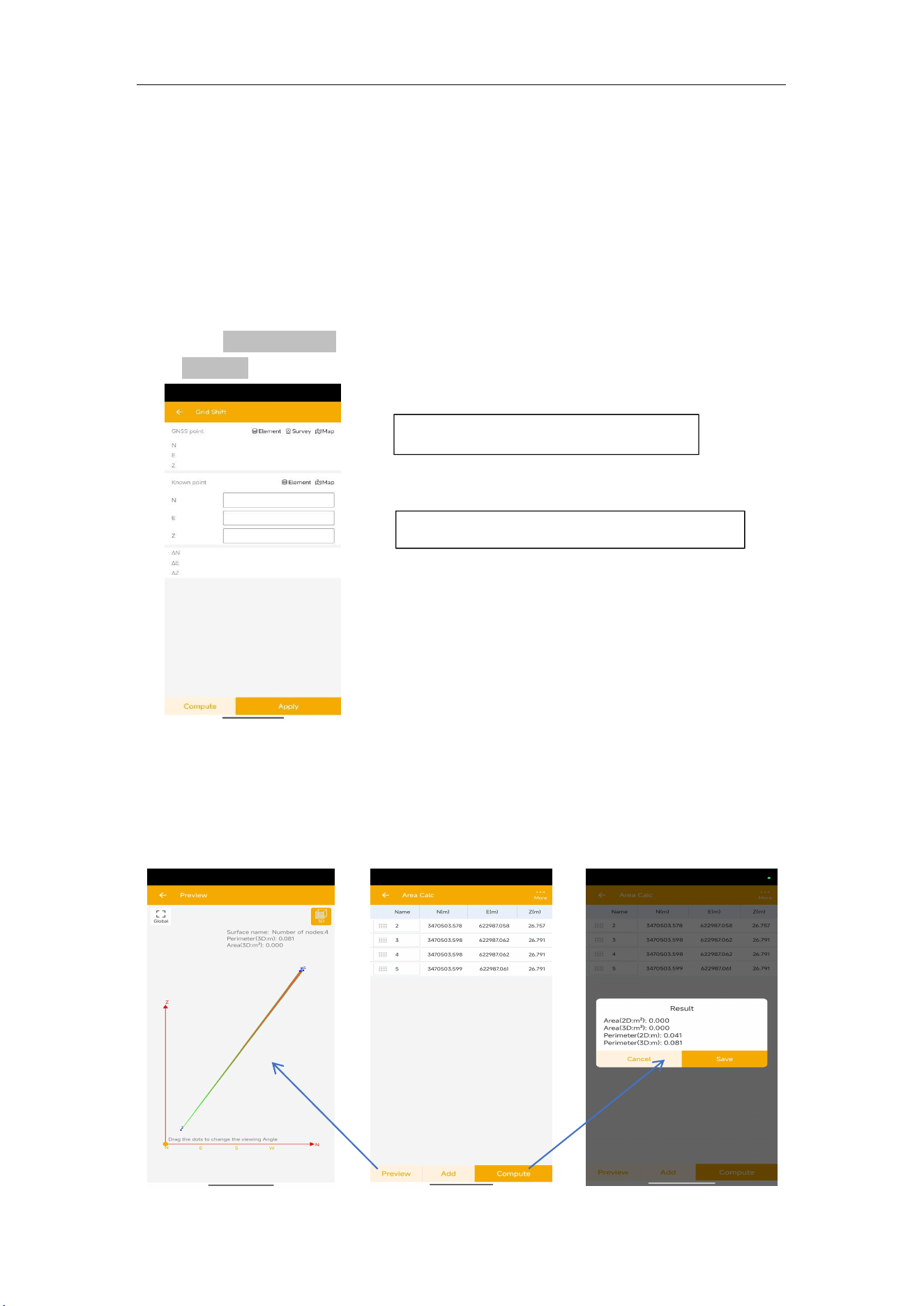
Press Area Calc, it will show the coordinate information, press Compute, it will show the
area
result, press Preview, it will show the shape on map.
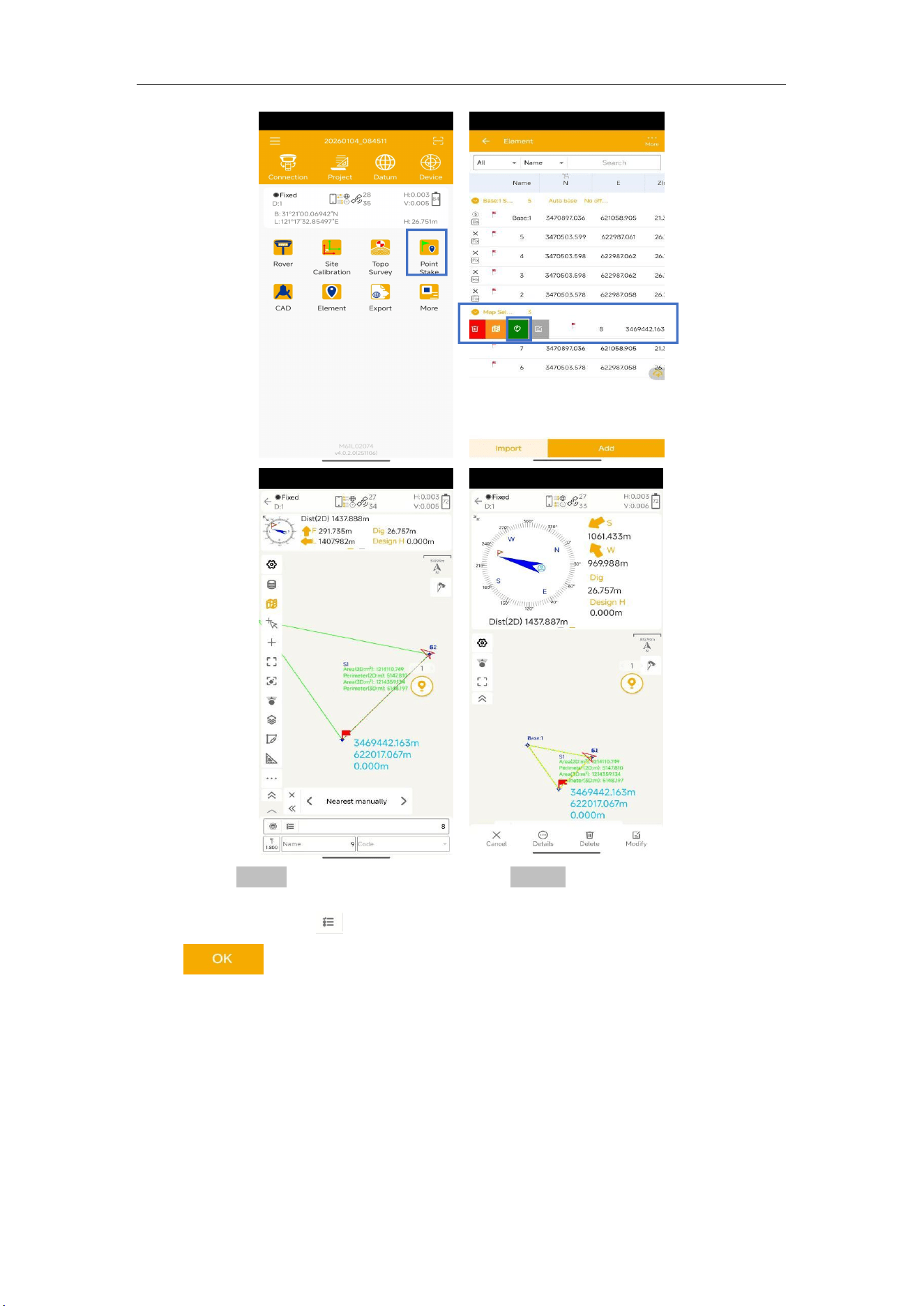
6.3 Stake points/lines
Go into Stake point interface, click to choose a point and tap Stake. Mfield Survey
provides a navigation map when staking points/lines. If you are close to the
target point enough, it will alarm you based on the alarm range you set.
Enter the point name and code based on your requirements, then click .
M6
GNSS Receiver User Guide
30
You can also Import points for staking, or add from Library choose.
Tip: keep your receiver vertical to the ground.
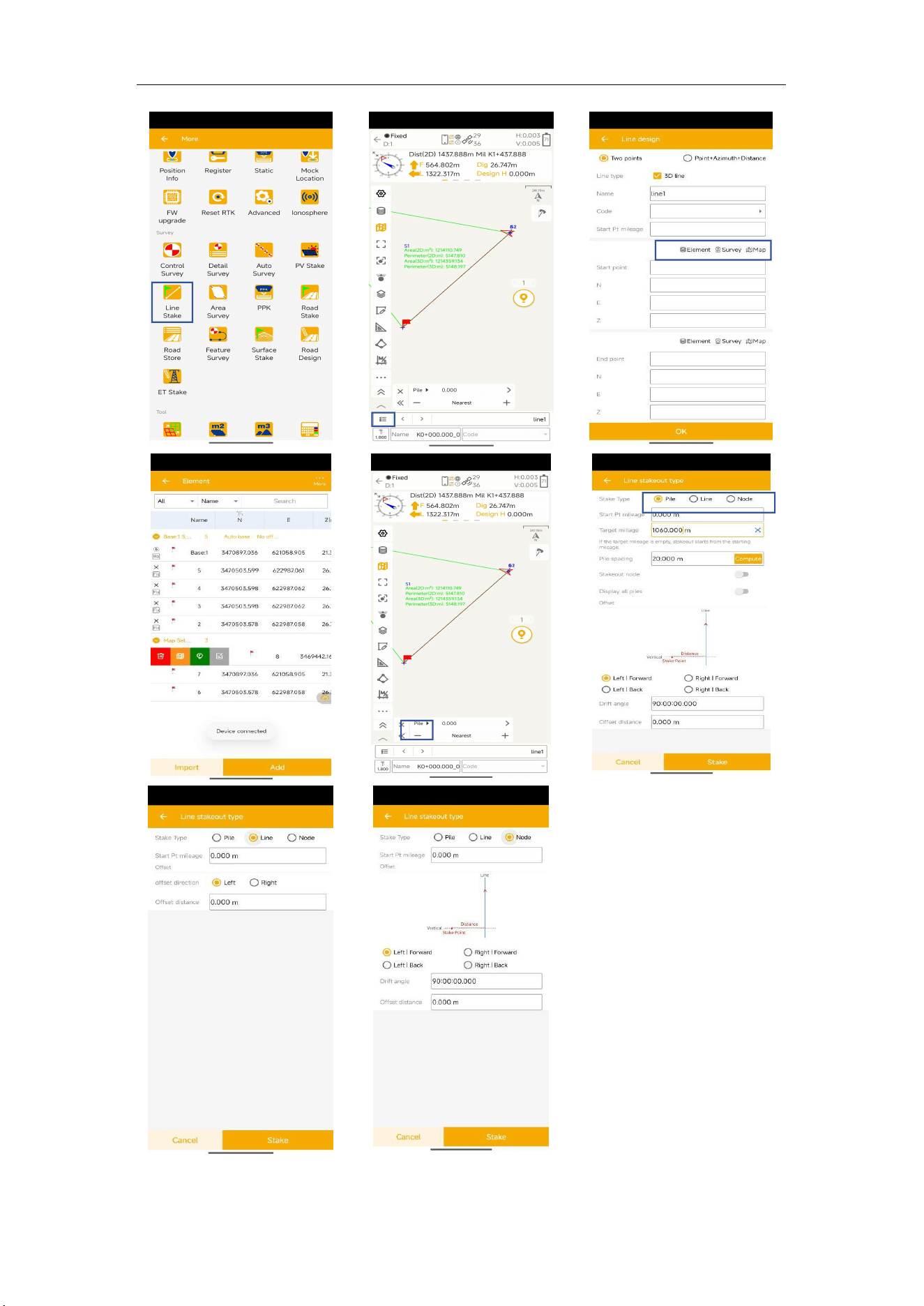
For staking lines, click -> add line (Two points or Point + Azimuth + Distance) ->
click -> Choose one line and click Stake. The default method to stake is “To
line”, press method to choose a method you want.
M6
GNSS Receiver User Guide
31
M6
GNSS Receiver User Guide
32
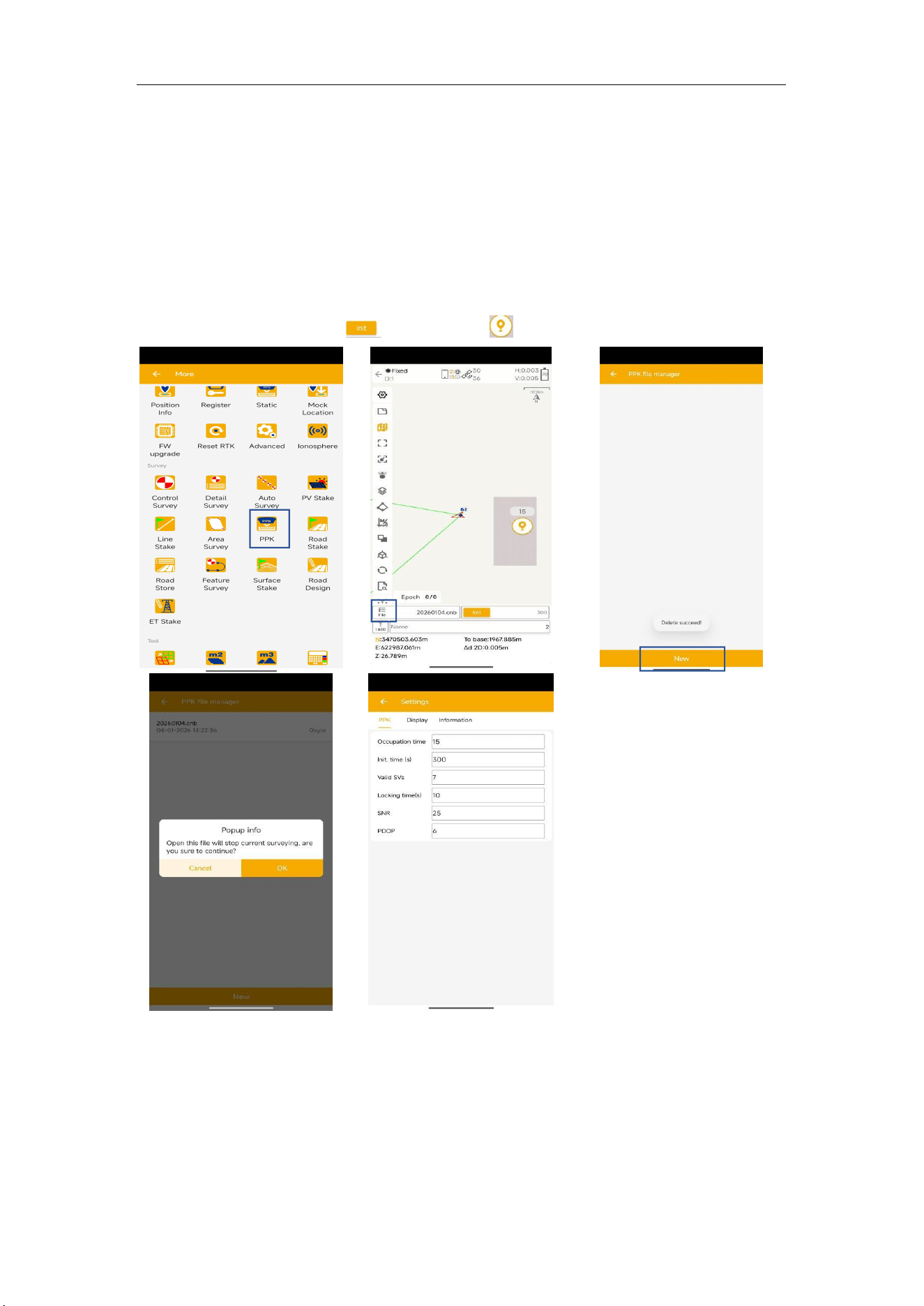
6.4 PPK
PPK (post processing kinetic) is the unique function of Mfield Survey, which is used for
post-processing dynamic measurements.
It also needs two receivers to work together, one work as Base to record static data, and
M6 work as Rover as shown below.
1. Click PPK in survey interface -> choose or create a PPK file.
2. Go to settings, configure PPK settings based on your requirements.
3. To get stable epoch, click to initialize -> to start PPK survey.
6.5 Site calibration/Grid Shift
6.5.1 Site calibration
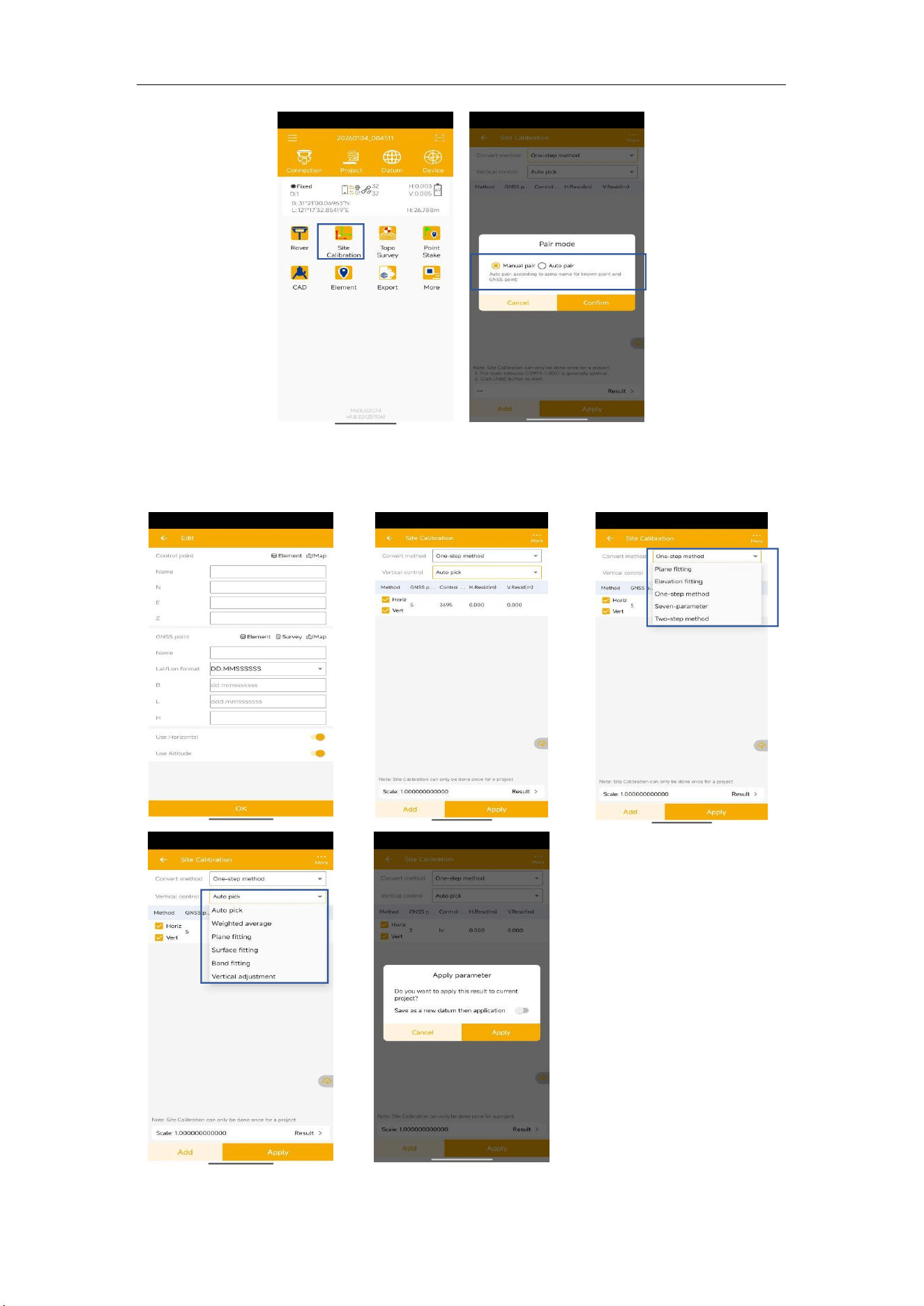
Site calibration is commonly needed once in one project, and all the points will be
collected based on calibrated datum system.
1. Choose manual pair or auto pair.
M6
GNSS Receiver User Guide
33
2. If you choose manual pair, you can directly enter at least three groups’ point to
compute. (for example, take K1,K2,K3 as known points, take A1,A2,A3 as measured
points) After click Compute to calculate, the software will calibrate automatically.
3. If you choose auto pair, it will auto compute according to the same name for known
M6
GNSS Receiver User Guide
34
point and measured point. After click Compute to calculate, the software will calibrate
automatically.
4. Click Apply to confirm to replace datum. The value of H.Resid and V.Resid should
meet the requirement (H.Resid ≤ 0.015m, and V.Resid ≤ 0.02m).
6.5.2 Grid Shift
Grid reset function is applied when you need to change the position of Base station in the
same project.
Click Grid Shift in Survey interface -> add current Base point and target Base point ->
Click Compute -> Apply to complete grid shift.
6.6 Area Calculation and COGO
Area calculation function is almost same with Area survey, you can quickly calculate
the area of selected points. Click Compute to calculate area, and click Library choose
to add the points.
Click to add the point from one Base
Click to select the same point from another
M6
GNSS Receiver User Guide
35
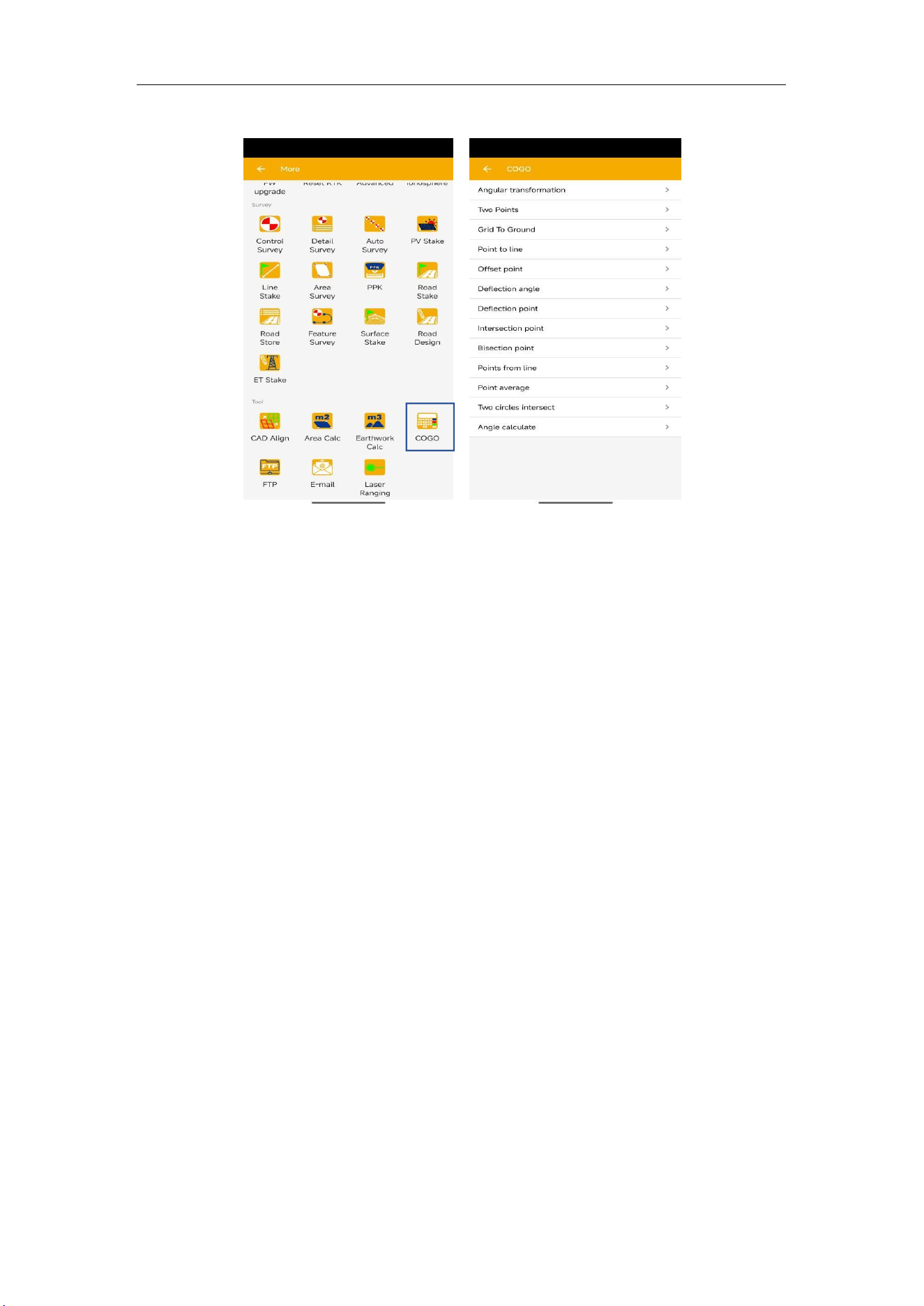
With COGO function, you can calculate points/lines/angle directly on field.
Angular transformation: Angular type transform;
Two points: Calculate two points distance;
Grid to ground: Convert the grid to the ground coordinate system;
Point to line: Distance from point to one line;
Offset point: Calculate point with azimuth and distance;
Deflection angle: Calculate angle of two lines;
Deflection point: Calculate point with angle and distance;
Intersection point: Calculate intersection points from two lines;
Bisection point: Calculate point from angle bisector;
Points from line: Calculate points on line by distance or segment;
Point average: Calculate average from points;
Two circles intersect: Calculate the intersection points of two circles.
Angle calculate: Calculate the angle between two points.
M6
GNSS Receiver User Guide
36
7 Data Export/Import
Mfield Survey supports to import/export data including grid coordinate, Lat/Lon
coordinate with various data format, support import DXF/DWG file and export result of
DXF/KML, etc.
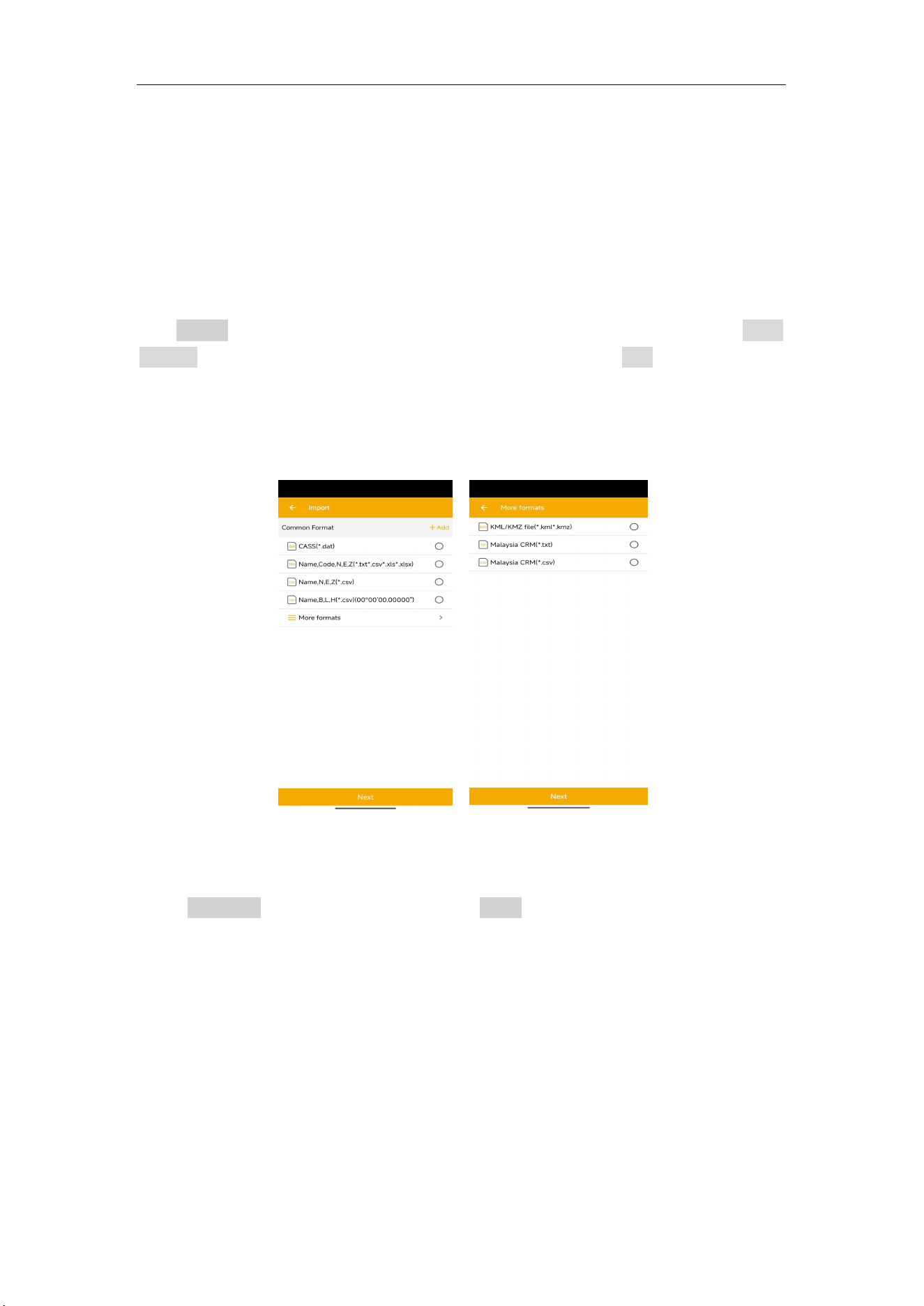
7.1 Import
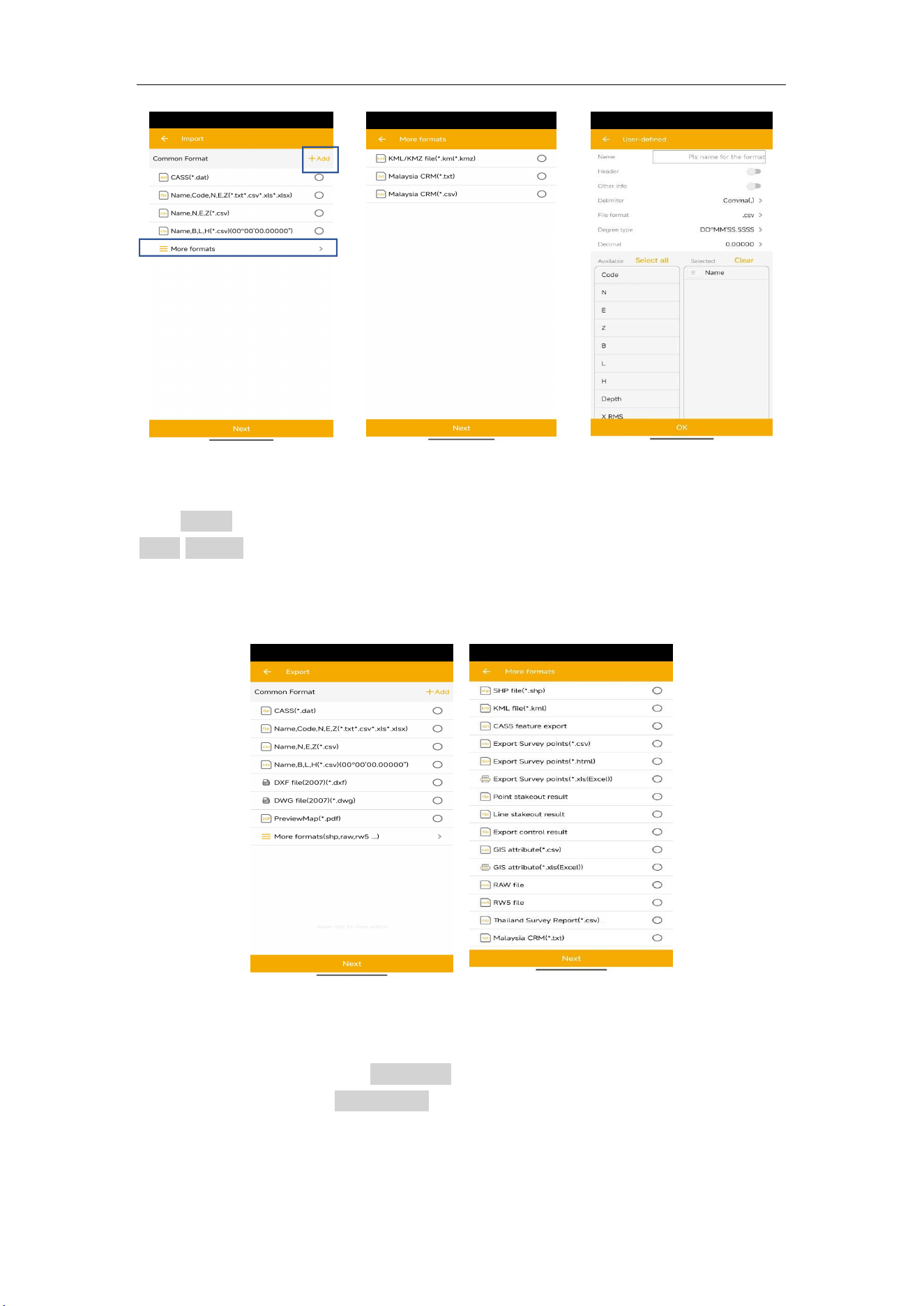
Tap Import in project interface, there are some predefined data formats, click More
formats to get more predefined formats. Besides, you can click Add to create a User-
defined type.
Long press the predefined data format that you don’t use often, you can move this format
to the More formats page; also, you can move the data format of More formats page to the
previous page where stored the formats you usually use.
Name: Enter the name for the format
Delimiter: support Comma(,), Space( ), Semicolon(;)
File format: support *.csv, *.dat, *.txt format
Click Select all to choose all elements, Click Clear to eliminate all elements selected.
The elements include: code, name, N, E, Z, B, L, H, X RMS, Y RMS, V.RMS, status,
start time, occupation time, diff age, base ID, total AntHgt, Antenna height, measure
type, antenna name, ending time, comment, RMS, PDOP, HDOP, VDOP, TDOP,
GDOP, total SV, used SV, elevation, tilt offset, tilt angle, tilt distance
Tip: The format you defined will also be saved to Export interface.
Choose one format to import data.
The default export path is //sm/data, you can also click Upperfolder to change to any
other path where the file is.
Point type: support Input point, Control point, Stake point
M6
GNSS Receiver User Guide
37
7.2 Export
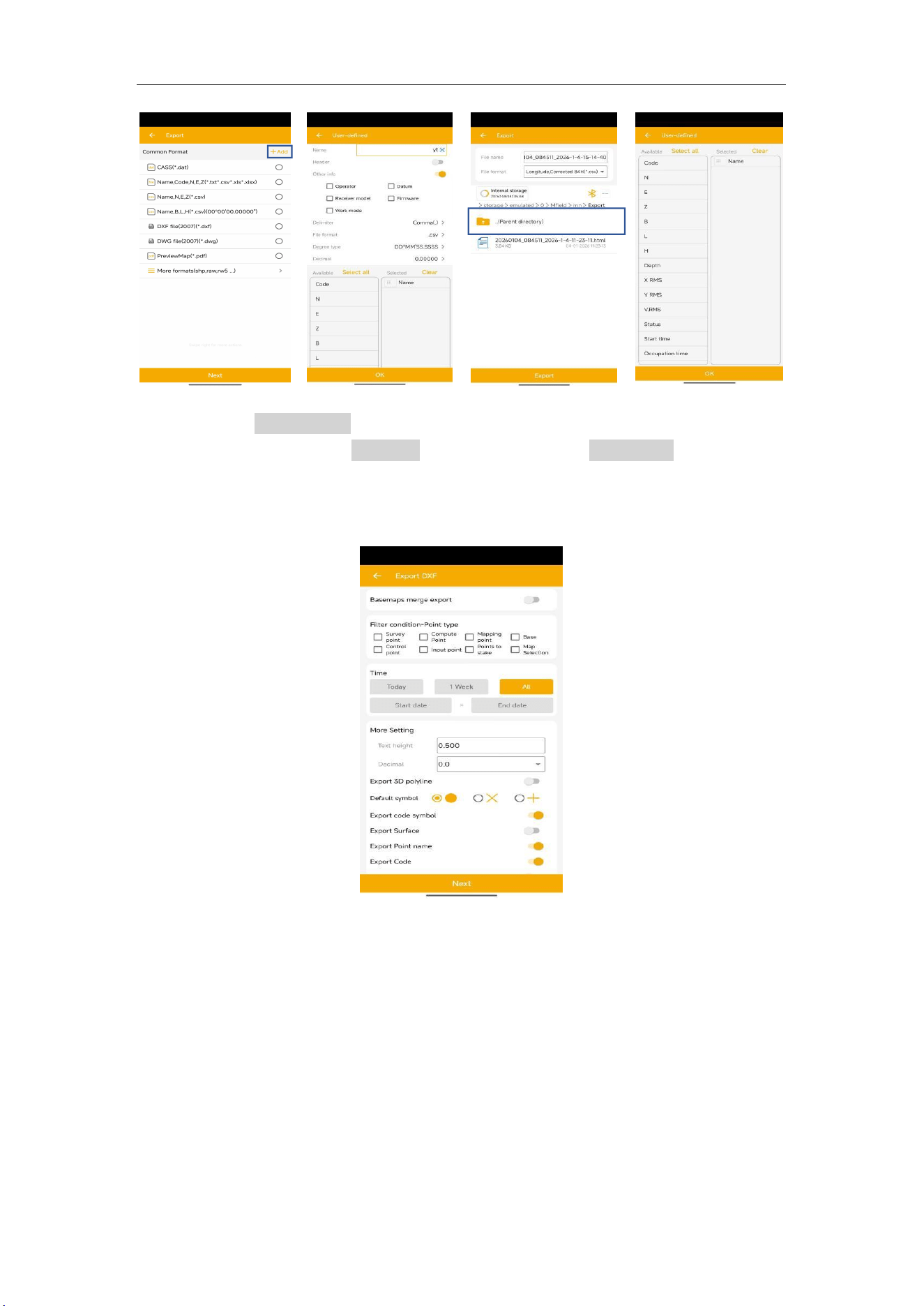
Tap Export in Project interface to export simple data of survey points. Also, click
More formats to export the survey points with detailed information or other formats
like stake points/lines, DXF, SHP, KML, RAW, RW5, HTML, CASS feature result.
Same with Import result, long press the predefined data format to select the interface
you want to place.
File format: support *.csv, *.dat, *.txt format choose one format to export data.
Select: support Survey point, Control point, Input point, Stake point, Base, also,you
can set the data, name, code of data to specific export.
The default export path is …//sm/export, and the previous saved file will be shown
below, you can also click Upperfolder to change to any other path.
M6
GNSS Receiver User Guide
38
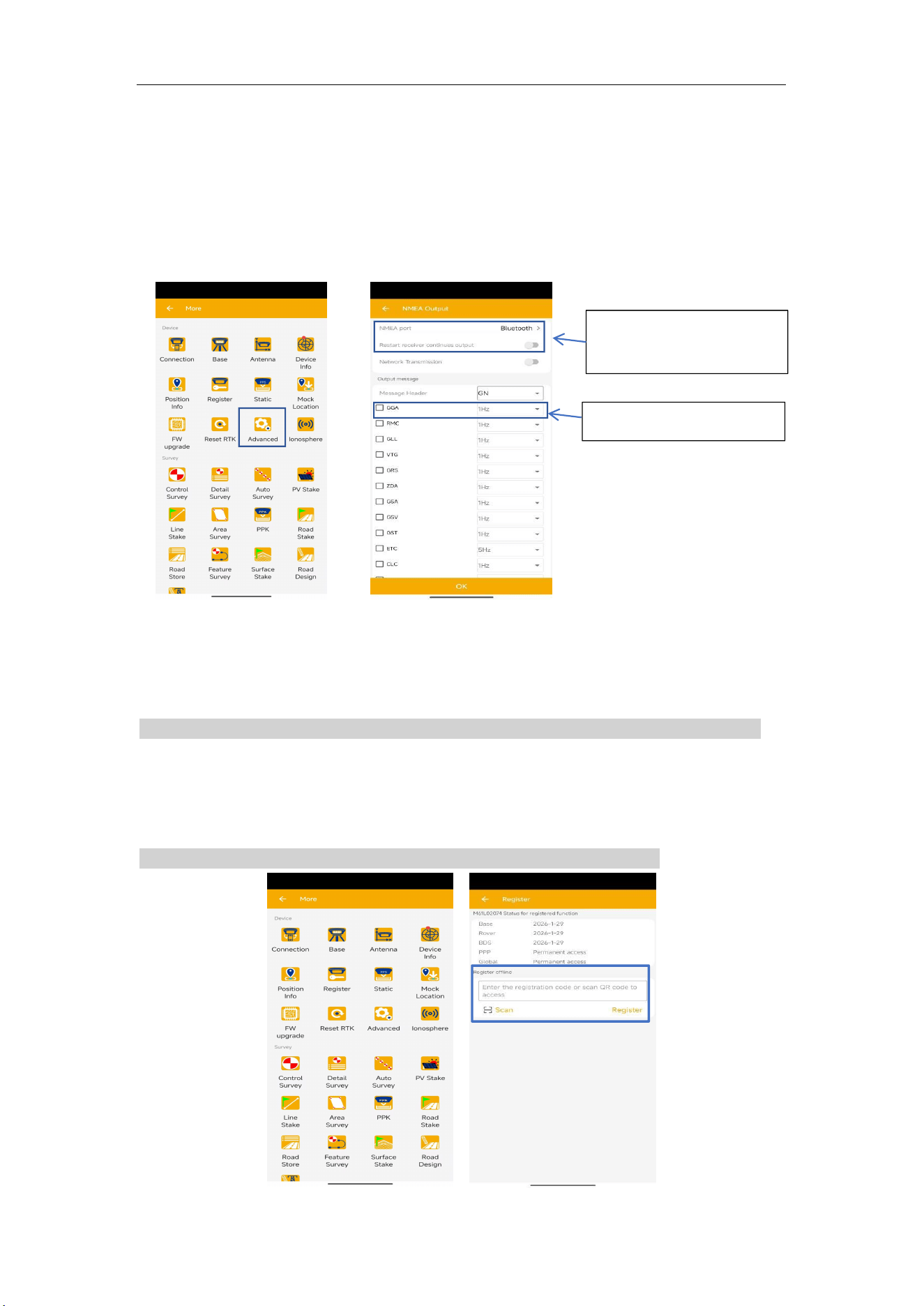
For the points, lines and polygons you surveyed in Topo survey and Feature survey,
you can click Export DXF to export dxf file, then you can edit them in third party
CAD software, or import to Basemap to check, or import to Stake CAD to stake.
Choose the data that you want to export including survey point, input point, control
point, stake point, base, line and polygon, and the layer properties includes name,
code and height, the default text height is 0.5.
M6
GNSS Receiver User Guide
39
8 Export Result
8.1 NMEA 0183 output
With Advanced function, you can quickly set to output NMEA from lemo port or
Bluetooth. In fact, this function is same as enter commands “log comX gpXXX
ontime X”. Choose NMEA Port -> Baud -> check commands you want to output.
Data transfer: for transmit all the BT output to the address.
8.2 Register M6 via Mfield Survey
Normally, the register code is like this:
FUNCTIONREG:2207453726-3851620954-0949162572-0697504466-0613618189-0027539229
Note: The length of code may different according to different requirements.
Following shows two methods to register the receiver.
Register function
For Register function, you need only enter the number:
2207453726-3851620954-0949162572-0697504466-0613618189-0027539229
This option is same as the
command “saveconfig”.
Log com1 gpgga ontime1
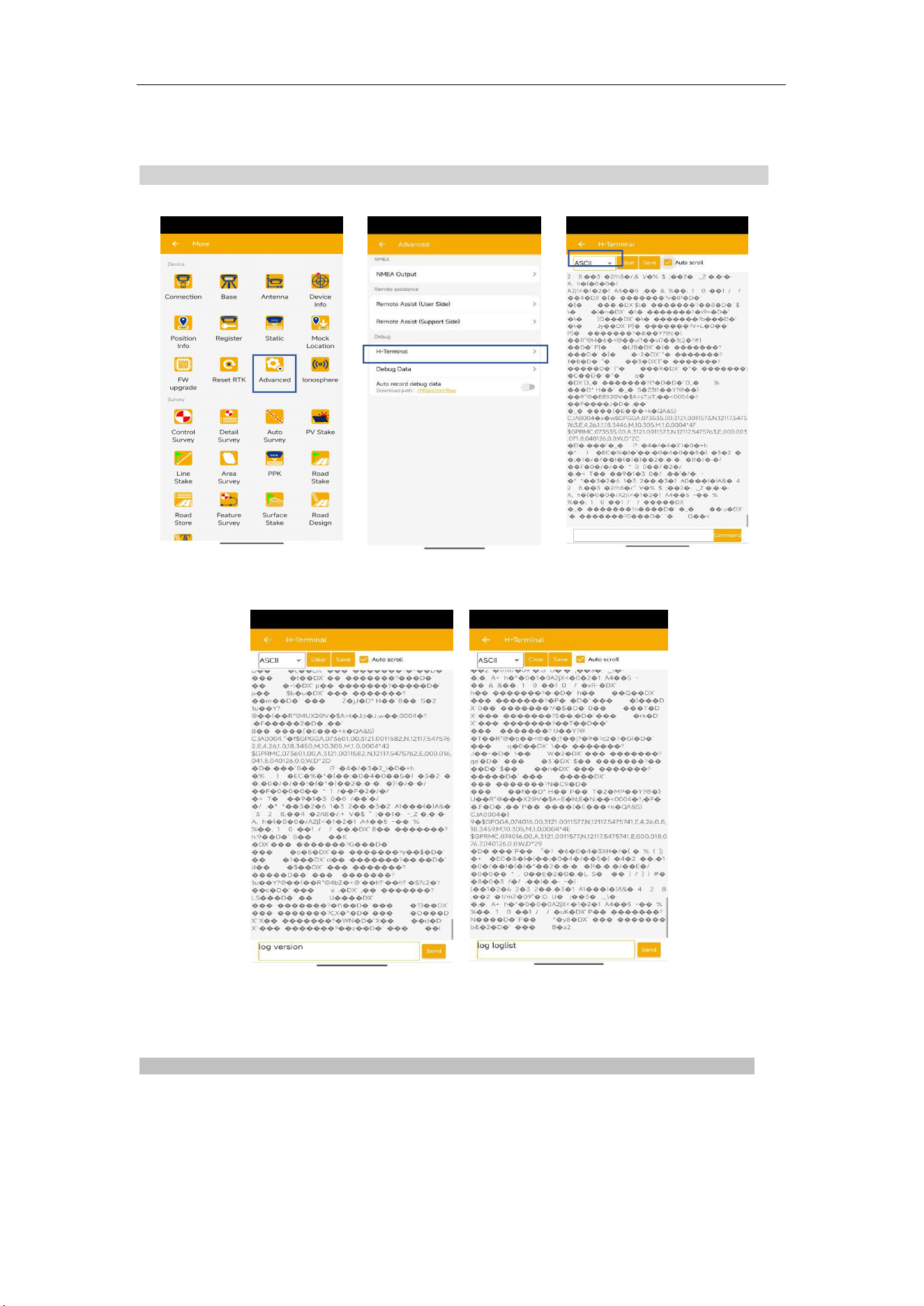
M6
GNSS Receiver User Guide
40
Register via commands
You need copy the whole code, include the word ‘FUNCTIONREG:’
FUNCTIONREG:2207453726-3851620954-0949162572-0697504466-0613618189-0027539229
Copy the whole code, and enter the cursor to next ine, then send.
Send command: LOG REGLIST
To check receiver register status.
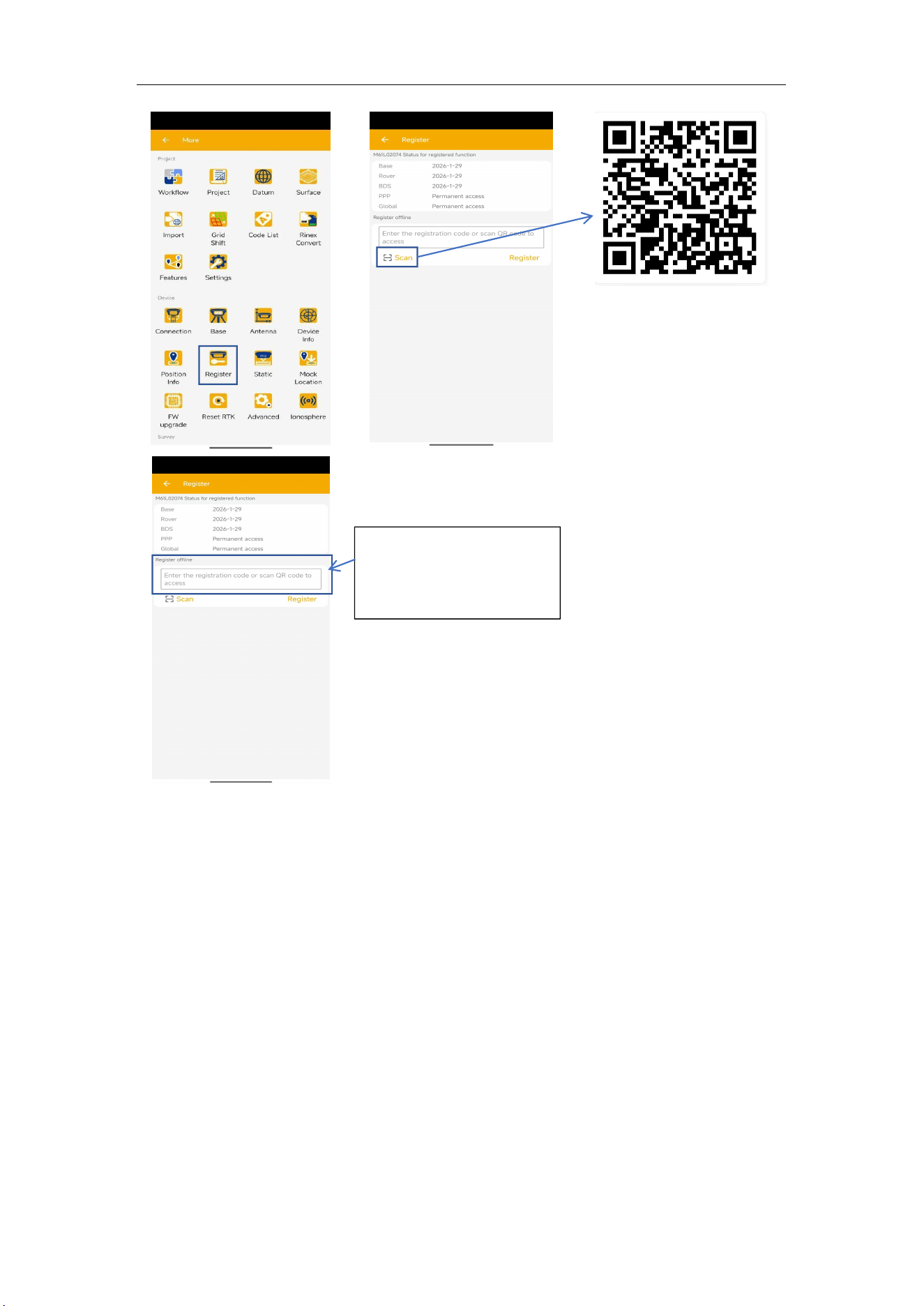
Register via QR code
Registration can be completed by scanning the QR code.
First, copy the above code to generate a QR code.
FUNCTIONREG:2207453726-3851620954-0949162572-0697504466-0613618189-0027539229
Then, scan it following the steps below to complete registration.
Of course, you can also enter the above code in this interface to register.
M6
GNSS Receiver User Guide
41
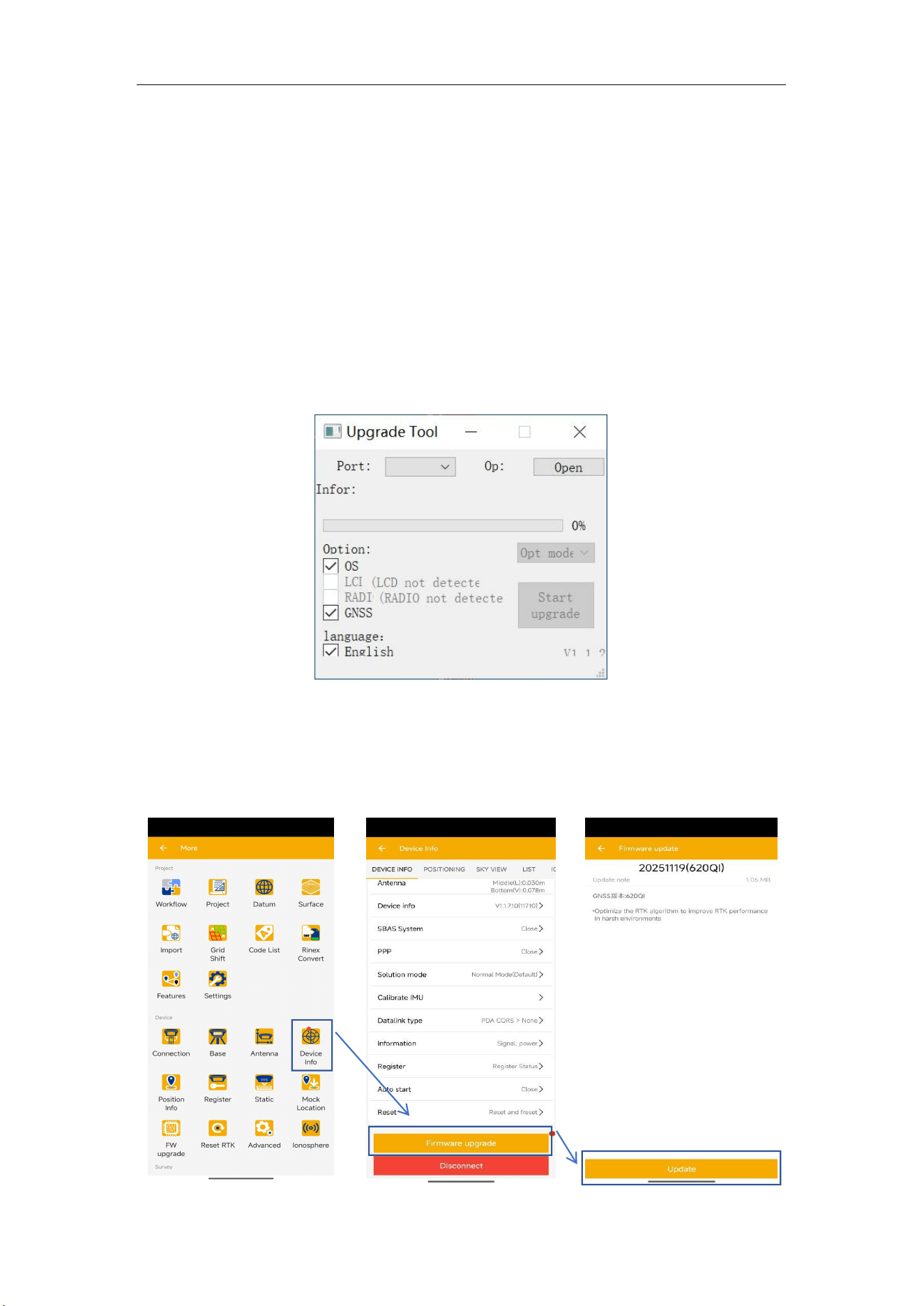
You can also enter the above
code in this interface and
click the Register button to
complete registration.
M6
GNSS Receiver User Guide
42
9 Firmware Upgrade
Upgrade via computer
Prepare a USB-Type C cable. And download a Driver of USB recongnition. It’ s
important.
M6 adopts the latest chip, integrated system and board, which shall be distinguished
during upgrading.
1. Copy the firmware software to your PC, connect M6 to your PC via type-c cable
and turn on the receiver.
2. Open the firmware program, select proper port to connect with receiver, click “Open”,
only choose” OS” and “GNSS” and then click “Start”. Wait for a minute ,it will be
successful.
When the progress bar is full, and “Completed!” appear below, it seems the update
has been completed and then you can disconnect it and wait for 1 minute to finish
the update.
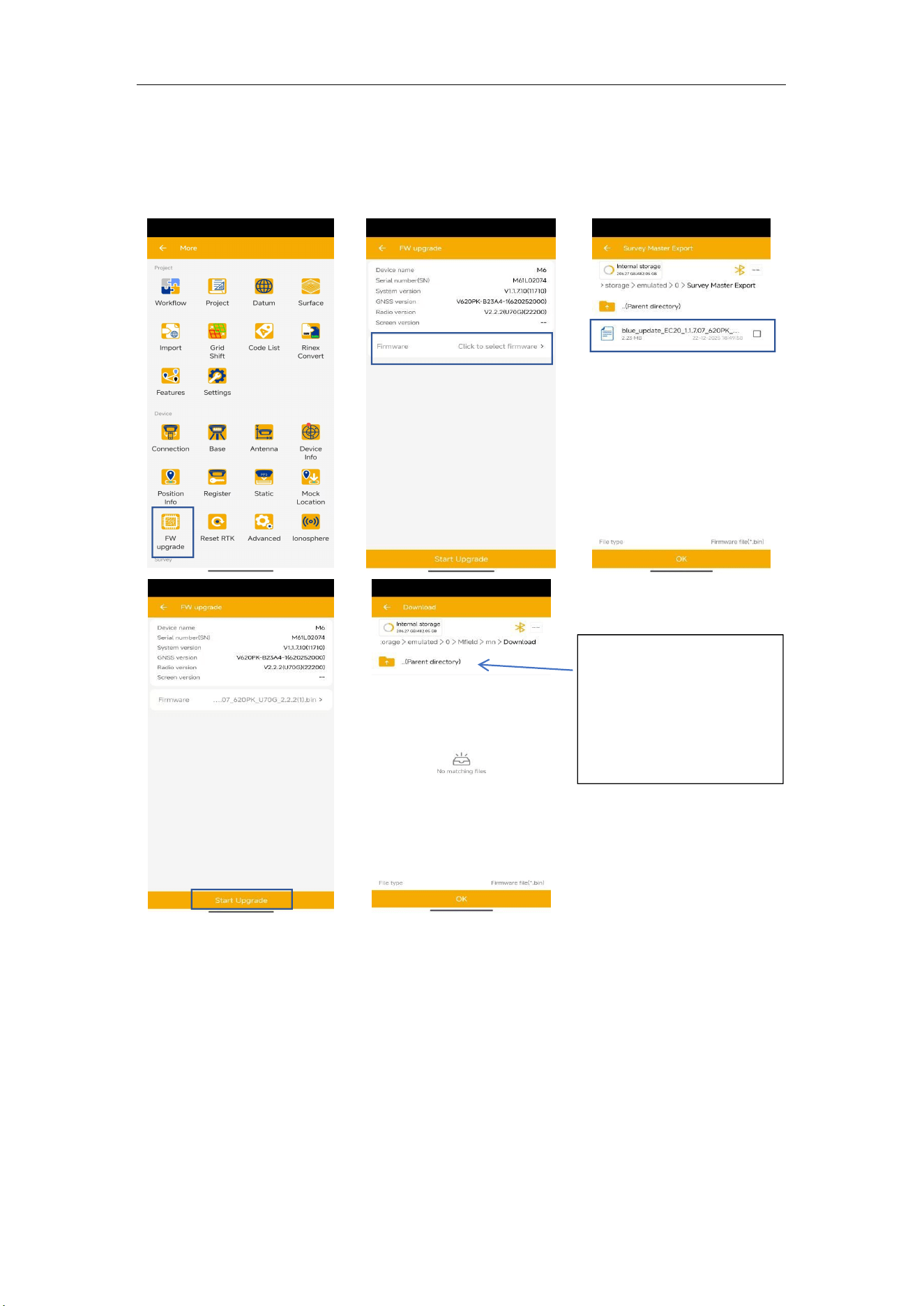
Upgrade through online self-service
Perform a firmware upgrade directly.
M6
GNSS Receiver User Guide
43
Upgrade via BIN fil
To upgrade via a BIN file, you must first obtain the relevant BIN file installation
package and place it in the designated folder on your device. Then follow the steps
below to install it.
When selecting files, if you
cannot locate the
corresponding folder, you
can click the folder three
times consecutively before
continuing your search for
files.