
Stronger signal, easy to fix
Farnav N30 GNSS
USER GUIDE
Survey & Engineering | Oct 2025

Farnav N30 GNSS USER GUIDE
| 2025-10 P a g e |
1
Table of Content
Preface ........................................................................................................................ 3
Copyright.....................................................................................................................3
Copyright 2025 ....................................................................................................3
Trademarks..........................................................................................................3
Safety Warnings.......................................................................................................... 3
FCC Statement.............................................................................................................3
CE Interference Starement..........................................................................................4
Brazil............................................................................................................................4
Conformity to Japanese regulations........................................................................... 4
1 Introduction ............................................................................................................. 5
1.1 Safety Information ................................................................................................ 5
Warnings and Cautions ....................................................................................... 5
1.2 Regulations and Safety ..........................................................................................5
1.3 Technical Support ..................................................................................................6
1.4 Disclaimer..............................................................................................................6
1.5 Your Comments.....................................................................................................6
2 Getting Started with N30 .......................................................................................... 7
2.1 About the Receiver ............................................................................................... 7
2.2 Parts of the Receiver.............................................................................................7
2.2.1 Front Panel .................................................................................................7
2.2.2 Camera....................................................................................................... 8
2.2.3 Receiver Ports............................................................................................ 9
2.3 Batteries and Power..............................................................................................9
2.3.1 Built-in batteries........................................................................................ 9
2.3.2 Charging the Battery.................................................................................. 9
2.3.3 Battery Safe..............................................................................................10
2.3.4 External Power Supply ............................................................................. 10
2.4 Product Basic Supply Accessories....................................................................... 11
2.4.1 Base Kit Basic Supply................................................................................11
2.4.2 Rover Kit Basic Supply..............................................................................12
2.5 Connecting to an Office Computer..................................................................... 13
2.6 Connecting to a Controller ..................................................................................13
2.6.1 Connecting via Wi-Fi with Landstar Software..........................................13
2.6.2 Connecting via Bluetooth with Landstar Software.................................. 15
2.7 Downloading Logged Data.................................................................................. 16
2.7.1 FTP Download .......................................................................................... 16
2.7.2 USB Download ......................................................................................... 18
3 Equipment Setup and Operation .............................................................................20
3.1 Base Station Setup .............................................................................................. 20
3.2 Rover Station Setup.............................................................................................21
3.3 Working with the Tilt Compensation..................................................................22
3.3.1 Operation Steps....................................................................................... 22
3.3.2 Notes of using tilt measurement............................................................. 23
3.4 Stakeout functions .............................................................................................. 24
3.4.1 Point stakeout...........................................................................................24

Farnav N30 GNSS USER GUIDE
| 2025-10 P a g e |
2
3.4.2 AR stakeout...............................................................................................24
3.4.3 Notes of using Vision Camera.................................................................. 27
4 Configuring Through a Web Browser .......................................................................28
4.1 Status Menu ........................................................................................................30
4.1.1 Position Submenu .................................................................................... 30
4.1.2 Activity Submenu.....................................................................................30
4.1.3 Google Map Submenu ............................................................................. 31
4.2 Satellites Menu ................................................................................................... 31
4.2.1 Tracking Table Submenu.......................................................................... 32
4.2.2 Tracking Info. Table Submenu .................................................................. 32
4.2.3 Tracking Skyplot Submenu.......................................................................33
4.2.4 Satellite Activation Submenu ...................................................................33
4.3 Receiver Configuration Menu............................................................................. 34
4.3.1 Description...............................................................................................34
4.3.2 Antenna Configuration Submenu ............................................................ 35
4.3.3 Reference Station Settings Submenu .......................................................35
4.3.4 Receiver Reset Submenu ......................................................................... 37
4.3.5 Languages Submenu ................................................................................ 37
4.3.6 User Management Submenu...................................................................38
4.4 Data Recording Menu ......................................................................................... 38
4.4.1 Log Settings Submenu..............................................................................38
4.4.2 FTP Push Settings Submenu .....................................................................40
4.4.3 FTP Push Log Submenu............................................................................41
4.5 IO Settings Menu.................................................................................................42
4.6 Network Setting Menu ........................................................................................47
4.6.1 Email Alarm Submenu ..............................................................................48
4.6.2 HTTP Submenu .........................................................................................48
4.6.3 HTTPS Submenu.......................................................................................48
4.6.4 FTP Service Submenu ...............................................................................49
4.7 Module Setting Menu......................................................................................... 49
4.7.1 Description Submenu ...............................................................................49
4.7.2 WiFi Submenu ..........................................................................................50
4.7.3 Bluetooth Settings Submenu ................................................................... 50
4.7.4 Radio Settings Submenu.......................................................................... 51
4.8 Firmware Menu ...................................................................................................51
4.8.1 Firmware Info Submenu ...........................................................................52
4.8.2 Hardware Version Submenu.................................................................... 52
4.8.3 Config File Submenu ................................................................................ 52
4.8.4 System Log Download Submenu ..............................................................52
4.8.5 User Log Submenu ................................................................................... 53
4.8.6 Firmware Update Submenu.....................................................................53
4.8.7 GNSS Board Upgrade Submenu ............................................................... 54
4.8.8 GNSS Registration Submenu .................................................................... 54

Farnav N30 GNSS USER GUIDE
| 2025-10 P a g e |
3
Preface
Copyright
Copyright 2025
EFIX | EFIX Geomatics Co., Ltd. All rights reserved. The EFIX is trademark of EFIX
Geomatics Co., Ltd. All other trademarks are the property of their respective owners.
Trademarks
All product and brand names mentioned in this publication are trademarks of their
respective holders.
Safety Warnings
The Global Navigation Satellite System (GNSS) comprises several distinct satellite
constellations, each of which is under the jurisdiction of a specific government entity.
These entities bear the sole responsibility for ensuring the accuracy of their respective
systems and for maintaining the integrity of their satellite networks.
Do not rely solely on the device for critical navigation decisions. The GNSS signals may
be affected by atmospheric conditions, satellite availability, signal blockage, etc.
Be aware of the limitations of GNSS accuracy. It provides positioning information with a
certain level of accuracy, but errors (including manual error) and deviations can occur.
Avoid prolonged exposure to strong magnetic fields, as they may interfere with the
operation of the device and affect its accuracy.
Do not dismantle or modify the device. Any unauthorized modification may result in
malfunction or damage and void the warranty.
Follow all instructions provided in the user manual for proper handling, charging, and
maintenance.
FCC Statement
This equipment has been tested and found to comply with the limits for a Class B digital
device, pursuant to Part 15 of the FCC Rules. These limits are designed to provide
reasonable protection against harmful interference in a residential installation. This
equipment generates uses and can radiate radio frequency energy and, if not installed
and used in accordance with the instructions, may cause harmful interference to radio
communications. However, there is no guarantee that interference will not occur in a
particular installation. If this equipment does cause harmful interference to radio or
television reception, which can be determined by turning the equipment off and on, the
Farnav N30 GNSS USER GUIDE
| 2025-10 P a g e |
4
user is encouraged to try to correct the interference by one or more of the following
measures:
-- Reorient or relocate the receiving antenna.
-- Increase the separation between the equipment and receiver.
-- Connect the equipment into an outlet on a circuit different from that to which the
receiver is connected.
-- Consult the dealer or an experienced radio/TV technician for help.
This device complies with part 15 of the FCC Rules. Operation is subject to the following
two conditions:
This device may not cause harmful interference, and (2) this device must accept any
interference received, including interference that may cause undesired operation.
Changes or modifications not expressly approved by the party responsible for
compliance could void the user's authority to operate the equipment.
CE Interference Starement
Declaration of Conformity: Hereby, EFIX Geomatics Co., LTD. declares that this F6 is in
compliance with the essential requirements and other relevant provisions of Directive
2014/53/EU. A copy of the Declaration of conformity can be found at EFIX Geomatics
Co., LTD.
Brazil
Este equipamento nÃao tem direito à protecao contra interferência prejudicial e nao
pode causar interferência em sistemas devidamente autorizados. Para maiores
informacöes, consulte o site da ANATEL-www.anatel.gov.br.
Conformity to Japanese regulations
Japanese Radio Law and Japanese Telecommunications Business Law Compliance.
• This device is granted pursuant to the Japanese Radio Law and the Japanese
Telecommunications Business Law.
• This device should not be modified (otherwise the granted designation number will
become invalid).
Farnav N30 GNSS USER GUIDE
| 2025-10 P a g e | 5
1 Introduction
The N30 GNSS receiver removes barriers to portability without sacrificing
performance. Featuring full GNSS technology, it offers best-in-class GNSS signal
tracking even in a harsh environment, enabling GNSS surveying beyond usual
constraints. The N30 GNSS incorporates the latest innovations such as an inertial
module (IMU) providing automatic pole-tilt compensation in a very compact design.
1.1 Safety Information
Warnings and Cautions
An absence of specific alerts does not mean that there are no safety risks involved.
A Warning or Caution information is intended to minimize the risk of personal injury
and/or damage to the equipment.
WARNING - A Warning alerts you to a potential misused or wrong setting of the
equipment.
CAUTION - A Caution alerts you to a possible risk of serious injury to your
person and/or damage to the equipment.
1.2 Regulations and Safety
The receivers contain a built-in wireless modem for signal communication through
Bluetooth® wireless technology or through external communication datalink.
Regulations regarding the use of the wireless modem vary greatly from country to
country. In some countries, the unit can be used without obtaining an end-user
license. However, in some countries, the administrative permissions are required. For
license information, consult your local dealer. Bluetooth® operates in license-free
bands.
Before operating a N30 GNSS receiver, determine if authorization or a license to
operate the unit is required in your country. It is the responsibility of the end-user to
obtain an operator's permit or license for the receiver for the location or country of
use.
Farnav N30 GNSS USER GUIDE
| 2025-10 P a g e | 6
Use and Care
This receiver is designed to withstand the rough environment that typically occurs in
the field. However, the receiver is high-precision electronic equipment and should be
treated with reasonable care.
CAUTION - Operating or storing the receiver outside the specified temperature
range will cause irreversible damage.
1.3 Technical Support
If you have a problem and cannot find the information you need in this manual or
EFIX website (www.Efix-geo.com), contact your local Efix dealer from which you
purchased the receiver(s).
If you need to contact Efix technical support, please contact us by email (support@
Efix-geo.com).
1.4 Disclaimer
Before using the receiver, please make sure that you have read and understood this
User Guide, as well as the safety information. Efix holds no responsibility for the
wrong operation by users and for the losses incurred by the wrong understanding
about this User Guide. However, Efix reserves the rights to update and optimize the
contents in this guide regularly. Please contact your local Efix dealer for new
information.
1.5 Your Comments
Your feedback about this user guide will help us to improve it in future revision.
Please email your comments to support@Efix-geo.com.
Farnav N30 GNSS USER GUIDE
| 2025-10 P a g e | 7
2 Getting Started with N30
2.1 About the Receiver
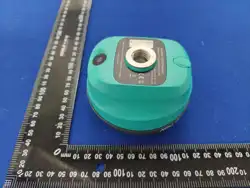
The FARNAV N30 is a compact, lightweight GNSS receiver designed to deliver top-tier
precision and efficiency for professional surveyors. With its 1608-channel GNSS,
Full-Star technology, and 4D AUTO-lMU, N30 ensures continuous accuracy in any
terrain.
The real-time AR vision stakeout feature simplifies complex staking tasks, boosting
efficiency by 50%. its lightweight 450g design, combined with IP68 durability, makes
it ideal for fieldwork under extreme conditions. Whether it's for real-time RTK or
challenging environments, N30 provides surveyors with the tools to complete
projects faster and more accurately than ever before.
The receiver can be used as the part of an RTK GNSS system with landstar software.
Moreover, user can download the GNSS data that recorded in the internal memory of
receiver to a computer.
To configure the receiver for performing a wide variety of functions, you can use the
web interface by connecting the receiver with PC or smartphone through Wi-Fi.
2.2 Parts of the Receiver
Power Button is located on the front panel. SMA port and USB Type-C port are
located on the bottom of the unit.
2.2.1 Front Panel
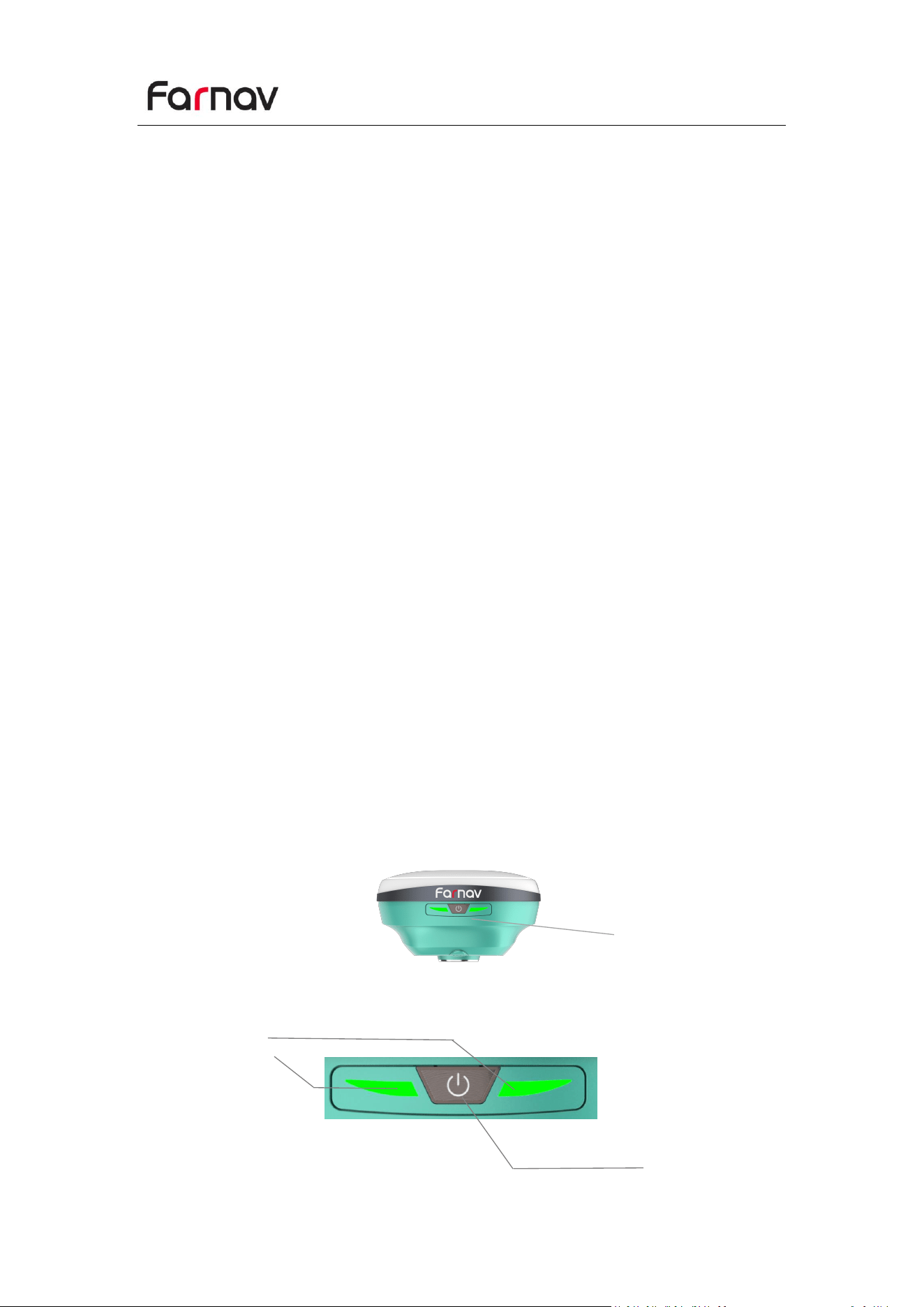
The following figure shows a front view of the receiver.
The front panel contains two indicator LEDs and one buttons.
Front panel
Power Button
Indicator light
Farnav N30 GNSS USER GUIDE
| 2025-10 P a g e | 8
Name
Description
Indicator light
Indicates whether the receiver is transmitting/receiving
differential data.
As a Base station: successfully transmitting differential data, flash
yellow light.
As a Rover station: tracking satellites will flash red light,
successfully receiving differential data from Base station will flash
yellow light when it is single or float, flash green light when it is
fixed.
Shows the number of satellites that the receiver has tracked.
When the receiver is searching for satellites, the red LED flashes
once every 5 seconds.
When the receiver tracks N satellites, the red LED blinks N times
per second, pauses for 5 seconds, and then blinks N times again.
Indicated charging status
The power light shows yellow when charging
The power light shows green when fully charged
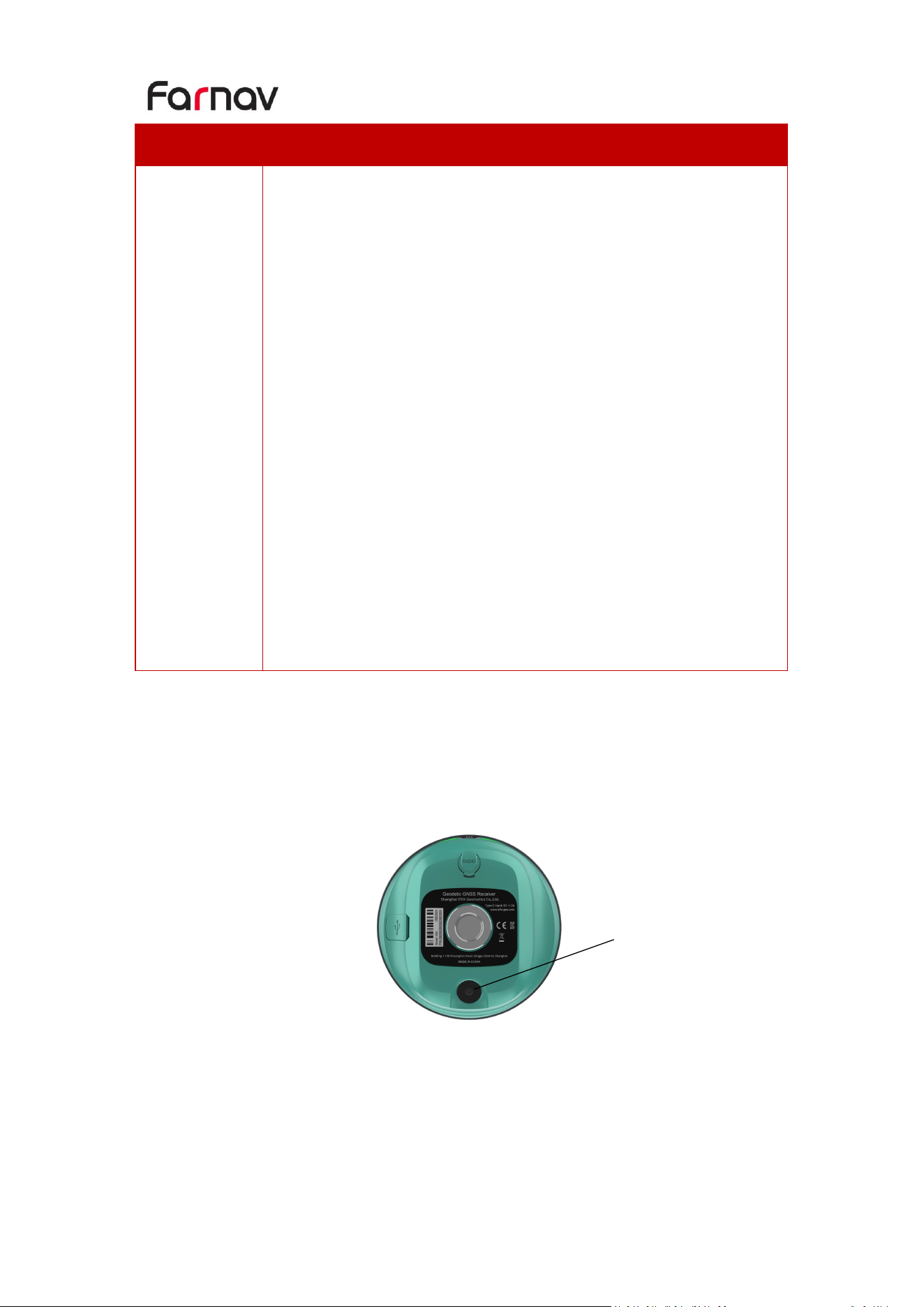
2.2.2 Camera
The following two figures show the bottom view of the receiver:
Camera
Farnav N30 GNSS USER GUIDE
| 2025-10 P a g e | 9
2.2.3 Receiver Ports
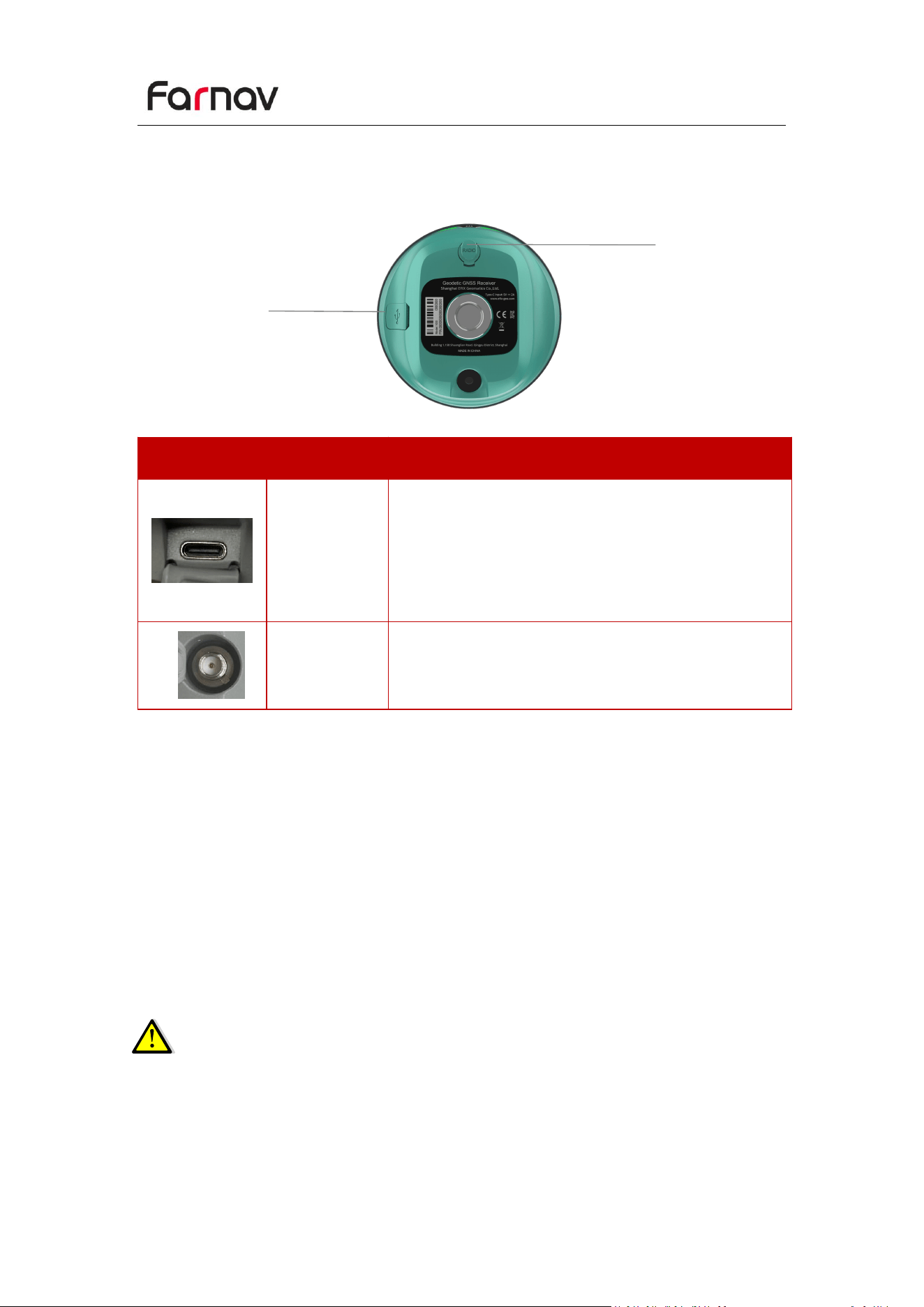
The lower housing contains one SMA port, one USB Type-C communication.
Port
Name
Description
USB Type-C
port
This port is a USB Type-C connector that supports
USB communications.
Users can use USB Type-C Cable supplied with the
system to download the logged data to a
computer.
SMA port
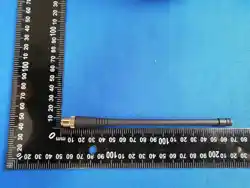
Connect a radio antenna to internal radio of the
receiver. And this connector is not used if you are
using an external radio.
2.3 Batteries and Power
2.3.1 Built-in batteries
The receiver has an built-in non-removable Lithium-ion battery.
2.3.2 Charging the Battery
The rechargeable Lithium-ion battery is supplied partially charged. Charge the
battery completely before using it for the first time. Charge via USB Type-C port.
WARNING – Charge and use the rechargeable Lithium-ion battery only in strict
accordance with the instructions. Charging or using the battery in
unauthorized equipment can cause an explosion or fire and can result in
personal injury and/or equipment damage.
USB Type-C port
SMA port
Farnav N30 GNSS USER GUIDE
| 2025-10 P a g e | 10
To prevent injury or damage:
Do not charge or use the battery if it appears to be damaged or leaking.
Charge the Lithium-ion battery only in a Farnav product that is specified to charge it.
Be sure to follow all instructions that are provided with the battery charger.
Discontinue charging a battery that gives off extreme heat or a burning odor.
Use the battery only in Farnav equipment that is specified to use it.
Use the battery only for its intended use and according to the instructions in the
product documentation.
2.3.3 Battery Safe
WARNING – Do not damage the rechargeable Lithium-ion battery. A damaged
battery can cause an explosion or fire and can result in personal injury and/or
property damage.
To prevent injury or damage:
Do not expose the battery to fire, high temperature, or direct sunlight.
Do not immerse the battery in water.
Do not drop or puncture the battery.
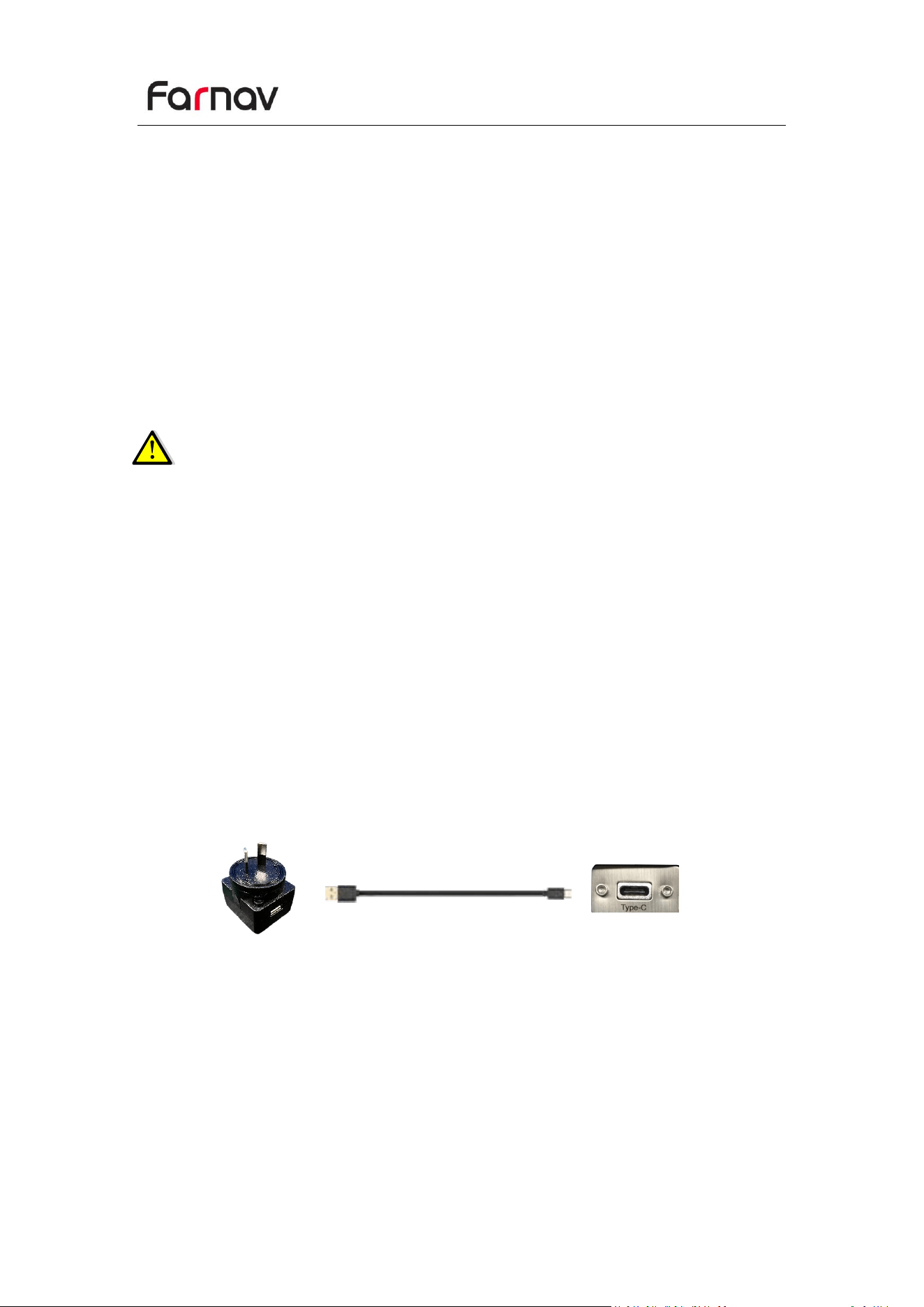
2.3.4 External Power Supply
Provide the external power to the receiver by the USB Type-C Cable + Power
Adapter.
The Power Adapter is connecting with AC power of 100-240V, the output port of the
Power Adapter connects with the USB Type-C Cable.
Farnav N30 GNSS USER GUIDE
| 2025-10 P a g e | 11
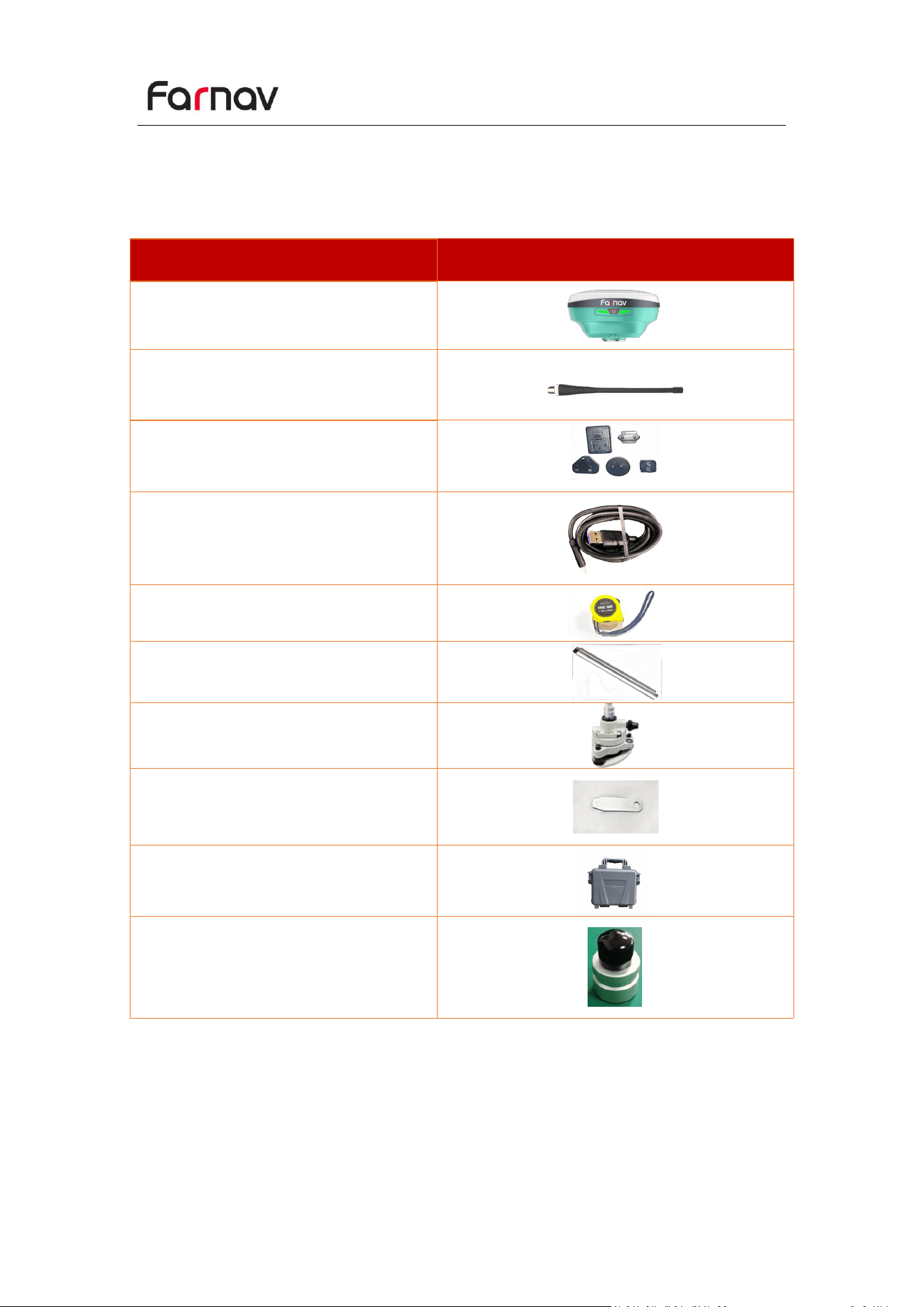
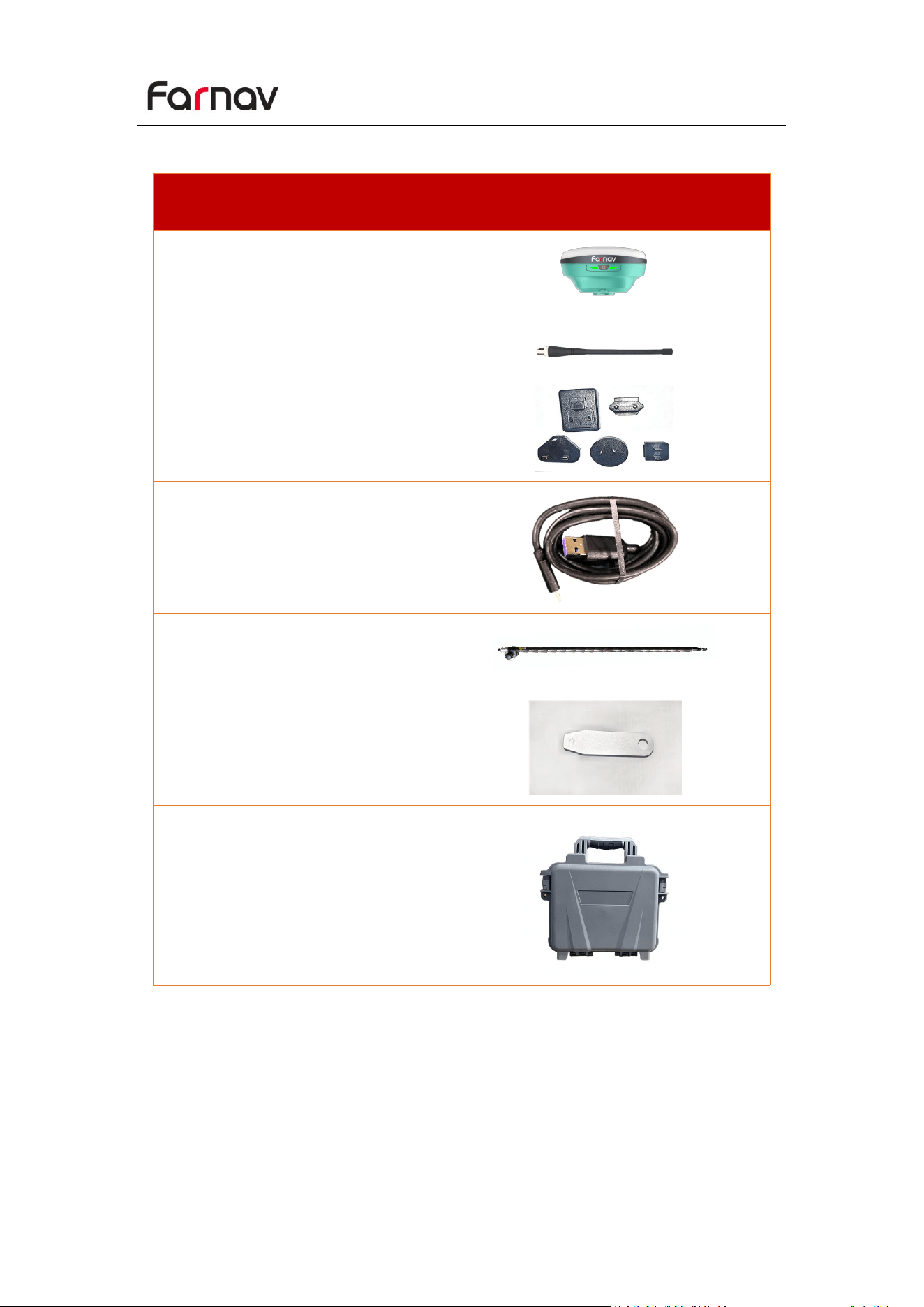
2.4 Product Basic Supply Accessories
2.4.1 Base Kit Basic Supply
Item
Picture
N30 GNSS Receiver
SMA Whip Antenna(410-470MHz)
Power Adapter
USB Type-C
H.I. Tape
Extension pole(30cm)
Tribrach with optical plummet
Auxiliary H.I. Tool
Transport Hard Case
Tribrach Adaptor
Farnav N30 GNSS USER GUIDE
| 2025-10 P a g e | 12
2.4.2 Rover Kit Basic Supply
Item
Picture
N30 GNSS Receiver
SMA Whip Antenna(410-470MHz)
Power Adapter
USB Type-C
Range Pole (AR)
Auxiliary H.I. Tool
Transport Hard Case
Farnav N30 GNSS USER GUIDE
| 2025-10 P a g e | 13
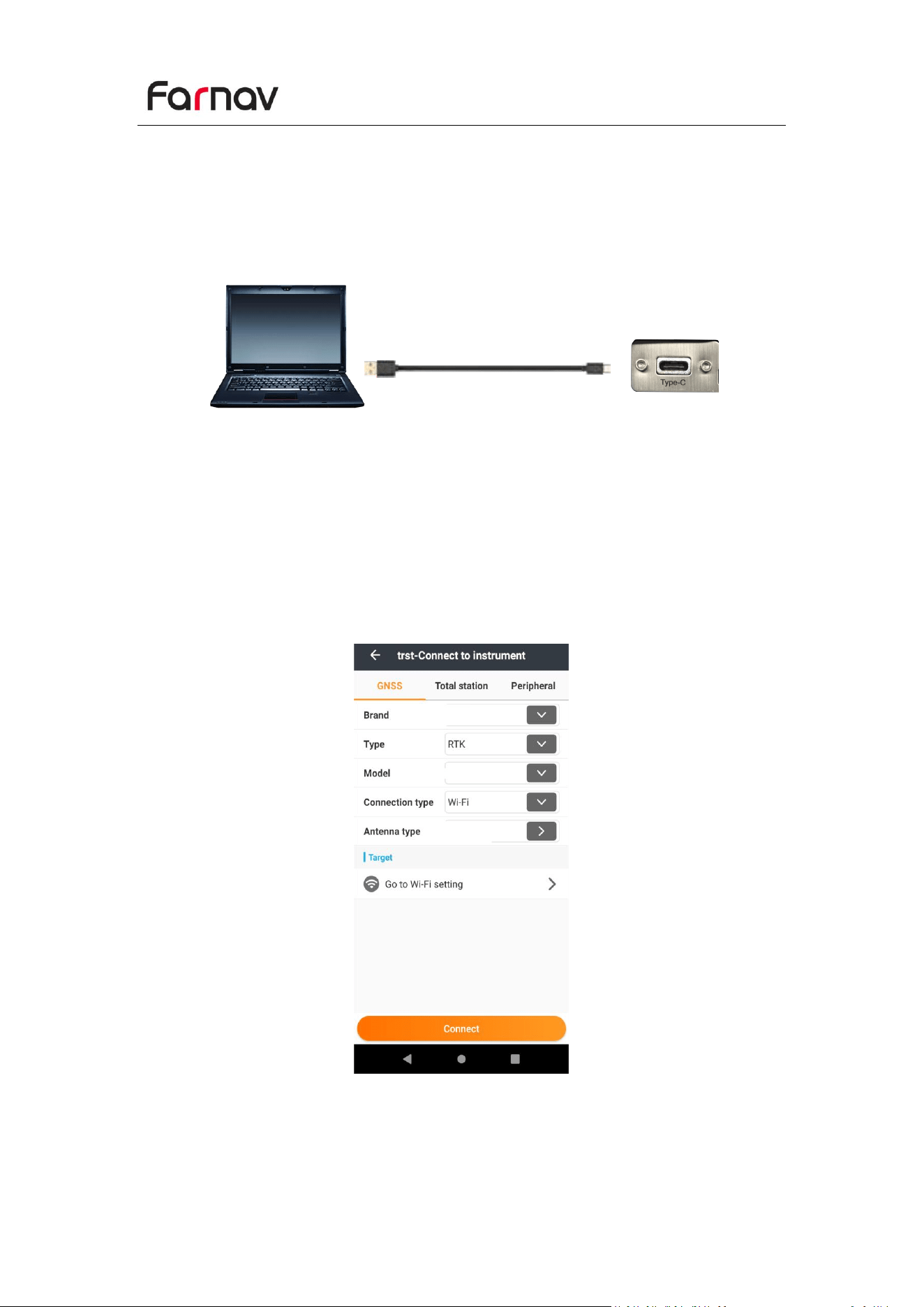
2.5 Connecting to an Office Computer
The receiver can be connected to an office computer via a USB Type-C. Before you
connect to the office computer, ensure that the receiver is powered on.
The following figure shows how to connect to the computer for serial data transfer or
settings:
2.6 Connecting to a Controller
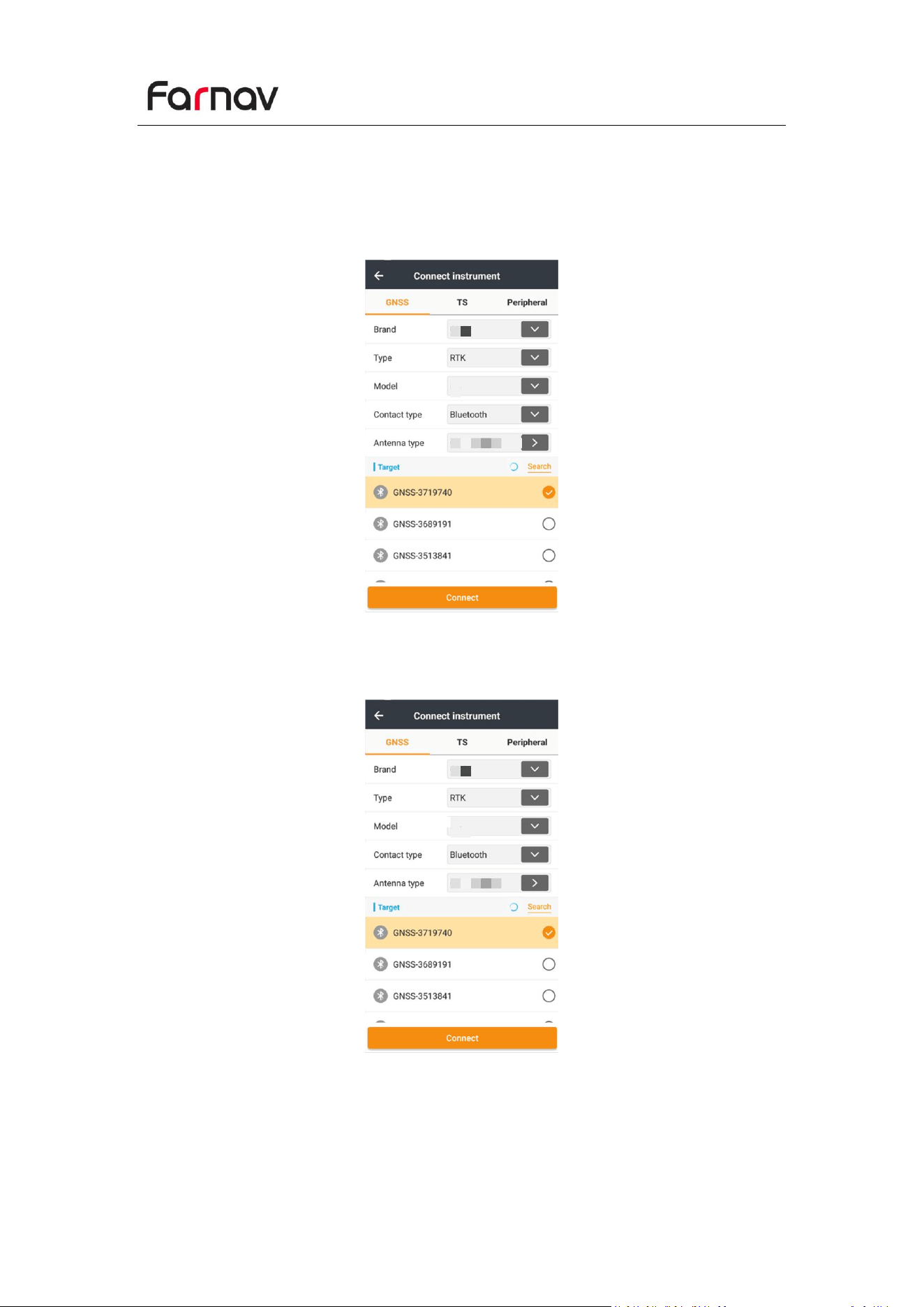
2.6.1 Connecting via Wi-Fi with Landstar Software
Turn on the controller → run Landstar→ tap Connect.
In the Connect screen, select Farnav for the Brand field, N30 for Device Type field,
WIFI for Connection Type field.
USB Type-C
Farnav N30 GNSS USER GUIDE
| 2025-10 P a g e | 14
Tap the Click to select WI-FI to select the hot spot → Switch on the WiFi module by
the top switch → select the target device in the WIFI target list
Tap the Connect button to build the connection.
Farnav N30 GNSS USER GUIDE
| 2025-10 P a g e | 15
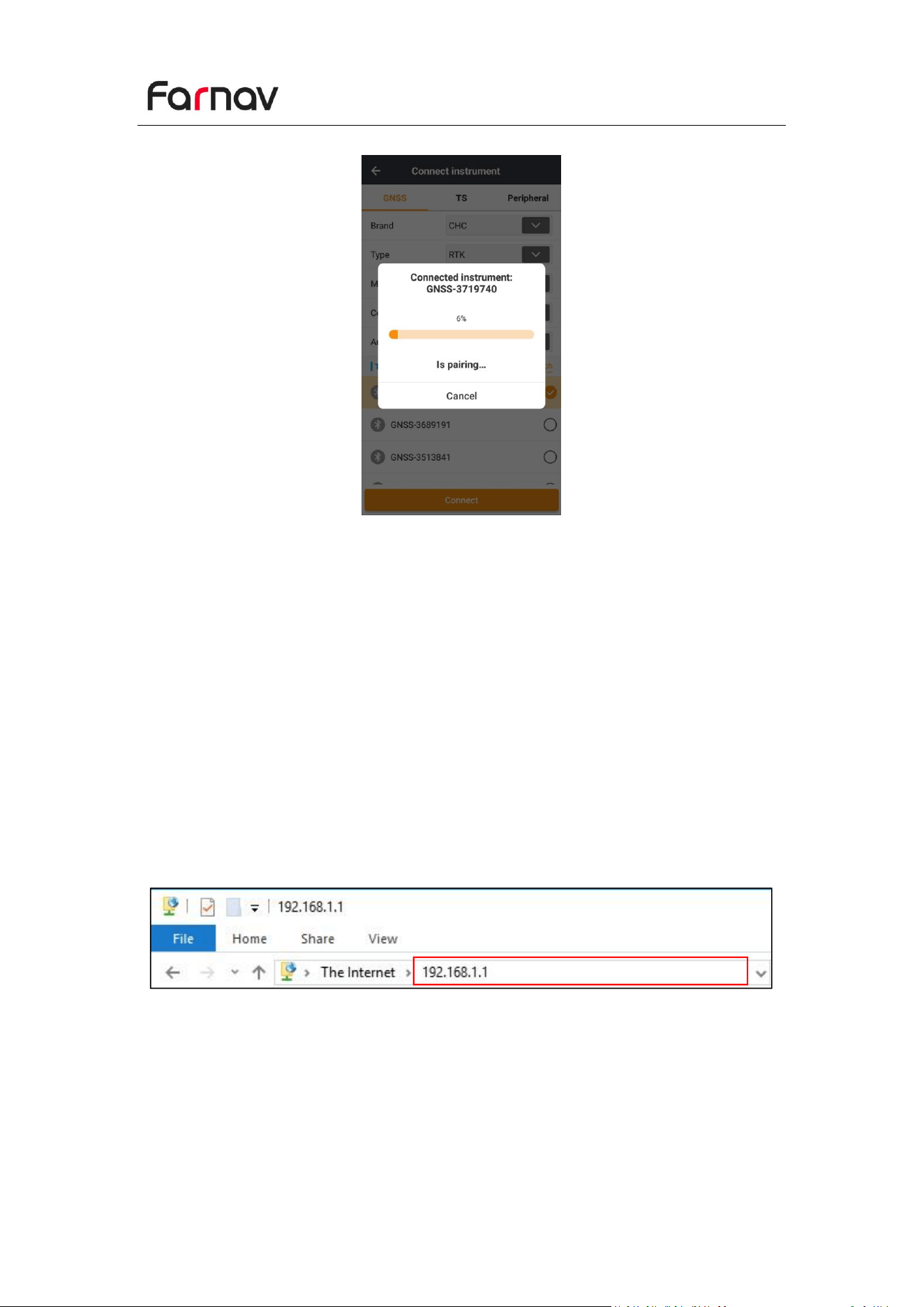
2.6.2 Connecting via Bluetooth with Landstar Software
Turn on the controller → run Landstar → go to Config main menu → tap Connect.
In the Connect screen, select Farnav for the Brand field, N30 for Device Type field,
Bluetooth for Connection Type field.
Tap the Search to search Bluetooth device around → Switch on the Bluetooth
module by the top switch → Tap Pair new device → select the target device in the list
→ Tap back button → select the target device in the Bluetooth target list.
Farnav N30 GNSS USER GUIDE
| 2025-10 P a g e | 16
Tap the Connect button to build the connection.
2.7 Downloading Logged Data
Data logging involves the collection of GNSS measurement data over a period at a
static point or points, and subsequent post-processing of the information to
accurately compute baseline information. Data logging using receivers requires
access to suitable GNSS post-processing software such as the eOffice Software.
2.7.1 FTP Download
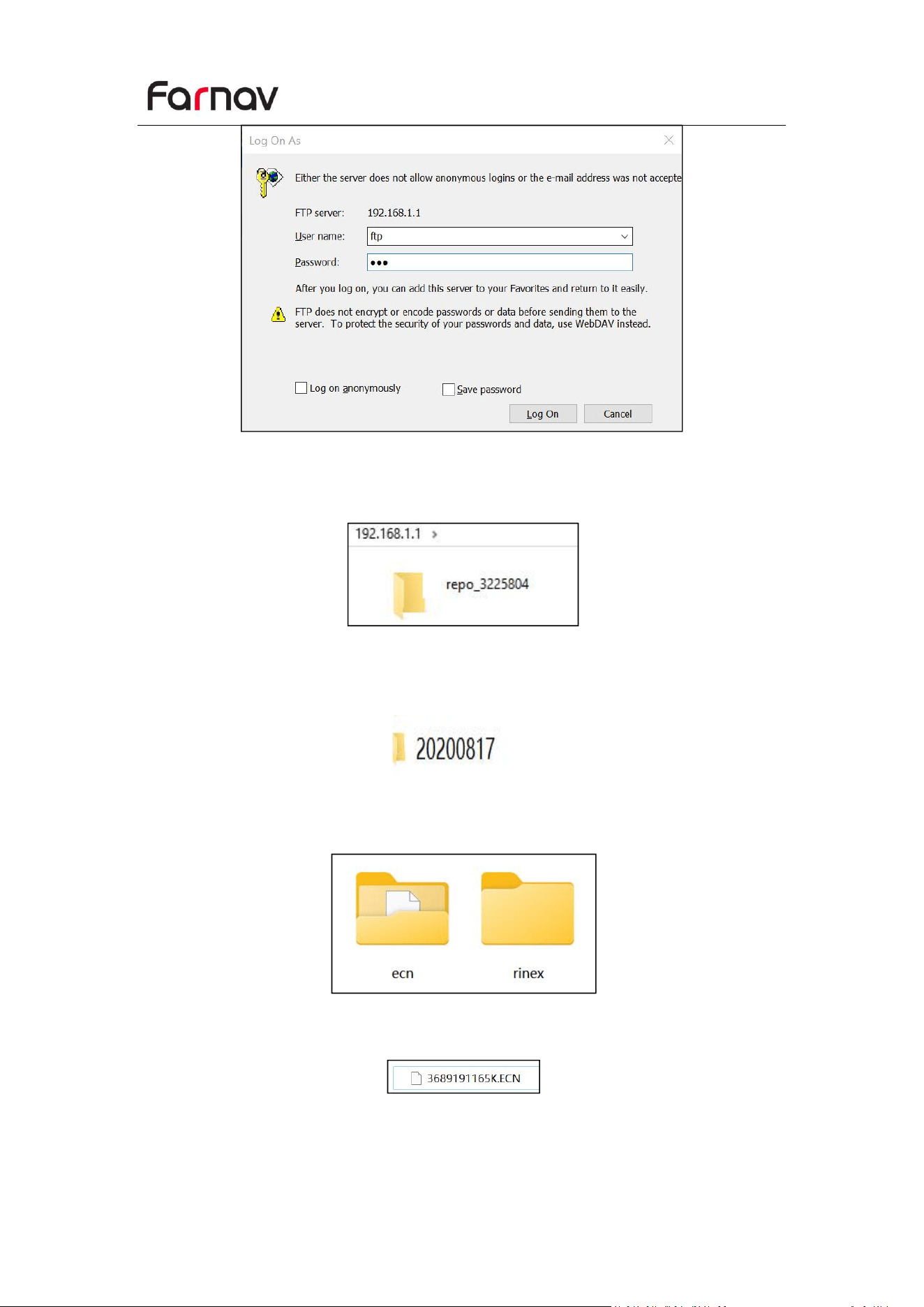
The procedures of downloading logged data through FTP are as follows:
(1) Switch on the receiver, search its Wi-Fi in the computer and connect.
(2) After the successful connection, open the file manager in the computer and input
“ftp://192.168.1.1” in the address box.
(3) Input user name and password, the default user name and password are “ftp”.
Farnav N30 GNSS USER GUIDE
| 2025-10 P a g e | 17
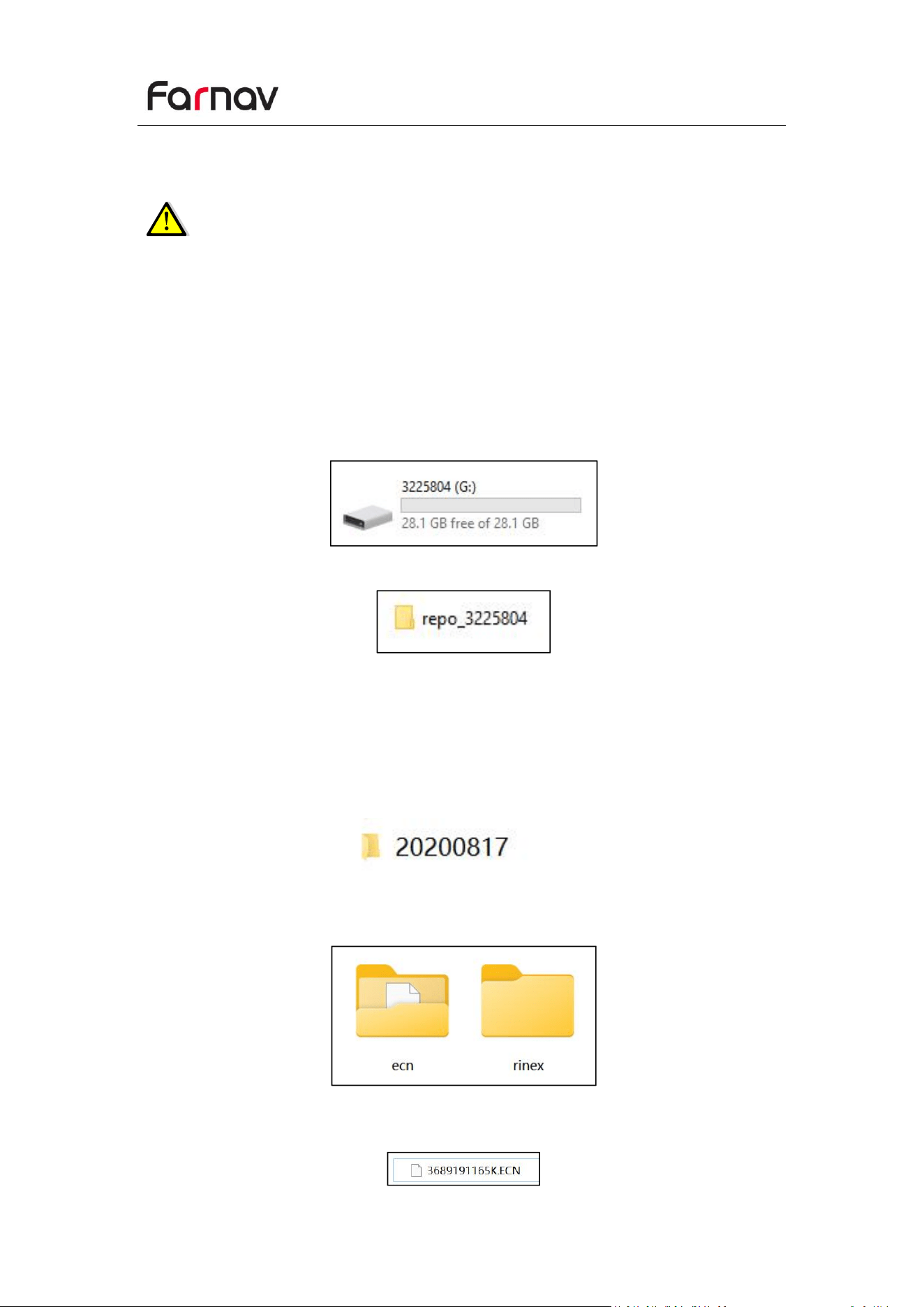
(4) Double click the folder “repo_receiver SN” (take 3225804 as example), you will
see 2 folders. The “push_log” folder is used to save the log files, and the "record_1"
folders are used for store static data.
(5) Double click the folder that you have configured to store the static data, you will
see the folder(s) created by the N30 system automatically and named by the date
which is decide by GPS time when you start to log data.
(6) Select the destination folder and double click it, two folders named as different
data format (ECN and rinex) will be displayed.
(7) Select the data format that you configured to save the static data, you will find
the static raw data.
Farnav N30 GNSS USER GUIDE
| 2025-10 P a g e | 18
Notes: For ecn files, the name of the file is represented as XXXXXXDDDNN, where
XXXXXX is the SN of the receiver, DDD is day of year, and NN is the recording session.
WARNING – The static data will be saved in the first logging session, the
“record_1” folder, by default. Old files will be deleted if the storage space is
full. If you configure not to auto delete old files when the memory is low,
the receiver will stop data logging.
2.7.2 USB Download
The procedures of downloading logged data in the receiver are as follows:
(1) Switch on the receiver and connect it with a computer by Type-C. After the
successful connection, a removable disk named as the Serial Number (SN) of the
receiver will appear on the computer.
(2) Double click the removable disk and you will see the folder named as “repo”.
(3) Double click the folder “repo_receiver SN”, you will see 2 folders. The “push_log”
folder is used to save the log files, and the "record_1" folders are used for store static
data.
(4) Double click the folder that you have configured to store the static data, you will
see the folder(s) created by the N30 system automatically and named by the date
which is decide by GPS time when you start to log data.
(5) Select the destination folder and double click it, and then two folders named as
different data format (ecn and rinex) will be displayed.
(6) Select the data format that you have configured to save the static data, you will
find the static raw data.
Farnav N30 GNSS USER GUIDE
| 2025-10 P a g e | 19
Tip – For ECN files, the name of the file is represented as XXXXXXDDDNN, where
XXXXXX is the SN of the receiver, DDD is day of year, and NN is the recording session.
WARNING – The static data will be saved in the first logging session, the
“record_1” folder, by default. Old files will be deleted if the storage space is
full. If you configure not to auto delete old files when the memory is low, the
receiver will stop data logging.
Farnav N30 GNSS USER GUIDE
| 2025-10 P a g e | 20
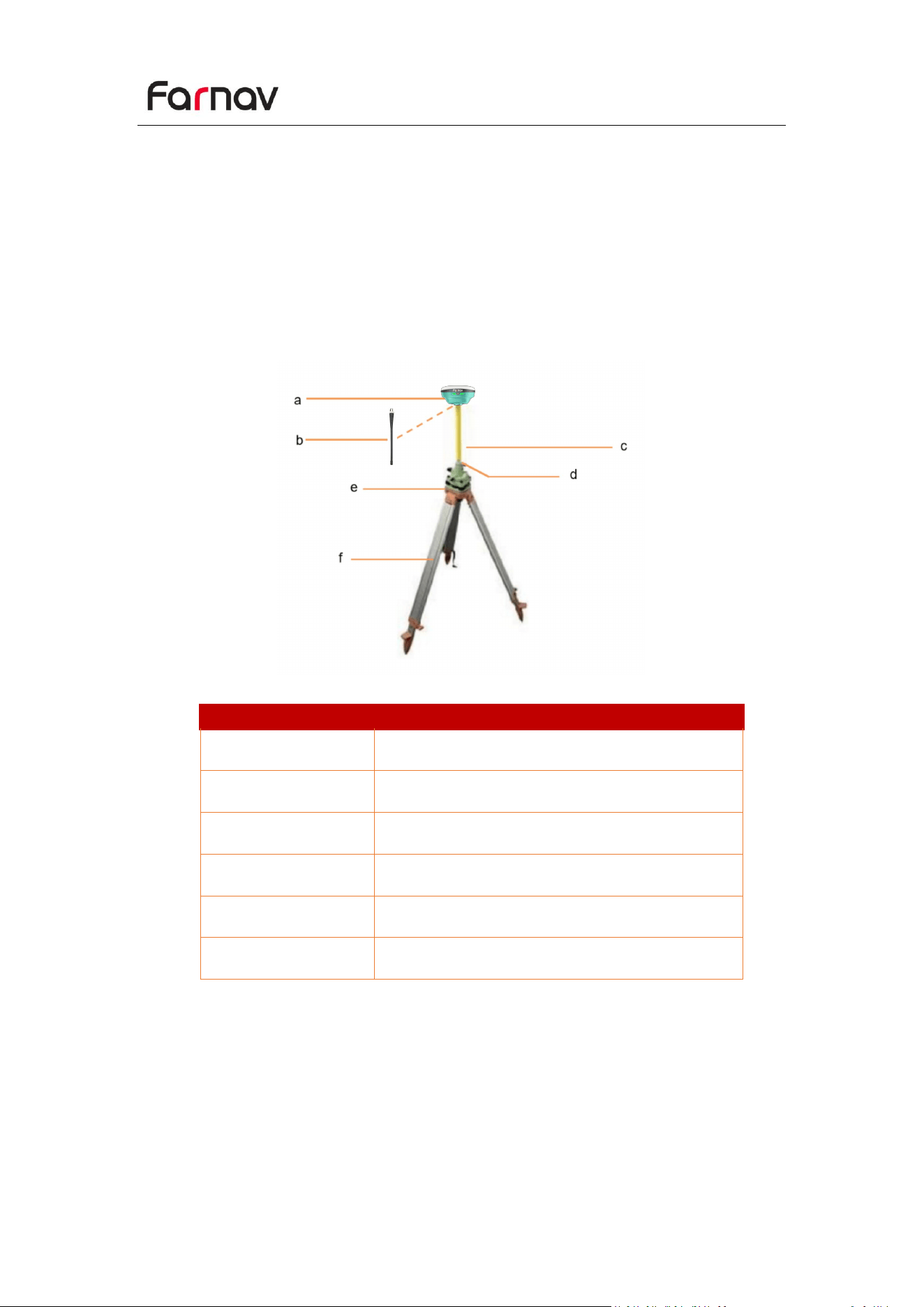
No. Name
3 Equipment Setup and Operation
3.1 Base Station Setup
For good rover operation, the following base station setup guidelines are
recommended:
Components:
a
N30 GNSS receiver
b
SMA Whip Antenna
c
Extension pole (30 cm)
d
Tribrach adaptor
e
Tribrach w/ Opti
f
Aluminum tripod
Farnav N30 GNSS USER GUIDE
| 2025-10 P a g e | 21
Steps:
(1)Put tripod in the target position, center and level it roughly.
(2)Place and lock the tribrach in the tripod.
If work as a UHF base station, the SMA Whip Antenna need to be connected to the
receiver.
(3)Connect the receiver to external battery by using external power cable if
necessary.
(4)Connect the receiver to external storage disk by using USB cable if necessary.
(5)Turn on the receiver by pressing the power button for 3 s.
(6)Measure the antenna height by using H.I. tape and auxiliary H.I. tool.
(7)Switch on the data controller and connect it to the receiver.
(8)Use software to configure the receiver as UHF base mode.
3.2 Rover Station Setup
For good performance, the following rover station setup guidelines are
recommended:
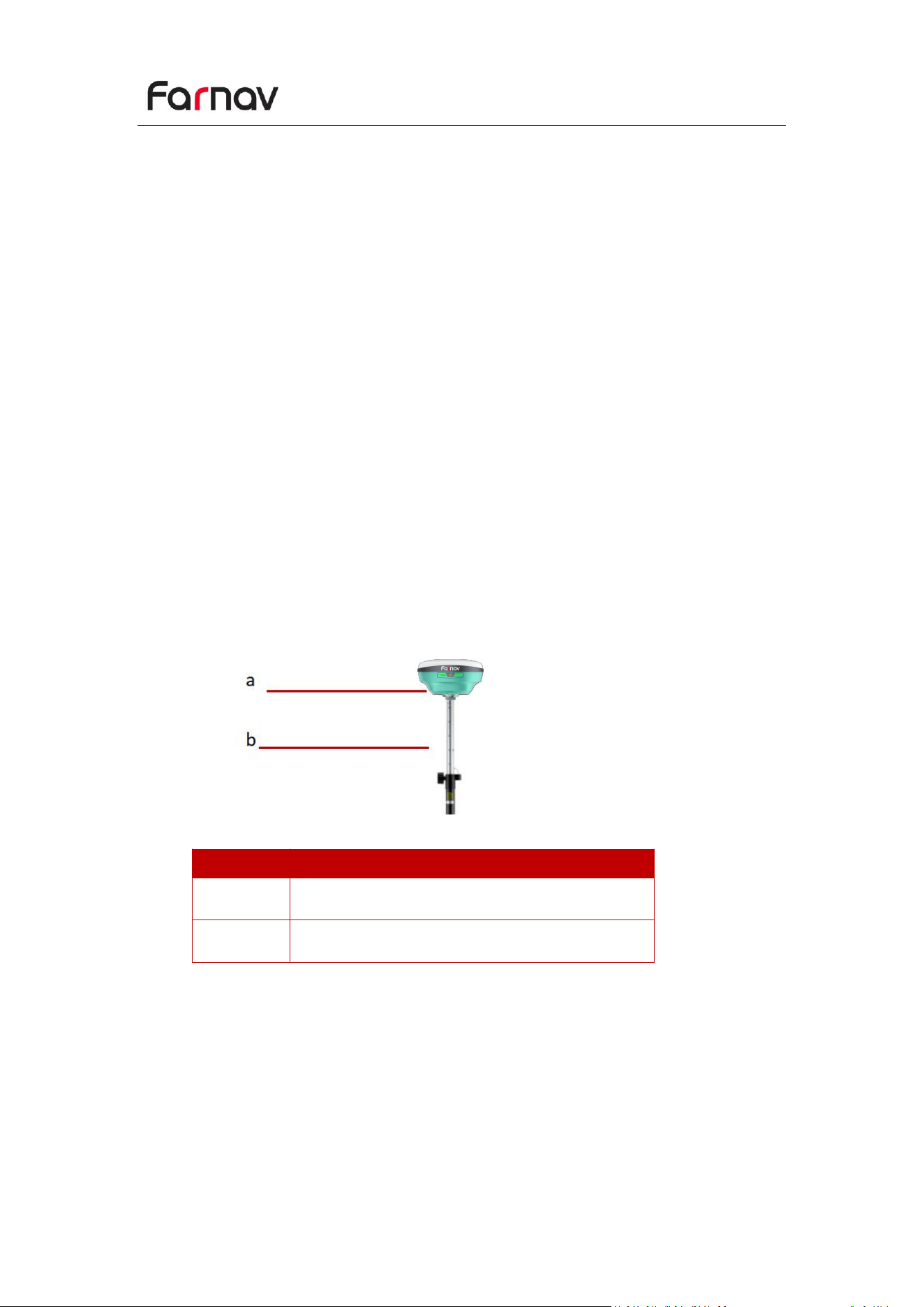
Components
Notice: Keep the receiver fully charged.
If work as a UHF rover station, the SMA Whip Antenna need to be connected to the
receiver.
(1)Turn on the receiver by pressing the power button for 3 s.
(2)Switch on the data controller and connect it to the receiver.
(3)Use software to configure the receiver as cellular rover or UHF rover mode.
(4)Use software to start survey.
No.
Name
a
N30 GNSS receiver
b
2M range pole w/bag
Farnav N30 GNSS USER GUIDE
| 2025-10 P a g e | 22
3.3 Working with the Tilt Compensation
N30 use 200 Hz AUTO-IMU, automatic pole tilt compensation for automatic inertial
navigation initialization, and the user do not need to calibrate it manually any more.
After enable the tilt survey, the N30 IMU can be ready after a few steps walk or a bit
movement automatically.
3.3.1 Operation Steps
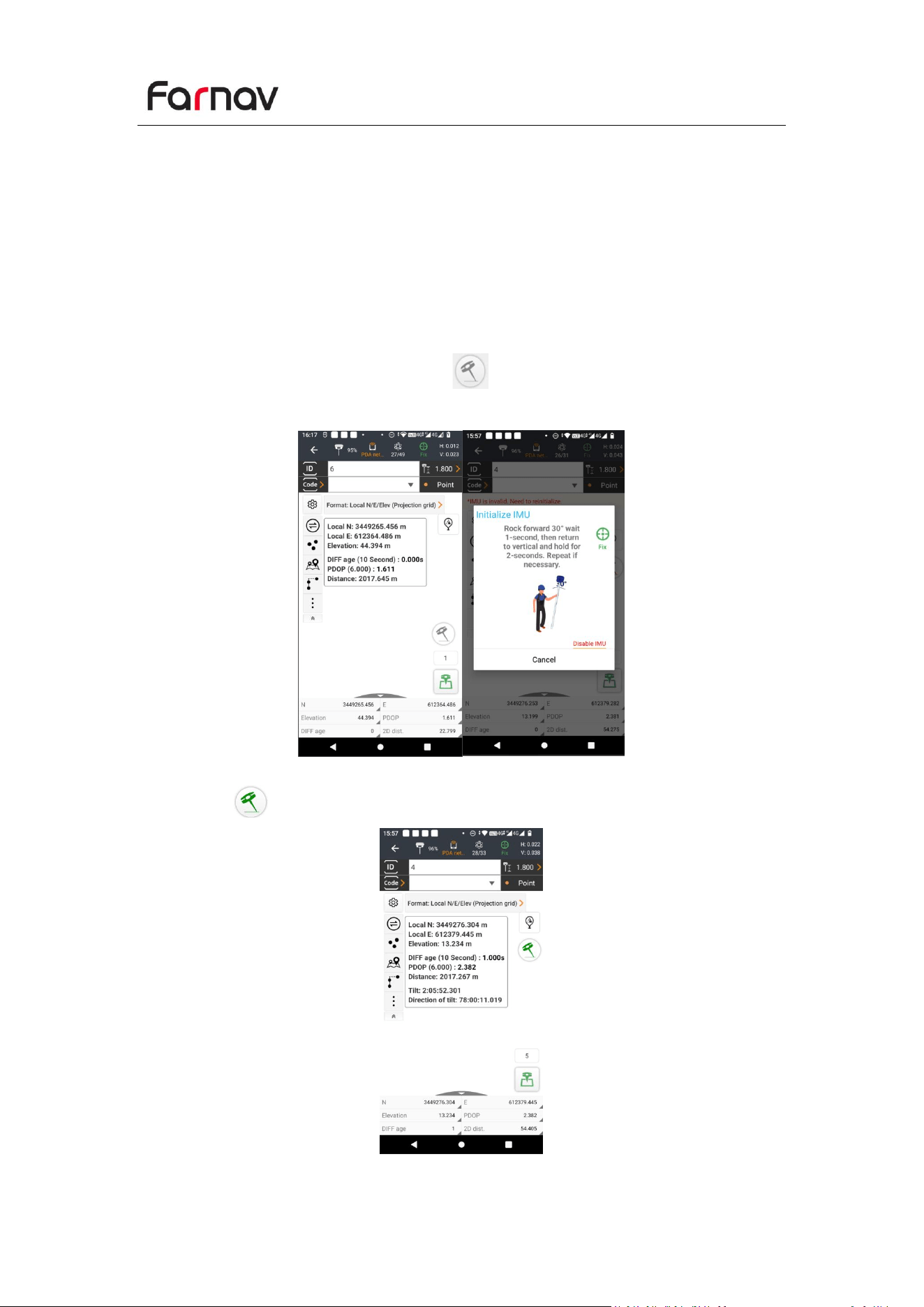
(1) Open Landstar-> Tap PT Survey-> Tap to activate tilt measurement.
(2) Shake around according to the procedures in the interface to do initialization.
(3) This icon will appear when the initialization is successful.
Farnav N30 GNSS USER GUIDE
| 2025-10 P a g e | 23
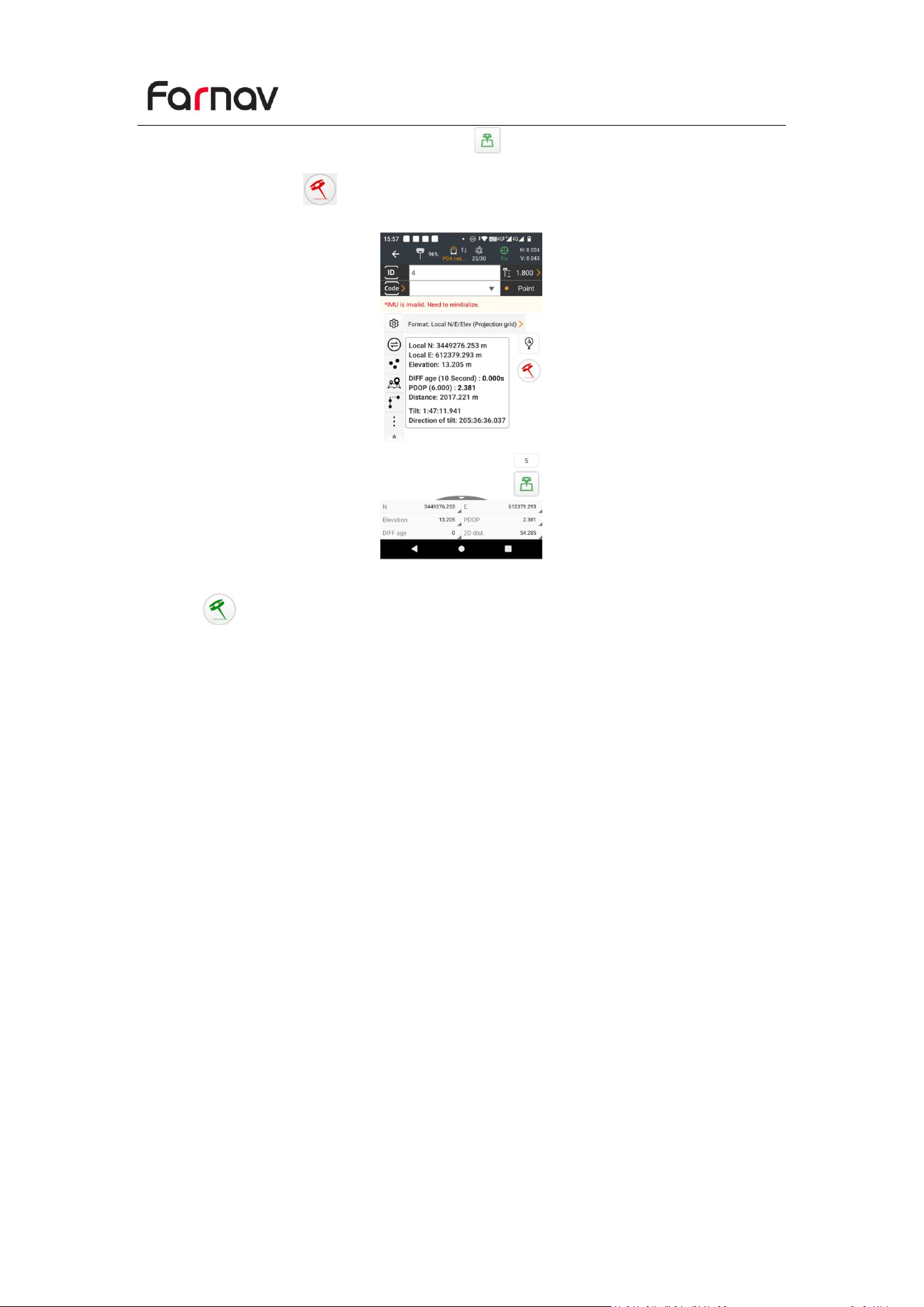
(4) Enter the Name and Antenna, then tap point will be collected and store to
Points automatically.
(5) When this icon appears, the text will show “*IMU is invalid. Need to
reinitialize it.” at the top of interface.
(6) Tap to close tilt compensation.
3.3.2 Notes of using tilt measurement
1. At the beginning of initialization, the pole height of the instrument should be the
same as that antenna height in the software.
2. In the process of tilt measurement, if the controller shows that “Tilt is not
available, please measure in alignment” (red), please shake RTK slightly from left to
right or back to front until the reminder disappears.
3. The controller will prompt “Tilt is not available, please measure in alignment”
when the receiver is stationary over 30 seconds or the pole hit the ground toughly.
4. The pole cannot be shaken when point is collected.
5. Initialization is required:
when the RTK is turned on every time;
when IMU module is turned on every time;
when receiver drops at working;
when the pole is tilted more than 65 degree;
when the receiver is stationary more than 10 minutes;
when the RTK rotates too fast on the matching pole (2 rounds per second);
when the pole hit the ground toughly.
Farnav N30 GNSS USER GUIDE
| 2025-10 P a g e | 24
3.4
Stakeout functions
3.4.1 Point stakeout
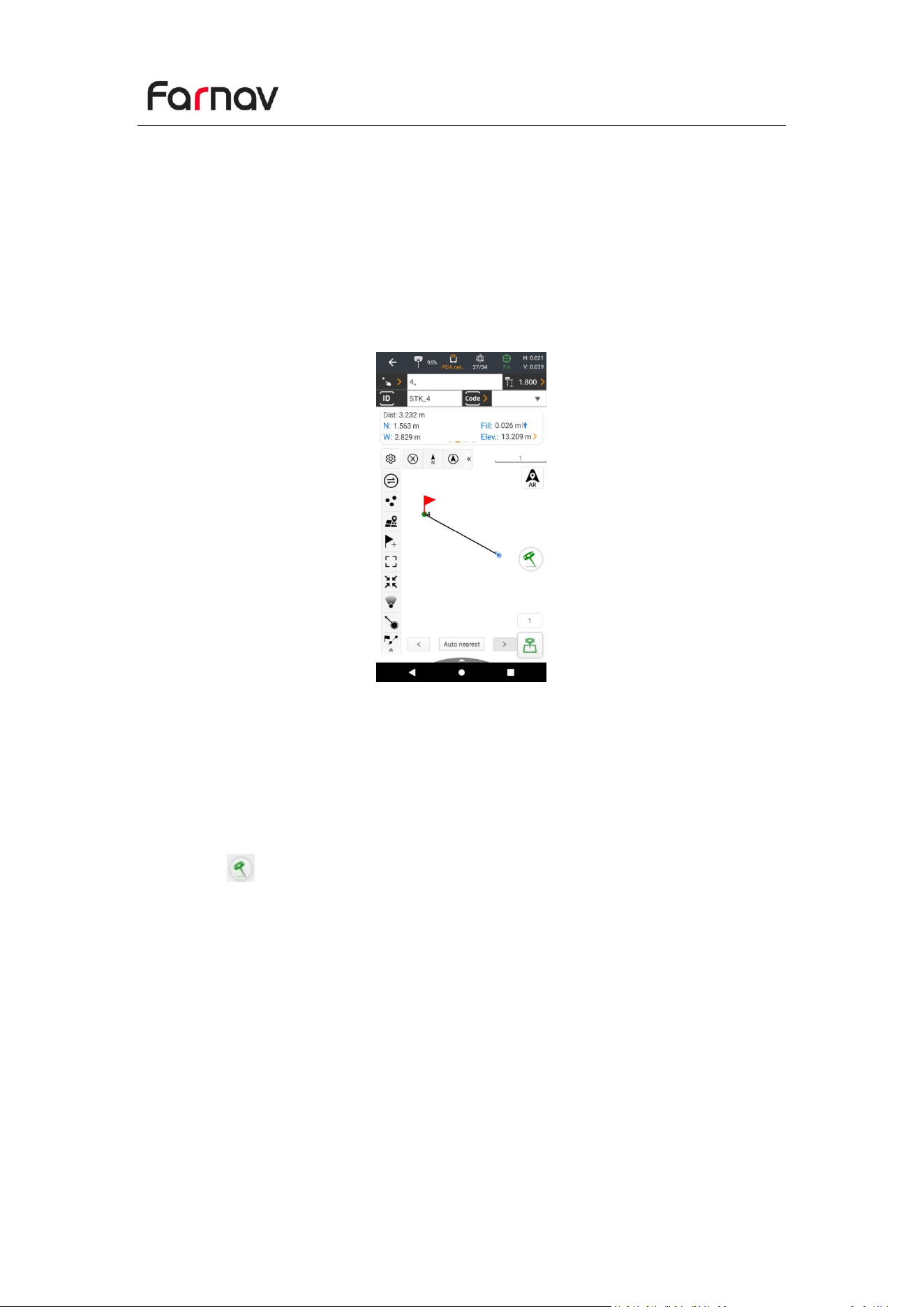
(1) Open the Point Stakeout interface, tap the point-selection icon in the upper-left
corner to enter the Point Management screen, choose the point you want to stake
out, then tap OK in the lower-right corner. The selected point will appear in the
stakeout interface; simply follow the displayed direction and distance to perform the
stakeout.
3.4.2 AR stakeout
For point stakeout, ensure IMU is initialized. Select the point, tap the “AR” icon on
the right, then follow the on-screen direction and distance
(1) Open Point Stakeout, enter the pole height, and tap the Tilt icon to enable tilt
compensation. Follow the on-screen prompts to initialize; when successful, the icon
turns green .
Farnav N30 GNSS USER GUIDE
| 2025-10 P a g e | 25
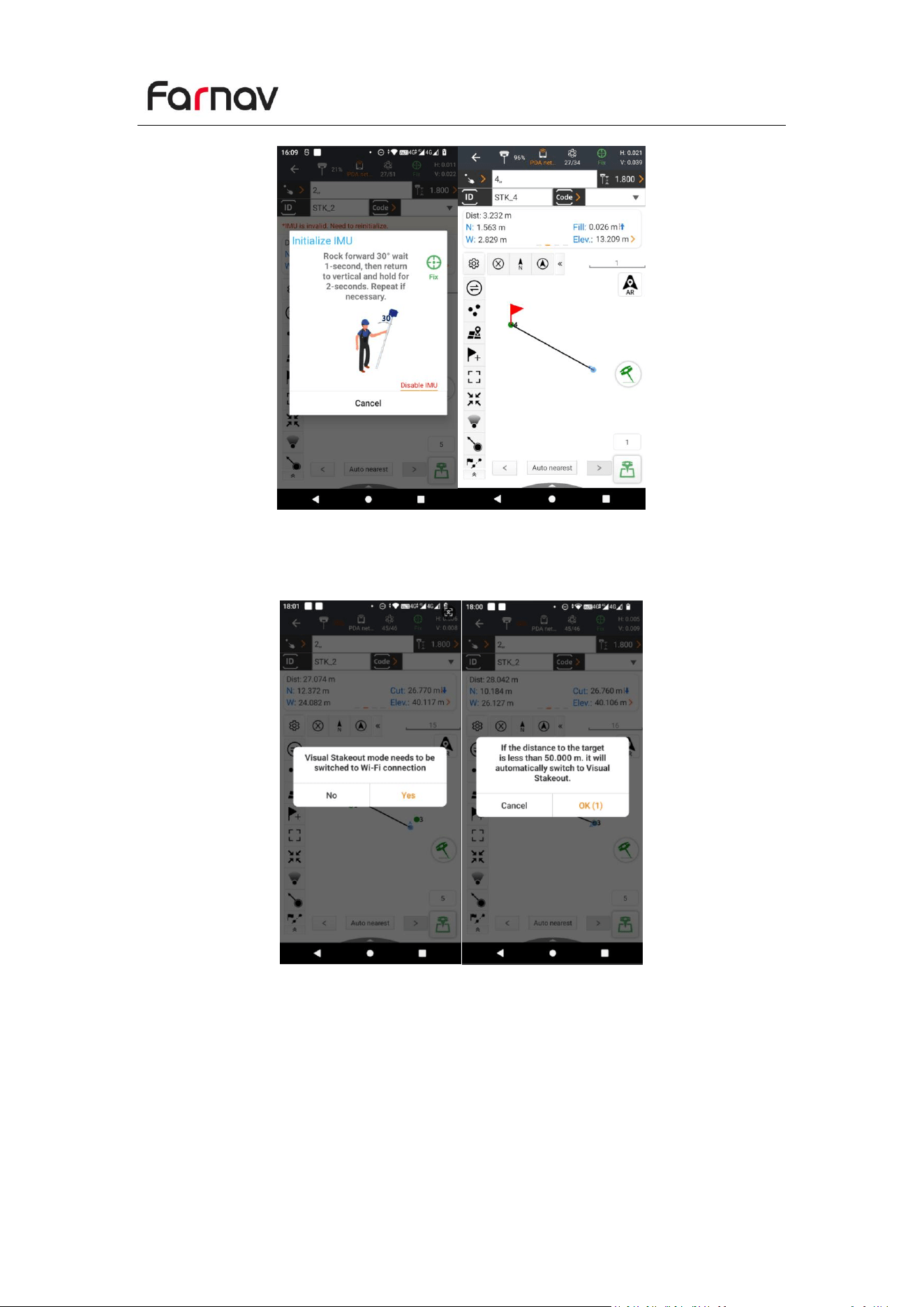
(2) Tap the AR icon to start AR stakeout.
If the controller is connected via Bluetooth, a prompt will appear: “Vision mode
requires Wi-Fi.” Tap OK, switch to Wi-Fi in the connection screen, and reconnect.
(3) In Vision Settings, we can adjust the switch distance: the front camera is used
from 50 m to 3 m, and the bottom camera takes over within 3 m.
Farnav N30 GNSS USER GUIDE
| 2025-10 P a g e | 26
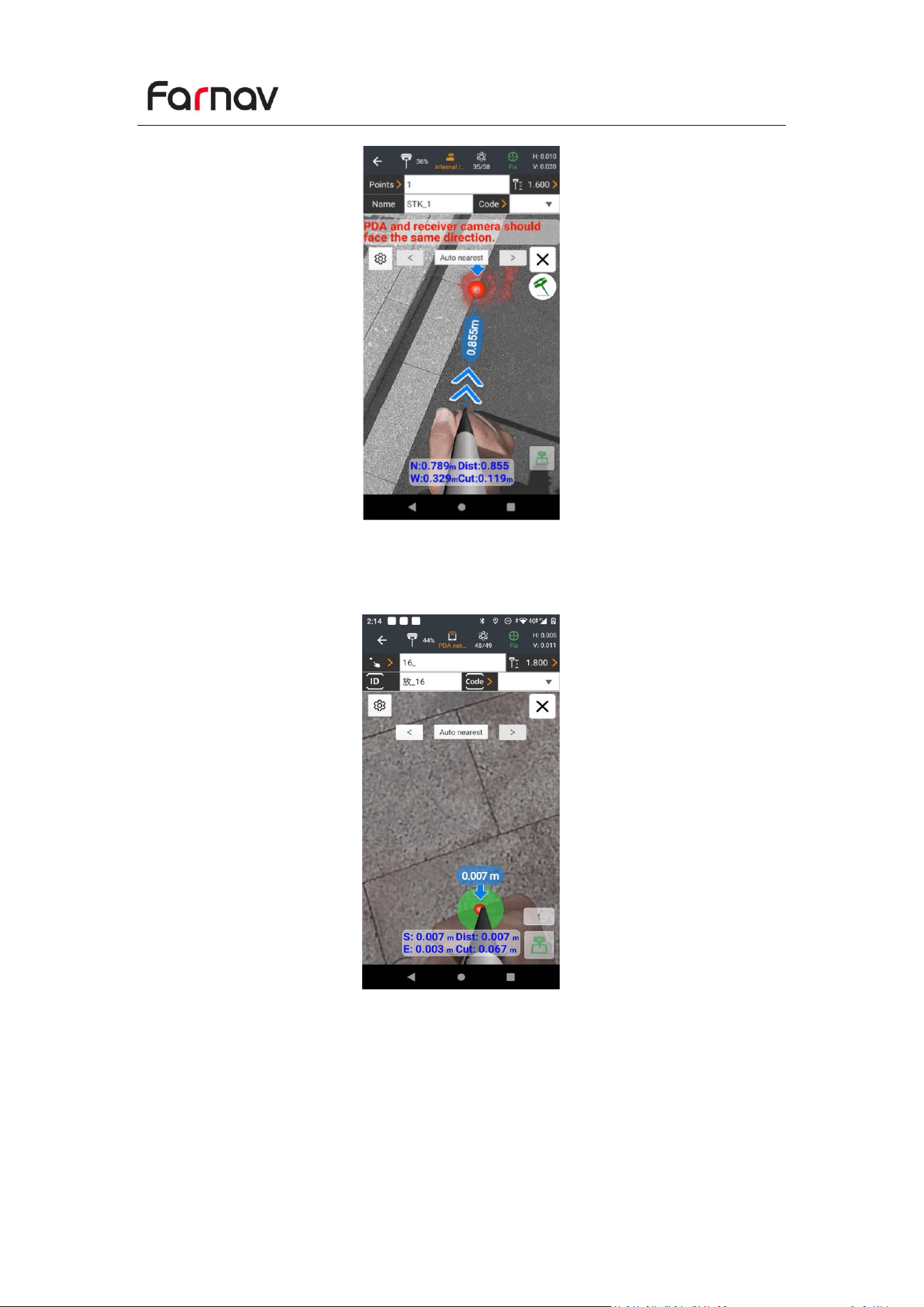
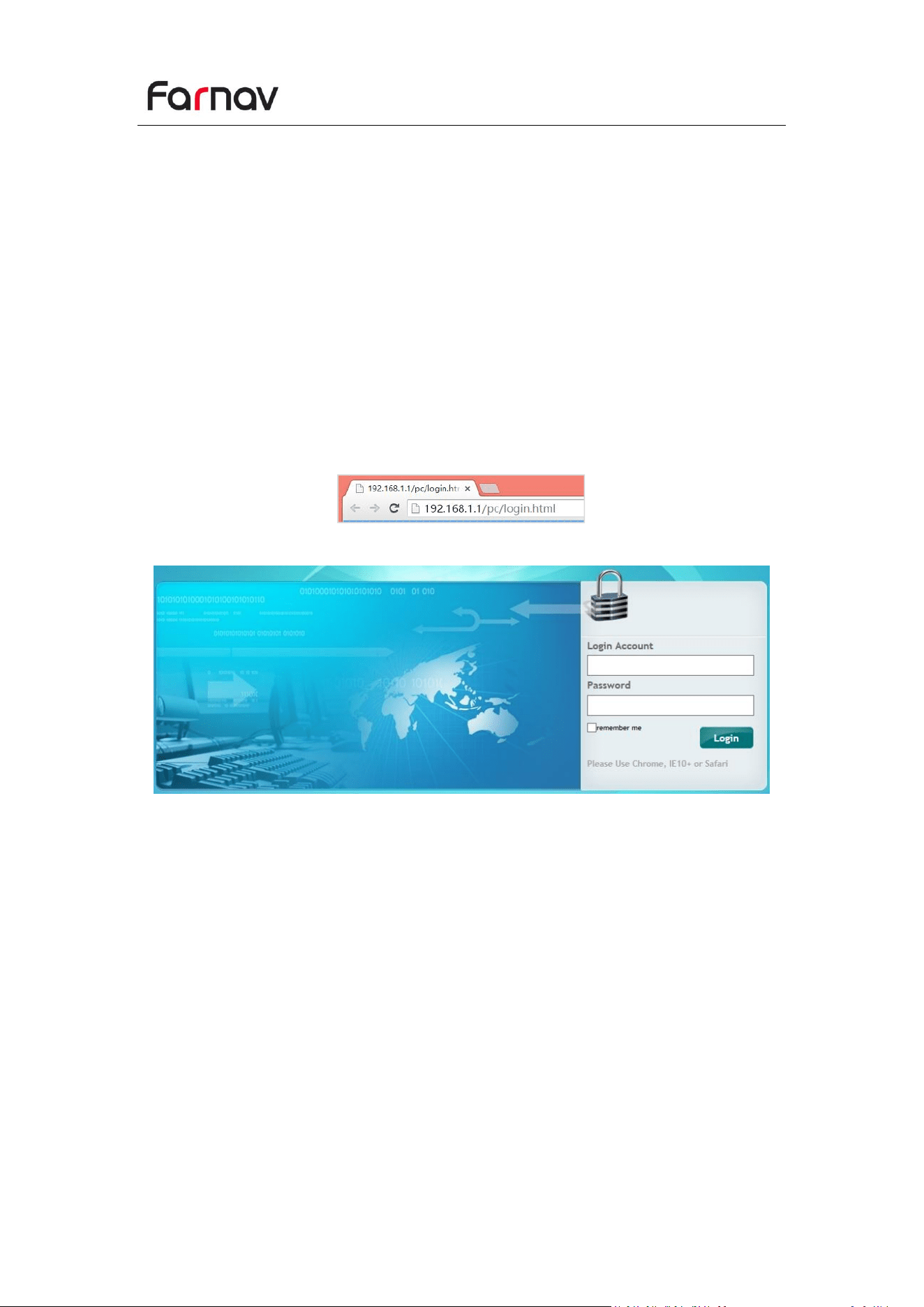
(4) In the video, the target stakeout point appears as a red dot. When the virtual
pole tip touches the dot, you’ve reached the point. Tap the stakeout icon and the
point is automatically saved.
Note:
When the stakeout target point has a height, it is necessary to input the height of the
target point as 0 or the actual height.
PDA and receiver camera should face the same direction.

Farnav N30 GNSS USER GUIDE
| 2025-10 P a g e | 27
3.4.3 Notes of using Vision Camera
1. At the beginning of initialization, the pole height of the instrument should be the
same as that antenna height in the software.
2. In the process of tilt measurement, if the controller shows that “Tilt is not
available, please measure in alignment” (red), please shake RTK slightly from left to
right or back to front until the reminder disappears.
3. The controller will prompt “Tilt is not available, please measure in alignment”
when the receiver is stationary over 30 seconds or the pole hit the ground toughly.
4. The pole cannot be shaken when point is collected.
5. Initialization is required:
when the RTK is turned on every time;
when IMU module is turned on every time;
when receiver drops at working;
when the pole is tilted more than 65 degree;
when the receiver is stationary more than 10 minutes;
when the RTK rotates too fast on the matching pole (2 rounds per second);
when the pole hit the ground toughly.
Farnav N30 GNSS USER GUIDE
| 2025-10 P a g e | 28
4 Configuring Through a Web Browser
Supported browsers:
Google Chrome
Microsoft Internet Explorer version 10, or higher
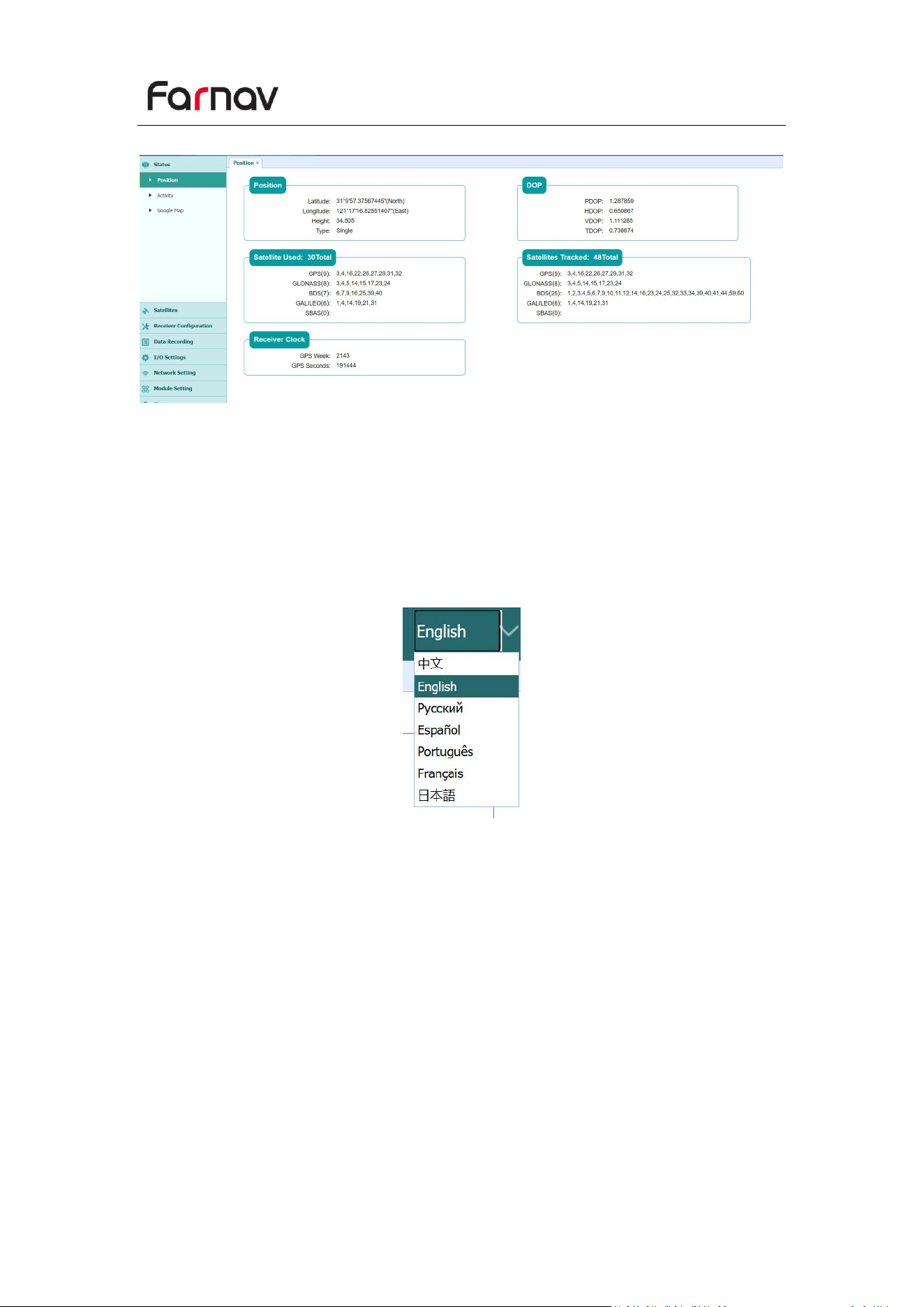
To connect to the receiver through a web browser:
1. Turn on the Wi-Fi of the receiver.
2. Search the wireless network named as GNSS-XXXXXXX (the SN of your receiver) on
your computer, and then establish the connection.
3. After the successful connection between your computer and the receiver, enter
the IP address (192.168.1.1) of the receiver into the address bar of the web
browser on your computer:
4. The web browser prompts you to enter a login account and password:
The default login account for the receiver is:
Login Account: admin
Password: password
Note – Tick remember me option, and then the browser will remember the Login
Account and Password you entered.
Farnav N30 GNSS USER GUIDE
| 2025-10 P a g e | 29
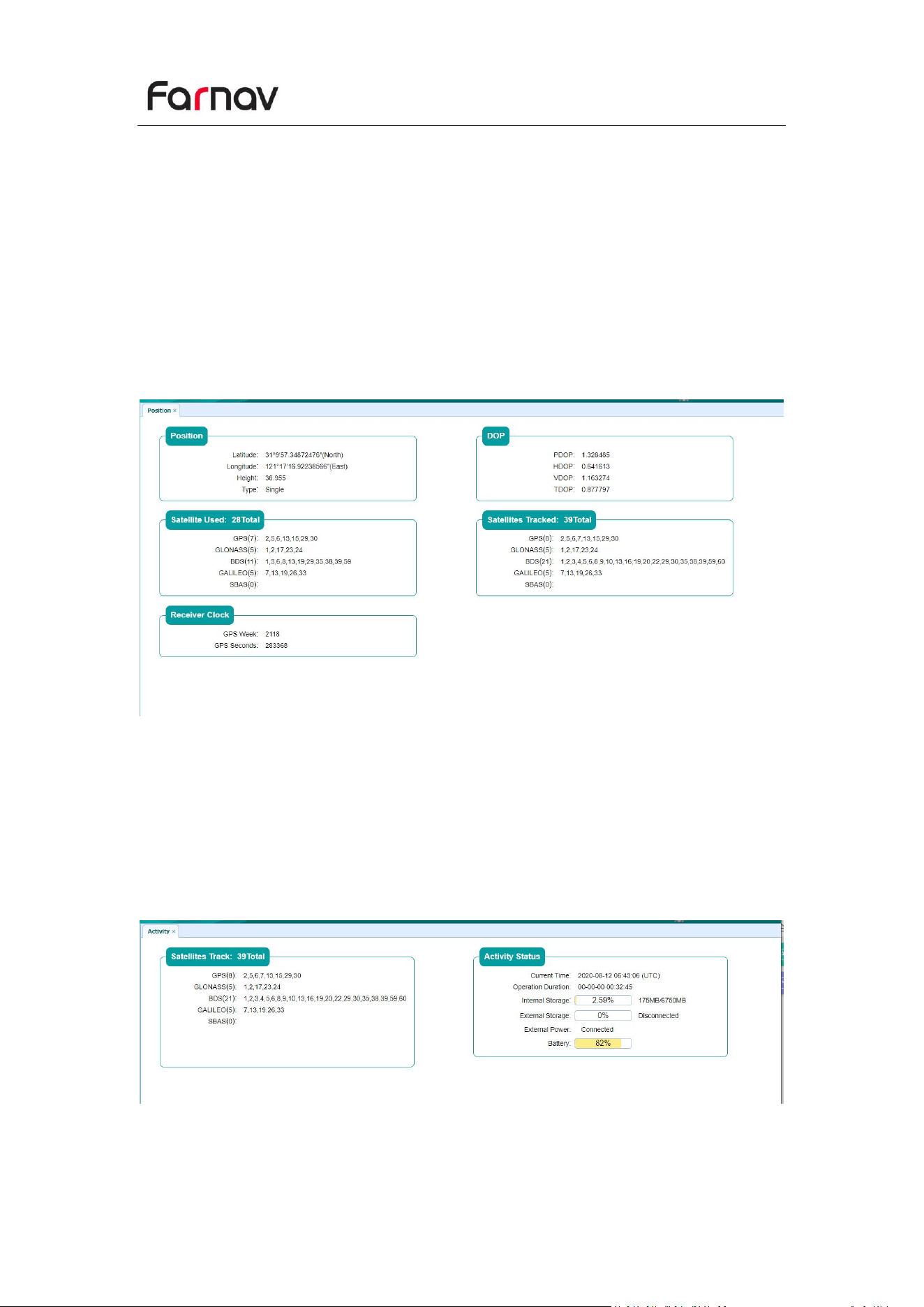
5. Once you log in, the web page appears as follows:
This web page shows the configuration menus on the left of the browser window,
and the setting on the right. Each configuration menu contains the related Submenus
to configure the receiver and monitor receiver performance.
This chapter describes each configuration menu.
To view the web page in another language, select the corresponding language name
from the dropdown list on the upper right corner of the web page.
Currently, these languages are available:
Farnav N30 GNSS USER GUIDE
| 2025-10 P a g e | 30
4.1 Status Menu
This menu provides a quick link to review the receiver's position information,
satellites tracked, runtime, current data log status, current outputs, available memory,
and more.
4.1.1 Position Submenu
This page shows the relevant position information about the receiver's position
solution which including the position, DOP values, satellites used and tracked, and
the receiver clock information.
4.1.2 Activity Submenu
Lists several important items to help you understand how the receiver is being used
and its current operating condition. Items include the identities of currently tracked
satellites, internal and external storage usage rate, how long the receiver has been
operational, state of the internal battery, power source state. With this information,
it is easy to tell exactly what functions the receiver is performing:
Farnav N30 GNSS USER GUIDE
| 2025-10 P a g e | 31
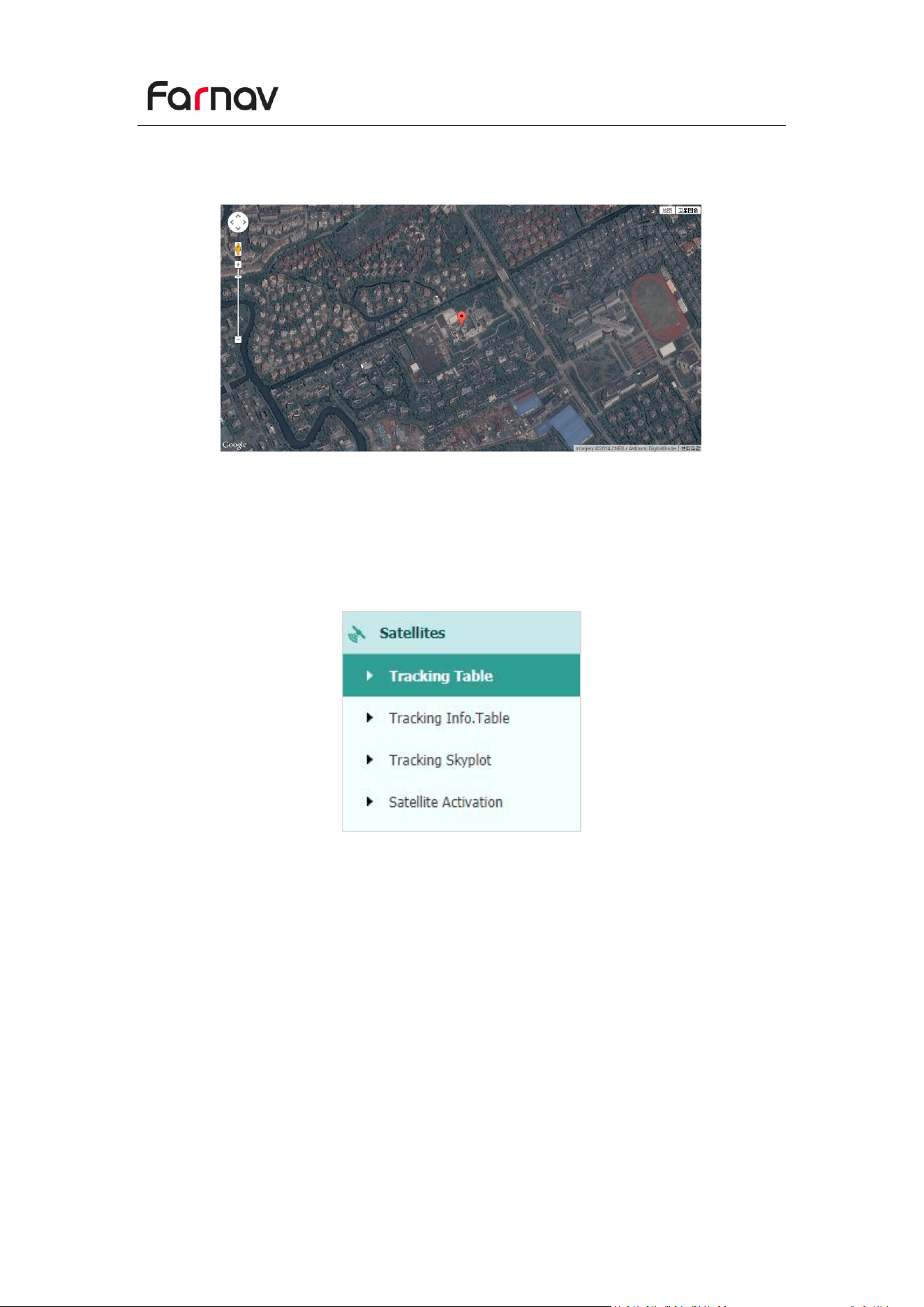
4.1.3 Google Map Submenu
Tap this submenu to show the location of the receiver on Google map.
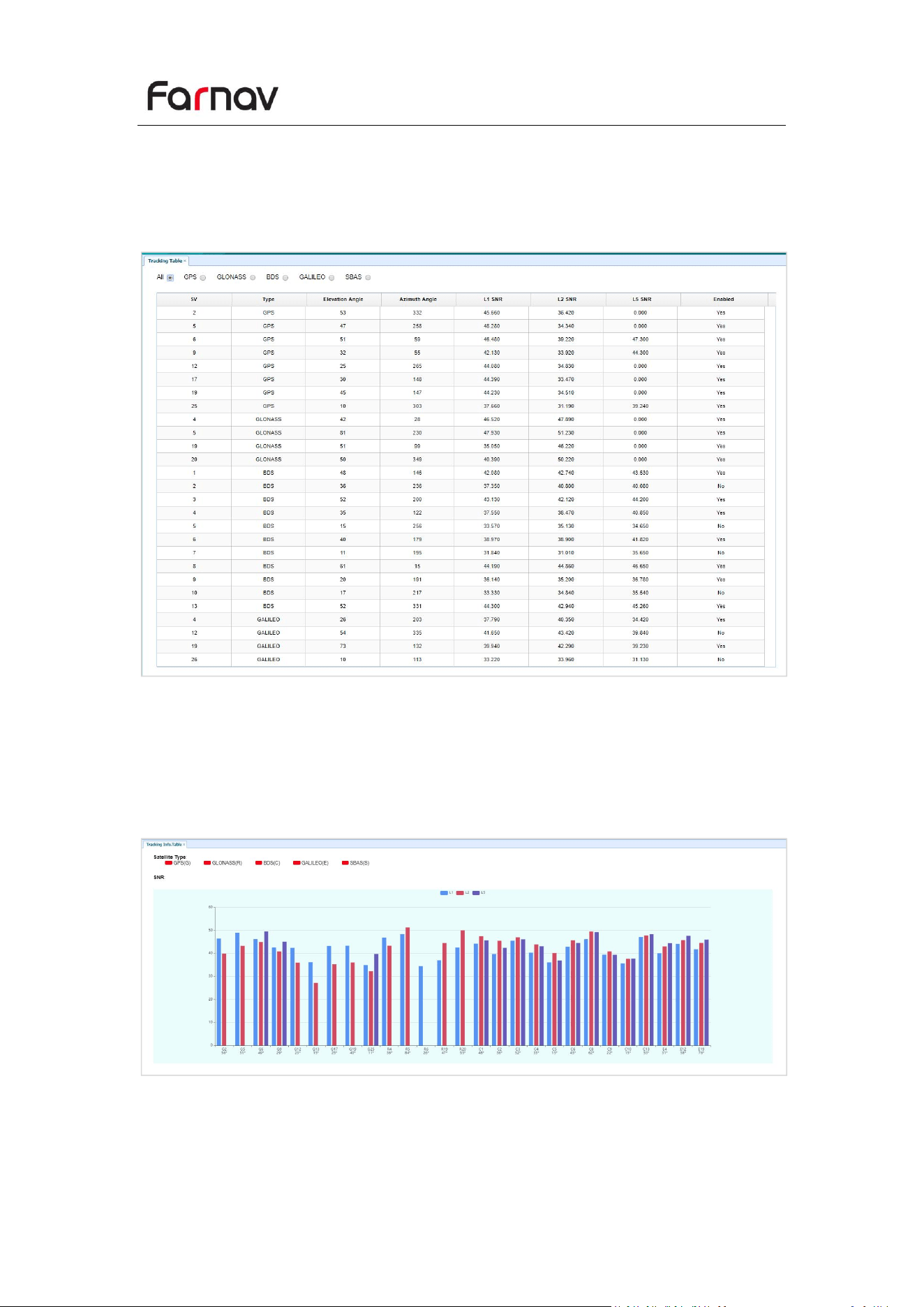
4.2 Satellites Menu
Use the Satellites menu to view satellite tracking details and enable/disable GPS,
GLONASS, BDS and Galileo constellations. These menus include tabular and graphical
displays to provide all required information on satellite tracking status.
Farnav N30 GNSS USER GUIDE
| 2025-10 P a g e | 32
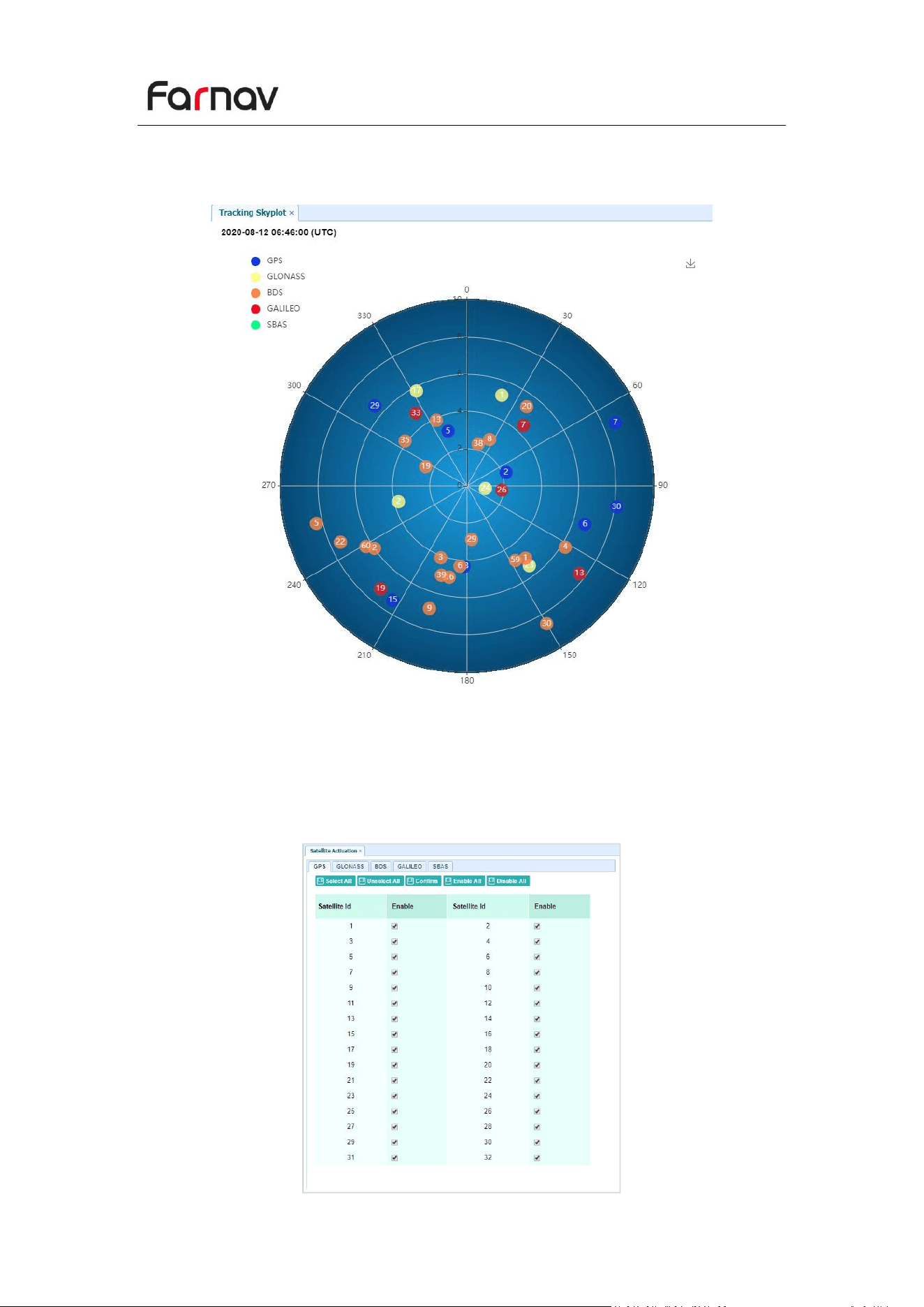
4.2.1 Tracking Table Submenu
Provides the status of satellites tracked in general, such as the satellite ID, satellite
type, attitude angle, azimuth angle, L1 SNR, L2 SNR, L5 SNR and enable/disable
status of each one.
4.2.2 Tracking Info. Table Submenu
The following figure is an example of satellite track diagram page. Users can
determine the satellite types and the corresponding SNR of L-band carriers to be
displayed in any combination.
Farnav N30 GNSS USER GUIDE
| 2025-10 P a g e | 33
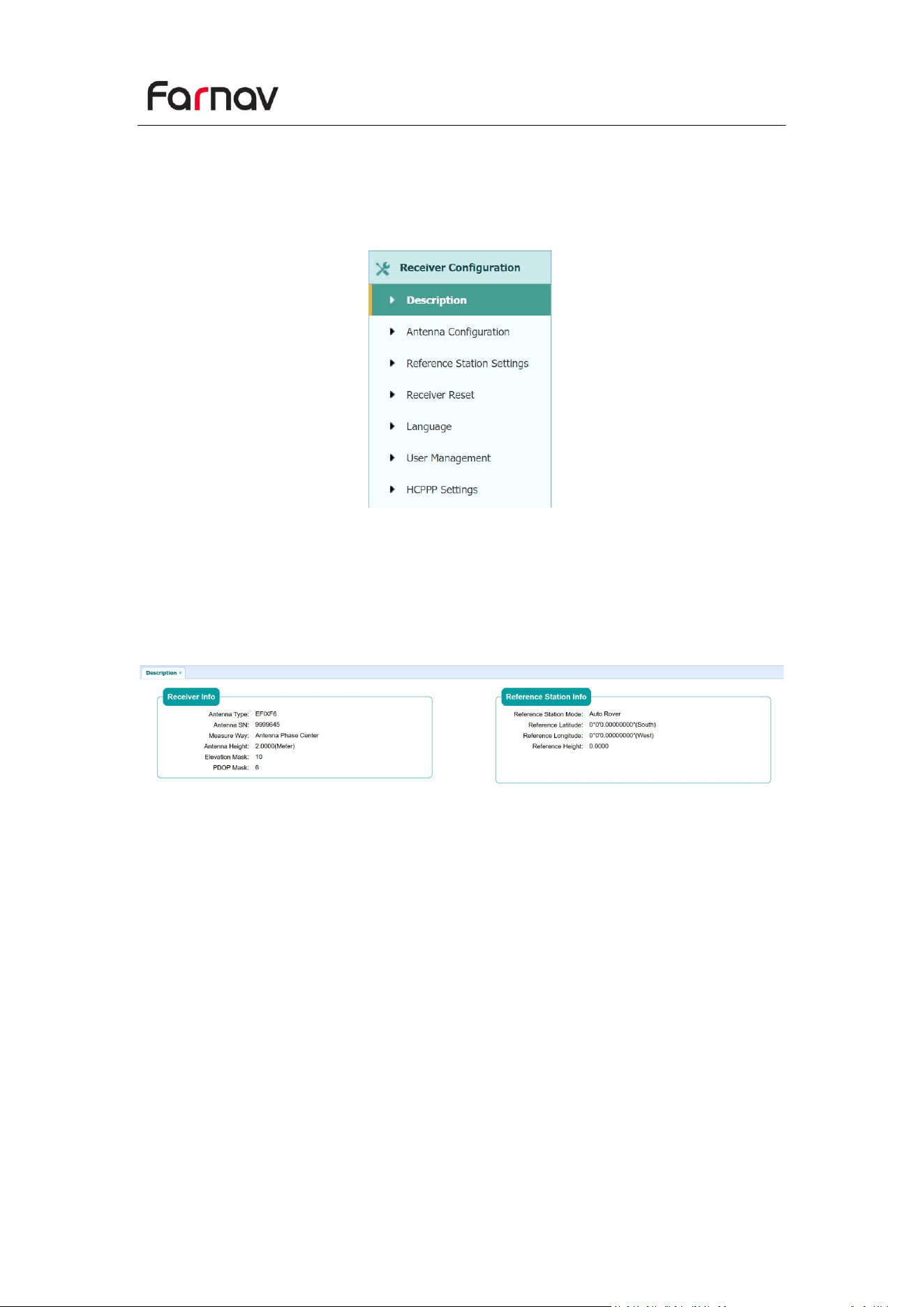
4.2.3 Tracking Skyplot Submenu
The following figure is an example of Skyplot page.
4.2.4 Satellite Activation Submenu
Use this menu to enable or disable satellites.
Farnav N30 GNSS USER GUIDE
| 2025-10 P a g e | 34
4.3 Receiver Configuration Menu
Use this menu to configure settings such as the antenna type and height, elevation
mask and PDOP setting, the reference station coordinates, receiver resetting and
web interface language:
4.3.1 Description
This submenu shows the receiver information and reference station information,
including antenna related information, elevation mask angle, reference station work
mode and position, etc.
Farnav N30 GNSS USER GUIDE
| 2025-10 P a g e | 35
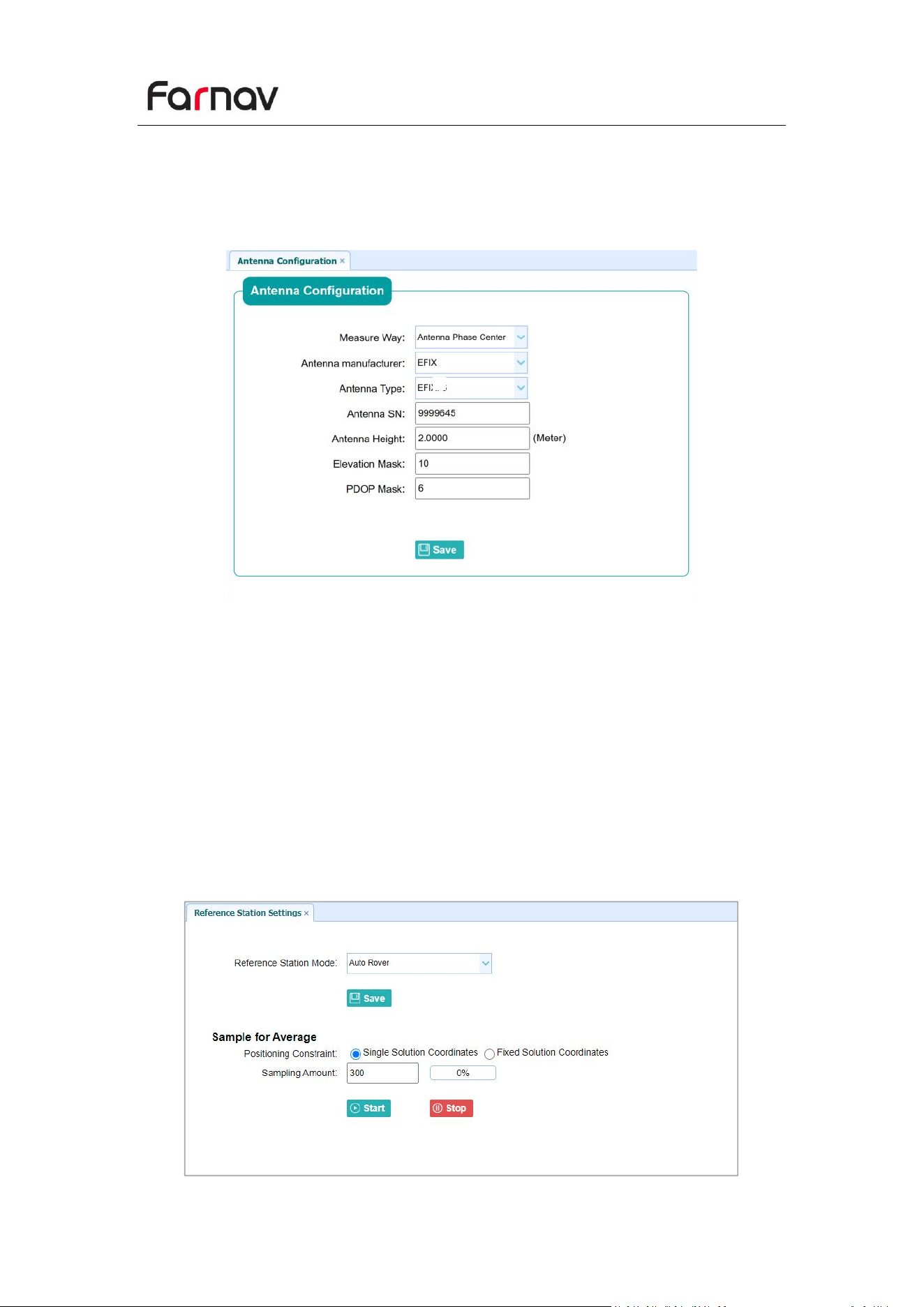
4.3.2 Antenna Configuration Submenu
Use this screen to configure all the items related to the GNSS antenna. You must
enter the correct values for all antenna-related fields, because the choices you make
affect the accuracy for logged data and broadcast correction data significantly:
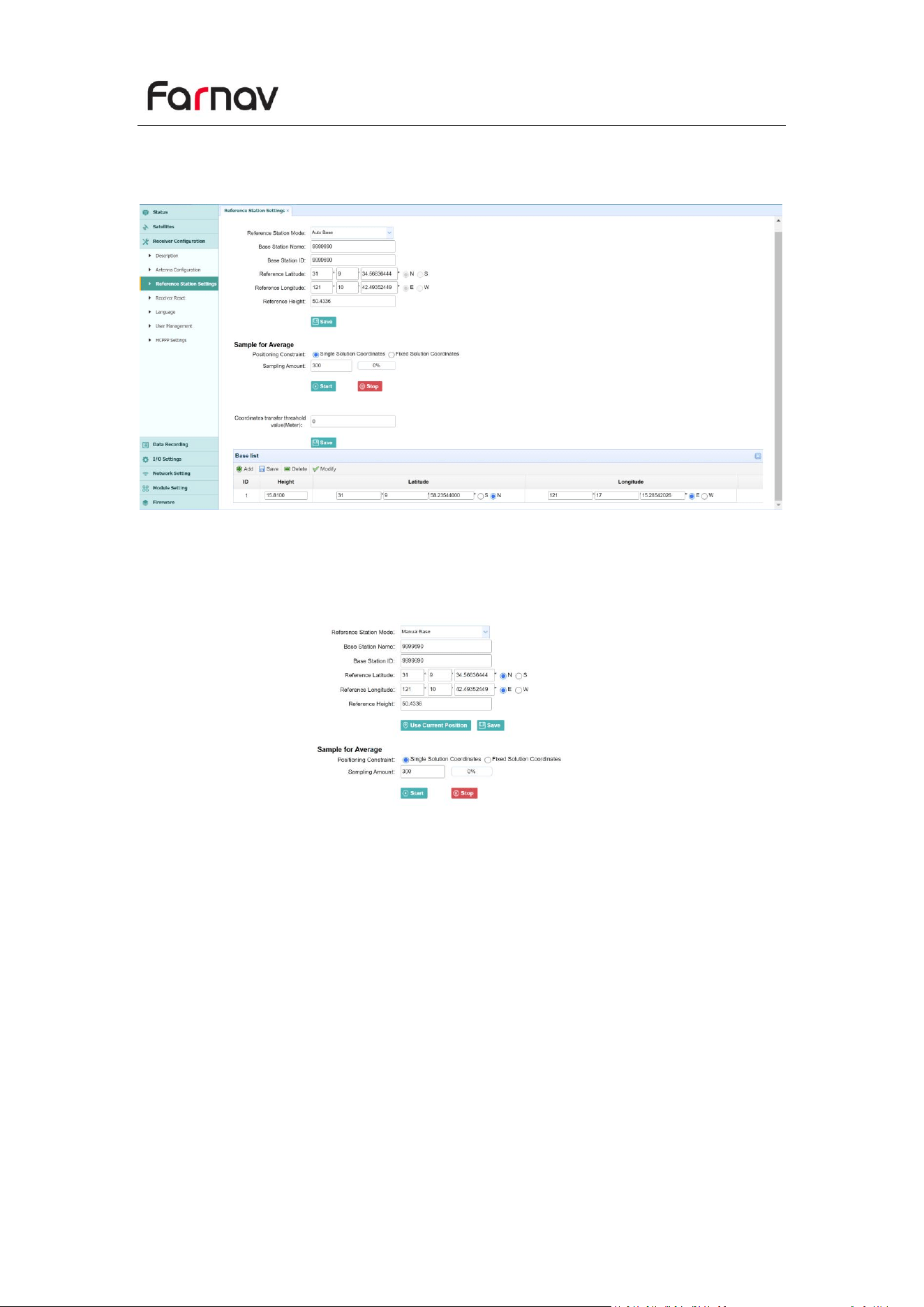
4.3.3 Reference Station Settings Submenu
Use this screen to configure settings such as the station coordinates and the
broadcast station identifiers. You must enter accurate information in these fields, as
this data affects the accuracy of logged data files and broadcast correction data
significantly:
For Reference Station Mode:
There are three modes available:
1.Auto Rover: The receiver will serve as a rover after this mode is enabled, and then
receive correction data through the working mode set last time.
Farnav N30 GNSS USER GUIDE
| 2025-10 P a g e | 36
2.Auto Base: The receiver will serve as a base after this mode is enabled, and then
broadcast correction data based on coordinate inputted by user or obtained through
autonomous positioning automatically.
3.Manual Base: The receiver will serve neither as a base nor a rover after this mode
is enabled. Users need to configure the receiver manually.
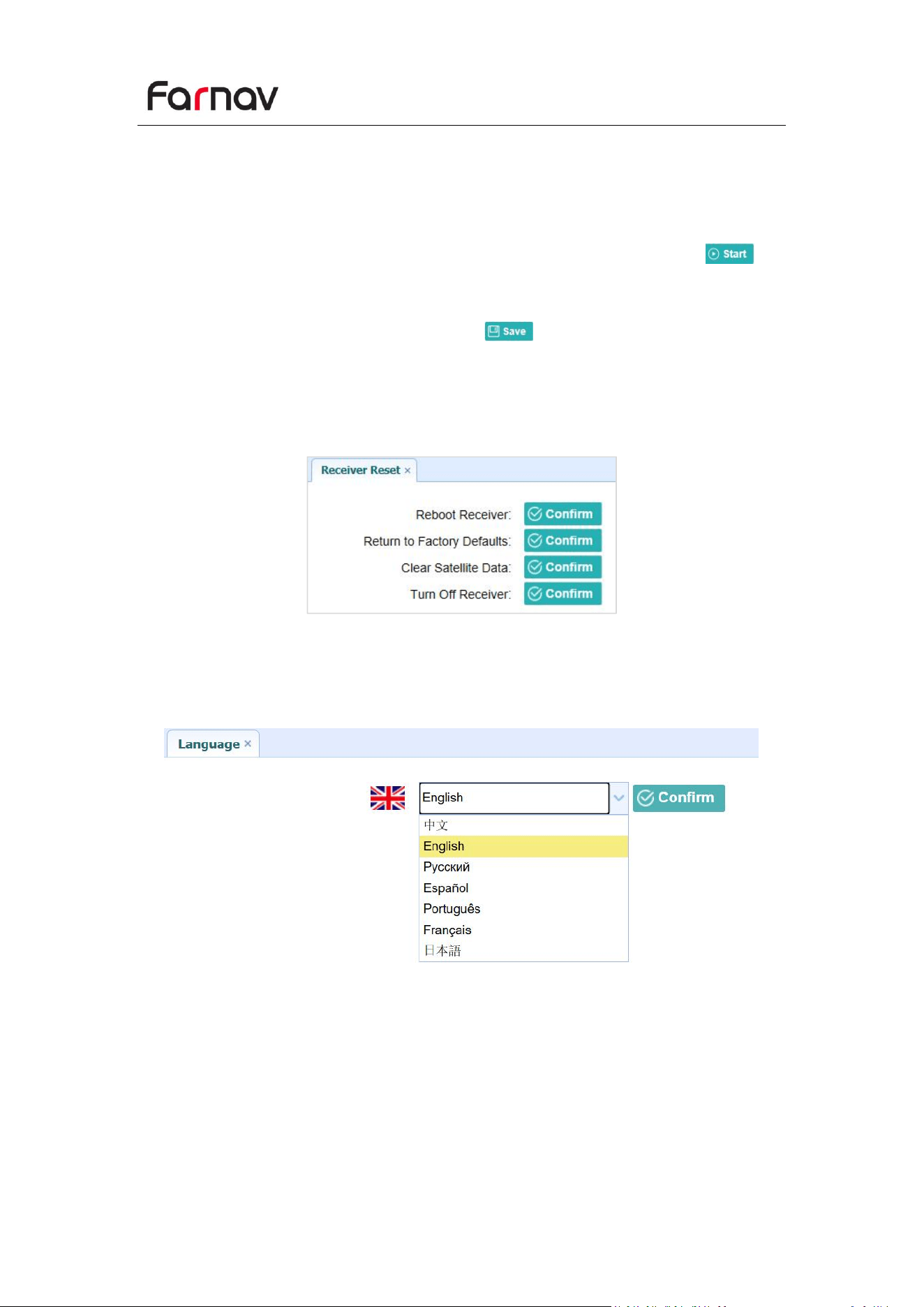
For Reference Latitude and Reference Longitude:
There are mainly three methods to enter the reference coordinates and shown as
follows:
4.Acquire Current Position: Click this button to acquire current position obtained
through autonomous positioning automatically.
5.Manual Input: Manually input the coordinate of a control point.
6.From CORS: After the receiver logging in CORS, the software can record the
coordinate of current position based on fix solution.
For Sample for Average:
Users can determine the positioning limit and sampling amount. The positioning limit
falls into two types:
1.Single Solution Coordinates: Collect the coordinates of receiver obtained through
Farnav N30 GNSS USER GUIDE
| 2025-10 P a g e | 37
autonomous positioning.
2.Fixed Solution Coordinates: Only collect coordinates of receiver with a fixed
solution.
After the configuration of positioning limit and sampling amount, click to
carry out sampling and averaging → the progress bar will show the progress → the
result will be served as the coordinate of current position.
If users need to save the changes, please tap button.
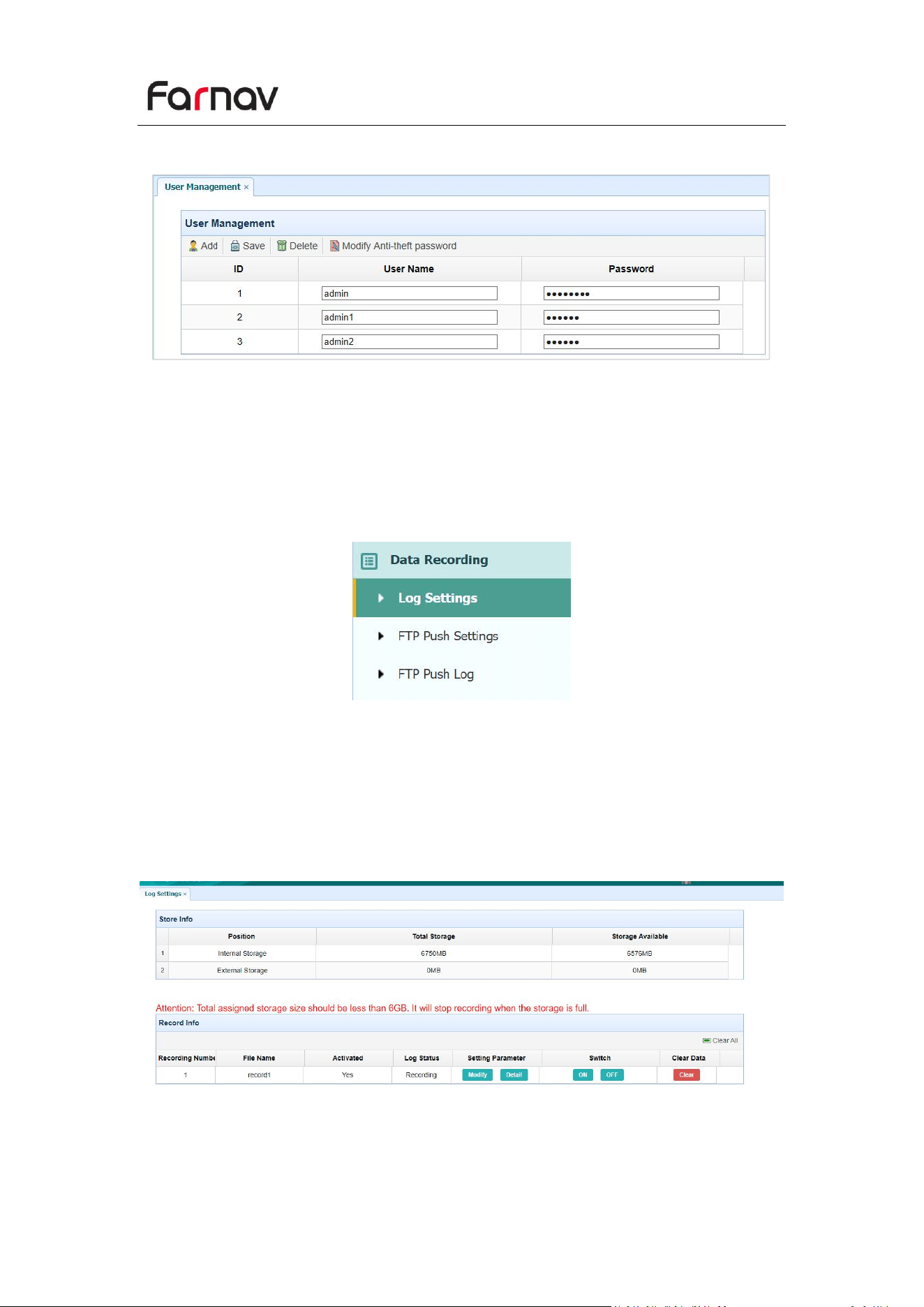
4.3.4 Receiver Reset Submenu
Use this screen to completely or partially reset the receiver:
4.3.5 Languages Submenu
Use this screen to select the web interface language:
Farnav N30 GNSS USER GUIDE
| 2025-10 P a g e | 38
4.3.6 User Management Submenu
4.4 Data Recording Menu
Use the Data Logging menu to set up the receiver to log static GNSS data and to view
the logging settings. You can configure settings such as observable rate, recording
rate, continuous logging limit, and whether to auto delete old files when memory is
low. This menu also provides the controls for the FTP push feature:
4.4.1 Log Settings Submenu
Here shows the data logging status, including internal and external storage usage and
data logging status of each session. Also, users can configure the data logging
settings for each session, including recording name, store location, storage limit,
store formats, start time, etc.
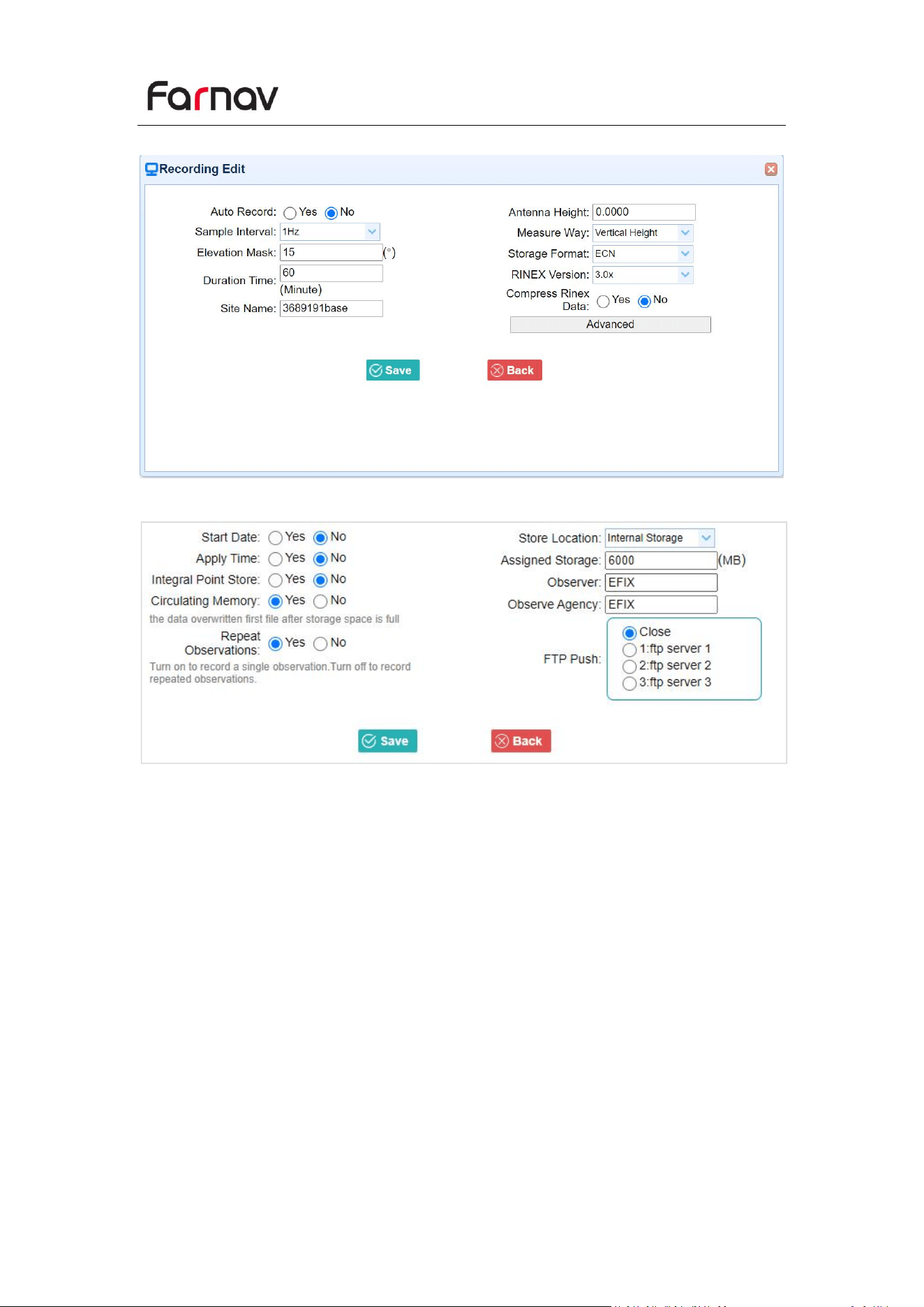
To edit the settings of each session, click the Modify button to the right of the
required session, and then the Recording Edit screen appears:
Farnav N30 GNSS USER GUIDE
| 2025-10 P a g e | 39
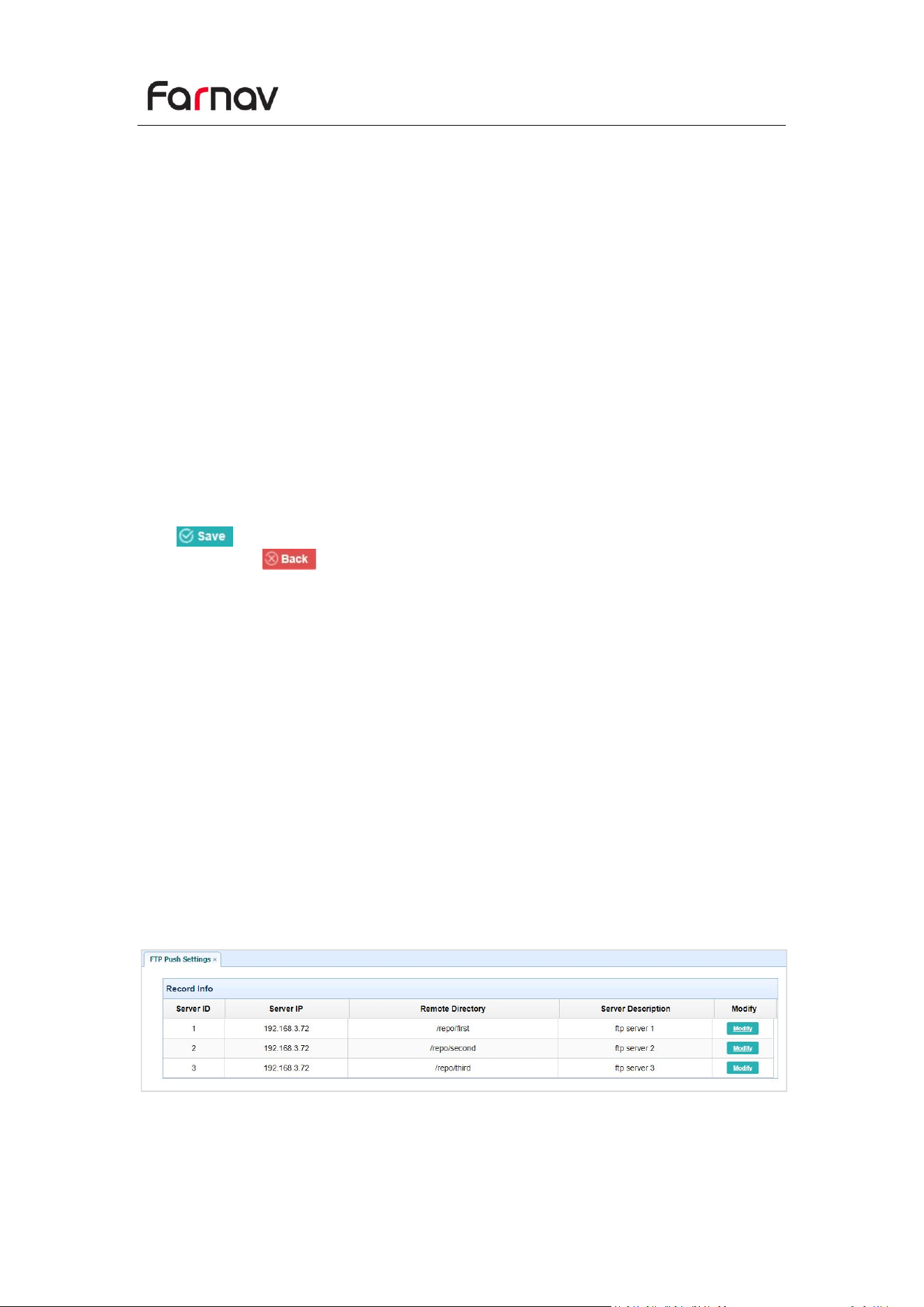
Click advanced to see more settings.
In this screen, you can configure all the data logging parameters, and determine
whether the recording files will be affected by the FTP Push. The parameters are
mainly as follows:
Auto Record: on or off.
Sample Interval: Select the observable rate from the dropdown list.
Elevation Mask: Enter the elevation mask.
Duration Time: Set the duration of data logging.
Site Name: Enter the name of the site.
Antenna Height: the measured height value.
Measure way: Antenna Phase Center, Vertical Height, Slant Height
Storage Format: Select the format of the data store.
RINEX Version: OFF, 3.02, 2.11
Start Date: Select Yes or No option to determine whether to auto record start date.
Farnav N30 GNSS USER GUIDE
| 2025-10 P a g e | 40
Apply Time: Select Yes or No option to determine whether to auto record apply
time.
Integral Point Store: Select Yes or No option to determine whether to allow
receiver to save data every hour.
Circulating Memory: Select Yes or No option to determine whether to auto delete
old files if the storage space is full.
Repeat Observations: Select Yes or No option to determine whether to turn on to
record a single observation.
Store Location: Internal Storage, External Storage.
Assigned Storage: The assigned memory size of current thread(for example, Record
1) is 10000MB
Observer: Enter the name of observer.
Observer Agency: Enter the name of observer agency.
FTP Push: Decide whether to push the stored files to the FTP server of your choice.
Tap button to save the settings and back to the Log Settings screen. Also,
users can click to abandon the changed settings and back to Log Settings
screen.
Note – To modify data logging parameters, make sure the data logging session is
switched off.
To switch on or off ANY data logging session, tap the ON or OFF button on the right
of the required session.
To delete the recorded files of ANY data logging session, tap the Clear button on the
right of the required session.
To delete the recorded files of ALL data logging sessions, tap the Clear ALL Accounts
button.
4.4.2 FTP Push Settings Submenu
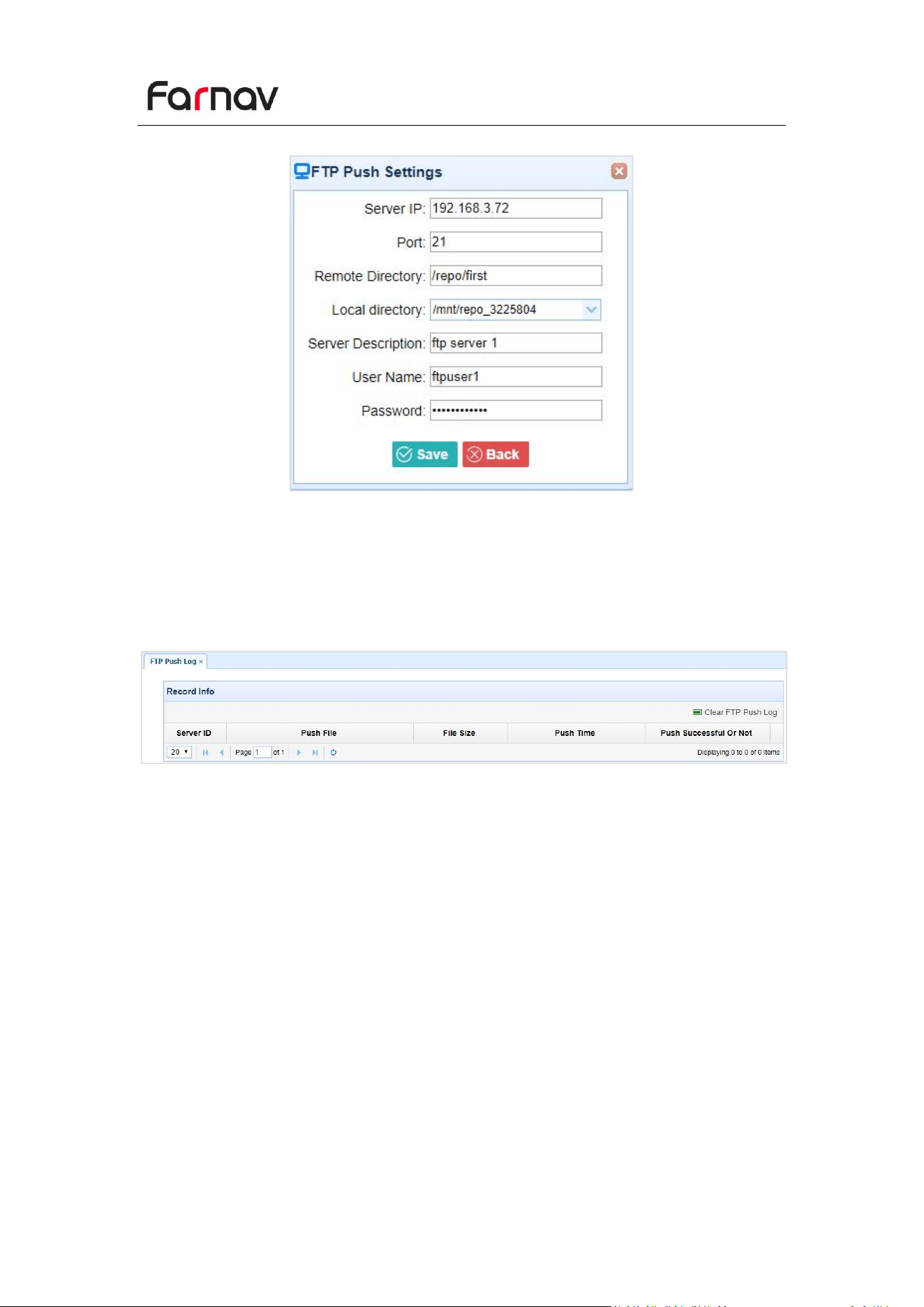
Use this screen to configure the receiver to push stored files to the FTP server of your
choice. Only files that are configured to use FTP push are transmitted.
Tap Modify button on the right of the required FTP server and the FTP Push Settings
screen appears:
Farnav N30 GNSS USER GUIDE
| 2025-10 P a g e | 41
4.4.3 FTP Push Log Submenu
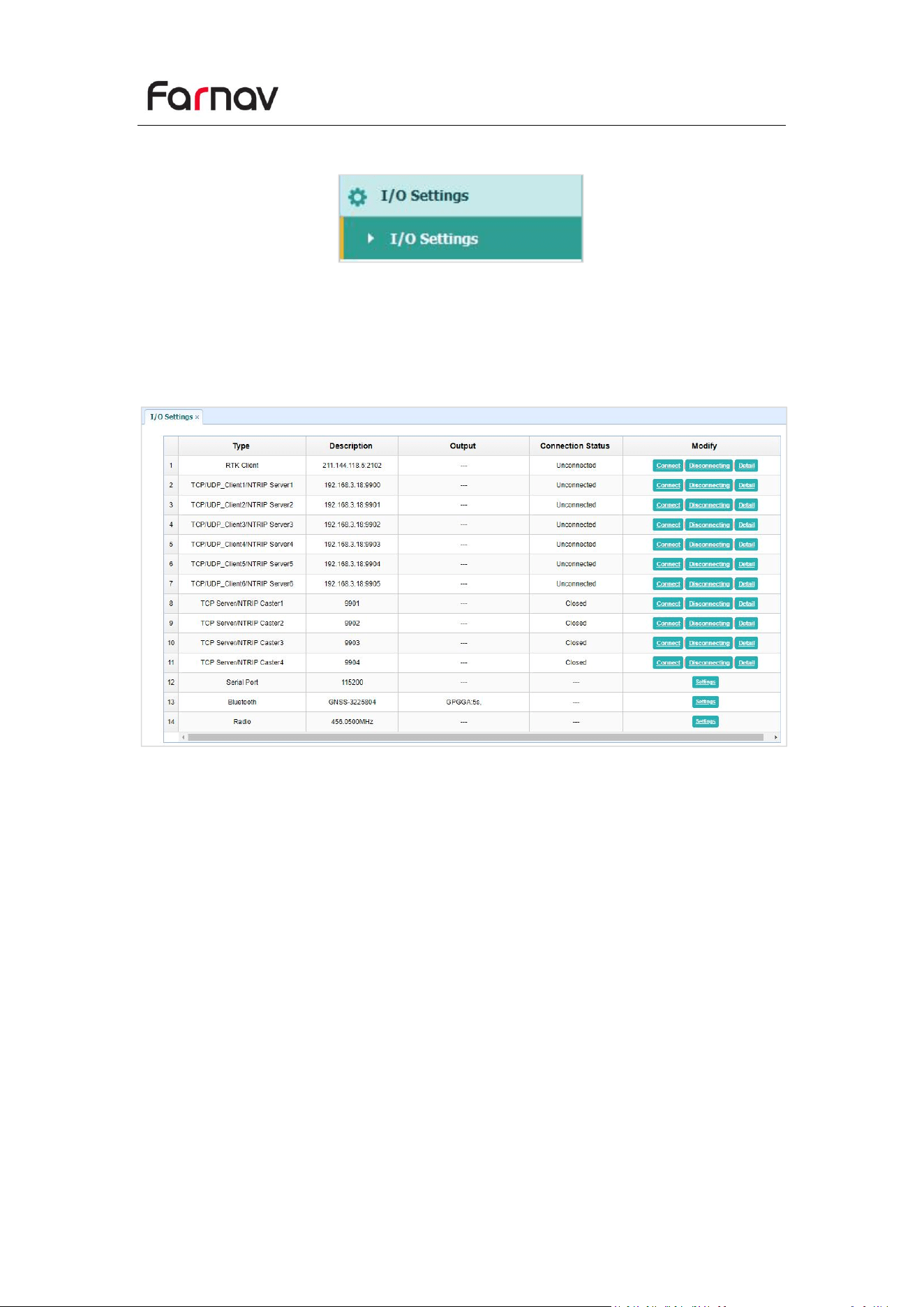
Shows the related information about the recorded filed that be pushed. And users
can tap Clear Ftp Send Log button in the upper right corner to clear the log of FTP
Push operations.
Farnav N30 GNSS USER GUIDE
| 2025-10 P a g e | 42
4.5 IO Settings Menu
Use the IO Settings menu to set up all receiver outputs and inputs. The receiver can
output CMR, RTCM, Raw data, Ephemeris data, GPGGA, GPGSV, on TCP/IP, UDP, serial
port, or Bluetooth ports.
The following figure shows an example of the screen that appears when you select
this submenu. (serial port setting is reserved menu)
In this submenu, users can configure 6 types of input and output settings.
Farnav N30 GNSS USER GUIDE
| 2025-10 P a g e | 43
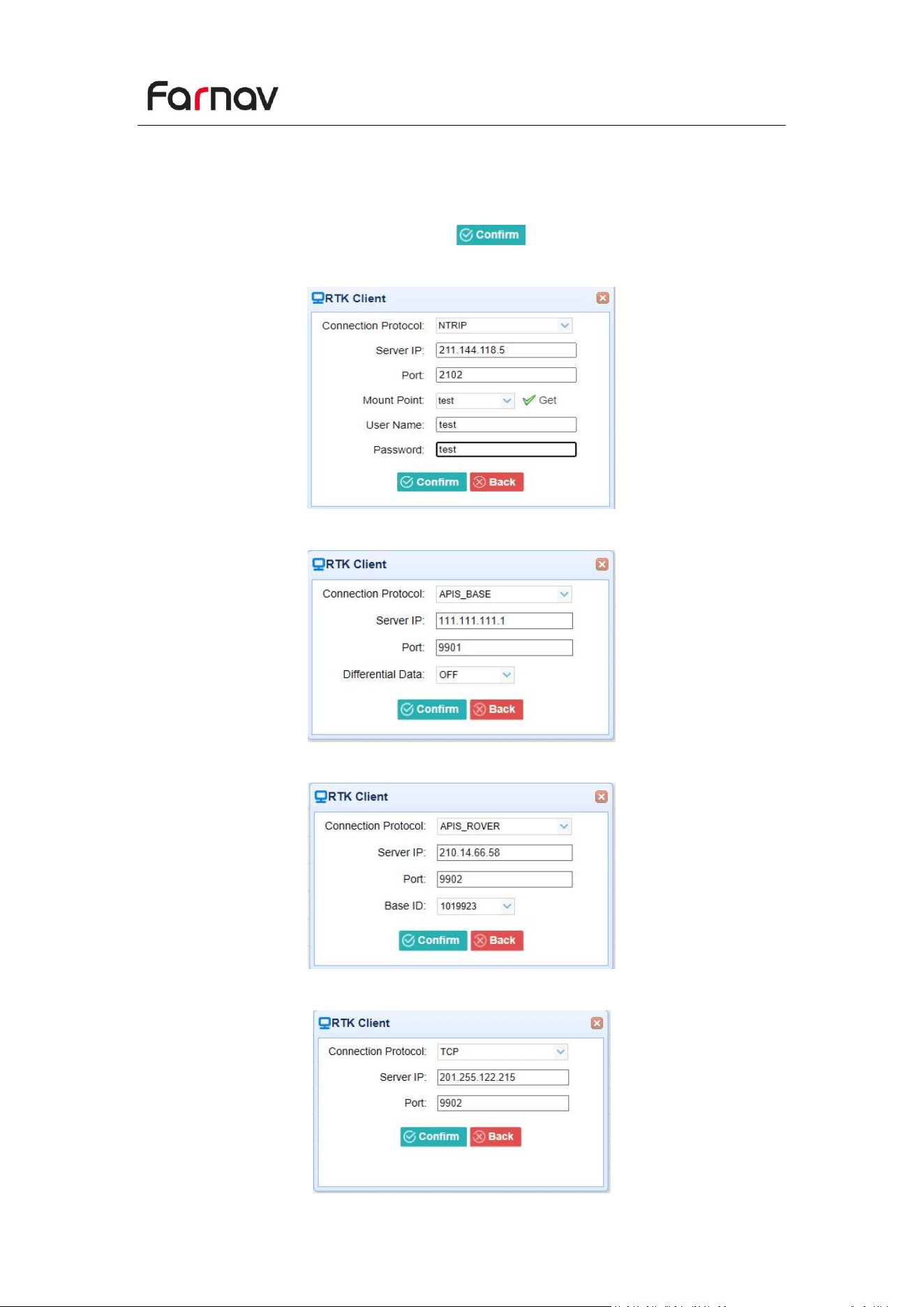
1. RTK Client
After configuring the settings of RTK client, users can log on CORS or APIS. Tap the
Connect button to the right → the IO Settings screen will appear → choose one of
the connection protocols among the NTRIP, APIS_BASE, APIS_ROVER and TCP →
configure the related parameters → click to log on CORS or APIS.
Connection Protocol: NTRIP
Connection Protocol: APIS_BASE
Connection Protocol: APIS_ROVER
Connection Protocol: TCP
Farnav N30 GNSS USER GUIDE
| 2025-10 P a g e | 44
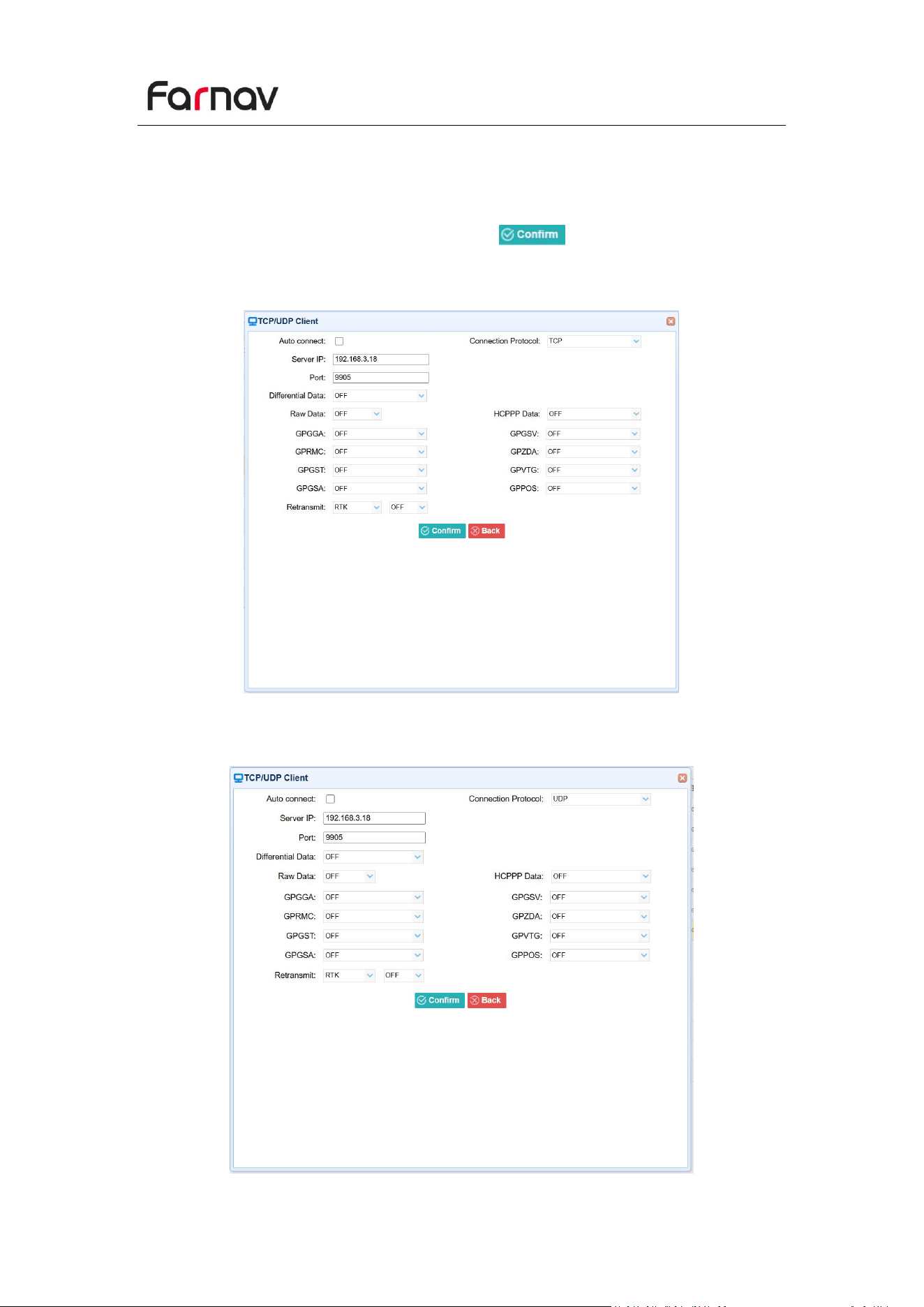
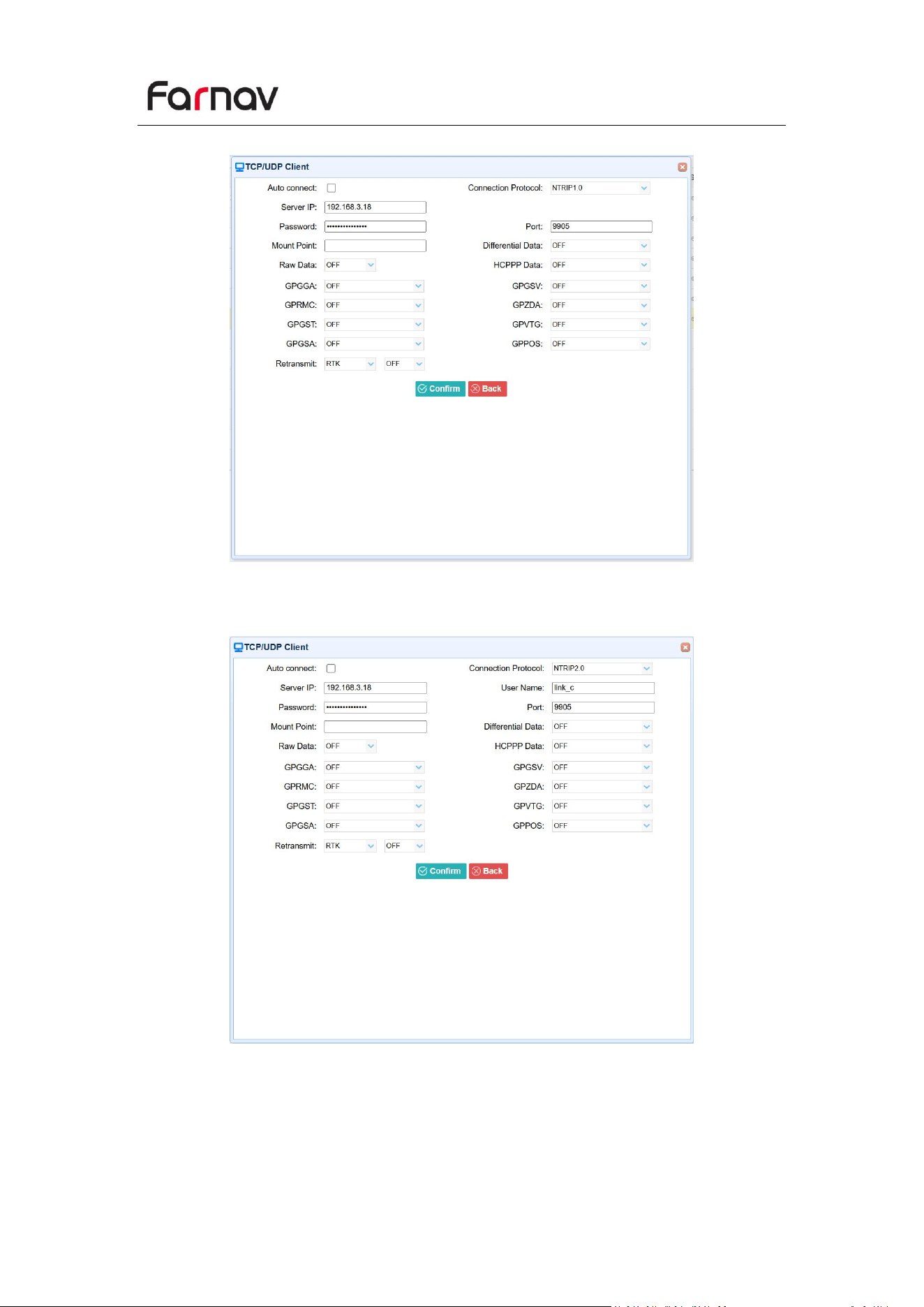
2. TCP/UDP_Client/NTRIP Server
Tap the Connect button on the right of required TCP/UDP Client → the IO Settings
screen will appear → select the connection protocol from TCP, UDP,NTRIP1.0 and
NTRIP2.0 → enter the IP and Port of the target server → configure messages that you
want to output to the target server → click to save and complete the
connection.
Connection Protocol: TCP
Connection Protocol: UDP
Farnav N30 GNSS USER GUIDE
| 2025-10 P a g e | 45
Connection Protocol: NTRIP1.0
Connection Protocol: NTRIP2.0
Farnav N30 GNSS USER GUIDE
| 2025-10 P a g e | 46
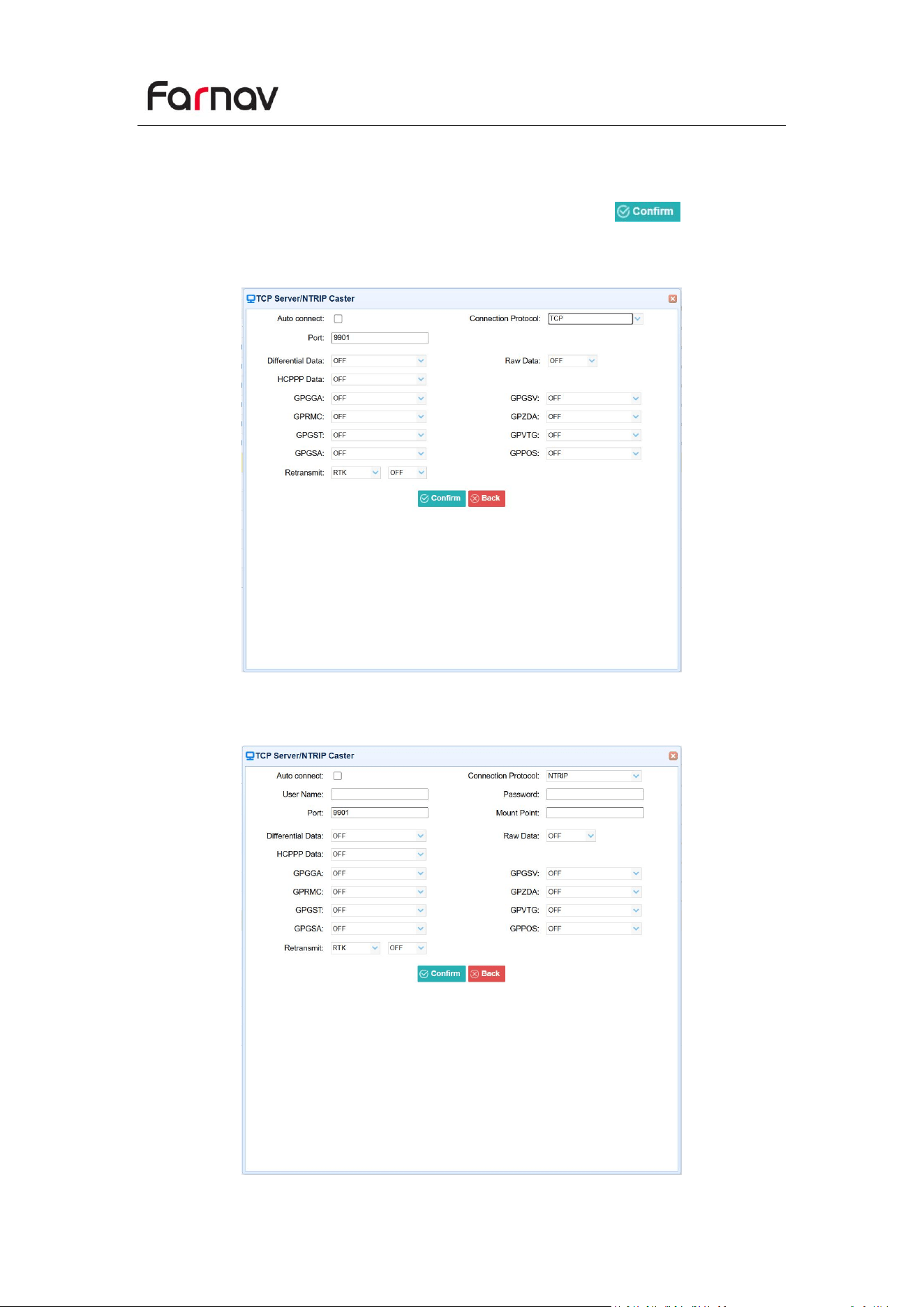
3. TCP Server/NTRIP Caster
Tap the Connect button to the right of required TCP Server/NTRIP Caster→ the IO
Settings screen will appear → select one of the connection protocols between NTRIP
and TCP → configure the other related parameters → click to save the
settings and open the server.
Connection Protocol: TCP
Connection Protocol: NTRIP
Farnav N30 GNSS USER GUIDE
| 2025-10 P a g e | 47
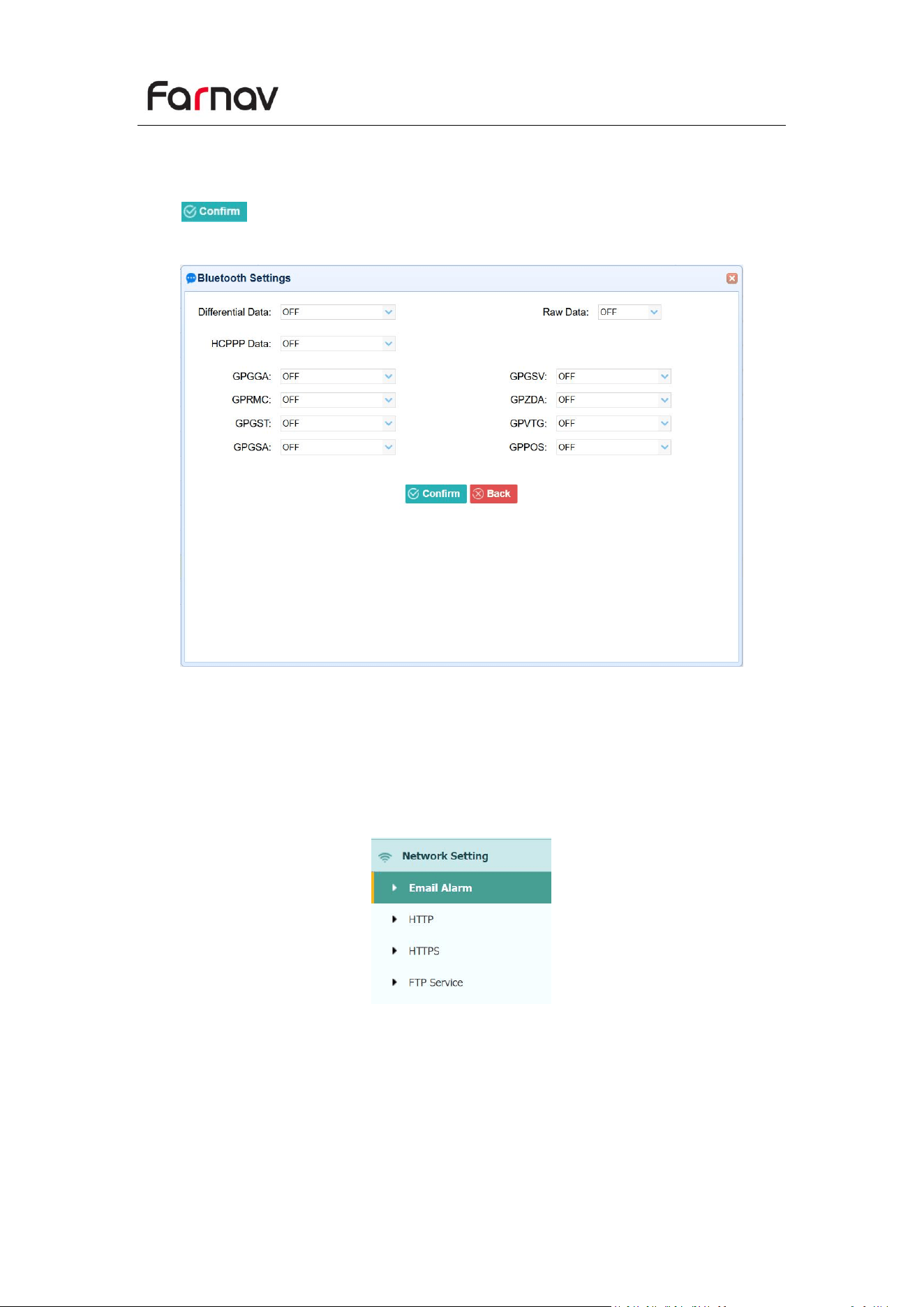
4. Bluetooth
Tap the Settings button to the right of Bluetooth → the Bluetooth Set screen will
appear → configure the messages that you want to transmit through Bluetooth →
click to save the settings and start to transmit.
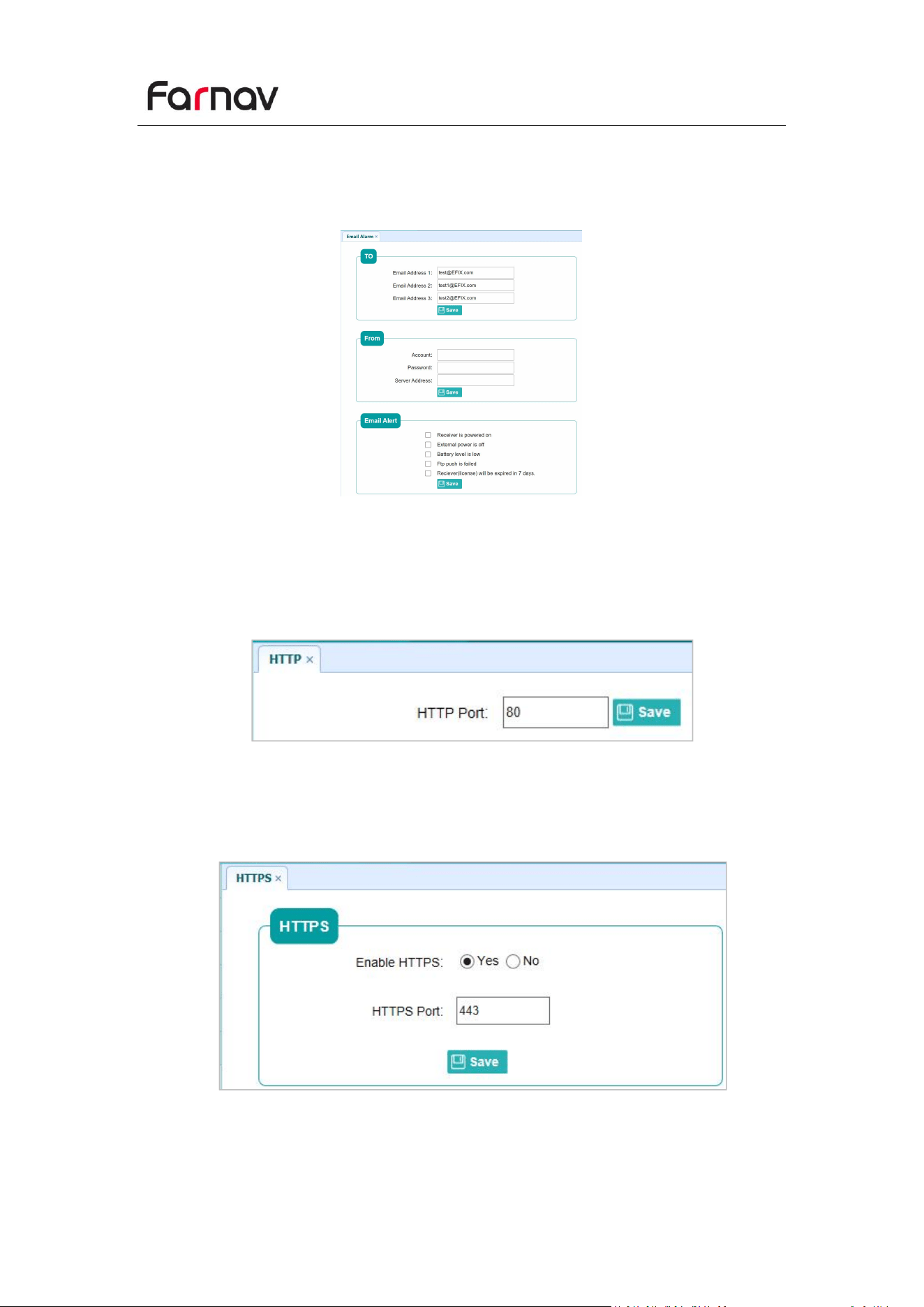
4.6 Network Setting Menu
Use this menu to set email alert for specific situation, configure HTTP or HTTPS port,
and the username and password of internal FTP site:
Farnav N30 GNSS USER GUIDE
| 2025-10 P a g e | 48
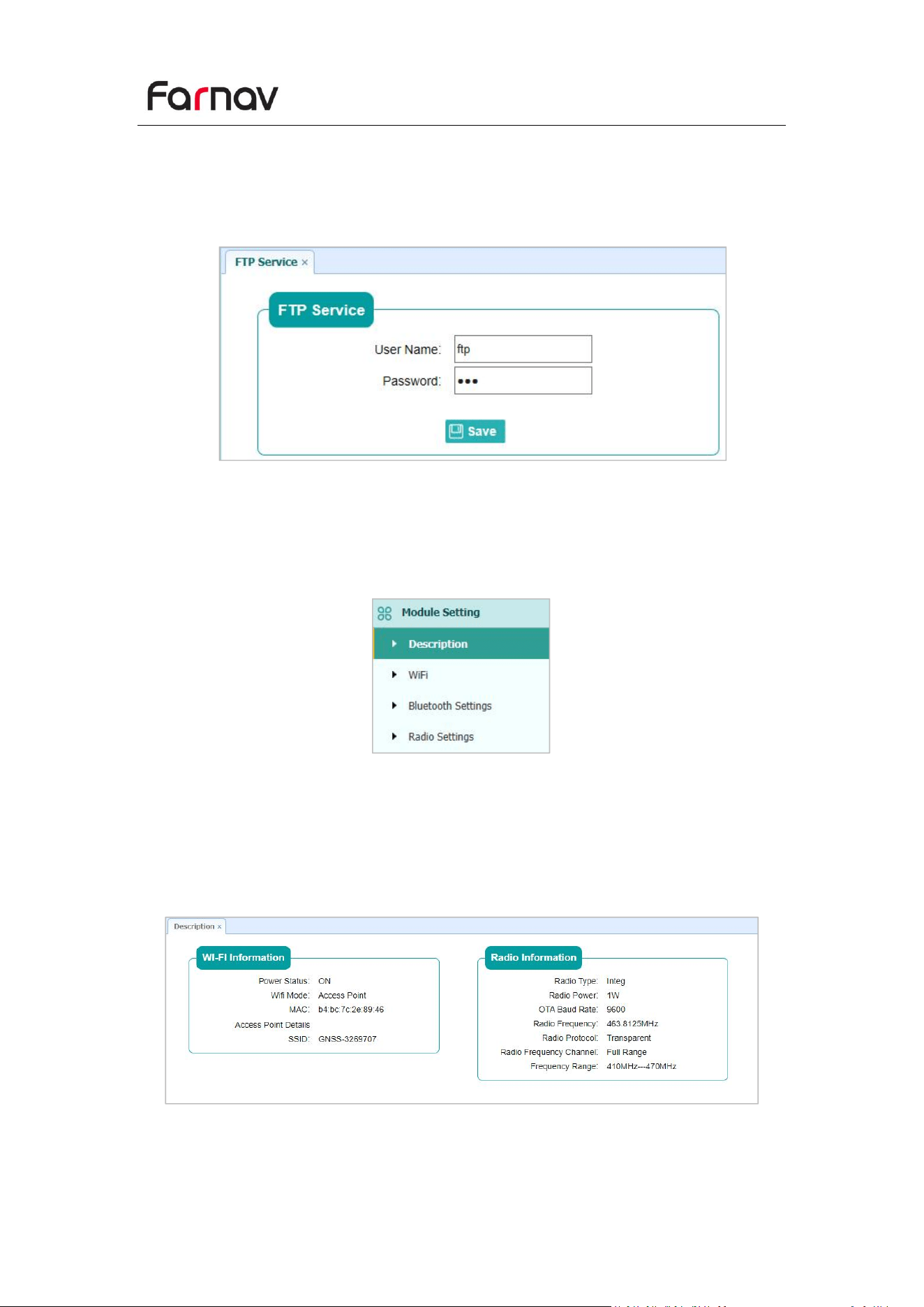
4.6.1 Email Alarm Submenu
Use this submenu to choose which situation of receiver will be alerted and input the
email address.
4.6.2 HTTP Submenu
Use this submenu to configure HTTP port.
4.6.3 HTTPS Submenu
Use this submenu to configure HTTPS port.
Farnav N30 GNSS USER GUIDE
| 2025-10 P a g e | 49
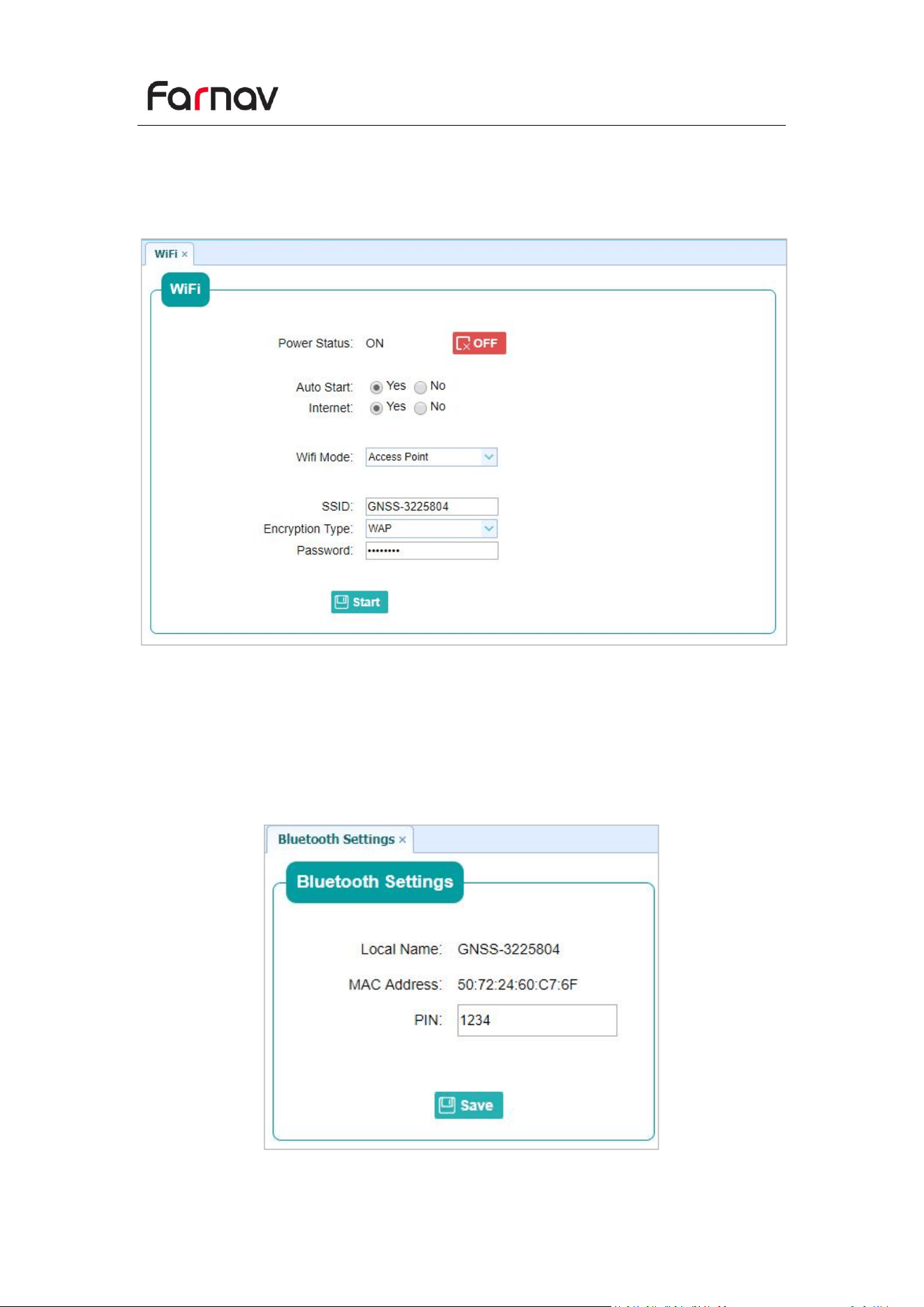
4.6.4 FTP Service Submenu
Use this submenu to configure the user name and password of internal FTP site.
4.7 Module Setting Menu
Use this menu to check module information, configure WiFi, bluetooth, radio related
settings.
4.7.1 Description Submenu
Use this submenu to check the information of WiFi module, bluetooth module and
radio module.
Farnav N30 GNSS USER GUIDE
| 2025-10 P a g e | 50
4.7.2 WiFi Submenu
Use this submenu to turn on/off WiFi function and modify password.
4.7.3 Bluetooth Settings Submenu
Use this submenu to turn on/off bluetooth function and modify PIN number.
Farnav N30 GNSS USER GUIDE
| 2025-10 P a g e | 51
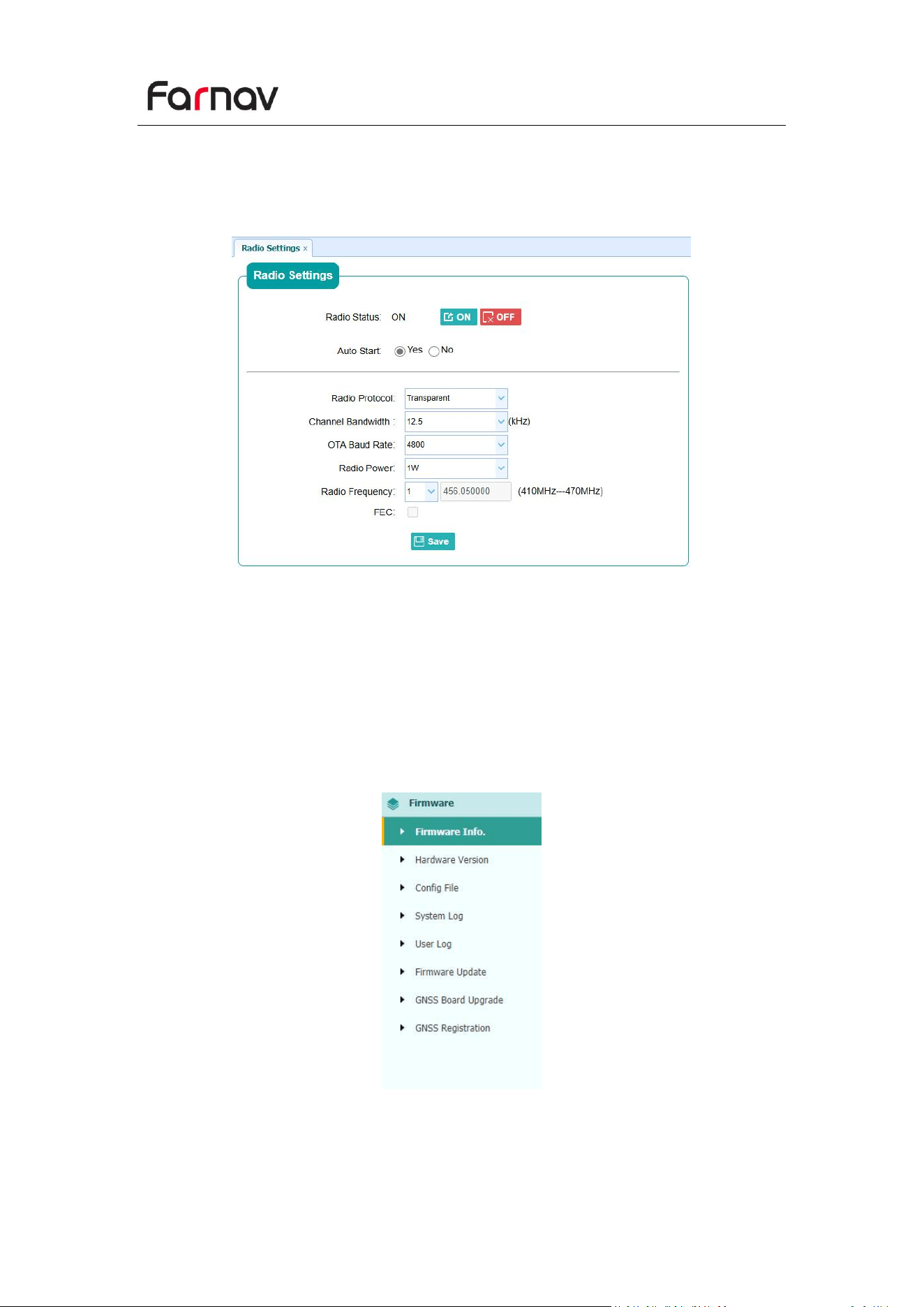
4.7.4 Radio Settings Submenu
Use this submenu to turn on/off radio function and configure radio parameters.
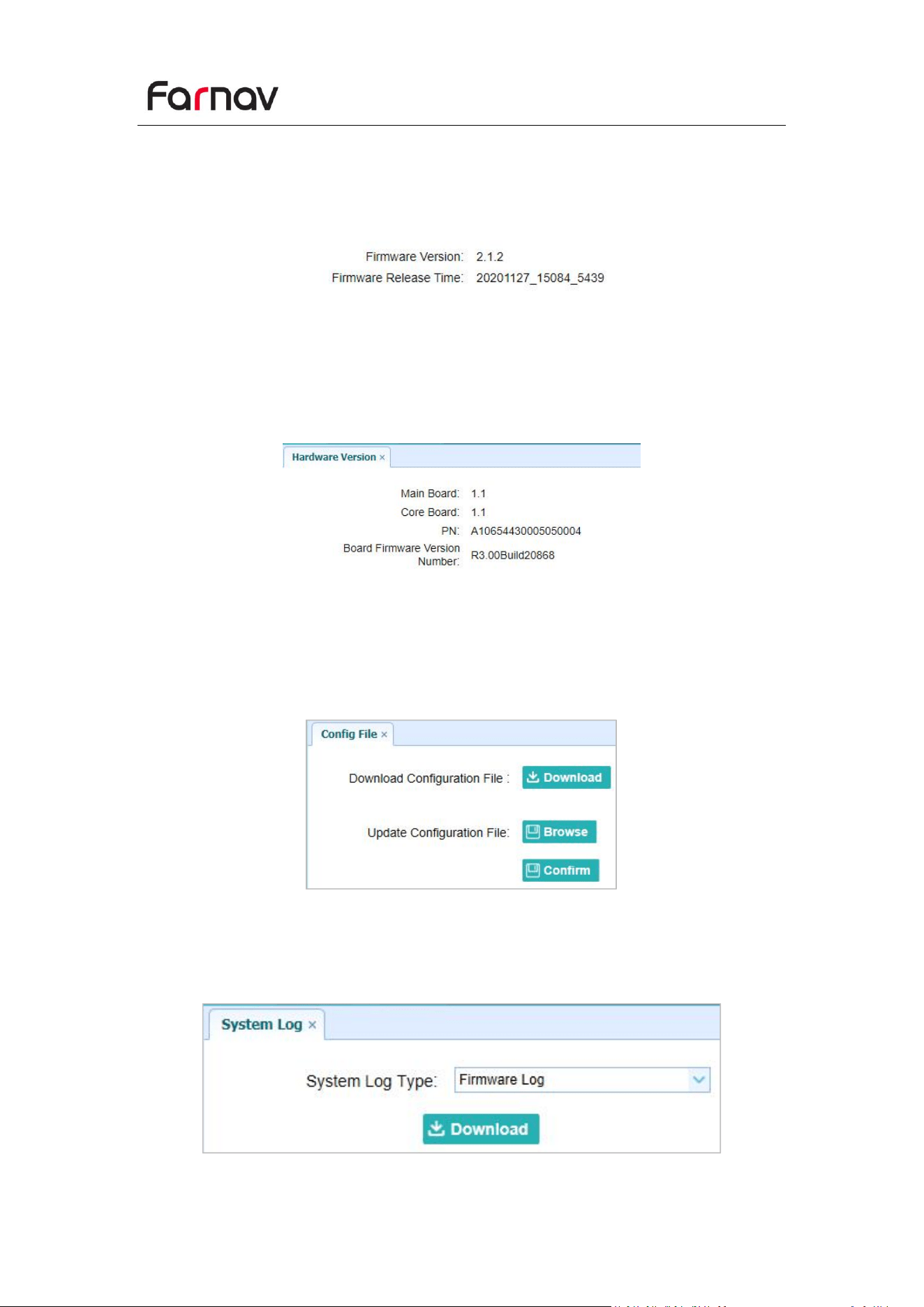
4.8 Firmware Menu
Use this menu to check the current firmware information, download the system log,
update the receiver firmware, download or update the configuration file and register
the receiver, and more:
Farnav N30 GNSS USER GUIDE
| 2025-10 P a g e | 52
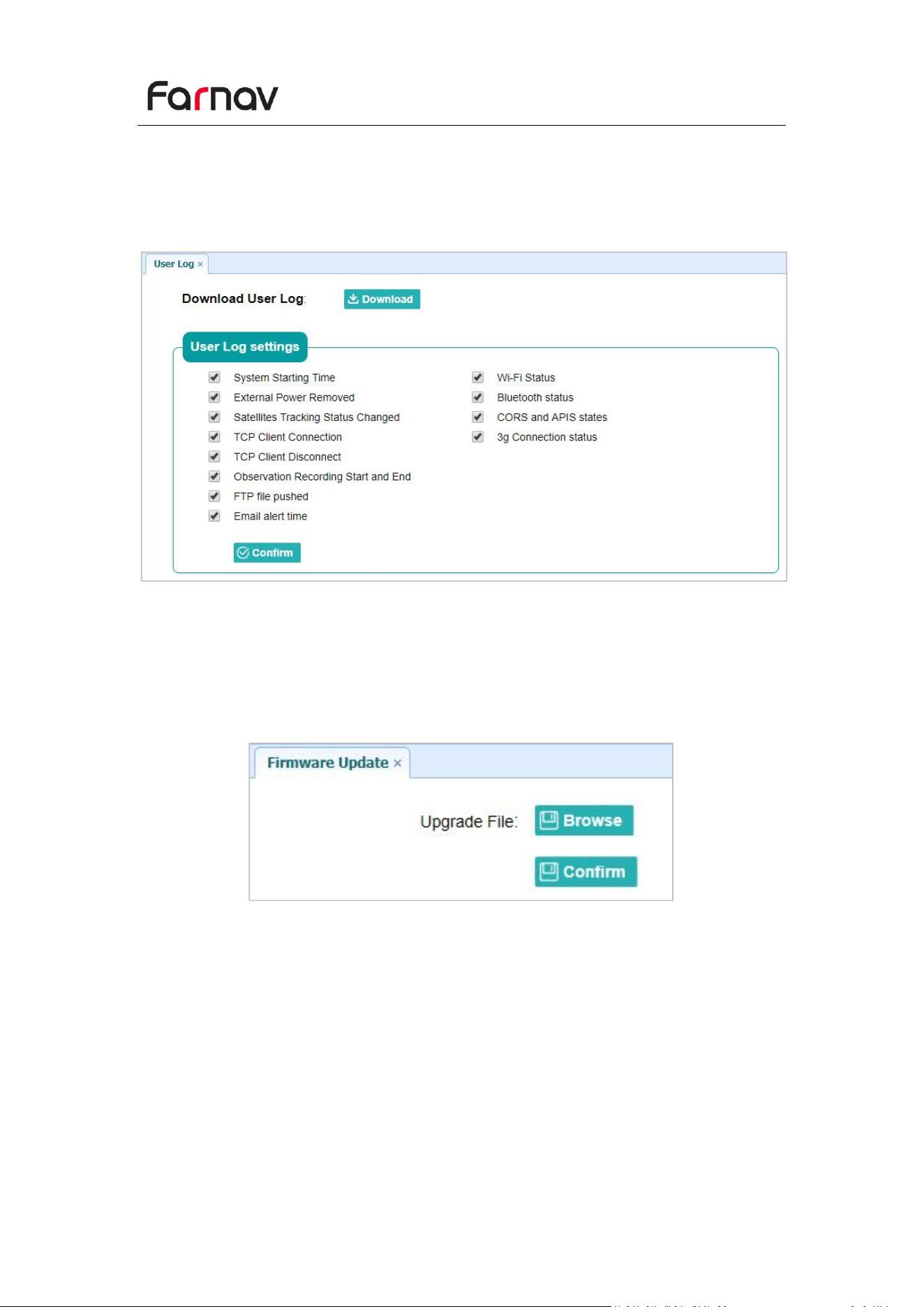
4.8.1 Firmware Info Submenu
Use this submenu to check the current firmware information. The following figure
shows an example of the firmware information.
4.8.2 Hardware Version Submenu
Use this submenu to check the hardware information, including main board version
and core board version:
4.8.3 Config File Submenu
Use this submenu to update Configuration File.
4.8.4 System Log Download Submenu
Use this submenu to download the system log of the receiver.
Farnav N30 GNSS USER GUIDE
| 2025-10 P a g e | 53
4.8.5 User Log Submenu
Use this submenu to download the user log. Tap Download to download current user
log; Tick items that you want to see on the user log and tap confirm button to
confirm selected user log.
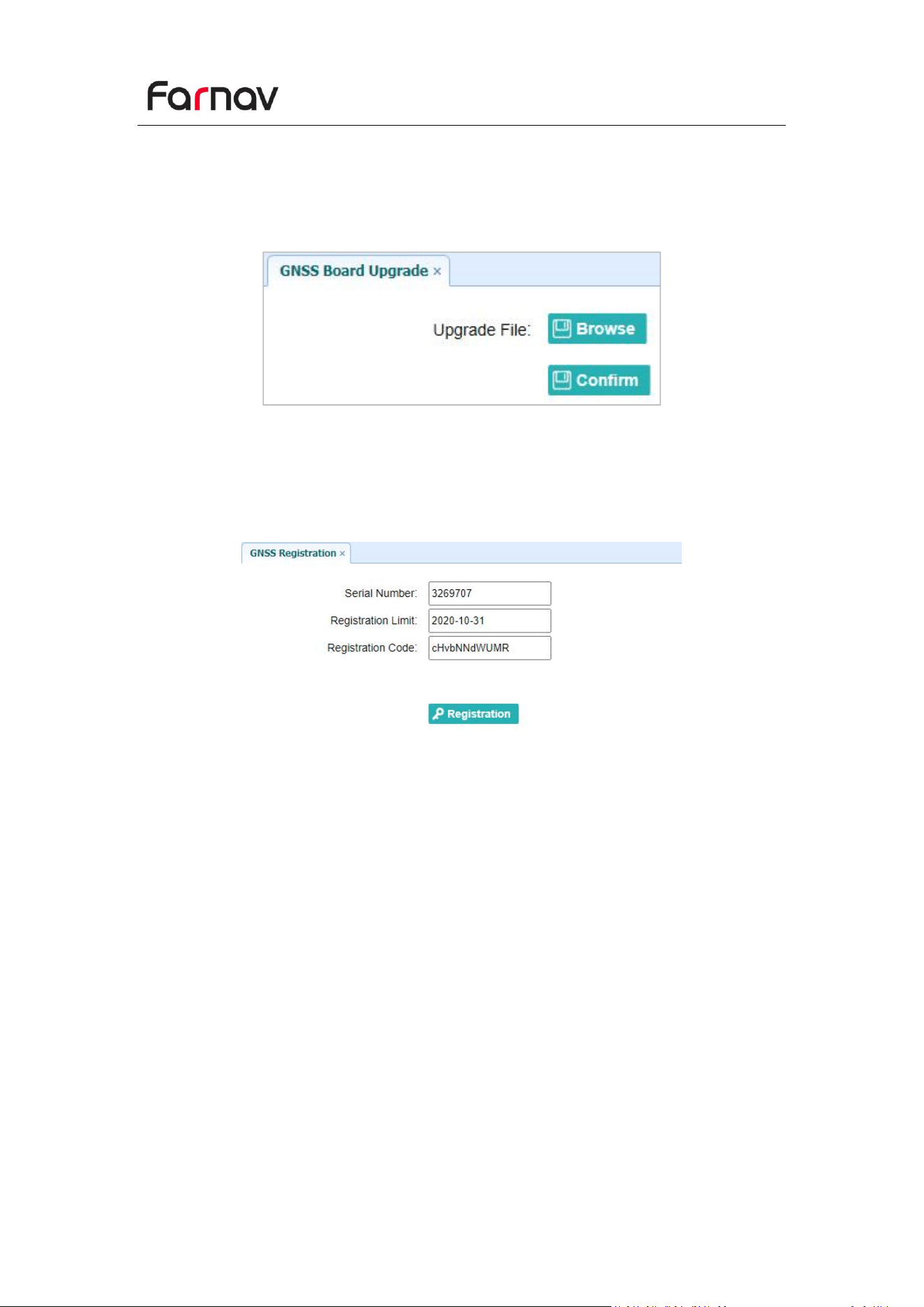
4.8.6 Firmware Update Submenu
Use this submenu to load new firmware to the receiver across the network. Tap the
Browse button to locate the upgrade file → tap Confirm button to confirm the
selected upgrading file and start upgrading.
Notes
It may take about 3 or 4 minutes to complete the firmware upgrading. Do not
touch the power button or unplug the power until the upgrading process
finishes, or damage will be caused to the receiver.
The receiver will restart after the firmware upgrading is done, so users need to
reconnect the receiver with your computer via Wi-Fi, and then log-in the
receiver through a web browser to continue the configuration.
Farnav N30 GNSS USER GUIDE
| 2025-10 P a g e | 54
4.8.7 GNSS Board Upgrade Submenu
Use this submenu to upgrade GNSS Board. Use this submenu to load new board to
the receiver across the network. Tap the Browse button to locate the upgrade file →
tap Confirm button to confirm the selected upgrading file and start upgrading.
4.8.8 GNSS Registration Submenu
Use this submenu to register the receiver. Paste or enter the registration code to the
Registration Code field → tap Registration button to complete the registration.

Farnav N30 GNSS USER GUIDE
| 2025-10 P a g e | 55
FCC Warning
15.19 Labeling requirements.
This device complies with part 15 of the FCC Rules. Operation is subject to the following
two conditions: (1) This device may not cause harmful interference, and (2) this device
must accept any interference received, including interference that may cause undesired
operation.
15.21 Information to user.
Any Changes or modifications not expressly approved by the party responsible for
compliance could void the user's authority to operate the equipment.
15.105 Information to the user.
Note: This equipment has been tested and found to comply with the limits for a Class B
digital device, pursuant to part 15 of the FCC Rules. These limits are designed to provide
reasonable protection against harmful interference in a residential installation. This
equipment generates uses and can radiate radio frequency energy and, if not installed
and used in accordance with the instructions, may cause harmful interference to radio
communications.However,there is no guarantee that interference will not occur in a
particular installation. If this equipment does cause harmful interference to radio or
television reception, which can be determined by turning the equipment off and on, the
user is encouraged to try to correct the interference by one or more of the following
measures:
-Reorient or relocate the receiving antenna.
-Increase the separation between the equipment and receiver.
-Connect the equipment into an outlet on a circuit different from that to which the receiver
is connected.
-Consult the dealer or an experienced radio/TV technician for help.
FCC RF Radiation Exposure Statement:
1. This Transmitter must not be co-located or operating in conjunction with any other
antenna or transmitter.
2. This equipment complies with RF radiation exposure limits set forth for an uncontrolled
environment.
3. This equipment should be installed and operated with minimum distance 20cmbetween
the radiator and your body.