To charge the speaker microphone using the wall charger:
1. Ensure the microphoe is turned off using the Power/Volume Knob.
The microphone cannot be operated while plugged into the wall charger.
2. Plug the charge cable into any powered USB outlet, such as an
AC wall charger, and then into the charge jack on the bottom of
the speaker microphone.
3. Once the charging process has begun, the LED indicator
on the speaker microphone will show a constant red light.
4. Typical charge time is approximately five hours. Actual charge
time will vary depending on several factors including the battery’s
charge state, condition, and age.
5. When the battery is fully charged the LED
indicator on the speaker microphone will turn off.
6. Disconnect the charger from the adapter when
charging is completed.
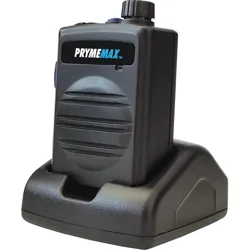
To charge the speaker microphone using the optional drop-in charging cradle:
1. Plug the power cable for the charge cradle into any powered USB outlet,
such as an AC wall adapter and then into the jack on the back of the charge
cradle. The LED on the charge cradle will light a solid green.
2. Drop the microphone into the charge cradle. NOTE that you may
continue to operate the microphone while it is in the charge cradle.
3. Once the charging process has begun, the LED indicator on the
charge cradle will show a constant red light.
4. Typical charge time is approximately five hours. Actual charge
time will vary depending on several factors including whether you
are operating the microphone duringh charging as well as the
battery’s charge state, condition, and age.
5. When the battery is fully charged the LED
indicator on the charge cradle will turn green.
Charging Cautions:
- Do not use a charger or charge cable that appears to be damaged. (Example: frayed wires,
melted plastic, etc.) Contact PRYME to get a new manufacturer-approved replacement charger.
- Do not tamper with or modify the speaker microphone or charger.
- Always turn the speaker microphone off when charging.
3 4
Charging the Speaker Microphone
2
Federal Communication Commission Interference Statement
This equipment has been tested and found to comply with the limits for a Class B digital device, pursuant
to Part 15 of the FCC Rules. These limits are designed to provide reasonable protection against harmful
interference in a residential installation. This equipment generates uses and can radiate radio frequency
energy and, if not installed and used in accordance with the instructions, may cause harmful interference
to radio communications. However, there is no guarantee that interference will not occur in a particular
installation. If this equipment does cause harmful interference to radio or television reception, which can
be determined by turning the equipment off and on, the user is encouraged to try to correct the
interference by one of the following measures:
-Reorient or relocate the receiving antenna.
-Increase the separation between the equipment and receiver.
-Connect the equipment into an outlet on a circuit different from that to which the receiver is connected.
-Consult the dealer or an experienced radio/TV technician for help.
FCC Caution: Any changes or modifications not expressly approved by the party responsible for
compliance could void the user's authority to operate this equipment.
This device complies with Part 15 of the FCC Rules. Operation is subject to the following two conditions:
(1) This device may not cause harmful interference, and (2) this device must accept any interference
received, including interference that may cause undesired operation.
This equipment complies with FCC RF radiation exposure limits set forth for an uncontrolled environment.
To maintain compliance with FCC RF exposure compliance requirements, please avoid direct contact to
the transmitting antenna during transmitting.
RF Exposure Warning!
This device contains transmitters and receivers which emit Radio Frequency (RF) energy. The device
is designed to comply with the limits for exposure to RF energy set by the Federal Communications
Commission (FCC) of the United States, Industry Canada (IC) of Canada, and the regulating entities
of other countries.
If you are still concerned about exposure to RF energy,
you can further limit your exposure by limiting the
amount of time you use the equipment or by placing
more distance between your body and the device,
since exposure level drops off dramatically
with distance.
1.00 JANUARY 2022
911 Mariner St., Brea, CA 92821
PH: 714.257.0300 FAX: 714.257.0500
TOLL FREE: 800.666.2654
WWW.PRYME.COM
The BTH-550-MAX speaker microphone has an internal Lithium Ion rechargeable battery pack which must be
charged prior to operation, and must be recharged regularly. A fully charged battery will provide up to 40
hours of continuous operation before needing to be recharged. However, operating time can vary
depending on usage and the condition of the battery pack. Recharge the battery regularly.
The microphone can be charged either using the wall charger (not included)
or optional drop-in charging cradle. (not included. part number P-CHA-550)
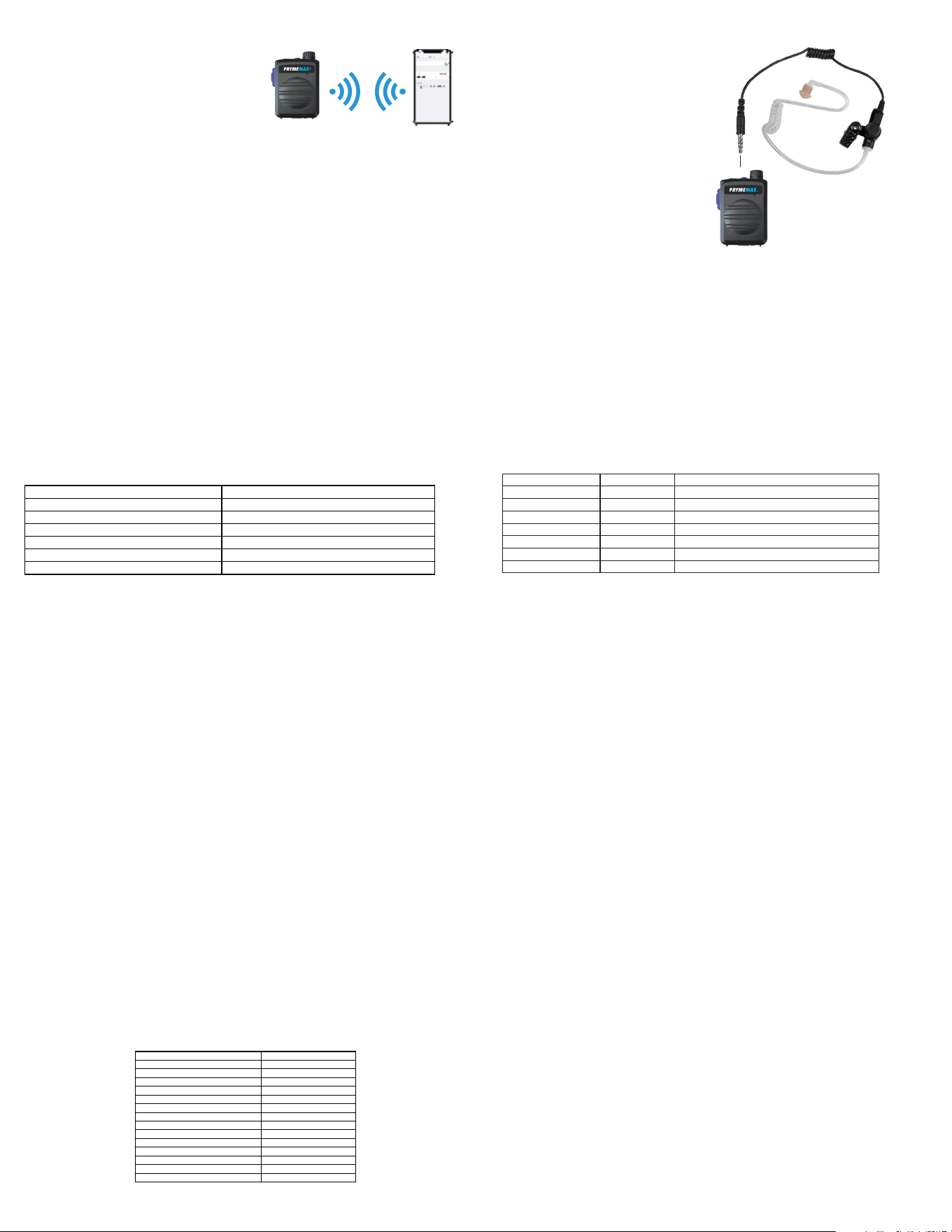
PRYMEMAX™ BTH-550-MAX
Wireless Speaker Microphone
For use with PRYMEBLU Wireless adapters; BK, Icom, and Kenwood
two-way radios with built-in BT connectivity; and for PTT Over-Cellular
apps such as ES Chat, Wave Communicator, and Zello on IOS
and Android smart phones,
© 2022 PRYME Radio Products, Brea CA. All Rights Reserved
Model No. BTH-550-MAX
Made in Taiwan
Optional Cradle Charger
Part No. P-CHA-550
Optional Cradle Charger
Part No. P-CHA-550
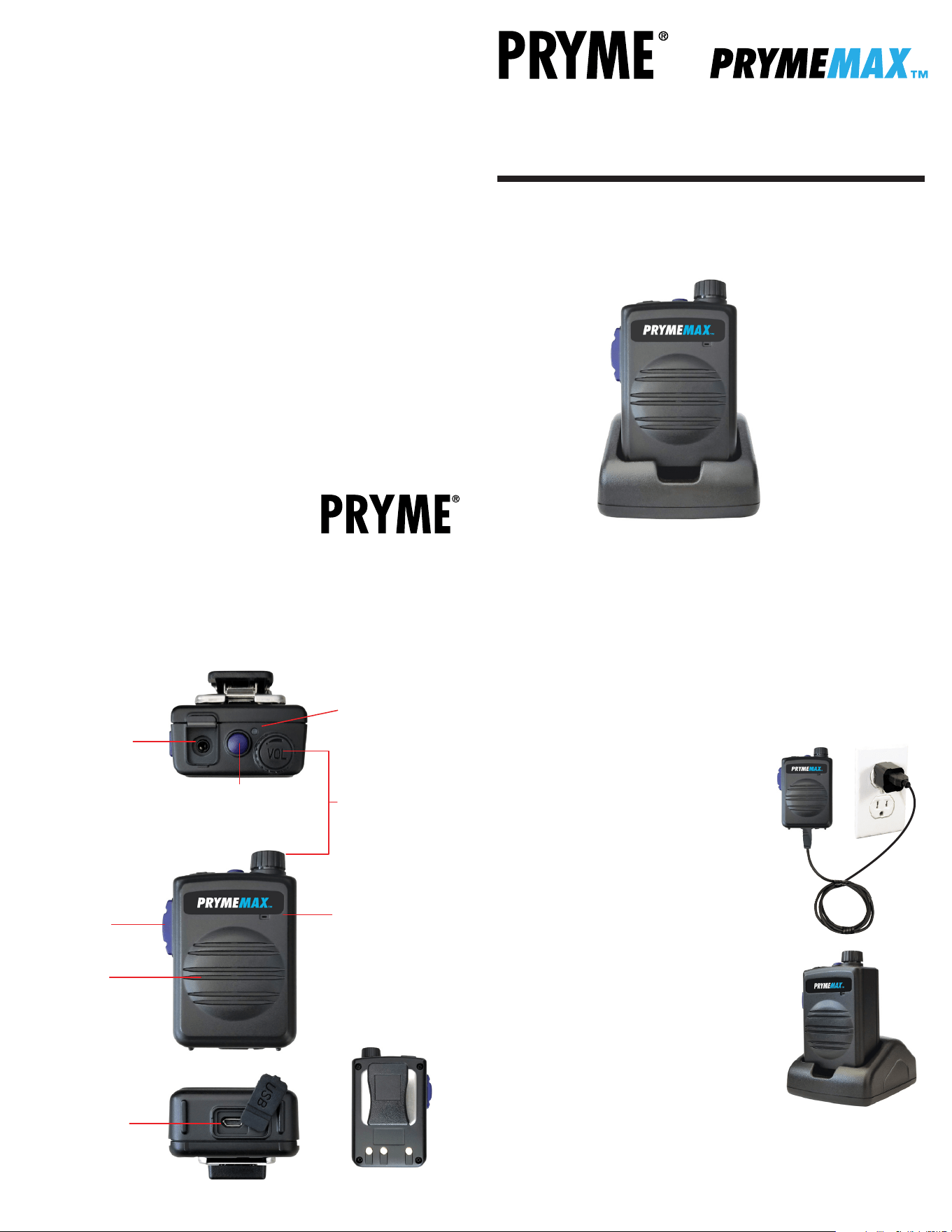
Controls and Connection
Multifunction Button
This button is used to answer or hang up
phone calls. Is also used to place the
microphone into pairing mode so it can
be connected to a handset via BT.
Front Firing Speaker
Received calls are heard over
this speaker. The volume level
can be controlled using either
the Volume/Power Knob on the
speaker microphone, or by using
the volume controls on the phone.
Status LEDs
The red and blue LEDs flash
messages that let the user know
the current status of the speaker
microphone.
Replaceable Clothing Clip
The alligator-type clip secures
the speaker microphone to the
user’s clothing during use.
The clip can be rotated to
allow the microphone to
be better positioned.
Microphone
This microphone picks up
the user’s voice audio when
sending a call.
PTT Button
This button is used to
activate the push-to-talk
feature of the PoC app or
two-way radio.
Volume Control/Power Knob
This knob allows you to turn the
BTH-550-MAX microphone on and
off and to adjust the volume of
received calls.
Accessory Jack
This jack is used to connect an
optional, wired listen-only earphone
or audio accessory to the speaker
microphone for enhanced privacy.
Any standard 3.5mm mono or
stereo listen-only earphone
can be plugged into this jack.
Received calls will be heard
over the earphone.
This jack can also be used with a
3.5 mm 4-conductor (Apple iPhone
compatible) audio accessory that
contains both an earphone and a
microphone such as Apple part
numbers ME186LL/A, or MD827LL/A.
(Not included.) When used with such
an accessory, received calls can be
heard over the accessory earphones
and transmit audio will be taken
from the accessory microphone.
Charge Jack
This micro-USB jack is used to recharge
the removable battery of the speaker
microphone by connecting the
BTH-550-MAX to a USB charger
or any powered USB source.
Keep the rubber cover in place
when the jack is not being used.
8
65
Using the Speaker Microphone with your PTT App
7
If you are using the microphone with a PTT Over Cellular app on an IOS or Android smartphone, you
may need to complete some additional setup within the app itself. Once setup, you will be able to
use the speaker microphone with the push-to-talk app, even if the app is running the background.
Please see insert for instructions on how to set up the PTT button in Zello,
Wave or ES Chat.
-To activate the app’s push-to-talk feature, press and hold the PTT button on the speaker microphone.
-When the app is transmitting a call, audio will be picked up by the BTH-550-MAX’s built-in
microphone.
-Incoming calls received by Zello will be heard over the BTH-550-MAX’s built-in speaker or through
the optional earphone if you are using one.
Making and Receiving Phone Calls
You can also use the speaker microphone to make and receive phone calls.
-You can initiate a phone call by using the Phone Dialer app in the phone.
-Phone audio will be routed to the BTH-550-MAX’s built-in microphone and speaker (or earphone,
if you are using one).
-To answer an incoming call, press the Multifunction button on the speaker microphone.
-While on a call, you can press the Multifunction button on the speaker microphone to hang up
the phone and end the call.
STATUS LED MESSAGES
The meanings of the various status LED messages shown by the speaker microphone are shown
on the following table:
LED INDICATION
Constant Red (while plugged into charger)
No indication (while plugged into charger)
Flashes red-blue-red-blue repeatedly
One blue flash every three seconds
One blue flash every three seconds
No indication
MEANING
Charge mode
Charging is finished
Pairing mode
Speaker microphone is powered on but not paired
Speaker Microphone is powered and paired
Speaker microphone is powered off
SUPPORT AND WARRANTY
PRYME Radio Products warrants this product against defects in materials or workmanship for a
period of one year from the date of retail purchase. PRYME will repair or replace a defective unit,
at our option, without charge for parts or labor. The limited warranty is extended only to the
original purchaser and is valid only to consumers in the United States and Canada. It does not
cover damage or failure caused by or attributable to Acts of God, abuse, misuse, improper or
abnormal usage, faulty installation, improper maintenance, lightning, or other incidences of
excessive voltage, or any tampering or repairs by other than a PRYME authorized repair facility. It
does not cover replacement of consumable parts, transportation costs, or damage in transit.
Repair or replacement under the terms of this warranty does not extend the terms of this
warranty. This warranty can only be modified by an officer of PRYME Radio Products, and then
only in writing. Should this product prove defective in workmanship or material, the consumer’s
sole remedies shall be such repair or replacement as provided by the terms of this warranty.
Under no circumstances shall PRYME Radio Products be liable for any loss or damage, direct,
consequential, or incidental, arising out of the use of or inability to use this product. Some states
do not allow limitations on how long an implied warranty lasts or the exclusions or limitations of
incidental or consequential damages, so the above limitations or exclusions may not apply to
you. This warranty gives you specific legal rights. You may also have other rights, which may vary,
from state to state.
For support or warranty service on your PRYME product, contact us at 1-800-666-2654 or visit us
on the web at www.PRYME.com.
COPYRIGHT AND TRADEMARK INFO
© 2022 PRYME Radio Products, Brea CA. All rights reserved.
PRYME®, PRYMEBLU® and PRYMEMAX™ are trademarks owned by PRYME Radio Products,
Brea CA.
Android is a trademark of Google Inc.
Apple is a trademark of Apple Inc.
iOS is a trademark of Cisco Systems and is used by Apple Inc. under license.
ZELLO is a trademark of Zello, Inc..
WAVE and WAVE COMMUNICATOR are trademarks of Twisted Pair Solutions, a wholly
owned subsidiary of Motorola Solutions, Inc.
ESChat is a registered trademark of San Luis Aviation, Inc.
BK Radios is a trademark of Relm Wireless Corporation
Icom is a trademark of Icom Inc.
Kenwood is a registered trademark of JVCKENWOOD Corporation
All other product or service names are the property of their respective owners.
DISCLAIMER: The BT wireless link used by PRYMEBLU products is an open standard,
unsecured technology. As such, it is not recommended for first-responder or other mission
critical users.
SPECIFICATIONS
BT Version:
Weight:
Speaker Output:
Receiver Sensitivity:
Power Class:
Range:
Display:
BT Profiles:
Operating Voltage:
Battery Capacity:
Operating Time (Standby):
Operating Time (Typical):
Operating Time (Continuous Talk):
Push-to-Talk Function:
Operating Temperature:
Version 4.1 fully qualified
130 g
2-watts
-83 dBm (typical)
BT class 2
10 meters
Blue and Red LEDs
HSP / HFP / A2DP / AVRCP
5 Vdc @ 25 mA (Average)
1000mAH, not replaceable
> 30 days
> 80 hours
> 40 hours
Built-in
-70°F to +120°F (approx.)
Pairing with a Smartphone or Two-Way Radio
1. Activate the pairing mode on the speaker microphone by turning it on using the Volume/Power Knob
and then pressing and holding the Multifunction button for three seconds until the status LED flashes
BLUE-RED-BLUE-RED continuously in sequence.
2. If pairing with a PRYMEBLU adapter, place the adapter into pairing mode following the instructions in
the device's manual. Then proceed to step 5.
3. If you are pairing the microphone with a two-way radio, follow the manufacturer's instructions to have
the radio scan for nearby headset devices. Once it finishes scanning, select the device named "BTH-PTT"
from the list of nearby devices. Then proceed to step 5.
4. If you are pairing the microphone with a smartphone, make sure that the smartphone's BT slider is
turned on and then use the phone's BT menu to scan for nearby devices. Select the device named
"BTH-PTT" to pair with the phone then proceed to step 5.
5. Keep the radio or handset and speaker mic near each other and wait a few seconds.
The devices will pair to each other.
NOTE that on some Kenwood radios you may hear a ring tone. If so, press the Phone Answer button on
top of the BTH-550-MAX microphone to confirm that pairing.
Reconnecting a Previously Paired Speaker Microphone and Phone
Once the speaker microphone and handset have been successfully paired together, both devices will
remember that connection. They will reestablish their link whenever the speaker microphone and
handset are both powered on and within range of each other, as long as the BT radio is enabled
in the handset. Re-establishing this connection can take 10-60 seconds.
In the event that the handset and speaker microphone to not automatically reestablish their link, simply
press the handset button on the BTH-550-MAX to restore the connection.
The BTH-550-MAX speaker microphone is designed to work
with PRYMEBLU wireless adapters, two-way radios with
internal BT made by BK, Icom, and Kenwood as well as
smartphone and tablets running either the Android or
Apple iOS operating systems.Prior to normal operation,
the handset and speaker microphone must be paired
together using the following process:
Connecting an Audio Accessory to the BTH-550-MAX Speaker Microphone
For enhanced privacy, the PRYMEMAX™ BTH-550-MAX speaker
microphone may be used with a listen-only earphone or
another compatible audio accessory that includes an
earphone and a microphone. However, many different
optional wired audio accessories are also available.
To connect an audio accessory to the BTH-550-MAX speaker microphone:
1. Plug the audio accessory into the 3.5 mm audio jack located on the top of the PRYMEMAX™
BTH-550-MAX speaker microphone. Make sure that the connector on the audio accessory is pushed all
the way into the jack on the speaker microphone.
2. You can adjust the volume of received signals by using the Volume Up and Volume Down buttons on
the speaker microphone or by adjusting the volume setting on the cellphone.
Optional Audio Accessories:
The 3.5 mm audio jack on the speaker mic will accept any stereo earphone with a 3.5 mm audio plug.
You can also use any 3.5 mm 4-conductor (Apple iPhone compatible) audio accessory that includes
both an earphone and a microphone, such as Apple part numbers ME186LL/A, or MD827LL/A (not
included). If the audio accessory has a built-in microphone, transmit audio will be taken from the
accessory microphone.
PRYME makes a variety of listen-only earphones and accessory microphones in different styles that
will work with the BTH-550-MAX:
TYPE
Listen-only
Listen-only
Listen-only
Listen-only
Mic+Earphone
Mic+Earphone
Mic+Earphone
STYLE
Ear Bud Earphone
Acoustic Tube Earphone
Bullet Transducer Acoustic Tube Earphone
G-Hook Swivel Earphone
Boom Mic Headset with D-Ring Earphone
Throat Mic Headset with Acoustic Tube Earphone
Motorcycle Helmet Boom Mic Kit
MODEL
EH-1189SC
EH-1399SC Recon™
EH-3099SC Bullet
EH-GH99SC G-Hook
SPM-499D Ranger™
SPM-1599 Gladiator™
SPM-899B Highway™
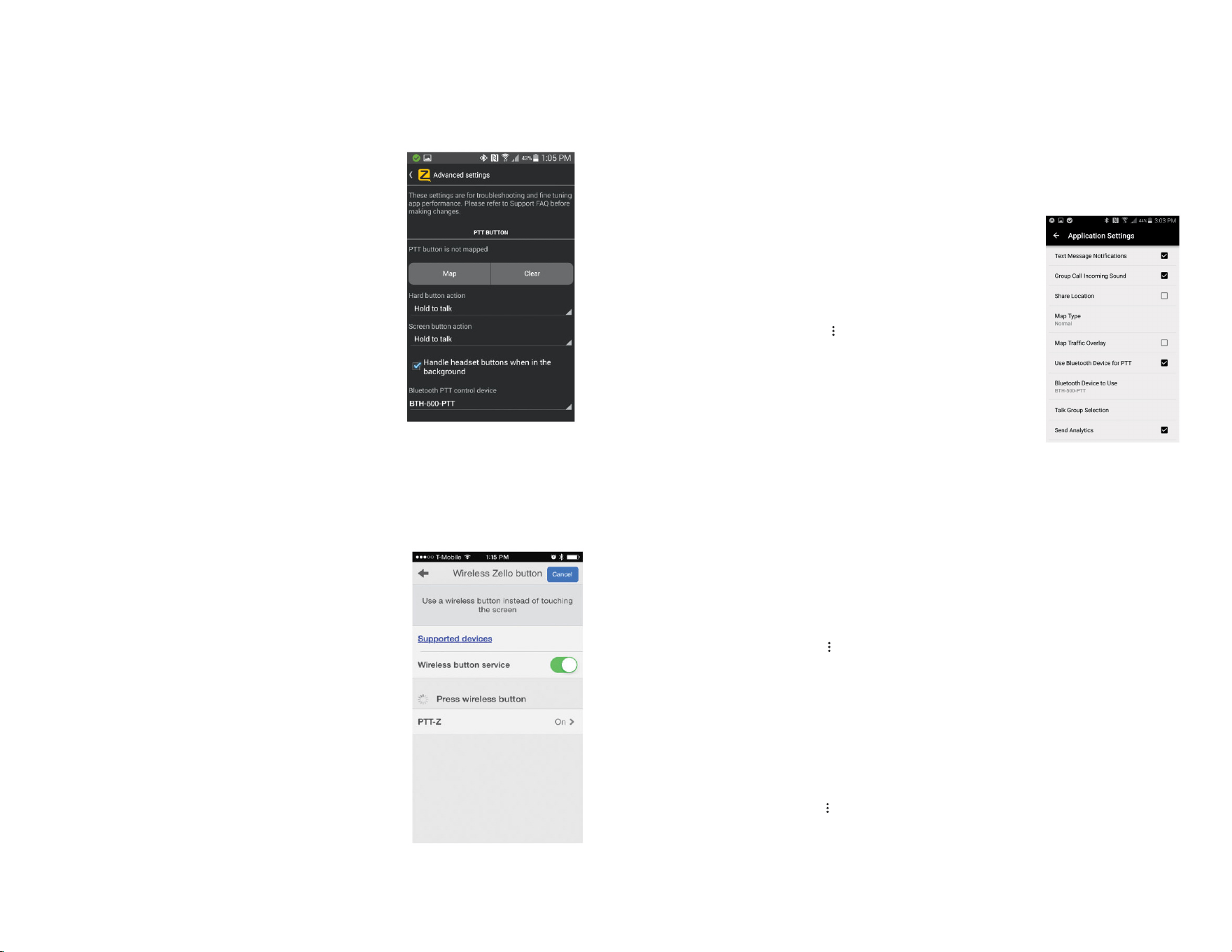
Setting up Zello (Android)
1. Make sure that your phone's BT radio is enabled, and that
the speaker microphone is powered on and that the microphone and
phone are connected to each other.
2. Open Zello and go to Menu > Options > Under the Hood.
3. Under "BT PTT Control," choose "BTH-PTT". You should
see a popup indicating the device control has been activated. If you
don't see it, you may need to power cycle the speaker microphone
and repeat this step.
4. Open the Talk screen in Zello (the screen with a big round button).
In the bottom-left corner of the screen, tap-hold and slide to the
BT icon to activate the speaker microphone in Zello.
Setting up Zello (iOS)
1. Make sure that your phone's BT radio is enabled, and that
the speaker microphone is powered on and that the microphone
and phone are connected to each other.
2. Open Zello and go to: Settings > PTT Button > Wireless Zello Button.
3. Make sure that the “Wireless Button Service” is turned on by sliding
the button to the right.
4. Press and hold the PTT button on the BTH-550-MAX.
5. Select “PTT-Z” from the list of PTT devices shown on the screen.
6. Open the Talk screen in Zello (the screen with a big round button).
Pressing the PTT button the Push-to-Talk device should now cause
Zello to transmit.
To get the WAVE Communicator app on your phone, download the app
from the Google Play store or Apple App Store.
For Android phones the PTT function of the BTH-550-MAX can be enabled to work with the Wave Communica-
tor app in one of two different ways, either using Serial Port Protocol (SPP) over conventional BT or using a
special version of BT called BT Low Energy (BLE). The BLE option can only be used with handsets that have
hardware support for BLE and are using Android version 5.0 (Lollipop) or newer.
Choose the option that is right for your phone and follow the instructions below:
Setting up WAVE Communicator (iOS)
1. Make sure that your phone's BT radio is enabled, and that the speaker microphone is
powered on and that the microphone and phone are connected (paired) to each other.
2. Open WAVE Communicator and log in using your username and password.
3. Tap on the More Options symbol “ ” in the top right hand corner of the app and then tap “App Settings.”
3. Press and hold the PTT button on the BTH-550-MAX speaker microphone.
4. Make sure that “Use BT Device for PTT” is selected. If it isn’t, tap it to select it.
5. Tap on “BT Device to Use” and then select “PTT-Z” from the list.
6. Release the PTT button on the BTH-550-MAX.
Setting up WAVE Communicator (optional, Android - BT Low Energy)
1. Make sure that your phone’s BT radio is enabled, and that the speaker microphone is powered
on and that the microphone and phone are connected (paired) to each other.
2. Press and hold the PTT button on the BTH-550-MAX speaker microphone.
3. On your phone, go to Settings > BT. Select “Search for Devices” from the phone’s BT menu.
The phone will scan for nearby BT devices and a list showing the names of nearby BT devices
will be shown on the screen.
4. Choose “PTT-Z” from the list.
5. Keep the phone and speaker mic near each other and wait a few seconds. The devices will pair to each other.
6. Open WAVE Communicator and log in using your username and password.
7. Tap on the More Options symbol “ ” in the top right hand corner of the app and then tap “App Settings.”
8. Make sure that “Use BT Device for PTT” is selected. If it isn’t, tap it to select it.
9. Tap on “BT Device to Use” and then select “PTT-Z” from the list.
10. Release the PTT button on the BTH-550-MAX.
App Setup (ZELLO) App Setup (Wave Communicator)
To get the Zello app on your phone, install Zello from your
Zello@Work network, or download the app from the Google Play
store or Apple App Store
A B
Setting up WAVE Communicator (Android-SPP)
1. Make sure that your phone's BT radio is enabled, and that the speaker
microphone is powered on and that the microphone and phone are
connected (paired) to each other.
2. Open WAVE Communicator and log in using your username and
password.
3. Tap on the More Options symbol “ ” in the top right hand corner of the
app and then tap “App Settings.”
4. Make sure that “Use BT Device for PTT” is selected. If it isn’t, tap it to
select it.
5. Tap on “BT Device to Use” and then select “BTH-PTT” from the list.
6. The app will then prompt you to press the PTT button on the
BTH-550-MAX to confirm that the setup was successful.
1.00.MAX JANUARY 2022
© 2022 PRYME Radio Products, Brea CA. All Rights Reserved