
CONTENTS
First-Time Setup
Specifications
Video Output
Knob Controls
Screen Display Guide
Getting Started
Main Screen Inteaces & Functions
Settings
Prompts Instructions
Anker Dock Manager
Troubleshooting
Problem with Working Properly
Problem with Display
Problem with USB A or USB C Ports
Problem with Ethernet Port
Problem with Ethernet Speed
Problem with Micro SD or SD Port
Problem with Audio Port
Problem with the Clock Display
FAQ
Display FAQs
Compatibility FAQs
Screensaver Clock FAQ
SN Location
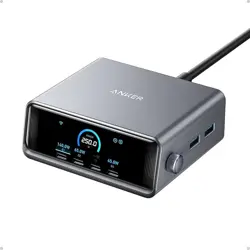
Anker Prime Docking Station
(14-in-1, Triple Display, DisplayLink)
User Manual
First-Time Setup
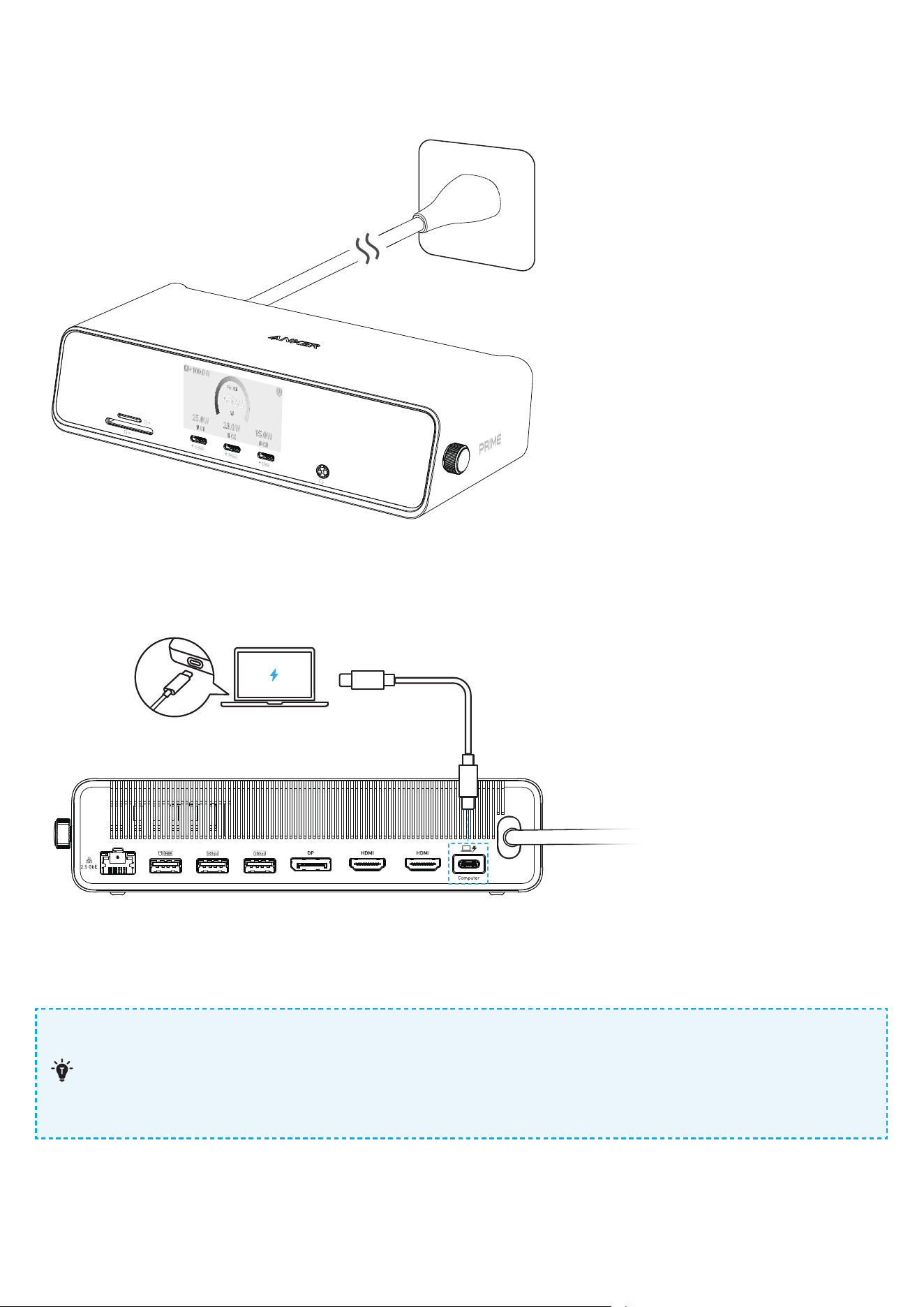
1. Connect the AC power plug to a power outlet. The digital screen will light up.
2. Connect your laptop to the USB-C upstream port on the dock using the included USB-C 3.2 Gen 2 cable.
Make sure you have downloaded and launched the latest version of the DisplayLink soware. Click here to
download it: www.anker.com/a83b3
USB-C
USB-C
3. Install DisplayLink
.
For best peormance and compatibility, make sure you are using the latest version of the
DisplayLink soware and that your operating system is up to date.
macOS requires Screen Recording permission for DisplayLink to function properly. This allows the
driver to capture screen content and render it to the external display. We do not collect any of
your data or information, and your privacy will be strictly protected.
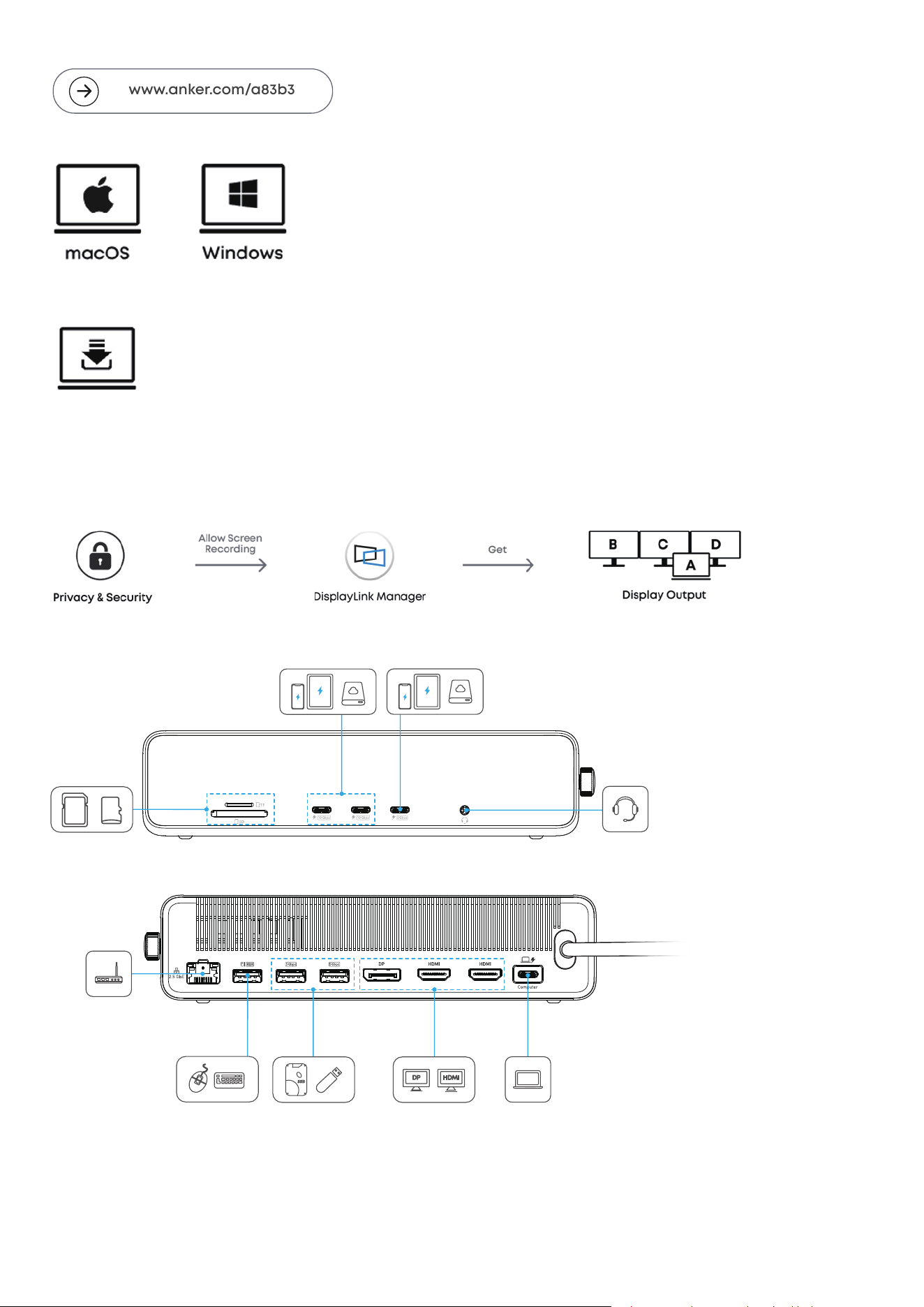
Step 1: Follow the instructions on the screen or product packaging to visit www.anker.com/a83b3
www.anker.com/a83b3
Step 2: Find the DisplayLink installer that matches your operating system.
Step 3: Download and install the driver.
Step 4: For MacOS, Go to System Settings > Privacy & Security > Screen Recording and enable DisplayLink
Manager.
Note: Please ensure that DisplayLink Manager is always enabled on your computer while using the docking
station, otherwise the normal operation of the docking station may be aected.
4. Connect other devices as needed.
11
11
44
77
10
8 8
SD
micro
SD
DP
Specifications
8
9
6 57
1
1210
3
2
4
11 13
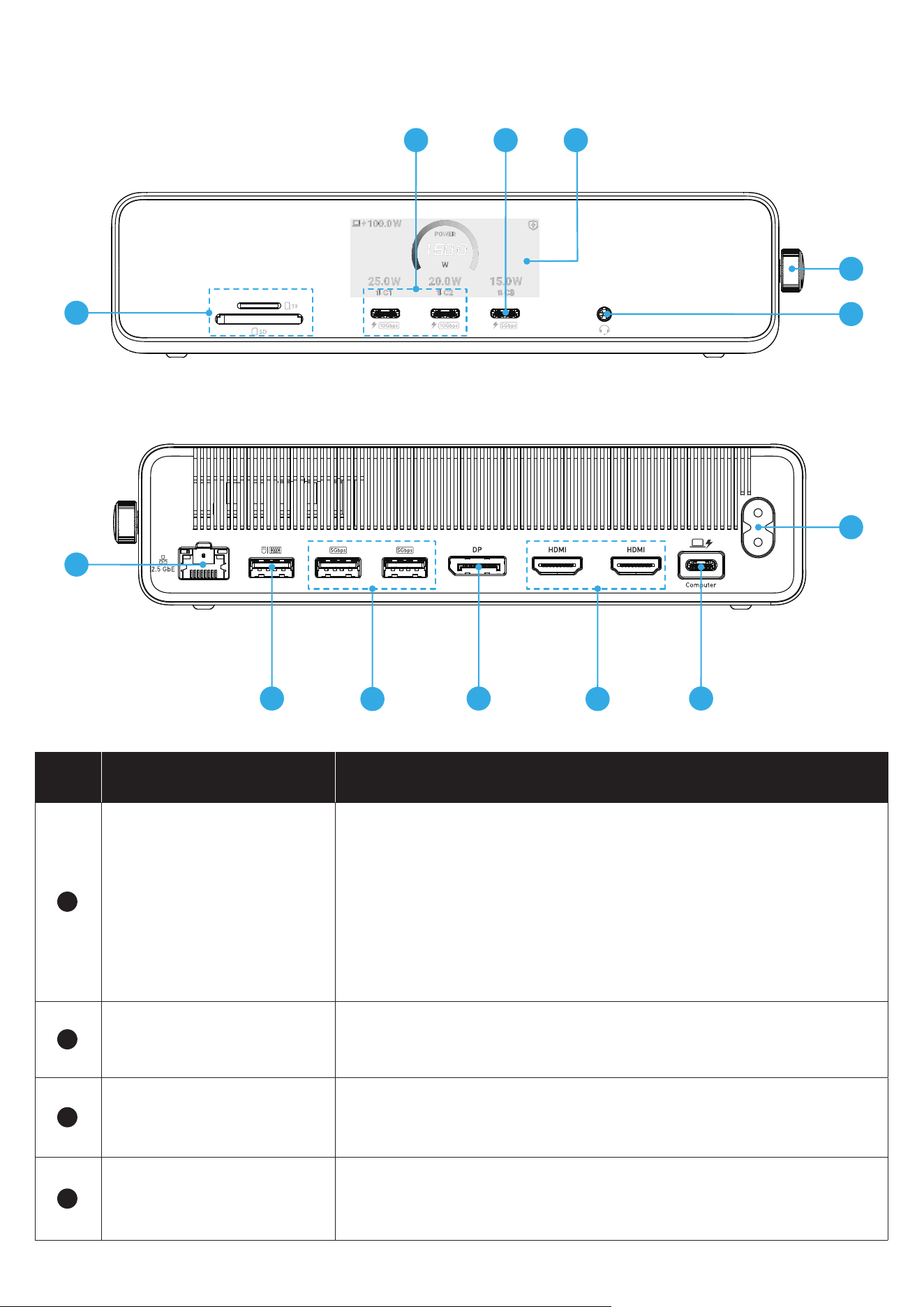
No. Item Description
1
USB-C Upstream Port
◊ Connect your laptop using the provided USB-C 3.2 Gen 2 cable.
◊ Provides data transfer speeds up to 10Gbps.
◊ Supports laptop charging up to 140W PD ( Power Delivery ).
Note: For 140W maximum charging, make sure your laptop’s USB-C
port supports PD 3.1. Some laptops, such as Dell, may only achieve
full charging speed with their original adapters due to proprietary
protocols, and thus, may show a low-power warning when using
third-party docks.
2
AC Input
Connect to a power outlet with the included power cord.
Note: Plug type varies by region.
3
Combo Audio Jack
Connect headphones or other devices with a 3.5 mm AUX
connector.
4
Power Knob
When the docking station is o, rotate or press the knob to turn it
on.
Note: See the Knob Controls table for more information.
5
Digital Screen
Displays charging output, data transfer status, video resolution
and refresh rate, firmware update status, and system warnings.
Note: See the Digital Screen Guide table for details.
6
USB-C Port
◊ Provides data transfer speeds up to 5Gbps.
◊ Supports a maximum output power of 100W. When the upstream
port is connected, only the PD protocol is available.
Note: This USB-C port is for charging and data transfer only and
does not support video output.
7
USB-C Port ×2
◊ Each port provides data transfer speeds up to 10Gbps.
◊ Supports a maximum output power of 100W. When the upstream
port is connected, only the PD protocol is available.
Note: This USB-C port is for charging and data transfer only and
does not support video output.
8
Card Reader
◊ Insert SD or TF memory cards.
◊ Supports up to 104MB/s and is compatible with SD 3.0, UHS-I,
SDXC, SDHC, SD, MMC, RS-MMC, Micro SDXC, Micro SD, and
Micro SDHC.
9
Ethernet Port
Connect to an Ethernet network with speeds up to 2.5Gbps.
Note: Actual speed depends on your internet service provider (ISP).
10
USB-A Port
◊ Supports data transfer speeds up to 480Mbps.
◊ Supports a maximum output power of 2.5W.
11
USB-A Port ×2
◊ Each port supports data transfer speeds up to 5Gbps.
◊ Each port supports up to 4.5W output.
12
DisplayPort (DP) Port
Connect to a DP-enabled monitor with resolutions up to 8K.
Note: Display peormance depends on the host device and
monitor specifications. See the Video Resolution and Refresh Rate
table for more information.
13
HDMI Port ×2
Connect to HDMI-enabled monitors for up to 8K resolution in
YCbCr 420 format.
Note: Display peormance depends on the host device and
monitor specifications. See the Video Resolution and Refresh Rate
table for more information.
USB-C4
USB-A1USB-A2USB-A3
USB-C1 USB-C2 USB-C3
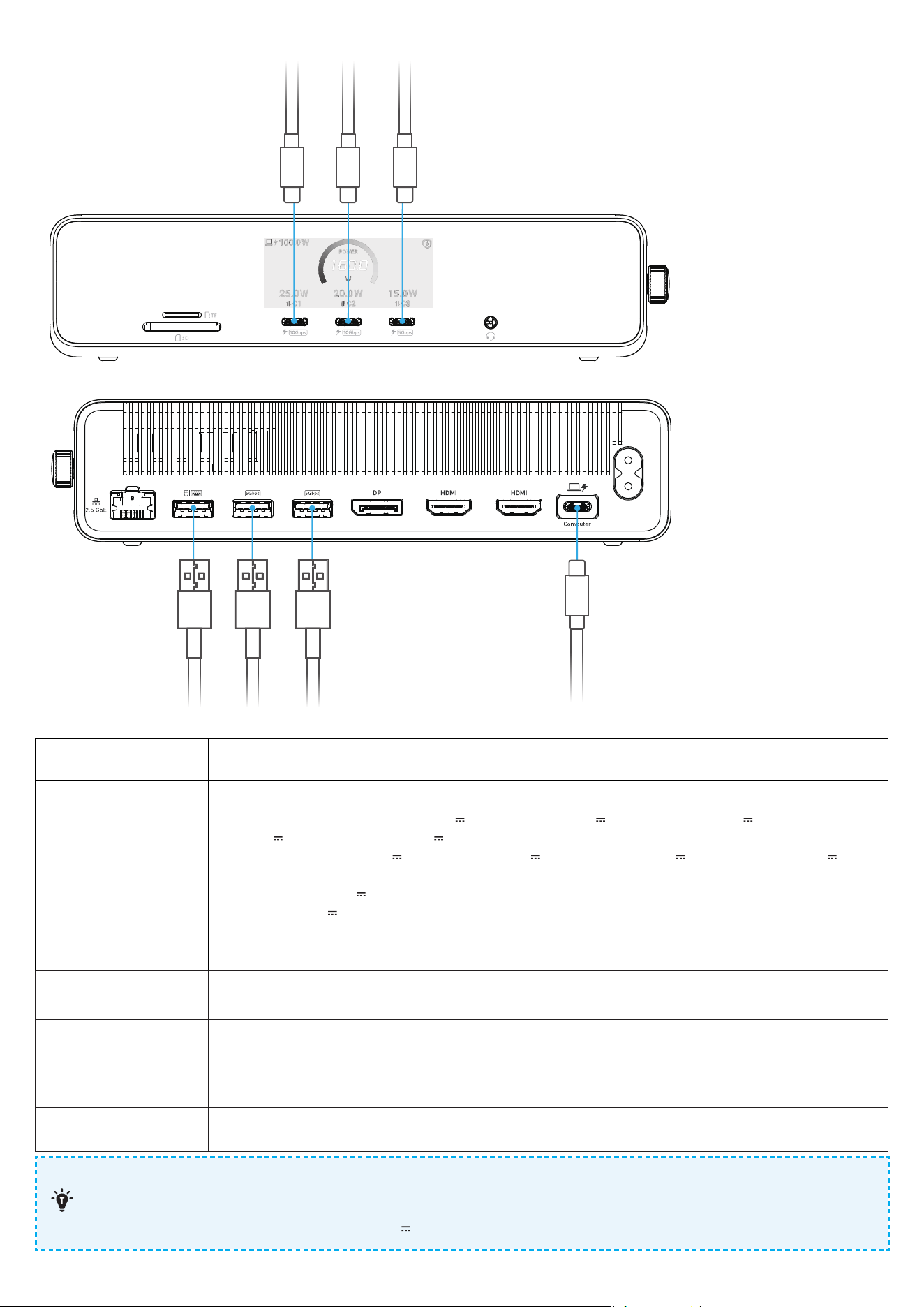
Input 100V-240V~, 50-60Hz, 2.5A
Output
Single Port Output:
USB-C4 (Upstream Port): 5.0V
3.0A, 15.0W / 9.0V
3.0A, 27.0W / 15.0V
3.0A, 45.0W /
20.0V
5.0A, 100.0W / 28.0V
5.0A, 140.0W (140.0W Max)
USB-C1 / C2 / C3: 5.0V
3.0A, 15.0W / 9.0V
3.0A, 27.0W / 15.0V
3.0A, 45.0W / 20.0V
5.0A,
100.0W (100.0W Max)
USB-A1 / A2: 5.0V
0.9A, 4.5W (4.5W Max)
USB-A3: 5.0V
0.5A, 2.5W (2.5W Max)
Total Output: 171.5W Max
Operating
Temperature
32°F - 95°F (0°C - 35°C)
Storage Temperature -40°F - 176°F (-40°C - 80°C)
Data Transfer Speed Up to 10Gbps
Compatible
Operating Systems
Windows 10 / 11, macOS 13.5 or Later
When using multiple USB charging ports simultaneously, the maximum total USB-C output is 160W.
Connect this product's USB-C4 port to a 16" MacBook Pro using the included USB-C 3.2 Gen 2 cable
to achieve a max power output of 28V
5A.
Video Output
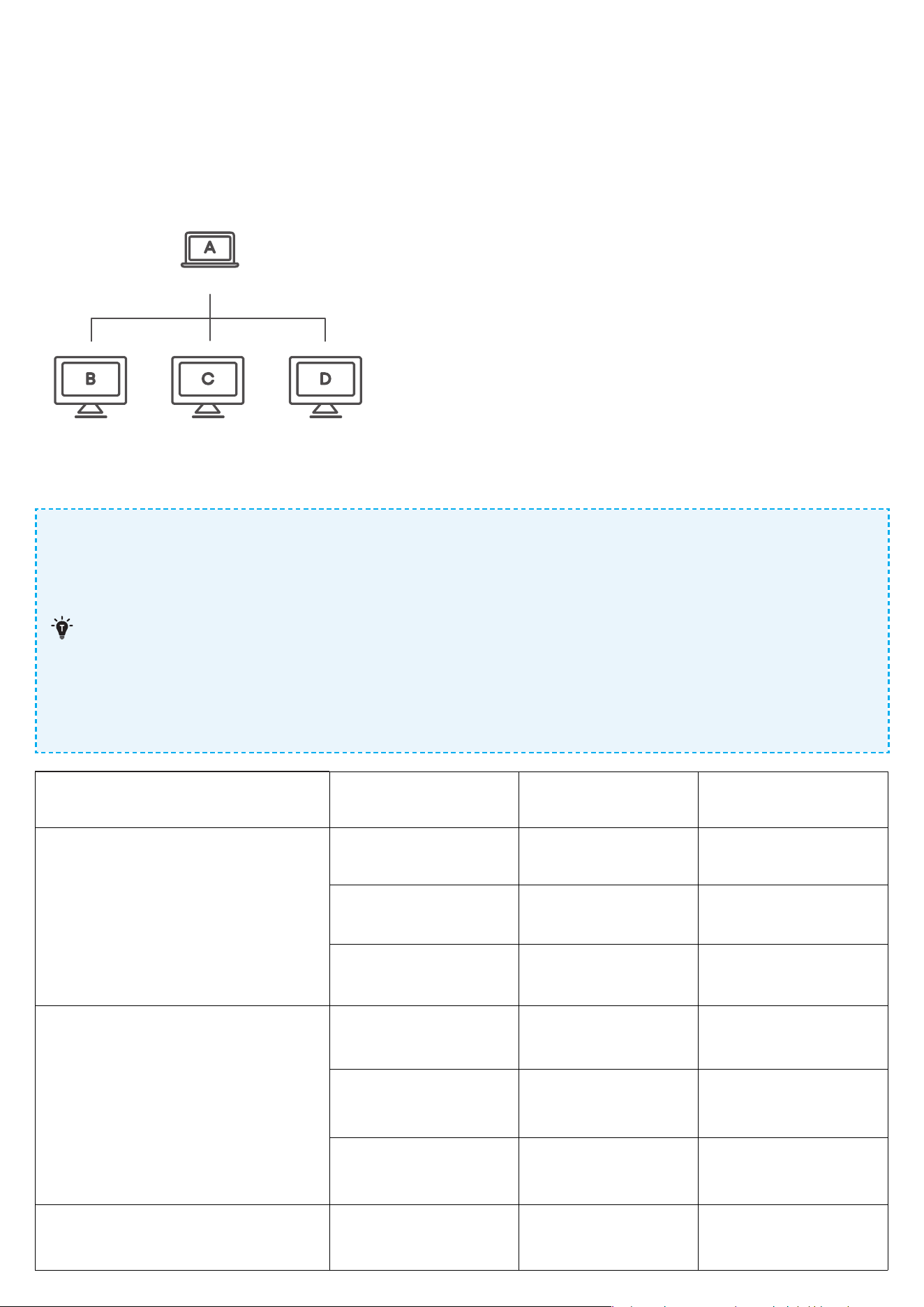
Video Output Modes
Note: Images are for reference only. Please set the display mode manually. Available options include
Duplicate and Extend (Windows), or Mirror and Extend (macOS). In the diagram, labels A, B, C, and D represent
dierent visual content shown on each screen.
For Windows and macOS systems:
Laptop
Display 1
Display 2 Display 3
Video Resolution and Refresh Rates
1. The table below lists the maximum supported resolutions for this dock. Actual output may
vary depending on your host device's specifications.
2. The two HDMI ports and the DisplayPort require the latest DisplayLink driver to function.
Please install and launch the driver on your laptop:
www.anker.com/a83b3
3. Only the Display Port is able to support 8K@60Hz. The other two HDMI ports are only able to
support 8K@30Hz at maximum.
4. When outputting video signals higher than 4K, HDMI only supports 8K@30Hz in YCbCr 420
format. For the most reliable peormance, 4K@60Hz is recommended.
HDMI Port 1
HDMI2.1 (TMDS)
HDMI Port 2
HDMI 2.1 (TMDS)
Display Port
DP 1.4 (DSC)
Single Monitor
8K@30Hz / /
/ 8K@30Hz /
/ / 8K@60Hz
Dual Monitors
4K@60Hz 4K@60Hz /
4K@60Hz / 8K@60Hz
/ 4K@60Hz 8K@60Hz
Triple Monitors 4K@60Hz 4K@60Hz 8K@60Hz
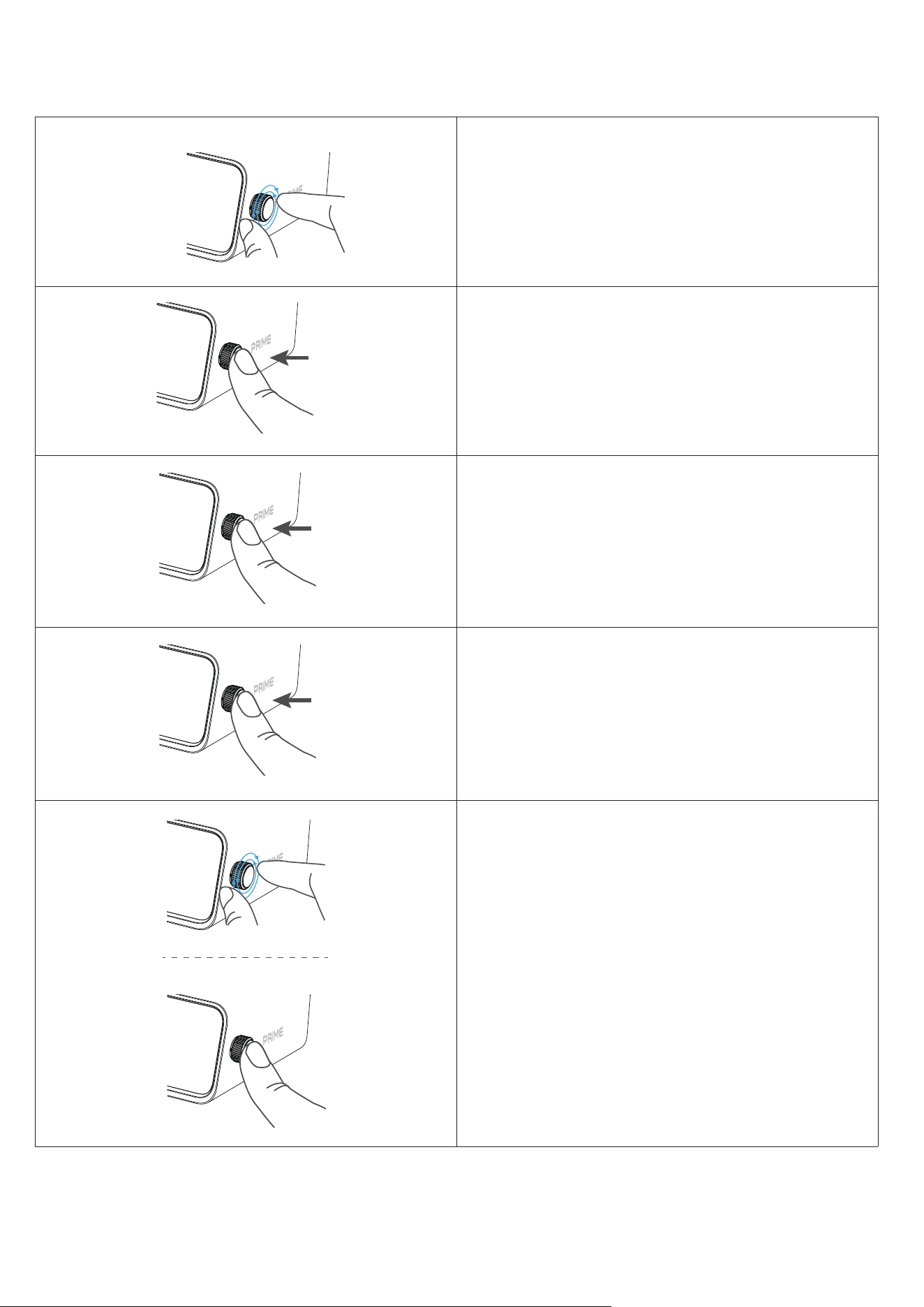
Knob Controls
1
Rotate the knob to move between options le
and right or up and down.
2
×1
Press the knob once to select or confirm a
highlighted option.
3
2s
To turn o the digital screen without aecting
operation, press the knob for 2 seconds while the
dock is on and the screen is lit. Rotate or press
the knob once to turn the screen back on.
4
5s
To power o the docking station, press the knob
for 5 seconds.
5
When the docking station is o, rotate or press
the knob once to power it on.
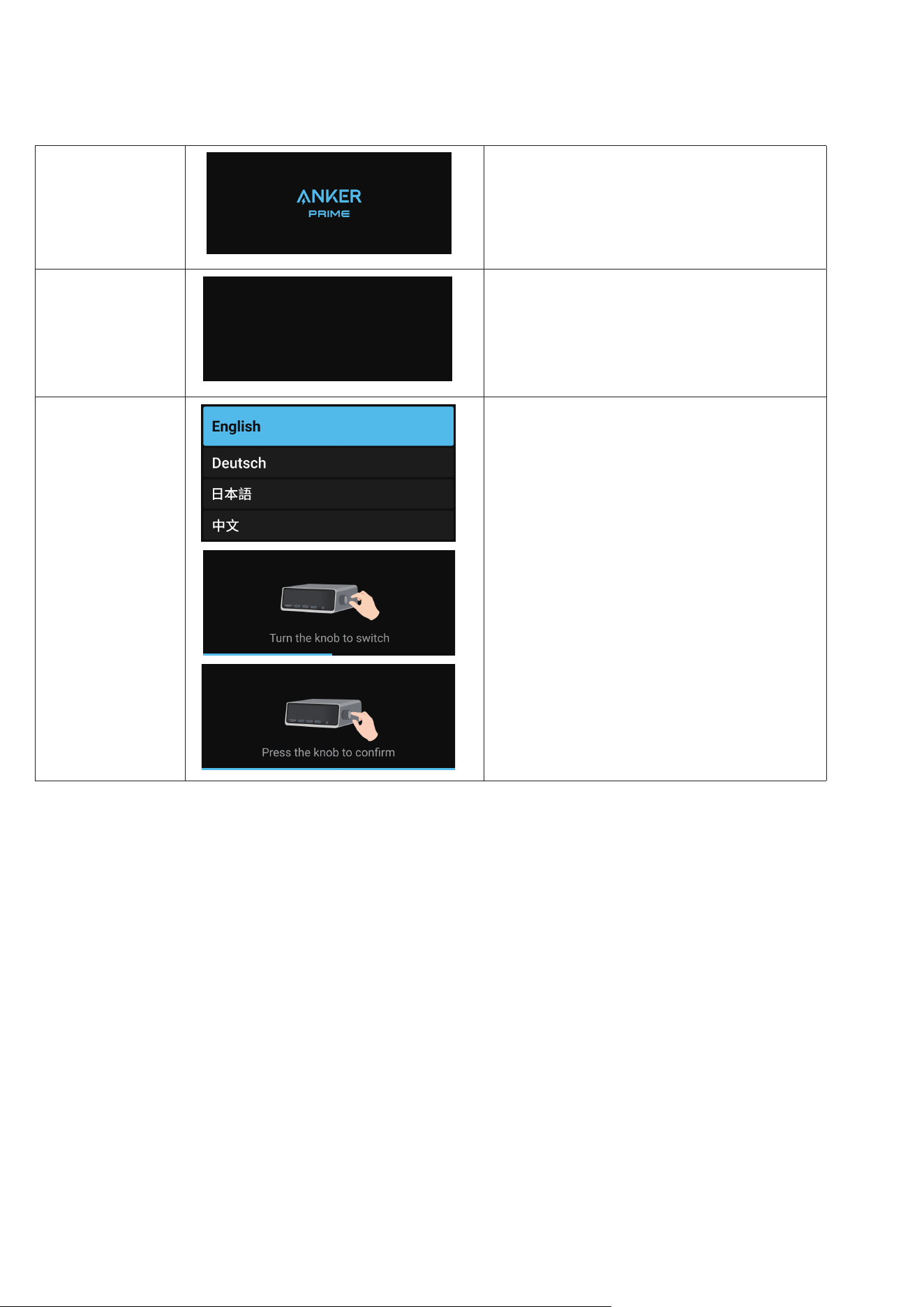
Screen Display Guide
Getting Started
Start-Up Screen ◊ When powered on, the Anker logo is
displayed.
Blank Screen
◊ Press the power knob once to turn on
the screen.
◊ Press the power knob for 2 seconds to
turn o the screen.
First-Time Use
◊ Supports English, German, Japanese,
and Chinese.
◊ A short video will play, demonstrating
knob rotation and press actions.
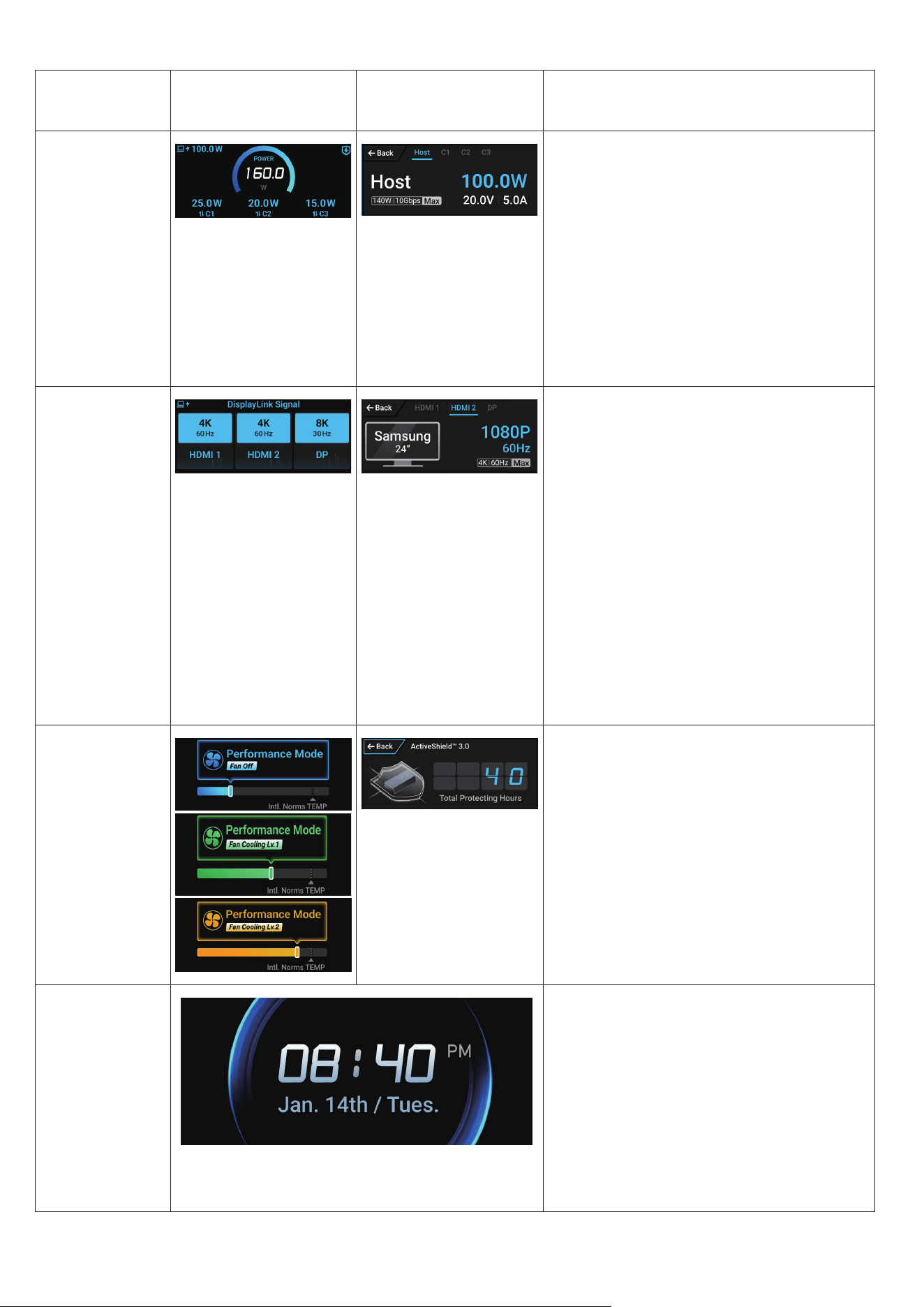
Main Screen Inteaces & Functions
Inteace
Name
Main Page Detail Page Content
Home Screen
(Charging
Status)
◊ Shows the current output power,
including total output power of
the dock, the output power of the
Host port, real-time output power
of each port, and whether a port is
actively transferring data.
◊ Press the knob once to view
detailed information, including
output power, current/voltage,
maximum charging power, and
the maximum data transfer speed
supported by the port.
HDMI / DP
Status
◊ Shows the current usage status,
resolution, and refresh rate for the
HDMI / DP ports. When a display
is detected, this screen appears
automatically. If there's no action
for 10 seconds, it returns to the
home screen.
◊ If a display resolution of 4K or
higher is detected, an animation is
displayed.
◊ Press the knob once to view port
details, including the display’s
brand and size, current resolution
and refresh rate, and the maximum
supported resolution and refresh
rate.
Peormance
Mode
◊ Shows the dock’s operating mode,
temperature, and fan mode.
◊ Blue, green and orange
background colors indicate three
types of Peormance Modes. These
modes correspond to dierent fan
conditions during normal operation.
No user intervention is needed.
◊ Press the knob once to display the
total hours of protection.
Clock
Screensaver
◊ Aer connecting the dock to your
laptop and launching DisplayLink,
the clock screensaver can be
activated.
◊ Aer a period of inactivity, the
screen switches to the screensaver.
◊ If the dock is powered o, the
screensaver activates only aer
reconnecting to a laptop with
DisplayLink running.
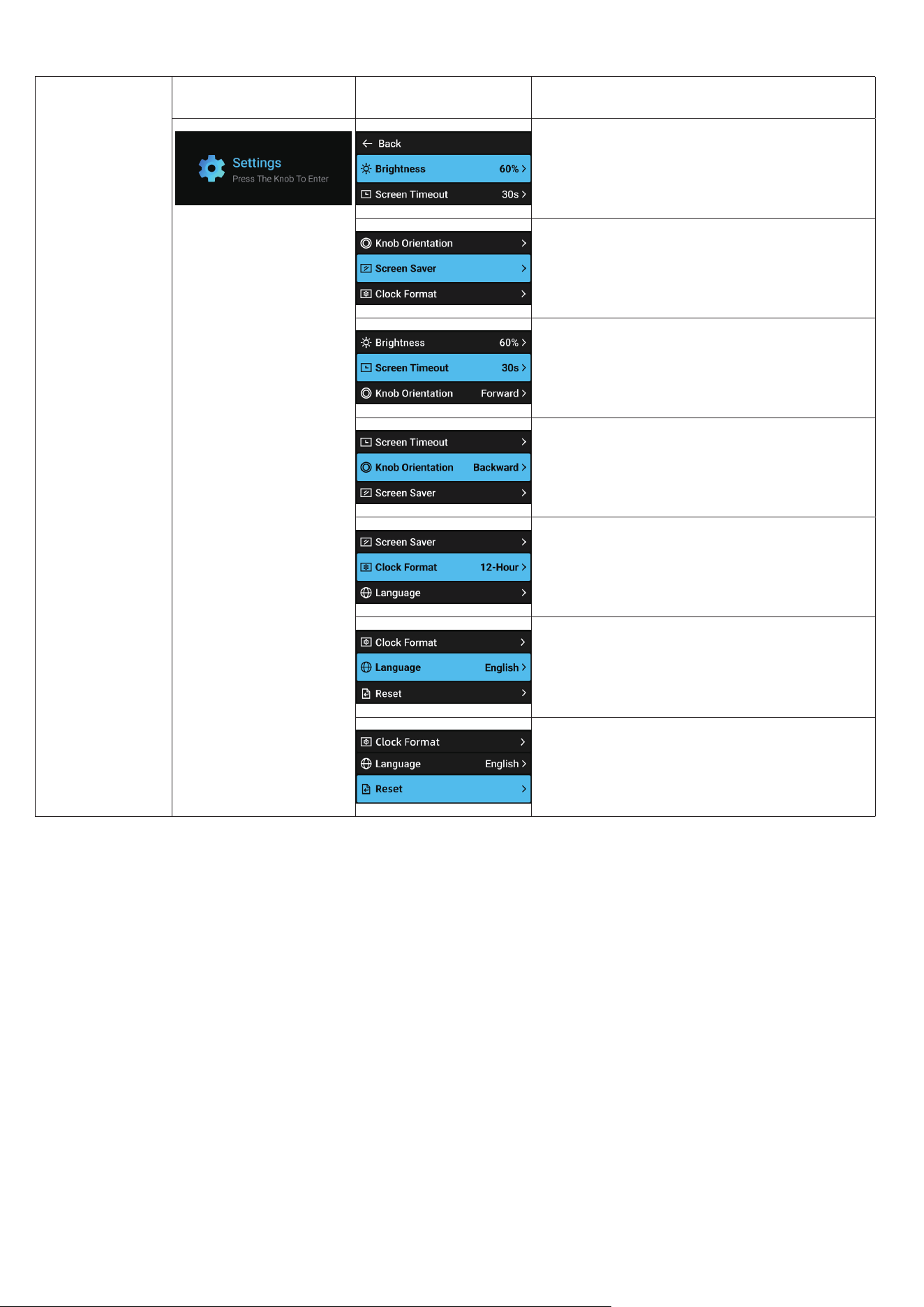
Settings
Settings Page Main page Detail Page Content
Brightness
◊ Adjust the screen brightness.
◊ Press the knob to confirm the setting.
Screen Saver
◊ Select a clock screen style or turn o
the screensaver.
Screen Timeout
◊ Set how long the screen stays on
before switching to the screensaver.
Knob Orientation
◊ Choose the screen scrolling direction
when rotating the knob.
Clock Format
◊ Select either 12-hour or 24-hour time
format.
Language
◊ Select from English, German,
Japanese, and Chinese.
Reset
◊ Reset the dock to its default settings.
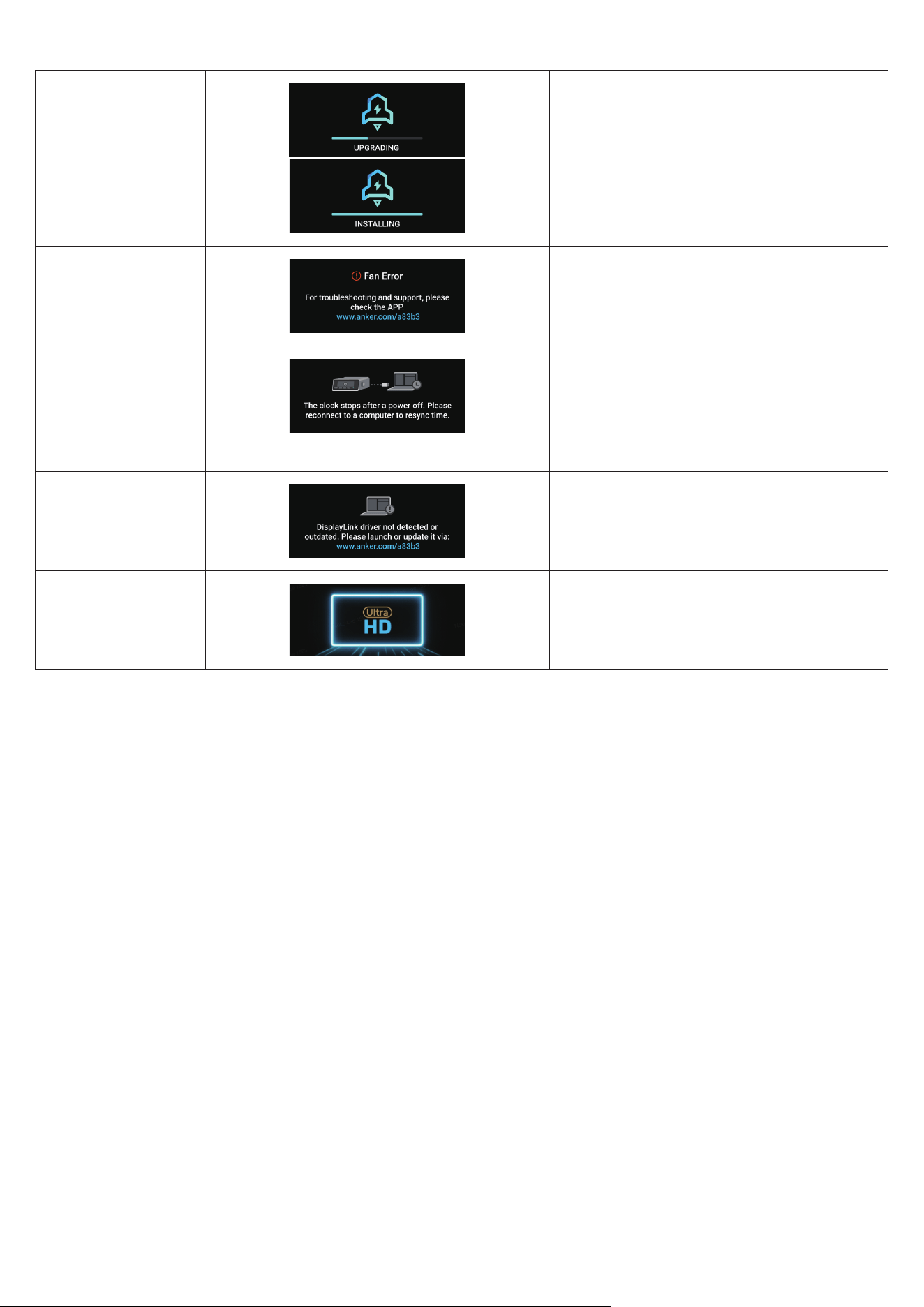
Prompts Instructions
Update Status ◊ Displays the current update
progress.
Note:
Use the Dock Manager app to start
the update. The dock will display
progress only.
Error
◊ Displays error messages and
suggested solutions when a fault is
detected.
Clock Not
Updating
◊ If the dock is powered o, the clock
stops keeping time.
◊ Aer powering on, follow the on-
screen prompts to recalibrate the
clock.
Driver not running
/ Driver outdated
◊ If the DisplayLink driver is not
running or incompatible, a prompt
with a download link will appear.
High Resolution
Display
◊ If a display resolution of 4K or
higher is detected, an animation is
displayed.
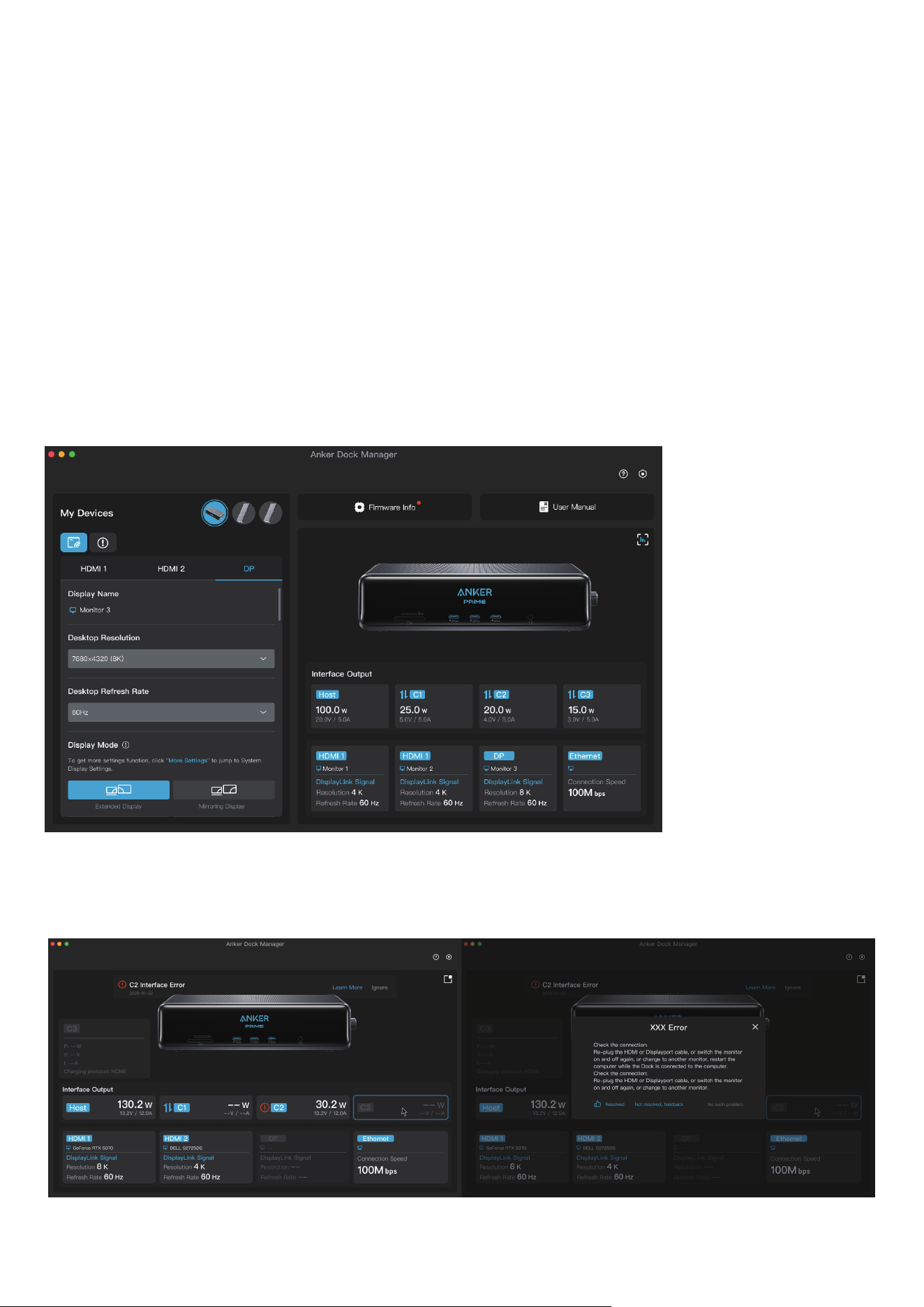
Anker Dock Manager
You can download the Anker Dock Manager desktop application by visiting:
www.anker.com/a83b3
This application allows you to easily manage supported Anker hubs and docking stations, update firmware
to maintain device compatibility, and troubleshoot issues using the built-in support and feedback tools.
For this docking station, Anker Dock Manager also supports:
• Basic display configuration settings
• Real-time viewing of device charging status, HDMI / DP connection details, and network status
Display Casting Assistant
• Allows you to configure display settings for connected monitors via the dock including: resolution, refresh
rate, display mode, and screen orientation.
Device Data Usage
• View real-time usage data and key peormance metrics for the following ports: Host, USB-C1, USB-C2,
USB-C3, HDMI, DP, and Ethernet.
Fault Self-Check and Technical Support
• When a device error occurs, the issue will be shown at the top of the screen. Click "Learn More" to view
suggested solutions.
•
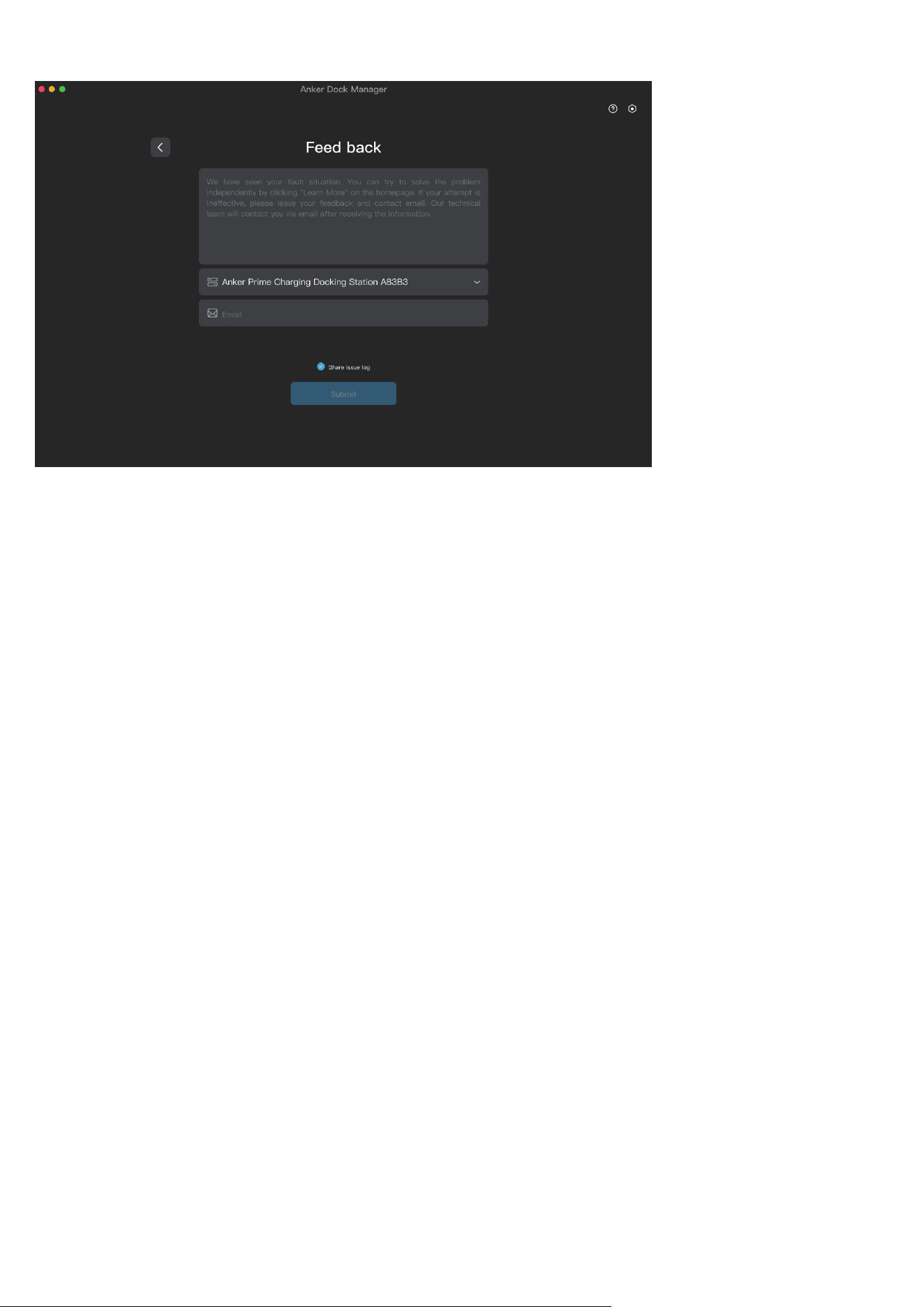
• Click "Feedback" in the pop-up window to access the Feedback page. You can submit a description of the
issue and your email address. Our support team will follow up via email.
Troubleshooting
Problem with Working Properly
Please try the following troubleshooting steps:
1. Unplug the dock from your laptop and disconnect all connected devices. Wait at least 5 minutes. Then,
reboot your laptop and reconnect the dock.
2. Make sure you are using the included USB-C 3.2 Gen 2 cable to connect the "Computer" port on the back of
the dock to your laptop.
3. If prompted on your MacBook to allow the dock to connect, select "Allow." If "No" was selected by mistake,
navigate to System Preferences > Security & Privacy > Security to modify the settings.
4. Try connecting the dock to a dierent port on your laptop or test it with another laptop to determine if the
issue persists.
Problem with Display
We would like to clarify that the USB-C front ports only support data transfer and charging ability. They do
not support video output so they cannot connect USB-C monitors.
If you have any other display issues, please try the following troubleshooting steps:
1. Confirm that you've downloaded and launched the DisplayLink soware when connecting the dock to a
MacBook.
2. Uninstall the DisplayLink soware completely and reinstall the latest DisplayLink soware to the latest
version.
3. Make sure that your laptop’s USB-C port supports data transmission speeds of 10Gbps or higher, as lower
speeds may impact peormance when connected to our dock.
4. Ensure that "Screen Recording" permission is enabled on your MacBook during the DisplayLink installation
to allow proper external monitor functionality.
5. Test the dock with a dierent laptop.
6. Try using a dierent HDMI or DisplayPort cable / monitor.
7. Verify that all devices are securely connected.
Problem with USB A or USB C Ports
Please try the following troubleshooting steps:
1. Unplug the dock from your laptop and disconnect all connected devices. Wait at least 5 minutes. Then,
reboot your laptop and reconnect the dock.

2. Check if peripheral devices function normally without the dock.
3. Test a dierent USB-A or USB-C device to see if it operates correctly in these ports.
4. Try using the dock with a dierent laptop to determine if the issue persists.
Problem with Ethernet Port
Please try the following troubleshooting steps:
1. If you're using a MacBook with an Intel chip or a Windows laptop, consider installing the appropriate drivers
from Realtek: https://www.realtek.com/Download/List?cate_id=585.
2. Test the dock with a dierent laptop to see if the issue continues.
3. If possible, connect your network cable directly to your laptop's Ethernet port to check for a stable internet
connection.
4. Try using a dierent Ethernet cable.
5. Test with a dierent router or network.
6. Unplug the dock from your laptop and disconnect all connected devices. Wait at least 5 minutes. Then,
reboot your laptop and reconnect the dock.
Problem with Ethernet Speed
Please try the following troubleshooting steps:
1. Use a Cat5e or Cat6 / Cat6a Ethernet cable (shorter than 328 / 100 m) to achieve 2.5G speeds. Older cables,
like Cat5, may limit peormance.
2. Adjust network adapter settings (Windows):
• Open Device Manager.
• Locate the dock's Ethernet adapter.
• Under Advanced Settings, make sure "Speed & Duplex" is set to Auto-Negotiation or manually select 2.5Gbps
Full Duplex if available.
3. Test the dock with a dierent laptop to see if the issue persists.
4. Unplug the dock from your laptop and disconnect all connected devices. Wait at least 5 minutes. Then,
reboot your laptop and reconnect the dock.
Problem with Micro SD or SD Port
Please try the following troubleshooting steps:
1. Unplug the dock from your laptop and disconnect all connected devices. Wait at least 5 minutes. Then,
reboot your laptop and reconnect the dock.
2. Test the dock with a dierent laptop.
3. Try using a dierent SD or microSD card.
4. Confirm that you've fully inserted the card by pressing it down completely.
Problem with Audio Port
Please try the following troubleshooting steps:
1. Disconnect the dock from your laptop and all devices. Wait at least 5 minutes. Then, reboot your laptop and
reconnect the dock.
2. If you're using a MacBook, go to System Settings > click Sound > select the Output tab > choose Anker 3.5mm
Audio as the output device.
3. Test the dock with a dierent laptop.
4. Try using a dierent pair of headphones.
Problem with the Clock Display
Please try the following troubleshooting steps:
1. Connect the dock to your laptop to get the latest real-time.
2. Make sure that you have downloaded and installed the latest DisplayLink driver from

www.anker.com/a83b3.
3. In Settings > Screensaver, do not select the option to turn o the screensaver.
4. In Settings > Timeout, avoid setting the timeout to "Always On."
FAQ
Display FAQs
Q: What should I do if a content-protected video does not play on Mac while DisplayLink screens are
connected?
A: When DisplayLink screens are connected, some protected content in iTunes, HBO, Amazon Prime, Nelix,
Disney+, YouTube TV, or Udemy, and other applications may not play. In those cases, the video would remain
black while the audio is still playing.
This is due to the behaviour of the OS X inteaces the DisplayLink driver uses to access graphics content.
A side eect of those inteaces is that as soon as one DisplayLink screen is connected, protected content
becomes unavailable on all screens.
A workaround is to temporarily disable hardware acceleration in your Google Chrome or Edge browser (Firefox
and Safari browsers are not supported) to access protected content by following the steps below:
1. Click the 3 dots on the top right of the web browser
2. Select Settings
3. Select System
4. Disable "Use hardware acceleration when available"
5. Relaunch Chrome or Edge
Q: Is it mandatory to download and install the DisplayLink soware to use the dock for displays?
A: Yes, installing the DisplayLink soware is required to use the dock's HDMI ports and DP ports for video
output. These ports rely on DisplayLink drivers (for Windows) or the DisplayLink Manager app (for macOS)
to enable additional displays. This setup extends the display capabilities of your laptop through soware-
based graphics emulation. To maintain compatibility and peormance, it's recommended to keep your
operating system, graphics drivers, and DisplayLink soware up to date.
Q: Does granting "Screen Recording" permission to DisplayLink aect my privacy?
A: No, there is no privacy risk. macOS requires "Screen Recording" permission for DisplayLink to access pixels
and render mirrored or extended displays over USB. We do not collect any of your data or information, and
your privacy will be strictly protected.
Q: Can I connect a monitor to the front USB-C ports?
A: No. The front USB-C ports support charging and data transfer only—for devices like hard drives, webcams,
or printers. They do not support video output.
Q: Why is the resolution shown on the dock's screen dierent from the actual monitor’s resolution?
A: The resolution and refresh rate shown on the dock's screen reflect the optimal settings determined by
DisplayLink, based on your laptop's configuration and your monitor's specifications. If you manually change
the resolution, the dock's screen may not detect the updated settings and will continue to display the original
recommended resolution.
Compatibility FAQs
Q: Can I use a dierent USB-C to USB-C cable instead of the included one?
A: We recommend using the included USB-C 3.2 Gen 2 cable when connecting the dock to your laptop. If you
choose to use another cable, make sure it supports both 10Gbps data transfer and 140W PD 3.1 charging.
Using a cable with a slower data speed may result in reduced peormance or limited video output. If the
cable does not support 140W PD 3.1, charging speeds may also be lower and not reach the dock's full 140W
output.
Q: How can I confirm if my laptop is compatible with this dock?
A: To ensure full compatibility:
1. Your laptop's USB-C port must support at least 10Gbps data transfer speed.
2. The USB-C port must support PD 3.1 with a charging speed of up to 140W
If your laptop's USB-C port supports a data transfer speed lower than 10Gbps, you may experience reduced
data transfer rates and limited display (video output) peormance.
If it does not support 140W PD 3.1 charging, the charging power will not reach the maximum 140W, resulting in
slower charging speeds.
Q: Why does my Dell laptop show a slow charging warning even though my power requirement is less than
140W when plugged into this dock?
A: Please note that Dell laptops use a proprietary charging protocol, which can trigger a slow charging
warning when using non-Dell echargers. Although maximum power cannot be achieved, it remains suicient
for routine charging needs.
Screensaver Clock FAQ
Q: Why does the screensaver clock disappear when the dock is powered o?
A: The docking station does NOT include built-in features such as Bluetooth or Wi-Fi to maintain the real-time
clock. Instead, it relies on synchronization with the connected laptop via DisplayLink. If the dock is powered
o, it cannot retain real-time information. Therefore, to obtain the correct time, you need to connect the
docking station to your laptop and launch DisplayLink.
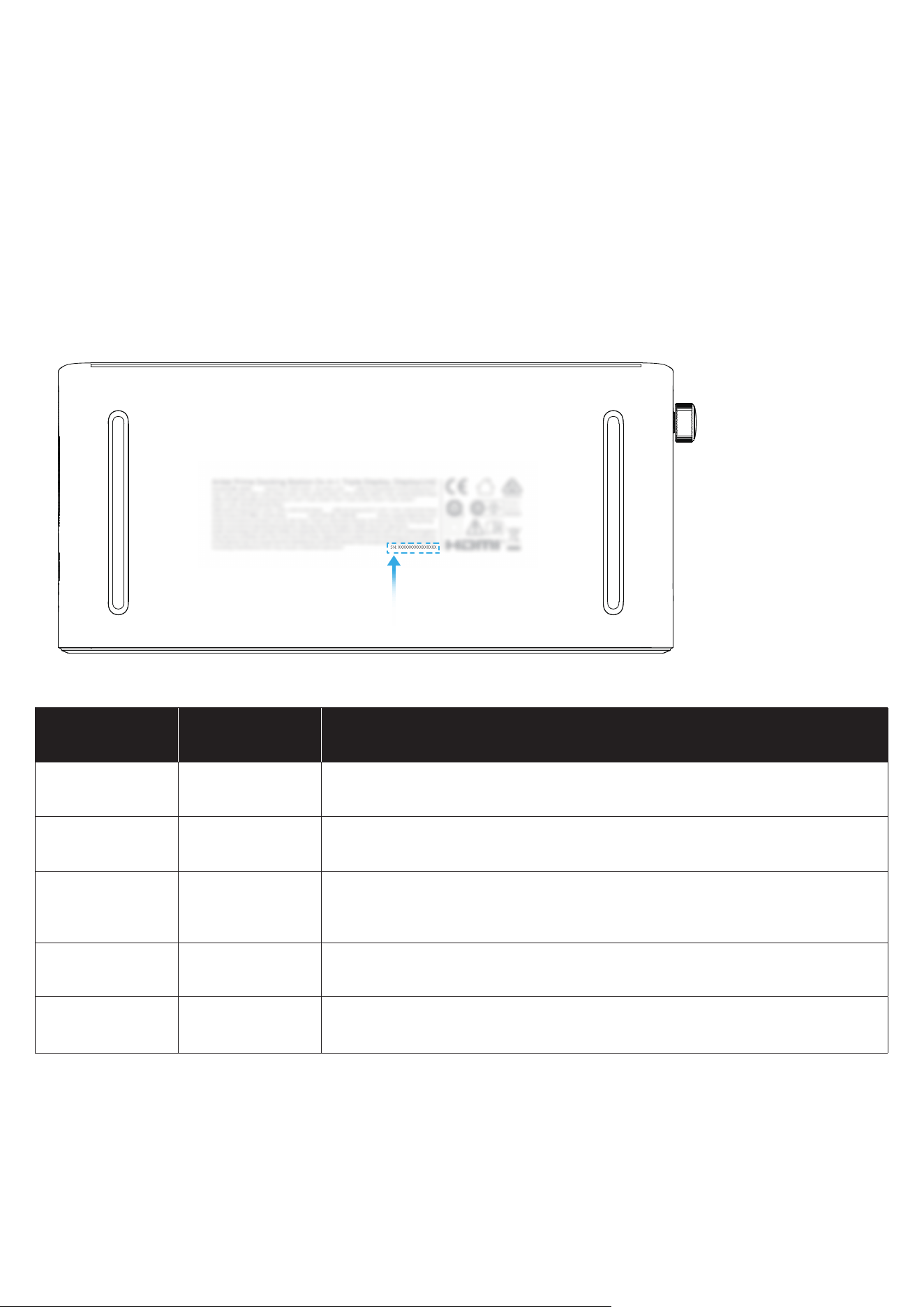
SN Location
The serial number (SN) is printed on the back of the dock, formatted as shown below:
Note: The 'x' of SN Code: xxxxxxxxxxxxxxxx is a variable, see below table.
Variable 'x' Range of variable Content
Eighth 0-9 or A-F
Denotes the hardware version which is not eected on the safety
compliance.
Ninth 8,9,A,B,C...
Denotes the year, 8 means 2018, 9 means 2019, A means 2020, B means
2021, C means 2022, and so on.
Tenth and
Eleventh
01,02,03...
Denotes weeks, 01 means the first week in this year, 02 means the
secondary week in this year, and so on.
Twelh 1-7
Denotes date, 1 means Monday, 2 means Tuesday..., 7 means Sunday
and so on.
The last five 00001-99999 Denotes serial No.
Compliance Information
1. The power of low power consumption condition: 0.45W
2. The power of networked standby mode: 1.95W
3. The time of automatically into low power consumption condition or networked standby mode: 5mins
4. Information of applicable adapter:
• Input: 100-240VAC, 2.2A, 50-60Hz
• Output: 5.0VDC, 3.0A, 15.0W / 9.0VDC, 3.0A, 27.0W / 12.0VDC, 3.0A, 36.0W /15.0VDC, 3.0A, 45.0W/ 20.0VDC, 5.0A,
100.0W