Charging Your Devices
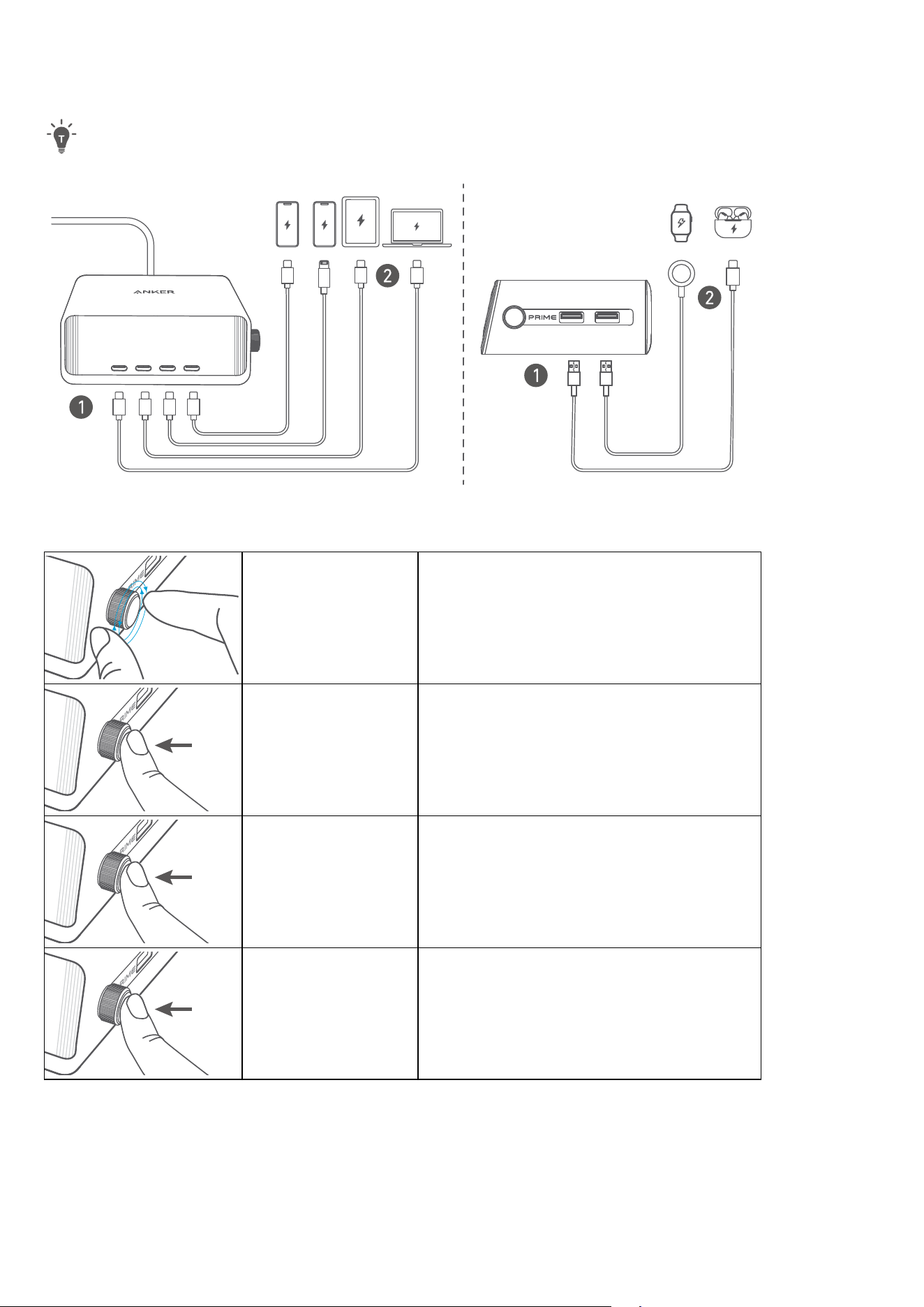
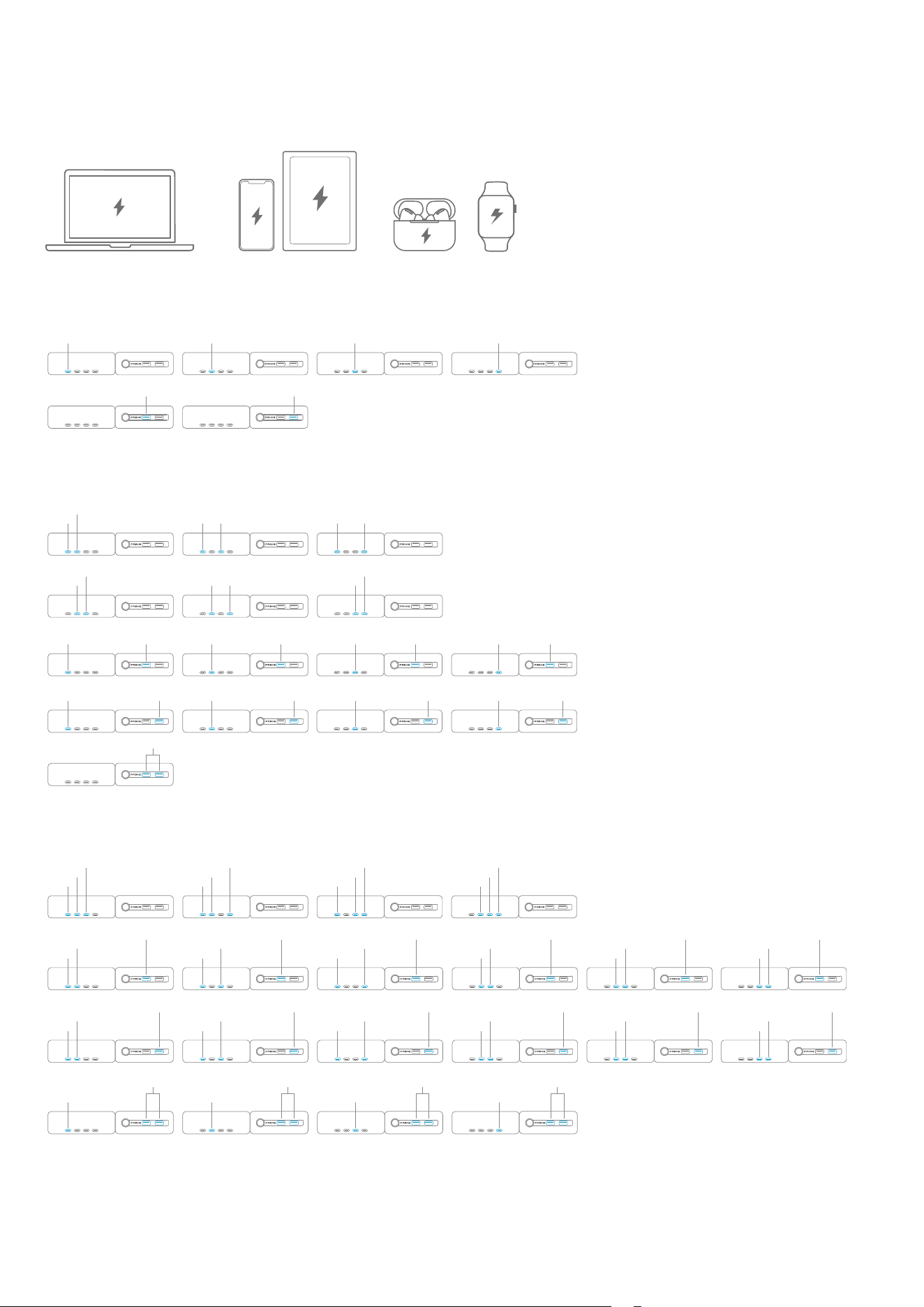
You can charge multiple devcies via the four USB-C ports and two USB-A ports simultaneously.
Connect your charger to a 2021 Apple MacBook Pro (16") using a USB-C to MagSafe 3 cable to achieve maximum
power (140W) from a single port (USB-C1) or to achieve maximum power (100W) from a single port (USB-C2/C3/
C4).
USB- A2
USB- A1
USB-C2
USB-C3
USB-C4
USB- C1
Knob Controls
Rotate
Toggle options between left and right, or up and
down.
×1
Press Select or confirm.
2s
Press for 2 seconds Manually turn o the display.
×6
Press six times rapidly Access the reset option.
Display Screen Guide
×6
×1
2s
×1
×1
×1
×4
×1
×1
Blinking (connecting)
Steady (connected)
Steady (connected)
×2
1
2
3 4 5
6
7 9
8 10
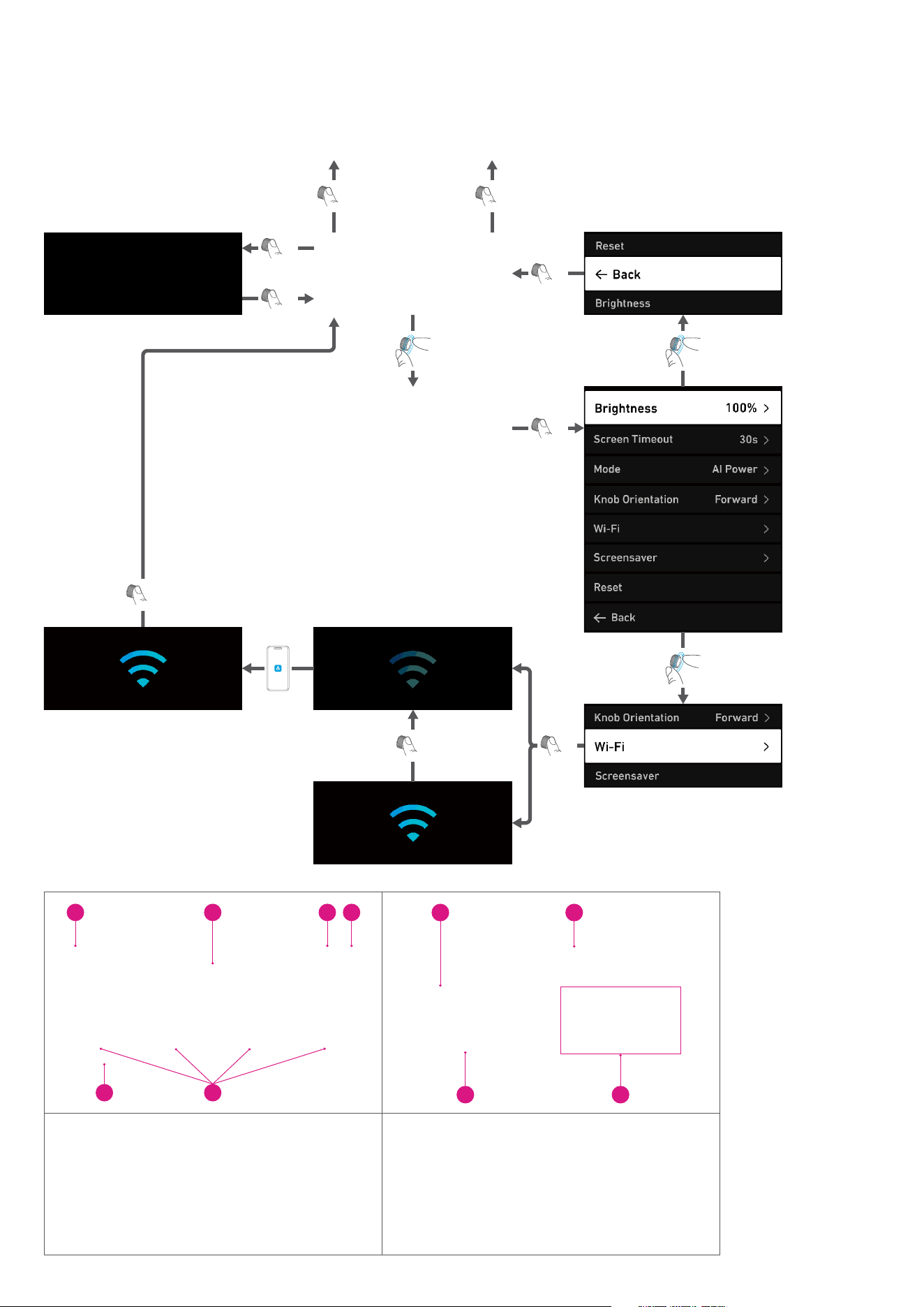
1. Total power
2. Single-port power
3. Wi-Fi connection
4. Power timer
5. ActiveShield (Real-Time temperature
monitoring)
6. Priority port
7. Port name
8. Maximum output power
9. Port priority (On / O)
10. Output voltage, current, and power
Connecting to Anker App
Download the Anker app to enhance your experience.
1. Download and open the Anker app.
2. Connect the charger to the power source.
3. Go to "Settings" > "Wi-Fi" and enable Wi-Fi for the charger.
4. Turn on Bluetooth on the phone.
5. Add this charger to the app, then follow the in-app instructions to complete the setup.
Settings
Rotate the knob to toggle among setting options, then select "Yes" or "Cancel" and press the knob to confirm.
You can go back to the previous level at any time by selecting "Back".
Brightness 20%-100%
Screen
Timeout
Always On
30 Min
5 Min
1 Min
30s
Setting Mode
AI Power Mode
• Automatically detects device power requirements (high, medium, or low) and
adjusts power distribution accordingly for optimal charging eciency.
Port Priority Mode
• Allows prioritization of up to two ports for higher power output.
• A maximum of 2 ports can be set as priority ports.
Low Current Mode
• Ideal for overnight charging to prevent overcharging.
Dual-Laptop Mode
• Simultaneously charges two laptops.
Wi-Fi On / O
Screensaver
Clock Screensaver
• You need to connect to Wi-Fi first.
Turn O Screen
Knob
Orientation
Forward
Backward
Reset
Yes / Cancel
• Returns to factory settings.
Output Power Distribution
AI Power Mode
Automatically detects the connected charging device and allocates the optimal power.
High Power Devices Medium Power Devices Low Power Devices
Port Priority Mode
Single-Port Charging*
140W 100W 100W 100W
22.5W 22.5W
*Also applies to Dual-Laptop mode.
Two-Port Charging**
140W 22.5W 100W 100W 100W22.5W
100W
22.5W 22.5W
100W 100W 22.5W140W 22.5W 22.5W 22.5W
140W
100W
140W 100W140W100W
100W
100W
100W 100W100W
100W
24W
**Also applies to Dual-Laptop mode.
Three-Port Charging
140W
65W
45W
65W
45W
65W
45W
100W
100W
22.5W
100W
100W
22.5W
100W
100W
22.5W
100W
100W
22.5W
100W
100W
22.5W
100W
100W
22.5W
100W
100W
22.5W
100W 100W 100W 100W
100W
100W
22.5W
100W
100W
22.5W
100W
100W
22.5W
100W
100W
22.5W
100W
100W
22.5W
140W 140W
100W
45W
100W
24W 24W 24W 24W
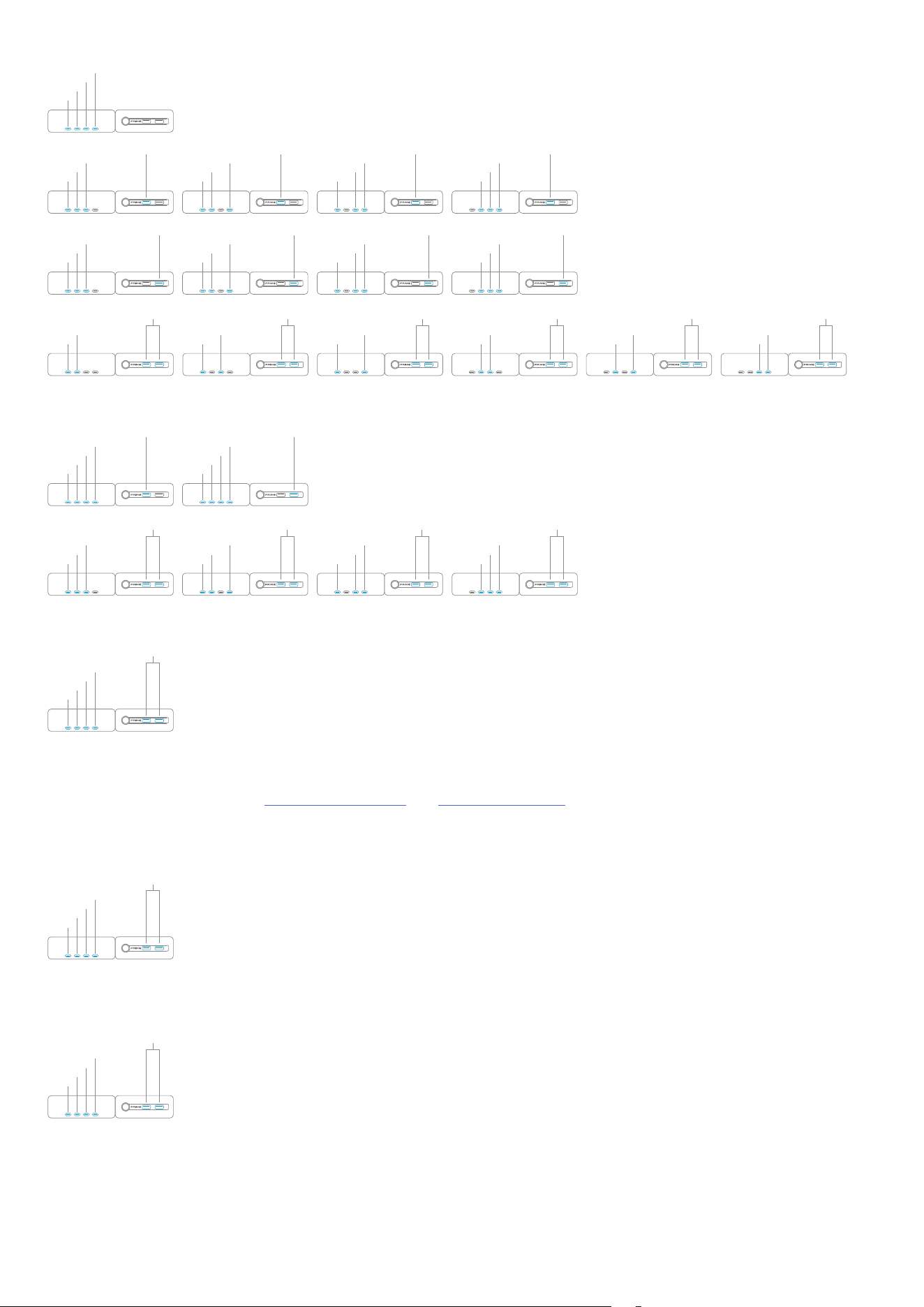
Four-Port Charging
100W
100W
30W
20W
100W
90W
30W
22.5W
100W
90W
30W
22.5W
100W
90W
30W
22.5W
100W
90W
30W
22.5W
100W
90W
30W
22.5W
100W
100W
100W
100W
100W
100W
100W
100W
100W
100W
100W
100W
100W
90W
30W
22.5W
100W
90W
30W
22.5W
100W
90W
30W
22.5W
24W 24W 24W 24W24W 24W 24W
Five-Port Charging
70W
65W
45W
30W
22.5W
70W
65W
45W
30W
22.5W
100W
90W
30W
24W
100W
90W
30W
24W
100W
90W
30W
100W
90W
30W
24W 24W
Six-Port Charging
70W
65W
45W
30W
24W
Dual-Laptop Mode
Single / Two-Port Charging (See Single-Port Charging and Two-Port Charging.)
Note: This feature requires an OTA firmware upgrade.
Three / Four / Five / Six-Port Charging
70W
70W
45W
30W
24W
Note: For each port, the output power is fixed.
Low Current Mode
65W
20W
20W
20W
15W
Note: For each port, the output power is fixed.

FAQ
Q1: How do I set the mode for intelligent power distribution? What are the benefits?
A: Select "Settings" > "Mode" > "AI Power Mode" on the charger screen. In AI Power Mode (also the default mode), the charger
automatically detects the voltage of the connected device, identifies device power requirements (high, medium, or low), and
adjusts power distribution accordingly for optimal charging eciency.
Q2: How do I connect the charger to Wi-Fi and the Anker app?
A: On the charger screen, select "Settings" > "Wi-Fi" and turn on Wi-Fi using the knob. On the phone used to log in to the app,
make sure Bluetooth has been enabled. Then add the charger to the app and follow the in-app instructions to complete the
setup.
Q3: What if the network configuration fails?
A: To solve this problem:
a. Check whether the Wi-Fi name and password configured in the app are correct. The name and password are case-sensitive
and space-sensitive.
b. Check whether the network is 2.4GHz. The charger only supports 2.4GHz networks, not 5GHz networks.
c. Check whether the network signal is normal. Abnormal signals may cause connection failures.
d. Check whether Bluetooth is enabled on the phone. To configure the network, connect to Bluetooth first.
e. After connecting to Wi-Fi, do not select "Wi-Fi" in the "Settings" menu again. The Wi-Fi signal will be transmitted again, and
the Wi-Fi will be disconnected.
Q4: Why are the power, voltage, and current readings on the charger screen dierent from those in the app?
A: The power, voltage, and current on the app are obtained from the cloud to which the charger reports at a specified time.
There may be data inconsistencies due to time variance.
Q5: Why are the current and voltage readings on the charger screen dierent from those on other screens such as power
banks or the POWER-Z tester?
A: The charger's sampling takes place inside the charger, while POWER-Z's sampling takes place at the charger's output or
the device's input, which means a loss of power. In addition, the charger's readings have only one decimal place, while
POWER-Z's readings have four decimal places.
Q6: Why can't the clock screensaver be displayed?
A: The clock screensaver is displayed when the following conditions are met:
• The charger connects to Wi-Fi.
• The screen timeout is not set to "Always On."
• The screensaver is set to "Clock Screensaver" and the timeout time is reached.
• The charger screen is not manually turned o.
Q7: Why can't the charger be added again after being deleted?
A: The charger might not have received the deletion command due to network errors of the phone or charger. To solve this
problem:
a. Reconnect the power cord of the charger.
b. Access "Settings" > "Wi-Fi" to connect to the Wi-Fi again.
Q8: Why cannot my charger's single-port power output reach 140W?
A: Possible causes:
• The device is connecting to ports other than C1. Only the C1 port supports 140W output. To connect to the C1 port, make
sure to use cables with a power rating of 140W or higher.
• Incorrect cables are used for charging Apple MacBook Pro (16"). To achieve 140W output power, Apple MacBook Pro (16")
with M1 or M2 chips must use USB-C to MagSafe cables for charging, while Apple MacBook Pro (16") with M3 chips can use
USB-C to USB-C or USB-C to MagSafe cables for charging.
• The charging power is related to the device battery level. When the device battery level is almost full, the charging power is
reduced to protect the device.
Q9: Why is the charger's power cord not 3-pin for the 250W total power?
A: Desktop charger products do not require grounding. The charger's power cord has double insulation protection, and the
entire product is UL and CB certified for safe use.
Troubleshooting
The charger is not working properly:
• Let the charger sit for 5 minutes (without plugging it into the power outlet or plugging anything else into the charger).
• Reconnect the power cord of the charger.
• Replace the charging cables of the devices or try other devices for charging.
• Reset the charger to factory settings.
Specifications
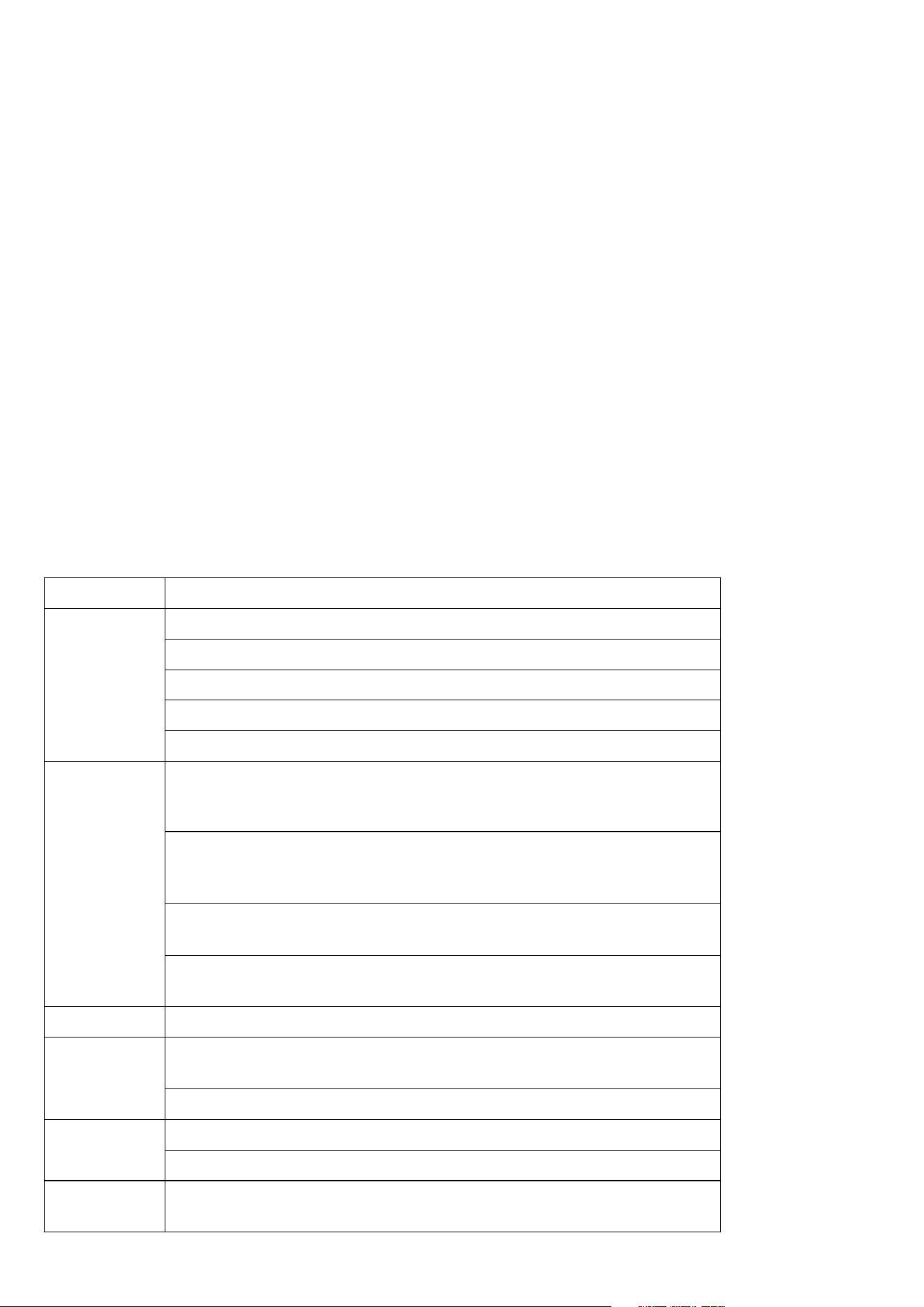
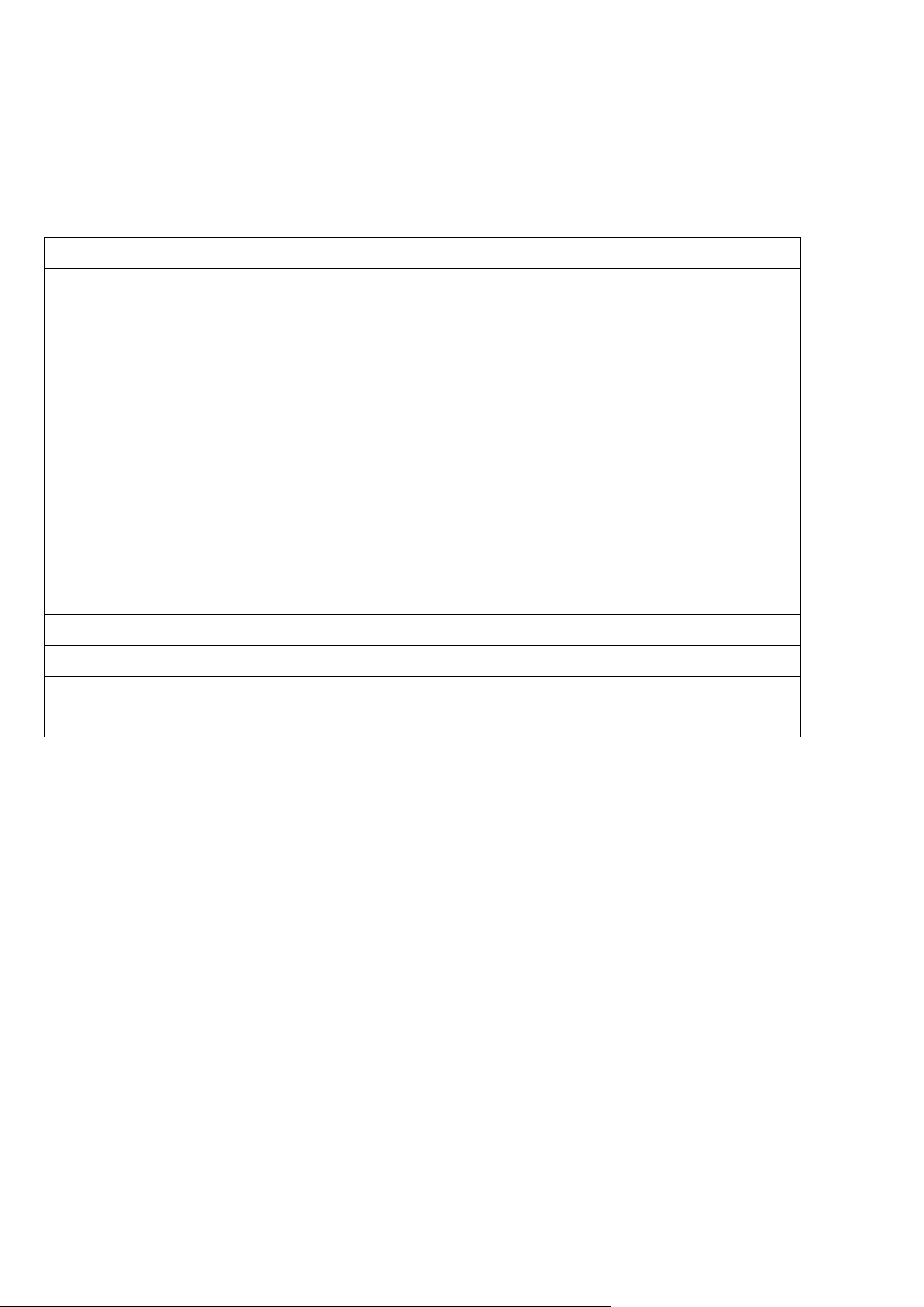
Input 100-240V~, 4.0-2.5A, 50-60Hz
Output Sequence from Left to Right (C1-C4, A1-A2):
Single Port Output:
- USB-C1: 9.0V ⎓ 3.0A, 27.0W / 15.0V ⎓ 3.0A, 45.0W / 20.0V ⎓ 5.0A, 100.0W /
28.0V ⎓ 5.0A, 140.0W (140.0W Max)
- USB-C2 / C3 / C4: 9.0V ⎓ 3.0A, 27.0W / 15.0V ⎓ 3.0A, 45.0W / 20.0V ⎓ 5.0A,
100.0W (100.0W Max)
- USB-A1 / A2: 5.0V ⎓ 3.0A, 15.0W / 9.0V ⎓ 2.0A, 18.0W / 10.0V ⎓ 2.25A, 22.5W /
12.0V ⎓ 1.5A, 18.0W (22.5W Max)
Multiple Ports Output:
- Two Ports in Use: Up to 240.0W Max
- Three Ports in Use: Up to 250.0W Max
- Four Ports in Use: Up to 250.0W Max
- Five Ports in Use: Up to 250.0W Max
- Six Ports in Use: Up to 250.0W Max
Total Output: Up to 250.0W Max
Average Active Eciency 86.81%
Eciency at Low Load (10%) 74.01%
No-Load Power Consumption 0.20W
PPS Yes
Operating Temperature 0-25°C / 32-77°F