
CONTENTS
Screen Display Guide
Main Screen Features
Power Distribution
AI Battery Temperature Control
Pomodoro Timer
Bluetooth Connection
Anker App Settings
Charging Mode
Screen Settings
Screen Brightness
Pomodoro Timer
Device Language
Charging Your Devices
Recharging the Power Bank
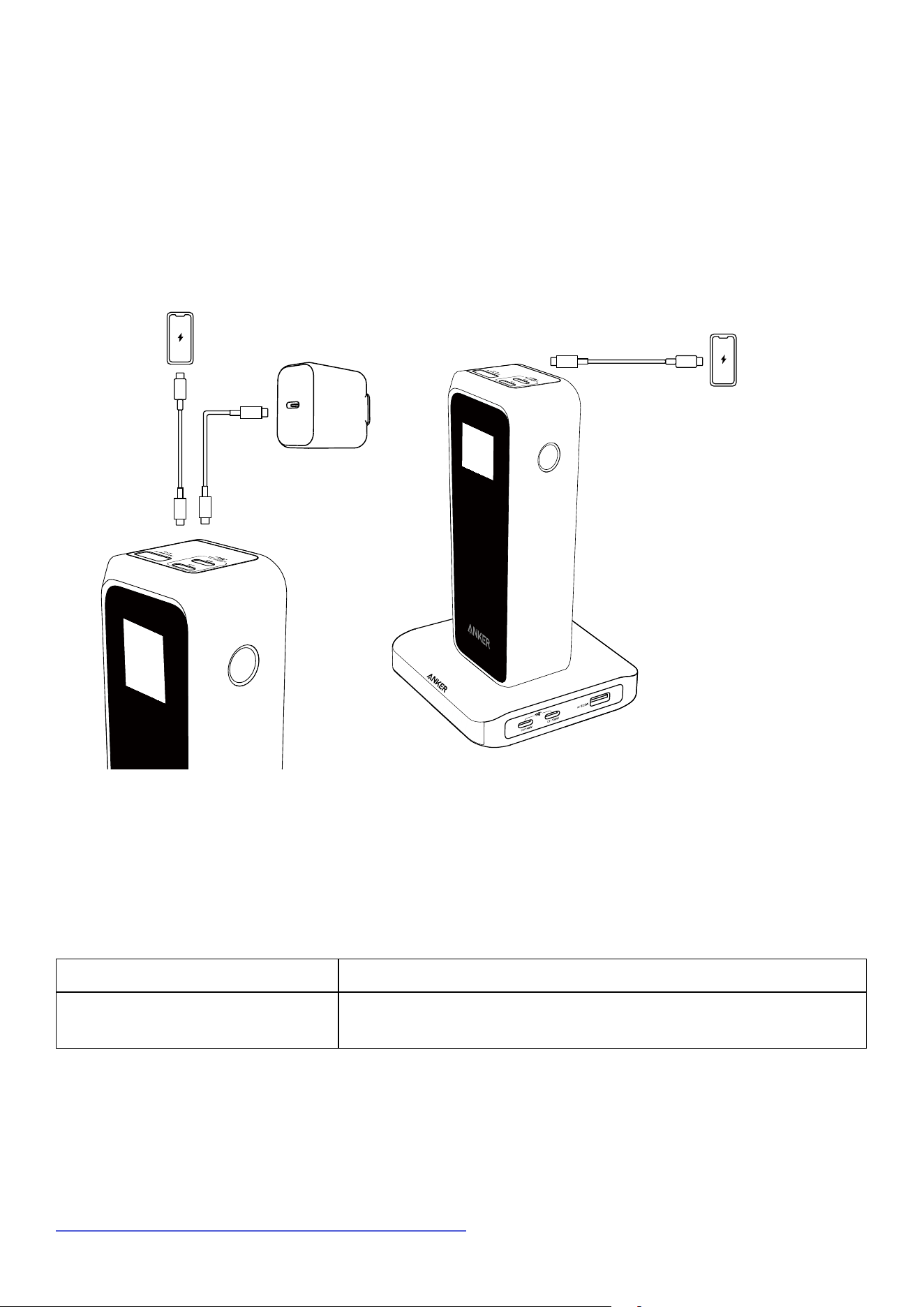
Simultaneous Charging and Recharging
In-App Combination of Charging Base and Power Banks
Trickle Charging Mode
Other Screen Displays
FAQ
Questions About the App
Questions About Charging and Recharging
Other Questions
Specifications
Screen Display Guide
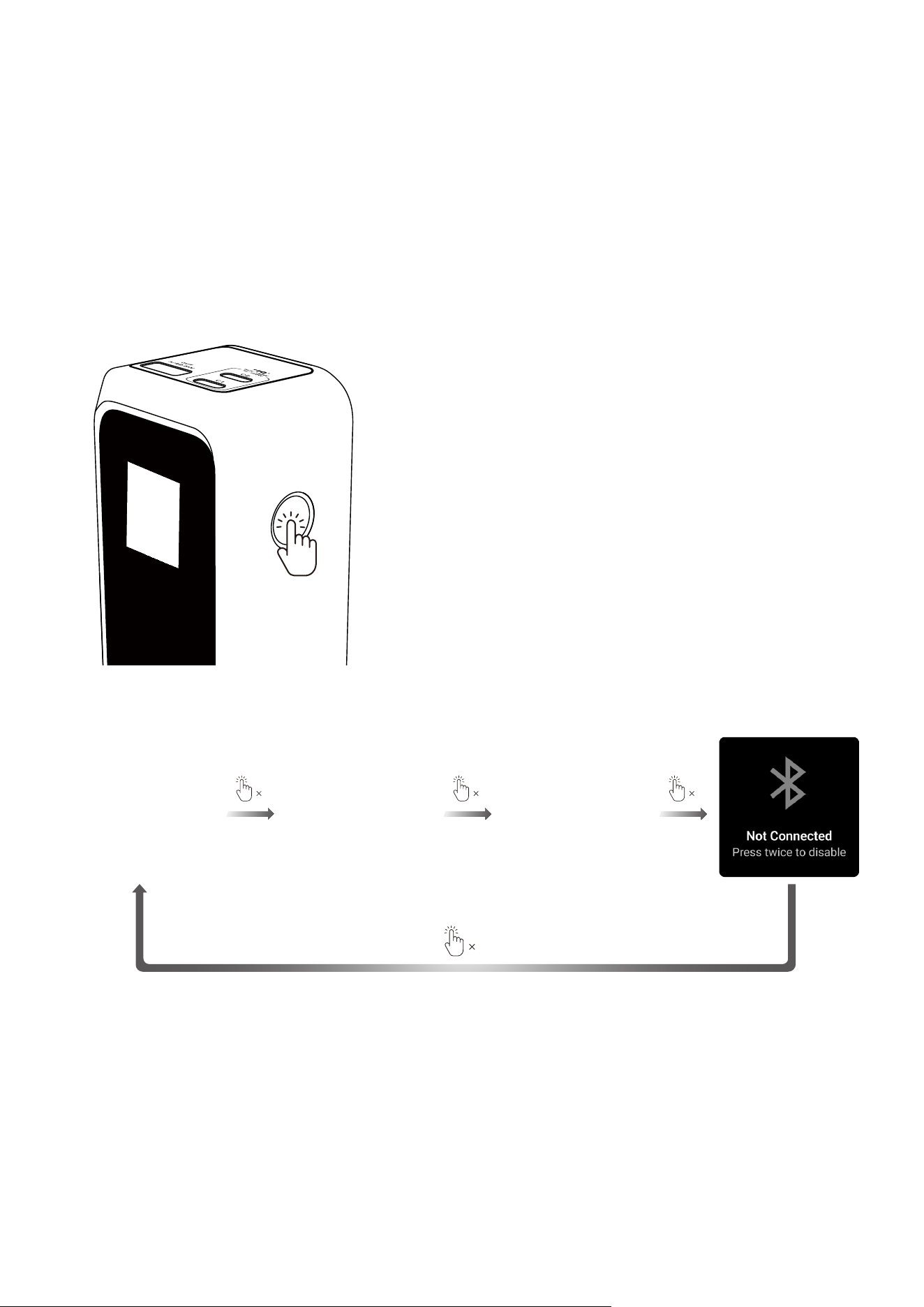
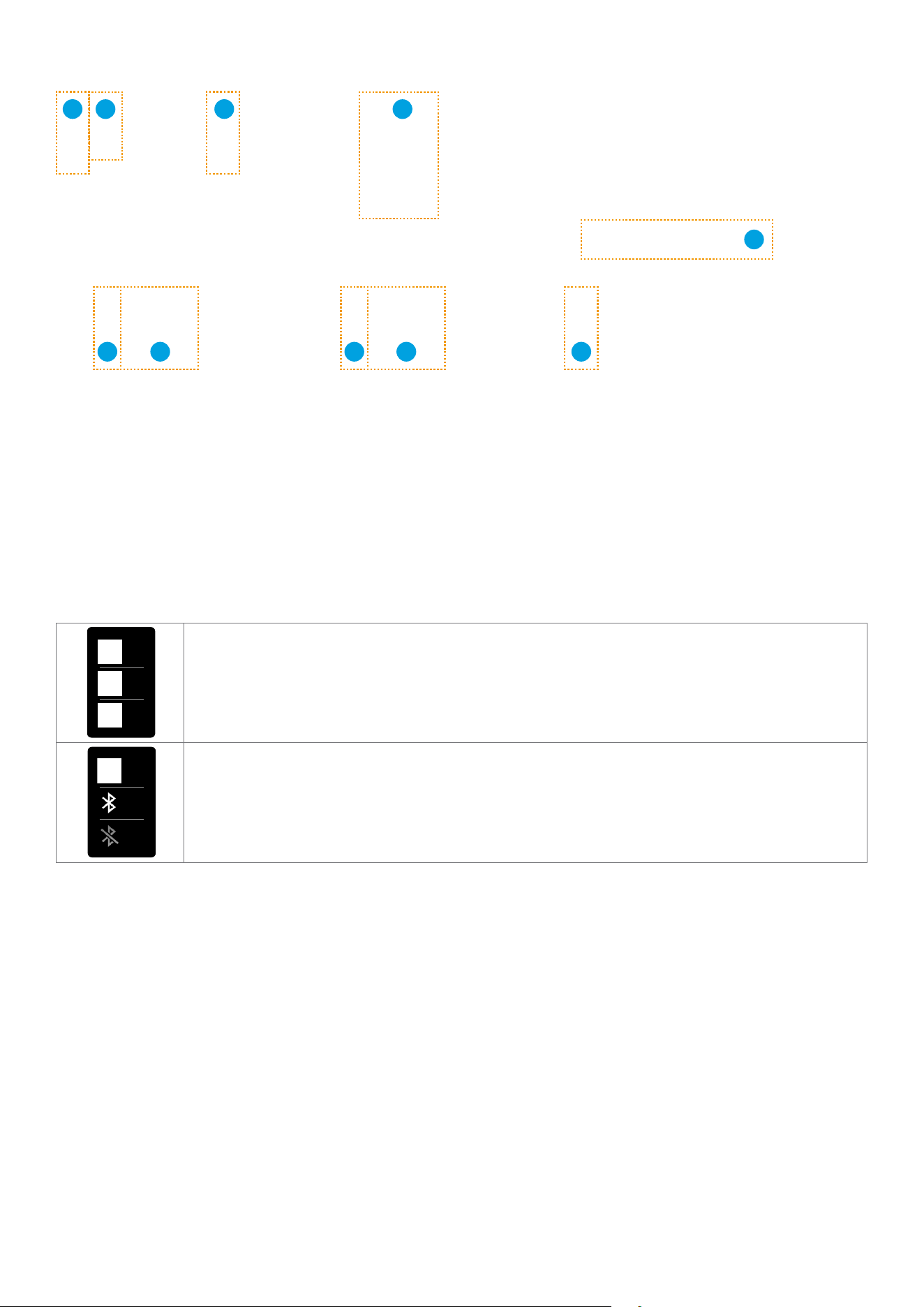
• Press the power button once to activate the screen or switch between pages.
• The screen stays on while the power bank is charging or recharging. If the power bank is not in use,
the screen turns o aer 30 seconds. To turn o the screen manually, press and hold the power button
for 2 seconds. You can also change the screen timeout duration and enable a clock screensaver in
the Anker app aer pairing via Bluetooth.
• Press and hold the button for 7 seconds to reset the Bluetooth connection.
• To charge low-power devices like earbuds or handheld fans via the USB-A port, press the power
button twice on the main screen to activate Trickle Charging Mode.
1 1 1
1
Main Screen Features
1
2
3
4
5 6 7 8 9
10
①
Charging Mode
②
Blue Dot: Trickle Charging Mode
③
Bluetooth Status
④
Time to Full Recharge
⑤
Blue Arrow: Charging / Output
⑥
Total Output Power
⑦
Green Lightning: Recharging / Input
⑧
Total Input Power
⑨
Double Sided Arrows: Simultaneous Charging and Recharging / Pass-Through Charging
⑩
Remaining Battery Percentage
A
B
C
A
B
C
The Charging Mode icon changes based on the mode you select in the Anker app:
A: Smart Dynamic Allocation
B: Power Saving Mode
C: Custom Mode
A
B
C
A
B
C
The Bluetooth icon shows the following states:
A: Bluetooth Is Connected
B: Bluetooth Is Not Connected
C: Bluetooth Is Turned O
Power Distribution
The screen displays real-time power distribution per port during charging.
Note: “B” refers to the charging base. This appears when the power bank is recharged via:
• Anker 100W Charging Base—Model A1902
• Anker Prime Charging Base (150W, 3 Ports)—Model A1903

AI Battery Temperature Control
The power bank monitors internal temperature to ensure safety. If the temperature is too high or too low,
certain functions will be disabled until the temperature normalizes.
Pomodoro Timer
The Pomodoro Technique is a time management method which involves 25 minutes of focused work
followed by a 5-minute break. Each cycle is called a “pomodoro.”
To activate the timer, turn on the screen, and swing the power bank side to side four times (hold the
power bank firmly to avoid dropping it). A 25-minute countdown will start. The screen will flash when time
is up.
Press the power button once to cancel the timer. You can change the countdown time or turn o the
timer in the Anker app aer Bluetooth pairing.
4
Additional screen displays are listed at the end of this user guide.
Bluetooth Connection
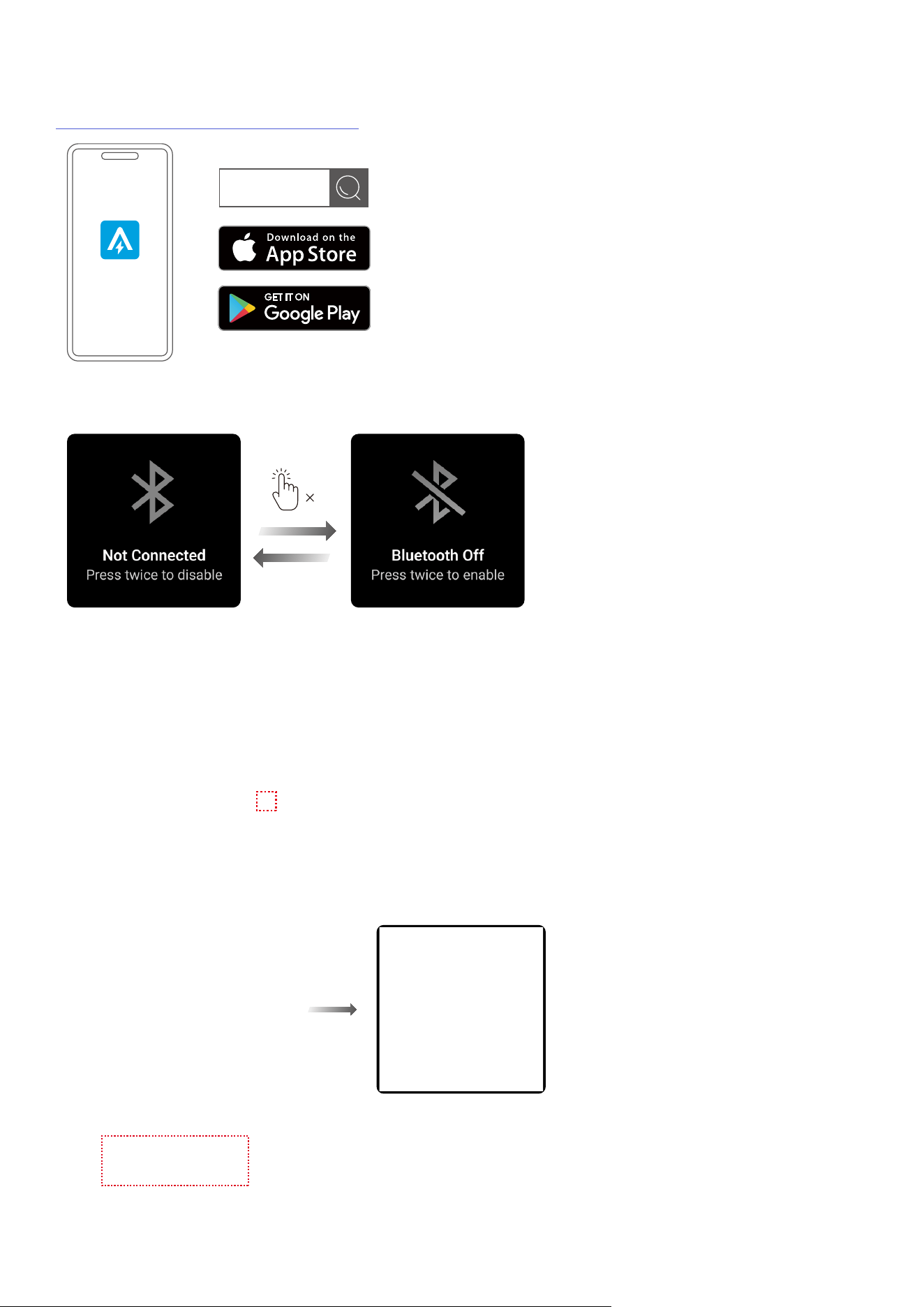
1. Download the Anker app:
https://www.anker.com/app-download
Anker
2. Press the power button twice to turn Bluetooth on or o. Make sure your phone’s Bluetooth is enabled
and keep the power bank within 33 (10 m).
2
3. Open the app, and tap the “+” icon in the top-right corner or select “Add Devices” at the bottom of the
Devices page. Follow the in-app instructions to complete the connection setup.
If pairing fails, check:
• The power bank is turned on and working normally
• Bluetooth is turned on
• The power bank is near your phone

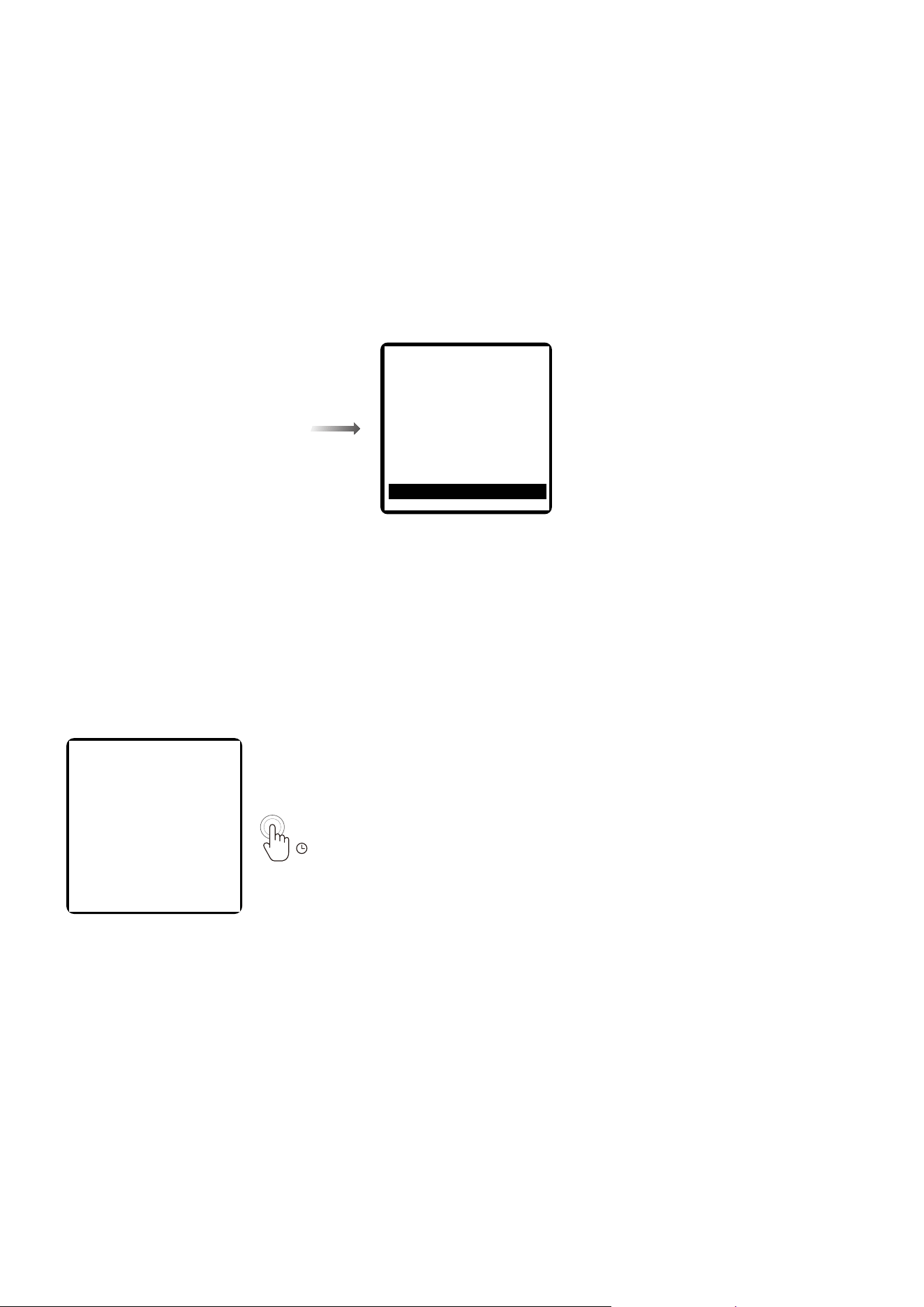
4. Aer successful pairing, you can check the real-time data and modify detailed settings.
1
2
3
4
5
①
Settings
②
Real-Time Charging Data
③
Battery Temperature
④
Cable and Protocol Information (Cable
Information Is Not Displayed During Input)
⑤
Charging Modes
5. If a soware or firmware update is available, update it through the app. The following conditions must
be met for a successful update:
• Ensure the power bank has more than 30% remaining power.
• Do not turn o Bluetooth, charge other devices or recharge the power bank during the update
process.
• Ensure stable network connection and keep the Anker app open until the update is complete.
6. To reset Bluebooth, press and hold the button for 7 seconds. Then you can repeat the steps above to
connect the power bank to a new phone or new app account.
7S

Anker App Settings
Tap the “Settings” icon in the top-right corner of the device page to view and modify detailed settings.
Charging Mode
Tap “Charging Mode” and select your preferred mode.
• Smart Dynamic Allocation: The power bank adjusts power output for optimal charging eiciency.
• Power Saving Mode: The power bank manages power input and output to reduce heat and extend
battery lifespan.
• Custom Mode: Customize power distribution plans based on your own preferences.
Screen Settings
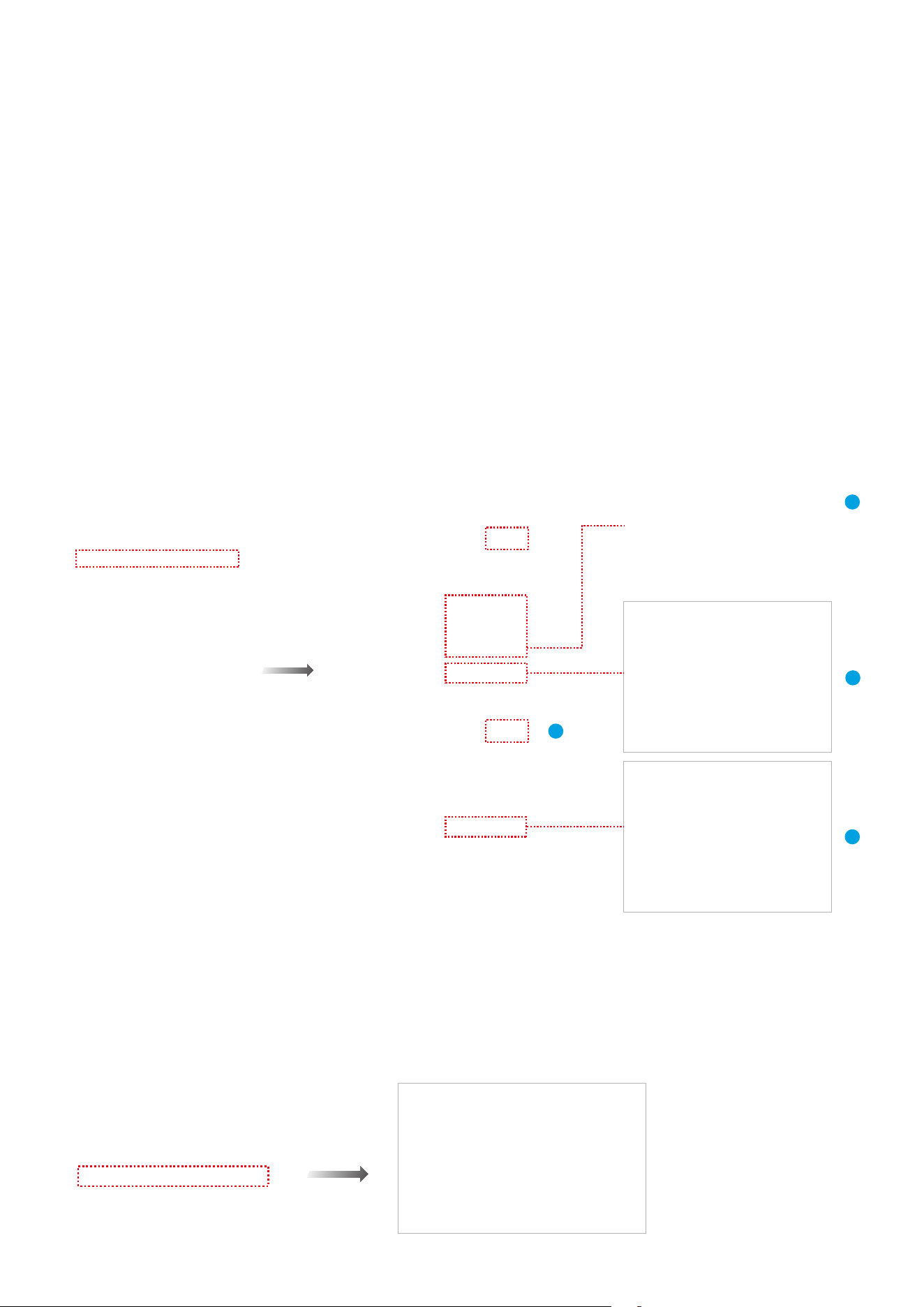
Tap “Screen Settings” and toggle on the first button. You can then configure the following settings:
①
Clock Style: Select your preferred clock appearance.
②
Eective Time:
• If the eective time is set to “Always,” the screensaver remains active as long as the battery isn’t
empty. Note that the power bank may increase power consumption and become slightly warm.
• If the eective time is set to “Self Charging,” the screensaver is only active while the power bank is
being recharged.
③
Always-On When Active: If you toggle on this button, the power bank screen will stay on during
charging or self charging. The screen will not automatically turn o or switch to the screensaver. To
turn o the screen manually, press and hold the power button for 2 seconds.
④
Screen O Time: Once the screen timeout period ends, the display switches to the screensaver.
1
2
3
4
Screen Brightness
Tap “Screen Brightness” and slide the bar to adjust the display brightness of the power bank screen.
Pomodoro Timer
Tap “Pomodoro Timer” to change the countdown time or to turn the timer o.
Device Language
Tap “Device Language” and choose your preferred language. The power bank screen supports four
languages: English, German, Japanese, and Chinese.
Charging Your Devices
USB Port Output Notice
Turbo Mode Fast Charging Notice (Single-Port Use)
Turbo Mode Fast Charging Notice (Multi-Port Use)
Recharging the Power Bank
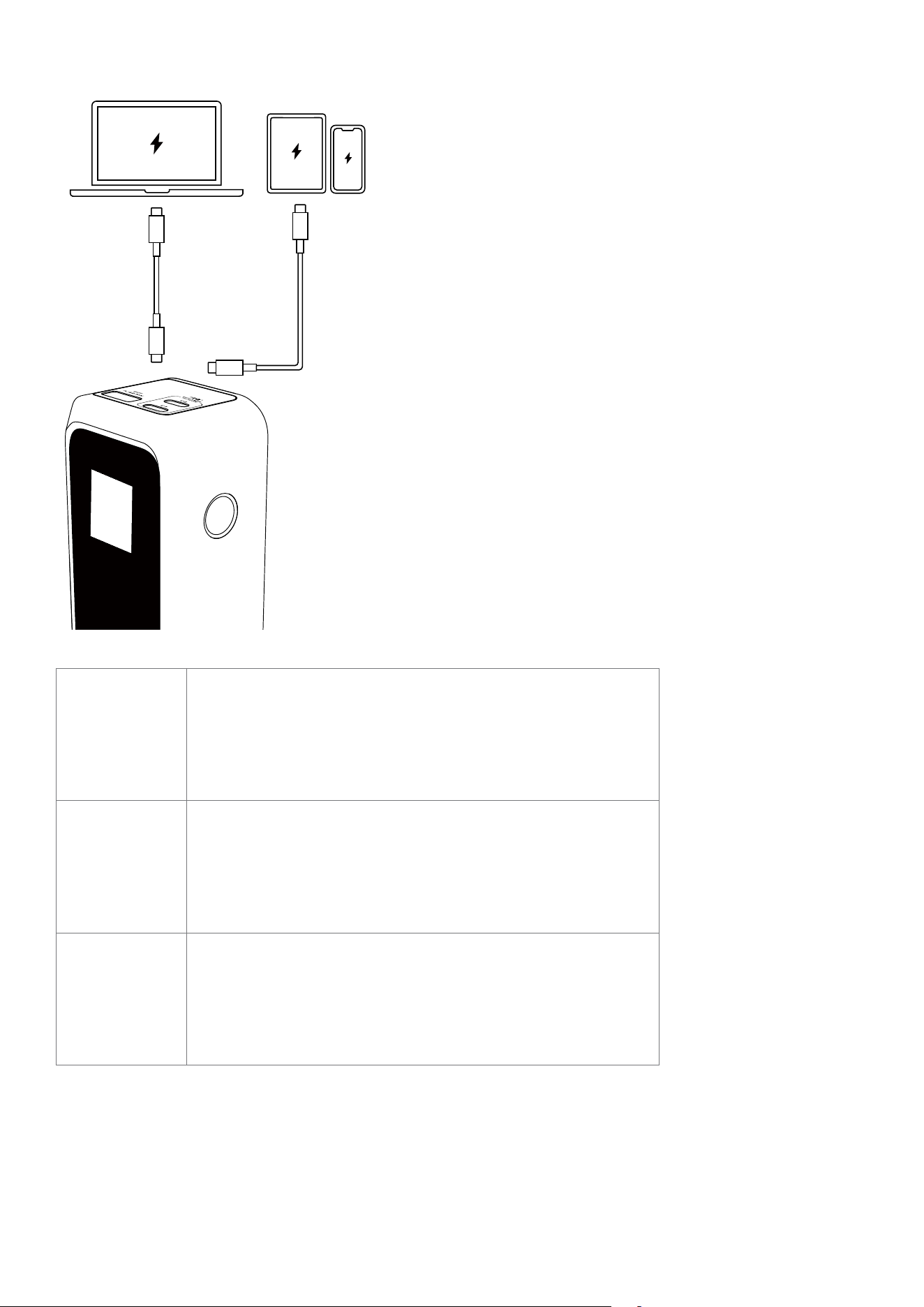
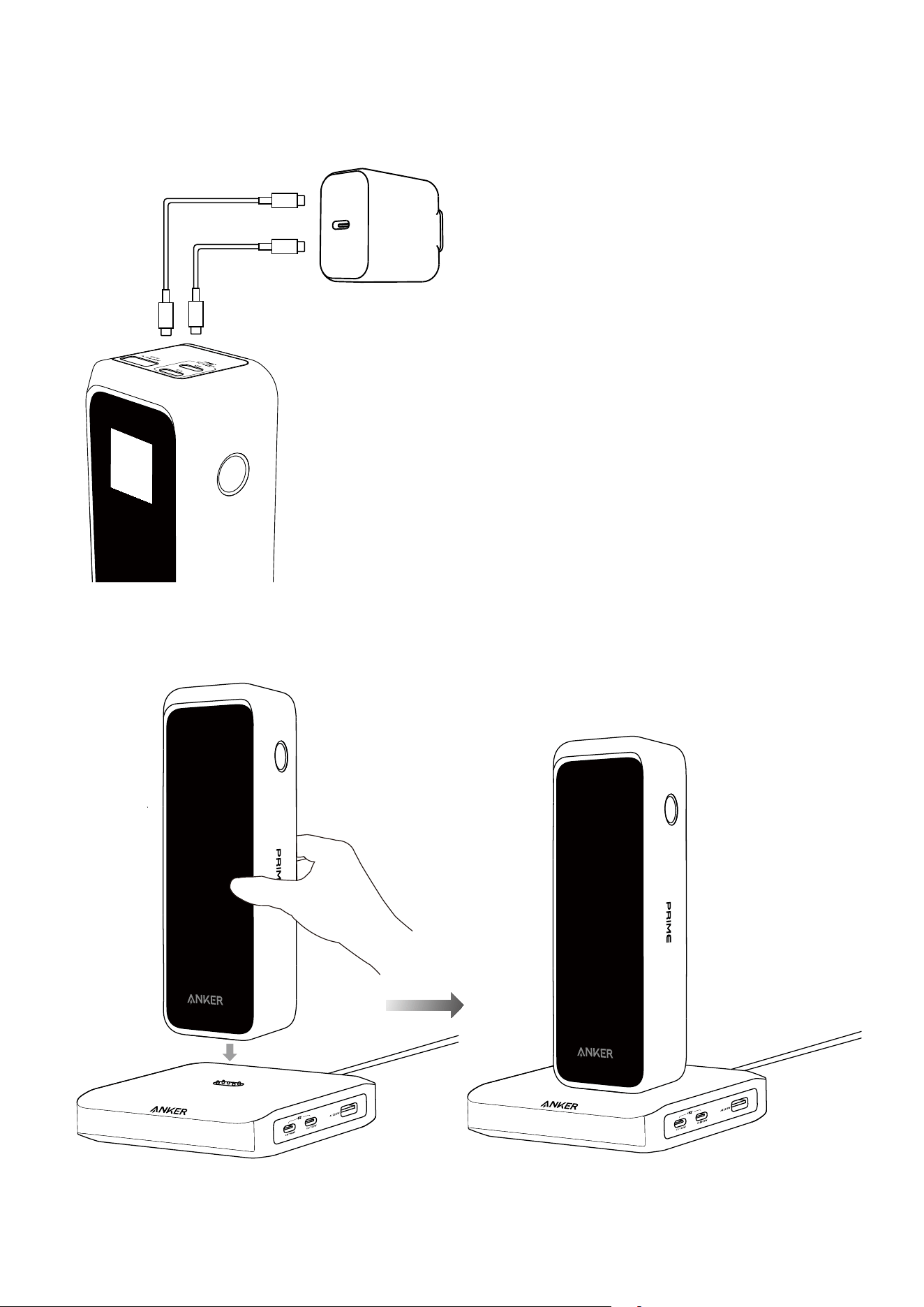
Recharge the power bank via the USB-C ports.
We recommend using a charger with at least 100W output. The power bank can fully recharge in about 1
hour with a 100W charger.
You can also recharge the power bank using an Anker Prime charging base. Align the bottom of the
power bank with the Pogo Pin (charging connector), and place the power bank vertically on the base.
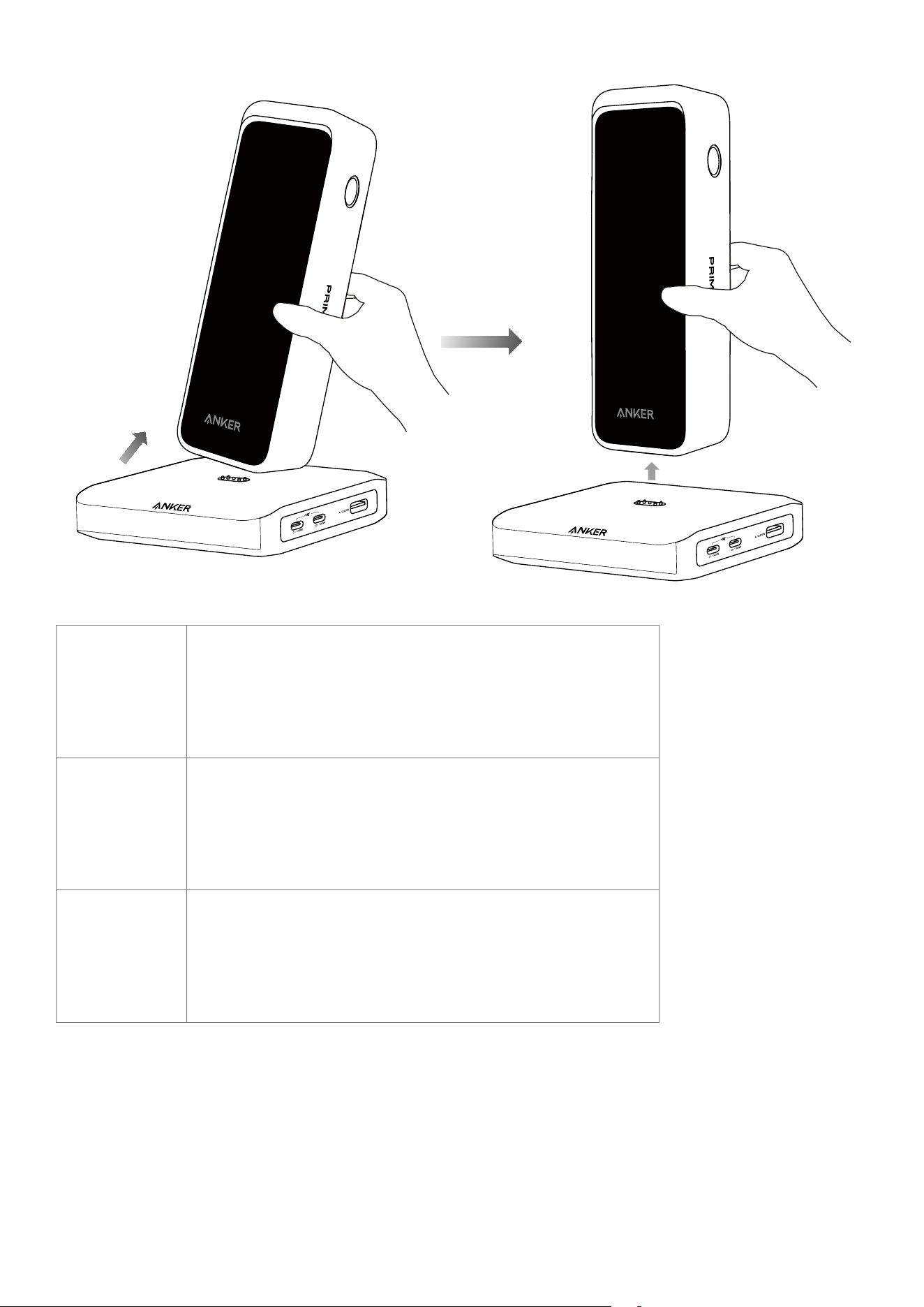
To remove the power bank, tilt it slightly backward and li it up.
USB-C Port Input Notice
Dual-Port Input Notice
(Note: Small current variations can cause slight
dierences between the two ports. It is normal for the
two USB-C ports to show dierent input power.)
Charging Base Input Notice
Simultaneous Charging and Recharging
• When charging and recharging simultaneously, the power bank will pause recharging once it is fully
recharged. Recharge will restart when the battery level drops to 90%.
• If the charger's power is too low (typically below 30W), output may pause to prevent the battery level
from falling. We recommend using a charger with at least 100W, or pause recharging the power bank
while it is powering other devices.
• The power bank cannot charge other devices while being recharged via Anker 100W Charging Base—
Model A1902. This function is only supported when using Anker Prime Charging Base (150W, 3 Ports)—
Model A1903.
In-App Combination of Charging Base and Power Banks
You can combine the following devices via the Anker app for more features. Each group can include
one charging base and up to four power banks.
Charging Base Power Bank
Anker Prime Charging Base (150W,
3 Ports)—Model A1903
Anker Prime Power Bank (26K, 300W)—Model A110A
Anker Prime Power Bank (20K, 220W)—Model A110B
Note:
• Anker 100W Charging Base—Model A1902 does not support app connection.
• Power banks do not support Wi-Fi independently.
1. Before starting, ensure that the charging base and the power bank are added to your Anker app
account, and that the charging base is properly connected to a Wi-Fi network.
Check the user guide for A1903:
https://support.anker.com/s/articlemanual?pn=A1903
Wi-Fi connectivity allows you to:
• View real-time information about connected devices remotely.
• Automatically peorm soware and firmware updates overnight.
• Download new clock display styles for paired power banks.
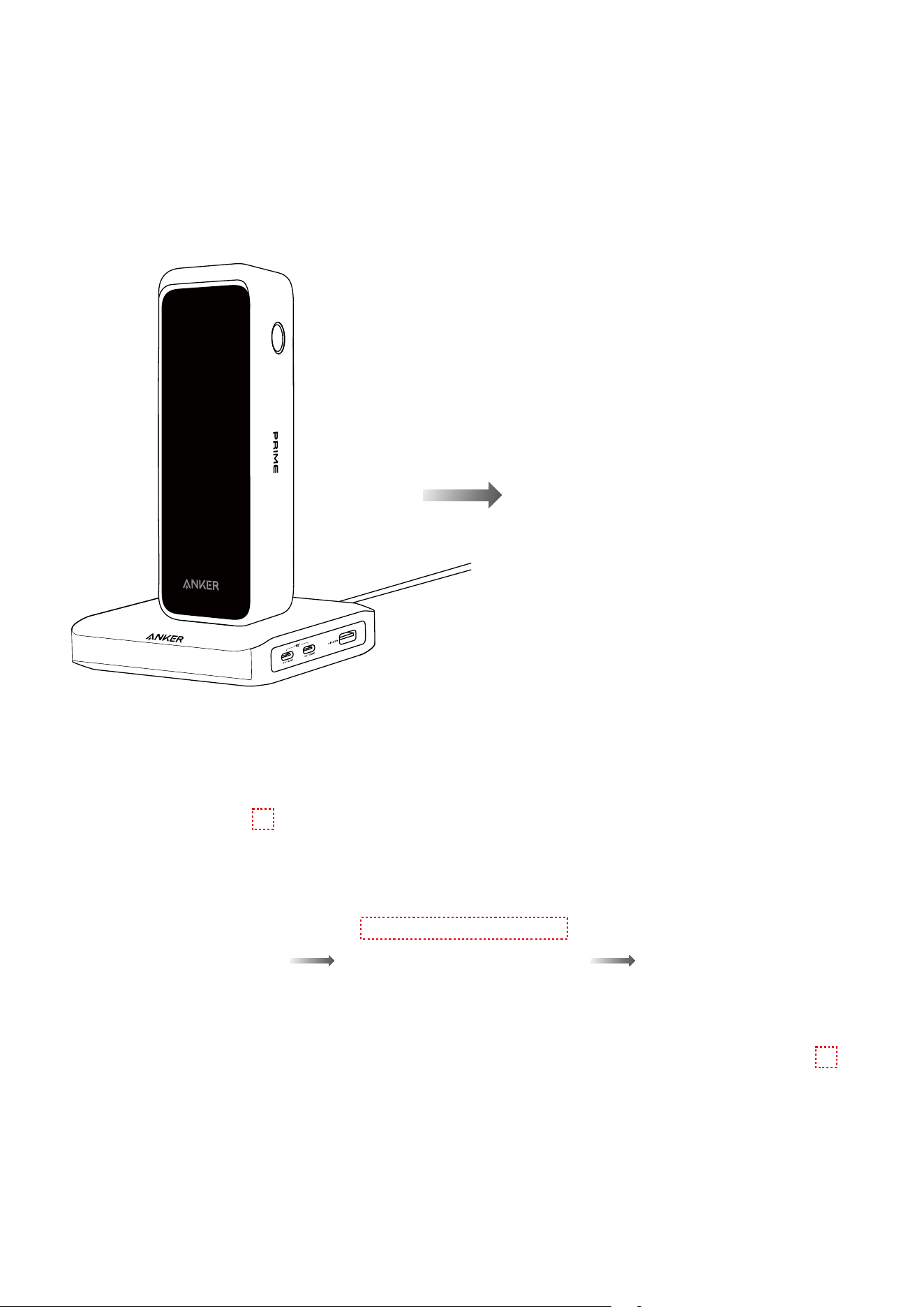
2. Place the power bank vertically on the charging base, and a combination notice will appear in
the Anker app. Confirm the notice to activate the power bank’s Bluetooth and complete the binding
process.
You can also tap the “Settings” icon in the top-right corner of the charging base page. Then tap “Device
Group Management” to bind the power bank with the charging base.
3. Aer combination, you can monitor real-time charging data for all connected products. Each group
can include one charging base and up to four power banks.
To remove a device, swipe le on its name and tap the trash can icon.
A110A
A110B
A110A
Trickle Charging Mode
When you charge low-power devices such as earbuds or handheld fans via the USB-A port, activate
trickle charging mode. This function, available on certain Anker power banks, provides a steady, low
current to prevent the power bank from shutting o.
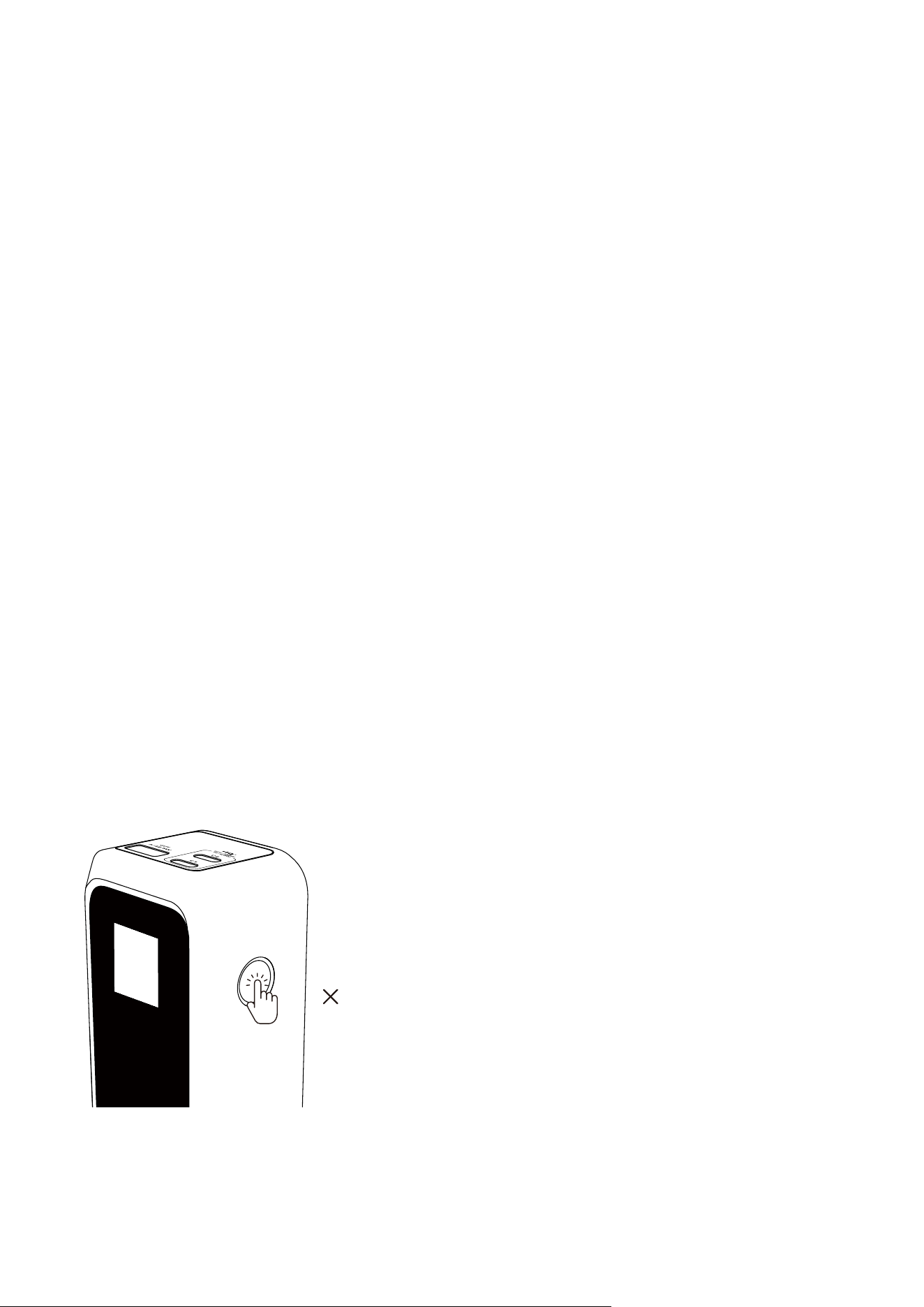
1. Press the power button twice to activate trickle charging mode.
Note: Trickle charging mode can only be activated or deactivated on the main screen.
2
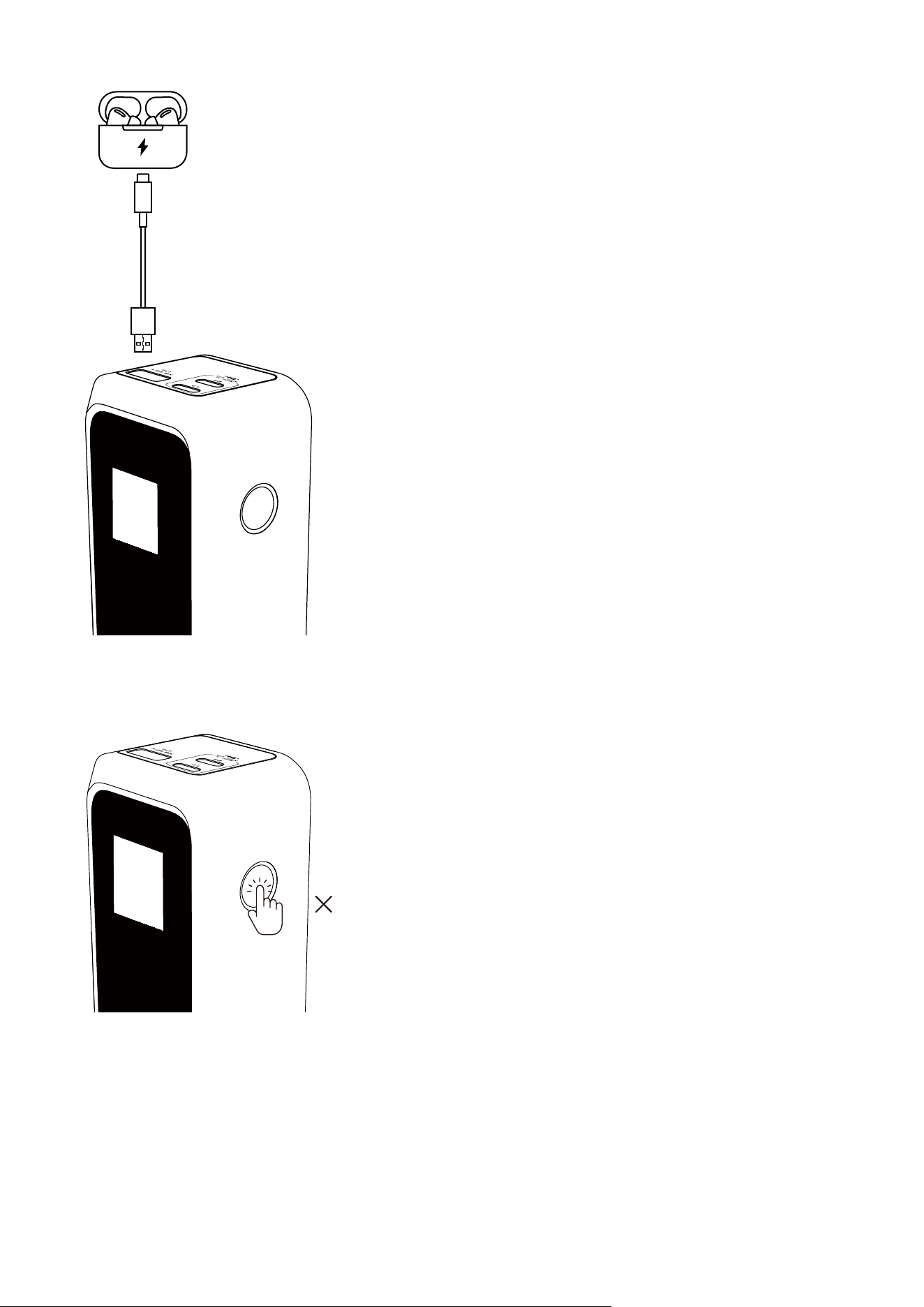
2. Charge your earbuds or other low-power devices via the USB-A port.
3. Press the power button twice to deactivate trickle charging mode. Trickle charging mode
automatically turns o aer 2 hours if the USB-A port is not in use.
2

Other Screen Displays
Low Battery Alert
Non-Input Mode
Displayed when the battery temperature is relatively high or low. Recharging of the power bank is
paused until the temperature returns to a safe range.
Temperature Protection Mode
Displayed when the battery temperature is too high or too low. All power bank functions are suspended
until the temperature returns to a safe range.
Circuit Protection
Displayed when current or voltage irregularities are detected. Disconnect and reconnect the device to
resume normal operation.

FAQ
Questions About the App
Do I need to log in to the Anker app account to use this product?
All product features can be used without logging in (tourist account). However, if you need to upload
logs for troubleshooting, you must log in first.
What should I do if Bluetooth pairing fails?
When multiple Bluetooth devices are nearby, pairing may fail.
• Make sure Bluetooth is enabled on both your phone and this product, and place them close together.
• Move to an area with fewer Bluetooth devices and try again.
• Press and hold the button for 7 seconds to reset Bluetooth, then try again.
What should I do if the firmware update fails?
• Make sure the network connection is stable. Keep the product close to your phone and leave the
Anker app open until the update finishes. The update process usually takes 7 to 10 minutes.
• Do not turn o Bluetooth, charge other devices or recharge the power bank during the process.
• If the update still fails, contact Anker customer support. You can also upload logs in the app’s Settings
menu to help the development team troubleshoot.
Questions About Charging and Recharging
Why does the power bank charge fewer times than expected?
Some energy loss (typically 30 - 45%) is normal during power conversion because of battery and circuitry
design. Aer conversion, a fully charged 20,100 mAh power bank provides about 11,250 mAh to your
devices.
Why can’t the power bank reach maximum power when recharging?
• Make sure the charging cable supports 100W (5A). Use the included cable if possible.
• With third-party chargers, this product only supports maximum output under the PD protocol, not
brand-specific proprietary protocols.
• Heating during charging is normal. To protect the battery and ensure safe charging, the power may
be reduced aer some time. Use the product in a cool, ventilated environment (32 - 77°F / 0 - 25°C) and
avoid charging other devices while the power bank is recharging.
Why can’t my power bank charge and recharge simultaneously?
• When charging and recharging simultaneously, the output power is about 70% to 80% of the input
power. If the charger’s power is too low (typically below 30W), it may not meet the minimum charging
needs of high-power devices like laptops. We recommend using a charger with at least 100W, or
pause recharging the power bank while it is powering other devices.
• When charging and recharging simultaneously, once the power bank is fully charged, it will stop
recharging itself to protect the battery. Recharging resumes automatically when the battery level
drops to about 90%.
Why won’t the power bank recharge right aer it is fully drained?
Aer heavy use, the battery cells may be too warm. Recharging will resume once the temperature drops
to a safe level, protecting the battery lifespan.
Why do the two USB-C ports show dierent input power when recharging the power bank?
Small current variations can cause slight dierences between the two ports. It does not aect normal use.
Why does charging slow down or stop before my phone is fully charged?
• iPhones may pause charging at 80% as part of iOS 17’s thermal control strategy to protect battery
health. This happens more oen when the phone gets warm. Charging resumes once the phone cools
down. Moving it to a cooler place may help.
• Some phones, such as iPhone or Samsung, pause charging at around 80% when battery optimization
is turned on. Check your phone’s battery settings to see if this feature is enabled.
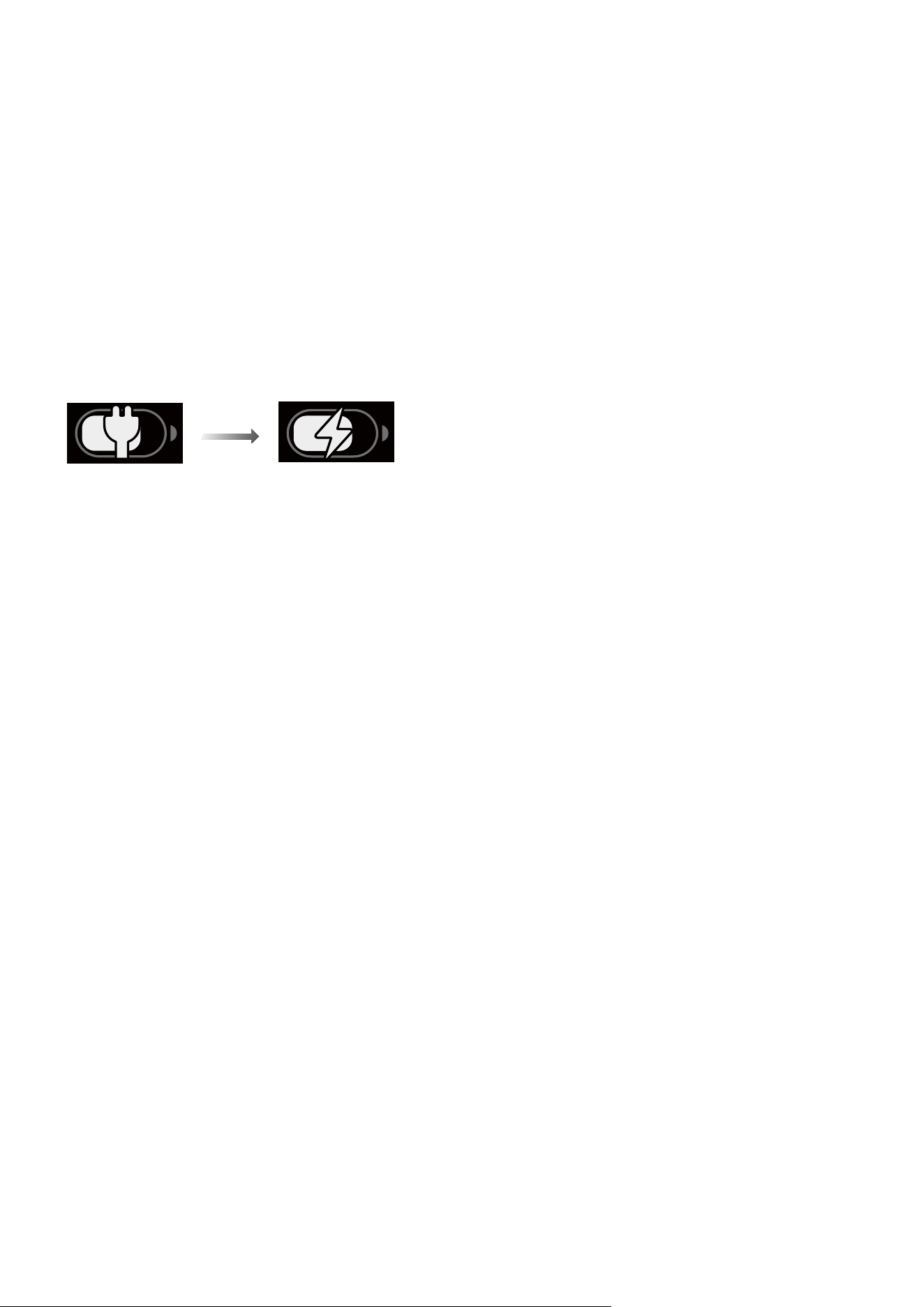
Why does my MacBook show “Battery Is Not Charging” when connected to this product?
When a MacBook is connected to a third-party adapter, the charging status may update with a delay.
Charging has already started, but the icon may not change right away. Aer several seconds, once the
adapter is recognized, the plug icon will change to the charging icon.
Other Questions
Why does battery level drops when the power bank is not in use?
This product includes Bluetooth and a display screen. When both are active, power consumption
becomes higher. To reduce power use, press the button twice on the Bluetooth screen to turn o
Bluetooth, or set a screen timeout in the Anker app.
Why is the screensaver time inaccurate?
If the product has not been paired with your phone for a long time, the screensaver clock may become
inaccurate. The time display may also be delayed aer the product is powered o or restarted. To
restore accurate time, connect the product to the Anker app via Bluetooth. The system will automatically
sync synchronize standard time without needing manual input.
Is it normal for the power bank or connected devices to feel warm during charging?
Yes. It is normal for devices to generate heat during power transfer, especially during long charging
sessions or when using your phone for gaming or video streaming. Devices with metal casings may feel
warmer to the touch because they are designed to dissipate heat more eiciently. Use the product in a
cool, well-ventilated place (32 - 77°F / 0 - 25°C) and pause use of devices that are charging.
Why do the readings on the charger screen dier from those on a power bank or third-party tool such
as POWER-Z?
• Display dierences are normal. Both chargers and power banks show readings with a slight delay.
• Each device measures power in a dierent place—at the charger output port, the battery cell, or the
device input. Cable aging and transmission losses can also aect results.
• The power bank’s display only shows one decimal place.

Specifications
Battery Energy 72.36Wh / 21.6VDC (3,350mAh, 6 Cells in Series)
Input
Pogo Pin 15~25.2V
5A (100W Max)
USB-C1 / USB-C2 5V
3A / 9V
3A / 12V
3A / 15V
3A / 20V
5A (100W Max)
Output
USB-C1 / USB-C2
5V
3A / 9V
3A / 10V
2.25A / 12V
3A / 15V
3A / 20V
5A
/ 28V
5A (140W Max)
USB-A 5V
3A / 9V
2A / 10V
2.25A / 12V
1.5A (22.5W Max)
Total Output 220W Max
Default exposed network inteaces and services
BLE (Bluetooth Low Energy) Configuration
Status Description: When the device is not yet connected to a network, it will automatically enable BLE
broadcasting and activate BLE services to provide Bluetooth network configuration capabilities.
Notes
During BLE configuration processes, please ensure your network environment is stable and follow the
device’s instructions to complete the setup.