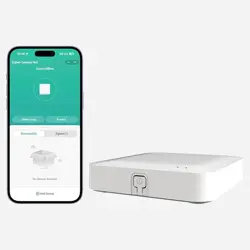

User Manual
Model:Multi-Mode Zigbee Gateway
TM
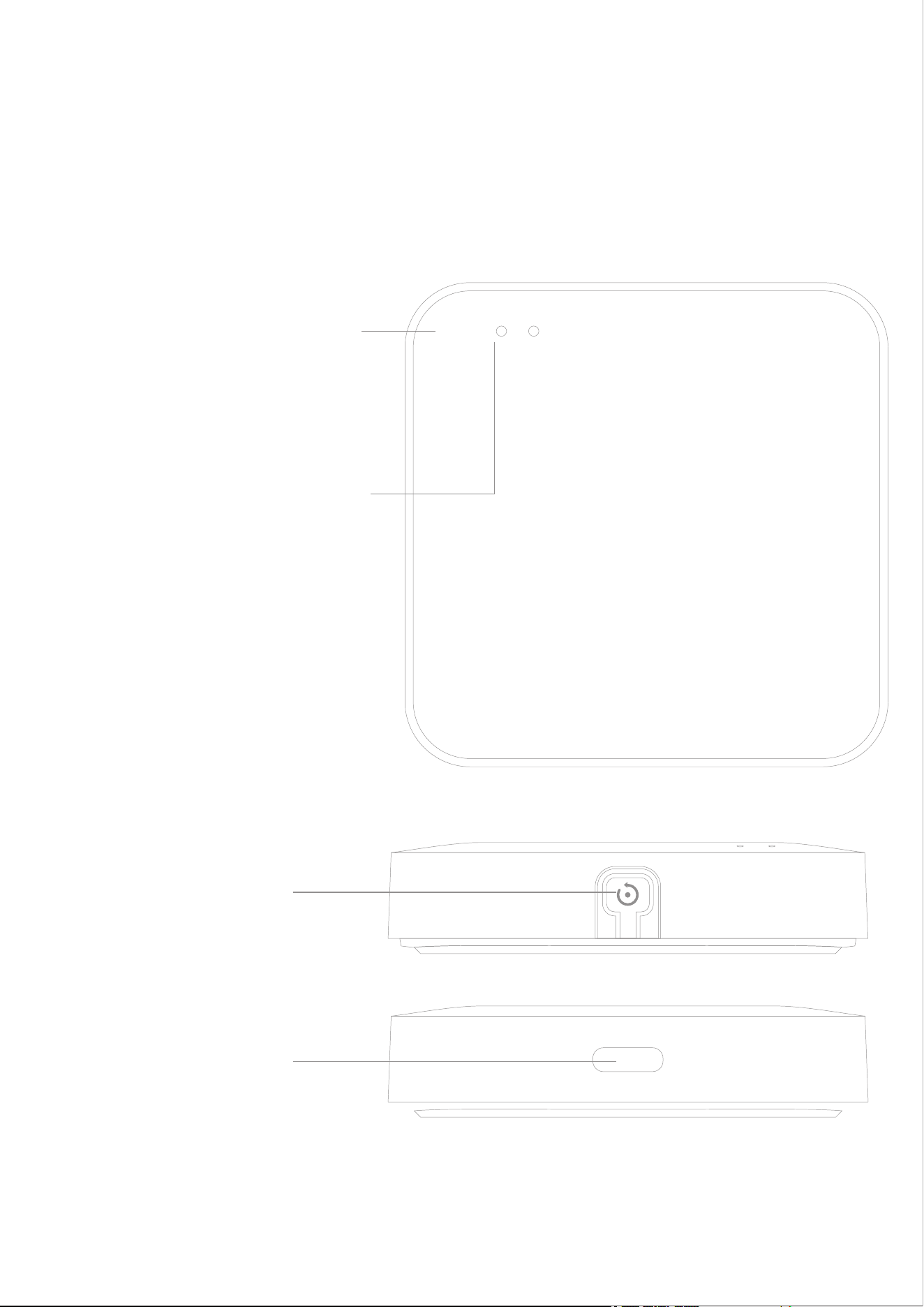
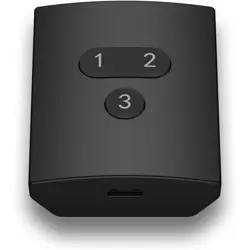
Presentation
Red(Wi-Fi)
Blue(Zigbee+BLE)
Reset button
USB Type-C
01

02
Specifcations
Model
Multi-Mode Zigbee
Gateway
Material
ABS
Micro input
DC 5V/1A Tpye-C
Bluetooth
Low-Energy 5.0
Working Temperature
-20℃-85℃(-4℉-185℉)
Wi-Fi Frequency
2.4GHz 802.11b/g/n
Zigbee Frequency
IEEE 802.15.4
Size 60*60*14mm
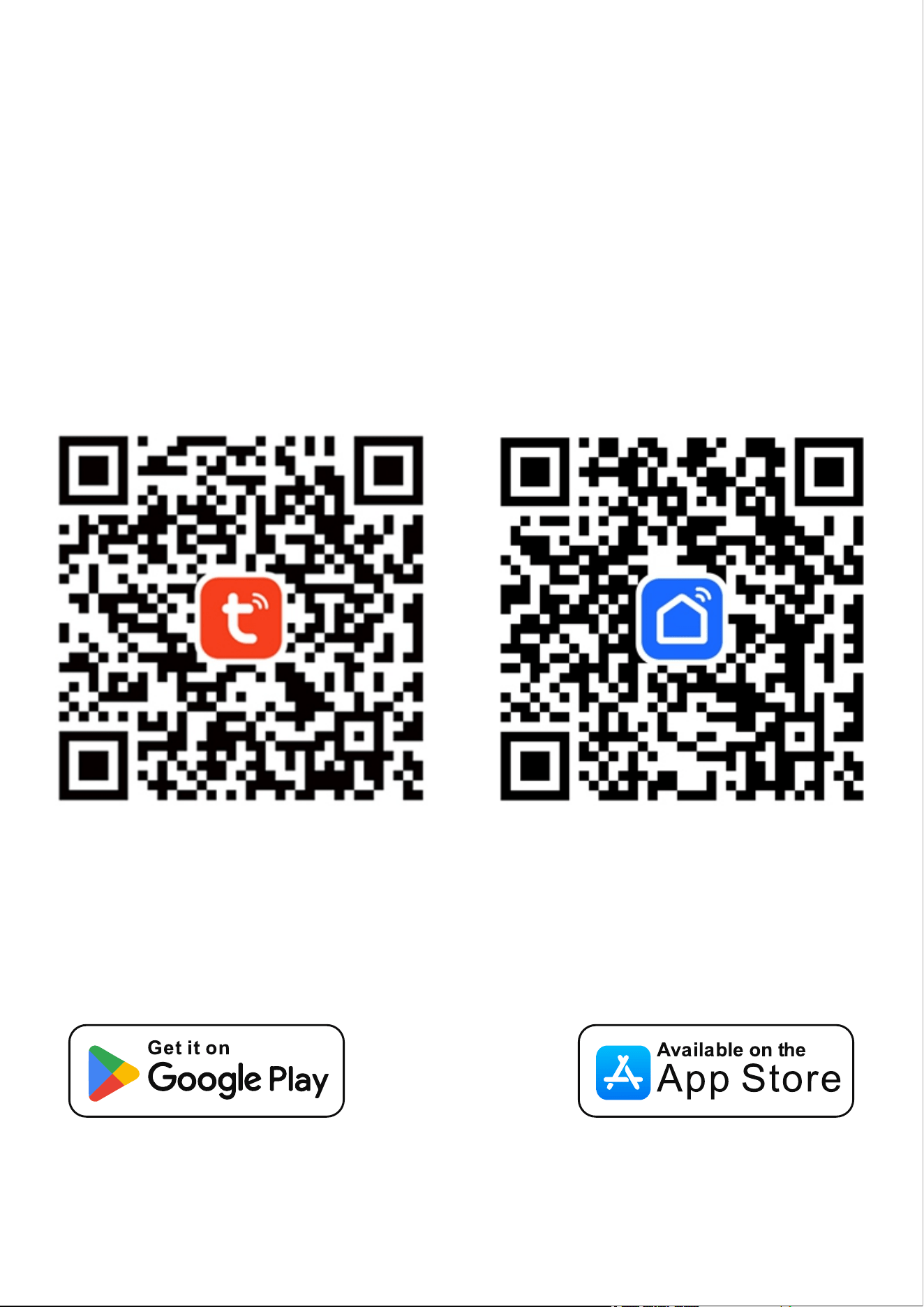
How to connect the device
03
1.Scan the QR code below or search for
"Smart Life" or "Tuya" App in your mobile
app store
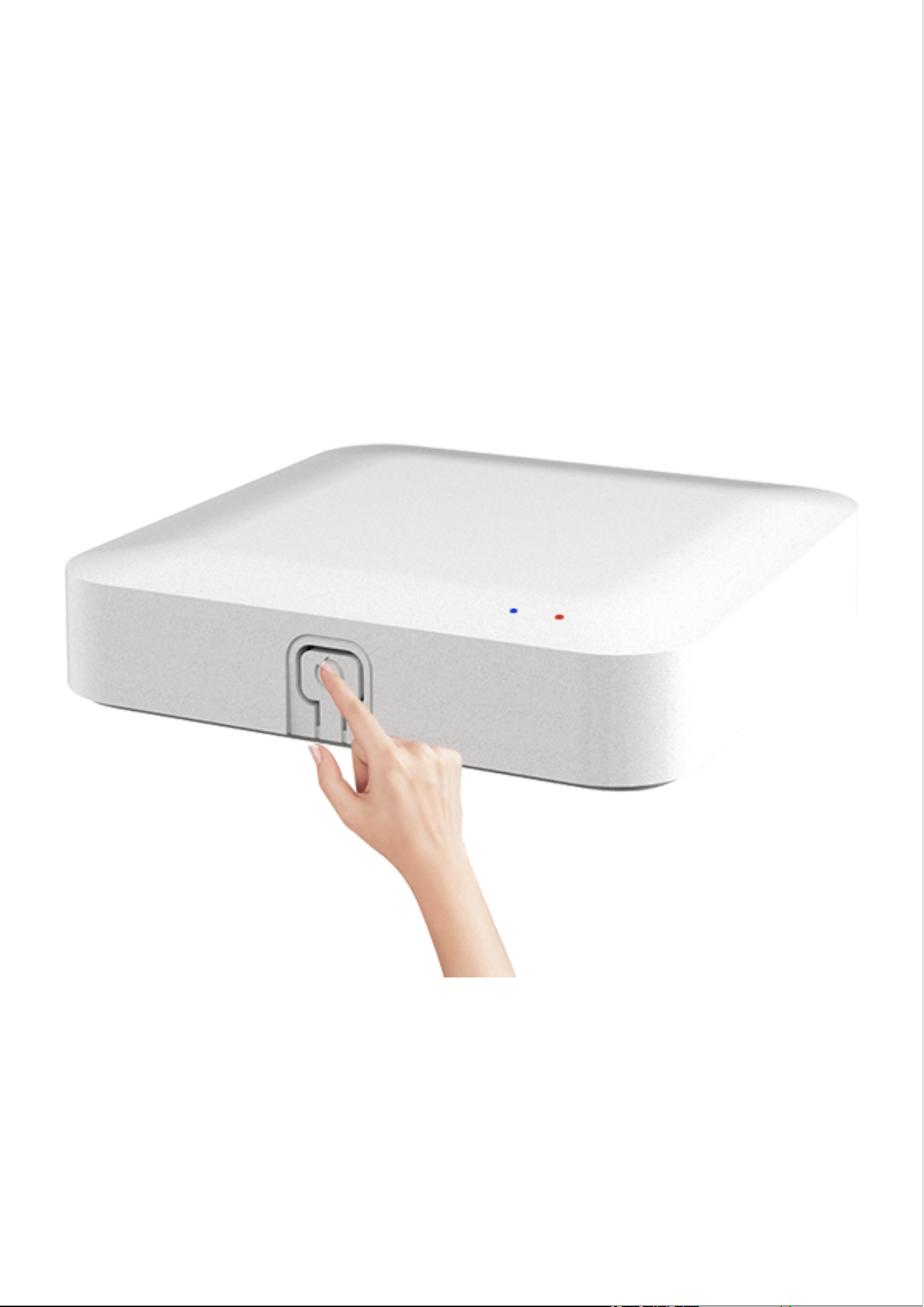
Press and hold the power button for 5 seconds
to put the device into pairing mode
(Follow the steps as shown in the diagram)
04
05
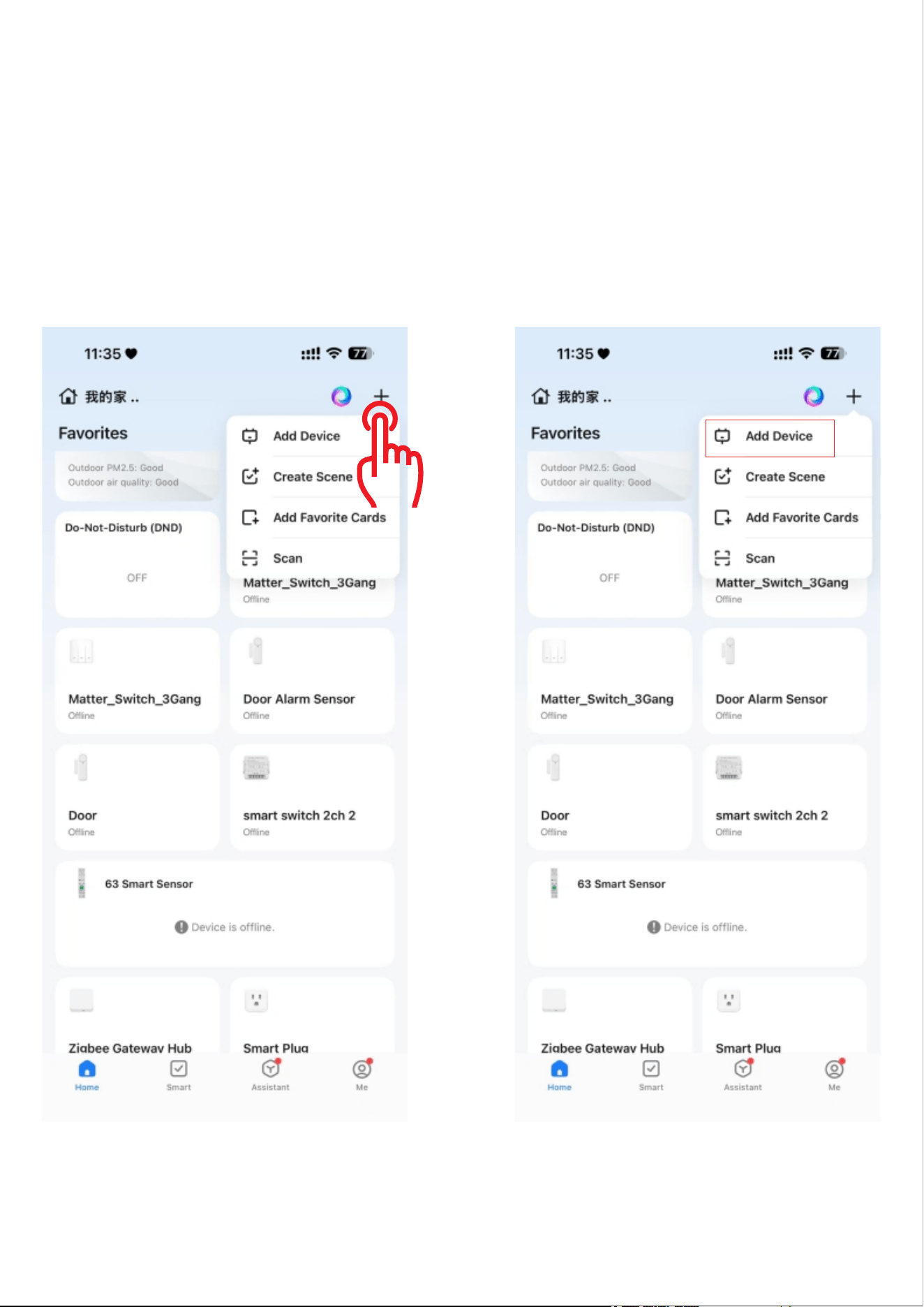
2.Go to the page, click "+" and then
click "Add Device"
Note: Before pairing, make sure to turn on
WIFi and ensure it is 2.4 Ghz
06
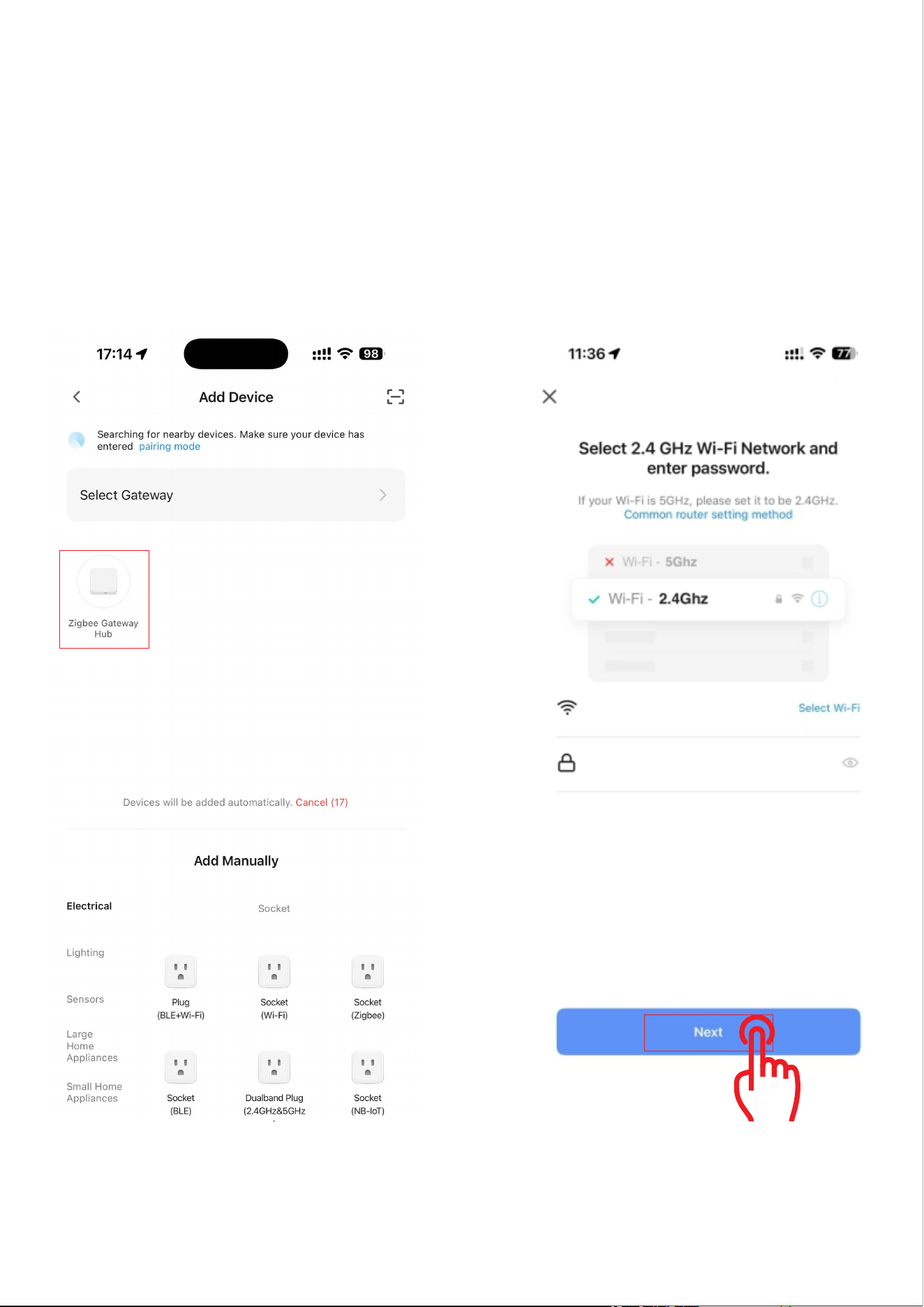
3.The search device enters the pairing state.
The search device successfully clicks the device
selects 2.4 Ghz WiFi and enters the password.
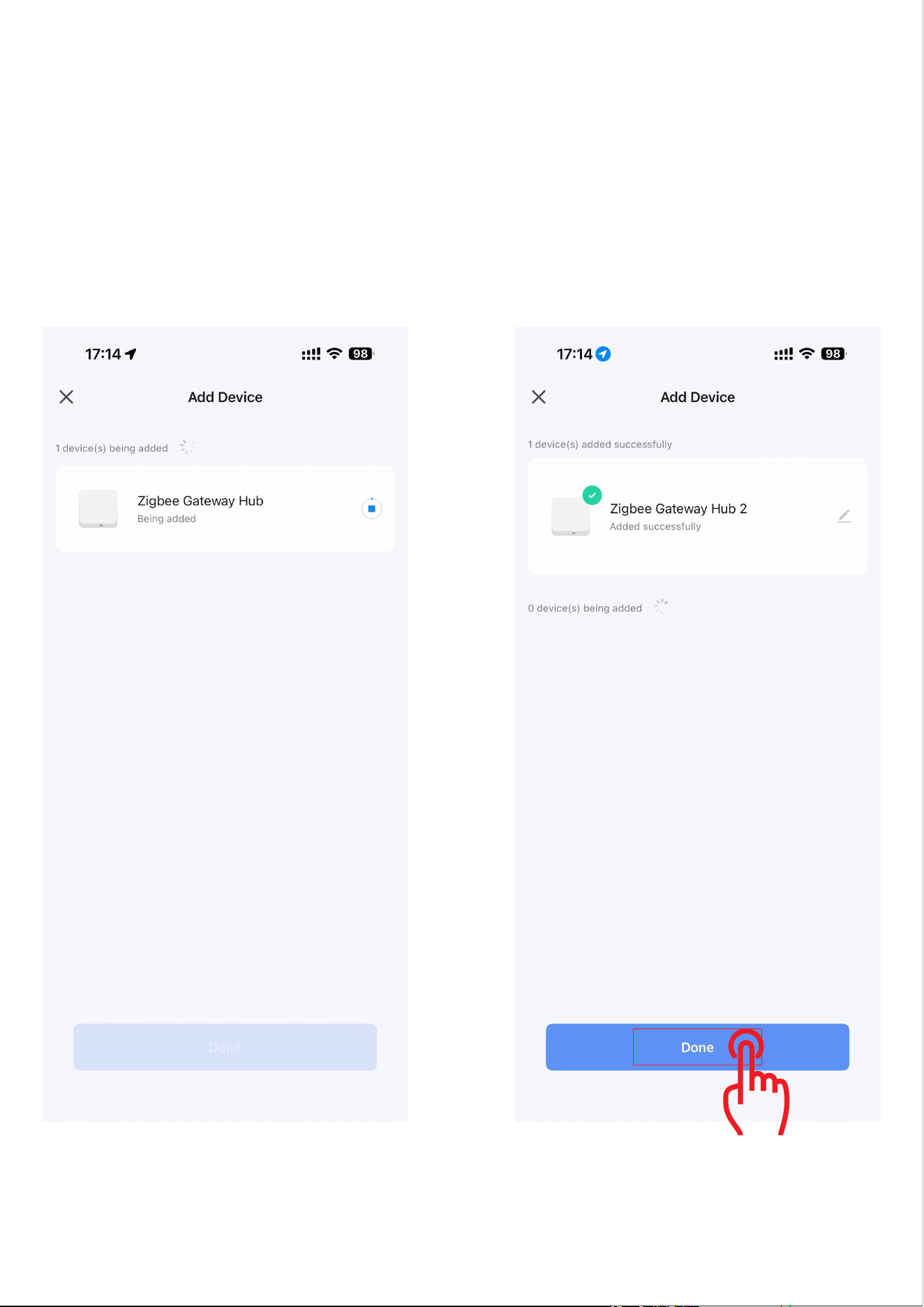
4.The device is in the pairing process.
Please wait patiently. After the device is paired
click "Done".
07
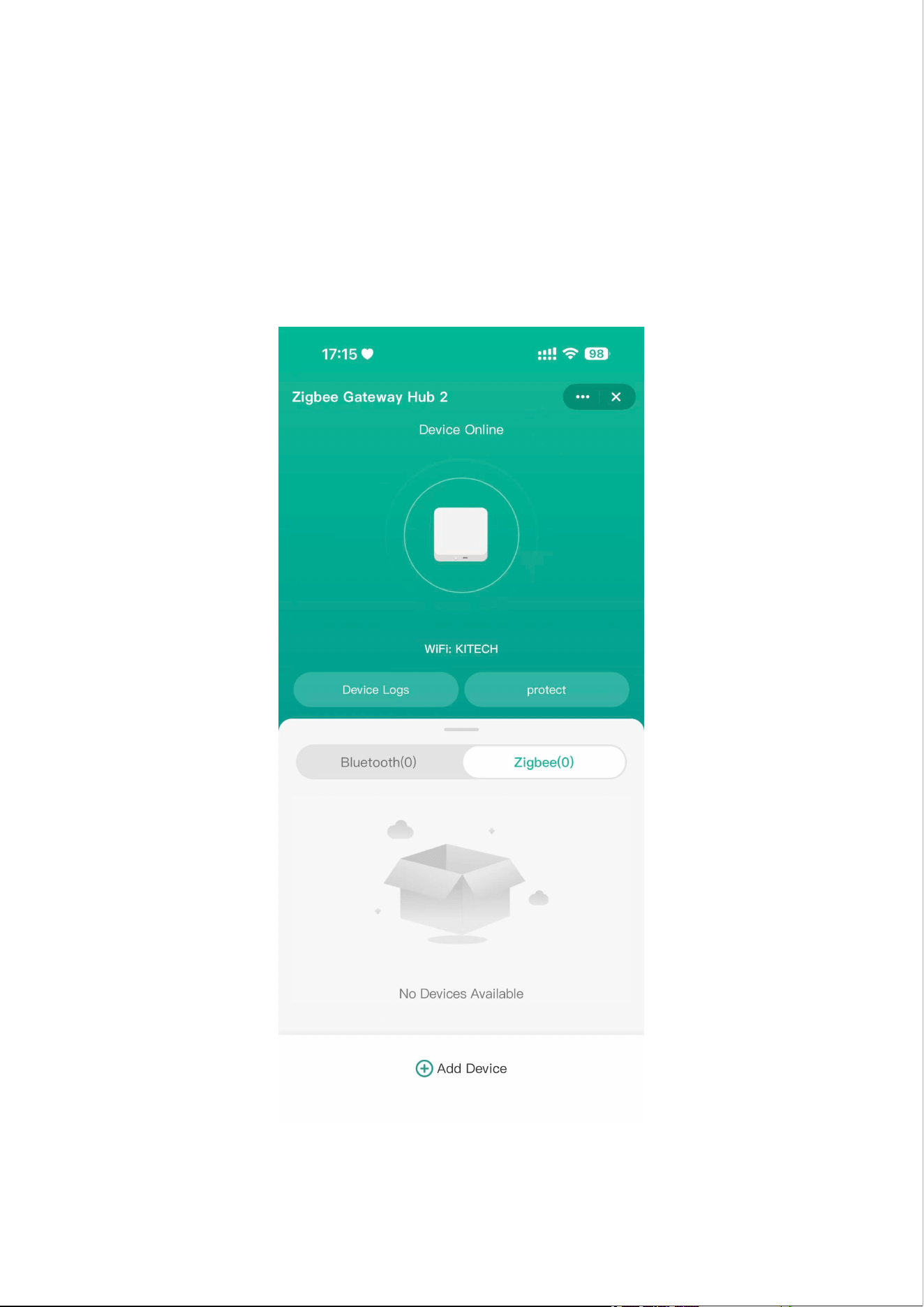
5.Pairing successful! You can now add your
Zigbee or Bluetooth devices.
08

09
2 Voice Control
The device supports voice control via Alexa and
Google Assistant, please refer to"Using
guidance" to activate. The"Using guidance"
canbe found through:
a.Open the Smart Life app, select your plug
in the Devices page.
b. Tap setting icon in the top right corner.
c. Tap"Using guidance" to follow on-screen
instructions.
Troubleshooting
1.Fail to connect to Wi-Fi.
a.Please keep your device within 100 feet
of your phone.
b. Make sure the Wi-Fi name and the password
you entered is correct.
c.Make sure the Wi-Fi you connect to is 2.4 Ghz
* 5 Ghz is not supported.

10
2.Lost W-Fi connection./Cannot use the
device with the app.
a.Make sure your home Wi-Fi works well.
b.Check whether the Wi-Fi password has
been modified.
c.Keep the distance between your device and
phone as short as possible
d. Check if the device is connected to Wi-Fi
via the indicator light. If the light flashes blue
follow the steps above to reconnect the
device to Wi-Fi.

11
Safety Instructions
This device is recommended for use
indoors and in a dry location only.
Use this device exclusively within the
rated output range stated in the manual.
Please contact the AiSeek team for a
replacement if there is any damage caused
by transportation.
Follow the manual for operation and keep
it out of reach of children.
Please do not disassemble the device.
Otherwise, the device may get damaged or
become a safety hazard.

FAQ
Q: I followed the instructions to put my device in
pairing mode, but it still failed to be found.
What can I do?
A: Make sure your device is powered on, and
check if the indicator light is slowly flashing.
If not, it means that the device has exited the
pairing mode.Please hold down the
reset button for five secondsto re-enter
pairing mode.
Features
You can easily check the status of your devices
from anywhere, create smart scenes,and share
device control with your family members.
If the info above doesn’t clear up your problem
you’re welcome to reach us via your Amazon
order or our email.
Warranty: 12-Month Limited Warranty
Support: Lifetime Technical Support
Email: aiseeksupport@aiseeksmart.com
Official Website:www.aiseeksmart.com