User Manual
AI Voice Recorder · Smart Recording · Instant Transcription
Version 1.0 · 2026

Table of Contents
1. Introduction 3
2. Understanding Indicator Lights 3
3. Getting Started 4
4. Basic Operations (Recording) 4
5. Audio Transmission 5
6. Transcription and AI Summaries 6
7. File Management and Editing 7
8. Exporting Files 8
9. Device Settings and Management 8
10. OLZO Minutes (Transcription Quotas) 9
11. Troubleshooting & Support 10
OLZO Note · User Manual 1
1 Introduction
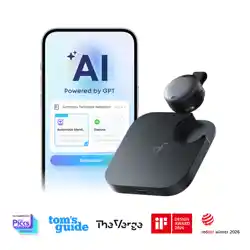
The OLZO Note is a smart voice recorder that pairs with the OLZO App to provide seamless audio recording,
fast file transmission, and AI-powered transcriptions and summaries. This manual covers every aspect of
setting up and using your device.
Feature Details
Recording Capacity Up to 40 hours total; 10 hours per single recording
Transmission Bluetooth (~5 min/hr) · WiFi Fast Transfer (~10 sec/hr)
Transcription AI-powered with speaker ID & multi-language support
Summaries Customizable templates up to 5,000 characters
Free Minutes 1,200 OLZO Minutes per device per month
Export Formats Audio: .m4a .mp3 · Script: .txt .srt .pdf · Summary: .txt .md .pdf
2 Understanding Indicator Lights
Your OLZO Note uses LED light colors and patterns to communicate its current status at a glance.
Light Pattern Status
— RECORDING
Solid Red Recording in progress
Flashing Red Recording paused
— CONNECTION & TRANSFER
Solid White (3 sec) Bluetooth activating
Flashing Blue WiFi turning on
Solid Blue WiFi fast transmission in progress
— BATTERY
Solid White Charging
Flashing Purple Low battery
Solid Purple Charging (Low battery) OR Recording (Low battery)
Solid Green Fully charged (100%)
— SYSTEM
Flashing Cyan Firmware upgrading
Flashing Yellow Device storage full
OLZO Note · User Manual 2

3 Getting Started
3.1 Account Registration
To use the full features of your OLZO Note, you must first register an account on the OLZO App.
1. Download and open the OLZO App on your smartphone.
2. Sign up using your Email address, Google account, or Apple account.
Tip: If you use a Google or Apple account, you can later add a password under Me › Personal Account.
3.2 Binding Your Device
Bind your OLZO Note to your account to unlock transcription features and device controls.
1. Turn on Bluetooth on your smartphone.
2. Open the OLZO App and tap "Connect" (top-left corner).
3. Select your OLZO Note from the device list.
4. Once connected, your device is successfully bound.
4 Basic Operations (Recording)
You can control recordings directly on the device or via the OLZO App. The device does not need to be
constantly connected to the app to record.
4.1 Start a Recording / Power On
• On the device: Press and hold the record button for 1 second until you feel 1 long vibration. Indicator
turns Solid Red.
• In the app: Tap the red record button at the bottom of the screen.
If the device is off, long-pressing turns it on and immediately starts recording.
4.2 Pause and Resume
• To Pause (Device): Short press → 1 short vibration, light flashes red.
• To Resume (Device): Short press again → light returns to Solid Red.
• In the app: Tap the Pause (II) or Resume (■) button.
4.3 Stop and Save
• On the device: Press and hold 1 second → 2 short vibrations. Red light turns off; recording is saved.
• In the app: Tap the Save button. If connected, audio transmission begins immediately.
OLZO Note · User Manual 3

Limitation Value
Maximum total recording capacity 40 hours
Maximum single recording length 10 hours (auto-split into segments if exceeded)
5 Audio Transmission
Once you reconnect your device to the OLZO App, audio files will automatically begin syncing.
5.1 Standard Transmission (Bluetooth)
• Requirements: Bluetooth enabled; device has sufficient battery and is idle.
• How it works: Files transfer automatically on connection. No manual action required.
• Speed: ~5 minutes per hour of audio.
5.2 Fast Transmission (WiFi)
• How to use: While a Bluetooth transfer is active, tap the Lightning Bolt icon. Connect to the device's
temporary WiFi network ("OLZOxxxx").
• Indicator: Device light turns Solid Blue during WiFi transfer.
• Speed: ~10 seconds per hour of audio.
• Fallback: If WiFi fails 3 times, app reverts to Bluetooth automatically.
Your phone may warn this WiFi has no internet connection — accept or ignore this to allow the transfer.
Important: Once an audio file is successfully transferred to the app, it will be automatically deleted from
the OLZO Note device to free up storage space.
6 Transcription and AI Summaries
6.1 Generating a Transcription
1. Ensure your file has been transferred to the app.
2. Tap on the file you wish to transcribe.
3. Tap "Generate", then choose your summary template, recording language, and AI model.
4. Tap "Generate" again to start.
Consumption: Generating uses OLZO Minutes equal to the audio length. Parts of a minute are rounded up.
6.2 AI Summaries and Re-Summarizing
Summaries are generated automatically based on the template you select.
OLZO Note · User Manual 4

• Re-Summarize: More menu (top right) › Re-Summarize. Costs 50% of audio length in minutes.
• Custom Templates: Create your own summary prompts up to 5,000 characters.
6.3 Speaker Identification
• Enable speaker labeling during generation. The AI distinguishes between different speakers.
• Rename speakers: More menu › Name Speaker. Names apply to both script and summary.
6.4 Script Translation
• Translation is free of charge. Go to the More menu and select Translation.
• The script displays both languages side-by-side.
OLZO Note · User Manual 5

7 File Management and Editing
■ WARNING: If you delete the OLZO App from your phone, all your saved files will be permanently
lost and cannot be recovered.
7.1 Batch Processing
• Swipe left or right on a file to enter multi-select mode.
• Batch operations: Merge, Delete, or Move to Folder.
• Merging: Previously transcribed scripts are kept. Prior summaries are discarded — a new free summary is
available for the merged file.
7.2 Trash Bin
• Deleted files go to the Trash. You can restore or permanently delete them.
• Files permanently deleted from the Trash cannot be recovered.
7.3 Audio Player & Cropping
• Tap the expand (magnifying glass) icon for advanced controls: playback speed, skip ±10 seconds.
Function Description
Crop Keeps the selected audio segment and deletes the rest
Cut Deletes the selected audio segment and keeps the rest
Save as New Saves the edit as a new file (original preserved)
Overwrite Original Permanently deletes the original file's script and summary
OLZO Note · User Manual 6

8 Exporting Files
8.1 Exporting to Local Device
Content Type Supported Formats Options
Audio .m4a, .mp3 —
Script .txt, .srt, .pdf Timestamps, speaker names, translated scripts
Summary .txt, .markdown, .pdf —
8.2 Exporting to Notion
1. Ensure your file has been transcribed.
2. Open the file, tap the Share icon (top right) › Export to Notion.
3. Follow the on-screen instructions to link your Notion account.
4. The audio link, script, and summary are exported to your selected Notion database.
Ensure all modified columns in your Notion Database are set to the "Text" property type.
9 Device Settings and Management
Access settings via Me › My OLZO Device(s).
9.1 Device Preferences
Setting Description
Bluetooth Name Custom name up to 26 characters
Microphone Gain (0–30 dB) Controls sensitivity. Too high = distortion; too low = quiet recordings
Auto Idle Shutdown Options: 15 min, 30 min, 1 hr, 3 hrs, Never. Paused recordings are saved before shutdown.
9.2 Firmware Upgrades
• Updates take 3–5 minutes, require sufficient battery, and only run when the device is idle.
• Do not close the app or disconnect the network during an upgrade.
9.3 Reset vs. Unbind & Erase
Action What It Does Data Lost?
Reset OLZO Setting Restores device settings (Mic Gain, Auto Shutdown, etc.) to defaultsNothing deleted
Unbind and Erase Removes device from account, restores factory settings ALL device files
permanently deleted
OLZO Note · User Manual 7

10 OLZO Minutes (Transcription Quotas)
OLZO Minutes are required to generate transcriptions and summaries.
10.1 Complimentary Monthly Minutes
1,200 FREE minutes every month for each device bound to your account.
• Reset Cycle: Minutes reset to 1,200 on the 1st of every calendar month.
• No Rollover: Unused complimentary minutes expire at month end.
• Stacking: Each additional bound device adds 1,200 minutes/month.
• Device Binding: Minutes are tied to the device. Unbinding removes those free minutes.
10.2 Purchasing Extra Minutes
Navigate to Me › Get More to purchase additional minutes.
Property Details
Validity 365 days from date of purchase
Usage Order Free monthly minutes consumed first; Extra Minutes used only when free quota is depleted
Refund Policy Non-refundable and non-transferable
OLZO Note · User Manual 8
11 Troubleshooting & Support
11.1 Common Issues
Q: The App cannot find or connect to my device.
• Ensure your phone's Bluetooth is turned on.
• Short-press the button on the device to wake up the Bluetooth signal, then retry.
• The device may have a low battery — charge it for at least 30 minutes and try again.
Q: Why isn't my transcription generating?
• Transcription requires an active internet connection on your phone.
• If a generation fails, any minutes deducted will be automatically refunded.
11.2 Contact Customer Support
Channel Details
Email [email protected]
Community reddit.com/r/OLZO_Users/
11.3 Sending App Logs
If you experience a bug in the app, sending your App Logs helps our engineers resolve issues faster.
1. Go to Me › Custom Service › Send App Logs.
2. Short press: Opens your phone's default email app with logs attached.
3. Long press: Opens the share menu — use this if you don't have an email app configured.
Feel free to include screenshots or screen recordings of the issue alongside the logs.
Thank you for choosing OLZO Note.
For the latest updates, visit our community or contact [email protected]
OLZO Note · User Manual 9
This equipment has been tested and found to comply with the limits for a Class B digital device, pursuant to Part 15 of the FCC Rules. These limits are designed to
provide reasonable protection against harmful interference in a residential installation. This equipment generates uses and can radiate radio frequency energy and, if
not installed and used in accordance with the instructions, may cause harmful interference to radio communications. However, there is no guarantee that
interference will not occur in a particular installation. If this equipment does cause harmful interference to radio or television reception, which can be determined by
turning the equipment off and on, the user is encouraged to try to correct the interference by one or more of the following measures:
-- Reorient or relocate the receiving antenna.
-- Increase the separation between the equipment and receiver.
-- Connect the equipment into an outlet on a circuit different from that to which the receiver is connected.
-- Consult the dealer or an experienced radio/TV technician for help.
This device complies with part 15 of the FCC Rules. Operation is subject to the following two conditions:
(1) This device may not cause harmful interference, and (2) this device must accept any interference received, including interference that may cause undesired
operation.
Changes or modifications not expressly approved by the party responsible for compliance could void the user's authority to operate the equipment
* RF warning for Portable device:
The device has been evaluated to meet general RF exposure requirement. The device can be used in portable exposure condition without restriction.