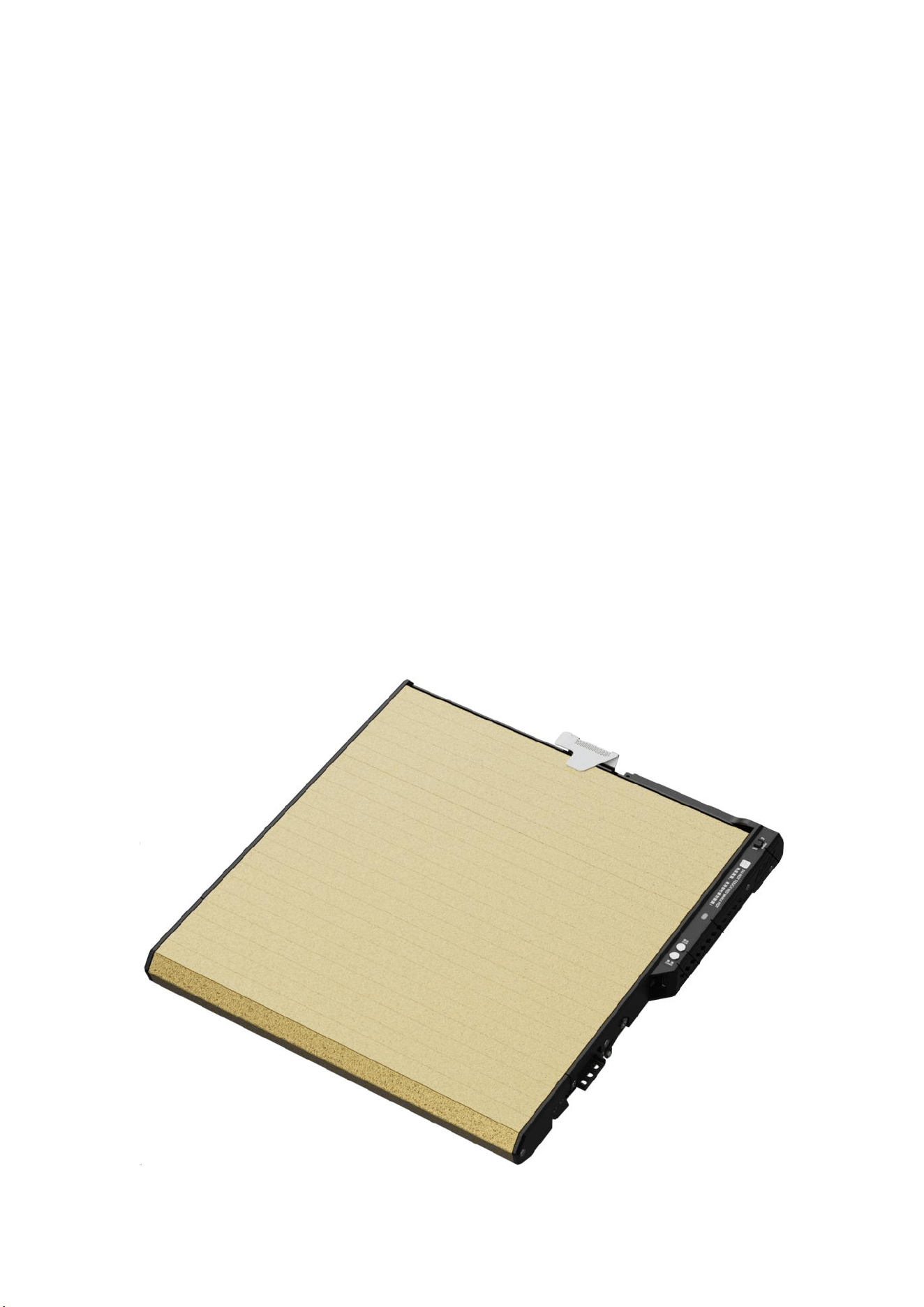
BIQU × FOXLT Infinity Bed
Auto-Unloading Heated Bed
Infinity Bed P1 User Manual V1.0
(Applicable series model: Infinity Bed P2)
1. Product Specifications
Item
Specification
Material
Metal / PCB
Color
Black
Package Dimensions
377.4 (L) × 332.9 (W) × 91.4 (H) mm
Package Weight
3.5kg
Input Voltage
110-240V~
Operating Power
200-1000W
Print Volume
256
×
256
×
235
Maximum Heated Bed
Temperature
110
℃
Operating Temperature
10℃-70℃
2. Module Description
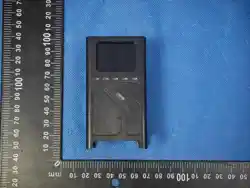
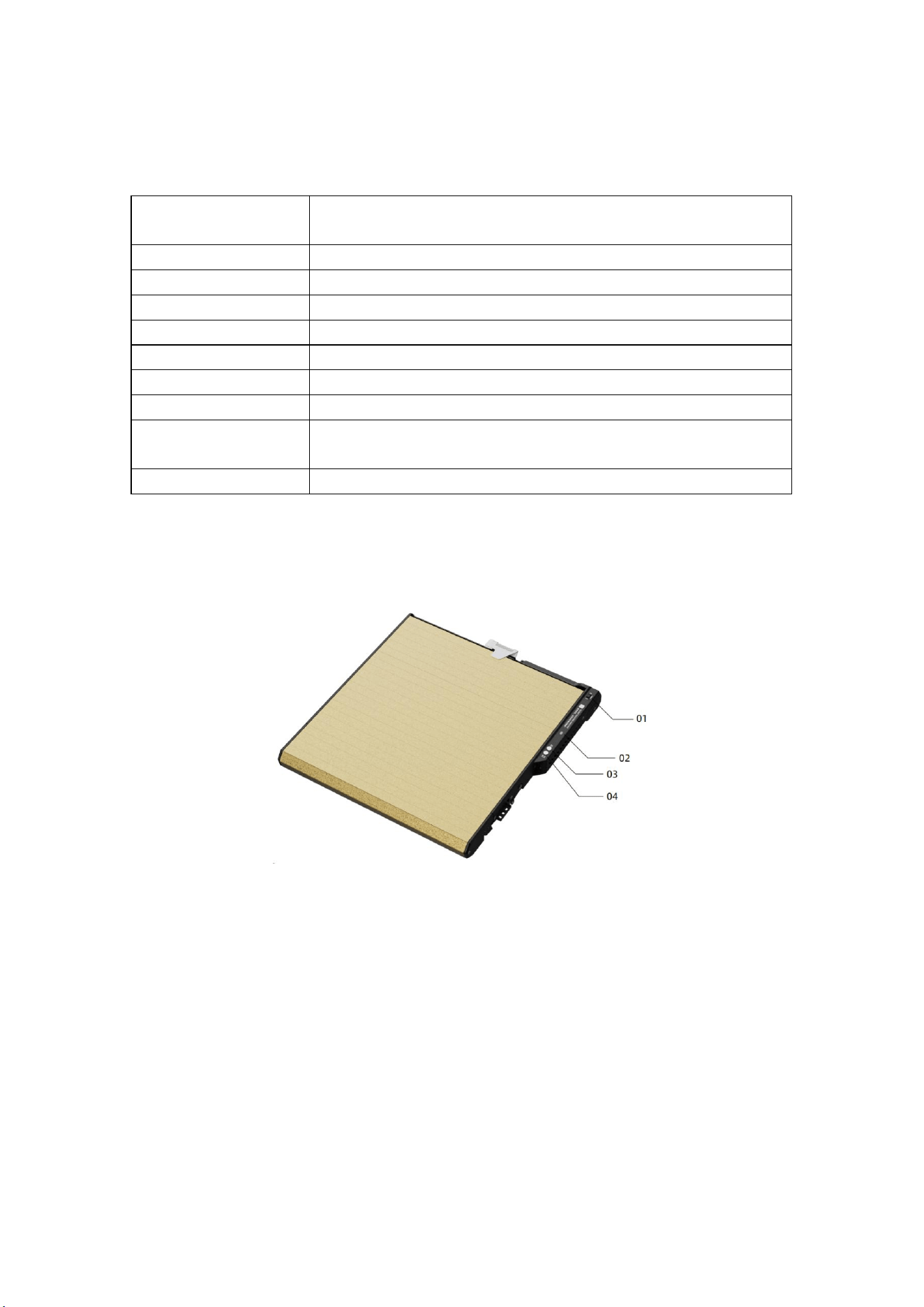
01-Power Switch 02-Status LED 03-Stop Button 04-Clean
Button
Function Description:
01 Power Switch: move the lever to ON to power on, and to OFF to power off
02 Status LED:
Alternating red and blue: network pairing mode
Solid blue: network pairing successful, entering console mode
The button lights red when pressed
03 Stop Button: emergency stop for manual and automatic platform cleaning
04 Clean Button:
Short press to start the platform cleaning function (press for no more than 2 seconds)
Secondary function: restore factory settings. Press and hold for 10 seconds to clear all
configurations (the red LED flashes when triggered; the action starts when the button is
released)
3. Product Usage Instructions
3.1 Device Binding
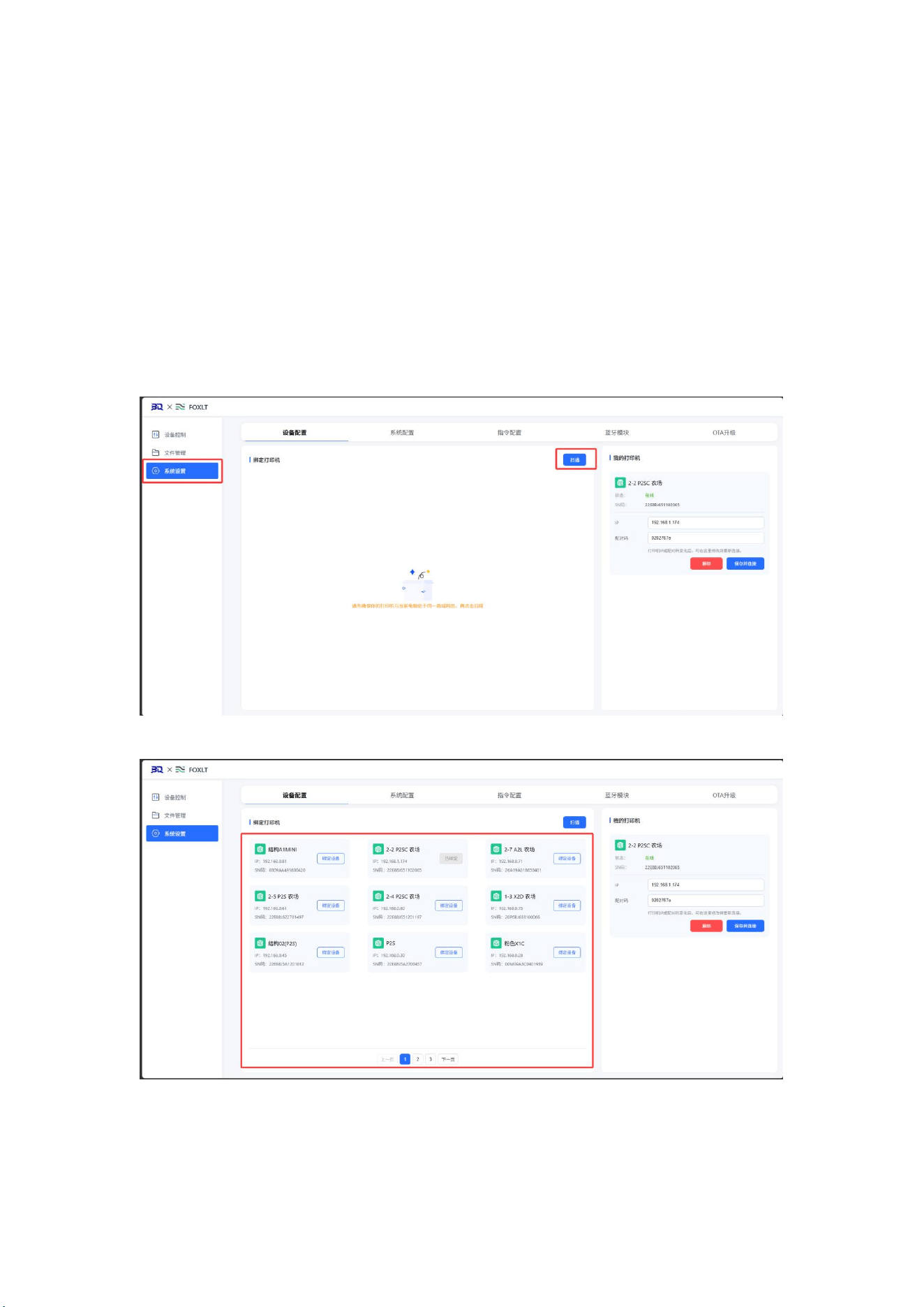
1. After entering Infinity Bed Hub, go to the [System Settings - Device Configuration] page and
click [Scan] to scan for printer devices in the environment.
2. Once the scan is complete, all detected printer devices will be displayed on the page.
3. Select the target printer and click [Bind Device]. Enter the printer's pairing code in the dialog
box and click [Pair] to start binding the printer.
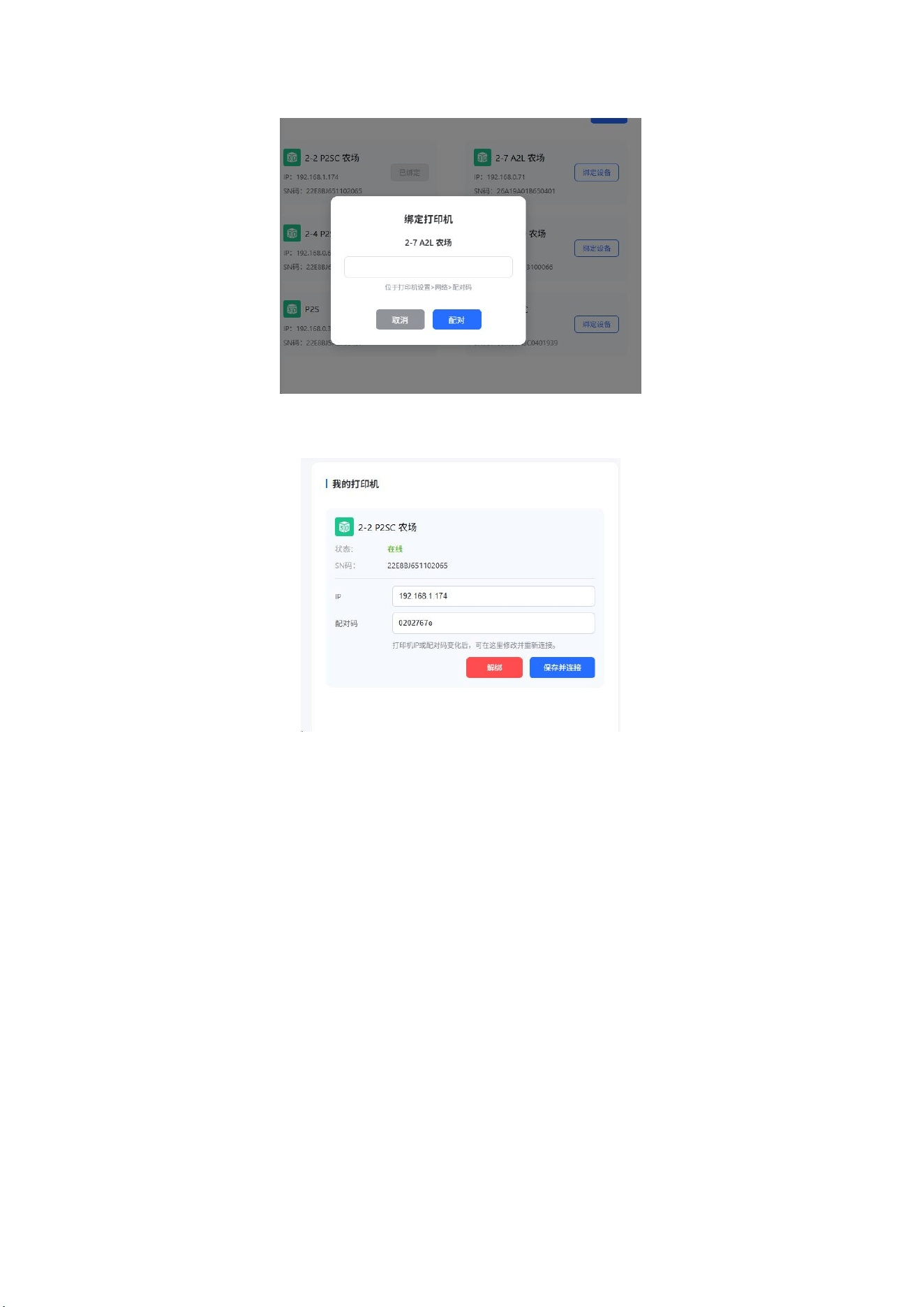
4. After successful binding, the status and information of the bound printer will be displayed in
[My Printers].
3.2 Starting a Print Job
1. Click [File Management]. Infinity Bed Hub will automatically retrieve the file information from
the printer's external storage and display it on the page.
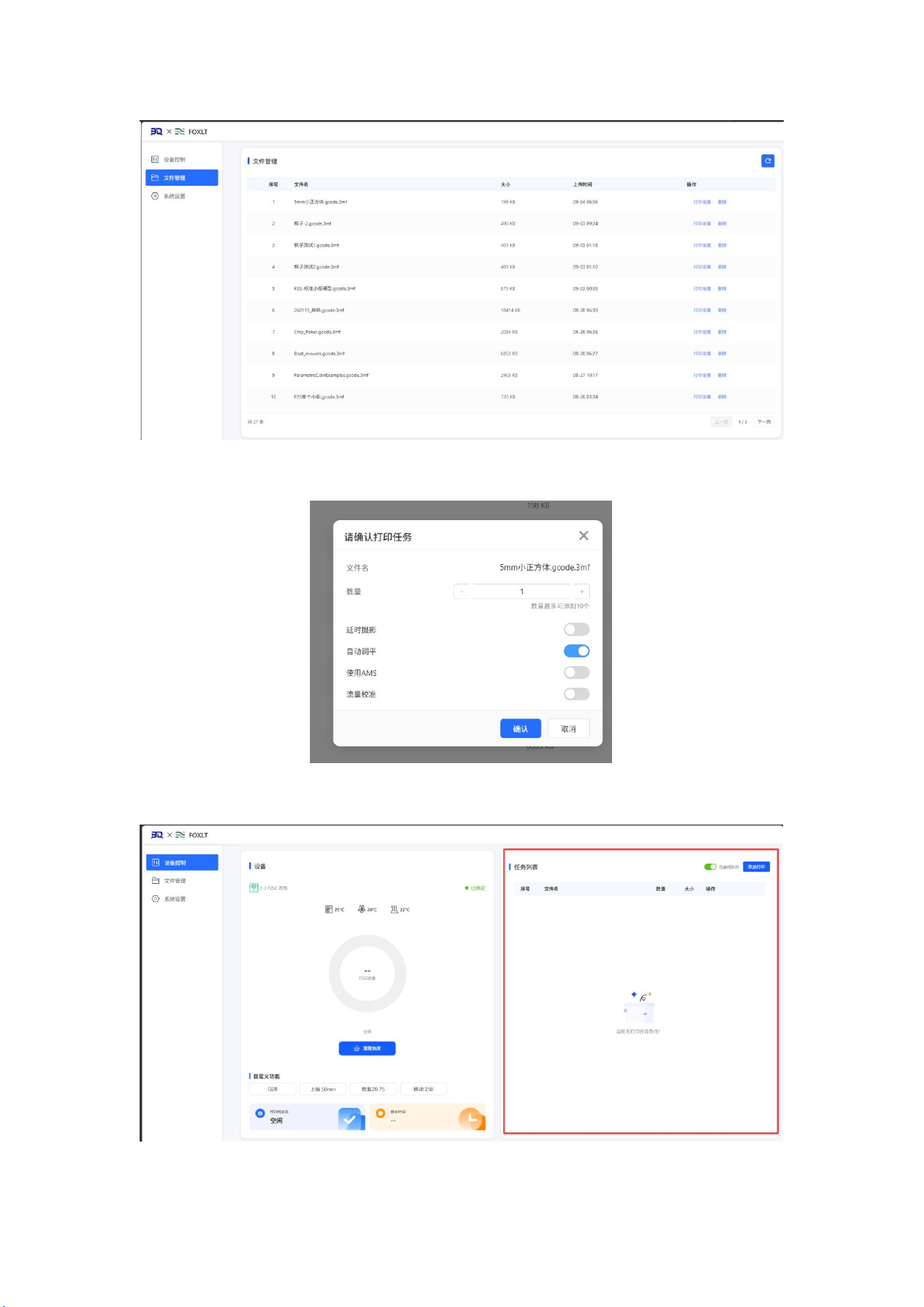
2. Select the target print file and click [Print Settings] to customize the parameters of this print
job.
3. Click [Confirm]. The print job will be added to [Device Control - Task List] and wait to be
printed.

4. Manufacturer
Manufacturer: Shenzhen BIQU Innovation Technology Co., Ltd.
Address: 1508, Building T1, Lijincheng Center, Yousong Community, Longhua Subdistrict, Longhua
District, Shenzhen, Guangdong, China
5. FCC Statements