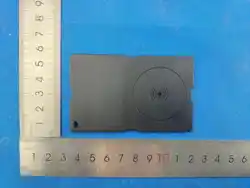
82mm
71.5mm
PEOCKE CARD
User Manual
Important Tip:
Works with Apple Find My or Google Find My Device (not both).
Pair with iOS 14.5+ or Android 9+ device.
The Apple Find My® network makes it easy and secure to find your
compatible items using the Find My app on your iPhone®, iPad®, or
Mac®, or the Find Items app on Apple Watch®.
To use the Apple Find My app, we recommend the latest iOS®,
iPadOS®, or macOS®. The Find Items app on Apple Watch needds
the latest watchOS®.
Press your Item Locator's function button once .
to turn on- it should beep once indicating it is powered on .
To power off, hold the same button for at least 3 seconds. You will hear 2
beeps indicating your Item Locator is powered off
(Note: If you hold it for less than or more than 3 seconds, the device will
not turn off.)
1. Power On / off:
To use the Apple Find My app to locate your item, we recommend using
the latest version of iOS*, iPadOS*, or macOS.The Find Items app on
Apple Watch requires the latest version of watch OS.
1.2 System Check
2.1 Open the App
2.2.1 On a supported iPhone* or iPad*, open the Find app.
2.3.2Allow notifications from the app.
2. Add Device
3.1 Power on the tracker and open the Find app.
3.2 Tap the Items tab. Tap Add Item, then tap Add Other Item.
3.3 When the "PEOCKE Card" pop-up appears, tap Connect.Give your
tracker a clear name and choose a symbol. Then click "Continue".
3.4 The "Find" app will ask to confirm adding your locator to your
Apple ID. Tap "Continue", then tap "Done". Your locator will be set up
and ready. You can now attach it to any item you want to find, such as
your keys.
3. Connect the Tracker
4.1 When the item is nearby, find it:
4.1.1 Open the "Find" app on your phone and select the "Items"tab.
4.1.2 Tap your tracker from the list.
4.1.3 Tap "Play Sound" to make the tracker beep. After finding the
item, tap "Stop Sound" to turn off the beeping.
4.2 Find the tracker's last known location:
4.2.1 Open the "Find" app and select the "Items" tab.
4.2.3 The tracker's last known location will appear on the map. To
navigate to this location, tap "Directions" to open the Maps app.
4. Locate Your Item
5.1 Turn on "Notify When Left Behind"
5.1.1 Open the "Find" app and select the "Items" tab.
5.1.2 Tap your tracker from the list. Under the "Notifications" section, turn
on the "Notify When Left Behind" switch. You will receive a notification if
you leave without your tracker and it is out of range of your device.
5.2 Turn on "Notify When Found"
5.2.1 Under the "Notifications" section, turn on the "Notify When Found"
switch. If your tracker is out of range and is later detected by another
device in the Find network, you will receive a notification with its updated
location.
5.2.2 Note: "Notify When Found" can only be used when your
tracker is out of range.
and cannot be paired with a new device.
5. Finding an Item When Out of Range
6.1 Turn on Lost Mode
6.1.1 Open the "Find" app and select the "Items" tab.
6.1.2 Tap your tracker from the list.
6.1.3 Under "Lost Mode", turn on "Lost". Ascreen with details abou Lost
Mode will appear. Tap "Continue".
6.1.4 Enter your phone number or email address, then tap "Next".
6.1.5 Tap "Enable" to turn on Lost Mode.
6.1.6 Note: When Lost Mode is enabled, "Notify When Found" will be
automatically turned on.
6.1.7 Note: Once Lost Mode is enabled, your tracker will be looked
6. When Your Item Is Lost
7.1 Remove the item from the Find app
7.1.1 Open the "Find" app and select the "Items" tab.
7.1.2 Tap your tracker from the list.
7.1.3 Make sure "Lost Mode" is disabled.
7.1.4 Scroll to the bottom of the screen and tap "Remove Itenn".
7.2 Reset to factory settings
After successfully removing the tracker from the Find app, double-click
the tracker's button - you will hear one beep. Then quickly press the
tracker's button four times, and on the fifth press, hold it down until you
hear one long beep. The tracker is now reset and ready to pair with a
new device.
7. Reset to Factory Settings
1. Charge: Use regular wireless charging equipment to charge the
product wirelessly, the red light is always on when charging, and the light
is off when fully charged.
2. Unwanted Tracking Detection: If your iPhone detects that an
unknown Item Locator is traveling with you, it will send you a notintersity
A sound will start playing so you will be able to find it. These alerts arTe
only activated when an Item Locator is not connected to its owneers
phone, so your partner's Item Locator will not trigger a sound if they are
with you.
The tracker updates its location based on two rules:
Nearby Apple devices: There must be Apple devices nearbyV.
If there are, one of them will usually report the tracker's locationwithin 2-5
minutes.No movement: If the tracker doesn't move, its senseor will detect
this and put it into sleep mode. In sleep mode, it only repdts its location
every 30 minutes to several hours. Don't worry - ift 14667 tupdate was
hours ago, it likely means the item hasn't moved, so the location hasn't
changed.
9. Charging Function
The Fine Print
This device complies with part 15 of the FCC Rules:
Operation is subject to the following two conditions:
(1)This device may not cause harmful interference.
(2) this device must accept any interference received, including
interferethat may cause undesired operation.
NOTE: The manufacturer is not responsible for any radio or TV
interference caused by unauthorized modifications or changes to this
equipment. Such modifications or changes not expressly approved by
the party responsible for compliance couid void the user's authority to
operate this device. The device has been eyvaluated to meet general RF
exposure requirement, The device can be used in portable exposure
condition without restriction Federal Communication commission (FCC)
Radiation Exposure Statement Power is so low that no RF exposure
calculaation is needed.
This equipment has been tested and found to comply with thhe limits for
a Class b digital device pursuant to part 15 of the FCC Rules. These
limitsare designed to provide reasonable protection against harmful
interference in a residental installation this equipment generates uses
and can radiate radio frequency energy and, if not installed and used in
accordance with the instructions, may cause harmful interference to radio
communications. However. there is no guarantee that interference will not
occur in a particular installation. If this equipment does cause harmful
interference to radio or television reception which can be determined by
turning the equipment off and on, the user is encouraged to try to correct
the interference by one or more of the following measures Reorient or
relocate the receiving antenna. Increase the separation between the
equipment and receiver Connect the equipment into an outlet on a circuit
different from that to which the receiver is connected .
The Fine Print
This device complies with part 15 of the FCC Rules:
Operation is subject to the following two conditions:
(1)This device may not cause harmful interference.
(2) this device must accept any interference received, including
interferethat may cause undesired operation.
NOTE: The manufacturer is not responsible for any radio or TV
interference caused by unauthorized modifications or changes to this
equipment. Such modifications or changes not expressly approved by
the party responsible for compliance couid void the user's authority to
operate this device. The device has been eyvaluated to meet general RF
This equipment has been tested and found to comply with thhe limits for
a Class b digital device pursuant to part 15 of the FCC Rules. These
limitsare designed to provide reasonable protection against harmful
interference in a residental installation this equipment generates uses
and can radiate radio frequency energy and, if not installed and used in
accordance with the instructions, may cause harmful interference to radio
communications. However. there is no guarantee that interference will not
occur in a particular installation. If this equipment does cause harmful
interference to radio or television reception which can be determined by
turning the equipment off and on, the user is encouraged to try to correct
the interference by one or more of the following measures Reorient or
relocate the receiving antenna. Increase the separation between the
equipment and receiver Connect the equipment into an outlet on a circuit
different from that to which the receiver is connected .
exposure requirement, The device can be used in portable exposure
condition without restriction Federal Communication commission (FCC)
Radiation Exposure Statement Power is so low that no RF exposure
calculaation is needed.
FCC Statement
1. Why hasn't my location been updated?
FAQ
8.1 Add a contact to share this item. People you share the item with will
be able to help locate it, and they won't receive unknown trackker alerts
for it.
8.2 To use item sharing, make sure you and your friend have installed
iOS 17, iPadOS 17, or macOS 14 Sonoma public beta or a later version.
8. Share This Item
PEOCKE CARD
User Manual
Important Tip:
Works with Apple Find My or Google Find My Device (not both).
Pair with iOS 14.5+ or Android 9+ device.
Google's Find My Device helps you quickly and safely find your
things-even when they're offline or far away. Lost keys? Tablet under
the couch? Now it's easier to track them. Your location stays private,
To use it, turn on Location Services and Bluetooth. You also need cell
service or internet. Works on some Android 9+ devices, in certain
countries, for age-eligible users.
The wireless tag is a smart tracker that uses Google's Find Hub network.
Paired with the "Find Hub" app on your Android device, it helps you
quickly and securely locate your personal items on Google Maps.
All location information remains private-even Google cannot access it.
Google's Find Hub network requires Location Services and Bluetooth to
be turned on. Acellular connection or internet access is required.
Compatible with select devices running Android 9+, in certain countries,
for age-eligible users.
Product Overview: 2.Power On / off:
41.3 Google Assistant on your Google Home or Pixel Watch is hereto
help. Try prompts such as, "Hey Google, find my wallet" or "HeyGooggle
findmykeys"to quickly findyourthings.
inthe "Find Hub" app and tap "Play Sound" to locate your deviice
Oncefound, tap "Stop Sound" to silence the device.
3.1 Make sure your phone's Bluetooth is ON and you are connected tothe
internet.
3.2 Bring your tag close to your phone and wait for the pop-up tosho
PEOCKE Card, on the pop up bottom sheet, hit 'Conneect Readand
accept the prompts to complete the pairing
3.Connect to Find Hub app
5.1Power on (Find my function is on)
Press and hold the function button for 3 seconds to power it on.A"ring-ring"
chime will indicate that the device is turned on.if the product is not linked
with your Google account, it will be closedwithin 10 minutes auttomatically,
You need to trigger the find myfunction again to continue pairing.
5.2 Power off (Find my function is off).
Hold the function button for three seconds then release it... youwillhear two
beeps indicating it is powered off
5. Button function
4.1 Nearby Finding
4.1.2 if your device is within wireless signal range , select your devvice
4.1.1 You're sometimes closer to your lost item than you may thinkifyou
know that it's somewhere in the house, Find Hub will indicateitssignal
strength so you can narrow down its location.
4. Product introduction
1.Go to Google Play and search for "Google Find Hub"
2. Install the app or click to 'Update.
3. Hit 'Open'or click on the Find Hub app icon on your phone home page.
4. Log in to the Find Hub page with your Google account.
You might want to select the checkbox that says "Don't ask again.
If you have more than one account, your item will link to the
primaryaccount setup on your phone.
5. You might be asked to allow some permissions. Review the terrms
andcontinue
1.Log in Google Find Hub APP
4.2 A community for finding
For the moments when you're really far away from an item, the FindHJub
network is here to help. Android devices all over the world - liketablet$
phones, and laptops - will work together to support you infinding thattablet
you left on an airplane, two layovers ago.
4.5 Unknown tracker alerts
Your safety comes first. Find Hub is built to deter unwanted trackirng.
ifyour Android phone notices an unfamiliar device moving with you, you'll
receive a notification.
View the unknown device on a map, ring it to find it by sound, orgeetfurther
help
4.6 Privacy
Your location data is end-to-end encrypted, meaning that Googlecan never
view or access it, Only you can see where your items havebeen and
currently are. With the Find Hub app, Google does not usernor share your
data. The information you share about yourself andycpur devices remains
confidential.
4.3 Enable Lost Mode
When your item is lost, select the device in the "Google Find Hulo" appand
tap "Mark as lost", You will receive a notification when locationbecomes
available, You can leave your contact information for thefinder of youritem
to contactyou.
4.4 Location Sharing
Select the device in the "Find Hub" app, then tap "Share Device". Afterthe
accessory owner confirms sharing - the accessory will be visible on the
list in Find Hub app. Both accounts will see the location updatesand may
ring the device locally.
Restart your phone's Bluetooth and cellular network, shut dovwn
andrestart the device, then wait for the pop-up to show "PEOCKE card"
Can't Connect My Device With Google's Find Hub
App The following action is recommended:
Methad 1.Restart your phone's Bluetooth and cellular networlk.
Reset your device, shut down and restart the device. Then waait for
thepop-up to show "PEOCKE card".
Method 2. Reset your device.
Please restart your phone, shut down and restart the device,then
waitfor the pop-up to show "Wireless tag".
Method 3. Please restart your phone and try again.
Step 1.Access phone settings and find "System"
Step 2. find Softeware updates and open "System update", thnen
checkfor update.
Step 3. Update your phone's system to newest system.
Method 4. Update your phone's software.
FAQ
1. Charge: Use regular wireless charging equipment to charge the product
wirelessly, the red light is always on when charging, and the light is off
when fully charged.
2. Unwanted Tracking Detection: If your iPhone detects that an unknown
Item Locator is traveling with you, it will send you a notintersity A sound
will start playing so you will be able to find it. These alerts arTe only
activated when an Item Locator is not connected to its owneers phone, so
your partner's Item Locator will not trigger a sound if they are with you.
6. Charging Function
FCC Statement
Press your Item Locator's function button once .
to turn on- it should beep once indicating it is powered on .
To power off, hold the same button for at least 3 seconds. You will hear 2
beeps indicating your Item Locator is powered off
(Note: If you hold it for less than or more than 3 seconds, the device will
not turn off.)
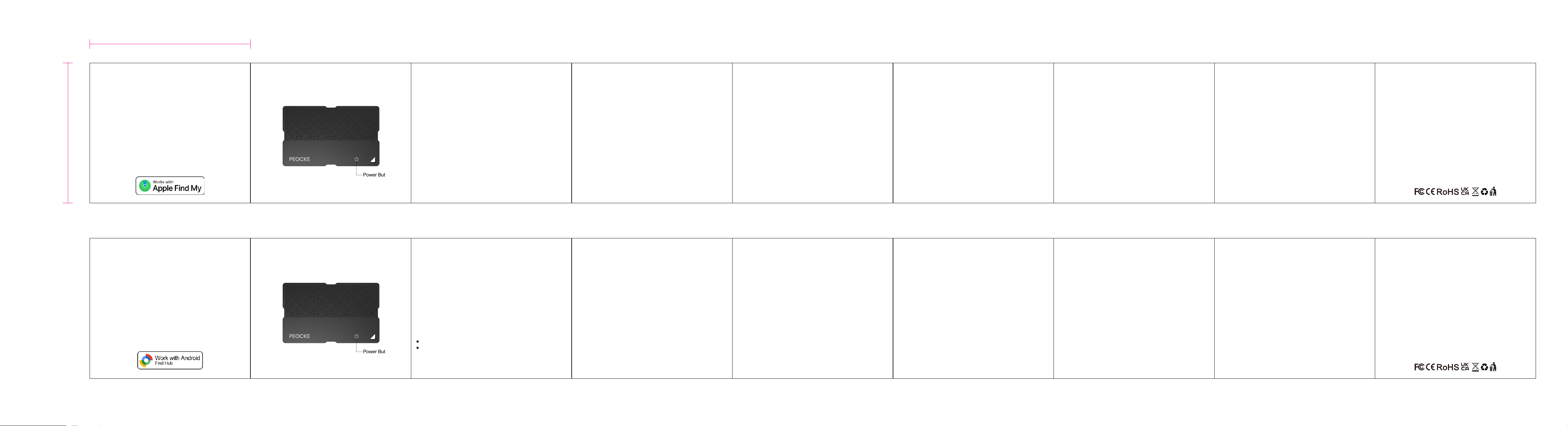
PEOCKE CARD
ltem Finder
Quick Start Guide
Power Button
PEOCKE CARD
ltem Finder
Quick Start Guide
Power Button