LED INDICATORS
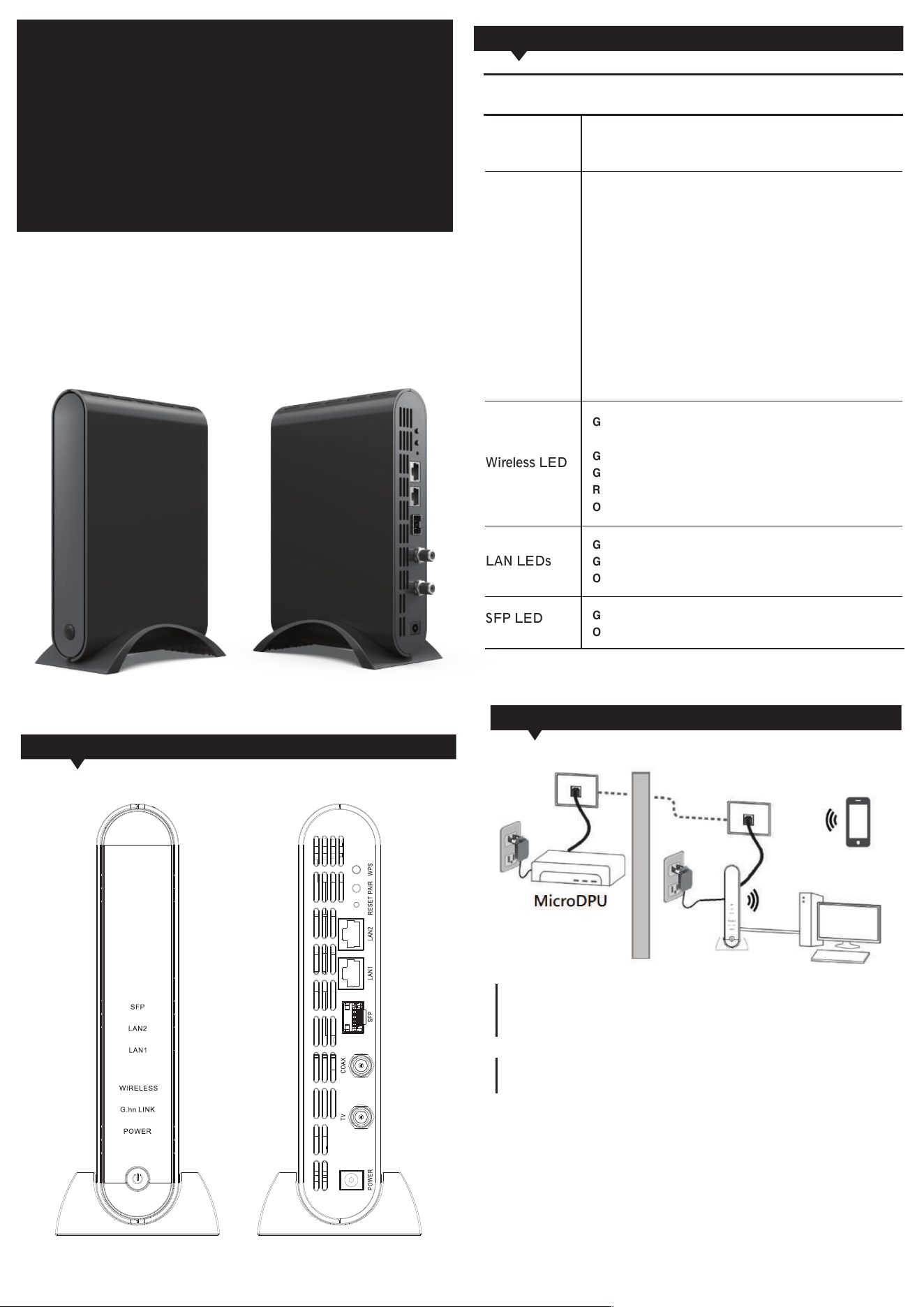
LED Behavior
Green SOLID: Wireless initialization is done and function work
on.
Green fast BLINKING: Wireless data traffic is active.
Green slow BLINKING: WPS is in negotiate.
Red BLINKING: WPS negotiation is fail.
OFF: Wireless off.
Green SOLID: Ethernet Port link is detected.
Green BLINKING: Ethernet Port link is active.
OFF: No Ethernet link is detected.
Green SOLID: SFP Port link detected.
OFF: SFP Port link not detected.
Green SOLID:
G.hn PHY rate is > 300 Mbps; no data traffic
over the cable.
Green BLINKING: data traffic is running
Amber SOLID: G.hn PHY rate is 100 Mbps–300 Mbps;
no data traffic over the cable.
Amber BLINKING: data traffic is running.
Red SOLID: G.hn PHY rate is < 100 Mbps; no data traffic over
the cable.
Red BLINKING: data traffic is running.
OFF: No G.hn link is detected. (Either other devices in the
same network are too far to communicate, or it is alone
in its logical network.)
Green ON: Power on
OFF: Power off
Step 1:
Plug PWM-9832 power into AC outlet using the AC adapter
provided. Use a coaxial cable to connect F-connector to the
wall’s coaxial jack. Then use an Ethernet cable to connect it
to any network device such as a streaming box, smart TV, or
gaming console.
HARDWARE INSTALLATION
IB31300099 V02
G.hn over Coax with WiFi 6
AX1800 Router
PWM-9832
ZINWELL
OUTLINE
Power LED
G.hn Link LED
Wireless LED
LAN LEDs
SFP LED
Installaon Guide
This Installaon Guide is used to install the
PWM-9832
Step 2:
Manually accessing its Wi-Fi Setup Web interface:
Login to Web UI by scanning QR code on the rating label of G.hn
WiFi 6 Router.
a. Connect your device to G.hn WiFi Router wirelessly with default
SSID and password.
b. Scan QR code on the rating label and open the link via browser
then you will be redirected to web login page.
1. Connect device to one of the LAN port/ WiFi of the G.hn WiFi Router.
2. Open the Web browser and type in URL 10.10.10.1
3. When the logon dialog box pops, enter admin for Account and admin
for Password.
NOTICE: This classification can only be used if the manufacturer’s instructions
state that the equipment is only suitable for mounting at heights ≤ 2m.