User Manual
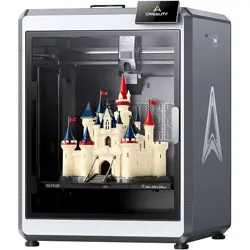
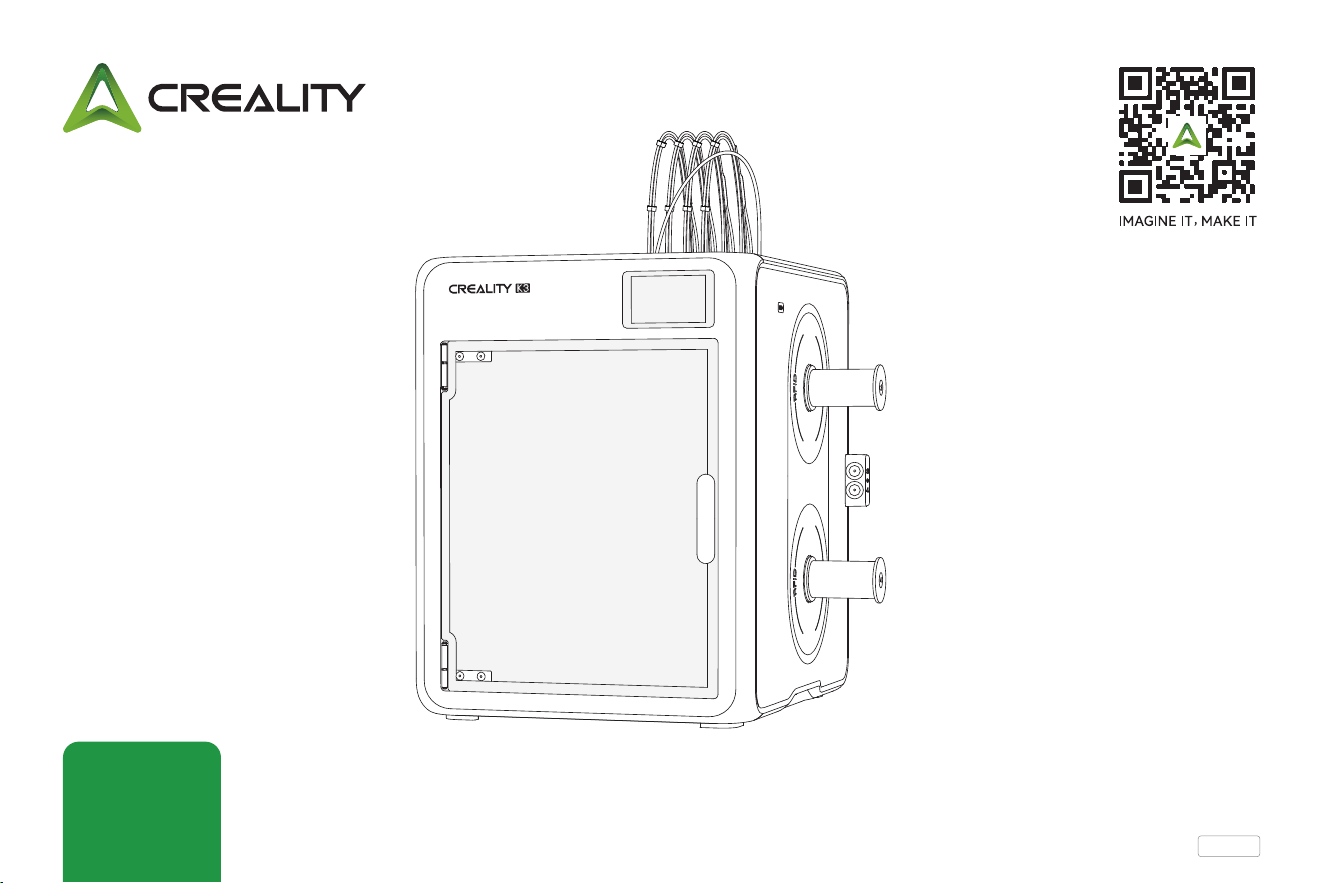
K3 3D Printer
V 1.0_EN
K3
Thank you for choosing Creality products. This quick guide introduces the steps for unboxing, installation, and debugging. Please read it carefully before use.
For more detailed instructions, unboxing videos, and after-sales seice tutorials, please visit the Creality Wiki platform.
The Creality team is always ready to provide you with quality seice. If you encounter any problems during use, please contact us through the phone
number and email provided at the end of this quick guide.
Dear Users
Bought a product but don't
know how to use it?
Don't wor, all your
confusions will be resolved!
Creality ocial Wiki
Comprehensive understanding of the new product,
immersive exploration of its features.
Detailed operation guides to help you get staed
eolessly.
Professional after-sales suppo platform oering
ecient solutions.
https://wiki.creality.com
Creality Cloud App
Creality Cloud – Your 3D
Printing Universe Awaits!
Discover the all-in-one 3D
printing platform designed
for all enthusiasts.
https://www.crealitycloud.com
Access a vast libra of high-quality models.
Built-in cloud slicing and Print Settings make printing
easier than ever.
Control remotely and print with just one click, anytime,
anywhere.
1. 请勿尝试任何说明中没有描述的方法来使用本机,避免造成意外的人身伤害和财产损失;
2. 请将设备放置在通风良好、干燥、少尘环境中,避免靠近高温或易燃易爆物品;
3. 请使用本设备推荐的耗材类型及规格,确保耗材直径一致,以保证打印以及续料过程顺畅稳定;
4. 请勿在安装过程中使用其他产品电源线代替,请使用本机附带的电源线;
5. 请避免使用严重受潮、变形或阻力过大的耗材,以免影响打印成功率或导致卡料;
6. 请勿在设备运行过程中强行拉拽耗材或干预进料路径,以免造成设备异常或损坏;
7. 为避免打印异常失败,请定期检查耗材路径及导管是否顺畅,避免弯折或阻塞;
8. 温馨提示:请勿带电插拔电线;
9. 本设备仅用于FDM打印辅助用途,请勿用于其他非设计用途;
10. 使用者应遵守设备所在地(使用地)相应国家、地区法律法规,恪守职业道德,注意安全义务,严禁将我司的产品或
设备使用在任何非法用途上。如有违反者所应承担的相关法律责任我司概不负责。
Safety InstructionsSafety InstructionsSafety Instructions
1. Do not use this machine in any way not described in the instructions to avoid inju or propey damage.
2. Do not place the machine near ammable or explosive materials or high-heat sources. Place it in a well-ventilated, cool, and dust-free
environment
3. Do not place the printer on vibrating or unstable suaces; machine vibration can aect print quality.
4. Please use laments recommended by Creality to avoid nozzle clogging or machine damage.
5. Do not use a power cord from another product. Use the supplied power cord, and connect it to a grounded three-prong outlet;
6. Do not touch the nozzle or heated bed while the printer is operating to avoid burns or cuts;
7. Do not wear gloves or loose items while operating the machine to avoid entanglement, crushing, or cutting injuries from moving pas;
8. After printing, clean residual lament from the nozzle with tools while it is still warm. Do not touch the nozzle directly with your hands
to avoid burns;
9. Please peorm regular maintenance. With the printer powered o, use a d cloth to clean the printer body, removing dust, bonded
printing material, and debris from the guide rails;
10. Children under 10 are not recommended to operate or touch this machine to avoid inju;
11. Users must comply with applicable local laws and regulations, follow professional ethics, and obsee safety obligations. It is strictly
prohibited to use our products or equipment for any illegal purpose. We assume no liability for any legal consequences arising from such
violations;
12. Friendly reminder: Do not plug or unplug cables while the machine is powered on.
13. The full text of the EU Declaration of Conformity is available at the following internet address https://wiki.creality.com/en/euro-com-
pliance
14. Hereby, SHENZHEN CREALITY 3D TECHNOLOGY CO., LTD declares that the radio equipment type is in compliance with Directive
2014/53/EU.
It is not allowed children to operate this produc. Only skilled person is applicable to this product.
Caution! Hot pas!
Contact may cause burns.
Please power o and wait 30 minutes before seicing.
Moving Pas: Keep Body Pas
Away From Moving Pas

1. Product Information
·················································································
01-05
1.1 Product Oveiew
·················································································
01-01
1.2 Package Contents
·················································································
02-03
1.3 Product Specications
··············································································
04-05
2. Installation Guide
··················································································
06-10
2.1 Unlock the Heated Bed and Print Head
·································································
06-06
2.2 Spool Holder and Side PTFE Tube Bracket Installation
·······················································
07-07
2.3 Auto Filament Loader/Unloader Installation
······························································
07-08
2.4 Nozzle and Cable Installation
·········································································
09-10
2.5 PTFE Tube Installation
··············································································
10-10
3. Power-on and boot-up process
········································································
12-13
3.1 Power-on and boot-up process
·······································································
12-13
4. Consumable editing/consumable loading
·································································
14-14
4.1 Consumable editing/consumable loading
································································
14-14
5. First print
························································································
15-19
5.1 Creality Cloud Printing
·············································································
15-16
5.2 Creality Print Slicing
···············································································
17-18
5.3 USB Drive Printing
················································································
19-19
Table of ContentsTable of ContentsTable of Contents
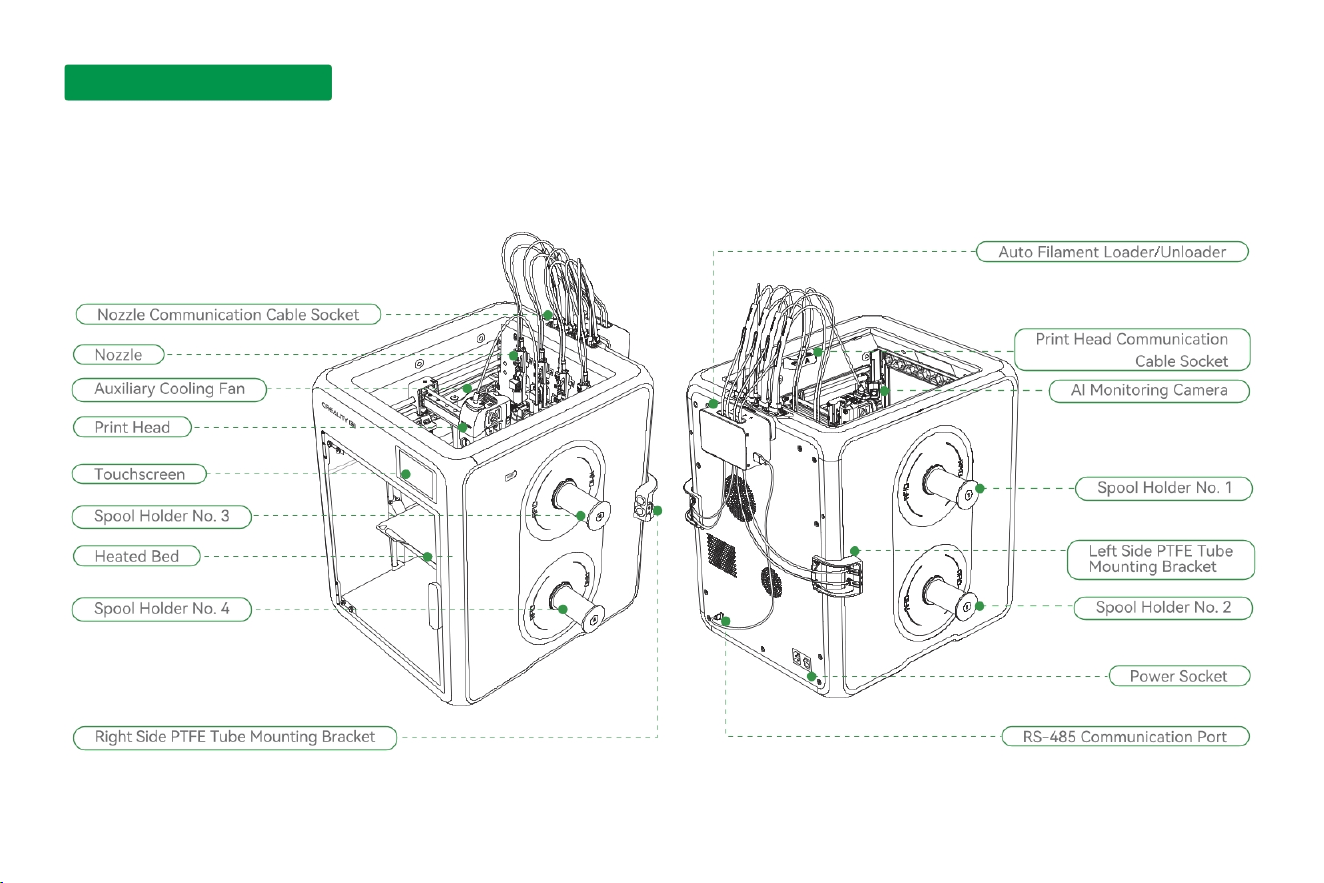
1.1 Product Oveiew
01
1. Product Information1. Product Information1. Product Information
02
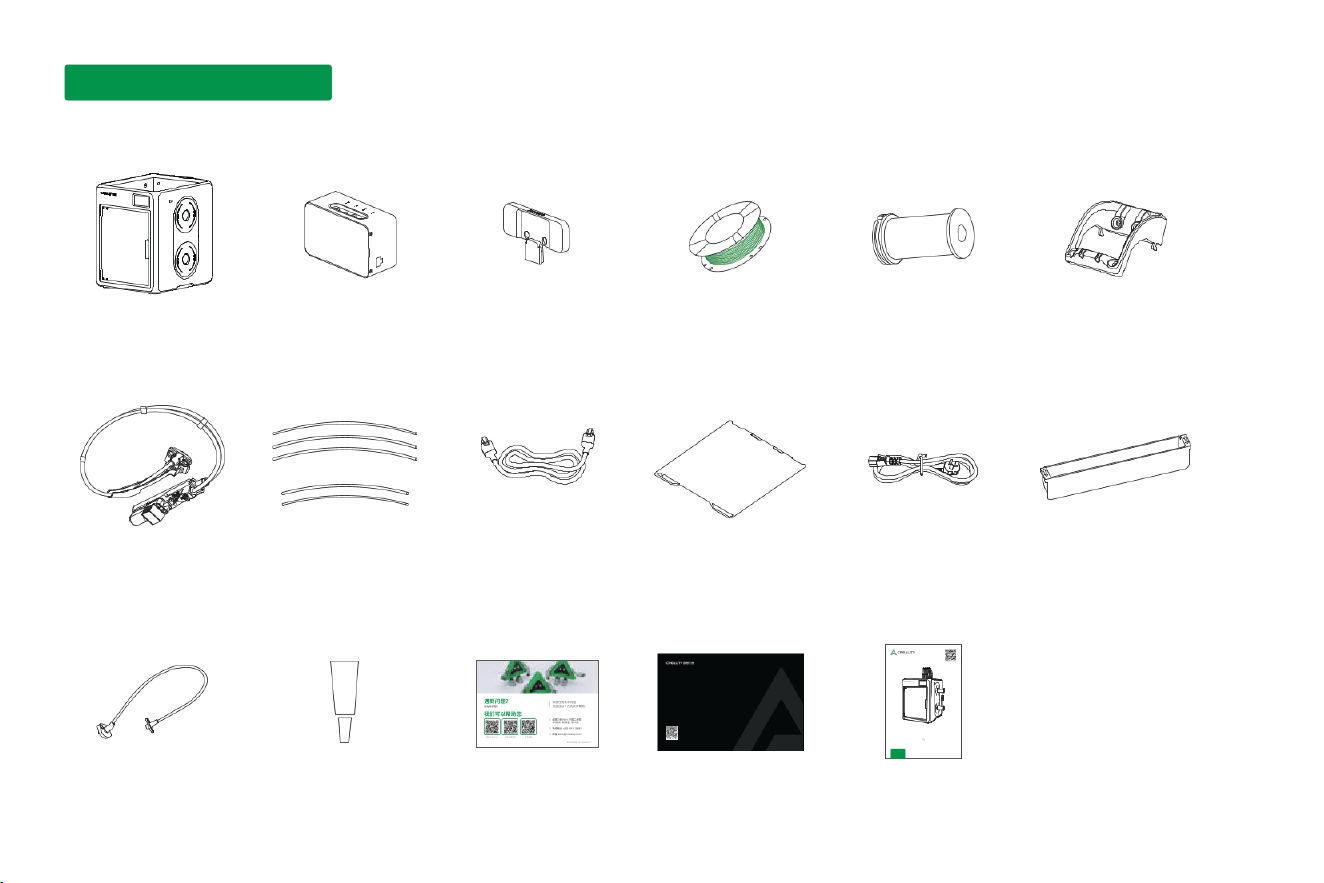
1.2 Package Contents
(1) Main Unit
(2) Auto Filament
Loader/Unloader
(4) 200g Filament (5) Spool Holder ×4
(3) Multi-Color
Box Bracket
(6) Side PTFE Tube
Mounting Bracket ×2
(7) 0.4mm Nozzle
Component ×4
(8)Sho PTFE Tube ×5
(1 spare)
(9) RS-485
Communication Cable
(13) Print Head
Communication Cable
(11) Power Cord (12) Waste Tray
(15) Creality Cloud card
售后服务卡
如果您不满意请告诉我们,如果您满意请告诉您的朋友。
服务热线:400-613-3882
扫码了解更多
V2.4
(16) After-Sales
Seice Card
快速指南
CN
K3
V 1.0
(17) Quick Sta Guide
(10) Build Plate
1. Product Information1. Product Information1. Product Information
(14) Grease
1.2 Package Contents
03
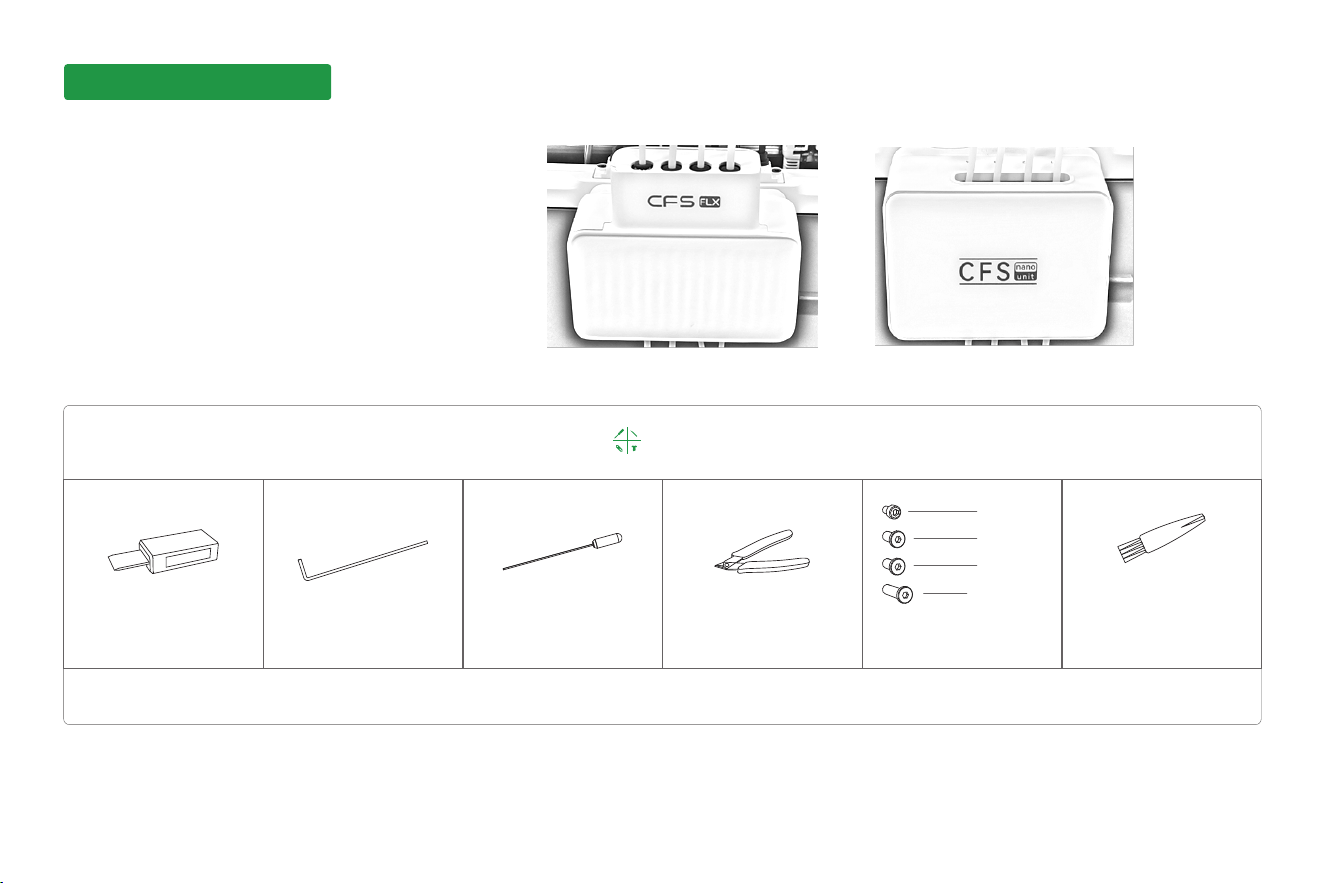
Tool Box
Tips: the above accessories are for reference only. Please refer to the physical accessories.
Note: All PTFE tube connectors are pneumatic ttings. Press the release ring before removing. Pulling forcefully may damage the tube.
(1) Spare Toolhead
Cutter
(2) Hex Key Set (6) Cleaning Brush(3) Nozzle Cleaning
Needle
(4) Flush Cutters
H2.5
M3X5 ×3
M4X6 ×7
M4X8 ×3
M4X12 ×9
(5) Screw Kit for
Printer Installation
1. Product Information1. Product Information1. Product Information
Product 3D Printer
HVIN: CFS nano unit, HVIN: CFS FLX.
To meet the needs of different consumer groups, it is
respectively equipped with Auto Filament Loader/
Unloader: CFS FLX and CFS nano unit. CFS FLX and
CFS nano unit do not have wireless function.
CFS FLX and CFS nano unit are shown as in the right
figure.
CFS FLX
CFS nano unit

Model
Printing Technology
Build Volume
Machine Dimensions
Acceleration
Print Accuracy
Print Head Type
Spool Compatibility
Net Weight
Number of Independent Filament Channels
Print Speed
Specications of Compatible Filament
Basic Specications of K3
K3
FFF
260*260*260mm³
482*420*536mm³
≤20000mm/s²
22kg
Four
≤500mm/s
100mm±0.1mm
New direct-drive dual-gear print head with swappable nozzles
PLA、PETG、PET、PLA-CF/GF、PETG-CF/GF、TPU 95A、PCTG
Spool outer diameter within the range of 140–202 mm, inner diameter within the range of 50–60 mm, width
within the range of 40–70 mm
Filament Diameter
Build Plate Temperature
Nozzle Temperature
Nozzle Diameter
1.75mm
≤100℃
≤300℃
0.4 mm as the Standard, compatible with 0.2 / 0.6 / 0.8 mm nozzles
1.3 Product Specications
1. Product Information1. Product Information1. Product Information
04

1.3 Product Specications
Suppoed
Suppoed
Suppoed
Suppoed
Suppoed
Suppoed
Suppoed
Suppoed
Suppoed
Suppoed
Suppoed
Suppoed
Suppoed
Suppoed
Suppoed
Creality Print 7.0及以上
中文 / English / Italiano / Français / Español / Pouguês / Deutsch / Polski / Русский /
Українська / Türkçe / Čeština / Nederlands / Magyar / Svenska / 日本語 / 한국어
Gcode/3MF
Suppoed
Suppoed
Suppoed
Rated Power
High-Speed Auto Bed Leveling
Basic Specications of K3
Number of Independent Filament Channels
Multi-Color Printing
Multi-Material Printing
Nozzle Clog Detection
RFID Detection
Slicer Software
Power Loss Recover
Auto Rell
Filament Cutter
Thermal Runaway Protection
Software Languages
Suppoed File Formats
1. Product Information1. Product Information1. Product Information
Nozzle Oset Calibration
100-127V~,200-240V~, 50/60Hz
3.97-Inch Capacitive Color Touchscreen
720P
USB Drive / Wi-Fi
8GB
2.4GHz
PEI Spring Steel Build Plate
Automatic Nozzle Swap
Max Power: 350–480 W @ 100–127 V~, 950 W @ 200–240 V~
Steady Power: 150–160 W @ 100–127 V~, 160 W @ 200–240 V~
Rated Voltage
Touchscreen
AI Monitoring Camera
Printing Methods
Auto Filament Loading / Unloading
Filament Detection
Lighting
Internal Storage
WIFI
Build Plate
Audible Ales
Status LED
Vibration Compensation
Suppoed
Area Leveling
05
2.1 Unlock the Heated Bed and Print Head
2. Installation Guide2. Installation Guide2. Installation Guide
06
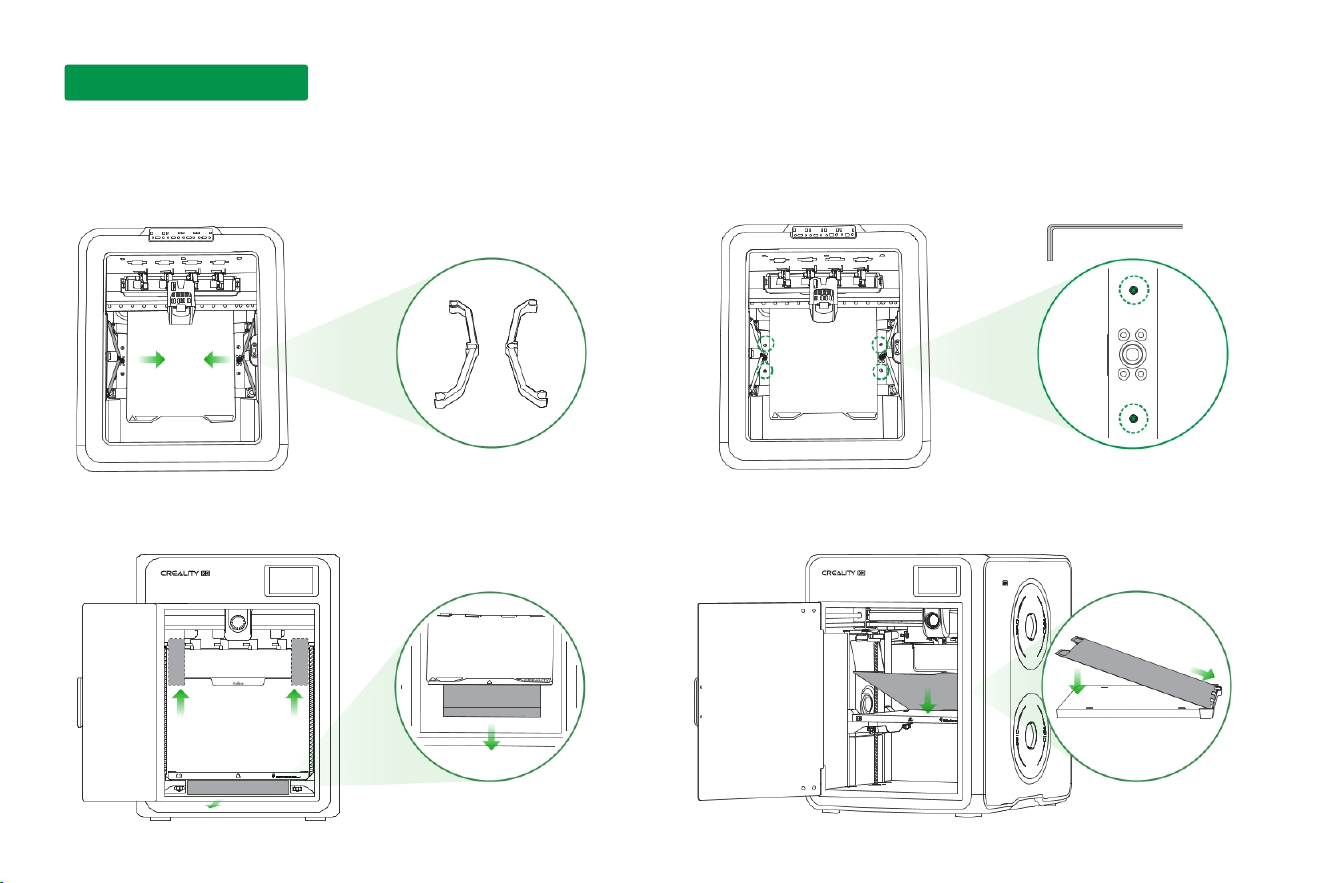
3.
Remove the tape securing the waste tray and the foam under the
heated bed.
2.
Use the H2.5 hex wrench to remove the four heated bed locking screws
marked with green circles.
H2.5
1.
Remove the four lead screw brackets from the left and right sides by hand—two
on each side. No tools required. The brackets are installed tightly; please pull
rmly but carefully.
4. Unpack the build plate and place it as shown: align the top edge rst. Do not touch
the heated bed before alignment. Once aligned, lower it gently onto the bed.
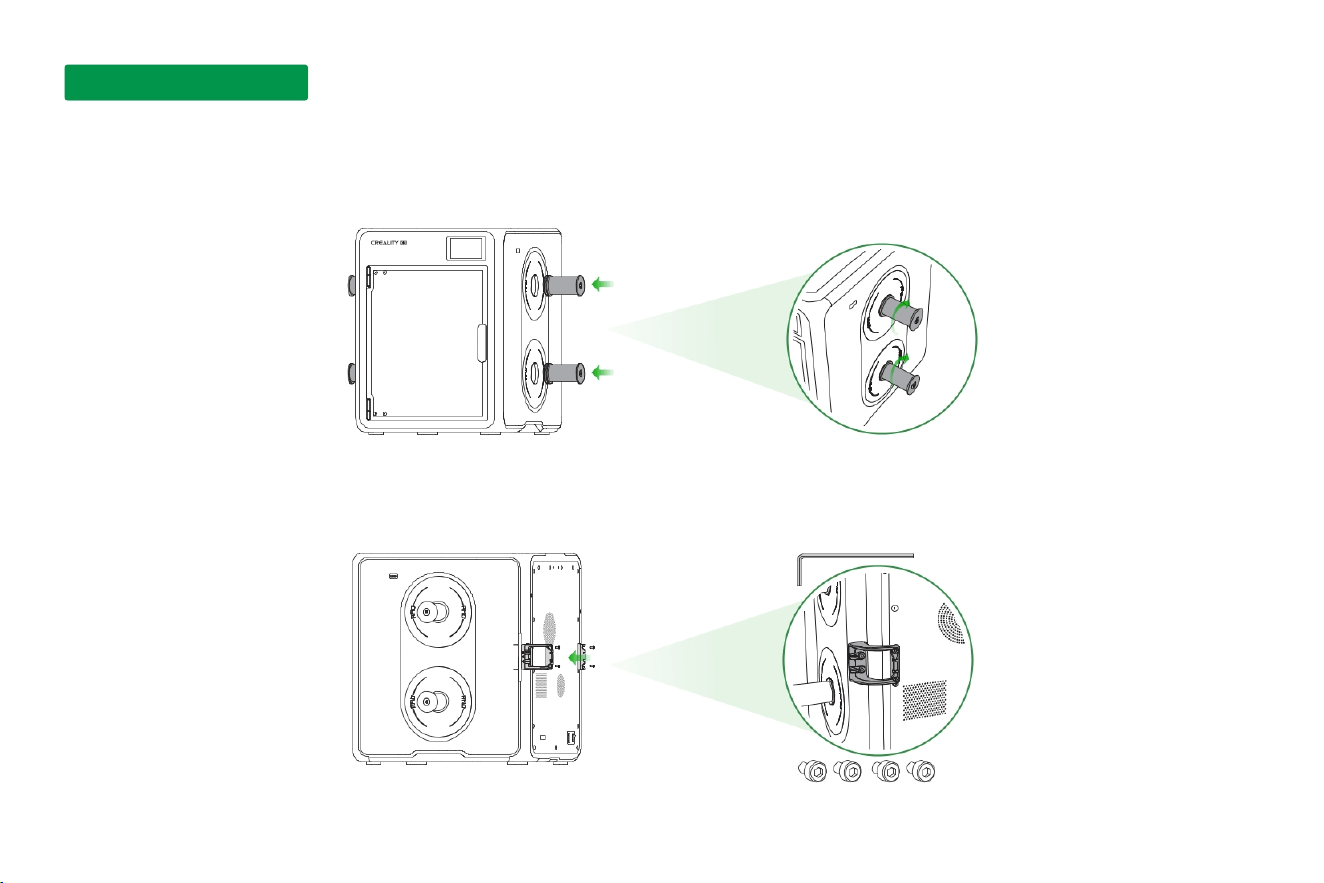
1.
Install the four spool holders on the left and right sides as shown.
2.2 Spool Holder and Side PTFE Tube Bracket Installation
07
2.
As shown, use the H2.5 hex wrench and four M4x6 screws from the screw kit to install the two side PTFE tube mounting brackets on the left and right sides.
H2.5
M4X6
2. Installation Guide
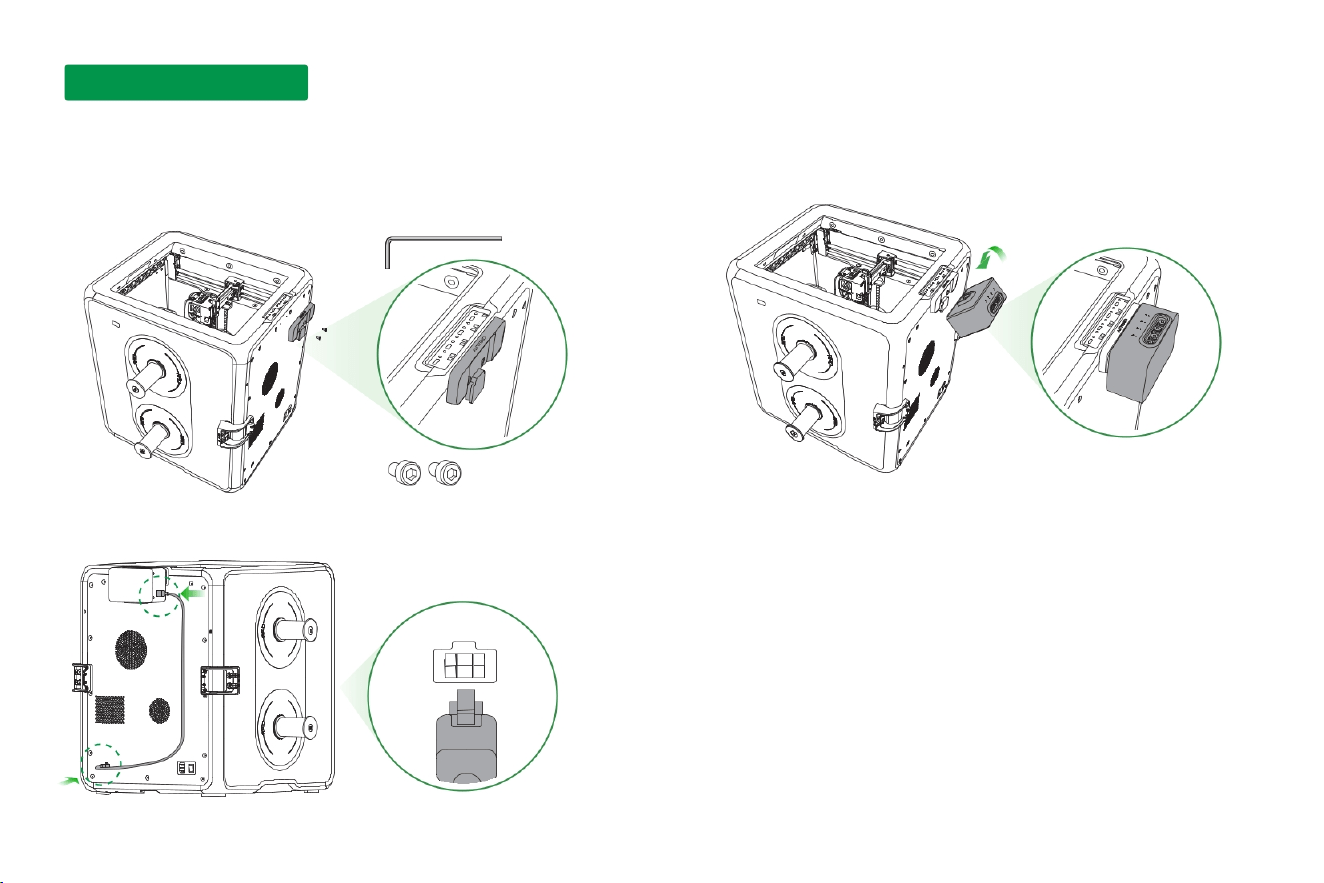
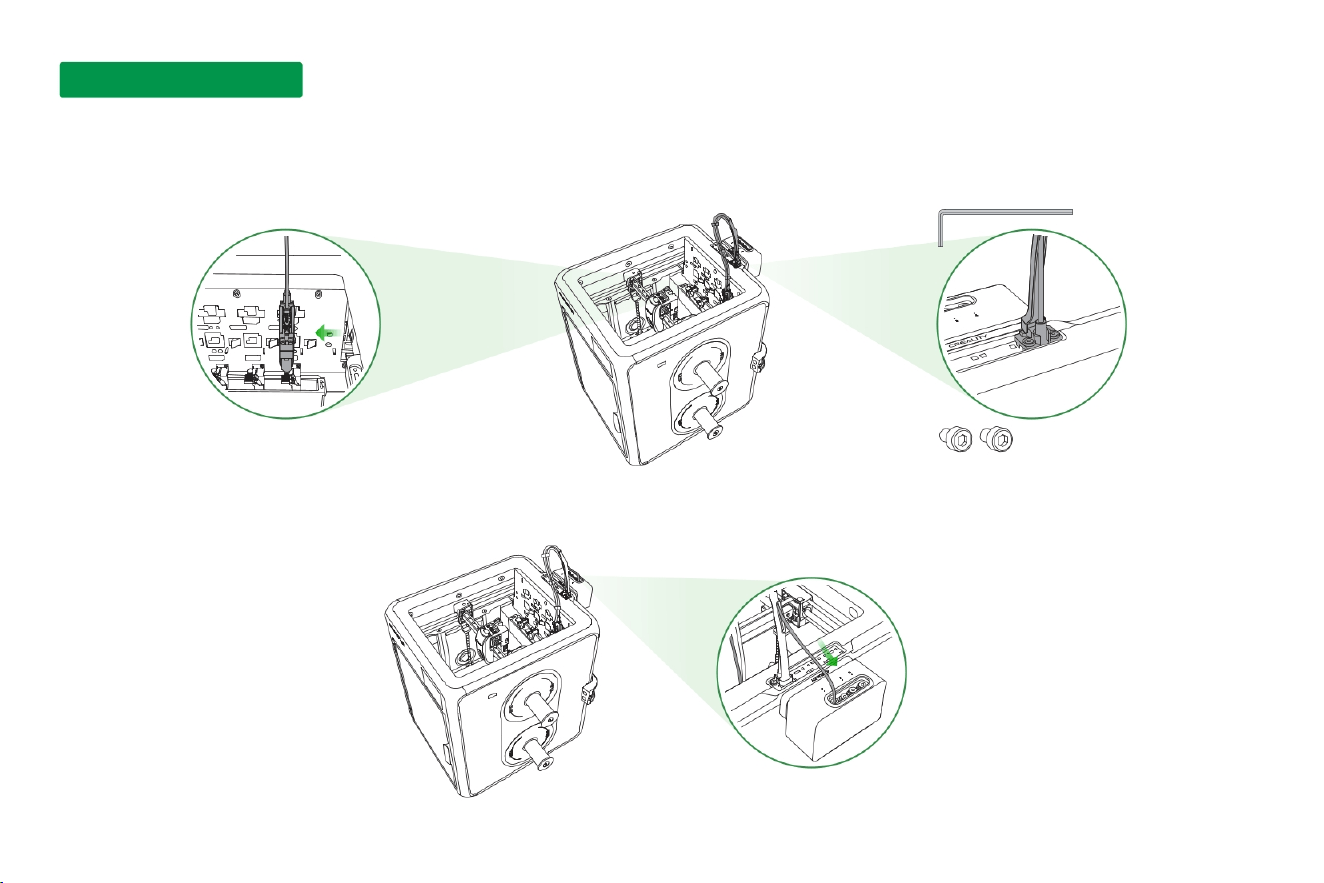
2.3 Auto Filament Loader/Unloader Installation
1.
As shown, use the H2.5 hex wrench and two M4x6 screws from the screw kit to
install the multi-color box bracket in the indicated position. Place it with the
Creality logo facing up
2. Inse the Auto Filament Loader/Unloader into the indicated position.
3.
Connect one end of the RS-485 Communication Cable to the loader/unloader
communication po, and the other end to the printer's RS-485 po.
H2.5
M4X6
08
2. Installation Guide
09
1.
Take the Nozzle component. As shown, rst mount the nozzle side onto the hotend bracket on the back plate, then connect the cable side to the Nozzle Communication Cable
Socket. Secure it with two M4x12 screws from the accesso kit using the H2.5 hex wrench.
2.4 Nozzle and Cable Installation
2. Installation Guide2. Installation Guide
H2.5
M4
X
14
2.
As shown, inse one end of the long PTFE tube into the corresponding po of the Auto Filament Loader/Unloader.
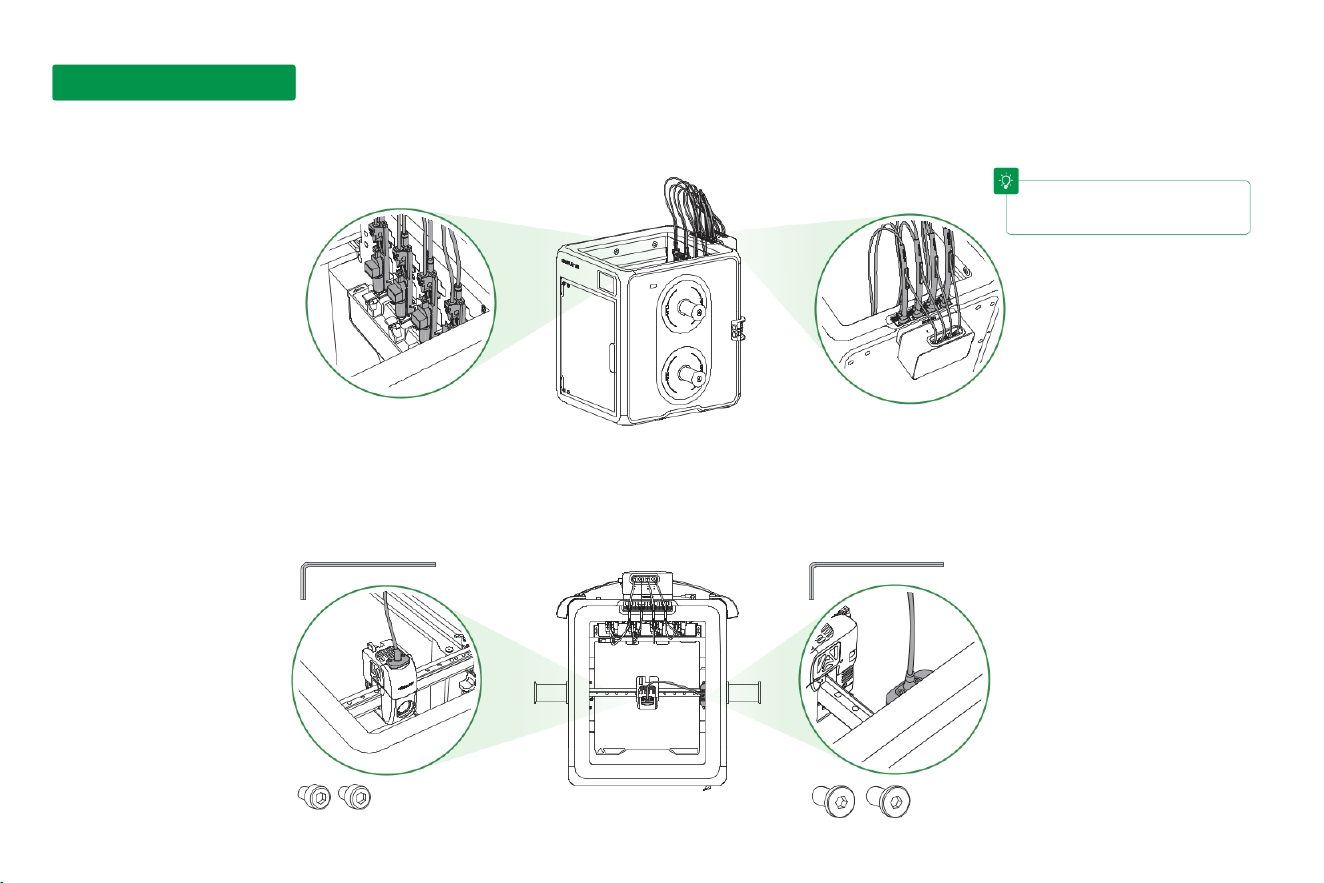
4.
Inse one end of the print head communication cable into the Print Head Communication Cable Socket. Secure the cable with two M3x5 screws from the accesso
kit using the H2.5 hex wrench. Inse the other end into the communication cable socket on the top right side of the printer. Secure it with two M4x8 screws from the
accesso kit using the H2.5 hex wrench.
Make sure the cables and PTFE
tubes are not tangled or misrouted.
T
H2.5
H2.0
M3X5
M4X8
10
3.
Repeat the steps above to install all four nozzles and cables.
2. Installation Guide
11
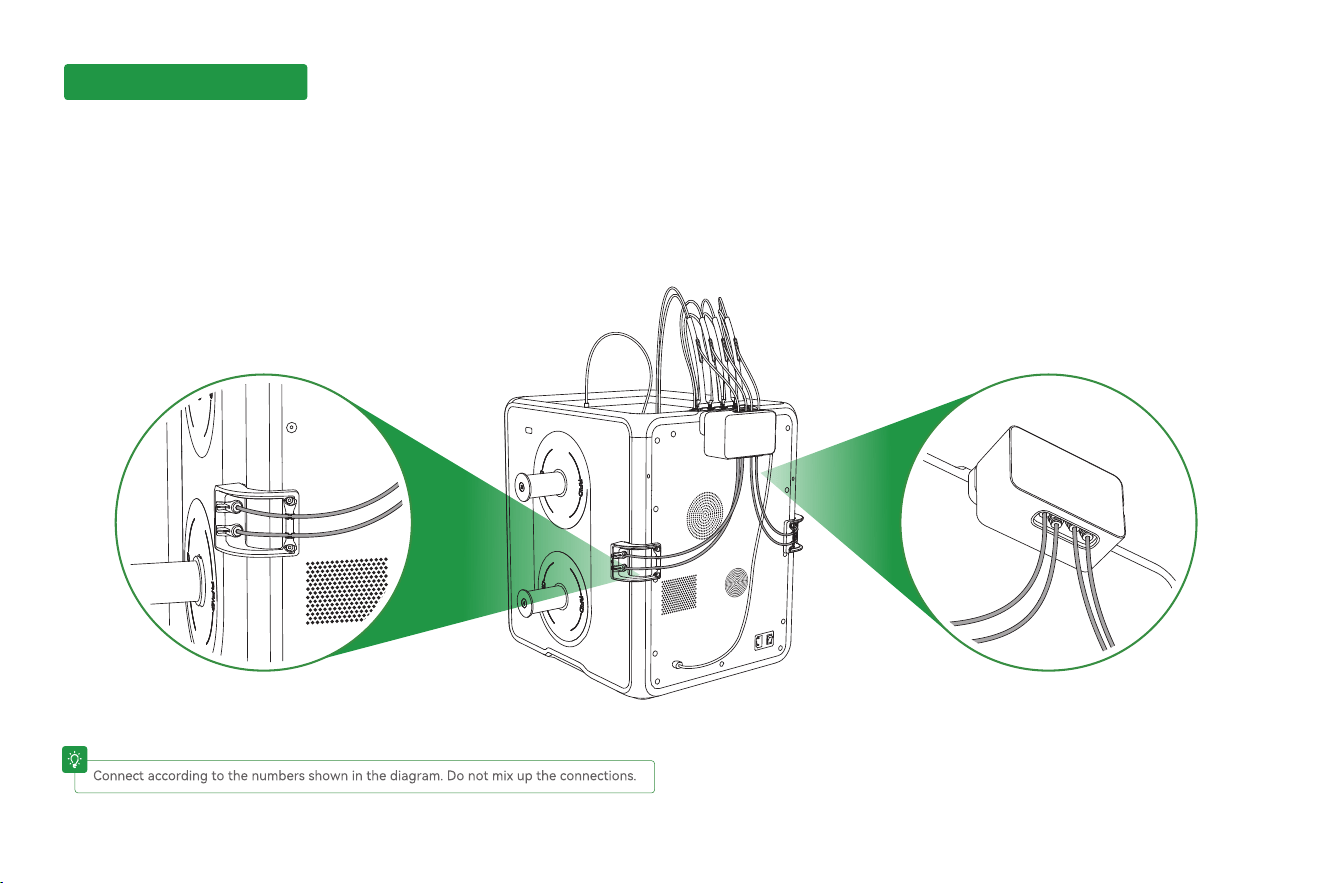
1.
As shown in the connection sequence, inse one end of the sho PTFE tube into the tting on the Side PTFE Tube Mounting Bracket and press it into the tube
guide. Inse the other end into the tting below the Auto Filament Loader/Unloader.
2.5 PTFE Tube Installation
2. Installation Guide2. Installation Guide2. Installation Guide
T
12
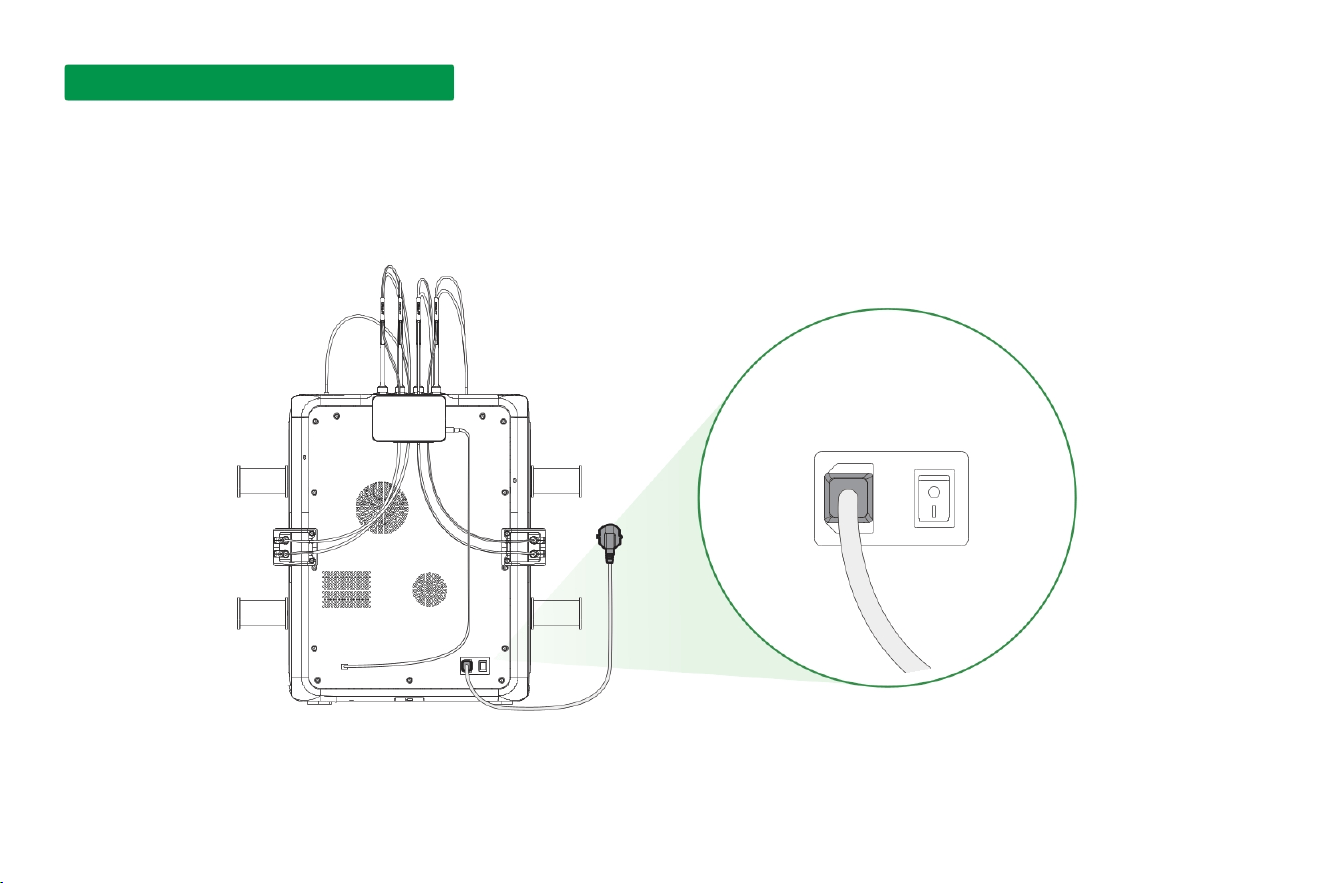
1.
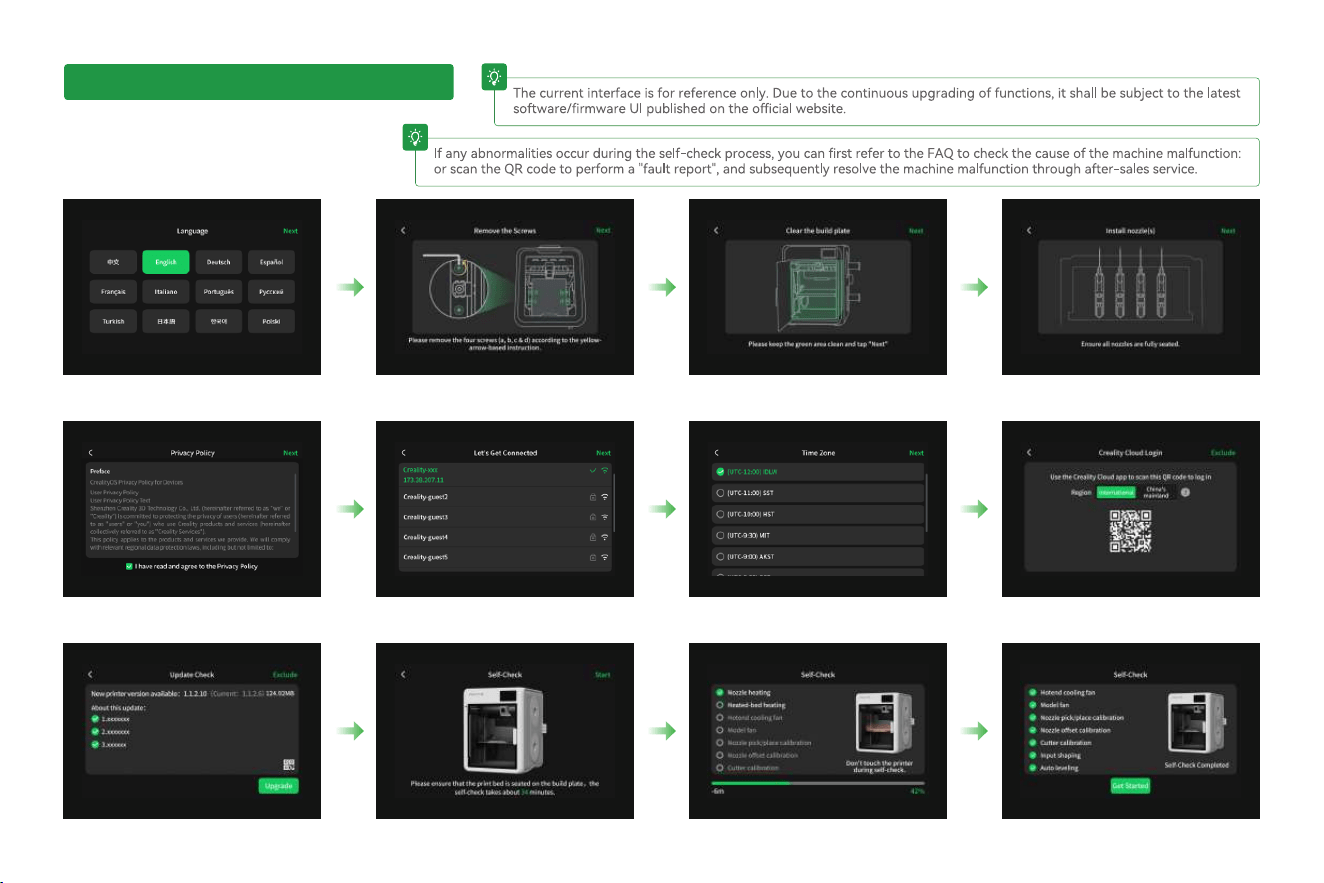
Inse the power cord into the power outlet, connect to the power source, and press the switch to turn on.
3.1 Power-on and boot-up process
3. Power-on and boot-up process3. Power-on and boot-up process3. Power-on and boot-up process
13
2.
Boot up;
T
T
3. Power-on and boot-up process3. Power-on and boot-up process3. Power-on and boot-up process
14
1.
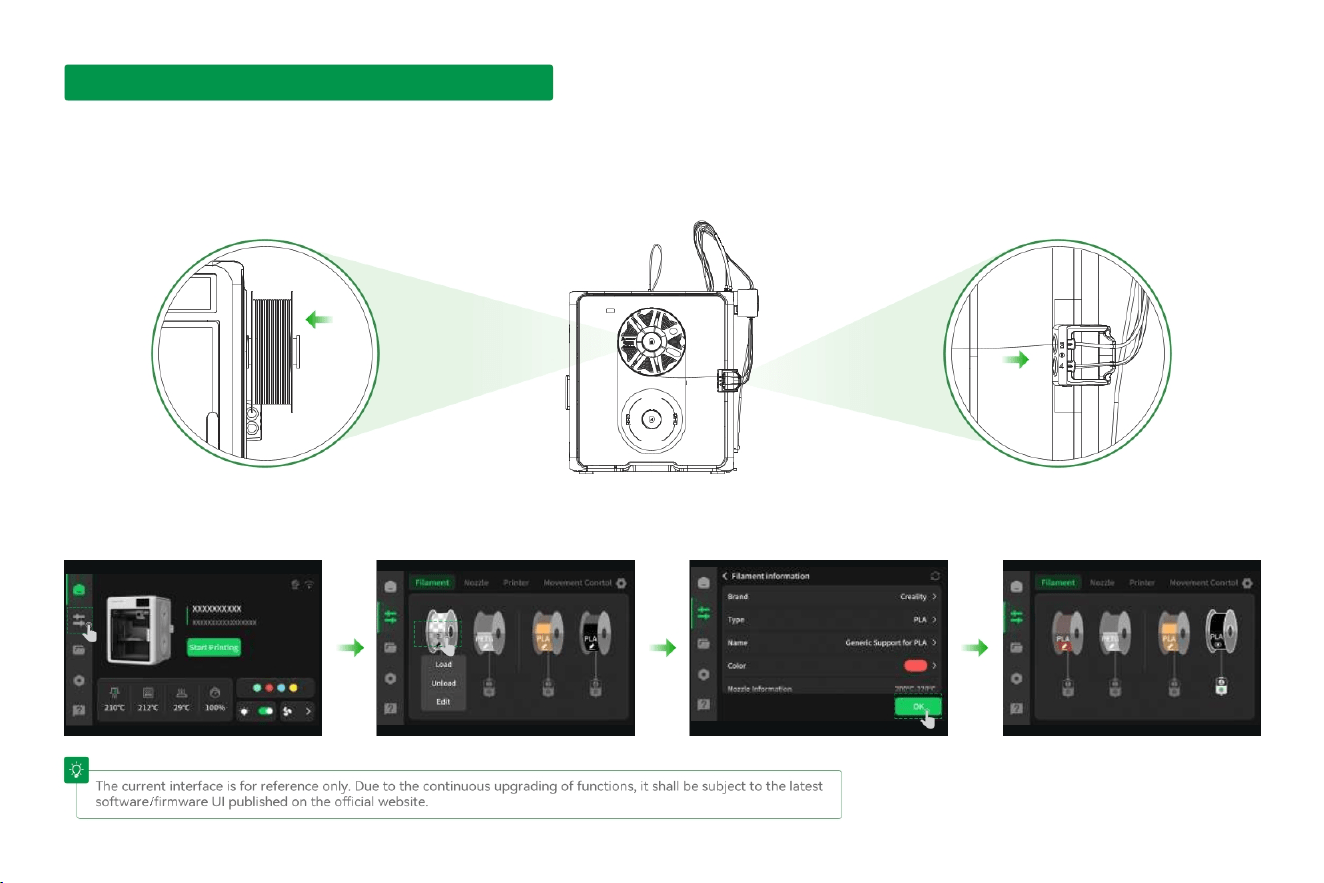
Hang the consumable on the rack, inse it into the Teon tube, gently push until the consumable detection switch is triggered, and the automatic feeding and
retracting device will automatically send the consumable to the set position;
4.1 Consumable editing/consumable loading
2.
Manually click on the screen to set consumable information: Control page → Consumables → Edit (located below the material rack as shown in the gure), set
the consumable brand, type, name, and color respectively, and nally click OK to save the settings;
T
4. Consumable editing/consumable loading4. Consumable editing/consumable loading4. Consumable editing/consumable loading
5.1 Creality Cloud Printing
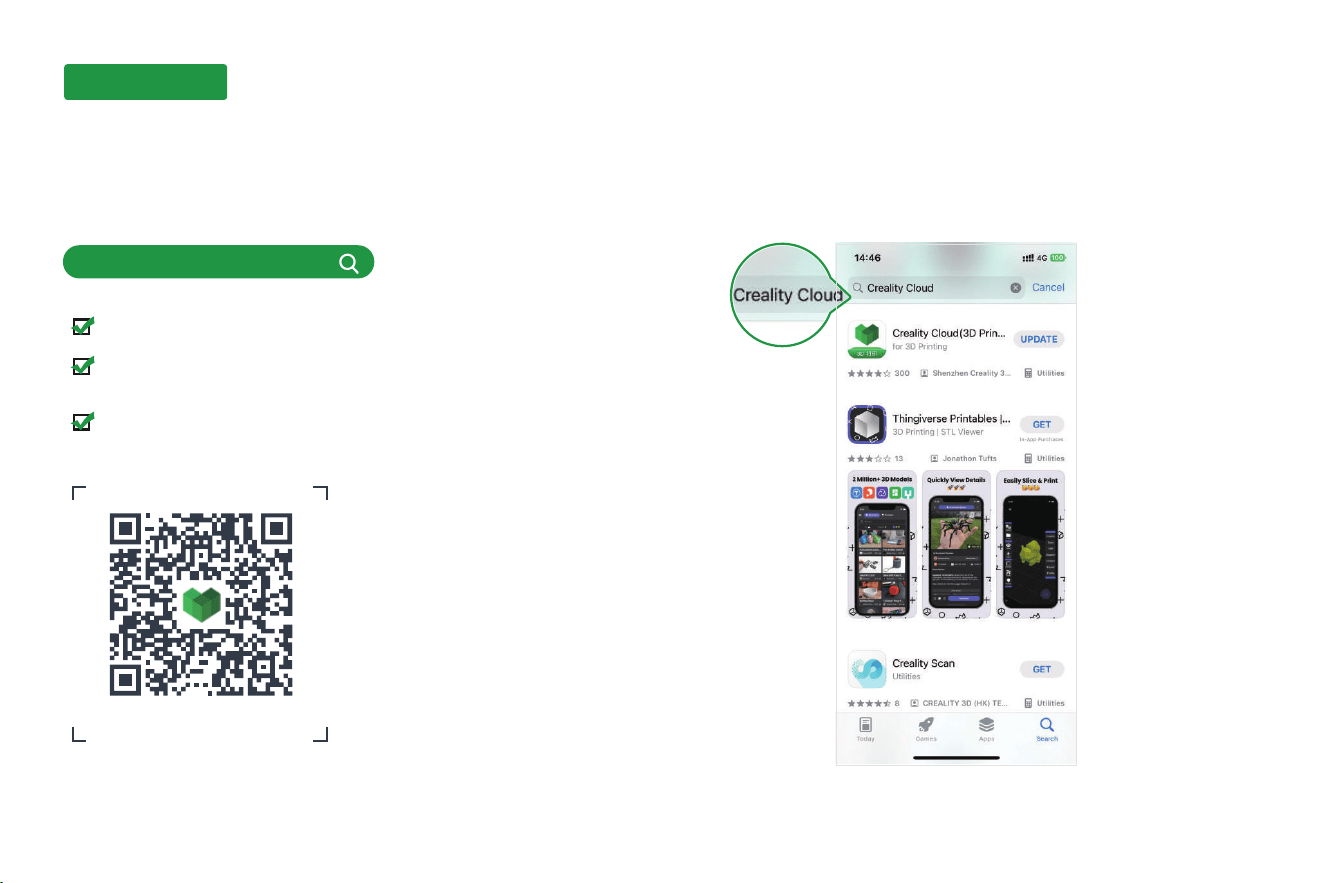
5.1.1 Software Download and Installation
1. Method 1:Scan the QR code below to download and
install the Creality Cloud app.
2. Method 2:Search for "Creality Cloud" in the app store to
download and install.
https://www.crealitycloud.com
Creality Cloud App
5. First print5. First print5. First print
Access a vast libra of high-quality models.
Built-in cloud slicing and Print Settings make
printing easier than ever.
Control remotely and print with just one click,
anytime, anywhere.
15
5.1.2 Bind and add a device
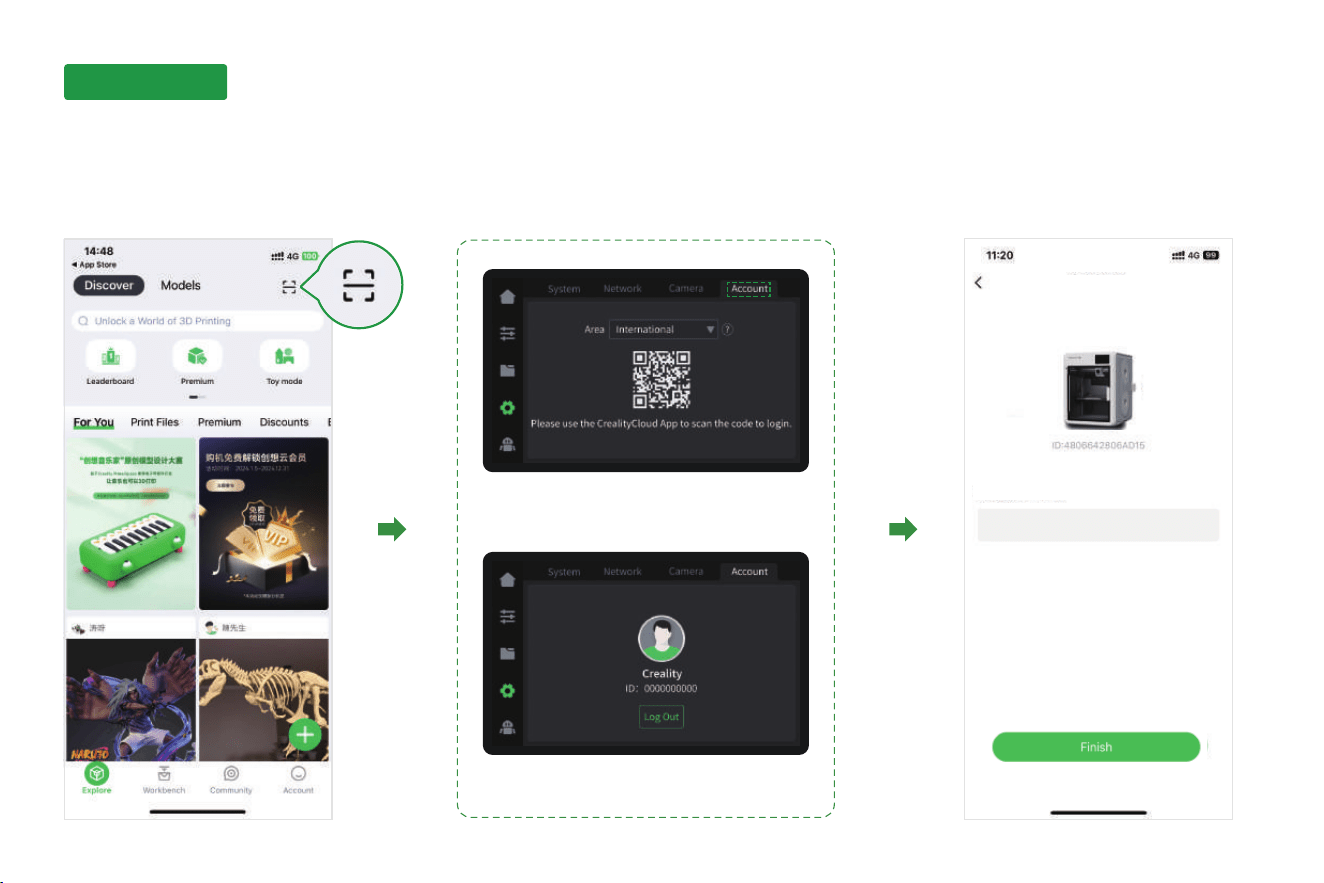
Use the Creality Cloud app on your mobile phone to scan the QR code on the printer screen and bind the printer to your account.
Click Settings → Account,
then scan the QR code.
Binding successful.
16
K3
Name the device:
Success
5. First print5. First print5. First print
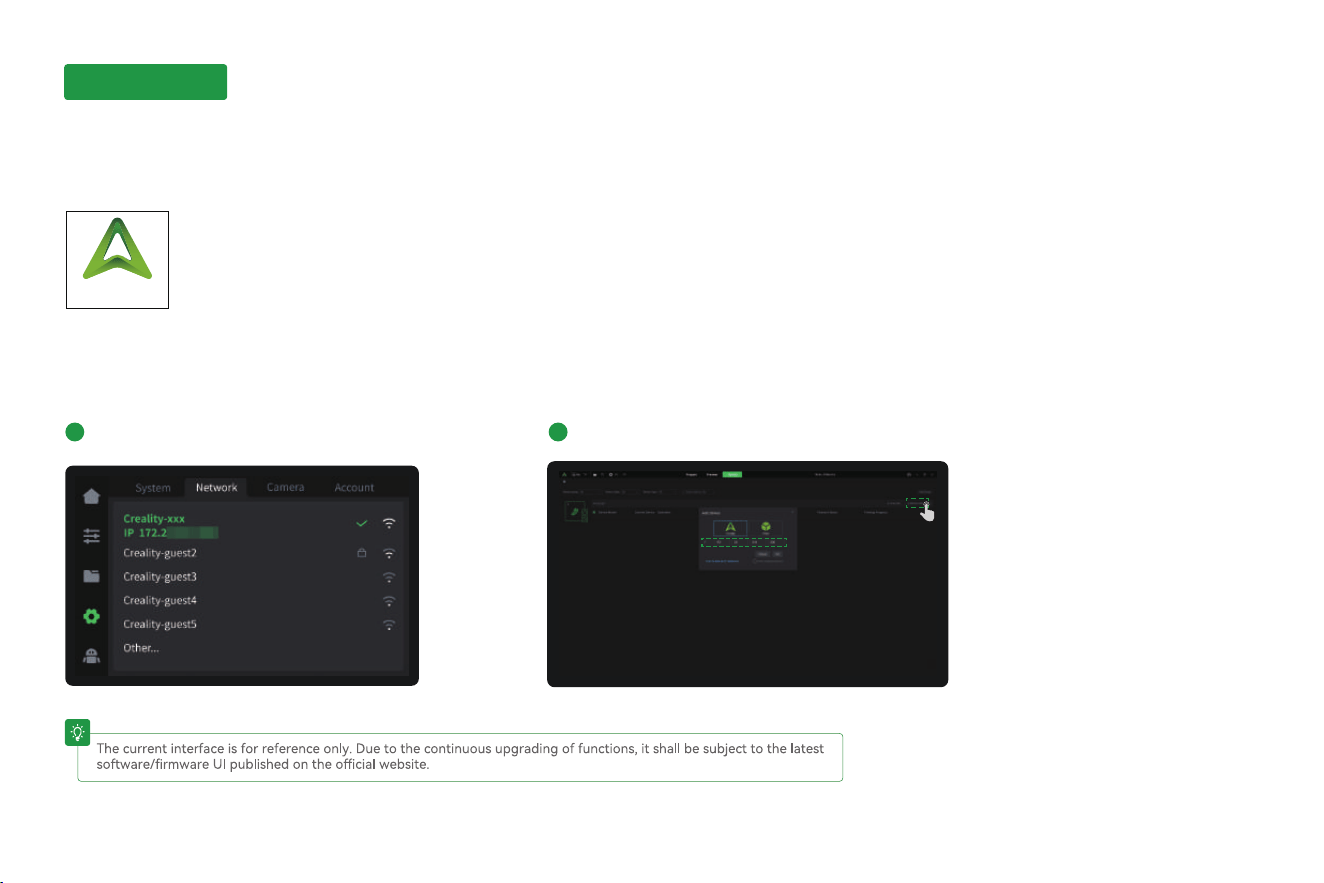
5.2 Creality Print Slicing
Creality Print
Log in to the Creality Cloud website to download the latest Creality Print slicing software:
https://www.crealitycloud.com/software-rmware/software/creality-print ;
17
5.2.1 Software Download and Installation
5.2.2 Bind Machine to LAN
1
Check the machine IP on the machine screen:
Settings → Network.
2
Enter the machine IP in the slicing software for binding: Manually add → Enter IP.
T
5. First print5. First print5. First print
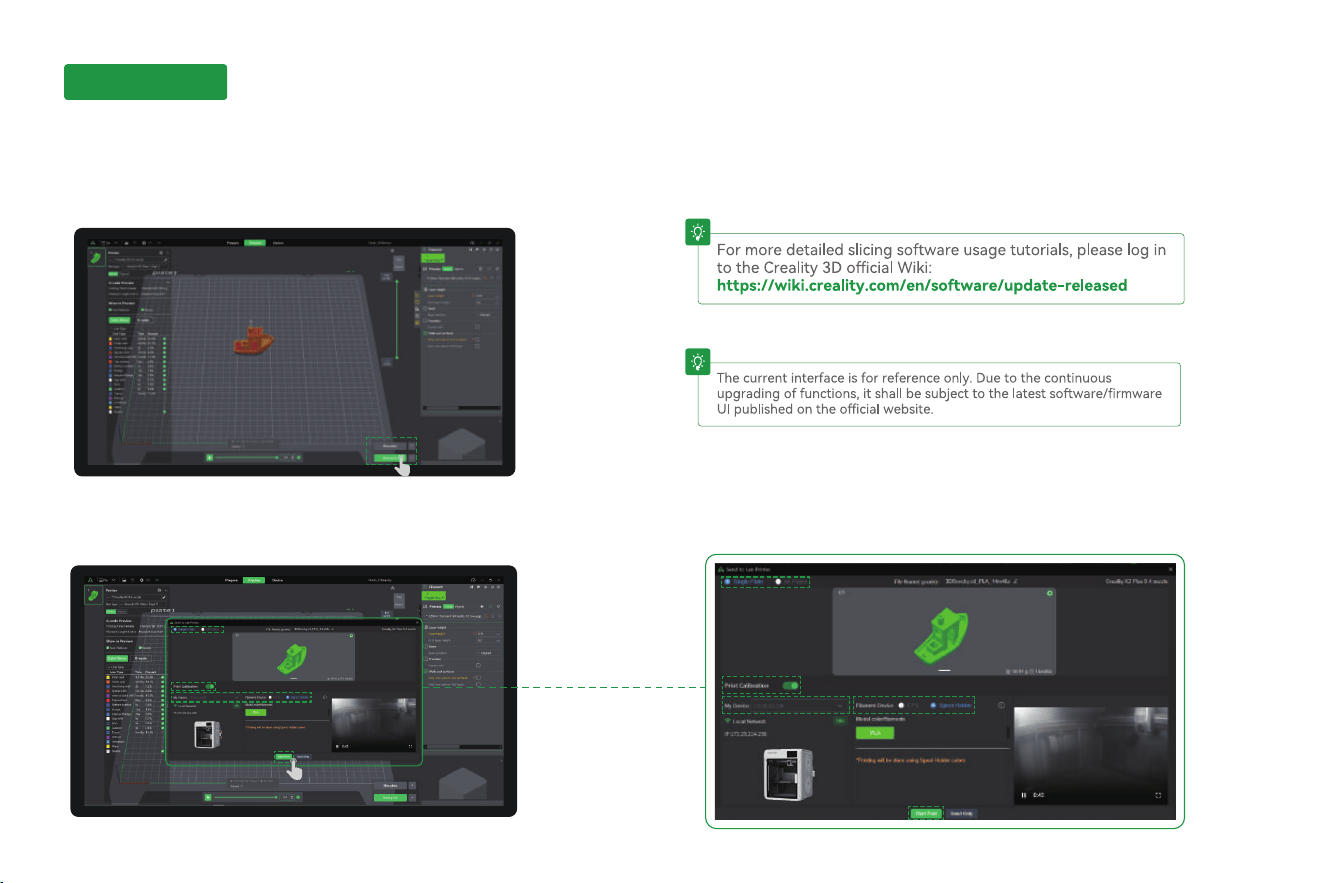
5.2.3 Slice and Send to Print
1.
Click "Slice Plate" , and after slicing is complete, click "Send Print".
2. Check the machine and lament information, then click "Sta Print".
T
T
18
5. First print5. First print5. First print
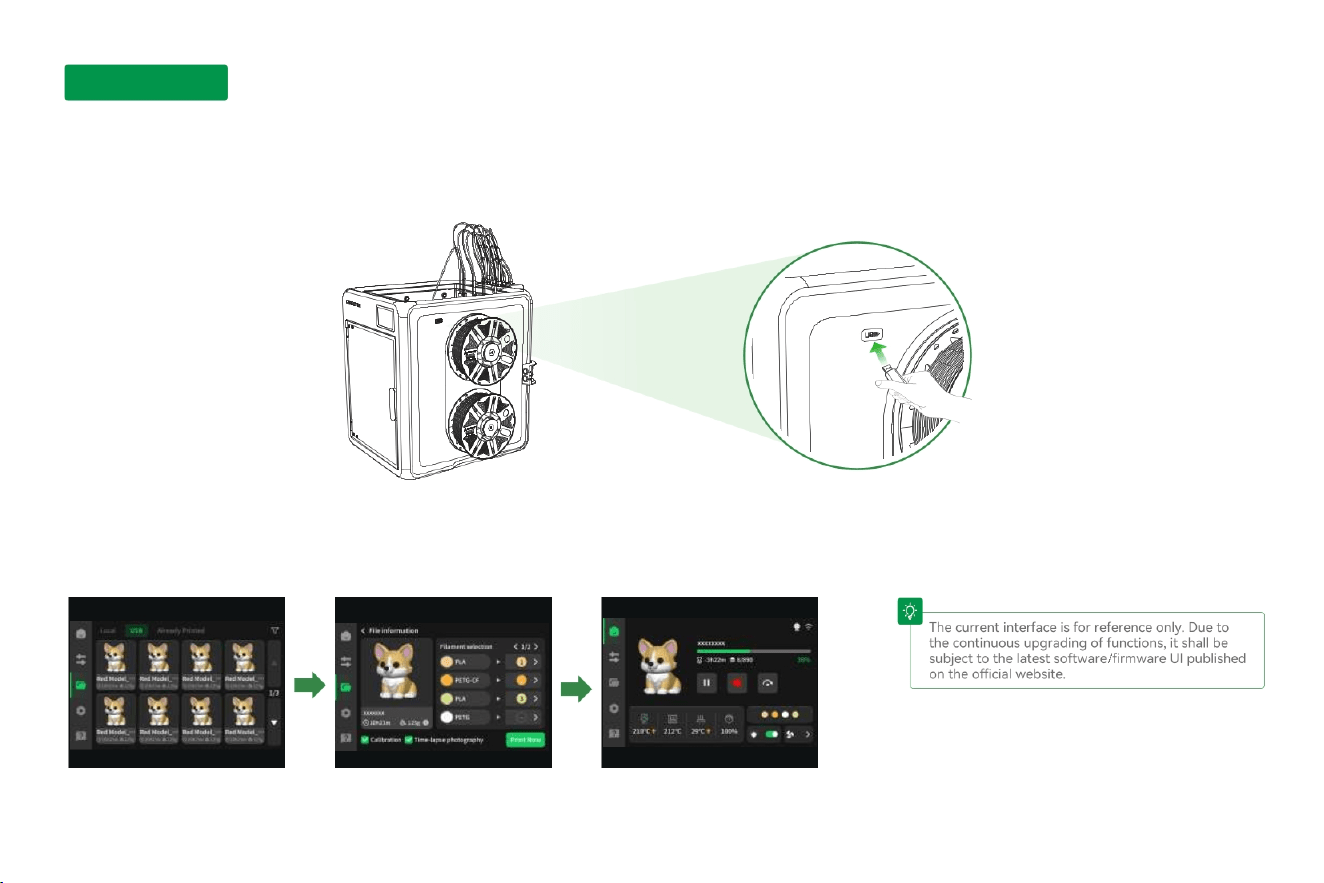
5.3 USB drive printing
19
1.
Plug the USB drive into the USB po
3.
Choose Print
4.
Printing
2. Choose a USB drive model
T
T
5. First print5. First print5. First print

Due to the dierences between dierent machine models, the actual objects and the images can dier. Please refer to the actual machine. The nal explanation
rights shall be reseed by Shenzhen Creality 3D Technology Co., Ltd.
Shenzhen Creality 3D Technology Co.,Ltd.
Ocial Website: www.creality.com
Tel: +86 755-8523 4565
E-mail: [email protected]
18th Floor, JinXiuHongDu Building, Meilong Road, Xinniu Community,
Minzhi Street, Longhua District, Shenzhen City, China.